

Page 1
Xpy1200/Xpy1230
AIWELFI4U1/AIWPTFI4U2
WIRELESS IP CAMERA
Page 2
Thank you for purchasing the High Definition Wireless IP
camera from Nexxt Solutions. This easy to set up indoor
camera is a versatile security option for viewing, recording,
and archiving footage. This document will guide you through
the installation process of the camera, including its hardware
and software configuration based on the available
operation and viewing platforms.
Open the box and make sure all items listed below are
included:
Quick Installation Guide
Package contents
Product overview
• Wireless fixed IP camera
• AC power adaptor
• Network cable
• Mounting hardware
• Self-adhesive rubber pads for desktop mounting
• Quick installation guide
• Resource CD-ROM, containing the following:
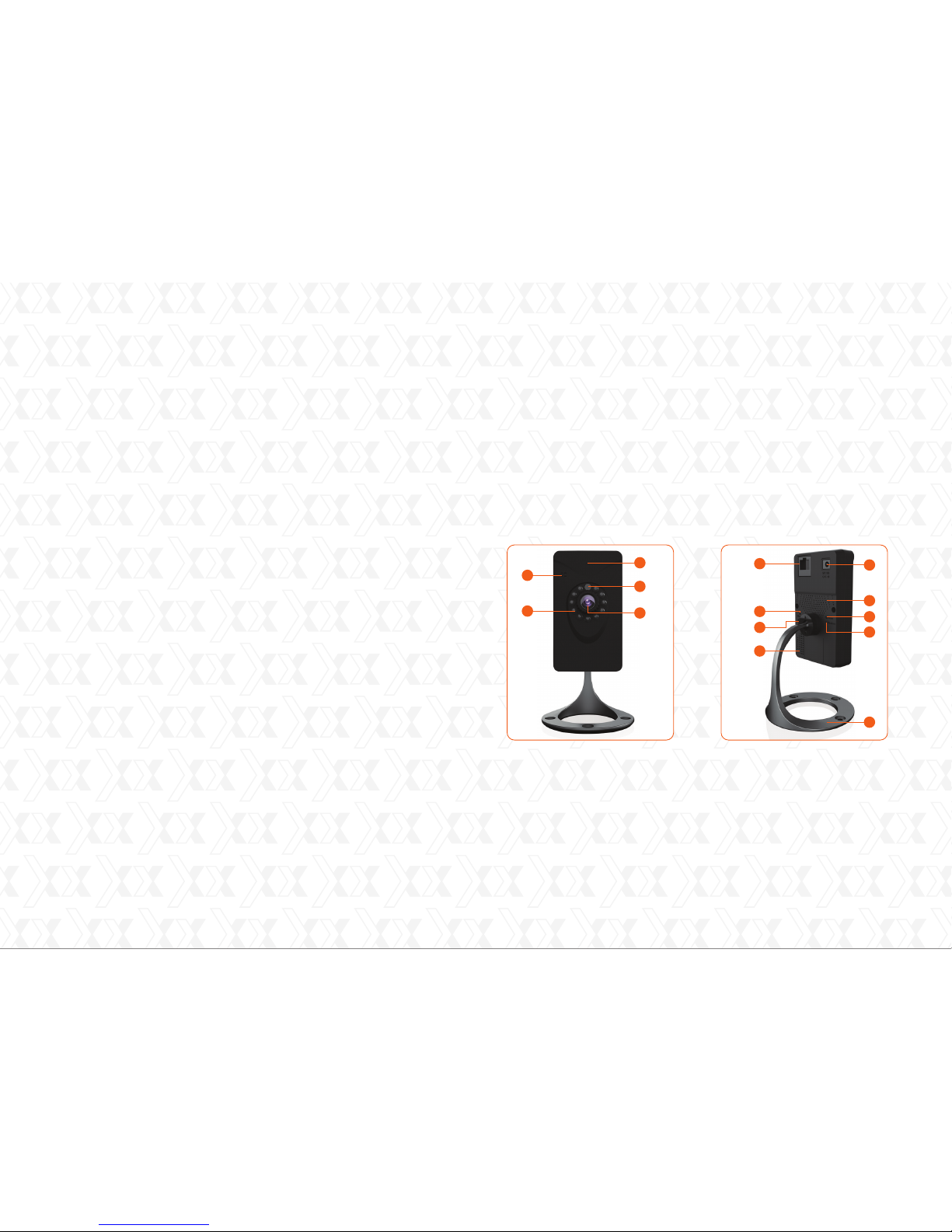
Xpy 1200
Xpy 1200
Front panel Back panel
• Wireless pan and tilt IP camera
• AC power adaptor
• Network cable
• Mounting hardware and bracket
• Wireless antenna
• Quick installation guide
• Resource CD-ROM, containing the following:
Xpy 1230
Nexxt Solutions - Xpy1200/Xpy1230 Wireless IP camera Nexxt Solutions - Xpy1200/Xpy1230 Wireless IP camera
1
2
- XpyGuard PC client software
- XpyGuard mobile app
- IP camera search tool
- Digital copies of the quick installation guide
- IPCWebComponents web plug-in
1. Built-in wireless antenna
2. Built-in microphone
3. Light sensor
4. Night vision LEDs
5. Lens
6. Network port (RJ45)
7. DC input
8. Heat sink
Reset
WPS button
Power indicator light (green)
Wireless indicator light (green)
Speaker
Mounting base with
articulating arm
9.
10.
11.
12.
13.
14.
- XpyGuard PC client software
- XpyGuard mobile app
- IP camera search tool
- Digital copies of the quick installation guide
- IPCWebComponents web plug-in
1
7
8
11
14
9
6
10
13
12
3
5
2
4
Page 3
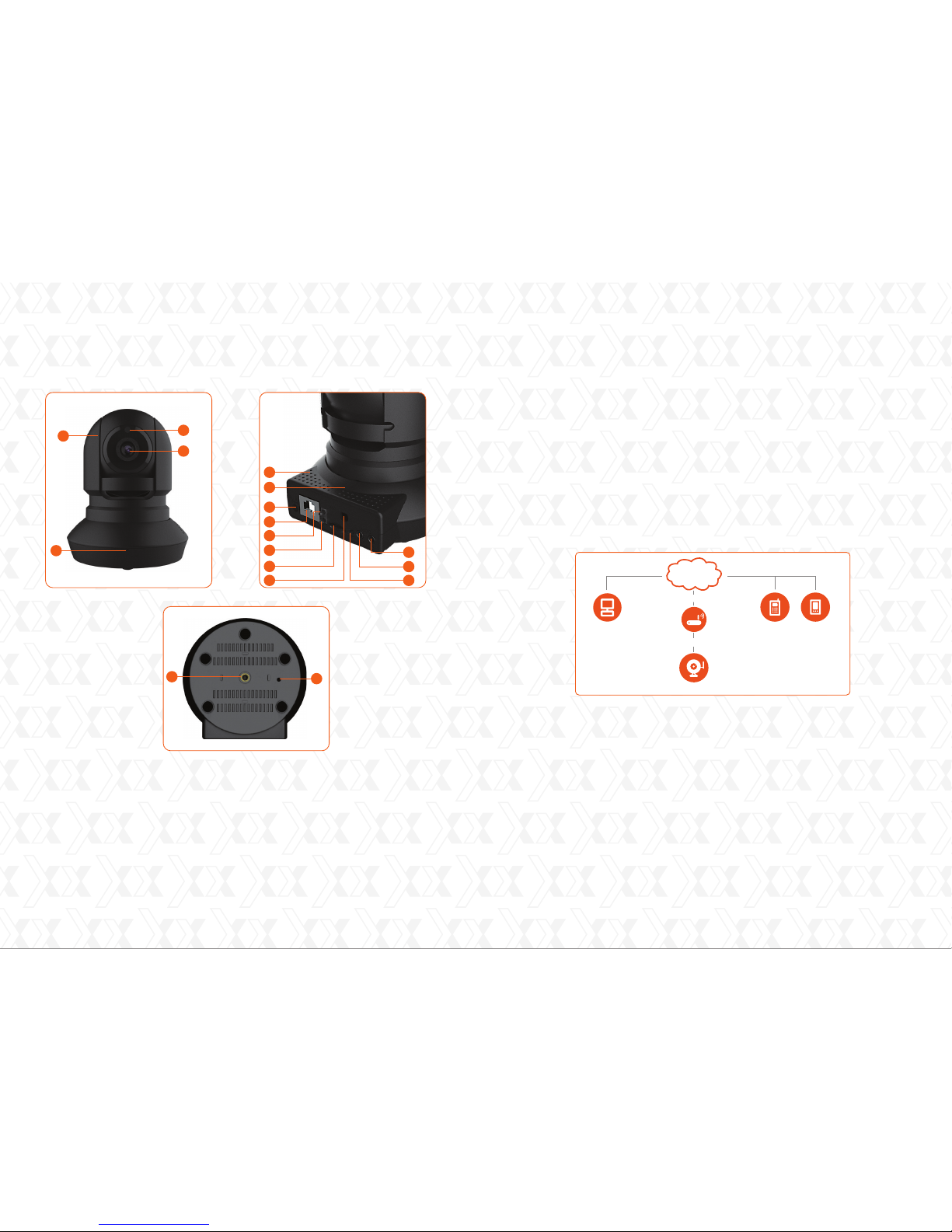
1. Light sensor
2. Night vision LEDs
3. Lens
4. Built-in microphone
5. Speakers
6. Heat sink
7. DC input
8. Network port (RJ45)
Wireless indicator light (green)
Power indicator light (red)
SD card slot
Wireless antenna jack
WPS button
Audio output
Audio input
Threaded mounting socket
Reset button
9.
10.
11.
12.
13.
14.
15.
16.
17.
Xpy 1230
Front panel
Basic setup
Back panel
Begin by attaching the mounting bracket and the antenna
(if applicable) to the device.
Select the mounting location for the camera, either on a wall,
ceiling, or on a desktop.
Insert the Ethernet cable to the RJ45 port of the IP camera.
Connect the other end of the network cable to your Ethernet
switch, hub, router or IP sharing device.
Plug the camera to a wall outlet using the supplied AC
adaptor to power it on.
Warning: Make sure to use the supplied power adapter to
make the connections to the AC mains. The use of a different
adaptor may cause damage to the camera, heat up or catch
fire. Any damage caused to the camera by using the incorrect
power adaptor will void the warranty.
Verify that the mains voltage (110V or 220V) and frequency
(50Hz or 60Hz) of your location match those specified on
the label.
Connection of the IP camera to a router
Nexxt Solutions - Xpy1200/Xpy1230 Wireless IP camera
3
4
1
5
6
7
8
9
10
11
3
2
4
12 13
14
15
•
•
•
•
•
Nexxt Solutions - Xpy1200/Xpy1230 Wireless IP camera
INTERNET
Computer
Modem
PDACellular
Phone
IP Camera
Intranet
Internet connection
Bottom view
16
17
Page 4
1.
2.
Software installation Note:
The 64-bit browser is not supported.
First insert the installation CD-ROM disk in your CD drive.
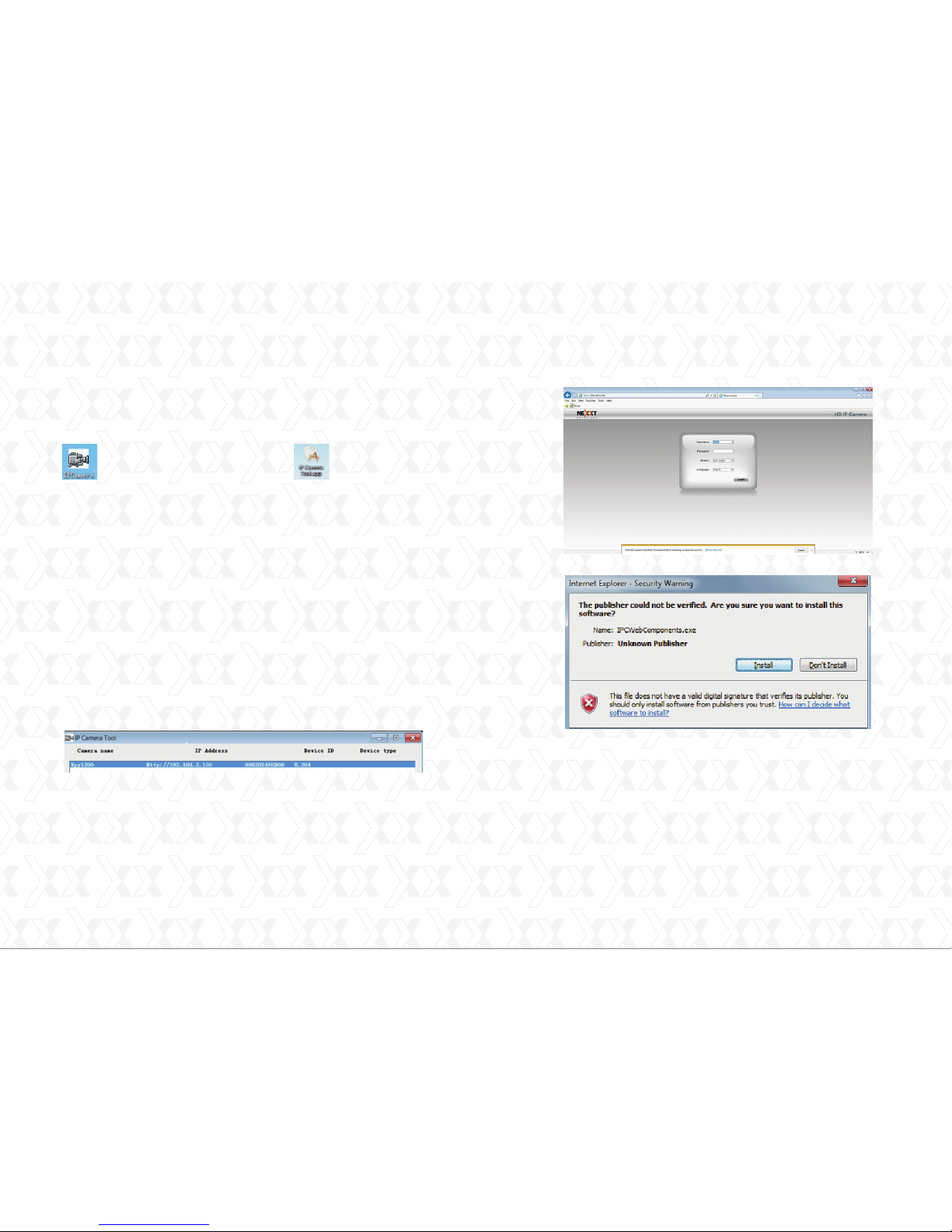
Locate the folder IP camera search tool and then look for the
subfolder containing the operating platform of your computer:
For Windows OS or For Mac OS.
1.
Enable the DHCP feature of your router (which is normally
set to this protocol by default).
Proceed to open the IP Camera tool, which is designed to
find the camera’s IP address automatically in your LAN
(Local Area Network).
2.
3.
Double click the IP address of the camera from the list.
This will cause your default browser to open the camera´s
login page.
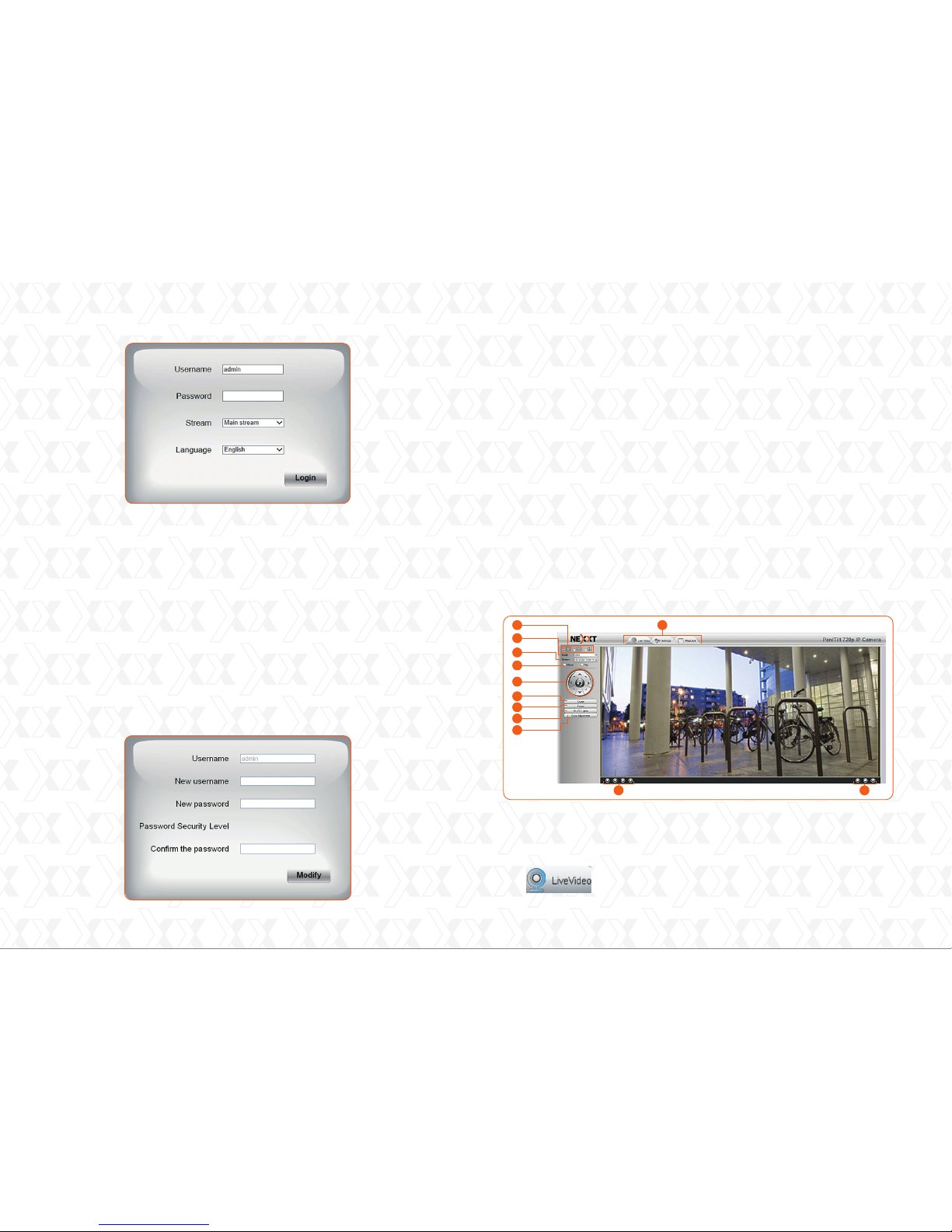
When logging in for the first time, you will need to download
and install the IPCWebComponents. We will use Internet
Explorer in this example. However, for browsers like Google
Chrome, MAC OS, Safari or Mozilla Firefox, please refer to
the user manual.
4.
After installing the IPCWebComponents, refresh the browser.
The login window will come up on the screen. The user will
be then prompted to input the camera credentials. Type
admin for the user name and leave the password field blank.
Click Login to continue.
Note: Should the installation of the plug-in fail, you may
install it directly from the CD or download it from our Nexxt
Solutions' website.
3.
Note:
Accessing the camera
If your computer does not have a CD drive, you can download
the IP camera tool directly from our website for free.
Copy and paste the IP camera tool file to your computer,
or simply drag it onto your desktop.
Nexxt Solutions - Xpy1200/Xpy1230 Wireless IP camera
5
6
Shortcut icon for Windows OS Shortcut icon for Mac OS
Nexxt Solutions - Xpy1200/Xpy1230 Wireless IP camera
Page 5
Note:
Camera web interface
Main surveillance window
5.
When setting up your camera for the first time, it will
request that you modify the default username and/or
password if both are still set to default. Enter the new
username, new password and confirm the password.
Click on Modify to save the changes. The new username
and password will be the credentials that you will need to
enter when logging in to the camera in the future.
6.
After concluding the initial login phase into the camera,
the system will direct you automatically to the Setup Wizard
interface. This is designed to assist you in configuring the
basic parameters of the camera, such as name, time, IP
address, and wireless settings.
Once the camera configuration has been successfully
completed, the main monitoring page will be displayed after
logging in, as shown below.
Opens the main monitoring window and displays
footage captured by the camera in real time.
1.
Top menu bar: Located on the upper edge of the screen,
it contains the main navigational tabs that give access to
the following functions of the device:
If you forget your username or password, you can press and
hold the reset button of the camera using a pin for five
seconds. This resets the device to its factory default values.
Note:
The camera supports two stream modes: Main stream is the
option offering the best quality video. Sub-stream video is lower
in terms of quality, but image streaming is delivered at a
faster rate.
Nexxt Solutions - Xpy1200/Xpy1230 Wireless IP camera
7
8
Nexxt Solutions - Xpy1200/Xpy1230 Wireless IP camera
3
2
4
5
7
8
9
10
1
11 11
6
Page 6
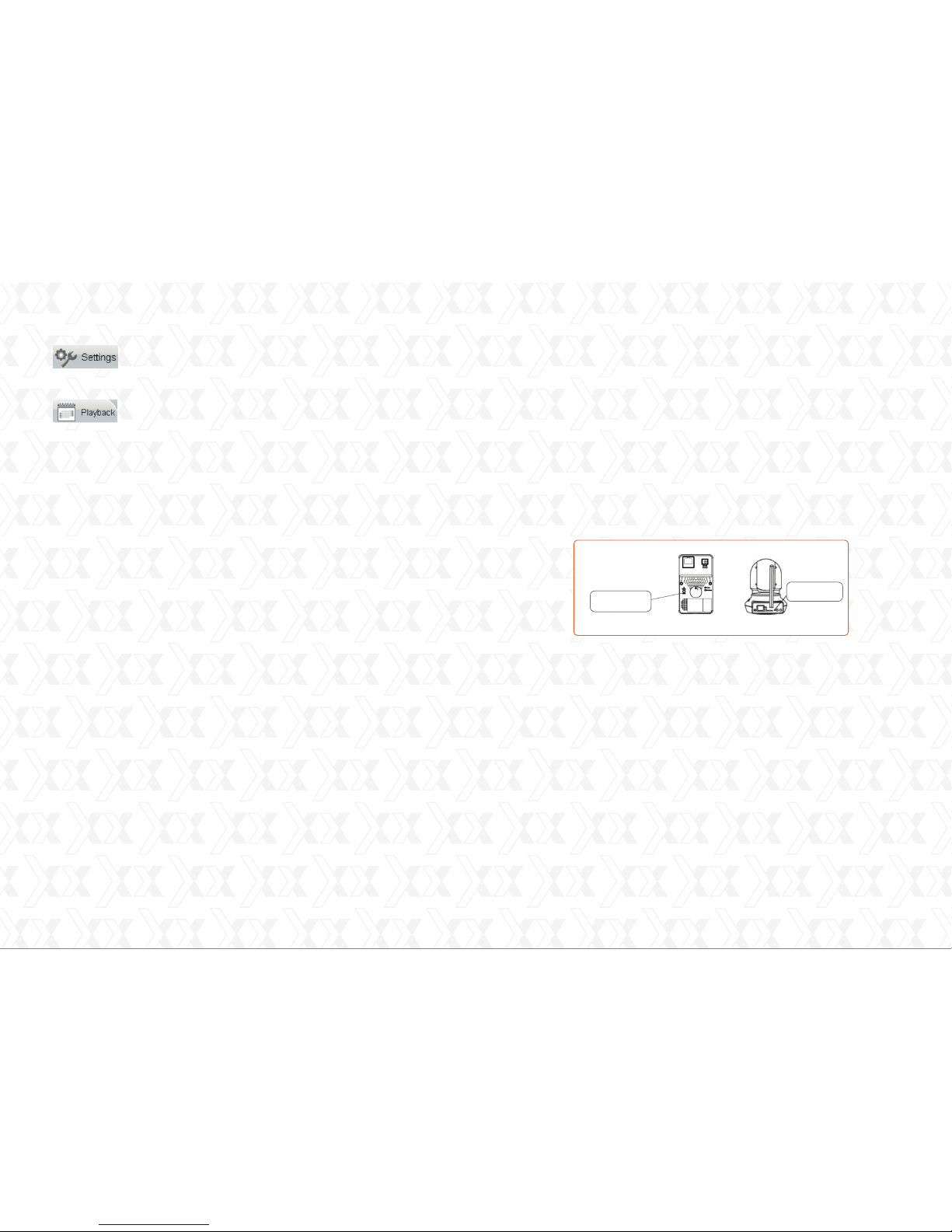
2.
3.
4.
5.
6.
7.
8.
9.
10.
11.
Display control panel: the firmware supports the selection
of single view, and also the split view in four and nine
frames, so as to monitor multiple channels at the same
time
Operating mode: selectable video format of 50Hz, 60Hz
or outdoor.
Stream type: selectable resolution settings based on the
connection type, available bandwidth and the video format
used.
Mirror/Flip: generates a mirror image or changes the
frame orientation vertically or horizontally
Directional buttons: use these buttons to move the
camera up, down, left and right. The center button will
cause the camera to move back to its center position.
(Available in the Xpy1230 only).
Cruise control: selects the vertical or horizontal trajectory
of the camera (Available in the Xpy1230 only).
Preset positions: use this feature to define different
scanning patterns for the camera. A maximum of 16
preset positions can be stored. (Available in the Xpy1230
only).
IR LED lights: it provides the manual, automatic or
scheduled activation of the LED lights.
Color adjustment: this menu provides image setting
parameters, such as hue, brightness, saturation and
sharpness.
Bottom menu bar: it contains the shortcut icons for Play,
Stop, Talk, Audio, Snapshot, Record and Full screen.
1.
Press and hold the WPS button on the camera for two
seconds.
2.
3.
Within 60 seconds, press the WPS button on your router.
This is usually found on the back or on the side of the router.
Some devices may even require to log in to their web interface, and click on an on-screen button to activate the WPS
feature. If you are not sure where the WPS button is located
on your router, please refer to the manufacturer's manual
for details.
The camera will automatically create a secure wireless
connection to your router in about 60 seconds. If a network
cable has been previously connected, make sure to remove
it now.
If the user wants to access the camera using a wireless
connection or the Internet, the Wireless and Remote Access
configuration must be completed. To do so, follow the steps
described in this section of the user guide.
Note: the WPS function is recommended to perform the
wireless connection setup.
Nexxt Solutions - Xpy1200/Xpy1230 Wireless IP camera
9
10
Opens the Administrator control panel, for access
to all the parameters, menus and advanced
settings available in the device.
Opens the playback panel to reproduce recorded
video files stored directly in the SD card. (Available
in the Xpy1230 only).
Wireless connection
WPS (Wi-Fi Protected Setup)
Nexxt Solutions - Xpy1200/Xpy1230 Wireless IP camera
WPS button
WPS button
Page 7
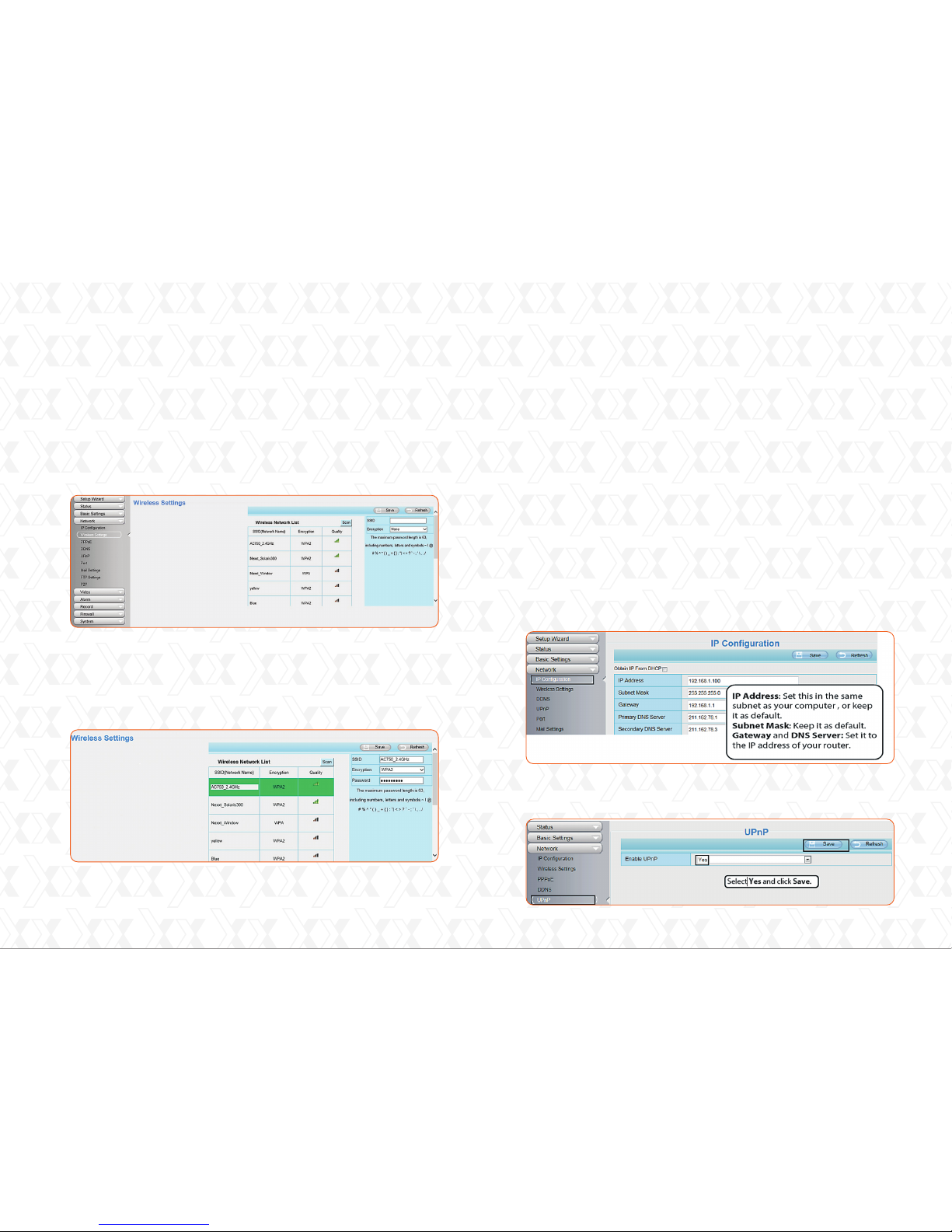
4.
If your wireless router does not support the WPS function,
open the Settings tab on the top of the camera main
page, then go to the Network - Wireless settings section
on the left side of the screen. Click Scan to continue.
5.
Select the SSID (name of your router) from the list, and
the corresponding network identifier and encryption will be
automatically filled on the right side of the page. All you
need to do is to enter the password assigned to your
wireless network.
6.
Click the Save button and disconnect the network cable.
Keep the camera powered on until it is displayed on the IP
Camera tool. If the camera does not show up on the screen,
unplug the power cable from the camera and then plug it
back in again. The connection to the wireless network should
happen automatically.
1.
Open the Settings tab on the top of the camera main page,
then go to the Network – IP configuration section on the left
side of the screen. Once there, uncheck the Obtain IP DHCP
option. Ensure that the Secondary DNS Server is set to
8.8.8.8.
2.
Enable UPnP and DDNS on the camera’s Network settings
page. We recommend selecting the factory’s default DDNS.
If you want to access your camera via a web browser outside
of your network, please configure the following parameters
as indicated below.
Nexxt Solutions - Xpy1200/Xpy1230 Wireless IP camera
11
Set the security mode of your router to
WPA-PSK/WPA2-PSK. Otherwise, the WPS settings may
fail to take effect.
Note
Remote access
12
Nexxt Solutions - Xpy1200/Xpy1230 Wireless IP camera
Page 8
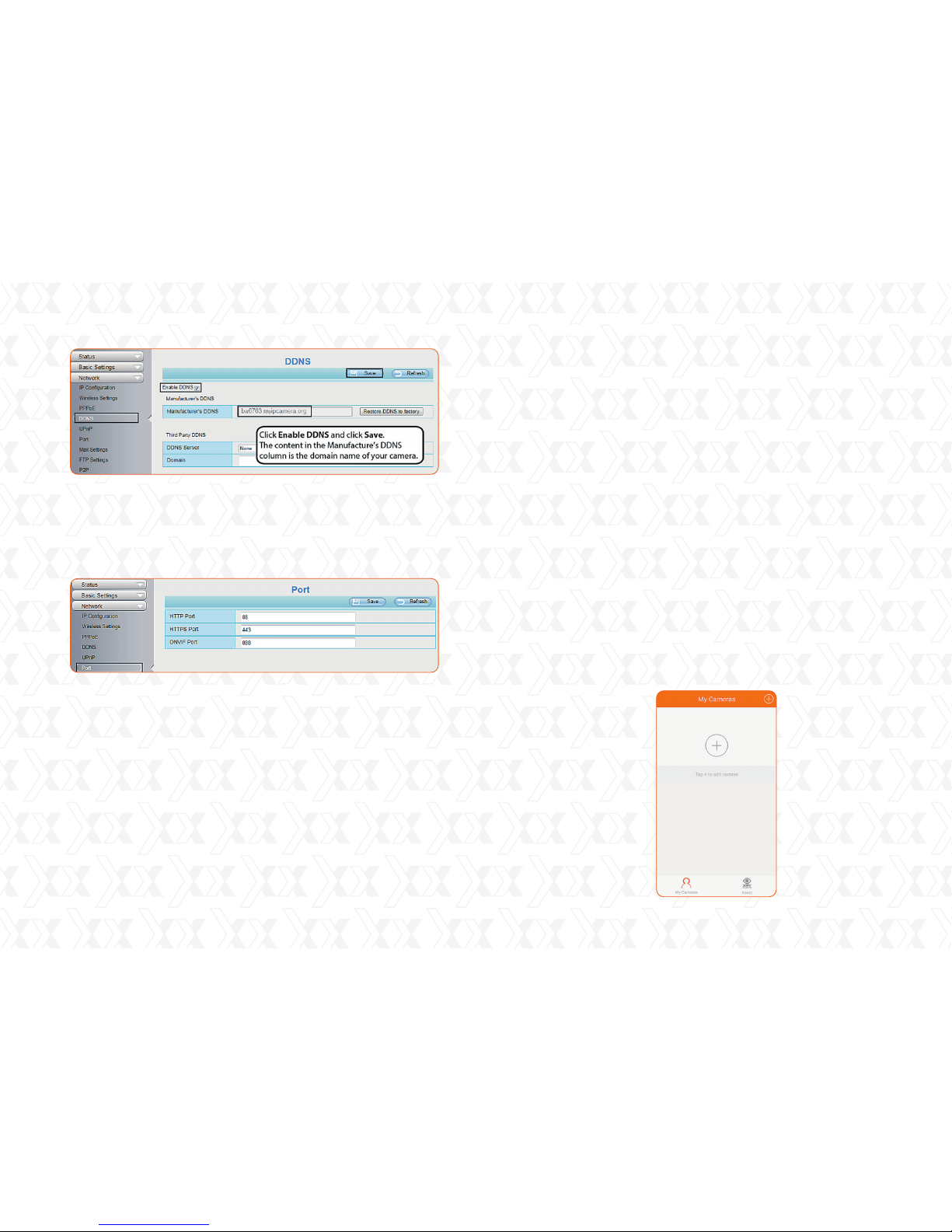
3.
Click on the Port option under the Network settings. You
can set the port of your camera here. If you want to enable
the Remote access feature for multiple cameras in the
network, you will need to change the HTTP port of each
individual device.
4.
If UPnP has been enabled in the router, you do not need to
perform the following steps. However, if UPnP is disabled,
you will need to select one of the following methods to
configure the port forwarding function on your router.
A.
B.
If the UPnP function is available in your router, find the
forwarding menu and make sure the UPnP option is
enabled.
If there is no UPnP function in your router, the port
(HTTP port) forwarding feature needs to be manually
enabled through the forwarding and virtual server
menus.
5.
Now you can access your IP camera using the domain name
address and port number with a colon in between, using the
Internet. For example: https://abc123.myipcamera.org:88.
1.
2.
3.
First, search and install the XpyGuard application from
Google Play or the App Store, depending on your device´s
platform.
After verifying that the mobile phone and the camera are
connected to the same wireless router, run the app and
proceed to open the XpyGuard management page.
Select the Tap + to add camera option.
The IP camera provides a smartphone app for Android and
iPhone users, to remotely view live footage on your mobile
device. If you use a mobile device that operates on an iOS or
Android platform, you can use the free App to access the
camera through the LAN or Internet.
Since both apps are similar, we have chosen the Android
system to illustrate the configuration procedure in this guide.
Nexxt Solutions - Xpy1200/Xpy1230 Wireless IP camera
Remote access using a mobile device
13 14
Nexxt Solutions - Xpy1200/Xpy1230 Wireless IP camera
Page 9
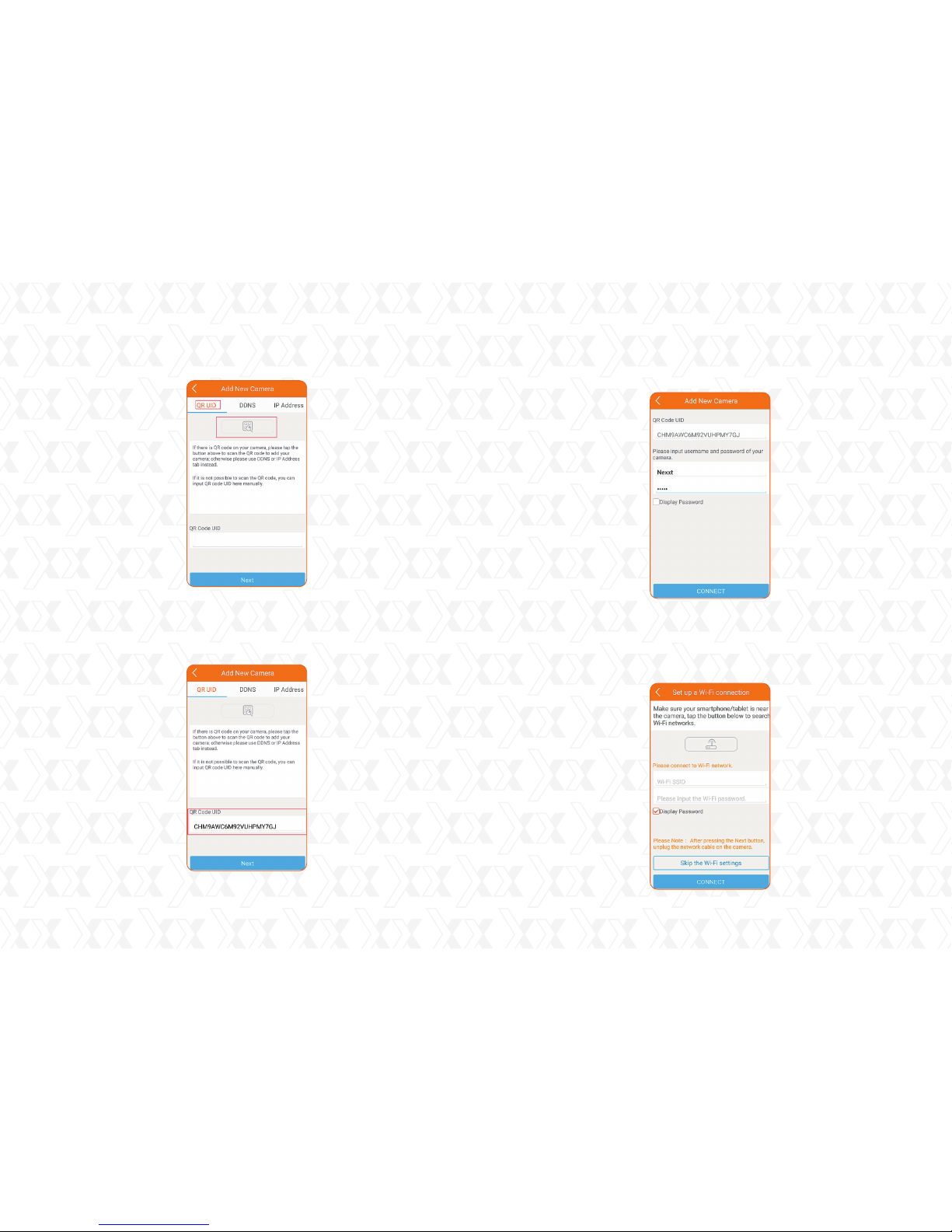
4.
Tap on the QR UID tab and select the search QR code
button.
5.
Next, scan the QR code located on the bottom label of the
camera. The QR code UID field should be populated with
the same code found on the camera label. Click Next to
continue.
6.
Enter the Username and Password of your camera, and click
CONNECT to move on to the following step.
7.
Select Skip the Wi-Fi settings, if your wireless connection
was previously setup. Otherwise, you will need to complete
this procedure by clicking the wireless signal button on the
app to search for the available Wi-Fi networks.
Nexxt Solutions - Xpy1200/Xpy1230 Wireless IP camera
15 16
Nexxt Solutions - Xpy1200/Xpy1230 Wireless IP camera
Page 10
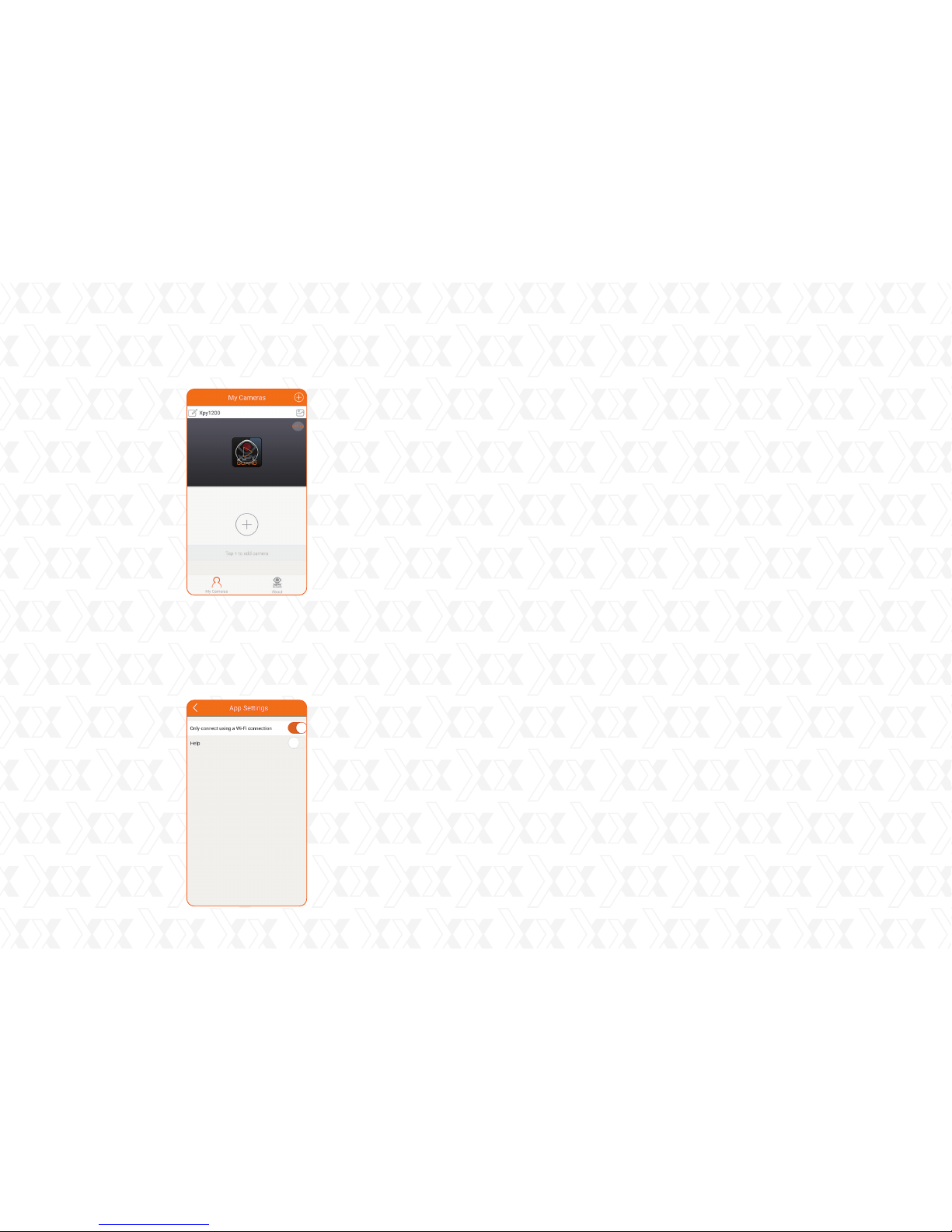
8.
Once the camera appears listed on the My Cameras/
Home screen, select it to allow the connection and start
enjoying live video using your mobile phone.
9.
The app is defaulted to use a Wi-Fi connection on your mobile
device to avoid exceeding your carrier mobile data usage.
If you decide to use your phone’s 3G/4G data connection
instead, you can disable it by going to About-App settings
and turning off the Only connect using a Wi-Fi connection
option on the mobile app.
This device complies with Part 15 of the FCC Rules. Operation
is subject to the following two conditions: (1) This device may
not cause harmful interference, and (2) this device must
accept any interference received, including interference that
may cause undesired operation.
This equipment has been tested and found to comply with the
limits for a Class B digital device, pursuant to Part 15 of the
FCC Rules. These limits are designed to provide reasonable
protection against harmful interference in a residential installation. This equipment generates, uses and can radiate radio
frequency energy and, if not installed and used in accordance
with the instructions, may cause harmful interference to radio
communications. However, there is no guarantee that interference will not occur in a particular installation. If this equipment does cause harmful interference to radio or television
reception, which can be determined by turning the equipment
off and on, the user is encouraged to try to correct the
interference by one of the following measures:
-
-
-
-
Reorient or relocate the receiving antenna.
Increase the separation between the equipment and receiver.
Connect the equipment into an outlet on a circuit different
from that to which the receiver is connected.
Consult the dealer or an experienced radio/TV technician
for help.
FCC ID:
- 1200 FCC ID: X4YXPY12K
- 1230 FCC ID: X4YXPY12K30
Nexxt Solutions - Xpy1200/Xpy1230 Wireless IP camera
FCC statement
17 18
Nexxt Solutions - Xpy1200/Xpy1230 Wireless IP camera
 Loading...