

Page 1
Page 1
Quick Install Guide
GPL-1200-KIT G.hn Powerline Adapter Kit
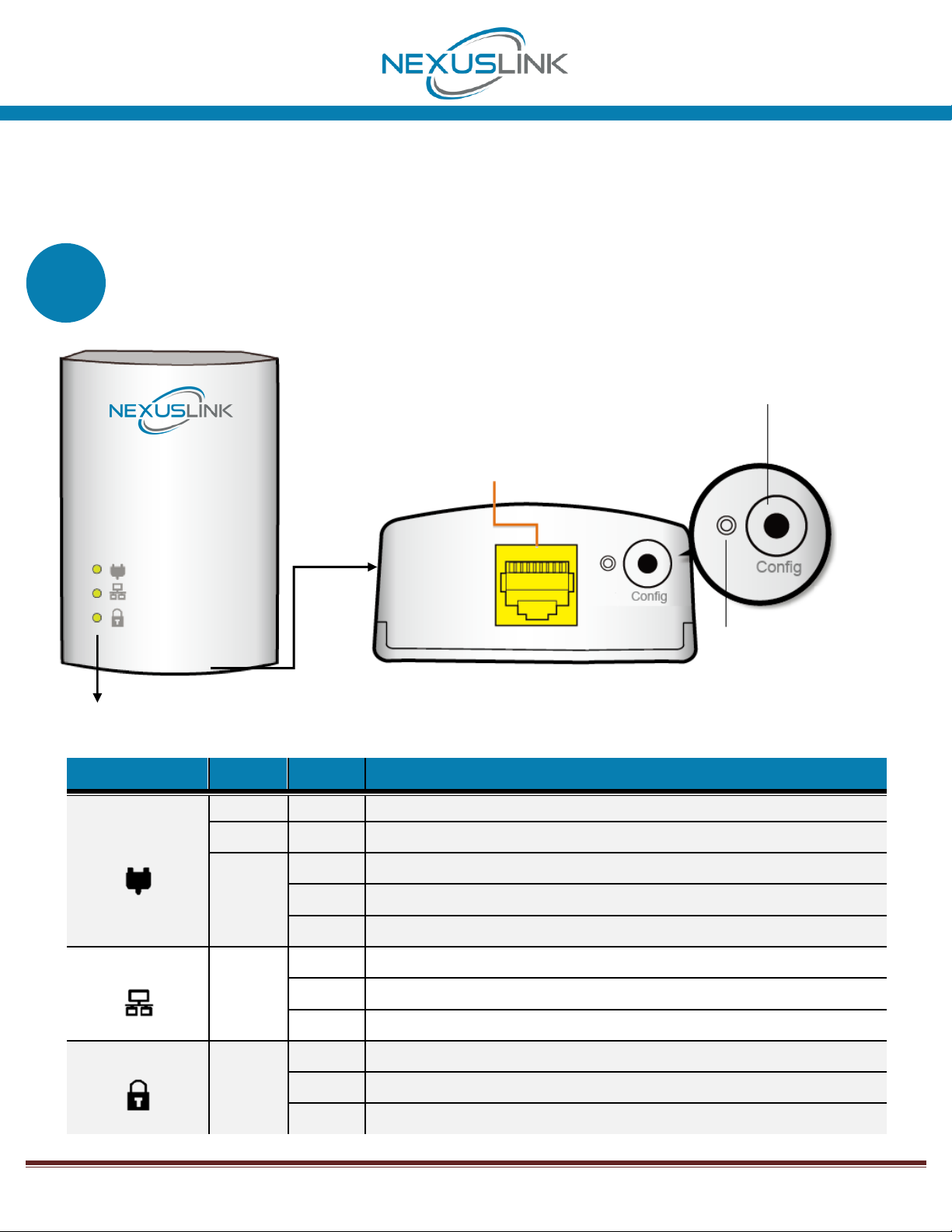
Getting to Know Your G.hn Powerline Adapter
LED
Color
Mode
Description
Connection
Green
On
The current connection (line rate) is more than 40Mbps.
Orange
On
The current connection (line rate) is between 20Mbps and 40Mbps.
Red
On
The current connection (line rate) is between 1Mbps and 20Mbps.
Off
An Adapter connection does not exist.
Blinking
Adapter is in Power Saving Mode (blinks twice every 5 seconds).
Ethernet
Green
On
An Ethernet LAN connection is established.
Blinking
Data over the Ethernet LAN connection is being transmitted.
Off
An Ethernet LAN connection is not established.
Security
Green
On
The Adapter is paired in Secure Mode.
Blinking
The Adapter is in Configuration Mode.
Off
The Adapter is not paired in Secure Mode .
A
Configuration
Button*
Power Saving
Button
*Press for 10 seconds
for Factory Reset
Ethernet Port
LED Descriptions Below
Page 2
Page 2
Initial Powerline Adapter Setup
NOTE: A minimum of two G.hn Powerline Adapters are required. Follow Steps 3-5 to add and pair
additional G.hn Adapters to your network.
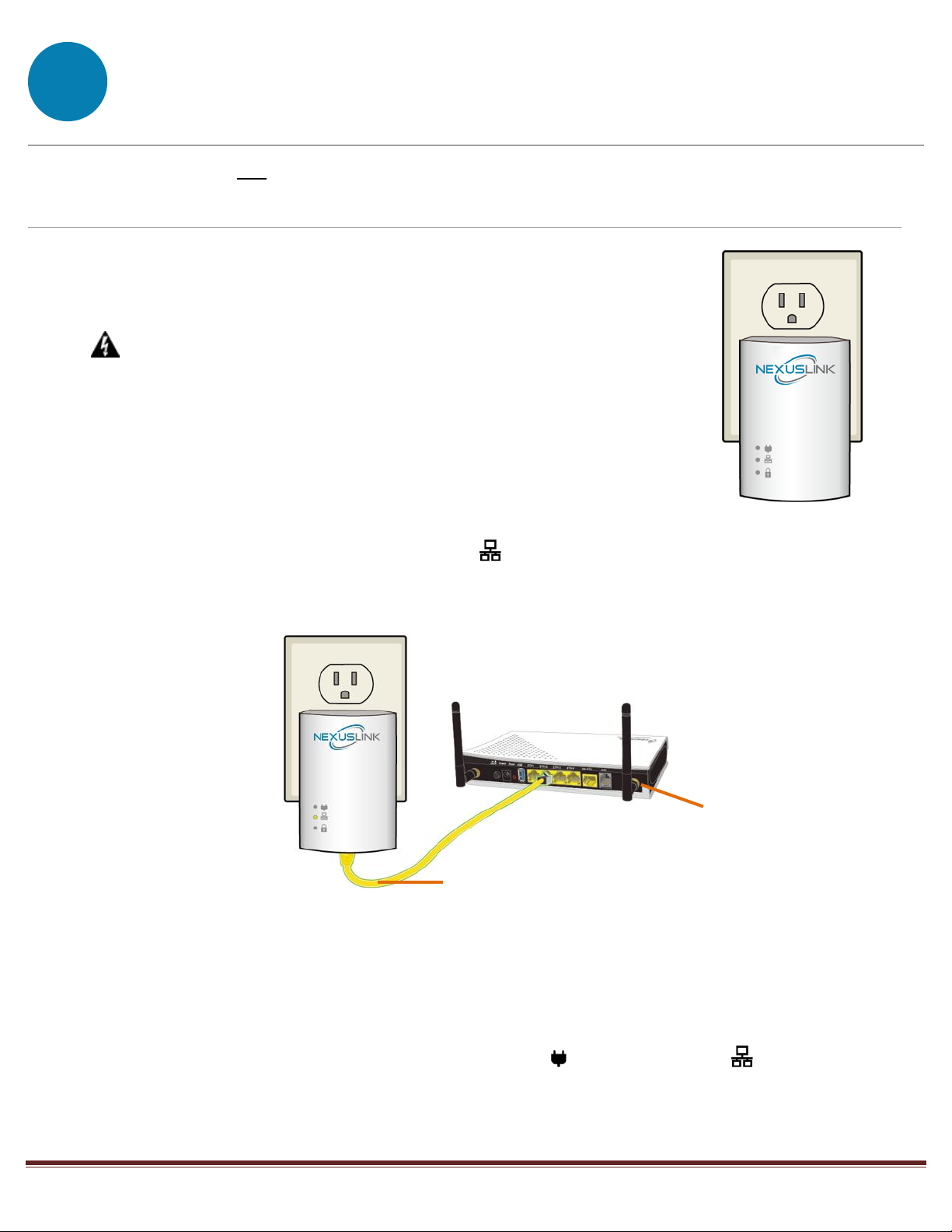
1. Plug one Powerline Adapter into a power outlet near your
Modem/Router.
For maximum performance, please plug the Powerline Adapter
directly into the wall outlet. Do not plug into a power strip or surge
protector, as network performance could degrade significantly.
2. Connect this Powerline Adapter to your Modem/Router’s LAN Port with an Ethernet (RJ-45)
cable. Wait 10 seconds for the Ethernet LED to light up GREEN, which indicates a
connection is established. A flashing GREEN light indicates that the device is sending data.
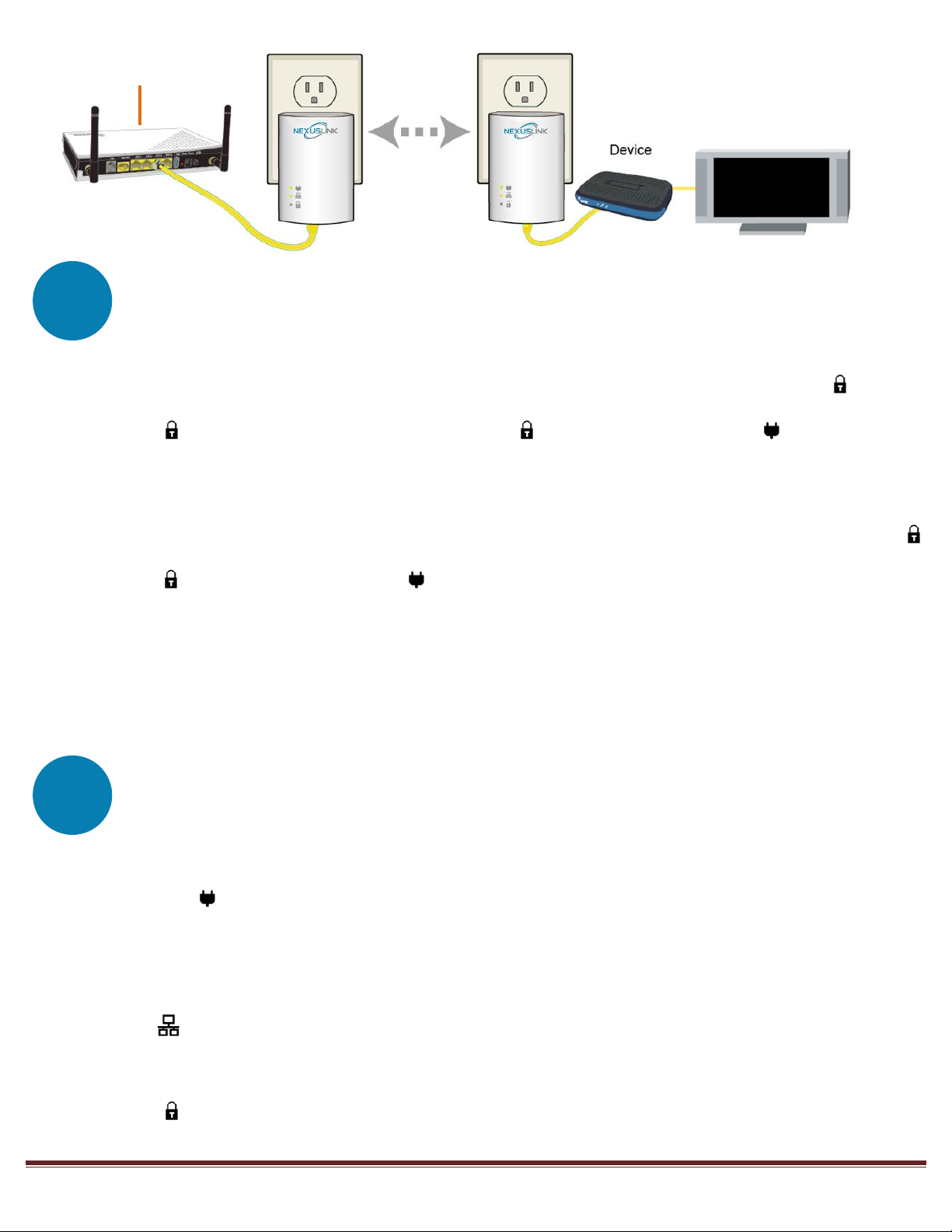
3. Plug the other Powerline Adapter into a power outlet near the Internet-enabled device
(ex. TV, PC, STB, DVR, etc.).
4. Connect this Powerline Adapter to the Internet-enabled device (ex. TV, PC, STB, DVR, etc.)
with an Ethernet (RJ-45) cable. The Connection LED and Ethernet LED on the front of
both Powerline Adapters should be GREEN, which represents a strong connection.
B
Network Device
(Modem, Router, or
Access Point)
Ethernet Cable
Modem/Router
Page 3
Page 3
Pairing the Powerline Adapters
5. Press the Config Button for 3 seconds on one Adapter until you see the Security LED
start blinking GREEN. Then press the Config Button on the second Adapter until you see the
Security LED start blinking GREEN. The Security LED and the Connection LED should be
solid GREEN on both Adapters when they are successfully paired.
Note: If you are adding to an existing G.hn Powerline network, then press the Config Button on
any Adapter in the existing G.hn Powerline network for 3 seconds until you see the Security LED
start blinking GREEN. Then press the Config Button on the Powerline Adapter you are adding. The
Security LED and the Connection LED will light up GREEN on all adapters within the G.hn
Powerline network.
6. Repeat Steps 3 to 5 to add additional Powerline Adapters. Please note that up to 16
devices can be connected within a Powerline G.hn Network.
You Have Succesfully Set Up Your G.hn Powerline Network!
Troubleshooting
The following information should help you diagnose basic setup or installation problems.
Connection LED is OFF: The Connection LED shows that the Powerline Adapter is connected to
the G.hn Network. If the indicator is off, then plug both Powerline Adapters that you are attempting
to pair into power outlets that are located within the same room. The Connection LED should light up
GREEN. If not, then press the Config Button on each adapter for more than 10 seconds. Afterwards,
you can plug the units back into their original location.
Ethernet LED is OFF: If the Ethernet LED fails to light up, check that the LAN port of the Powerline
Adapter is connected firmly to the LAN port of the other device. To check the condition of the
Ethernet cable, use another cable to test the same connection.
Security LED is OFF: If the Security LED is off, then it means the Powerline Adapter is not securely
paired. Press the Config Button on the Powerline Adapter for 3 seconds until you see the Security LED
C
D
Modem/Router
Page 4
Page 4
start flashing GREEN. Repeat this on the other Powerline Adapter. The Security LED and the
Connection LED will light up GREEN on both adapters. This means the adapters are now securely
paired and have a strong connection.
To join an existing G.hn Powerline network, press the Config Button on any Powerline Adapter in the
existing G.hn Powerline network for 3 seconds until you see the Security LED start flashing GREEN.
Then press the Config Button on the additional Powerline Adapter. The Security LED and the
Connection LED will light up GREEN on both adapters.
*If you have tried the above and are still experiencing problems, you can reset all devices to factory
default by pushing the Config Button for more than 10 seconds (until all the LEDs of the device blink).
Power Specifications:
• I/P: 100-240Vac, 50/60Hz, 15A
WARNING
• For indoor use only
• Do NOT open the casing
• Do NOT use near water
• Do NOT insert sharp objects into the adapter’s socket
ADDITIONAL HELP:
Visit the GPL-1200-KIT Product Webpage for additional resources such as a User Manual,
FAQs, and/or Videos.
Link: nexuslinkusa.com/product/gpl-1200-kit
Support:
 Loading...