

Page 1
TELSTRA ELITE®
PRE-PAID MOBILE
BROADBAND
Australia’s largest and fastest national
mobile broadband network
QUICK REFERENCE GUIDE
Page 2
21
Before you begin
Open the back cover and insert your microSD card if required
Installing the Connection Manager
Your modem is compatible with following operating systems
Microsoft® Windows® 7
Microsoft Windows Vista
Microsoft Windows XP
Mac OS X 10.5 and 10.6
WELCOME TO THE TELSTRA
ELITE® PRE-PAID MOBILE
BROADBAND USB MODEM
Your package contains the following:
Telstra Pre-Paid Next G® SIM Card
USB Modem
Quick Reference Guide
Getting Started Guide
USB Extension cable
Warranty Card
You can also purchase the following accessories:
microSD™ memory card to enable the device to be used
as an external storage drive (available at most consumer
electronics stores)
External Antenna which may improve the modem performance
in low signal strength areas (available from Telstra outlets)
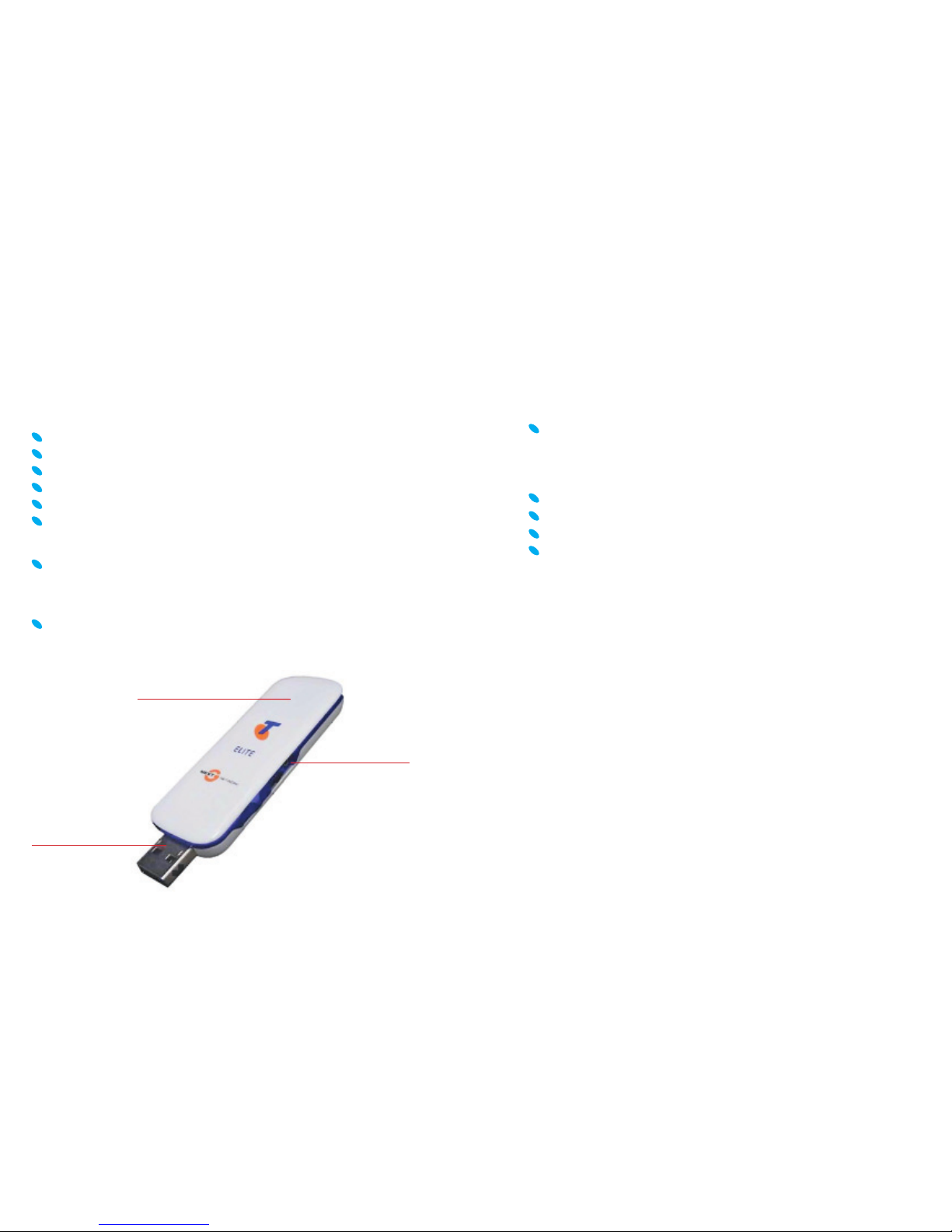
LED Status
External
Antenna
Slot
USB Connector
Page 3
43
Operation
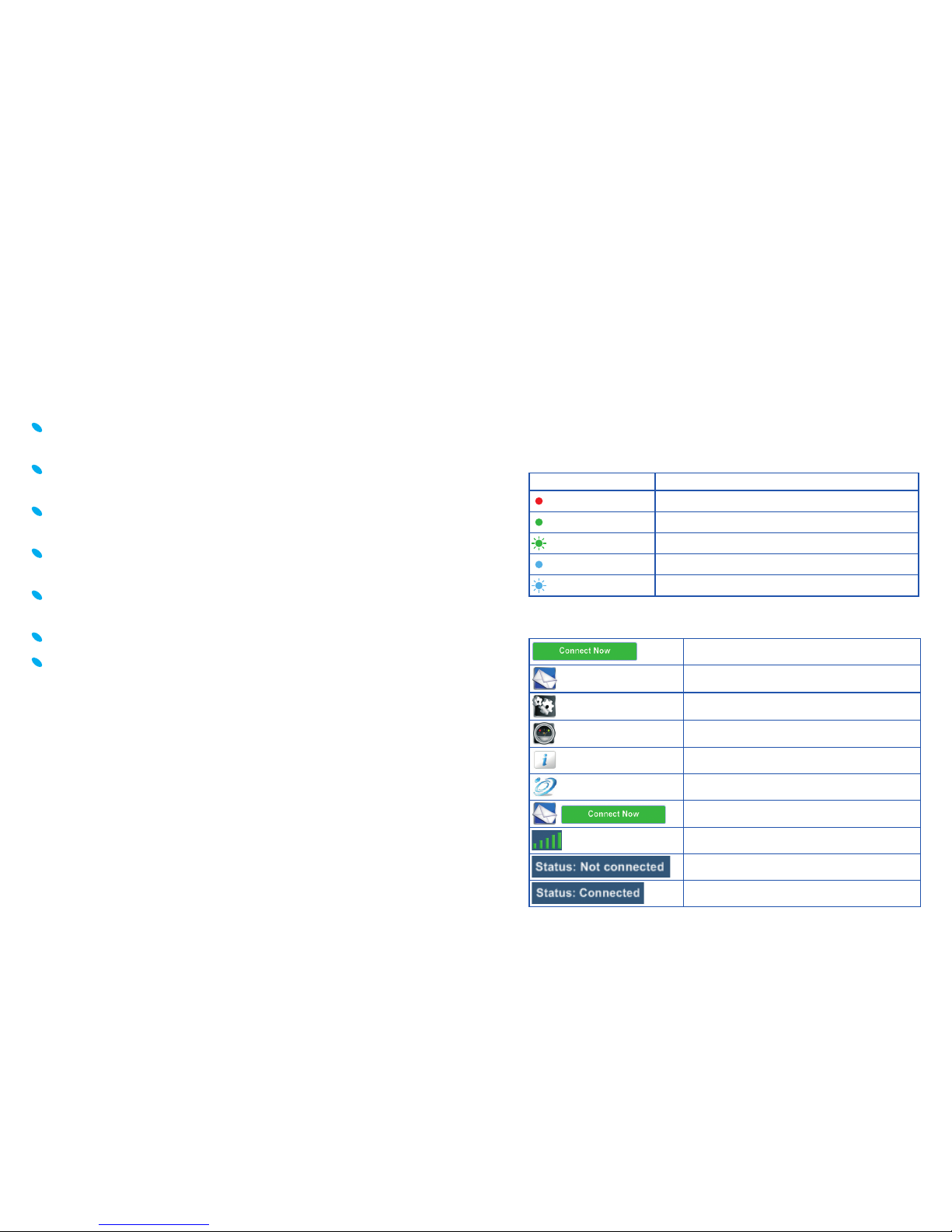
The LED indicator shows the status of the modem and indicates
when you are sending or receiving data.
LED Indicator Modem status
Red Offl ine state. Power on, not registered.
Green solid Registered on the 2G network
Green blinking Data active on the 2G network
Blue solid Registered on the 3G network
Blue blinking Data active on the 3G network
Connection Manager Icons Description
Connect to the internet
SMS Messages
Settings
My Account
Connection information
BigPond® Mobile Broadband Plans
New SMS message in your Inbox
Network signal strength
Disconnected from the internet
Connected to the internet
Insert the modem into your computer
Slide out the USB connector and plug the USB modem into
your computer.
The computer will detect the new hardware and start the Install
Shield Wizard.
If nothing happens your system confi guration may be
preventing Autorun.
Windows users: Double-click the Autorun.exe fi le to start the
software installation.
Mac users: Open the Mobile Broadband Setup from your
File Manager, double click Telstra Pre-Paid Mobile Broadband.
Follow the prompts to complete the installation.
The Connection Manager software will start automatically
and takes a few minutes to complete.
Activating your service
Once Connection Manager is installed, click the Activate button,
fi ll in your details and follow the prompts.
Alternatively, call 12 58887 and follow the prompts.
When everything is ready the Connect Now button will
become available.
Page 4

65
Problem Possible Causes Suggested Solution
Message
sent failed.
The SMS centre
number isn’t correct.
Check with your service
provider and enter the correct
number in the Message settings.
Data connection
failed.
You have no network
coverage.
Try moving location until you
get good reception.
The APN confi guration
is wrong.
Check with your service
provider and set the APN in
the confi guration settings.
The manual network
selection is wrong.
Select the correct network
for Telstra. Restore Automatic
mode.
You are using the
wrong APN.
Consult Telstra.
The modem
cannot connect
to the internet
when overseas.
You don’t have
international
roaming enabled
on your service.
Consult your service provider
before you go overseas to
enable roaming.
No warning tone. The PC soundcard
is disabled or on
low volume.
Check the audio card and
adjust the volume.
The microSD™ card
cannot be read or
is not found.
Re-insert the microSD
card. The maximum
capacity is 32GB SDHC.
Try another microSD card
and make sure the capacity
and format is correct.
Microsoft and Windows are trade marks of the Microsoft group of companies.
™ and ® are trade marks and registered trade marks of Telstra Corporation Limited
ABN 33 051 775 556.
Troubleshooting and Frequently Asked Questions
1. Install and test the modem in another computer
2. Check your SIM card is working in another device –
e.g. mobile phone
3. Insert a known working SIM card into your modem
4. Confi rm your account is active – contact Telstra
5. Uninstall the modem and re-install using Windows ‘Safe Mode’
– consult a PC technician for help if required (PC only)
Problem Possible Causes Suggested Solution
The user interface
doesn’t start
after the modem
is plugged in.
PC confi guration
is not correct.
(No Autorun)
Start the program manually
by going Start –> Program
Files or use the shortcut on the
desktop.
The modem has
no signal.
The antenna is at the
wrong angle or position.
Adjust the angle and position
of the USB modem.
You have no
network coverage.
Try moving location until
you get good reception. Visit
telstra.com/mobilebbcoverage
to check if you are covered
or consider purchasing an
external antenna from your
service provider.
You have not entered
your PIN number at
start up.
Restart the application and
enter your PIN number. If
the PIN is invalid you cannot
connect to the network.
Page 5

7
FOR MORE
INFORMATION
CALL 12 58880
VISIT TELSTRA.COM/PPMBB
VISIT A TELSTRA STORE OR PARTNER
MAY 2011
 Loading...