

Page 1
iR1200 Modem
Quick Reference Guide
© 2003 Nextel Communications, Inc. All rights reserved. Nextel and the Nextel logo are trademarks
and/or service marks of Nextel Communications, Inc. All other company, product or service names
are the property of their respective owners.
RFM-4001-5015 Rev 2
What’s the Problem? What it means: How to Resolve:
Modem will not power
down.
The wiring to the modem
may not be connected
properly.
• Check the ignition sense wiring to
be sure that it is connected.
• Verify that the diagnostic port is
plugged in correctly.
• Check LED status to see if the
modem is communicating.
NOTE: The Status LED remains red for up to 3 mi nutes after power is applied to the
iR1200 or immediately after the Reset button is pressed.
The following important information will allow you to safely operate the iR1200 and
iR1200 GPS-Enabled modems.
Safe Operating Guidelines
Your modem contains a transmitter and receiver. W hen it is ON, it receives and transmits
radio frequency (RF) energy. This product is authorized by FCC Rule Part 47CFR 2.989 which
states that it should be used in such a way that it maintains a distance of at least 8 inches (20
cms) between the radio’s antenna and the human body.
Medical and Personal Electronic Devices
Most electronic equipment is protected from RF energy. However, certain equipment may not
be shielded against RF signals being emitted from your modem.
Pacemakers
Operators should not use the modem if individuals with pacemakers are within 6 inches (0.15
meters) of the antenna.
Hearing Aids
The modem may interfere with hearing aid devices. Individuals who experience such
interference should consult the hearing aid manufacturer to discuss alternative solutions.
Other Medical Devices
Individuals who have other medical devices not specifically mentioned in this guide may want
to consult their physician or device manufacturer to determine if it is adequately protected from
external RF energy.
Interference with Other Electronic Devices
RF energy may affect improperly installed or inadequately protected electronic operating and
entertainment systems in motor vehicles. Check with the manufacturer or representative to
determine if these systems are adequately shielded from external RF energy.
Introduction
The iR1200 modem is designed to work specifically within the iDEN
network.
Once installed and configured, it provides you with wireless data communications.
This quick reference guide provides important information for operating your
modem.
Getting Started
The modem is designed to power up or turn ON when an ignition signal is sensed.
Power Up from Vehicle:
1. Turn ON your iR1200 modem by simply starting your vehicle.
2. The modem automatically turns on and connects to the Nextel network
(this process may take up to 3 minutes).
3. Turn on your mobile device (e.g., laptop, Mobile Data Terminal (MDT),
etc).
4. Use your mobile device to receive or send information.
Power Up from Building or Desktop:
1. Insert the ignition bypass plug into the IGNITION connector located on
the back panel of the modem.
2. Turn ON your iR1200 modem by plugging the power connector into a
12-volt DC power supply.
3. Turn on your mobile device (i.e. laptop, MDT, etc.).
4. Use your mobile device to send and receive information.
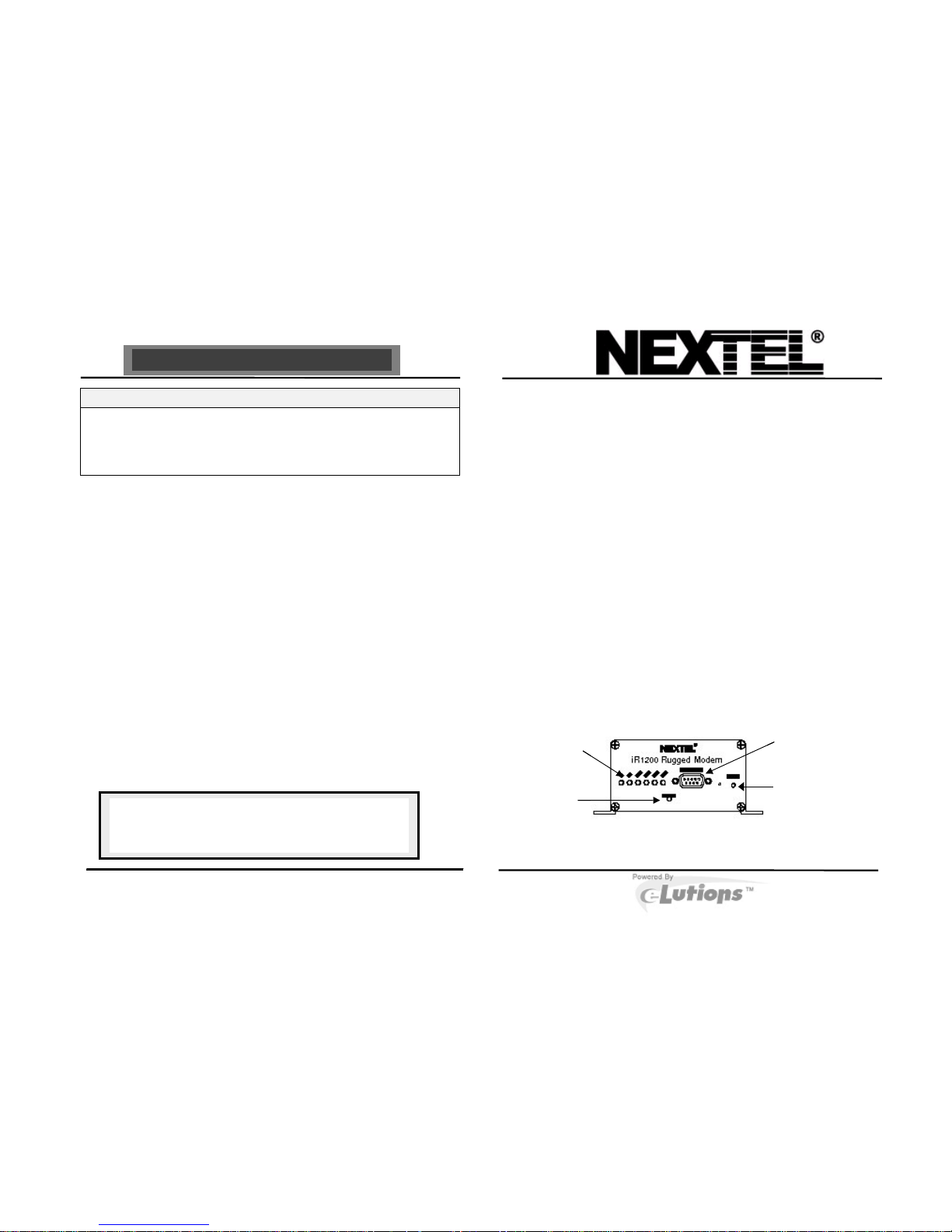
LED Indicators and Statuses
LEDs on the front panel of the modem indicate whether it is operating
appropriately. The following table summarizes what each LED indicates.
LED (signal indicators)
displays the modem’s
serial interface status.
Status LED
displays the
modem’s
iDEN network
status.
Diagnostic Connector
used to receive modem
diagnostic information.
Pressing the reset button
on the front panel of the
modem will cause the
modem to recycle power,
equivalent to re-
establishing the connection
to the network.
LED (signal indicators)
displays the modem’s
serial interface status.
Status LED
displays the
modem’s
iDEN network
status.
Diagnostic Connector
used to receive modem
diagnostic information.
For Customer Care, please contact your technology administrator or designated
field-care representative:
Contact Number:_________________________ _______________
Record your installer’s contact information for futur e service needs or questions.
Page 2
Quick Reference Guide
The following table will help you determine if the modem is communicating
appropriately.
Signal Color Indication
Tx Blinking
Green
Modem is transmitting data to the computer data terminal.
Rx Blinking
Green
Modem is receiving data from the computer.
RTS Green
(Off)
Request To Send from computer is asserted (not asserted).
CTS Green
(Off)
Clear To Send from modem is asserted (not asserted).
DTR Green
(Off)
Data terminal equipment is ready (not ready).
DSR Green
(Off)
Modem is ready (not ready).
STATUS Solid
Red
The modem is searching for a signal within the Nextel network. If
the modem status changes from blinking green back to solid red,
the signal has been lost and the modem is attempting to reacquire.
NOTE: If after a period of several minutes, the s tatus does
not return to green, you may be out of range. Th e
modem will attempt to re-acquire automaticall y
when you are back in range.
The STATUS indicators are different dependin g on the type of mode the modem is
operating in. The following table lists the STATUS i ndicators for the Packet Data and
Circuit Switched Data modes.
Packet Data:
STATUS
Blinking
Green
In-range (modem is connected to the Nextel network) but idle (not
passing data).
STATUS
Blinking
Green
The modem is in use – Nextel network communication is active and
is passing data.
Circuit Switched Data:
STATUS
Blinking
Green
In-range (modem is connected to the Nextel Network) but idle (not
passing data).
STATUS
Solid
Green
The modem is in use – Nextel network communication is active and
is passing data.
Common Problems
What’s the
Problem?
What it means: How to Resolve:
Nothing happens when I
power up the modem.
This indicates that there is no
power being supplied to the
modem.
There are several things that could be wrong.
Go through this list and eliminate all the
possible problems:
• Is the ignition on?
• Is the ignition bypass plug inserted into
the IGNITION connector on the modem
(for building installations)?
• Check the power supply and make sure
that everything is connected properly.
• Is the battery voltage at least 12 volt?
• Check the cables and wiring.
The modem has power
but the LED Status light
is not blinking green.
- You may not be within
coverage area.
- Signal strength may be
weak.
• Antenna may be loose. Check to make
sure the antenna is properly connected.
• Reposition the antenna.
The modem doesn’t
appear to be
communicating.
This could indicate a number
of things (see the How to
Resolve column to eliminate
the possibilities).
• Is data cable plugged into the
diagnostic port?
• Is data cable connected properly to the
mobile device or computer?
• Check the RSSI (Receive Signal
Strength Indicator)
• Check coverage:
• Move to another location to see if
coverage is not affected.
• Verify that your account has been
activated. Contact your
technology administrator or
designated field care
representative.
GPS does not operate.
Either:
- Coverage in the area is
bad.
- Antenna may be
improperly installed or is
defective.
• Verify that the antenna has direct line of
sight to satellite. GPS does not operate
effectively indoors.
• Move to another area.
GPS is slow.
It is normal for GPS to take up
to 5 minutes to acquire the first
reading.
• Wait for an appropriate amount of time
for communication to take place. If
attempts are taking longer than 5
minutes, contact your technology
administrator.
 Loading...