

Page 1
1
Page 2

TABLE OF CONTENT
1 Key Features ............................... ....................... ........................ ....................... ........................... ........................ ....................... ................ 3
2 System Requirements................ ....................... ......................... .......................... ....................... ....................... ........................ .................. 4
3 Package Content ................................. ........................... ....................... ........................ ....................... ........................... ....................... ..... 5
4 Before Using ....................... ....................... ....................... ........................... ........................ ....................... ........................ ......................... 5
4.1 Connect to a PC and download audio files .......................... ....................... ....................... ........................ ........................... ........... 5
4.2 Removing the player from the PC safely .................................. ........................... ....................... ........................ ....................... ...... 5
4.3 Charge the battery............................ ........................ ....................... ....................... ............................ ....................... ...................... 6
5 Keys Description. ........................... ....................... ........................ ....................... ........................... ....................... ........................ .............. 7
6 Power On/Off ..................... ........................ ....................... ........................... ........................ ....................... ........................ ......................... 8
7 Basic operation ................................................ ....................... ......................... .......................... ....................... ........................ ................... 8
8 Playing music.................. ........................ ....................... ........................... ........................ ....................... ........................ ........................... . 9
8.1 Enter the music mode ................................ ......................... ....................... ........................ ........................ .......................... ........... 9
8.2 Folder navigation.................. ........................ ....................... ........................... ........................ ....................... ....................... ........... 9
9 Playing Videos ................................................. ....................... ........................ ........................... ....................... ........................ ................. 10
10 Viewing photos............................. ....................... ....................... ........................ ........................... ....................... ........................ .............. 11
11 Reading E-book ............................................... ....................... .......................... ......................... ....................... ........................ ................. 11
11.1 Reading ..................... ....................... ........................ ........................... ....................... ........................ ....................... ................... 11
11.2 Using bookmark ........................................ ........................ .......................... ........................ ....................... ....................... ............ 12
12 Browsing all files ............................................. ........................ ........................... ....................... ........................ ....................... .................. 13
13 Voice Recording.......................... ........................ ....................... ....................... ........................... ........................ ....................... ............... 13
14 Deleting files ........................................ ........................ ........................... ....................... ........................ ....................... ........................... .. 14
15 FM Radio .............................................. ....................... ........................... ........................ ....................... ........................ ......................... ... 14
16. Customizing Settings ..................................... ........................... ........................ ....................... ........................ ......................... ................. 16
17. Troubleshooting ............................................... ....................... .......................... ......................... ....................... ........................ ................. 19
18. Converting Video To AVI format............................. ........................ ....................... ........................ ........................... ....................... ............ 22
19. Technical Specifications ................................................ ....................... ......................... .......................... ....................... ........................ .... 28
20. Notice ............................... ....................... ........................ ....................... ........................... ........................ ....................... ........................ . 29
21. Listening Cautions ................................ ......................... ........................ ....................... ........................ ........................... ....................... ... 29
22. Precautions.......... ....................... ........................... ........................ ....................... ........................ ........................... ....................... ........... 30
FCC Caution… … … … … … … … … … … … … … … … … … … … … … … … … … … … … … … … … … … … … … … … … … … … … … … … … … … … … … … … .32
FCC Compliance… … … … … … … … … … … … … … … … … … … … … … … … … … … … … … … … … … … … … … … … … … … … .… … … … … … … … … … .32
1
Page 3

Cautions
Do not subject the device to severe impact or drop it from high position.
Do not use the player in extreme hot or cold, dusty or damp field. Do not expose it to
direct sunshine.
Excessive sound pressure from earphones and headphones can cause hearing loss.
At full power, the prolonged listening of the device can damage the ear of the use.
Avoid using the player in strong magnetic field.
Keep the device away from water or other liquids. In the event that water or other liquids
enter the device, power off the product immediately, and clean the device.
Do not use chemical solution to clean the device in order to avoid corrosion. Clean it
with a dry cloth.
We are not responsible for the damages or lost data caused by malfunction, misusing,
repairing the device or battery replacement.
Do not attempt to disassemble, repair or modify the product. This will invalidate the
guarantee.
The design of the player or actual display may be different from what is shown in this
manual. It should be subject to the actual display or design.
2
Page 4

1 Key Features
MP3 & WMA Player
AVI Video player
JPEG image viewer
Folder Navigation
Voice Recorder
Stereo FM radio
FM Recording
Removable Storage Device
Built-in rechargeable lithium-ion battery
Customized settings
3
Page 5

2 System Requirements
Hardware: IBM PC & Compatible PC, Notebook with USB interface
Operating System:
-Microsoft Windows SE or later version
Intel Pentium II 200 MHz or above
128 MB RAM
-Mac OSX V 10.0 or later version
Power PC G5 800MHz or above
512 MB RAM
-Linux OS Kernel V2.4.0 or later version
Intel Pentium II 200MHz or above
128 MB RAM
DRM9 support requires Windows XP or higher and
Windows Media Player 10 or higher
USB Support ,50 MB Free Hard Drive Space
Installed Mouse ,Audio Card ,CD-ROM Drive
4
Page 6
3 Package Content
Main Unit
Stereo earphones
USB cable
User Manual
Application CD
4 Before Using
4.1 Connect to a PC and download audio files
This player is plug & play for WIN2000/XP/ME/Vista OS. But for Windows98/SE, you are
required to install a driver before connection. To connect it with PC for transferring files,
(1) Plug the larger end of the USB cable to the USB port of the PC, and plug the smaller
end to the USB port of the player.
(2) When the “ ”icon appear at the right bottom of the PC screen, double click “My
Computer”on the desktop, you see a removable disk which indicates the player. Just
use the removable disk as a regular local disk, copying files from or to it.
4.2 Removing the player from the PC safely
For Windows2000/XP/Vista:
(1) Left click the icon at the right hand corner of the taskbar.
5
Page 7

(2) Click the pop-up mini-window with message of “Stop the USB Mass Storage Device –
Drive (X)”.
(3) When you are prompted to remove the device, pull out the player.
For Win98, please make sure the data transfer is completed before unplugging the MP3 player.
4.3 Charge the battery
The device has a built-in lithium-icon rechargeable battery. It is charged via USB connection. You
are required to charge it when you use it for the first time. It takes about 3 hours to fully charge the
battery. Connect the larger end of the USB cable to the USB interface of PC, and connect the
other smaller end of the USB cable to the USB interface of this player. The device is connected to
PC and being charged.
NOTICE: For maximum performance, lithium-ion batteries need to be used often. If you don’t use
the device often, be sure to recharge the battery at least once per month.
6
Page 8
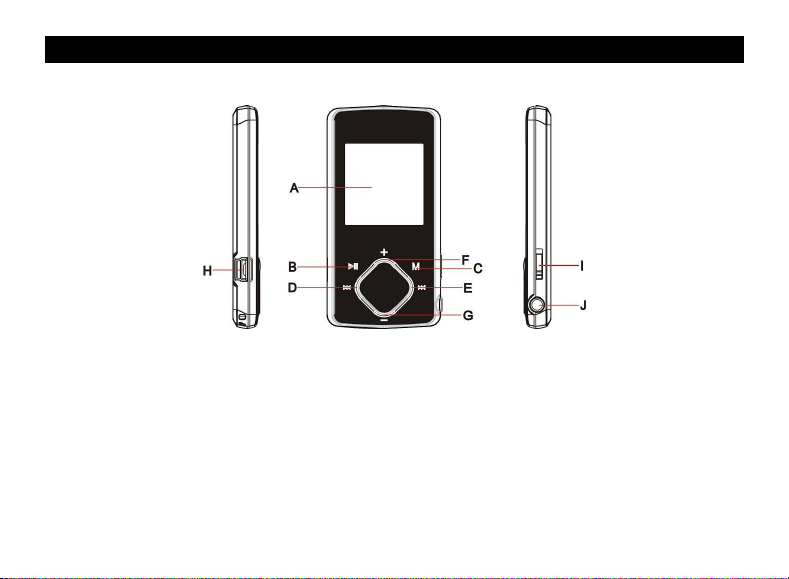
5 Keys Description
A. LCD Display
B. Play/Pause: Turn on or turn off the device.
Also play or pause audios.
C. MENU: Hold for a while to enter the main
menu. Briefly press to confirm the selection
or enter the folder navigation mode.
D. Previous: Play the previous track.
E. Next: Play the next track.
F. VOL+: Turn up the volume.
G. VOL-: Turn down the volume.
H. USB port
I. Power Switch: Turn on or turn off the power
J. Earphone Jack
7
Page 9
6 Power On/Off
To power on,
(1) Slide the Power Switch to the right to turn on the power.
(2) Press and hold the PLAY/PAUSE button until you see prompt on the display.
To power off,
(1) Press and hold the PLAY/PAUSE button until you see prompt on the display.
(2) Slide the Power Switch to the left to turn off the power. (Be sure to complete this step
for saving battery charge.)
Note: This player has a power-saving feature which enables the device to power off
automatically if it is idle for about 3 minutes.
7 Basic operation
Function Operation
Play/Pause Press the PLAY/PAUSE button to play or pause.
Adjust Volume Shortly press the VOL+/VOL- button to decrease or increase volume.
Previous Track Shortly press the PREVIOUS button.
Next Track Shortly press the NEXT button.
8
Page 10
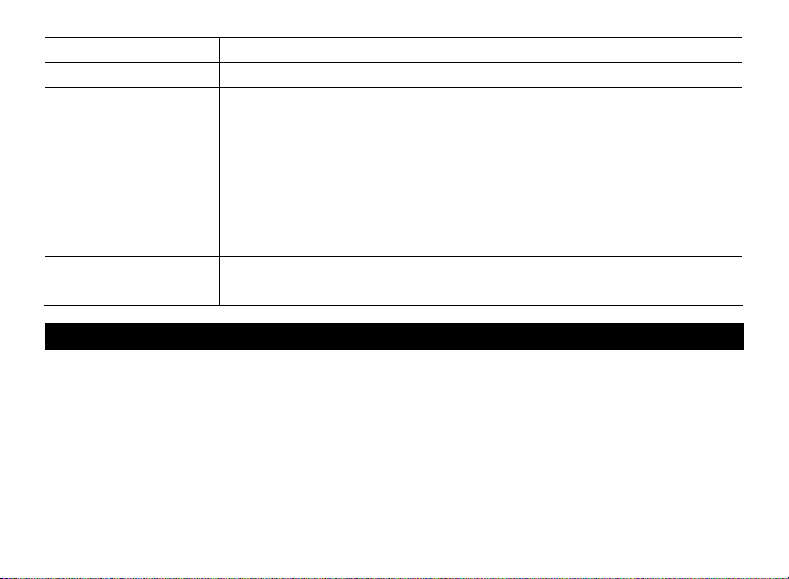
Fast Forward Press and hold the NEXT button.
Rewind Press and hold the PREVIOUS button.
A-B Repeat To repeat a specified section of a track,
(1) During playing, press and hold the VOL+ button to select the start
point of the repeat.
(2) Press and hold the VOL+ button again to select the stop point.
The music section between the start point and the stop point is
repeated.
(3) To stop A-B repeat, press the VOL+ button.
Lock/Unlock buttons To protect the buttons against being pressed accidentally or to unlock
buttons, hold down the MENU button and the VOL- button together.
8 Playing music
8.1 Enter the music mode
Press and hold the MENU button to display the main menu. Use the PREVIOUS/NEXT button to
select “Music”menu, and press the MENU button to confirm selection. Now you are in the MUSIC
mode, refer music playing to the basic operations.
8.2 Folder navigation
To navigate through folders:
(1) In the MUSIC mode, shortly press the MENU button to enter folder navigation mode.
9
Page 11

(2) Press the PREVIOUS/NEXT button to select a folder or track, and press the MENU button to
confirm selection, or press the PLAY/PAUSE button to return.
9 Playing Videos
(1) Press and hold the MENU button to display the main menu.
(2) Use the PREVIOUS/NEXT button to select the “Video”menu, and press the MENU button to
enter the video player mode.
(3) Press the PREVIOUS/NEXT button to search a video file that you want to play, and press the
MENU button to play. For detail information about playing, see the “Basic Operation”section.
(Note: During playing, you can shortly press the MENU button to enter folder navigation
mode.)
Note: This player can only play AVI videos. For other formats, you need to use the converting tool
included on the driver CD to convert them. For detail information about the converter, please refer
to Page 21 - Converting Video to AVI format.
10
Page 12

10 Viewing photos
To view photos,
(1) Press and hold the MENU button to display the main menu.
(2) Select “Photo”and press the MENU button to confirm.
(3) Press the PREVIOUS/NEXT button to select a folder or image, and press the MENU to
confirm.
(4) Select the photo that you want to display and press the MENU button to confirm.
(5) In the full screen mode, you can press the PREVIOUS/NEXT button to display the previous or
the next photo. Press the PLAY/PAUSE to start or stop an auto slide show. Press the MENU
button to enter folder navigation mode.
Note: Some images may not be displayed. Try to use an image editor (Microsoft-Paint for example)
to convert them or save them as JPEG format.
11 Reading E-book
11.1 Reading
(1) Press and hold the MENU button to display the main menu.
(2) Select “E-book”and press the MENU button to confirm.
(3) Press the PREVIOUS/NEXT button to select a .txt file, and press the MENU button to open
11
Page 13

the selected file.
(4) Press the PREVIOUS/NEXT button to page up or page down manually, or press the
PLAY/PAUSE button to page up or down automatically (by setting the time interval between 1
and 5 in Settings/Auto Slide show/Text).
(5) During reading, you can use the bookmark to mark the page for resuming reading later. For
information about bookmark, see “Using bookmark”section.
11.2 Using bookmark
(1) Go to the page that you want to mark.
(2) Briefly press the VOL+ button to show up a “Save Bookmark” window for saving
bookmark.
(3) Press the PREVIOUS/NEXT button to select a bookmark number and press the
MENU button to confirm. The bookmark is saved. It starts from the first line of current
page.
(4) To read the page that you have marked, shortly press the VOL- button to show up the
“Load Bookmark”window. Press the PREVIOUS/NEXT button to select a bookmark
and press the MENU button to confirm. You will be guided to that page.
Note: Some TXT files may not be read. This may be because its format is not supported.
Skip it or reload another file.
12
Page 14

12 Browsing all files
To browse all files stored in the player,
(1) Press and hold the MENU button to display the main menu.
(2) Select“Explorer”,and press the MENU button to enter the browser mode.
(3) Press PREVIOUS/NEXT button to select a file that you want to view, and press the
MENU button to play or display it.
13 Voice Recording
Record
(1) Press and hold the MENU button to display the main menu.
(2) Select“Record”,and press the MENU button to enter the recorder mode.
(3) Shortly press the PLAY/PAUSE button to start recording. During recording, you can
press the PLAY/PAUSE button to pause or resume recording.
(4) Shortly press the MENU button to stop and save recording. Press and hold the MENU
button to return to the main menu.
Play recordings
To play the recording,
(1) Select “Explorer”on the main menu to enter the folder navigate mode.
(2) Open the “VOICE”folder, and select the recorded file that you want to play.
13
Page 15

14 Deleting files
To delete a file,
(1) Select “Explorer”on the main menu to enter the folder navigate mode.
(2) Briefly press the VOL- button to display a dialogue box.
(3) Use the PREVIOUS/NEXT button to select “YES” and press the MENU button to
confirm.
15 FM Radio
On the main menu, select “FM Tuner”and press the MENU button to turn on the FM radio.
Search Stations
(1) Shortly press the MENU button to show the submenus.
(2) Press the PREVIOUS/NEXT button to select “Auto”or “Manual”, and press the MENU
button to enter the auto-search or manual-search mode. In the Manual mode, press the
PREVIOUS/NEXT button to tune in stations.
Note: Please plug in the earphones to the player before scanning radio stations.
14
Page 16

Save stations
To save the found stations,
(1) Shortly press the MENU button to activate the submenus.
(2) Press the PREVIOUS/NEXT button to select “mem”and press the MENU button to
confirm.
(3) Press the PREVIOUS/NEXT button to select an empty location for the station, and
press the PLAY/PAUSE button to continue.
(4) Press the PREVIOUS/NEXT button to select “YES” or “NO”, and press the
PLAY/PAUSE button to confirm.
Listen to Stations
To listen to saved stations,
(1) Shortly press the MENU button to activate submenus.
(2) Press the PREVIOUS/NEXT button to select “Preset”menu and press the MENU
button to enter the PRESET mode.
(3) In the PRESET mode, press the PREVIOUS/NEXT button to select a saved station for
listening.
15
Page 17

Delete stations
(1) Shortly press the MENU button to activate submenus.
(2) Press the PREVIOUS/NEXT button to select “Del”menu and press the MENU button
to continue.
(3) Press the PREVIOUS/NEXT button to select the station that you want to delete, and
press the PLAY/PAUSE button to continue.
(4) Press the PREVIOUS/NEXT button to select “YES” or “NO”, and press the
PLAY/PAUSE to confirm.
Record FM programs
When you are listening to a station, you can press and hold the VOL+ button to record your
favourite programs. For detail information about recording, see “Record”section.
16. Customizing Settings
To customize the player settings:
(1) On the main menu, select the “Settings”item and press the MENU button to enter the
system settings mode.
(2) Press the PREVIOUS/NEXT button to select setting item and press the MENU button to
confirm or press the PLAY/PAUSE button to cancel/return.
16
Page 18
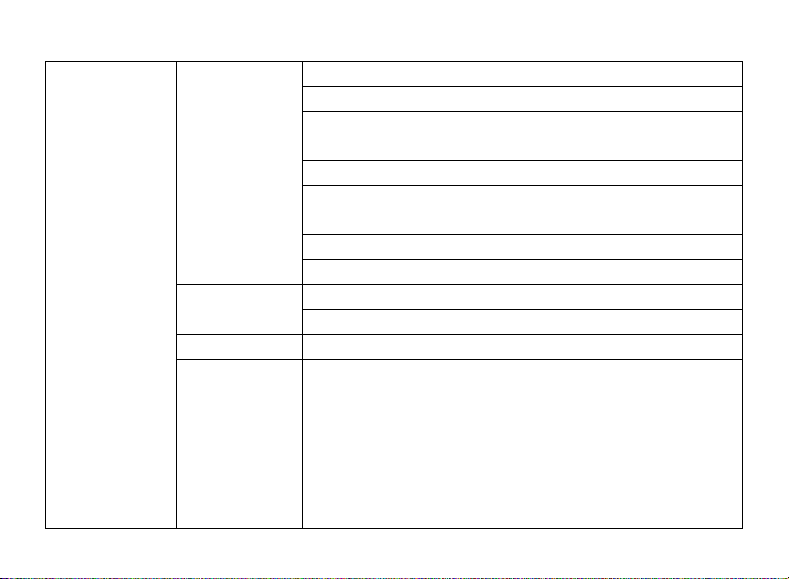
Music
Repeat mode
Preset EQ Normal, 3D, Rock, Pop, Classical, Bass, Jazz, User EQ
User EQ set
(User-defined
equalizer
setting)
Once(Play current track once and then stop)
Repeat One (Repeat current track)
Folder(Play all audio files in the current folder and stop after
playing)
Folder Rep.(Repeat all audio files in the current folder)
Normal(Play all audio files stored in the player and stop after
playing all)
Repeat All(Repeat all audio files stored in the player)
Intro(Play the first 10 seconds of every audio file)
Order(Play audio files in order)Play mode
Shuffle(Play audio files randomly)
(1) Press the PREVIOUS/NEXT button to switch EQ column.
(2) Press the VOL+/VOL- button to adjust the value of the
selected column.
(3) Repeat pressing the NEXT button until the cursor is on the
YES button, and then press the MENU button to confirm.
(4) Go to the “Preset EQ”menu, and select “User EQ”to enable
the equalizer setting.
17
Page 19
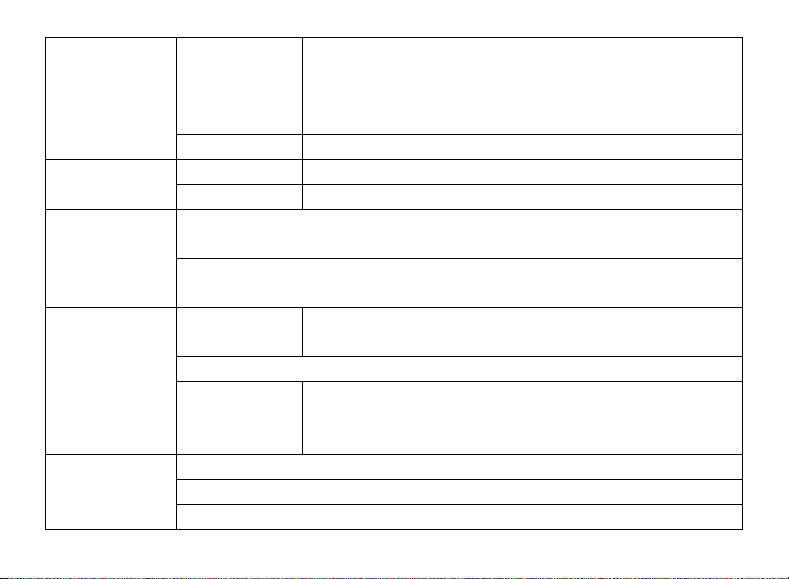
Auto Slide Show
Display
System
Stereo SW
(Enable or
disable stereo
effect)
FM region China, Europe, Japan, America
REC Quality High Quality, General QualityRecord
REC Volume +1、+2、+3、+4、+5
Text Browse (Set interval between the previous and the next page when the device is in
auto page up/down mode.)
Photo Browse (Set interval between the previous and the next slide in auto slide show
mode.)
Backlight 5 seconds, 10 seconds, 15 seconds, 20 seconds, 30 seconds,
Brightness (Set the brightness of the screen)
Backlight mode Normal
About - Information about the product
Upgrade - Upgrade the firmware
Load Default - Restore the player to default setting
On, OffFM Radio
Always On.
Power Save (Turn off the screen when there is no activity within a
certain time)
18
Page 20
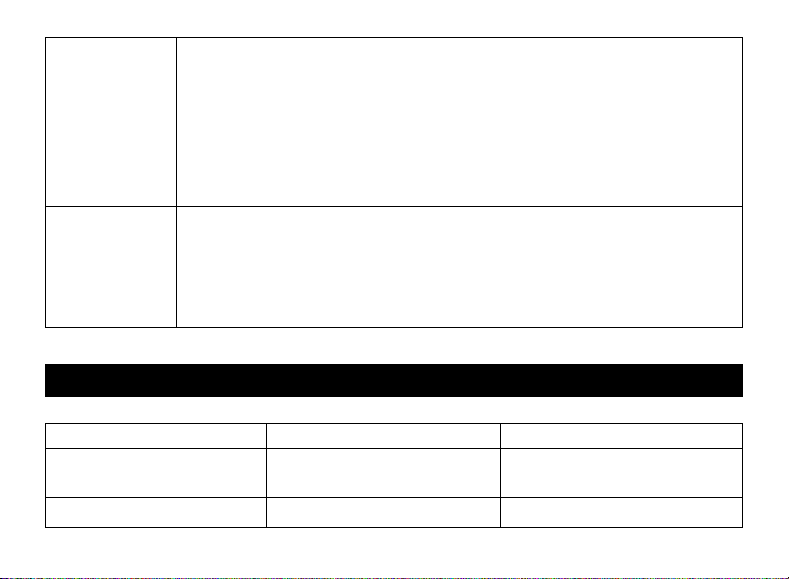
Sleep Timer
(Set the
continuous
playing time
before the player
is turned off
automatically.)
Language
( Select language
in which the
on-screen text is
displayed)
Off, 10 minutes, 15minutes, 30 minutes, 60 minutes, 120 minutes
Simplified Chinese, Traditional Chinese, English, Korean, Japanese, Spanish, French,
German, Italian, Portuguese, Russian, etc.
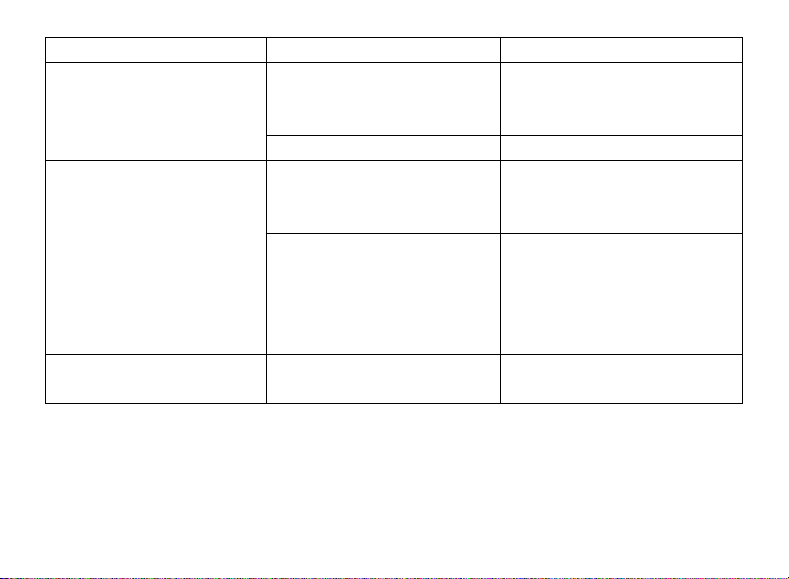
17. Troubleshooting
Problem Possible Cause Solution
The LCD displays nothing
when the device is started.
No sound when playing an
Battery is too low. Charge the battery.
The volume is too low. Adjust the volume.
19
Page 21

audio file.
Bad audio file. Delete or skip the file.
The player cannot be
connected to the PC.
The displayed time is
changing constantly.
The PC has error when you
plug and unplug the player.
Total memory displayed on
the player is not in
accordance with the marked
amount.
Some of the MP3 files
cannot be played properly.
The USB interface is not
supported by PC’s
motherboard.
The bit rate of the MP3 file is
changing during playback.
The player is disconnected
from the PC abruptly while
transferring files.
Part of memory is used to
store programs and display
characters.
The MP3 files are
compressed by a standard,
such as MPEG I Layer 1 or
Layer 2 that the player does
20
Update or replace the PC’s
motherboard.
Try to use fixed bit rate to
compress the MP3 file.
Do not disconnect the player
from the PC when transferring
files.
1. Delete the unsupported MP3
files.
2. Use MPEG I Layer 3
standard to compress the
Page 22
The video cannot be played.
The photo cannot be
displayed
The TXT file cannot be read
not support. unsupported MP3 files.
The file format is not
supported.
Make sure the video is in AVI
format. If not, use the provided
converting tool to convert it.
The video data is corrupted. Skip it or reload another file
The file format is not
supported.
Try to use an image editor to
convert it or save it as another
file.
The device supports a
The image resolution is
beyond limitation of the
device.
maximum resolution of 2048 X
2048. Make sure resolution of
the image does not excess this
limitation.
The file format is not
supported.
21
Skip it or reload another file.
Page 23
18. Converting Video To AVI format
Note: Before installing the AVI converter, make sure that the Windows OS is installed with
DirectX9.0 or above.
Before you download videos to the device, make sure they are AVI files and can be played by the
device. If not, convert them using the included converting tool on the driver CD. The following steps
show how to convert:
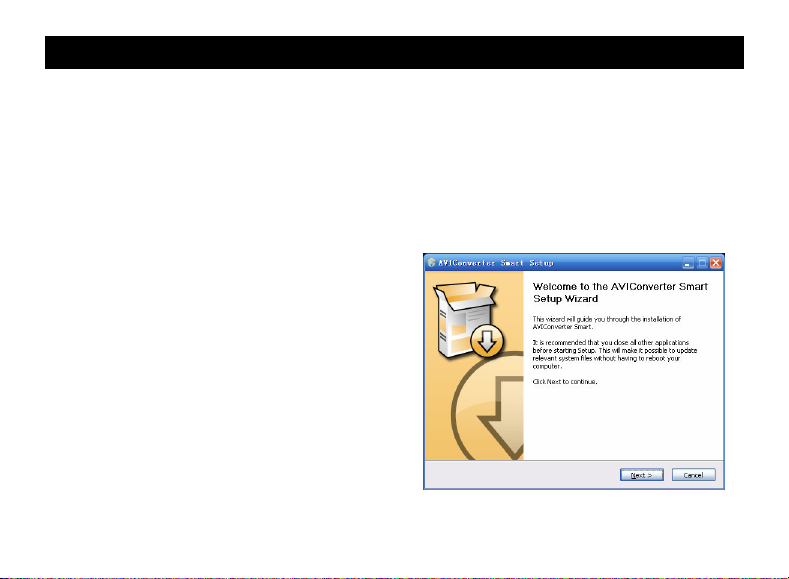
1) Install the AVI Converter
(1) Place the included CD on the CD-ROM tray
of a computer.
(2) Double click the “AVI converter”folder.
(3) Run “AVI Converter CHN – EN setup.exe” to
show up the following window.
22
Page 24
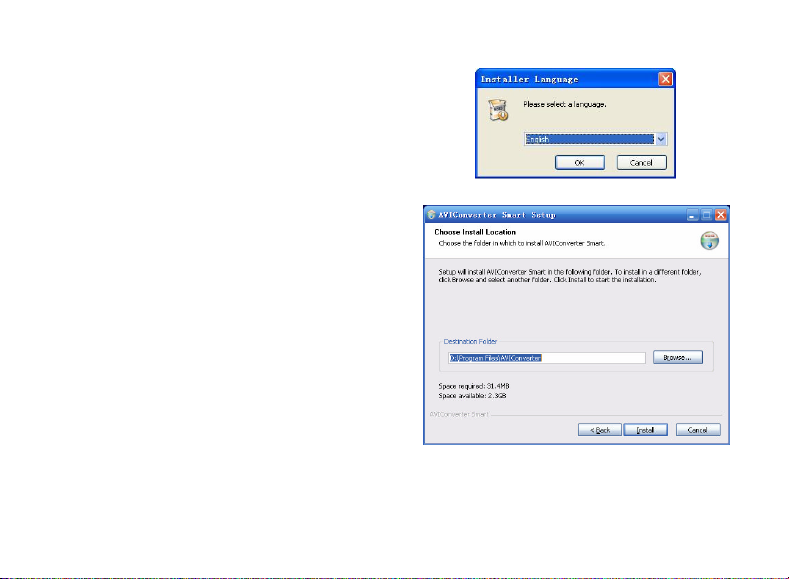
(4) Select an installation interface language.
(5) Click “Next” to continue. Browse to a
destination for the installation.
23
Page 25
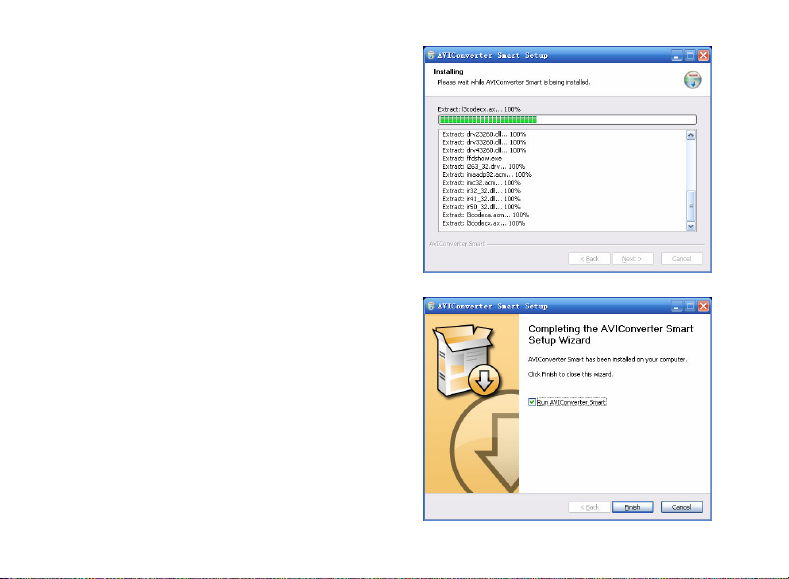
(6) Click “Install”to start installation.
(7) Wait for the installation to be completed before
you see the following window. Click “Finish” to
finish installation.
24
Page 26
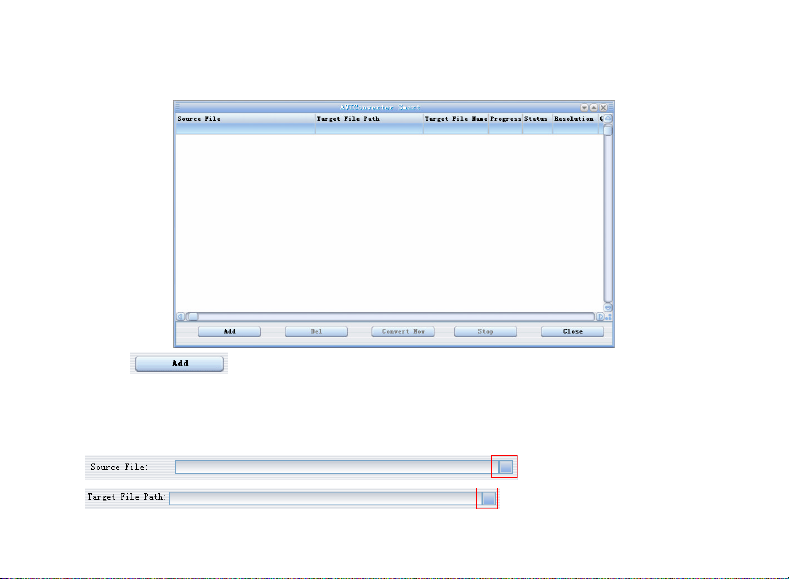
2) Use the AVI converter
(1) Select “Program files” → “AVI Converter”on the Start menu to see the following window.
(2) Click button to display “Conversion Setting”window.
(3) For the “Source File”field, specify the file that you want to convert by clicking the button on
the right. For the “Target File Path” field, specify the destination where the converted file is
saved.
25
Page 27
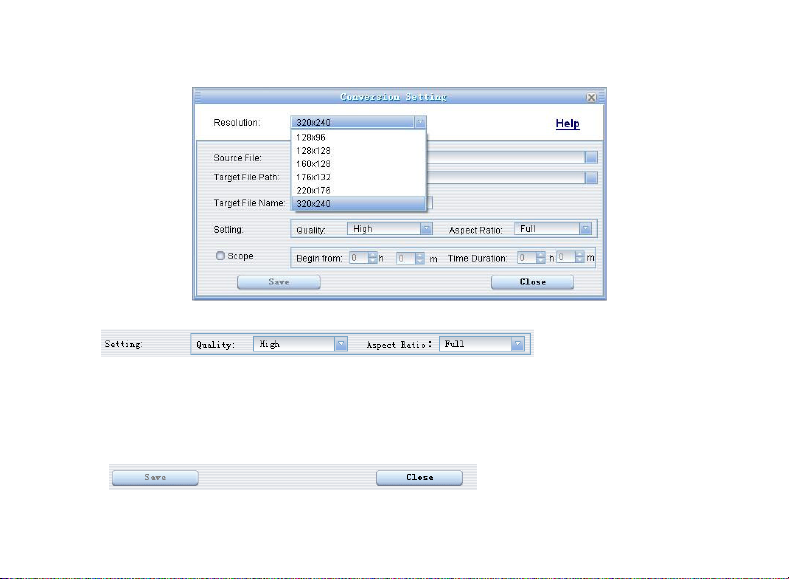
(4) Be sure to select the correct resolution – 128x128 to match your player’s screen, otherwise
the conversion may fail.
(5) Set the conversion quality in the Quality field and display mode in the Aspect Ratio filed.
(6) Click “Save” to save your setting. To convert another file, repeat the steps above.
(7) Click “close” button to close the setting window.
26
Page 28
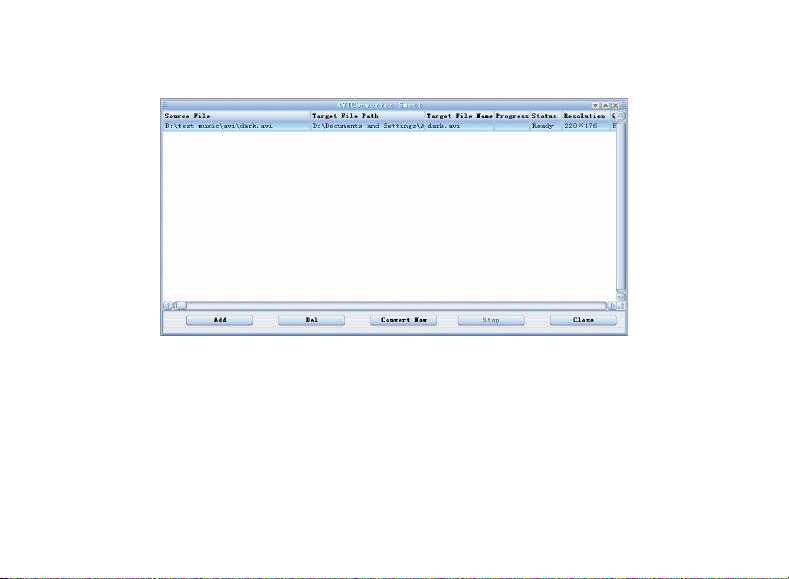
(8) Click “Convert Now” to start converting.
(9) Click “Finish” after the converting is finished.
27
Page 29
19. Technical Specifications
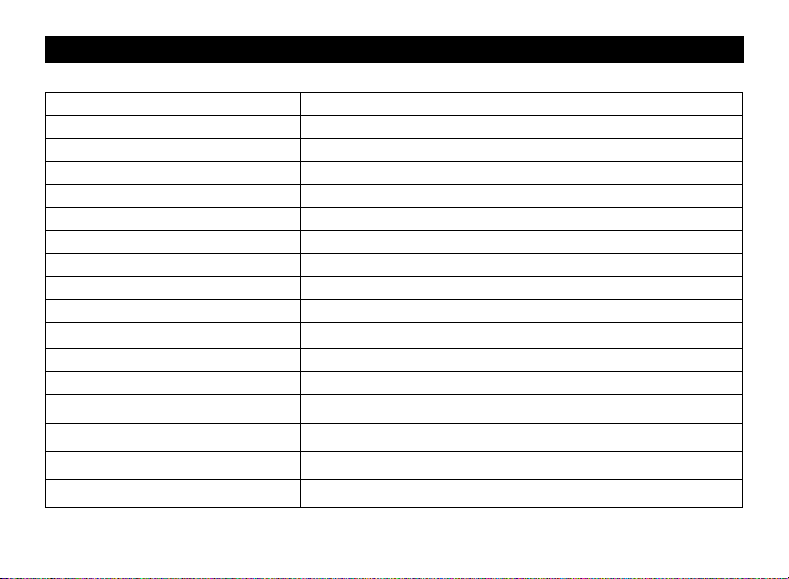
Item Specification
Capacity 128MB or above
Battery Type Rechargeable Lithium Battery
Battery Life 8 –10 hours
LCD Display 1.5-inch CSTN screen
Earphone Power 5mW+5Mw
Video Format AVI (XviD)
Audio Format MP3, WMA
Photo Format JPEG
Image Resolution 2048 X 2048 (Max.)
Bit Rate MP3: 8-320kbps; WMA: 64-384kbps
SNR >90dB
USB Port USB2.0
Operational Temperature 0℃ ~ +55℃
Storage Temperature
Operational Relative Humidity *
Storage Relative Humidity *
-20℃ ~ +55℃
20% ~ 90% (40℃)
20% ~ 93% (40℃)
28
Page 30

20. Notice
Make sure all keys are enabled before operation. If they are locked, hold down the MENU and
VOL- button to unlock them.
Please charge the battery immediately when the display indicates low battery, or the device
will be powered off automatically.
Please disconnect the player from PC properly to avoid data loss.
The transfer rate displayed on the PC may be different depending on the operating system.
Exact transfer rate should be subject to the player's indication.
21. Listening Cautions
Do not play your earphones or headphones at a high volume. Hearing experts advise
against continuous extended play.
If you experience a ringing in your ears, reduce volume or discontinue use.
Do not use while operating a motorized vehicle. It may create a traffic hazard and is illegal
in many areas.
You should use extreme caution or temporarily discontinue use in potentially hazardous
situations.
Even if your headphones or earphones are the open-air type designed to let you hear
outside sounds, don’t turn up the volume so high that you can’t hear what’s around you.
29
Page 31

Sound can be deceiving. Over time your hearing “comfort level”adapts to higher volumes
of sound. So what sounds “normal”can actually be loud and harmful to your hearing. Guard
against this by setting your equipment at a safe level BEFORE your hearing adapts.
To establish a safe level:
a. Start your volume control at a low setting.
b. Slowly increase the sound until you can hear it comfortably and clearly, and without
distortion. Once you have established a comfortable sound level, leave it there.
22. Precautions
1). When not using the player for an extended period of time, please charge the battery at least
once per month to extend the battery life.
2). Do not use the player in extremely hot, cold, dusty or damp environments.
3). Make sure the keys are unlocked before using the player (otherwise controls will not function).
4). Avoid dropping or striking the unit .This may cause external and internal physical damage to the
player.
5). Charge the battery if:
a) The battery level icon displays (An empty battery)
b) The player powers off automatically and off again when restarted.
c) No response when pressing keys with keys unlocked and battery installed
6).To prevent damage from static shock, never use the player in very dry conditions.
30
Page 32

7). When player is being formatted or transferring a file, do not interrupt the connection. Otherwise,
data may be corrupt of lost.
8). When the player is used as a portable HD, please use only per instructions. Otherwise,
permanent data loss could occur.
31
Page 33

FCC Caution: this equipment has been tested and found to comply with the limits for Class B digital device,
pursuant to part 15 of the FCC Rules. These limits are designed to provide reasonable protection against harmful
interference in a residential installation. This equipment generates, uses and can radiate radio frequency energy
and, if not installed and used in accordance with the instructions, may cause harmful interference to radio
communications. However, there is no guarantee that interference will not occur in a particular installation. If this
equipment does cause harmful interference to radio or television reception, which can be determined by turning
the equipment off and on, the user is encouraged to try to correct the interference by one or more of the following
measures:
·Reorient or relocate the receiving antenna.
·Increase the separation between the equipment and receiver.
·Connect the equipment into an outlet on a circuit different from that to W hich the receiver is connected.
·Consult the dealer or an experienced radio/TV technician for help.
FCC Compliance:
·To assure continued compliance, follow the attached installation instructions.
·Use only the provided shield interface cables when connecting to computer.
Any unauthorized changes or modifications to this equipment would void the user's authority to operate this
device.
This device complies with part 15 subpart B of the FCC Rules. Operation is subjected to the following
conditions:(1)This device may not cause harmful interference, and(2)This device must accept any interference
received, including interference that may cause undesired operation.
This product may receive radio interference caused by mobile telephones or other products during operation. If
such interference is apparent, please increase separation between the product and the mobile telephone or other
product.
Industry Canada Requirement:
This Class B apparatus complies with Canadian ICES-003.
Cet appareil numérique de la classe B est conforme ála norme NMB-003 du Canada.
32
Page 34

Other names of systems and products mentioned in these instructions are usually the registered
trademarks or trademarks of the manufacturers who developed the system or product concerned. The
and marks are not used to identify registered trademarks and trademarks in these instructions.
This manual was correct and complete at the time of printing. However, specifications and updates can
occur at any time without prior notice. No part of this manual may be copied, republished, reproduced,
transmitted, or distributed in any way without prior written consent of Nextar, Inc. Any unauthorized
distribution of this manual is expressly forbidden.
© 2008 Nextar (Hong Kong) Limited. Nextar is a trademark and service mark of Nextar (Hong Kong)
Limited. All other brand names, trademarks and service marks are property of their owners.
Nextar may find it necessary to modify, amend or otherwise change or update this manual. We reserve
the right to do this at any time, without any prior notice. All specifications and features are subject to
change without notice. All screen shots shown are simulated and may not represent the actual screen on
production units sold to consumers.
TM
For instruction manuals, updated drivers or other information, be sure to visit our websi te at:
www.Nextar.com
Or write to us at:
Nextar
1661 Fairplex Dr.
La Verne, CA 91750
USA
Copyright 2008
33
 Loading...