

Page 1

Comtrend WR-6895
WiFi Router
Setup Guide
More than you expect
Visit Our Website at www.nexicom.net
To Contact Us for Technical Support
On the Phone: 705-775-6394 or 1-888-639-4266
Saturday 8 am–5 pm, Sunday 9 am–5 pm.
Through our Knowledge Base: https://kb.nexicom.net
For General Information,
and General Inquiries:
Monday–Friday, 8 am–10 pm,
By Email: [email protected]
Page 2
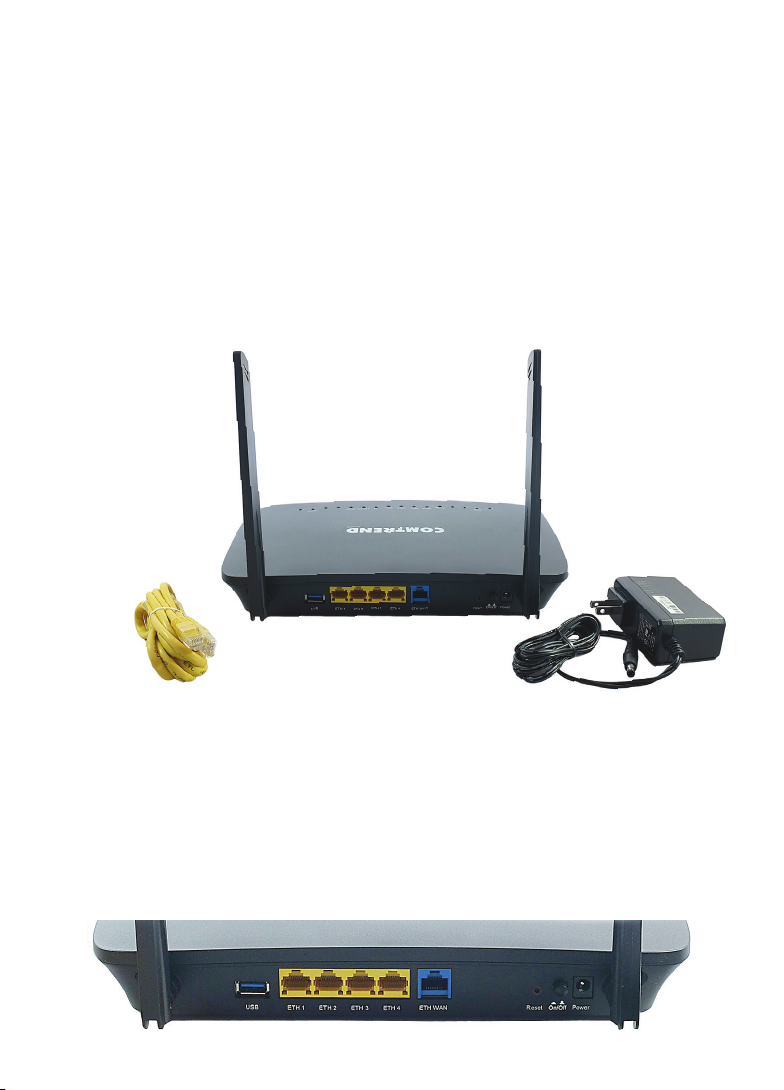
WR-6895 is a dual band WiFi solution for high performance Internet access.
In addition, WR-6895 supports high power (400mw /26dBM) dual bands
(802.11n 2.4GHz & 802.11ac 5GHz) to create a large WiFi footprint for the most
seamless video experience as well as blazing fast data speed.
WR-6895 has a USB 3.0 host port which provides high speed access for USB
devices such as printer servers, HDDs, and supports DLNA and samba accessibility.
What’s included in the box?
1. Comtrend WR-6895 - WiFi Router
2. AC Power Adapter
3. Ethernet Cord
1
3
2
Hardware Setup
Follow the instructions below to complete the hardware setup.
Non-stackable
This device is not stackable – do not place units on top of each other, as
damage could occur.
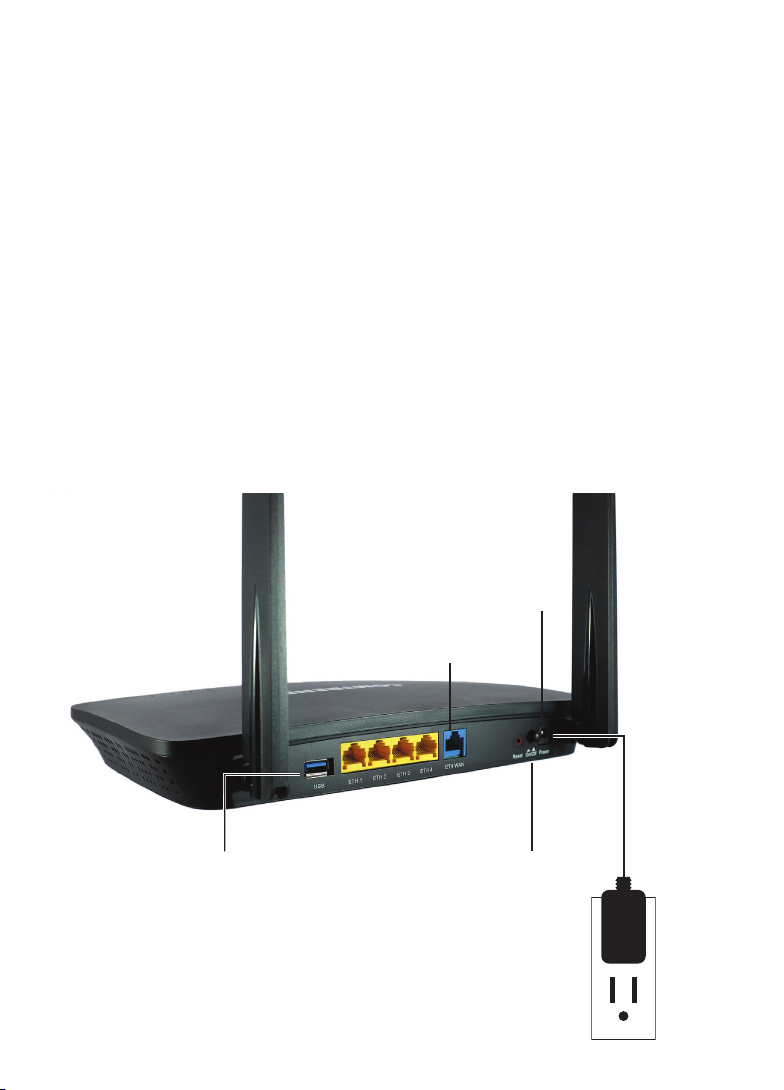
Back Panel
The figure below shows the back panel of the device.
2
Page 3
Power ON
Press the power button to the OFF position (OUT). Connect the power adapter
to the power port. Attach the power adapter to a wall outlet or other AC
source. Press the power button to the ON position (IN). If the Power LED
displays as expected (Red then Green) then the device is ready for setup.
Caution: If the device fails to power up, or it malfunctions, first verify that
the power cords are connected securely and then power it on again. If the
problem persists, contact the Nexicom Helpdesk at 1-888-639-4266.
4 Ethernet (LAN) Ports
Use 1000-BASE-T RJ-45 cables to connect up to four network devices to a
Gigabit LAN, or 10/100BASE-T RJ-45 cables for standard network usage.
Ethernet WAN Port
This port is used to provide an Internet connection to the router.
USB Host Port (Type A)
This port can be used to connect the router to a printer, or supported
USB device.
Power Adapter Port
Ethernet WAN Port
Ethernet LAN Ports (x4)
USB Host Port
Comtrend WR-6895 - WiFi Router 3
Power On/Off
Toggle Switch
Power Adapter
(110 /220 VA C )
Page 4
LED Status Lights
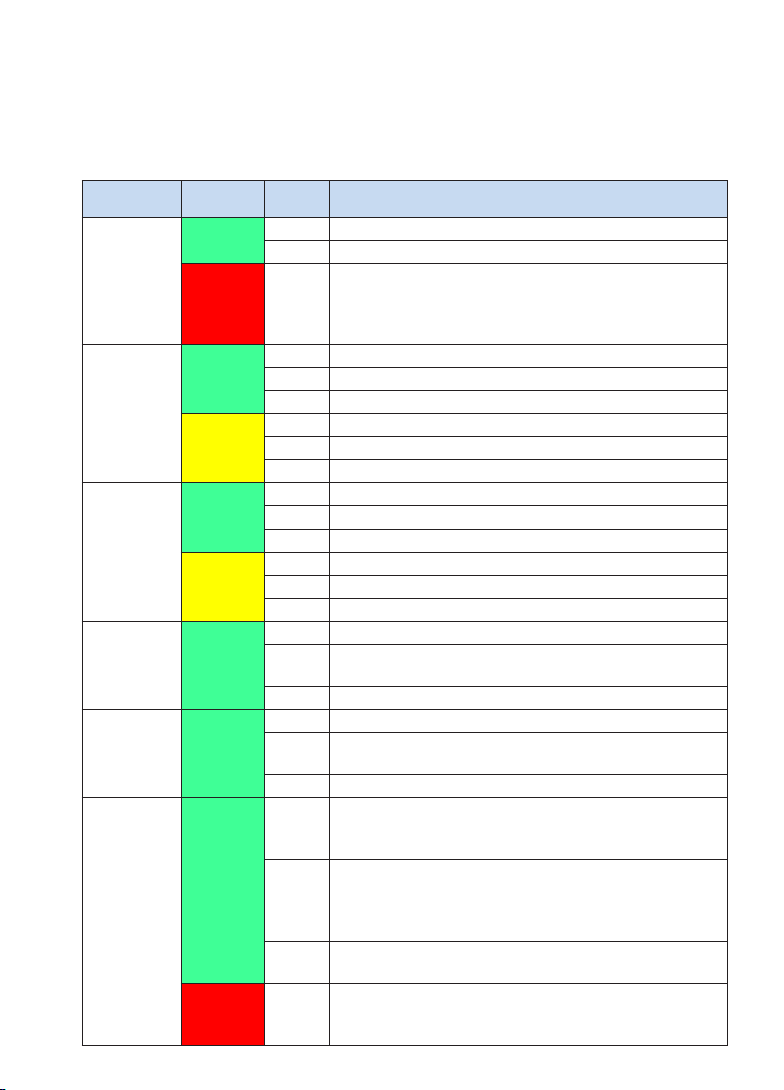
The front panel LED lights are shown below and explained in the following table.
This information can be used to check the status of the device and its
connections.
LED Colour Mode Function
GREEN
POWER
RED On
GREEN
ETH WAN
YELLOW
GREEN
ETH 4 to 1
YELLOW
WiFi 2.4G GREEN
WiFi 5G GREEN
GREEN
INTERNET
RED On
4
On The device is powered up.
Off The device is powered down.
POST (Power On Self Test) failure or other malfunction. A
malfunction is any error of internal sequence or state that
will prevent the device from connecting to the DSLAM or
passing customer data.
On WAN is connected at 1000 Mbps.
Off Ethernet WAN is not connected.
Blink In TX/RX over 1000 Mbps.
On Ethernet is connected at 10/100 Mbps.
Off Ethernet WAN is not connected.
Blink In TX/RX over 10/100 Mbps.
On Ethernet is connected at 1000 Mbps.
Off Ethernet is not connected.
Blink In TX/RX over 1000 Mbps.
On Ethernet is connected at 10/100 Mbps.
Off Ethernet is not connected.
Blink In TX/RX over 10/100 Mbps.
On The wireless module is ready. (i.e. installed and enabled).
The wireless module is not ready. (i.e. either not installed
Off
or disabled).
Blink Data transmitting or receiving over WLAN.
On The wireless module is ready. (i.e. installed and enabled).
The wireless module is not ready. (i.e. either not installed
Off
or disabled).
Blink Data transmitting or receiving over WLAN.
IP connected and no traffic detected. If an IP or PPPoE
On
session is dropped due to an idle timeout, the light will
remain green if an ADSL connection is still present.
Modem power off, modem in bridged mode or ADSL con-
nection not present. In addition, if an IP or PPPoE session
Off
is dropped for any reason, other than an idle timeout, the
light is turned off.
IP connected and IP Traffic is passing thru the device
Blink
(either direction).
Device attempted to become IP connected and failed (no
DHCP response, no PPPoE response, PPPoE authentication
failed, no IP address from IPCP, etc.)
Page 5
WiFi Set-up
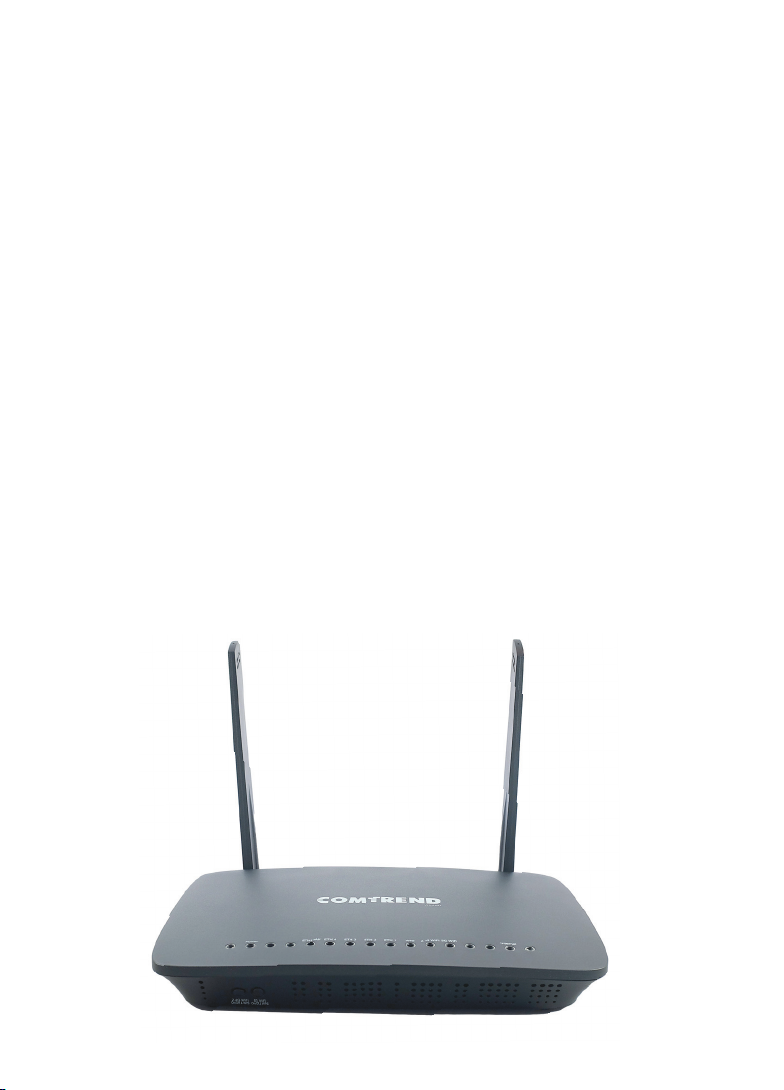
The Comtrend WR-6895 has dual band Wireless capabilities to provide
unprecedented WiFi coverage.
The broadcast SSID name you will look for on your wireless capable devices
will be in the format of the word “Nexicom” then the 4 last digits of the MAC
Address of the Comtrend router and either 2.4GHz or 5GHz. It is recommended
to set up both frequencies for any given device, if it is capable, and let the
device choose the best signal depending on your location in the home.
NOTE: WiFi/ WPS Buttons are disabled on the WR-6895 for security reasons.
Your password for the Wireless Network will be on the Comtrend’s label
(located on the bottom of the device) and referred to as the WiFi Key.
To Connect your Wireless Smart phone, Tablet or Media
device do the following:
1. Navigate to the WiFi settings screen on your smart phone or tablet and
select the SSID (network) for your Comtrend WR-6895, which will be in
the form of NEXICOM- (series of 4 numbers or letters) and either 2.4GHz
or 5GHz.
2. Enter the password into your device from the label on the bottom of your
Comtrend WR-6895 referred to as the WiFi Key.
3. Be sure to enter capital letters and lowercase appropriately as the password is case-sensitive.
Comtrend WR-6895 - WiFi Router 5
Page 6

Frequently Asked Questions
Q: Are the Wireless radios on by Default?
A: Yes
Q: Is the Wireless Security on by Default?
A: Yes, the unit is set up with “WPA2” WiFi security. Login/Password
credentials are printed on the product label affixed to the bottom of
the device.
Q: Why is my WiFi signal strength lower than I expected?
A: A wireless signal degrades with distance and obstructions. Common signal
impairments include walls, ceilings, metal, cinder blocks, fluorescent
lights, microwaves, furniture, etc. While the Comtrend has been optimized
to provide wireless coverage for most applications, there may be
dependencies based on the location where the device is installed. Please
contact the Nexicom Helpdesk if you find the need to upgrade your WiFi as
there are options available.
Q: Who do I contact for Service and Support?
A: Call the Nexicom Helpdesk for Technical Support at 1-888-639-4266.
Troubleshooting
If your Internet service stops working, do the following.
1. Use the On/Off switch on the Comtrend WR-6895 to turn OFF the device.
2. Wait for 30 seconds and turn ON the Comtrend WR-6895.
3. Wait for 2 minutes until both the ETH WAN and Internet LED lights are
GREEN.
4. Test your Internet again now.
If you are still experiencing issues, please call the Nexicom Helpdesk for
technical support at 1-888-639-4266.
6
Page 7

Comtrend WR-6895 - WiFi Router 7
Page 8

More than you expect
Visit Our Website at www.nexicom.net
To Contact Us for Technical Support
On the Phone: 705-775-6394 or 1-888-639-4266
Saturday 8 am–5 pm, Sunday 9 am–5 pm.
Through our Knowledge Base: https://kb.nexicom.net
For General Information,
and General Inquiries:
Monday–Friday, 8 am–10 pm,
By Email: [email protected]
 Loading...