

Page 1
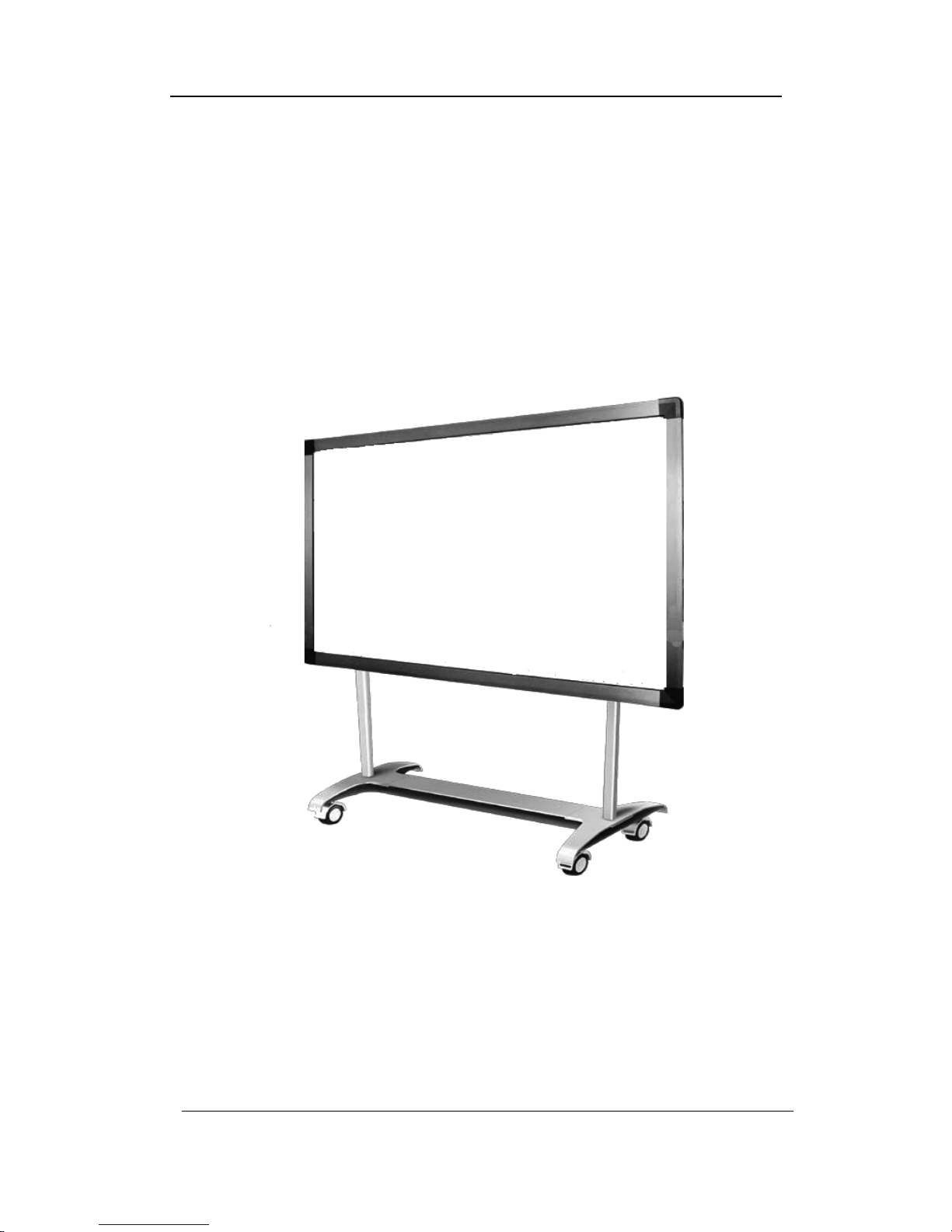
NewVission
E-78/ E-88
Interactive Whiteboard
User Guide
Page 2

UserManual
1
Contents
Contents
Contents
Contents
AccessoriesList…………………………...…………………………………………………………...4
1.
1.
1.
1.Introduction
Introduction
Introduction
Introduction........................................................................................................................................
........................................................................................................................................
........................................................................................................................................
........................................................................................................................................4
1.1Infraredtechnologyprinciple.............................................................................................................4
1.2TechnicalSpecifications:...................................................................................................................6
1.3WorkingEnvironment........................................................................................................................6
1.4MinimumComputerSystemconfiguration.......................................................................................6
1.5Systemconfigurationrecommended..................................................................................................6
1.6Softwaresupportedoperationsystem................................................................................................6
1.7Hardwaresupportedoperationsystem...............................................................................................6
2.
2.
2.
2.How
How
How
Howto
to
to
toinstall
install
install
installthe
the
the
theinfrared
infrared
infrared
infraredinteractive
interactive
interactive
interactivewhiteboard
whiteboard
whiteboard
whiteboard?
?
?
?......................................................................
......................................................................
......................................................................
......................................................................6
2.1Mobilestandinstallation....................................................................................................................6
2.2WallmountingInstallation..............................................................................................................12
2.3HowtoinstalltheinfraredIWBsoftware?......................................................................................14
3.
3.
3.
3.How
How
How
Howto
to
to
touse
use
use
usethe
the
the
theinfrared
infrared
infrared
infraredinteractive
interactive
interactive
interactivewhiteboard?
whiteboard?
whiteboard?
whiteboard?.....................................................................
.....................................................................
.....................................................................
.....................................................................…
…
…
…
17
3.1Connectthewhiteboardwiththecomputer.....................................................................................17
3.2CalibratetheInfraredInteractiveWhiteboard.................................................................................17
3.3Hotkeys............................................................................................................................................18
3.4Introductionofthesoftwaretools....................................................................................................19
3.4.1Basicattributesofthesoftware.....................................................................................................19
3.4.2
T
oolbar..........................................................................................................................................20
3.4.3Howtoshow,hideormovethetoolbar?......................................................................................22
3.4.4Drop-downMenus........................................................................................................................22
3.4.5Howtowriteontheboard?...........................................................................................................24
3.4.6Howtoeraseontheboard?...........................................................................................................24
3.4.7HowtousetheResourceinthesoftwareandcomputer?.............................................................24
3.4.8HowtouseHyperlink?.................................................................................................................25
3.4.9HowtouseBackgroundImageandResource?............................................................................26
3.4.10Howtocreatanewfile?.............................................................................................................26
3.4.11Howtosavefile?.........................................................................................................................27
3.4.12Howtoopenfile?........................................................................................................................27
3.4.13HowtoinsertText?.....................................................................................................................27
3.4.14Howtocombineobject?.............................................................................................................28
3.4.15Howtolockobject?....................................................................................................................29
3.4.16HowtouseRecorder?.................................................................................................................29
3.4.17HowtomakeScreenshot?...........................................................................................................29
Page 3

UserManual
2
3.4.18HowtouseSmartPen?...............................................................................................................30
3.4.19HowtouseSpotlight?.................................................................................................................30
3.4.20HowtouseCurtain?....................................................................................................................31
3.4.21HowtouseArrow?.....................................................................................................................32
3.4.22HowtouseAnnotation?..............................................................................................................32
3.4.23Howtoplaythevideofiles?.......................................................................................................33
3.4.24Howtoswitchlayerofpictures?................................................................................................34
3.4.25HowtouseRebroadcast?............................................................................................................34
3.4.26Subjects-Math.............................................................................................................................34
3.4.27Applicationofthespecialtools...................................................................................................35
3.4.27.1Dice..........................................................................................................................................35
3.4.27.2Calculator.................................................................................................................................35
3.4.27.3Magnifier..................................................................................................................................35
3.4.27.4Clock........................................................................................................................................36
3.4.28Measuretools..............................................................................................................................36
3.4.28.1Protractor..................................................................................................................................36
3.4.28.2Triangle....................................................................................................................................37
3.4.28.3Ruler.........................................................................................................................................37
3.4.28.4Compass...................................................................................................................................37
4.
4.
4.
4.FAQ
FAQ
FAQ
FAQ...................................................................................................................................................
...................................................................................................................................................
...................................................................................................................................................
...................................................................................................................................................38
Page 4
UserManual
3
Disclaimer
Disclaimer
Disclaimer
Disclaimer
PleasereadthisUsermanualcarefullybeforeusingtheproduct.
We
suggestthatyoukeepthismanual
carefullyforfuturereference.
Copyright
Copyright
Copyright
CopyrightNotice
Notice
Notice
Notice
We
maintaintherighttoreviseitscontentwithoutgivingnotification,pleasekindlyunderstand.No
copyingorspreadingofitscontentsisallowedunlessgiveswrittenpermissionformerly.
Shallanydiscrepanciescausedbythedescriptionsofthisusermanualandtheactualproductorits
operation,theactualproductandoperationshouldbereferredasthecorrectones.
Notice
Notice
Notice
Notice:
Thisusermanualisapplicabletoallinfraredinteractivewhiteboardseries.
Somesymbolsareusedinthismanualtoensurethesafeandcorrectuseofthisproduct.Allthe
meaningsareexplainedasbelow:
Remarks:
Thissymbolmeansthatthereisfurtherexplanationofthesoftware.
Attention:
Thissymbolindicatesthattherearewaystoavoidincorrectoperationsoftheproduct.
Warning
:
Thissymbolindicatesthatifignoredorappliedincorrectly,itwouldhavethepossibilityofdamaging
theproductorresultsinabnormality!
Warning:
To
avoidelectricshock,pleaseavoidinstallingtheinteractivewhiteboardinplacesofheavyhumidity
ormist!
Whenusingtheproduct,pleasepreventitfromfiresourceandelectricshockaswellaslongtime
exposureunderthesunshine!
Warning:
Pleasedonotstarestraightlytothelightbeamsfromtheprojector!
Page 5

UserManual
4
ImportantAttention
:
Pleaseconnectthecomputerandtheprojectorwiththeearthtoavoidaccidentaldamages.Please
connecttheinteractivewhiteboardandcomputerthroughtheUSBcableorwirelessmodulecorrectlyto
ensurenormalpowersupply.
Attention:
IftheIWBmountedonthewall,itmustbestraightwiththewall.
Donotusesharporsturdystufftocutorcarvetheboardsurfaceorframe.
Accessories
Accessories
Accessories
AccessoriesList:
List:
List:
List:
Pleaseopenthepackingcarefully.Eachpackageshallcontainsthefollowingitemsifyouhaveselected
ourREseries.
USBcable(6M):1PC
Intelligentpen:4PCS
Pointer:1PC
Wallmountbracket:4PCS
SoftwareCD:1PC
Expansionbolt:8PCS
Smallscrew(optional):4PCS
Wheel(optional):4PCS
Innerhexagonscrew(optional):12PCS
Shallanyoftheabovementionedpartsismissingordamaged,pleasecontactourlocaldistributor.
1.
1.
1.
1.Introduction
Introduction
Introduction
Introduction
Thank
Thank
Thank
Thankyou
you
you
youfor
for
for
forselecting
selecting
selecting
selectingour
our
our
ourinfrared
infrared
infrared
infraredinteractive
interactive
interactive
interactivewhiteboard
whiteboard
whiteboard
whiteboardand
and
and
andsoftware!
software!
software!
software!
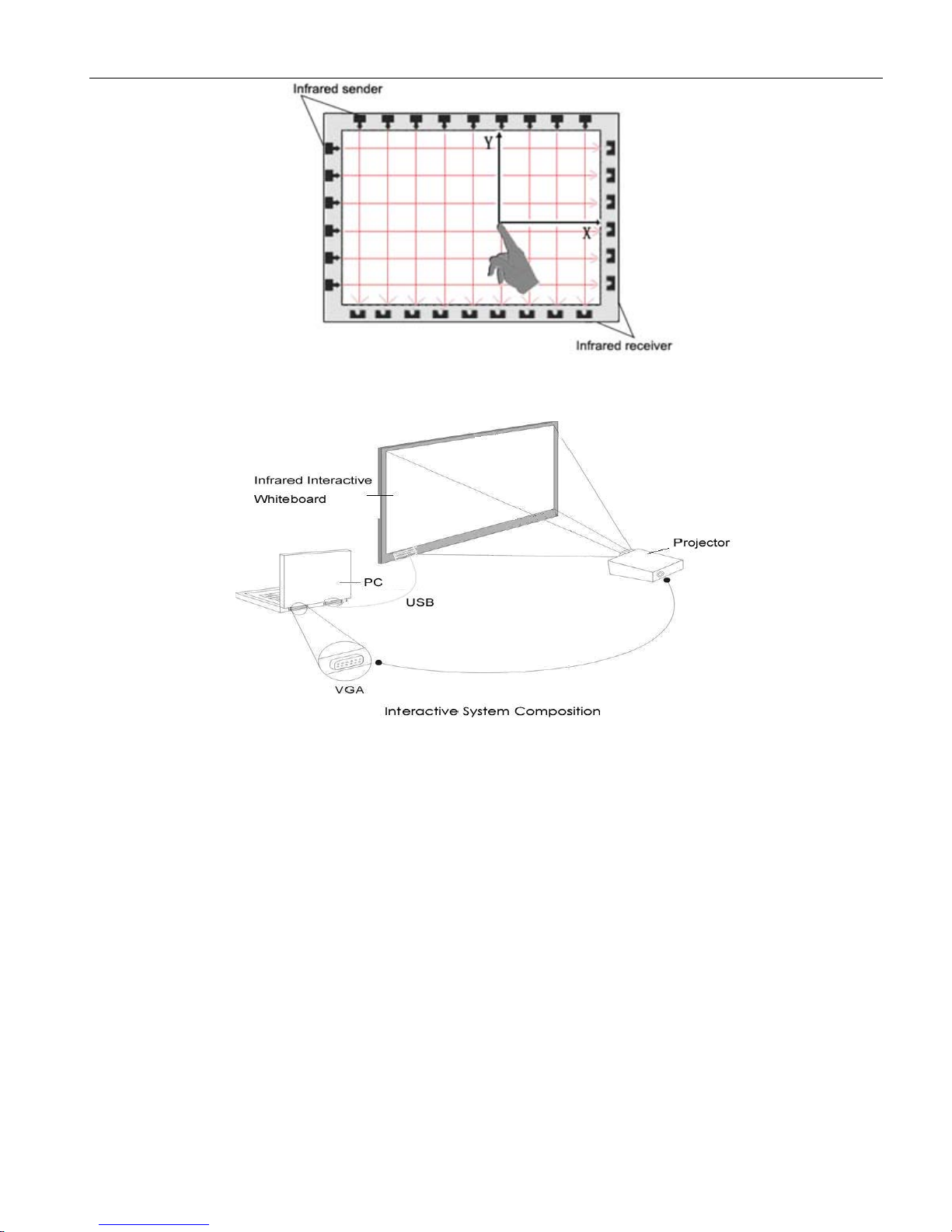
1.1Infraredtechnologyprinciple
A
planescanningsurfaceisformedbytheinfraredreceiverandtransmittersonx-axesandy-axes
locatedinsidetheframe.Whenanobjectentersthescanningsurfaceandstopsthescanningonthat
point,thepoint
’
scoordinate(x,y)isfoundbysensingtheblockedinfraredbeamsfromhorizontaland
verticaldirections.
Page 6
UserManual
5
1.2TechnicalSpecifications:
Computer Interface : USB & RF Adaptor
Net Measurement (E-78): 4:3,
Operating System : Microsoft Windows, Mac & Linux.
Resolution : (8000 X 8000)
16:9, 2145* 1240 * 30mm (L * H * W)
1655 * 1240 * 30mm (L * H * W)
(E-88):
1850mm
2270mm
Available Touch Extent (E-78):
Induction Type : Infrared
Writing Method : Pen or finger
(4:3)
(16:9)
(E-88) :
Page 7

UserManual
6
1.4MinimumComputerSystemconfiguration
:
•PCwith1GHzx86processor
•256MEMSmemoryorabove
•Displaycardsupport256colorsandabove
•10Gapplicableharddiskspace
•Projectiondisplayresolution:1280×800
•AnavailableUSBport
•Premiumprojectorresolution:1280×800
1.5Systemconfigurationrecommended:
•PCwith1GHzx86processor
•1GEMSmemoryorabove
•Displaycardsupport256colorsandabove
•10Gapplicableharddiskspace
•Projectiondisplayresolution:1280×800
•AnavailableUSBport
Premiumprojectorresolution:1280×800
1.6Softwaresupportedoperationsystem
•Windows98,VISTA,2000,XP,WINDOWS7,
1.7Hardwaresupportedoperationsystem
•Windows98,VISTA,2000,XP,WINDOWS7,
&
LINUX
2.
2.
2.
2.How
How
How
Howto
to
to
toinstall
install
install
installthe
the
the
theinfrared
infrared
infrared
infraredinteractive
interactive
interactive
interactivewhiteboard
whiteboard
whiteboard
whiteboard?
?
?
?
2.1Mobilestandinstallation
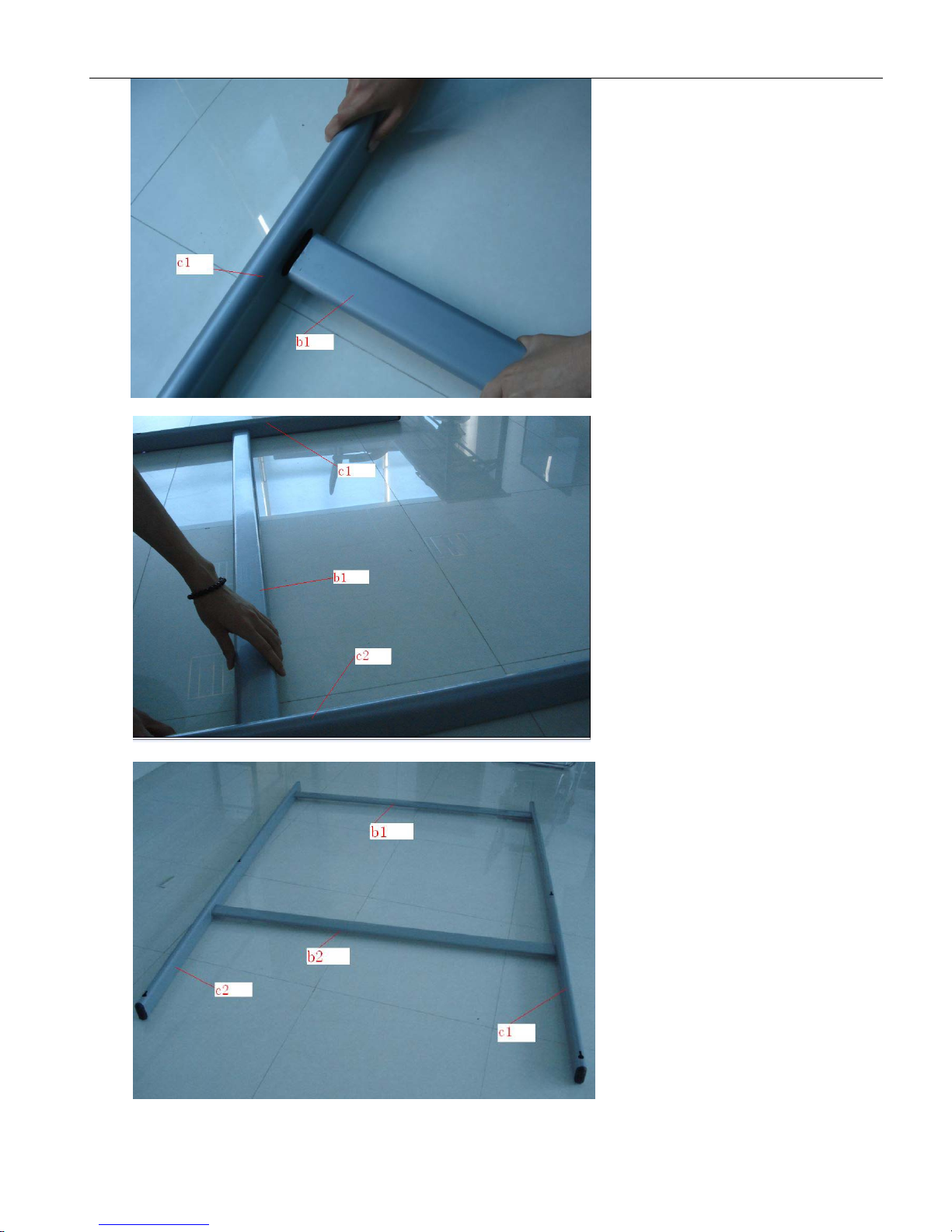
It’squiteeasyforthisinstallation.Onlyawrenchneeded.
1.Connecttheverticalpolec1andbeamb1
Storage Temperature: -40 to 45
Working Temperature: -5 to 60
Power Supply: No external power supply needed
℃
Working Humidity: 30-95%
℃
Storage Humidity: 20-93%
1.3WorkingEnvironment
Annotation Software Included
MAC.
&
LINUX
MAC.
Page 8
UserManual
7
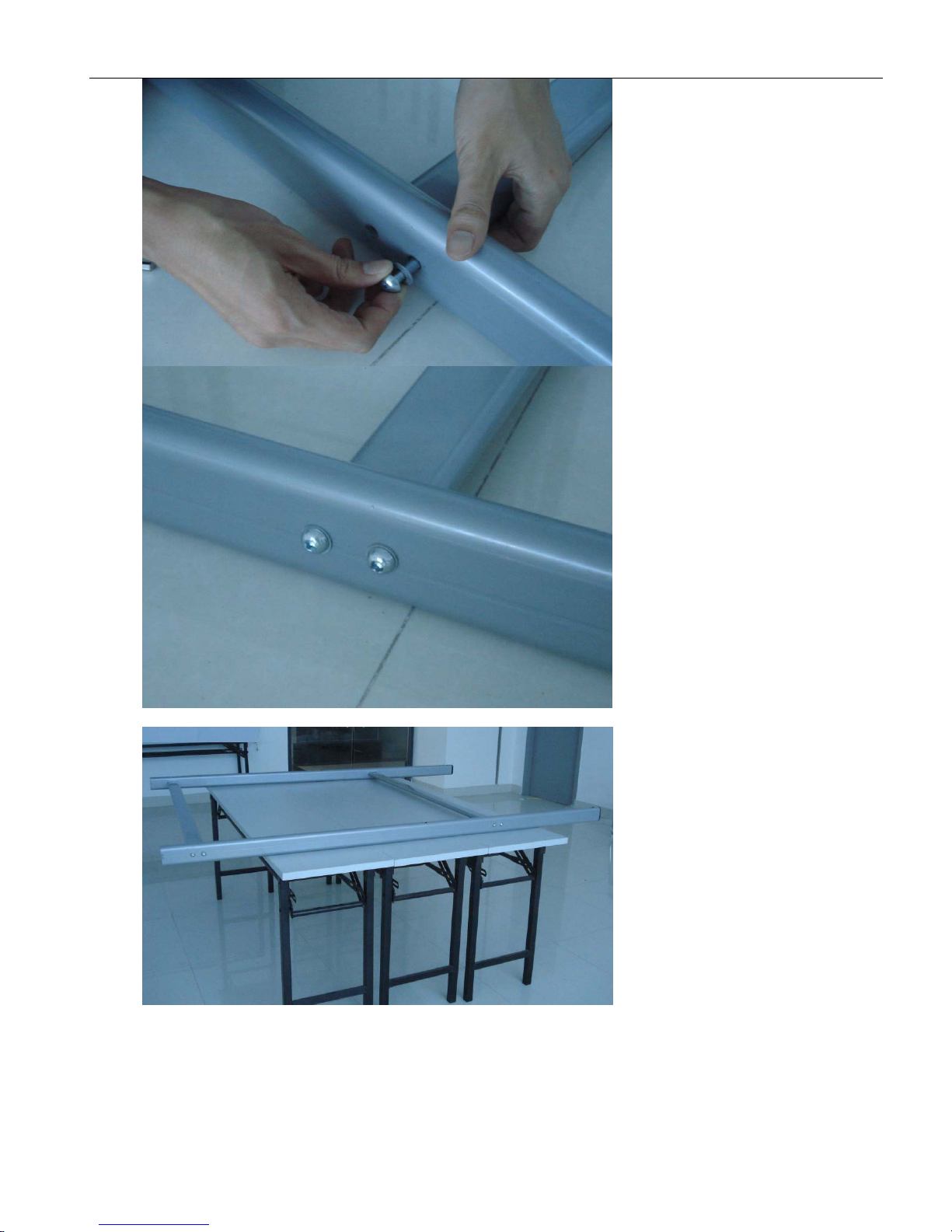
2.Connectbeamb1andverticalpolec2
3.Plugbeamb2intotheslotsoftwoverticalpolesc1andc2
4.Fixthestandswithscrews.
Page 9
UserManual
8
5.Thestandisfixed.
6.Fixallthewheelsonthebaseofstandswiththewrench.
Page 10
UserManual
9
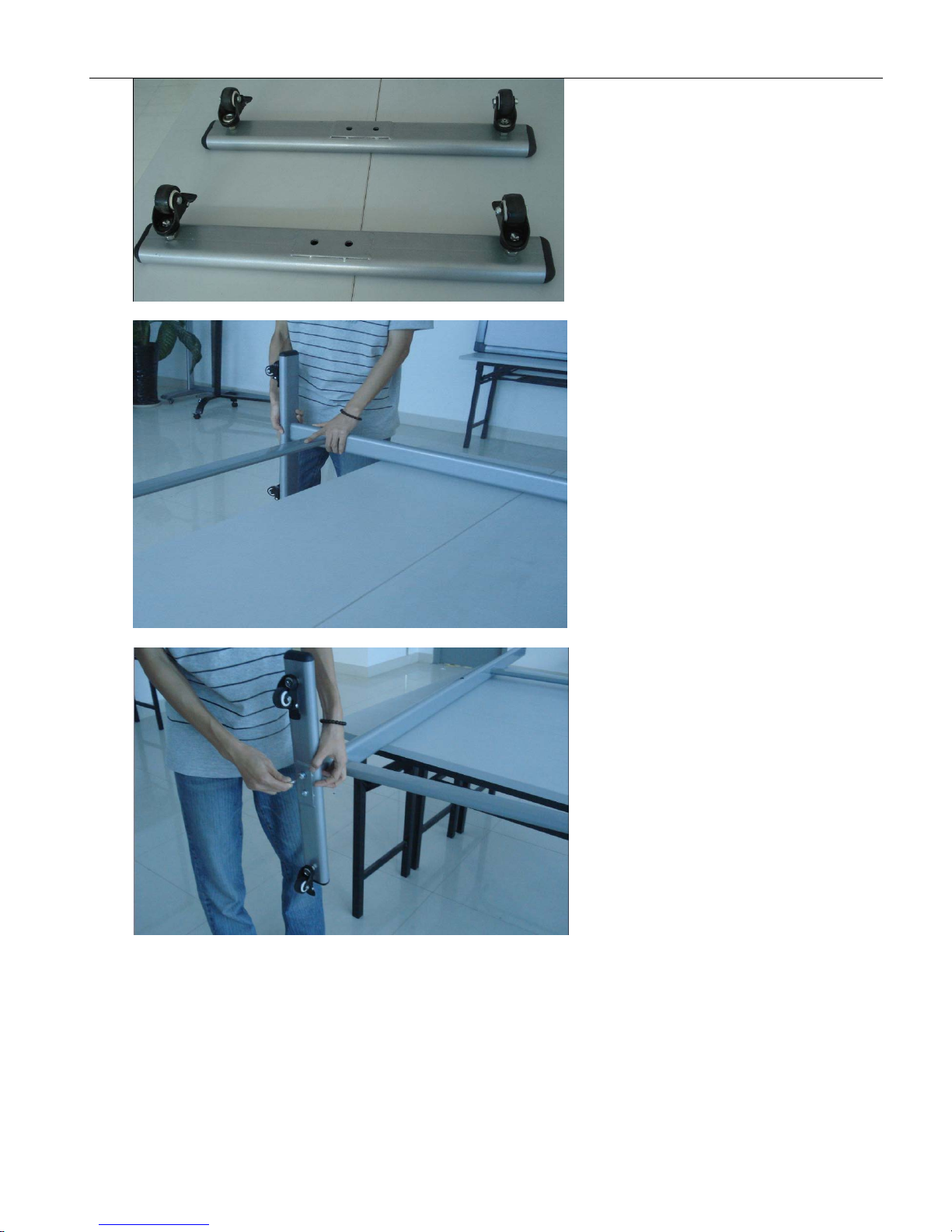
7.Plugtheverticalpolesc1andc2intotheslotsinthemiddleofbases.
8.Fixthemallwithscrews.
9.Themobilestandisfinished.
Page 11
UserManual
10
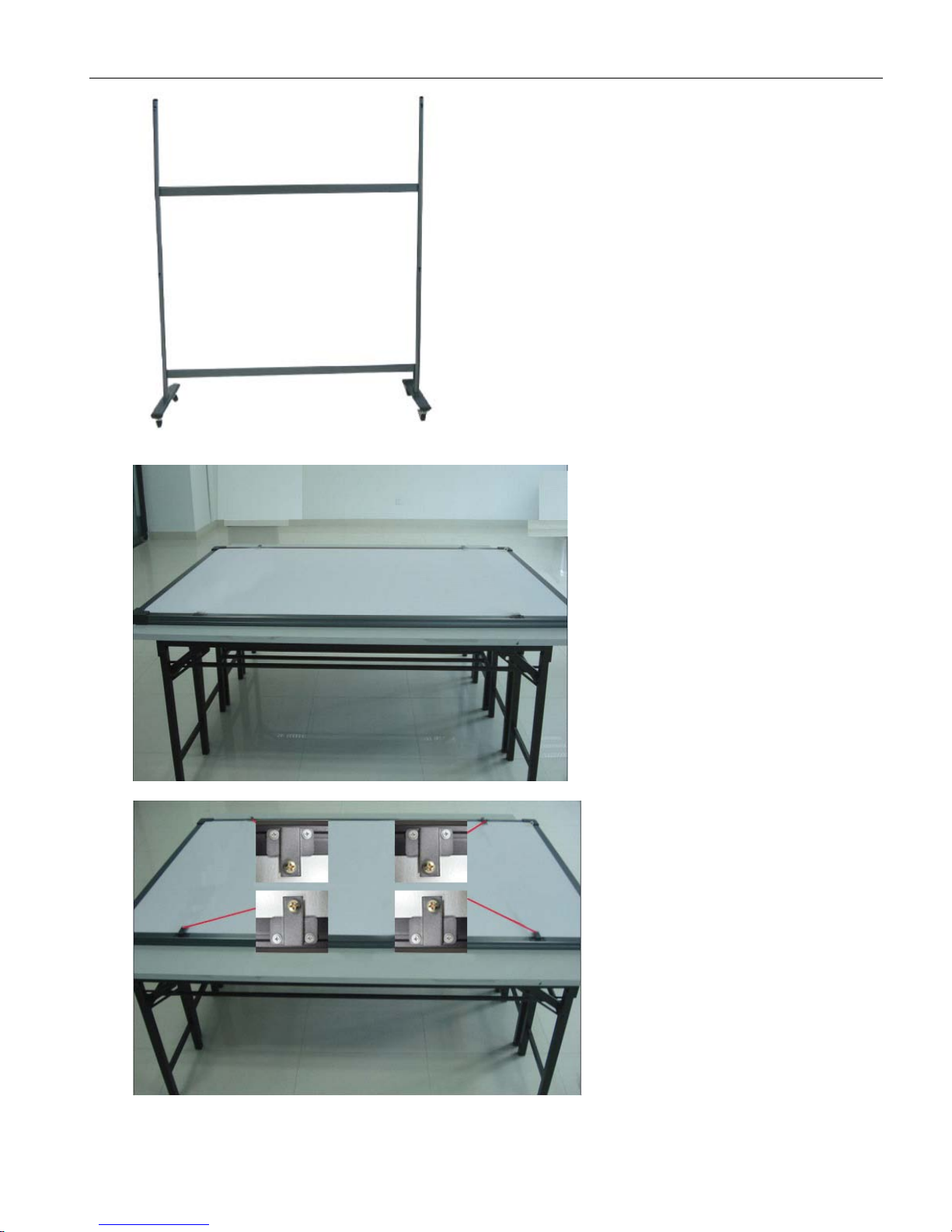
10.Putthebackofthewhiteboardonthedesk.
11.Fixthebolts,butnottootight.
Assemblydiagram
Page 12
UserManual
11
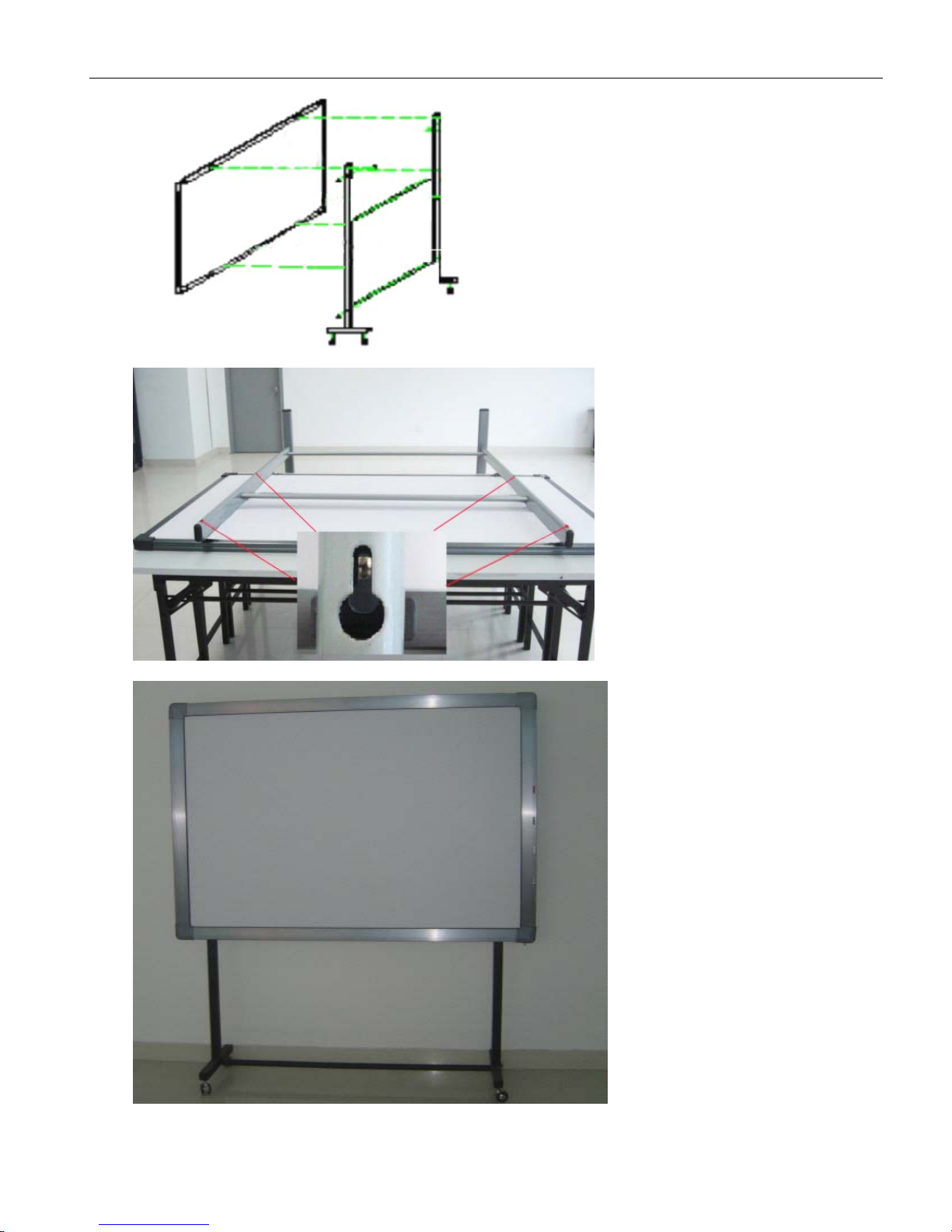
12.Hangtheboardtothefourboltspositionandfixtheboltstightly.
13.Themobileinstallationisfinished.Makeitstandontheground.
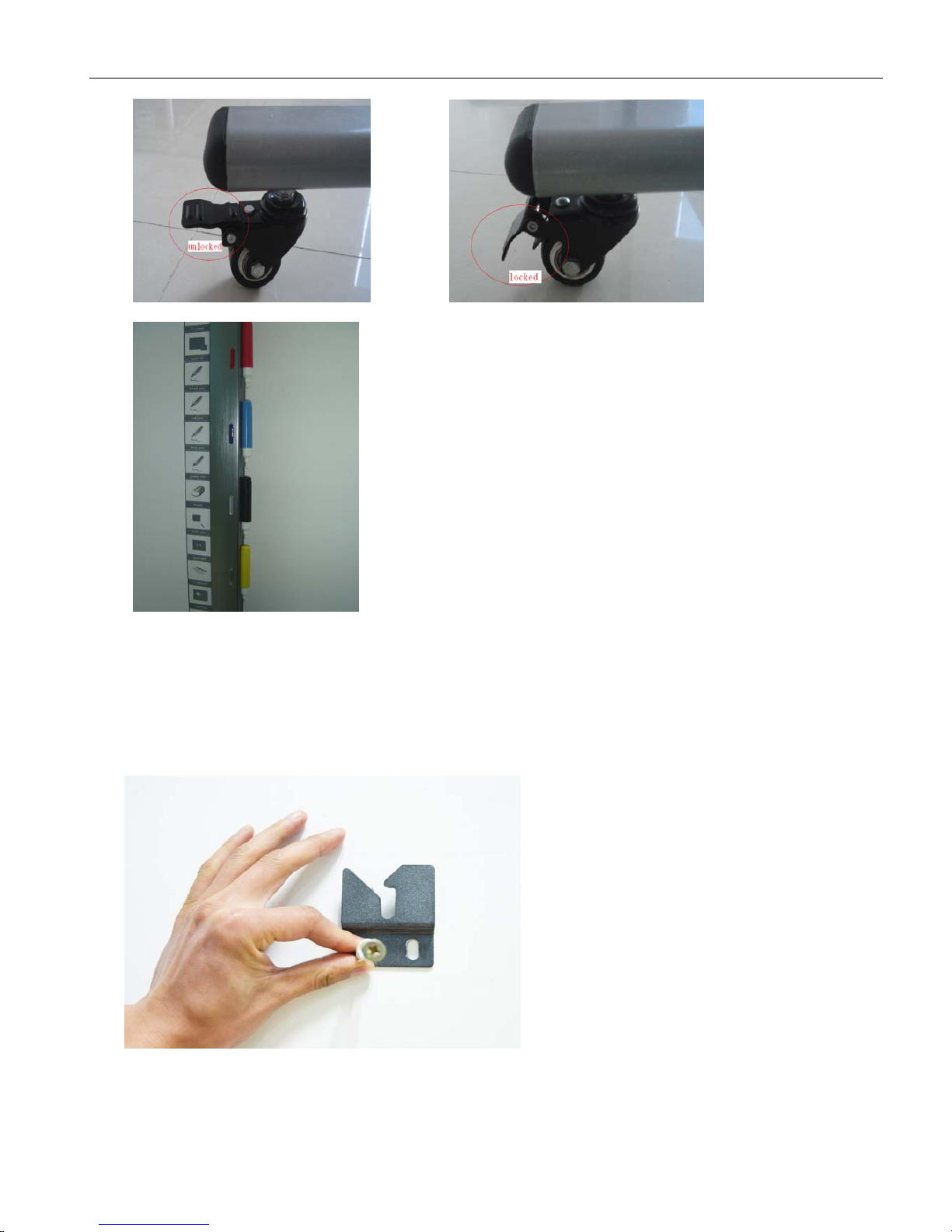
14.Lockthewheelsofthestandbase.
Page 13
UserManual
12
UnlockedstateLockedstate
15.Putthepenonthepenholder.
2.2Wallmountinginstallation
Youmayneedtapemeasure,wrenchanddrillforinstallation.
1.Choosetherightplacetoinstalltheboard,whichisconvenienttoconnectthecomputer..
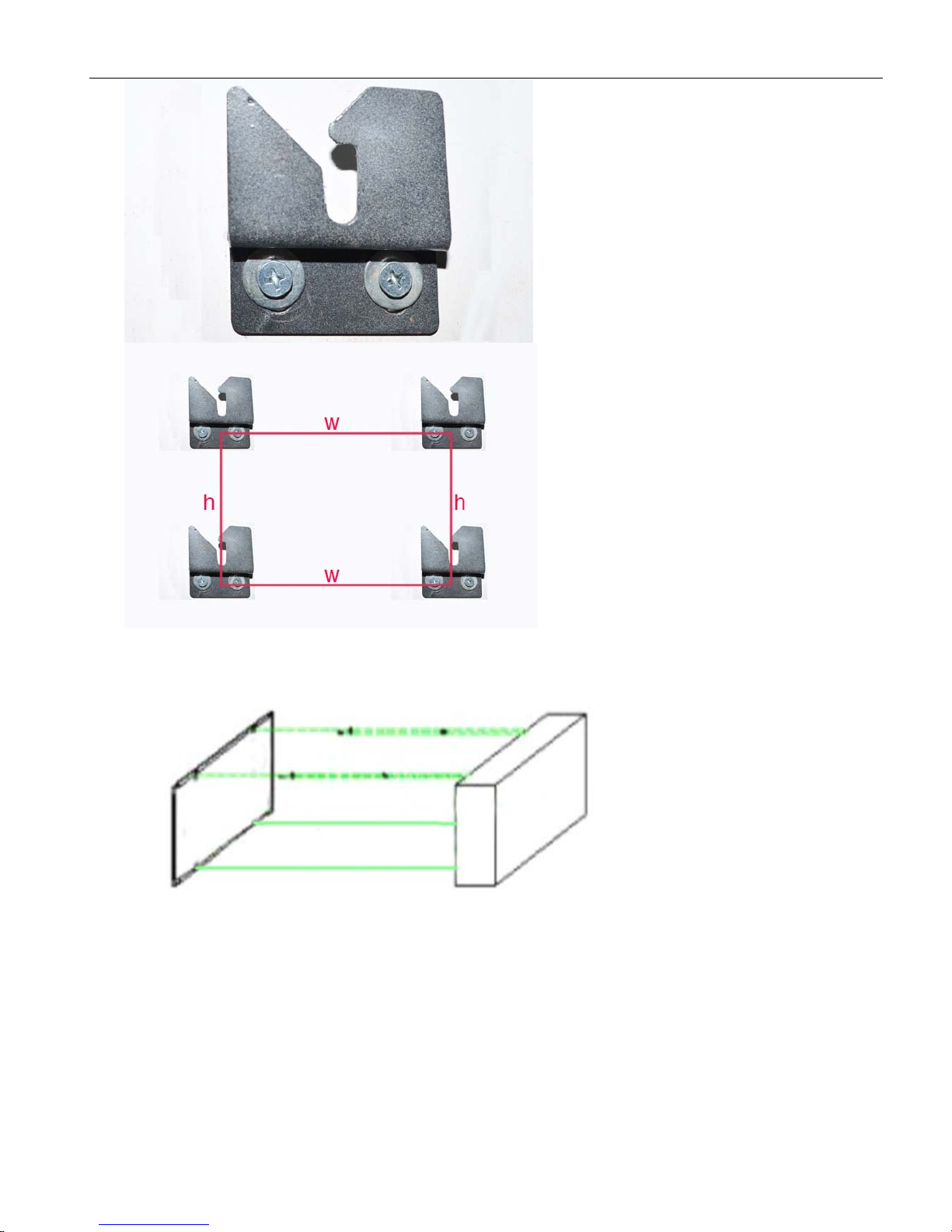
2.Markthedrillpositionsonthewallaccordingtothedifferentmodelsofproducts.
3.Drill8fixingholesonthewallaccordingtothemark.
4.Fixthebracketsonthewallwith8setscrews.
Page 14
UserManual
13
(
Heightandwidtharedifferentaccordingtodifferentboardsizes.
)
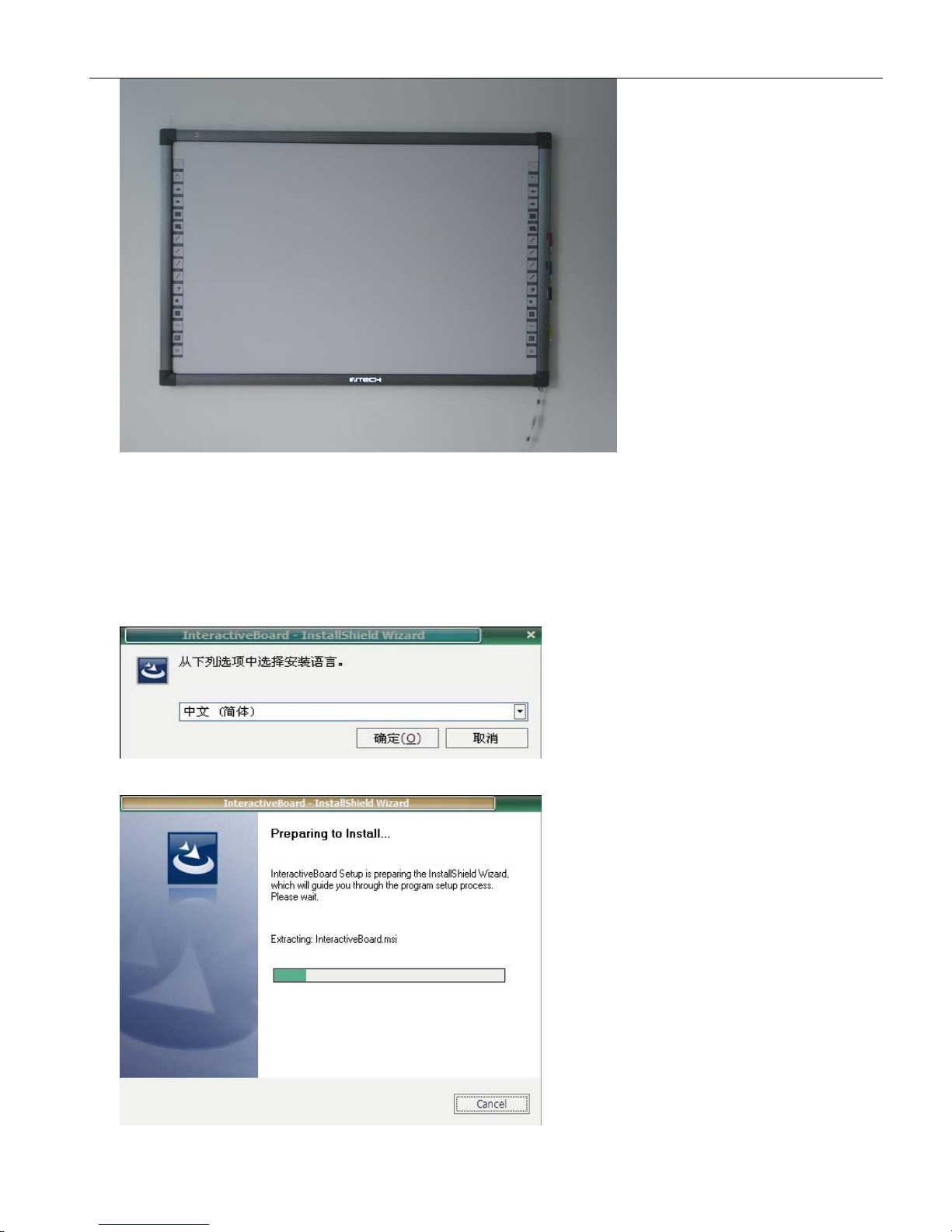
5.Hangtheboardonthefourbrackets.Thewallmountinginstallationisfinished.
Page 15
UserManual
14
2.3HowtoinstalltheinfraredIWBsoftware?
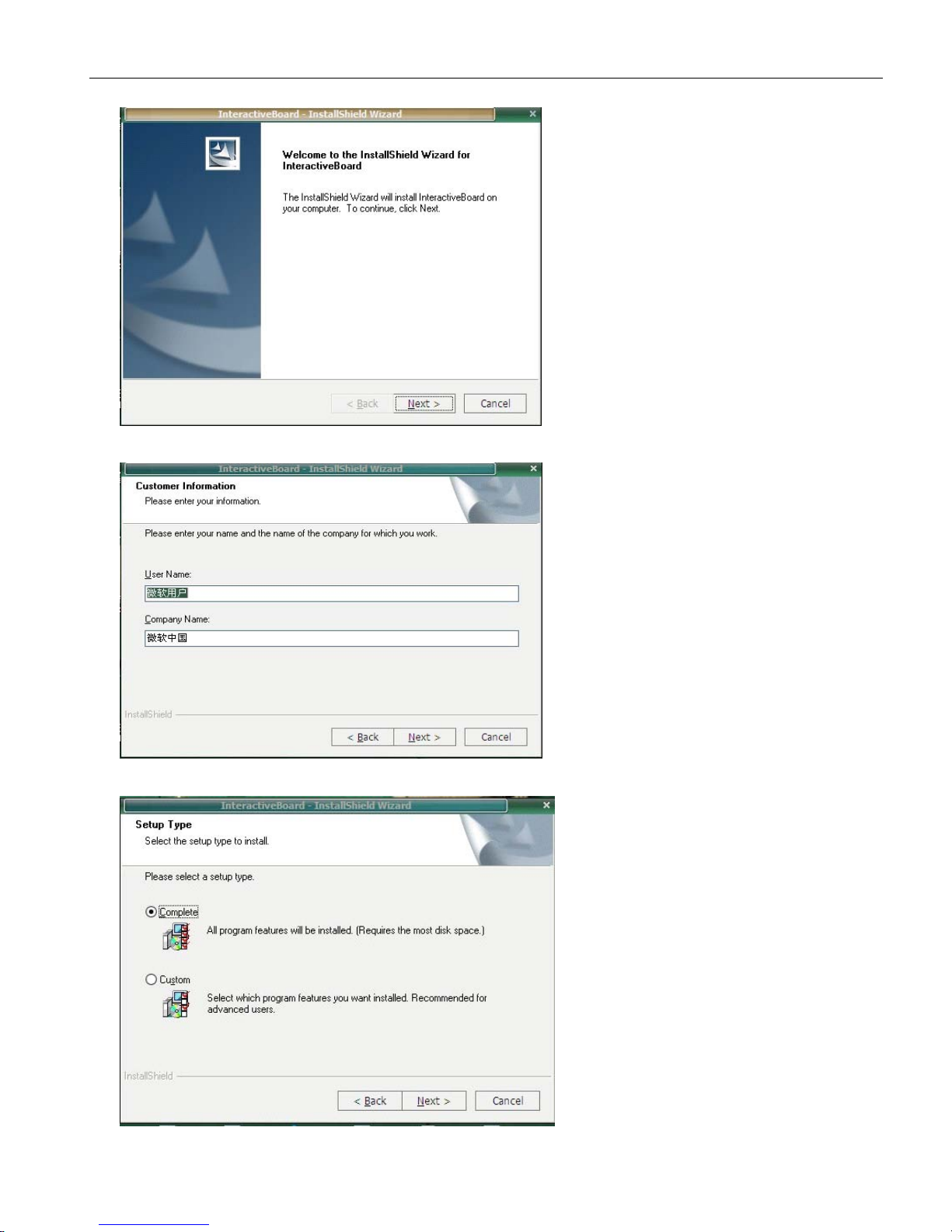
ConnectthecomputerandthewhiteboardviaUSBcable,(thefollowinginstallationexampleisthe
installationunderWINDOWSXP,aslightdifferencemaybeinotheroperationsystems).
InserttheSoftwareCDintoyourCD-ROM,thenpleaseclicktheSoftwareSetupicon.Thenchoosethe
languageyoupreferandclick“Yes”toinstallthesoftware.
Page 16
UserManual
15
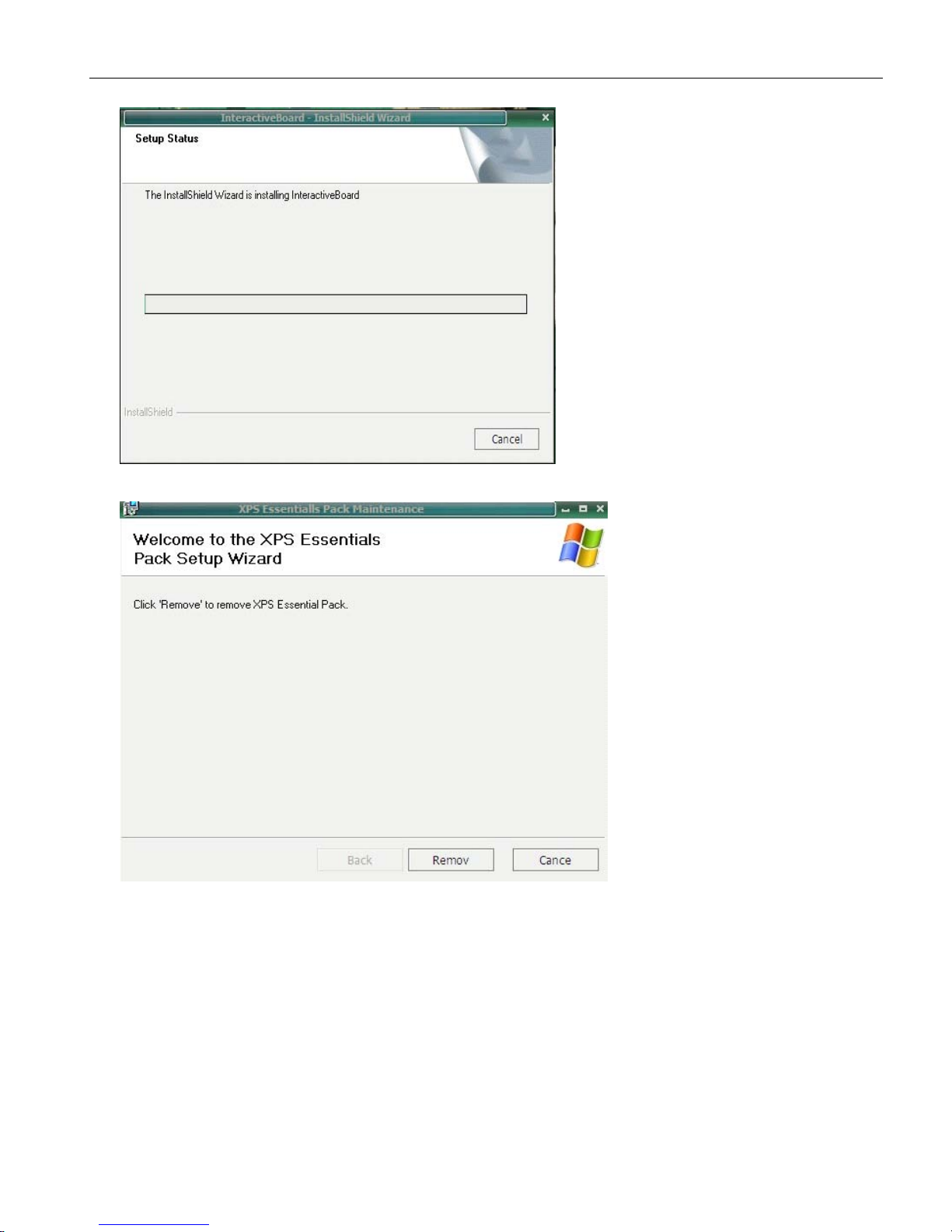
Click“next”tocontinue.
Click“next”tocontinue.
Click“next”tocontinue.
Page 17
UserManual
16
Click“next”tocontinue.
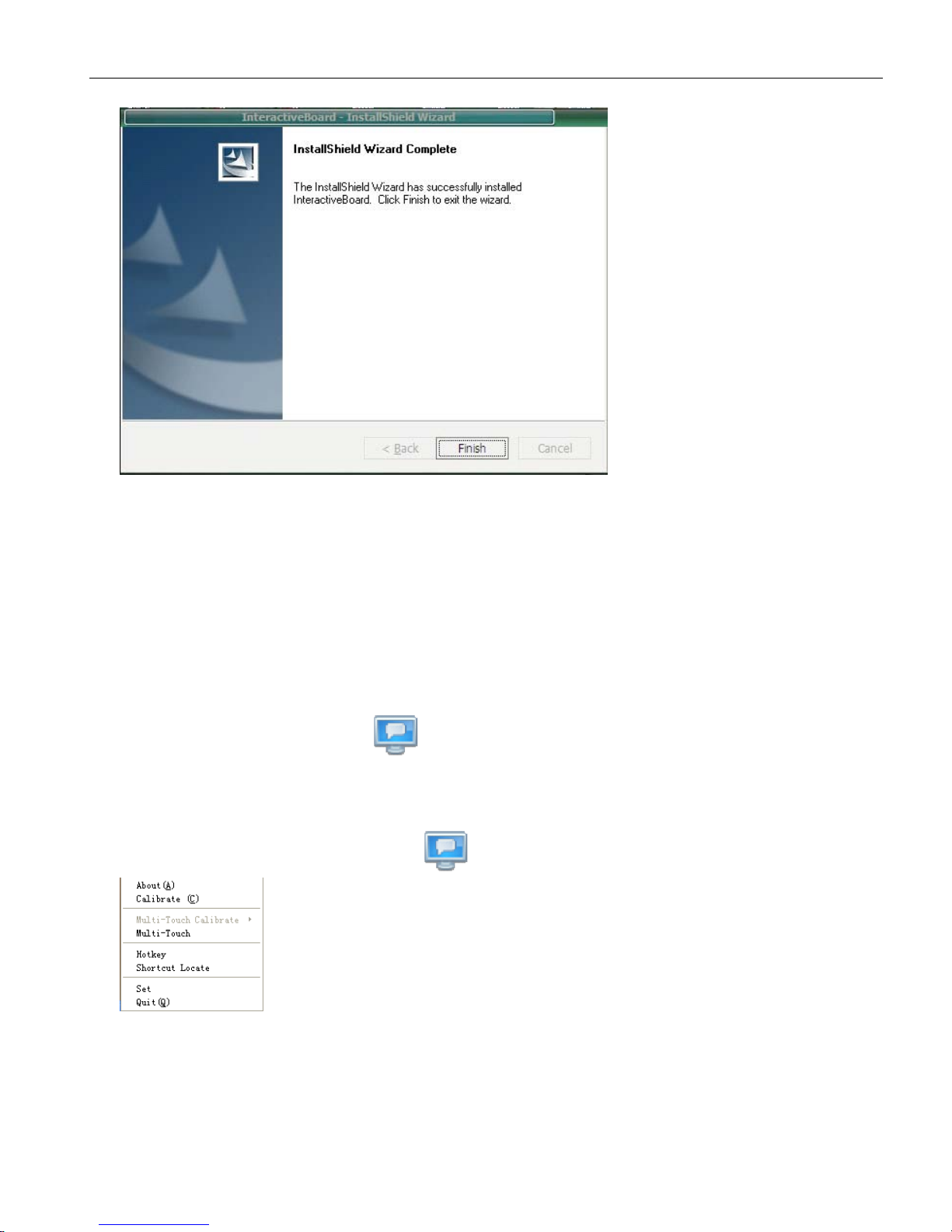
Choose“Remove”tocontinue.
Page 18
UserManual
17
Finally,yourinstallationisfinished.
Ifthedriverinstalledproperly,theUSBindicatorsofthewhiteboardwilllightinred.ThentheIWB
wouldbeavailableaftersomesimplesetting.Justclickthe“Interactivewhiteboard”icononthe
desktop,whichisourapplicationsoftware.
3.
3.
3.
3.How
How
How
Howto
to
to
touse
use
use
usethe
the
the
theinfrared
infrared
infrared
infraredinteractive
interactive
interactive
interactivewhiteboard?
whiteboard?
whiteboard?
whiteboard?
3.1Connectthewhiteboardwiththecomputer
WhenyouconnecttheIWBwithcomputerthroughUSBcableorwirelessmodule,thecomputercould
sensetheIWBautomaticallyifyouhaveinstalledthesoftwareCDproperly.
Thenplsclick“TouchDriver.exe”
icononthedesktop.TheIWB’sconnectionstatuswouldbe
showninyourcomputer’staskbar.
3.2CalibratetheInfraredInteractiveWhiteboard
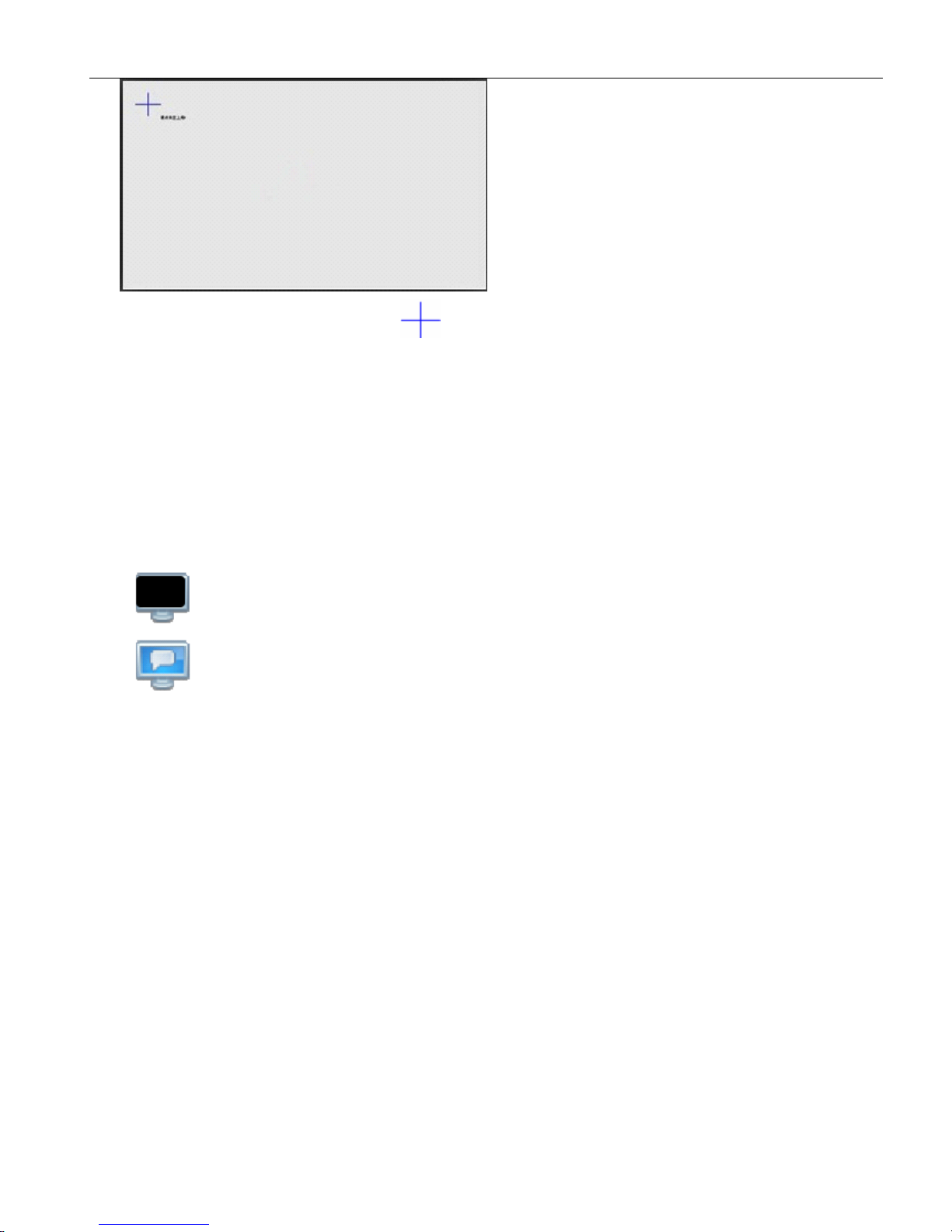
Pleaseright-clickthe“TouchDriver”iconinthetaskbar,thenamenulikethiswouldbeshown
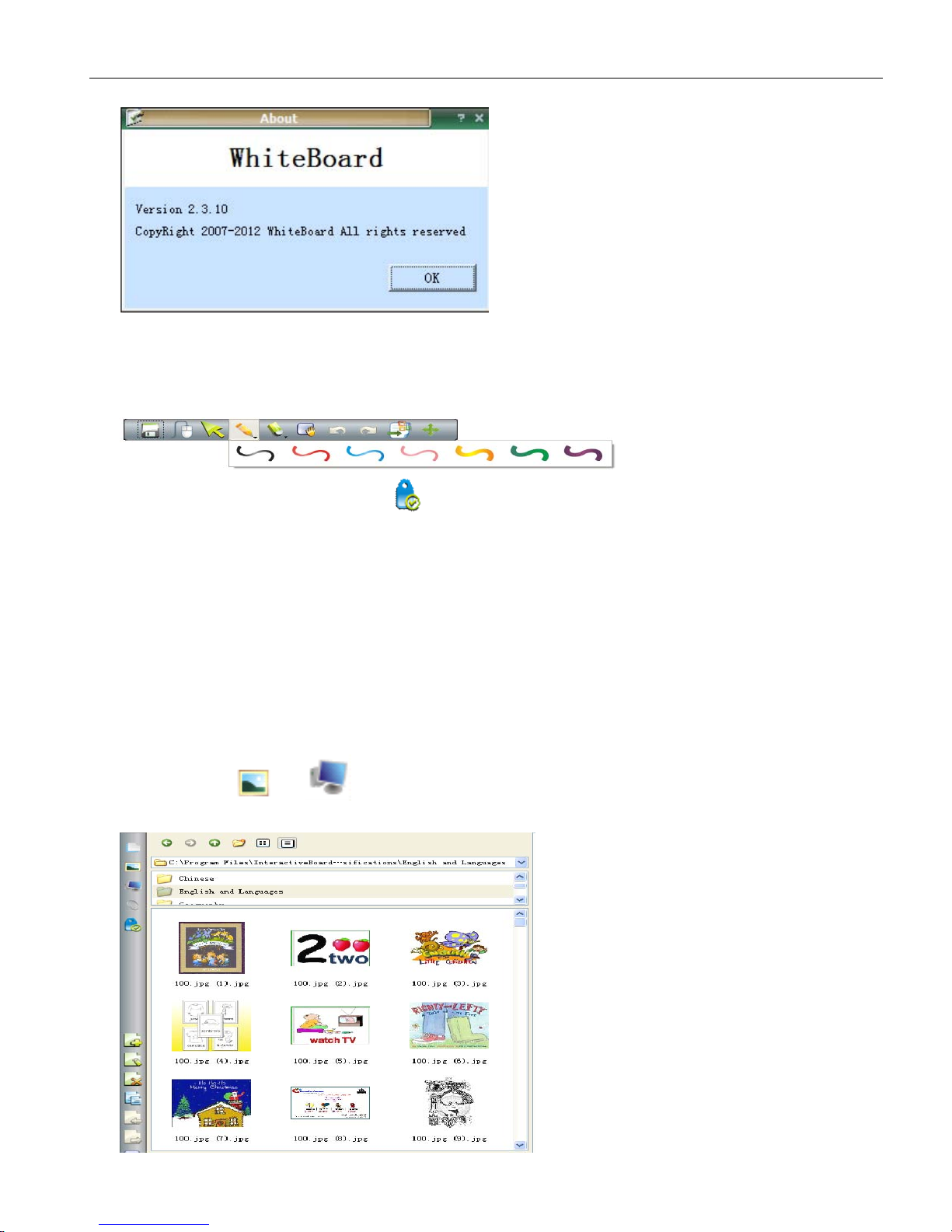
About
Itshowstheversioninformationofthissoftware.
Calibration
Clickitandthenyouwouldseeascreenasbelow.
Page 19
UserManual
18
Clickthecenterpointofthebluecrossbypenorfingertogetthecalibrationmoreprecisely.
Attention:
1.Thecalibrationisnecessaryonlyatthefirsttimewhenthewhiteboardorotherhardwareisused.
2.Re-calibrationisrequiredonlyiftheIWBorprojectorhasbeenadjustedorrelocated.
Exist
Ifyoudon’tneedtousetheboard,plschoose“exist”.
Attention:
Attention:
Attention:
Attention:
To
confirmwhethertheboardisconnectedsuccessfully,therearetwoconnectingstatusofthe
“TouchDriver”foryourreference.
1.meanstheconnectionisfailed.
2.meanstheconnectionissuccessful.
3.3Hotkeys
We
design16hotkeysonbothsidesoftheboardtomakeyouroperationmucheasier.Hereisabrief
descriptionforyourreference.
1)Mouse
2
)
NewPage
3)LastPage
4)NextPage
5
)
IndexPage
6)Resource
7)BlackPen
8)RedPen
9)Fluorescentpen-blue
10)Fluorescentpen-green
Page 20
UserManual
19
11
)
Eraser(Default:ObjectEraser)
12)Laserpen
13
)
Spotlight
14
)
Keyboard
15
)
Calibration
16)Custom
3.4Introductionofthesoftwaretools
3.4.1Basicattributesofthesoftware
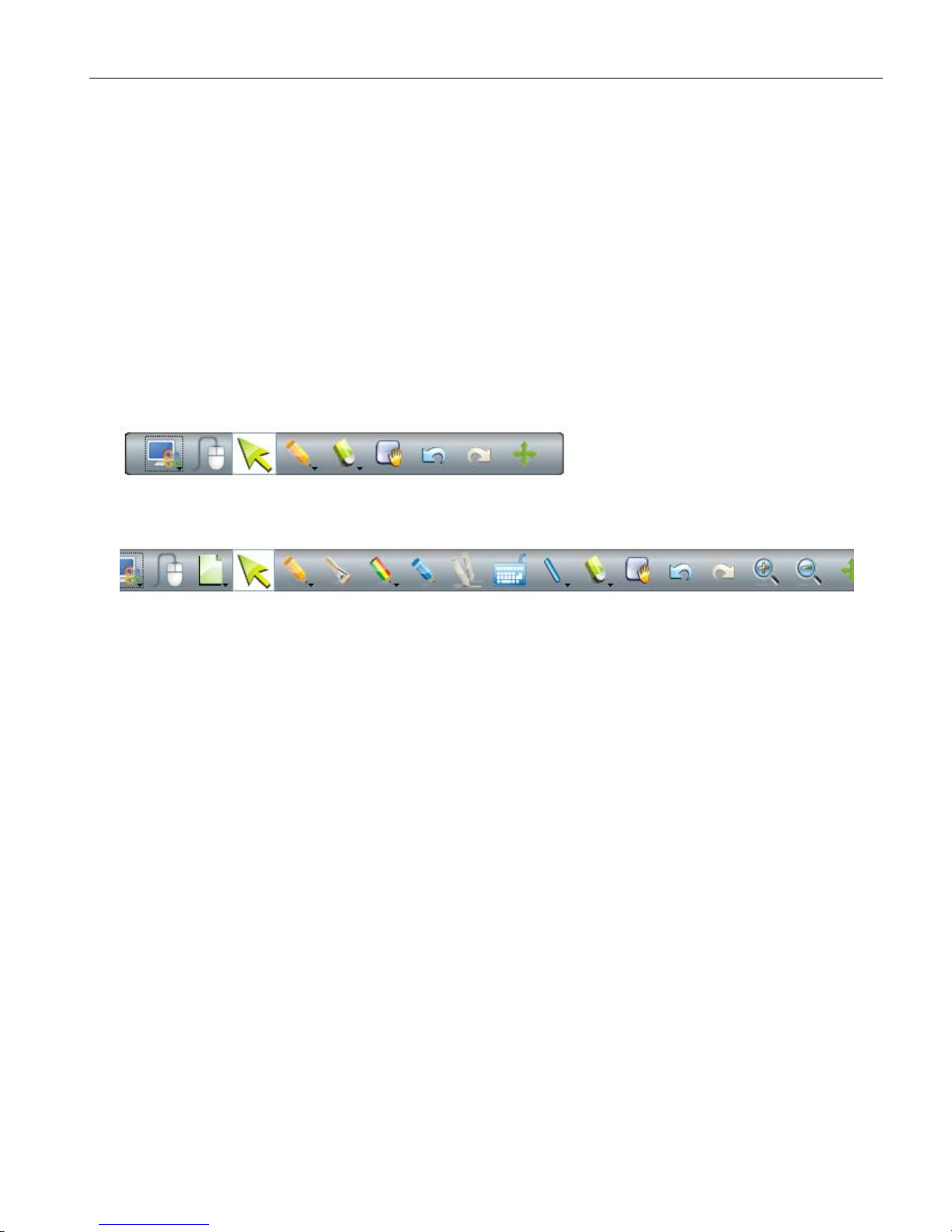
Functionsinthemaintoolbar:
1.Inthedefaulttoolbar:Start,Switchscreen,Select,Hardpen,Eraser,Range,Undo,Redo,Advance
(toshowallthehidedfunctionsinthetoolbar).
2.Hidedfunctions:Page,Spreadpen,Texturepen,Smartpen,Text,Line,Zoomin/out,Multi-write
pen(optional),advance(thisistochangethetoolbarintodefaultview)
Functionsintheleftsidetoolbar:
Indexpage,Resource;Computerfile;Attachment(withhyperlink);Property(settingofcolor);New
page;Clearpage;Deletepage;Clonepage;Previouspage;Nextpage;Resetpage;LockorUnlock
page);Sidetoolbar
Hand-GestureRecognition:Thatincludespalmstartingthesoftware,roam,multi-touchfunctionlike
zoomin/outandrotatethepicture.
Palmstarting:Putyourpalmontheboardforfewseconds,thesoftwarewillstartautomatically.
Range(Roam):Touchanddragontheboardwithtwoorthreefingersatthesametimetorealize
unlimitedroam.
Zoomin/out:Selectanobjectandusetwofingerstomovetowardoroutwardverticallyorhorizontally
torealizethezoominorzoomoutfunction.
Page 21
UserManual
20
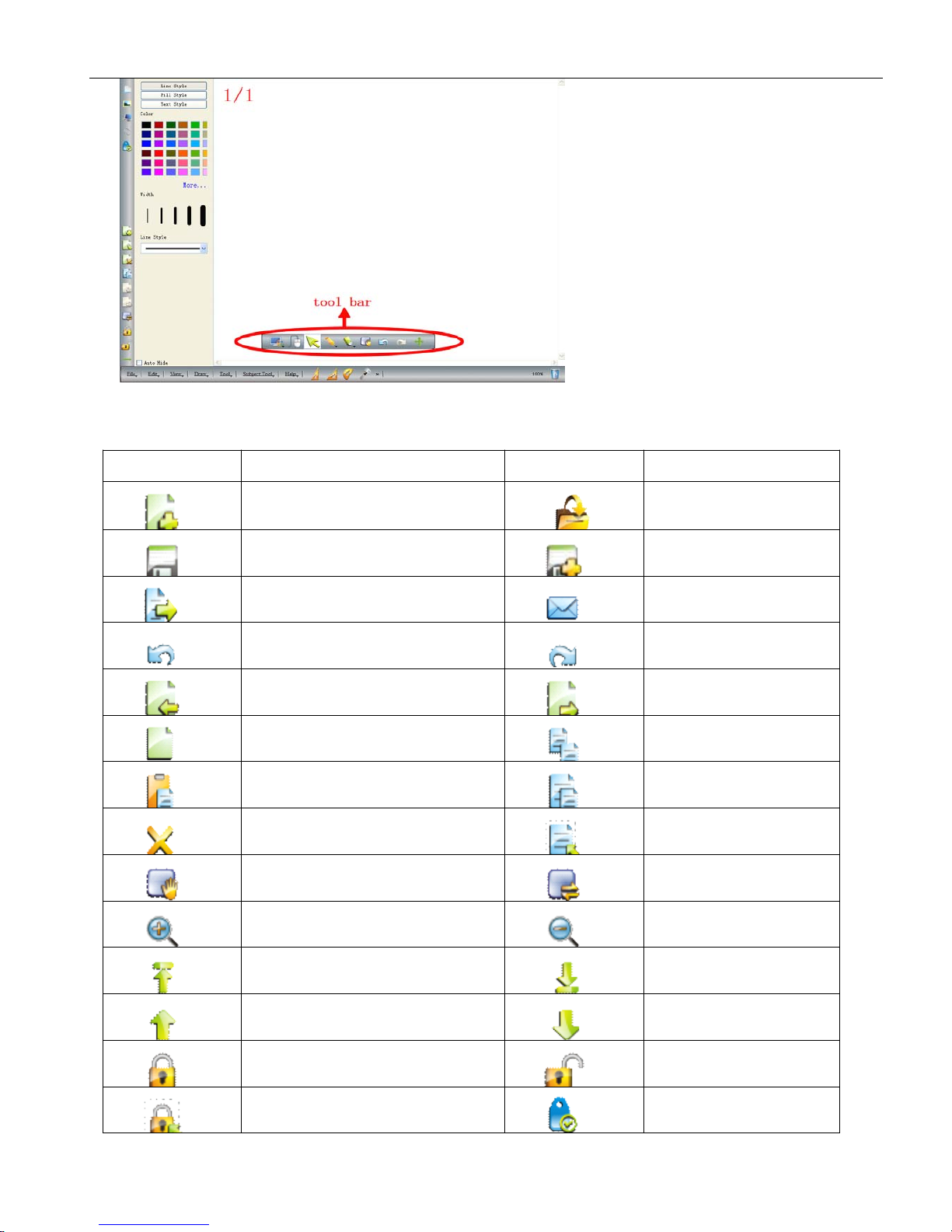
3.4.2Toolbar
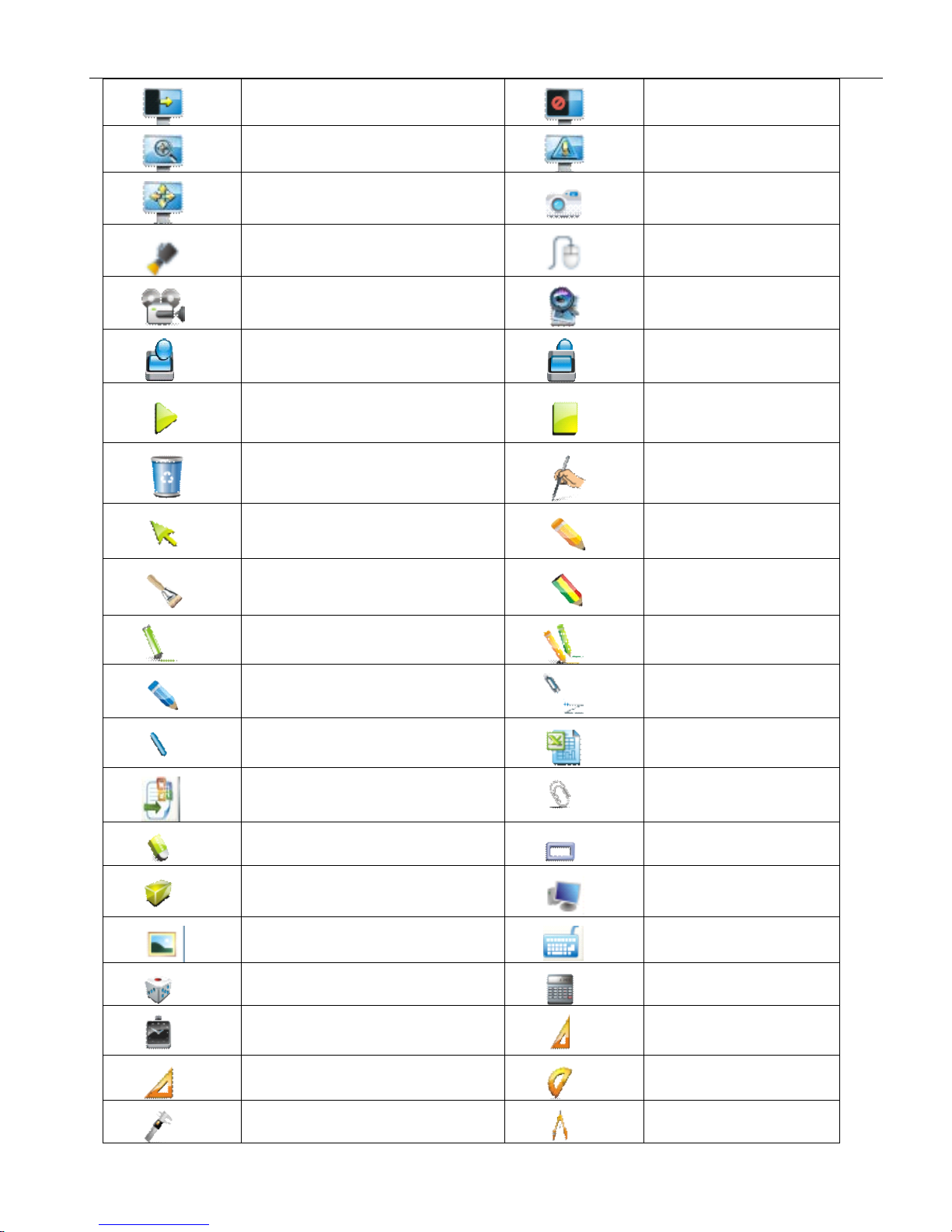
Itisconvenienttooperateontheboardwiththetoolsinthesoftwaretoolbar.
ButtonsFunctionsButtonsFunctions
CreatdocumentOpendocument
SaveSaveas
ExportSendEmail
UndoRedo
PreviouspageNextpage
SelectpageCopy
PasteClone
DeleteSelectall
ScreenRangeReset
ZoominZoomout
LayergotopLayergobottom
LayergoupLayergodown
LockUnlock
SelectlockedobjectAttributes
Page 22
UserManual
21
ScreencurtainBreakpage
ScreenhighlightScreencover
ScreenarrowScreenGrab
SpotlightScreen
annotation
ScreenrecorderMagnifier
GroupUngroup
RebroadcastPause
DustbinHandwriting
recognition
SelectobjectHardpen
SpreadpenTexturepen
FluorescencepenMulti-writepen
SmartpenLaserpen
LinesegmentFormlines
OfficeembedAttachment
EraserPlaneFigure
SolidFigureOperate
computerfile
ResourceKeyboard
DiceCalculator
Clock30°Rightangled
triangle
45°RightangledtriangleProtractor
VernierCaliperCompass
Page 23
UserManual
22
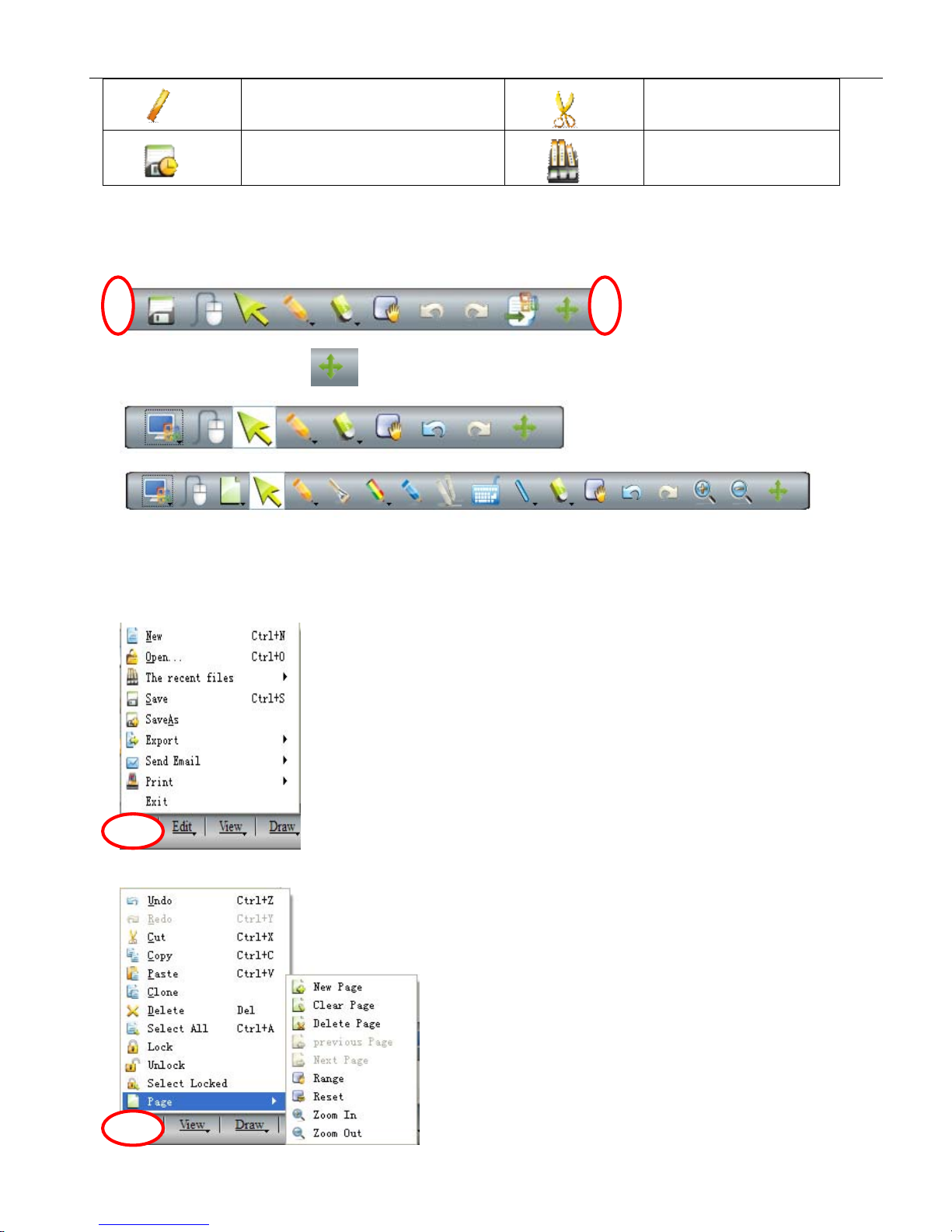
RulerCut
TimeSaveHistory
3.4.3Howtoshow,hideormovethetoolbar?
In“View”,plsselectwhethertoshoworhidethetoolbarbytickingonortickingoff.Bydraggingthe
blankareainbothsidesofthetoolbar
,itcanbemovedtoanyposition.
Remarks:
Remarks:
Remarks:
Remarks:Click
Click
Click
Clickthe
the
the
theicon
icon
icon
icon
to
to
to
toexchange
exchange
exchange
exchangethe
the
the
thetoolbar
toolbar
toolbar
toolbarbetween
between
between
betweenthe
the
the
thefollowing
following
following
followingtwo
two
two
twomodes:
modes:
modes:
modes:
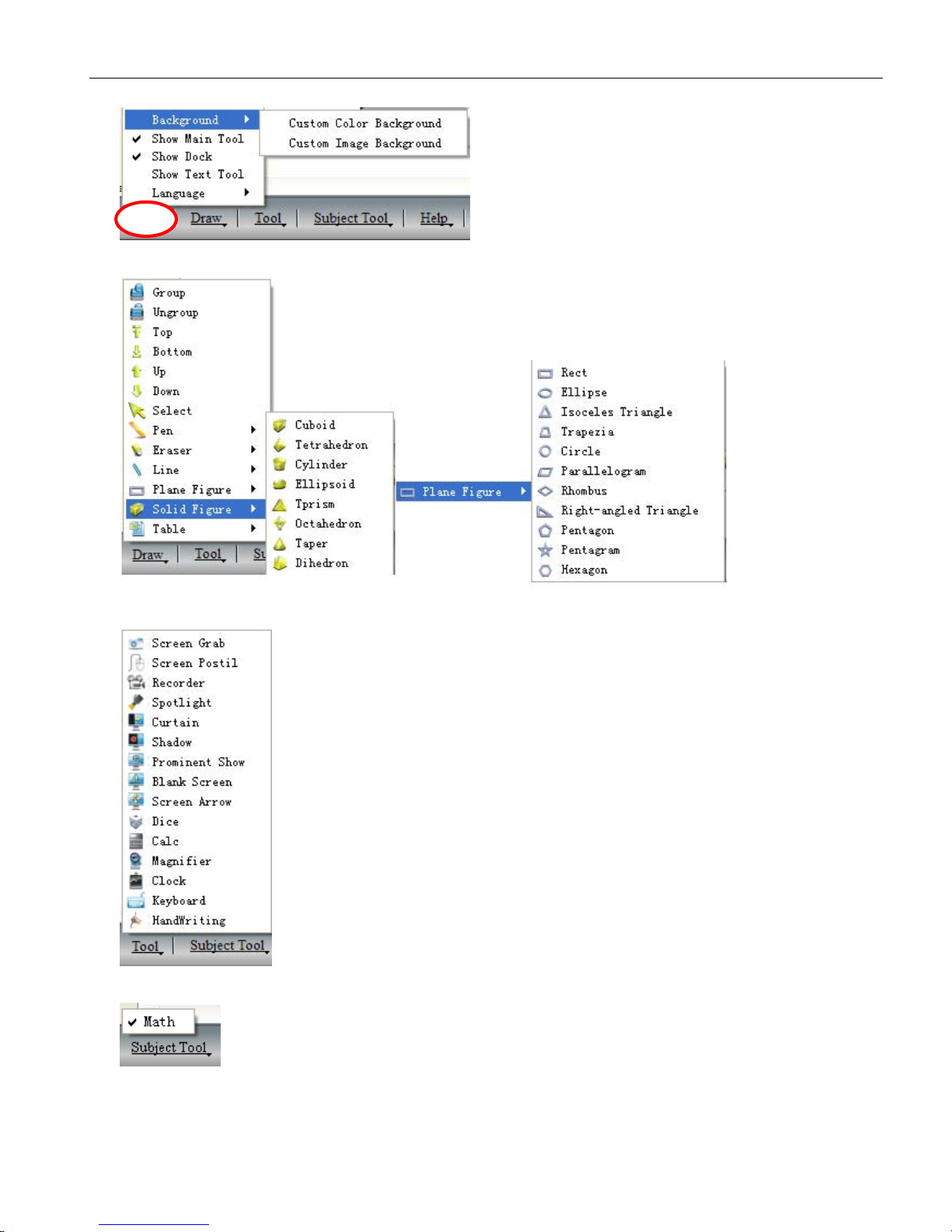
3.4.4Drop-downMenus
Therearelotsofhiddensubmenusinthedrop-downmenuasshowingbelow:
1.File
2.Edit
Page 24
UserManual
23
3.View
4.Draw
5
.
Tools
6.SubjectTools
Page 25
UserManual
24
7.Help
3.4.5Howtowriteontheboard?
Directlyselectthepenwithsettinglinecolorandwidthinthemaintoolbar.
Orontheleftsidebar,selecttheiconformoresetting.
3.4.6Howtoeraseontheboard?
Objecteraser:Clicktheerasericoninthetoolbarandselecttheobjecteraserfunction,thenselectthe
object,theobjectwillbeerased.
Pointeraser:Thisfunctionisthesameasthatinthetraditionalblackboard.Youcanselectthepointerasericonto
erasethecontentpointbypoint.
3.4.7HowtousetheResourceinthesoftwareandcomputer?
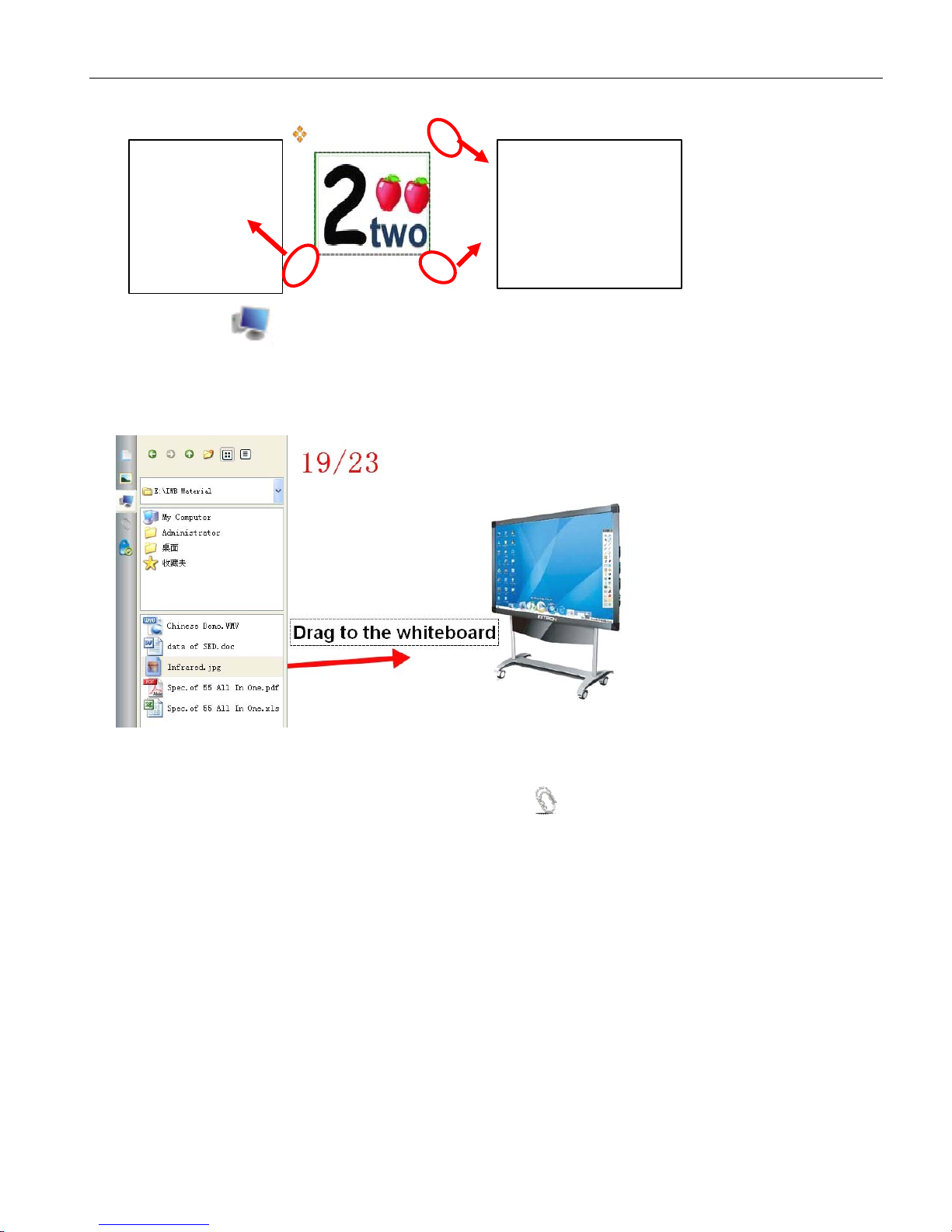
Clickthebuttonorintheleftsidebar,youcaninsertvariousimagesandfilesfromthe
resourceandcomputer,oryoucansavetheoutsideresourcesintothegallery.
Page 26
UserManual
25
Dragtheselectedpicturestothewhiteboard,andthepicturewillbeshownintheboardwithfouricons
aroundasbelow:
Clicktheicon,itwillshowyouthefollowingwindowtooperatethecomputer.
Ifyouwanttoinsertthepicturesorfiles,justdragthefilesandpicturesintheleftbrowsertothe
whiteboard;
Otherdocumentscanalsobedraggedintothewhiteboard.
3.4.8HowtouseHyperlink?
To
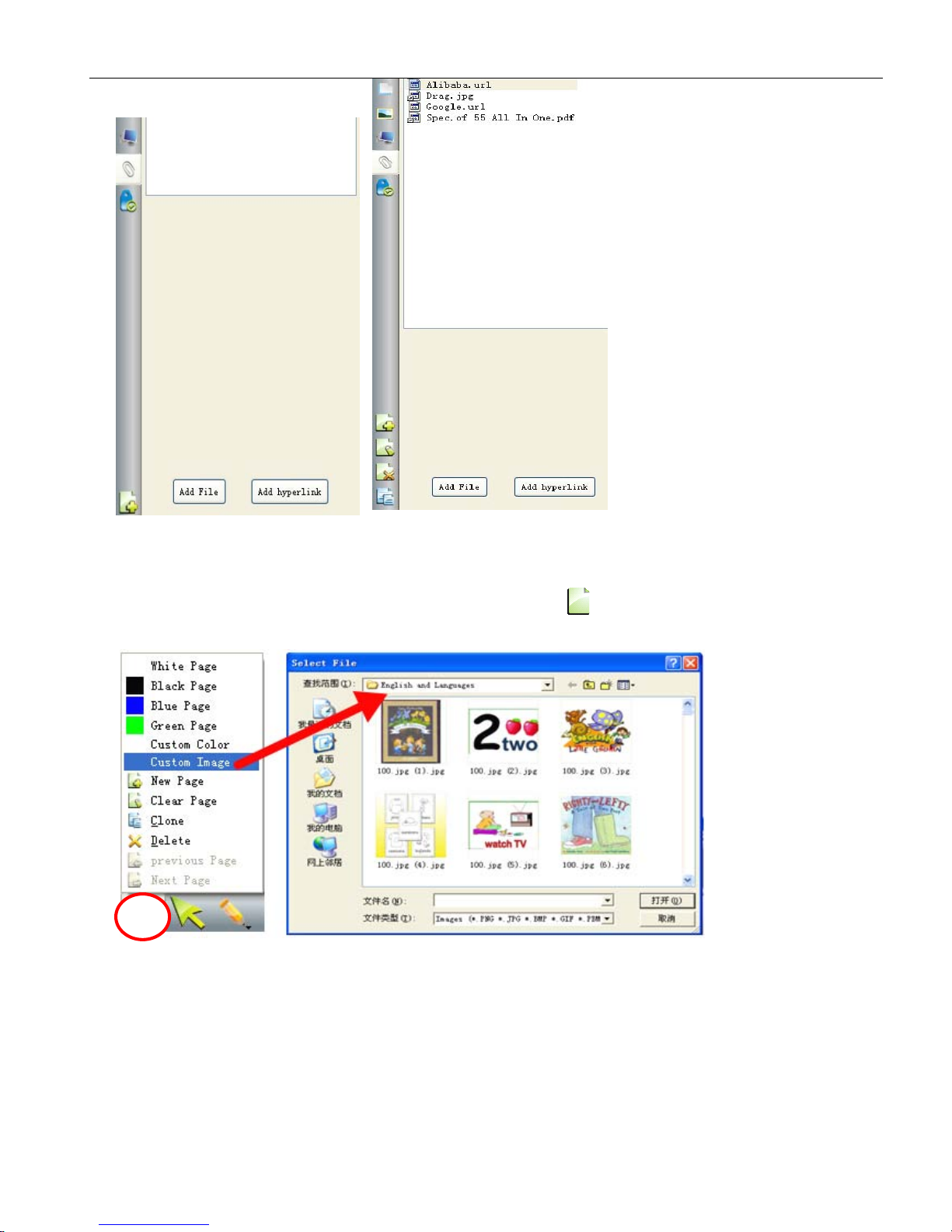
setahyperlinkinyourcurrentpage,plsclicktheiconattheleftsidebar.
Click“AddFile”toaddsomefilesfromthecomputerasbackup;
Click“Addhyperlink”andsetwhattobelinkedtowebsites.
Dragittorotatethe
picture.
Dragittozoomin/out
thepicture.
Clickittosetthe
picture
Page 27
UserManual
26
3.4.9HowtouseBackgroundImageandResource?
To
changethebackgroundimageorcolor,plschoosetheiconinthemaintaskbarandselect
whateveryouprefer.
3.4.10Howtocreateanewfile?
Inthecurrentpage,ifyouaregoingtocreateafile,plsclick“File”andthenchoose“New”.Adialog
willpopupandaskifyouwanttosaveordon’tsavethecurrentcontents.Afterchoosing,anewfilewill
becreated.
Page 28
UserManual
27
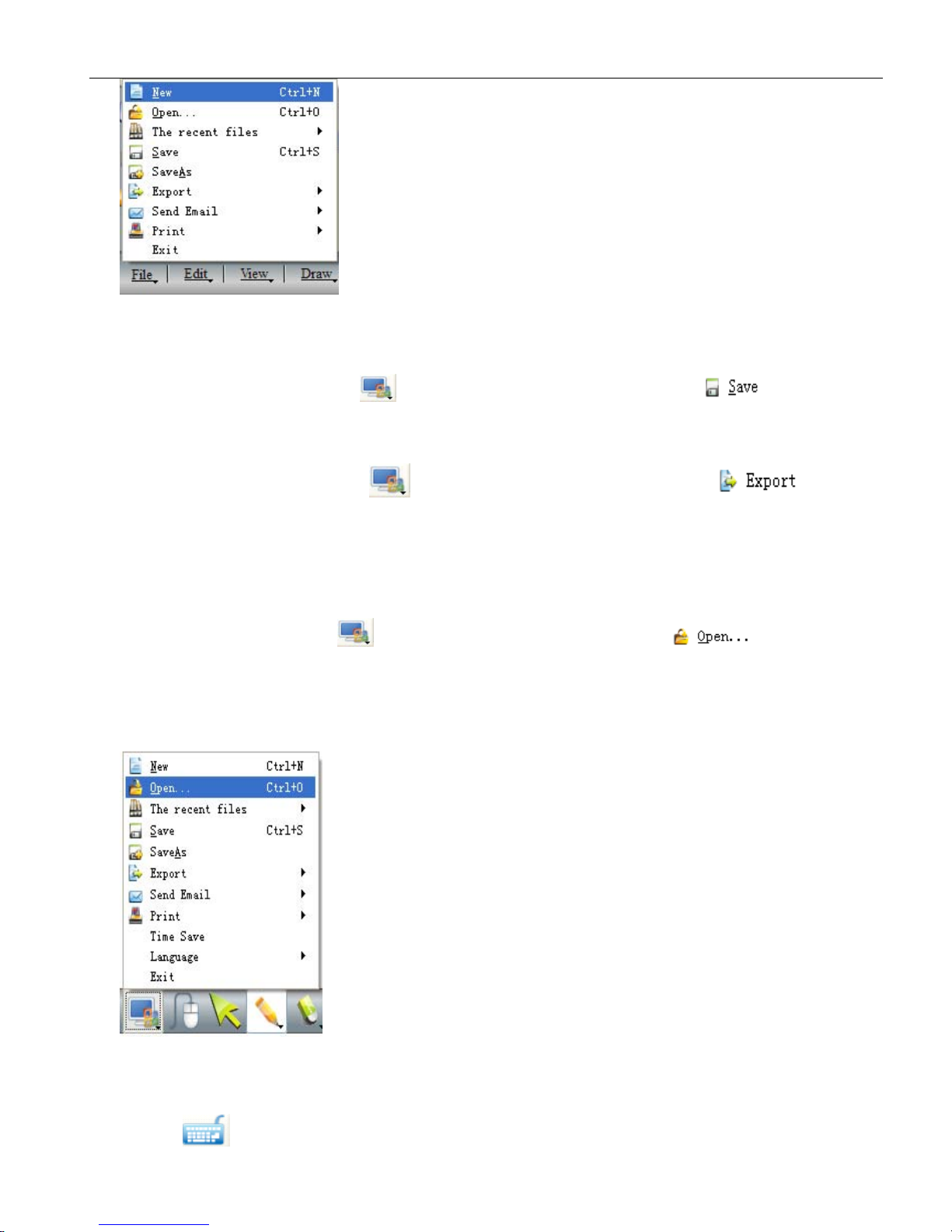
3.4.11Howtosavefile?
1.Click”File-Save”ortheiconinthemaintoolbartoselectthesubmenutosave
contentsinaspecialformatINTwhichisavailableinourwhiteboardsoftwareonly
2.Click”File-Export”,ortheiconinthemaintoolbartoselectthesubmenuto
savefilesinformatsofvariousImages(png,jpg,bmp,gif,pbm,pgm,ppt,ppm,xbm,xpm,tiff);PPT;
PDF;andHTML.Thisfunctionappliestothecurrentpageonly.
3.4.12Howtoopenfile?
Click”File-Open”ortheiconinthemaintoolbartoselectthesubmenu,youcan
openthedocumentsofINT,PDF,WORD,EXCELandPPT.Note
Note
Note
Notethat
that
that
thatExcel
Excel
Excel
Excelshould
should
should
shouldbe
be
be
bein
in
in
inversion
version
version
version
2007
2007
2007
2007or
or
or
orabove
above
above
above.
Remarks:
Remarks:
Remarks:
Remarks:Images
Images
Images
Imagescan
can
can
cannot
not
not
notbe
be
be
beopened
opened
opened
openedwith
with
with
withthis
this
this
thisfunction
function
function
functionbut
but
but
butto
to
to
todrag.
drag.
drag.
drag.Pls
Pls
Pls
Plsrefer
refer
refer
referto
to
to
to3.4.7
3.4.7
3.4.7
3.4.7the
the
the
theway
way
way
wayto
to
to
to
open
open
open
openthe
the
the
theimages.
images.
images.
images.
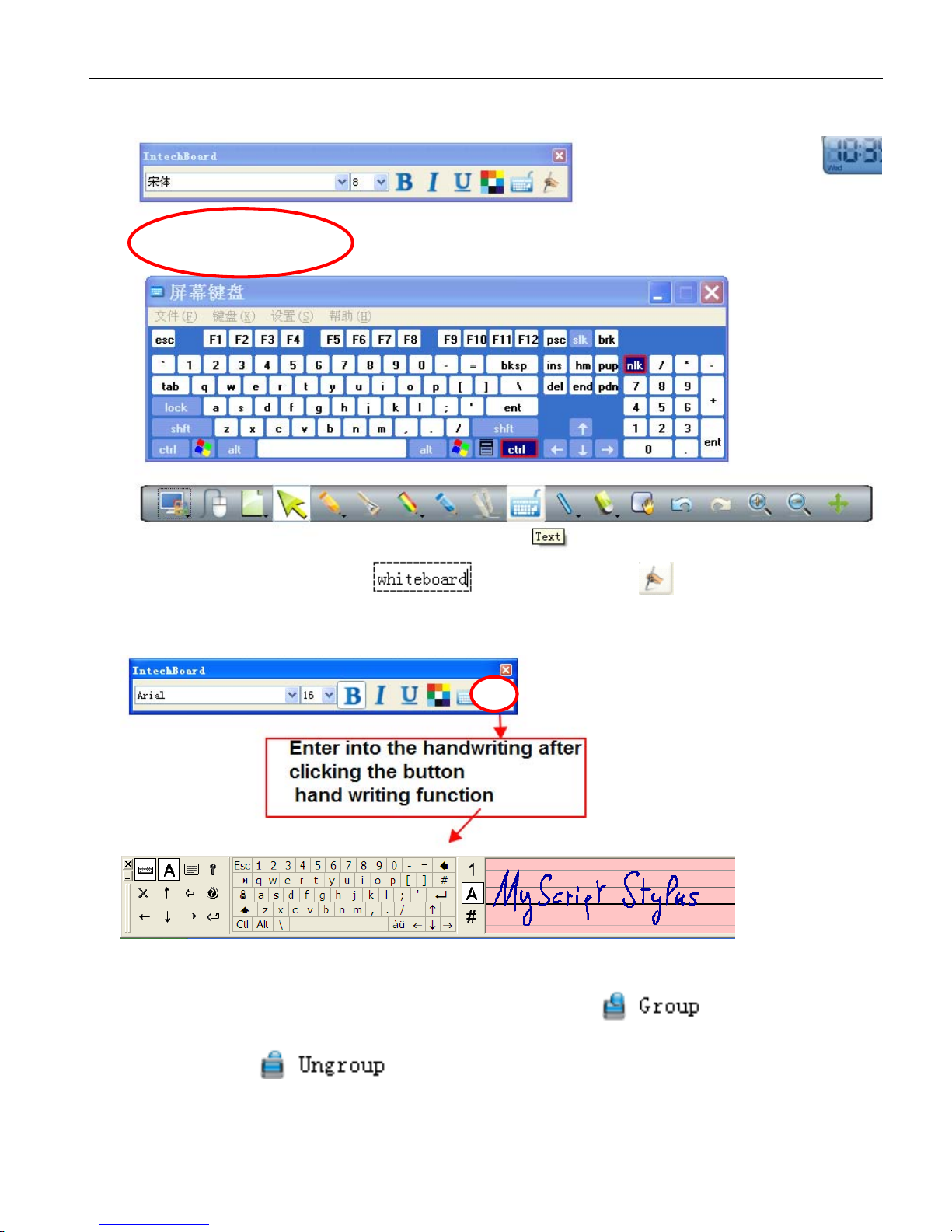
3.4.13HowtoinsertText?
Plsfindiconinthemaintoolbar,adialogasbelowwillpopup.Youcouldinputthecontentsby
Page 29
UserManual
28
keyboards.
Or,youcouldclickthedottedareaandchoosetheicon,theninputthecontents
byhandwriting.
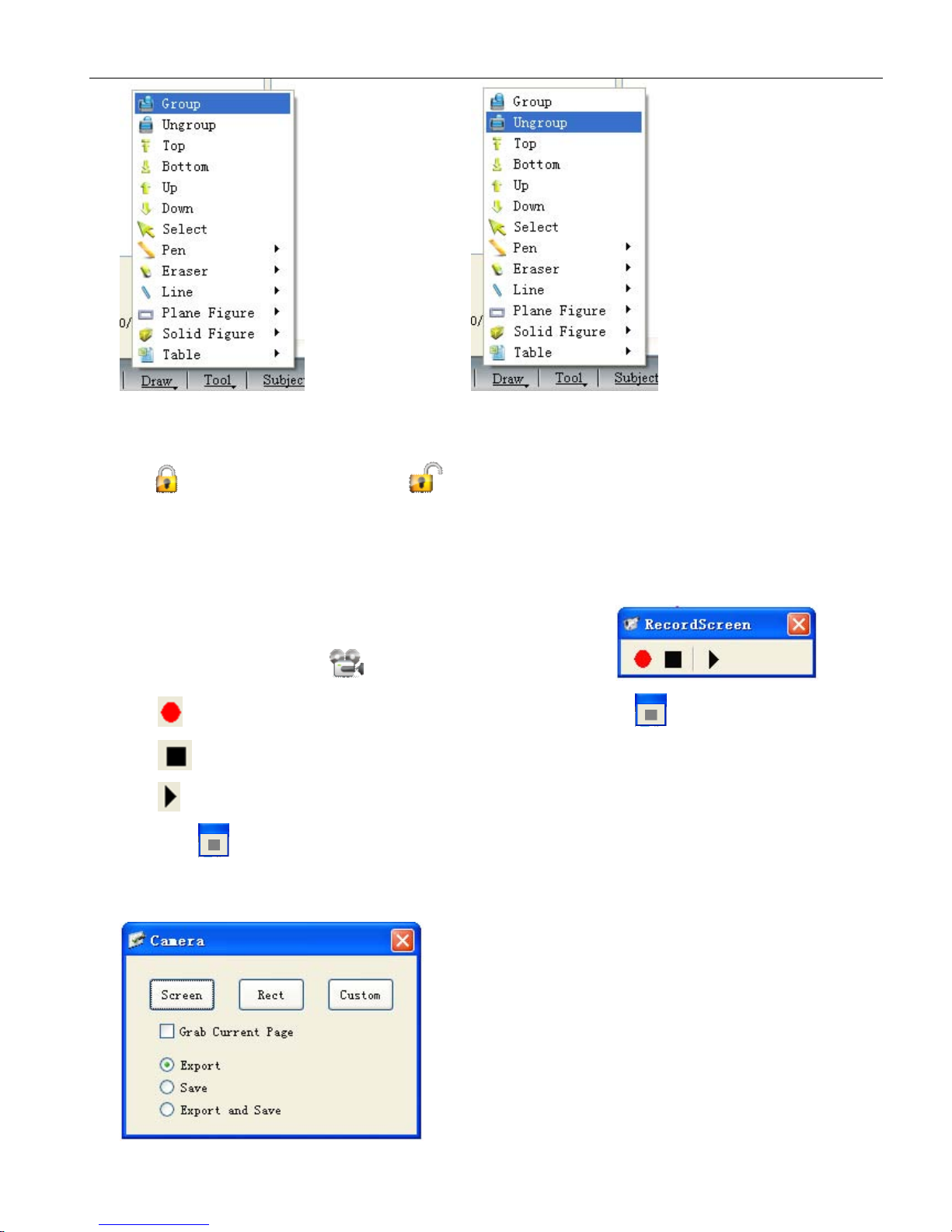
3.4.14Howtocombineobject?
You
couldselectmultiobjectsatthesametimeandchoosetheiconin“Draw”,thenall
theobjectswouldbecombinedinonegroup.
To
cancelthisoperation,plschoosethegroupedobject
andclicktheicon
in“Draw”
Page 30
UserManual
29
3.4.15Howtolockobject?
Ifyoudon’twanttomoveorchangesomecontentsinyourlesson,youcouldlockit.Choosethe
iconin“Edit”.Tounlockit,plsclickin“Edit”.
Remarks:
Remarks:
Remarks:
Remarks:There
There
There
Thereare
are
are
aretwo
two
two
twosame
same
same
sameicons
icons
icons
iconsat
at
at
atthe
the
the
thesidebar.
sidebar.
sidebar.
sidebar.They
They
They
Theyare
are
are
areused
used
used
usedto
to
to
tocontrol
control
control
controlthe
the
the
thewhole
whole
whole
wholepage.
page.
page.
page.
3.4.16HowtouseRecorder?
In“Tool”,plsselecttheicon
,thescreenrecorderwillpopup.
Clicktostart.Whilerecordingison,youwouldseeaniconlikethisintheleftuppercorner。
Clicktostoptherecording.
Clicktoplaythefileswhichyourecordedbefore.
Clickagaintochoosethefilesavingpath.
3.4.17
3.4.17
3.4.17
3.4.17How
How
How
Howto
to
to
tomake
make
make
makeScreen
Screen
Screen
ScreenGrab?
Grab?
Grab?
Grab?
Page 31
UserManual
30
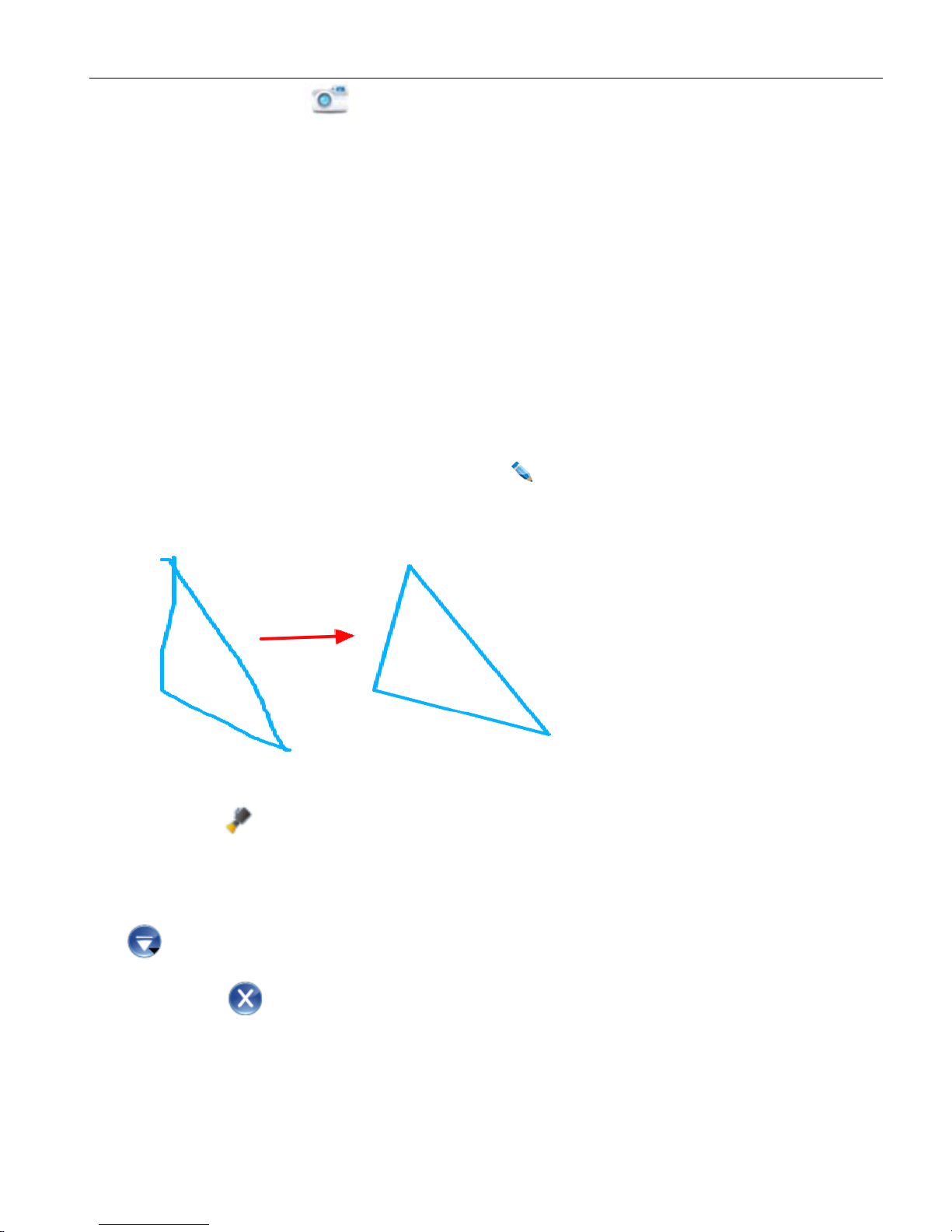
In“Tool”,choosetheicon
ScreenGrab,
A
dialogasbelowwillpopup.Plsdragthemousetothe
areawhichyouaregoingtocapture.
To
capturecontentsonthedesktopandshowtheminthewritingsoftware,plsselect“Export”andclick
“screen”.Thendragthemouseinthewritingsoftware.Besides,youcouldchoose“Rectangular”or
“Custom”shapetocaptureaspecialareainsteadof“screen”forthewholepage.
To
capturecontentsinthewritingsoftware,plsselect“Grabcurrentpage”and“Export”,thenclick
“screen”anddragthemouseinthewritingsoftware.Ifyouprefertohighlightpartofthecontents,you
couldchoose“Rectangular”or“Custom”insteadof“Screen”.
To
capturethecontentsandsavethemasfileformat,youcouldselect“Save”or“ExportandSave”
insteadof“Export”only.
Whenyouselect“ExportandSave”,youcansavethecapturedcontentsandalsoexportittothewriting
softwarebydraggingthemouse.
3.4.18HowtouseSmartPen?
In“Draw”orthemaintoolbar,youcouldfindtheicon.Thatissmartpen.Itcouldrecognizethe
randomshapeandchangeittostandardshapeautomatically.
3.4.19HowtouseSpotlight?
FindtheiconSpot
Spot
Spot
Spotlight
light
light
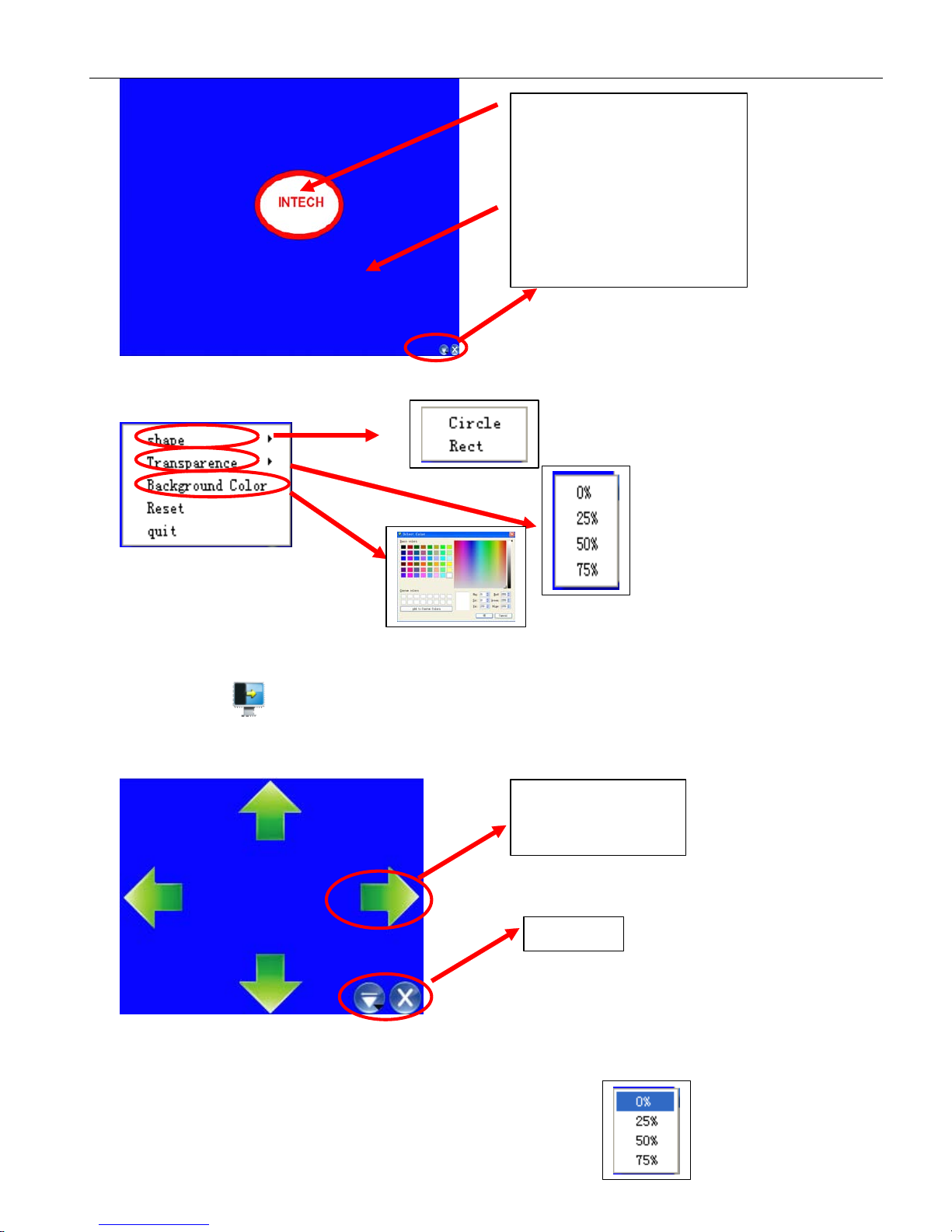
lightin“Tool”,dragthemouseinthebackgroundareatohighlightany
contentsatanyplaces.
Putthemouseinthehighlightshapeframeanddragittozoominorzoomouttheshowingarea.
Holdyourfingerforfewsecondsontheboardorrightclickinyourcomputerorclickthemenu
onthebottomrighttosetthespotlightproperty.
Clicktheiconintherightbottomtoexit.
Page 32
UserManual
31
3.4.20HowtouseCurtain?
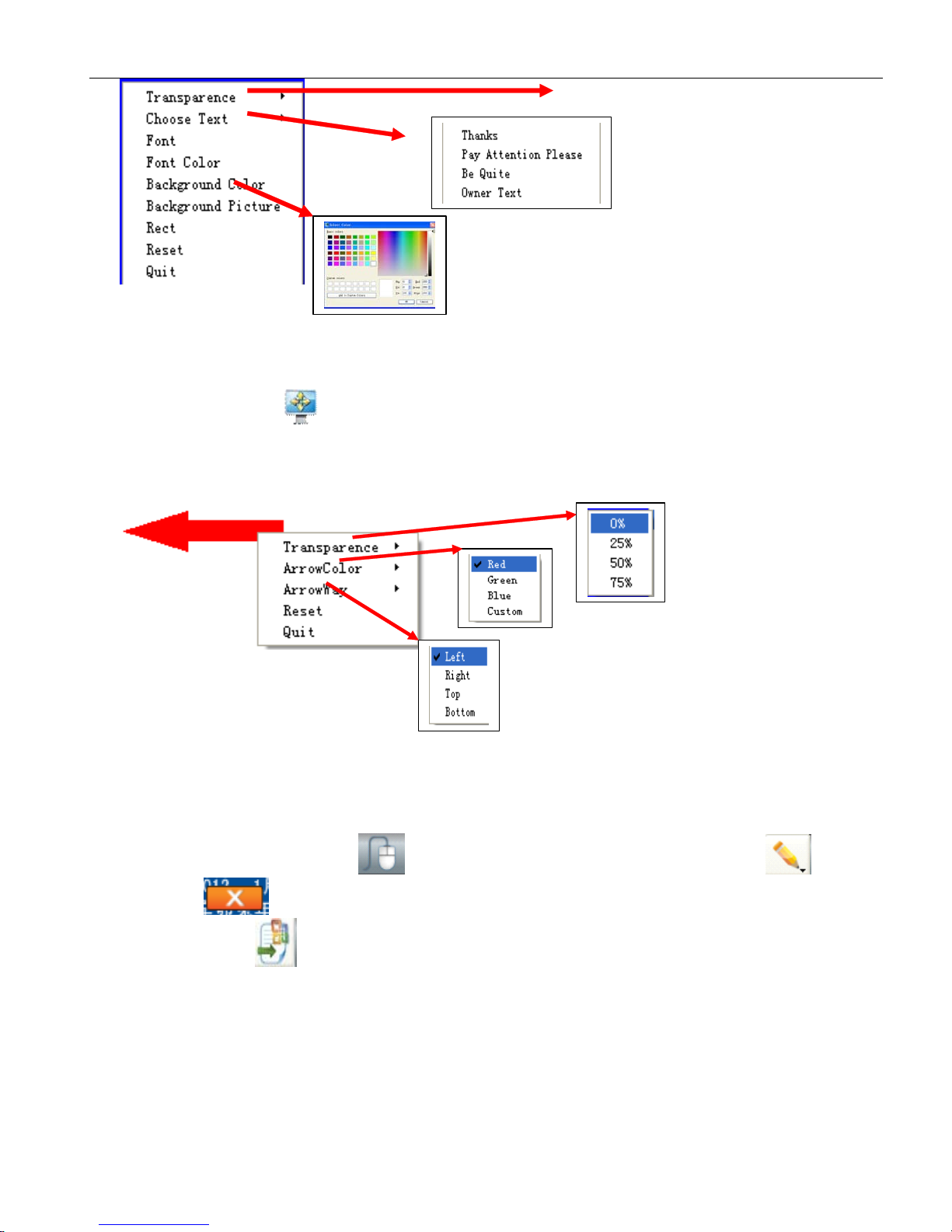
Selecttheiconin“Tool”,anddraginthewritingsoftware,acurtainwillappeartocoveryour
currentscreen.Tocoverorrevealmorecontents,youcoulddragthefourarrowsatthefoursides.
Holdyourfingerfortwosecondsontheboardorrightclickinthecomputerorclickthemenuonthe
bottomrighttosetthecurtainproperty.
Dragtheredframetozoomin/out
theshowingroom
Dragthebackgroundareatomove
thehighlightframe
Setthespotlightproperty
Dragthearrowtoreveal
orcoverthecontents.
Menu&Exit
Page 33
UserManual
32
3.4.21HowtouseArrow?
In“Tool”,findtheicon.Aredarrowwouldbeshowninthescreen.
To
changethedirection,you
coulddragthetop.
Holdyourfingerforfewsecondsontheboardorrightclickinthecomputer,amenuwillpopuptoset
theproperty.
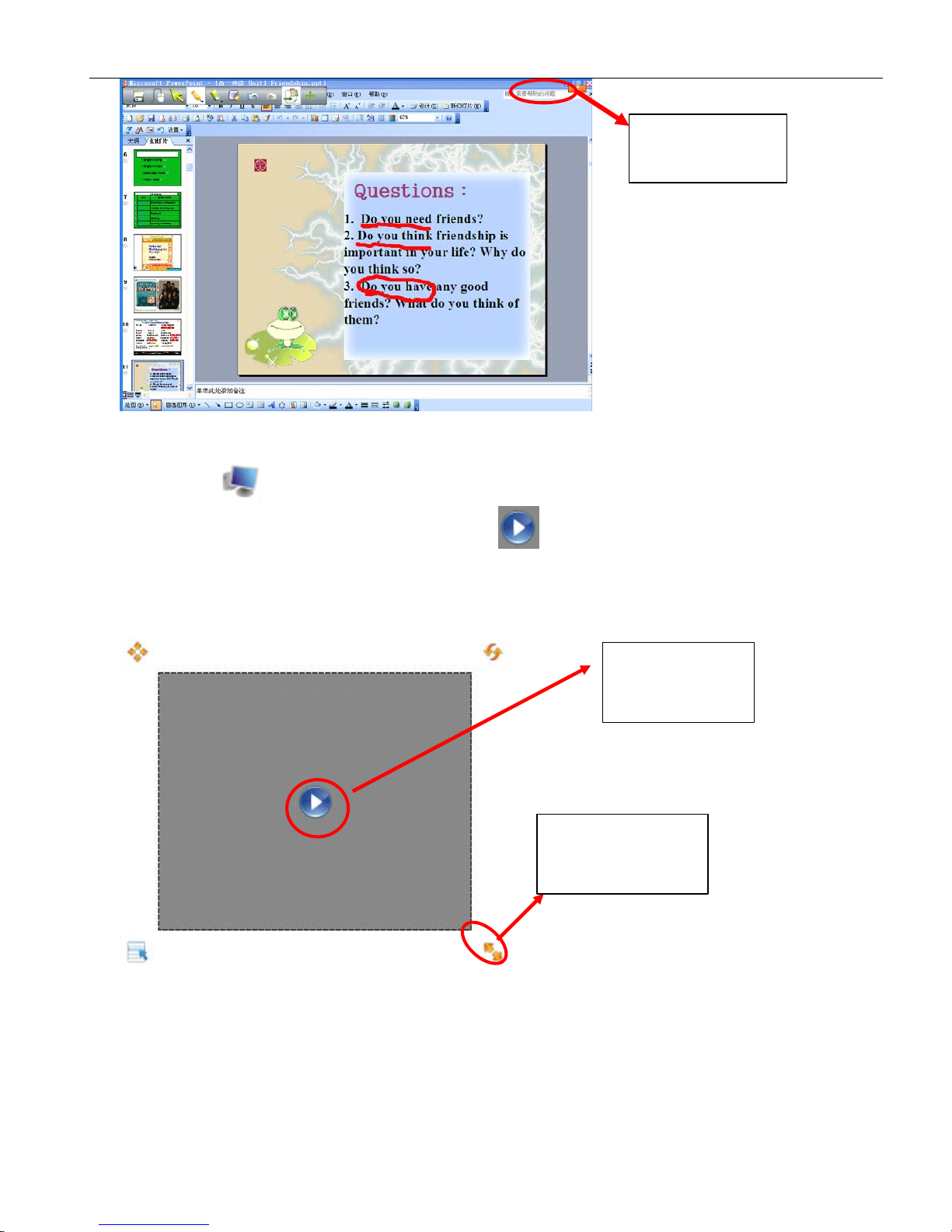
3.4.22HowtouseScreenPostil?
WhenyouaregoingtomakesomeremarksinW ord,PowerPointorExcelfile,plschoose“Screen
Postil”functionin“Tool”orclickinthemaintoolbar.Selectahardpenintheicon,and
aredcrosswillappearonthetopright.
You
canstartinputtingandafterthat,ifyouselect
officeembediconinthemaintoolbar,yourannotationwouldbesavedinthefile.
Page 34
UserManual
33
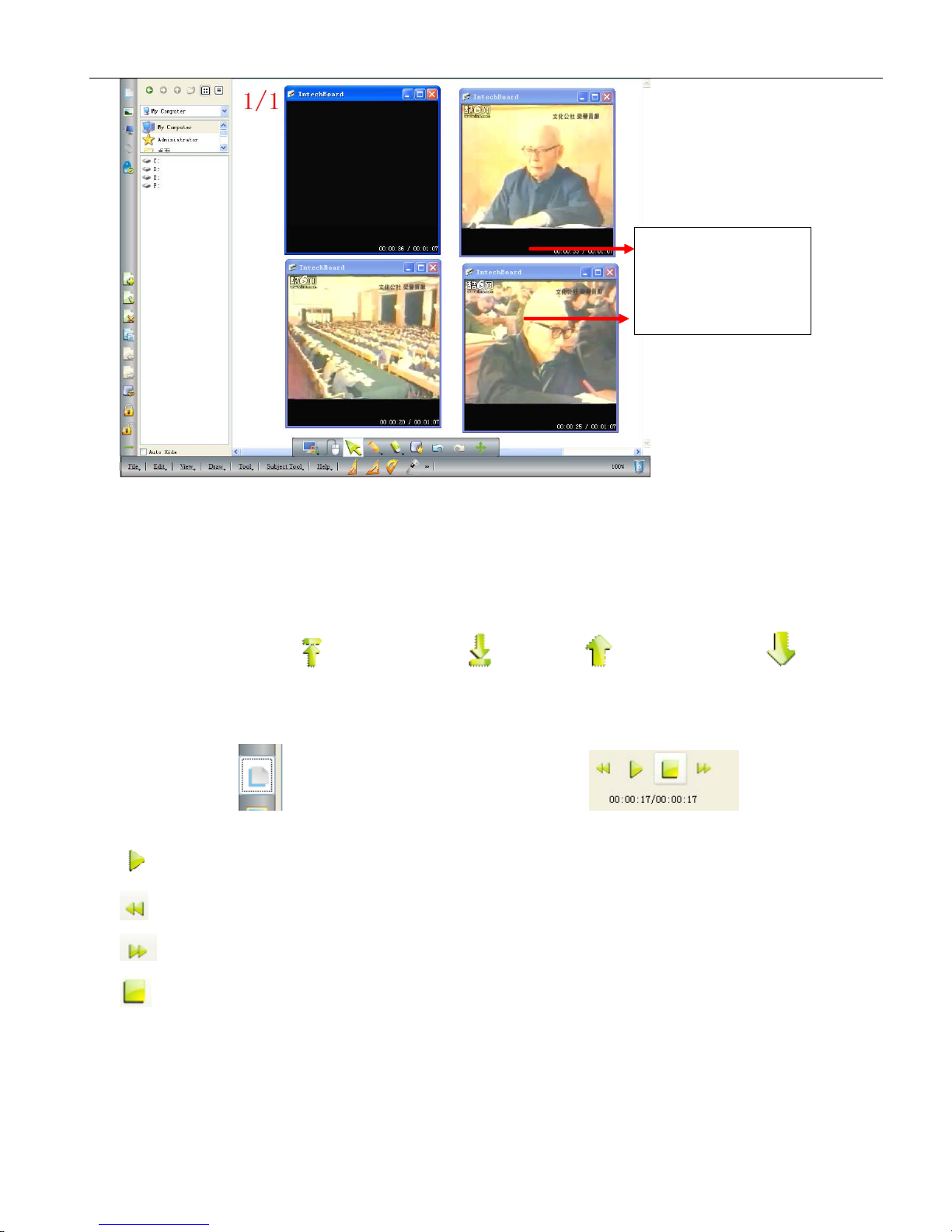
3.4.23Howtoplaythevideofiles?
Clicktheiconintheleftsidebar,selectthevideofileanddragittothewhiteboard.
You
wouldsee
aplayerwindowasbelow.Justclickthecentralicontostartplaying.Plsseetheillustrated
picturesinthefollowing:
Clickthisbuttonto
playthevideo.
Dragcontrollingpoint
heretochangethe
windowsize
Redcrosstoshow
youtheannotationis
permitted
Page 35
UserManual
34
Notice:Thesoftwaresupportmultivideoplayingatdifferentprogress.Youcanadjustitfreely.
Thesizeoftheplayingwindowcanbechangedbydraggingthecontrollingpointaroundthewindow.
Andalsoyoucandoubleclickthewindowtorealizethefullscreenplaying.
3.4.24Howtoswitchlayerofpictures?
Thissoftwarecannotonlymovethepictureintheplaneposition,butalsocanswitchlayersasrequired.
JustSelecttheTOPicon,BOTTOMicon,UPiconandDOWNiconin
“Draw”torealizeit.
3.4.25HowtouseRe-broadcast?
Clickindexpageintheleftsidebar,youwillseetheiconsintheleft
bottom.ItiseasytorealizetheoperationsofREBROADCASTonthewhiteboard:
PlayBack:Displaytheoperatingprocessbackwards,fromthebeginningtotheend.
Slowforward:Slowdownthespeedofdisplay.
FastForward:Fastdisplay.
Pause:Stoprebroadcastingandreturntotheinterfaceofthelastoperation.
3.4.26Subjects-Math
Function:Setsquare30,setsquare45,protractors,verniercaliper,ruler,compasses
Supportmultivideo
playingatonetime.
Page 36
UserManual
35
3.4.27Applicationofthespecialtools
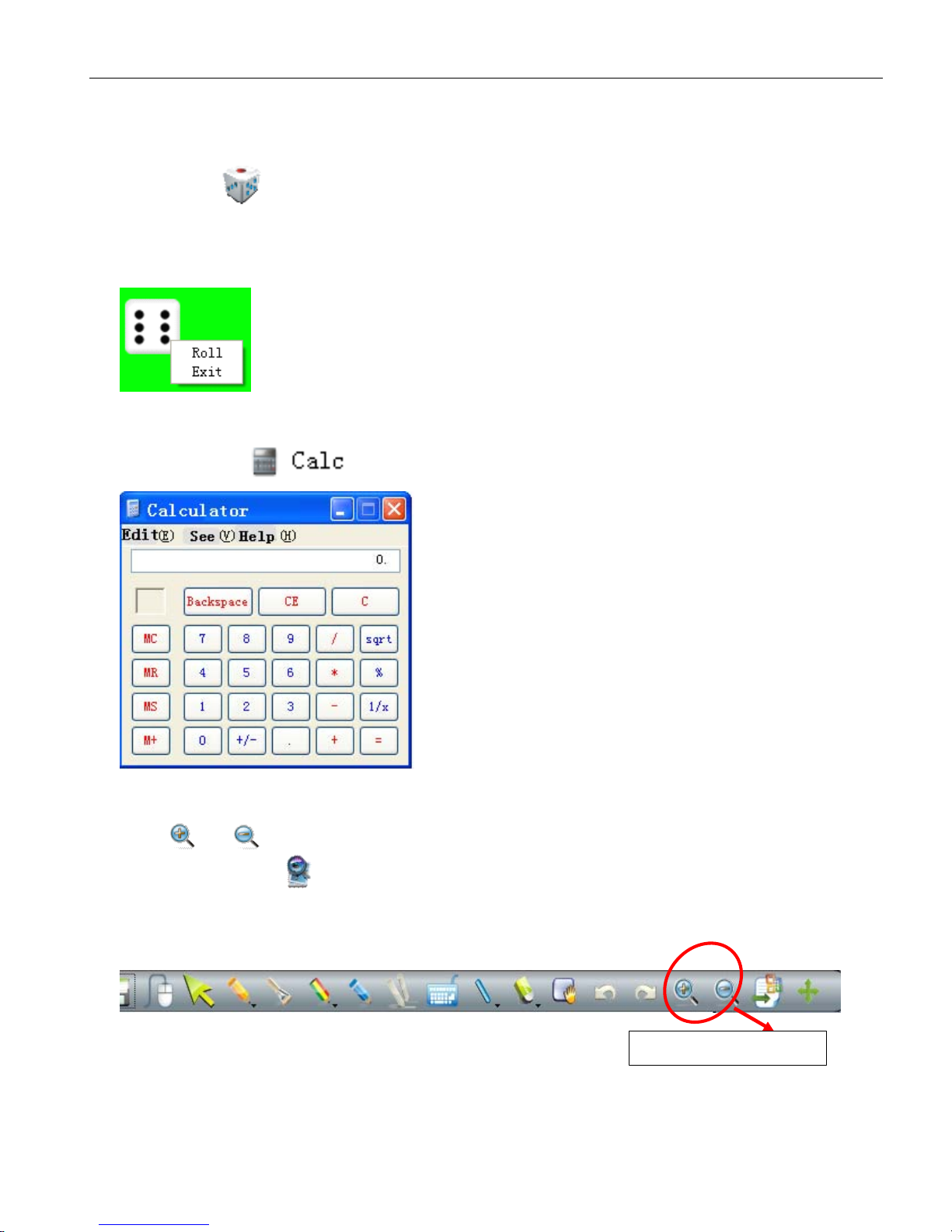
3.4.27.1Dice
Clicktheicon
Diceinthemenu“Tool”anditstartsrolling,thendoubleclickittostoprolling
andselectyourrandomnumber.
To
startagain,plsholdyourfinersontheboardforfewsecondsorrightclickinthecomputerto
select”roll”,orexittoenddice.
3.4.27.2Calculator
Selectcalculatorin“Tool”.Clickitwithyourfingersormousetocalculate.
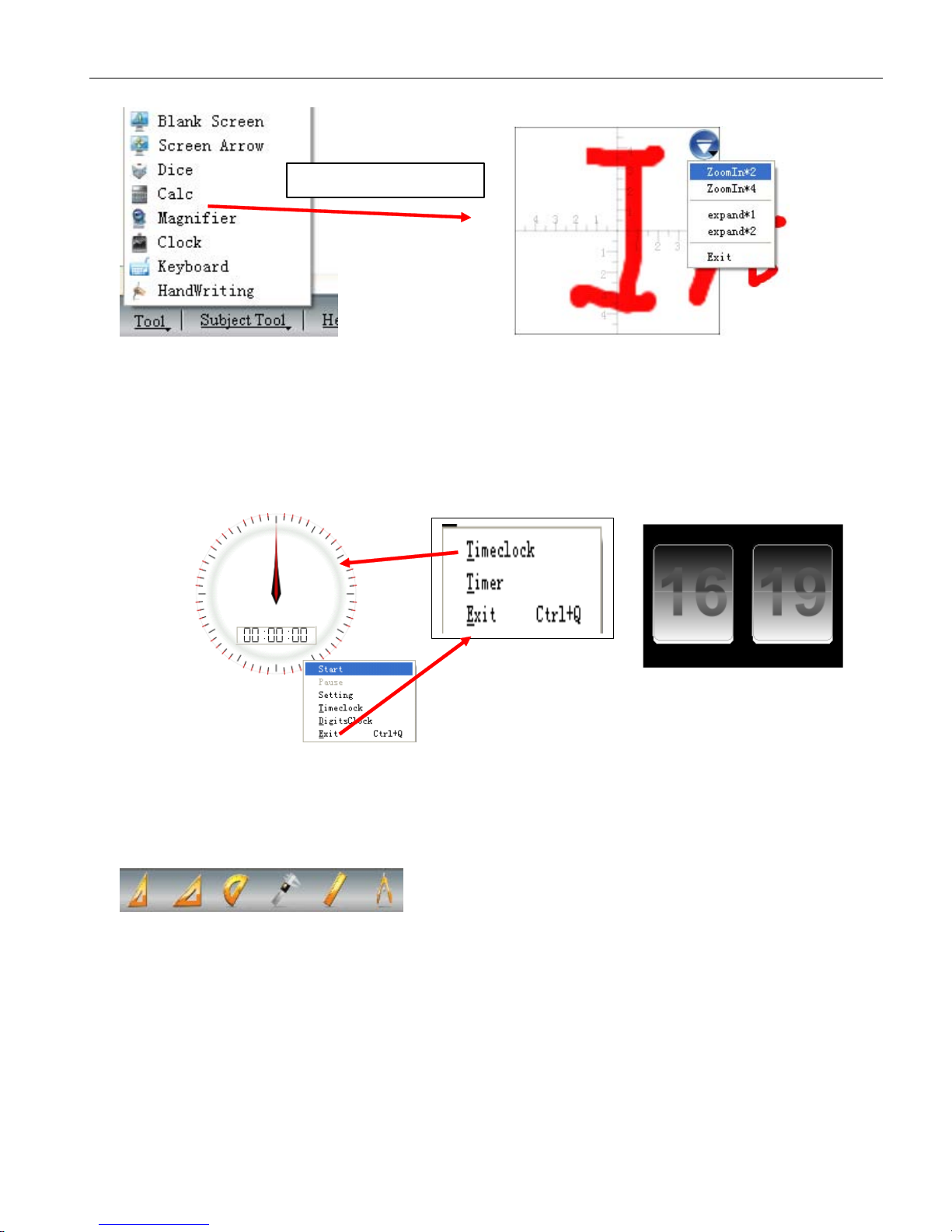
3.4.27.3Magnifier
Clickorintheexpandedmaintoobartozoomin\outthewholepage.
To
enlargepartial
contents,clicktheiconmagnifierinthemenu”Tool”toactivatethemagnifierfunction.Then,the
areaaroundthemousewouldbeenlargedindifferentmultiples.Theattributescanbesetinthe
drop-downmenu.
Zoomin/outwholepage
Page 37
UserManual
36
3.4.27.4Clock
Inthe“Tool”theClock,,withthemodesofdigitalclockandtimeclock,showsthetimeofthesystem,
andcanbeusedtocountdownorcounttime.
TheClockwindowcanbemovedtoanyposition,anditspropertiescanbeadjustedintheSetting.
3.4.28Measuretools
ItbelongstotheSubject-Math,andplsfindtheminthebottomsidebarofthesoftware:
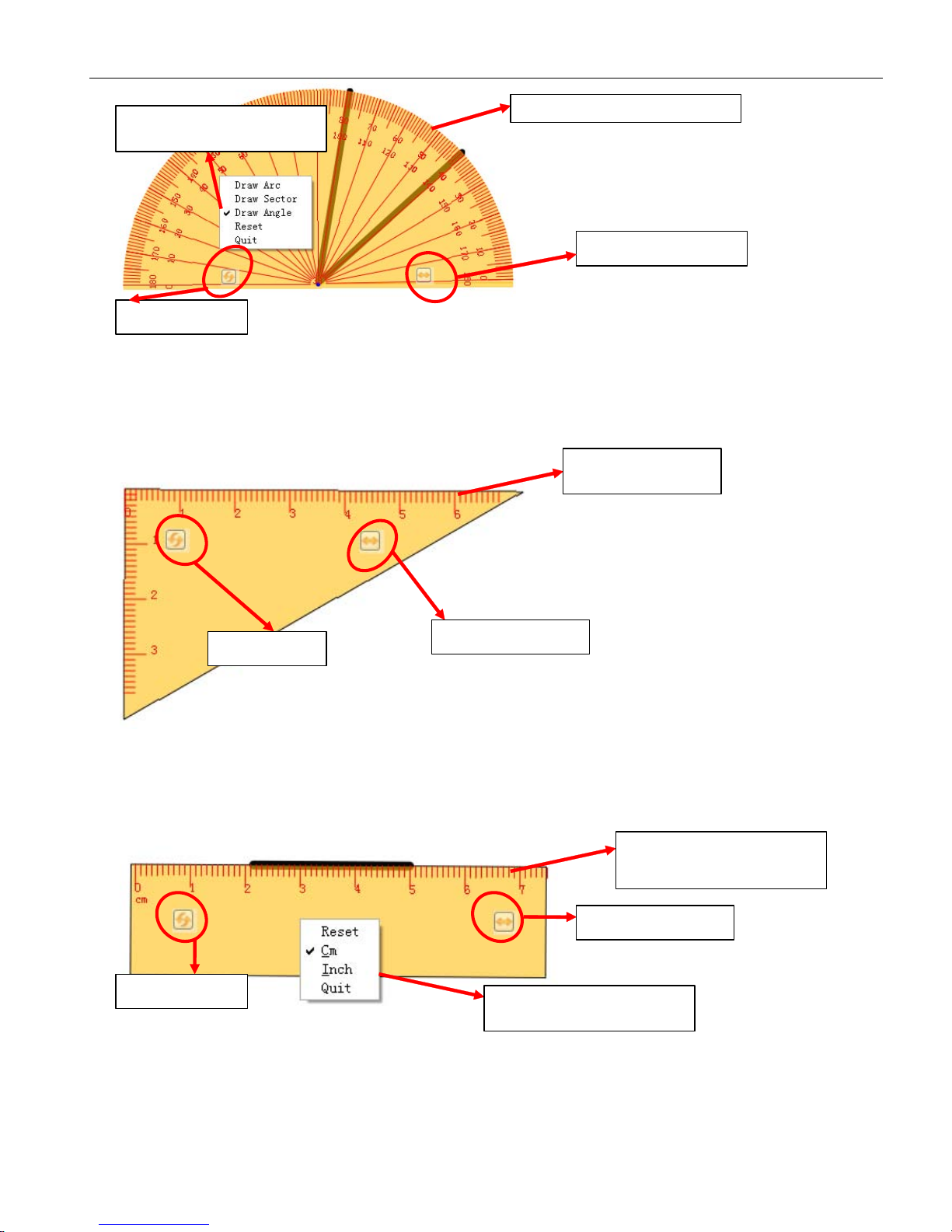
3.4.28.1Protractor
Theprotractorcannotonlymeasurestheangle,butalsocanbeusedtodrawarc,angleandsector.
To
usethedrawingfunctions,plsclicktheiconandselectitfromthedrop-downmenu.Thendragthe
mousearoundtheEDGEtorealizedifferentanglegraphic.
Enlargepartialcontent
Page 38
UserManual
37
3.4.28.2Triangle
Thereareisoscelesrighttriangleand30degreerighttrianglefunctionsandcanbeusedtodrawlineor
measurethedistance.
To
dragit,justclickanypositioninthetool.Putthemouseontheedge,you
coulddrawline.
3.4.28.3Ruler
You
coulddrawlineormeasuredistancebyruler.Dragthemouseontheedgetogetaline.Clickany
positiontomoveit.
Alsoyoucanchangethemeasureunitinthesettingbyleftclick.
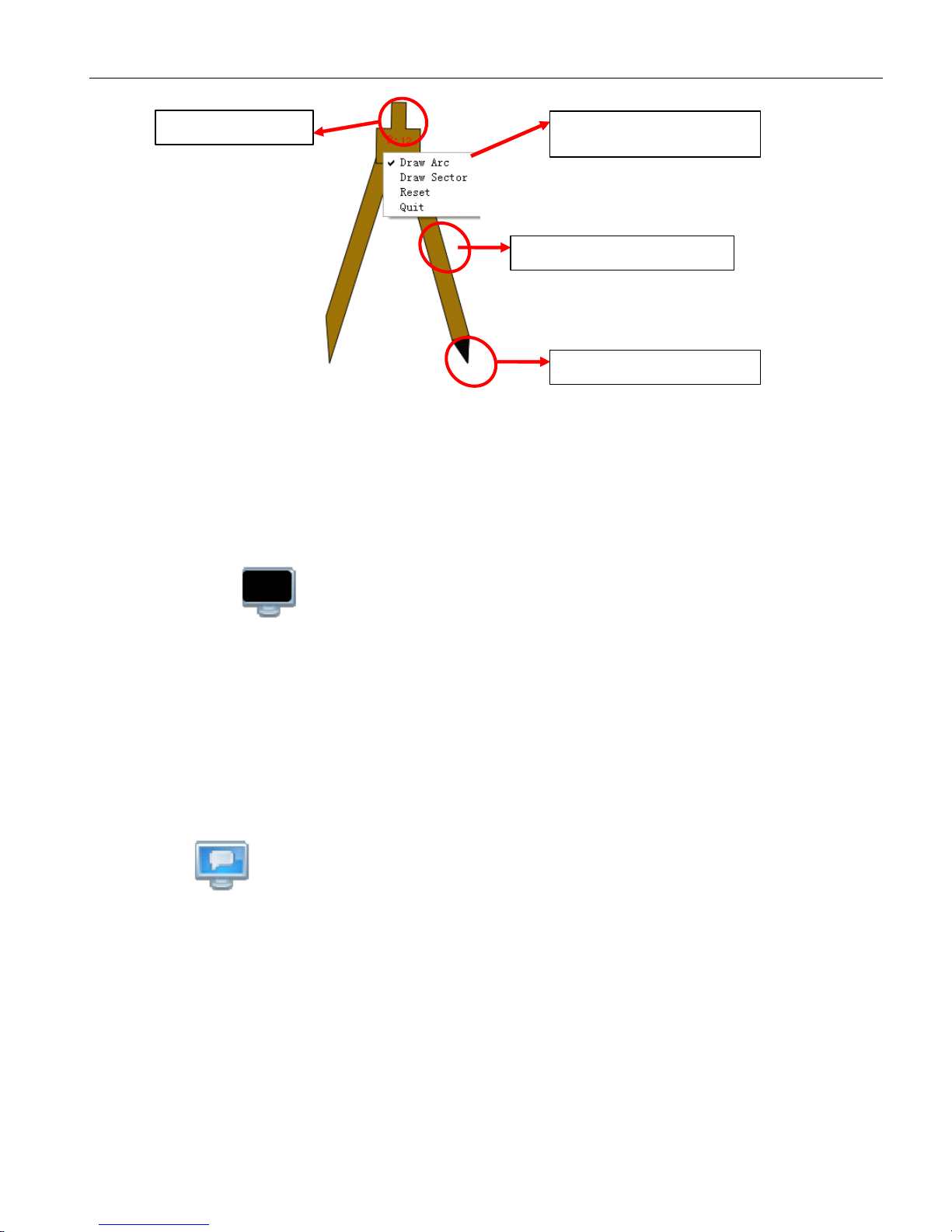
3.4.28.4Compass
Thecompasscouldbeusedtodrawarcorsectorexceptcircle.Plsclickthetoppositionofthecompass,
thenchoosethedifferentfunctioninthesubmenu.
Zoomin/outthetool
Dragmouseontheedgetodraw
Selecttheshapeyouwantto
draw
Rotatethetool
Zoomin/outthetool
Rotatethetool
Dragmouseonthe
edgetodraw
Rotatethetool
Zoomin/outthetool
Dragmouseontheedgeto
draw
Clickthetooltosetthe
measureunitorquit.
Page 39
UserManual
38
4.
4.
4.
4.FAQ
FAQ
FAQ
FAQ
A.
A.
A.
A.Why
Why
Why
Whymy
my
my
mywriting
writing
writing
writingis
is
is
isunable
unable
unable
unableto
to
to
tobe
be
be
bedisplayed
displayed
displayed
displayedon
on
on
onthe
the
the
thescreen?
screen?
screen?
screen?
Pleasetryanothercolorwhichisdifferentfromthebackground.
Pleaseremoveanyotherobjectawayfromthescreenwhenwriting.
PleasemakesurethatthesoftwareofInteractiveBoardisrunning.
B.
B.
B.
B.Why
Why
Why
Whythe
the
the
theicon
icon
icon
icon
display
display
display
displayin
in
in
inthe
the
the
thetask
task
task
taskbar
bar
bar
barat
at
at
atthe
the
the
theright
right
right
rightbottom
bottom
bottom
bottomof
of
of
ofthe
the
the
thescreen
screen
screen
screen?
?
?
?
TheUSBcableisinpoorconnectionbetweenthewhiteboardandcomputer.Pleasemakesurethe
connectionisnotloose.
TheUSBcableisnotoftheoriginalpacking.TheUSBcableadoptedismadeofsuperiorquality
materialsforInteractiveWhiteboardapplication,whichcannotbesubstituted.
Abnormalsituationappearsduringinstallingthesoftware.Pleaseuninstallthesoftwareandrestart
thecomputer,theninstallthesoftwareagain.
USBcableconnectionbetweenthecomputerandwhiteboardisimproper.Pleaserefertotheuser
manualandcorrecttheconnection.
Iftheicon
isnotdisplayedinthetaskbarattherightbottomofthescreen,pleasere-startthe
server.exeandInteractiveBoard.exe.
C.
C.
C.
C.Is
Is
Is
Isit
it
it
itnecessary
necessary
necessary
necessaryto
to
to
todo
do
do
dothe
the
the
theposition
position
position
position“
“
“
“locate
locate
locate
locate”
”
”
”operation
operation
operation
operationagain
again
again
againafter
after
after
afterreinstalling
reinstalling
reinstalling
reinstallingthe
the
the
thesoftware
software
software
softwareof
of
of
of
interactive
interactive
interactive
interactivewhiteboard?
whiteboard?
whiteboard?
whiteboard?
No,it’snotnecessary.Thesystemhasrememberedyourlastparameterofpositionlocating.
D.
D.
D.
D.Is
Is
Is
Isthe
the
the
thecontent
content
content
contentwhich
which
which
whichis
is
is
iscovered
covered
covered
coveredby
by
by
bywindow
window
window
windowof
of
of
of“
“
“
“index
index
index
indexpage
page
page
page”
”
”
”lost?
lost?
lost?
lost?
No,thecontentstillexiststhere,it’sjusttemporarilycovered.
Dragtomovethetool
DragtodrawArcorSector
Dragthelegtochangetheangle
Clicktoselectfunctionsinthe
setting
Page 40

UserManual
39
E.
E.
E.
E.How
How
How
Howto
to
to
toknow
know
know
knowthe
the
the
theworking
working
working
workingstate
state
state
stateof
of
of
ofWhiteboard?
Whiteboard?
Whiteboard?
Whiteboard?
Whenthereisanytouchontheboard,ifthelightattherightbottomoftheboardwillturnblue.It
showsthewhiteboardisworkingcorrectly.Ifthelightkeepsstillasred,itshowsthewhiteboard
mayhaveprobleminhardware.
F.
F.
F.
F.Why
Why
Why
Whysometimes
sometimes
sometimes
sometimesno
no
no
nochange
change
change
changehappens
happens
happens
happensafter
after
after
afterchanging
changing
changing
changingthe
the
the
thebackground
background
background
backgroundcolor?
color?
color?
color?
It’sprobablythatthebackgroundcoloriscoveredbyanotherbigsizepicture.Sowecan’tseethe
colorischanged.
G.
G.
G.
G.What
What
What
Whatkind
kind
kind
kindof
of
of
ofprojector
projector
projector
projectoris
is
is
isrequired
required
required
requiredto
to
to
toequip
equip
equip
equipwith
with
with
withthe
the
the
thewhiteboard?
whiteboard?
whiteboard?
whiteboard?
Alltheprojectorswillbeokifonlytheymeetthefollowing3points:
(1)Itisfrontprojector.
(2)Itsupportstheresolutionofcomputer.
(3)Luminousflux≧500lumens,specificrequirementdependsontheroomsize.
H.
H.
H.
H.How
How
How
Howto
to
to
toclean
clean
clean
cleanthe
the
the
theWhiteboard
Whiteboard
Whiteboard
Whiteboardsurface?
surface?
surface?
surface?
Gentlywipethewhiteboardsurfacebycleanwetcloth.
Note:Dowringthewetcloth,makesurethewaterwon’tsoakintotheframe
Page 41

1F No. 45, Wanghai Rd, Xiamen Software Park Phase II, Xiamen, China - 361008
Tel : 86-592-5902910 Fax : 86-592-5902916
XIAMEN INTERACTIVE TECHNOLOGY CO. LTD.,
 Loading...