

Page 1
Page 2

TABLE OF CONTENTS
INTRODUCTION -------------------------------------------------
FEATURES --------------------------------------------------------
SPECIFICATIONS------------------------------------------------
PACKAGE CONTENTS------------------------------------------
HARDWARE INSTALLATION-----------------------------------
FRONT PANEL LAYOUT-----------------------------------------
REAR PANEL LAYOUT ------------------------------------------
HARDWARE INSTALLATION-----------------------------------
USING THE NS-411K --------------------------------------------
SELECT BUTTON------------------------------------------------
KEYBOARD HOT KEY COMMANDS--------------------------
TROUBLESHOOTING-------------------------------------------
KEYBOARD--------------------------------------------------------
MOUSE-------------------------------------------------------------
VIDEO--------------------------------------------------------------
P1
P1
P2
P2
P3
P3
P3
P7
P7
P7
P4
P9
P9
P9
P9
Page 3

PC port connections
Keyboard: Mini DIN 6 pin Female
Mouse: Mini DIN 6 pin Female
Monitor: HDDB 15 pin Female
Console connections
Keyboard: Mini DIN 6 pin Female
Mouse: Mini DIN 6 pin Female
Monitor: HDDB 15 pin Female
Specifications
Physical Properties:
Width: 119mm
Height: 46mm
Depth: 105mm
Weight: 727g
Operation and Storage parameters:
Operating Temperature: 0~40 Degrees C (32 to 104 Degrees F)
Storage Temperature: -20~60 Degrees C (-4~140 Degrees F)
Humidity: 0~80% RH non condensing
Introduction
Thank you for purchasing the NEWSTAR KVM Switch, this product
will ensure easy and accurate control over 4 PCs through a single
console. The is compatible with PS/2 style computers
and comes with advanced features. It has keyboard and mouse
emulation for error free boot-ups and support is also provided for
the Microsoft Intellimouse. The supports high
resolutions up to 2048 x 1536 without any deterioration of the
image quality. Switching between PCs can be accomplished in two
ways:through keyboard Hot Key commands or by using the
convenient front-panel Select push button controls. No other KVM
switch allows you to control 4 computers from a single console
this conveniently.
Features
6 Allows a user to control 4 computers from one console.
6 Works with Windows 95/98/2000/ME/NT/XP, Free BSD.
6 No drivers or other additional software required.
6 Keyboard and mouse emulation ensures error-free boot-up.
6 The status of the CAPS LOCK, SCROLL LOCK and NUM LOCK
keys is stored for each of the computers.
6 Uses inexpensive and commonly available cables.
6 Supports Monitor resolutions of up to 2048 x 1536.
6 Supports VGA, SVGA and Multisync monitors.
6 Select push-button or keyboard Hot Key control.
6 Comes with Auto-Scan mode for convenient automatic switching.
6 Front panel status LEDs give a clear indication of the active PC.
KVM Switch
KVM Switch
Package Contents
Item QTY Remark
NS-411K 1 piece
User Manual 1 piece
KVM Cable 4 pieces
KVM Switch
NS-411K NS-411K
-1- -2-
Page 4
Hardware Installation
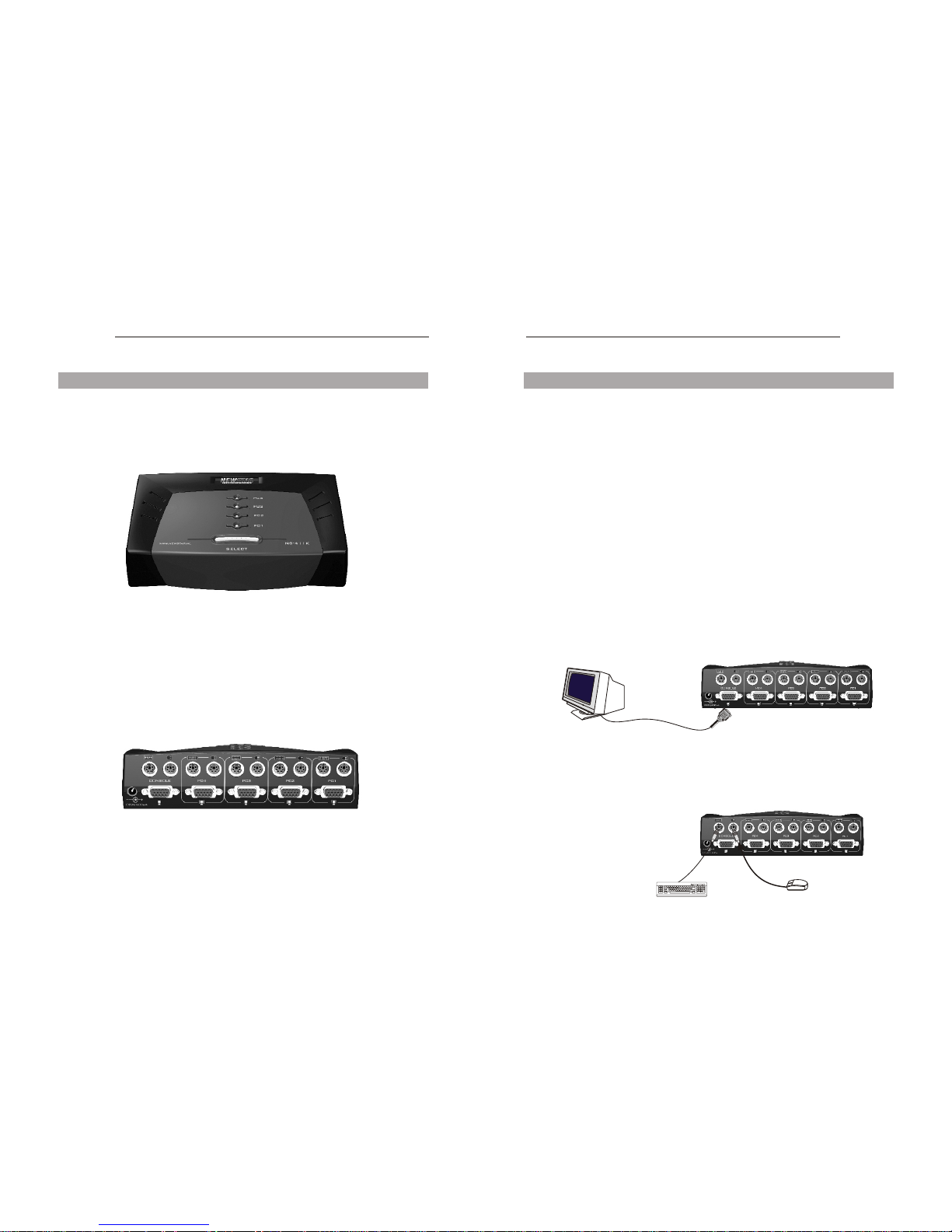
The layout of front and rear panel are shown below.
Front Panel Layout
Rear Panel Layout
Console Monitor
Console PS/2 Keyboard
Console PS/2 Mouse
NS-411K NS-411K
-3- -4-
Hardware Installation
Please follow the steps below closely and in the order as shown,
Otherwise keyboard and/or mouse errors may occur.
Before connecting your computers and console devices to the NS411K, make sure that everything is powered off. Connecting
devices while power is not off may cause damage to your
computers or the NS-411K. NEWSTAR Corporation will not be held
responsible for damage caused in this manner.
1.Place the NS-411K in a convenient location, its small size makes
it easy to place on a desktop. Take the length of the cables in
consideration while placing the KVM switch unit.
2.Connect the console devices first. Connect your monitor to the
NS-411K. The 15-pin connector coming from your monitor must
be inserted into the unit on the rear panel. Connect it to the 15 pin
HDDB connector labeled 'MONITOR' as shown below.
3.Connect your PS/2 keyboard and PS/2 mouse to the rear panel
of the NS-411K. The connections should be made to the two 6pin Mini DIN connectors Labeled 'CONSOLE' as shown below.
Page 5
VGA PORTVGA PORT
9V, 600mA Adapter(optional)
NS-411K NS-411K
-5- -6-
Hardware Installation
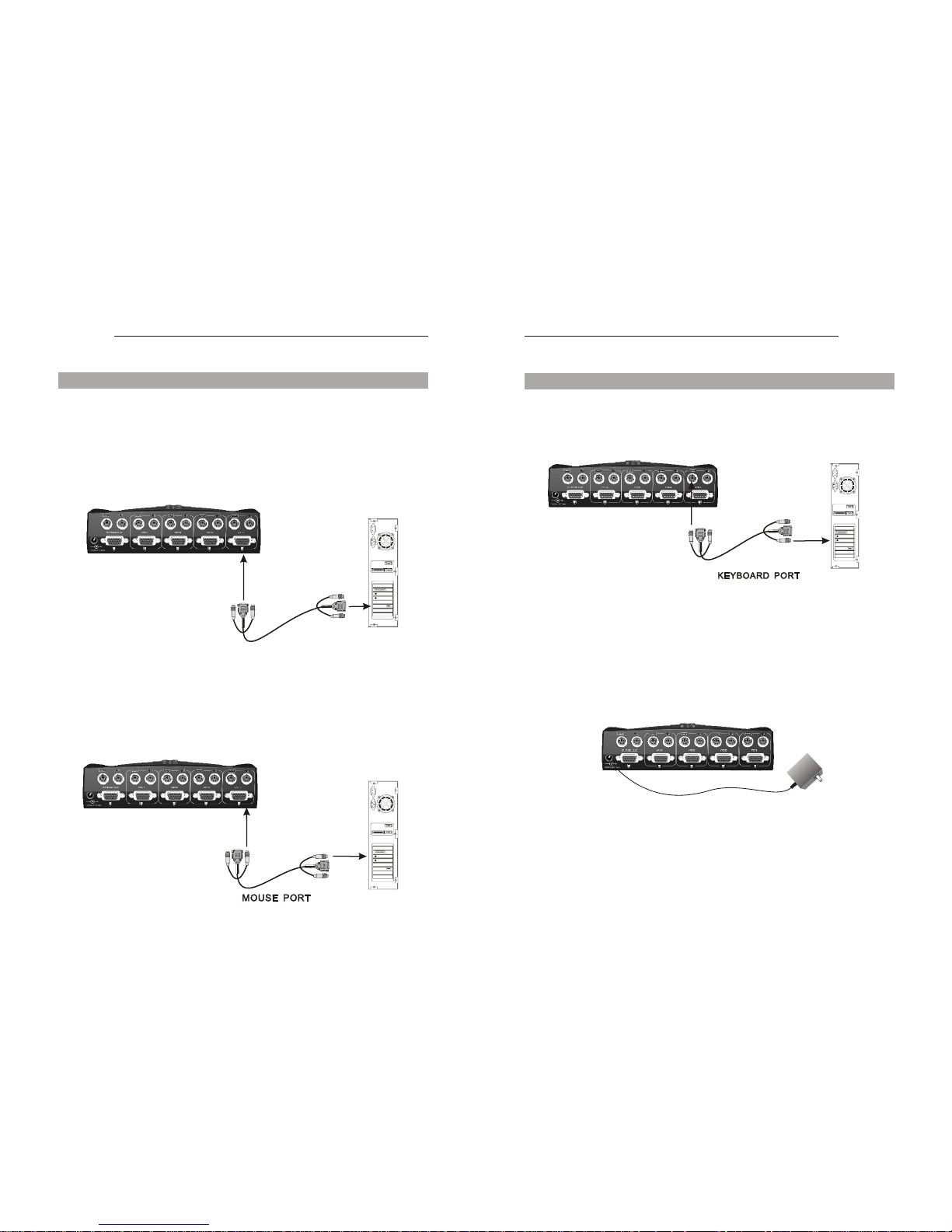
4.Connect a VGA cable (15-pin HDDB Male/ Male) with the Male
side to both the PC and the rear panel of the NS-411K unit to the
connector labeled VGA. Repeat this for all PCs.
5.Connect a mouse cable (6-pin Mini DIN Male/ Male) to the PC
and the rear panel of the NS-411K unit to the connector with the
mouse symbol. Repeat this for all PC.
Hardware Installation
6.Connect a keyboard cable (6-pin Mini DIN Male / Male) to the
PC and to the rear panel of the NS-411K unit to the connector
with the keyboard symbol. Repeat this for all PCs.
7.Now make sure to verify all cables, keyboard and mouse cables
should be checked carefully because they are easily switched
due to use of the same type of connector. Repeat this for all
PCs.
8.Attach the power supply to the NS-411K unit and plug it into a
power supply . Now you will see the LED for Port 1 light up, and
you will hear a beep. Switch on your monitor.
9.Now power up all computers simultaneously, the first computer
will be shown on the monitor. You may check if the mouse and
keyboard work after the system has booted up. If this is OK,
use the Select button to select the other computer and verify
the functionality in the same way. In case you find errors, first
check all cables for proper connections.
Page 6
First Key Second Key Third Key Command
Port Status
In Auto-Scan mode the NS-411K unit will switch to the next
computer every 10 seconds. This means that all computers will be
shown on the monitor in a row, starting with the first computer after
the last one has been shown.
To prevent errors, there is no mouse or keyboard control in this
mode. Erratic input will result if the mouse is moved or the
keyboard key is pressed while the unit switches to the next
computer.
To exit Auto-Scan mode press the SPACE BAR. The NS-411K will
stop at the last computer shown.
Using the NS-411K
The NS-411K switch unit provides two ways to select which
computer is the active system. Use either the Select button on
the unit, or make use of the keyboard Hot key commands.
You may notice that the mouse can not be used for around 2
seconds when the NS-411K switches to another computer. This is
normal and is caused by synchronization that makes sure the
mouse operates properly.
Select Button
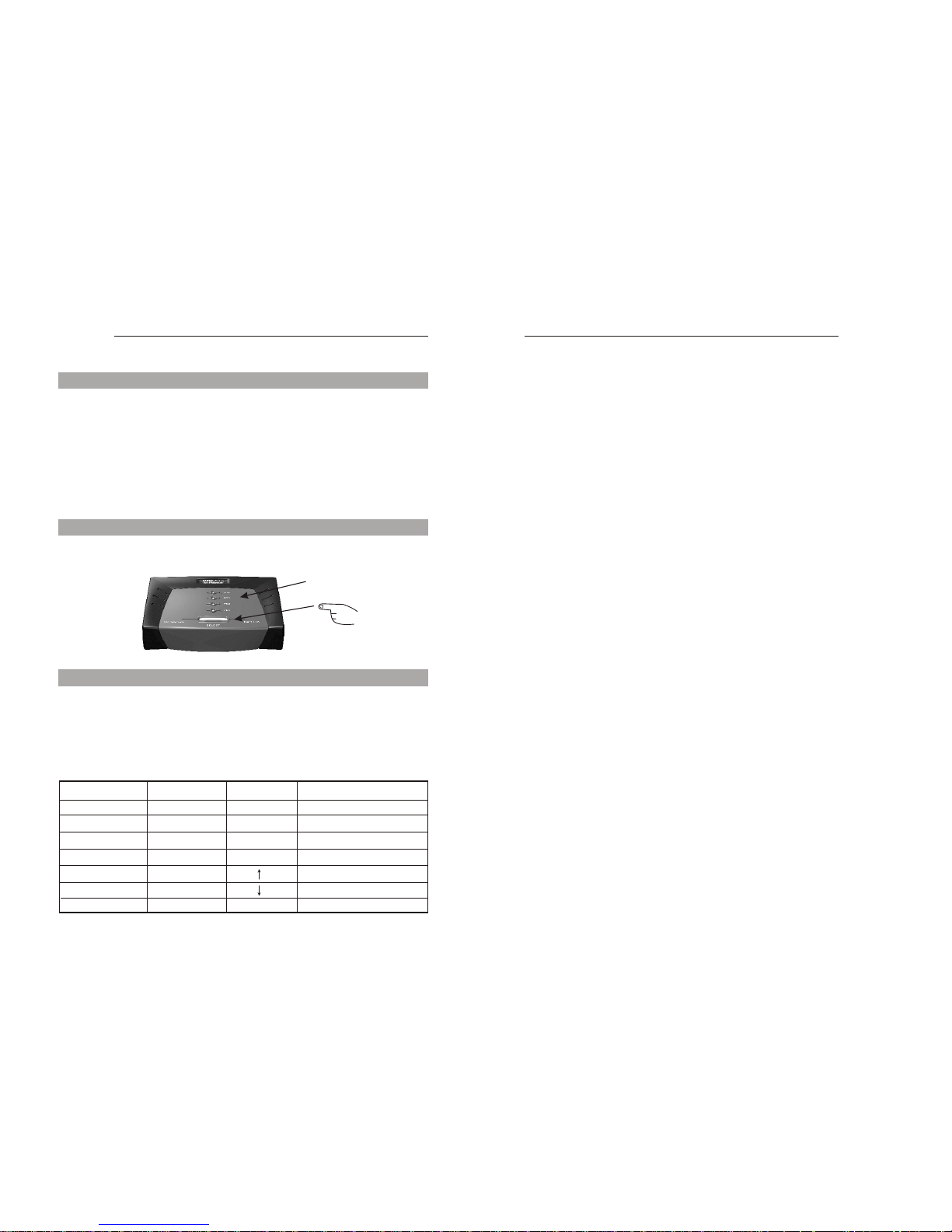
Pressing the Select button cycles through computers 1 ~ 4 Port
Keyboard Hot Key commands
To send Hot Key commands to the NS-411K unit, press the
SCROLL LOCK Key twice within 2 seconds. Now you will be given
a beep as confirmation, now press a command key to give a Hot
Key command. The following commands are supported:
SCROLLLOCK
SCROLLLOCK
SCROLLLOCK
SCROLLLOCK
SCROLLLOCK
SCROLLLOCK
SCROLLLOCK
SCROLLLOCK
SCROLLLOCK
SCROLLLOCK
SCROLLLOCK
SCROLLLOCK
SCROLLLOCK
SCROLLLOCK
1
2
3
4
0
Switch to First PC
Switch to Second PC
Switch to Third PC
Switch to Fourth PC
Switch to Previous PC
Switch to Next PC
Go to Auto-Scan mode
NS-411K NS-411K
-7- -8-
Page 7

6 Verify that the mouse complies with the PS/2 standard. A
combination mouse will work, but it must be set to PS/2 mode and
the correct serial mouse to PS/2 adapter must be used. A serial
mouse with a serial - PS/2 adapter will not work, since the mouse
signals do not comply with the PS/2 standard.
6 Make sure that the power adapter is plugged into the mains and
that it is working correctly. Its rating must be DC9V 600mA.
When I switch between computers mouse movement becomes
random.
6 Verify that your computers do not have more than one mouse
driver installed. Make sure that the driver is for a standard PS/2
or Microsoft compatible PS/2 mouse. Also check with the mouse
vendor to verify you are using the latest mouse driver.
6 Check your config.sys and autoexec.bat files (if you run Windows)
and verify that only one mouse driver is loaded.
6 If a special mouse is used, such as cordless or scrolling mice,
make sure you use generic PS/2 mouse drivers. A non-standard
PS/2 mouse may have extensions on the PS/2 protocol that are
not supported by the NS-411K unit.
6 Do not move the mouse or press any mouse buttons while
switching from one system to the other.
6 Try resetting the mouse by unplugging it from the KVM4C unit for
about 3 seconds. Now mouse movement will be correct again.
6 Before booting up any PCs, the NS-411K unit must be powered-
up. But before powering the NS-411K unit up, the mouse and
keyboard must be connected first. Any deviation from this powerup sequence may lead to erratic behavior of the systems.
Troubleshooting
Keyboard
My keyboard is not detected, or a keyboard error is given
during boot-up.
6 Please verify that the keyboard cables are inserted properly.
6 Check to make sure that the power cord is plugged in and is
working roperly.
The computers all boot up properly, but the keyboard is not functional.
6 Make sure the keyboard is plugged into the NS-411K unit
properly.
6 Verify that the keyboard works when plugged into the computer
directly. (You will have to shut down your computer first to do this).
6 Try using a different keyboard.
6 Make sure that the power adapter is plugged into the mains and
that it is working correctly. Its rating must be DC9V, 600mA.
Mouse
My mouse is not detected during boot up.
6 Please verify that all mouse cables are inserted properly. Check
especially for a mix-up with the PS/2 keyboard cable, they have
the same kind of connector and are therefore easily confused.
6 Read your motherboard documentation and make sure that the
PS/2 mouse IRQ is enabled. (This can for most computers be set
in the BIOS setup pages)
The computers boot properly but I can not use the mouse.
6 Please verify that the mouse is plugged into the NS-411K unit
properly.
6 Make sure the mouse works proper when plugged into a
computer directly, you will need to reboot the system to test this.
6 Try using a different mouse.
NS-411K NS-411K
-9-
-10-
Page 8

Video
The image on my monitor is not clear.
6 Please verify that all video cables are inserted properly.
6 It may be that your resolution or refresh rate is too high. Try a
lower refresh rate, or try lowering the resolution.
6 Your video cable may be too long. Video signals are high
frequency signals and are therefore subject to interference.
Please use video cables that are as short as possible.
6 Make sure that the power adapter is plugged into the mains and
that it is working correctly. Its rating must be DC9V,600mA.
NS-411K NS-411K
-11-
Page 9
FCC Certifications
This equipment has been tested and found to comply with the
limits for a Class B digital device, pursuant to Part 15 of the FCC
Rules. These limits are designed to provide reasonable
protection against harmful interference in a residential
installation.This equipment generates, uses and can radiate radio
frequency energy and, if not installed and used in accordance
with the instructions, may cause harmful interference to radio
communications. However, there is no guarantee that
interference will not occur in a particular installation. If this
equipment does cause harmful interference to radio or television
reception, which can be determined by turning the equipment off
and on, the user is encouraged to try to correct the interference by
one or more of the following measures:
6 Reorient or relocate the receiving antenna.
6 Increase the separation between the equipment and receiver.
6 Connect the equipment into an outlet on a circuit different from
that to which the receiver is connected.
6 Consult the dealer or an experienced radio/TV technician for
help.
6 Shielded interface cables must be used in order to comply with
emission limits.
6 You are cautioned that changes or modifications not expressly
approved by the party responsible for compliance could void
your authority to operate the equipment.
6 This device complies with Part 15 of the FCC rules. Operation is
subject to the following two conditions: (1) This device may not
cause harmful interference, and (2) This device must accept any
interference received, including interference that may cause
undesired operation.
CE Mark Warning
This is a Class B product. In a domestic environment, this product
may cause radio interference, in which case the user may be
required to take adequate measures.
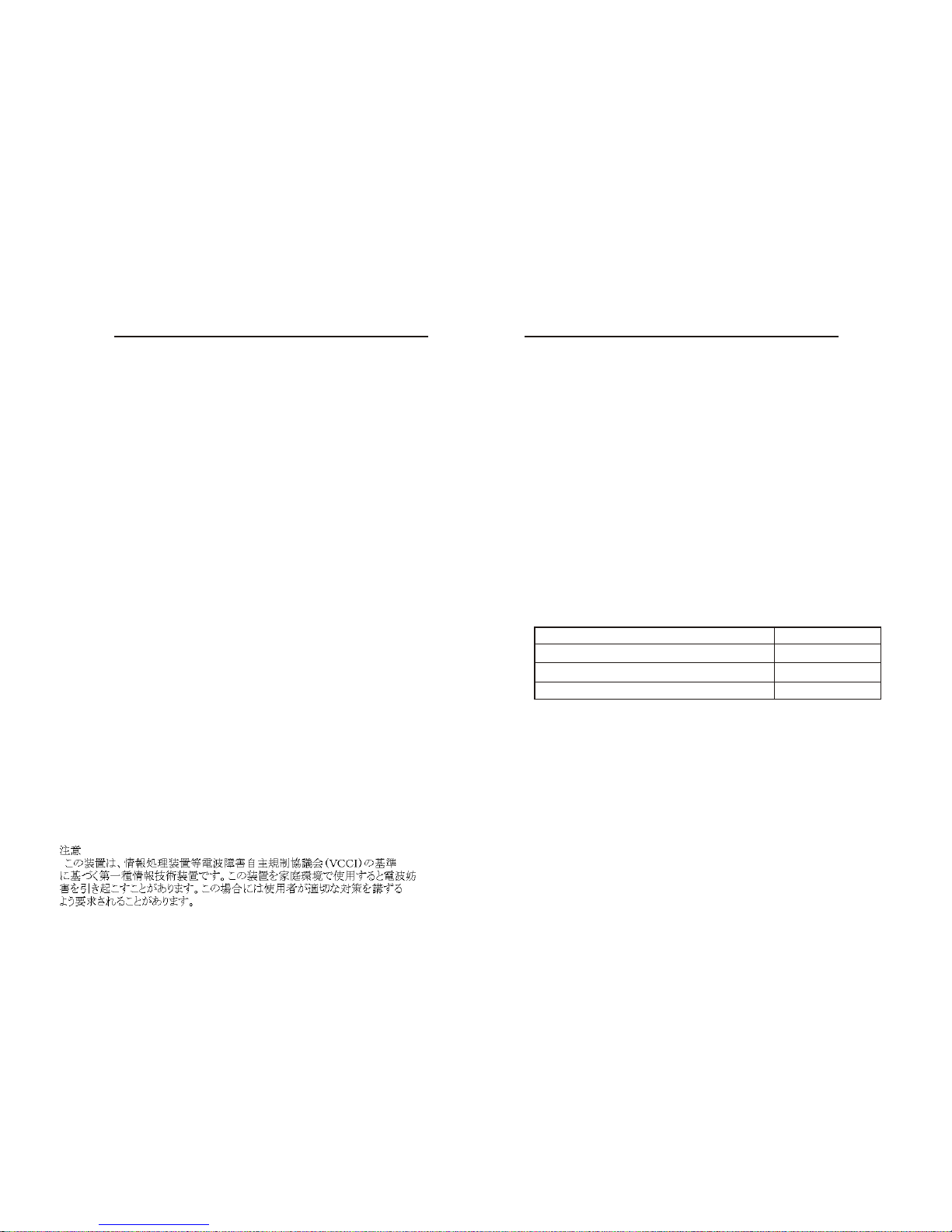
VCCI Warning
Limited Warranty
NEWSTAR provides this limited warranty for its product only to
the person or entity who originally purchased the product from
NEWSTAR or its authorized reseller or distributor.
Limited Hardware Warranty:
NEWSTAR warrants that the hardware portion of the NEWSTAR
products described below ( Hardware ) will be free from material
defects in workmanship and materials from the date of original
retail purchase of the Hardware, for the period set forth below
applicable to the product type ( Warranty Period ) if the Hardware
is used and serviced in accordance with applicable
documentation; provided that a completed Registration Card is
returned to an Authorized NEWSTAR Service Office within ninety
(90) days after the date of original retail purchase of the
Hardware. If a completed Registration Card is not received by an
authorized NEWSTAR Service Office within such ninety (90)
period, then the Warranty Period shall be ninety (90) days from
the date of purchase.
NEWSTAR's sole obligation shall be to repair or replace the
defective Hardware at no charge to the original owner. Such
repair or replacement will be rendered by NEWSTAR at an
Authorized NEWSTAR Service Office. The replacement
Hardware need not be new or of an identical make, model or part;
NEWSTAR may in its discretion may replace the defective
Hardware (or any part thereof) with any reconditioned product
that NEWSTAR reasonably determines is substantially
equivalent (or superior) in all material respects to the defective
Hardware.The Warranty Period shall extend for an additional
ninety (90) days after any repaired or replaced Hardware is
delivered. If a material defect is incapable of correction, or if
NEWSTAR determines in its sole discretion that it is not practical
to repair or replace the defective Hardware, the price paid by the
original purchaser for the defective Hardware will be refunded by
NEWSTAR upon return to NEWSTAR of the defective Hardware.
All Hardware (or part thereof) that is replaced by NEWSTAR, or
Product Type Warranty Period
Product (excluding power supplies and fans) Three (3) Years
Power Supplies and Fans One (1) Year
Spare parts and spare kits Ninety (90) days
NS-411K NS-411K
Page 10
for which the purchase price is refunded, shall become the
property of NEWSTAR upon replacement or refund.
Governing Law:
This Limited Warranty shall be governed by the Haarlem, city of
The Netherlands. Some states do not allow exclusion or limitation
of incidental or consequential damages, or limitations on how long
an implied warranty lasts, so the foregoing limitations and
exclusions may not apply. This limited warranty provides specific
legal rights and the product owner may also have other rights
which vary from state to state.
Trademarks:
Copyright 2003 NEWSTAR Europe. Contents subject to change
without prior notice. NEWSTAR is a registered trademark of
NEWSTAR Europe, All other trademarks belong to their respective
proprietors.
Copyright Statement:
No part of this publication may be reproduced in any form or by any
means or used to make any derivative such as translation,
transformation, or adaptation without permission from NEWSTAR
Europe, as stipulated by the European Copyright.
Print, type or use block letters.
Your name: Mr./Ms_________________________________________________________
Organization:________________________________Dept. ________________________
Your title at organization:____________________________________________________
Telephone:______________________________ Fax:_____________________________
Organization's full address:__________________________________________________
Country:_________________________________________________________________
Date of purchase (Month/Day/Year):___________________________________________
(* Applies to adapters only)
Product was purchased from:
Reseller's name:__________________________________________________________
Telephone:_______________________________________ Fax:____________________
Reseller's full address:_____________________________________________________
Answers to the following questions help us to support your product:
1. Where and how will the product primarily be used?
Home Office Travel Company Business Home Business Personal Use
2. How many employees work at installation site?
1 employee 2-9 10-49 50-99 100-499 500-999 1000 or more
3. What network protocol(s) does your organization use ?
XNS/IPX TCP/IP DECnet Others_____________________________
4. What network operating system(s) does your organization use ?
COMET LANsmart Novell NetWare NetWare Lite SCO Unix/Xenix PC NFS 3Com 3+Open
Banyan Vines DECnet Pathwork o Windows NT o Windows NTAS o Windows '95
o Others__________________________________________
5. What network management program does your organization use ?
o D-View oHP OpenView/Windows oHP OpenView/Unix oSunNet Manager o Novell NMS
o NetView 6000 o Others________________________________________
6. What network medium/media does your organization use ?
o Fiber-optics o Thick coax Ethernet o Thin coax Ethernet o 10BASE-T UTP/STP
o 100BASE-TX o 100BASE-T4 o 100VGAnyLAN o Others_________________
7. What applications are used on your network?
o Desktop publishing o Spreadsheet o Word processing oCAD/CAM
o Database management o Accounting o Others_____________________
8. What category best describes your company?
o Aerospace o Engineering o Education o Finance oHospital o Legal o Insurance/Real Estate
o Manufacturing o Retail/Chainstore/Wholesale o Government
o Transportation/Utilities/CommunicationV AR oSystem house/company
o Other________________________________
9. Would you recommend your NEWSTAR product to a friend?
o Yes o No o Don't know yet
10.Your comments on this product?
____________________________________________________________________________
* Product installed
incomputer serial Number
Registration Card
Product Model
Product
Serial
* Product installed in type of
computer
NS-411K NS-411K
 Loading...