

Page 1

RF
Audience Response System
M
NewSoft Corporation Ltd.
yiPad
Instruction Manual
Page 2

MyiPad Instruction Manual http://www.newsoftcorp.com
Table of Contents
Chapter 1 Introduction.............................................................5
What is MyiPad RF Audience Response System (RF ARS)? ...............5
What can you do with MyiPad RF ARS?.............................................. 5
System Requirements ...........................................................................6
Chapter 2 Package Contents....................................................7
Basic Package with single receiver.......................................................7
Chapter 3 MyiPad System Components ................................. 8
Instructor Keypad.................................................................................8
Student keypad...................................................................................11
(RF) Receiver.....................................................................................12
MyiPad Software Control Program.....................................................13
Chapter 4 Setting up of MyiPad System............................... 16
Step 1: Install the RF receiver............................................................. 16
Step 2: Install batteries in the remote..................................................17
Step 3: Install the MyiPad software.................................................... 17
Step 4: Setup the USB Port receiver ...................................................29
Step 5: Check version number of MyiPad Hardware ..........................33
Chapter 5 Operation of MyiPad ............................................ 34
Start MyiPad software program.......................................................... 34
User Profile ........................................................................................ 34
(i) User Profile ..................................................................................35
(ii) Add New Teacher.........................................................................36
(iii) Add New Student..........................................................................36
(iv) Add New Class................................................................ .............37
(v) Edit Teacher .................................................................................38
(vi) Edit Student..................................................................................38
(vii) Edit Class ................................................................ .....................38
(viii) Delete Teacher..........................................................................38
(ix) Delete Student ..............................................................................38
(x) Delete Class..................................................................................38
(xi) Grouping ......................................................................................39
(xii) Import...........................................................................................40
Copyright 2006 NewSoft Corporation Ltd. All rights reserved. - Page 2 -
Page 3

MyiPad Instruction Manual http://www.newsoftcorp.com
(xiii) Export.......................................................................................40
(xiv) Select................................................................ ........................40
Audience Remotes Registration:.........................................................41
Presentation Mode..............................................................................43
MyiPad Answer Editor .........................................................................43
MyiPad Insert Template ................................................................ .......44
MyiPad Analyze Data............................................................................44
Example: Quiz.......................................................................................44
Results....................................................................................................45
Report ....................................................................................................46
White Board...........................................................................................48
Summary Report.................................................................................49
Class information ..................................................................................50
Class Quiz Summary.............................................................................51
Question Sheet.......................................................................................52
Student Quiz Summary.........................................................................53
Group Quiz Summary...........................................................................54
Excel Report ................................................................ ..........................56
Chapter 6 Troubleshooting Guidelines.................................57
Chapter 7 Technical Specifications ....................................... 58
Chapter 8 MyiPad FAQ.......................................................... 60
Appendix I User Profile File Format..................................... 61
Copyright 2006 NewSoft Corporation Ltd. All rights reserved. - Page 3 -
Page 4

MyiPad Instruction Manual http://www.newsoftcorp.com
NOTE:
The manufacturer is not responsible for any radio or TV interference caused by unauthorized modifications to
this equipment. Such modifications could void the user authority to operate the equipment.
This equipment has been tested and found to comply with the limits for a Class B digital device, pursuant to
Part 15 of the FCC Rules. These limits are designed to provide reasonable protection against harmful
interference in a residential installation. This equipment generates, uses and can radiate radio frequency
energy and, if not installed and used in accordance with the instructions, may cause harmful interference to
radio communications. However, there is no guarantee that interference will not occur in a particular
installation. If this equipment does cause harmful interference to radio or television reception, which can be
determined by turning the equipment off and on, the user is encouraged to try to correct the interference by
one or more of the following measures:
- Reorient or relocate the receiving antenna.
- Increase the separation between the equipment and receiver.
- Connect the equipment into an outlet on a circuit different from that to which the receiver is connected.
- Consult the dealer or an experienced radio/TV technician for help.
Copyright 2006 NewSoft Corporation Ltd. All rights reserved. - Page 4 -
Page 5

MyiPad Instruction Manual http://www.newsoftcorp.com
Chapter 1 Introduction
What is MyiPad RF Audience Response System (RF ARS)?
MyiPad is a radio frequency audience response system which enhances interactivity
in conferences, lectures and presentations. With button-press on remote controls,
MyiPad allows you to receive instant feedback from up to 3000 users at any one time.
The system is equipped with our proprietary Remote Controls, RF Data Receiver and
supplementary ARS plug-in software for Microsoft PowerPoint.
What can you do with MyiPad RF ARS?
Watch the PowerPoint presentation and feedback with remote controls! MyiPad
enriches your presentation by involving your audience and increasing their
attentiveness. The system works as a plug-in with Microsoft PowerPoint, a powerful
and popular presentation software that supports graphic, video and audio files.
MyiPad can be used for quizzes, survey, voting, buzz-in games, contests and
corporate trainings. The applications are widely used in classrooms, lecture halls,
training centers and conference rooms. Functions such as easy-to-operate Answer
Editor and automatic generation of statistics and reports make all work easier. The
system enables real-time performance tracking, immediate feedback and review. The
wireless design saves time, paper and investment costs in networking or purchasing
student PC.
Copyright 2006 NewSoft Corporation Ltd. All rights reserved. - Page 5 -
Page 6
MyiPad Instruction Manual http://www.newsoftcorp.com
System Requirements
§ OS: Microsoft Windows 2000 / XP / 2003
§ Application: Microsoft Office 2000 or later with latest service pack (Must
include PowerPoint and Excel); Microsoft .NET Framework 1.1
§ CPU: Pentium III processor 1 GHz or higher
§ RAM: 128MB or above
§ Display: 16-bit High Color or higher
§ USB 1.0/1.1/2.0 port
Precautions
§ Do not drop the remote control. Avoid contact with water.
§ Avoid direct contact of the laser beam to eyes.
§ If batteries have leaked on the remote control, carefully wipe the case clean
and load new batteries.
Copyright 2006 NewSoft Corporation Ltd. All rights reserved. - Page 6 -
Page 7
MyiPad Instruction Manual http://www.newsoftcorp.com
Chapter 2 Package Contents
Basic Package with single receiver
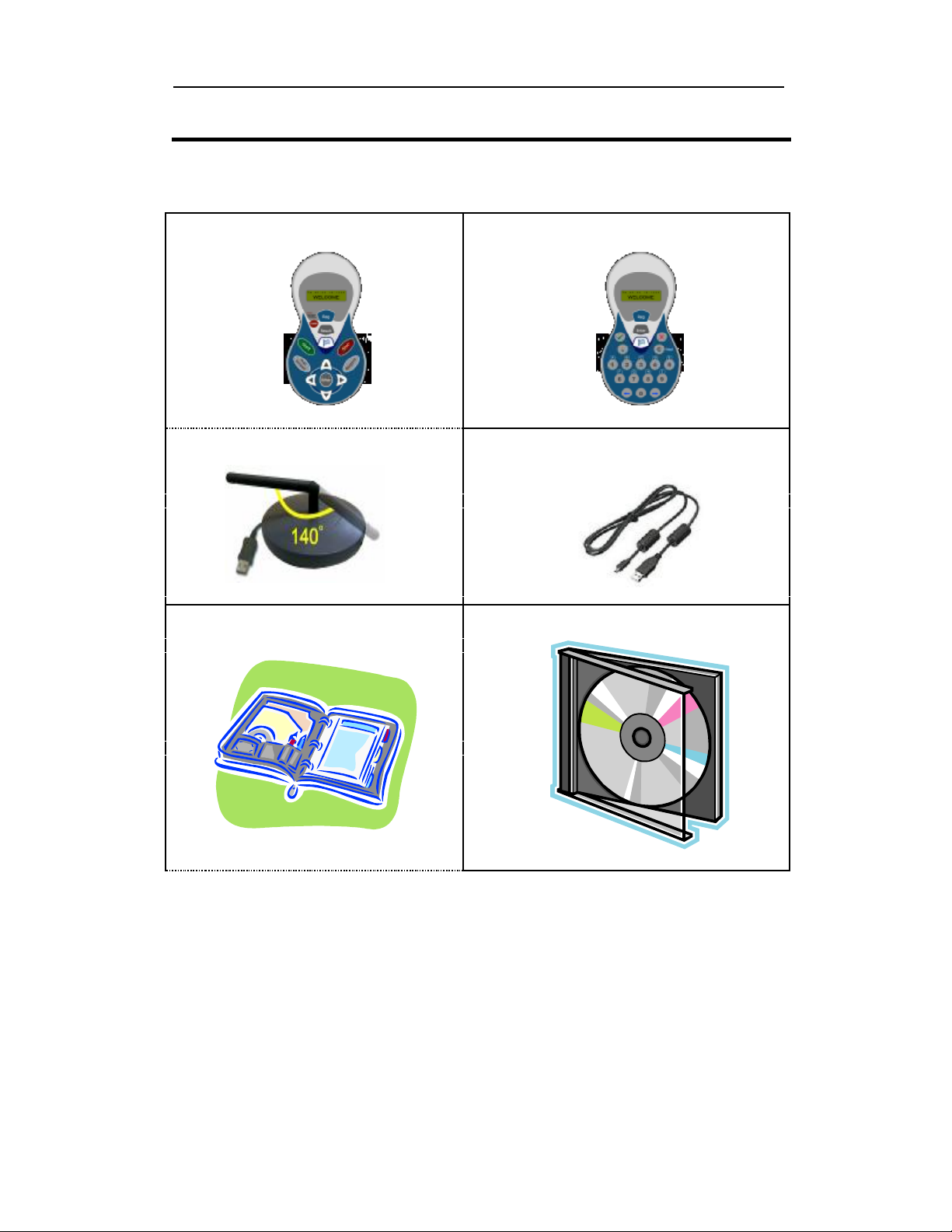
♦ Teacher Remote Control (x 1) with 2 x
1.5V AAA battery
♦ Student Remote Controls (x license number)
with 2 x 1.5V AAA batteries
♦ RF Receiver (x1)
♦ Instruction Manual (x 1)
♦ USB port to mini B Cable (x 1)
♦ MyiPad Software CD-ROM (x 1)
Copyright 2006 NewSoft Corporation Ltd. All rights reserved. - Page 7 -
Page 8
MyiPad Instruction Manual http://www.newsoftcorp.com
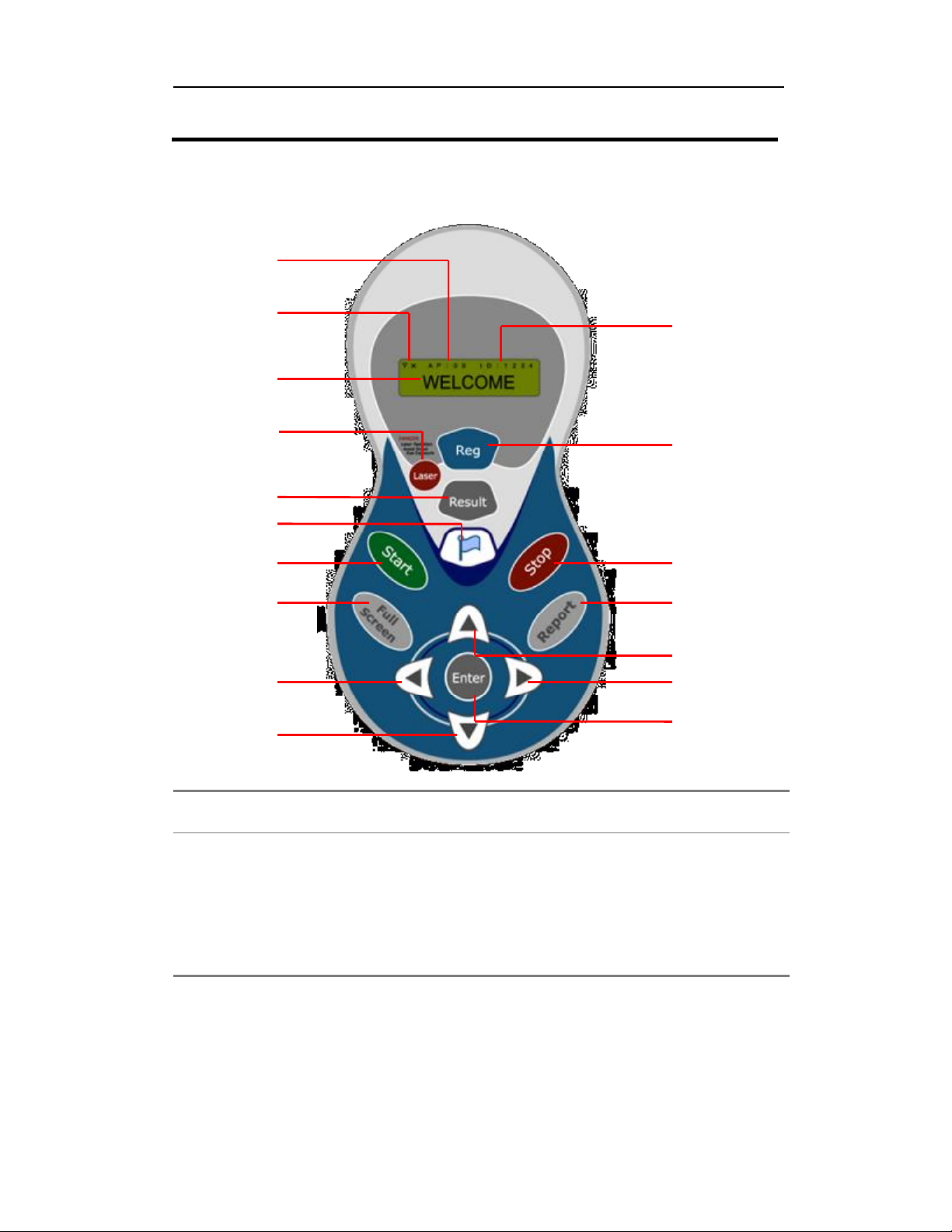
3 4 5 6 7 8 9 13 14 15 16 17 10 12 11 2
Chapter 3 MyiPad System Components
Instructor Keypad
Item # Buttons/ Parts Functions
1 LCD Display – Access Point Access Point
2 LCD Display – Connectivity
3 LCD Display – Message
1
Indicator
√ – Connected
X – Not connected
Remote Message
Copyright 2006 NewSoft Corporation Ltd. All rights reserved. - Page 8 -
Page 9

MyiPad Instruction Manual http://www.newsoftcorp.com
Item # Buttons/ Parts Functions
4 Laser
5 Result
Turn on/off the laser pointer
Pop up window showing the current
quiz results on the screen
6 Buzz In Switch between the MC and Buzz In
question modes
7 Start Start quiz player in PowerPoint slide
show
8 Full Screen
Switch between Slide Show and
Question Edit mode in PowerPoint
9
10
Left arrow(←)
Down arrow (↓)
Function as “Left arrow” key in
PowerPoint
Function as “Page Down” key in
PowerPoint
11 LCD Display – Remote ID
Remote ID
12 Reg
Function key for Register Presentation
13 Stop
Stop the quiz player
14 Report Display the cumulative score of each
student
15
Up arrow (↑)
Function as “Page Up” key in
PowerPoint
16
Right arrow (→)
Function as “Right arrow” key in
PowerPoint
17 Enter Function as “Enter” key in
PowerPoint
Copyright 2006 NewSoft Corporation Ltd. All rights reserved. - Page 9 -
Page 10

MyiPad Instruction Manual http://www.newsoftcorp.com
Notes
During the PowerPoint Slide Show, the following computer keyboard hotkeys can be
used for MyiPad operation.
Operation Keyboard Shortcut Keys
MC Ctrl + N
Buzz In Ctrl + B
Start quiz Ctrl + Z
Stop quiz Ctrl + X
Previous Question Alt-Left arrow sign ( )
Next Question Alt-Right arrow sign ( )
Slide Up Page Up
Slide Down Page Dn
Show Result Ctrl + R
Show Report Ctrl + E
Hide / Show Remote ID Icons Ctrl + V
Show WhiteBoard
Ctrl + W
Pause quiz
Ctrl + C
Remarks: Characters listed above are case insensitive.
Copyright 2006 NewSoft Corporation Ltd. All rights reserved. - Page 10 -
Page 11
MyiPad Instruction Manual http://www.newsoftcorp.com
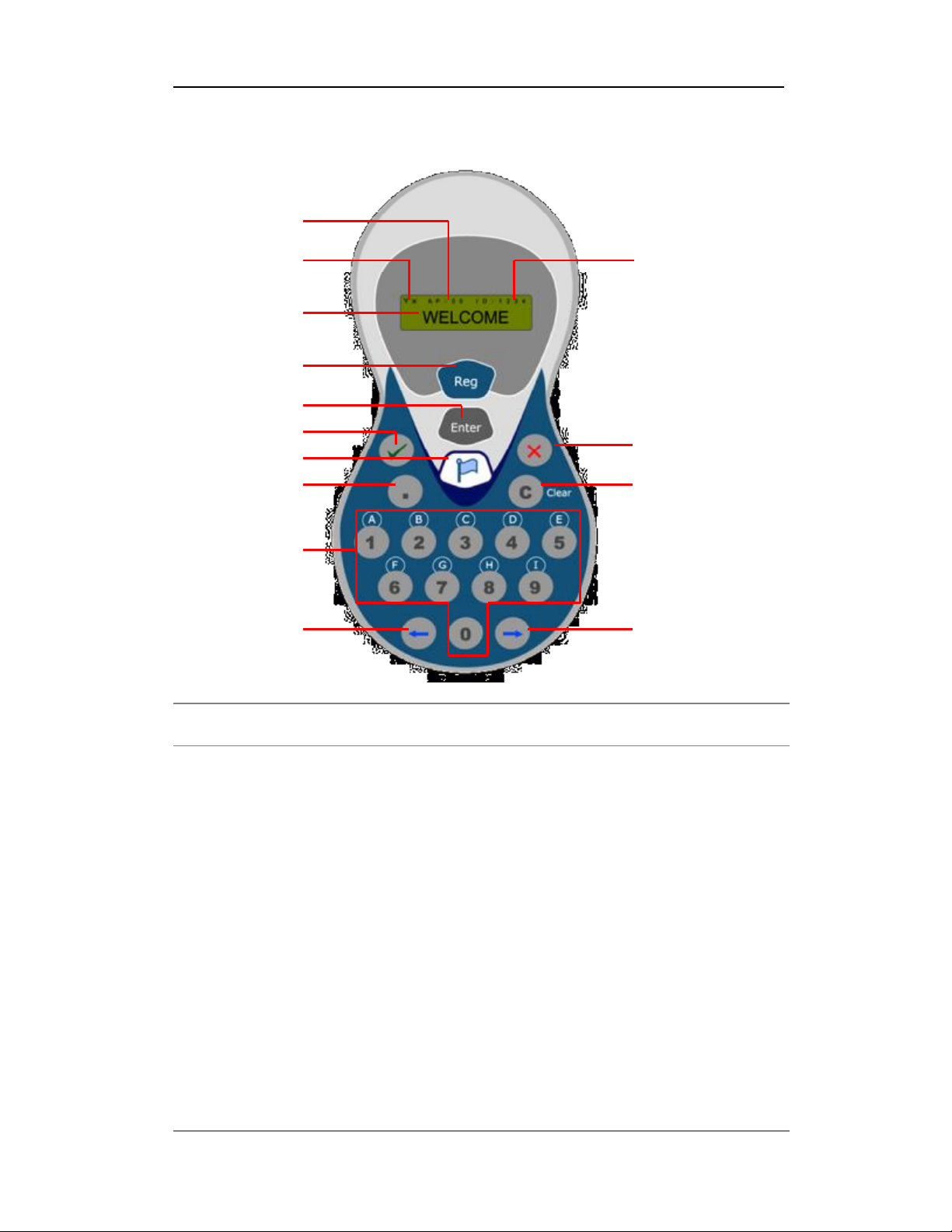
9 4 5 3 2 1 6 7 8 10 11 12 13 14
Student keypad
Item # Buttons/ Parts Functions
1 LCD Display – Access Point Access Point
2 LCD Display – Connectivity
Indicator
3 LCD Display – Message
4 Reg
5 Enter
6 Check (√) “True”
7 Buzz In Reply the buzz-in questions
8 Decimal Point (.) Decimal Point
9 Answer options (1-9/A-J) Select an answer from the options
√ – Connected
X – Not connected
Remote Message
Function key for Register
Presentation
Function as “Enter” after input
Copyright 2006 NewSoft Corporation Ltd. All rights reserved. - Page 11 -
Page 12
MyiPad Instruction Manual http://www.newsoftcorp.com
B
10
Left arrow(←)
Leftward function
11 LCD Display – Remote ID Remote ID
12 Cross (X) “False”
13 Cancel (C) Cancel function key
14
Right arrow (→)
Rightward function
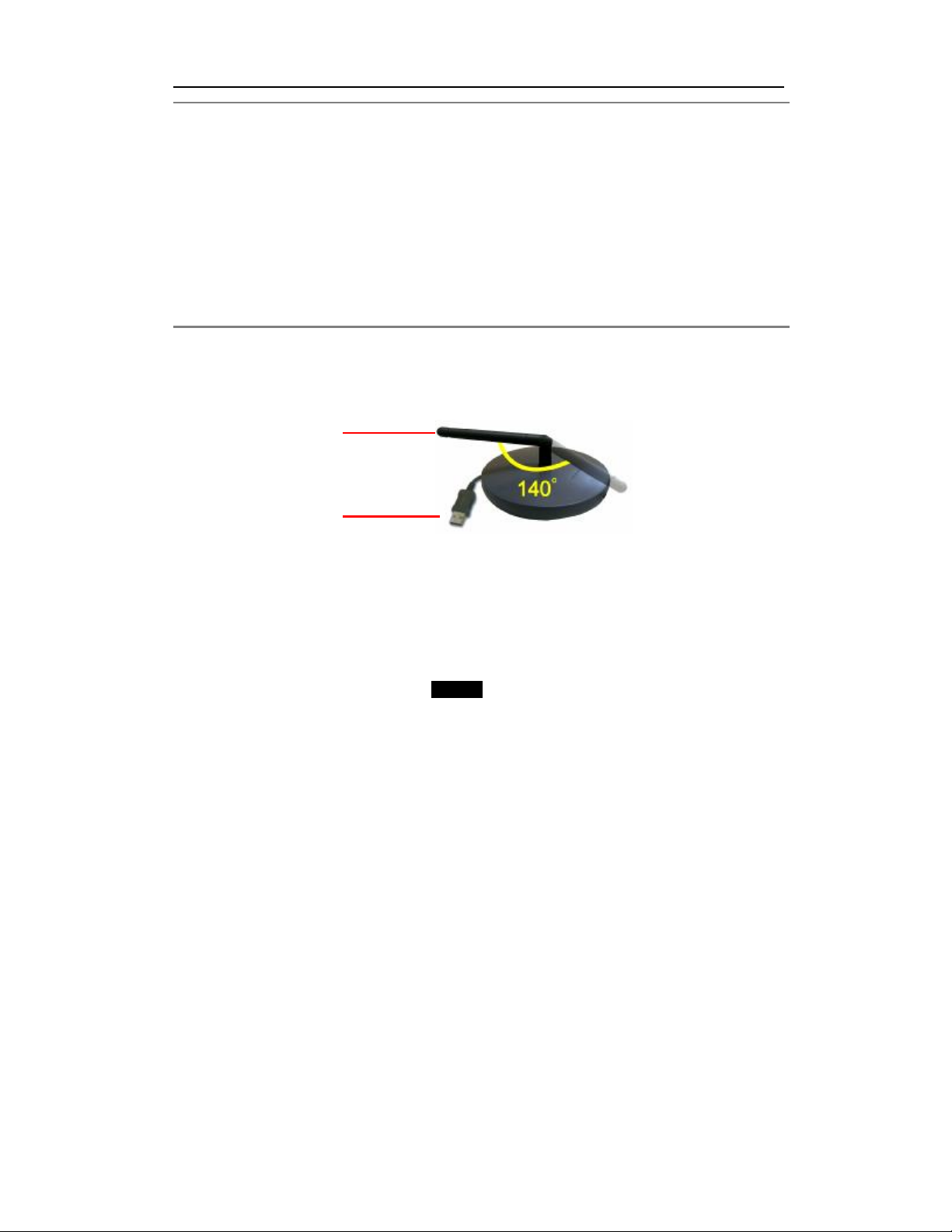
(RF) Receiver
Label # Parts Functions
A Antenna
B USB connector Connect to the computer via a USB cable
A
RF signal receiver. It can be pointed at any
heading
Notes: For the computer to recognize the receiver
device, the USB software driver has to be set up. Make
sure all connections are secure.
Copyright 2006 NewSoft Corporation Ltd. All rights reserved. - Page 12 -
Page 13
MyiPad Instruction Manual http://www.newsoftcorp.com
8 2 3 4
1
5 6 7 9
10
11
12
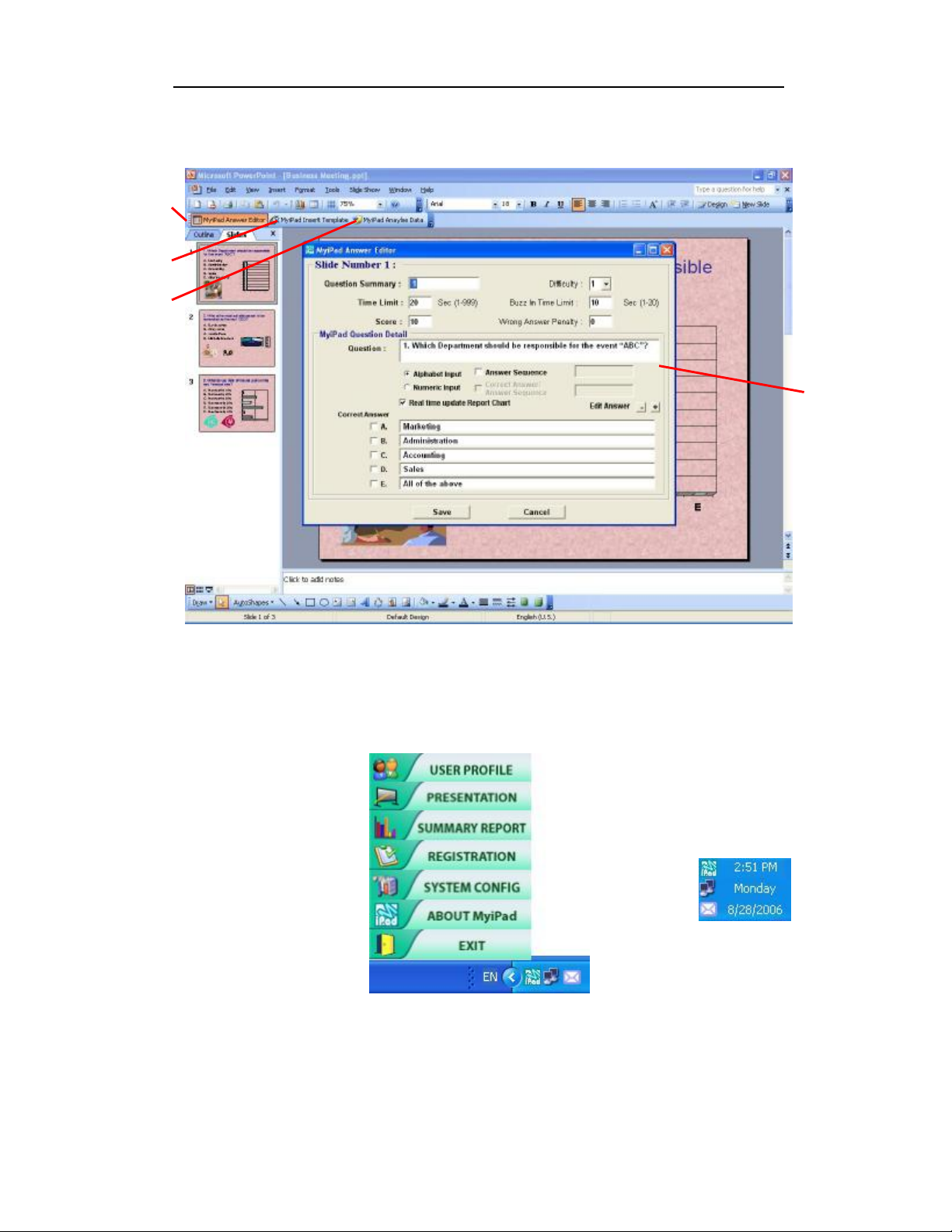
MyiPad Software Control Program
Tray icon & pop-up menu
Copyright 2006 NewSoft Corporation Ltd. All rights reserved. - Page 13 -
Page 14
MyiPad Instruction Manual http://www.newsoftcorp.com
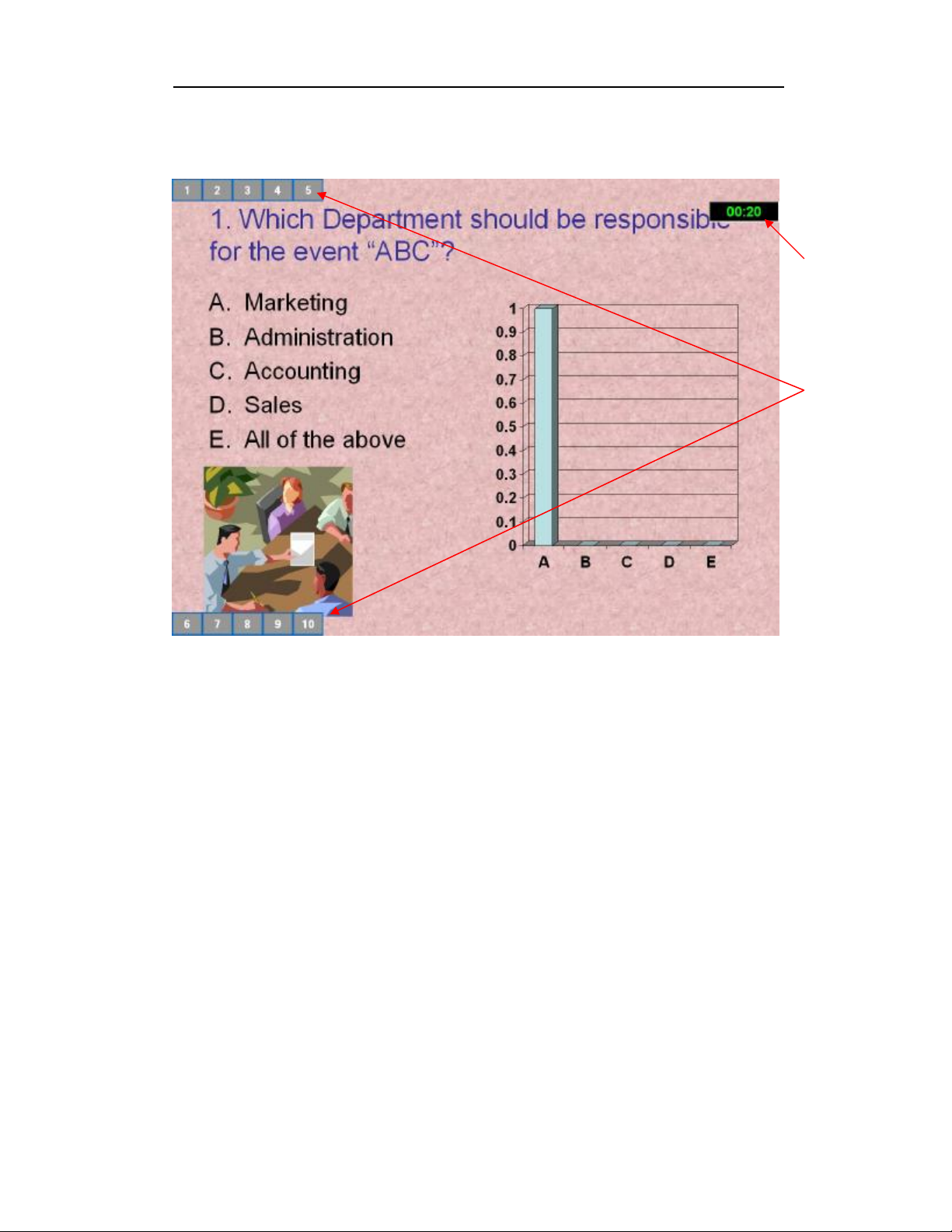
Presentation slide
14
13
Copyright 2006 NewSoft Corporation Ltd. All rights reserved. - Page 14 -
Page 15

MyiPad Instruction Manual http://www.newsoftcorp.com
Item Functions Description
1 MyiPad Answer Editor button Launches the Microsoft PowerPoint
2 MyiPad Insert Template button Inserts MyiPad Template for PowerPoint
3 MyiPad Analyze Data Associates PowerPoint Information with
4 Answer Editor Dialogue Box Presets the question summary, time
5 MyiPad tray icon Shortcut of MyiPad functions
6 User Profile Defines teacher, class and student
7 Presentation Starts the quiz using PowerPoint. The
8 Summary Report Displays quiz reports
9 Registration Registers remotes according to database
10 System Config Configures Access Point, PowerPoint
11 About MyiPad Displays information of MyiPad
12 Exit Exits the program
13 Remote ID Icons Displays the states of response or
14 Timer Quiz count down timer
plug-in
MyiPad Answer Editor
limit, correct answer, question detail,
score and difficulty level of the question
relation information.
answers can be preset using “MyiPad
Answer Editor”.
information
setting, Report setting and various
system settings.
correctness of answers of corresponding
student remotes.
Copyright 2006 NewSoft Corporation Ltd. All rights reserved. - Page 15 -
 Loading...