

Page 1
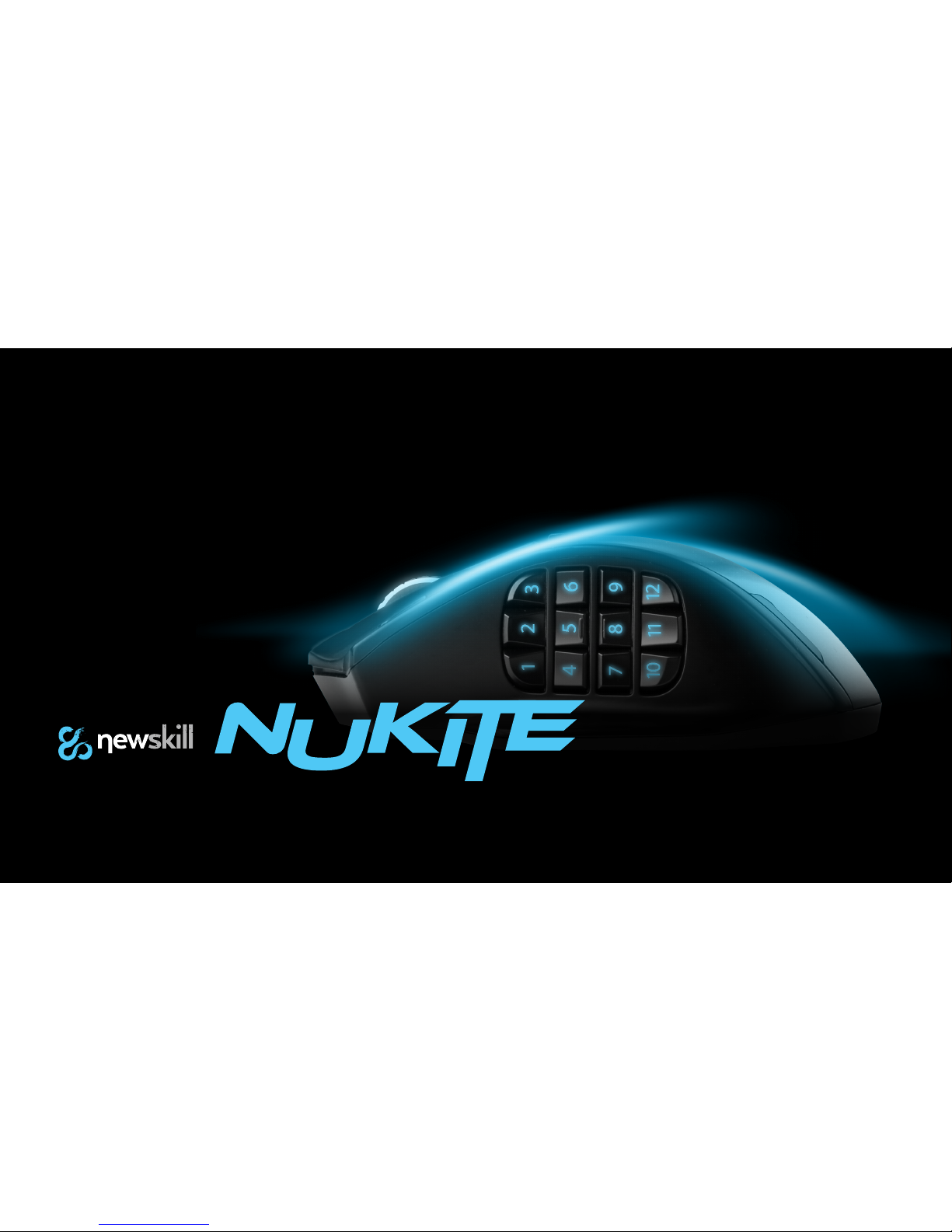
MMO/MOBA Laser Gaming Mouse
Page 2
FEATURES
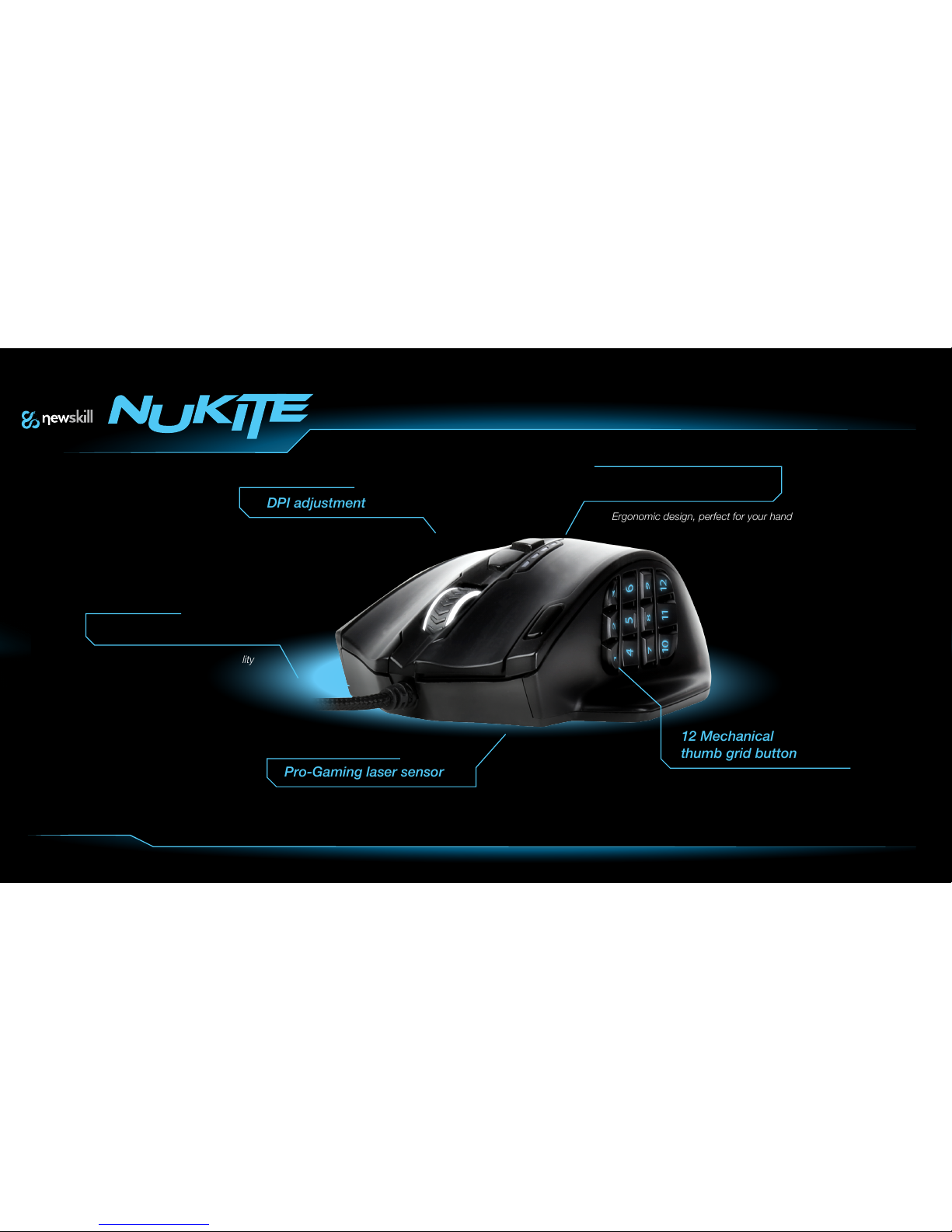
12 mechanical buttons with a special touch ,
these buttons are fully user programmable
and adjustable for each style of play.
12 Mechanical
thumb grid buttons.
Pro-Gaming laser sensor
Stable data transfer, high durability
Braided fiber cable
DPI adjustment
Ergonomic design, perfect for your hand
Ergonomic palm design
Sensor AVAGO 9800, up to 8200 DPI (16,400 via software ).
Different levels of DPI fully configurable by the user.
Page 3
INTRODUCTION
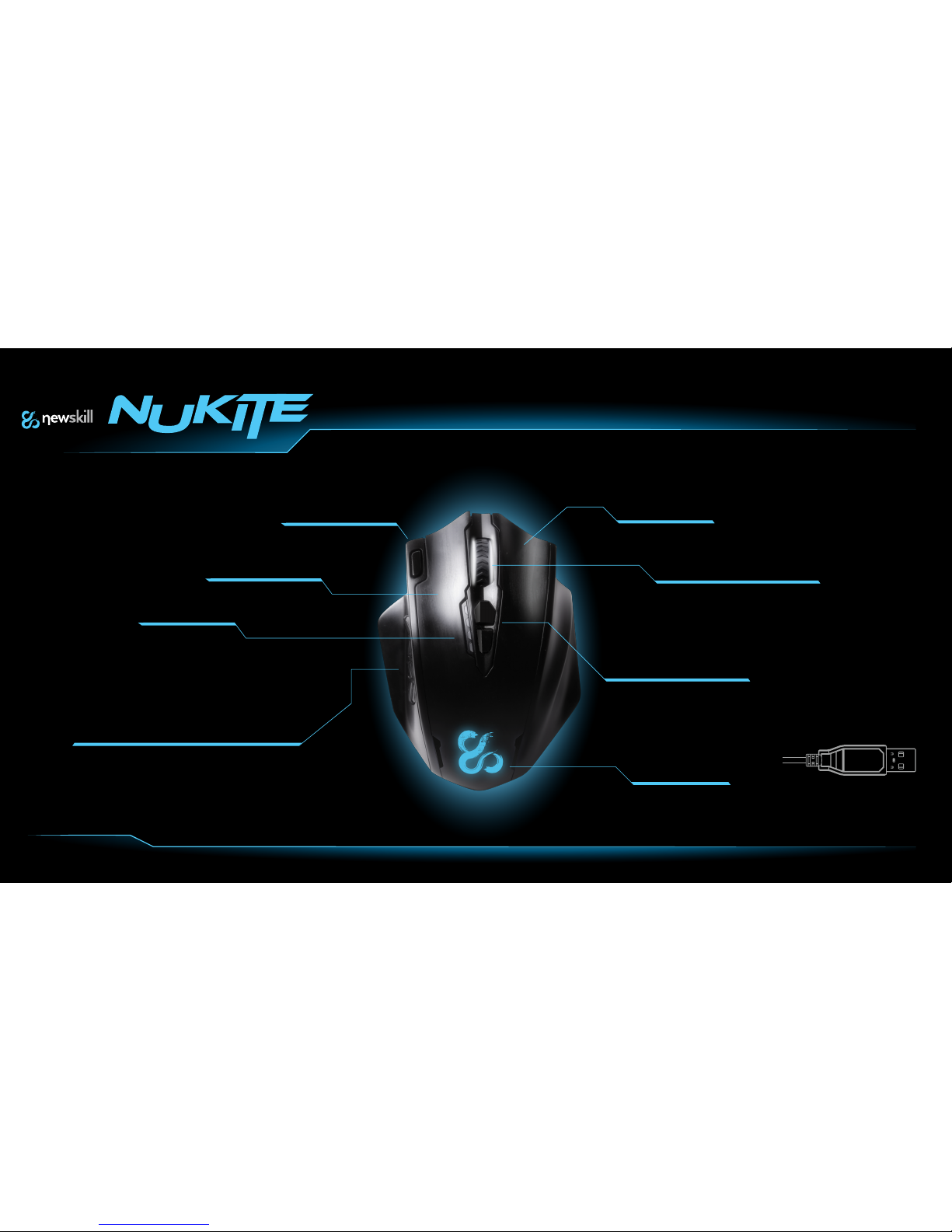
Reinforced USB joint
Left Button
Fire Button
DPI display
Right Button
Large Anti-skid Roller
RGB lighting
Adjustable DPI key
Mechanical 12 Button thumb grid
Page 4
SPECIFICATION
Technical Features
-MMO/MOBA games design.
- Dedicated software, easy configuration
and extreme customization.
- 125/250/500/1000Hz
polling rate switchable
- 1000/2000/4000/8200/16400
switchable DPI, configurable range
50-16400 DPI.
- 16.8 million colors,
fully configurables by the user.
- 4 DPI LED indicators
- ”On-board” 64KB memory,
5 configurable profiles
-8 detachable weights, 2.4 grams each one.
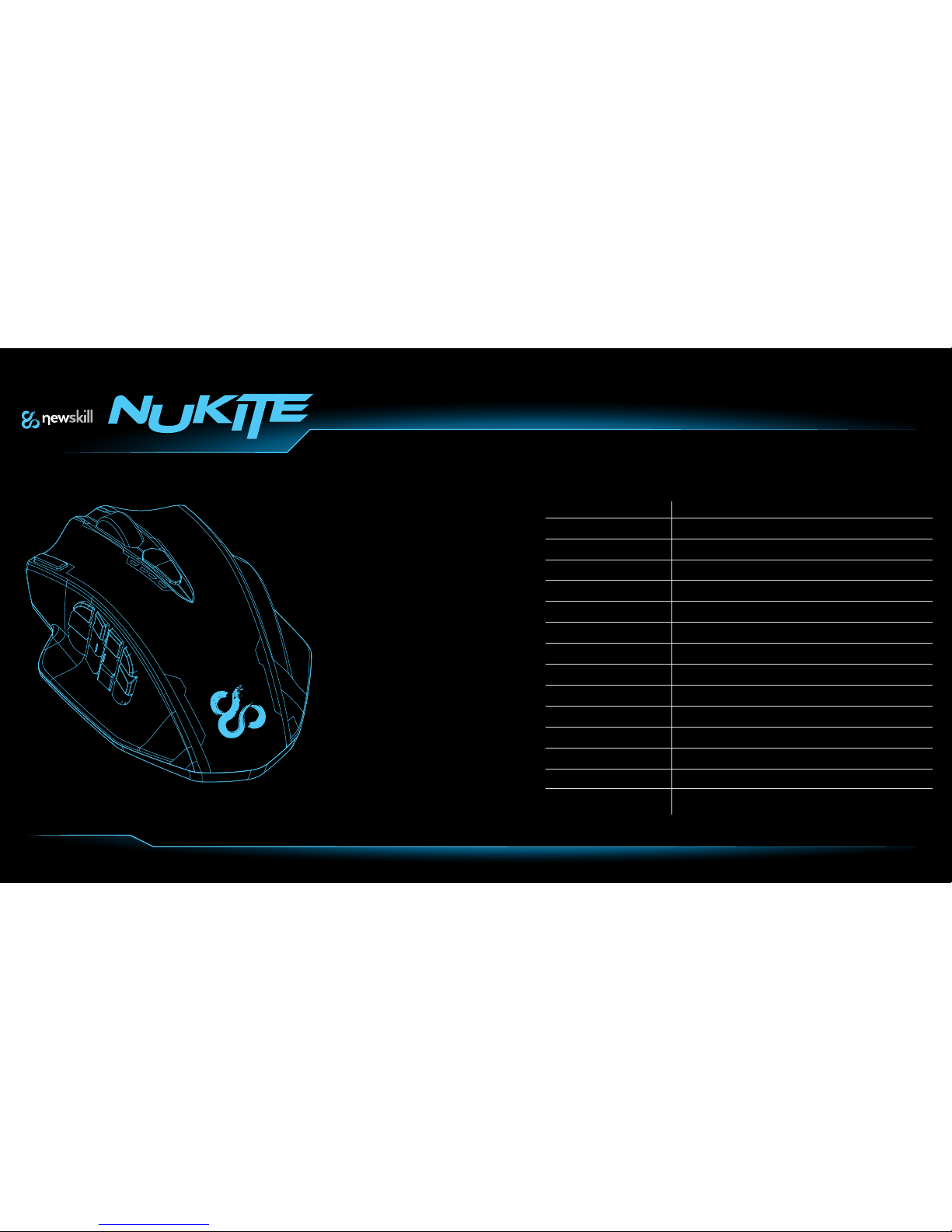
Specification
Sensor
Resolution
Mechanic
Game target
Polling Rate
Mousefee
Cable
Switches
Frame rate
Max. tracking speed
Max. acceleration
Interface
Dimensions
Weight
Compatible with
AVAGO 9800 gaming laser
8200 DPI
19 buttons
MMO/MOBA
1000Hz/1ms
Teflon pads
1.8m braided fiber
OMRON Gaming
12000 FPS
150 IPS
30G
USB 2.0 gold plated
122.5(L) x 92(W) x 42(H) mm
178g (8 x 2.4g weights included)
Windows 2000/XP/me/Vista/Win7/Win8
Page 5

Software installation
Plug Newskill NUKITE mouse to PC before software installation.
1. Click setup.exe to start installation.
2. Click “Next” and follow installation instructions.
3. Click “Finish” to exit.
Page 6
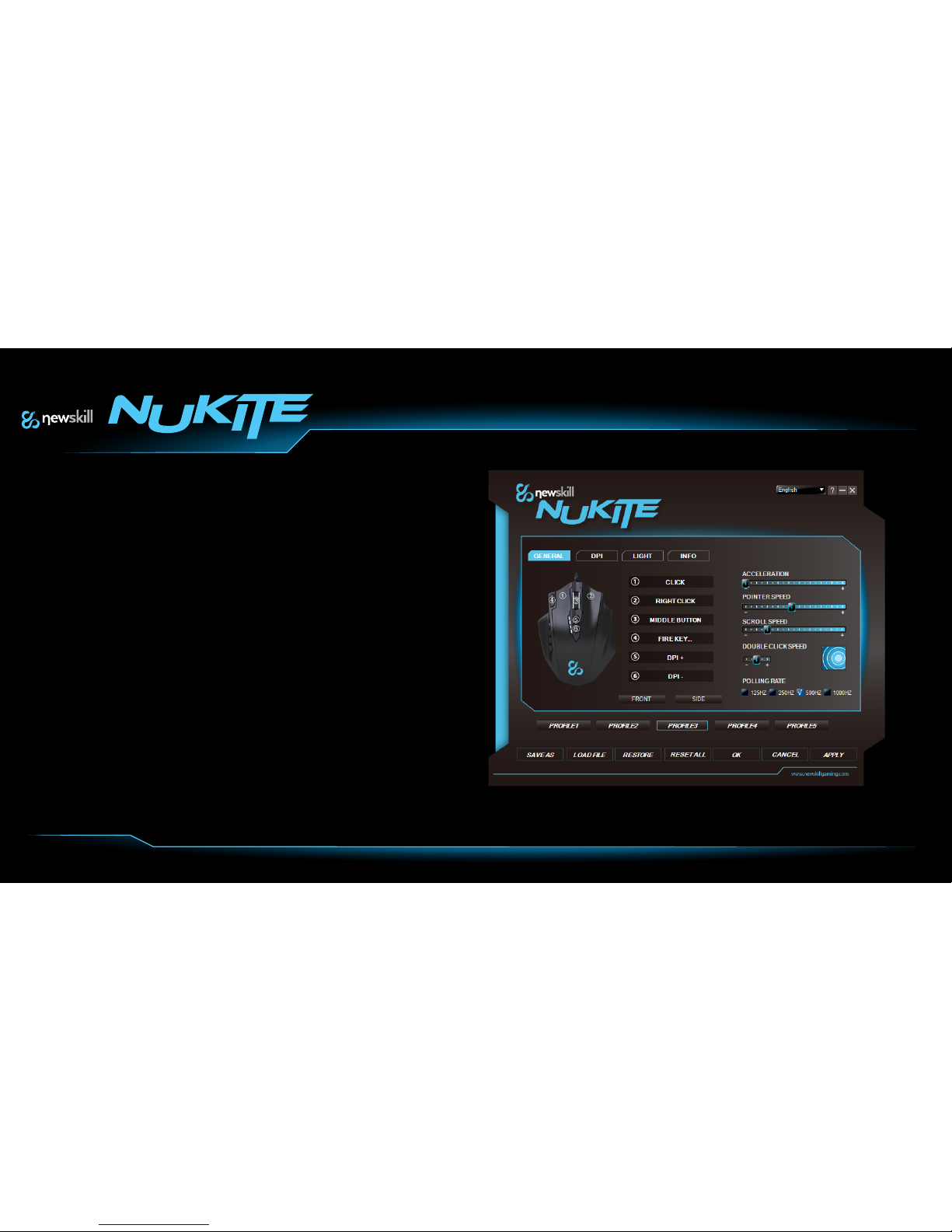
Software
Main menu
Here are three sections on main menu in addition to “General”:
1.DPI
2.Light
3.Info
All of this sections are fully configurables.
At the bottom if the software you can create and configure your preferences and save
them in one of five profiles.
Note:
Is not needed to open NUKITE software to switch between profiles, just push the button
placed on rear side of NUKITE mouse to choose your desired profile.
Page 7
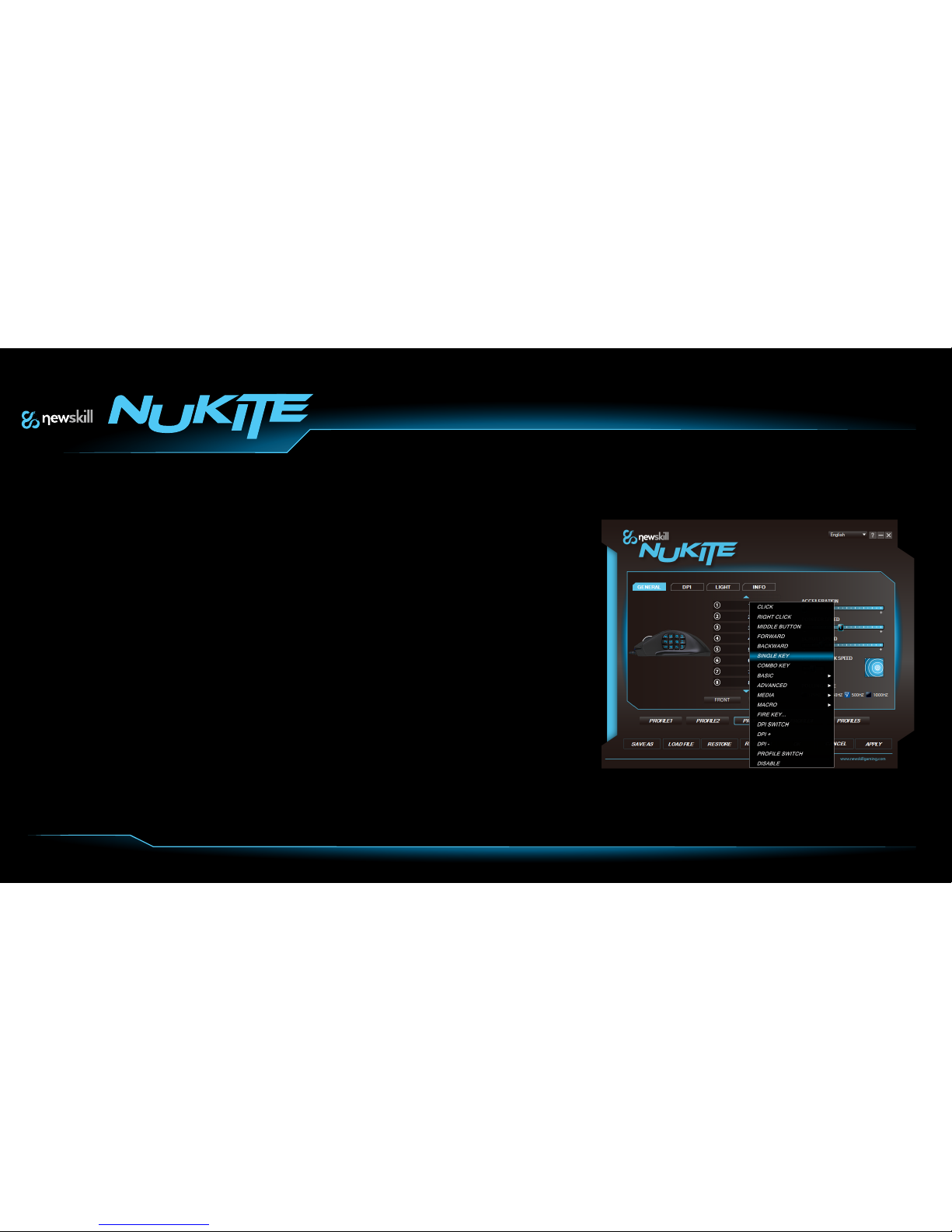
Software
BUTTONS SETTINGS
User can assign to each button a specific function on “FRONT” and
“SIDE” boxes. Press the key you want to configure.
Available options:
Click: Click function
Right Click: Menu function
Middle Button: Autoscroll, close window, open a new instance...
Forward: Forward function
Backward: Backward function
Single Key: Any key from keyboard
Combo key: A combination of keys.
Basic: Some basic windows functions to choose.
Advanced: Some advanced windows functions to choose.
Media: Multimedia functions.
Macro: Set and record a macro function.
DPI switch: DPI switcher
DPI +: Raise DPIDPI -: Decrease DPI
Profile switch: Choose between saved profiles
Disable: Disables a button
ACCELERATION
The faster you move NUKITE, the further will the
cursor move. Fine for limited space.
POINTER SPEED
Set pointer speed.
SCROLL SPEED
Set scroll speed.
DOUBLE CLICK SPEED
Set the time between clicks to event double-click.
POLLING RATE
Set polling rate in frequency.
Page 8
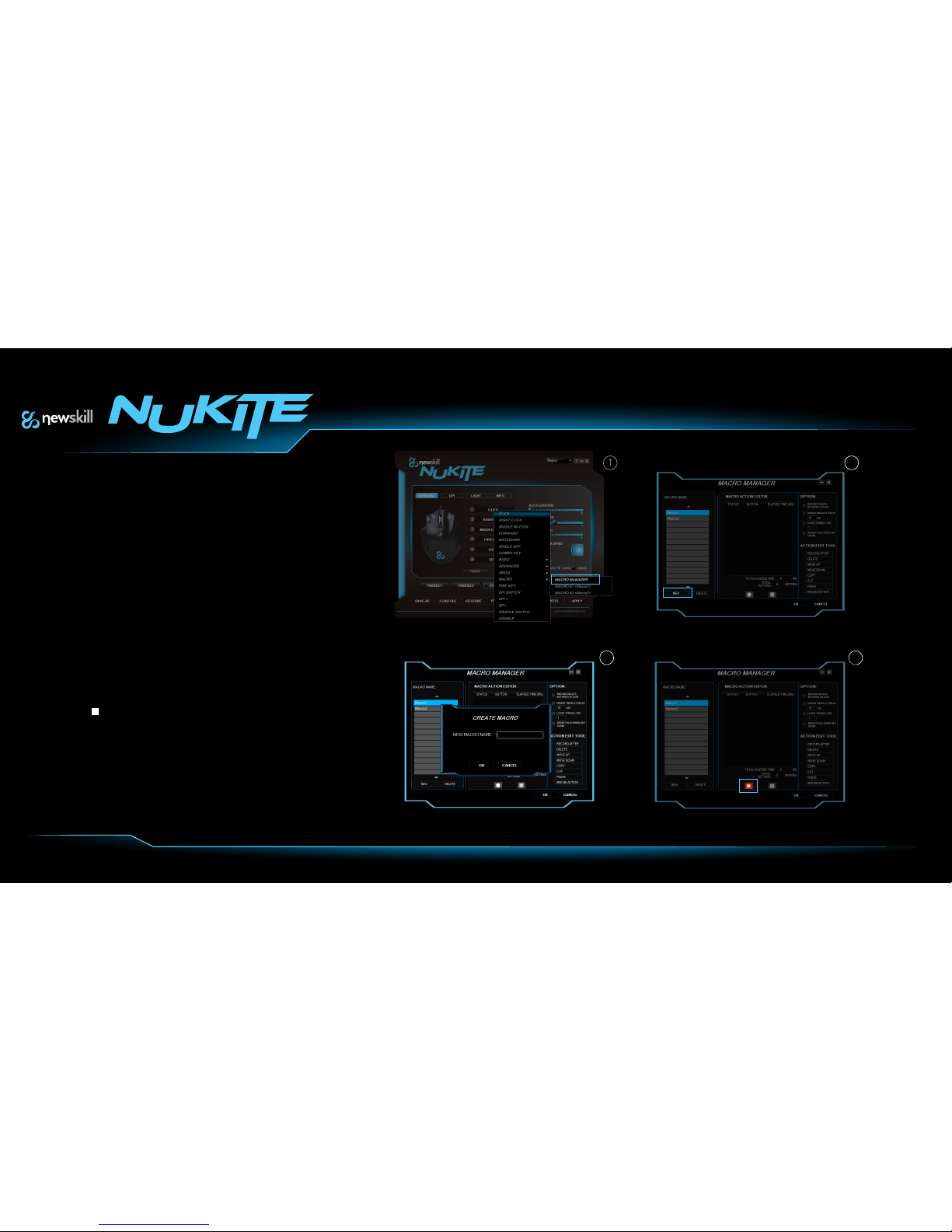
Software
Macro manager
NUKITE has a customized macro manager tool.
1.Click on MACRO MANAGER
2.Choose “NEW MACRO”
3. Specify a new macro name and press enter key.
4. Press ● to start recording and enter the wanted key combination.
Also, user has some choices on macro recording menu:
-Record delays between action
-Insert default delay
-Loop times
-Repeat run when key down
Click to stop recording.
1
3 4
2
Page 9
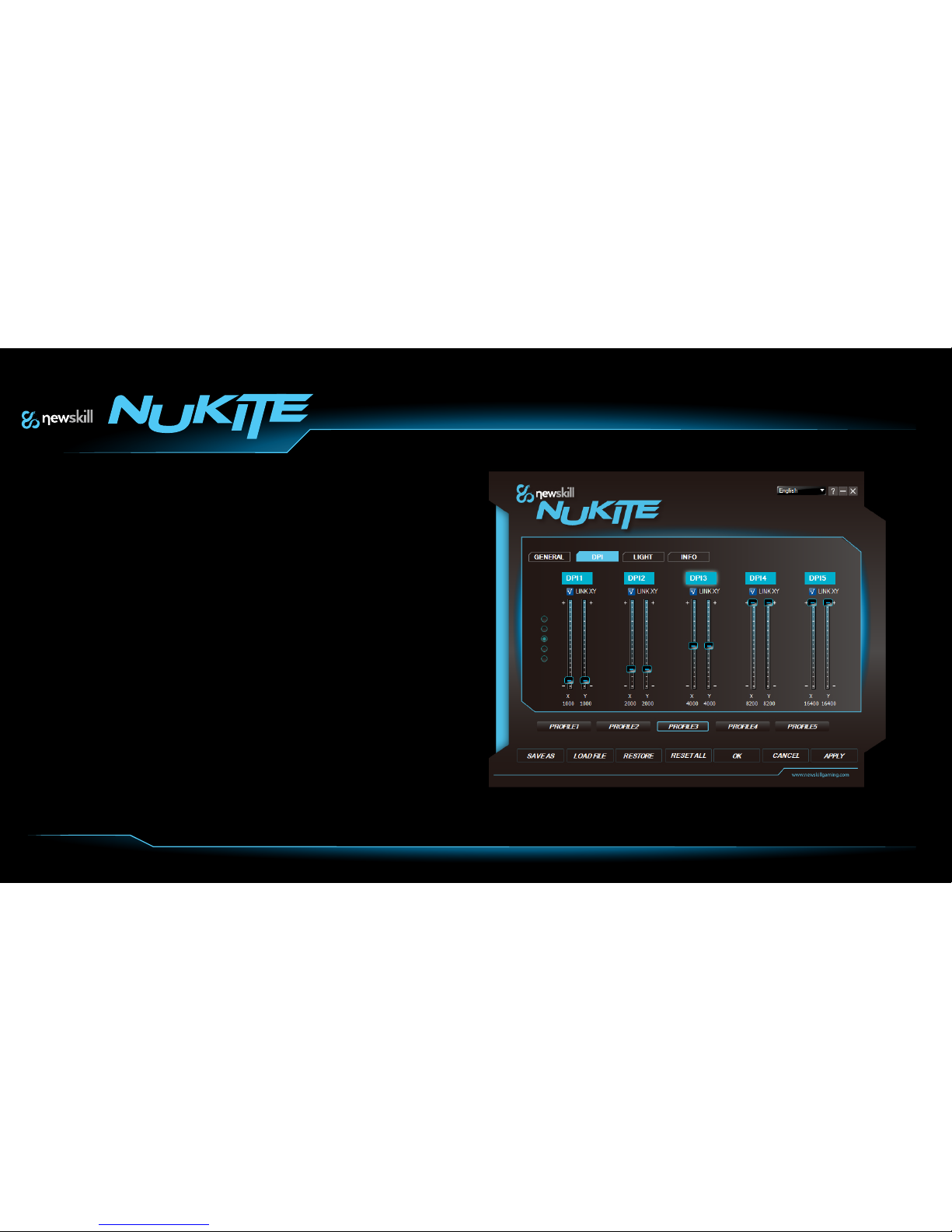
Software
DPI Setting
NUKITE allows to configure DPI from 50 to 16400.
DPI tuning
Enable or disable any of the five DPI settings.
Set default DPI setting.
Note:
Remember to click on “Apply” button to save changes.
Page 10
Software
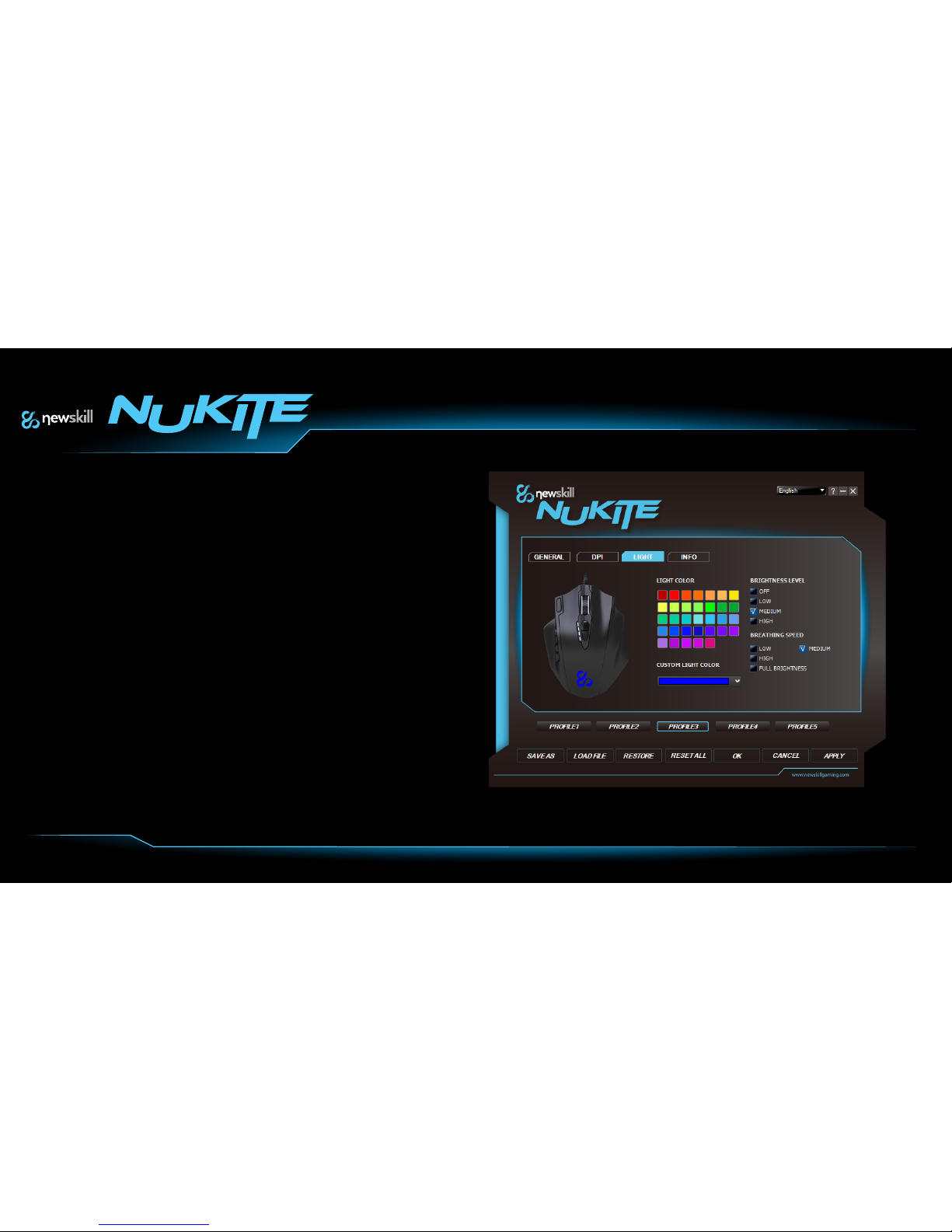
LIGHT
NUKITE has RGB lighting with 16.8 million colors to allow user to custom his own.
LIGHT COLOR:
Choose between preset color range.
CUSTOM LIGHT COLOR:
Up to 16,8 million colors to choose your own custom tone.
BRIGHTNESS LEVEL
Set LED light brightness level.
BREATHING SPEED:
If wanted, you can enable a breathing light effect; this effect is configurable on speed.
Note:
Remember to click on “Apply” button to save changes.
Page 11
www.newskillgaming.com
 Loading...