

Page 1
Thanks for choosing our mobile phone!
Please read this user manual before use
Please read below detail instructions carefully. It may have danger or illegality if
you do not follow these instruction s. This user manual inc ludes detail information
about safety instruction.
Switch on Phone Safely
Please do not switch on your phone when it might have interference or danger by
using phone or phone is forbidden in this area.
Pay attention to the traffic safety
According to the recent research, it may have danger to use phone when you are
driving even though you are using the hands-f ree device (s uch as hands-free
device in auto, earphone, etc.). The driver is re quired n ot to use phone when they
are driving. When phone is switched on, the
will interference the electronic system of auto, such as ABS anti-explosion brake
system or SRS (supplemental restraint system). For safety, please follow below:
- Do not put the phone on car control panel or ballonet area in car.
- Confirm with the auto distributor or manufacturer to make sure that
electronic system of automatics have good isolation.
Interference
All kinds of phones may be interfered by environment, and then the performance
of phones might be influenced. Phone may interfere with some electric appliance
such as electronic TV, radiogram, PC and so on.
Turn off your cell phone in the site of medical
and health care
Please switch off your phone in the site of medical and health care except some
designated area where phone can be used. Phone will interfere with the running
of electronic equipment, electron device or radio frequency device near around,
just like the other us ua l e qu ipm ent.
electromagnetic wave from phone
We reserve the right to upgrade the software and product
without prior notice.
The icon in this user manual may differ from your phone,
depending on the phone you used.
We reserve the right to make changes to this user manual
without prior notice.
All rights reserved.
1
Switch off on airplane
Please follow the related regulations. Please switch your phone before boarding.
Switch off in gas station
Please switch off your phone when you are in gas station or any position where
fuel and chemical have been placed.
Cell phone should be turned off around the site of
explode.
To avoid the interference to exploding, please switch off your phone when you
see the mark of “site of explode” or “turn off bidirectional radio devices”. Please
abide any related forbidden regulation, and execute any regular or statute which
related with cell phone’s using.
Using phone correctly
Please use phone in normal position. Please do not touch antenna area if not
2
Page 2

necessary. Do not let children use phone without any tendance. SIM card can
be taken out from phone. Please pay attention to prevent children from swallow
the small component like this.
Do not let pregnant woman use phone for long time.
Accessories and batteries
Use only the approved accessories and batteries. Please do not connect with any
product which doesn’t match with this phone. Please be sure the phone has been
switched off before t aking out battery . Please deal with the scrap batteries
properly according to the local stat us.
Waterproof
The phone doesn’t have performance of waterproof. Please do not expose your
phone in inclement weather or environment (such as wet, raining, liquid leakage,
seawater, mirage, and so on).
Emergency calling
Please be sure your phone is power on and in the service available area.
According to demands, press end key repeatedly to clear the content in screen
and go back to standby mode, or press number key directly, then input
emergency phone number. And then press answer key to describe where you are.
Please do not hang up your phone without permission.
Contents
Safety Instruction ........................................................................................................ 2
Start to Use ................................................................................................................... 6
Put in/Take out battery .................................................................................... 6
Insert/Take out S IM card ................................................................................. 7
Battery Charging ............................................................................................... 7
Switch On /Off phone....................................................................................... 8
Switch On ........................................................................................................... 8
Your Phone ................................................................................................................. 9
Stand by Mode ................................................................................................ 9
Main Display .................................................................................................. 10
Icons on Screen ........................................................................................... 10
Voice Dial ................................................................................................................... 12
Dial out .............................................................................................................. 12
Emergency Dial ............................................................................................... 12
Make an International Call ............................................................................ 12
Dial extension No. of a Fixed line ............................................................... 13
Speed Dial ........................................................................................................ 13
Receiving a Call .............................................................................................. 13
Reject a Call ..................................................................................................... 13
Conference Call .............................................................................................. 13
Adjust volume ................................................................................................. 13
Message ..................................................................................................................... 14
Write and send message .............................................................................. 14
Read and Reply SMS.................................................................................... 14
Inbox and Outbox ........................................................................................... 14
Templates ......................................................................................................... 14
Emergency ....................................................................................................... 15
Delete Message ............................................................................................... 15
Vo ice mail ......................................................................................................... 15
Storage status ................................................................................................. 15
Call History ............................................................................................................... 15
Received call ................................................................................................... 15
Dialed call ......................................................................................................... 15
Missed call ....................................................................................................... 15
Delete all records ............................................................................................ 15
Talk time ........................................................................................................... 15
Phone Book .............................................................................................................. 16
Search ............................................................................................................... 16
Search contact ................................................................................................ 16
New Contact ..................................................................................................... 16
Delete contact .................................................................................................. 16
Copy contact .................................................................................................... 16
Emergency number ........................................................................................ 16
Spd.dial ............................................................................................................. 16
Settings ............................................................................................................. 16
Settings ...................................................................................................................... 17
Silent mode ...................................................................................................... 17
Calculator ......................................................................................................... 17
Alarm ................................................................................................................. 18
Radio ............................................................................................................................ 18
3
4
Page 3
Input Method ............................................................................................................... 19
Care and Maintenance .............................................................................................. 19
Additional Safety Information Operating Environment .................................... 19
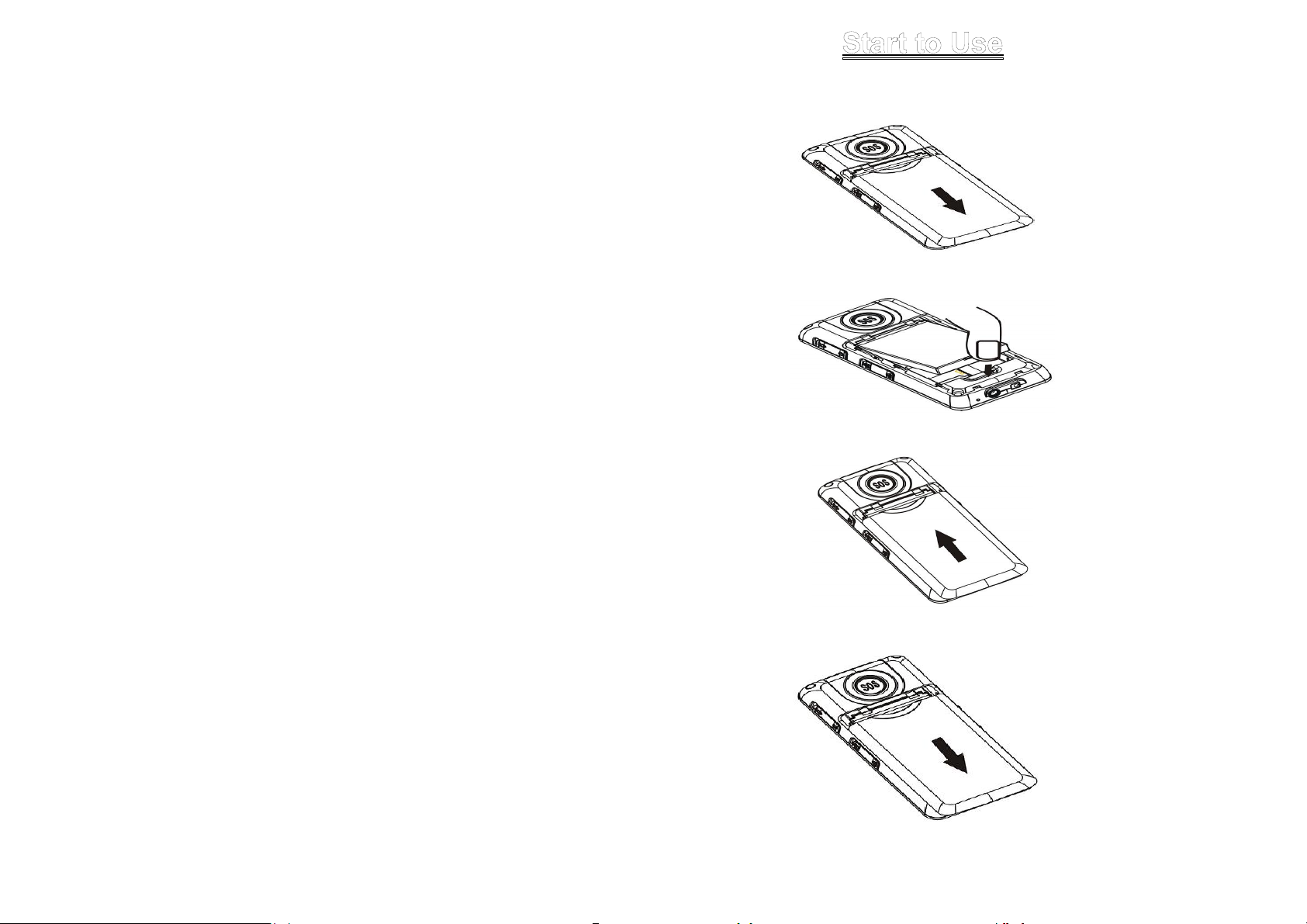
Put in/Take out battery
Put in battery
1. Open the battery cover
2. Put battery into the battery slot. Keep three metal points of battery facing
downward and matching with the three metal connection points on phone.
3. Put on battery cover. Make sure that cover is completely matched and the
cover matching sound could be heard.
Take battery out
1. Open battery cover.
2. Press the battery side and lift it up to take it out from battery slot.
5
6
Page 4
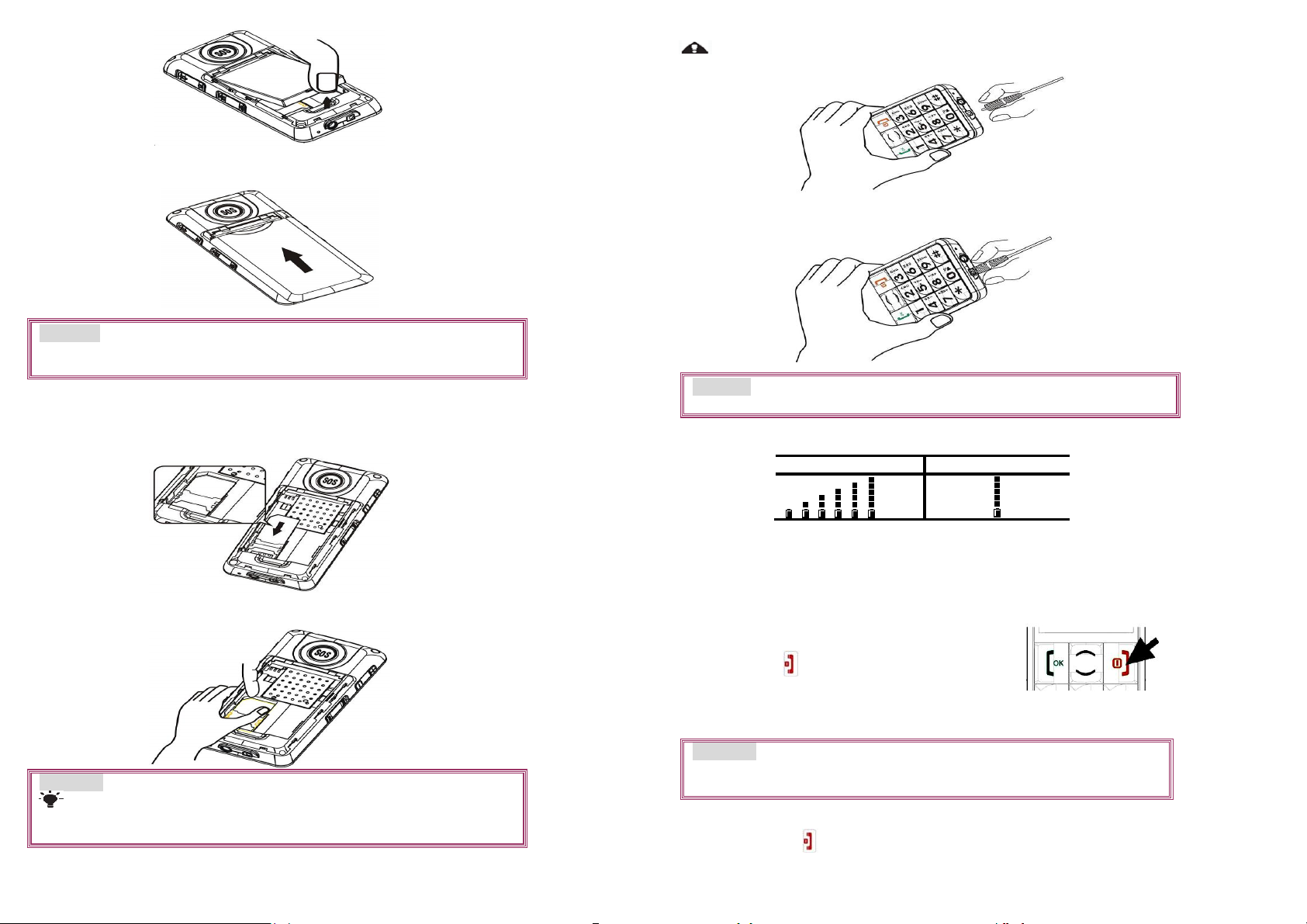
Phone could be charged when phone is power off or power on.
Make sure that battery is inserted in phone before charging.
1. Plug in the charger.
3. Close the cover. Make sure that cover is completely matched and the cover
matching sound could be heard.
Remark:Shut down all devices and cut the connection with charger when
removing battery. Please use battery which is matched with this phone
only.
Insert/Take out SIM card
1. Insert SIM card:Remove battery cover;Insert and slide the SIM card with the
metal part facing downward by following below arrow direction at battery
slot until SIM card is co mpletely inserted in right position.
2. Take out SIM card:Hold the notch of SIM card and lift it slightly up by the
other hand to take card out.
2. Plug out the charger from power jack first after it is charged. Then
unplug charger from phone.
Remark:Battery indication will be displayed after several minutes if
battery is over-discharged.
Battery Level Indication Bar
Charging Charged
Not enough battery alert
Phone will give alert when battery is not enough and display a message of
low battery on screen. Please charge battery. Please charge battery when you
receive the alert of low battery during calling in order to keep the calling.
Switch On / Off phone
Switch On
Remark:Phone must be power off when put in and take out battery.
SIM card and the contact point will be easily damaged due to scratch
and bending. Please be careful when inserting and taking out the
SIM card.
Battery Charging
7
Long press to switch on. If you already set
the PIN code O N, then yo u need to ty pe in PIN c ode.
Type in the code and press green key to enter. Then
phone will be on.( default PIN code is 1234)
Warning:SIM card will be locked if you type wrong code for three times. And it
will inform you to type in PUK code. (Please contact your network service
vendor to unlock it if needed.)
Switch Off
Long press this key to switch off the phone at standby mode.
8
Page 5
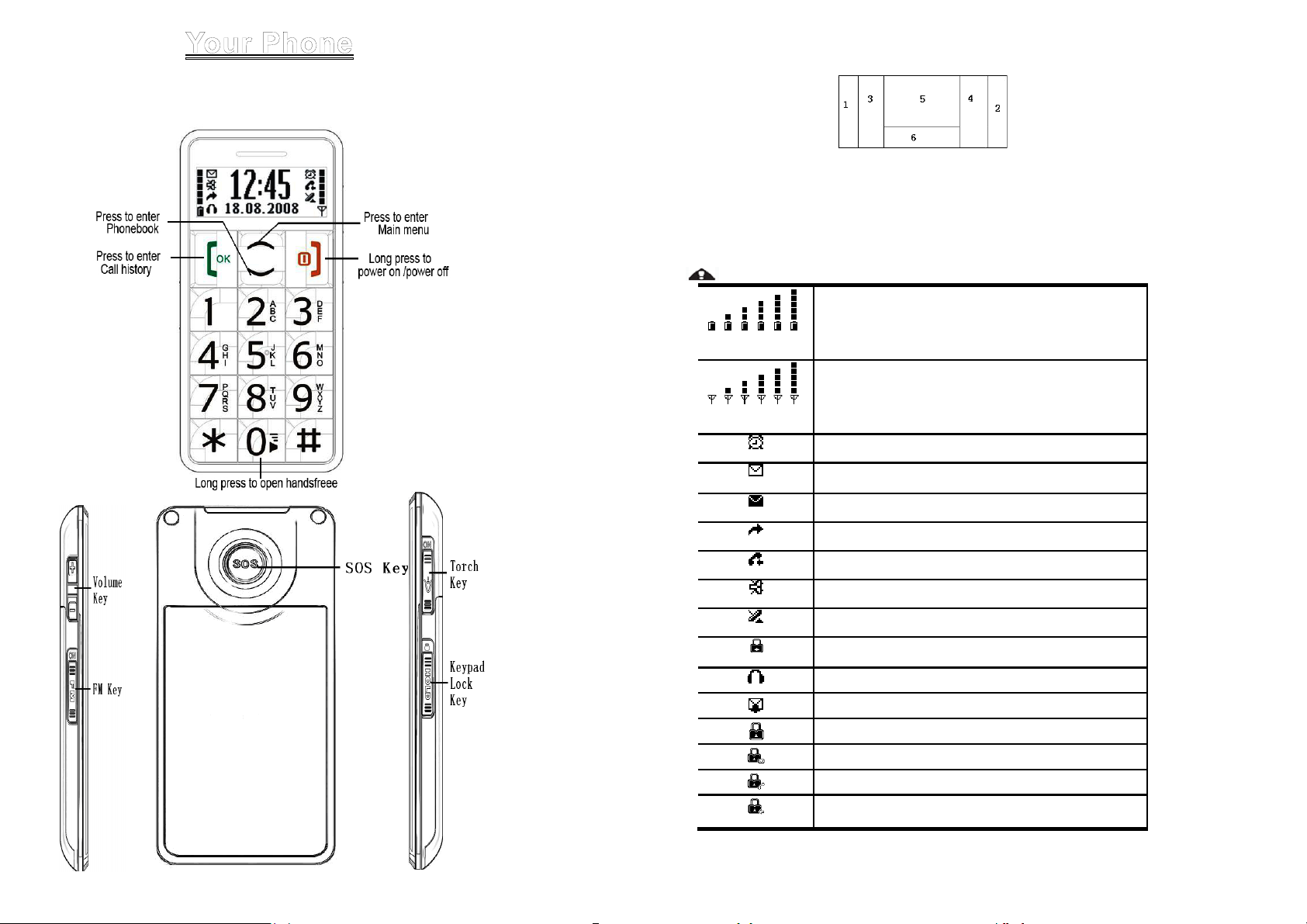
Stand by Mode
A
When phone is ready to use but no operation is done on phone, then
phone is under stand by mode.
Main Display
1. Network Signal
2. Battery Level Indication
3. Icons indicating related functions
4. Icons indicating related functions
5. Time
6. Date
Icons on Screen
Icons might be displayed on screen.
Batter y statu s
Signal status
larm
Unread message
Message Full
Call transfer
Missed call
Silent mode
9
Roaming
Keypad Lock
Headset
voice mail box
Lock keypad
New msg indication at keypad lock mode.
Missed call indication at keypad lock mode.
New msg and missed call indication at
keypad lock mode.
10
Page 6
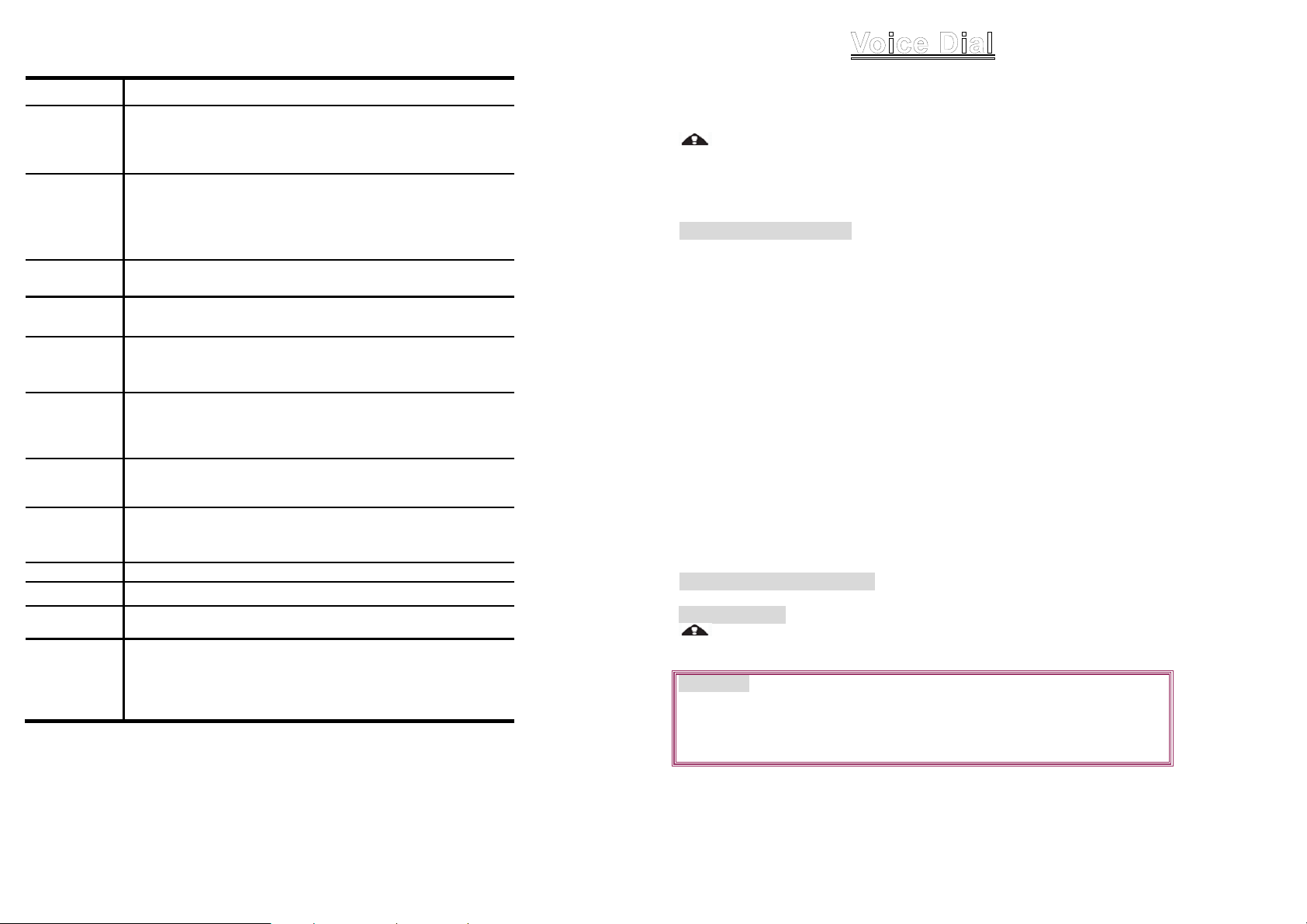
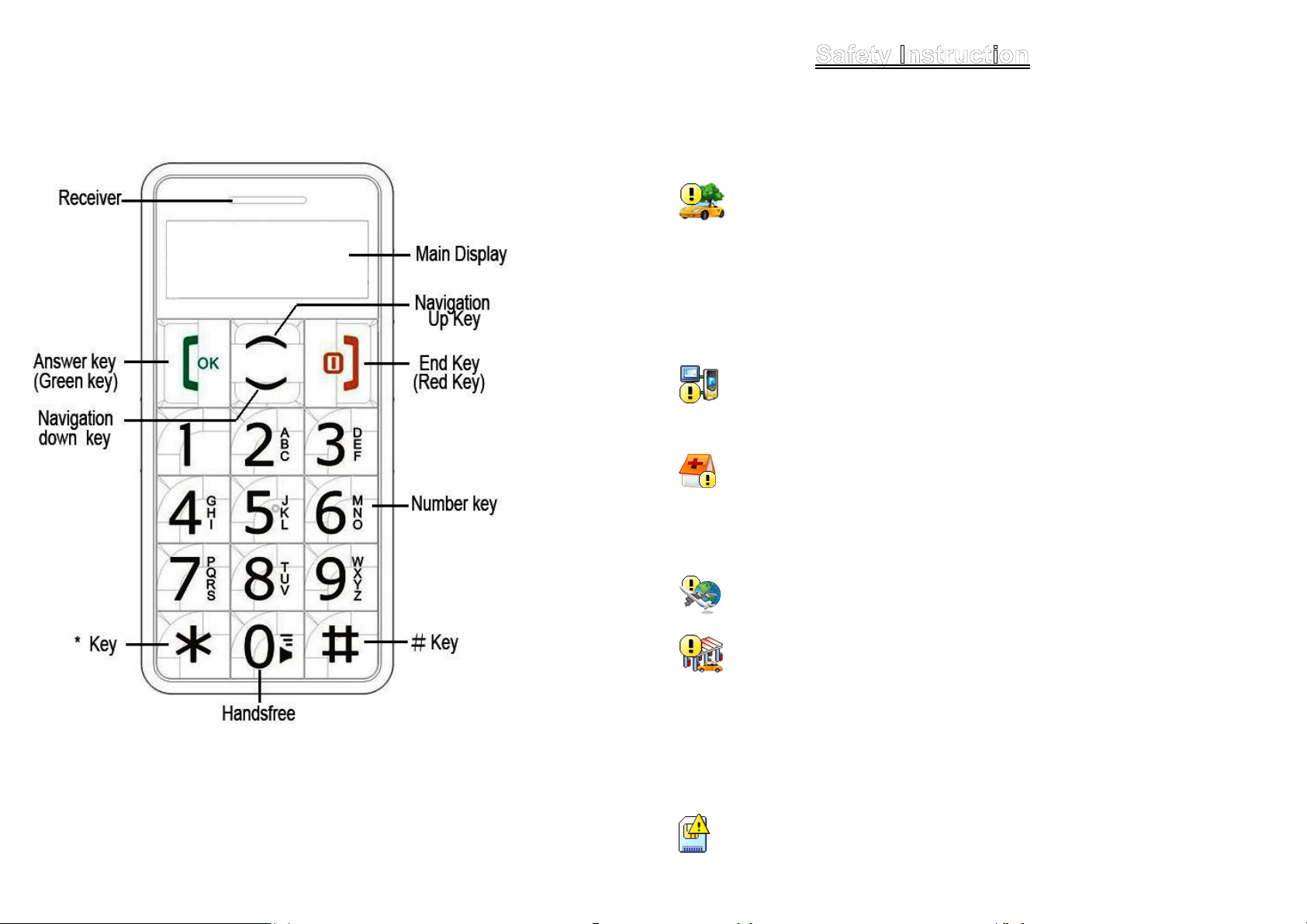
Key Functions
Key Functions
Answer Key
(Green
key)
End Key
(Red Key)
Navigation
Up key
Navigation
Down key
# key
* key
0 key
Volume Key
FM Key
Torch Key
Keypad
Lock
Emergency
Call
Press to call out: press to pick up phone when there is
incoming call.
Standby mode:press to enter call list
Operating:Press to confirm the function you choose.
Phone Off:Long press to switch on;
Phone On:Long press t o switch off;
Operating:Press to go back to previous menu
Long press it at non-editing screen to go back to standby
screen.
Standby mode:press to enter main menu
Operating:press to m ove cursor up
Standby mode:press to enter phonebook
Operating:press to m ove cursor down
Standby mode: switch to mute mode by long pressing this
key.
Editing mode:Press to switch typing method .
Standby mode: change between general mode and mute
mode by long pressing this key.
Short press to type in *,P,+.
Editing mode: Press to use normal symbol.
Activate hand-free function during call by long pressing
this key.
Input number”0”under dialing mode.
Press volume key + to increase volume and press volume
key – to decrease sound
(It is able to use during calling, radio and vo lume adjusting. )
Push up to open FM;Push down to close it.
Push up to open torch;Push down to close it.
Push up to unlock keypad and push do wn to lock keypad
Emergency Call is ON:Long press to dial emergency call
Emergency Call is OFF:Long press this key. It will prompt
out a message Reo pened? Then p ress answer key to set
it on.
Dial out
1、 Enter area code and phone number and press Send/Green key to dial out.
2、 Use End key to delete if there is wrong input. Press and hold End key to
clear all characters.
Obstacles give lots of effects on calling quality. Moving around in a small
range will improve signal strength effectively.
Emergency Dial
How to set emergency dialing status:Phone Book Emergency number
Status . Set it as ON or OFF.
When SIM card is inserted:
1、 When emergency call is set ON: you can long press th e “SOS” key at the
back of the handset for 5 seconds to dial the emergency number if you
already set it.
2、 When emergency call is set OFF: you can long press SOS button at phone
back side. It will prompt a message on phone screen: Reopened? Then you
can press answer key to set it on.
3、 When emergency call is set ON: phone will send a message to set
emergency numbers and then call those numbers one by one if you already
set the emergency call number. There will be 3 calling cycles. It will call next
number if previous number is failed to connect. Phone will call to local
emergency number such as 112 if you don’t set the emergency number in
advance.
4、 Phone will send out alerting sound when it is sending message and calling
to set emergency numbers.
5、 If all emergency numbers are dialed but without answering, then phone will
be in emergency mode within one hour. In this case, phone will pick up
incoming call and activate handsfree mode automatically (only pick up one
incoming call). After that, phone will go back to normal status. That means
you need to press green key to pick up incoming calls. During dialing
emergency calls, if one of calls is connected, then phone will return to
normal status after this call is end.
When SIM card isn’t inserted:Long press SOS button at phone back side to
directly call to 112.
Hang up the call:Long press END KEY to hang up the call during calling out or in.
Long pressing SOS button at any condition will let phone return to standby
mode automatically. Long pressing the button will not activate the emergency
call during Keypad lock mode
Remark: In every country where it can use GSM network, you can use emergency dialing
service if you are in network covering range (you can check the network strength indicator on
left upside of phone screen to know whether you are in the range or not). If your network
provider doesn’t provide roaming service at that area, then it will show EMERGENCY CALLS
ONLY on phone screen. That means you can only call emergency numbers. If you are in the
range of network covering, you can dial emergency number without SIM card.
Make an International Call
1、 press * key for twice times and sign “+ ” will come out. Then enter country
code, area code and phone number (without a zero in front of mobile phone
number) Press Send key to enter voice dial to call out.
2、 Dial a fixed line: “+”country code + entire phone number + Send key.
11
12
Page 7

Dial extension No. of a Fixed line
Some extension numbers of fixed line couldn’t be dialed directly. You need to dial
telephone exchange first and then dial the extension number. Type in a P symbol
between telephone exchange number and extension number, this phone will dial
the extension number automatically. Follow below method to make a symbol P:
short press * key for three times. Then it will display a P symbol on screen.
Speed Dial
If you already set the speed dial numbers, then you can long press number key
2 to 9 and #,* key to dial set numbers out under standby mode. Long pressing
number key 1 is to dial to voice mailbox if you already set the mailbox number.
Receiving a Call
Press Send key to receive incoming call
During a call, you can do below operations by pressing answer key:
switch calls ; mute、Unmute; speaker On/OFF, search contact; Phone will
play sound to inform that there is a new incoming cal. If you pick up the
new call, then previous call will be hold.
Press end key to end a call.
Reject a Call
Press end key to reject an incoming call.
Conference Call
This phone supports conference call function and supports 3parties (three partied
on two connection path). This function requires network support. Please consult
your network service provider to activate this function.
Conference Call: Method One(one party is incoming side and the other party is
calling out side):
1、 Pick up first call
2、 Dial another call out:type in phone number directly to dial out another call;
Or press answer key to enter option menu to select browse in or der t o use
record in phonebook directly. When you dial out another call, previous
incoming call will be hold.
3、 When the second call is connected, you can press answer key to enter
menu and select [Make session].
Conference Call: Method(two sides are incoming calls):
When two parties in conference call are incoming calls, then you
need to activate call waiting function to allow two incoming calls get
through at the same time.
1、 Pick up first call
2、 Pick up second call:When the second call is coming, it will show the
message of this incoming call (phone will hold current call automatically).
You can press answer key to pick up the second call.
3、 When the second call is connected, press answer key to enter menu list to
select [Make session]. Then you can have a conference call.
Adjust volume
You can press volum e ke y+,- to adjust volume during the call.
13
This function provides text m essage service whic h could receive an d send text
message. When there is
message. It will show
message that it is no use.
on screen, then it means there is a new
on screen when mail box is full. Please delete
Write and send message
①. Select【SMS】【New message】 to enter message editing. Write the
message content directly.
②. Type in message at editing page. Pl ease refer to Input Method. Press
answer key to enter option menu to choose if you want to i n se rt templ a te,
number and contacts.
③. Switch input method:Press “#” key to switch or press answer key to
enter option menu to select.
④. Send message(to one person):Press answer key to enter [option]
send. Then you can press answer key to enter number typing in page
to type in the num ber or you can press answer ke y to choose number
from phonebook (press navigation up and down key to search contacts
and press answer key to get it). Finally press answer key to send out the
message.
⑤. Send to multi parties: Press answer key to enter [option] send to
many. After sending out one message, you can type in next number
directly or choose next number from phonebook. Repeat this unless you
finish sending to all parties you want. Then press end key
⑥. Save the message:Select SAVE to save it to draft; Select save to
template to save it to templates; It will prompt out message sending
failed. Resent or not? Message will be automatically saved in Outbox if
you select no.
to exit.
Read and Reply SMS
①. Check to read message. Press answer key to read message directly.
Press end key to exit if you want to read it later.
②. Select [SMS] [Inbox] to check message. Press up and down key to
select the message you want. It will have
you have unread message.
③. Press answer key to enter option menu when you read a message.
sign at standby window if
Inbox and Outbox
Save and manage received messages.
①. Inbox:Show messages in sorting of receiv ed time.
②. Press navigation up and down key to browse messages and press
answer key to check message cont ent
③. Press green key to enter option menu: Dial, reply, delete, Transfer and
use the number.
a) Reply:reply m essage to sender
b) Transfer:forward that message to others.
c) Delete: delete message
d) Dail:call back to sender
e) Use numb er: Get the sender number or numbers in message out
and save to phonebook.
Templates
This mobile phone has 5 pre-edited messages. You can delete, send and make
14
Page 8
new message from templates. You can go [option] Insert templates to
directly use the pre-saved message in templates Make new message from
template, go into editing mode and send directly to recipient.
Emergency
You can set this function to let phone se nd out the emergency messag e while
dialing emergency call. You can pre-set one emergency message. You can
modify the message.
Delete Message
Y ou can delete SMS with this function, including messages of inbox, outbox, draft,
all msgs. Please be careful when you operating on this function to avoid
improperly deleting.
Voice mail
Voice box is a kind of network ser vice, you must apply for the service before
using it. If you want to get more information about your voice box, please consult
your network service operator. You can dial voice box by long pressing 1 (if it is
set as voice box number in advance). When the icon
indicates that a n ew incom ing voice m ail arrives. Long press “1”to lis ten to voic e
mail. If you want to reset your v oice box num ber, please select [SMS] [Voice
mail].There will be prom pt m e ssage “change num b er ? ” , pr e ss green key to en t er
into number editing interface, input the invoice box number which you want to
listen to and then press green key for confirmation.
shows on the screen, it
Storage status
You can check SMS memory status of the phone or SIM card with this function.
You can save the name and phone number of contact to the phone memory
and SIM card. The contact information in phone memory is shown by
the contact information in SIM card is shown by
.
, and
Search
①. In the main menu, select [pho ne book ] [Search] to browse all records
in phone book.
②. Type in the first character of the name you want to search.
③. The system will stop t he curs or on t he related record. The cur sor can be
scrolled up an d down by pressing navigation key.
Search contact
①. Select [phone book] [search contact] to enter.
②. Type in the name or the first three numbers/last three numbers of phone
number you want to search, and then press answer key to search.
③. Switch typing me thods by pressing # key during searc hing record.
New Contact
①. Select [phone Book] [New contact] to add new phone number
record.
②. Switch typing methods by pressing # key during adding record.
③. According to your set saving position (phone book Settings Store
path), the added record will be saved automatically to the set position.
Remark: To save new record, the phone number must be filled in.
To record the recent dialed call, missed call and received call. For each function, it
can store a maximum of 20 records.
Received call
Show recent 20 received phone call numbers.
①. Select “call history” “received call ”, press t he navigation k ey up or
down to browse the call history.
②. Press answer key to enter option menu. You can Dial, Reply, delete
records, Indicate number and save number which you select.
Dialed call
Show recent 20 dialed numbers. Please refer to the operation of received call.
Missed call
Show recent 20 missed numbers. Please refer to the operation of received call.
Delete all records
Delete all history of dialed call, missed call and received call.
Talk time
View detail call duration information for last call, all calls, dialed call, and received
call. Select clear all to clear all records.
15
Delete contact
If you want to delete the contact information in phone or SIM card, you can select
menu [Phone Book] [Delete contact ] delete or delete all. If you select
delete all, then you need to choose whether delete from SIM card or cell phone.
You can also enter phone book and press answer key to go to option delete
contact to delete the record one by one.
Copy contact
Select [Phone Book] [copy contact] To phone directly, all of the contact
information will be copied. You also can do it in reverse. You also can copy
contact information separately by : enter into phone book and select the contact
you want to copy, press answer key to enter option, select Copy contact, and
then press answer key to confirm. This option includes copying the contact
information from phone to SIM card or from SIM card to phone.
Emergency number
By selecting [Phone Book] [Emergency number] [new], you can add a
maximum of 4 emergency phone numbers. You can also change and delete the
set emergency numbers, and set emergency dialing status.
Speed dial
You can set 10 speed dialing numbers from 2 to 9, *, #.you can dial the related
numbers by long pressing related key under standby mode. You can set speed
dials directly in phone book by selecting [Phone Book] [Speed dial] . You
also can edit, dial, and delete the speed dialing number.
Settings
16
Page 9
Store pat h: Set the default saving position for the numbers you want to
save: SIM card, cell phone.
Storage State: Let you know more about the phonebook memory status
on the phone and SIM card.
Silent mode
You can make your phone under silence by setting it as Silent Mode. If silent
mode is chosen, you can set the duration of silent mode according to your
requirement. The silent mode will switch automatically to normal mode if time
duration is expire. (“0” is for permanent silent mode)
Personalize
Ring tones
1. You can set desired ring tone for Incoming call, Alarm, SMS and Number pad
tone .
① .Select ring tone style that you want to use;
② .Enter corresponding ring tone list;
③. Select your favorite ring tone, the ring tone may play automatically when
the cursor stop over it (except keypad)
2. You can set vibration for your phone .If vibration is activated, your handset
will vibrate when there is incoming call, new SMS or alarm clock.
Volume adjustment
You can adjust volume for Cal, Incoming call and Aid
1.Select the desired volume and enter into corresponding volume adjust
interface.
2.Press navigation key up/down or volume key to adjust. Up or volume key “+”
is for increasing volume, down or volume key “-”is for decreasing.
Disp Cont rast
You can adj ust the br ightnes s of the sc reen acc ording yo ur dema nds. Pres s
navigation key up, you can get high contrast while down for low contrast.
Language: Select language for phone.
Date&Time setting: you can set the time and date with this function,
including setting date format.
Remark: Clock can support 12-hour time format and 24-hour
time format
Calculator
There is calculating function in the phone. You can carry out the operation for plus,
minus, multiply, and divide. Step for using as below:
①. Input the first n umeral: when “ 0” shown at th e screen, you c an input the
numeral you want to calculate.
②. Input operation symbol: press navigation key up/down to choose the
operation symbol like +, -, *, /, and then press call key to confirm.
③. Input the second numeral.
④. Calculate: press navigation key up/down to choose “=”, and then press
call key to confirm.
⑤. Clear: press
or operation symbol, only the numeral or operation symbol will be cleared.
If“0”shown in th e display, please press ending key for exiting. Yo u can
clear all of the content by pressing ending key after you have the
calculating result.
(ending key). If you are inputting the calculated numeral
17
Remark: the accuracy is limited and round-off error may occurred
Alarm
The phone is with alarm clock function, you can set up alarm time and alarm
ring tone according to your requirement. (Settings Settings Ringtone
type Alarm ring).
①. Enter into the alarm clock setup interface. The cursor has been set to
stay over the are a for tim e on hour. Press nav igation k ey up and do wn
to set. You also can input time directly.
②. Press call key for confirming. The cursor will be positioned on minutes
automatically. Press navigation key up/down to set, or input numeral
directly. And then press call key for confirming.
Remark: Clock can support 12-hour time format and 24-hour time format
Restore factory
You can restore the current function or your phone to default factory setting.
Select the options that you want to be restored and press Answer key for
confirmation.
Remark:Restore Setup: restore all the functions under "Setup" to factory
mode; Resore all: restore all t he funct ions under " Setup" to fa ctory mode and
clear up all the contents stored in the phone.
Then antenna, which not including wireless antennas, used for radio.
No matter you insert earphone or not, you can listen to the radio. If
earphone is inserted, the sounds will come out from earphone. But if you
do not use earphone, the sounds come from speaker of cell phone.
1. Turn on radio: when cell phone is in standby mode, push radio key up to make
radio on.
2. Turn off radio: during the listening, push radio key down to make radio off.
3. Operating process: turn on radio to enter into the listening page, press
navigation up/down to set the channel, or you can i nput channel directly. Press
answer key (green key) to move cursor and press “*” to start auto search.
Press end key to exit from auto search. It will prompt out a message of find ing
out a channel and remind user whether to continue searching or not. Then
press green key to continue and press end key to go back to radio page.
(press * again to search again when you go back to radio page.)
4. Stop listening in by pressing end key (red key). But it will not exit radio page.
Press end key (red key) to cont inue.
5. Long press # key to lock keypad and press it again to unlock.
6. Volume adjust: when listening, press volume key “+,-” to adjust radio volume.
7.
Plug in earphone. Then long press volume + key to listen to FM from outside,
Long press volume - key to listen from earphone.
Remark:The quality of listening is related to the signal quality where you
locate at
18
Page 10
English Letters Input Method
English letter input method includes capital letter and small letter which is a kind
of input method with single letter unit.
English letters are set in number key 2 to 9. Press number key one time
to show the first letter on number key and twice for the second letter on
number key.
Click letters on screen directly or write down letters by using stylus on
screen.
Press number key 1 to type in normal symbol and press number key 0 to
type in number 0 or blank at letter input mode.(You cann ot input a
blank by pressing 0 key under intelligent English input method mode.)
Press * key to switch between capital letter and small letter under
intelligent English input method mode.
Numeral input method
When input method icon shows “123”, then you can type in numbers by clicking
on numbers on screen or use stylus pen to write numbers directly on screen.
Punctuation input method
Press * to enter into punctuation selection list under writing short message mode,
move the cursor up/down/left/right by pressing numeral key 2,8,4 and 6. Press
numeral key 5 or answer key to get the selected punctuation.
The suggestions below will help you protect your warranty coverage and enjoy
your device for many years.
Keep the device dry. Rainwater, humidity and all types of liquids or
moisture can contain minerals that can corrode electronic circuits. If your
device does get wet, remove the battery and allow the device to dry
completely before replacing the battery in it.
Do not use or store the device in dusty, dirty areas. Its moving parts and
electronic components can be damaged.
Do not store the device in hot areas. High te mpera tures can shorte n th e life
of electronic devices, damage batt eries, and warp or m elt certain plastic
parts.
Do not store the device in cold areas. When the device retu rns to i t s n ormal
temperature, m oisture can form inside the device an d damage electro nic
circuit board s.
Use the supplied antenna with device or approved antenna only. Non
approved anten na or revised antenna or ot her accessories may damag e
the device and offend wireless device management methods.
Please use charger indoor.
All of the above suggestions apply equally to your device, battery, charger, or
any enhancemen t. If any device is not work ing properly, take it to the nearest
authorized service facility for service.
Remember to follow any special regulations in force in any area and always
switch off your phone whenever it is forbidden to use it, or when it may cause
interference or danger. When connecting the phone or any accessory to another
device, read its user’s guide for detailed safety instructions. Do not connect
incompatible products. As with other mobile radio transmitting equipment, users
are advised that for the satisfactory operation of the equipment and for the safety
of personnel, it is recommended that the equipment should only be used in the
normal operating position (held to your ear with the antenna pointing over your
shoulder).
Vehicles
RF signals may affect improperly installed or inadequately shielded electronic
systems in motor vehicles such as electronic fuel injection systems, electronic
antiskid (antilock) braking systems, electronic speed control systems, air bag
systems. For more information, check with the ma nufacturer or its representative
of your vehicle or any equipment that has been added. Only qualified personnel
should service the device, or install the device in a vehicle. Faulty installation or
service may be dangerous and may invalidate any warranty that may apply to the
device. Check regularly that all w ireless device eq uipment in your ve hicle is
mounted and operating properly. Do not store or carry flammable liquids, gases,
or explosive materials in the same compartment as the device, its part s, or
enhancements. For vehicles equipped with an air bag, remember that an air bag
inflates with great force. Do not place objects, including instal led or portable
wireless equipment in the area over the air bag or in the air bag deployment area .
If in-vehicle wi reless equipm ent is improperly i nstalled and the air bag inflates,
serious injury could resu lt.
Wireless phones can cause interference. Using them in aircraft is both illegal and
dangerous.。
Potentially Explosive Atmospheres
Switch off your phone when in any area with a potentially explosive atmosphere
and obey all signs and instructions. Sparks in such areas could cause an
explosion or fire resulting in bodily injury or even death. Users are advised to
switch off the phone while at a refueling point (service station). Users are
reminded of the need to observe restrictions on the use of radio equipment in fuel
depots (fuel storage and distribution areas), chemical plants or where blasting
operations are in progress. Areas with a potentially explosive atmosphere are
often but not always clearly marked. They include below deck on boats, chemical
transfer or storage facilities, vehicles using liquefied petroleum gas (such as
propane or butane), areas where the air contains chemicals or particles, such as
grain, dust or metal powders, and any other area where you would normally be
advised to turn off your vehicle engine.
Emergency call
Important: Wireless phones, including this phone, operate using radio signals,
wireless networks, landline networks, and user-programmed functions. Because
of this, connections in all conditions cannot be guaranteed. You should never rely
solely on any wireless phone for essential communications like medical
emergencies.
Make emergency call: please refer to 3.2 Emergency Call
Please refer to this user manual or consult your supplier to get mor e data. When
you make an emergency call, please provide as much detailed necessary
information a s possible. Your wireless phone m ay be the only communication
device when there is accident. Call only can be end when there is hang up
command.
19
20
Page 11

RF Exposure Information
The SAR limit of USA (FCC) is 1.6 W/kg averaged over one gram of tissue.
Device types CP 09 (FCC ID: XY2CP09) has also been t ested against this SAR
limit. The highest SAR value reported under this standard during product
certification for use at the ear is 1.393 W/kg and when properly worn on the body
is 0.719 W/kg. This device was tested for typical body-worn operations with the
back of the handset kept 1.5cm from the body. To maintain compliance with FCC
RF exposure requirements, use accessories that maintain a 1.5cm separation
distance between the user's body and the back of the handset. The use of belt
clips, holsters and similar accessories shou ld not contain metallic componen ts in
its assembly. T he use of accessories that do not satisfy these requireme nts may
not comply with FCC RF exposure requirements, and should be avoided.
This device complies with part 15 of the FCC rules. Operation is subject to the
following two conditions: (1) this device may not cause harmful interference, and
(2) this device must accept any interference received, including interference that
may cause undesired operatio n.
NOTE: The manufacturer is not responsible for any radio or TV interference
caused by unauthorized modifications to this equipment. Such modifications
could void the user’s authority to operate the equipment.
21
 Loading...