

Page 1

MXP802GU2
Wireless-G USB Stick Adapter
User Manual
Ver: 1.0
Page 2

Contents
Chapter 1 Introduction...............................................................................1
Product Outline.......................................................................................1
Applications...........................................................................................1
Compliance Certificates..........................................................................2
Feature....................................................................................................2
External Connectors...............................................................................2
Environment...........................................................................................2
Chapter 2 Driver Installation....................................................................3
Page 3
Chapter 1
Introduction
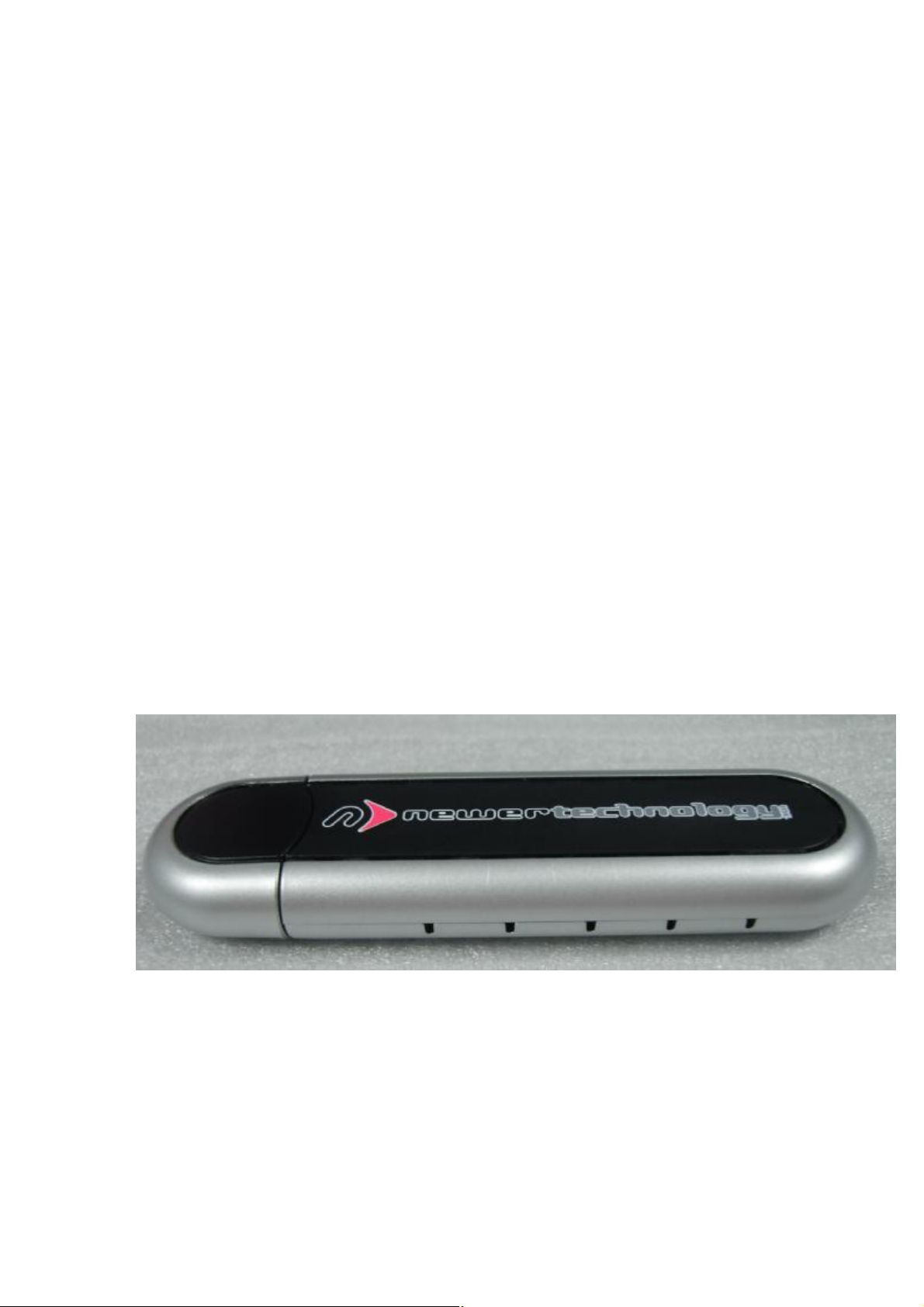
The MXP802GU2, a Wireless Local Area Network(WLAN) 802.11 b/g
USB adapter, by inserting a PC USB socket and connecting a wireless
access point through wireless interface, can provide the transmission of
broadband data service. It is suitable for using in a wide range of both
residential(at-home) and commercial (offices, apartments, hotels, warehouses)
network applications. It gives you a blazingly fast connection to the internet,
faster and more convenient. The MXP802GU2 USB adapter is a high-
performance wireless access tool, and can support downstream or upstream
data rate up to 54Mbps.
MXP802GU2 can enable a computer or device to support 802.11 b/g Wi-Fi.
Within Wi-Fi network, a computer or device can be connected to your
Internet Service Provider (ISP). MXP802GU2 fully supports industry
standard compliant security 802.11i, Dynamic Frequency Selection(DFS)
and Transmit Power Control(TPC) 802.11h, Quality of Service (QoS)
802.11e.
Product Outline
Applications
· Personal computer
· Laptop computer
· The home and small enterprise Applications
· TV over IP (IPTV)
1
Page 4

· Voice over IP (VoIP)
· Broadband internet access
· Audio and video streaming and transfer
· PC file and application sharing
· Network and online gaming
Compliance Certificates
· FCC Class B
· CE Mark
· Wi-Fi Certification
Feature
· USB 1.1/2.0 interface
· Comply with IEEE802.11 b/g
· Support 64/128-bit WEP, 802.1x, WPA, and WPA2 for wireless
security
· Support 802.11e wireless multimedia Qos
· Support 802.11h Dynamic Frequency Selection and Transmit Power
Control
· Widely wireless signal rates: 54, 48, 36, 24, 18, 12, 9, 6 Mb/s for
802.11g; 11, 5.5, 2, 1 Mb/s for 802.11b
· UDP throughput: up to 25Mbps
· Support Win98/ME,Win2000/XP,WinVista,MAC10.3/10.4,Linux
kernel 2.4/2.6 OS
External Connectors
· USB 1.1/2.0 interface
Environment
· Operating temperature: 0℃ to 40℃
· Storage temperature: -20℃ to 70℃
· Operating Humidity: 10%~95% no freezing
· 4Storage humidity: 5%~95% no freezing
2
Page 5
Chapter 2
Driver Installation
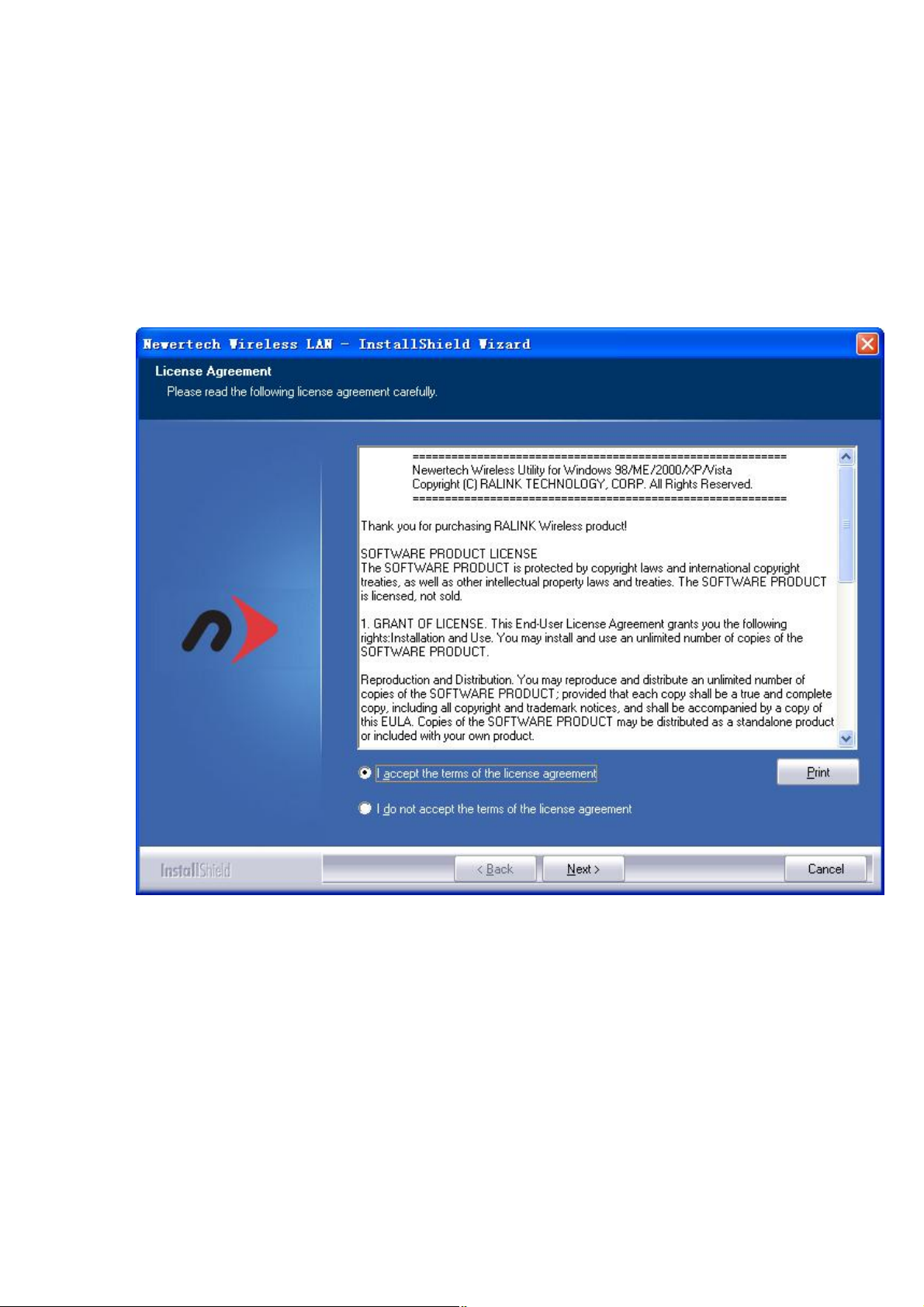
You should install the driver by the following steps:
Step 1:
Double-click the installation file (.exe), and then it pops the install
shield wizard. You should read and accept the license agreement to continue
the installation and then click “next”.
Step 2:
Then select the setup type that best suits your needs. by default, select
“Newertech configuration tool” and then click “next”.
3
Page 6
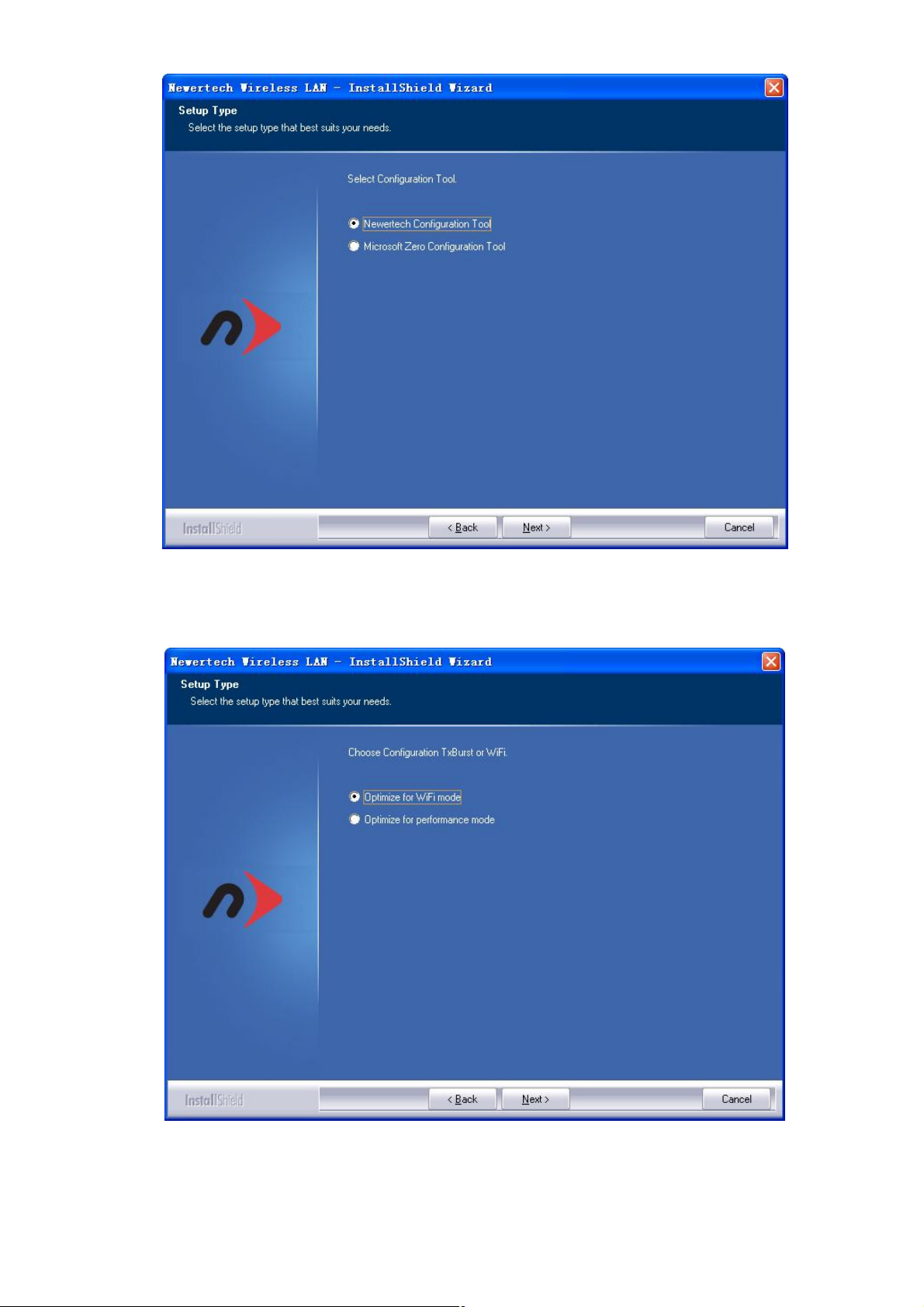
Step 3:
Then choose configuration Txburst or WiFi. By default, you should select
“optimize for WiFi mode” and then click “next”.
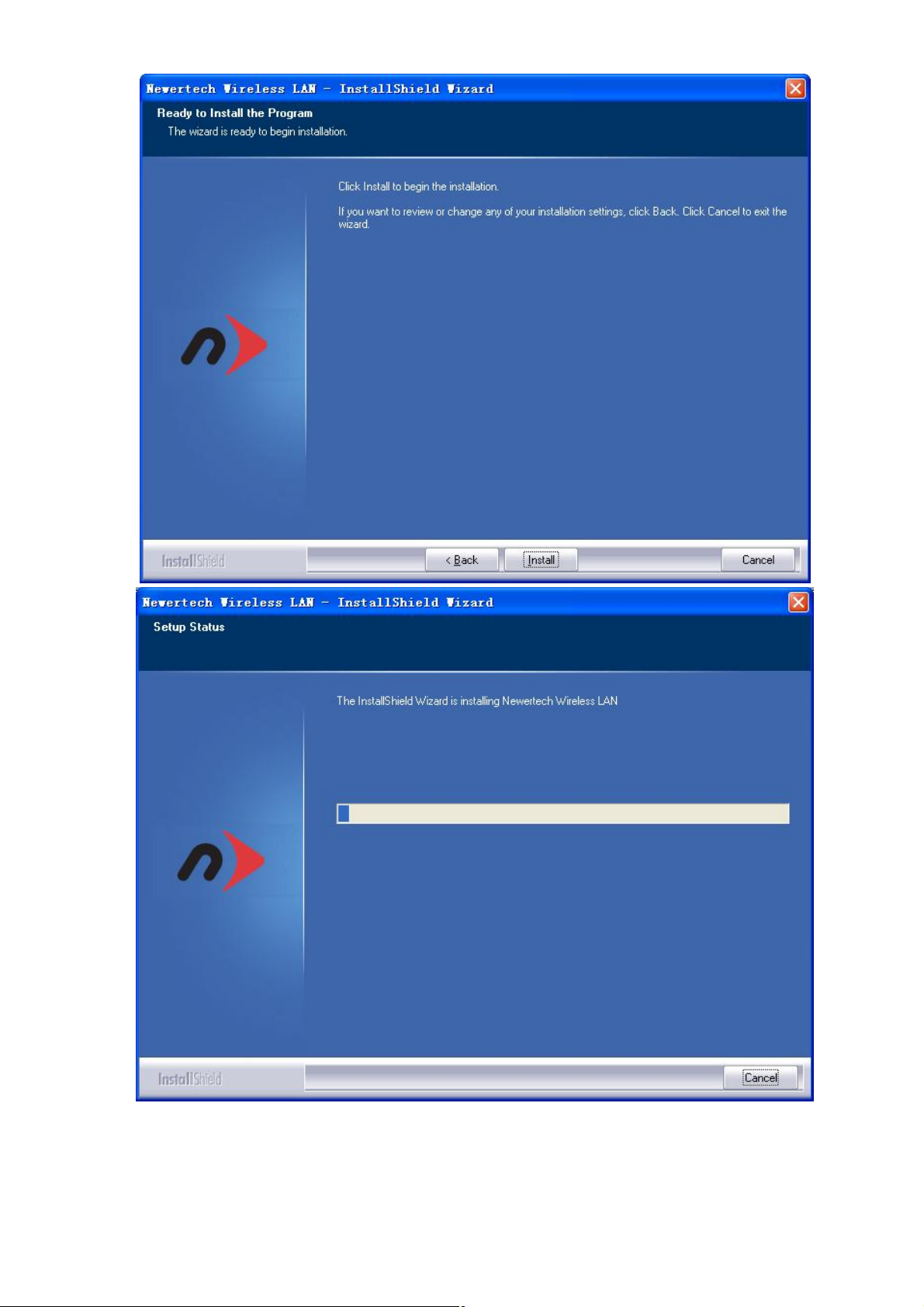
Step 4:
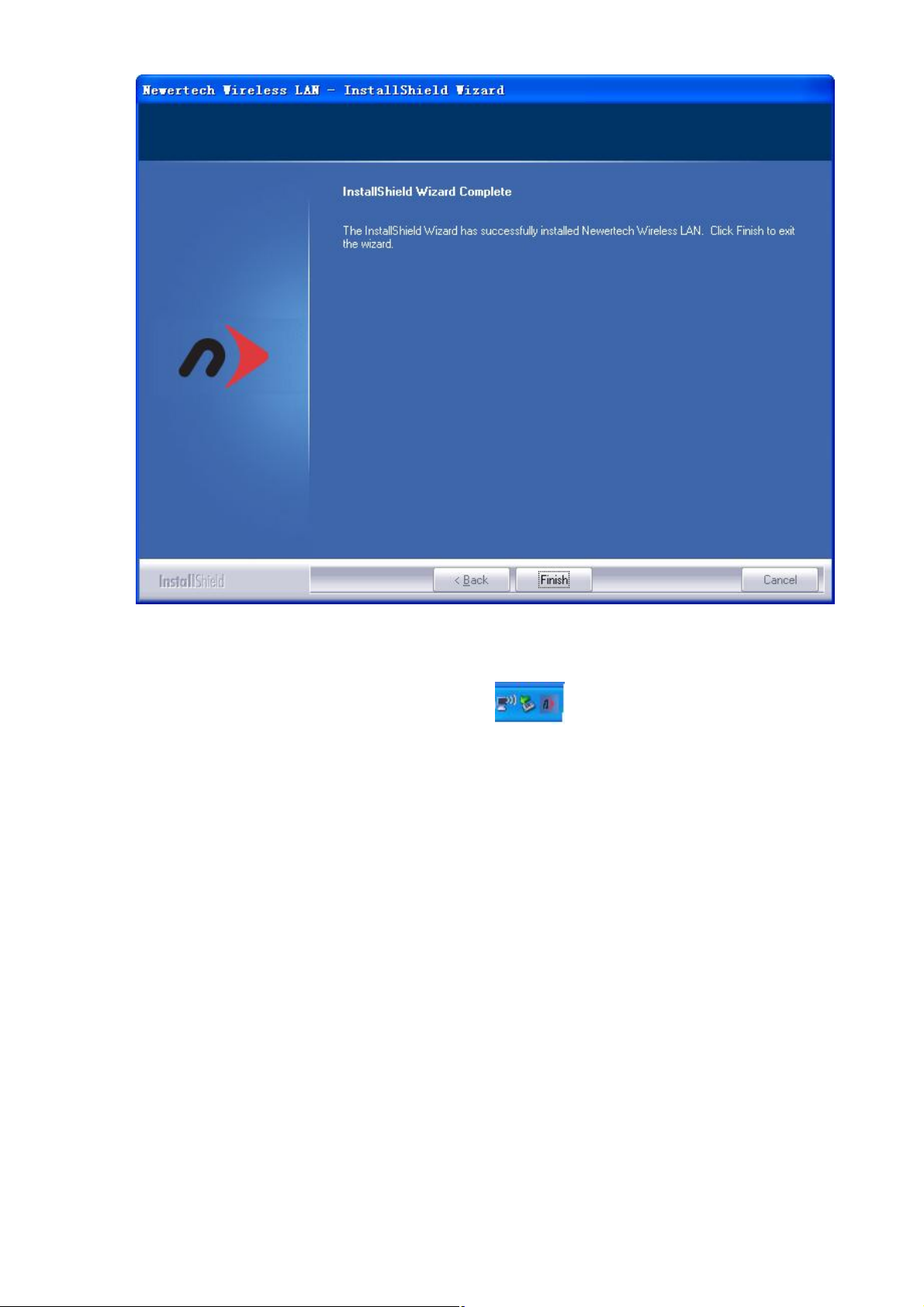
Click the “ Install ” ,then the installation begins. It takes about
20seconds to complete the installation and then click “finish”.
4
Page 7
5
Page 8
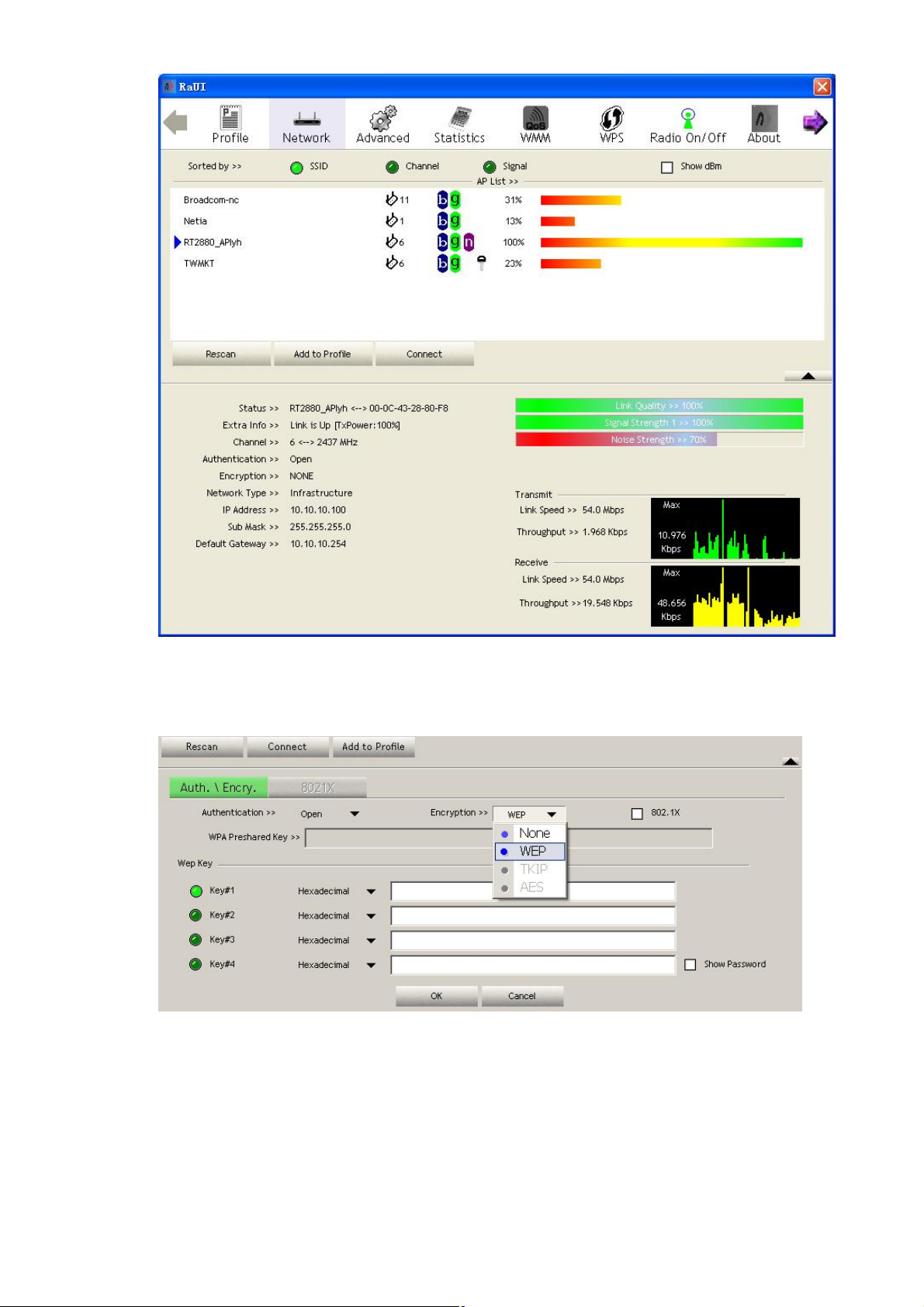
Now you could insert the USB adapter—of course, you could also insert
it before executing the installation file, and then a newertechnology icon
appears at the right corner of the PC, . Double-click the icon and
then you could see the RaUI Utility. The nearby available wireless networks
with their basic information would be listed in this interface. The USB
Adapter would automatically connect to the one which has the strongest
signal and without encryption. However, you could also select the desired
one and click “connect” to establish connection with it. The blue triangle
before the SSID of the AP signifies a successful connection between the USB
card and the AP. Click “rescan” to renew the list.
6
Page 9
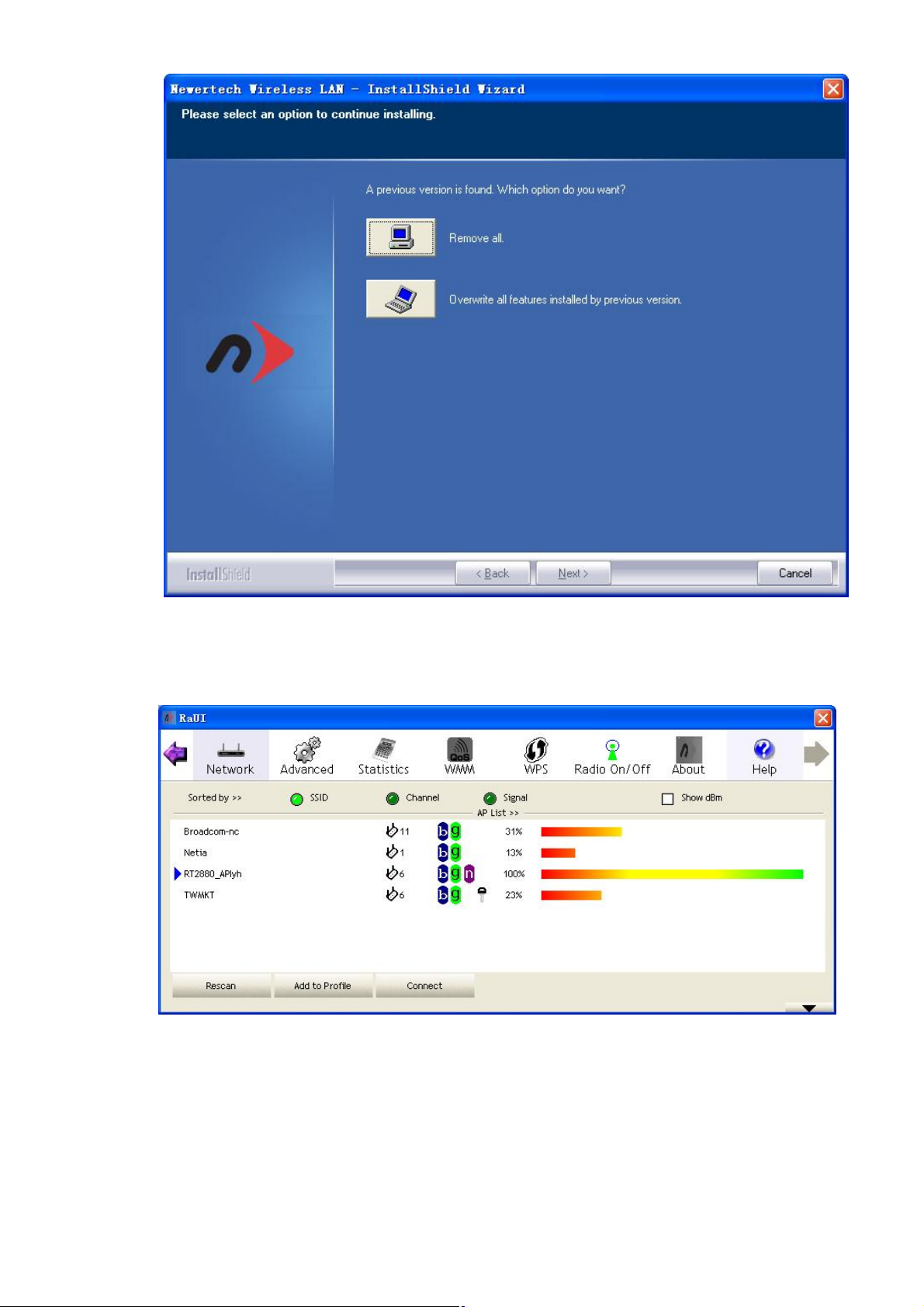
Note1: if the desired AP is encrypted, it would pop the following
message when clicking “connect”. The same encryption and password with
the desired AP must be inputted to establish the connection.
Note 2: if the DHCP function of the server or AP is enabled then you
needn’t config the IP address of your PC. Otherwise, you need manually
config the IP address of your PC in the same range with the AP.
Note 3: if you want to uninstall the hardware in your PC, double-click
the installation file (.exe) again and select “remove all” in the popped
interface to remove it.
7
Page 10
Note 4: To learn more about the application of the USB Adapter,
Please Click “Help” icon
8
Page 11

FCC Information
This equipment complies with CFR 47, Part 15.19 of the FCC rules. Operation of the equipment is
subject to the following conditions: (1) this device may not cause harmful interference, and (2) this
device must accept any interference received; including interference that may cause undesired
operation.
This device must not be co-located or operating in conjunction with any other antenna or
transmitter
NOTE: THE MANUFACTURER IS NOT RESPONSIBLE FOR ANY RADIO OR TV
INTERFERENCE CAUSED BY UNAUTHORIZED MODIFICATIONS TO THIS EQUIPMENT.
SUCH MODIFICATIONS COULD VOID THE USER’S AUTHORITY TO OPERATE THE
EQUIPMENT.
Federal Communications Commission (FCC) Requirements, Part 15
This equipment has been tested and found to comply with the limits for a class B digital device,
pursuant to part 15 of the FCC Rules. These limits are designed to provide reasonable protection
against harmful interference in a residential installation.
This equipment generates, uses and can radiate radio frequency energy and, if not installed and used in
accordance with the instructions, may cause harmful interference to radio communications. However,
there is no guarantee that interference will not occur in a particular installation. If this equipment does
cause harmful interference to radio or television reception, which can be determined by turning the
equipment off and on, the user is encouraged to try to correct the interference by one or more of the
following measures:
---Reorient or relocate the receiving antenna.
---Increase the separation between the equipment and receiver.
---Connect the equipment into an outlet on a circuit different from that to which the receiver is
connected.
---Consult the dealer or an experienced radio/TV technician for help.
Regulatory information / Disclaimers
Installation and use of this Wireless LAN device must be in strict accordance with the instructions
included in the user documentation provided with the product. Any changes or modifications (including
the antennas) made to this device that are not expressly approved by the manufacturer may void the
user’s authority to operate the equipment. The manufacturer is not responsible for any radio or
television interference caused by unauthorized modification of this device, or the substitution of the
connecting cables and equipment other than manufacturer specified. It is the responsibility of the user
to correct any interference caused by such unauthorized modification, substitution or attachment.
Manufacturer and its authorized resellers or distributors will assume no liability for any damage or
violation of government
CAUTION: To maintain compliance with FCC’s RF exposure guidelines, this equipment should
be installed and operated with minimum distance 20cm between the radiator and your body. Use
on the supplied antenna. Unauthorized antenna, modification, or attachments could damage the
transmitter and may violate FCC regulations.
MPE Statement (Safety Information)
Your device contains a low power transmitter. When device is transmitted it sends out Radio
Frequency (RF) signal.
Safety Information
In order to maintain compliance with the FCC RF exposure guidelines, this equipment should be
installed and operated with minimum distance 20cm between the radiator and your body. Use only with
supplied antenna. Unauthorized antenna, modification, or attachments could damage the transmitter
and may violate FCC regulations.
9
 Loading...