

Page 1
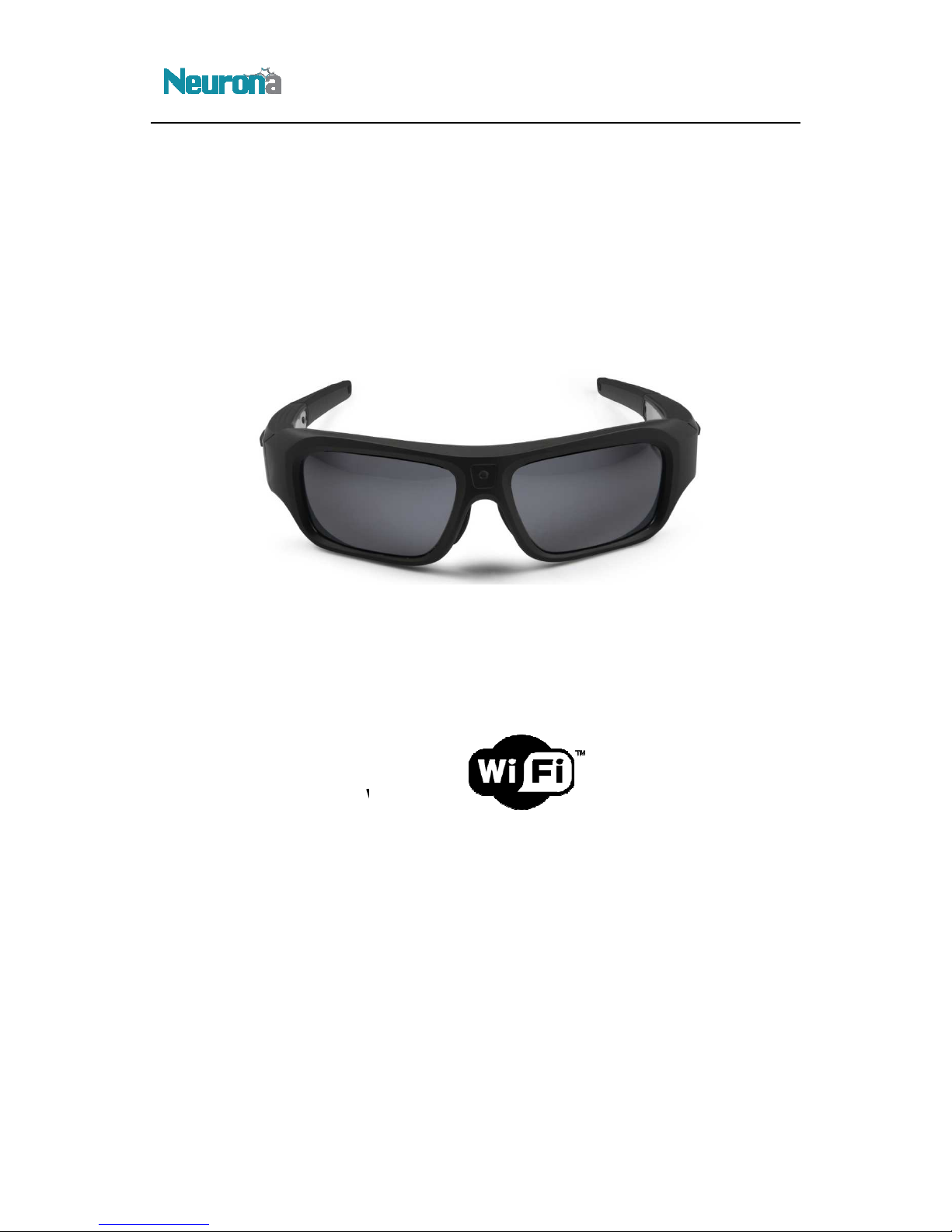
OpticHD™
HD Video Recording Sunglasses
with
User's Manual
OpticHD™
Page 2

Table of Contents
................................
Charging the OpticHD Glasses
Powering On/Off and Recording
................................
Downloading and Installing the OpticHD Mobile Application
Using the OpticHD Mobile Application
OpticHD Application Icons (Android)
Connecting OpticHD Glasses to a Computer
................................
Formatting the microSD Card
................................
LED and Vibration Alerts
................................
................................
................................
OpticHD™
....................
................................
..............................
.............................
................
...................
.....................
................................
......................
..............................
................................
................................
................
.......................
................................
1. Product Overview:
2.
3.
4. Wi-Fi Switch
5.
6.
7.
8.
9. Battery Operation
10.
11.
Product Specifications
12.
13. Firmware Update
14. Time Setting
15. Question & Answer
................................................................
................................................................
................................................................
................................................................
................................
................................................................
................................................................
................................
................................................................
................................................................
................................
................................................................
................................................................
................................................................
................................
. 5
........... 8
.......... 9
... 10
10
10
............ 11
3
5
5
5
6
7
8
8
Page 3
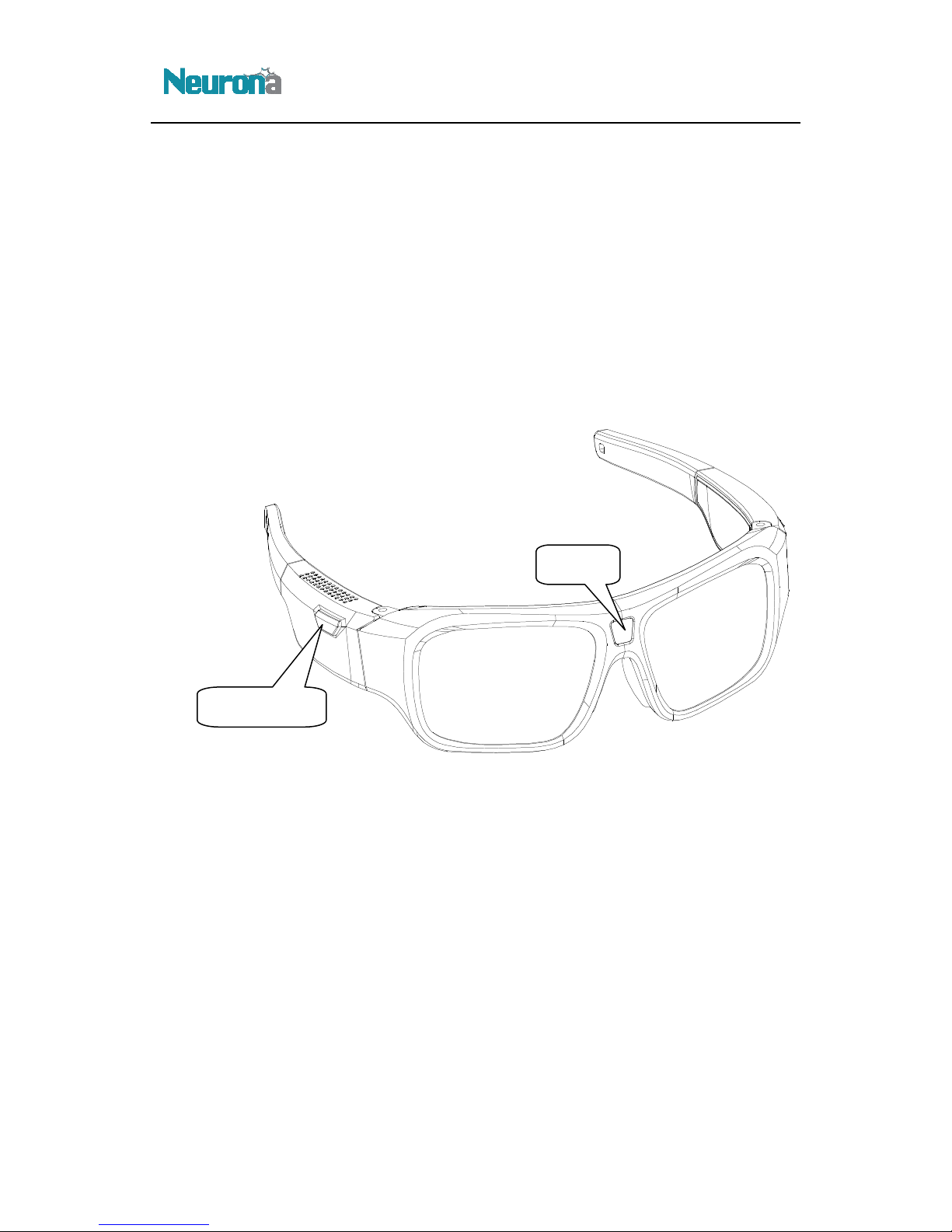
1. Product Overview:
Neurona's OpticHD HD video recording sunglasses
and practicality with advanced functionality and ease of use.
OpticHD simplifies the operation of the sunglasses by combining them with a mobile application,
which can run on any Android or iOS device. Whether it is simply controlling or configuring the
glasses or advanced streaming of real
OpticHD mobile application make this product the most compelling action camera solution in the
OpticHD™
have revolutionized the action camera market
-
by combining comfort, style,
market.
-time video wirelessly, the addition of Wi
Fi and the
On/Off Button
Camera
Page 4
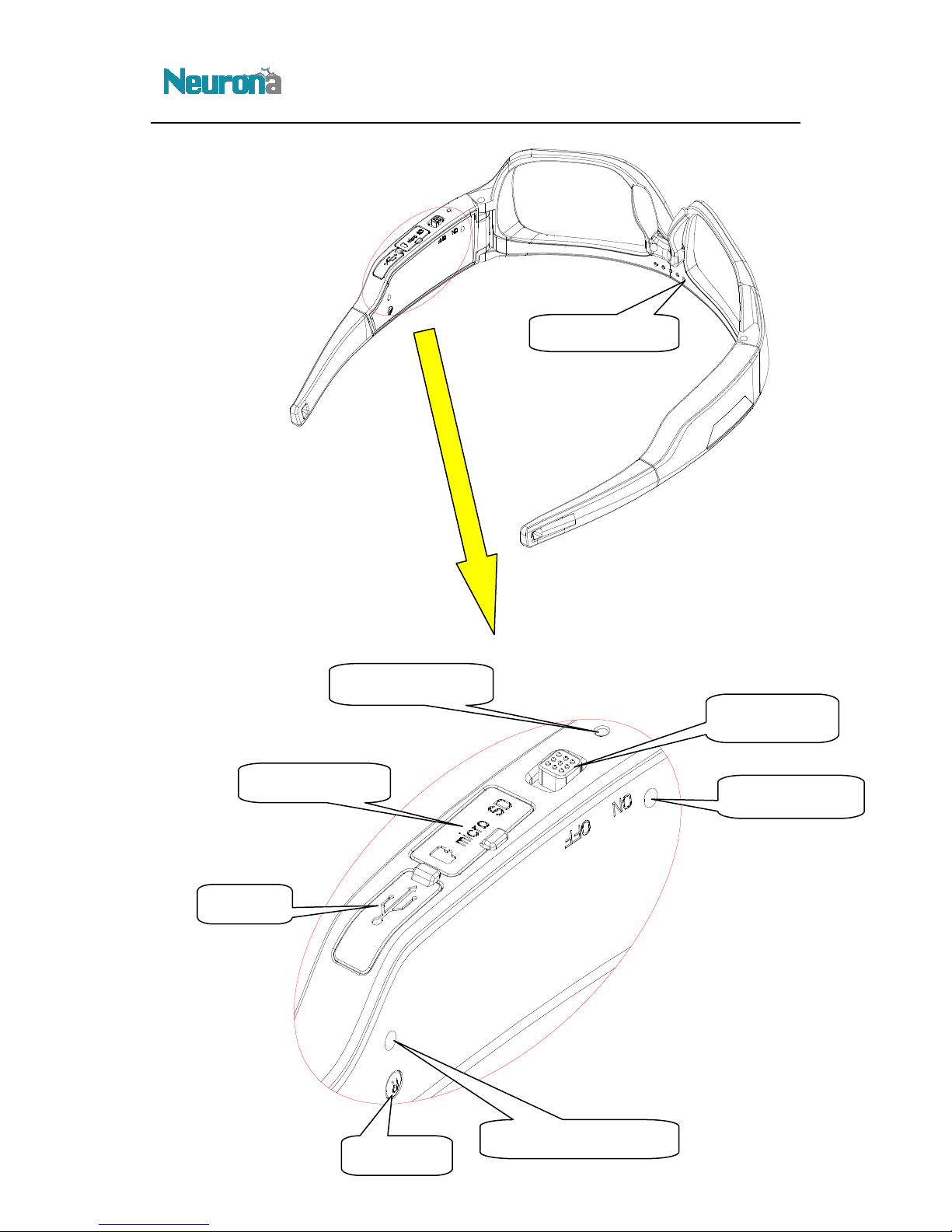
Reset Button
Audio Recording Hole
OpticHD™
Wi
Recording Indicator
MicroSD Card Slot
USB Slot
-Fi Switch
Recording Indicator
Battery Indicator
Page 5

the OpticHD Glasses
this product for the first time,
ed LED charging indicator will be illuminated. W
turn off
On/Off and Recording
On/Off button
additional
the video
and recording time is 3 minutes
On position will enable the
Fi network which originates from the glasses should be visible on the mobile
Off position will disable the Wi
the Off position when connection to a mobile or tablet device is not required.
This will extend the battery life of the glasses, while still allowing for full HD video recording locally on
Fi switch on or off
If you forget
txt file named SSIDRST.TXT
default name
Downloading and Installing the OpticHD Mobile Application
lication is available for both Android and Apple iOS devices, and can be downloaded
directly from the AppStore or GooglePlay. The OpticHD application icon is as follows:
Apple iOS mobile devices, download the OpticHD
connecting the OpticHD application
OpticHD Glasses' Wi
OpticHD™
.
is complete
press of this button
ong press
resolution
When the Wi
Fi functionality. It is recommended to
save the video file automatically,
password,
turn off ca
appropriate
it is required to connect the
setup menu on the Android or
2. Charging
When using
battery is charging, the r
red LED charging indicator will
3. Powering
Use a long press of the
will pause the recording. One
On/Off button will stop
1080P/30FPS,
4. Wi-Fi Switch
Turning the Wi-Fi switch to the
switch is on, the Wi-
device.
Turning the Wi-Fi switch to the
leave the Wi-Fi switch in
it is recommended to fully charge the battery
hen charging
.
to start recording full HD video. One short
short press will restart recording. A l
recording and turn off the camera. The default video
.
Wi-Fi functionality.
-
When the
,
of the
is
-Fi
the installed microSD card.
When turning the Wi-
start recording the next video.
set up a new
Wi-Fi network can recover to be
5.
The OpticHD app
For Android or
Store.
When
mobile device to the
, the camera will
the Wi-Fi connection network name or
under micro SD card root directory, then
“OpticHD”, password “12345678”.
application from the
with camera for the first time,
-Fi network. Using the Wi-Fi
and then
please
mera, the
App
Page 6

iOS device, connect to the Wi-
Fi network with the SSID of
12345678
Starting the OpticHD application
n opening the OpticHD application
from the list of available Wi
or password
need to repeat this step; the OpticHD application can connect directly to the glasses by
selecting them from the list.
Using the OpticHD Mobile Application
operations are available through the OpticHD application when connected to
existing video
of existing videos to the mobile device for
Sharing of videos via social media
camera settings and configuration
recording, pause and replay
Menu
status and settings are available through the application menu:
tatus: View available space remaining on the microSD card
Video Quality:
deo: Select WVGA, VGA or QVGA (D
Set Network Name:
:
Camera:
Delete video
s
Choose English or Simplified Chinese
Show
media
Click device video to enter video file, press the video to download it
ing
menu presenting the option to
cancel to close the new menu.
OpticHD™
Fi password for
"
the Wi
will be no
the OpticHD Glasses and mobile device time
s stored in the microSD card in the OpticHD
or press cancel to
version of the installed OpticHD mobile application
for an extended time will pop up a new
lick confirm to delete
the OpticHD Wi-Fi network is “
5.1.
Whe
network name
“OpticHD”. The default Wi-
”
for the first time, please click “+”, select
-Fi SSIDs, and then input password “12345678”. If
doesn't change after the initial connection, there
OpticHD"
-Fi
6.
The following
OpticHD glasses:
1) Simultaneous viewing of
2) Downloading
3)
4) Changing
5) Control camera
6.1. OpticHD Application
The following
1) Storage S
2) Regular Settings:
a)
b) Transfer Vi
c)
d) Set Password
e) Synchronize
f) Delete Data:
Glasses
After the above setting
exit.
3) Language:
4) Version Number:
6.2. OpticHD Multi-
Device Video -
mobile device. Press
while recording new video
replay or deletion
:
Choose 1080P@30FPS or 720P@60FPS
efault format is VGA)
Change Wi-Fi network name
Change Wi-Fi password
Synchronize
s or picture
, you can press confirm button to save settings
the
Menu:
and holding the video
delete the video or cancel, c
the
to the
or click
Page 7
Menu
play video
video for an extended time will pop up a new menu presenting the option to delete the
video or cancel, click confirm to delete or click cancel to close the new menu.
eo to
OpticHD Application
connection
OpticHD Glasses are wirelessly connected to the mobile device
Glasses are disconnected from the mobile device
etting
Setting M
OpticHD Glasses from the mobile device
videos
enter the OpticHD Glasses M
pause or start recording
disable the
video format
Display the camera battery status
or unlock the mobile device screen
video
the OpticHD Glasses'
OpticHD™
that is stored on the mobile device. Pressing and holding the
ved on the OpticHD Glasses' microSD card or the mobile device
6.3. OpticHD Local Video
Click local video to
Click share to upload vid
:
a social media account (i.e. facebook).
7.
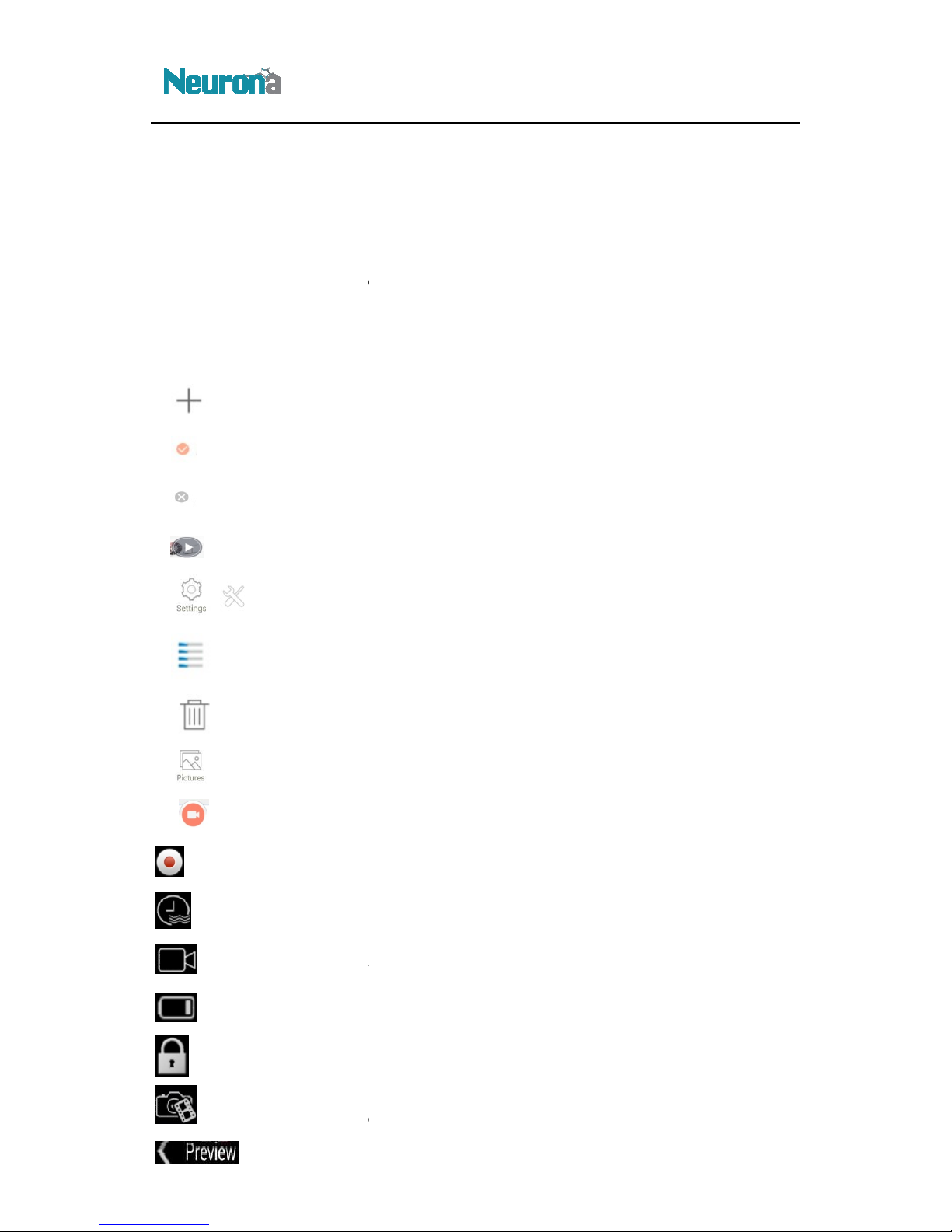
: Press to enter Wi-Fi
OpticHD :
OpticHD : OpticHD
: Press to preview video
: Press to enter S
: Press to enter
: Press to disconnect
: Press for the list of
Icons (Android)
s Menu
enu and OpticHD application version
sa
: Press to
: Press to
: Press to enable or
: Press to modify the
:
: Press to lock
: Press to enter preview
: Press to return to
timestamp feature
format
ain Menu
settings
main interface
Page 8
Connecting OpticHD Glasses to a Computer
on the OpticHD Glasses from a laptop or desktop
. Locate the mini USB port on the glasses using the diagram on page 4 of this
document, and plug in the small end of the USB cable. Plug the other end of the USB cable in
laptop or PC. Once plugged in, the OpticHD Glasses will begin to charge and the microSD card should
mount and appear on the laptop or PC as an accessible hard drive.
ransfer the files to computer, or
built
or using a wall adaptor
using the Charging/Capacity Indicator LED, as shown on the diagram on page 4. The following table
defines the LED colors used to indicate remaining battery life:
Battery life is at 75% or above
Battery life is between 45% and 75%
Battery life is 10% or below
Note: When the remaining battery life is
The charging time for the
2 to 3 hours.
Formatting the microSD Card
the OpticHD Glasses for
flash very fast. To prepare the microSD card for use,
SD card
turn off. Press the On/Off button to t
process fails, repeat the steps above or replace the microSD card. A C
OpticHD™
computer,
At this point, it is possible to
Micro SD card
, which can be charged using the USB cable
(not provided). The battery status is reflected
10%, the camera will automatically turn off.
OpticHD Glasses when using a 5V/1A charger will
with a newly formatted microSD card, the
press On/Off button
the OpticHD Glasses will
ing. If the formatting
micro
8.
To access the recorded video
provided USB cable
either t
installed in the OpticHD Glasses.
9. Battery Operation
The OpticHD Glasses have a
either plugged into a laptop/PC
LED Color
GREEN
BLUE
RED
play the videos directly from the
-in lithium ion battery
Battery Life / Remaining Capacity
<
use the
to the
which is
9.1. Charging Time
approximately
10.
When powering on
blue recording LED will
the Glasses will format the micro
required.
the first time
. Once the formatting is complete,
urn on Glasses on and to start record
lass 6 or above
be
and
SD card is
Page 9

Product Specifications
OpticHD™
RealPlayer11
11.
Pixels
Resolution
Power Supply
Battery Life
Power Consumption
Memory Card
Field of View
Video Format
Operating Temp
Wi-Fi Distance
Wi-Fi Protocol
Vibration Alert
Physical Weight
Dimension
USB
Player
Operating System
Limited Warranty
12MP
1920x1080P@30FPS ; 1280x720P@60FPS
Embedded 660mAh Li-ion Battery
Approximately 80 minutes (Wi-Fi Off)
Approximately 45 minutes (Wi-Fi On)
<2.3W (Wi-Fi On) / <1.7W (Wi-Fi Off)
8GB Class 10 Installed
Maximum 32GB MicroSD Card (Class 6 or higher)
63 Degrees
H.264
-5 Degrees C to 40 Degrees C
About 10 meters
TCP/UDP/ICMP/DHCP/DNS/HTTP
Yes
74g
170mm*48mm*170mm
2.0 (HS)
KM Player; Quick Time7.6; Storm2012;
Win7/WinXP/Win8/ Win10/Mac OS 10.7 or above
1 Year
Page 10
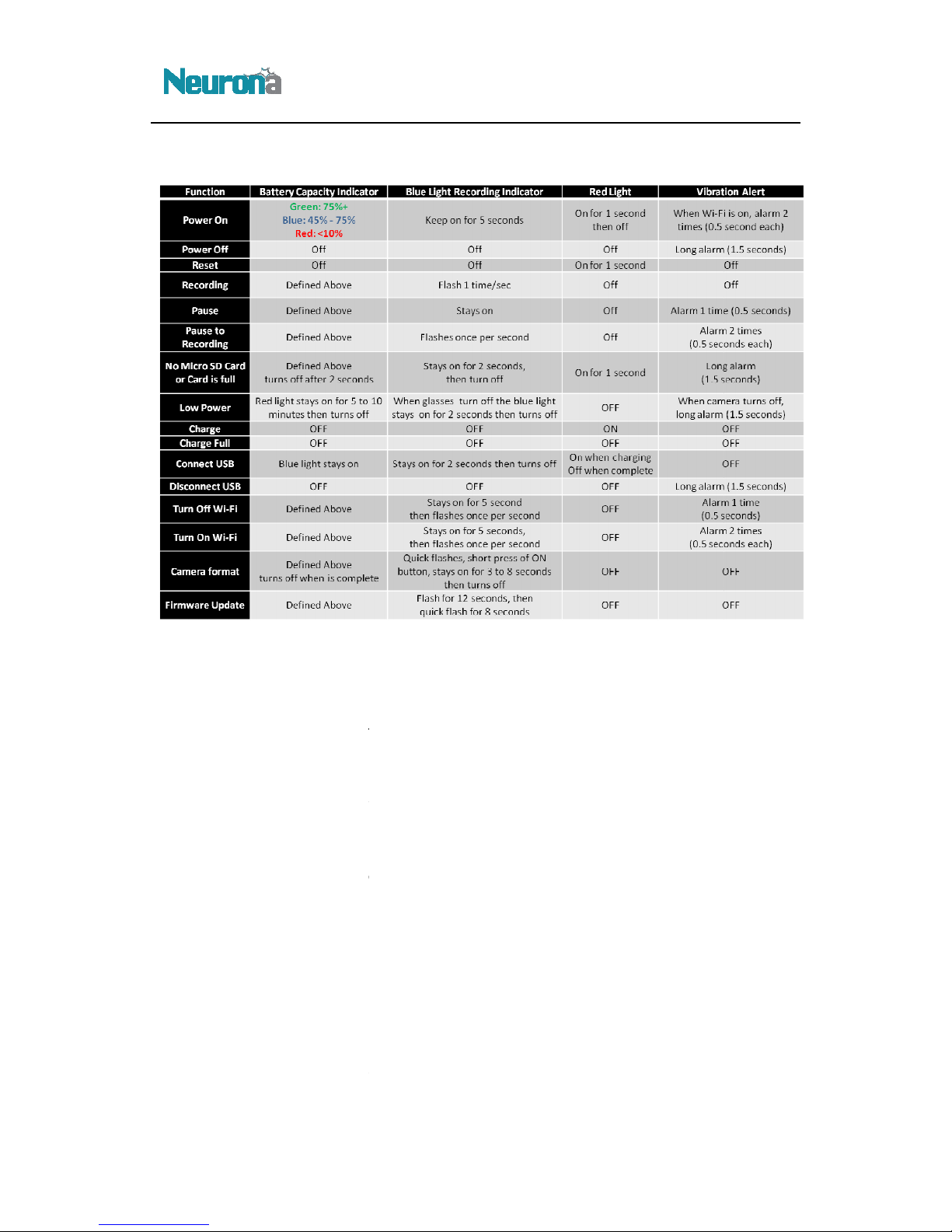
LED and Vibration Alerts
To upgrade the OpticHD Glasses firmware, please follow the steps below:
Using the provided USB cable,
Using the file browser of the computer (i.e. Windows Explorer), navigate to the microSD card
drive that was mounted in step 1 above.
Download the latest firmware from www.myneurona.com/support (i.e. Fwxxxxx.bin)
root directory of the microSD card
Disconnect the OpticHD Glasses from the computer
Press the ON button and the
and then will shut off
SD card
Once mounted, navigate again to the root directory of the microSD card and delete the
Insert the microSD card back into the OpticHD Glasses and power on.
To update the time used by the OpticHD Glasses during recording, please follow the steps below:
OpticHD™
followed by
indicating that the firmware update is complete.
plug it directly into the microSD card
12.
13. Firmware Update
1)
2)
3)
4)
5)
flashes for 8 seconds
6) Remove the micro
slot in the computer.
7)
firmware file.
8)
connect the OpticHD Glasses to the computer.
.
.
blue light will slowly flash for 12 seconds,
,
from the OpticHD Glasses and
to the
quick
14. Time Setting
Page 11

the provided USB cable, connect the OpticHD Glasses to the computer.
Using the file browser of the computer (i.e. Windows Explorer), navigate to the microSD card
drive that was mounted in step 1 above.
and create
file and type the
between each value. E
default time is 24 hours
the OpticHD Glasses
Power on the OpticHD Glasses and
Question & Answer
OpticHD Application cannot connect over Wi
switch to
Verify that your mobile device is not connected to another Wi
Note: It is very important to ensure that your mobile device will not automatically switch to
Fi network when trying to use it with the Opt
recommended to remove all known Wi
they are in range when using the mobile device with your OpticHD Glasses.
Fi name and/or password
Using the provided USB cable, con
Using the file browser of the computer (i.e. Windows Explorer), navigate to the microSD card
drive that was mounted in step 1 above.
file named ‘SSDIREST.TXT’
Turn off the OpticHD Glasses
e will be de
The OpticHD Glasses will not turn on
turn off automatically
of the battery capacity indicator
remaining is less than 10% and requires immediate recharging.
SD card is fully plugged
Verify using the OpticHD Application that the microSD card has storage capacity available
blue light flash
initiate
Note: Before executing this step, use a computer to back up any important data that
may be on the microSD card, as it will be lost once the formatting step is completed.
glasses will turn off automatically
Power on the glasses
the blue light stays
pause
OpticHD™
Year, Month, Date, Hour, Minute, Second
, then save the file.
Fi to the OpticHD Glasses
icHD Glasses. It is
Fi networks that are stored on your mobile device IF
name and password back to the factory default,
attempting to turn them on, then monitor the state
the battery power
into the microSD slot in the OpticHD Glasses
format microSD card
d state, please initiate a short press on the ON/OFF
1) Using
2)
3) Open the drive
4) Open the setdate.txt
digits) leaving a space
Notice:
5) Disconnect
6)
a text file named ‘setdate.txt’ under root directory.
xample: 2015 11 16 11 30 59
from the computer.
start recording to update the time setting.
(total of 14
15.
15.1. The
1) Check the Wi-Fi
2)
another known Wi-
15.2. Forgot the Wi-
1)
2)
3) Create a text
4)
Note: The text fil
15.3.
1) If the glasses
2) Verify that the micro
3)
4) Verify if the
a) If it does, please
-
verify that it is in the ON position
-Fi network.
-
nect the OpticHD Glasses to the computer.
in the root directory of the microSD card
to reset Wi-Fi
leted automatically upon reboot
or start recording
when
. If battery capacity indicator is red, then
es quickly when the OpticHD Glasses are turned on.
a short press of the ON/OFF Button to
.
b) The
c)
5) Verify if
a) If glasses are in a
start recording.
to record video normally.
on when turning on OpticHD Glasses.
once the formatting is complete
button to
 Loading...