

Page 1
E
NVIROMUX® Series
ENVIROMUX-2D
Quick Installation Guide
The ENVIROMUX-2D (ENVIROMUX) is a Small Enterprise Environment Monitoring System designed to monitor, from a remote
location, the critical environmental conditions in cabinets and rooms containing servers, hubs , switches and other network
components. Remote monitoring is provided via a 10/100BaseT Ethernet web interface, secure web interface, SSH, or Telnet.
The input data is filtered, collected, analyzed and processed to allow the user to configure it to meet individual requirements. The
user is able to specify parameters for all monitored signals. When a sensor reading goes out of range of a config urable threshold,
the unit will signal an alert. Alert methods include email, SMS, SNMP traps, web-page alerts, and a visual indicator (red LED).
The ENVIROMUX-2D will monitor temperature, humidity, detect the presence of water on a flat surface (such as the floor) and
much more. The unit also has five sets of terminal block pairs for the connection of contact-closure sensors
Installation
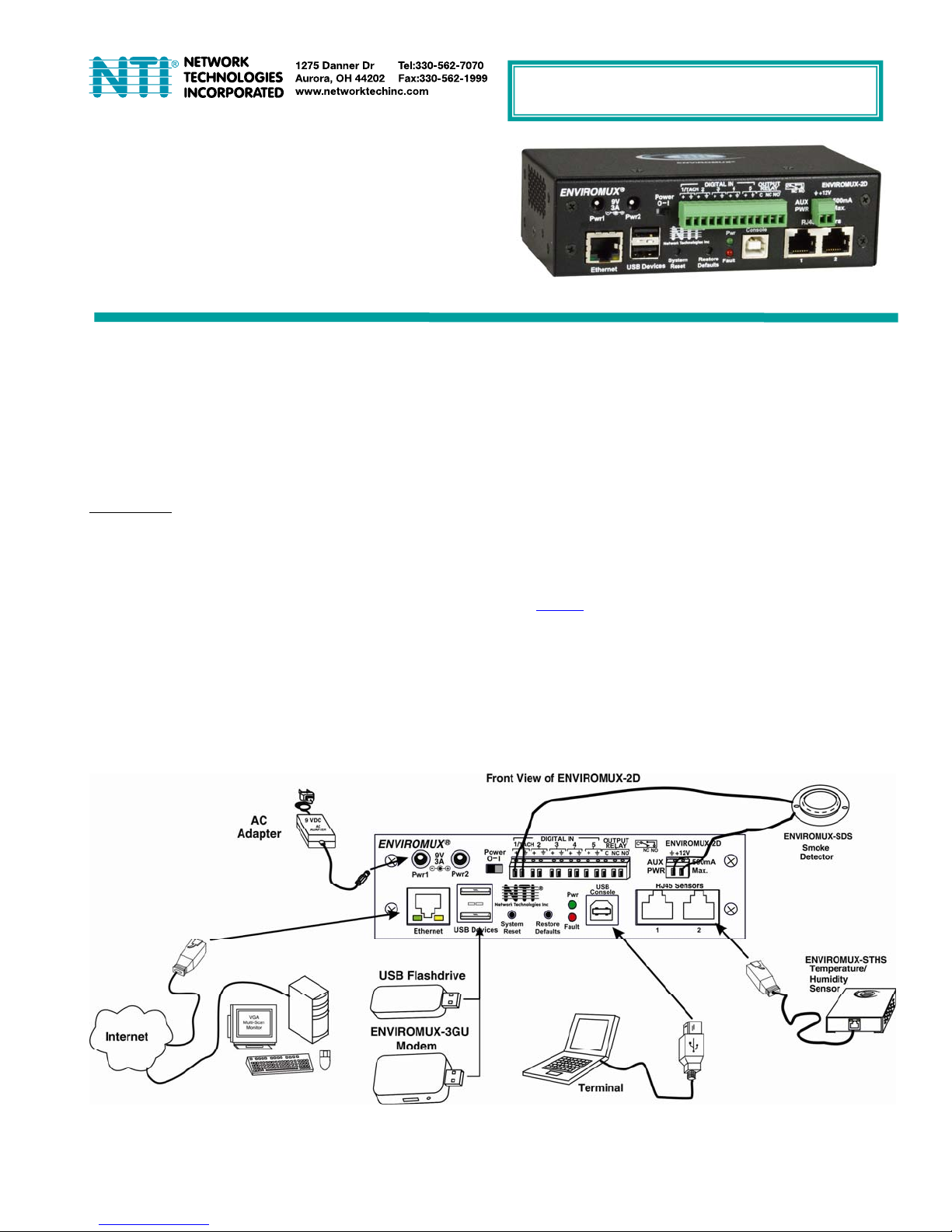
1. Mount the ENVIROMUX as desired. Remove the tabs from the rear, turn them around, and re-secure. Mount
ENVIROMUX to the wall or within in a rack. (We have provided screws for Zero-RU mounting only. Use
appropriate hardware for wall mounting.)
2. Connect each of the sensors (purchased separately) to the ENVIROMUX. Mount the sensors where they are needed.
A. Connect SEMS Sensors (see list of available sensors on the website
B. Connect contact sensors (i.e. ENVIROMUX-GBS-P glass break sensor, ENVIROMUX-SDS-PA smoke detection
sensor, ENVIROMUX-LD water detection sensor and others) to the terminal blocks labeled “DIGITAL IN”. Connect
each two-wire contact sensor using 16-26 AWG wire.
3. Connect the ENVIROMUX to the Ethernet.
4. Connect the ENVIROMUX to the Ethernet for maximum remote system management using the “Ethernet” port and
CAT5/5e/6 patch cable.
5. For limited local system control via serial communication connect a terminal to the “USB Console” port using a USB A-B
male-to-female cable (provided). Install drivers (found on CD) to PC (see manual for instruction).
6. Connect the AC adapter.
) to the RJ45 ports on the ENVIROMUX.
Page 2
Setup
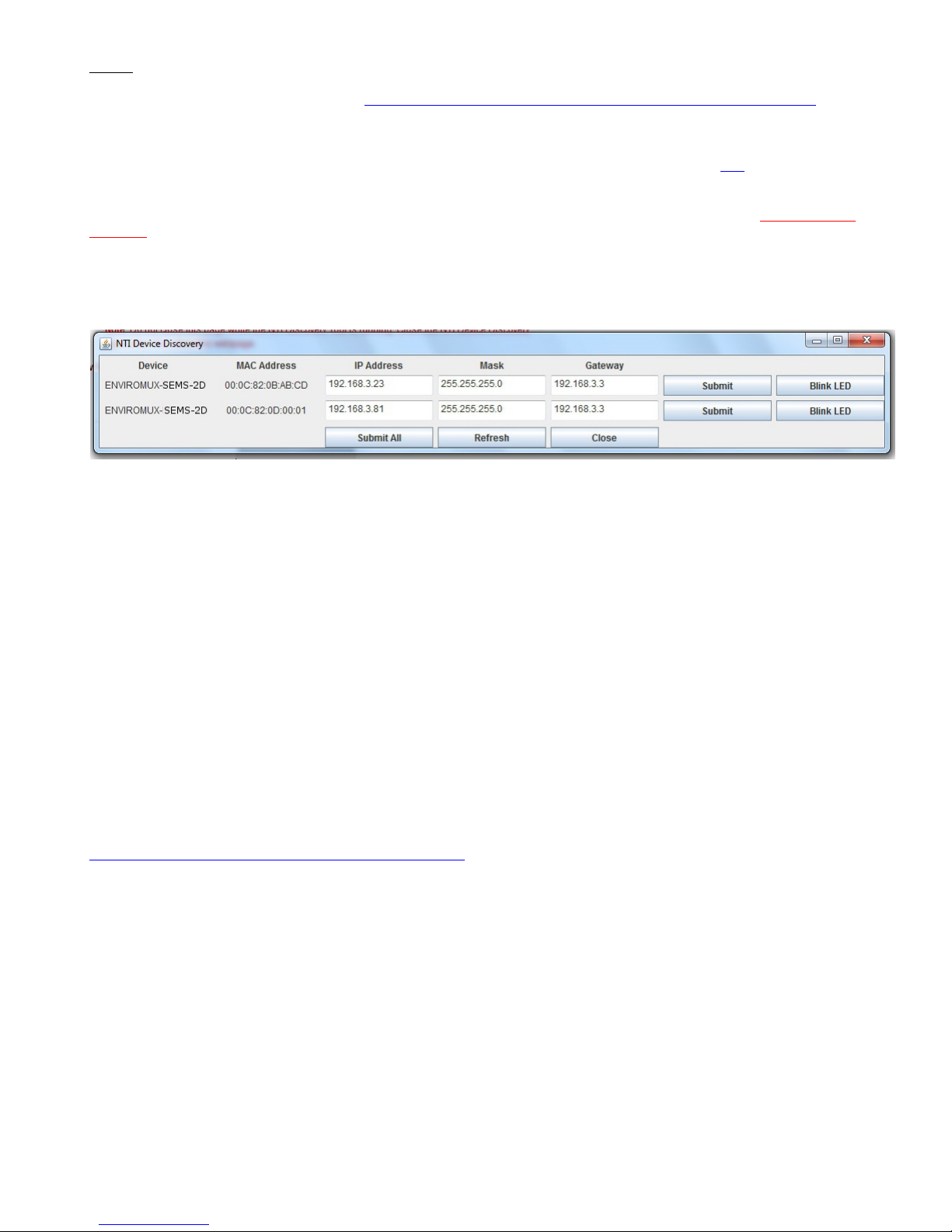
1. Use the Device Discovery Tool (found at http://www.networktechinc.com/download/d-environment-monitor-16.html) to locate
the ENVIROMUX on the network. Update the IP address, Mask, and Gateway as needed to connect to the local network.
Click on Submit to update the ENVIROMUX.
Note: The Device Discovery Tool requires the Java Runtime Environment to operate. Here is a link
to the web page from
which Java can be downloaded and installed.
Note: The computer using the Device Discovery Tool and the ENVIROMUX must be connected to the same physical
network in order for the Device Discovery Tool to work.
If there are multiple ENVIROMUX-2D in the network, use the “BLINK LED” feature in the Device Discover Tool (page
26 of the manual) to identify which ENVIROMUX-2D is being updated. To use it, press the “BLINK LED” button and
the LEDs on the effected ENVIROMUX will blink until the button is pressed again or the Device Discover Tool is closed.
2. Ty
pe the updated IP address into the browser address bar.
3. Log in to the web interface as the administrator
- username = root password= nti (letters are case sensitive)
4. Configure Network and SMTP server settings (Administration->Network ).
5. Set the date and time.
6. Configure SNMP settings.
7. Add users (Administration->Users->Add New User) and specify email address, contact methods, etc. as needed.
8. Temperature and Humidity sensors will be automatically detected. External contact sensors and sensors connecte d to
“DIGITAL IN” must be added manually through the web interface before configuring them.
9. Configure sensors (Monitoring->Summary->Select a sen sor->Configure button) as desired for thresholds, sampling, alert
notification methods, etc.
10. Configure the log settings (Log->Log Settings) for log record overflow action and contact methods.
11. To access ENVIROMUX using a terminal locally connected to the “USB Console” port (shown in drawing on first page), set
port on terminal at 115200bps, 8-N-1, no flow.
Press <Enter>,
Type <root> at the login prompt and press <Enter>,
Type <nti> for the password at the menu login screen,
Press <Enter> again to access the main menu.
For more details, specifications, and troubleshooting tips, see the Installation and Operation Manual or go to
http://www.networktechinc.com/enviro
ment-monitor-2d.html.
n
MAN146 Rev. 4/21/17
 Loading...