

Page 1
WiFi Portable Cloud Storage(airdisk)
NW71 Product User Manual V1.4
Shenzhen Netcom Electronics Co.,Ltd.
2013-05-06
All rights are reserved by Shenzhen Netcom. Not allowed to be reproduced in any
form without permission of Netcom. Subject to change without notice.
Page 2
NW71 Product User Manual
2
Version
No.
Revised
Date
Revised
By
Description
Notes
V1.0
2012-06-21
Preliminary user manual draft
V1.1
2012-10-22
Modify the interface and add additional
V1.2
2012-12-10
Add new solution and function
V1.3
2013-1-3
Modify the App using method
V1.4
2013-5-6
Modify battery capacity
1. Product Revision History
Shenzhen Netcom Confidential
Page 3
NW71 Product User Manual
3
Content
1. Product Revision History ....................................................... 2
2. Product Description ............................................................. 4
2.1 Introduction ............................................................................................................................................. 4
2.2 Package Contents ................................................................................................................................. 4
3. Key Features ......................................................................... 4
3.1 Supported File Types ............................................................................................................................ 5
3.2 System Requirements ........................................................................................................................... 5
3.3 airdisk interface introduction .............................................................................................................. 6
3.4 Charge/Discharge introduction ........................................................................................................... 6
3.5 Connecting to a Computer .................................................................................................................. 7
4. Installing the airdisk App ........................................................ 7
4.1 Installing the App on iOS/Android devices ........................................................................................ 7
4.2 [A+Disk] App connect to airdisk ........................................................................................................ 8
4.3 Using [A+Disk] App .......................................................................................................................... 9
5. Additional Information .......................................................... 14
Shenzhen Netcom Confidential
Page 4
NW71 Product User Manual
4
2. Product Description
2.1 Introduction
airdisk is a wireless portable cloud storage device that wirelessly streams HD videos, music,
pictures and documents to multiple devices simultaneously (iPhone, iPad, iPod touch, Android
devices) and extend your devices storage space. airdisk is able to access to Internet.
The NW71 can also be used as the power bank. Its internal 2800mAh polymer Li-ion battery is
able to either charges your mobile device through USB 5V/DC interface or supports 8hrs
playback and 10hrs standby.
The airdisk NW71 is designed in a 118mm x 60mm x 11mm RoHS compliant 100% lead
(pb) free form factor.
2.2 Package Contents
Main Unit,AC adapter, Ethernet Cable, User Manual
3. Key Features
Qualcomm solution
Compliant IEEE802.11b/g/n standard(Max 150Mbps)
WiFi encryption by WPA,WPA2,WPA2 Mixed
Supports RJ45 interface to access and share via WiFi
Supports view photos, view files, playback music, playback video via WiFi
Supports 3 users share content and access external Internet simultaneously
Free App for iOS and Android system devices
Support FTP,SAMBA,DLNA(DMS) function
Capacity:32GB, 64GB, 128GB
Built-in rechargeable lithium polymer battery 2800mAh
Provide power bank function and support 8hrs playback and 10hrs standby
Micro USB interface for fast file transfer and charge
Supports NTFS, FAT32, exFAT, ext2, ext3 file system
Shenzhen Netcom Confidential
Page 5
NW71 Product User Manual
5
3.1 Supported File Types
iOS:
Document: .pdf, .txt, .doc, .docx, .xls, .xlsx, .rtf, .ppt, .pptx
Photos: .jpg, .png
Music: .mp3, .wav, .aif
Video: .mp4, .mov
Android:
Document: .pdf, .txt, .doc, .docx, .xls, .xlsx, .ppt, pptx
Photos: .jpg, .png, bmp, .gif
Music:.mp3, .mp4, .3gp, .wav, .ogg, .imy, .aif
Video:.mp4, .3gp
Because of Apple's iOS and Google’s Android operating system can’t play some video and audio
formats, such as RMVB, MKV etc, so you can install other App to play it.
Android system: QQ video, MoboPlayer, RockPlayer
iOS system: OPlayer, GoodPlayer.
3.2 System Requirements
System requirements via USB transferring data
Microsoft Windows® XP
Microsoft Windows Vista®
Microsoft Windows® 7
Mac OSX 10.5 or later
Linux Kernel 2.4 or later
iOS device requirements:
iPhone, iPad, iPod touch and Mac(iOS5.0 or later)
Android device requirements:
Android 2.2 or later device
Shenzhen Netcom Confidential
Page 6
NW71 Product User Manual
6
3.3 airdisk interface introduction
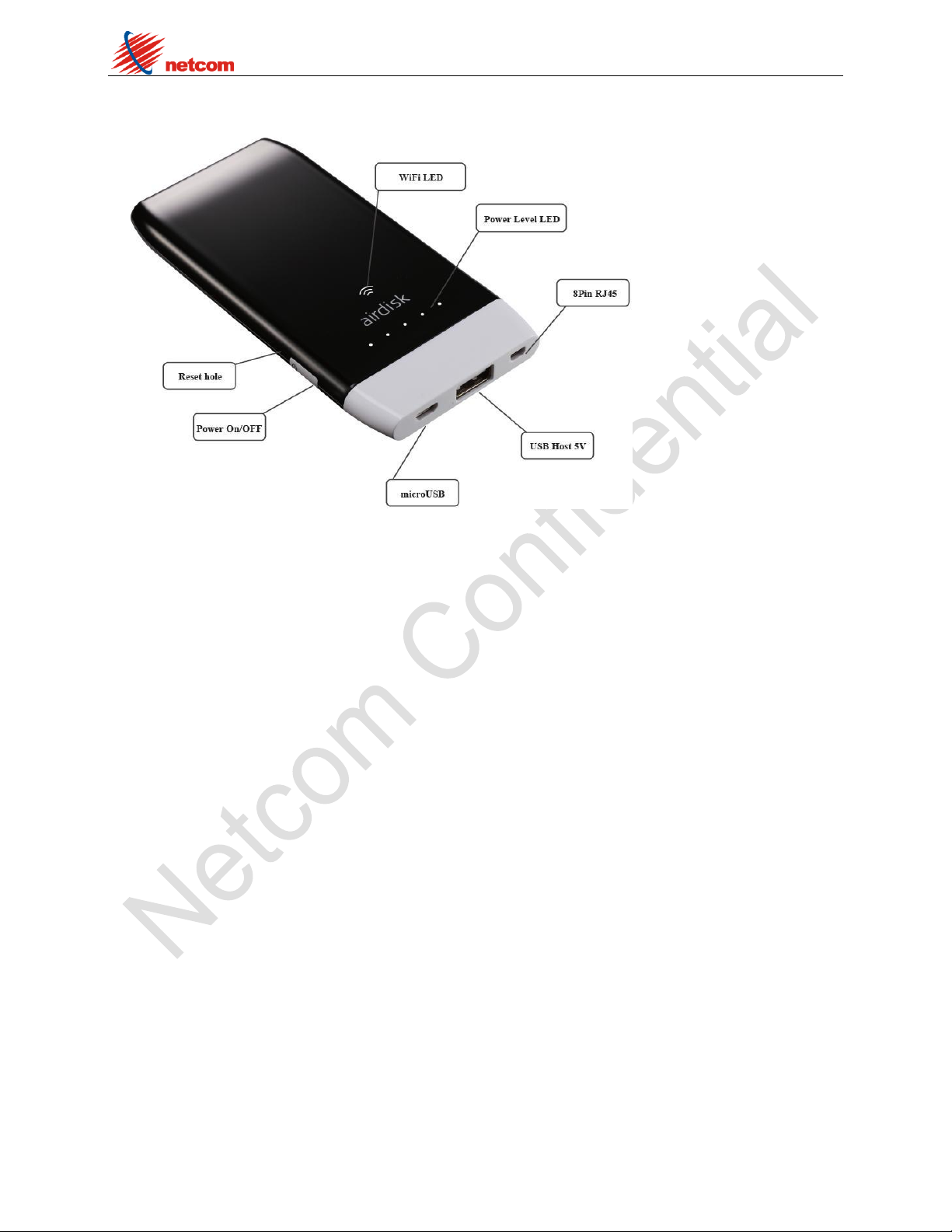
Power key: Power on/off
Micro USB: recharge and connect to PC
USB Host: 5V Power Output
Mini 8pin: RJ45 switch interface
Power Level LED: Battery power signal (Display power level 20%,40%,60%,80%,100%)
WiFi LED: WiFi signal(according to the data speed)
Reset hold: Reset system and data will be reserved
3.4 Charge/Discharge introduction
Charge:You need to charge the battery fully first time when use USB line connecting to
computer or adapter. airdisk can display the LED according to the battery level. When the
Airdisk is charging, current power is 60%,then the 20%,40% LED is light always, but the 60%
LED will flash.
Discharge:You can discharge with airdisk at any time. When airdisk is discharging, the current
power level LED will flashing. The power level LED will display 3s when you short press the
power key.
Shenzhen Netcom Confidential
Page 7
NW71 Product User Manual
7
3.5 Connecting to a Computer
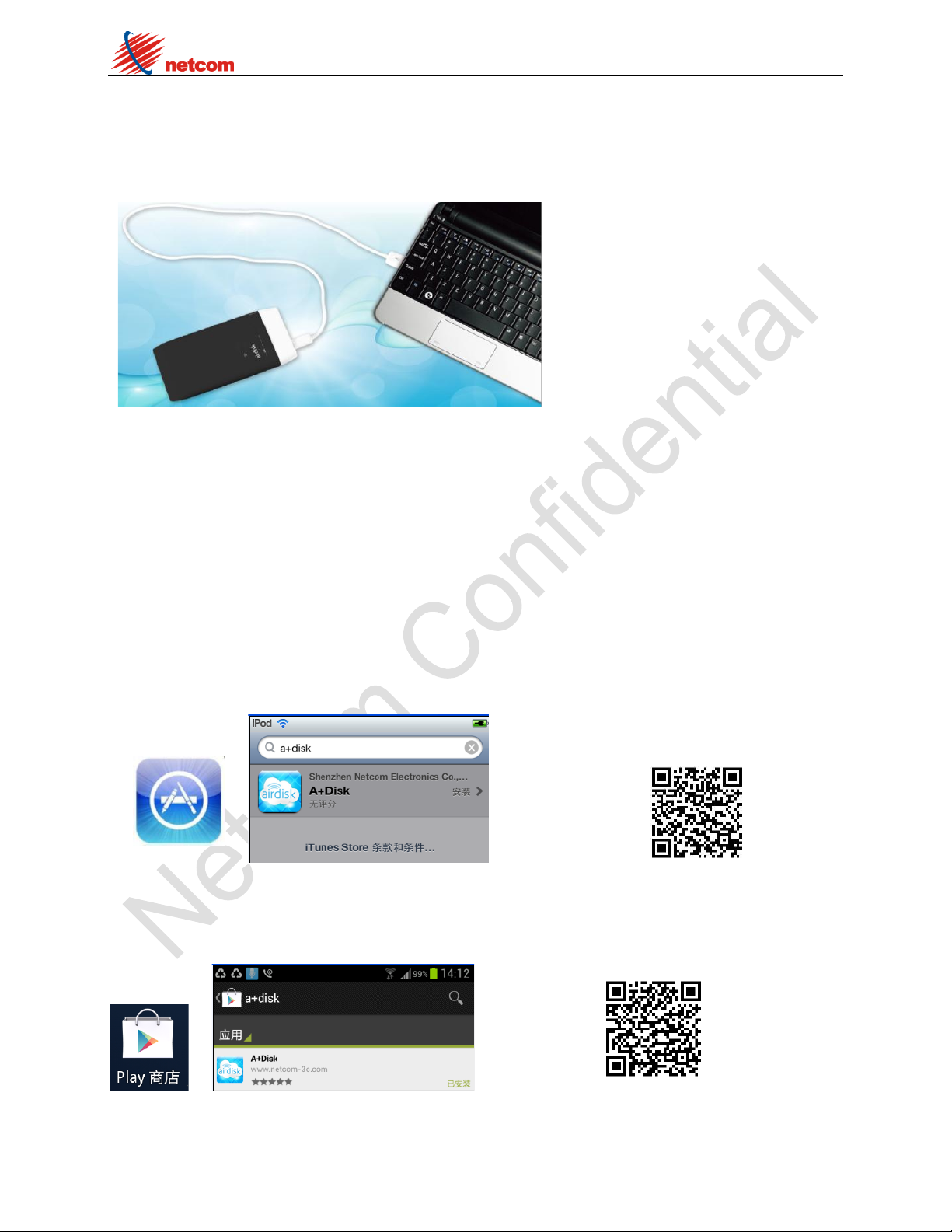
1. You can connect to a computer and act like a normal hard disk drive.
2. Airdisk can be charged when connected to a computer.
4. Installing the airdisk App
[A+Disk] is a App only for airdisk,and fits to iOS and Android devices. You must first install
the free App on your devices from the on-line App Store. Then It’s easy to customize the
WiFi settings and wirelessly access the content you’ve uploaded to airdisk.
4.1 Installing the App on iOS/Android devices
Open the App Store or Google Play and search for [A+Disk].
App Store download address two-dimension code
Google Play download address two-dimension code
1. Select[A+Disk],open the website page and select free to install App.
Shenzhen Netcom Confidential
Page 8
NW71 Product User Manual
8
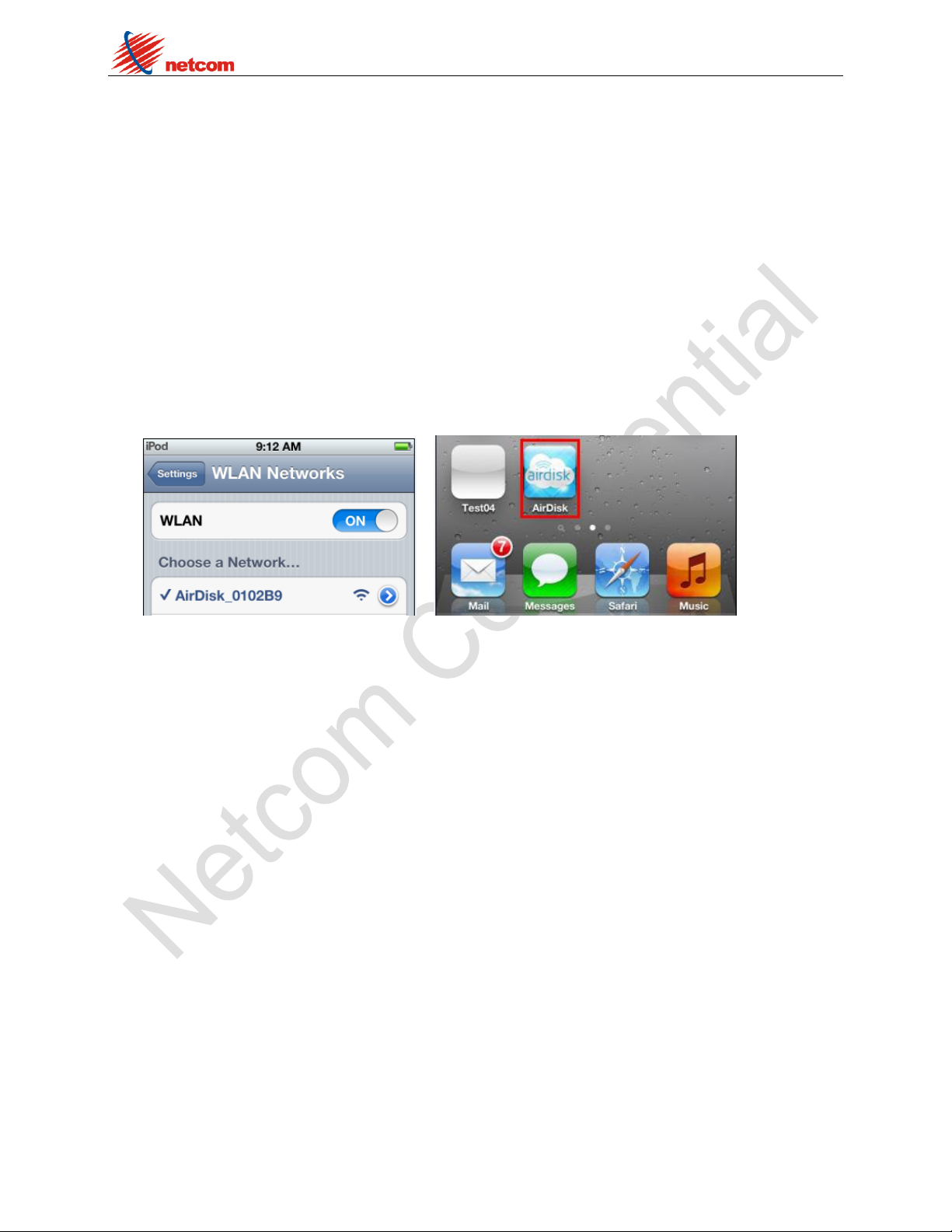
2. Your iOS/Android devices will display the icon of [A+Disk] when finish to install the App.
3. You can open the “anzhi”, “baidu”, “hiapk” App market and search [A+Disk] or [AirDisk]
for Android device.
4. App function:share data, exchange data ,WiFi setting, music playlist,photo thumbnail,mobile
phone photo upload to airdisk.
4.2 [A+Disk] App connect to airdisk
1. Follow the steps (iOS/Android device):
1. The WiFi signal LED will display after long press the power key 5s,then the system is
power on.
2. You can select the “settings” to open WiFi function on iOS/Android device, then select
the [A+Disk] and connect it.
3. Open the [A+Disk] App after your iOS/Android device connect the airdisk, then you can
use the files on airdisk.
Note:Other users are following the same steps.
2. Follow the steps(other devices)
1. The WiFi signal LED will display after long press the power key
3s, then the system is power on.
2. You can select the “setting” to open WiFi function on iOS/Android device, then select
the [A+Disk] and connect it.
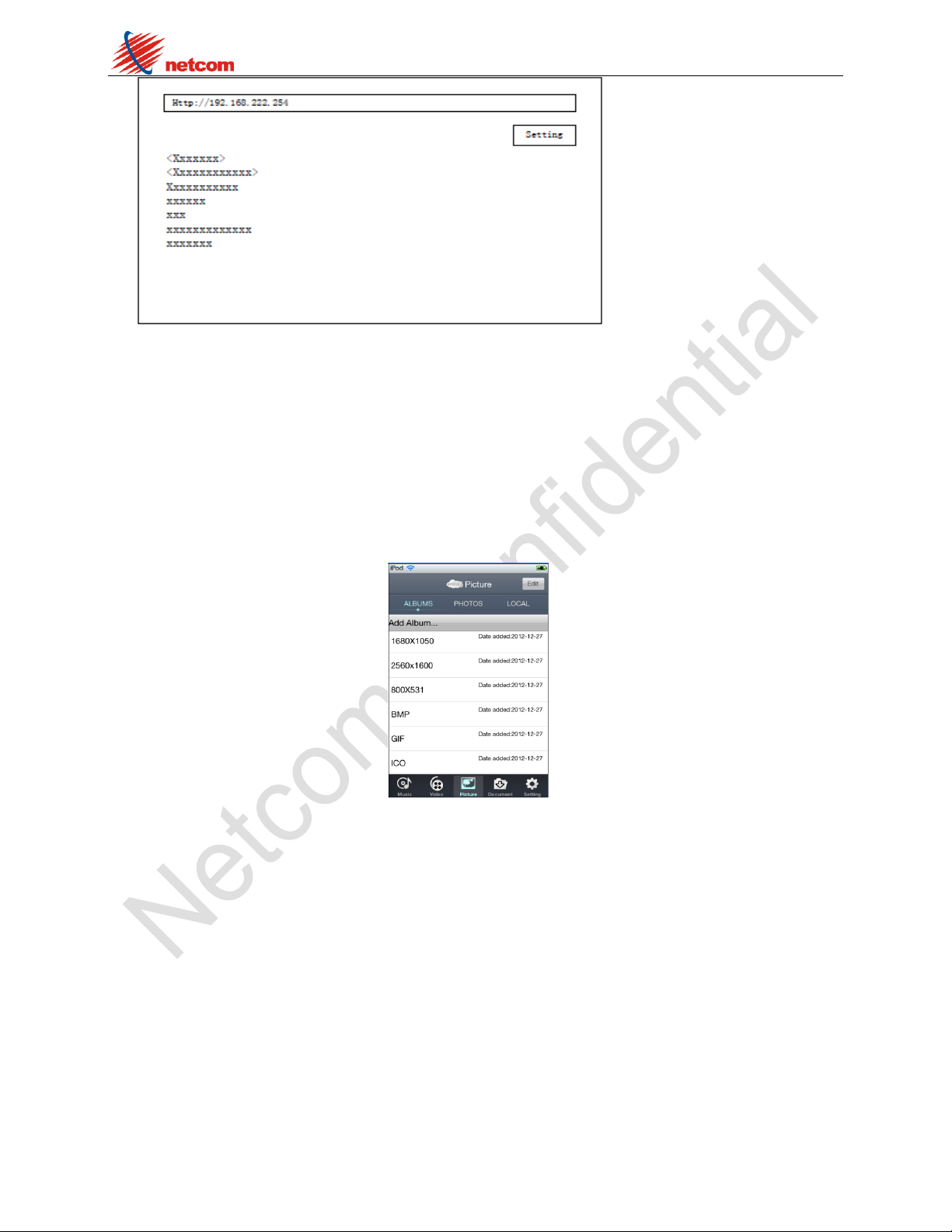
3. Open the browser and input the IP address [Http://192.168.222.254] or [Http://airdisk] after
your iOS/Android device is connected to the airdisk.
4. You can see the airdisk’s folders and files after open the browser.
Shenzhen Netcom Confidential
Page 9
NW71 Product User Manual
9
4.3 Using [A+Disk] App
1. You can use [A+Disk] App after your iOS/Android device is connected to the airdisk’s WiFi.
Notes:Please confirm the file type can be supported on your iOS/Android device.
You can see the function item when you access the [A+Disk] main menu. The icon type are
music,video,picture,document and setting.
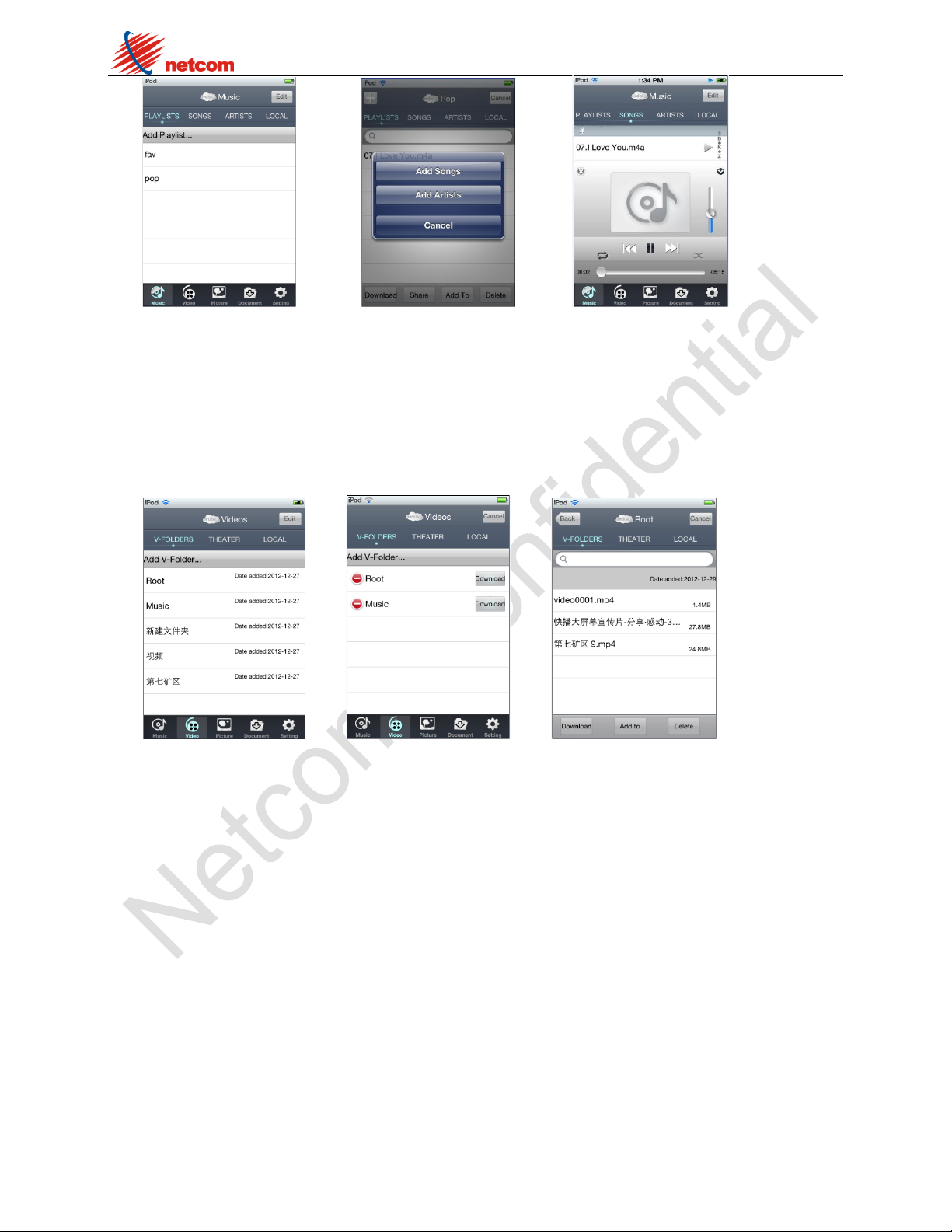
2. Music menu
Playlist:You can add music from “Songs” and “Artist”.
Songs:List all music,then you can play and eidt it.
Artists:List all artists.then you can select and edit it.
You can see the function item when you access the [A+Disk] main menu. The icon type are
music,video,picture,document and setting.
Shenzhen Netcom Confidential
Page 10
NW71 Product User Manual
10
Create Playlist Add music to playlist Play music
2. Video menu
V-Folder:List the video files.
THEATER:List the all videos, then you can play it.
Others, you can edit the videos and files(Downlaod, Upload, Add to, Delete).
Video file Video file edit Video file operation
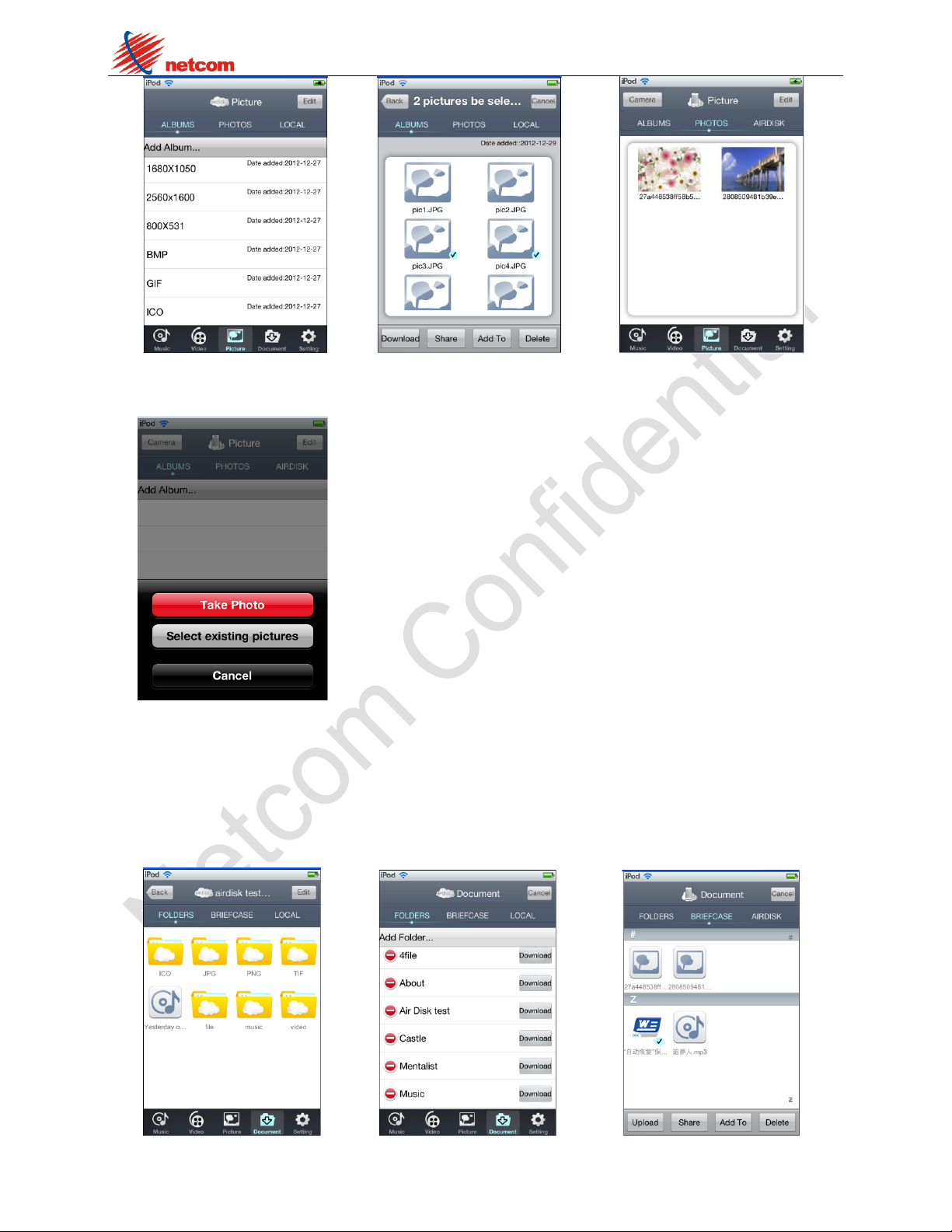
4. Picture menu
ALBUMS:List the photo files.
THEATER:List the all photos, then you can play it.
Others, you can edit the photoss and files(Downlaod, Upload,Share, Add to, Delete).
Shenzhen Netcom Confidential
Page 11
NW71 Product User Manual
11
Photoo file Photo file edit Photo view
iPhone photo save to airdisk
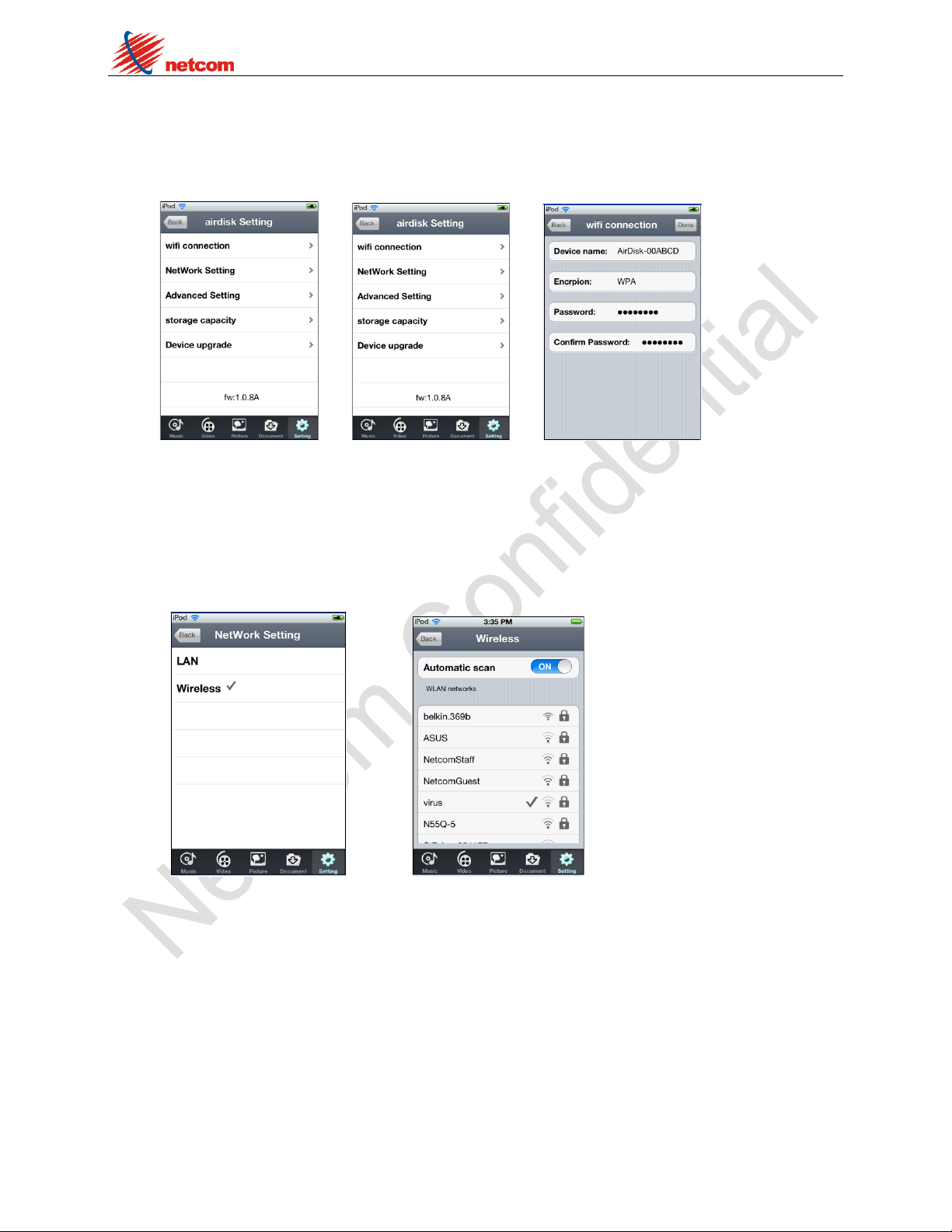
5. Document menu
FOLDER:List the all folders.
BRIEFCASE:List the all files, then you can select it.
Others, you can edit the all files(Downlaod, Upload,Share, Add to, Delete).
Shenzhen Netcom Confidential
Page 12
NW71 Product User Manual
12
All Folder Folder edit All files view
6. Setting menu
WiFi Connection:List the SSID and Encrypt mode, you can modify it.
Network Setting:List the network mode(wireless and LAN).
Setting airdisk Setting WiFi Connection
1. Wireless:If you select “wireless mode”,then you can share the data and bridge the
external internet from airdisk, then enter the “Wireless”, you can scan the external
hotspot and access it, but need waiting for about 40s. So airdisk can share content and
access external Internet simultaneously now.
Network Setting Scan and access external hotspot
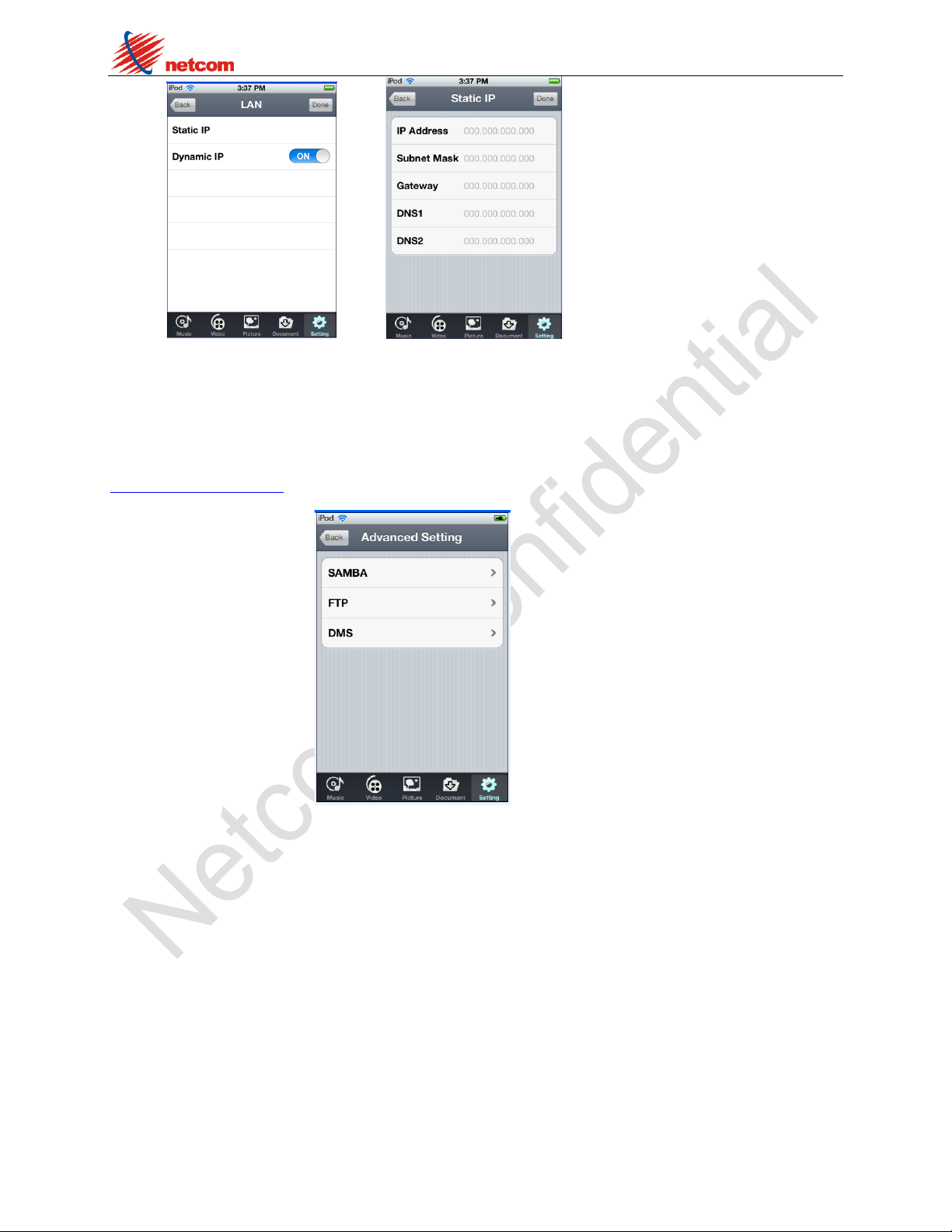
2. LAN:If you select the “LAN mode”, then you can make the airdisk as a router with
pluging in RJ45 cable line, then you can share you LAN with WiFi.
Shenzhen Netcom Confidential
Page 13
NW71 Product User Manual
13
LAN menu Set Static IP
Advanced Setting:airdisk can support FTP,SAMBA and DLNA DMS function. When you open
these function, then can connect with FTP,SAMBA and DMS.
For example: If you open the FTP function and connect the airdisk’s WiFi, then you can enter
FTP://192.168.222.254 and share the airdisk’s content.
Advanced Setting
Storage Capacity:Display the airdisk storage capacity.
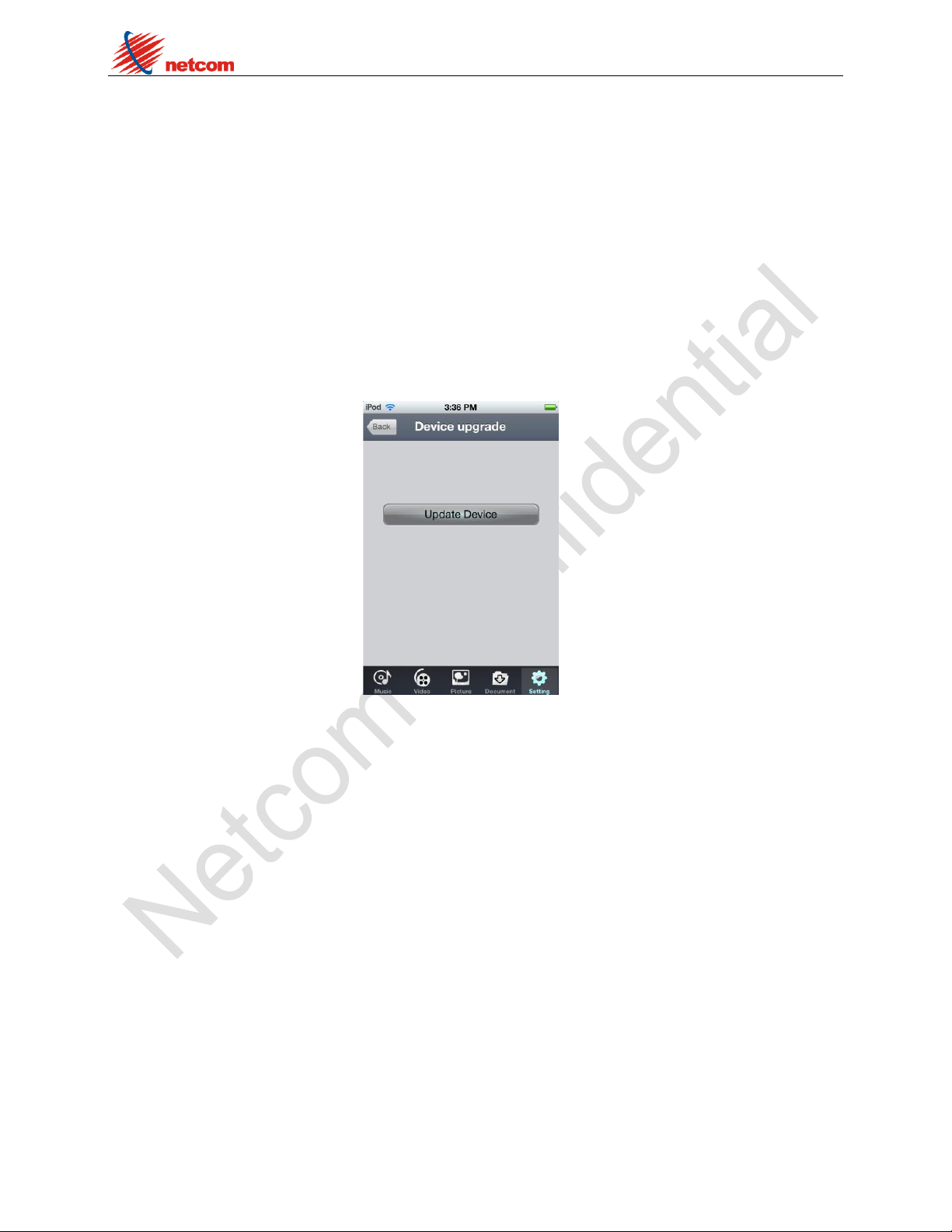
Device upgrade: Upgrade Firmware.
Recommendation: Always back up your data before a firmware upgrade.
1. If a firmware upgrade becomes available for your airdisk device, it will be posted and made
available on-line
for you to download. The firmware upgrade will be in the form of a “update.bin” file. Additional
instructions may be included with individual firmware upgrade(s).
2. Download the “update.bin” file and connect airdisk to your computer. For help on connecting
your device to a computer.
Shenzhen Netcom Confidential
Page 14
NW71 Product User Manual
14
3. Copy the ‘update.bin’ file from your computer to the data partition of airdisk.
4. Disconnect airdisk from your computer.
5. Power on airdisk and wait for the WiFi LED to start Flashing.
6. Open the airdisk app on your iPad, iPhone, or iPod touch device.
7. Navigate to airdisk’s Network Settings.
8. Select the ‘Update Device’ button.
9. Airdisk will complete the firmware upgrade and automatically reboot. Please let the 40-second
countdown complete before proceeding.
Update menu
5. Additional Information
Troubleshooting
1. Unable to connect wirelessly to airdisk.
• Please make sure the Airdisk device is powered on and that the WiFi LED is light.
• Be sure that you have selected airdisk from your iOS device’s wireless network list. If you leave the
airdisk’s wireless range, your device will disconnect from airdisk and you must rejoin the network again.
• If your airdisk device is broadcasting but you can’t connect to it, there may be five devices already
connected to airdisk. Only five devices can connect to airdisk at the same time. If you see a message when
attempting to connect to airdisk that your iOS device is unable to join or connect then at least one user
must disconnect before you can connect your device.
2. Unable to play a music/movie file or view a photos or documents.
• Please make sure that the file format is supported by airdisk and your iOS or other wirelessly
Shenzhen Netcom Confidential
Page 15
NW71 Product User Manual
15
enabLED devices.
3. I forgot the administrator’s password. How do I access airdisk settings?
CATION
RISK OF EXPLOSION IF BATTERY IS RELACED BY AN INCORRECT TYPE.
DISPOSE OF USED BATTERIES ACCORDING TO THE INSTRUCTIONS.
• To reset the administrator’s password to blank you must restore airdisk defaults. Press the reset
button at the bottom of airdisk for 3-5 seconds to restore settings to factory defaults. No data is lost from
airdisk by completing this action.
This device complies with Part 15 of the FCC Rules. Operation is subject to the following two
conditions: (1) this device may not cause harmful interference, and (2) this device must accept
any interference received, including interference that may cause undesired operation.
Changes or modifications not expressly approved by the party responsible for compliance could
void the user’s authority to operate the equipment.
This equipment has been tested and found to comply with the limits for a Class B digital device,
pursuant to Part 15 of the FCC Rules. These limits are designed to provide reasonable protection
against harmful
interference in a residential installation. This equipment generates, uses and can radiate radio
frequency energy and, if not installed and used in accordance with the instructions, may cause
harmful interference to radio communications. However, there is no guarantee that interference
will not occur in a particular installation.
If this equipment does cause harmful interference to radio or television reception, which can be
determined by turning the equipment off and on, the user is encouraged to try to correct the
interference by one or more of the following measures:
-- Reorient or relocate the receiving antenna.
-- Increase the separation between the equipment and receiver.
-- Connect the equipment into an outlet on a circuit different from that to which the receiver is
connected.
-- Consult the dealer or an experienced radio/TV technician for help.
The USB cable with a ferrite (manufacturer: DONGGUAN GUAN CITY CAN FENG
ELECTRONICS CO.,LED. model number: SCRC358) should be used with this product
always.
Safety Guidelines
请依以下方式使用,不当的使用可能会导致电池性能降低或是破坏设备
Please read the following carefully before using the airdisk Product. Incorrect use of your device
may result in reduced battery performance, undesired operation, or damage to your device.
1. 请勿尝试拆解产品
Do not attempt to open or disassemble this product.
2. 使用环境温度0-45摄氏度
Store and operate between 0~45℃
3. 请勿将液态物接触此产品
Do not allow this product to have contact with liquid(s).
4. 请勿将此产品放置或暴露在有热源、火热及很热的汽车内
Do not place this product near a heat source or flame.
5. 请勿压碎或刺穿此产品
Do not crush or puncture this product.
6. 长时间不用,请每六个月对本产品充电一次
Recharge the power pack every 6 months when not in use.
7. 产品报废时,电池需要有专门机构回收,否则有可能发生危险
When scrapping this product, the battery needs to be disposed properly.
Shenzhen Netcom Confidential
Page 16
NW71 Product User Manual
16
Copyright© 2012 Shenzhen Netcom. All rights reserved. Netcom airdisk is a
registered trademark of Netcom. Other trademarks used in this manual are property
of their respective owners.
Shenzhen Netcom Electronics CO., Ltd
8/F, 1 Building, Finance Base,No.8,Kefa Road, High-Tech Park, Shenzhen, China.
Shenzhen Netcom Confidential
 Loading...