

Page 1
1
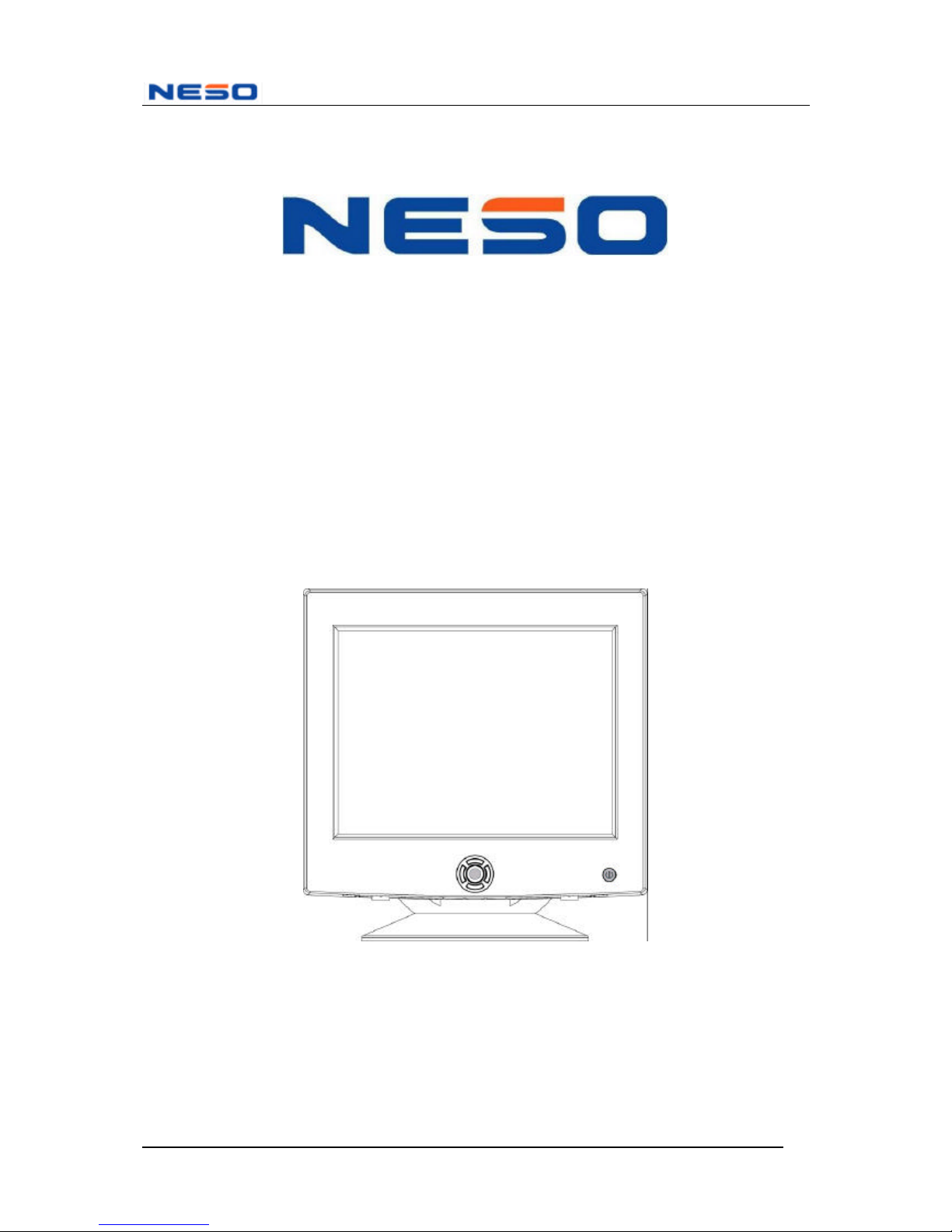
Pomona FD 570A
15” “Trinitron®” Color Monitor
User’s Manual
IBM and VGA are registered trademarks of International Business Machines Corp. Windows are registered
trademarks of Microsoft Corp. Macintosh is a registered trademark of Apple Computer Inc. ENERGY
STAR is a U.S. registered mark. FD Trinitron is registered trademark of Sony Corporation.
NESO reserve the right to make changes or improvement in this product described in this manual without notice.
Every effort has been made to ensure that the information in this manual is accurate. NESO Technology Inc. is
not responsible for printing or clerical errors.
Page 2

FD 570A User’s Manual
2
Federal Communications Commission (F.C.C.) Statement
This equipment has been tested and found to comply with the limits for a class B digital
device, pursuant to Part 15 of the FCC rules. These limits are designed to provide
reasonable protection against harmful interference in a residential installation. This
equipment generates, uses and can radiate radio frequency energy and, if not installed and
used in accordance with the instructions, may cause harmful interference to radio
communications. However, there is no guarantee that interference will not occur in a
particular installation. If this equipment does cause harmful interference to radio or
television reception, which can be determined by turning the equipment off and on, the user is
encouraged to try to correct the interference by one or more of the following measures:
n Relocate the receiving antenna
n Increase the separation between the equipment and receiver
n Connect the equipment into an outlet on a circuit different from that to which the
receiver is connected.
n Consult the dealer or an experienced radio/TV devices technician for help.
Use only shielded cables or connect I/O devices to this equipment.
You are cautioned that changes or modifications not expressly approved by the party
responsible for compliance could void your authority to operate the equipment.
Page 3
3
Table of Contents
Federal Communications Commission (F.C.C.) Statement ............................................... 2
Safety Precautions.............................................................................................................. 4
Quick Installation Guide .................................................................................................... 6
Operation............................................................................................................................ 7
Front Panel Buttons ............................................................................................................ 7
On-Screen Display (OSD) Main Menu .............................................................................. 8
RECALL .................................................................................................................. 8
PICT (Picture).......................................................................................................... 9
LANG (Language) ................................................................................................... 9
SCREEN................................................................................................................. 10
EXIT....................................................................................................................... 10
GEOM (Geometry) ................................................................................................ 10
COLOR...................................................................................................................11
iVIDEO ...................................................................................................................11
OPTION................................................................................................................. 12
Specifications ................................................................................................................... 13
Preset Display Modes....................................................................................................... 13
Troubleshooting................................................................................................................ 14
Cleaning the Monitor ....................................................................................................... 16
Page 4

FD 570A User’s Manual
4
Safety Precautions
Please read following instructions before use:
1. Please install the swivel base for this monitor before using it.
2. Avoid exposing the monitor to direct sunlight and ensure the area around the monitor is
free from moisture. Never allow any liquid to get inside the monitor.
3. Do not place any objects on the case.
4. Never place the monitor near a heat source such as a radiator.
5. To prevent overheating, the openings for ventilation on the top, rear, bottom and side of
the monitor should be kept free of any obstructions.
6. Do not open the case of the monitor, as doing so may expose you to dangerously high
voltage levels. Never attempt to perform repairs on the monitor yourself, but refer all
servicing to qualified personnel.
7. Disconnect the monitor from the power outlet when the monitor is not in use for
extended periods of time.
8. Continuous use of the monitor over long periods of time may result in permanent
damage to the CRT's screen elements. To increase the life of the CRT, make sure to turn
off the power or reduce its brightness when the monitor is not in use.
9. The monitor is equipped with a three-wire grounding-type plug. For safety, this device
should only be used with a grounding-type power outlet. If your outlet is not of this type,
contact your electrician for replacement. Never use a 3-to-2 prong adapter.
Due to the safety requirements of different areas, please select a suitable power cord
according to the following rules, in addition to the electric rating:
A. Northern America Area: Please select a UL listed and CSA certified power cord.
B. Germany: Please select VDE certified power cord.
C. Nordic countries: Please select a power cord certified by SEMKO, NEMKO,
DEMKO or FIMKO
D. The other areas: Please select a power cord suitable to the local power system and
power outlet.
Usually when this product is sold, a suitable power cord is provided by the manufacturer.
However, this product is sometimes resold or transported to another area with a different
power system and safety requirements. Please pay attention to the selection of a
suitable power cord.
Page 5
5
The plug on the power cord is intended to serve as the disconnect device, the
socket-outlet shall be installed near the equipment and shall be easily accessible.
10. This monitor is designed with a universal power supply that is suitable for 100 – 240
VAC and 50 – 60Hz frequency.
Page 6

FD 570A User’s Manual
6
Thank you for your purchase of a NESO FD 570A color monitor. Your NESO FD 570A
package includes:
n NESO FD 570A color monitor
n Power cord
n Monitor Installation Disk
n This User’s manual
Please contact your local distributor if any of these items are missing.
Important! You may wish to save the original box and packing materials for
future use in shipping the monitor.
Quick Installation Guide
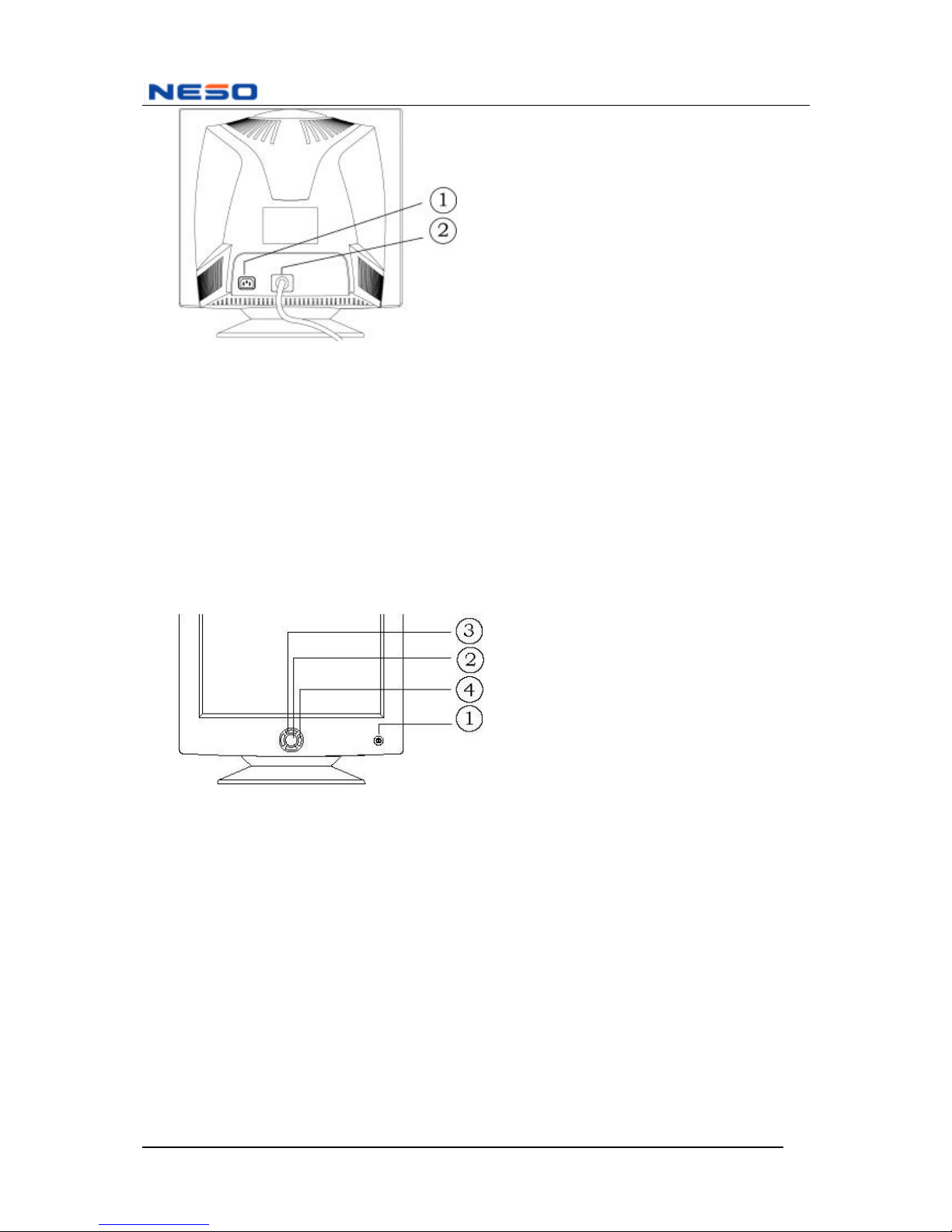
1. Connect the video cable
Make sure both the monitor and your computer are turned OFF. Connect the monitor to
the computer using the attached video cable (• in the diagram below).
2. Connect the power cord
Connect the power cord to a properly grounded AC outlet, then insert the other end into
the AC IN jack on the monitor (Πin the diagram below).
3. Turn on the computer and monitor
Be sure to first power up the computer, before turning on the monitor.
NOTE: If you are using Windows 98, you may see a message asking you to install
certain software.
4. Install the monitor's driver software
Please refer to the readme.txt file contained in the Monitor Installation Disk.
5. Configure the monitor's display mode (resolution and refresh rate)
Example: 1024 x 768 @ 85 Hz
Right-click on the Windows desktop to bring up the pop-up menu, then select
Properties>Settings>Desktop Area. Set the resolution in the dialog box that appears. For
instructions on setting refresh rates, please refer to the documentation provided with your
graphics card.
6. Adjust the screen image using the monitor's On-Screen Display (OSD) controls
See the Operation section of this manual for information on using the OSD controls.
Page 7
7
ΠAC IN
• Attached Video Cable
Operation
This section explains how to fine-tune your monitor's screen image to suit your personal
preferences, or to adapt it for different applications or lighting conditions.
Front Panel Buttons
ΠPower On/Off button with LED indicator
• OSD (On-Screen Display) button—brings up the OSD control menu
Ž Up and Down buttons—selects sub-menus within the OSD controls
• Left and Right buttons—increases or decreases selected values when using the OSD
controls
Page 8
FD 570A User’s Manual
8
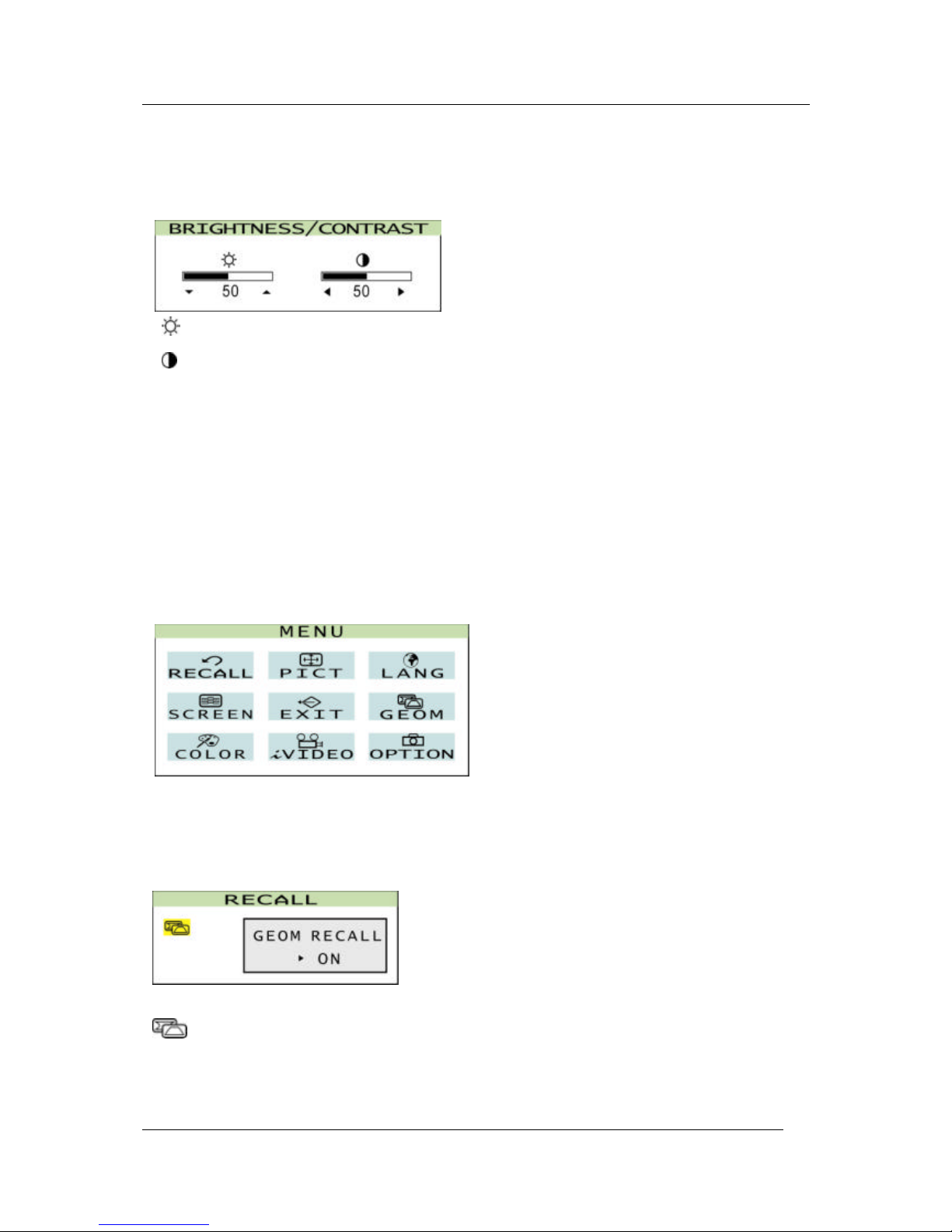
When the monitor in on, press the Up/Down (Ž in the diagram above) or Left/Right (• in
th e diagram above) buttons. This will bring up on the screen of your monitor the
BRIGHTNESS/CONTRAST menu shown below.
Shows the brightness level of screen image
Shows the contrast level of screen image
Press the Left and Right buttons to adjust contrast.
Press the Up and Down buttons to adjust brightness.
On-Screen Display (OSD) Main Menu
Your FD 570A color monitor provides nine main control parameters that you can adjust
according to preference. To access the main menu of the OSD controls, press the OSD
button (• in the diagram above). On the screen of the monitor, the menu shown below will
appear.
The following is a description of the different choices shown in the main OSD control menu.
RECALL
GEOM RECALL (Geometry Recall)
Restores all Geometry settings to factory preset values.
Page 9
9
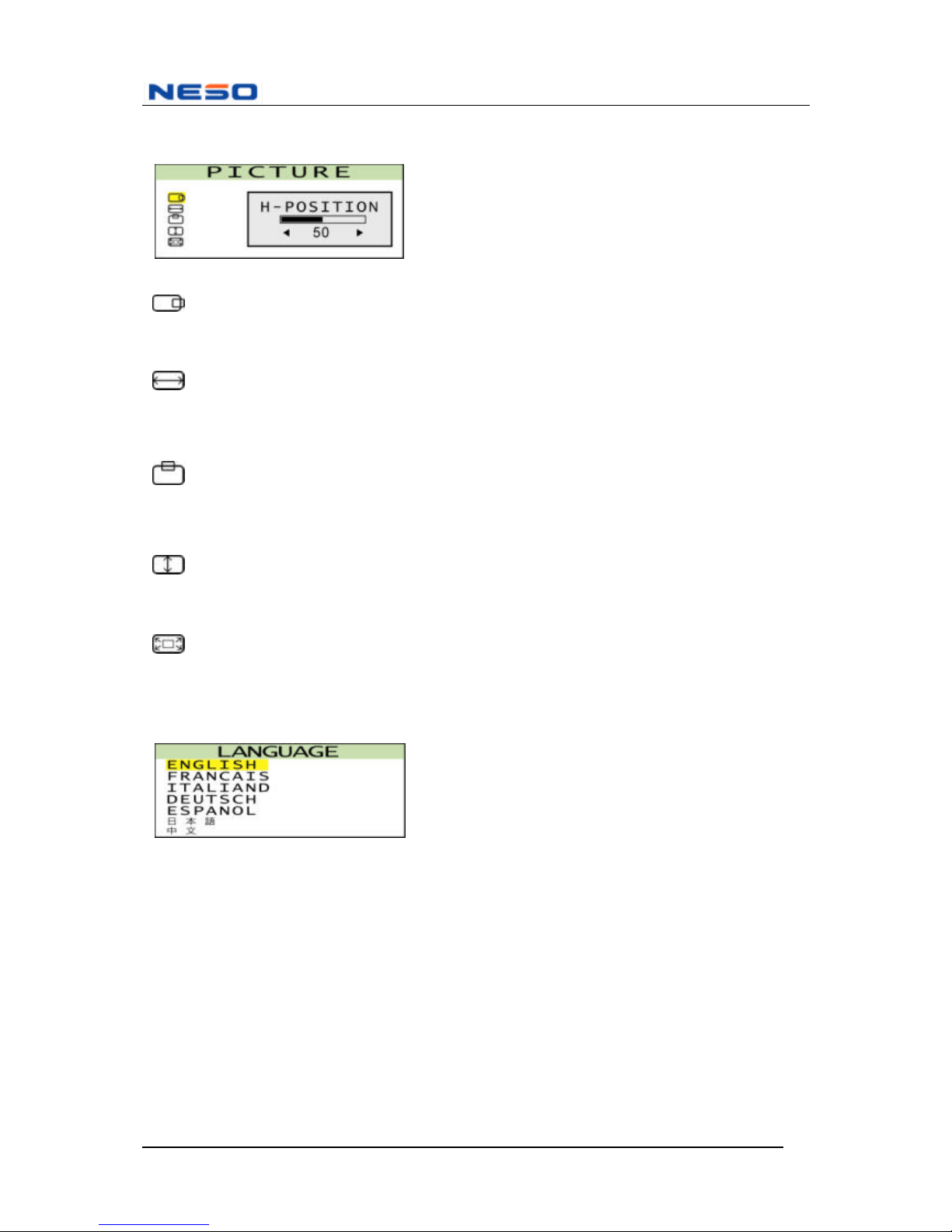
PICT (Picture)
H-POSITION (Horizontal Position)
Adjusts the position of the screen image left or right.
H-SIZE (Horizontal Size)
Adjusts the width of the screen image.
V-POSITION (Vertical Position)
Adjusts the position of the screen image up or down.
V-SIZE (Vertical Size)
Adjusts the height of the screen image.
ZOOM
Magnifies or shrinks the screen image.
LANG (Language)
Allows users to choose from among seven languages for displaying text in the OSD
controls—English, French, Italian, German, Spanish, Japanese and Simplified Chinese.
Page 10
FD 570A User’s Manual
10
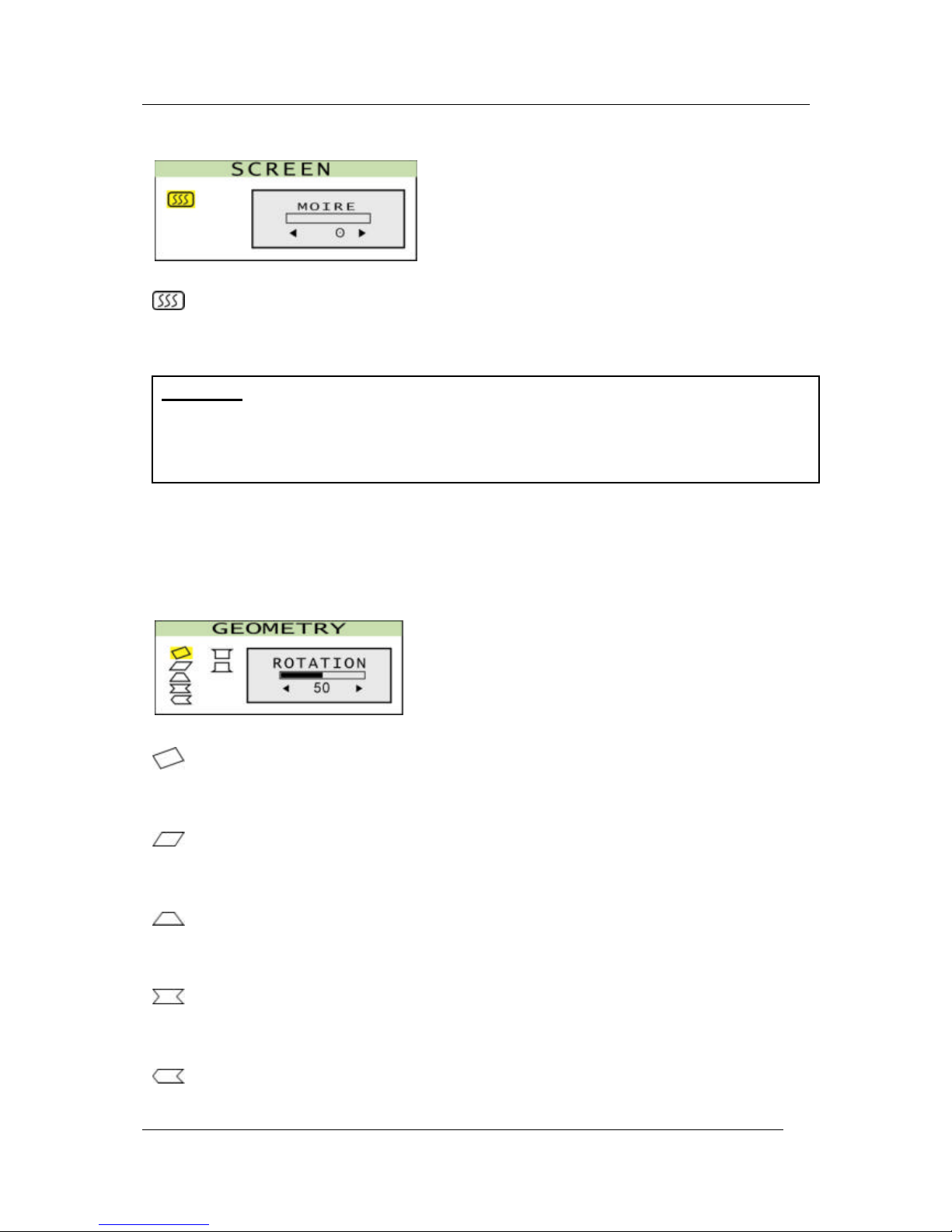
SCREEN
MOIRE
Reduces the distortion effects of wavy lines or ripples oriented vertically in the screen
image.
Caution:
1. If moiré reduction is overdone, picture quality, i.e. focus and vertical line
stability will both be affected.
2. Proper adjustment is recommended for not affecting picture performance.
EXIT
Exits the On-Screen Display controls.
GEOM (Geometry)
ROTATION
Rotates the entire screen image clockwise or counter-clockwise.
PARALLEL
Slants the left and right edges of the screen image to the left or right.
TRAPEZOID
Adjusts the orientation of the left and right edges of the screen image relative to each other.
PINCUSHION
Straightens the left and right edges of the screen image.
PIN BALANCE
Curves the left and right edges of the screen image to the right or left.
Page 11
11
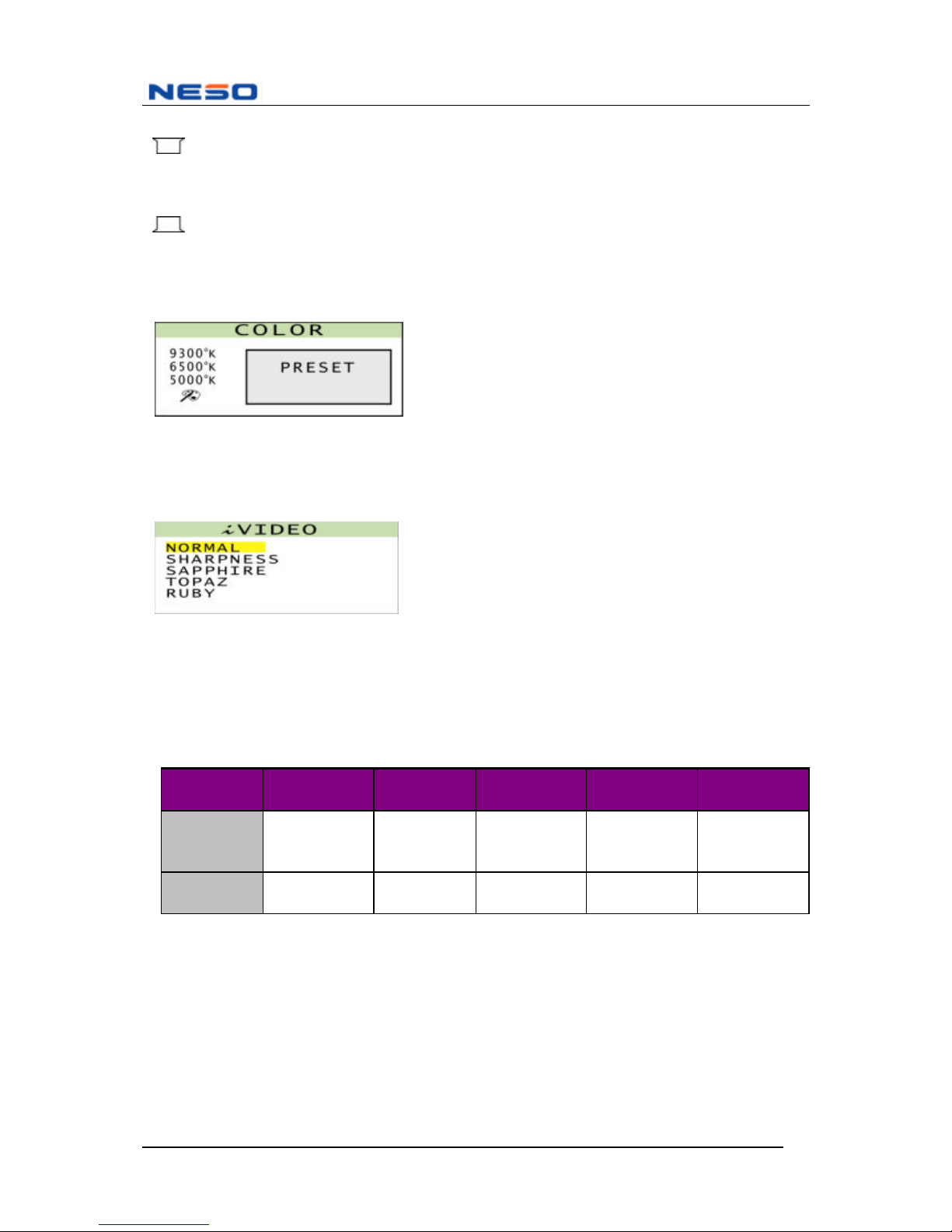
TOP CORNER
Moves the top corners of the screen image inward or outward.
BOT CORNER (Bottom Corner)
Moves the bottom corners of the screen image inward or outward.
COLOR
Provides four color adjustment options: three preset color temperature settings, and User
Adjust, which allows you to adjust color temperatures freely.
iVIDEO
The FD 570A monitor incorporates sophisticated iVIDEO technology, used to switch the
display from Normal to Sharpness, Sapphire, Topaz and Ruby picture quality. These
automatic adjustments allow more comfortable viewing of both still images and video from
media such as VCDs and DVDs. The characteristics of the five setting are described as
below:
Display
Mode
Normal Sharpness Sapphire Topaz Ruby
Display
Picture
User Default Sharper Magnify,
sharper &
brighter
Magnify,
sharper &
brighter
Magnify,
sharper &
brighter
Color
Temperature
User default User default 9300K 6500K 5000K
Important! As both brightness and contrast values are increased when iVIDEO is activated,
NESO does not recommend turning iVIDEO on when performing text-oriented work such as
word processing.
Page 12
FD 570A User’s Manual
12
OPTION
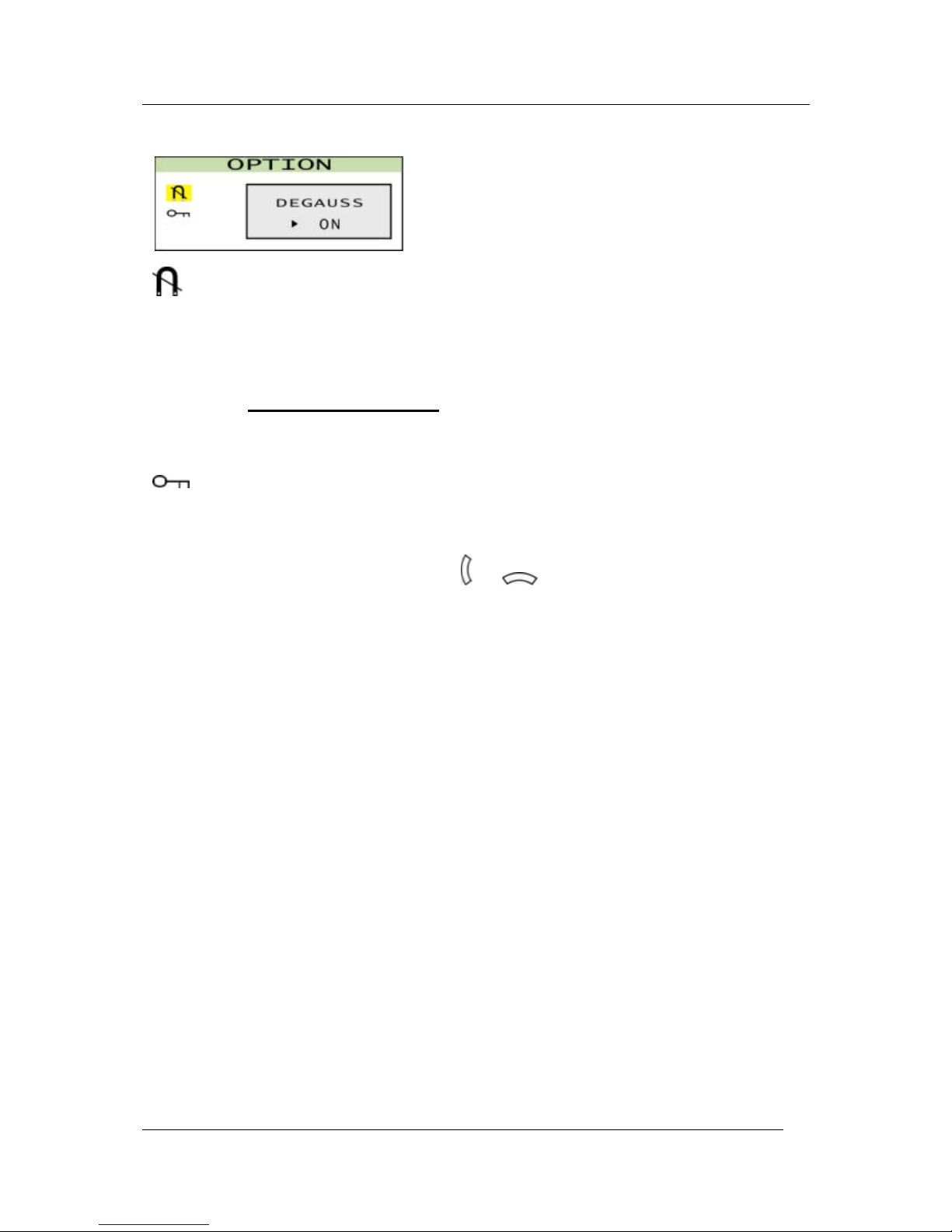
DEGAUSS
The FD 570A monitor provides two ways to degauss the monitor. You can either set it to
degauss automatically whenever it is turned on, or degauss manually by selecting the
Degauss control from the OSD control menu.
Important! Do not degauss repeatedly. Doing so may damage the monitor. Wait at
least 20 minutes before selecting this control again.
KEYLOCK
When this function is activated, current settings in the OSD control menu are locked to
prevent unintended changes.
Another way to lock the setting is by pressing & keys on the front panel
simultaneously for about 5 to 6 seconds. Repeat the same would unlock the setting.
Page 13
13
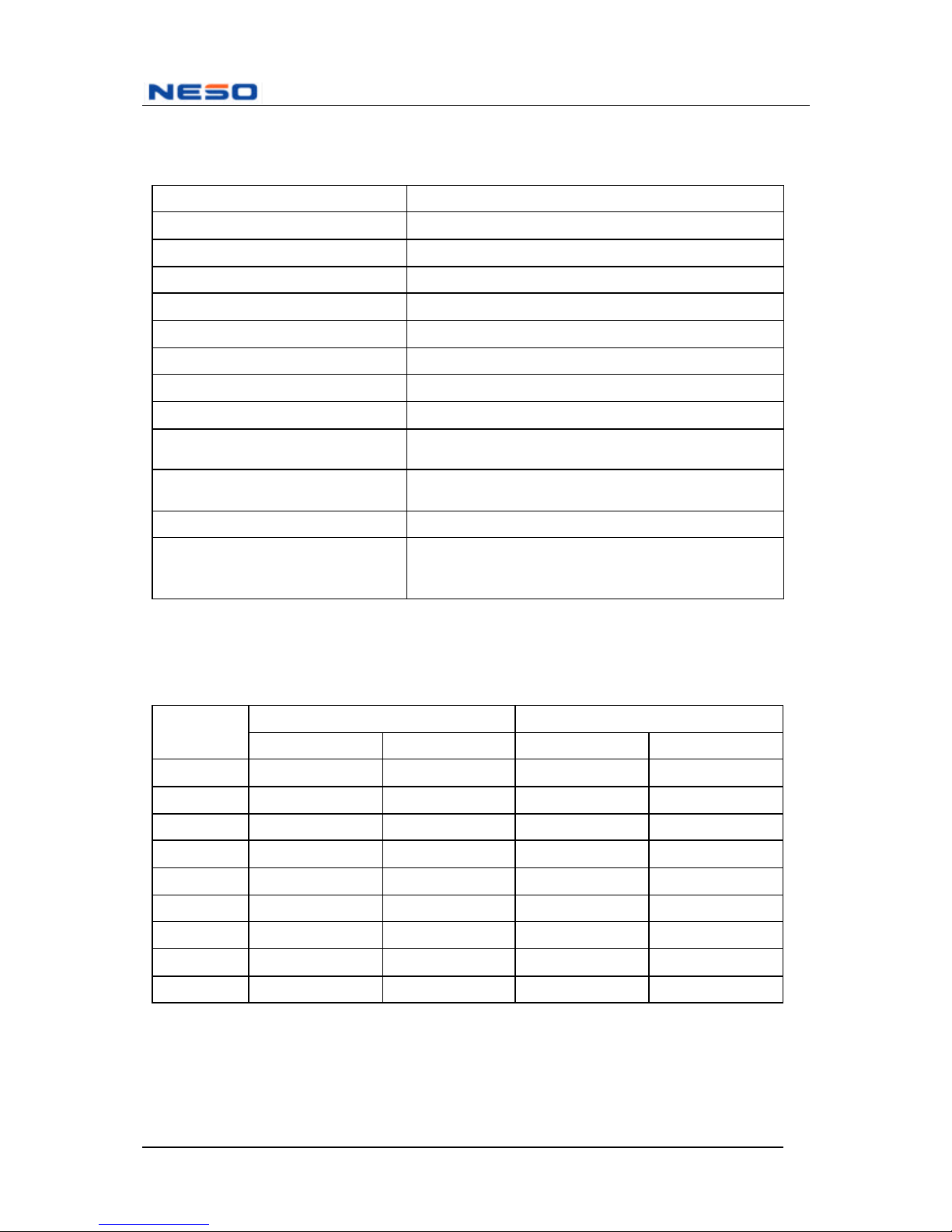
Specifications
CRT Type 15” Sony FD Trinitron®
Aperture Grille Pitch 0.24mm
Maximum Resolution 1280 x 1024 @ 66Hz
Scanning Frequency Horizontal : 30 – 70KHz, Vertical: 50 – 130 Hz
Display Colors Unlimited
Display Area 285mm x 215mm
Input Signal Analog RGB (0.7Vp-p, 75 ohm)
Compatibility PC99, Windows® 95, 98, me, NT, 200, Macintosh®
Power AC 100-240V (universal ); 50-60 Hz
Operating Conditions
Temperature: 10°C – 40°C (50°F – 104°F)
Humidity : 10% - 80% (non-condensing)
Storage Conditions
Temperature: -20°C – 60°C (-4°F – 140°F)
Humidity : 10% - 90%
Regulations UL, cUL, VCCI, BCIQ, MPR II, TCO (option)
Power Saving Mode
Operation : < 90 watts (max.)
Suspend: < 15 watts (max.)
Active off: < 5 watts (max.)
Preset Display Modes
Resolution Frequency Preset
mode
H (pixels) V (line) H (KHz) V (Hz)
1 640 480 31.5 60
2 640 480 43.3 85
3 720 400 31.5 70
4 800 600 46.9 75
5 800 600 53.7 85
6** 832 624 49.7 75
7 1024 768 60.0 75
8 1024 768 68.7 85
9 1152 864 67.5 75
** for Apple Macintosh
Page 14

FD 570A User’s Manual
14
Troubleshooting
No power
n Make sure the power button is ON
n Make sure the power cord is firmly connected to the back of the monitor and to a power
outlet.
Power on but no screen image
n Make sure the video cable supplied with the monitor is tightly secured to the video
output port on the back of the computer. If the other end of the video cable is not
attached permanently to the monitor, tightly secure it to the monitor.
n Adjust brightness and contrast.
Flicker
n There may not be enough power supplied. Connect the monitor to a different power
outlet, or if you are using a surge protector, reduce the number of devices plugged in.
n Use the OSD (On Screen Display) controls to verify that the refresh rate (vertical
frequency) is 75Hz or higher.
n Make sure the graphic card in your computer can use non-interlaced mode at the desired
frequencies. To enable your graphics card to support higher refresh rates, try selecting a
lower number of display colors or using lower resolutions.
n Remove from the area near the monitor any devices, such as radios, unshielded speakers,
or AC power converters that emit magnetic fields.
Incorrect display of colors
n If any colors (red, green, or blue) are missing, check that the video cable is firmly
connected. Damaged pins in the cable connector may also result in a faulty connection.
n Select Degauss from OSD menu.
Entire screen image scrolls (rolls) vertically
n Make sure the video input signals from your computers graphics adapter are within the
monitor’s specified frequency range.
n Try the monitor with a different power source, graphics card, or computer system to
locate the source of the problem.
n Make sure that the video cable is securely connected.
Page 15
15
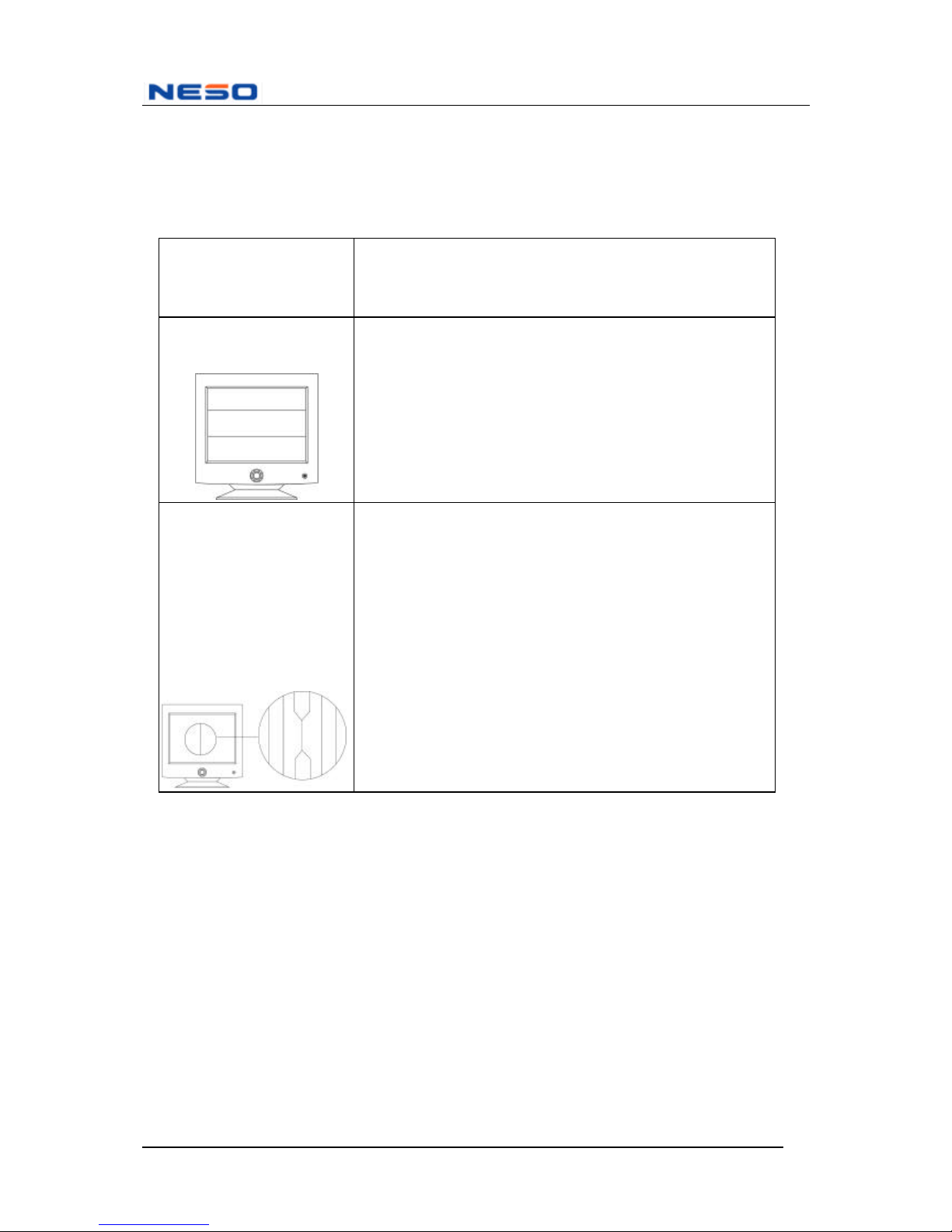
All NESO monitors are designed with “FD Trinitron®” CRT which is sensitive to shocks and
vibrations that may occur during transportation. Following are some adjustments tips when
below mentioned symptoms occur.
Symptom Tip
Two horizontal lines are
visible on the screen
n This is a normal characteristic of Trinitron CRT.
n These are damper wires designed to dampen and
prevent shock and vibration in the aperture grille.
Black fine vertical lines
are visible on the screen.
Shock and vibration may
cause the aperture grille to
misalign resulting in a few
fine black vertical lines
across the screen.
n Degaussing the screen
n Tap lightly (do not hit) the side of the monitor
If above mentioned remedies do not work, please do the
following:
1. Display full white window or wallpaper background
over the area where the black lines appear.
2. Set Contrast and Brightness to the maximum, wait for
a moment until the problem is corrected. You may
try to tap lightly the side of the monitor to help
expedite the alignment.
Page 16

FD 570A User’s Manual
16
Cleaning the Monitor
n Make sure that the monitor is turned off.
n Never spray or pour any liquid directly onto the screen or case.
To clean the screen:
1. Gently wipe the screen with a clean, soft, lint-free cloth to remove dust and other
particulate matter.
2. If the screen surface still does not appear clean, apply a small amount of ammoniaand alcohol-free glass cleaner onto a clean, soft, lint-free cloth, then wipe the
screen.
To clean the case:
1. Use a soft, dry cloth to wipe the surface of the case.
2. If the case still does not appear clean, apply a small amount of a mild ammonia- and
alcohol -free, non-abrasive detergent onto a clean, soft, lint-free cloth, then wipe the
surface.
DISCLAIMER:
NESO strongly discourages the use of any ammonia- or alcohol-based cleaners on the
monitor's screen or case, as they may damage the screen and/or case of the monitor.
NESO shall not be liable for any damage to the monitor resulting from use of any
ammonia or alcohol-based cleaners.
 Loading...