

Page 1
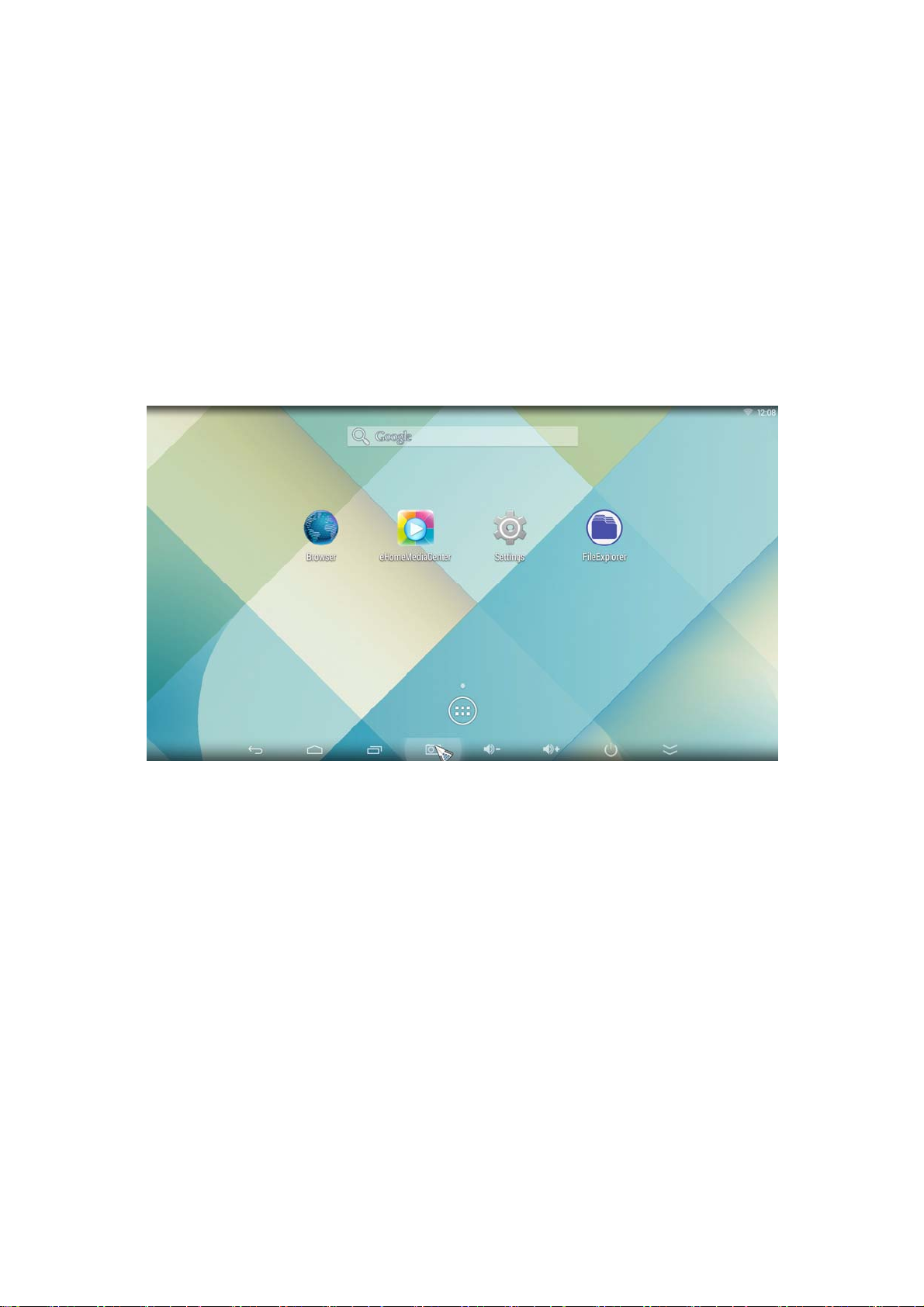
Operating Instruction
Power on the Device-turn on your TV, connect U4X to your TV with HDMI cable, select
source of the HDMI.
Main Menu
After booting, you will go into the main interface as below
* Using the remote control or mouse to move the cursor to control the device
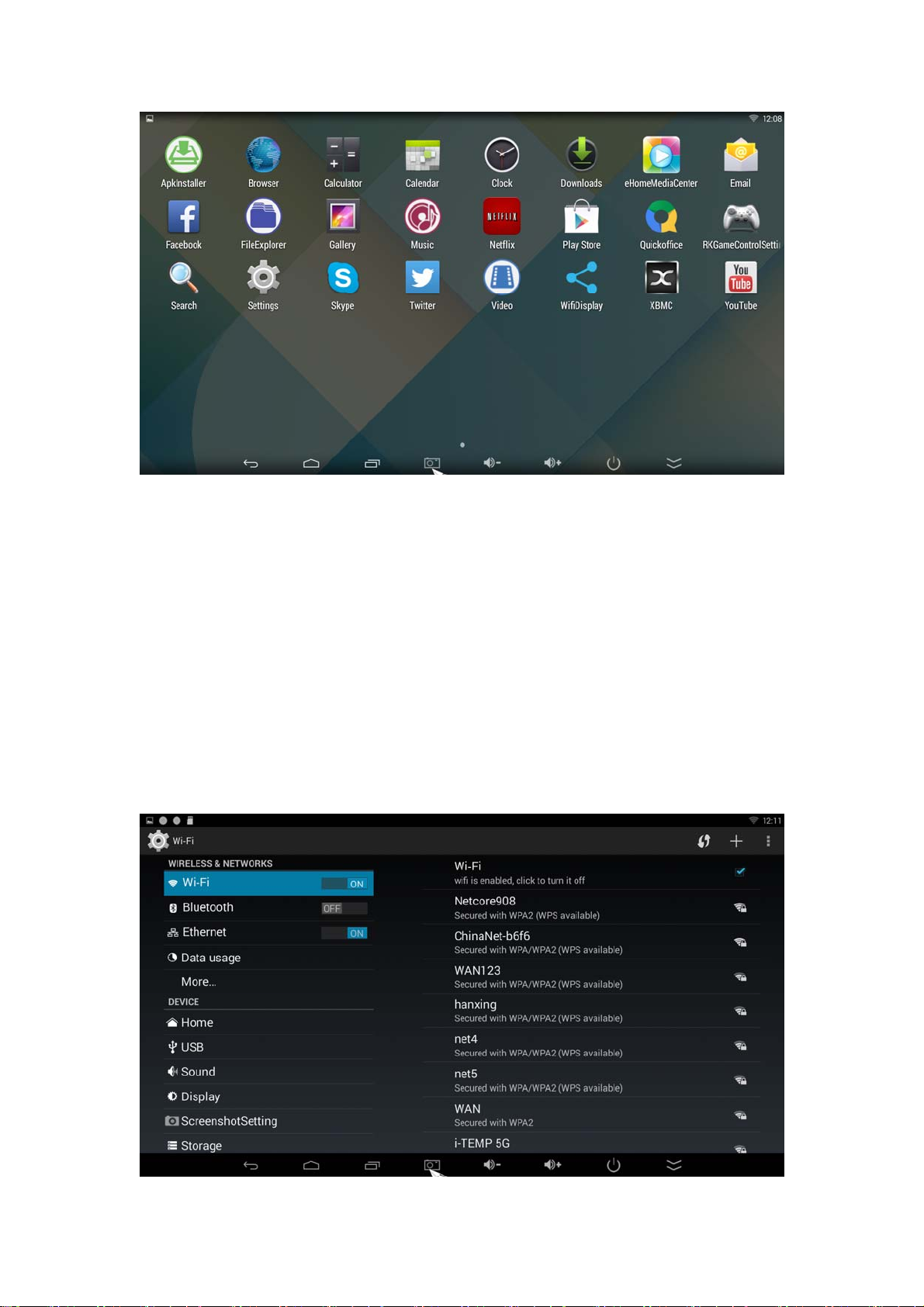
* Click the central button to enter application, get all the basic apps, or you could
download from play store.
Page 2
WiFi Setting
Page 3
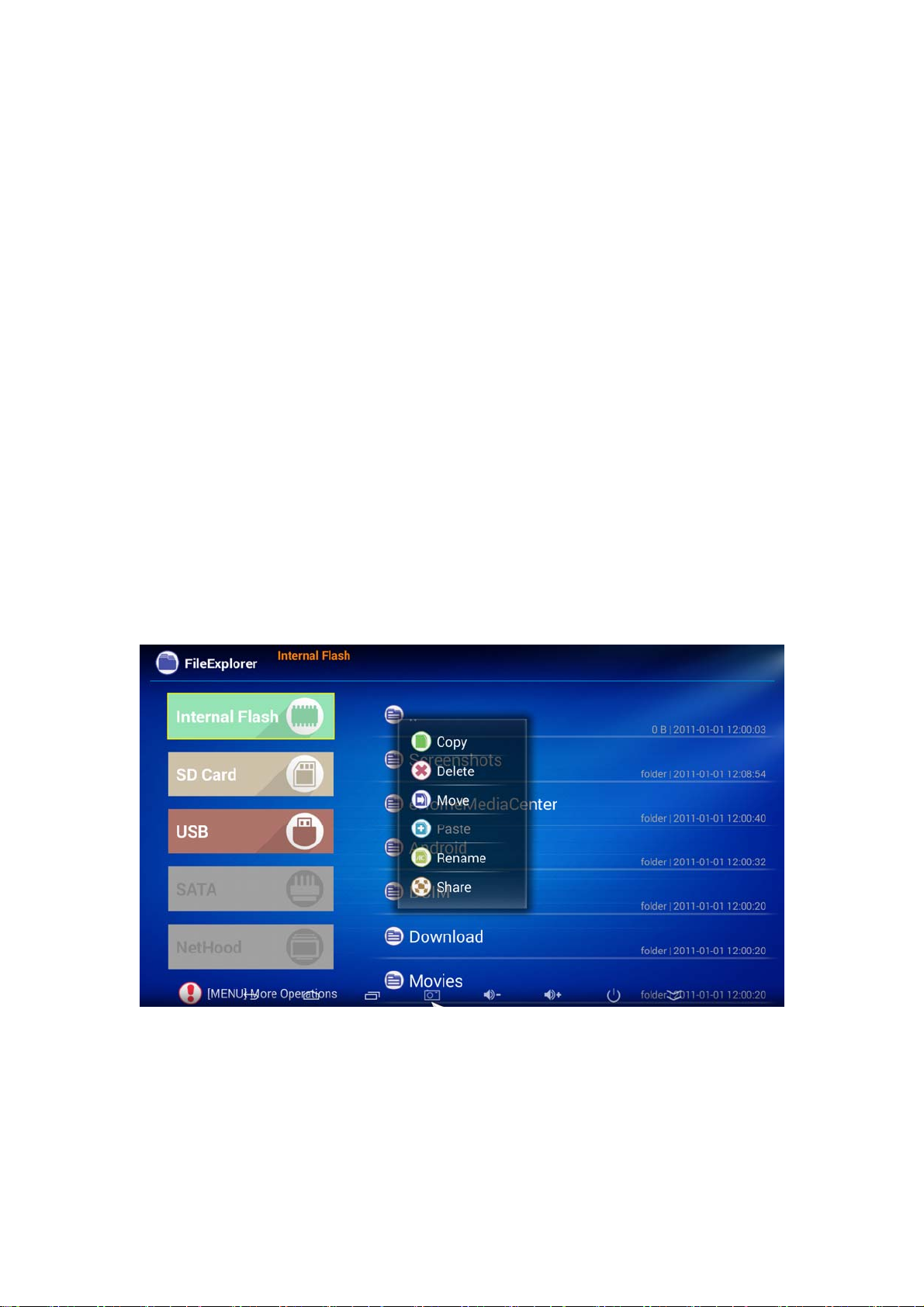
* Click Setting, choose network
* Searching local network and connected to able the network
* or wifi not available, choose Ethernet
* After setup network, go back to main interface, you are able to browser website and
download apps from play store.
Bluetooth connection settings
1 enter the device system settings 2., enter the general settings 3., enter Bluetooth
settings, open Bluetooth, automatically search nearby other Bluetooth devices, 4. select
Bluetooth devices, matching success will show that the device has been connected
successfully
Browse the file
* In Desktop state, click the application bar icon, enter into the application field, click into
the" resource manager."
* In the file list can be clickable sliding, rolling.
* Click on the required file or folder, can open the file or folder.
Page 4
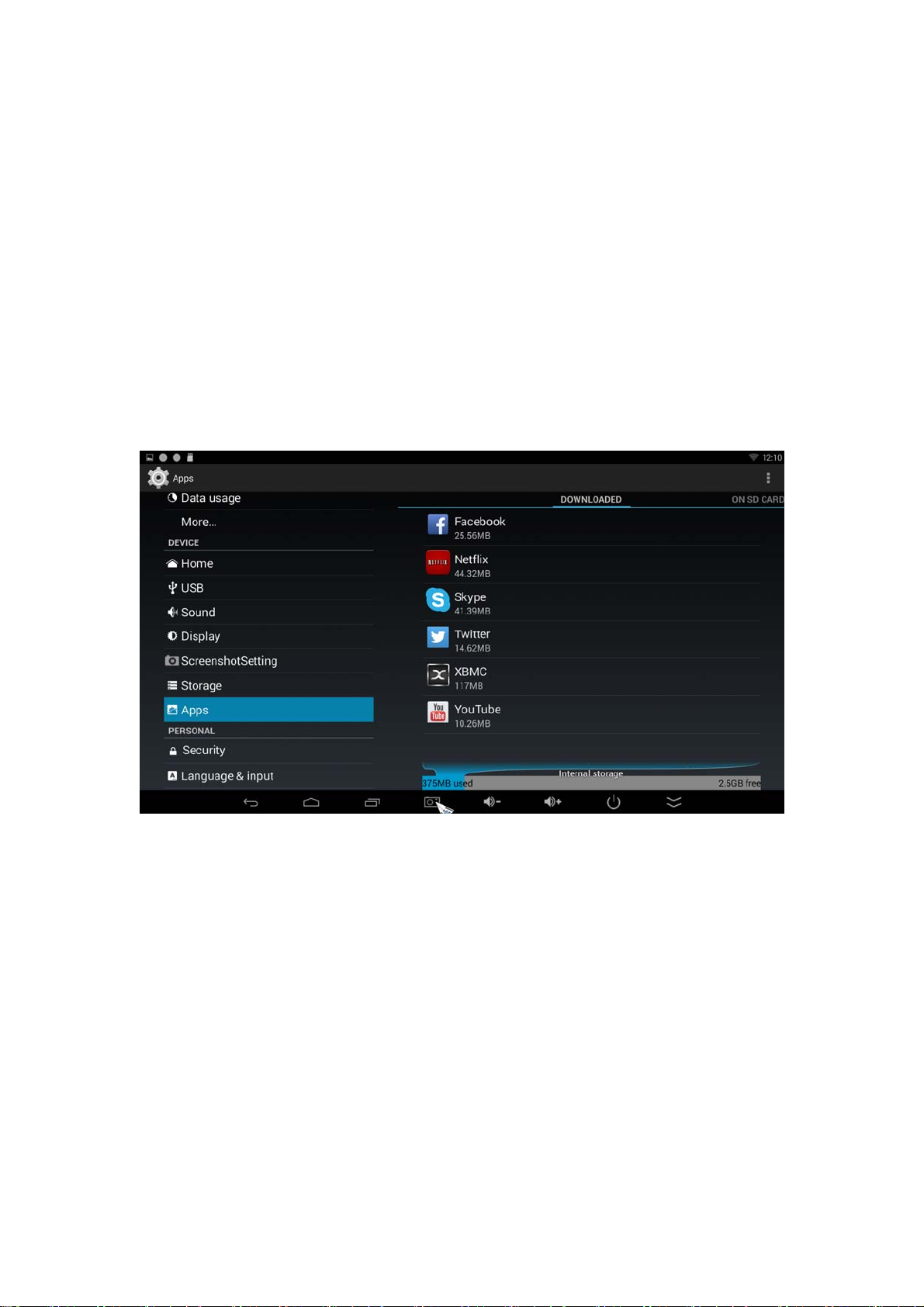
* Click the status bar of the back button to return to the level folder.
* Click the Home button on the status bar, you can return to the home page.
* Long press a file or folder, window pop up with a menu, for example: "Copy, delete,
move, paste, rename" and other additional options. If you do not execute the operation,
click on the Cancel button directly
Install/Uninstall Apps
Device operating system default for Android version, install the software required to
process the format is*. Apk format.
* this device supports many popular third-party application software formats
* this device can be installed or uninstalled you need software.
* To install an application, the need to*. Apk format copied to your U4X, then open”
resource manager",click to install*. Apk file.
Page 5
* Installed application, will appear in the application bar.
* To uninstall the software, click "Settings" to enter the setup menu, click into the
"Applications" tab, then click: "Manage Applications", click on the software you want to
uninstall, and click "Uninstall.
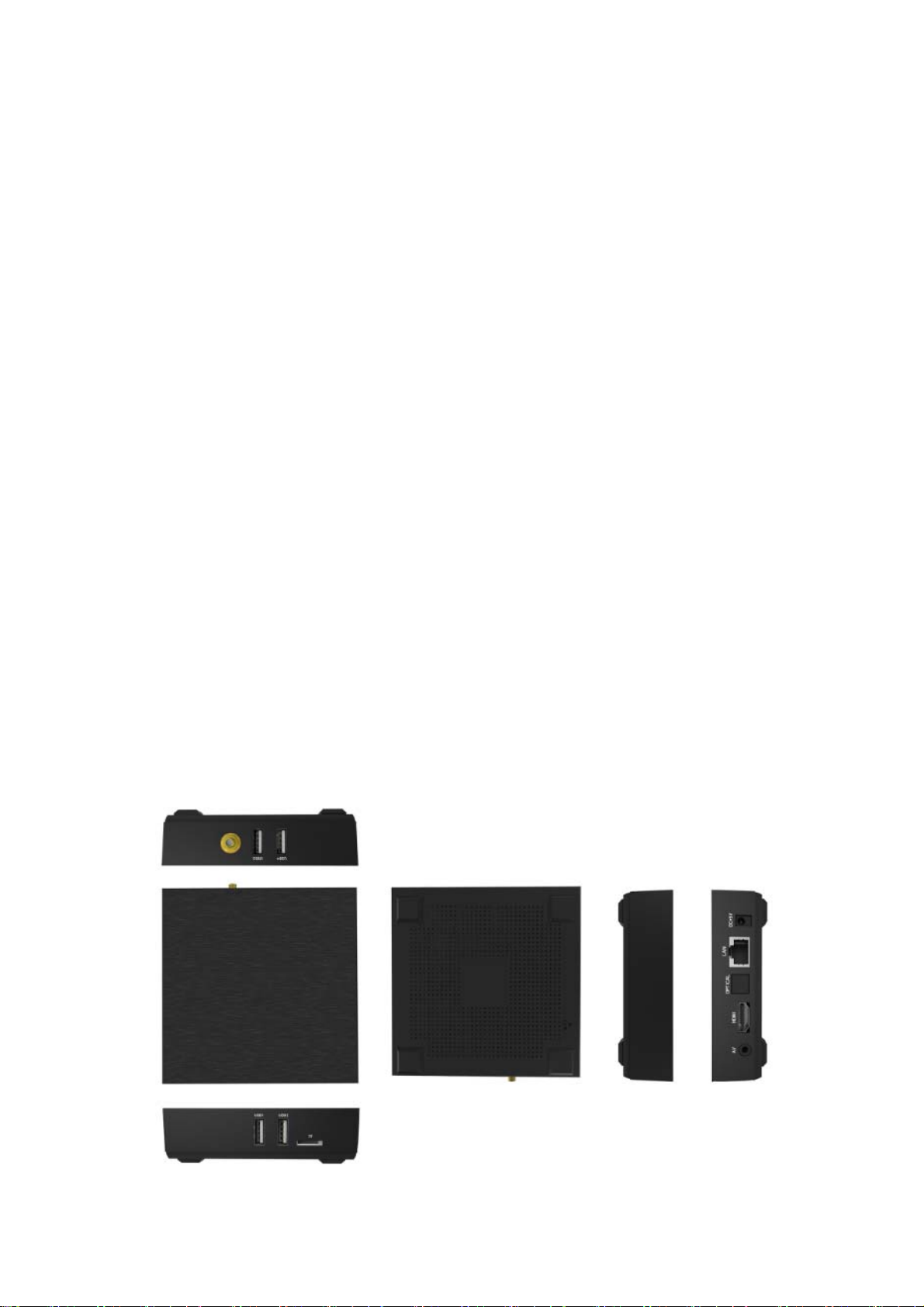
Product Display
4 x USB
1 x TF card slot
1 x HDMI port
1 x AV port
1 x Optical port
1 x RJ45 jack
1 x DC port
1 x External antenna port
Page 6
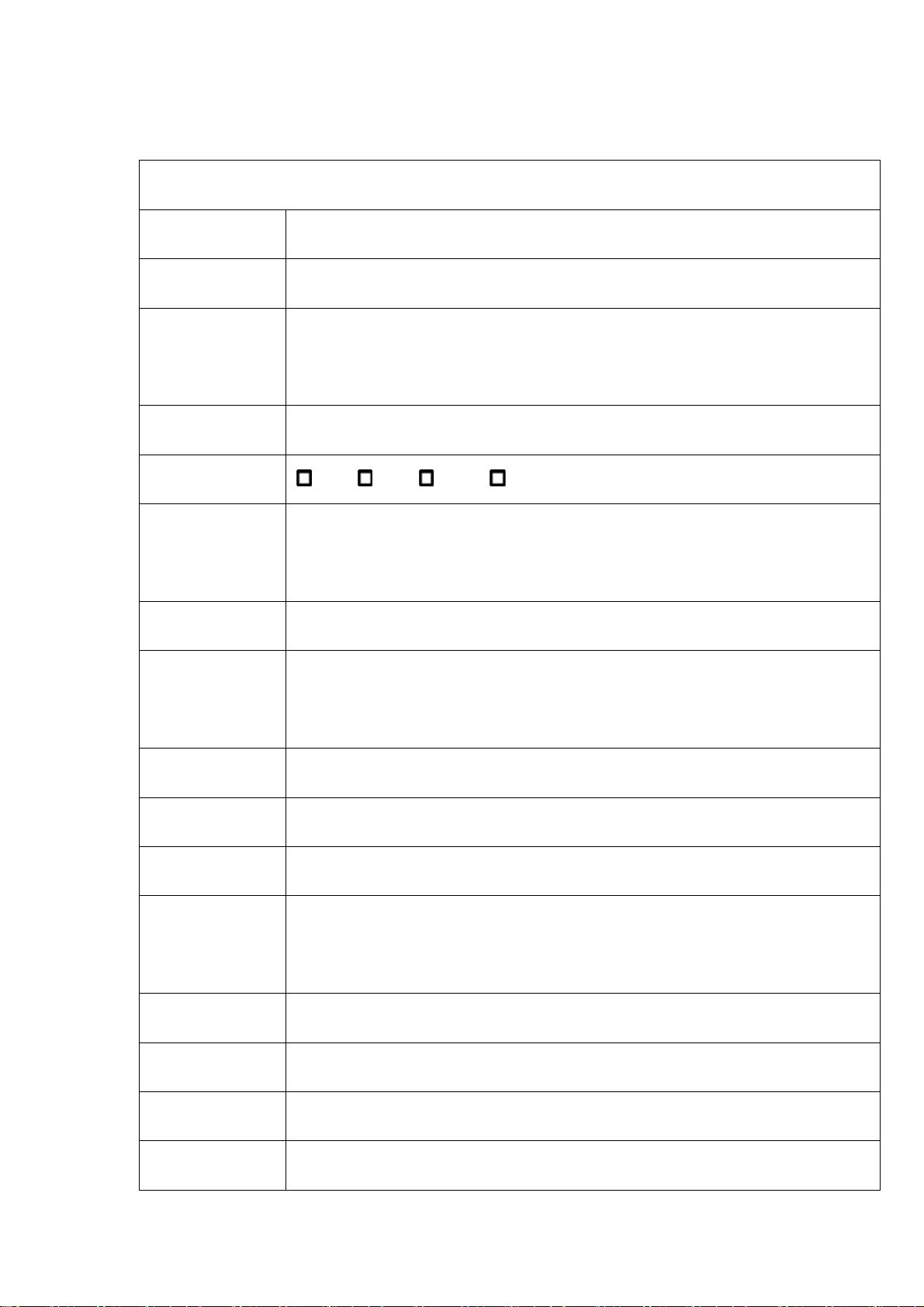
Specs.
Specifications of appendix:
Model# Android Smart BOX
CPU RK3229
Main
Frequency
Quad-core ARM Cortex-A17 CPU with up to 1.8GHz and GPU is Mali-T764
Inner memory 2G DDR3
Memory 4G 8G 16G 32G
Operating
system Android 5.1
User interface Android system lnterface style
4K H.264/H.265 decoder, 1080P multi-video decoders
Video
1080P video encoding for H.264 and VP8, MVC
Audio MP3/WMA/APE/FLAC/AAC/OGG/AC3/WAV etc.
Picture Supports variety of image formats browsing (jpg、png、bmp etc.)
Flash Supports flash 11.1
Storage
Expansion Support TF card and mobile hard disk expansion
USB 4 USB HOST 2.0
TF card Support up to 32GB capacity
HDMI HDMI 2.0 with up to 4K(2160p)
Bluetooth BT 4.0
Page 7
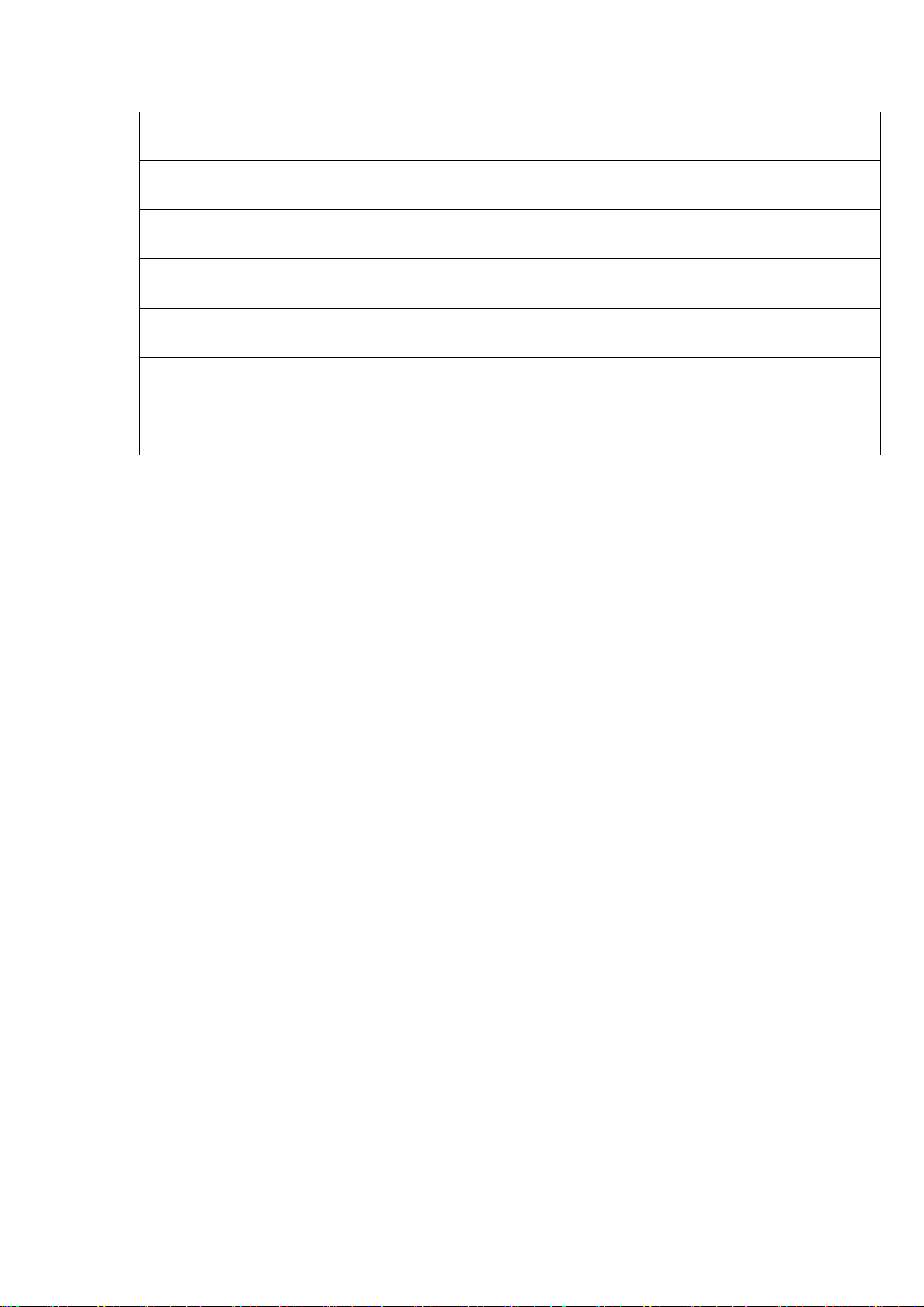
Wifi 2.4G Wifi
Rj45 Connection the wire network
Audio Optical Supports Audio optical output
Remote control Support IR remote and 2.4G Wireless remote
AV Out Support AV out
Voltage
parameters 5V-2.5A DC
Page 8
 Loading...