

Page 1
NEC CONFIGURATION SERVICE
USER GUIDE
Page 2

Table of Contents
Introduction ........................................................................................................................................................................... 2
Accessing the Configuration Service .................................................................................................................................... 2
NCS Configuration Service Dash Board ................................................................................................................................ 3
Registration ........................................................................................................................................................................... 3
UT880 MAC Address Information ........................................................................................................................................ 4
NCS Templates ...................................................................................................................................................................... 4
Template Configuration for the Multiline Client ................................................................................................................. 5
Dialer Configuration .............................................................................................................................................................. 7
Bulk Registration ................................................................................................................................................................... 8
The Bulk Registration .CSV file .............................................................................................................................................. 8
Device Replacement ........................................................................................................................................................... 10
Registered Devices .............................................................................................................................................................. 11
Page 3
User Guide
Introduction
The NEC Configuration Service (NCS) is an ITX-7PUC-TEL (UT880 Telephone) manager tool which affords LMS
Administrators the ability to seamlessly activate licenses and configure the UT880 phone parameters in a
central location.
Accessing the Configuration Service
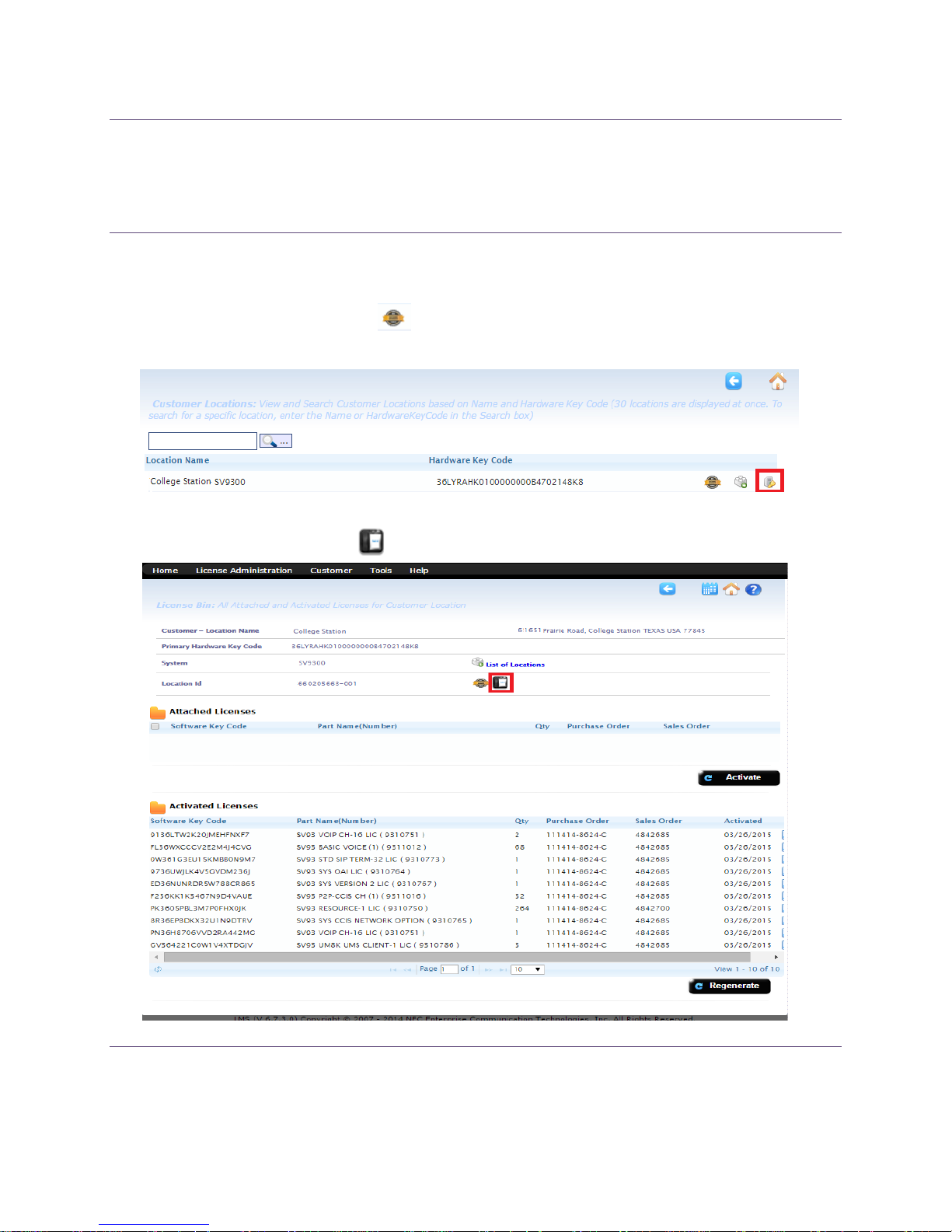
The NEC Configuration Service is associated with an active customer location that is supported under a software
assured contract. LMS Administrators may identify a SWA assured location under the LMS customer location
section associated with the SWA icon . The license information icon is where you will find the terminal
Configuration Service when selected administrators are directed to the activated license page.
The Configuration Service portal is always associated with a customer location and may be accessed via the
license information terminals icon .
11/3/2015 Page 2
Page 4
User Guide
NCS Configuration Service Dash Board
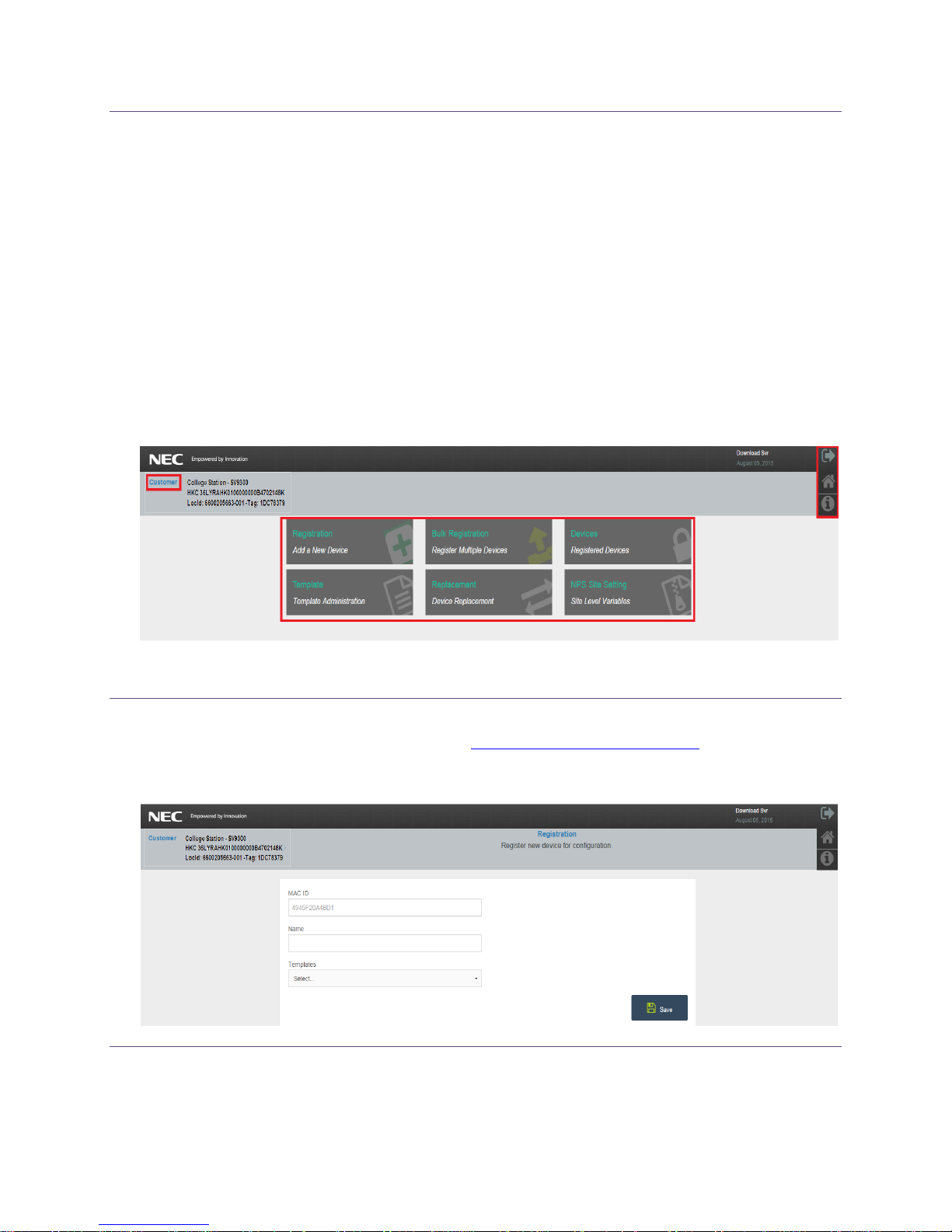
Once redirected to the the UT880 Configuration Service administrators gain access to register configuration
paramteres on the ITX-7PUC-TEL (UT880 Telephone).
Supported parameters like Single Registration, Bulk Registration, Device Review, Defining Terminal Templates,
Terminal, Replacements and Devices.
The dashboard layout consist of Customer location information , Navigation Buttons, and Configuration menu
items.
Customer location information : Location name, hardware key code, Location ID, and Tag ID. listed in the upper
left corner. This is a READ-ONLY information and is same as presented on the LMS.
Navigation Buttons- Home, Back button , and User login information listed in the upper right corner
Configuration Parameters – Registration, Bulk Registration, Devices, Template, Replacement and Site Config
listed in the center of the page
Registration
The UT880 device is registered based on a Terminals MAC Address (XX: XX: XX: XX: XX: XX) and Device Name
(Templates are optional). The template option is available if you have predefined a template for applying the
same configuration to multiple devices
11/3/2015 Page 3
Page 5
UT880 MAC Address Information
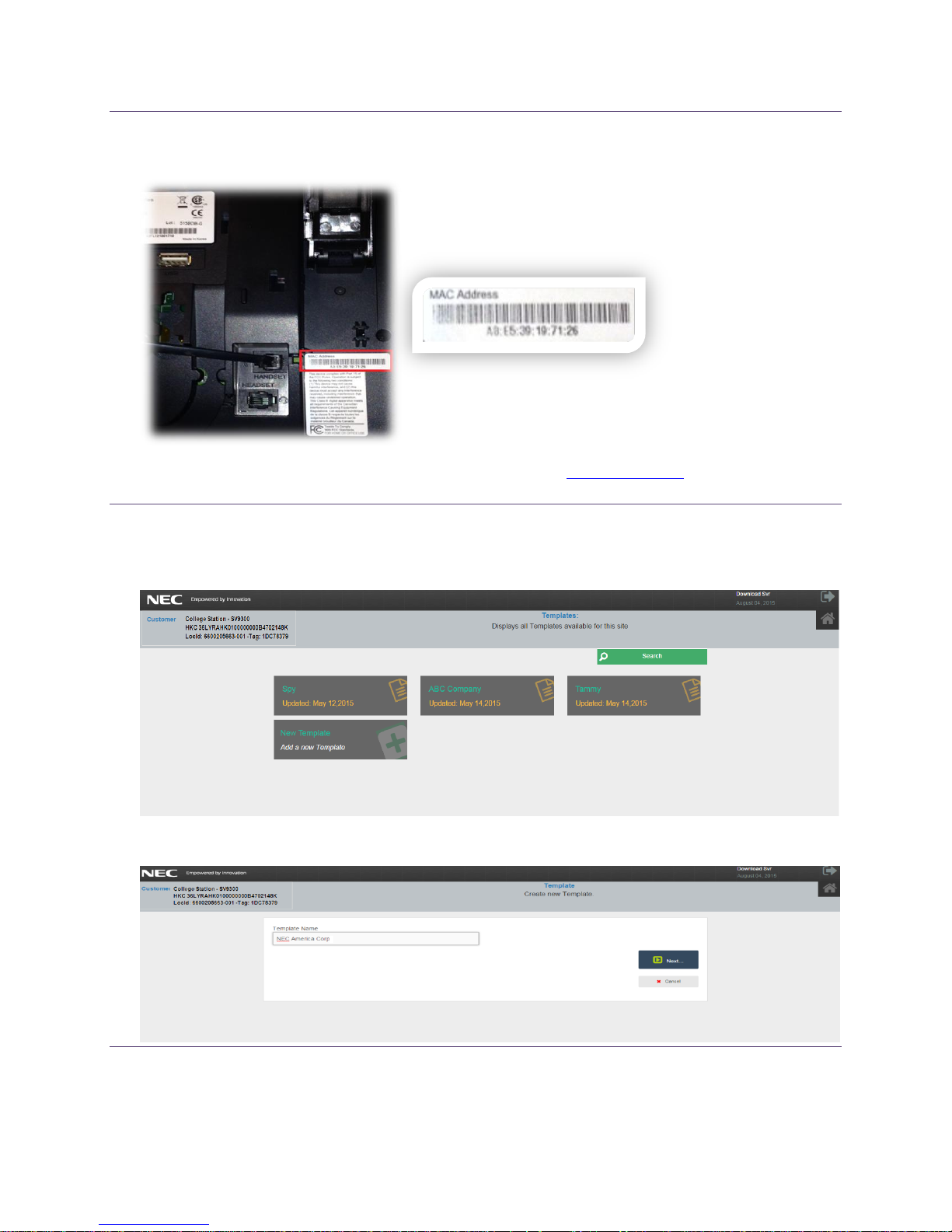
The UT880 MAC Address information is normally located on the bottom of the UT880 as shown below.
Once the phone is registered you should see the UT880 listed in the Registered Devices
NCS Templates
User Guide
A template is normally used when configuring multiple divices with specific parameters that are shared among
various terminals. For example if Building A supports Accounting Team and Building B Supports Sales Team.
You may define templates to support each Building A and Building by selecting the “New” Template tag.
11/3/2015 Page 4
Page 6
User Guide
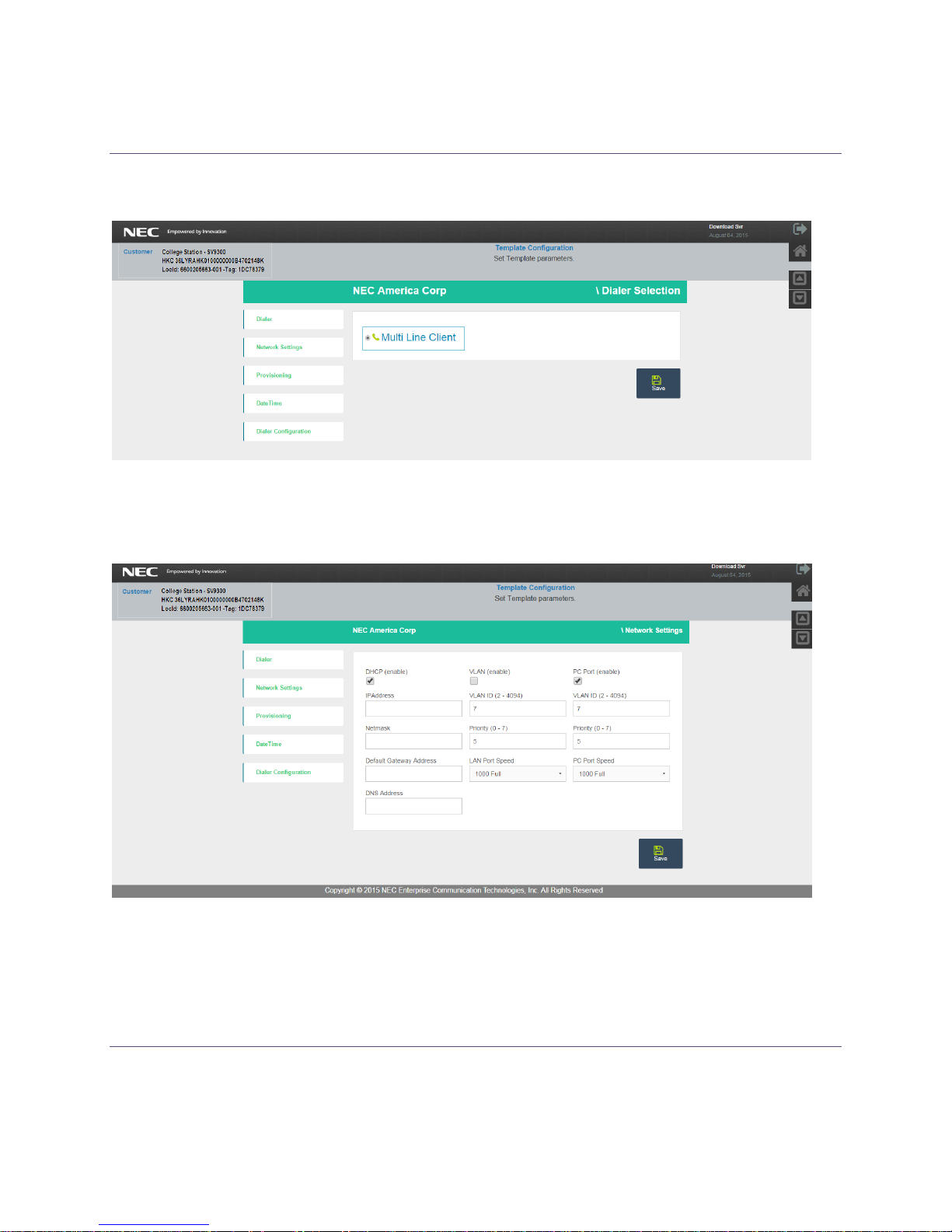
Template Configuration for the Multiline Client
Dialer – The Multi Line Client dialer is only dialer supported in the future there will be mulitle at release.
Network Settings
Network settings may be configured for DHCP ( enabled at DEFAULT ) or static assignment. The device VLAN and PC
Port(enabled at default) VLAN setting may also be defined.
11/3/2015 Page 5
Page 7
User Guide
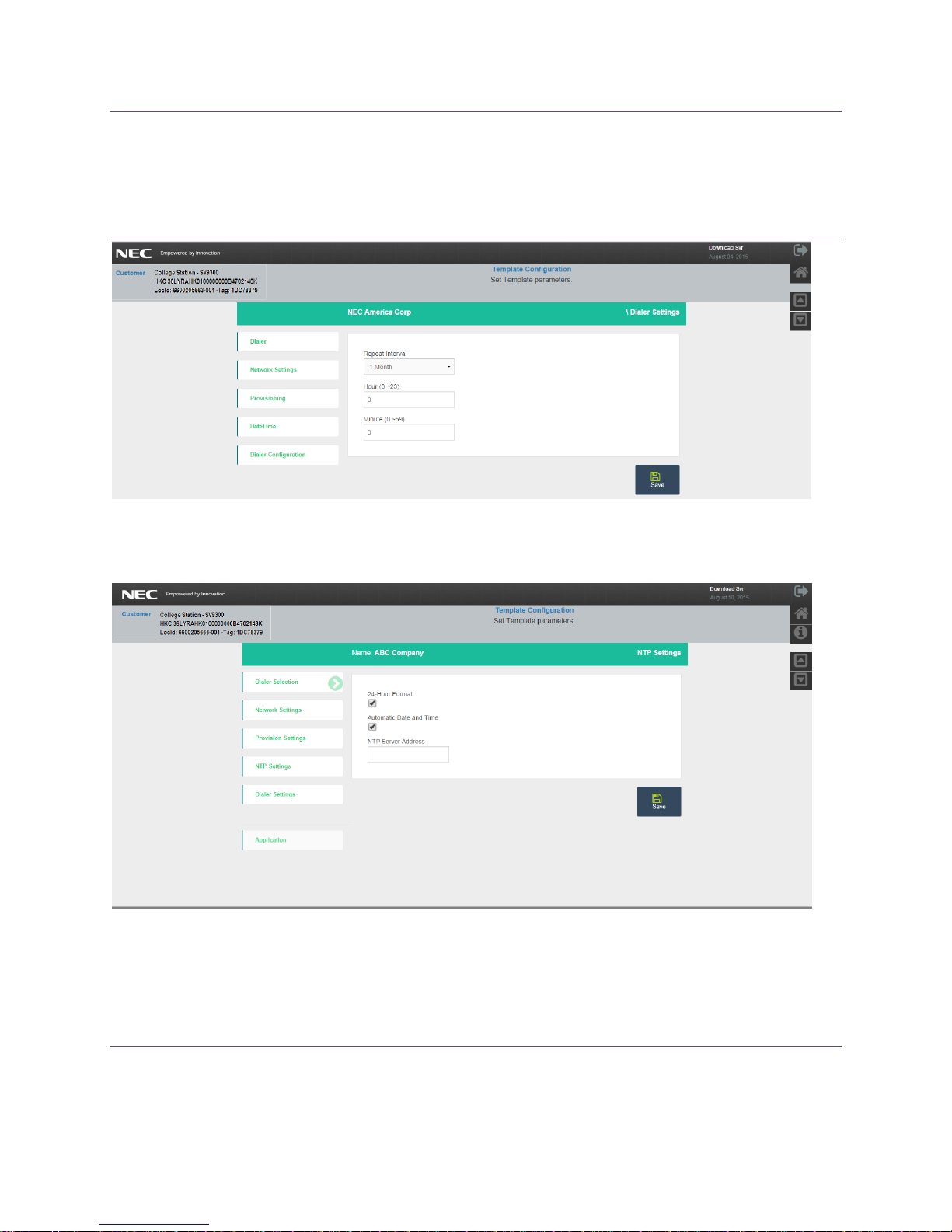
Provisioning
The UT880 phone can contact the Configuration Service for updates periodically. In this section, you can
configuration the duration between successive provision updates. For example, if you set the UT880 to check
for provisioning every day at midnight, you can then expect the changes you do for that phone configuration to
apply to the phone overnight.
NTP Settings
Define the time format and Network Time server information .
11/3/2015 Page 6
Page 8
User Guide
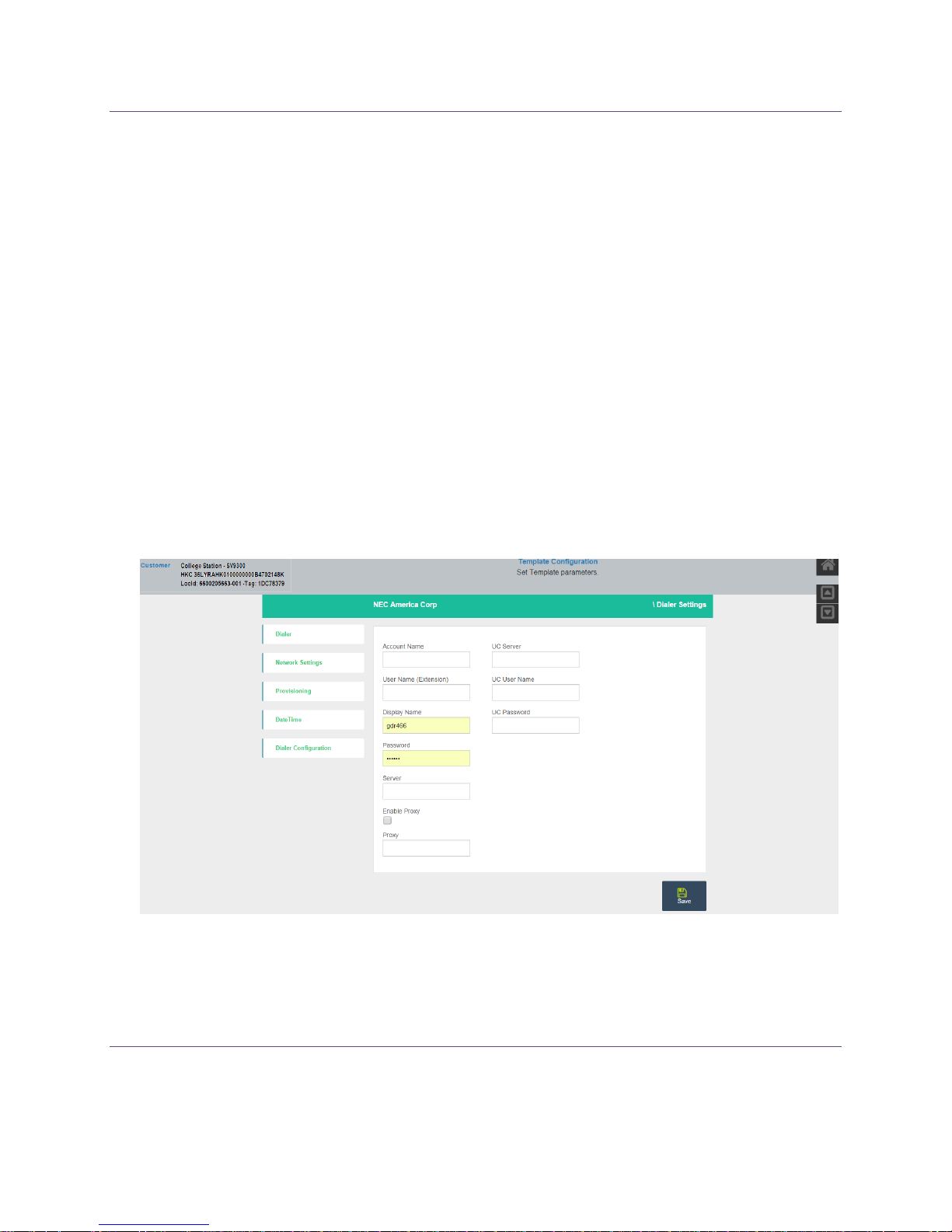
Dialer Configuration
The dialer configuration parameters are normally the system parameters needed to register the MLC Client as
ISIP/NSIP Client. Parameters such as contain some of system parameters that registration parameters dare obtained
and defined Define the time format and Network Time server information
Account Name- Profile or account name
User Name: SIP user name assigned by the administrator after provisioning in the phone system.
Display Name: Name that is displayed in the application.
Password: This field must match with the information provisioned in the phone system.
Server: The IP address of the phone system and corresponding domain.
Enable Proxy: Check n switch if there is a proxy server serving the SIP agent like the Multiline Telephone application.
Proxy: Define the phone system URI and port number for SIP connectivity.
UC Server: Define the UC Server URI or IP address.
UC Server Username: Define the UC application user name.
UC Server Password: Define the UC application password.
11/3/2015 Page 7
Page 9
User Guide
Bulk Registration
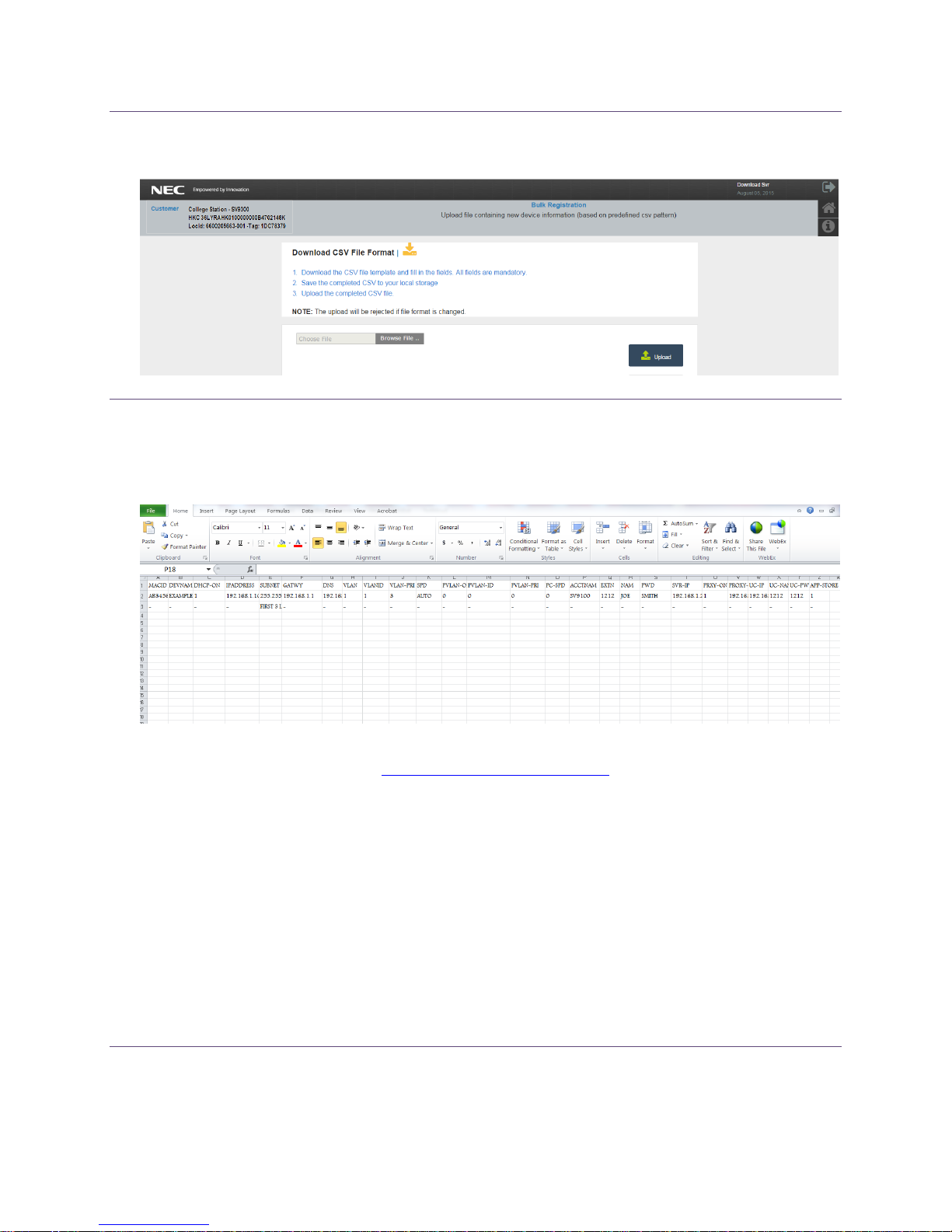
The Bulk registration is another alternate method to configuring multiple devices.
The Bulk Registration .CSV file
The NCS allows you to download a (.CSV) file template which lists all the required data fields needed to support
bulk upload. All the fields in each column must be populated to activate a device if there is missing data within
any of the fields the upload will not load resulting in an unsuccessful file upload.
MACID:
[MAC Address Field]: Populate Unique MAC Address (XX: XX: XX: XX: XX: XX)
NAME:
[Device Name]: Assign a unique identifier for the device
DHCP:
Supported values (1) Enable (0) Disable.
IPADD:
Define the device static IP Address. Supported values: xxx.xxx.xxx.xxx (assign only if DHCP=0)
NETMASK:
Define the device Subnet Mask Address. Supported values: xxx.xxx.xxx.xxx (assign only if DHCP=0)
GATEWAY:
Define the device Default Gateway Address. Supported values: xxx.xxx.xxx.xxx (assign only if DHCP=0)
11/3/2015 Page 8
Page 10

User Guide
DNS:
Define the device Domain Name Server Address. Supported values: xxx.xxx.xxx.xxx (assign only if DHCP=0)
VLAN:
Supported values (1) Enable (0) Disable. (Numbers only)
VLANID:
VLAN Identifier. Supported Values (2-4094) (Numbers only)
VLAN PRI:
VLAN Priority. Supported values (1-7) (Numbers only)
LANSPD:
LAN Port Speed, supported values (Auto, 1000Full, 100Full, 10Full, and 10Half
PCPort
PC Port. Supported values (1) Enable (0) Disable (Numbers only)
PC-VLANID:
VLAN Identifier. Supported Values (2-4094) (Numbers only)
PC-VLANPRI:
VLAN Priority. Supported values (1-7) (Numbers only)
PC SPD:
PC Port Speed. Supported values (Auto, 1000Full, 100Full, 10Full, and 10Half
ACCTNAME:
Multiline Client Account Name (Text only)
EXTN:
Multiline client extension (Numbers only)
NAME:
Multiline Client Name (Text only )
PASSWORD
Multiline Client Name (Text only)
SVRIP:
The Multiline Client Server IP Address. Supported values: xxx.xxx.xxx.xxx (Numbers only)
PRXY-ON:
The Multiline Client Proxy Server Enable. Supported values (1) Enable (0) Disable. (Numbers only)
PRXY-SVR:
Define the Multiline Client Server Proxy Server IP Address. Supported values: xxx.xxx.xxx.xxx (Numbers only)
UC-SVR
The Multiline Client UC Server IP Address. Supported values: xxx.xxx.xxx.xxx (Numbers only)
11/3/2015 Page 9
Page 11
User Guide
UC-USER
The Multiline Client UC Server Name. Supported Value –(Text only)
UC-PWD:
The Multiline Client UC Server Password. Supported value – (Text or numbers)
APP-ON
APP Store. Supported values (1) Enable (0) Disable (Numbers only)
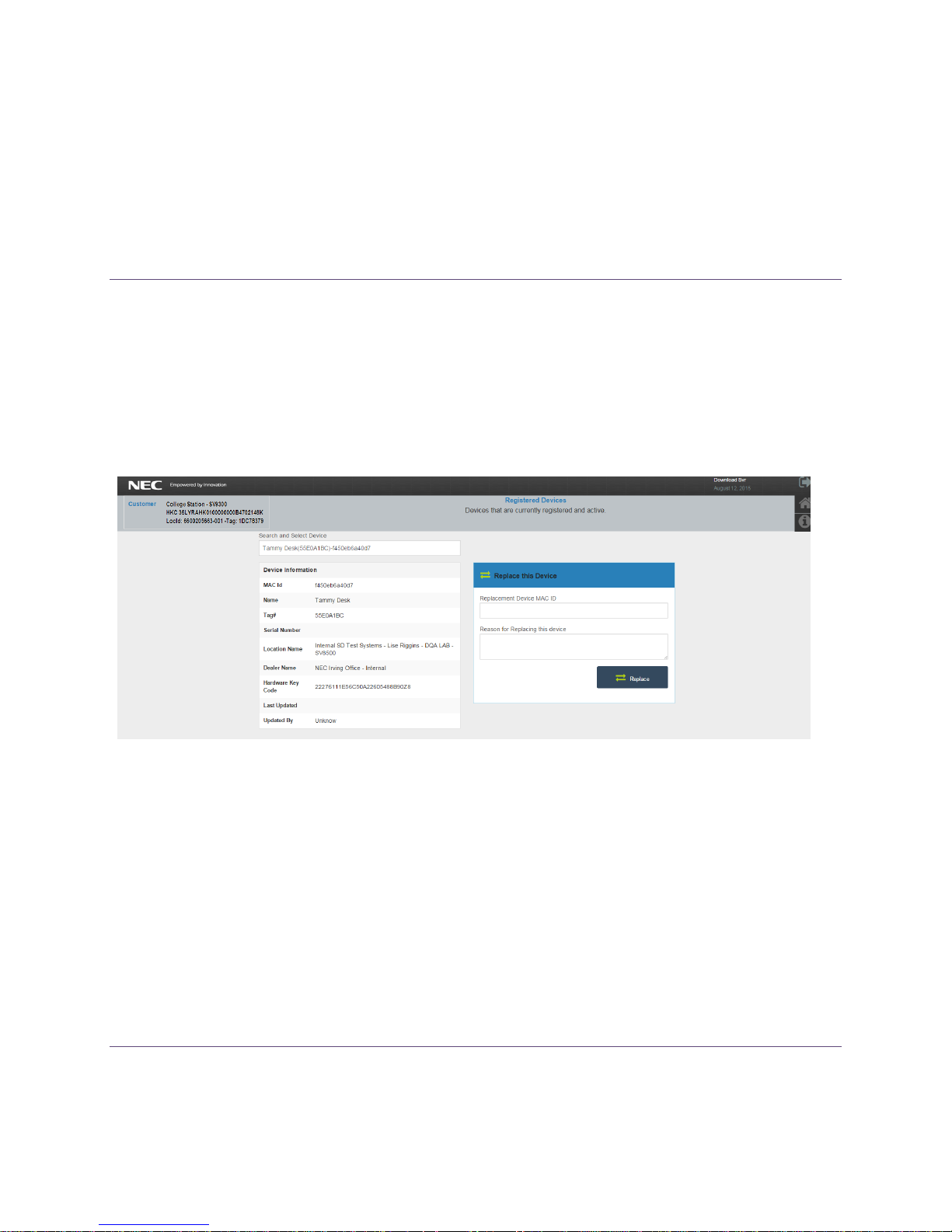
Device Replacement
The device replacement works similar to LMS hardware replacement .Search for the registered device you wish to
replace by populating a few characters of the device name or Mac address the NCS portal will search the database
for the device that best matches your search requirements and provide a list of registered terminals within your
account.
Once you have chosen the device to be replaced the NCS will look up that device details outlining a summary listing
details related to the MAC ID, Name, Tag, Serial number, Location Name, Dealer Name, Hardware key code
associated with the device, last updated and person that performed the update.
11/3/2015 Page 10
Page 12
User Guide
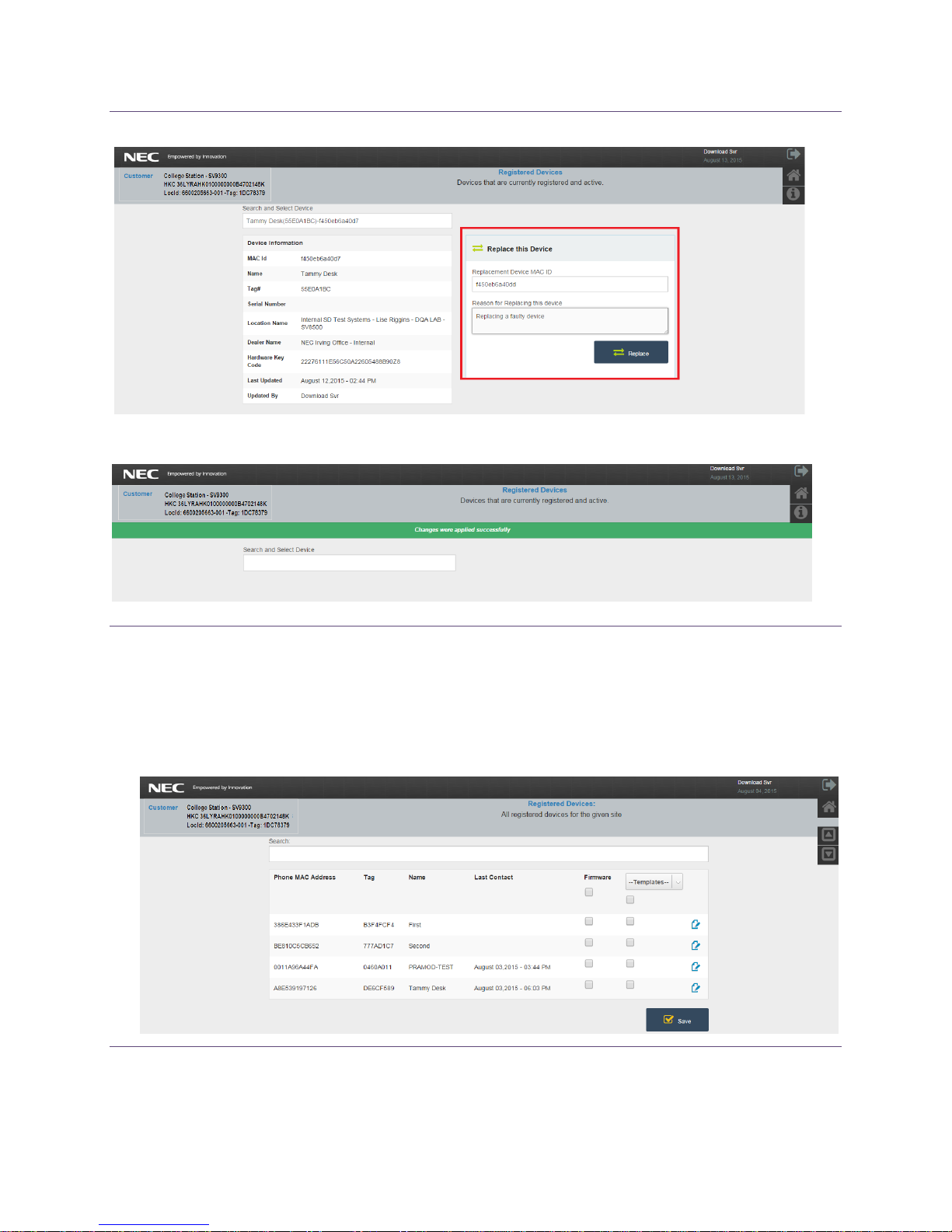
Populate the replacement device MAC address and a valid reason to replace the device and select Replace.
The “Changes were applied successfully” confirmation message will appear.
Registered Devices
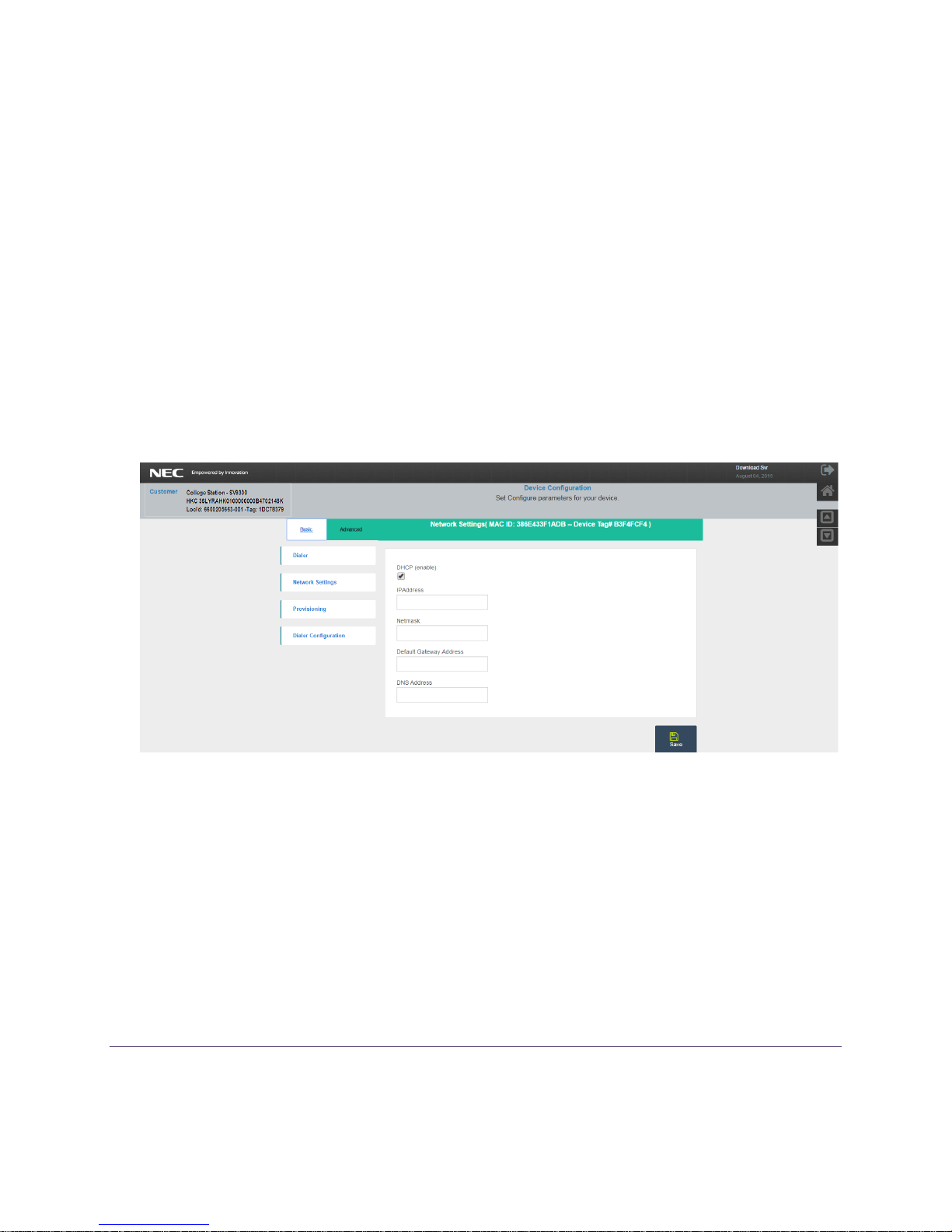
The Configuration Server keeps realtime history of all registered devices by MAC Address, TAG ID and Device Name,
Administrators can determine the last time a Device templated was synched with the NCS time stamp listed under
the last contacted column.
11/3/2015 Page 11
Page 13
User Guide
Phone MAC Address: Unique 12 character ID
Tag: NEC Terminal Identifier (Future Use)
Name: Device Name
Last Contacted: Last time the device communicated synched up with the NCS server.
Firmware: Enable automatic firmware updates for a device.
Template: A new phone template may be applied at any time to registered devices. Select the template you
wish to use from the template drop down list and check the device followed by pressing the Save button.
Basic Configuration: Allows you to download/Modify the devices basic running configuration. (The basic network
settings, Provisioning settings and Basic dialer settings these parameters have excluded some of the more
advance settings.)
Advance Configuration: Allows you to download/Modify the devices Advance running configuration. (All
network settings, Provisioning settings and Dialer setting to include basic and advance settings.)
For additional assistance on the Configuration Server, please call NTAC at 800-852-4632.
11/3/2015 Page 12
 Loading...