

Page 1

Radio Frequency (RF) Signals
THIS MODEL PHONE MEETS THE U.S. GOVERNMENT'S REQUIREMENTS FOR EXPOSURE TO
RADIO WAVES.
Your wireless phone contains a radio transmitter and receiver. Your phone is designed and
manufactured not to exceed the emission limits for exposure to radio frequency (RF) energy set by the
Federal Communications Commission of the U.S. Government. These limits are part of
comprehensive guidelines and establish permitted levels of RF energy for the general population. The
guidelines are based on standards that were developed by independent scientific organizations
through periodic and thorough evaluation of scientific studies.
The exposure standard for wireless mobile phones employs a unit of measurement known as the
Specific Absorption Rate (SAR). The SAR limit set by the FCC is 1.6W/kg.* Tests for SAR are
conducted using standard operating positions accepted by the FCC with the phone transmitting at its
highest certified power level in all tested frequency bands. Although the SAR is determined at the
highest certified power level, the actual SAR level of the phone while operating can be well below the
maximum value. This is because the phone is designed to operate at multiple power levels so as to
use only the power required to reach the network. In general, the closer you are to a wireless base
station antenna, the lower the output.
Before a phone model is available for sale to the public, it must be tested and certified to the FCC that
it does not exceed the limit established by the U.S. government-adopted requirement for safe
exposure. The tests are performed on position and locations (for example, at the ear and worn on the
body) as required by FCC for each model. The highest SAR value for this model phone as reported to
the FCC when tested for use at the ear is 0.780W/kg, and when worn on the body, is 0.468W/kg. (Bodyworn measurements differ among phone models, depending upon available accessories and FCC
requirements). While there may be differences between the SAR levels of various phones and at
various positions, they all meet the U.S. government requirement.
The FCC has granted an Equipment Authorization for this model phone with all reported SAR levels
evaluated as in compliance with the FCC RF exposure guidelines. SAR information on this model
phone is on file with the FCC and can be found under the Display Grant section at https://
gullfoss2.fcc.gov/oetcf/eas/reports/GenericSearch.cfm after search on FCC ID A98-PRE-CRM.
For body worn operation, this phone has been tested and meets the FCC RF exposure guidelines
when used with an accessory designated for this product or when used with an accessory that
contains no metal and that positions the handset a minimum of 1.5 cm from the body.
* In the United States, the SAR limit for wireless mobile phones used by the public is 1.6 watts/kg (W/kg) averaged over one
gram of tissue. SAR values may vary depending upon national reporting requirements and the network band.
Page 2

FCC Regulations
This mobile phone complies with part 15 of the FCC Rules. Operation is subject to the following two
conditions: (1) This device may not cause harmful interference, and (2) this device must accept any
interference received, including interference that may cause undesired operation.
This mobile phone has been tested and found to comply with the limits for a Class B digital device,
pursuant to Part 15 of the FCC Rules. These limits are designed to provide reasonable protection
against harmful interference in a residential installation. This equipment generates, uses and can
radiate radio frequency energy and, if not installed and used in accordance with the instructions, may
cause harmful interference to radio communications. However, there is no guarantee that interference
will not occur in a particular installation; if this equipment does cause harmful interference to radio or
television reception, which can be determined by turning the equipment off and on, the user is
encouraged to try to correct the interference by one or more of the following measures:
e Reorient or relocate the receiving antenna.
e Increase the separation between the equipment and receiver.
e Connect the equipment into an outlet on a circuit different from that to which the receiver is
connected.
e Consult the dealer or an experienced radio/TV technician for help.
Changes or modifications not expressly approved by the party responsible for compliance could void
the user's authority to operate the equipment.
Page 3
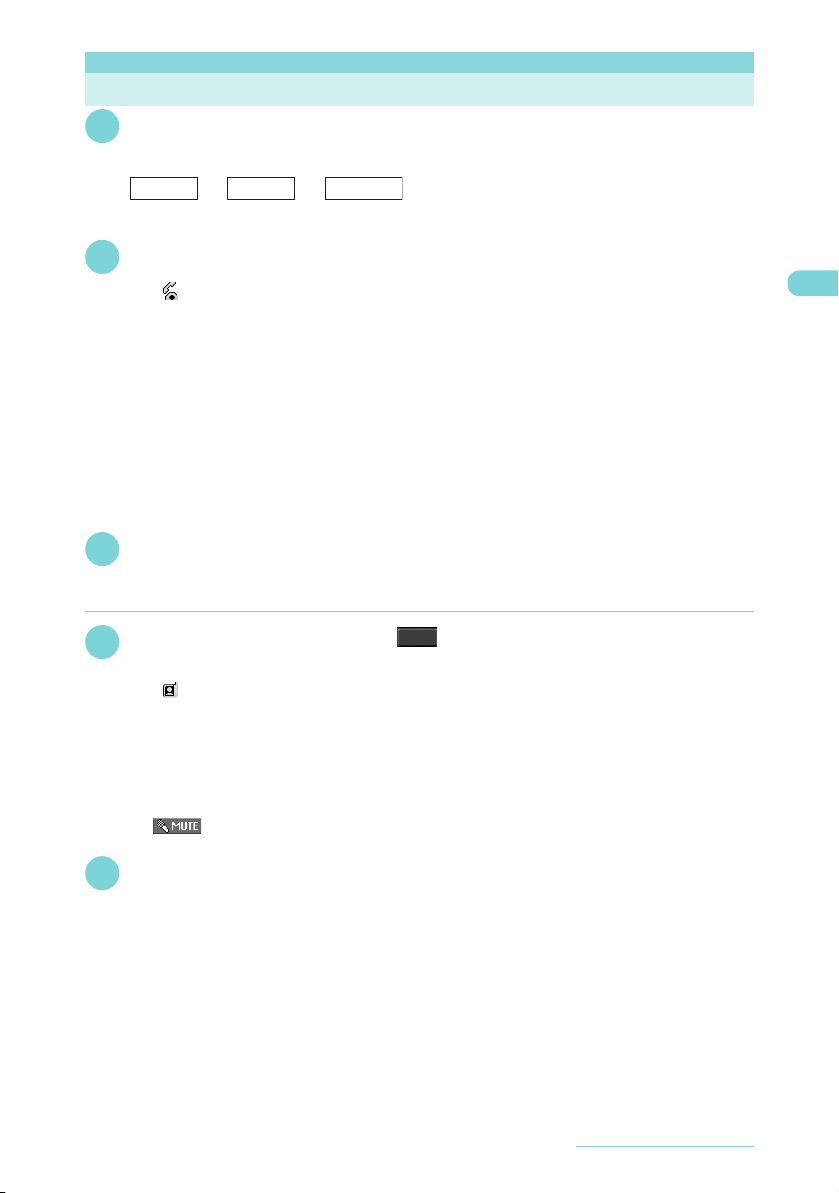
Making a Voice/Videophone Call
Dial the other party’s number, starting with the area code
1
The “Phone number entry” screen appears.
Always start with the area code, even for calls within the same area.
Area code Local code
A number of up to 80 digits can be entered for making a call although the numbers disappear from the display
one by one from the beginning after the number exceeds 26 digits.
r
2
The phone number disappears briefly and then reappears from the right as it is dialed.
The “ ” icon flashes during dialing and remains lit during a call.
The “FOMA voice in-call” screen appears.
■ To switch to a videophone call during a voice call
"Changing a call from voice to videophone"→p.3
■ If you hear the busy tone
The line is busy. Press y, and call again after a while.
■ If you hear the message saying that the other party cannot be reached
The other party's mobile phone or PHS phone is not switched on or is out of signal range. Press y , and
call again after a while.
■ If you hear the message requesting your caller ID
The other party has set the Caller ID Request service to "Activate". Call again with your caller ID shown.
■ If you set "2in1 setting" to "Dual mode"
The outgoing number selection screen appears. Select a phone number.
To end the call, press y
3
d Making a videophone call
Phone number entry screen
1
The "Videophone in-call" screen appears.
You can talk hearing the other party's voice through the speaker.
The " " icon flashes during dialing and remains lit during a videophone call.
■ To switch to a voice call during a videophone call
"Changing a call from videophone to voice"→p.3
■ To switch between camera image and substitute image during a videophone call
XSelect "Substitute image" or "My side" from the function menu.
■ To mute voice to send during a videophone call (microphone mute)
X
a (1 second or longer)
" " appears while in mute. Video is transmitted as it is.
To cancel mute, press a again for 1 second or longer.
To end the call, press y
2
Phone number
−−
Xo
()
Vphone
.
Making/Receiving Calls
1
Page 4
d If you entered a wrong phone number
■ To insert a number
Press h or j to move highlight to the number on the left of the insert position and enter the number.
■ To delete a number
Press h or j to move highlight to the number to delete and press t.
t for 1 second or longer deletes the highlighted number and all numbers on the left side of the
Pressing
highlighted number.
■ To reenter a number
Move highlight to the beginning or end of the number and press t for 1 second or longer to return to the
standby screen.
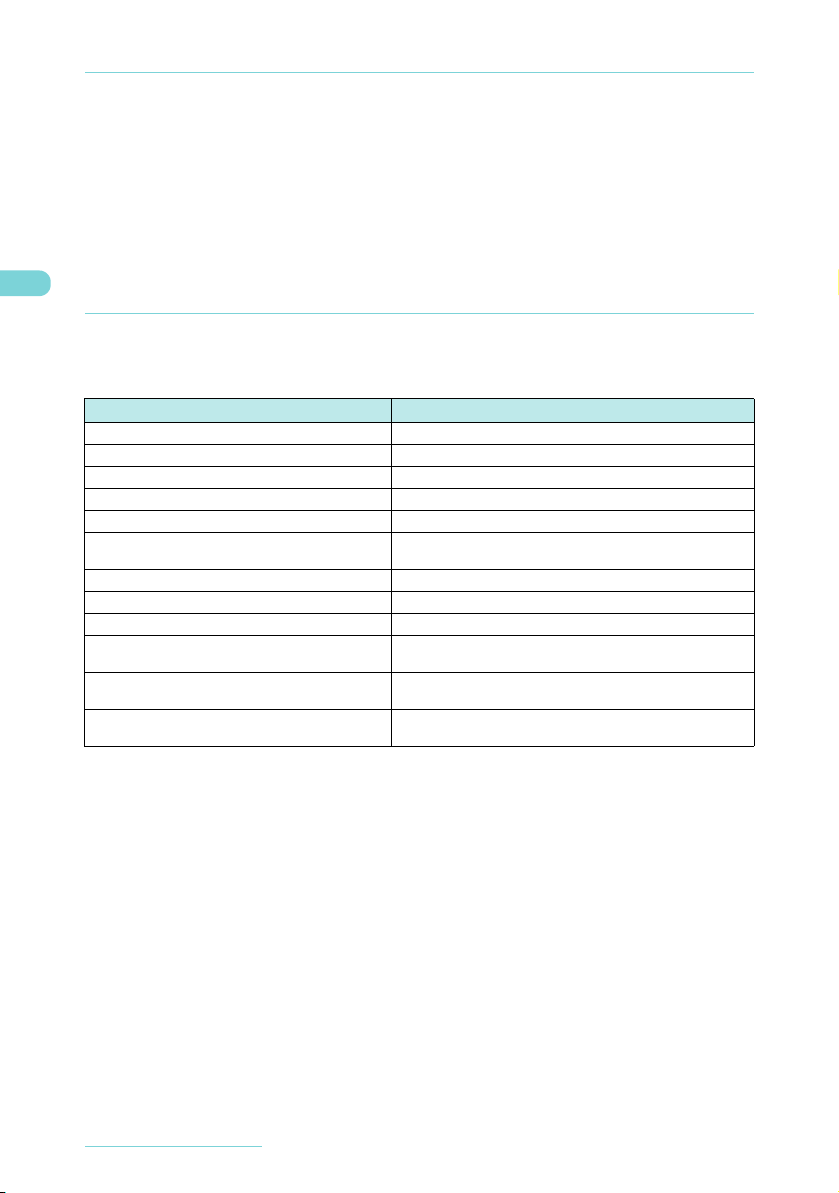
d If a videophone call is not connected
If a videophone call is not connected, a message giving the reason for the connection failure appears.
However, in some circumstances, an explanatory message may not be displayed. Also, depending on
the type of phone used by the other party and the possible lack of a network service subscription, the
reason given may not accurately reflect the other par ty's actual status.
Message Reason
Check number then redial The dialed phone number is currently not used.
*
Busy
Busy with packet transmission Packet communication is in progress on the other party.
Out of ser vice area/power off The other party's phone is out of service or the power is turned off.
Set caller ID to ON
Your call is being forwarded The call is being forwarded (into a videophone call if the forwarding
Redial using voice call The forwarded party is non-videophone-terminal.
Please activate caller ID before dialing again The Caller ID Request service is set on the other par ty.
At the user's request, your call can not be connected The Nuisance Call Blocking service is set on the other party.
Upper limit has been exceeded Connection failed The upper limit set for a Limit billing plan (Type Limit and Family
Connection failed Set "Caller ID Notification" to "ON" and then try again.
Please make your call from the i-mode web page You attempted to make a videophone call to watch V-live without
*: This message may also appear during packet communication depending on the type of other party's terminal.
The line is busy.
The call is connected without showing your caller ID (when dialing visualnet).
party has a videophone that complies with 3G-324M).
Wide limit) is exceeded.
a This message may also be displayed in other situations.
browsing the i-mode official site.
Making/Receiving Calls
2
Page 5
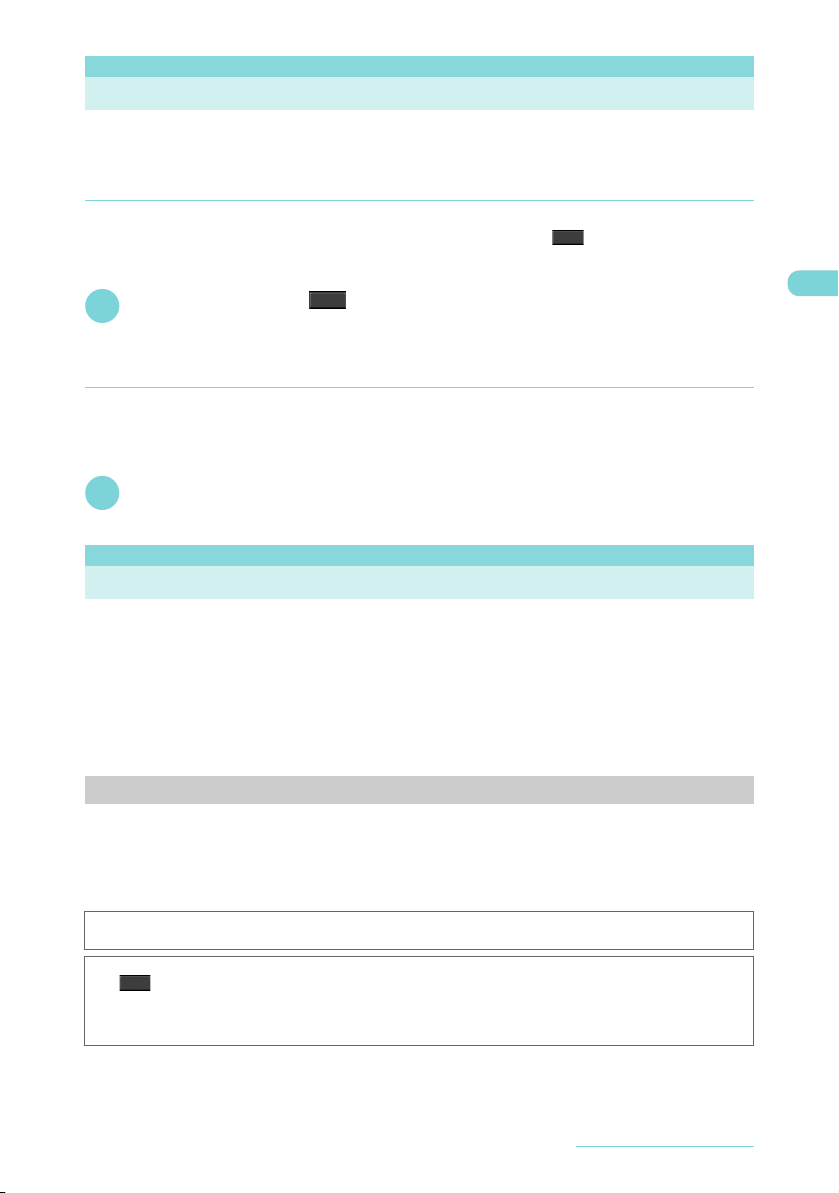
Changing a Call from Voice to Videophone
d You can only change the call mode when you are the caller. When you are a callee, you cannot change the
call mode.
d You can repeatedly change the call mode between voice and videophone.
d Changing a call from voice to videophone
You can change the call mode during a voice call you dialed.
d If the other party uses a Trial terminal that can change the call mode, " " appears during a voice
call and you can change the call mode between voice and videophone. (This function is available between
terminals that support change between voice call and videophone call.)
Vphone
In-call screenXd ()X"YES"
1
While a voice call is being changed to a videophone call, the screen showing that the call mode is being
changed appears and the voice guidance is given.
Select "NO" on the "Ntfy switch-mode" message screen to return to the in-call screen.
.
Vphone
.
d Changing a call from videophone to voice
The caller can change the call mode to voice during a videophone call.
d If the handset of other party is a Trial terminal supporting the call change, "Change to voice" can be
selected from the function menu during a videophone call and you can change the call mode. (This
function is available between terminals that support change between voice call and videophone call.)
Videophone in-call screenX[ch] (FUNC)X"Change to voice"
1
While the call mode is being changed from videophone to voice, the screen showing that the call mode is
being changed appears and the voice guidance is given.
<WORLD CALL>
Making International Calls
WORLD CALL is an international dialing service available for DoCoMo mobile phones.
FOMA service subscribers have also subscribed to "WORLD CALL" (excluding those who indicated
that they did not require the service).
* This service is unavailable with some billing plans.
d WORLD CALL is available for calls to around 240 countries and regions worldwide.
d WORLD CALL is included in the bill for your monthly call charges.
d In addition to dialing a phone number, you can make an international call by adding "+" or selecting "Int'l
call" or "Prefix numbers" from the function menu on the phone number entry, Redial/Dialed calls, Received
calls or phonebook detail screen.
Changes to the international dialing procedure
Since communication from mobile devices such as mobile phones is not covered by the "MY LINE"
service, this service cannot be used to access WORLD CALL. However, with the introduction of the
"MY LINE" service, the procedure used to make international calls from a mobile phone has changed.
Note that the conventional dialing procedure (the one described below with "010" removed) can no
longer be used.
For additional information regarding WORLD CALL, refer to the contact information provided on the back cover of this
manual.
“International videophone calls” can be made to users of some specific overseas 3G mobile terminals by pressing
V.phone
o ( ) to make a call after following the dialing procedure below.
c See the DoCoMo website for information about accessible countries and carriers.
c Depending on the type of the phone used by the other party, the other party’s image shown on your Trial
terminal may be distorted during an international videophone call or the connection may fail.
Making/Receiving Calls
3
Page 6
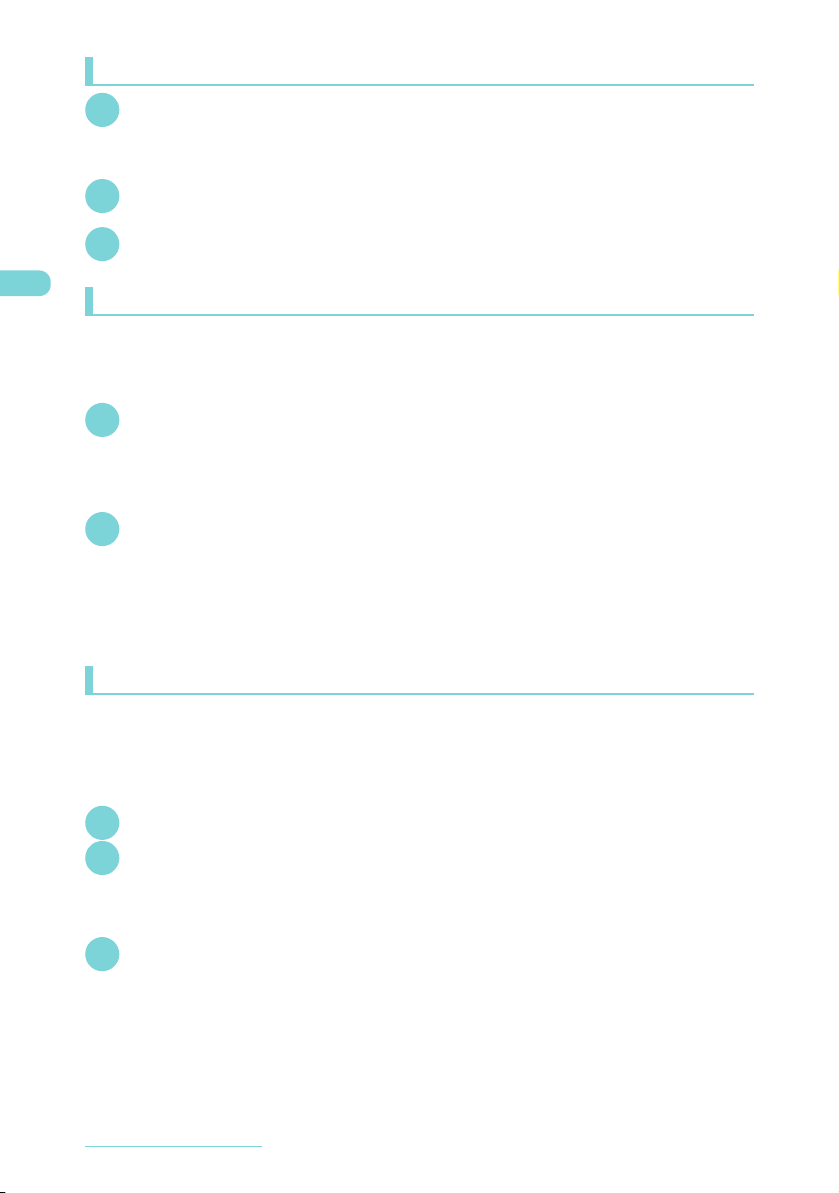
Dialing to make an international call
Dial a number in the following order: 009130→ 010→(country code) →
1
(area code (long distance code))→ (the other party's phone number)
If an area code begins with a zero (0), omit the zero. However, when you call some countries or regions such
as Italy, "0" may be required.
r
2
An international call is made.
To end the call, press y
3
Using “+” to make an international call
Using the "+" prefix allows you to make international calls without having to dial an IDD prefix code
(e.g. 009130-010).
d "Auto int’l call set." in "Int'l dial assistance" is set to "ON" (automatically added) at the time of purchase so
that a Trial terminal automatically dials the IDD prefix code.
On the standby screen, dial the following: + (0 (1 second or
1
longer))→ (country code)→ (area code) →(other party’s phone
number)
If an area code begins with a zero (0), omit the zero. However, when you call some countries or regions such
as Italy, "0" may be required.
rX“Dial”
2
An international call is made.
■ To make a call without converting "+" into the IDD prefix code
X"Original phone No."
* This function is unavailable for your FOMA terminal.
■ To cancel a call
X"Cancel"
Making an international call with international call codes added <Int'l call>
Add a country code or IDD prefix code to a phone number to make an international call.
d This function is available on the phone number entry screen and the detail screens of phonebook,
Received calls, Dialed calls and Redial.
<Example: To use the Int'l call function on the phone number entry screen>
Enter the other party's phone number
1
[ch] (FUNC)X"Int'l call"XSelect a country codeXSelect an
2
international access name (IDD prefix code)
The selected country code and IDD prefix code are added. If an area code begins with a zero (0), the zero is
automatically deleted. If "イタリア" (Italy) is selected for the country code, the zero is not deleted.
r
3
Making/Receiving Calls
4
Page 7
d Converting “+” automatically
Set this function to add “+” automatically when making international calls.
iX"SETTINGS"X"Dialing"X"Int'l dial assistance"X"Country Code
1
setting"
Select a country codeXSelect an IDD prefix code
2
d Editing a country code
See the DoCoMo website for more information about country codes.
iX"SETTINGS"X"Dialing"X"Int'l dial assistance"X"Country Code
1
setting"
The "Country Code set" screen appears.
Highlight an item and press o (Edit)
2
Enter a country nameXEnter a country code
3
d Storing an IDD prefix code
You can store up to 3 IDD prefix codes, each of 10 digits max.
iX"SETTINGS"X“Dialing”X"Int'l dial assistance"X"IDD Prefix
1
setting"
Highlight “<Not recorded>” and press o (Edit)
2
■ To edit a stored item
XHighlight an item to edit and press o (Edit)
Enter an international access name
3
Enter the IDD prefix code
4
Making/Receiving Calls
5
Page 8
Using the Redial/Received Calls Record
d Dialing a previously dialed number <Redial/Dialed calls>
Information such as a phone number, date and time you called is recorded as the Redial/Dialed calls record.
d The Redial record can hold up to 30 phone numbers for voice call, videophone call and PushTalk call
entries. The Dialed calls record can hold up to 30 voice call, videophone call and PushTalk call entries and
up to 30 packet communication and 64K data communication entries.
d If you have dialed to the same phone number twice or more, only the latest call is logged in the Redial
record while all the calls are logged in the Dialed calls record.
d When the number of Redial/Dialed calls record entries exceeds the maximum, existing entries are
overwritten starting with the oldest one.
d You cannot view the Redial/Dialed calls record during a videophone call.
On the standby screenXj
1
Select a Redial/Dialed calls record entry to check
2
r or d
3
To end the call, press y
4
Receiving a Voice/Videophone Call
When a call arrives, press r or d
1
When a call arrives, a Trial terminal rings, the incoming call lamp flashes and the “Ringing” screen appears.
Unless “FOMAphone” under “Vibrator” is set to “OFF”, the Trial terminal also vibrates to notify you of the
call.
To end the call, press y
2
d Receiving a videophone call
Use this procedure to receive an incoming videophone call. If you cannot answer a videophone call with your
camera image, you can receive the call showing the caller a substitute image instead of your camera image.
Vphone
When a videophone call arrives, press o () or r
1
The "videophone in-call" screen (p.1) appears.
You can talk hearing the other party's voice through the speaker.
■ To switch between the camera and alternative images during a videophone call
XSelect “Substitute image” or “My side” from the function menu.
■ To send the rear camera image during a videophone call
Xd
During a videophone call, you can switch between the front and rear cameras (CHG camera-mode) by
pressing d.
■ To mute voice to be sent during a videophone call (microphone mute)
a (1 second or longer)
X
" " appears while in mute. Video is transmitted as it is.
To cancel mute, press a again for 1 second or longer.
To end the call, press y
2
Making/Receiving Calls
6
.
Page 9
Changing a Call Between Voice and Videophone (the Other Party)
The mode of a call you have received can be changed by the caller (the other par ty).
d You can only change the call mode when you are a caller. When you have received a call, you cannot
change the call mode. (This function is available between terminals that support change between voice
call and videophone call.)
d To enable a caller to change the call mode, "Ntfy switch-mode" must be set to "Indication ON" on the
caller's phone beforehand.
d Changing a call from voice to videophone (the other party)
In-call screenXThe other party changes the call modeX"YES"
1
While the call mode is being changed from voice to videophone, the screen showing that the call mode is
being changed appears and the voice guidance is given.
The call mode is changed to videophone and a camera image is sent to the caller.
■ To send a substitute image to the caller
X"NO"
The specified substitute image is sent to the caller.
<Answer setting> MENU58
Using a Dial Key to Receive Calls
This setting enables you to quickly turn off a ring tone or answer the call when you receive a voice,
videophone or PushTalk call. This is useful when you receive a call in a place where a ring tone may
disturb people around you.
iX”SETTINGS”X“Incoming call”X“Answer setting”XSelect any
1
item
Any key answer Press one of the following keys to answer a call:
Quick silent Press one of the following keys or open a Trial terminal to stop a ring tone or vibrator. When you stop a
OFF Press one of the following keys to answer a call:
Voice call: r, d, 0 to 9, w, t, b, o or a
Videophone call: r, d ( ), o ()
PushTalk call: P, r, d, 0 to 9, w, t, o or a
ring tone or vibrator in this way, the caller continues to hear the ring tone.
Voice call*,PushTalk*: 0 to 9, w, t, b, a, or o
Videophone call
*: To answer a call, press r, d, o ( ) (only for videophone) or P (only for PushTalk).
Voice call: r or d
Videophone call
PushTalk call: P, r or d
*
: 0 to 9, w, t, b, or a
*
: r, d or o ()
Subst. Vphone
Vphone
.
.
Vphone
.
Default setting
Any key answer
Making/Receiving Calls
7
 Loading...