

Page 1
Page 1 of 7
IPK II & InMail Voicemail
Administration Guide
Service: 604 -856- 9155
Email: [email protected]
Page 2

Page 2 of 7
Table of Contents
Phone Outline........................................................................................................................................ 3
Phone System Programming ........................................................................................................................................... 4
Changing the name of a Phone .......................................................................................................................................... 4
Programming One-Touch Keys with Features ............................................................................................................ 4
Clearing Message Waiting Light ........................................................................................................................................ 4
Programming System Speed Dials ................................................................................................................................... 4
Changing Internal Dialing from Voice/Ring ................................................................................................................. 4
Activating Background Music ............................................................................................................................................ 5
Changing Date and Time: ..................................................................................................................................................... 5
Voicemail Programming ................................................................................................................. 6
Record Company Greetings ................................................................................................................................................ 6
Holiday Greeting Activation/De-Activation ................................................................................................................. 7
Making Changes to a Mailboxes ........................................................................................................................................ 7
IMPORTANT NOTE:
The extension and mailbox numbers referenced in this guide are the most commonly used configuration.
It does not guarantee that your company will use the same extension and mailbox numbers due to each
systems customized configuration. If you are unsure of what numbers were used in your configuration,
please call or email the NATG service department.
Service: 604 -856- 9155
Email: [email protected]
Page 3
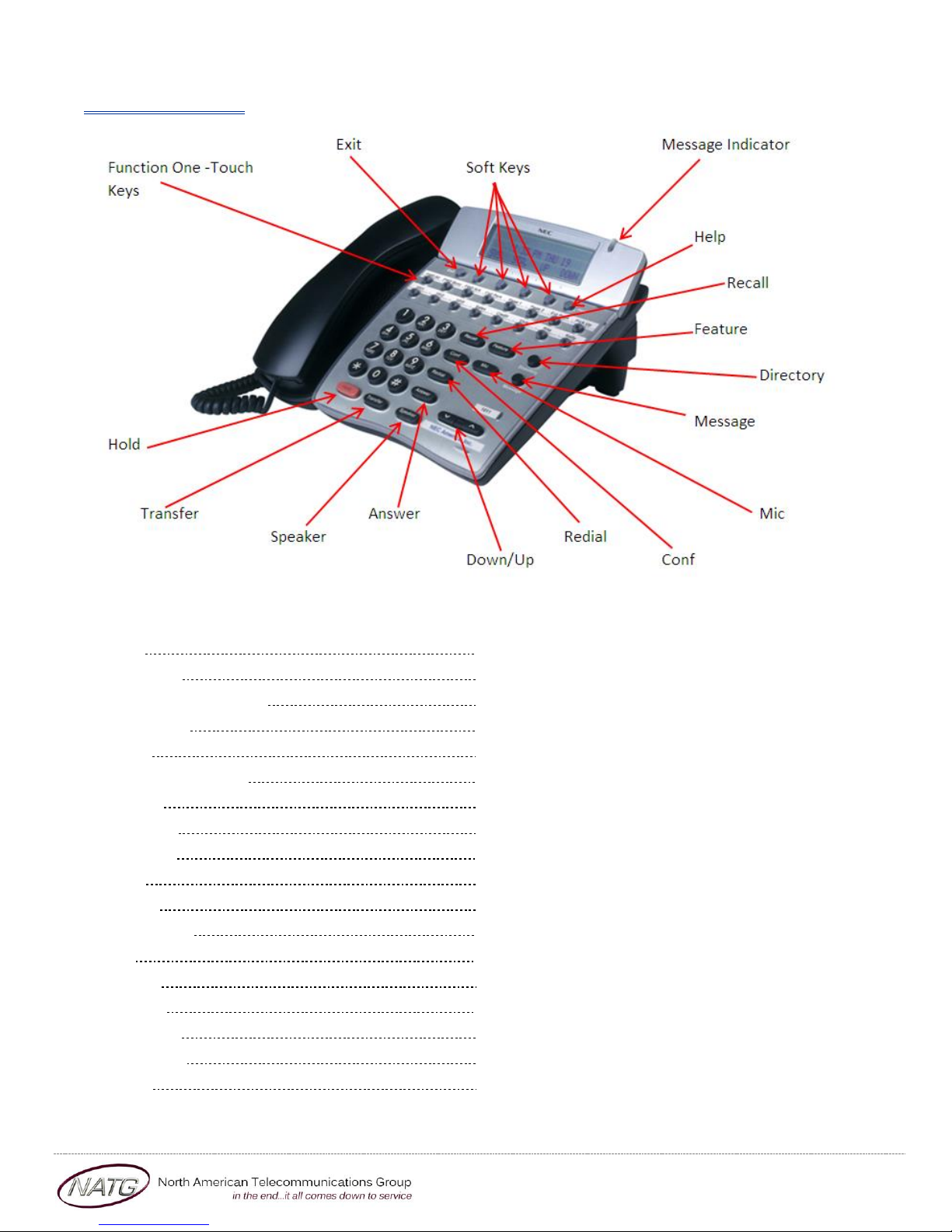
Phone Outline
Page 3 of 7
Exit Exit’s out of various programming
Security Locks the phone for security purposes (IP Phones only)
Message Indicator Flashes when you have a voicemail (or a message waiting)
Soft Keys Corresponds with what the display says
Help Tells how a one touch key is programmed
One Touch Keys Programmable buttons for features, lines, int/ext numbers
Recall Transfers callers to an external number (if applicable)
Feature Used for programming
Answer Answers the First incoming call to a specific phone
Mic Mutes the microphone while on speakerphone
Menu Access to Company Directory, Call History and Ring Settings
Directory Speed Dials
Up Adjusts the volume on the ringer, handset and speaker
Down Adjusts the volume on the ringer, handset and speaker
Redial Review the last numbers dialed
Speaker Speakerphone
Transfer Transfers a call to another extension or external number
Hold Places the current call on hold
Service: 604 -856- 9155
Email: [email protected]
Page 4
Phone System Programming
Changing the name of a Phone
1. Press SPEAKER key, dial 700
2. ENTER the EXTENSION number
3. Spell out name; press HOLD (NOTE: # moves cursor to right: FEATURE key moves cursor to left)
4. Press SPEAKER key
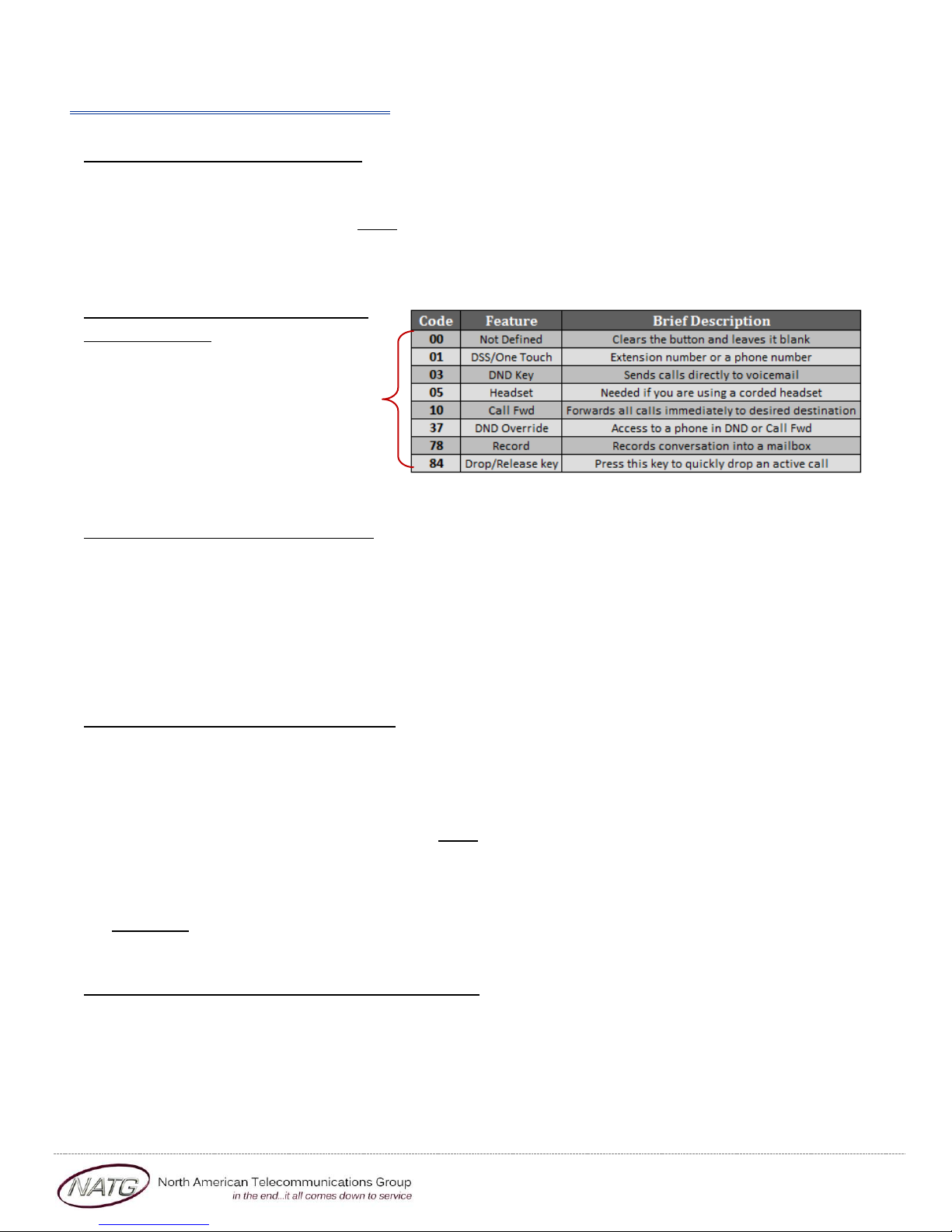
Programming One-Touch Keys
with Features
From the employee’s phone
1. Press SPEAKER key, dial 751
2. PRESS KEY you’d like to program
3. ENTER 2 DIGIT CODE
4. Press SPEAKER key
Page 4 of 7
Clearing Message Waiting Light
Message Waiting is often activated by accident. When calling an employee, you have an option to press the MW (message
waiting) soft key (on display). This feature activates their message light and prompts them on the display to call you back but
also can mislead you to think you have a voicemail. If an employee contacts you saying their message light is on but they do not
have voicemail, follow these instructions to cancel it: From the employee’s phone that is flashing:
1. Press SPEAKER key, dial 773
2. Press SPEAKER key
Programming System Speed Dials
1. Press SPEAKER key, dial 753
2. Enter a speed dial code: 000-999
3. ENTER the desired PHONE NUMBER (with no 9 in front of it)
4. Press HOLD key
5. SPELL out the NAME using the dial pad (NOTE: press # to move cursor to right or FEATURE key to
move cursor to left)
6. Press HOLD key
7. Press SPEAKER key
TO DELETE: Follow steps 1 – 3, then press exit soft key(top left key just under the display)
Changing Internal Dialing from Voice/Ring
When calling an employee’s extensions you can set the phone to either ring so the employee will have to pick it up(or speaker)
or to voice so your voice pages through the speaker of their phone. Here are the instructions on how to change that per phone:
From the employee’s phone that you would like to change:
1. Press SPEAKER key
2. Dial 721 for VOICE calls or 723 for RING tone
3. Press SPEAKER key
Service: 604 -856- 9155
Email: [email protected]
Page 5

Activating Background Music
1. Press SPEAKER key
2. Dial 725
3. Press SPEAKER key
To De-Activate: Press SPEAKER key, Dial 725
Changing Date and Time:
1. Press SPEAKER key
2. Dial 728
3. Enter 2 DIGIT HOUR(in 24hr time) and 2 DIGIT MINUTE
4. Press SPEAKER key
Page 5 of 7
Service: 604 -856- 9155
Email: [email protected]
Page 6

Voicemail Programming
Record Company Greetings
1. From Extension (usually reception) , press MESSAGE KEY
2. Press 72 to enter system administration
3. Press 4 to record an instruction greeting
4. ENTER the greeting MAILBOX you’d like to record:
a. 001 - to record the DAY greeting
b. 002 - to record the NIGHT greeting
c. 003 - to record the HOLIDAY greeting
d. 004 - to record the COMPANY DIRECTORY Greeting
e. 005 - to record the GENERAL INFORMATION Greeting
5. Press 7 to record and follow the prompts
6. Press 5 to listen to your recording and press # to exit listen mode
7. Press # to back up one step to step 3 to record another greeting
8. Hang up when you are finished
EXAMPLE:
Mailbox 001: (DAY)
Thank you for calling
If you know the extension of the person you are calling, please enter it now.
For our Company Directory, press 2 (Goes to Mailbox 004)
For hours of operation and location, press 3 (Goes to Sub Menu 005)
To reach reception or leave a general message, please remain on the line or press 0.
To repeat this message, press *
Thank you for calling
Page 6 of 7
Mailbox 002: (NIGHT)
Thank you for calling
We are currently closed. Our regular business hours are
If you know the extension of the person you are calling, please enter it now.
For our Company Directory, press 2 (Goes to Mailbox 004)
For hours of operation and location, press 3 (Goes to Sub Menu 005)
To leave a general message for reception, please remain on the line or press 0.
To repeat this message, press *
Thank you for calling
Mailbox 004: (COMPANY DIRECTORY)
For , please press
For , please press
For , please press
For , please press
To repeat this message, press *
Service: 604 -856- 9155
Email: [email protected]
Page 7

Page 7 of 7
Mailbox 005: (GENERAL INFORMATION)
Our regular business hours are
We are located at
Our fax number is
Please visit us online at www
To repeat this message, press *
Mailbox 003: (HOLIDAY)
Thank you for calling . We are currently closed for the “Christmas”
holiday and will re open
If you know the extension of the person you are calling please enter it now.
For our Company Directory, press 2 (Goes to Mailbox 004)
For hours of operation and location, press 3 (Goes to Sub Menu 005)
To leave a general message, please remain on the line or press 0.
To repeat this message, press *
Thank you for calling
Holiday Greeting Activation/De-Activation
1. Record a holiday greeting.. ((Mailbox 003) see page 5 for instructions)
2. From Extension (usually reception), press MESSAGE KEY
3. Press 72 for system administration
4. Press 6 for override
5. When asked for the table: enter 01
6. Press ON soft key on display
7. Press SPEAKER
TO DE-ACTIVATE: Follow steps 2 – 5; at step 6, Press OFF soft key
Making Changes to a Mailboxes
1. From Extension (usually reception), press MESSAGE KEY
2. Press 72 for system administration
3. Press 7 for subscriber mailbox maintenance
4. ENTER the MAILBOX NUMBER you’d like to Change
5. Choose from one of the following options:
a. Press 32 to ERASE all MESSAGES in a mailbox
b. Press 34 to ERASE the GREETING in a mailbox
c. Press 36 to ERASE the RECORDED NAME for the mailbox
d. Press 7 to DELETE the SECURITY CODE for a mailbox
e. Press 6 to RECORD the NAME for a mailbox
Service: 604 -856- 9155
Email: [email protected]
 Loading...