

Page 1
1
2
3
Computing Innovations.
CIRRUS LT &
CIRRUS LT PLUS
DOCKING STATION
Quick Start Guide
DOCK-CLT-002 for TZ-241G & TZ-251G
7669 Limestone Drive
Gainesville, VA 20155
Toll-Free: 1 (888) RINGNCS
Voice: (703) 7438500 / Fax: (703) 6211701
www.ncst.com
P/N: 1032955
90W AC adapter
(19V, 4.74A)
Docking station
Docking station keys
CIRRUSDS-QSG-01-021916
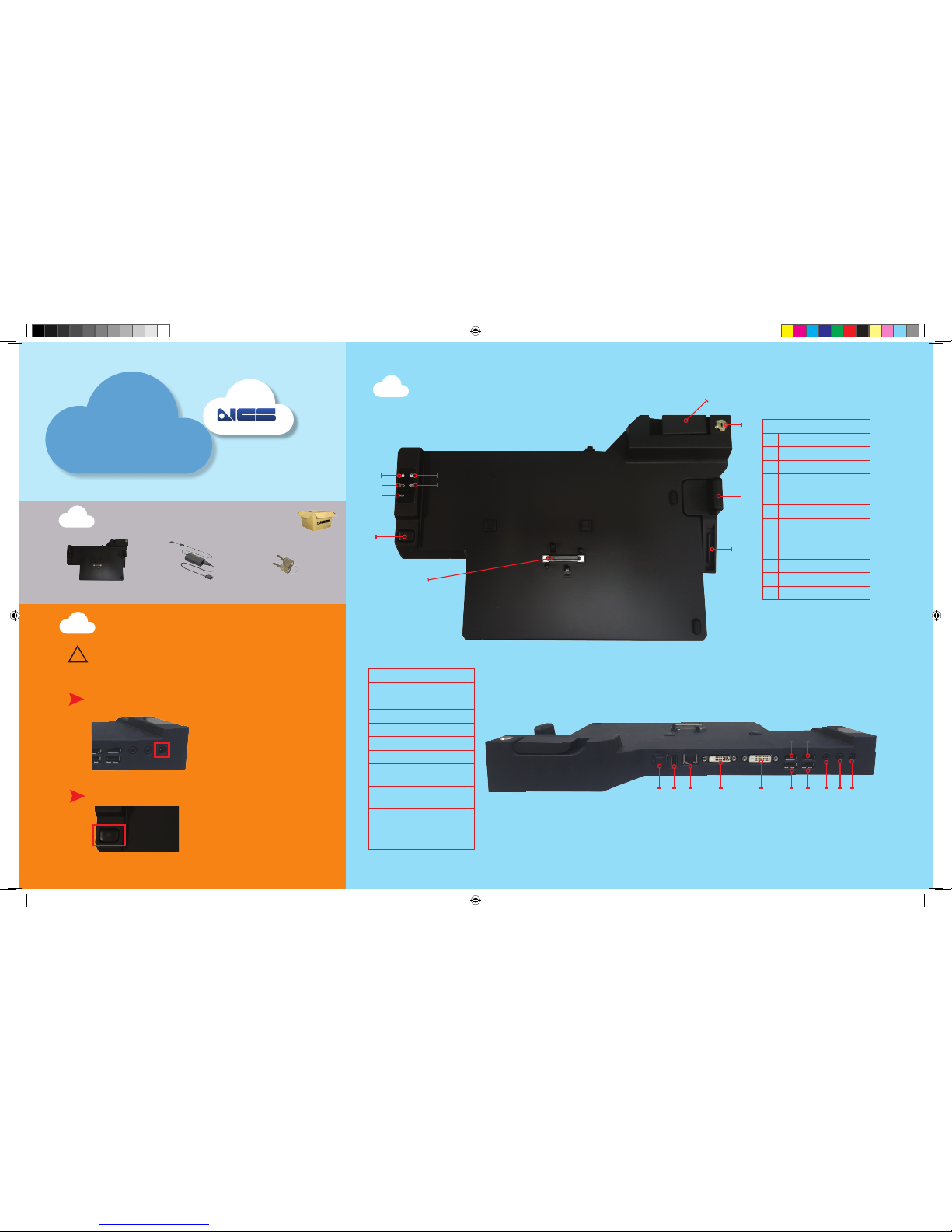
Cirrus LT docking station components
Remove these items from the box
Front View
1 Release lever
2 Docking station lock
3 Adjustable arm
4
Storage space for the
cover of the notebook
docking station port
5 Caps Lock
6 Battery
7 PCoIP session status
8 Num Lock
9 Wi-Fi status LED
10 Power/Connect button
11 Docking port
Rear View
1 Fiber SFP port
2 Charging USB port
3 RJ-45 LAN jack
4 DVI-1 port
5 DVI-2 port
6 PCoIP USB 2.0 ports
7
Dedicated mouse
USB port
8
Dedicated keyboard
USB port
9 Headphone
10 Microphone
11 DC-in jack
3
1
2
11
10
Rear View
Front View
6
7
2
5
1
3
4
6 8 9 10 11
4
5
7
6
8
9
CAUTION: The docking station must be connected to the included
90 Watt AC Adapter (19V, 4.74A) to provide enough power to the
docking station to work properly. Please DO NOT USE any other
AC adapter.
Connect the AC adapter to the DC-in jack located on the rear of the
docking station (see Rear View, #11).
Turn on the docking station by pressing the Power button.
!
Starting up the docking station
LT and LT Plus DS QSG.indd 1 2/19/2016 8:36:57 AM
Page 2
CIRRUS LT &
CIRRUS LT PLUS
DOCKING STATION
Quick Start Guide
DOCK-CLT-002 for TZ-241G & TZ-251G
Computing Innovations.
P/N: 1032955
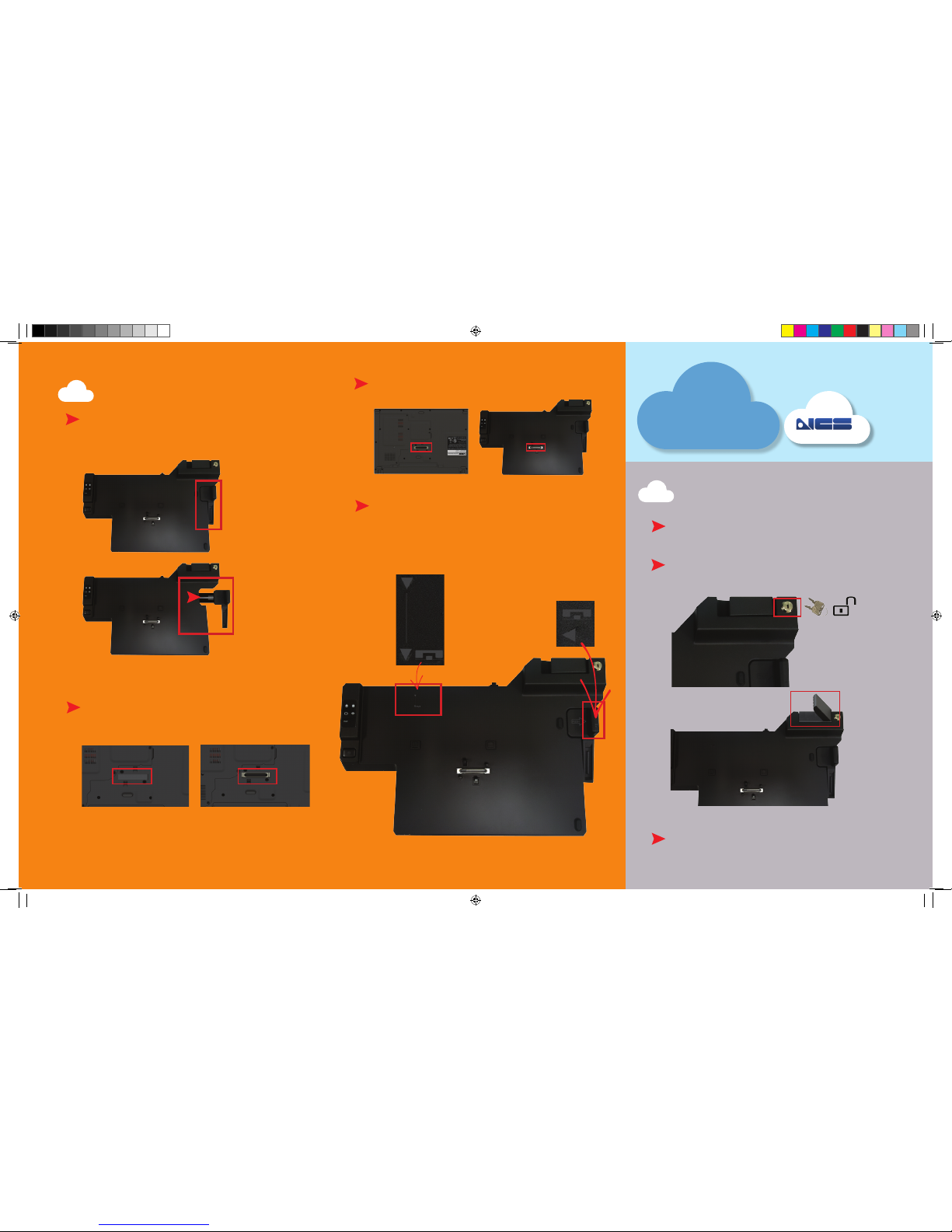
Mounting the notebook onto the
docking station
Dismounting the notebook from
the docking station
4
5
To dismount your notebook from the docking station:
Pull back the release lever on the back right side of the docking station.
Note: If for some reason the black lever will not lift up, you
will need to unlock the docking station to remove the notebook. The release lever will not lift up if it is locked.
Lift the notebook out of the docking station.
Remove the notebook’s docking station port cover (if there
is one) and store it in the space provided on the adjustable
arm before you try to mount the notebook into the docking
station.
To mount your notebook onto the docking station:
Pull out the adjustable arm on the right side of the docking
station.
Notice the two small triangles on the notebook lid; these match up
with the guides on the docking station. The guide for the Cirrus LT
Plus is shown below on the left, and the guide for the Cirrus LT is
displayed on the right. Line your notebook up with the corresponding docking station guide, and then firmly press down on the lid
of the notebook. You should hear a click, and then the notebook is
properly mounted onto the docking station.
Familiarize yourself with the two connectors that must mate
together.
Cirrus LT Plus Guide
Cirrus LT
Guide
LT and LT Plus DS QSG.indd 2 2/19/2016 8:37:05 AM
 Loading...