

Page 1
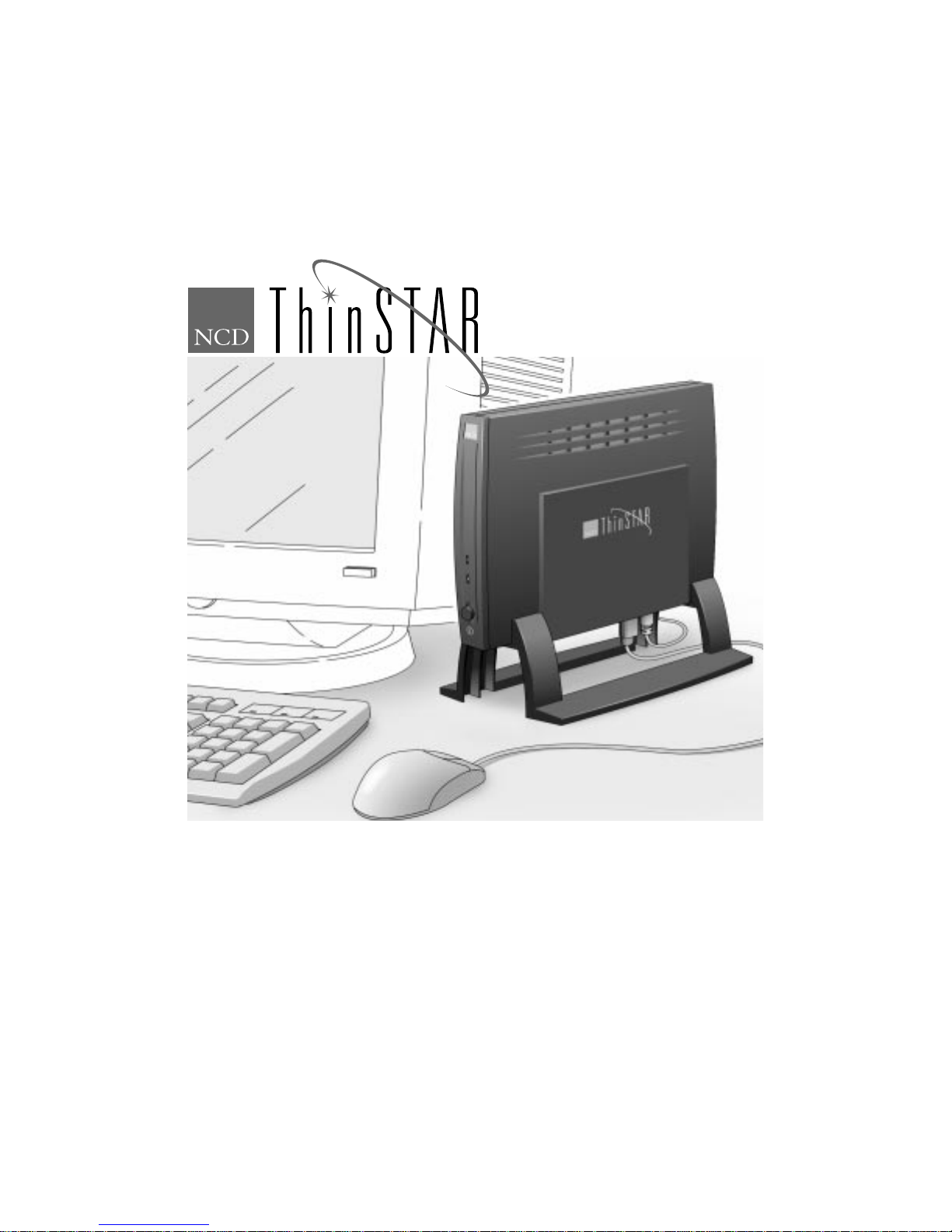
NCD ThinSTAR 200
Installation Guide
December, 1998
Network Computing Devices, Inc.
350 North Bernardo Avenue
Mountain View, CA 94043
Page 2
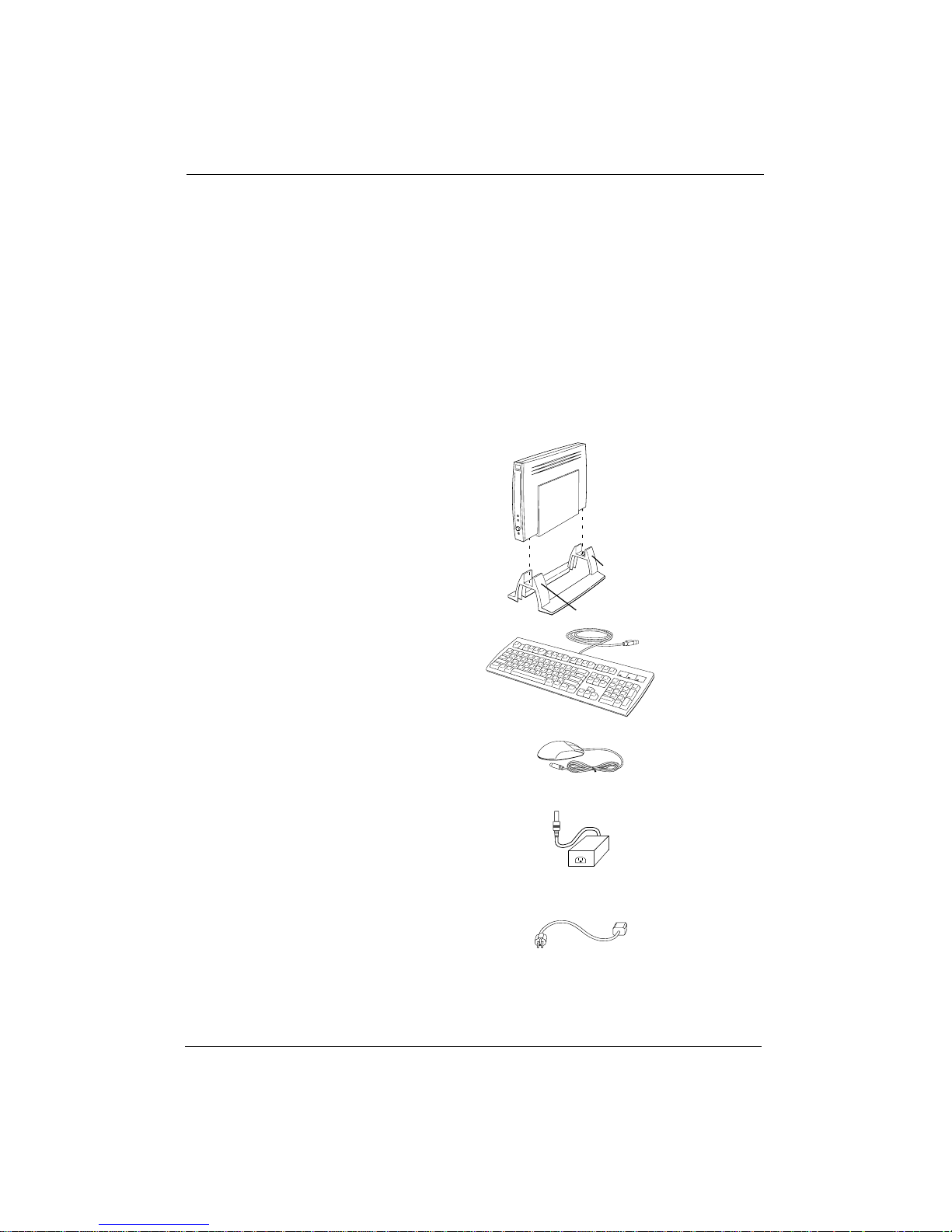
NCD ThinSTAR 200 Equipment Overview
Your NCD ThinSTAR 200 comes with all you need to access your network
and Microsoft Windows NT Server 4.0, Terminal Server Edition.
You will need the following equipment. Depending on how you ordered
your terminal, it might come as a complete system or as separate
components.
NCD ThinSTAR 200
Windows-based Terminal
Stand
See page 3 for installation instructions.
Support with larger hole
Keyboard
Windows 95-compatible for available
UK, France, and Germany.
Mouse
The two-button mouse is standard. A
three-button mouse can be used.
Inline power supply
USA, Europe, and Universal inline
power supplies are available.
Line cords
For USA, Japan, and Australia,
one line cord supplied.
For Europe, one line cord is for the
UK, the other is for the Continent.
Support with smaller hole
USA,
2 ThinSTAR 200 Installation Guide
Page 3
Warning
Basic Considerations
To prevent electric shock or fire hazard, do not expose the power supply,
NCD ThinSTAR 200 terminal, line cord, or monitor to rain or moisture.
Do not set the monitor on the terminal. The terminal is not designed to
support the weight of a monitor.
Use the terminal only in an office or business environment. Do not subject to
vibration, dust, or corrosive gases because it is not designed to be used in
such environments.
Keep the terminal in a well-ventilated area. Do not cover the terminal or
place anything against the ventilation holes. Ventilation holes are on the
cover to prevent the internal temperature from rising. Do not allow anything
to fall in the ventilation holes.
Keep the terminal away from heat sources, including direct sunshine or
heating appliances. The maximum operating temperature is 40 C (104 F).
If you are using items in the following list, install them in the order listed
before completing the instructions in this brochure.
1 Install optional memory
The
NCD ThinSTAR 200 terminal has a SIMM slot for an optional 8 MB, 16
MB, or 32 MB EDO (extended data out) SIMM. If you bought your SIMM
SIMMs.
from NCD, refer to the installation sheet included with the SIMM.
Otherwise, refer to the
the
SIMM specifications and installation procedure.
NCD ThinSTAR 200 System Administrator’s Guide for
2 Attach the stand.
If you are using the stand that comes with
NCD ThinSTAR 200, place the
base in theone-piecestandnow. Observe the orientation of the stand’s two
supports, as shown on page 2, for the placement of the holes.
3 Attach the optional mounting bracket and security device.
If you are using the optional mounting bracket and/or security device,
refer to the installation instructions that are included with the option.
ThinSTAR 200 Installation Guide 3
Page 4
Warning
Connect Monitor, Network, Keyboard, and
Mouse
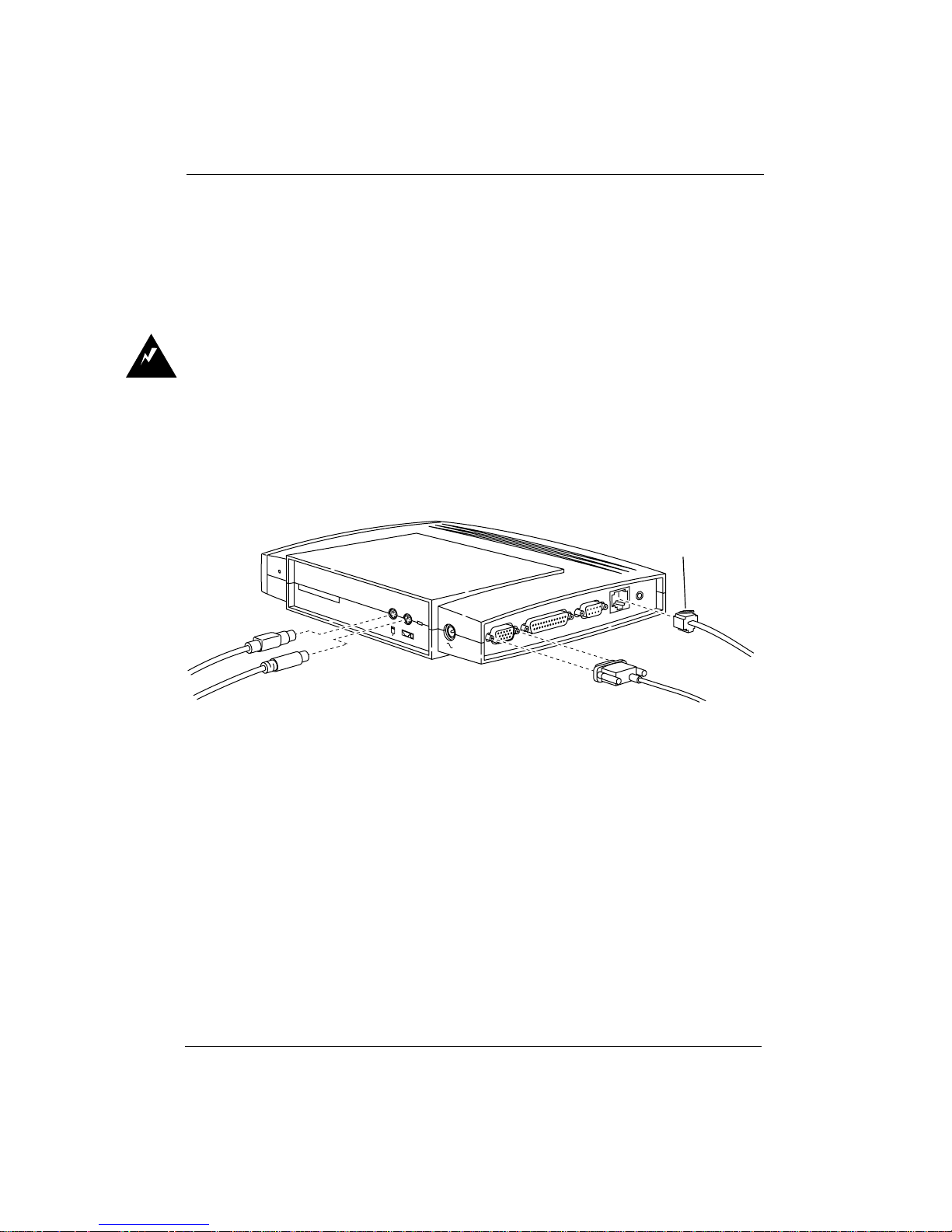
Carefully observe these power connection instructions. Failure to follow
these instructions can cause fire or electric shock hazard.
Before connecting any cables, make sure the
is disconnected.
NCD ThinSTAR 200 power cord
Do not connect the power cord to the
NCD ThinSTAR 200 unless the
keyboard, mouse, monitor video, and network cords are properly connected.
Twisted-pair
network connection
TWISTED
Mouse
Keyboard
Your
NCD ThinSTAR 200 queries the monitor about its capabilities. If the
monitor is
DDC 2.0 (display data channel 2.0)-compliant, the terminal sets
MONITOR
PARALLEL
SERIAL
Monitor video
the monitor to the largest desktop area and the fastest refresh rate that the
monitor supports, up to a maximum of 1024x768 pixels at 85 Hz.
If the monitor is not
DDC 2.0-compliant, your terminal sets the monitor to a
800x600 pixels desktop area with a 75 Hz refresh rate.
If you get the default 800x600 pixels at 75 Hz desktop, the monitor might
support a larger desktop and faster refresh rate. Refer to the monitor’s
documentation for the resolutions and refresh rates that the monitor
supports and then use instructions in the
Administrator’s Guide for setting the terminal to the desired resolution and
refresh rate.
4 ThinSTAR 200 Installation Guide
NCD ThinSTAR 200 System
Page 5
Warning
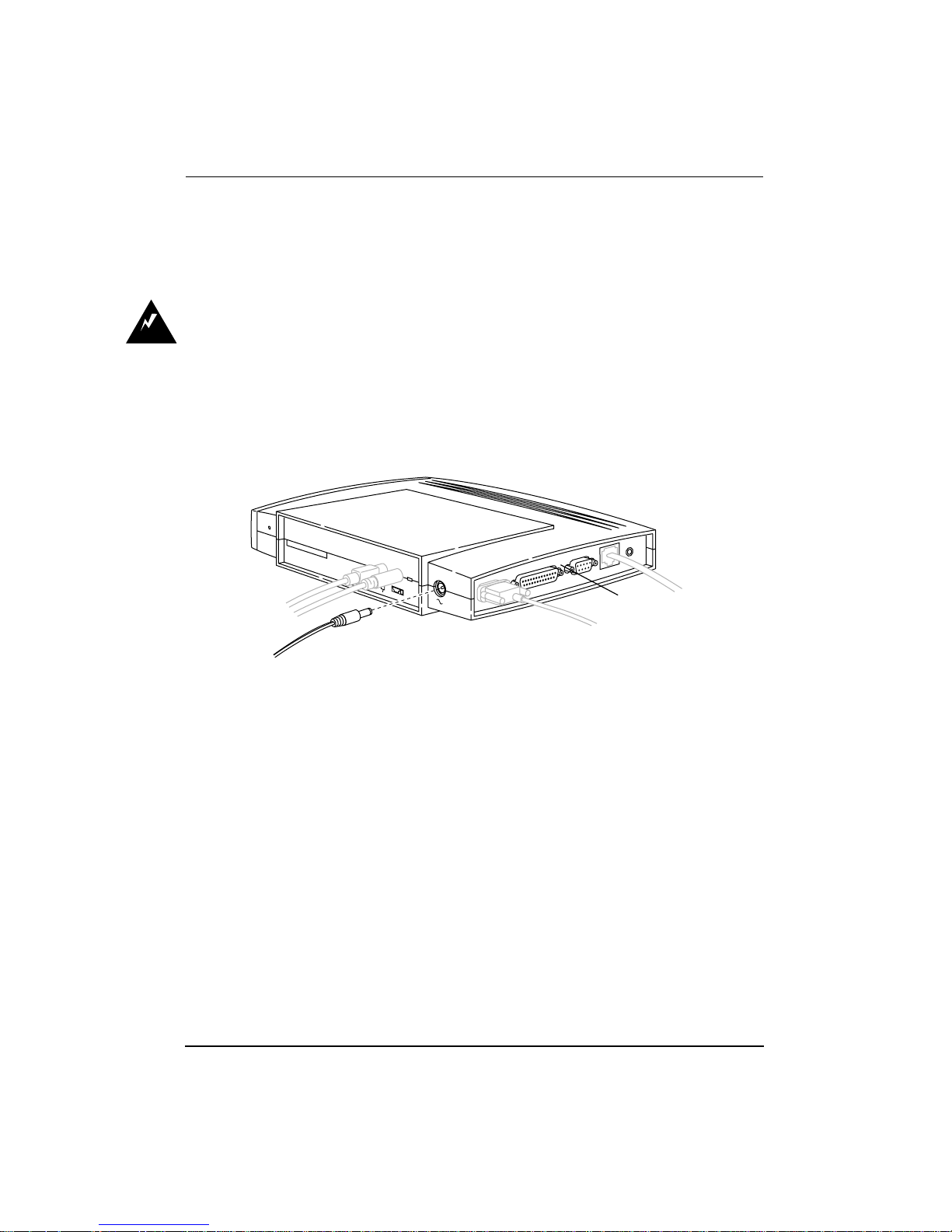
Connect Monitor and Terminal to AC
Outlets
Do not connect the power cord to the terminal unless the monitor video,
keyboard, mouse, and network cables are properly connected.
Refer to your monitor documentation for directions on how to connect the
power cord and monitor video cables at the monitor.
TWISTED
SERIAL
Power
MONITOR
PARALLEL
Twisted-pair link LED
(See page 6 for
description.)
Note: Power Cord for the UK
The detachable mains lead on this equipment is supplied with a moulded
plug incorporating a fuse, the value of which is indicated on the pin face of
the plug. Should the fuse need to be replaced, you must use an ASTA or BSI
approved BS 1362 fuse of the same rating. The fuse cover is detachable.
Never use the plug with the cover omitted.
ThinSTAR 200 Installation Guide 5
Page 6
Controls and Indicators
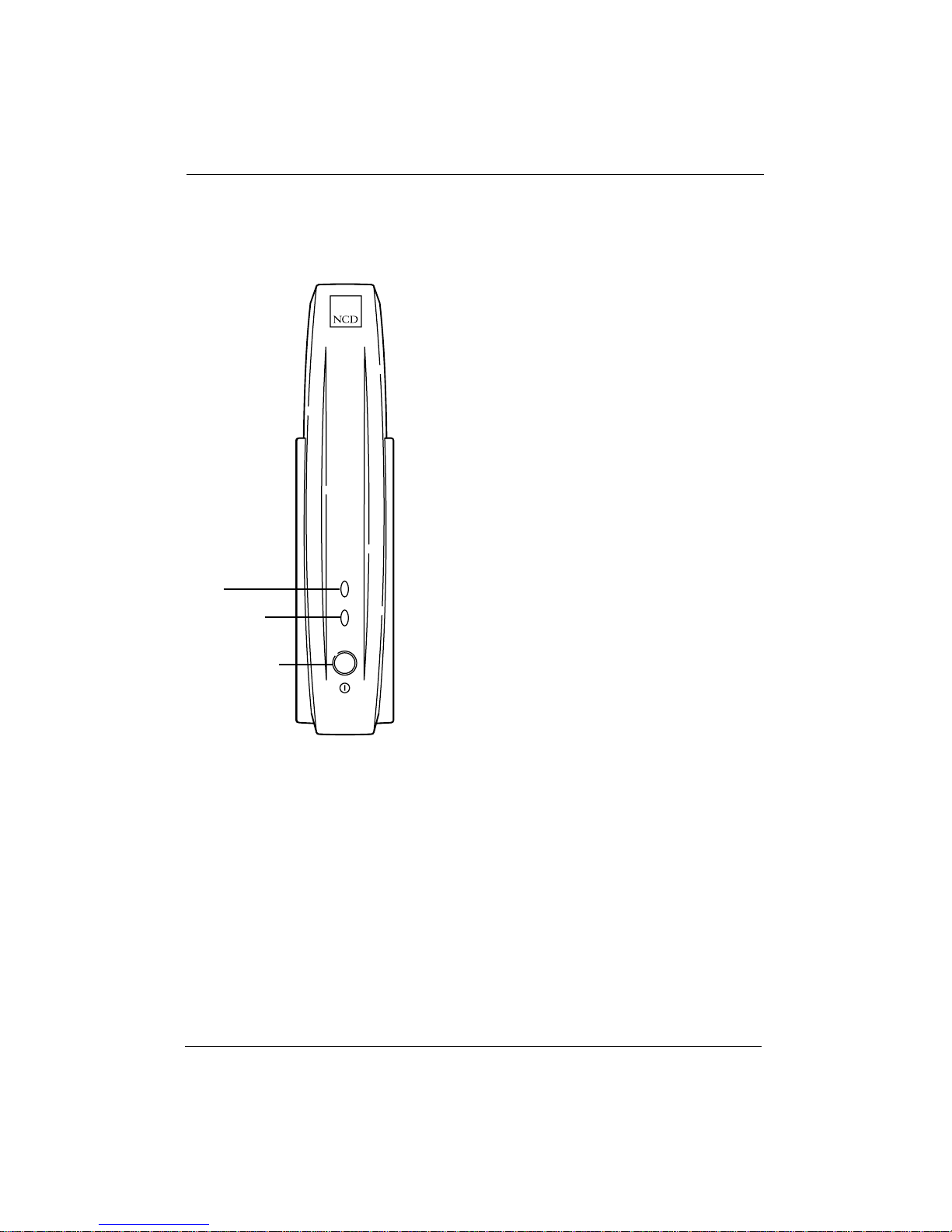
On/Off switch—Pressing the switch
turns power on and latches the switch in
the down position. The next time you
press the switch turns power off and
latches the switch in the up position.
Network Activity
LED
Power LED
On/Off switch
Power indicator—A green
LED that is
constantly illuminated indicates that
power is on. A blinking indicator
indicates a failure in the terminal.
Network activity indicator—A blinking
green
LED indicates network activity.
Twisted-pair link—A constantly
illuminated green
LED, shown on page 5,
indicates that the terminal is connected to
an active network.
6 ThinSTAR 200 Installation Guide
Page 7

Options
The following options are available for the NCD ThinSTAR 200:
Video monitor
Memory
If your monitor is
DDC 2.0 compliant, you get the largest
desktop area supported by the monitor at a refresh rate of
at least 85 Hz, up to a maximum of 1024x768 pixels. If
your monitor is not
DDC 2.0 compliant, you get the NCD
ThinSTAR 200’s default desktop area of 800x600 pixels at
75 Hz.
The
NCD ThinSTAR 200 has a SIMM slot for an optional
EDO SIMM. 8 MB, 16 MB, and 32 MB EDO SIMMs are the
only
SIMMs that will work in the slot. You can order your
NCD ThinSTAR 200 either with no SIMM or with an 8 MB
SIMM in the slot.
You can remove an existing 8
a 16
MB or a 32 MB SIMM or insert either an 8 MB, a 16
MB, or a 32 MB SIMM in the empty slot at any time. The
maximum memory that the
is 32
MB. If you use a 32 MB EDO SIMM in the slot, the
terminal does not use the built-in 8
If you buy your
SIMM from NCD, refer to the installation
sheet that is included with the
the
NCD ThinSTAR 200 System Administrator’sGuide for the
SIMM specifications and installation procedure
MB SIMM and replace it with
NCD ThinSTAR 200 can map
MB EDO memory.
SIMM. Otherwise refer to
Mounting bracket
and security
device
ThinSTAR 200 Installation Guide 7
This option allows you to mount the terminal to a wall or
the side/underside of a desk. You can secure the terminal
to either the stand or the mounting bracket.
If you are using the optional mounting bracket and/or
security device, refer to the installation instructions that
are included with the option.
Page 8
Specifications
Category Topic Specification
Hardware Architecture Microprocessor
NEC VR4300 MIPs processor,
100 MHz
Video coprocessor
DRAM
Nonvolatile memory
Display memory
Power supply, actual
specification varies with
the specific power supply.
AC voltage
AC frequency
Power consumption
Environmental operating
range
Temperature
Humidity
Altitude
Controls and indicators NCD ThinSTAR 200
Keyboard
Input Devices Keyboards
Mouse
Communications Ethernet
S3 TRIO64V2/DX
8 MB EDO standard, 16 MB, 24
MB, or 32 MB optional
8 MB flash (EEPROM)
1 MB EDO RAM
85-270 VAC
50/60 Hz 3 Hz
19 Watts (maximum)
10 C (50 F) to 40 C (104 F)
10% to 90% non-condensing
Up to 3,050 meters (10,000 feet)
Power switch and three LEDs
(Power, Network Activity, and
Twisted-Pair Link)
Three LEDs (Num Lock, Caps
Lock, and Scroll Lock)
Windows 95-compatible
Three- or two-button PS/2
Built-in 10BaseT twisted-pair
Ethernet transceiver
Physical dimensions Base only
8 ThinSTAR 200 Installation Guide
Serial port
Height
Width
Depth
Weight
Base in stand
Height
Width
Depth
Weight
RS-232 C up to 115.2 K baud
1.9 inches (4.8 cm)
7.6 inches (19.3 cm)
11.3 inches (28.7 cm)
2.6 pounds (1.2 kg)
9.6 inches (24.4 cm)
5.5 inches (13.9 cm)
11.3 inches (28.7 cm)
2.8 pounds (1.3 kg)
Page 9

Guidelines For Productive and Healthy Use of Your Terminal
You might have read or heard of articles that linked prolonged viewing of computer video displays with
eye fatigue, and prolonged use of computer keyboards and mouse devices with repetitive stress injuries
such as carpal tunnel syndrome. One common example is the syndrome known as “tennis elbow.”
Although a conclusive direct causal relationship between computer use and these adverse health effects
has yet to be scientifically proven, NCD recommends that you read and follow these guidelines in setting
up and using your new terminal.
• Set up your terminal in a well lit, glare and shadow-free environment.
• Do not use your terminal in a position you find awkward or unnatural.
• Use a chair that provides good lower back support. Adjust your chair so that your feet rest flat on the
floor with your thighs in a horizontal position.
• Place your keyboard on a surface so that your wrists are not tilted, or only slightly tilted, while using
the keyboard. Many people find a comfortable keyboard height is at the same level as their elbows.
• If the height of your work surface cannot be adjusted, position the chair at a comfortable height and use
a footrest to place your feet on a level surface.
• Place your mouse on a surface that is at the same height as your keyboard. Many people find using the
mouse and keyboard within 16 inches (0.4 m) of the body is comfortable.
• Avoid resting your arm on your work surface and merely bending your wrist when using your mouse.
• Consider using a wrist rest to provide a padded surface for your wrists when working with your
mouse.
• Place your display monitor at a comfortable viewing distance. Many people favor a distance of 16
inches to 28 inches (0.4 m to 0.7 m) from their eyes. Position the screen so that you are not looking up
or down at it.
• Take breaks to rest your eyes, stretch your muscles, and move around.
• Vary your work patterns so that you alternate working at your computer with other tasks that use
different muscle groups and allow you to focus your eyes at different distances.
• See your physician if you experience persistent muscle ache, joint pain, eye fatigue or other discomfort
when using your terminal.
These are guidelines. What is comfortable for some might not be comfortable for you. You are the only
one who can decide if these guidelines are appropriate for your needs.
What about electromagnetic emissions from your monitor?
Many objects we encounter in our everyday lives produce very low frequency (VLF) and extremely low
frequency (ELF) electromagnetic emissions. These objects include such common appliances as portable
cellular telephones, televisions, toasters, electric blankets, and video display terminals (VDT) such as the
monitor that is part of your terminal. VDTs have been the focus of a growing controversy over the
potential health effect of VLF and ELF emissions.
NCD is monitoring this issue and shares the public’s concern over the potential health consequences of
exposure to VLF and ELF emissions from VDTs. To date, the research and testing on this subject is
inconclusive. Moreover, the link, if any, between VDT emissions and adverse health effects is unproven
and the subject of much debate. Stress, postural strain, and poor working conditions are frequently cited
in addition to, or instead of, VDT emissions as posing potential health hazards to frequent users of VDTs.
The prevailing professional opinion to date is that VDTs are safe. NCD products comply with the
applicable regulations and standards for electromagnetic radiation set forth by the U.S. Code of Federal
Regulations, Underwriters Laboratories, Inc., the Canadian Standards Association, and the German VDE
Standard. When and if new or additional standards are adopted, NCD will take appropriate steps to
comply with them.
Even though the preponderance of professional opinion is that VDTs are safe, some of our customers have
asked us for information on how to reduce their exposure to VLF and ELF emissions. Although NCD does
not endorse the following as having health benefits, the easiest and perhaps most economical and
effective measures are to turn off your display when not in use, to position your display at arm’s length,
and to avoid working in areas where you are positioned close to the rear of aVDT (where the emissions
are strongest). Also, third party vendors offer shields that reduce glare and electric emissions.
ThinSTAR 200 Installation Guide 9
Page 10

In Case of Trouble
If you encounter difficulties, either contact your local NCD representative or:
• Phone NCD Technical Support at (800) 800-9599 (US and Canada)
• Phone NCD Technical Support at (503) 641-2200 (any location)
• Send a FAX to NCD Technical Support at (503) 641-2959
• Send e-mail to NCD Technical Support at [email protected]
• See NCD’s home page at http://www.ncd.com
Regardless of the method you use to report the problem to NCD, you must have the following information
ready:
• Your name
• Company or organization
• Phone number
• E-mail address
• Billing address
• Shipping address
For each hardware item:
• Serial number
• Description of the problem
• Type of warranty (Standard, Express, Extended, Express Exchange, Out-of-Warranty)
Returning Components
If you have to return a component, follow these steps.
1 Gather the information listed in “In Case of Trouble” and contact NCD Technical Support to obtain a
Return Material Authorization (RMA) number.
2 Once you have obtained an RMA number, package the component for return. If you would rather not
pack the component yourself, NCD recommends that you take it to a commercial packing and shipping
company.
3 Mark each return package with the assigned RMA number and address each package as shown below
to avoid problems or delays:
Customer Service
Network Computing Devices
350 North Bernardo Avenue
Mountain View, CA 94043
RMA number
NOTE: Equipment returned without an RMA number is subject to delays or might be returned to
the sender.
Ethernet Address of Replacement Bases
Each base has its own unique Ethernet address. If you configured your DHCP server to reserve an IP
address for your previous base’s Ethernet address, change the reservation in theDHCP server to refer to
the Ethernet address of the replacement base.
10 ThinSTAR 200 Installation Guide
Page 11
Copyright © 1998 by Network Computing Devices, Inc. The information contained in this document is
subject to change without notice. Network Computing Devices, Inc. shall not be liable for errors
contained herein or for incidental or consequential damages in connection with the furnishing,
performance, or use of this material. This document contains information which is protected by
copyright. All rights are reserved. No part of this document may be photocopied, reproduced, or
translated to another language without the prior written consent of Network Computing Devices, Inc.
Network Computing Devices, PC-Xware and XRemote are registered trademarks of Network Computing
Devices, Inc. Explora, HMX, Marathon, NCDware, ThinSTAR and WinCenter are trademarks of Network
Computing Devices, Inc.
Other product and company names mentioned herein are the trademarks of their respective owners.
Windows 95, Windows NT and Windows Terminal Server are trademarks of Microsoft Corporation.
Windows and Microsoft are registered trademarks of Microsoft Corporation. All terms mentioned in this
book that are known to be trademarks or service marks have been appropriately capitalized. NCD cannot
attest to the accuracy of this information. Use of a term in this book should not be regarded as affecting
the validity of any trademark or service mark.
Part Number Revision Date Description
9300656 Rev.A May, 1998 QuickStart Release for the
9300715 Rev.A September, 1998 Final Release for the NCD ThinSTAR 200 terminal
December, 1998 Revised product list for the NCD ThinSTAR 200 terminal
NCD ThinSTAR 200 terminal
Warnings and Certifications
This equipment has been tested and found to comply with the limits for a Class B digital device, pursuant
to Part 15 of the FCC Rules. These limits are designed to provide reasonable protection against harmful
interference when the equipment is operated in a commercial environment. This equipment generates,
uses, and can radiate radio frequency energy and, if not installed and used in accordance with the
instruction manual, may cause harmful interference to radio communications.
You are cautioned that any changes or modifications not expressly approved in this manual could void
yur authority to operate this equipment.
This device complies with Part 15 of the FCC Rules. Operation is subject to the following two conditions:
(1) this device may not cause harmful interference, and (2) this device must accept any interference
received, including interference that may cause undesired operation.
We hereby declare the equipment specified above conforms to the above Directives and Standards.
John Gilbert, Vice President, Engineering,NCD (Mountain View, CA) September, 1998
This digital apparatus does not exceed the Class B limits for radio noise emissions from digital apparatus
set out in the Radio Interference Regulation of the Canadian Department of Communications.
Le présent appareil numérique n’ émet pas de bruits radioélectriques dépassant les limites applicables
aux appareil numériques de la class B prescrites dans le Règlement sur le brouillage radioélectrique édicte
par le ministére des Communications du Canada.
ENERGY STAR© Partner,Network Computing Devices, Inc. has determined that this product meets
As an
the ENERGY STAR© guidelines for energy efficiency.
ThinSTAR 200 Installation Guide 11
Page 12
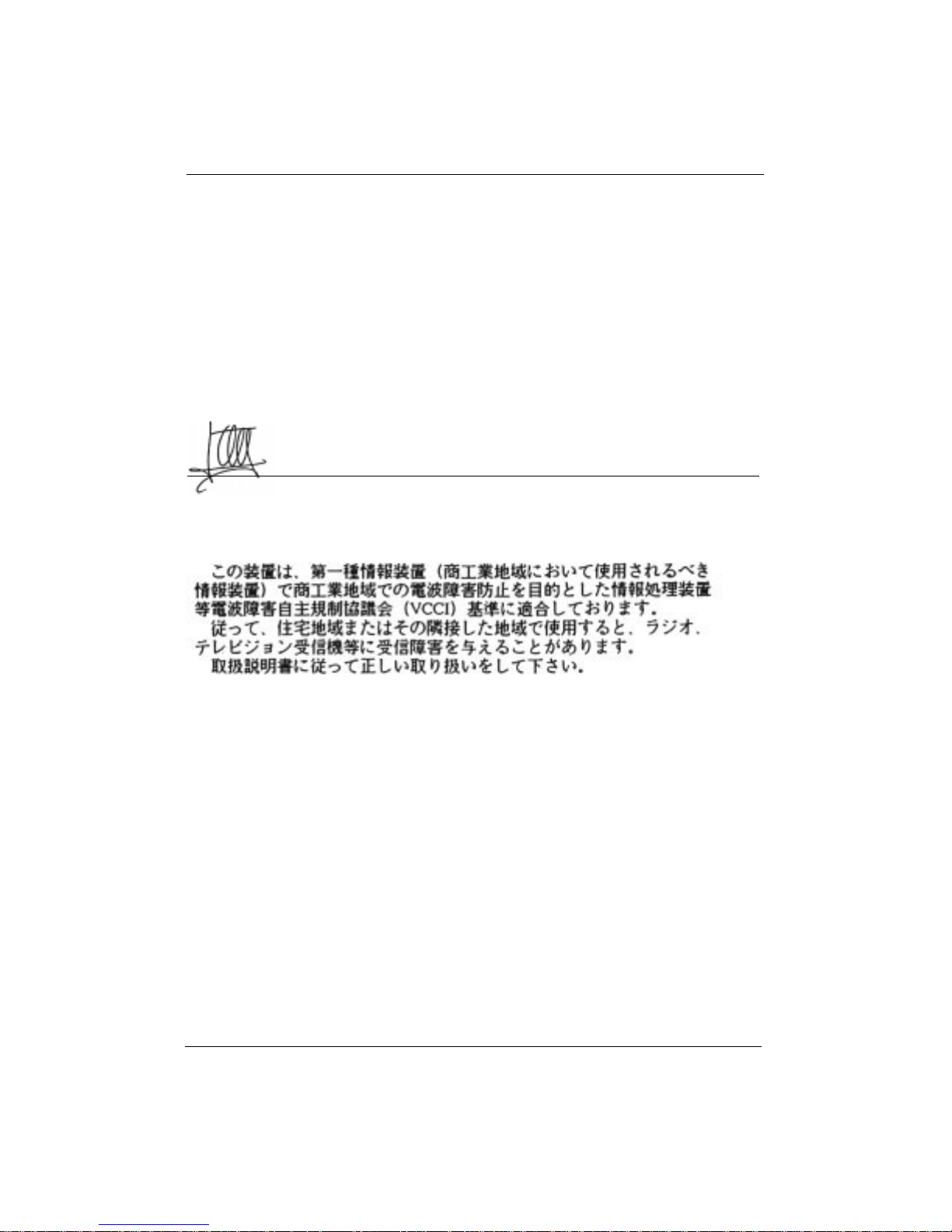
Declaration of Conformity
J
Manufacturer’s Name: Network Computing Devices, Inc.
Manufacturer’s Address: 350 N. Bernardo Ave., Mountain View, CA 94043
Type of Equipment: Network Terminal
Model No.: NCD ThinSTAR 200
Application of Council Directives: 89/336/EEC, 73/23/EEC
Standards to which Conformity is Declared: EN 55022B, EN 50082-1, EN 60950, ACA, FCCB, VCC1B
Importer’s Name: Network Computing Devices (France) SARL
Importer’s Address: 5, bis rue de Petit-Robinson, 78353 Jouy-en-Josas cedex, France
We hereby declare the equipment specified above conforms to the above Directives and Standards.
ean-Claude Vau, Director, Strategic Sales Manager,NCD (France) SARL, December, 1998
12 ThinSTAR 200 Installation Guide
 Loading...