

Page 1

1
© 2015 nbn co ltd | ABN 86 136 533 741
For nbn™ fibre installations after 19th Dec 2013
Useful information
about your nbn
™
supplied equipment
Your
user guide
Before performing any maintenance
please read the important safety
warnings on the back cover.
Page 2

Your nbn™ user guide
Getting started 4
Plugging your devices into your nbn
™
connection box* 5
Identifying your nbn
™
supplied equipment 6
Maintaining your nbn
™
supplied equipment 8
Frequently asked questions 10
nbn
™
connection box indicator lights 14
Optional Power Supply with Battery Backup guide 16
Managing the Power Supply with Battery Backup 17
Emergency calls checklist 19
Connecting to the mains power supply 20
How to replace your backup battery 22
What to do if the mains power fails 24
Power Supply with Battery Backup indicator lights and alarm sounds 25
Troubleshooting 26
Phone and Internet troubleshooting 27
Important safety warnings 28
*Also known as Network Termination Device (NTD).
Page 3

3
© 2015 nbn co ltd | ABN 86 136 533 741
Your nbn™ user guide
Congratulations on connecting to the nbn™ network. With your new
fibre optic connection, you’ll be able to access the benefits of fast
and reliable phone and internet services, including:**
• A brighter future – your family can access knowledge from across
the world and learn like never before, oering you and your kids a
brighter future
• Everyone online at once – with the nbn
™
network, the whole family
can enjoy all the benefits of high speed internet, even with lots of
devices connected at the same time**
• Entertainment without the wait – with the nbn
™
network, you
can quickly access the content you need, when you need it –
whether you’re video streaming, online gaming or watching live
news and sport**
This booklet gives you the information you need to ensure your nbn
™
supplied equipment stays in good working order. It also outlines the
things you can do if your system is not working properly.
** Your experience including the speeds actually achieved over the
nbn
™
network, depends on the technology over which services are
delivered to your premises and some factors outside our control
(like your equipment quality, software, broadband plans and how
your service provider designs its network).
Page 4
4
© 2015 nbn co ltd | ABN 86 136 533 741
Getting started
Once your nbn™ connection box has been installed and your service provider has
advised your services are now active, just follow the simple steps below to begin
enjoying your new service over the nbn
™
network.
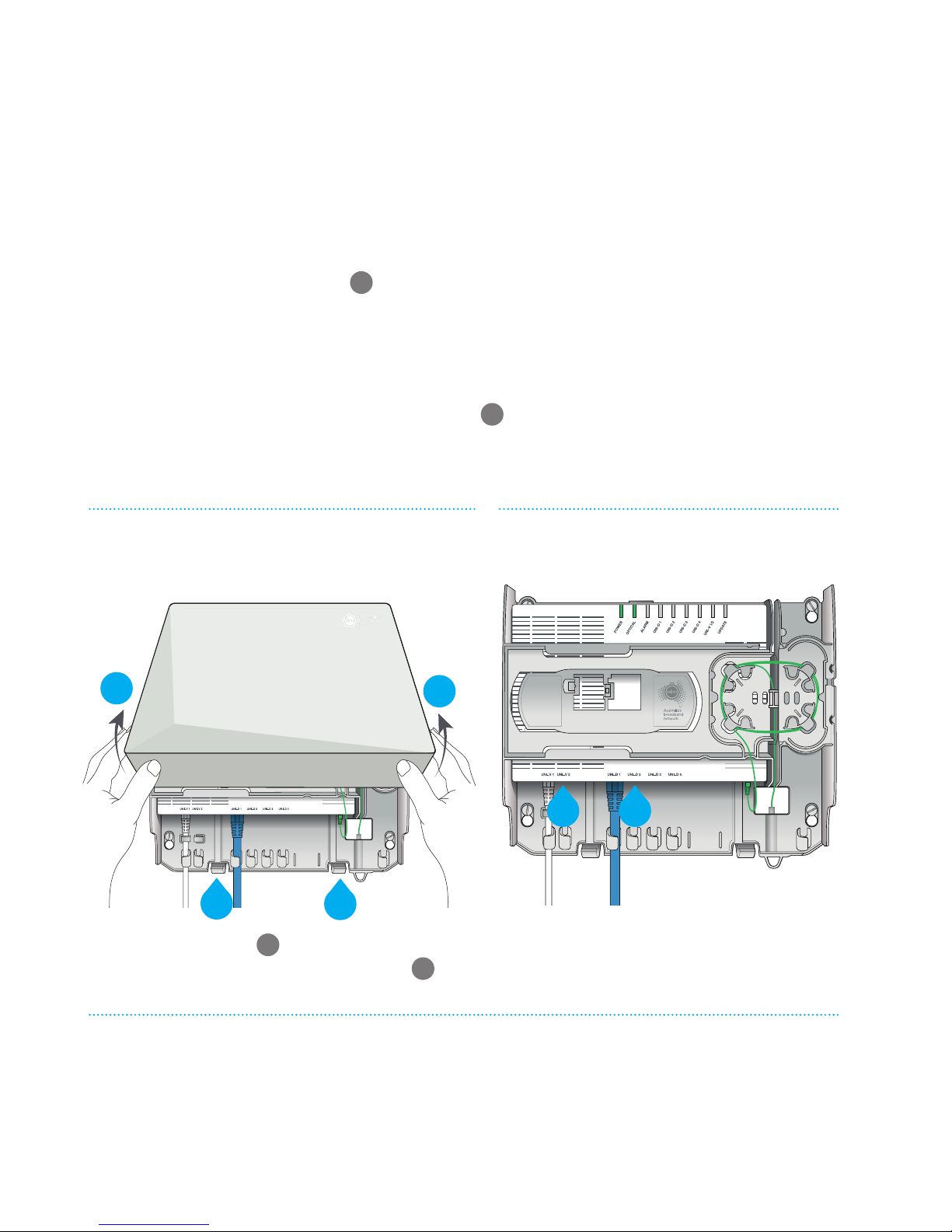
1 Connect any compatible equipment to the nbn
™
connection box. Use the port
designated for that service
C
as directed by your phone and internet service
providers. Further information on the ports can be found on the next page.
To remove the cover to access the ports, refer to the diagram below.
2 If you have arranged a phone service to be supplied through the voice (UNI-V)
port then your phone should be connected to the designated active voice
(UNI-V) port on the nbn
™
connection box D (or to your existing phone sockets if
a registered cabler has wired them up to your nbn
™
connection box). Your phone
and internet service providers will also let you know which connection to use.
Press the two clips
A
to release the cover.
Lift the cover at an angle to remove
B
.
Things to note:
• If you have the Power Supply with Battery Backup, the ‘system status’ light
on it should glow green.
• The nbn
™
connection box ‘power’ and ‘optical’ lights will both glow green.
For more information on indicator lights, see pages 14 and 25.
Removing the nbn™
connection box cover
Property of N BNCo - Do not Remove
Contact your service provider for
assistance with this equipment
Property of nbn™ - Do not Remove
nbn™ connection box
(with cover removed)
D C
Property of NBNC o - Do not Remove
Contact your service provider for
assistance with this equipment
Property of NBNC o - Do not Remove
B
B
A
A
Page 5
5
© 2015 nbn co ltd | ABN 86 136 533 741
Plugging your devices
into the nbn
™
connection box
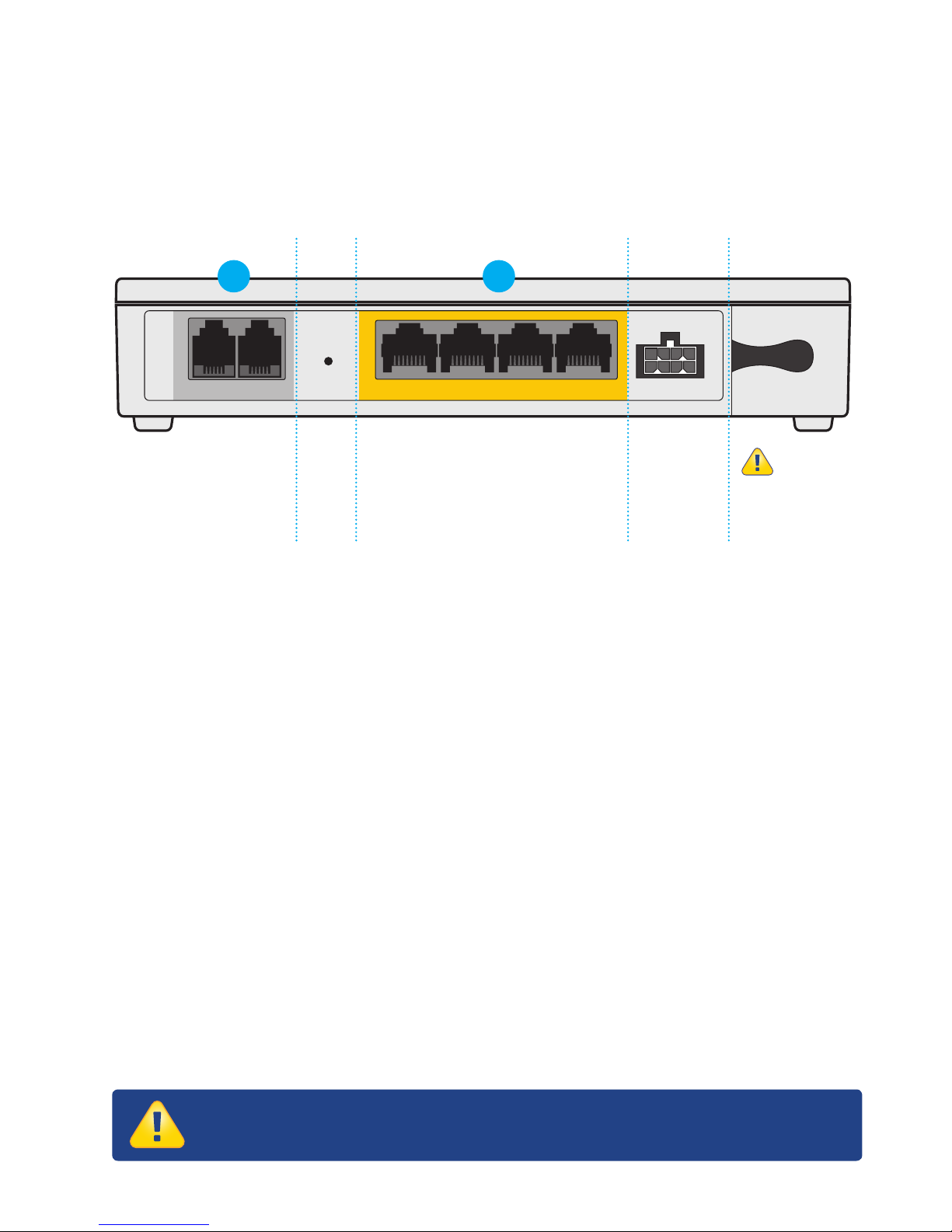
The bottom of your nbn™ connection box (inside the cover that is mounted to
the wall) will have a row of ports that look like this:
UNI-D
UNI-V
1 21 2 RESET POWER3 4
The two voice (UNI-V)
ports are to connect
telephones, using
RJ-11 cables.
The four data (UNI-D) ports are
to connect data and in-band
video services, using
Ethernet RJ-45 cables.
Port for
the power
cable from
your Power
Supply.
DO NOT
DISCONNECT
this cable unless
instructed to
do so by your
service provider.
Voice (UNI-V) Ports Power Fibre OpticData (UNI-D) Ports
C
D
Connecting your phone service
If you have chosen a phone service from your service provider to be delivered
through a voice (UNI-V) or data (UNI-D) port, your service provider will advise
you how to connect your phone(s).
Connecting your broadband service
Your broadband services will be delivered through the data (UNI-D) ports on the
nbn
™
connection box. Your service provider(s) will advise you which data (UNI-D)
ports they have designated for your services, and how to connect any necessary
equipment to these services.
Additional cables
All the power and fibre optic cables required for the nbn™ connection box to operate
will be supplied and connected free of charge by your nbn
™
approved installer. If other
cables are needed to connect your computer, router, phone or other devices, to the
nbn
™
connection box, you or your service provider will need to provide them.
Troubleshooting
If you’ve followed the instructions from your service provider but your phone,
internet or other broadband connections are still not working, or if you see any red
flashing lights on the nbn
™
connection box or Optional Power Supply with Battery
Backup unit, please read the troubleshooting guide on page 26.
IMPORTANT NOTICE! RISK OF EYE INJURY.
Please do NOT disconnect, tamper with or look into the laser light
beam from the fibre optic cable as this could damage your eyes.
Page 6
6
© 2015 nbn co ltd | ABN 86 136 533 741
Identifying your
nbn
™
supplied equipment
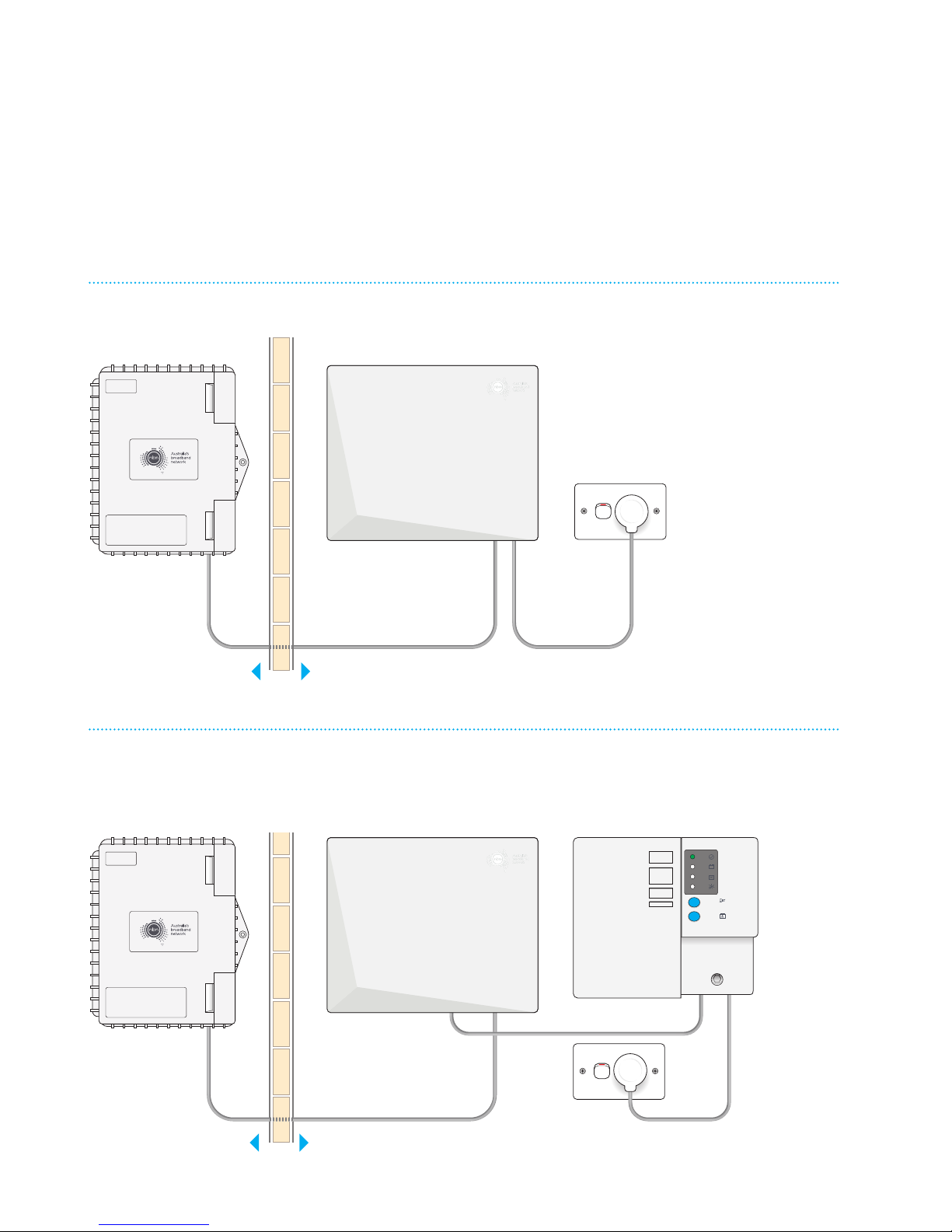
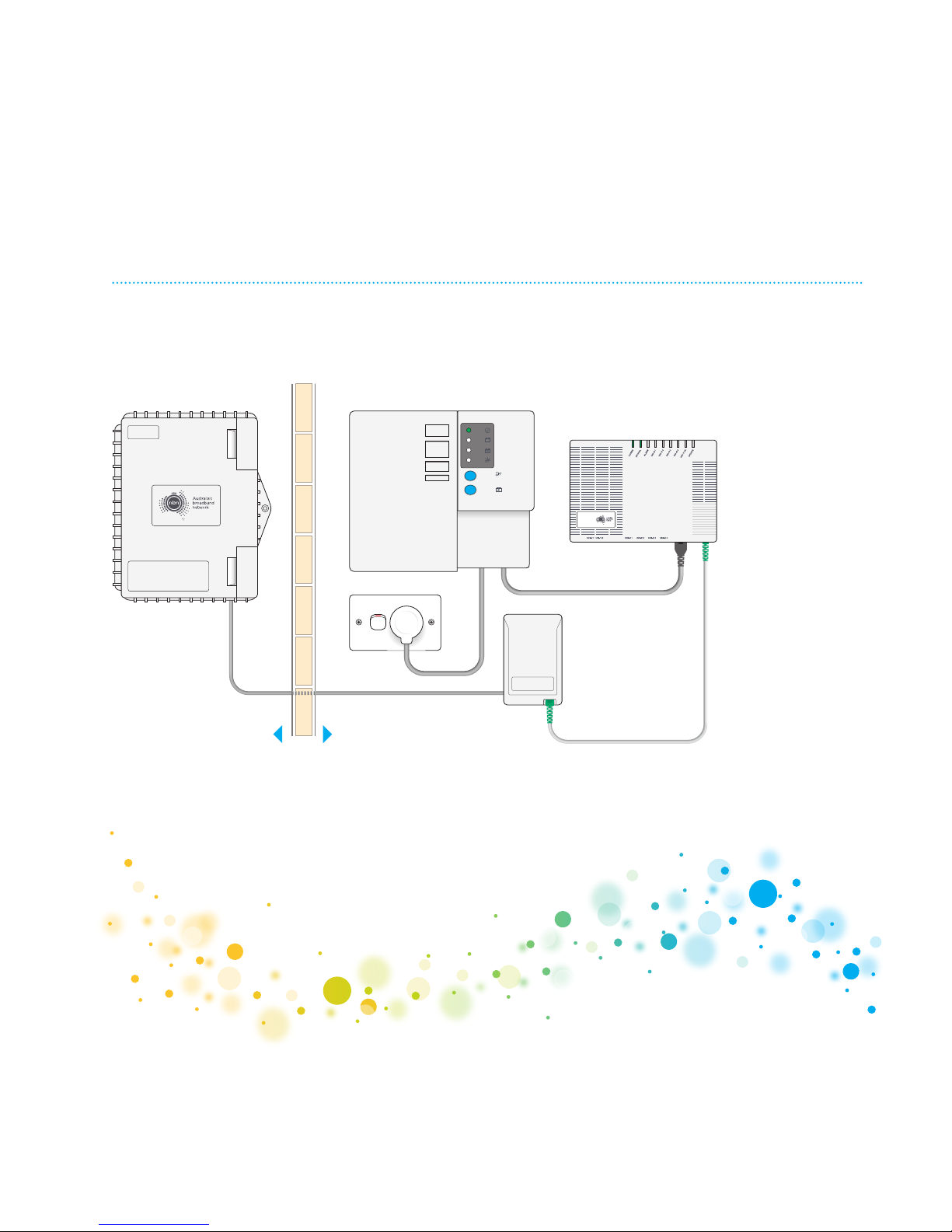
nbn™ supplied equipment may be installed several dierent ways depending on your
building type and requirements. These diagrams show the three main combinations
of equipment and will help you identify what each piece of equipment is for.
With nbn™ connection box cover and standard power supply
nbn™ connection box
Inside your
premises
Outside your
premises
nbn™ utility box
*
With nbn™ connection box cover and Power Supply
with Battery Backup
SYSTEM
STATUS
BATTERY
POWER
REPLACE
BATTERY
ALARM
SILENCE
ALARM
SILENCE
BATTERY
EMERGENCY
USE
SYSTEM
STATUS
BATTERY
POWER
REPLACE
BATTERY
ALARM
SILENCE
ALARM
SILENCE
BATTERY
EMERGENCY
USE
nbn™ utility box
*
nbn™ connection box
Power Supply with
Battery Backup
Inside your
premises
Outside your
premises
Page 7
7
© 2015 nbn co ltd | ABN 86 136 533 741
*
Also known as a Premises Connection Device.
With nbn™ connection box (no cover), Fibre Wall Outlet
and Power Supply with Battery Backup
SYSTEM
STATUS
BATTERY
POWER
REPLACE
BATTERY
ALARM
SILENCE
ALARM
SILENCE
BATTERY
EMERGENCY
USE
NTD
Property
of nbn™
Do not remove
nbn™ utility box
*
Inside your
premises
Outside your
premises
nbn™ connection box
(no cover)
Power Supply with
Battery Backup
Fibre wall
outlet
Page 8
8
© 2015 nbn co ltd | ABN 86 136 533 741
ALARM
SILENCE
SYSTEM
STATUS
BATTERY
POWER
REPLACE
BATTERY
ALARM
SILENCE
BATTERY
EMERGENCY
Maintaining your
nbn
™
supplied equipment
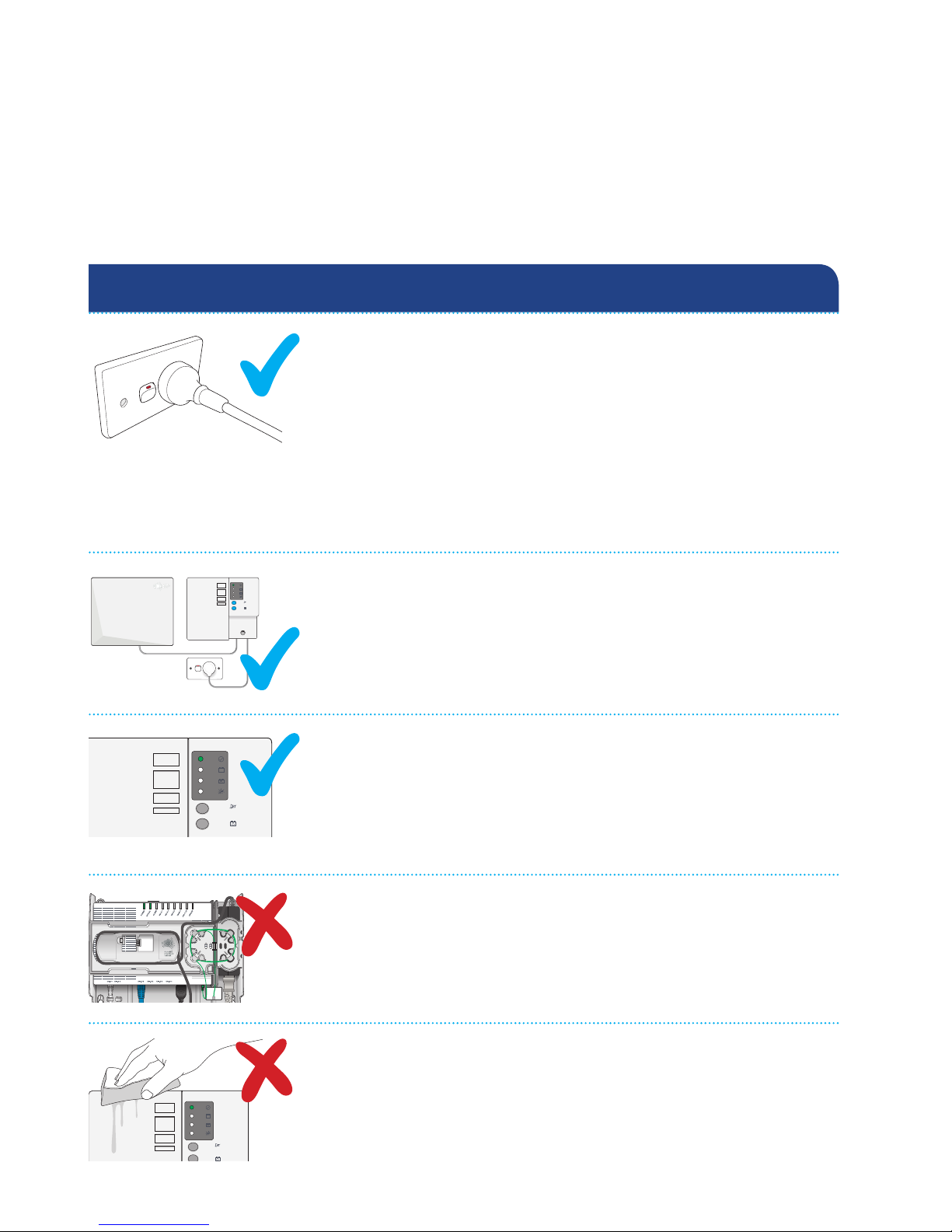
The nbn™ supplied equipment in your premises should require very little
maintenance if properly cared for. Here are some important do’s and don’ts to
ensure the nbn
™
connection box and Power Supply stay in good working order.
Do not touch or unloop the fibre. Tampering with the
fibre (even by simply unplugging it) could damage the
connection and require a technician visit.
Do not use water to clean the equipment.
Inside your property
Contact your service provider for
assistance with this equipment
Property of NBNCo - Do not Remove
Contact your service provider for
assistance with this equipment
Property of nbn™ - Do not Remove
ALARM
SILENCE
SYSTEM
STATUS
BATTERY
POWER
REPLACE
BATTERY
ALARM
SILENCE
BATTERY
EMERGENCY
USE
Contact your service provider for
assistance with this equipment
Property of NBNCo - Do not Remove
Contact your service provider for
assistance with this equipment
Property of nbn - Do not Remove
SYSTEM
STATUS
BATTERY
POWER
REPLACE
BATTERY
ALARM
SILENCE
ALARM
SILENCE
BATTERY
EMERGENCY
USE
Property of NBNCo - Do not Remove
Contact your service provider for
assistance with this equipment
Property of nbn - Do not Remove
SYSTEM
STATUS
BATTERY
POWER
REPLACE
BATTERY
ALARM
SILENCE
ALARM
SILENCE
BATTERY
EMERGENCY
USE
Contact your service provider for
assistance with this equipment
Property of NBNCo - Do not Remove
Contact your service provider for
assistance with this equipment
Property of nbn - Do not Remove
If you have the Power Supply with Battery Backup, keep
it plugged in at all times with the power point switched
on, otherwise your battery may wear out prematurely and
your broadband data or phone services running over your
nbn
™
connection may not work during a power outage.
Please see section ‘Optional Power Supply with Battery
Backup guide’ (page 16) for important information on
how the Battery Backup service operates.
Keep the nbn
™
connection box plugged in to the Power
Supply (whether or not you have the Battery Backup).
If you don’t, you won’t be able to make phone calls
(even in an emergency) or use broadband data services.
The indicator light will let you know when the battery
needs replacing. If you have been actively using the battery
during a power failure, the light may also indicate that the
battery is nearly flat (see page 22 for details on how to
change the battery).
Page 9
9
© 2015 nbn co ltd | ABN 86 136 533 741
ALARM
SILENCE
SYSTEM
STATUS
BATTERY
POWER
REPLACE
BATTERY
ALARM
SILENCE
BATTERY
EMERGENCY
USE
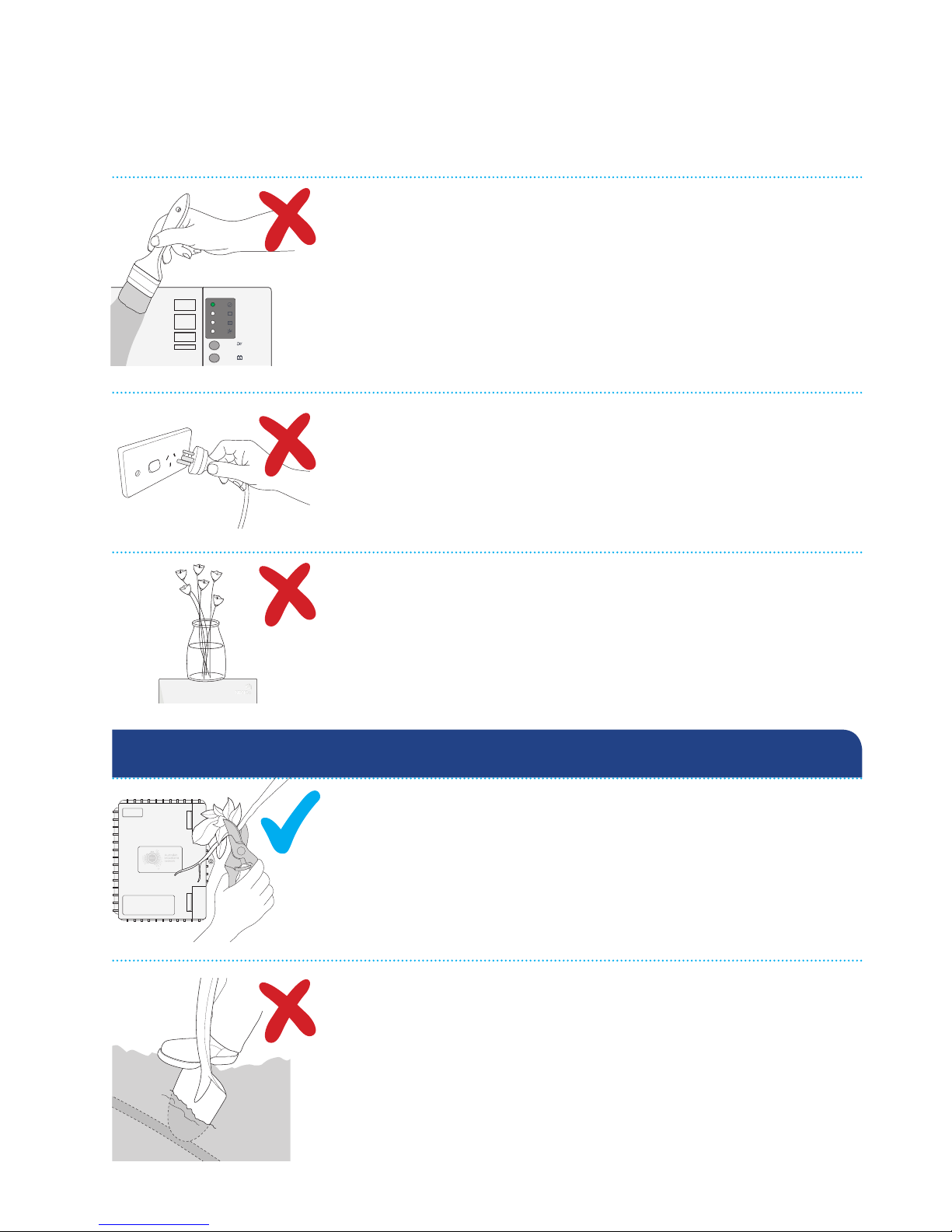
Do not cover or paint any part of the nbn™ connection
box, or Power Supply (with or without Battery Backup).
The only item that can be safely painted is the removable
front cover that goes over the nbn
™
connection box. This
has been specifically designed to allow you to paint it.
Remove the front cover before painting it. Only use
acrylic (PVA) water-based paints.
Do not unplug the nbn
™
connection box or its power
supply unless you need to replace the battery in a Power
Supply with Battery Backup unit if you have one, or if
you are going away for an extended period or otherwise
directed to do so by your service provider.
Do not place objects on top of the nbn™ connection box,
as this may reduce minimum ventilation requirements,
causing your nbn
™
connection box to operate at a higher
temperature than normal.
Outside your property
Ensure you know where any underground cables are
located before digging to avoid accidental damage to them.
It is best to always contact Dial Before you Dig by calling
1100 or via their website at www.1100.com.au. Lodging
an enquiry is free of charge. You may incur costs if
underground cables are accidentally damaged, and
experience lengthy unplanned service disruptions until
the damaged cables can be repaired.
Keep branches and shrubs away from the fibre optic cable
and nbn
™
utility box.
Page 10

10
© 2015 nbn co ltd | ABN 86 136 533 741
I’ve accidentally damaged the nbn™ connection box. What do I do?
The nbn™ connection box and its cover, Power Supply with Battery Backup,
standard power supply and the fibre optic cable on your property are your
responsibility to keep in good condition, just as you are responsible for your
other services such as power, phone and gas.
If you happen to accidentally damage any part of the nbn
™
supplied equipment
or cable, please contact your service provider to have it repaired. You may be
charged for the repair.
Is the nbn™ connection box installed in my home or premises safe?
The nbn™ connection box and its power supply only use fixed cables. That means
they are not designed to nor intended to emit any wireless radiation.
Rest assured the nbn
™
connection box and its power supply have been tested
to ensure they meet:
• Australian Safety and Emission requirements in accordance with
AS/NZS CISPR22 and AS/NZS 60950-1.
• These are the same standards consumer appliances are required to comply with.
• Both the nbn
™
connection box and power supply have passed these tests.
The nbn
™
connection box also has a laser warning label on it, in accordance with
Australian standards. The warning on the label is the same one required for CD and
laser pointing devices, laser ‘spirit’ level tools etc.
The nbn
™
connection box is designed to automatically turn o its laser in cases when
the optical fibre is pulled out or broken. The automatic switch o happens within
thousandths of a second of a break occurring. nbn nevertheless recommends that
you stay away from fallen or broken cables as a precaution because it’s not always
possible to tell whether a fallen or broken cable is a safe cable, or an unsafe cable.
Is the nbn™ fibre optic cable safe?
Fibre optic cables do not conduct electricity. However, there are other safety hazards
associated with handling the fibre optic cable. This is why you must never disconnect,
tamper with or look directly into the laser light beamed from the fibre optic cable.
Although the laser light found inside the fibre optic cabling may appear invisible,
you should always assume the light is present even if you cannot see it.
Who can I contact for assistance?
If you have any questions, need help or to report a fault please call your
service provider.
FAQs
Page 11

11
© 2015 nbn co ltd | ABN 86 136 533 741
If I’m going away for a while – can I unplug my service to save power?
nbn recommends leaving your nbn™ supplied equipment connected and powered
at all times. You may shorten the life of your battery if you leave the Power Supply
with Battery Backup unplugged for an extended period of time. However, if you are
away for an extended period, and do not want to leave the nbn
™
supplied equipment
plugged in, please be sure to disconnect the battery by following these steps
(refer to diagram on pages 22–23):
1 Turn o at the power point and disconnect the power supply from
the mains power.
2 Open the front cover of the Power Supply with Battery Backup
A
.
3 Disconnect the red ‘+’ plug from the battery
B
.
When returning, please remember to reconnect the battery. If you don’t, your
phone and broadband data services won’t work during a power failure, you may
hear audible alarms and your service provider may be alerted that your battery
needs servicing.
Can I plug the power supply into a power board?
Yes, however nbn prefers the nbn™ connection box and power supply is
connected to fixed power point where possible. However in the event this is not
possible then the power supply can be plugged into a double adapter, extension
cord or power board as long as they are safe.
What if I want to move the nbn™ connection box?
If you need to have the nbn™ connection box or the cables relocated, contact
your service provider. They should be able to advise you of the cost and
arrange for a technician to move the equipment. When considering relocating
nbn
™
supplied equipment or cables you should keep these things in mind:
1 The equipment must be protected from water, steam or excessive heat.
2 The location must be well ventilated, preferably near a fixed power point and
easy for you to check the indicator lights.
3 The equipment must be positioned in a location away from busy areas and
protected from risk of damage. There should also be sucient light for you to
see if the device is functioning correctly.
4 You may be charged for the relocation cost.
Page 12

12
© 2015 nbn co ltd | ABN 86 136 533 741
Can I connect other devices to the unused ports on the nbn™ connection box?
Unlike modem/routers you might be familiar with from ADSL and cable broadband
services, each port on the nbn
™
connection box is reserved for a separate service.
This allows you to have up to four separate broadband data and up to two separate
phone services through one connection box. If you only order one broadband service,
then only one port will be active. If you connect one of your devices to an unused nbn
™
connection box port, your devices won’t be connected to a phone or internet service.
I have a monitored home or premises security system.
Will it work over the nbn™ network?
It is expected that most monitored security systems will operate over the nbn™
network. However, if you would like to use an existing system, you should check with
your security provider to ensure that your particular equipment and service is nbn
™
network compatible. You should test your alarm the same day that your service over
the nbn
™
network is activated by your service provider, and also check that your
in-premises wiring is correctly connected up to your service over the nbn
™
network.
For further information on alarms and the nbn
™
network, visit nbn.com.au/alarms
Can I install in-home cabling myself?
nbn will professionally install the cabling from the street to your nbn™ connection
box (for more information on what’s included in a standard installation please
visit nbn.com.au/fibreinstallation). If you choose to install additional permanent
phone or data cabling through wall, floor or ceiling cavities it must be done by a
cabler registered with an Australian Communications and Media Authority (ACMA)
accredited industry registrar.
Your service provider may also be able to recommend a registered cabler in your
area. Other non-permanent cabling such as plugging your own router or phone into
the nbn
™
connection box can be done yourself.
How do I care for the nbn™ connection box cover?
You can clean the nbn™ connection box cover by removing the cover and wiping
it clean with a damp cloth and mild all-purpose cleaner. Do not use a damp cloth
on internal equipment or cables.
Can I lock the nbn™ connection box cover?
A locking feature is available to restrict access if desired. nbn recommends
a cable tie or small padlock to stop unwanted access. Please note: Your service
provider should not lock the cover, as you may need to access the ports or lights
inside the cover for troubleshooting or if you decide to change providers/devices.
Page 13

13
© 2015 nbn co ltd | ABN 86 136 533 741
How do I open my nbn™ connection box cover?
To remove the cover, press the two clips at the base of the box (either together or
one at a time). Pull the base of the cover out, and then up to remove it completely.
To reattach the cover, simply place the top over the base then lightly guide the cover
down and back until it clips into place. Do not touch or uncoil the cables that have
been installed inside the cover as this could aect the performance of your service.
Can I remove my Power Supply with Battery Backup if I no longer want the
Battery Backup service and only want the standard power supply?
No, this is currently not possible. However you can advise your service provider that
you no longer want the Battery Backup service which means you can remove the
battery (provided no other users of nbn
™
approved services are using the Battery
Backup service on your premises) and your service provider will stop sending you
battery alarm reminders. If you do this, your services will only operate if the power
is switched on at the power point; they won’t work during a power failure.
I only have the standard power supply. Can I add a Power Supply with
Battery Backup if my circumstances change or I move into a home that
does not have the capability and I require this service?
Yes this is possible – please contact your service provider to discuss your needs
and arrange an appointment for the installation of the Power Supply with Battery
Backup. Please note that until your Power Supply with Battery Backup is installed,
your services will not operate during a power failure or when the power for the
nbn
™
connection box is switched o at the power point.
I have moved into a house with nbn™ fibre already installed. Do I need
to do anything to make sure the Battery Backup service is working?
If you move into a house where nbn™ fibre is available, please let your preferred
service provider know whether you require the Battery Backup service when
arranging your services over the nbn
™
network.
If you do require it, your service provider may need to arrange nbn to install a Power
Supply with Battery Backup if there is not already one there in the house. Your service
provider will also remind you when the battery is worn out and needs to be changed.
You can check if the Power Supply with Battery Backup has a working battery installed
in it by checking if there are any visual light alarms on the unit and opening the power
supply cover to see if a battery is installed. Please follow the instructions on page 22.
If you don’t require the Battery Backup service, and there is already a Power Supply
Unit with Battery Backup installed, then your service provider can turn o the
reminders to replace the battery.
Page 14
14
© 2015 nbn co ltd | ABN 86 136 533 741
Property of NBNCo - Do not R emove
Contact your service provider for
assistance with this equipment
Property of nbn - Do not Remove
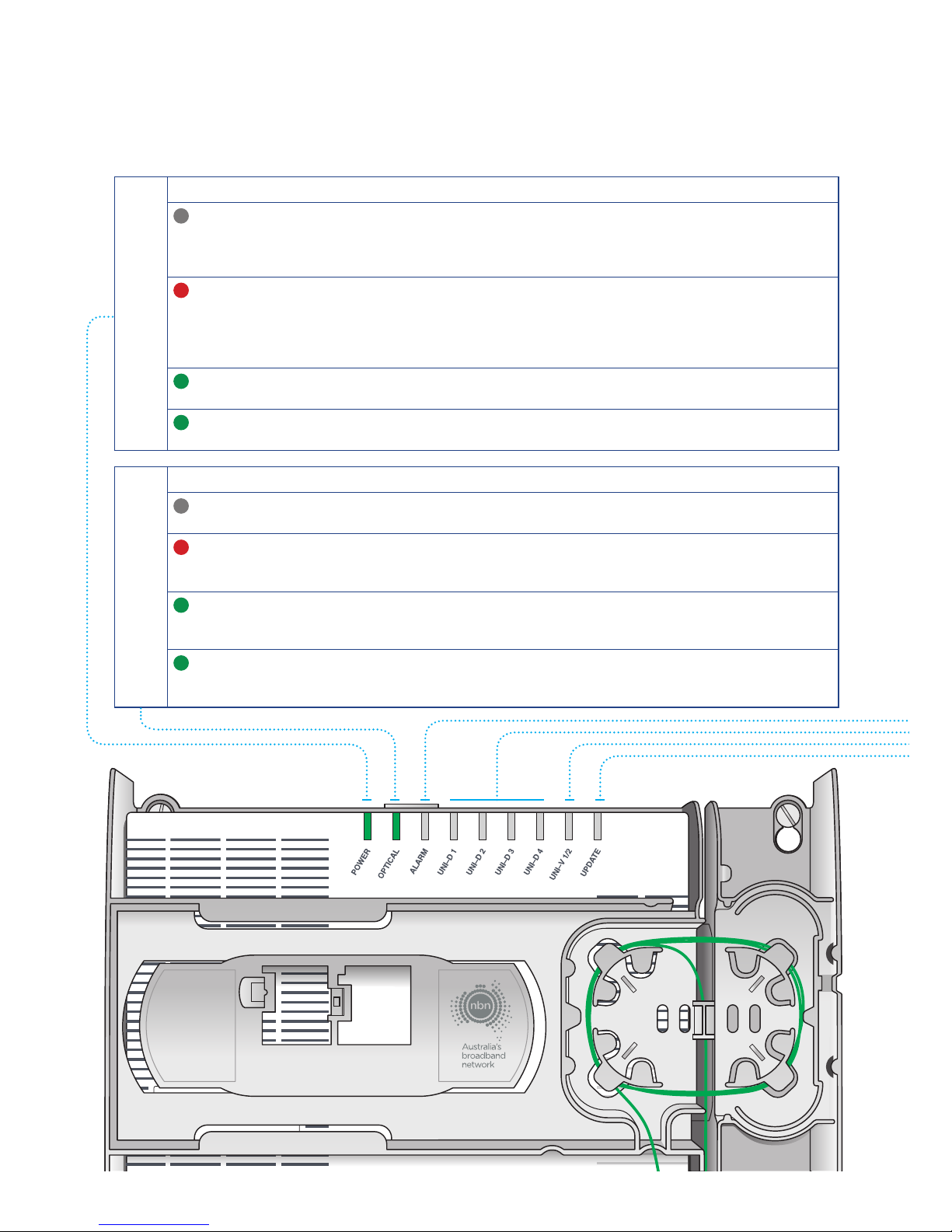
Power
Indicator
Indicator Meaning Action
O This means there is no power
to your nbn
™
connection box
Check the power supply is plugged in and
switched on and is connected to your nbn™
connection box. If there is still no power
light contact your service provider
Red Your power supply is operating
on backup battery power
If there is a mains power failure, you will
only have services over the nbn
™
for a
limited period of up to five hours. Refer
to the Power Supply with Battery Backup
section of this guide
Green Your power supply is working
normally
No action is required
Green
Flashing
Your nbn™ connection box
is starting up
No action is required. The flashing light
should turn into a green solid light shortly
Optical
Indicator
Indicator Meaning Action
O Your nbn™ connection box
has been disabled externally
Contact your service provider
for further instructions
Red Your nbn™ connection box
has lost connection with the
fibre network
Contact your service provider
for further instructions
Green Your nbn™ connection box
is connected and working
properly
No action is required
Green
Flashing
This is normal and simply
means there is activity on
the network
No action is required
nbn™ connection box indicator lights
Page 15
15
© 2015 nbn co ltd | ABN 86 136 533 741
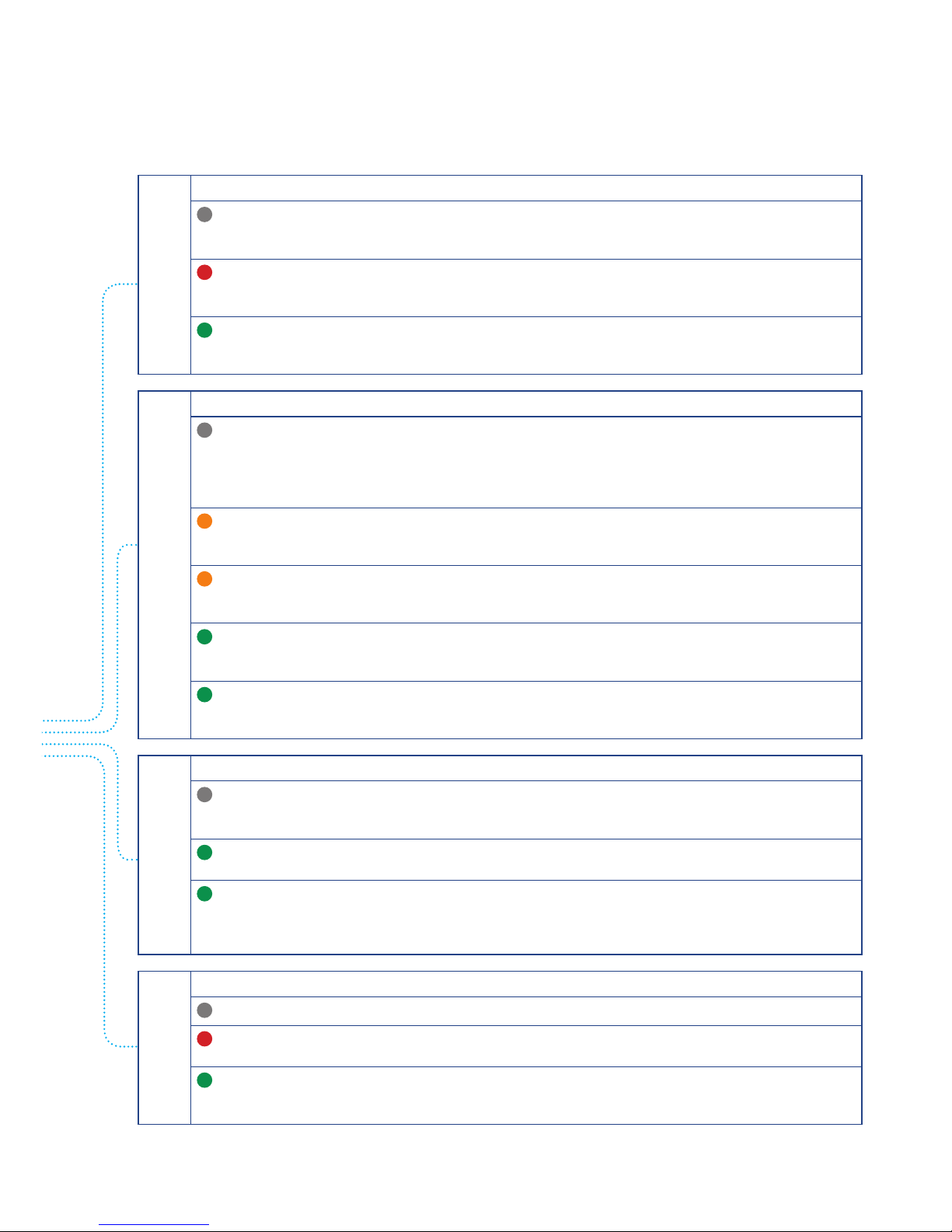
Alarm
Indicator
Indicator Meaning Action
O Your nbn™ connection box
is working but you have no
devices connected
No action is required
Red Your nbn™ connection box
has a fault and is not working
normally
Contact your service provider
for further instructions
Green Your nbn™ connection box
is working normally and is
connected
No action is required
Data (UNI-D)
Indicators
Indicator Meaning Action
O You do not have an active
service using this port at
this time
This may simply mean that connected
devices are not active at the moment.
If you are having diculty with connected
devices then contact your service provider
for further instructions
Orange The device connected to
your UNI-D port uses 1Gbps
Ethernet
No action is required
Orange
Flashing
The device connected
to your UNI-D port uses
1Gbps Ethernet
No action is required
Green The device connected to
your UNI-D port uses 10 or
100Mbps Ethernet
No action is required
Green
Flashing
The device connected to
your UNI-D port uses 10 or
100Mbps Ethernet
No action is required
Voice (UNI-V)
Indicators
Indicator Meaning Action
O You do not have an active
phone service using this port
at this time
No action is required
Green One or more telephones are
o the hook (being used)
No action is required
Green
Flashing
One or more telephones have
been o the hook for more
than 1 hour
Check if someone in your household is
using the phone, and if not check to see if
any of your handsets have been left o the
hook by accident
Update Indicator
Indicator Meaning Action
O Normal No action is required
Red Your nbn™ connection box has
failed to download software
Contact your service provider
for further instructions
Green Your nbn™ connection box
is successfully downloading
software
No action is required
Page 16
16
SYSTEM
STATUS
BATTERY
POWER
REPLACE
BATTERY
ALARM
SILENCE
ALARM
SILENCE
BATTERY
EMERGENCY
USE
Optional Power
Supply with
Battery Backup
guide
This section (pages 16 to 27)
only applies if you have the
Optional Power Supply with
Battery Backup.
Page 17

17
© 2015 nbn co ltd | ABN 86 136 533 741
The Power Supply with Battery Backup:
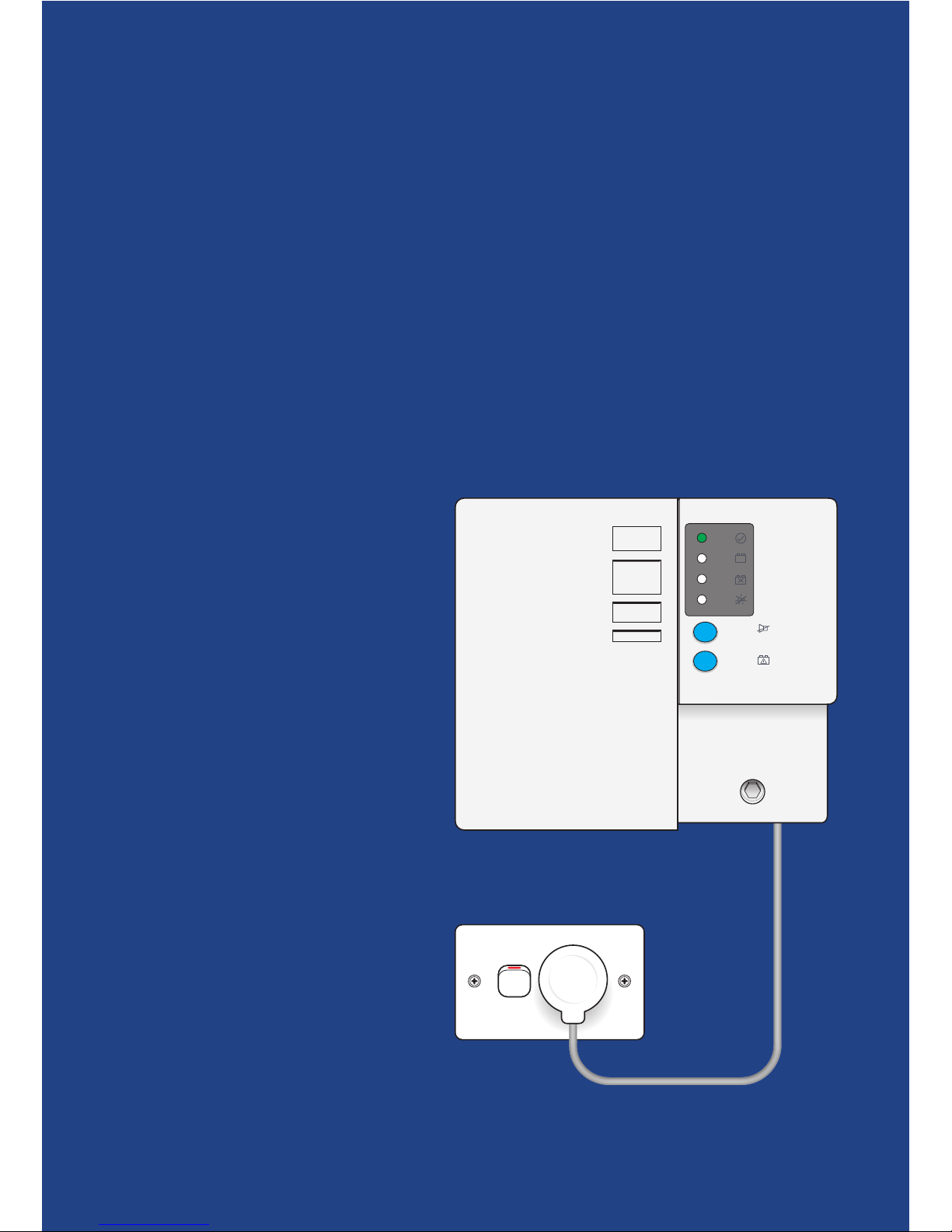
• Provides a steady 12V power supply to your nbn
™
connection box.
• Provides battery backup power to the nbn
™
connection box (when fitted
with a working battery).
• During a power outage, battery backup will last for approximately
five hours (including the battery emergency reserve).
It is always good to have another way of calling someone during a power outage
in the case of emergency such as a charged mobile phone.
To ensure that your phone (or data) services continue to operate during a power
outage please note:
• Only standard corded phones (that don’t need to be plugged into a power
point) will work during a power outage, and only if your phone service is also
provided over the nbn
™
connection box’s voice (UNI-V) port. All other devices
require their own battery backup to operate during a power outage.
• If your phone plugs into a separate router/gateway from your phone
or internet service provider, you won’t be able to make calls unless
that router/gateway also has its own battery backup.
• Examples of devices that require their own battery backup include wireless
routers, all mains powered phones, computers or modem/routers.
• Uninterruptable power supply (UPS) systems help power devices during
a power outage and are readily available through technology retailers.
Your service provider should explain how your services can work with nbn’s
Battery Backup and what additional solutions you may need to power your
other devices.
How long Battery Backup lasts
If you have a Power Supply with Battery Backup, your nbn™ connection box will
continue to be powered for approximately five hours during a power outage.
• When approximately 40% of the battery charge is remaining (after about
3 to 3.5 hours), the power supply will automatically turn o to preserve the
remaining charge for emergency use.
• When you need to use the remaining charge press the emergency reserve
button and within a few minutes your services will operate for the remaining
approximately 1.5 to 2 hours.
• Extremely cold conditions (less than -1 degrees Celsius) may cause the battery
to run out more quickly.
Managing the Power Supply
with Battery Backup
Page 18

18
© 2015 nbn co ltd | ABN 86 136 533 741
Keeping your backup battery topped up
To ensure the backup battery works when you need it, please maintain it by
following the advice given in this guide.
• Regularly check the battery indicators lights and pay attention to audible alarms,
(see page 25 for a guide to indicator lights and alarms) as these may indicate
a problem with your battery.
• When your battery is used as indicated in the nbn
™
User Guide, it will age
to about 70% of its original capacity in around three to five years.
• A battery can age sooner if not kept at room temperature (around 20 degrees).
Warmer temperatures can accelerate aging of the battery.
• Turning the power on and o frequently will cause the battery to age earlier
and reach 70% of its capacity in around one to two years.
• Please ensure the battery is replaced when needed (or as arranged with
your service provider).
Options for extending your Battery Backup
If approximately five hours of battery backup isn’t enough for your needs, you
can add additional capacity by plugging the power cord of the Power Supply with
Battery Backup unit into an Uninterruptable Power Supply (UPS) – itself a type of
battery backup unit. These are readily available through technology retailers. Your
service provider should explain how your services can work with nbn’s Battery
Backup and what additional solutions you may need to power your other devices.
The UPS must supply a 230V 50Hz AC waveform in accordance with AS60038-
2000. Refer to your UPS manufacturer for confirmation.
To set up a UPS, please:
• Follow the instructions provided by the UPS manufacturer to initially set up
the UPS system.
• Switch o the power at the power point that the nbn
™
connection box power
supply is connected to.
• Unplug the nbn
™
Power Supply power cord from the power point and plug
it into the UPS.
• Plug the UPS power cord to the fixed power point.
• Turn on the power point.
• Follow the UPS manufacturer’s instructions on operating the UPS.
Your service provider should explain how your services can work with battery
backup and what solutions you may need for your devices. You should discuss
the use of any UPS with your service provider.
Page 19
19
© 2015 nbn co ltd | ABN 86 136 533 741
Property of NBNCo - Do not Remo ve
Contact your service provider for
assistance with this equipment
Property of nbn™ - Do not Remove
SYSTEM
STATUS
BATTERY
POWER
REPLACE
BATTERY
ALARM
SILENCE
ALARM
SILENCE
BATTERY
EMERGENCY
USE
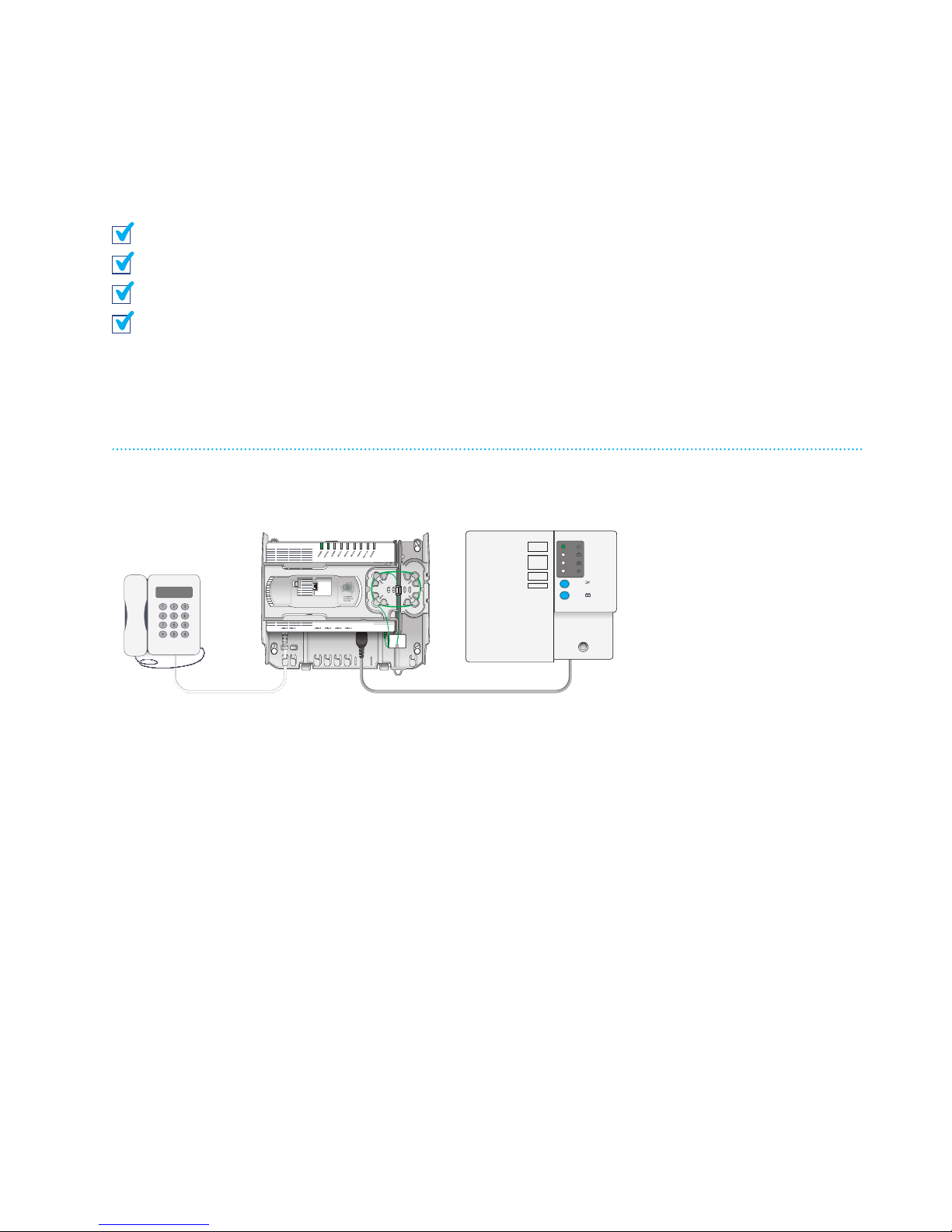
To make calls during a power outage for up to five hours, you need to make sure
you have all the following:
Power Supply with Battery Backup
nbn™ Battery Backup service from your preferred service provider
A phone service connected on the nbn™ connection box’s UNI-V port
A standard corded phone that doesn’t need to be plugged into a power point
The corded phone needs to be plugged in to the UNI-V port on the nbn
™
connection box, and your Power Supply with Battery Backup needs to be working
and maintained by following instructions in this guide.
Power Supply with
Battery Backup
nbn™ connection box
UNI-V port
Corded phone
Powered for up to five hours (including emergency reserve)
by Power Supply with Battery Backup
Emergency calls checklist
What if…
Q. I connect my phone to a router provided by my phone company?
A. If your phone service provider has advised that you need to connect your
phone up to a router, gateway or “box” that is not the nbn
™
connection box,
then you will need to have a separate battery backup for that device. Ask your
phone service provider for advice.
Q. I use a cordless phone?
A. Most cordless phone sets have batteries in the handsets, but not the base
station, which usually only works when plugged in to mains power. You will
either need to arrange an external battery backup unit for your cordless phone
base station, or buy a new cordless phone that has battery backup built into
both the base station and handsets.
Page 20
20
© 2015 nbn co ltd | ABN 86 136 533 741
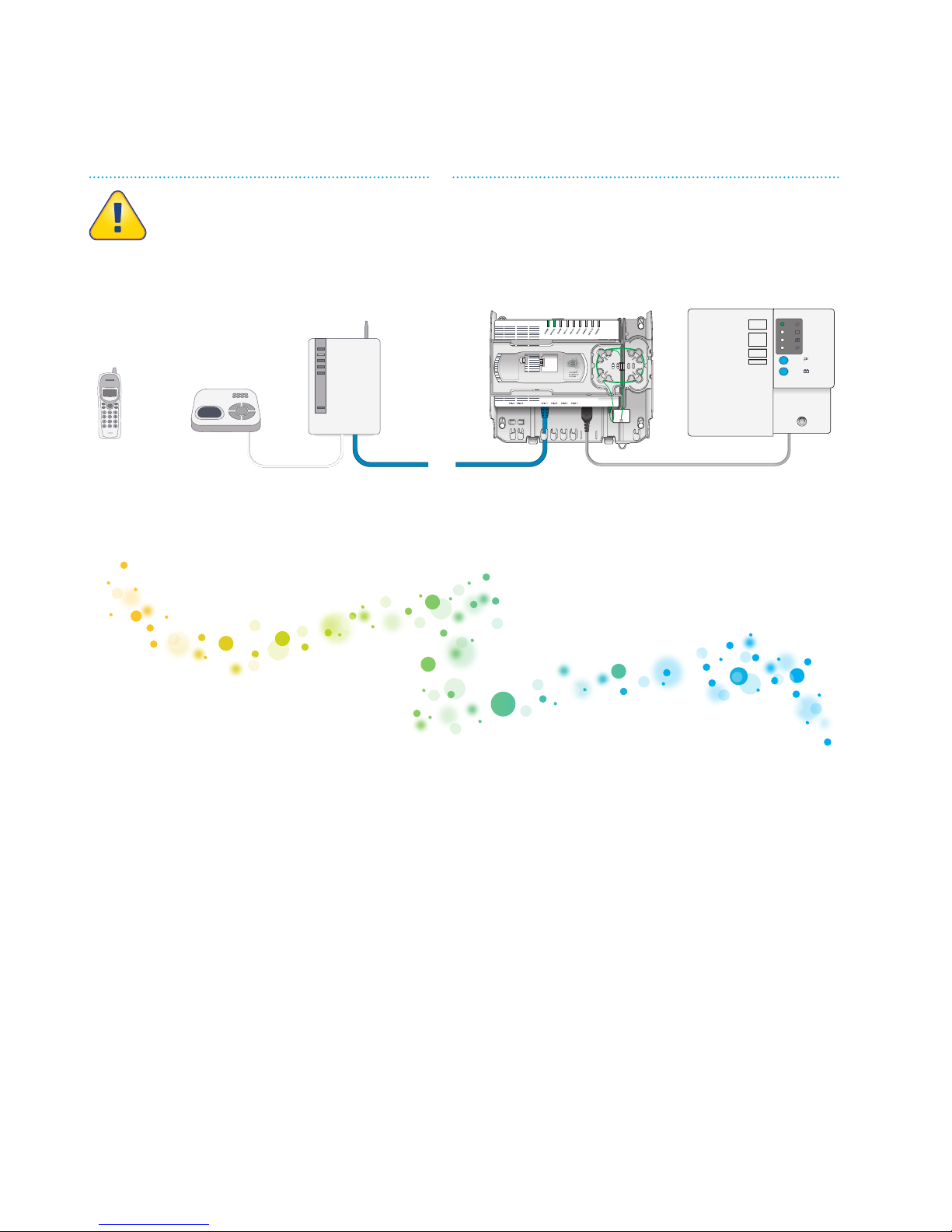
1 nbn recommends the power supply is plugged directly into a fixed power point.
2 Where a fixed power point is not available, a safe extension cord, double adapter
or power board can be used.
3 The nbn
™
connection box will switch to battery power if you turn the power
o at the power point. When the battery goes flat, the nbn
™
connection box
will turn o, and your phone or data services will no longer work.
4 Don’t switch o your nbn
™
supplied equipment. The power used by
the system is minimal – equivalent to a 15W light bulb.
5 The life of the battery in a Power Supply with Battery Backup will be reduced
if the power is routinely turned on and o, or left switched o.
Connecting to the mains power supply
Power Supply with
Battery Backup
nbn™ connection
box UNI-D port
Cordless
phone
handset
Cordless
phone base
station
Router or “box”
from your
phone service
provider
Property of NBNCo - Do not Remove
Contact your service provider for
assistance with this equipment
Property of nbn™ - Do not Remove
SYSTEM
STATUS
BATTERY
POWER
REPLACE
BATTERY
ALARM
SILENCE
ALARM
SILENCE
BATTERY
EMERGENCY
USE
Property of NBNCo - Do not Remove
Contact your service provider for
assistance with this equipment
Property of nbn™ - Do not Remove
SYSTEM
STATUS
BATTERY
POWER
REPLACE
BATTERY
ALARM
SILENCE
ALARM
SILENCE
BATTERY
EMERGENCY
USE
Property of NBNCo - Do not Remove
Contact your service provider for
assistance with this equipment
Property of nbn™ - Do not Remove
SYSTEM
STATUS
BATTERY
POWER
REPLACE
BATTERY
ALARM
SILENCE
ALARM
SILENCE
BATTERY
EMERGENCY
USE
Property of NBNCo - Do not Remove
Contact your service provider for
assistance with this equipment
Property of nbn™ - Do not Remove
SYSTEM
STATUS
BATTERY
POWER
REPLACE
BATTERY
ALARM
SILENCE
ALARM
SILENCE
BATTERY
EMERGENCY
USE
Powered for up to five hours
(including emergency reserve)
by nbn
™
Power Supply with
Battery Backup
Need their own
battery backup
Page 21
21
© 2015 nbn co ltd | ABN 86 136 533 741
IMPORTANT!
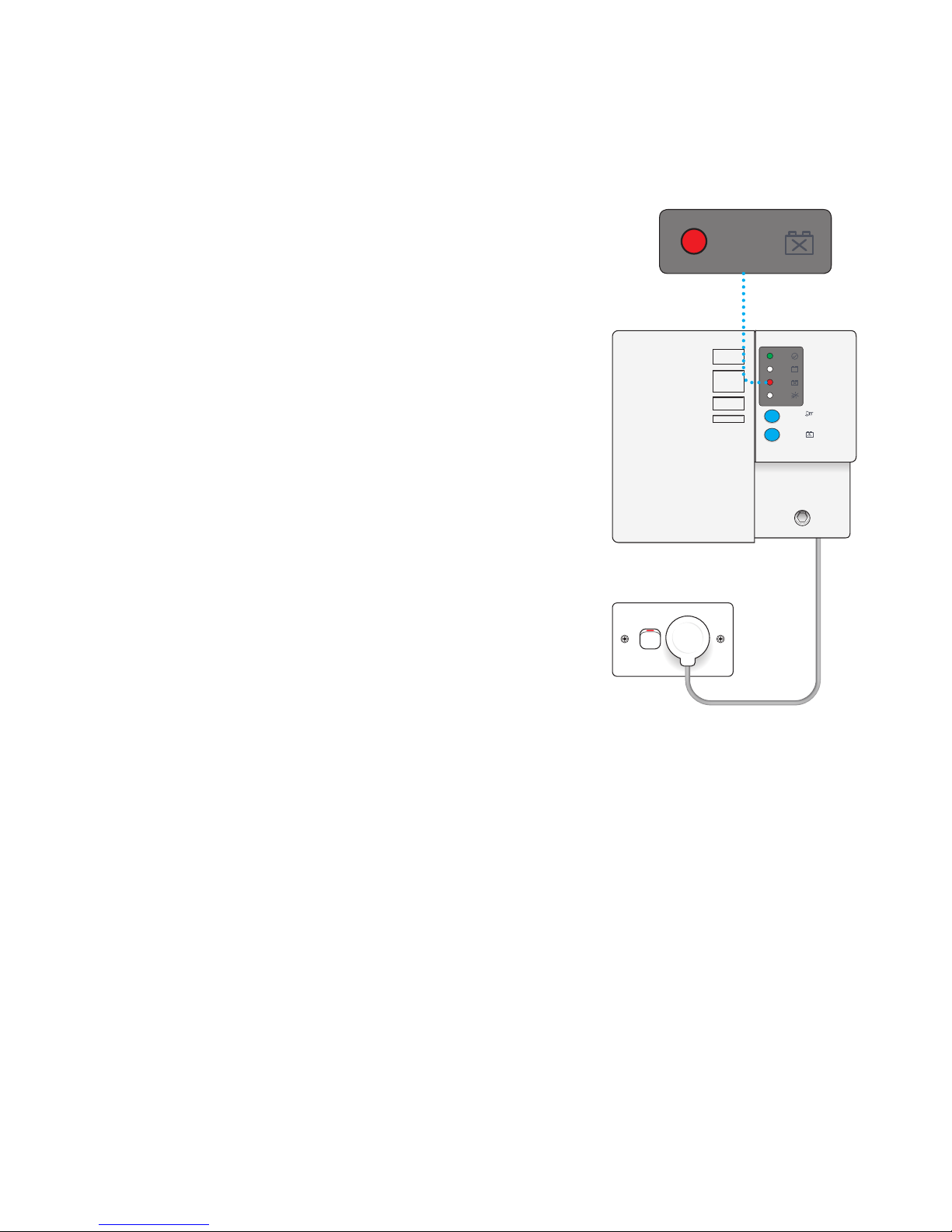
If your Power Supply with Battery Backup is
showing a red light next to the ‘REPLACE BATTERY’
symbol or you hear an alarm (beeping once every
15 minutes) this either means that you need to
replace your battery with a new one or that the
battery has been removed.
nbn currently provides the first battery free of
charge when the Power Supply with Battery Backup
is installed. It is your responsibility to discuss with
your service provider whether they will supply
subsequent replacement batteries or whether you
should purchase them. See ‘Purchase a new battery’
on page 22.
If there’s a power outage, your service over the
nbn
™
network won’t work if the battery is faulty
or missing.
If you have a Battery Backup service, your phone or
internet service provider will also let you know when
your battery is worn out and needs replacement or
when your battery is missing. Detailed instructions
on how to replace the battery are on the next page.
If you no longer want to replace the battery or need the
Battery Backup service
If you no longer require a Battery Backup service and do not intend to replace
the battery, let your service provider know. They can stop reminding you when
your battery needs replacement.
As long as no other users at the same premises have a Battery Backup service,
you can remove the current battery and dispose of it at a battery recycling
centre (do not place in household garbage). Refer to instructions for battery
replacement for safe removal and disposal of battery on page 23.
Of course, with no battery, you’ll have no battery backup during a power outage,
so your voice and data services will only work when plugged in and receiving
mains power.
SYSTEM
STATUS
BATTERY
POWER
REPLACE
BATTERY
ALARM
SILENCE
ALARM
SILENCE
BATTERY
EMERGENCY
USE
SYSTEM
STATUS
BATTERY
POWER
REPLACE
BATTERY
Page 22
22
© 2015 nbn co ltd | ABN 86 136 533 741
ALARM
SILENCE
SYSTEM
STATUS
BATTERY
POWER
REPLACE
BATTERY
ALARM
SILENCE
BATTERY
EMERGENCY
USE
D
ALARM
SILENCE
SYSTEM
STATUS
BATTERY
POWER
REPLACE
BATTERY
ALARM
SILENCE
BATTERY
EMERGENCY
USE
ALARM
SILENCE
SYSTEM
STATUS
BATTERY
POWER
REPLACE
BATTERY
ALARM
SILENCE
BATTERY
EMERGENCY
USE
ALARM
SILENCE
SYSTEM
STATUS
BATTERY
POWER
REPLACE
BATTERY
ALARM
SILENCE
BATTERY
EMERGENCY
USE
A
ALARM
SILENCE
SYSTEM
STATUS
BATTERY
POWER
REPLACE
BATTERY
ALARM
SILENCE
BATTERY
EMERGENCY
USE
ALARM
SILENCE
SYSTEM
STATUS
BATTERY
POWER
REPLACE
BATTERY
ALARM
SILENCE
BATTERY
EMERGENCY
USE
C
C
B
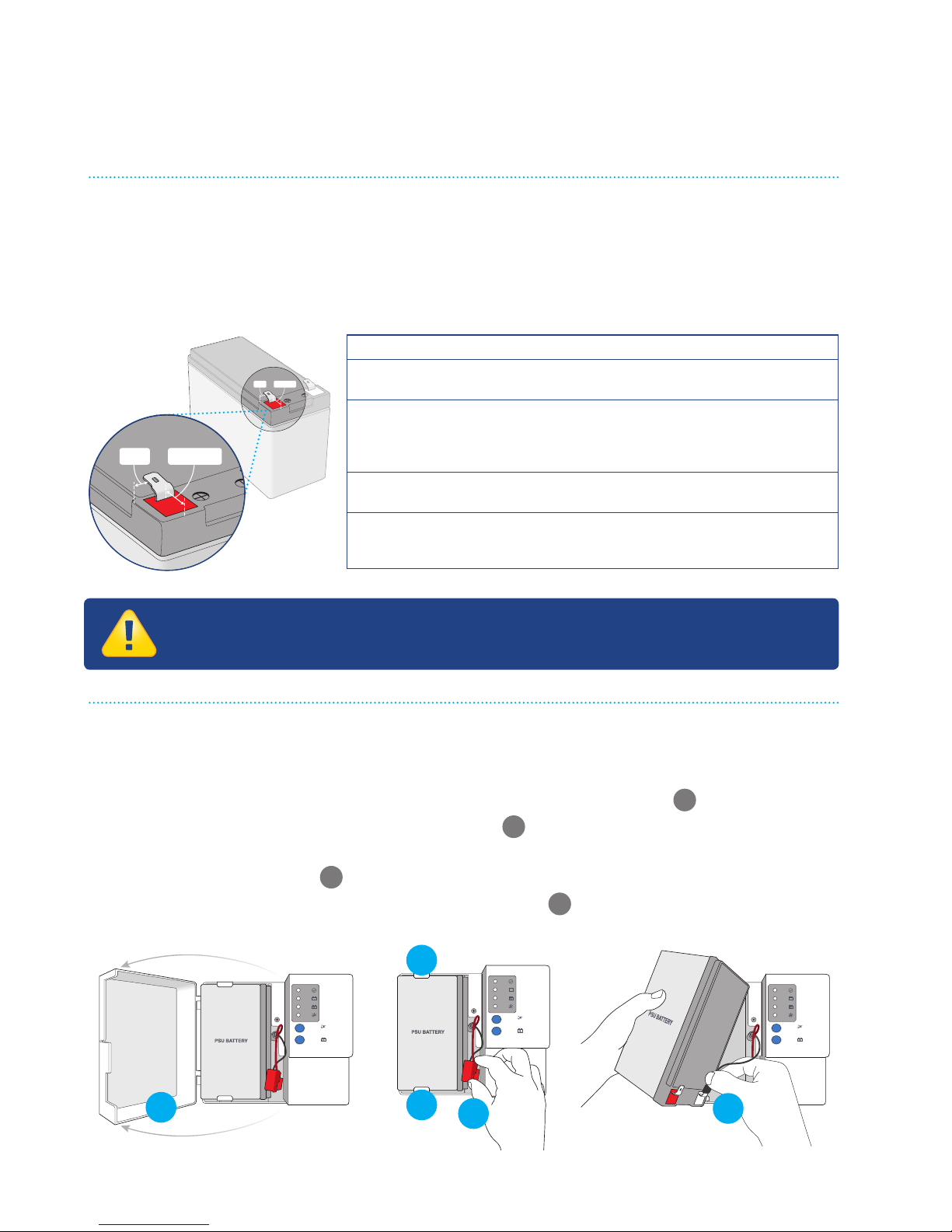
1. Purchase a new battery
If you and your service provider have agreed you will replace the battery for your
nbn
™
connection box, you should buy a replacement battery that is equivalent to
the original. You can purchase the battery at most specialist battery retailers –
you can find a list at nbn.com.au/battery along with other useful information.
2. Remove the old battery
• Turn o at the power point and disconnect the power supply from the
mains power.
• Open the front cover of the Power Supply with Battery Backup
A
.
• Disconnect the red ‘+’ plug from the battery
B
.
• Push the tabs holding the battery, one above and one below, outward and
then lift the battery out
C
.
• Disconnect the black ‘–’ plug and remove battery
D
.
How to replace your backup battery
Specifications
Battery Type 12V 7.0-7.2Ah 6 Cell VRLA Sealed Lead
Acid Battery
Dimensions 94mm (H) x 151mm (W) x 65mm (D)
(excl. terminals)
100mm (H) x 151mm (W) x 65mm (D)
(incl. terminals) (all tolerances +/- 1mm)
Terminal Type Spade-type. Quick disconnect ‘F2’
6.35mm (W) x 0.81mm (Thickness)
Terminal position
relative to the
battery case
8mm from the battery sides, 12 - 24mm from
the battery end. Positive terminal positioned
on the side depicted in the drawing.
12-24MM8MM
12-24
MM
8
MM
STOP!
Before going any further please read the Important
Safety Warnings on the back cover.
Page 23
23
© 2015 nbn co ltd | ABN 86 136 533 741
Please recycle your old battery
The Sealed Lead Batteries supplied by nbn are 100% recyclable. However these
batteries cannot be simply tossed in your household recycling bin as they will
contaminate the rest of the recyclable material. Please take your battery to
a specialist recycling centre to be recycled.
Alternatively you could take your used battery to the store
where you purchased your new battery, and ask them to
recycle it for you. Refer to nbn’s website for places to recycle
lead acid batteries. You can find a list at nbn.com.au/battery.
Pb
ALARM
SILENCE
SYSTEM
STATUS
BATTERY
POWER
REPLACE
BATTERY
ALARM
SILENCE
BATTERY
EMERGENCY
USE
ALARM
SILENCE
SYSTEM
STATUS
BATTERY
POWER
REPLACE
BATTERY
ALARM
SILENCE
BATTERY
EMERGENCY
USE
F
G
F
ALARM
SILENCE
SYSTEM
STATUS
BATTERY
POWER
REPLACE
BATTERY
ALARM
SILENCE
BATTERY
EMERGENCY
USE
E
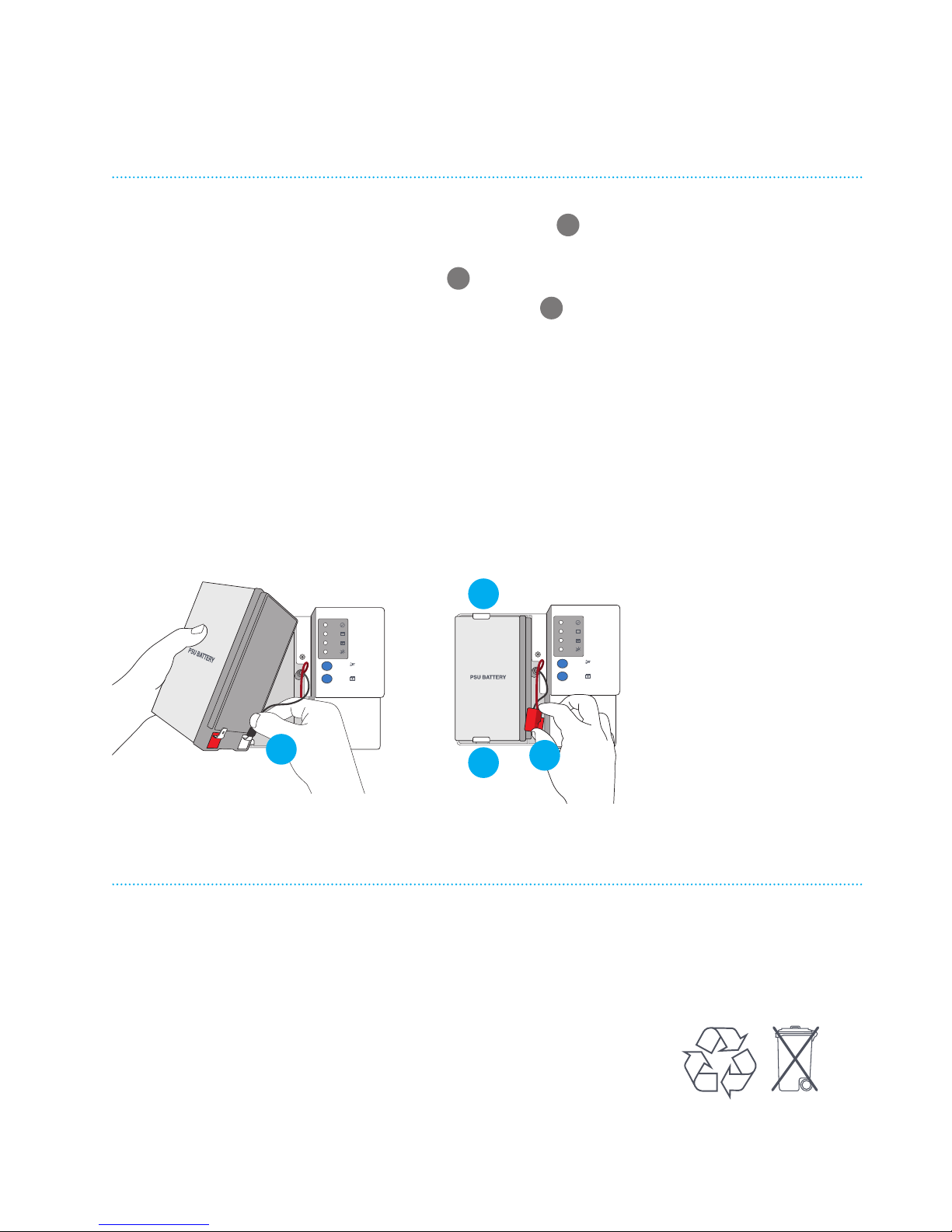
3. Install the new battery
• Reconnect the black ‘–’ plug to the new battery E .
• Push the battery retaining tabs outward and insert the battery into the
Power Supply with Battery Backup
F
.
• Reconnect the red ‘+’ plug to the new battery
G
.
• Make sure the wires are not being pinched by the battery or front cover.
• Close the front cover and plug the power supply back into the power point
and turn the power on.
• The new battery will take 24 hours to completely charge. Please retain
the old battery as a precaution during this time unless its charge was
completely exhausted.
• Please note, your broadband and/or phone service delivered over the
nbn
™
network will be unavailable while the battery is being replaced and
for up to 10 minutes afterwards.
Page 24
24
© 2015 nbn co ltd | ABN 86 136 533 741
If your mains power fails, the Power Supply with Battery Backup will beep once
and automatically switch to its backup battery power.
When only around 40% of the battery power remains (after about 3 to 3.5 hours),
the Power Supply with Battery Backup will turn o to save the remaining 40% of
backup battery power (about 1.5 to 2 hours). This saved power can then be used
to make emergency calls if needed.
What happens when only 40% of the battery power remains?
The battery power indicator will flash and the Power Supply with Battery Backup
will begin to beep four times a minute. Once the beeping stops, the Power Supply
with Battery Backup will turn itself o to preserve the remaining power for use in
case of an emergency.
How to access the remaining backup battery power
in emergencies
Press and hold the BATTERY EMERGENCY USE button for
two seconds until the power supply beeps once and all 4 lights
flash. This will provide around a further 1.5 to 2 hours of power.
After this, you can’t turn the battery power o again.
After the battery is completely flat, the BATTERY EMERGENCY USE butto will
not work again until mains power has been restored and the battery is recharged.
The battery is designed to be continually recharged until it has reached the end
of its life and needs to be replaced - estimated to occur every three to five years
if used in accordance with the guidelines.
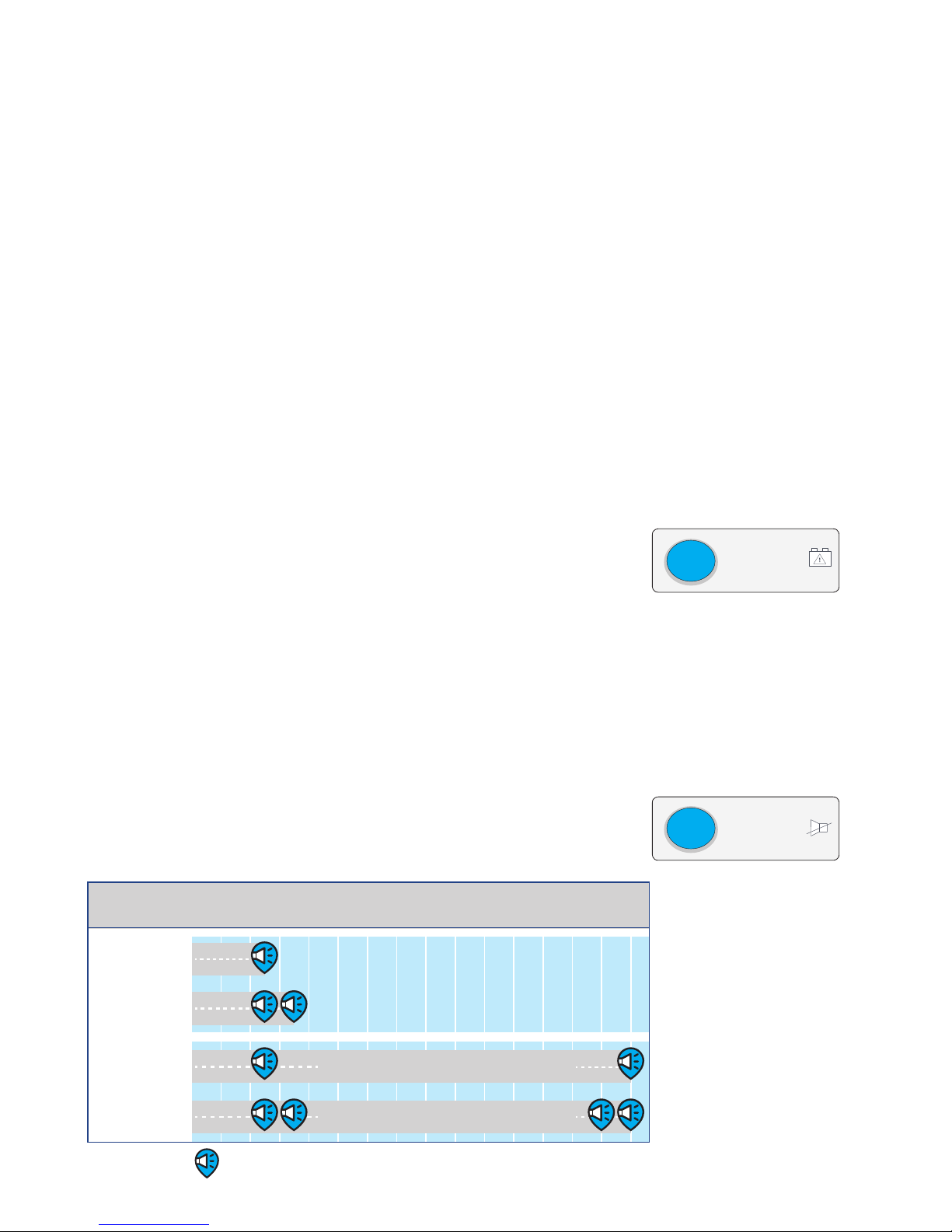
Alarm silence function
You can silence audible alarm sounds. Press and hold
the ALARM SILENCE button to temporarily silence or
re-enable the alarm sounds for either 24 hours or longer:
You should only
silence alarms
when absolutely
necessary as they
are designed to
alert you when your
battery is in need
of replacement,
missing or running
low and will soon
be flat.
What to do if the mains power fails
n
BATTERY
EMERGENCY
USE
1
Hold button for
time (seconds)
2 3 4 5 6 7 8 9 10 11 12 13 14 15
Silence for
24 hours
Re-enable
alarm
Re-enable
alarm
Silence for
24 hours+
Keep holding alarm silence button
Keep holding alarm silence button
1
2 3 4 5 6 7 8 9 10 11 12 13 14 15
Keep holding alarm silence button
Keep holding alarm silence button
= 1 Beep
= 1 Beep
ALARM
SILENCE
Page 25
25
© 2015 nbn co ltd | ABN 86 136 533 741
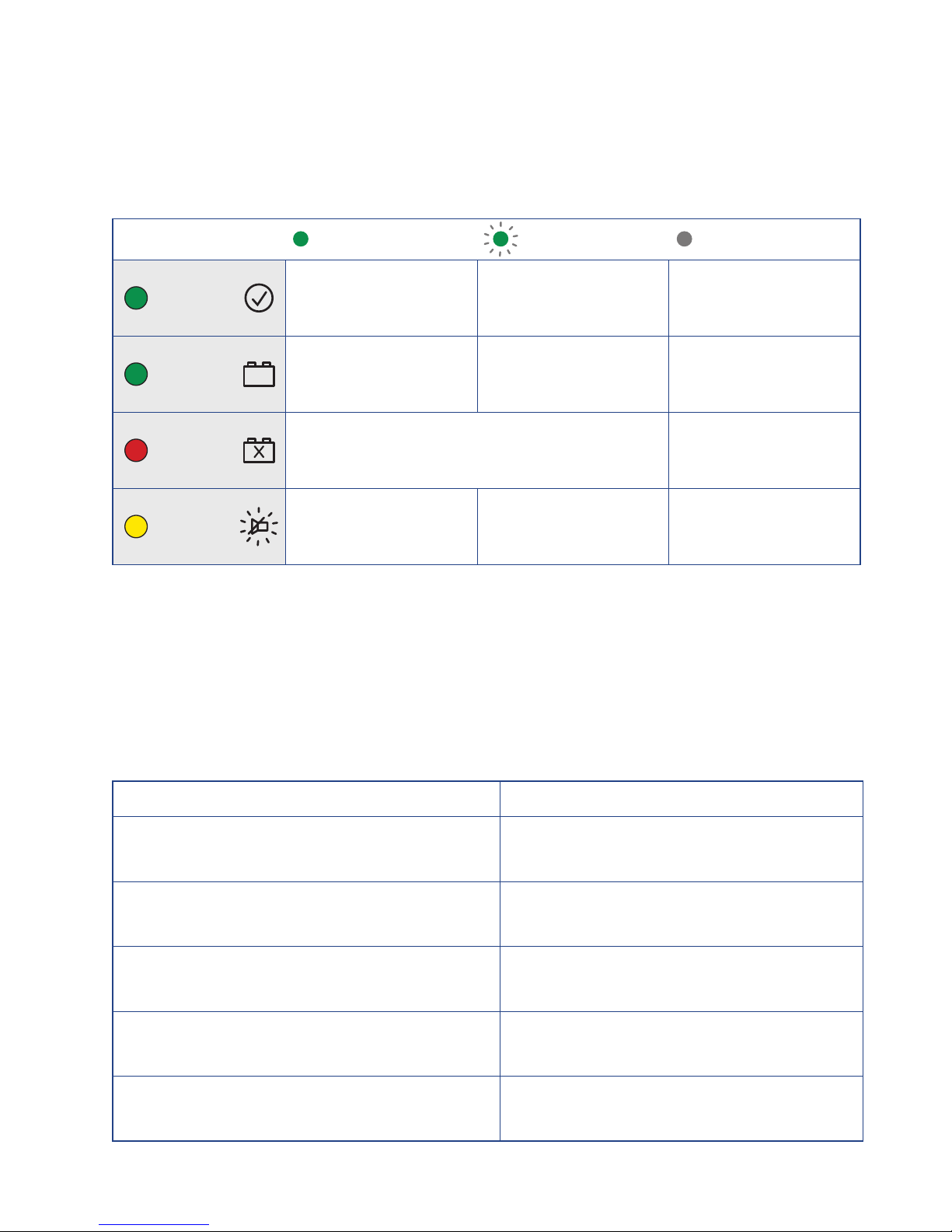
The following displays are present on the front of the unit:
If the Power Supply with Battery Backup is working normally on mains power, the
SYSTEM STATUS light is green and the BATTERY POWER and REPLACE BATTERY
lights are o.
Alarm sounds
The following list describes the dierent types of audible alarm sounds
you might hear:
Power supply with Battery Backup
indicator lights and alarm sounds
Light ON Light BLINKING Light OFF
SYSTEM
STATU S
Normal System fault No mains power
and power supply
unit is o
BATTE RY
POWER
Using battery
No mains power
Battery charge
low and will soon
be flat
Using mains
power or battery
is flat
REPLACE
BATTE RY
Battery missing or battery has
degraded and should be replaced
Battery OK
ALARM
SILENCE
Audible alarms
silenced
Audible alarms
silenced for 24
hours
Audible alarms
enabled
Cause Alarm Sounds
Power Failure
Loss of mains power
Beeps once
Replace Battery
Battery self test fails
Beeps once every 15 minutes
Low Battery – Less than 50% remaining
Battery reserve shutdown imminent
Beeps 4 times every minute
Audible Alarm On
Alarm function is enabled
Beeps twice when enabled
Audible Alarm O
Alarm function is disabled
Beeps once when disabled
Page 26
26
© 2015 nbn co ltd | ABN 86 136 533 741
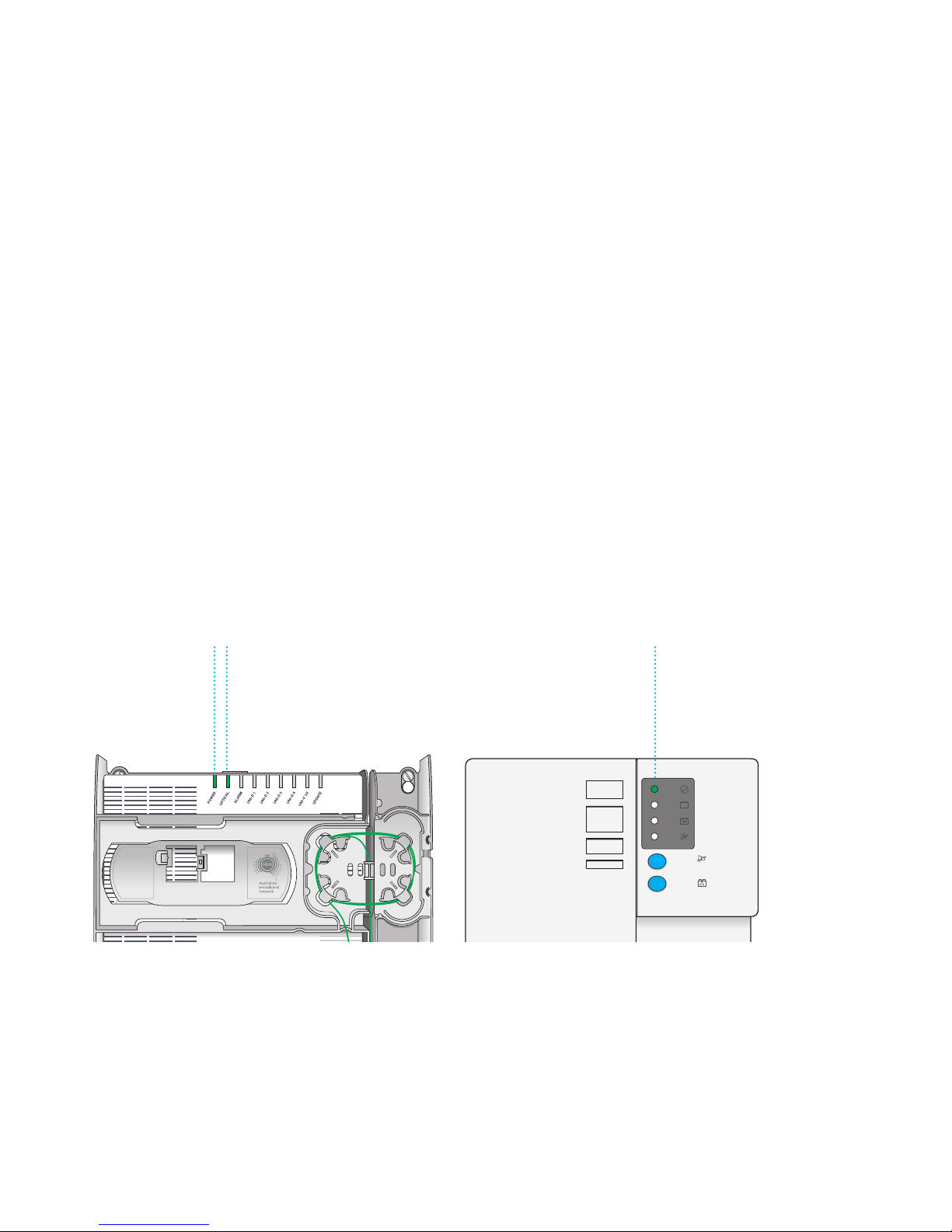
In the event any of the services provided through your nbn™ connection box
stop working (e.g. internet, IPTV or phone) the first step is to check the following:
1. Power check
Is everything plugged in and turned on?
• nbn
™
connection box
• Power Supply with Battery Backup or standard power supply
• All cables and power points
• Your own equipment
2. External fibre optic cable check
Has the fibre optic cable connection from the street been damaged?
For example, a fallen branch may have damaged the cable. If you think this may
be the case, do NOT try to remove it or repair the cable yourself. Contact your
service provider immediately.
3. Indicator light check
Check the indicator lights on your Power Supply with Battery Backup and
nbn
™
connection box.
If you remove the cover from your nbn
™
connection box and the lights on your
nbn
™
connection box or Power Supply with Battery Backup (if installed) do
not match those shown in this diagram, then refer to the lights and indicators
sections of this guide on pages 14–15 and 25.
Still can’t identify the problem or the solution?
Please note down which lights are glowing and contact your service provider
for further advice.
Power Supply
with Battery
Backup
System Status
light is ON
nbn
™
connection box
Power and Optical
lights are ON
Contact your service provider for
assistance with this equipment
Property of N BNCo - Do not Remove
Contact your service provider for
assistance with this equipment
Property of nbn™ - Do not Remove
Property of N BNCo - Do not Remove
Contact your service provider for
assistance with this equipment
Property of nbn™ - Do not Remove
SYSTEM
STATUS
BATTERY
POWER
REPLACE
BATTERY
ALARM
SILENCE
ALARM
SILENCE
BATTERY
EMERGENCY
USE
SYSTEM
STATUS
BATTERY
POWER
REPLACE
BATTERY
ALARM
SILENCE
ALARM
SILENCE
BATTERY
EMERGENCY
USE
Troubleshooting
Page 27

27
© 2015 nbn co ltd | ABN 86 136 533 741
If you have a phone service which plugs into the nbn™ connection box’s
UNI-V port, please check the following:
Phone troubleshooting
Things to check Resolution
Is your phone (or if applicable, home phone
wiring and wall sockets) connected to the correct
voice (UNI-V) port on the nbn
™
connection box?
If you have only ordered one phone service,
then only one of the UNI-V ports on the nbn
™
connection box will be activated.
Has the phone service ever worked? If not, please contact your retail service provider
to enquire whether it has been activated correctly.
Is there a dial tone? If not, contact your phone service provider for
assistance with checking if the service is activated
correctly & the phone is plugged into the right port.
If there is a dial tone but calls still don’t work, are
there any other tones or noises on the line that
suggest the phone service isn’t working normally?
These may suggest electrical interference or a
fault. Contact your service provider for assistance.
If you have been plugging your phone in to an
existing wall socket, does it work if you unplug
it and plug it in to the voice (UNI-V) port of the
nbn
™
connection box?
If so, you may need to get a registered cabler
to connect your wall socket wiring to the nbn
™
connection box.
If you are using a phone extension cord, have
you tried removing the phone extension cord
and plugging the phone in directly to the voice
(UNI-V) port of the nbn
™
connection box?
The extension cord may be faulty.
If it still doesn’t work, have you tried plugging
a dierent phone (including a dierent phone
cord) in to the nbn
™
connection box?
The handset may be faulty.
Internet troubleshooting
Things to check Resolution
Has the broadband service ever worked? If not, please contact your service provider to
enquire whether the service has been activated
correctly.
Is your equipment plugged in to the right UNI-D
port on the nbn
™
connection box?
If you have only ordered one broadband service,
only one UNI-D port will be activated on the nbn™
connection box.
Have you tried turning the equipment you have
plugged in to the nbn
™
connection box o and on?
Sometimes equipment like wireless routers may
have stopped working and this can be resolved by
turning the power o and on.
Have you tried using another Ethernet cable
between the nbn
™
connection box and your
equipment?
It’s possible the Ethernet cable is faulty and is not
connecting your equipment properly to the nbn™
connection box.
If you are using a wireless router, have you tried
testing the service over the nbn
™
network by
connecting a laptop or desktop PC to the correct
UNI-D port on the nbn
™
connection box directly
via an Ethernet cable?
This will help you identify whether the nbn
™
network service itself is not working or whether
it’s a problem with something else like your router.
If your phone or broadband still does not work,
contact your service provider for assistance.
Page 28

28
© 2015 nbn co ltd. ‘nbn’, ‘bring it on’ and the Aurora device are trademarks of nbn co ltd,
ABN 86 136 533 741. All rights reserved. Not for general distribution.
NBN764_FUG_0615
For more information: 1800 687 626 | nbn.com.au | [email protected]
Please read these notes carefully before attempting to fit
or replace a battery in your power supply.
Important safety warnings
To reduce the risk of fire or electric shock, do not remove the cover of the
Power Supply with Battery Backup except to service the battery. There are
no user serviceable parts inside the Power Supply with Battery Backup except
the battery.
Please read this user guide about your nbn™ connection box thoroughly
before attempting to fit or replace a battery in your Power Supply with
Battery Backup.
To avoid electric shock when servicing the battery, first switch
the power point o and unplug the power cord from the wall.
Because of the battery, there will still be live electrical components inside
the Power Supply with Battery Backup, even when the power cord is
disconnected from the wall or the power point is switched o. So follow
the instructions on servicing the battery carefully.
During a mains power failure, the Power Supply with Battery Backup only
powers the nbn™ connection box. It will not power any other devices such as
cordless phone base stations, alarms or other devices that do not have their
own backup batteries.
Never turn the power o to your power supply even if you have a Battery
Backup service. Leaving the power switched o may prevent you making
phone calls or using broadband services, and if you have a Battery Backup
service, will shorten the lifespan of your battery.
To prevent the risk of fire or electric shock, your Power Supply with Battery
Backup should be installed in a reasonably warm, dry indoor area, free of
condensation and excessive dust.
 Loading...