

Page 1
DME
USER GUIDE
For Technical Assistance
Please Phone: (07) 5596 5128
Page 2
Page 2 National Communications
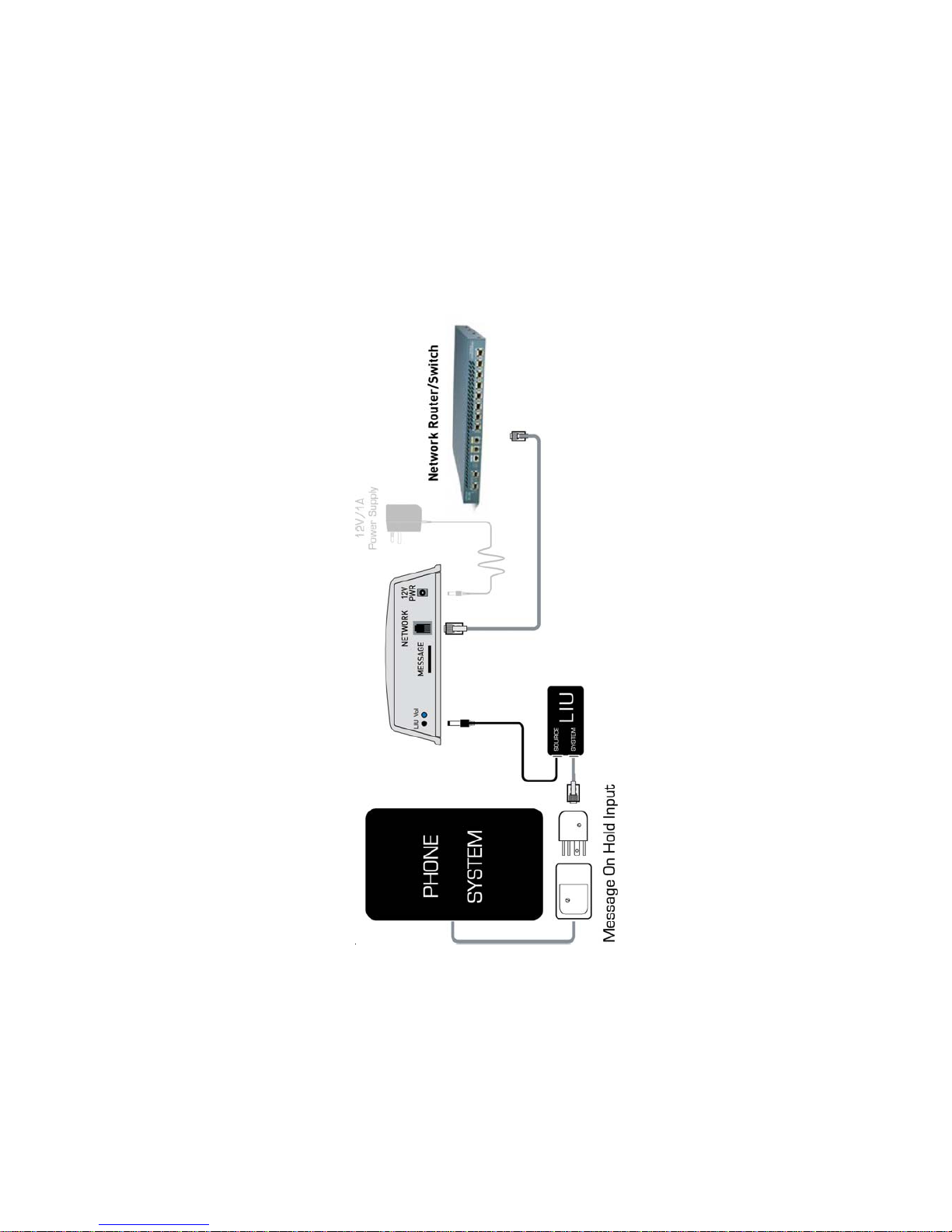
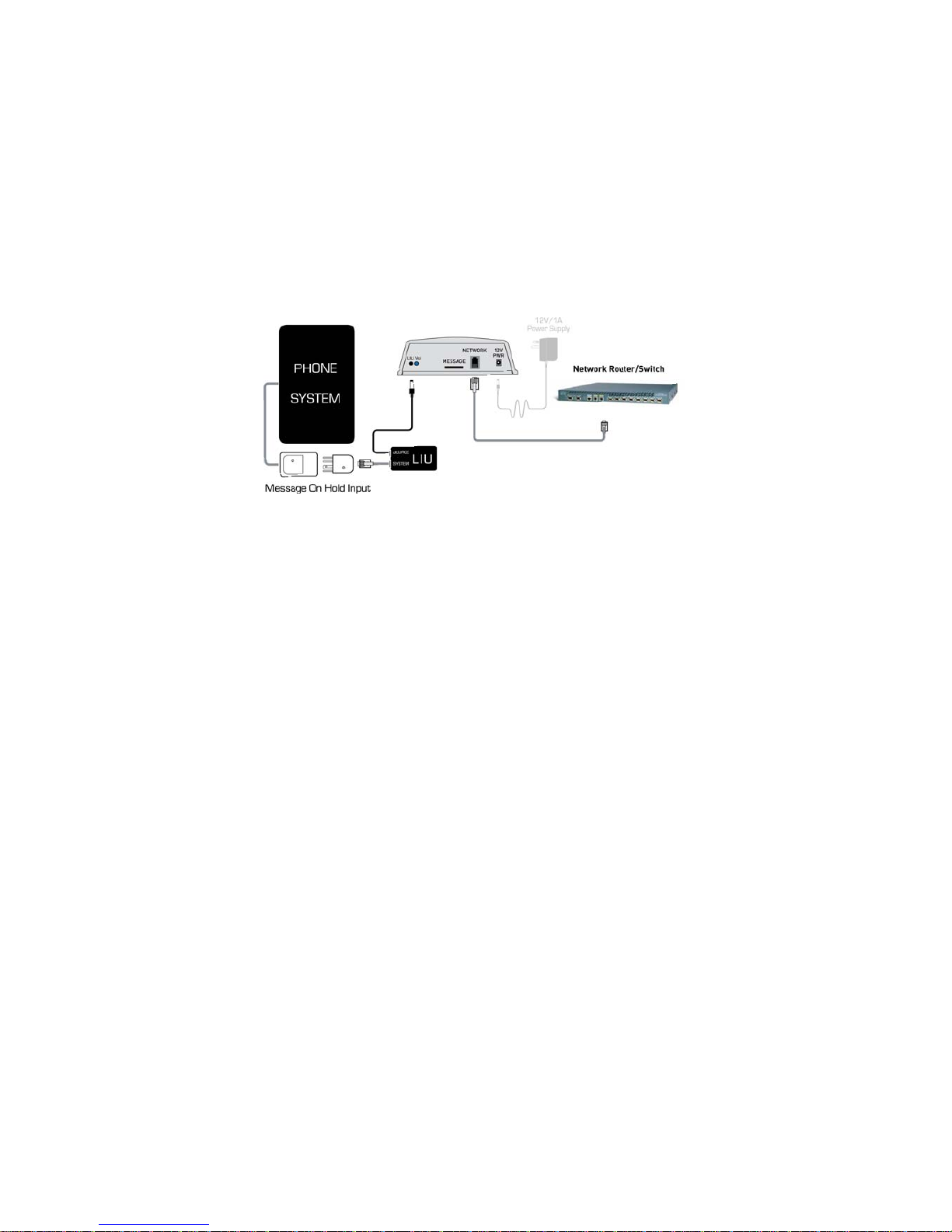
INSTALLATION DIAGRAM
Page 3

PRODUCT DESCRIPTION
• Completely Automatic Message updates via the Internet
• Connects to a Customer Network or to a separate Broadband Modem
• Uses an FTP ‘Dial Out’ principle to reduce Firewall issues
• Uses DHCP technology to simplify Installation
• Alternative Cellular Update method also available (Model DMG).
DME is a High Quality MP3 based Digital Message Player designed
specifically for Message On Hold applications with PABX or other MultiLine Business Telephone systems.
Like all Natcomm players, DME uses an SD Flash Card to store its Message
or Messages. The use of an SD Flash card allows for Message updates to
be achieved by sending a replacement Flash Card to the user. Changing over
Flash cards is quick and easy.
DME is however specifically designed for customers that require frequent or
completely automatic Message updates, with no interaction by the user.
DME does this by connecting to the Internet, through the customers
network. Where this is not possible, DME can connect direct to a dedicated
broadband modem (ADSL or CABLE) installed separately at a site. DME uses
DHCP and FTP technology to simplify installation and ongoing Firewall
access.
Once installed, DME will check for Message updates at programmed intervals
and download them when they are available. The Internet connection also allows
for other Instructions (such as playlist timetables) stored on an SD Card to be
updated automatically.
DME also has an Intelligent Time Programming facility, which will allow it to play
specific Messages during specific periods of the Day, or Days of the Week.
Applications include :
• Automatic time programmed change to and from a Christmas message
• Having a different message in the morning, afternoon and evening
• Having a different message for the weekends
• Having a different message for specific days of the week
DME is supplied with a TWO YEAR FACT ORY WARRANTY.
National Communications Page 3
Page 4
Page 4 National Communications
SD Flash Card
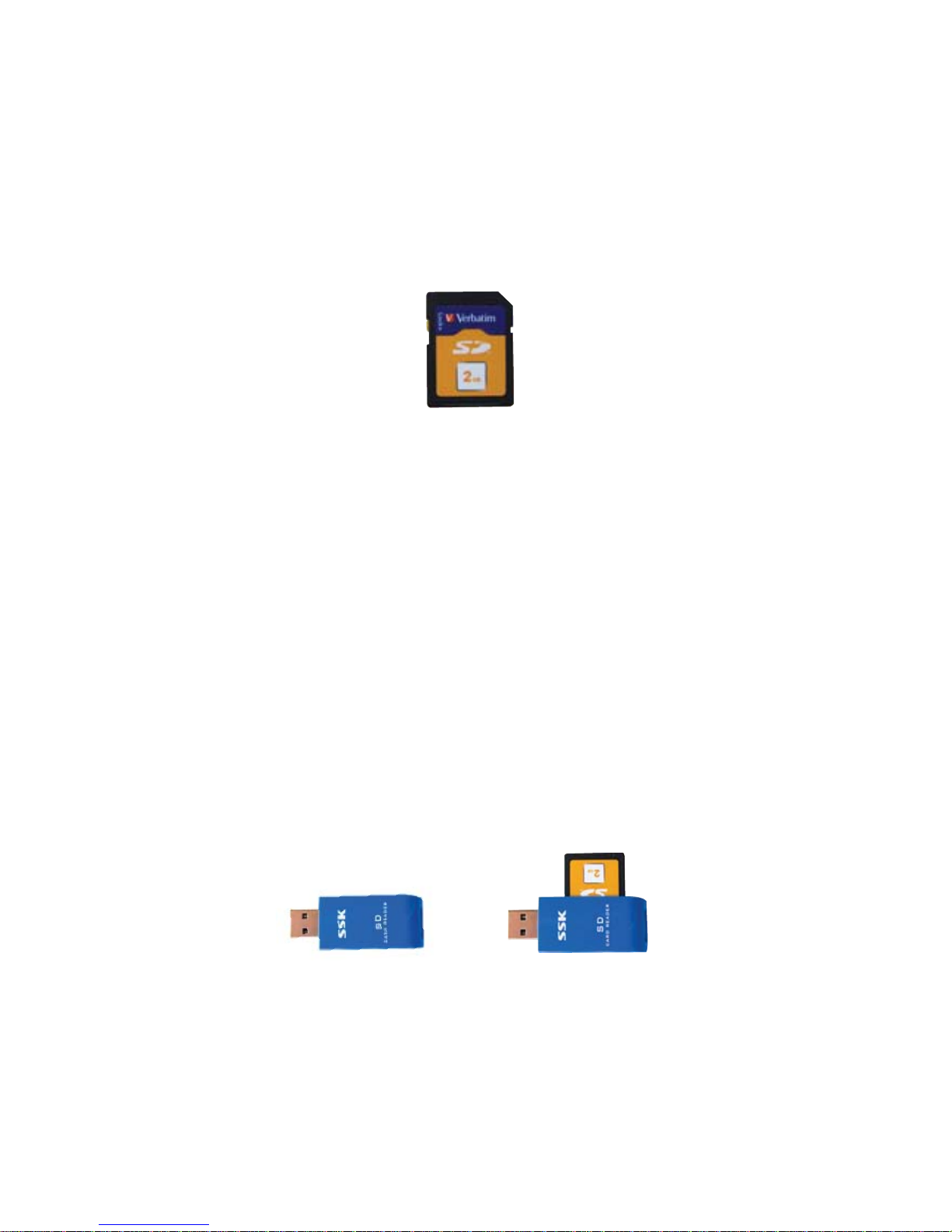
DME uses an SD Flash Card to store its Message or Messages. It is supplied
with a 2GB SD Flash card, which provides for up to 2000 minutes of message
at CD quality (128kbps).
DME can also operate with MultiMedia (MMC), Secure Digital (SD) or SD
High Capacity (SD-HC) Flash Cards, up to 32GB in capacity.
Using a Flash card to store DME’s Messages allows for Message updates
to be achieved by sending a replacement Flash Card to the user. Changing
over Flash cards is quick and easy and provides a convenient backup method
should an Internet connection not be available.
Flash cards are completely non-volatile, which means that your message
is not lost in transport or when power is lost. The Flash Card can be
overwritten many times, without any deterioration in quality .
Messages are copied to the Flash card via an SD/SD-HC Flash card drive
fitted to a PC or Laptop. If a built in drive is not available, you should use an
inexpensive external SD programmer (see below) which can be plugged
into any USB port.
An inexpensive good quality SSK external USB - SD Flash Card programmer
is optionally available from National Communications.
Page 5
OPERATION
Once Power is connected to DME, or the SD card is inserted, it will
commence an approximate 10 second ‘Initialisation process’. During this
time, DME will carry out a series of self diagnosis procedures where it will
check the SD Card, Power Supply and other important components.
Once this is completed, DME will begin playing the MP3 based Message
production. When it reaches the end of the message, it will immediately
restart at the beginning of the file, or if there are other MP3 files loaded
onto the card, it will start playing the Next Message, followed sequentially
by all other messages loaded onto the card. Once all Messages have played,
it will start again playing the First Message and repeat the cycle..
TIME PROGRAMMED FILES
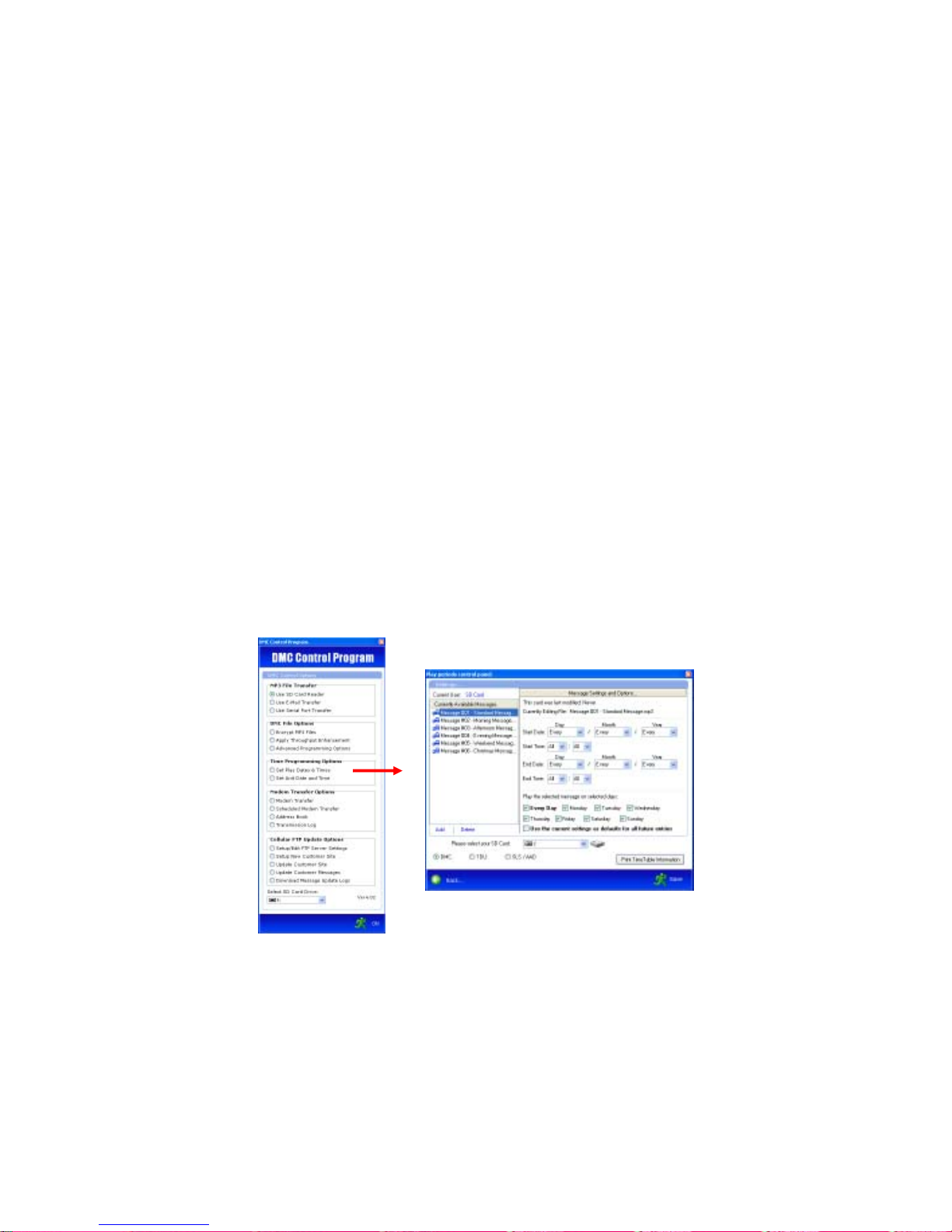
If Message Time Programming is used, DME will only play ‘time valid’
files, which are those files programmed to play at the current time and
date, as set with the Time Programming section of the Dealer Control
Program.
Please refer to the Dealer Control Program User Guide for full details.
National Communications Page 5
Page 6

Page 6 National Communications
AUTOMATIC MESSAGE UPDATE
DME is fitt ed with an Intelligent Internet Message Update facility. It connects
to the customers Internet connection (or a dedicated Internet connection if
the customers network is not available) via a standard CAT5 Network Cable
(supplied).
It does not matter where DME is connected on a Network, it will still be able
to receive Message Updates automatically. It is normal for DME to be
installed near the Telephone System Controller (KSU) where an LIU should
be installed. If DME is to be installed away from this point, then the Audio
output from DME can be routed to the LIU via 2 wires of a CAT5 cable.
For ease of installation, DME uses DHCP technology. This means that
the internal Network IP Address for DME will be assigned automatically
by the Network Internet Router/Switch as soon as it is connected. This
process is quick and automatic. Once complete it will allow DME to
access the Internet so that it can connect to your FTP Server to check
for Message or Settings updates.
DME uses FTP update technology, as this is the simplest and most
reliable method, because it avoids most potential Network Security
(Firewall) issues. With the FTP method, DME makes an outgoing
connection from the customers network to a remote FTP Server. This
type of connection is free from most of the complex and ever changing
settings associated with an Incoming connection to a customer network,
necessary to provide network security.
Dealers using DME should arrange for use of an FTP Server with their
existing ISP or other recommended supplier. This will involve a setup fee
and small ongoing rental fee which will depend on the memory space
required on the FTP Server. A Dealer can alternatively set up their own
FTP server.
A short time after DME is first connected to a Network, it will make its
first connection to the remote FTP Server to check for updates. If updates
are present, it will automatically Add or Delete up to 15 files at a time.
It will then make periodic outward connection to the FTP Server (on user
specified days and times) to check for updates. These settings are made
with the Dealer Control Program (refer to the separate Dealer Control
Program User Guide). All updates will take place automatically and a log
of all connections and updates is available inthe Dealer Control Program.
Page 7
National Communications Page 7
INSTALLATION - OVERVIEW
There are TWO stages involved in the installation of your DME device.
1) MESSAGE ON HOLD - INSTALLATION
This involves connecting DME to a Telephone System On Hold Port,
using a Line Isolation Unit.
Please refer to pages 8-9
2) NETWORK - INSTALLATION
This involves connecting DME to the Customers Network, or a
dedicated Broadband Router if a separate Internet connection
has been arranged.
Please refer to page 10
Page 8

Page 8 National Communications
MESSAGE ON HOLD - INSTALLATION
Where an existing RADIO, CD or T APE player
is being replaced
1. Disconnect Power to the existing audio device.
2. Disconnect the Audio Output Cord of the existing Line Isolation
Unit (LIU) from the existing audio device.
Note - An LIU (Line Isolation Unit) is used to connect Audio from
the AUX or HEADPHONE outlet of the existing device through to
the telephone system.
This is an ACMA safety requirement.
3. Connect the Audio Output Cord of the existing LIU to the
3.5mm Audio Output connector of your DME unit.
Note - If the existing LIU does not use a 3.5mm Audio Plug, then
you will need to replace the existing LIU with a new LIU which
has a 3.5mm Audio Plug. These are available from National
Communications (ph 07 55965128).
4. Power Connection
A 12VAC/1A power adaptor is supplied with your unit. This must
be connected to an electrical power outlet, which is switched ON.
When power is connected information will be displayed on the
DME Display.
5. Message Volume Adjustment
Place a call to the telephone system, put the call ON HOLD and
adjust the volume to a suitable level using the volume pot located
on the rear of DME. Turning the POT clockwise will increase the
volume.
Page 9

National Communications Page 9
MESSAGE ON HOLD - INSTALLATION
Where an existing RADIO, CD or T APE player
IS NOT being replaced
1. An ON HOLD connection port is required for the connection of an
Audio Source to the Telephone System. This connection is
normally or a Modular Style Telephone Socket (ie the new style
Australian telephone socket).or a 610 Style Telephone Socket (ie
the old style Australian telephone socket)
Note : If the Telephone System is NOT fitted with an ON HOLD
Connection port, then you will need to arrange for an ACMA
Qualified Telephone Technician to fit one. The contact details of
suitable technicians, in most areas, are available by contacting
National Communications on (07) 55965128.
2. An LIU (Line Isolation Unit) fitted with the appropriate telephone
plug connection and a 3.5mm audio connector must be used to
connect the audio output from your DME unit to the ON HOLD
input port of your telephone system. This is an ACMA safety
requirement.
Note : Some Telephone Systems may use an RCA or a 3.5mm
audio socket for their ON HOLD connection port. If this is the
case, you will need to use an LIU fitted with the appropriate plug.
LIU’s with all connection types are available by contacting National
Communications on (07) 55965128.
3. Connect the Audio Output port of DME to the Telephone System
ON HOLD connection port, using the LIU.
Note : If Audio from DME cannot be heard when calls are placed
On Hold, then your Telephone System may need to be
programmed to advise it that a MESSAGE on HOLD facility has
been fitted to it. You should contact your Telephone System
Supplier for assistance.
4. Power Connection
A 12VAC/1A power adaptor is supplied with your unit. This must
be connected to an electrical power outlet, which is switched ON.
Page 10

Page 10 National Communications
NETWORK INSTALLATION
1. Before installing DME you must setup the details for the new site.
This involves creating a Unique ID and then inserting the
programmed SD Card into the SD card reader so that the Control
Program can note the details of all files and settings. This is done
via the Dealer Control Program.
2. Turn Off or Disconnect Power to your DME.
3. Place a programmed SD card is loaded in the SD Card slot.
4. Connect the supplied Network Cable (or a suitable alternative
cable) to the Internet source that you wish to use, which is ideally
located near the Telephone System Controller (KSU). You can
connect to any of the following :
* Direct to the Network Switch
* Direct to the Internet Router
* Direct to the Broadband Modem
* An existing Network Extension
5. Connect the other end of the Network Cable to the Network port
located on the rear panel of DME (see diagram on page 2).
6. Turn On or Connect Power to your DME.
A 12VAC/1A power adaptor is supplied with your unit. This must
be connected to an electrical power outlet and switched ON.
7. DME will communicate with the Network Router Switch and
will be given an Internal IP Address via DHCP.
8. A few seconds later DME will access the Internet via the Network
and connect to the remote FTP Server. It will then automatically
Add or Delete all files and/or settings that require changing. The
log file is then updated on the FTP server to confirm all
comunication and changes.
9. DME will then repeat this process at a specified time on specified
days.
Page 11

National Communications Page 11
OPTIONAL
PLAYBACK CHECK FACILITY
DME can be fitt ed with an OPTIONAL Internal Speaker which can be used
fto check if DME is outputting Audio. We call this a Playback Check
facility
When the OPTIONAL Playback Check facility and Speaker are fitted :
DME will output it’s Audio Message to the Telephone System, via the
LIU, whenever an LIU is connected.
DME will connect it’s Audio Message to the Internal Speaker whenever
the LIU is not connected.
This facility allows the user to quickly and easily confirm if DME is
playing its MP3 message, by simply removing the LIU plug from the rear
of the unit.
TO CHECK YOUR UNIT IS PLA YING A MESSAGE
Remove the Audio Connection from the AUDIO OUT port on the back of
your unit.
If you can hear your message through the speaker located within DME,
everything is fine and you can now re-insert the Audio Connection to the
AUDIO OUT port on the back of your unit.
If you CANNOT hear your message through the speaker located within
DME :
1) If the Display of DME is blank, check or change your power connection
until information is displayed .(Note - after power connection, DME will
make an outgoing connection to the FTP site to check for changes.
There will be a delay before the Message will begin to play.)
2) If the Message does not start to play after the 10 second delay, check
that your SD Flash Card is inserted correctly by removing it and then
replacing it into the SD Flash Card slot located on the back of your unit.
3) If it is still not playing, call your Dealer for assistance.
Page 12

Page 12 National Communications
SPECIFICATIONS
Dimensions : 165w x 150d x 60h mm
Weight : 415g
Power Supply : 240VAC to 12V AC/1A
Power Consumption : Idle - 100mA
: Operating - 230mA
Power Connector : 2.5mm barrel connector
Network Connector : RJ 45 8 pin
Audio Output : 2.5mm barrel connector
ACMA COMPLIANCE : N 782
WARRANTY
This device is guaranteed against defects from workmanship for a period
of two years (24 months) from the date of purchase. In the event of
failure, you should return the product, along with proof of purchase date,
and a written statement about the nature of the problem.
This Warranty shall not apply to any unit which has been subject to
alteration, modification, abuse, negligence, accident, external voltage/
lightning surge or used in any manner contrary to these instructions.
The obligation is solely to repair or replace the product. The warrantor
is not liable for any incidental or consequential damages due to such
defects.
The user is responsible for freight costs to the repair point. The warrantor
will be responsible for freight costs in returning this unit back to the
user.
Damage caused to this device or attached equipment, by lightning strikes
or over voltage surge is not covered under this warranty .
CASE SEALED AT FACTORY
OPENING THE CASE VOIDS THE WARRANTY
 Loading...