

Page 1
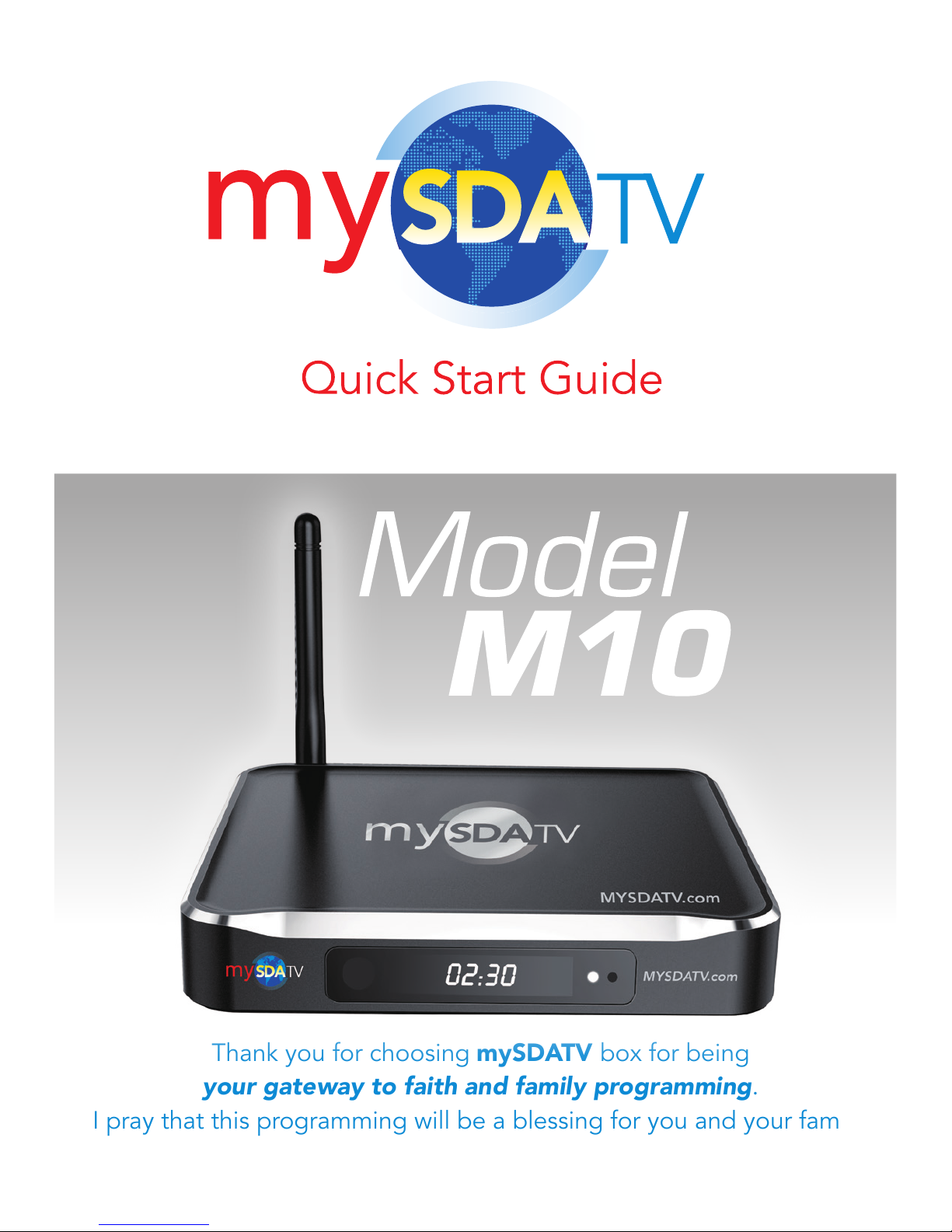
Thank you for choosing mySDATV box for being
your gateway to faith and family programming.
I pray that this programming will be a blessing for you and your family.
Page 2
2
Power
Supply
WHAT YOU NEED:
mySDATV M10 Quick Start Guide
• TV set
• High-speed internet (DSL or Cable modem)
• Router
What is included with your
mySDATV box?
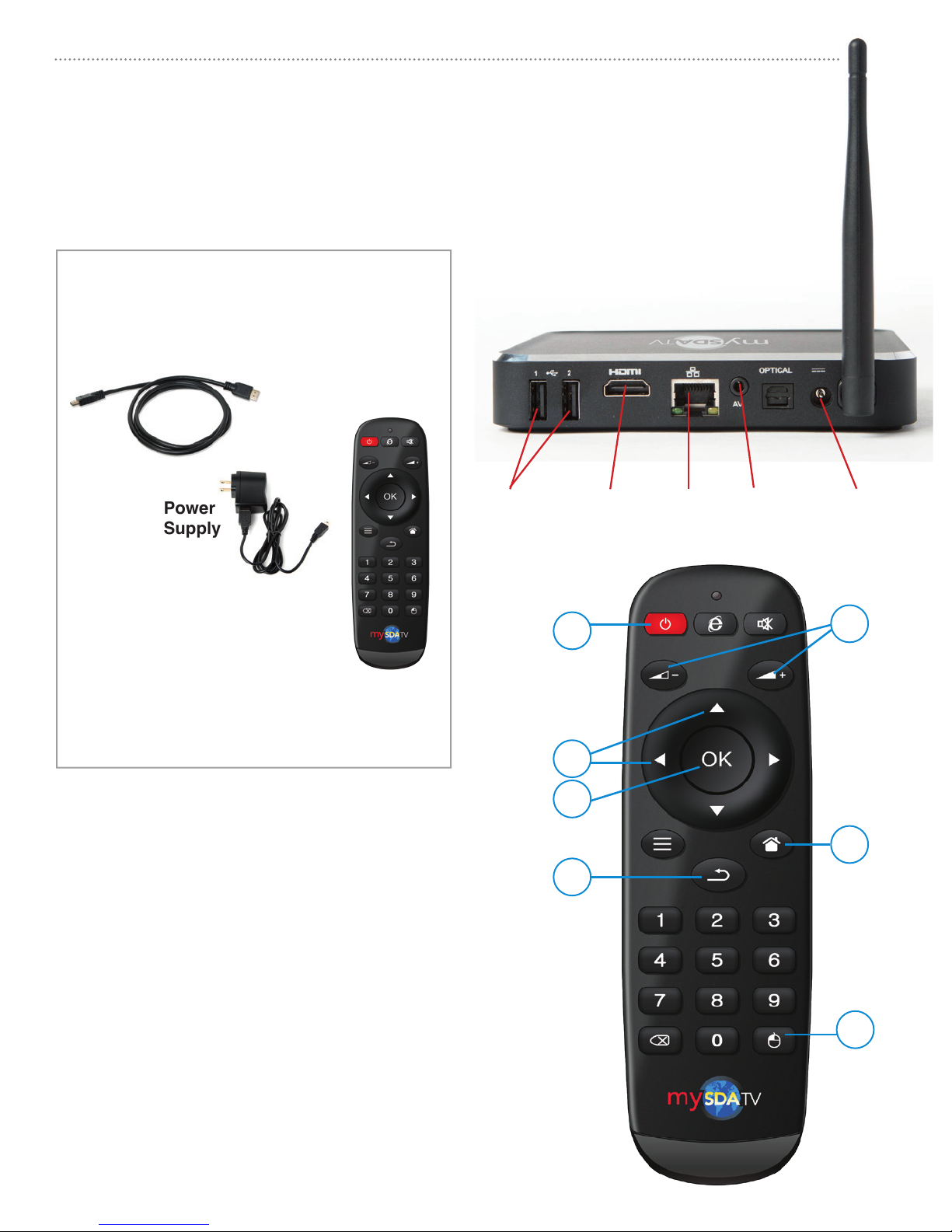
HDMI cable
Remote
USB ports HDMI Ethernet A/V cable Power
• HDMI cable (included)
• mySDATV box (included)
• Remote control (included)
Get to know your M10 box
MUTE
mySDATV M10 box
Get to know your remote
A [BACK] Return to previous screen
B [HOME] Return to mySDATV home screen
C [UP] OR [DOWN] Move up or down.
[RIGHT] or [LEFT] Move right or left
D [OK] Select highlighted option
E [VOLUME +/-] Increase or decrease volume
G
C
D
A
E
B
F
F [MOUSE] Display onscreen mouse cursor
G [POWER] On/Off
Page 3
mySDATV M10 Quick Start Guide 3
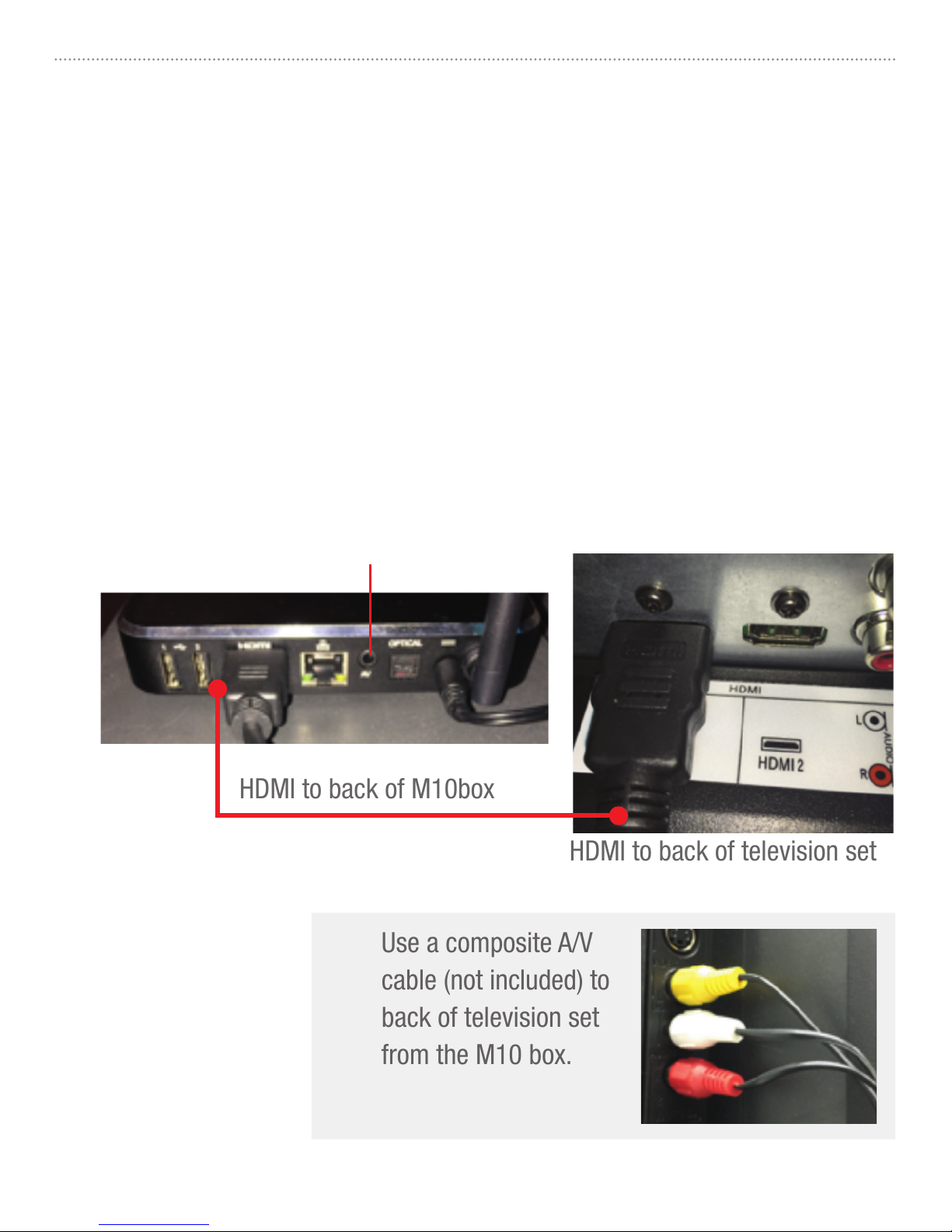
HDMI to back of television set
HDMI to back of M10box
Use a composite A/V
cable (not included) to
back of television set
from the M10 box.
REMEMBER TO:
• POINT remote control directly at mySDATV box when using.
• OPERATE remote control as close to mySDATV box as possible.
• There are many remote control options available but not included.
(keyboards, bluetooth mouse, etc.)
STEP 1
Connect mySDATV box to television set. Use included HDMI or Composite (A/V)
cable to make connections depicted below. For High Definition quality, you must
have at least 1.5 Mbps Internet speed. If your TV does not have an HDMI port, you
can use the A/V cable to connect to your analog composite input (yellow, white,
red connectors). You can order this cable from mySDATV.com
(A/V optional output)
OR
Page 4
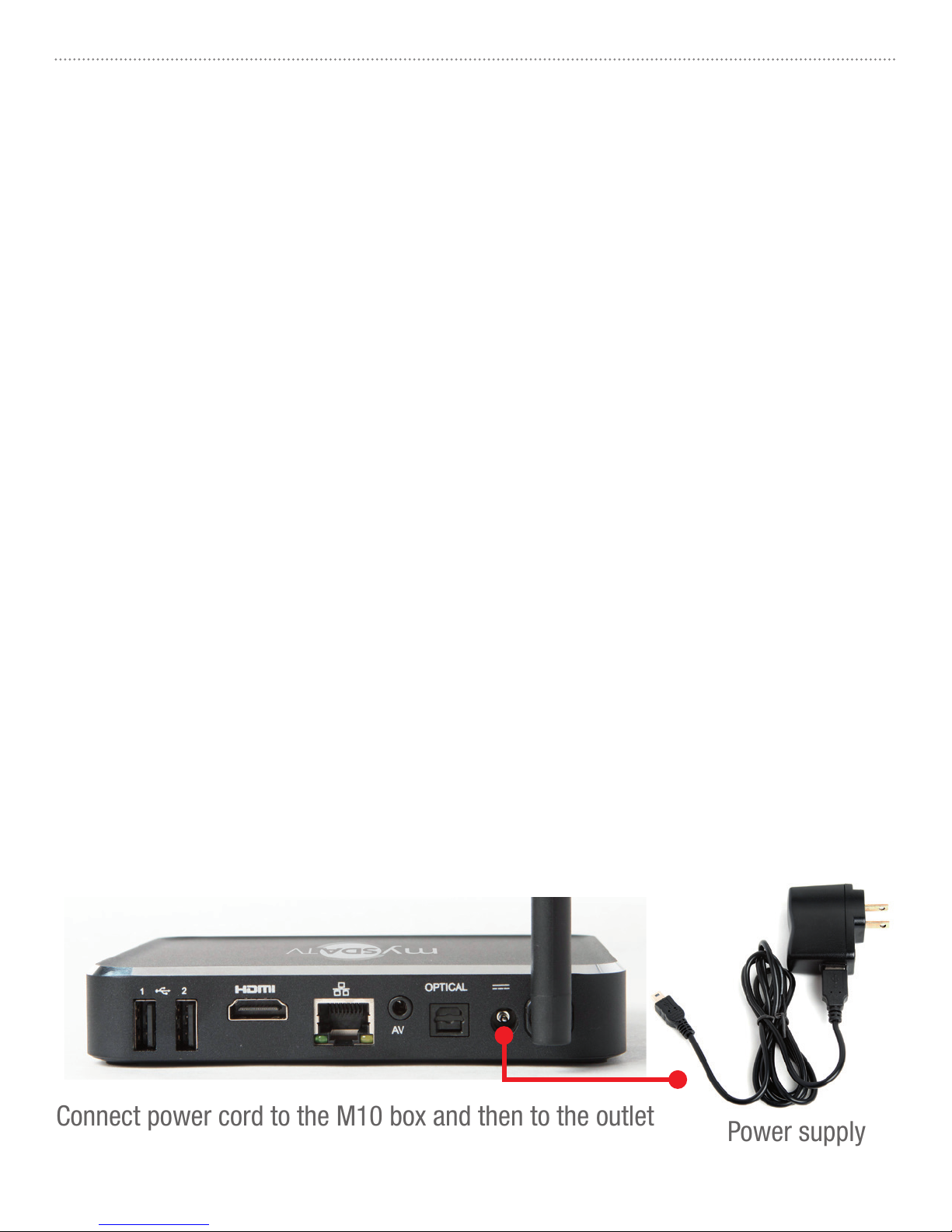
Connect power cord to the M10 box and then to the outlet
Power supply
mySDATV M10 Quick Start Guide4
STEP 2
Power your handheld remote control by inserting two AAA batteries, (not included).
• Turn remote control over and locate battery door.
• Press on arrow symbol located on door, and slide battery cover off.
• Insert each battery negative (-) side first by pushing it into coil spring and then
into battery compartment. Do NOT insert batteries positive (+) side first.
• Place battery door over compartment and slide it closed until latch snaps into
place.
• Your remote uses infrared signal and it is very directional. For best result, point
it towards the mySDATV box.
STEP 3
Power your box ON by connecting it to the wall outlet using included power adapter.
Refer to pictures below.
Do’s and don’ts on where to place your mySDATV box:
• DO place within range of WI-FI router network.
• DON’T place your mySDATV box beneath anything;
it may cause the box to overheat.
• DON’T place inside enclose cabinet; it might interfere
with remote or WI-FI signal.
Page 5
At this point, if you want, you may read all the Terms and Conditions on the screen or
just arrow all the way down until you highlight the box marked “I ACCEPT,” then press
OK. If you select the “I DECLINE” box, you will not be able to continue any further. This
Terms and Conditions screen will only appear the first time you power the box ON and
you only have to accept once.
mySDATV M10 Quick Start Guide 5
STEP 4
Wireless or Wired Internet
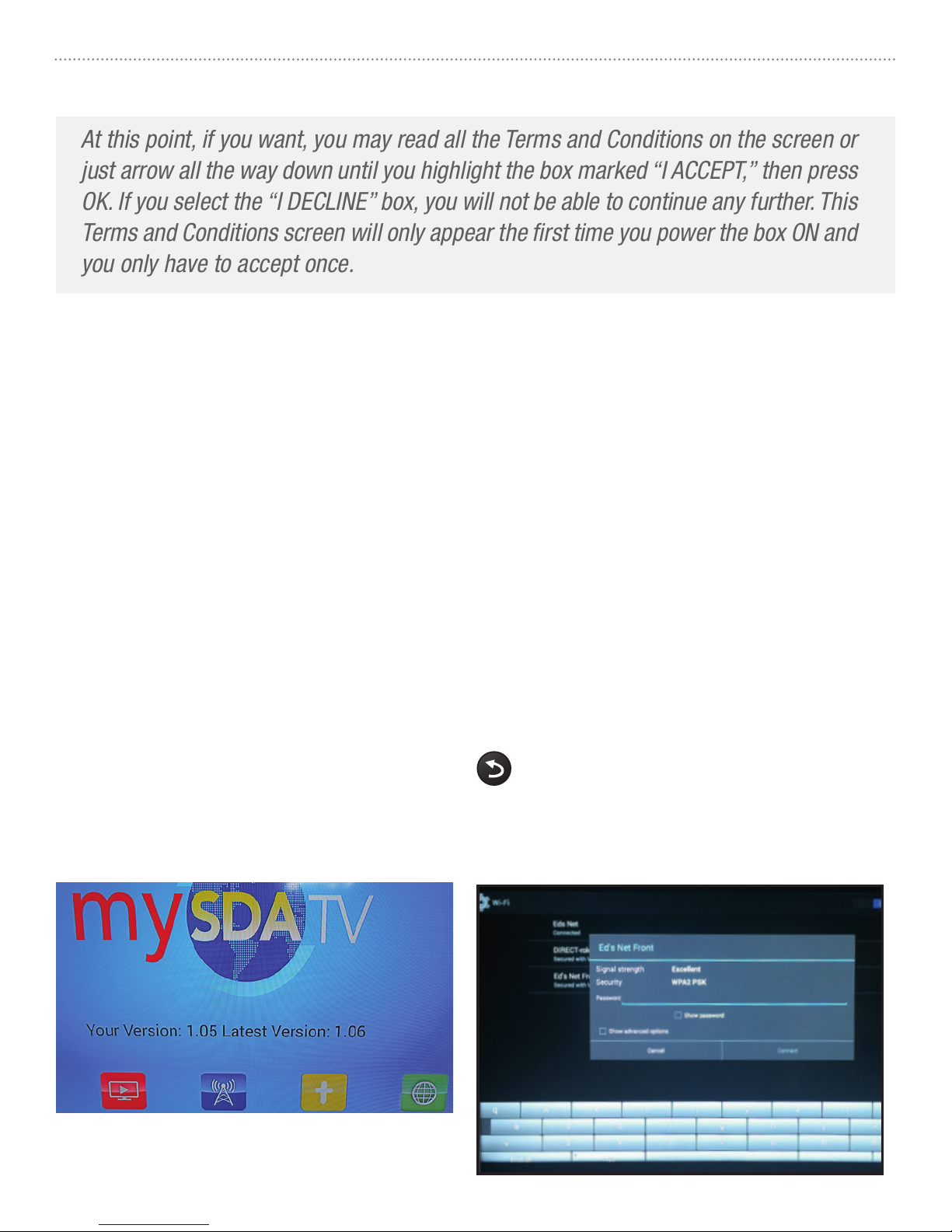
Wireless Internet connection: After the mySDATV introductory video completes
playing, and you have accepted the Terms and Conditions, configure your network
using the onscreen display.
• After the box finds all available Wi-Fi, select your Wi-Fi network name and
enter your Wi-Fi Password into the on-screen window. Use [UP, DOWN] and
[OK] buttons on remote control to highlight each letter on the virtual keyboard
until you finish entering your password. Then, click Return or the Connect
button to complete settings function.
When completed: Press [BACK] button on remote control to go to mySDATV
Home page shown below to the left (1).
(1)
Page 6
mySDATV M10 Quick Start Guide6
OR Wired Internet connection: This is the recommended way to connect the
box to your Internet, but unfortunately, sometimes the modem/router is too far
from your mySDATV box location and it’s not possible to run an Ethernet cable.
If it is possible connect an Ethernet cable (not included) from your Internet modem/
router to the Ethernet Port on the back of your mySDATV box. This connction is
more stable then Wi-Fi and also does not require use of password.
(1)
STEP 5
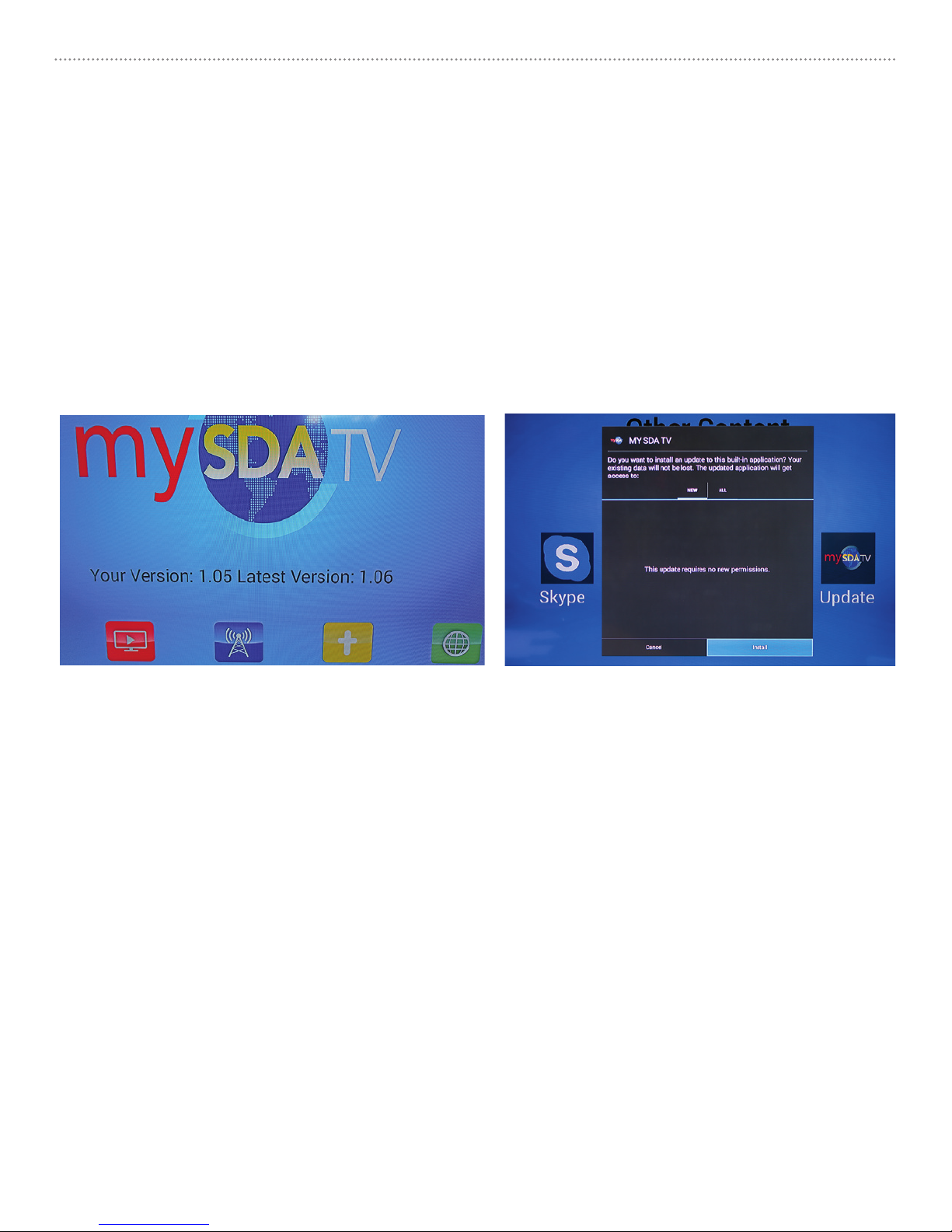
If your Software Version shown on home page (image 1) is different than the
latest version shown. Use remote control [RIGHT/LEFT] arrow keys to navigate to
(2)
OTHER icon (yellow) and select [OK] button. Then select UPDATE icon and your box
will be updated to the latest software version. (image 2) In order to complete the
update, you must arrow [DOWN] until highlighting the INSTALL button and press
[OK]. After update, reset your box by selecting mySDATV icon from MyApps on
screen or unplugging the power from the box and plugging it back in.
REMEMBER TO: ALWAYS update to the latest software version to get our newest
channel list and functions!
Page 7
mySDATV M10 Quick Start Guide 7
STEP 6
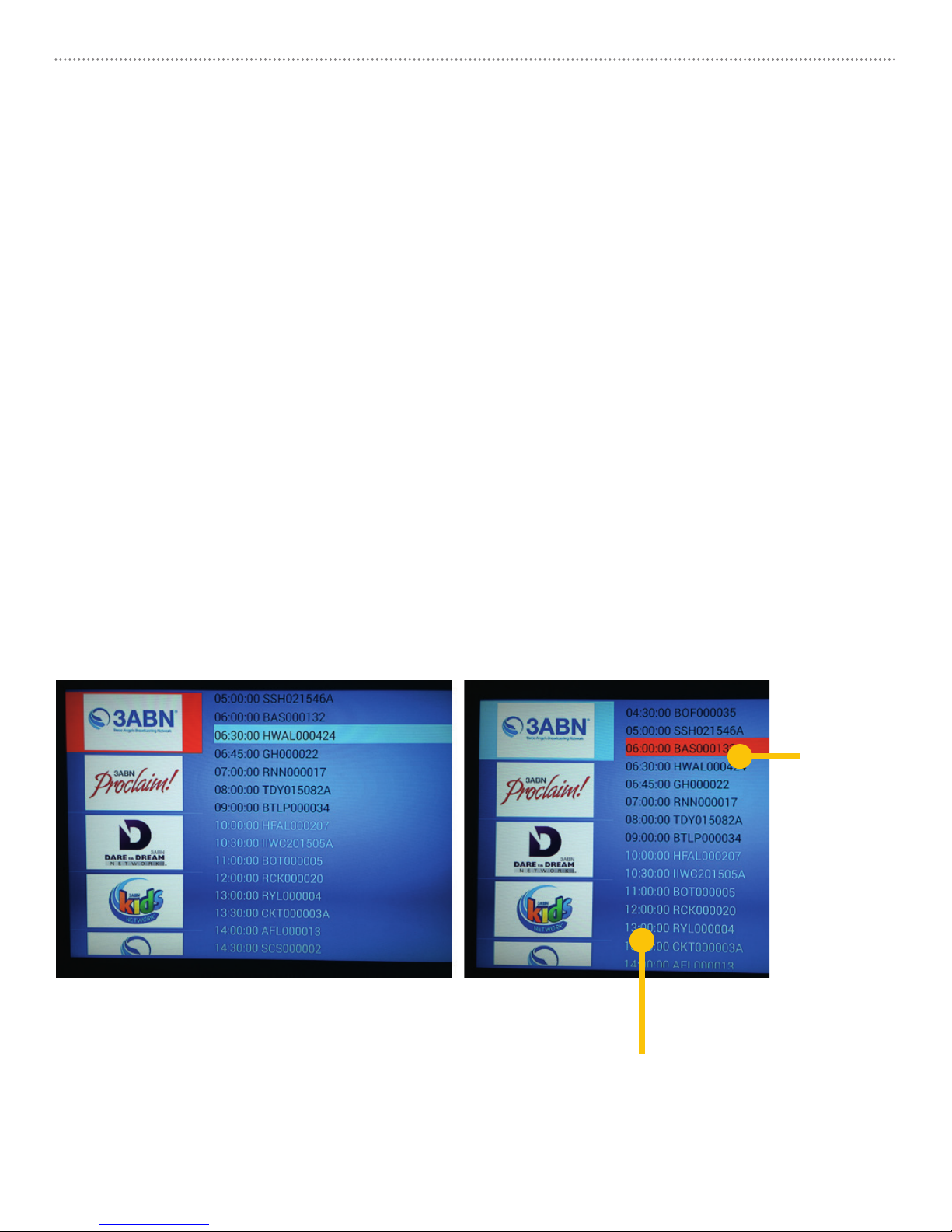
Your mySDATV has an Electronic Programming Guide on the right side of the
Channel Screen to assist you in knowing what time each program is played. If you
miss watching any program, you can use mySDATV Video On Demand service by
selecting the program you want to watch. You can use the same functions of a DVD
player (Play, Stop, Pause, Rewind, Forward).
• From mySDATV channel page press [RIGHT] arrow key on remote to move
cursor over to Programming Guide.
• Use [UP/DOWN] keys on remote to select past programming colored BLACK.
• Programs that are scheduled but have not been aired and recorded yet, are
colored WHITE. They will turn black when they become available for viewing.
• Not all of the Networks supply mySDATV with their Electronic Program Guide and
Video On Demand information, but we make the ones we have available to you.
Select
a past
program
to view.
Not available
to play yet.
Page 8

FAQS
Q: Can I use mySDATV from a hotel room?
A: If the hotel offers free Wi-Fi, from mySDATV home page select OTHER,
than select INTERNET. The mySDATV box will try to redirect your connection to
whatever the hotel’s website needs to validate your Internet connection. If the
validation is complete, you can enjoy the regular Wi-Fi connection and use your
box. This connection process depends on each hotel’s cooperation, and it is not
guaranteed to work in every hotel.
Q: Are languages other than English available on mySDATV?
A: Yes. We have channels in Spanish, French, Russian, Portuguese and more
coming soon. Just click on the “Other Lang” icon on the mySDATV home page
and choose any language.
FOR ADDITIONAL HELP
Email: [email protected]
RESOURCES
For additional resources, or to order more mySDATV boxes please visit
www.mysdatv.com
 Loading...