

Page 1

The expert for robots in your home
With one click to the online shop
myRobotcenter.eu myRobotcenter.co.uk
myRobotcenter
Page 2
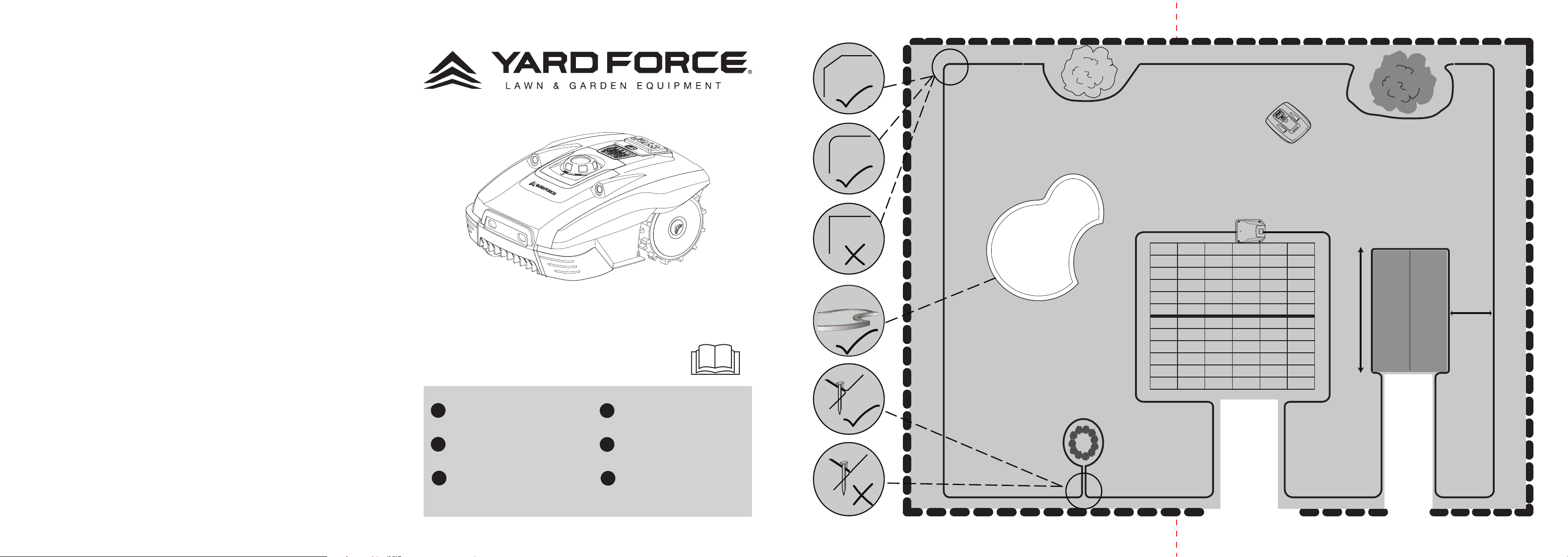
> 10 cm
20-30cm
20-30cm
20-30cm
>2m
<8m
Nov. 2019
V2.0
Compact 280R
400Ri
GB
ROBOTIC MOWER
Installation Guide
DE
MÄHROBOTER
Installationsanleitung
FR
ROBOT-TONDEUSE
Guide d’installation
ROBOTMAAIER
NL
Gebruiksaanwijzing
CZ
ROBOSEKAČKA
Průvodce instalací
PL
ROBOT KOSZĄCY
Instrukcja instalacji
20-30cm
Page 3
GB
CONTENT
Description of product ....................................................1
Installation ..................................................................... 2
Operation ...................................................................10
Technical data ..............................................................13
Maintenance and storage .............................................14
Troubleshooting ............................................................16
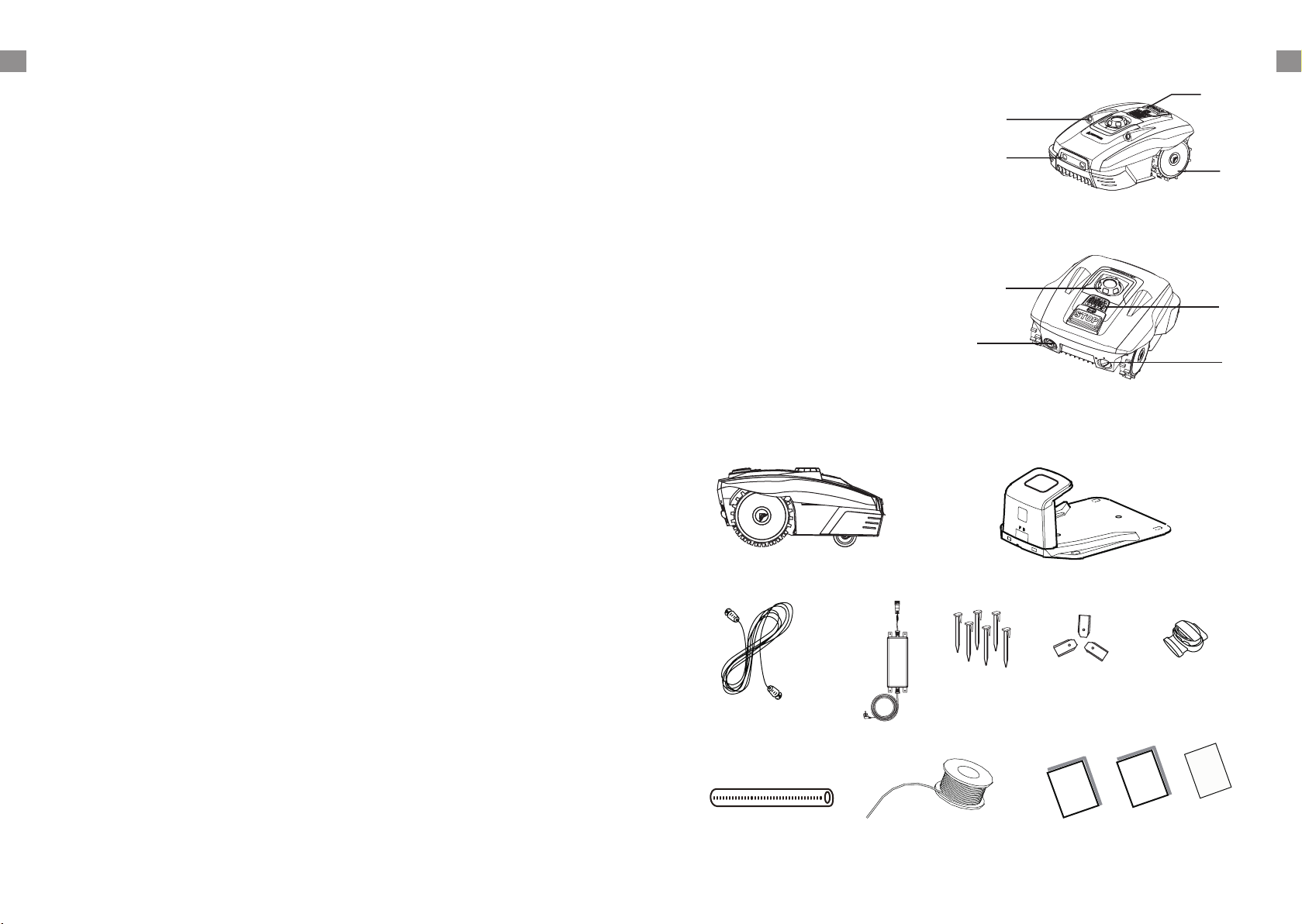
Description of product
1. STOP button
2. Ultrasonic sensor
3. Charging port
4. Rear wheel
5. Height adjustment dial
6. Control panel
7. USB interface
8. On/Off switch
7
Parts included within this box
GB
1
2
3
4
5
6
8
Robotic Mower
Extension cord
Measurement ruler
Boundary Pegs
Switching Power Supply
Boundary wire
Docking station
Installation
guide
Manuals
Connectors
Warranty
Spare blades
Original
instrcution
1
Page 4
GB GB
Installation
Installation Guide
This chapter explains how to install the Robotic Mower. Please read this fully before you start the
installation.
Stones
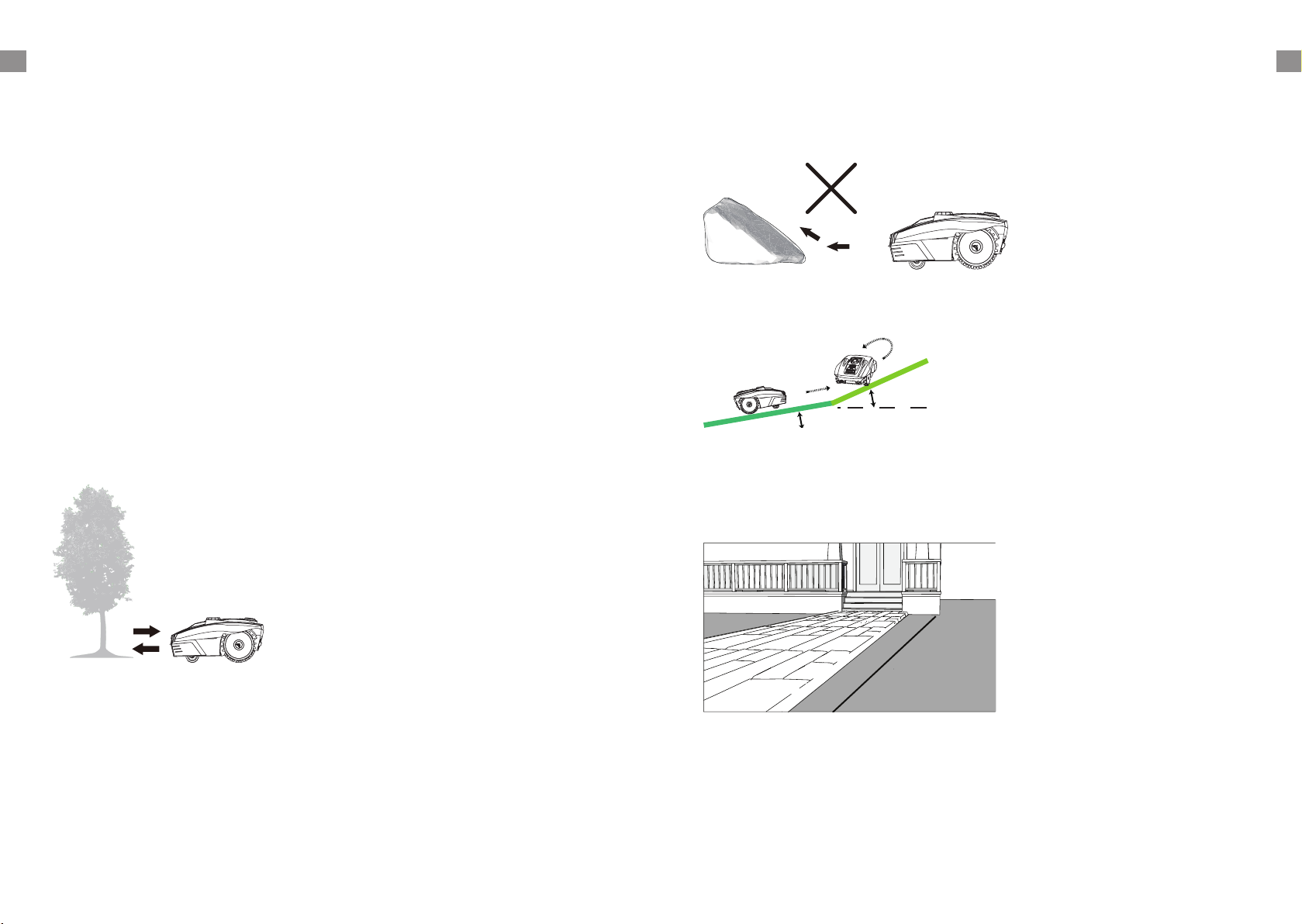
We recommend clearing the lawn of small (less than 100mm high) rocks and stones and any
stones with a round or sloped edge. The Robotic Mower might try and climb such rocks instead
of recognising them as a barrier. A Robotic Mower getting stuck on such a stone requires user
intervention to restart mowing. Contact with stones can result in damage to the blades.
Before you begin
We recommend creating a sketch of the lawned area you plan to mow on paper before you begin
installation. Make sure you include all obstacles, such as bushes, flower beds, and paving. This
will give you a visual representation of how to correctly place the boundary wire around your
garden perimeter. Make sure you have a hammer, wire cutters, pliers or scissors to hand.
Avoiding Obstacles
The Robotic Mower is equipped with ultrasonic sensors. These will detect any rigid and fixed
obstacles higher than 100mm, such as walls, fences, and garden furniture. When triggered, the
Robotic Mower will stop, reverse backwards and then continue mowing in a different direction.
Make sure you lay the boundary wire correctly to ensure the machine avoids obstacles.
Trees
The Robotic Mower treats trees as common obstacles, however if the tree roots are exposed and
lower than 100mm they will need to be excluded from the mowing area with the boundary wire.
This is to avoid damaging the root, blades, or rear wheels.
Slopes
The Robotic Mower can navigate slopes up to a maximum of 30% incline or decline.
>30%
<30%
Paths, Driveways and Roads
If you have an elevated driveway or walk way which crosses through your lawn, you will need to
exclude this from the cutting area. Remember to allow a safety distance of 20-30cm between the
elevated area and the boundary wire.
20-30 cm
2 3
Page 5

GB GB
If the driveway and lawn are at the same level, feel free to use the boundary wire to create a
corridor. This allows your Robotic Mower to cross the driveway and reach the opposite lawn.
Do not place the docking station too close to a slope, such as at the top of a hill or the bottom of
a furrow. Avoid left and right inclination in excess of 5 degrees.
Uneven lawn surfaces
Your docking station will need a permanent connection to mains power, so make sure you place it
in the nearest location possible.
Placing the docking station
Locate the best position for your docking station. Be aware that it needs a permanent connection
to the mains, so take into account the location of the nearest power outlet.
To ensure the Robotic Mower can return to the docking station smoothly, leave 2m of straight
wire to the front of the docking station and 50cm to the side facing the cutting area. Use a shaded
location for the docking station, as a lower temperature while charging is beneficial to the battery.
Important: Place the docking station on an even, flat surface away from ponds, pools or stairs.
We recommend suitable protection from the elements, for example a robot port or garage.
>5°
>5°
If your lawn has a soft or uneven surface, we recommend fortifying the area around the docking
station with a grass protection mesh. Otherwise, the repeated stress of the rear wheels can
damage the turf.
Once the position of the docking station is confirmed and mains electrical connection is laid out,
please do not connect to main power yet. Finish all boundary layout work before connecting the
docking station to the power supply.
Pegging your boundary wire
We strongly recommend mowing the lawn to 60mm or less before laying out the boundary wire.
Burying the boundary wire is entirely optional. Still, the closer to the ground you lay out the
boundary wire, the lower the chance of tripping over it or damaging it when mowing the lawn.
Use the ruler (included on the packaging) to ensure the required 20-30cm distance between wire
and obstacles.
50cm
20-30cm
20-30cm
20-30cm
The recommended distance between two pegs is about 80 cm in straight lines, and less in tight
curves. Note that the pegs' hook and wire slit always faces the outside of the boundary.
80cm
80cm
4 5
Page 6

GB GB
When initially placing the pegs, do not drive them fully into the ground. Use a light hammer to drive
them in a little bit. Also locate the fixing pegs and lay each one on the lawn at approximately the
correct distance from lawn edges (20-30cm) and obstacles.
Flowerbeds
Use the boundary wire to exclude any flowerbeds from the cutting area. There are two options for
the two lengths of boundary wire running between the flowerbed and the outer boundary:
1) Keep the distance between the parallel wires above 10cm. This way, the Robotic Mower will
recognise the boundary wire as an ordinary obstacle. When cutting, it will "bounce" off it as
expected. When following the boundary wire back to the docking station, it will take the detour
around the flower bed.
Ponds and Pools
While the Robotic Mower is protected against rain and spray water, being submerged is likely to
cause severe damage to the electronic parts.
Therefore, it is imperative to exclude any open water sources from the cutting area. For added
safety, we recommend placing a fence around any water.
Boundary Corridors
If you have created a boundary corridor inside your working area, the corridor should be at least 2
m wide and a max length of 8 m.
If a corridor is too narrow or too long, the Robotic Mower might not be able to navigate it from one
end to the other.
> 10 cm
2) Alternatively, keep the distance between the two parallel wires below 5mm. Do not cross the
wires - see below. This way, the Robotic Mower will not recognise the wires and travel across
them unhindered. This option requires placing an obstacle on the boundary wire around the
flowerbed. Place the obstacle, e. g. a large rock or pole, near position A indicated on the below
illustration. The obstacle must be surrounded by a flat area of about 1m x 1m, without any slopes.
This obstacle will allow the machine to exit the circle.
< 5 mm
< 8m
> 2m
Connect the docking station to the boundary wire
Run the boundary wire underneath the front of the docking station and connect the end of the
wire to the left (black) connector marked 'F' (front). After you have placed the wire around the
garden then place the other end into right (red) connector marked "B" (back).
10-15 mm
6 7
Page 7

GB GB
Once the blue LED confirms all is OK, test the Robotic Mower's function. Check the LED regularly
to ensure fixing the boundary wire has not affected the connection and signal shows S1 on the
charging satation. Then place the Robotic Mower in the working area, a few metres beside the
docking station. Set the main power switch to "ON".
Signal selection
There are two signals which can be selected, S1(blue indicator) and S2(red indicator).
Make sure your Robotic Mower and docking station are using the same signal.
Press the buttons
and then , a few seconds later, the Robotic Mower should
automatically return to the docking station by locating and following the boundary wire in anticlockwise direction. If Robotic Mower fails to dock correctly, move the docking station to a more
suitable position.
1
2
Once the device has docked, the symbol will start flashing. This indicates that the battery is
charging correctly.
After initial installation, the Robotic Mower will remain in the docking station until the battery is
fully charged.
Successful docking and charging indicates that you have found a suitable position for the docking
station. You should now start fixing pegs into ground fully.
Take care not to damage or kink the surplus wire stored under the docking station.
S1 S2 S1 S2
If your neighbour is using the same robotic mower, will need to keep a distance of 0.5m between
you and your neighbour's boundary wires to prevent the two devices interfering with each other.
Ensure to position your docking station at least 10m away from your neighbour's boundary wires
and that both products are using different signals. Please refer to section "Signal setting" in order
to select signal S1 or S2 for your installation.
>10m
S1
>0.5m
>10m
S2
8 9
Page 8

GB GB
Operation
Control panel
Compact 280R Compact 400Ri
Start button:
Frist press the Start
button and then press
the OK button, robotic
Mower will start to
work.
Signal select button:
Select either S1 or S2.
Home button:
First press the Home
button and the press
the OK button, robotic
Mower will return to
docking station.
Rain sensor
indicator
Robotic Mower will
return to docking
station when it rains.
Working time
select button:
Select working time.
Rain sensor button:
Switch rain sensor ON/OFF.
Charging indicator:
Flashes when Charging
Press this buttion. Robotic
STOP button:
Mower will stop immediately.
Start mowing
• LED will flash slowly
when there is no Wifi
connection.
Wifi configuration
button
• LED will remain on when
ready to connect to Wifi.
• LED will flash quickly
when successfully
connected to Wifi.
1 2
10 11
Page 9

GB GB
Return to Docking station
1 2
Emergency Stop
Press STOP button to halt the mower at any time.
Cutting height adjustment
Technical Data
Model 280R 400Ri
APP control
Max cutting area 280 m
Battery pack 20V/2000mAh 20V/2000mAh
Input: 100-240V AC, 50/60Hz,
Switch power supply
Output:24VDC, CC1.5A
Mowing time on one charge 60 min 60 min
Rated voltage 20 V 20 V
Rated power 42 W 42 W
No load speed 3500/min 3500/min
Cutting width 16 cm 16 cm
Cutting height Approx 20-55 mm Approx 20-55 mm
Charging time 100 min 100 min
Weight 7.4 Kg 7.4 Kg
Frequency Band 0-148.5KHz 0-148.5KHz
Magnetic Field Strength 60dBμA/m 60dBμA/m
Wireless Standards IEEE 802.11 n/g/b
Wireless Frequency Rang/Power 2.4-2.4835GHz/<20dBm
Degree of protection:
Robotic Mower IP24 IP24
Switching power supply IP67, Plug IP44 IP67, Plug IP44
Spare parts
Spare Blades 3 Pcs 3 Pcs
Boundary pegs 100 Pcs 120 Pcs
Boundary wire 80 m 100 m
Connectors 3 Pcs 3 Pcs
42W
2
Input: 100-240V AC, 50/60Hz,
Output:24VDC, CC1.5A
400 m
42W
2
The cutting height can be adjusted by rotating the height adjustment dial located on the top of
the machine. Cutting height range from 20mm - 55mm.
NOTE!
We recommend using an ordinary lawn mower or trimmer to cut the lawn below 45mm before
using the Robotic Mower. This will ensure you get the optimum performance.
12 13
Page 10

GB GB
Maintenance and storage
Maintenance works that have not been instructed within the manual should only be carried out by
a recommended servicing agency. Only use original parts.
Maintenance
Check and clean your Robotic Mower Regularly. Preferably use a dry brush, damp cloth or a
sharpened wooden piece to remove any debris which may be stuck.
Do not clean with a hose or the high pressure water flow from a pressure washer as this may
cause damage. Replace worn parts as necessary.
Cleaning the underside
Ensure the main power switch is in OFF position. Wearing protective gloves, turn the Robotic
Mower onto its side to expose its underside. Clean the blade disc and frame using a soft brush or
damp cloth. Rotate the blade disc to make sure that it can move freely, check that the blades can
turn on their pivots and that there is no grass is obstructing them.
Winter Storage
During winter, keep your mower, docking station and power supply in a dry place.
We recommend a shed, garage or preferably store it indoors.
Prepare your device for winter storage as follows:
1. Fully recharge the battery.
2. Set the mains power switch to "OFF".
3. Thoroughly clean your Robotic Mower.
4. Unplug the power supply from the mains outlet.
5. Disconnect the power supply from the docking station.
6. Disconnect the boundary wire from the docking station. Lift up the docking station and clean.
The boundary wire can remain outside. However, it is imperative to protect the wire against
corrosion. We recommend a water-free grease or suitable sealing tape.
If available, repack the product in the original packaging.
Alternatively, our service centre offers a winter service for your device. This will include a check-up
of all parts and - if available - a software upgrade.
Preparing for spring
After winter storage, please clean the charging contacts on both the Robotic Mower and the
docking station.
Use a fine abrasion paper or a brass brush; this will help to achieve the best charging efficiency
and avoid any charging interference.
Cleaning the mower body
As your Robotic Mower is battery powered you need take care when cleaning. Remove rough dirt
with a soft brush. Use a manual water spray with mild household detergent for intensive cleaning.
Wipe off any residue after cleaning with a damp cloth.
0
O
F
F
1
O
N
Clean the contact pins and the charging strips
Using wire wool, metal cleaner or very fine grade emery paper, clean the contact pins and the
charging strips on your mower and docking station. Remove any debris, leaves, or grass clippings
around the contact pins and charging strips to ensure efficient charging.
Reversing or replacing the blades
WARNING!
Ensure the Robotic Mower is completely shut off before cleaning, adjusting or replacing
the blades. Always wear protective gloves.
WARNING!
To ensure maximum cutting efficiency and safety, always use recommended replacement
blades and blade mounting parts when replacing.
Your Robotic Mower has three blades, fixed to the blades disk.
Unless damaged by hard obstacles, these blades can last for up to five months of everyday use.
Weekly inspection of the blades and the fixing screws is advised. Note that the blades are doubleedged. When the first side becomes blunt, loosen the fixing screw and the blade upside down and
re-fix. Check that the blade can move freely.
A set of spare blades is included with the Robotic Mower. More blades can be purchased via our
customer support team or our website www.yardforce.eu.
To ensure you get the best performance from your machine, always replace all three blades at the
same time. Only use spare parts recommended by manufacturer.
Spare parts list
Call the customer support team if you want to order below spare parts.
Boundary pegs Spare blades Boundary wire connectors Boundary wire
Software Update
Should your machine need a software update, contact our customer support team for more
information.
14 15
Page 11

GB GB
Troubleshooting
Robotic Mower cannot dock with docking station
• Check that the boundary wire in front and underneath the charger is in a straight line.
• Check that the docking station's position is suitable as explained in this manual.
Robotic Mower runs in circles while mowing or while following
boundary wire back to docking station.
• Verify that no power cable runs parallel and in close proximity the boundary wire. If necessary,
reposition the boundary wire.
• Check if a front wheel is stuck.
• If a neighbor has a similar Robotic Mower, the signals may interfere. Try setting your docking
station and Robotic Mower to the alternative boundary signal.
• Driving motor may be damaged, please contact our customer support team.
The Robotic Mower is noisy.
• Inspect the blade fixing screws; tighten if necessary.
• Inspect the blades for damage; replace if necessary.
• Grass may be too high. Try increasing the cutting height, or mow the lawn with an ordinary
lawnmower first.
• Cutting motor failure, please call our customer support team.
Mower remains at or returns to docking station when pressing START
button
• Check if the mower has already completed the programmed working time for that day.
• Battery is low, give the Robotic Mower time to charge and try again.
LED signal indicator on docking station
S1 S2 S1 S2
Status LED Indicator ON LED Indicator flashing
S1 S2
Battery charging faulty Normal
Normal Boundary wire broken
16 17
S1 S2
S1 S2
S1 S2
S1 S2
 Loading...