

Page 1
Page 2
ENGLISH
CHARGING
PAIRING
DISPLAYS
CALLS
NOTIFICATIONS
ACTIVITY
SLEEP
GOALS
REMINDERS
VOICE CONTROL
MUSIC
ANTI-LOST ALERT
06
07
11
12
13
14
15
16
17
18
19
19
Page 3
4
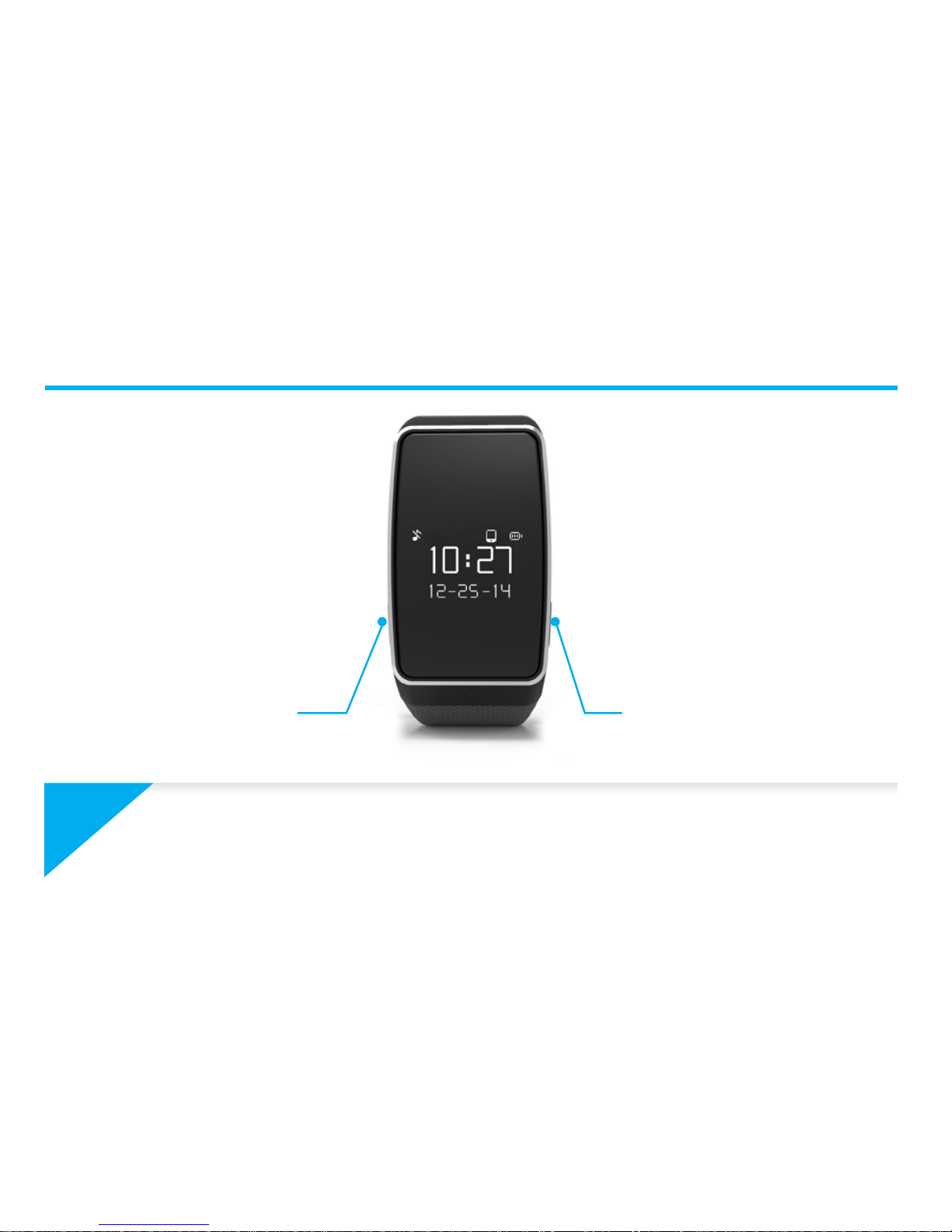
LEFT button RIGHT button
OVERVIEW
i
To get the most accurate data we recommend wearing ZeWatch3 on your nondominant hand and not too loose
Page 4

5
LEFT button
PRESS + HOLD activate pairing mode
PRESS 1 x reject incoming call
PRESS 1 x end current call
PRESS 1 x volume -
PRESS 2 x redial last number
RIGHT button
PRESS + HOLD turn ON / OFF
PRESS 1 x light up the screen
PRESS 1 x answer incoming call
PRESS 1 x volume +
PRESS 1 x home screen / exit
PRESS 2 x activate voice control
i
To reset ZeWatch3 to its original settings, press and hold the RIGHT and LEFT buttons
simultaneously.
NAVIGATE THE TOUCHSCREEN
DOUBLE TAP light up the screen
SWIPE UP OR DOWN navigate through the activity and sleep screens
Page 5
6
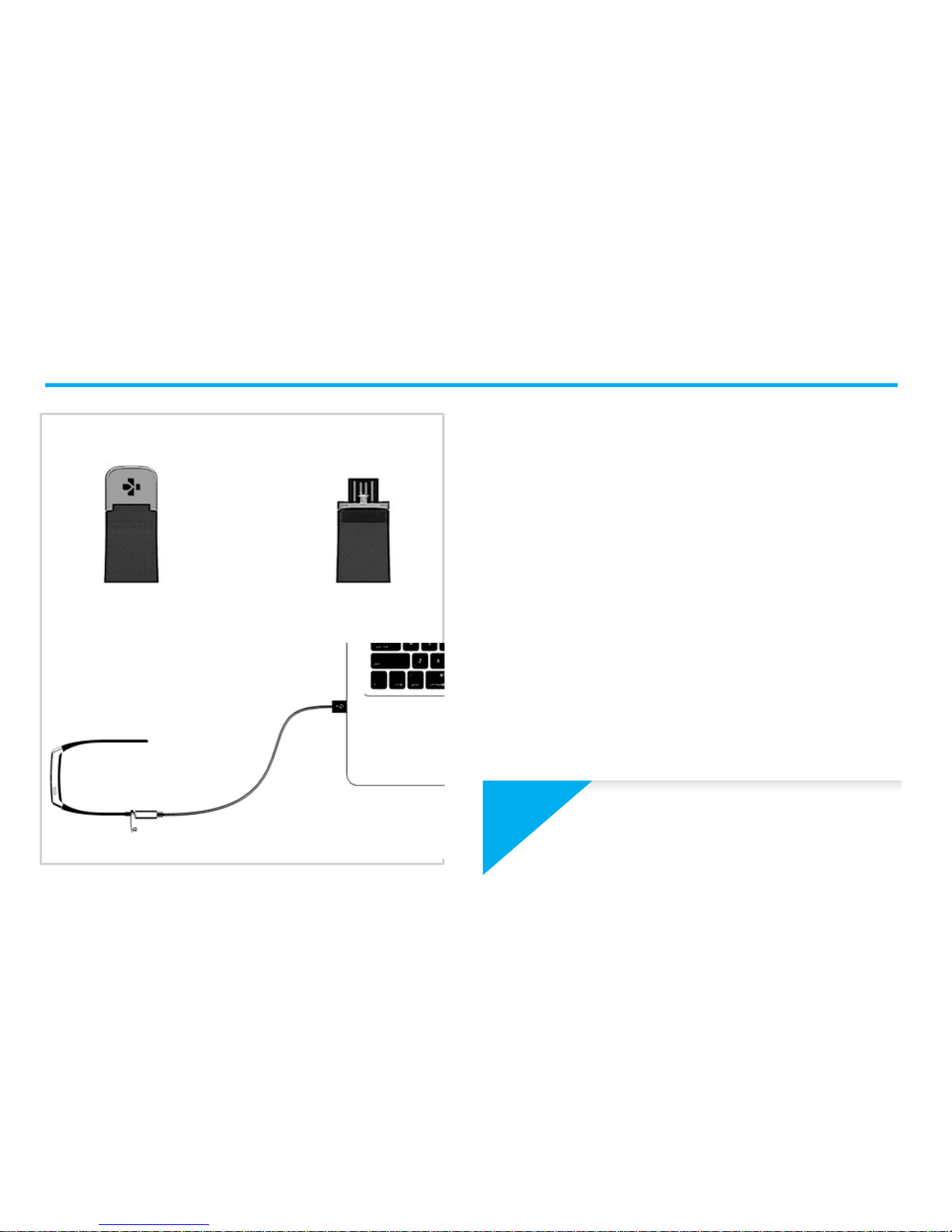
1. CHARGING
Charge ZeWatch3 for two hours before
your first use.
1. Gently push the clasp of your
ZeWatch
3
2. Plug the USB end into the USB port
of a computer
Tip: To easily connect ZeWatch3 to a power source, we
recommend using the USB extension cable provided
3. A battery indicator will fill to indicate
charging is in progress
4. Once ZeWatch
3
is charged, the
battery indicator will be full
i
A full charge takes 1h30. When the
battery level gets low, a low battery
indicator will appear
2.
1.
Page 6
7
2. PAIRING
The first time you use ZeWatch3, a SET UP message will prompt you to set up
your ZeWatch3 using a mobile device or a computer.
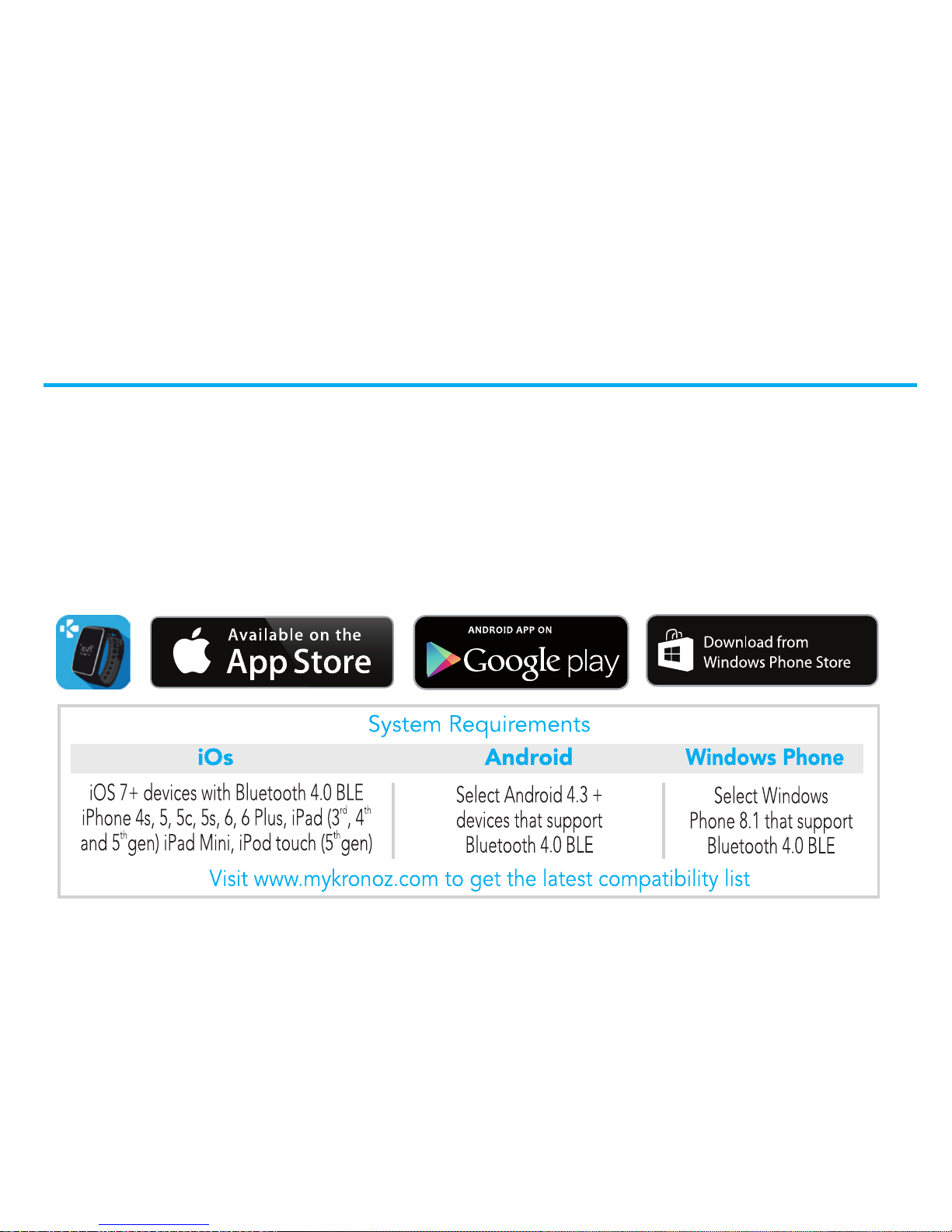
GET ZeWatch3 APP
[iOS & Android users] Search for ZeWatch3 App on the App store or Google
Play Store.
[Windows Phone users] Search for ZeWatch3 App on the Windows Phone Store.
Page 7
8
Step 1 : Pairing through the application
(Bluetooth Low Energy - BLE)
1. Enable Bluetooth on your mobile device
2. Open ZeWatch App on your mobile device. Sign up if you are a new member or Log in with your
existing account. After entering your personal information, select your ZeWatch model and tap Set up
3.Make sure ZeWatch
3
is nearby and select ZeWatch3 BLE in the list of devices
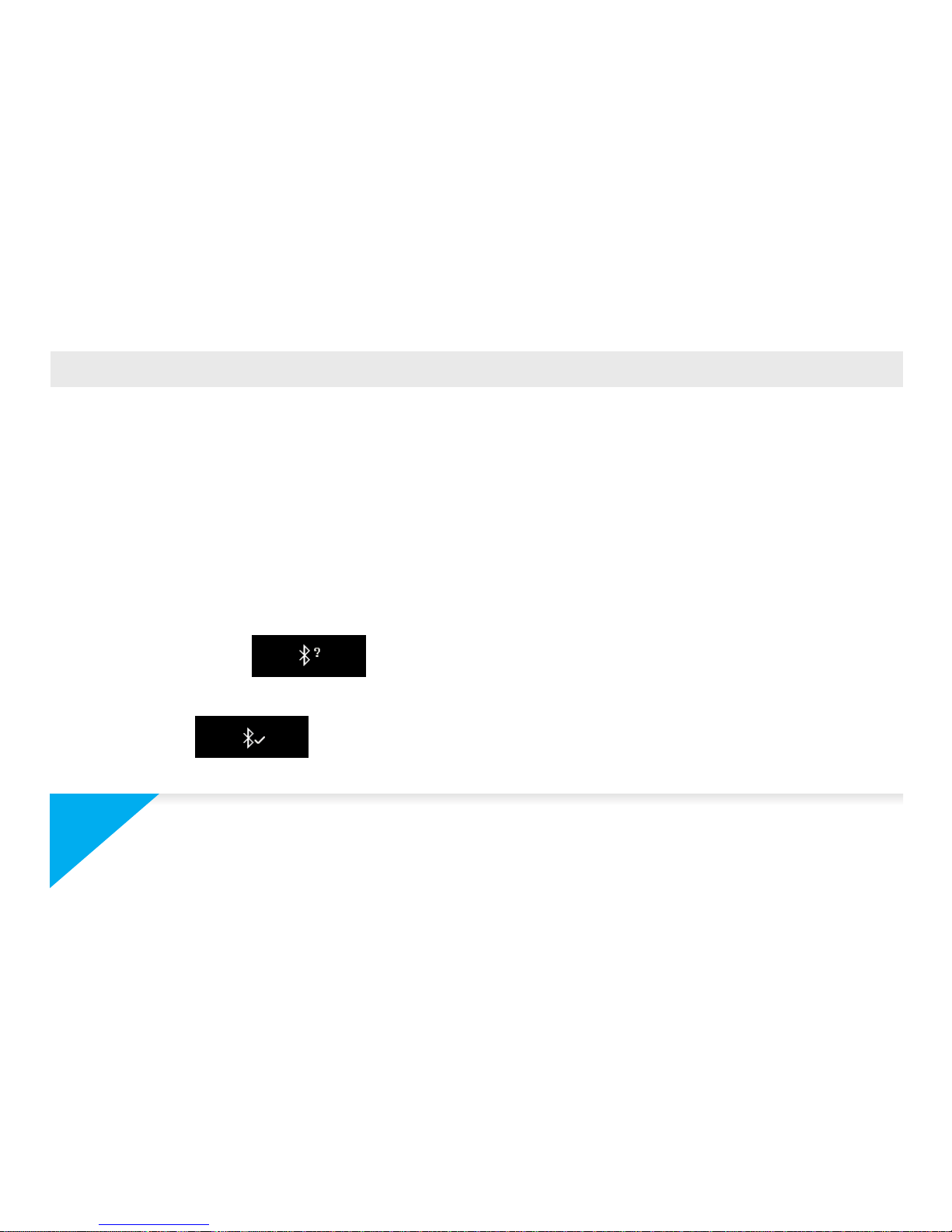
4. You will receive a pairing request on your mobile device. Press Pair to accept it
5. Then, a pairing request will appear on your ZeWatch
3
display. Press ZeWatch3 LEFT button
to accept the pairing
6.When ZeWatch
3
is successfully paired, you will be notified on ZeWatch3 and on your mobile
device’s screen
This operation will allow you to synchronize time, date, activity and sleep data, reminders and notifications.
i
You can also set up your ZeWatch3 using our Mac or PC software available on MyKronoz
website: http://www.mykronoz.com/support/
System requirements : Windows 7,8,XP – MAC OSX 10.8 and above
Page 8
9
Step 2 : Manual Pairing
(Bluetooth Classic)
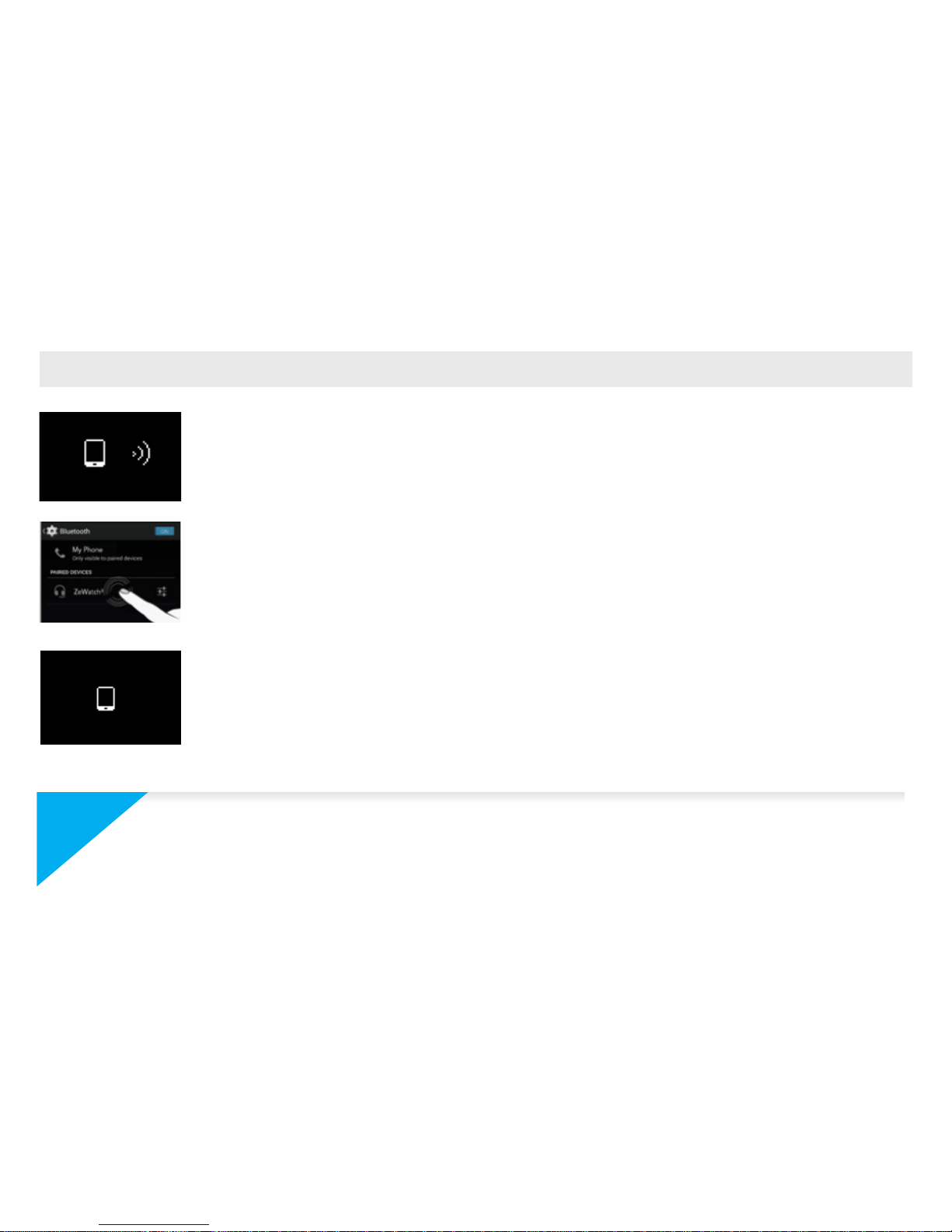
1. From ZeWatch3 homescreen page, hold and press
the LEFT button until a phone icon appears
2. Go to your mobile device’s Bluetooth settings and select
ZeWatch
3
in the list of devices
3. A phone icon will be displayed on ZeWatch
3
and a beep
will sound to confirm successful pairing
This operation will allow you to make and receive calls with ZeWatch
3
i
If pairing fails repeat the same steps. Pairing is a one-time process. If you want to pair your
ZeWatch3 with another account, you first need to unpair from the current one. On ZeWatch
App, go to Settings > Set up ZeWatch3 > Unpair. Tap Set up ZeWatch3 to pair a new device
Page 9
10
i
ZeWatch3 will automatically sync the time and date of your paired mobile device (iOS7 + /
select Android 4.3 + / select Windows Phone 8.1 + only). You can set your preferred time and
date format manually in the Settings tab of ZeWatch3 App. Make sure you keep the device
charged to avoid the time being reset
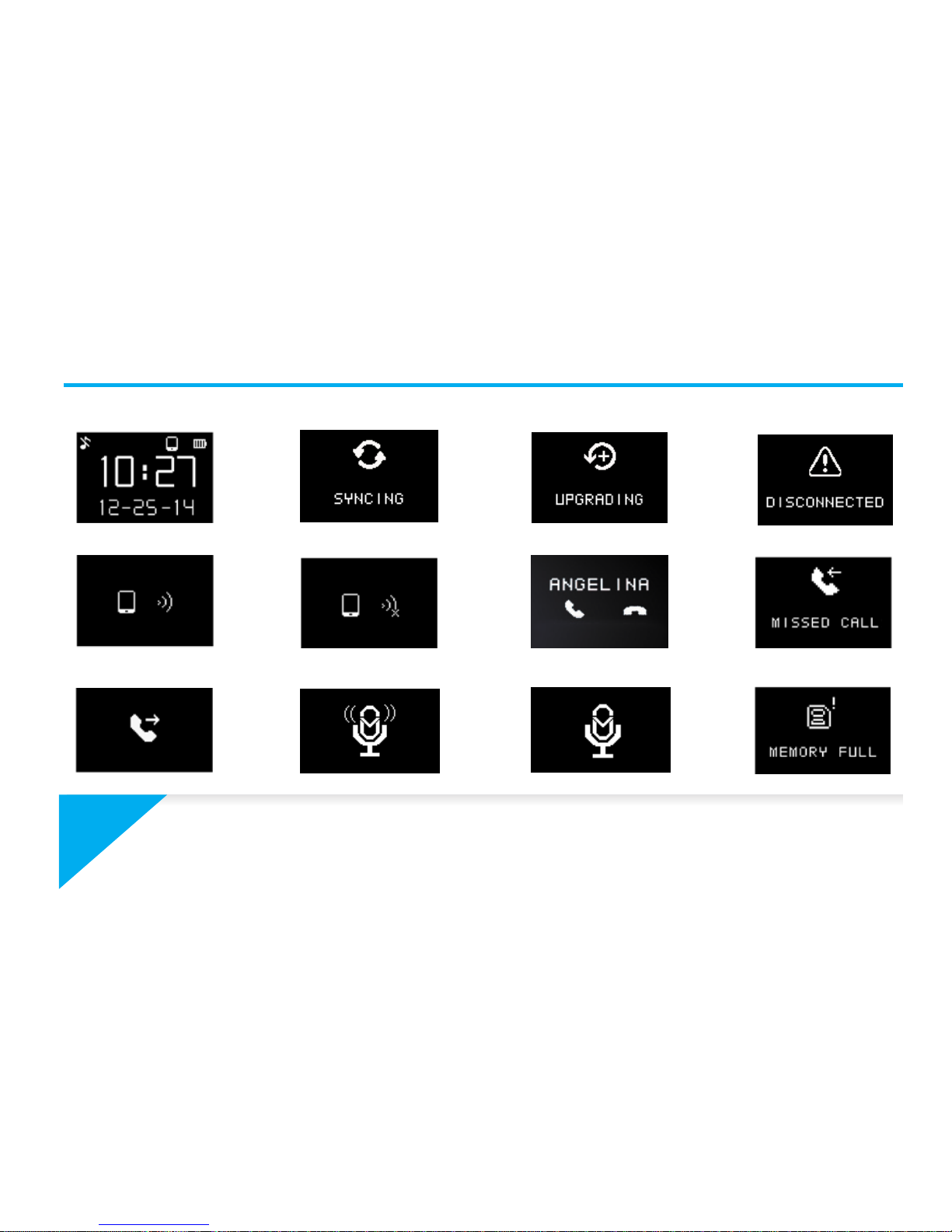
3. DISPLAYS
Home screen
Pairing Incoming call
Upgrading
Syncing
Failed pairing Missed Call
Disconnected
Redial
Memory full
Voice control offVoice control on
Page 10
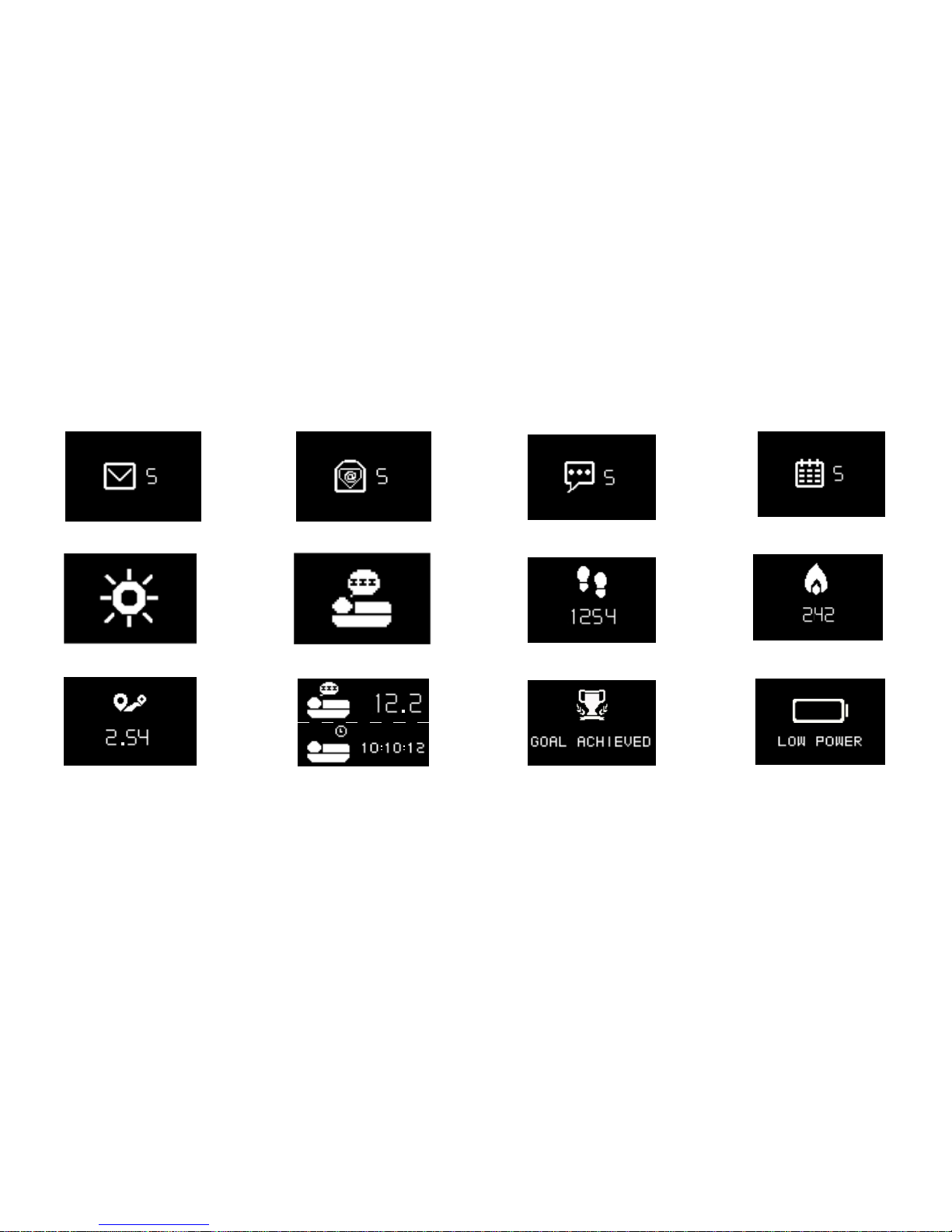
11
Email Social Media Calendar Event
Goal achieved Low power
Steps
Distance
Calories
Sleep mode
Sleep
Day mode
SMS
Page 11

12
4. CALLS
After a successful Bluetooth pairing with your phone, Bluetooth call feature is on.
ANSWER AN INCOMING CALL
Press 1 X the RIGHT button
DECLINE AN INCOMING CALL
Press 1 X the LEFT button
MUTE AN INCOMING CALL
DOUBLE TAP the screen
END CURRENT CALL
Press 1 X the LEFT button
REDIAL LAST NUMBER CALLED
Press 2 X the LEFT button
ANSWER A NEW INCOMING CALL AND PUT
ON HOLD ON THE ORIGINAL CALL
Press 1 X the RIGHT button
HANG UP THE ORIGINAL CALL AND ANSWER
A NEW INCOMING CALL
Press + hold the RIGHT button
REJECT AN INCOMING CALL WHILE A CALL
IS IN PROGRESS
Press 1 X the LEFT button
ADJUST THE VOLUME DURING A CALL
DOUBLE TAP to access volume control
Press the LEFT button to decrease Press the RIGHT button to increase +
Page 12

13
5. NOTIFICATIONS
ZeWatch3 shows notifications of incoming and missed calls, SMS, email,
social media activity, calendar events and anti-lost alert*. Open ZeWatch3
App, tap Settings > Notifications to select the notifications you want to
receive onto your ZeWatch3. If you wish to disable certain notifications,
swipe the selection button to the left.
Press ZeWatch3 button to dismiss the notification. If not dismissed, the
notification will reappear next time you wake up the screen.
Setting up notifications for iOS users
i
*Windows Phones may not support those features, please
contact [email protected] for more information
Setting up notifications for iOS users
Go to “Settings” of your iOS device
Tap “Notifications”
Select which type of notifications you wish to receive on ZeWatch
3
Enable ”Show in Notification Center” to receive the notification on ZeWatch
3
Page 13
14
i
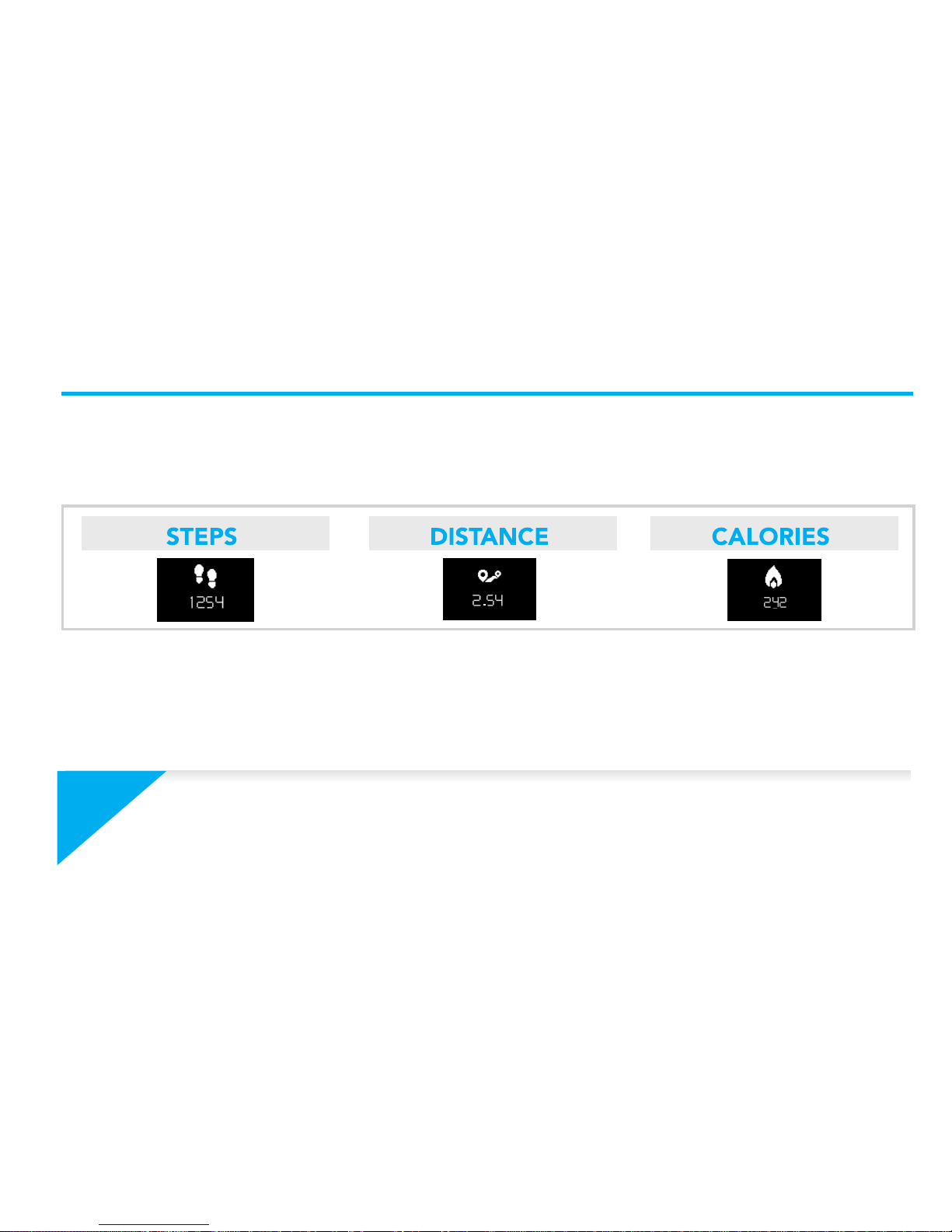
ZeWatch3 show daily data. The activity tracker resets at midnight.
To upload your latest activity data do not forget to tap the sync icon in the
upper right hand corner of ZeWatch app
6. ACTIVITY
ZeWatch3 tracks the number of steps taken, distance travelled and calories
burned throughout the day. You can view your daily activity in-real-time on
ZeWatch3 display by swiping down the touchscreen.
You can also view your activity data and history on the Activity tab of ZeWatch3.
On the main Activity screen you can check your performance level against your
daily goals. Click on any activity bar to get a detailed graph of your daily, weekly
and monthly performance.
Page 14

15
I
START/ EXIT SLEEP MODE
To start sleep mode, open ZeWatch3 App, tap on the bottom purple sleep
bar, click on Add sleep > Start Sleep now
To end sleep mode, open ZeWatch3 App, tap on the bottom purple sleep
bar, click on Add sleep > Awake
I
PRESET SLEEP
Open ZeWatch3 App > Go to Settings > Advanced Settings > Click on
Preset sleep to enter your desired bed and wake up times. By default,
ZeWatch3 will track your sleep from 11pm until 7am.
7. SLEEP
i
To upload your latest sleep data, do not forget to tap the sync icon in the
upper right hand corner of ZeWatch3 App. If you forget to activate sleep
mode, you can manually add sleep logs in ZeWatch3 App. Open ZeWatch3App,
click on Add sleep > Add sleep
ZeWatch3 tracks the hours slept and the quality of your sleep (light sleep,
deep sleep, awake times)
Page 15
16
8. GOALS
Tap the Goals tab of ZeWatch3 App to set daily goals for steps taken, distance
travelled, calories burned and hours slept. Click on the sync button in the upper
right corner to save your goals.
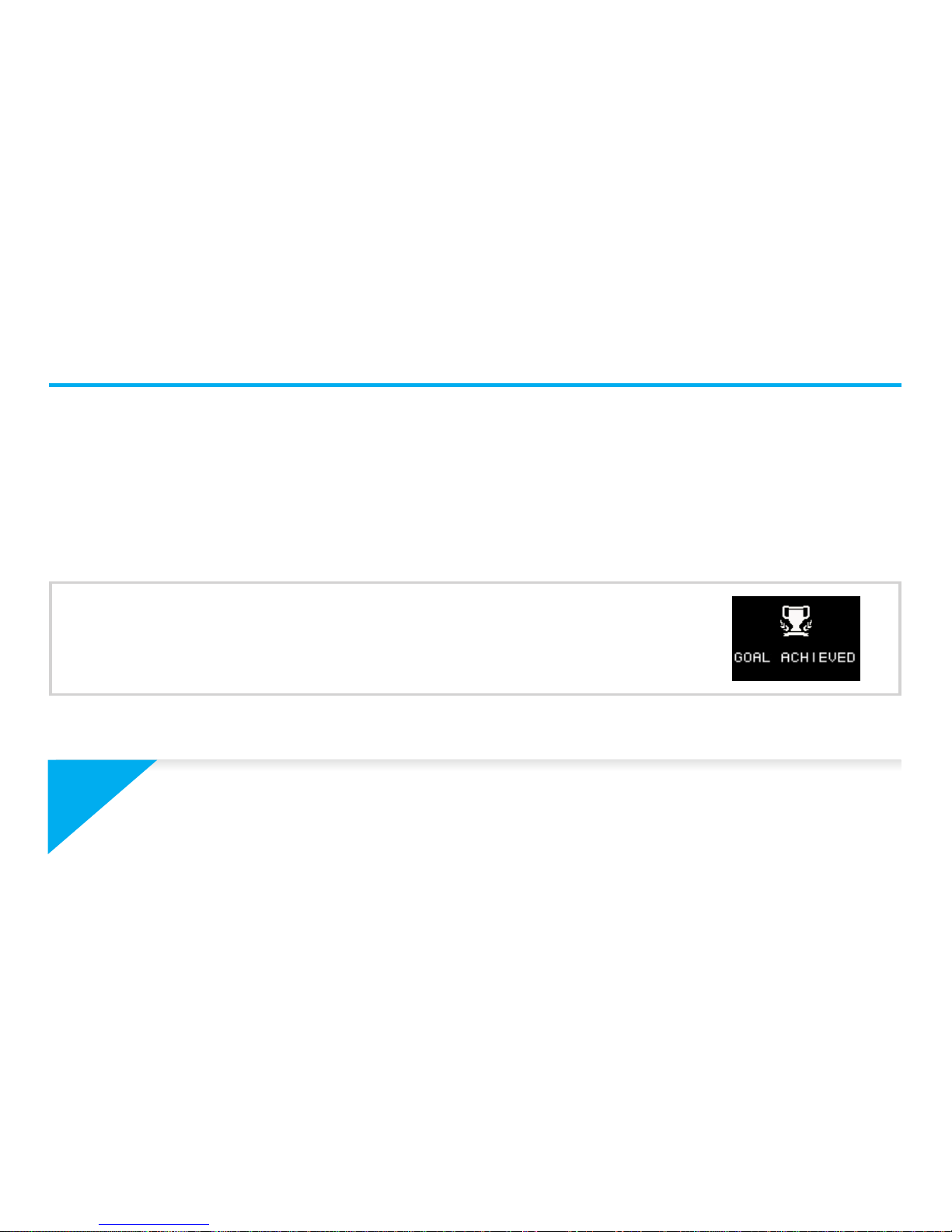
Once you hit one of your daily goal, ZeWatch
3
will
gently vibrate and display a Goal achieved icon
i
You can modify your daily goals value at any time from ZeWatch3 App. Do not
forget to tap the sync icon to save your new goals. [iOS users] Press
ZeWatch3 RIGHT button to light up the screen and initiate syncing
Page 16
17
9. REMINDERS
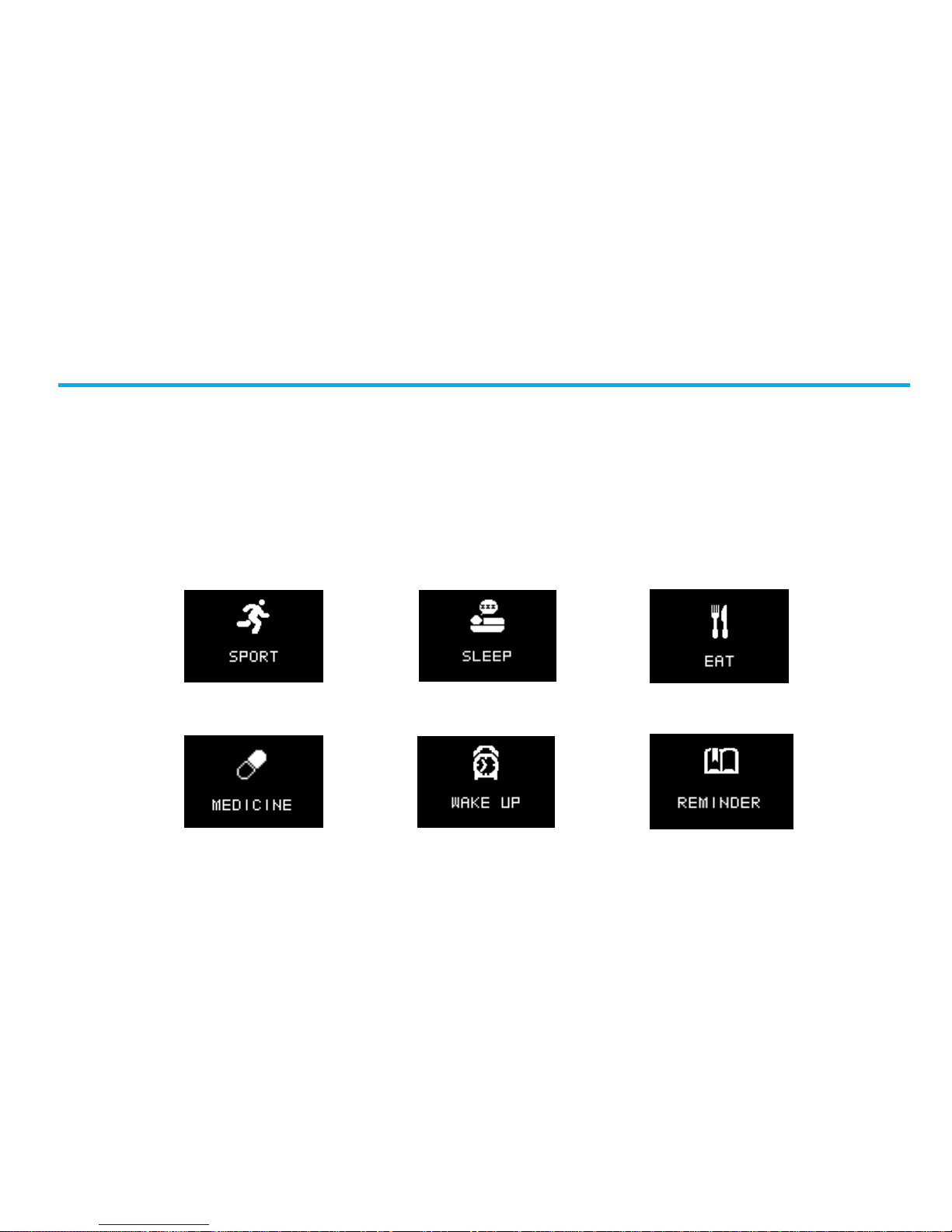
Tap the Reminders tab of ZeWatch3 App to add daily life reminders. You can set
up to 6 daily reminders, and choose the type of reminder and preferred time and
day. ZeWatch3 will gently vibrate and display the corresponding reminder icon to
alert you. Press ZeWatch3 button to dismiss the reminder. If not dismissed, the
same alert will repeat after two minutes.
Page 17

18
10. VOICE CONTROL
Use the voice control feature to voice command your mobile device remotely or
search information from the Internet. Double press the RIGHT button to initiate voice
control and speak your command. Press the RIGHT button to disconnect voice control
Examples of what you can ask or do:
I
Call (name of your contact)
I
Send a SMS to (name of your contact)
I
What’s the weather like ?
I
Set an alarm for tomorrow 5 am
i
This feature is available with iOS 7+ devices that support Siri, Select
Android 4.3 + devices that support Google Now or S Voice, Select
Windows Phone 8.1+ with Cortana. To use voice control, your mobile
device must have access to the Internet using either 3/4G or Wifi
Page 18

19
i
The features of ZeWatch3and the contents of the user manual are subject
to change. To get the latest instructions on how to use this product,
please refer to the online user manual available on www.mykronoz.com
11. MUSIC
12. ANTI-LOST ALERT
Once Bluetooth pairing has been carried out, you can stream music stored on
your paired mobile device through ZeWatch3.
When your paired device leaves the Bluetooth operating range (5 meters)
ZeWatch
3
will trigger a vibrating notification to inform you that your device is
away. Press ZeWatch3 button to dismiss the alert.
Page 19

20
13. TECH SPECS
Size 14,7 x 8,6 x 5,8 cm
Weight 41 gr
Bluetooth 2.1 & 4.0
Battery type Li-ion 200 mAh
Battery life up to 4 days
Charging time 1h30
Memory 5 days of activity
Display Touchscreen OLED 96 * 64
Sensor 3-axis accelerometer
Operating temperature -10°C to +60°C
Water resistance Sweat, rain and splash resistant
International warranty 1 year
i
If you have any question or require assistance regarding our product, please
visit www.mykronoz.com/support or email us at [email protected]
Page 20
21
Page 21
22
Page 22
FCC ID:2AA7D-ZEWH3
23
Page 23
l’utilisateur de l’appareil doit accepter tout brouillage radioélectrique subi, même si le brouillage est susceptible
Le présent appareil est conforme aux CNR d’Industrie Canada applicables aux appareils radio exempts de licence.
L’exploitation est autorisée aux deux conditions suivantes : l’appareil ne doit pas produire de brouillage;
d’en compromettre le fonctionnement.
24
IC:12131A-ZEWH3
Page 24
25
Page 25

www.mykronoz.com
© 2015 KRONOZ LLC. Tous droits réservés
 Loading...