

Page 1
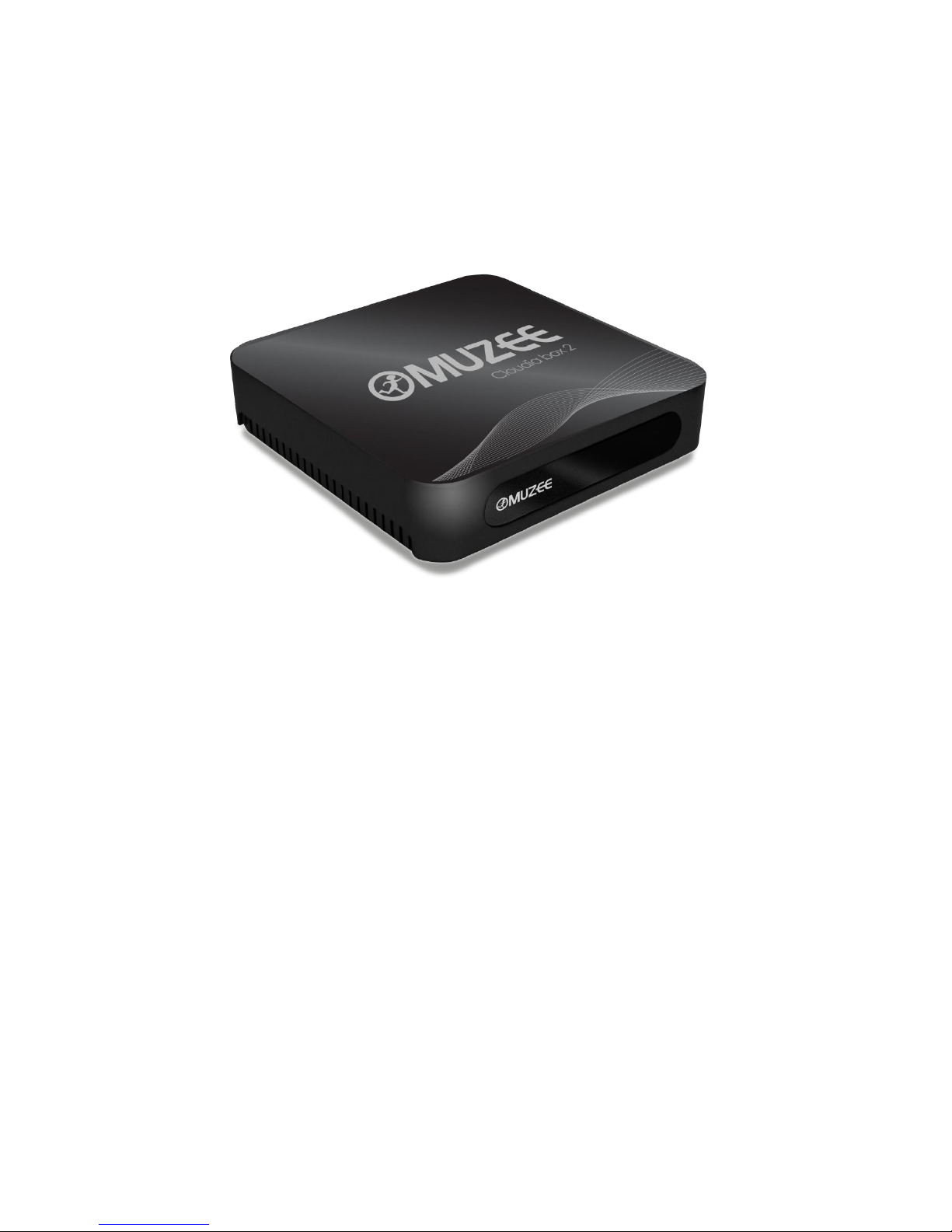
TV Cube Multimedia Player
Quick Start Guide
Muzee Corporation
Thank you for purchasing TV Cube Multimedia Player, and you could enjoy the worldwide
entertainment immediately by following the instructions below.
Page 2

Contents
1. Introduction
2. Precautions
3. Key Specifications
4. Product Front/Back View
5. Remote Control Operation
6. Getting Started
7. Package Contents
Introduction
Elegant, Brilliant and Simple to Use
The Entertainment Gateway Enriches Your Life
TV Cube has Android 4.2.2 system — a pint-sized multimedia player that delivers online
entertainment straight to your big-screen TV. Thare are various functions, including
Featured Movie, TV Series, News Video, Muzee TV, Muzee Selected, Muzee APP,
Favorites, Recommended Market.
Could multimedia/ The world's largest online multimedia content links provider. Moreover,
you can download the APP you prefer from Google store.
Brilliant design/ Instant updating and sorting feature in the database allow to provide the
best catalogue contents with a simple click.
Cost effective/ No installation. No subscription. No monthly fee and 24-hour monitoring.
Convenient to use/ Play your favorite internet multimedia within a thumb's reach trough
the remote control on your bed and couch. Moreover, you can also download “Cloudia
Remote Control” via iOS or Android system.
HDMI/ The entire Internet or your favorite contents on TV, and transform your TV into
personal smart TV.
Page 3

Precautions
• Read all of the following instructions and save this quick guide for later use.
• Follow all warnings and instructions on the product.
• Do not insert sharp objects or spill liquid into the product through the cabinet slots; this
may cause accidental fire, electric shock or failure.
• Unplug the unit when not in use for an extended period of time.
• Unplug the unit from power outlet before cleaning.
• Do not attempt to service this product yourself, as opening or removing the cover may
expose you to potential electric shock. Only a qualified technician should service this
product.
• Do not use this product in an aircraft or where the use of electronic instruments is
prohibited.
• Keep this product away from extreme heat, cold or humid places.
• Do not place directly under sunlight, dusty surroundings or near equipment which may
generate strong magnetic fields.
• TV Cube Multimedia Player only provides web links to all the contents viewed on the
device without any copyright issue. If you have further concern or question regarding the
copyright issue, kindly contact us at: [email protected]
Page 4
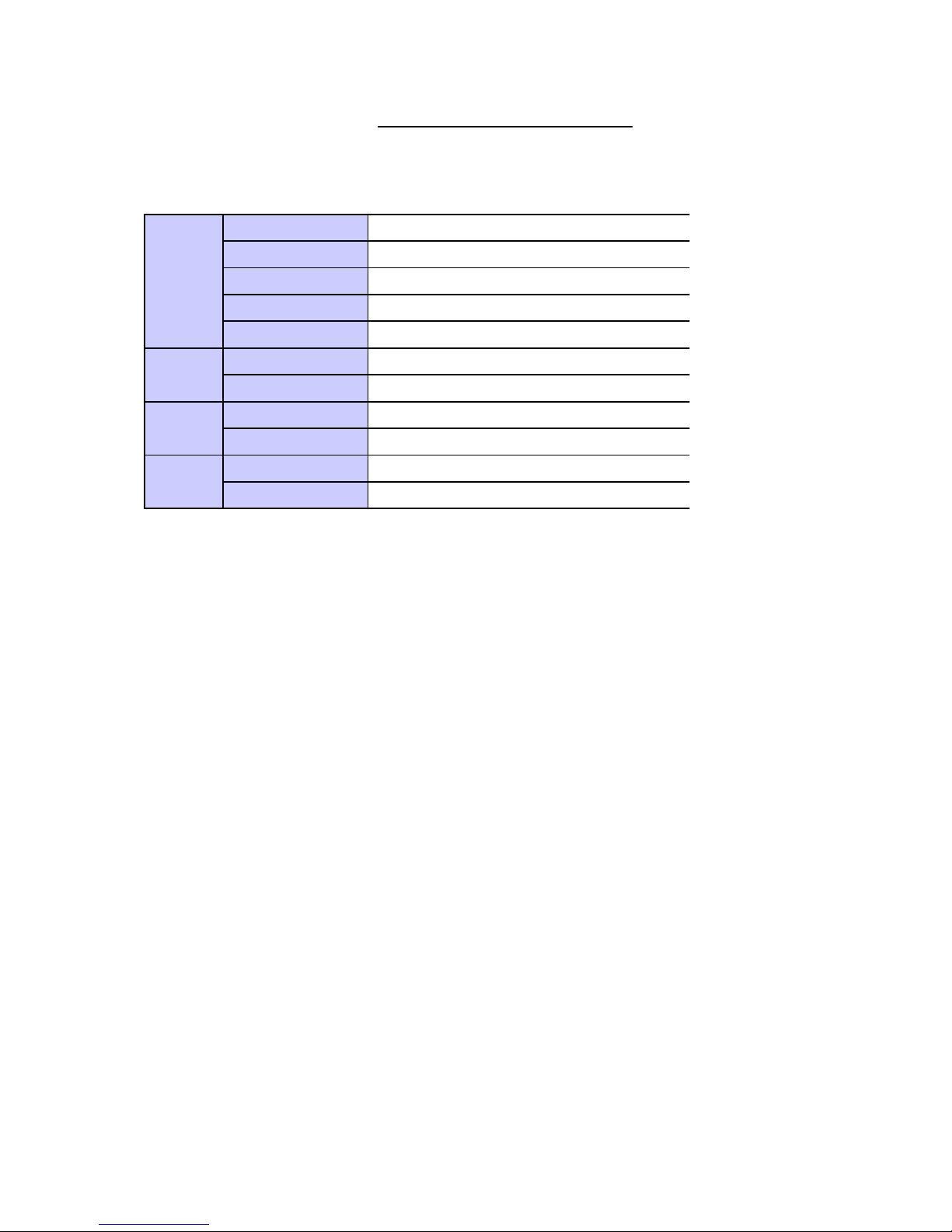
Key Specifications
General
TV Cube
Dimension
98 x 98 x 25 mm
O/S
Android 4.2.2
Net Weight
135g
Power
AC-DC Adapter, 100~240V Input, 5V Output, 2A
Network
Connector
100MB Ethernet LAN port
WI-FI
802.11b/g/n (Built-in)
Audio / Video Out
HDMI / TV out
USB
2.0 x 2
Other
Power Indicator
LED
Accessories
Power Adapter x 1、Remote Contrl x 1
Page 5
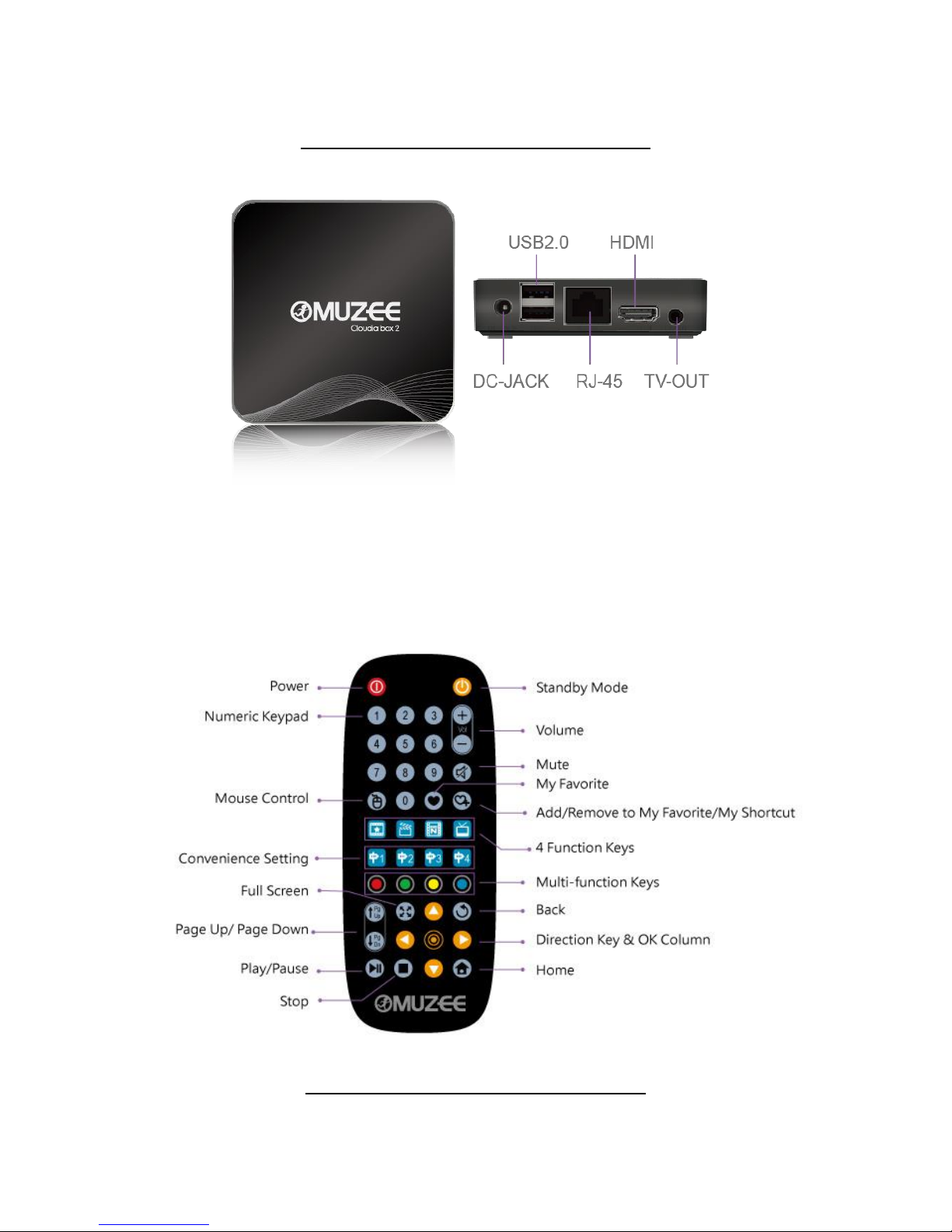
Product Front/Back View
Remote Control Buttons
Page 6
Getting Started
一、Operation introduction
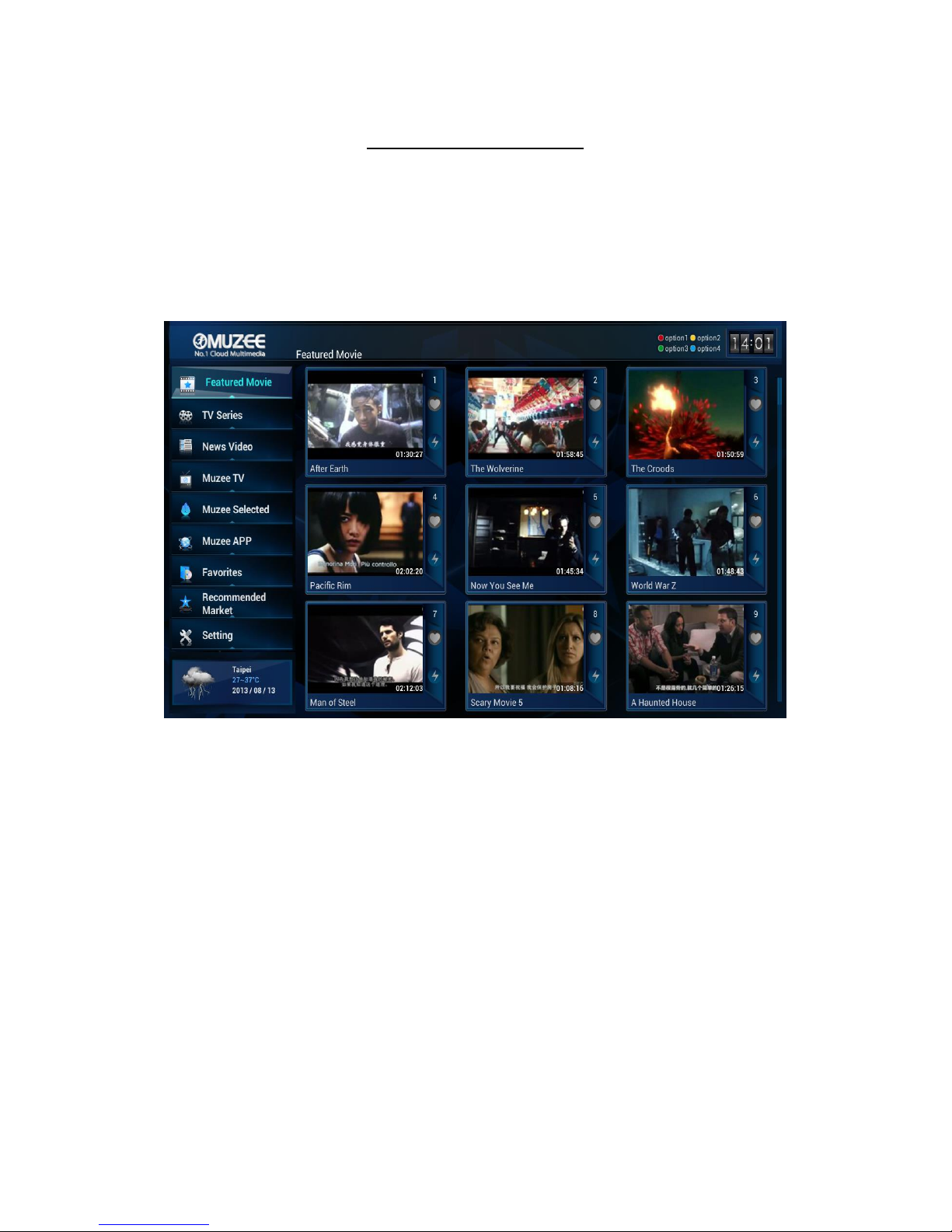
1、Main Page
This is the main page of TV Cube and there are 9 functions, including Featured Movies, TV
Series, News Video, Muzee TV, Muzee Selected, Muzee APP, Favorites, Recommended
Market and Setting.
2、Functions
2.1 Featured Movies
Press '' right button'' on the remote control, movie1 will be choosen then use the direction
key for operation. Press ''OK column'' to play this movie. Also user can choose by
''Numeric Keypad''. And press ''Back Key'' to the main page.
Page 7
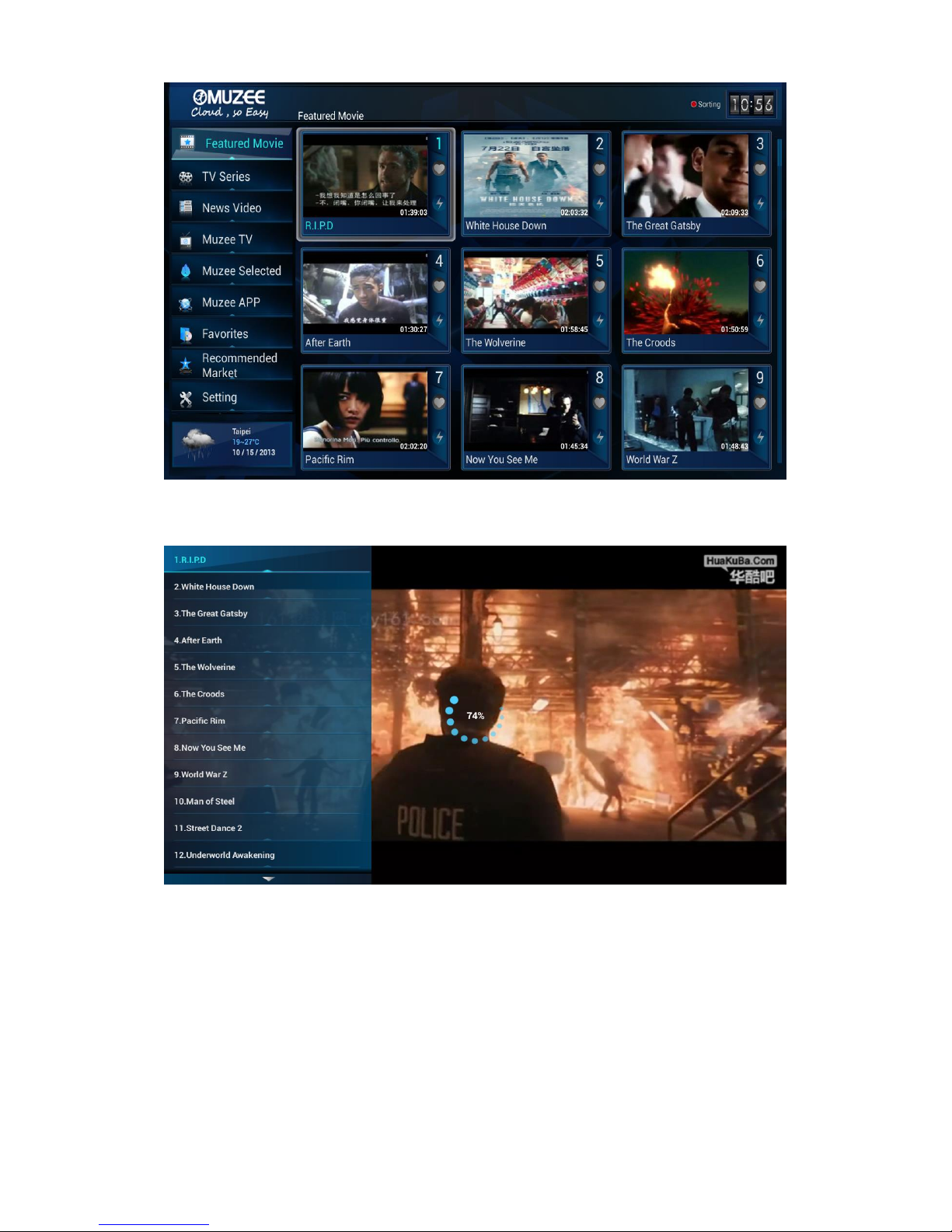
Press ''OK column'' for full sreen and then press ''OK column'' again, the palying list will
be shown for choosing easily.
2.2 TV Series
Users can enjoy many series in this function.
Page 8
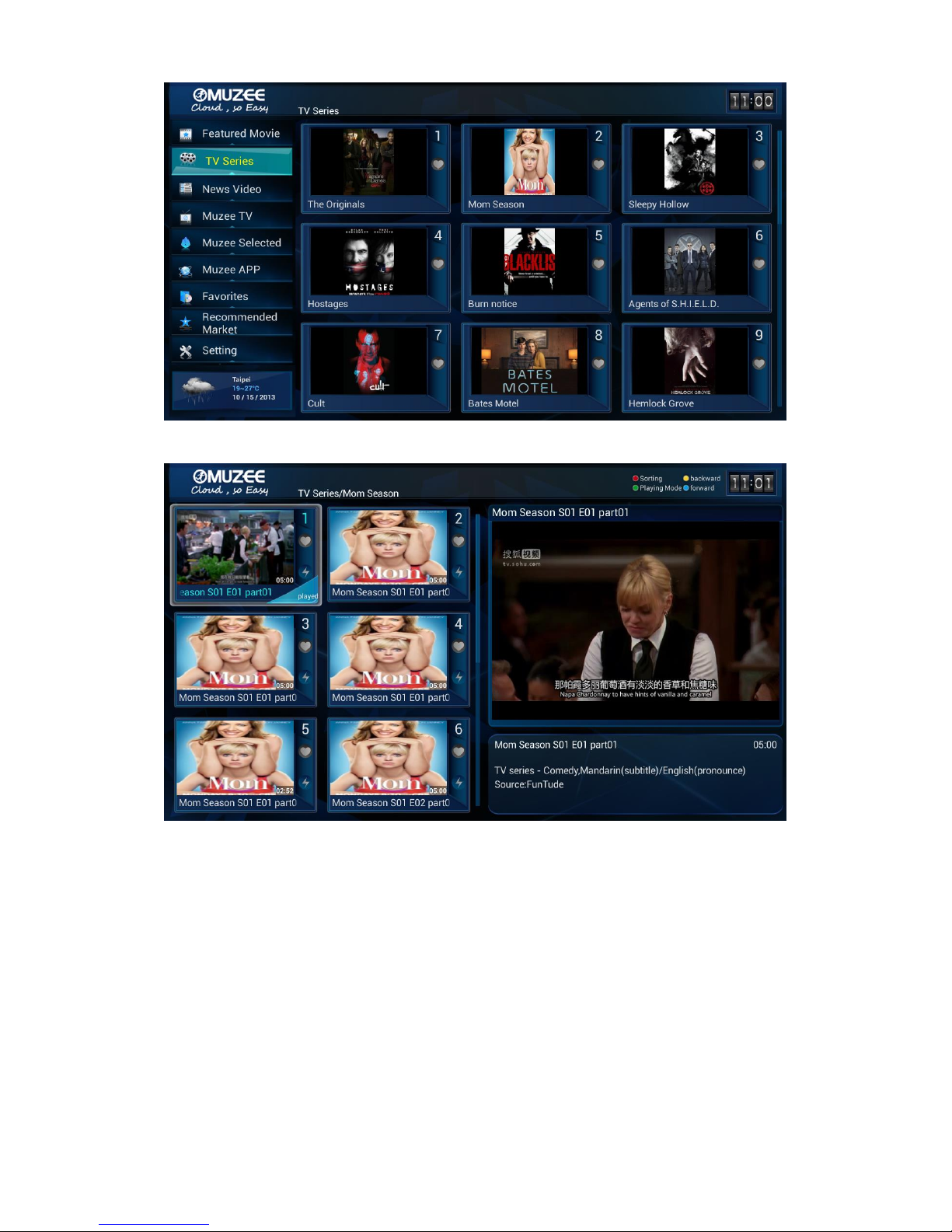
User can see the preview when choose the episode and press ''Play''.
Press ''Full Screen Key'' to enjoy this video in full screen or press the same key to transfer to
the pre-view screen.
Page 9
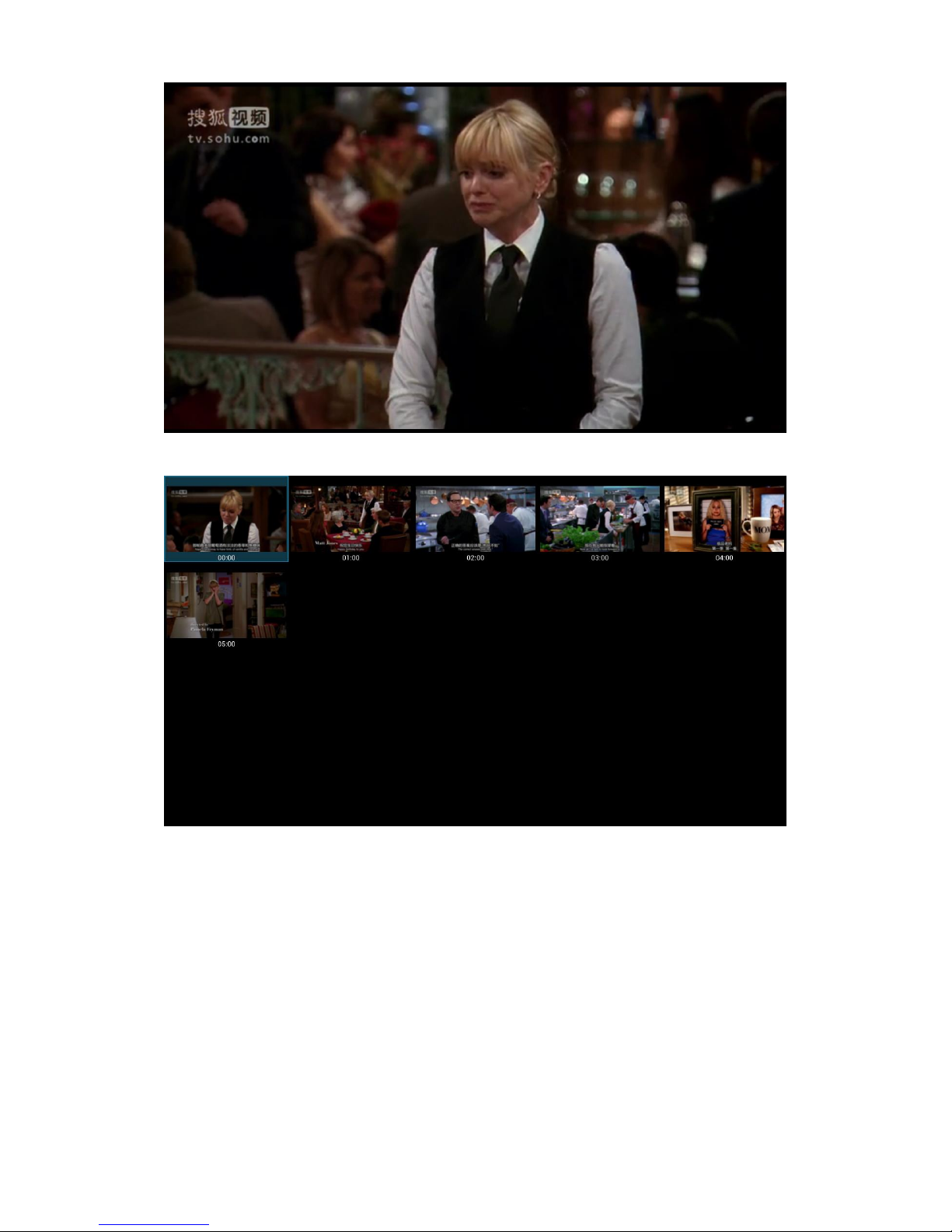
When the video is playing, press the direction key for forward or back.
2.3 News Video
User can see the news video list clearly for operation.
Page 10
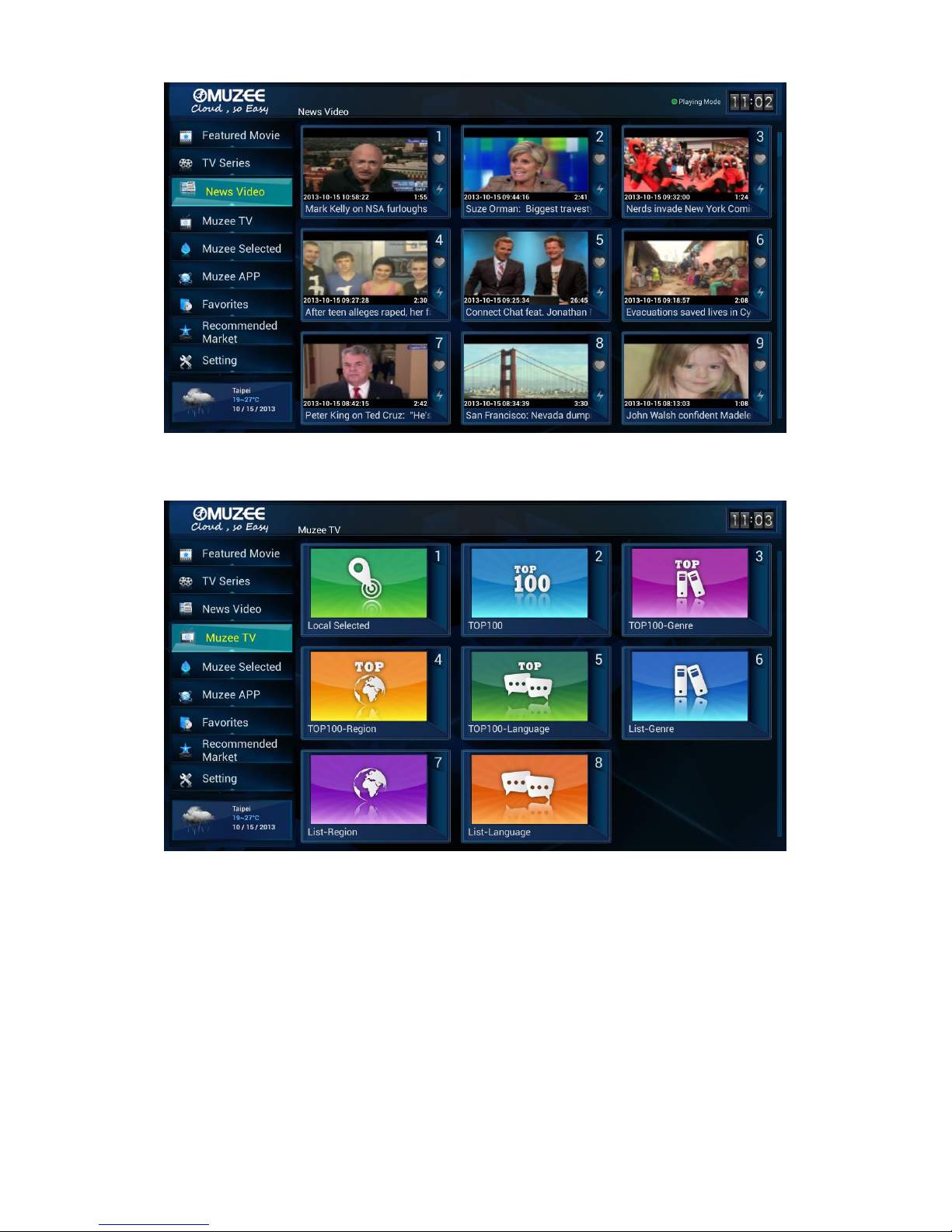
2.4 Muzee TV
There are 8 functions in Muzee TV for our users.
2.5 Muzee Selected
There are 7 functions in Muzee Selected for our users.
Page 11
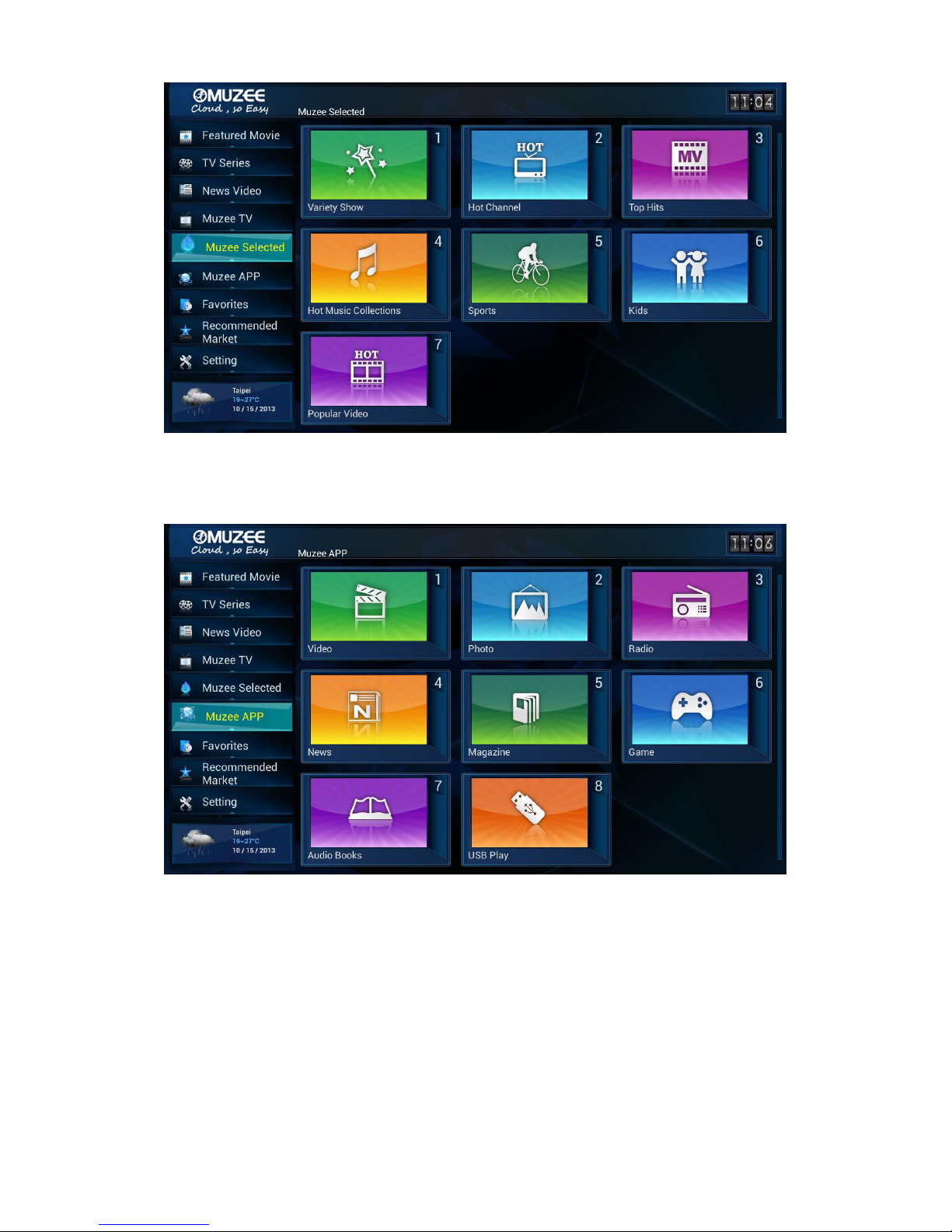
2.6 Muzee APP
There are 8 functions in Muzee APP for our users.
2.7 Favorites
There are 7 functions in Favorites. Thses are saving from Muzee APP for each function.
Page 12
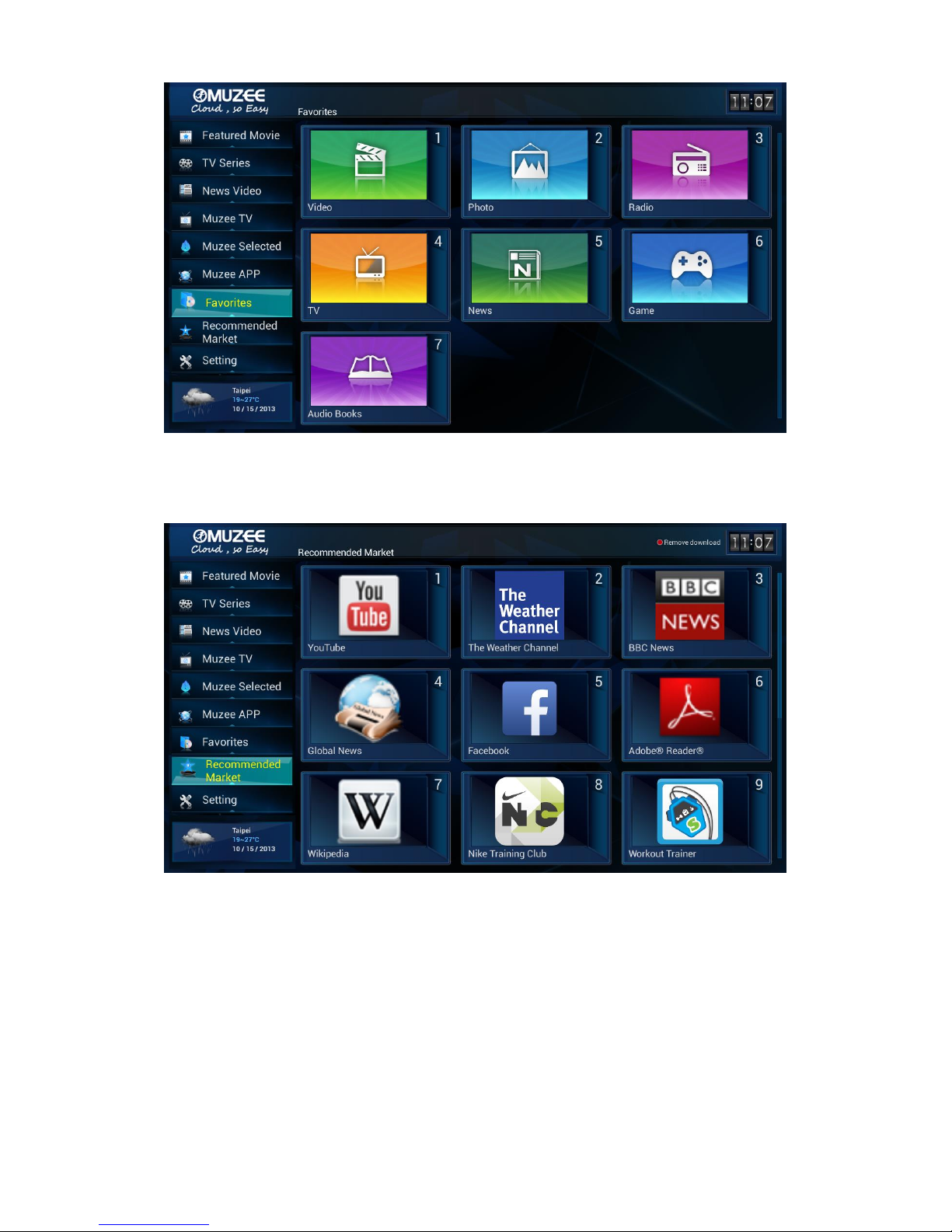
2.8 Recommended Market
There are many recommended APK in this function and users can also download what
they like for from google market.
2.9 Setting
There are 9 functions in Setting and user can choose easily.
Page 13
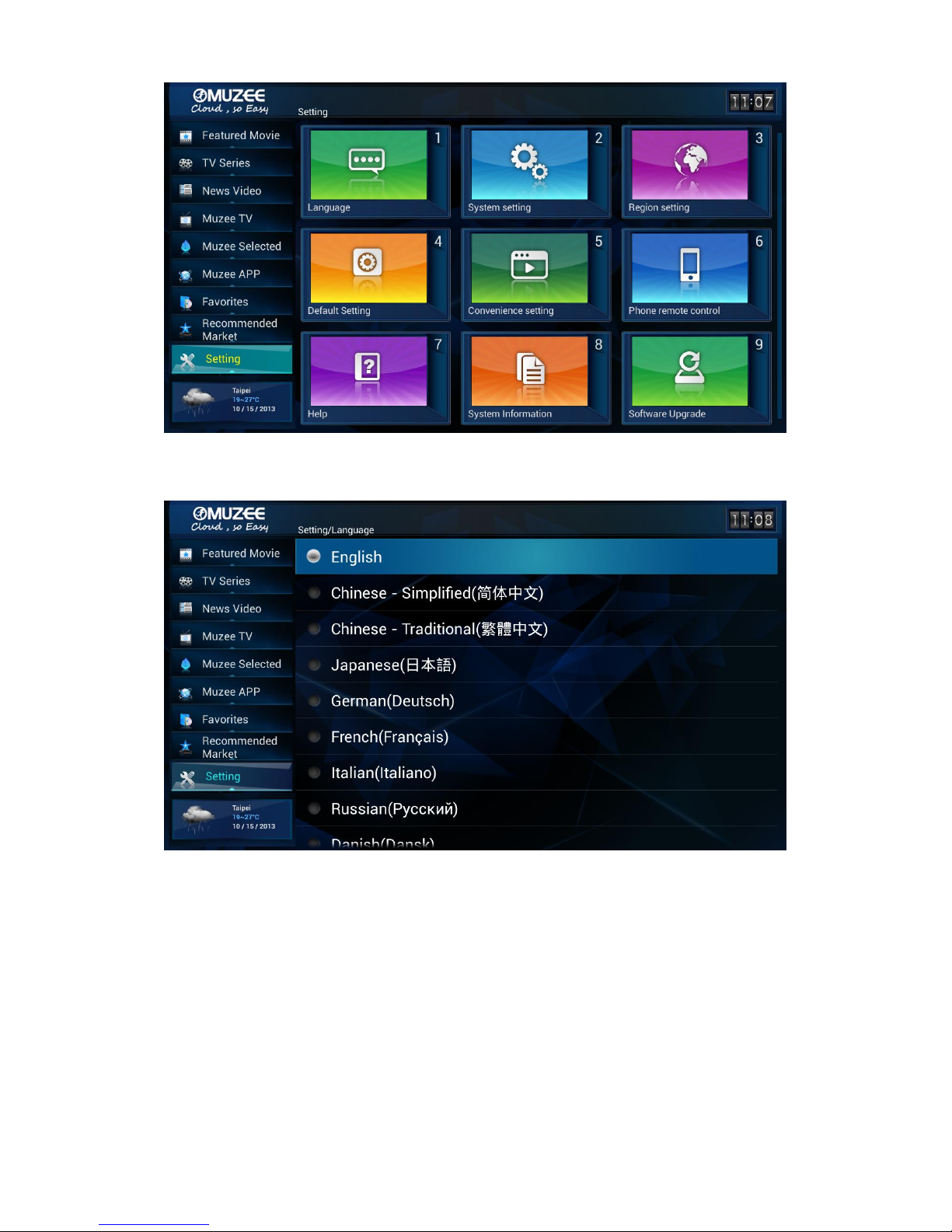
2.9.1 Language:
2.9.2 System Setting: Network setting/ Dispaly setting/ Date & time setting
Page 14
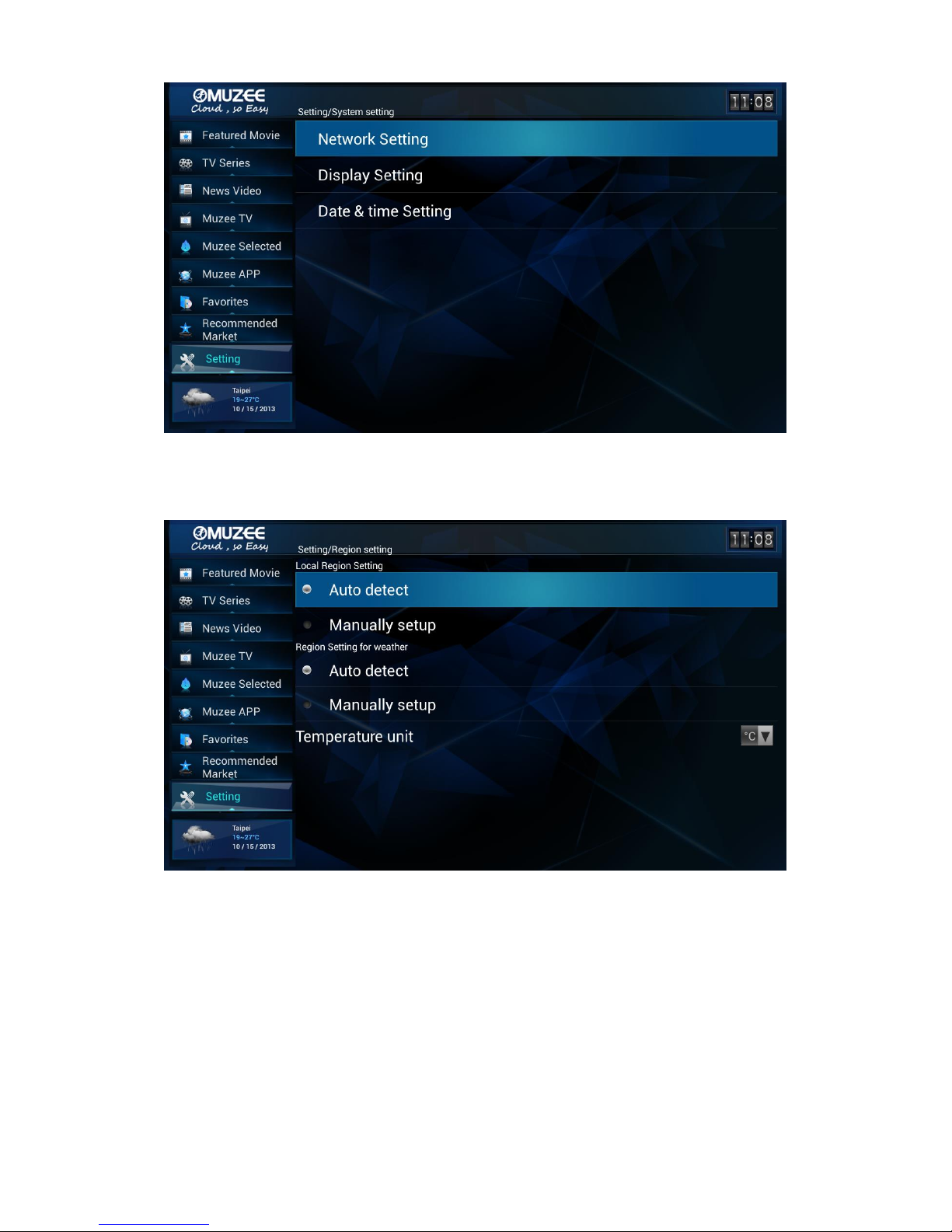
2.9.3 Region Setting: Local region setting/ Region setting for weather/
Temperature unit
2.9.4 Default Setting: Video Play setting/ Default video quality/ Default play
setting/ Auto play radio station setting/ Turbo mode setting
Page 15
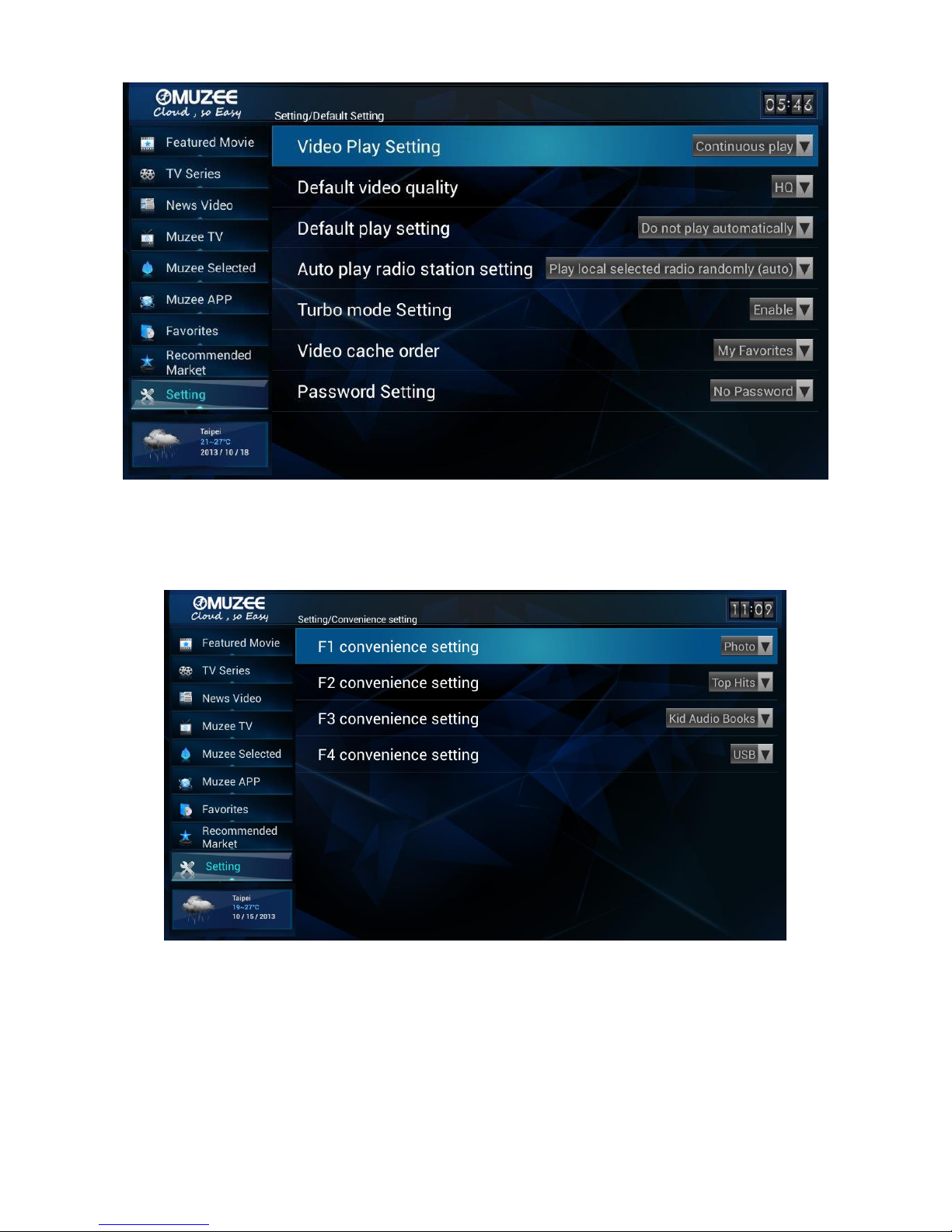
2.9.5 Convenience Setting:
2.9.6 Phone remote control setting: Andriod Phone, iPhone and iPad.
Page 16
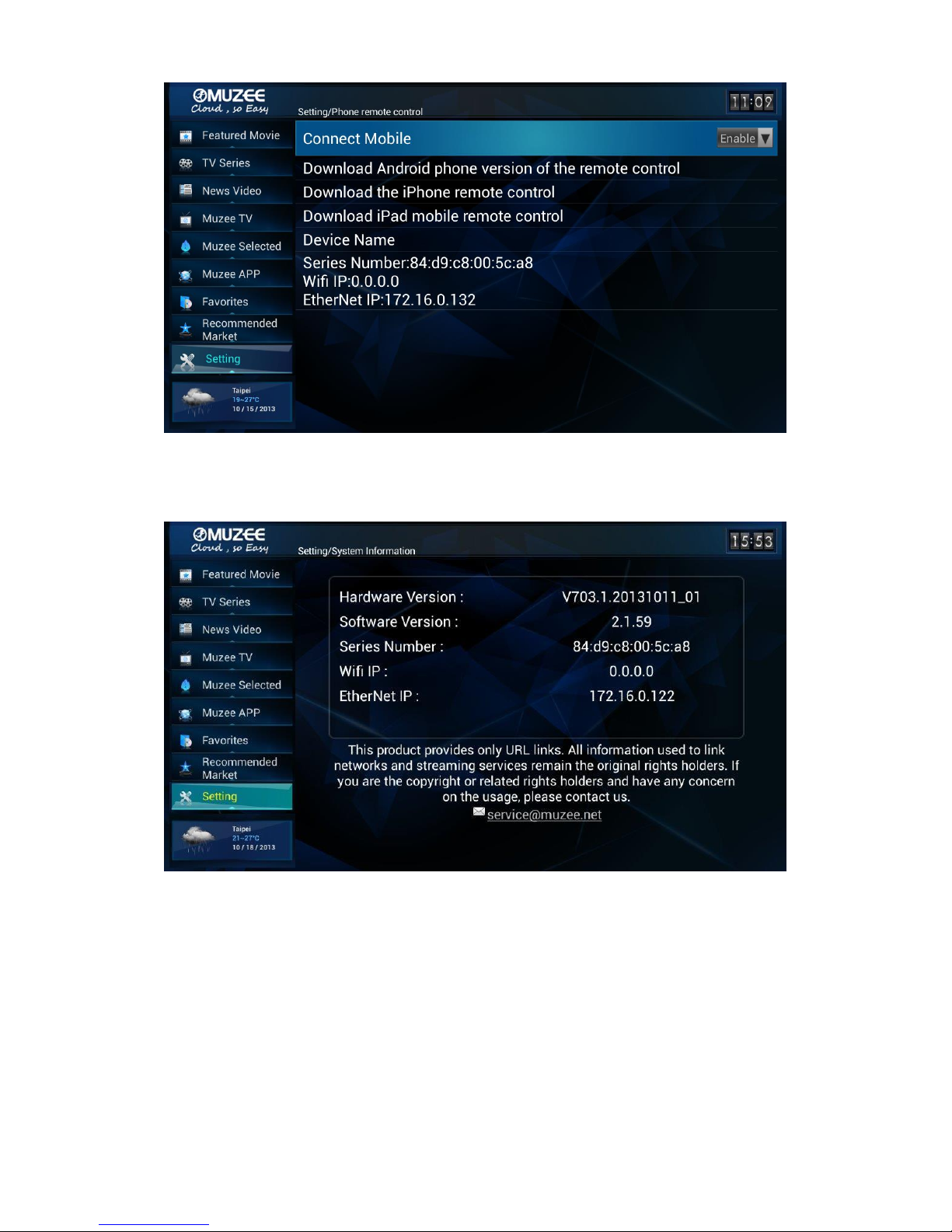
2.9.7 Online guide
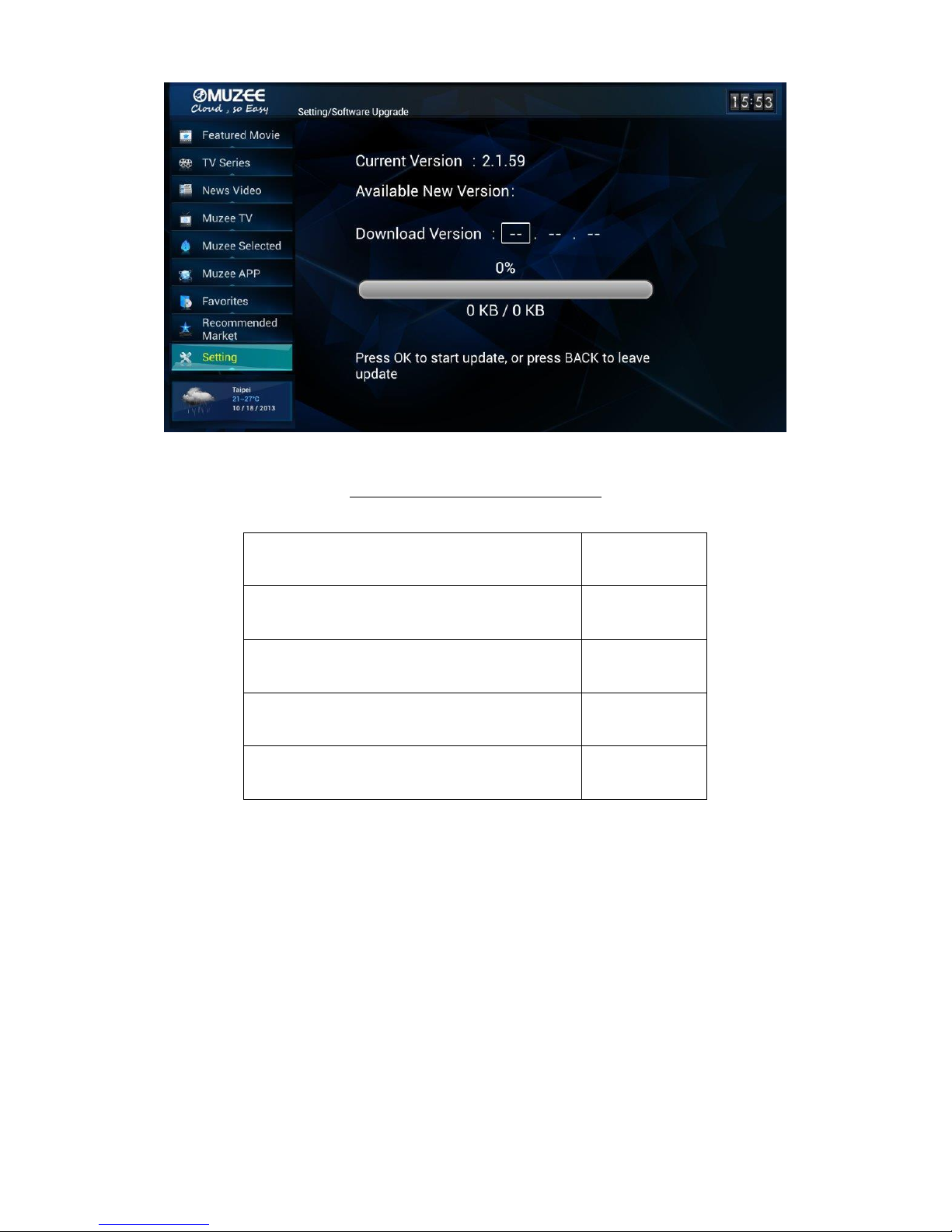
2.9.8 System Information
2.9.9 Software Upgrade
Page 17
Package Contents
Accessories
Amount
TV Cube Multimedia Player
1
Remote control
1
Power Adaptor
1
Quick Start Guide
1
*We keep the rights to have any change on this quick start guide in the future without
further notice.
FCC
15.21
You are cautioned that changes or modifications not expressly approved by the part responsible for
compliance could void the user’s authority to operate the equipment.
15.105(b)
Page 18

Federal Communications Commission (FCC) Statement
This equipment has been tested and found to comply with the limits for a Class B digital device,
pursuant to part 15 of the FCC rules. These limits are designed to provide reasonable protection
against harmful interference in a residential installation. This equipment generates, uses and can
radiate radio frequency energy and, if not installed and used in accordance with the instructions, may
cause harmful interference to radio communications. However, there is no guarantee that interference
will not occur in a particular installation. If this equipment does cause harmful interference to radio or
television reception, which can be determined by turning the equipment off and on, the user is
encouraged to try to correct the interference by one or more of the following measures:
-Reorient or relocate the receiving antenna.
-Increase the separation between the equipment and receiver.
-Connect the equipment into an outlet on a circuit different from that to which the receiver is
connected.
-Consult the dealer or an experienced radio/TV technician for help.
This device complies with Part 15 of the FCC Rules. Operation is subject to the following two
conditions:
1) this device may not cause harmful interference and
2) this device must accept any interference received,, including interference that may cause undesired
operation of the device.
FCC RF Radiation Exposure Statement:
1. This Transmitter must not be co-located or operating in conjunction with any other antenna or
transmitter.
This equipment complies with FCC RF radiation exposure limits set forth for an uncontrolled
environment. This equipment should be installed and operated with a minimum distance of 20
centimeters between the radiator and your body.
 Loading...