

Page 1
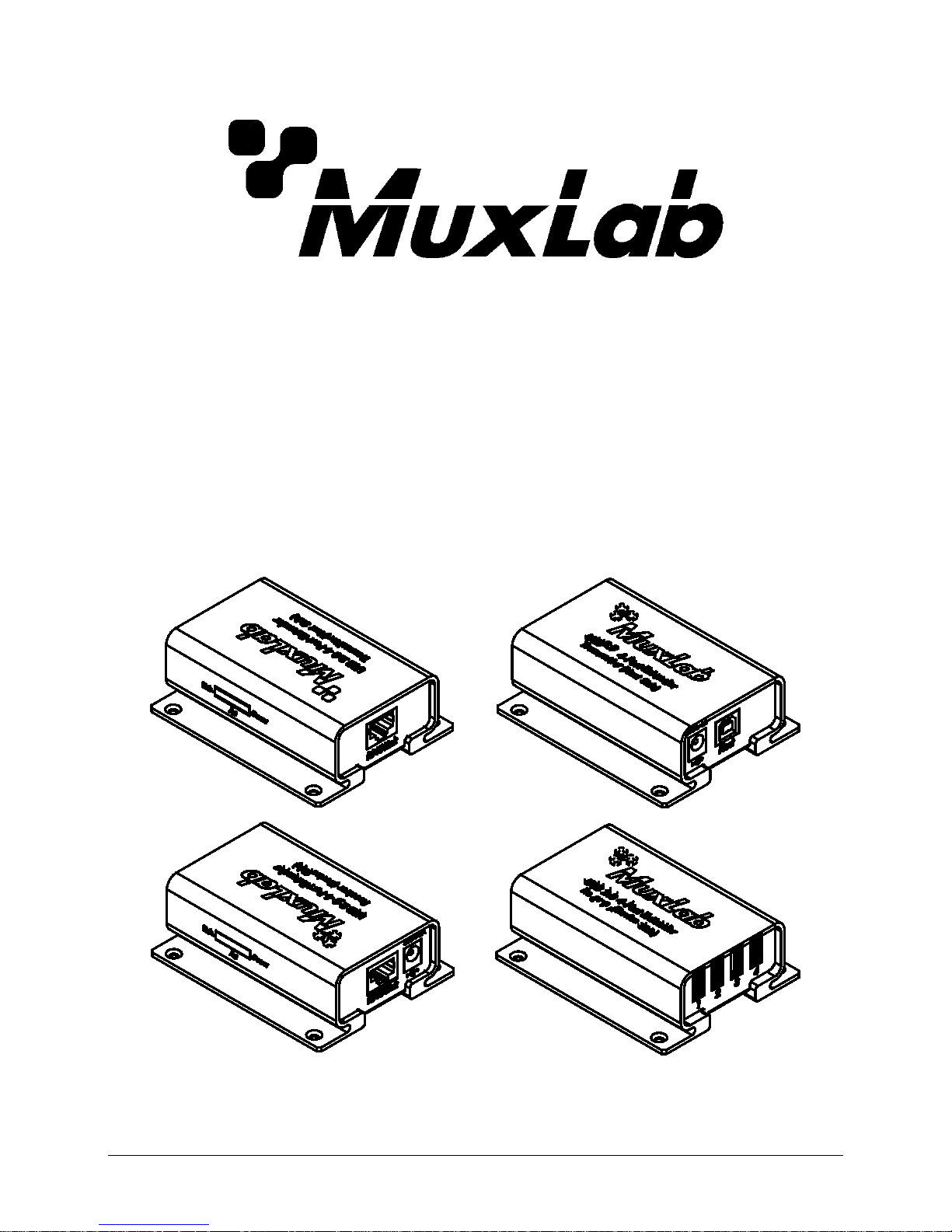
USB 2.0 4-Port Extender Kit
Installation Guide
500072
© MuxLab Inc. 2014 94-000760-A / SE-000760-A
Page 2
USB 2.0 4-Port Extender Kit Installation Guide
Table of Contents
1. Introduction ............................................................................................................................... 2
2. Features ..................................................................................................................................... 2
3. Specifications ............................................................................................................................ 2
4. Package Contents ...................................................................................................................... 3
5. Physical Diagram ...................................................................................................................... 3
6. Installation ................................................................................................................................. 5
7. Category cable wiring ............................................................................................................... 6
8. Troubleshooting ........................................................................................................................ 7
9. Regulatory Compliance ............................................................................................................ 8
1. Introduction
The USB 2.0 high speed extender system enables USB 2.0 connectivity over Cat5e/6 at data
rates up to 480Mbps and extends true USB up to 100m (328ft) over standard Cat5 twisted pair
cable.
This unit is true plug and play, requires no additional software drivers, and is compatible with all
major operating systems such as Windows, Mac and Linux.
It is ideal for accessing remotely laser printers, scanners, web cameras, external hard drives,
CD/DVD burners, and flash drives. It supports a wide variety of USB extension applications
including security, industrial control, digital signage, scientific data acquisition and other
implementations of USB standards.
2. Features
True plug and play, no driver installation required.
Extends USB 2.0 high-speed and USB 1.1 (low-speed, full-speed) devices up to 100m
(328ft) over Cat. 5e/6 cable
Supports all USB device types: Control, Interrupt, Bulk and Isochronous at up to 480Mbps
Ideal for a wide variety of USB devices, printers, scanners, hard drives, audio devices,
touch screens, web cams, and game controllers.
Compatible with major operating systems: Windows 2000 / XP / Vista / 7 / 8 / 8.1, Mac OS,
Linux or higher
Aluminum enclosure and wall mountable
3. Specifications
Model No.
500072
Transmitter
Receiver
Chip
ICRON
Connector
Upstream / Input
USB B Female
RJ-45 Female
Output / Downstream RJ-45 Female USB Type A Female x 4
Interconnection Cable
Standard Cat. 5e/6
Max. Cable Length
100m (328ft)
LED
3
USB Cable Length
0.6m (USB Type A/M to Type B/M)
Power Supply
5VDC 1A
5VDC 2A
Housing
Aluminum
Dimension ( L x W x H )
90 x 73 x 31mm
© MuxLab Inc. 2014 2
Page 3
USB 2.0 4-Port Extender Kit Installation Guide
4. Package Contents
1 Transmitter unit
1 Receiver unit
2 5VDC Power adapters
1 USB 2.0 Type A/M to Type B/M Cable 0.6m
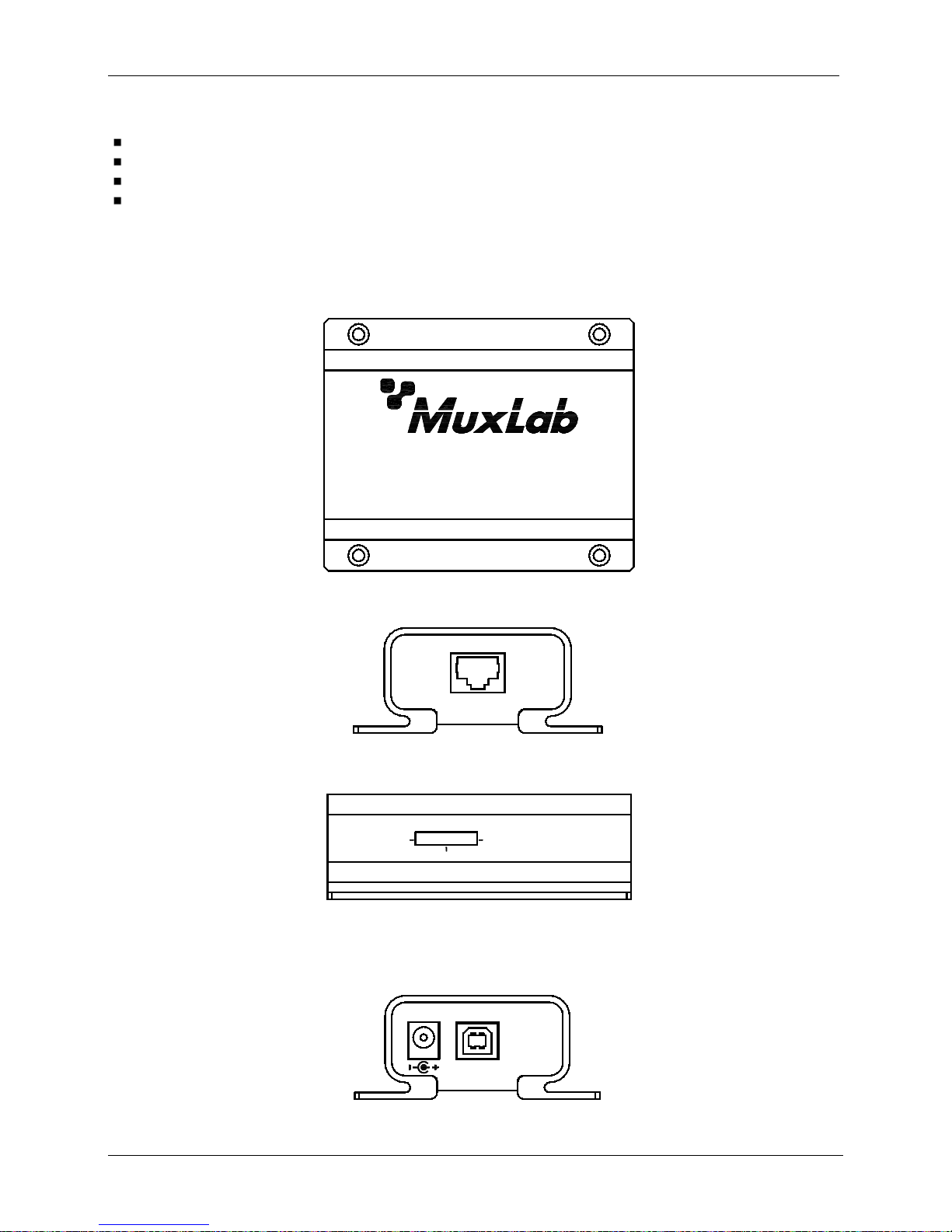
5. Physical Diagram
5.1 Transmitter (Local Unit)
Top View
USB 2.0 4-Port Extender
Tran smitter (Host Side)
Front view
RJ45 Link
RJ45 Link port to
connect to the Cat.5
cabling
Side view
Link Led indicates a
valid link between the
Tx and the Rx via Cat.5
cabling
Link
Power
Act
Power Led indicates
that the power is
connected
Act Led indicates activity when data is
transmitted between the Tx and the Rx
Rear view
Power port connects to
the 5VDC-1A power
supply
Host
5VDC-1A
Host Port is using USB
Type B interface
© MuxLab Inc. 2014 3
Page 4
USB 2.0 4-Port Extender Kit Installation Guide
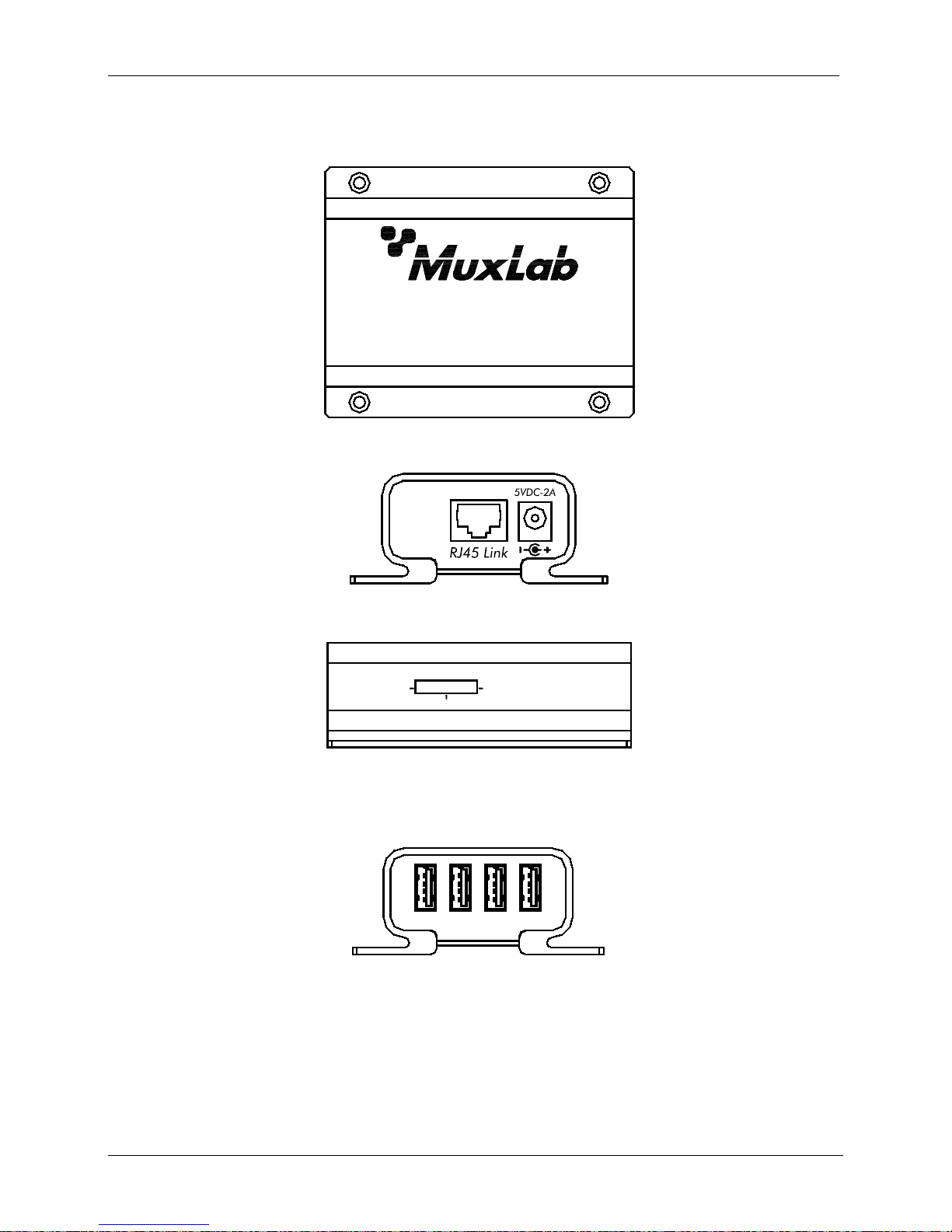
5.2 Receiver (Remote Unit)
Top View
Receiver (D evice Side)
USB 2.0 4-Port Extender
Front view
RJ45 Link port to
connect to the Cat.5
cabling
Power port connects to
the 5VDC-2A power
supply
Side view
Link Led indicates a
valid link between the
Tx and the Rx via Cat.5
cabling
Link
Power
Act
Power Led indicates
that the power is
connected
Act Led indicates activity when data is
transmitted between the Tx and the Rx
Rear view
4321
Ports 1 to 4 are USB
Device Ports using
USB Type A interface.
© MuxLab Inc. 2014 4
Page 5
USB 2.0 4-Port Extender Kit Installation Guide
6. Installation
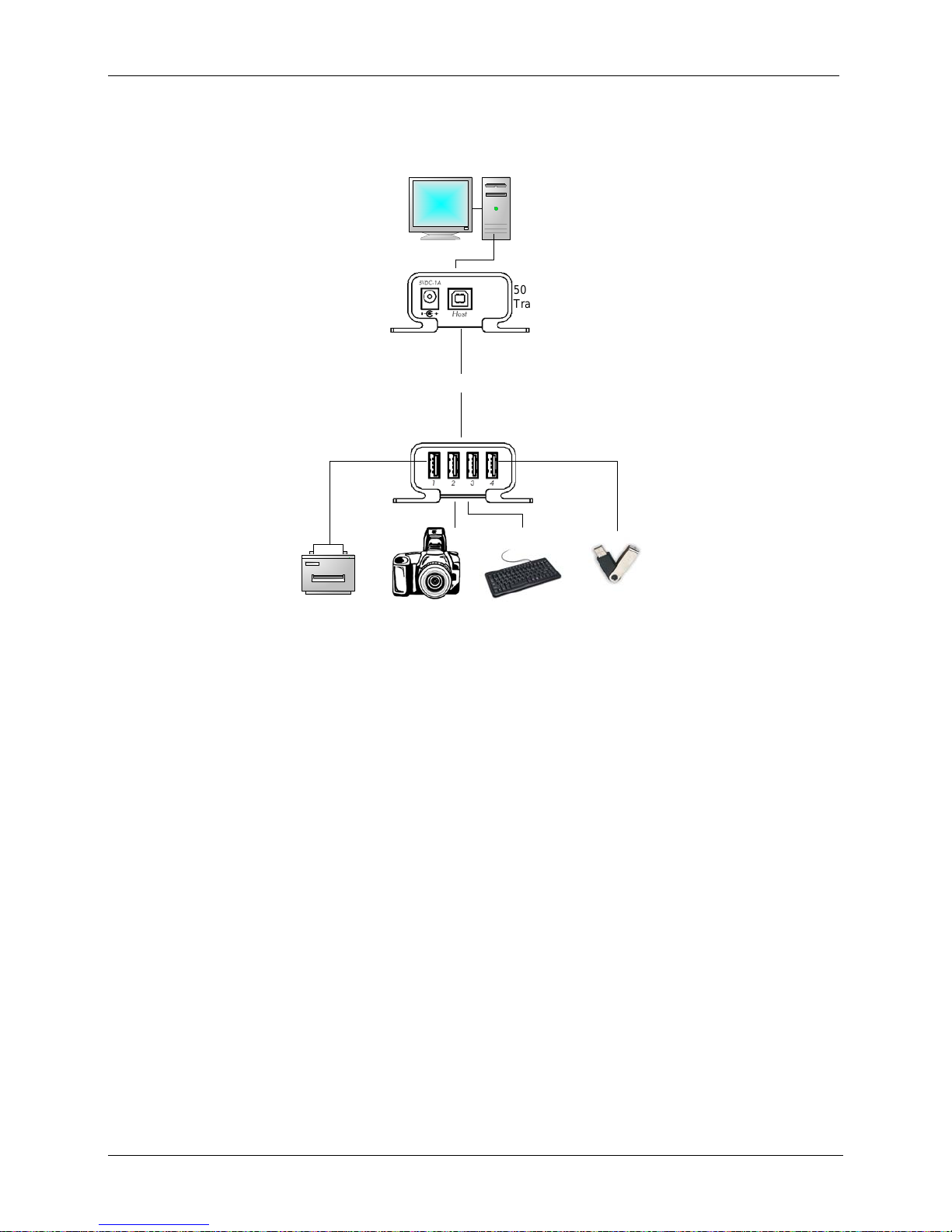
6.1 Typical Application
USB Cable USB Cable
USB Cable
USB Cable
Cat.5 cable
Up to 100m
USB Cable
USB Devices
500072
Transmitter
500072
Receiver
PC
6.2 Installing the Transmitter and the Receiver
6.2.1. Preparing for Installation
Follow these steps to prepare your installation:
1. Determine where the host computer will be located and set up the computer.
2. Determine where you want to locate the remote USB device(s).
3. The extender supports a maximum distance or 328 ft (100m). Make sure that Cat5
cabling is installed, with Cat. 5 outlets located near both computer and USB devices.
The total length of this cable, including patch cords, must not be longer than 328 ft
(100m).
6.2.2. Installing the Transmitter (Local Unit)
1. Plug the supplied USB cable into the transmitter and connect to an available USB port
of computer.
2. Plug the 5VDC, 1A power adapter into the transmitter, and AC plug into the power
outlet.
3. The Red Power LED indicator lights on.
4. Plug one end of the Cat. 5 cable into the Link port (RJ-45) on the transmitter. (Please
see Category cable wiring).
© MuxLab Inc. 2014 5
Page 6
USB 2.0 4-Port Extender Kit Installation Guide
6.2.3. Installing the Receiver (Remote Unit)
1. Plug the other end of the Cat. 5 cable into the Link port (RJ-45) on t he receiver.
2. Plug the 5VDC, 2A power adapter into the receiver, and AC plug into the power
receptacle.
Note: Make sure to plug the 5VDC 2A power adapter on the receiver side.
3. The Red Power LED indicator lights on.
4. Connect the USB devices through USB cables into the Receiver’s USB ports labeled 1
to 4 on receiver.
LED
Status
Definition
Color
Power
Red
Indicates that the 5VDC power adapter is plugged in.
Activity Green
Indicates that both the transmitter and the receiver are
powered on and the Cat5 cable is connected properly.
Link
Orange
Indicates that the USB ports are plugged in.
6.3 Checking the Installation
1. Check the Activity (Green) and Link (Orange) LED indicators light on both the
transmitter and the receiver.
2. For Windows users (2000, XP, Vista, 7, 8, and 8.1), open Device Manager to confirm
the extender has been installed correctly. Expand the Entry and check the USB
controllers. If the extender is installed correctly, it should be listed as a “Generic USB
Hub.”
3. For Mac OS X users, open the System Profiler to confirm that the extender has been
installed correctly. In the left column under Hardware, select “USB” and check the r ight
panel. If the extender has been installed correctly, you should find it listed as a “Hub”
under the USB High-Speed Bus/USB Bus.
4. If the extender is not detected correctly or fails to detect, go to the Troubleshooting
section of this manual.
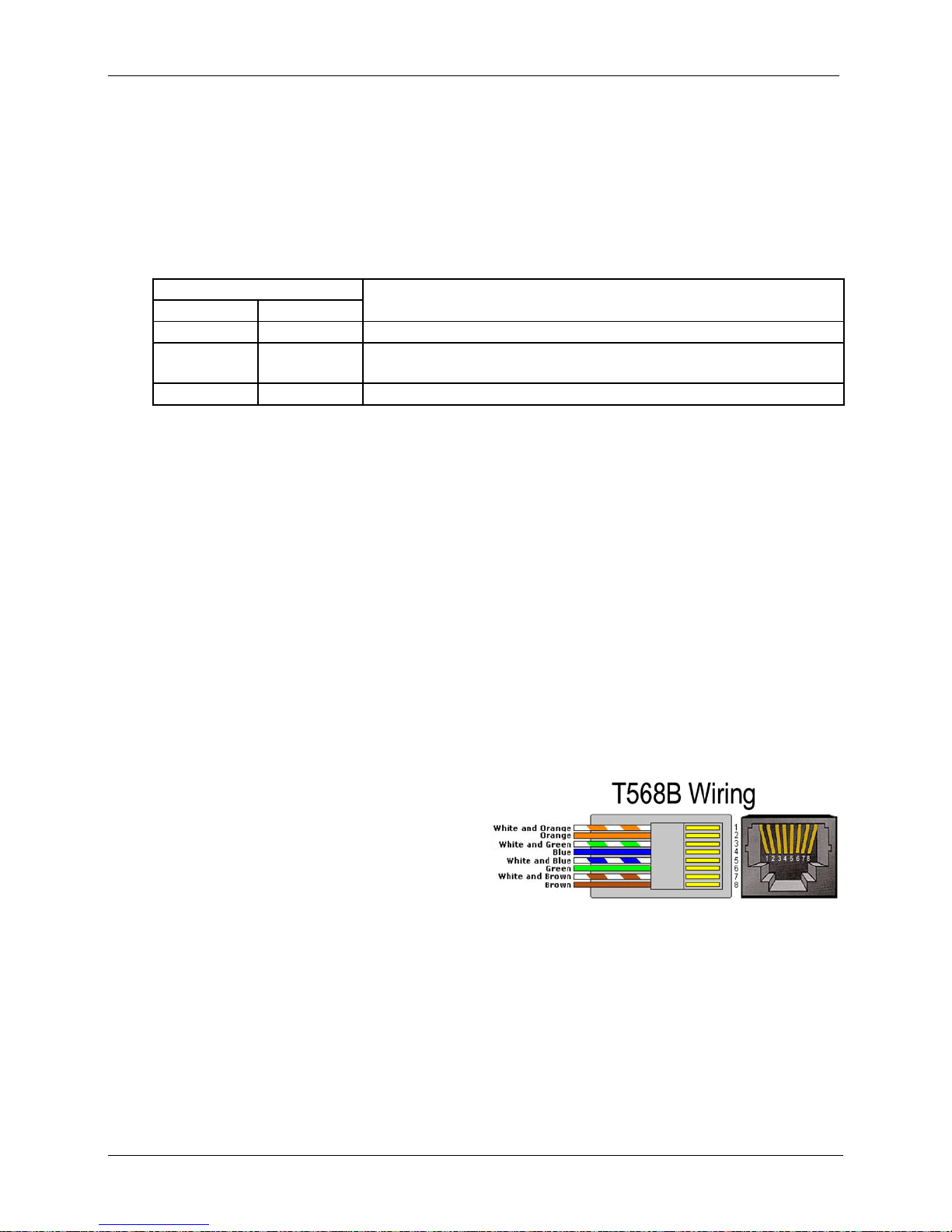
7. Category cable wiring
Take precaution selecting the Cat. 5 wires
before connecting; use a cable tester to check
the wires are correctly terminated. (Incorrect
Termination may cause damage to the
receiver unit). Recommend to use T568B
wiring as shown.
© MuxLab Inc. 2014 6
Page 7

USB 2.0 4-Port Extender Kit Installation Guide
8. Troubleshooting
The following table describes some of the symptoms, probable causes and possible solutions in
respect to the installation of the USB 2.0 4-Port Extender kit.
Table -1 Troubleshooting tips
Problem
Cause
Solution
The USB device is
attached but not
functioning.
• The USB device requires
drivers that were not
installed.
• The USB device does not
support USB hubs.
• The USB device might be
failed.
1. Install the required USB device driver on the
computer operating system before plug in the
USB device to the receiver. Access your USB
device’s manufacturer’s Web site for detail info.
2. In the Universal Serial Bus (USB) controllers
section of Device Manager, check if the USB
device is listed.
The USB device is
attached but not
functioning.
• An over current condition
has occurred because
the USB device is
drawing more than
500mA (USB spec.).
The operating systems
may pop up to indicate
an issue.
1. Unplug the power adapter from the receiver,
wait approximately 30 seconds; plug the power
adapter into receiver again.
2. If over current keeps occurring, either the USB
device may use more power than the USB
specification, or the USB device may be
damaged.
3. Consult your USB device documentation and
plug into your USB device with the required
power adapter.
Activity LED on
transmitter or receiver
blinks intermittently.
• The Cat. 5 cable
connecting the
transmitter and receiver
is faulty.
1. Make sure the Cat.5 cable is good.
2. Try to use a different Cat.5 cable to connect
transmitter and receiver.
Activity LED on
transmitter or receiver
is off.
• The receiver is not
powered.
• The transmitter is not
powered.
• The link cable failed or is
damaged.
• The extender is not
working.
1. Confirm that the host PC is on and providing
power to the transmitter.
2. Make sure the supplied AC power adapters are
properly connected to the transmitter or receiver.
3. Make sure the Cat5 cabling between transmitter
and receiver is properly installed or replace the
link cable.
4. Check that the power adapter is connected and
working.
If you still cannot diagnose the problem, please call MuxLab Customer Technical Support at
877-689-5228 (toll-free in North America) or (+1) 514-905-0588 (International).
© MuxLab Inc. 2014 7
Page 8
USB 2.0 4-Port Extender Kit Installation Guide
Regulatory Compliance
Disclaimer
Information in this docum ent is subject to change without notice. The manufacturer does not m ake any
representations or warranties (implied or otherwise) regarding the accuracy and completeness of this
document and shall in no even t be liable for an y loss of profit or any other commercial dam age, including
but not limited to special, incidental, consequential, or other damages.
No part of this document may be reproduced or transmitted in any form by any means, electronic or
mechanical, includi ng photocopying, recording or inform ation recording and ret rieval systems without the
express written permission of the manufacturer.
All brand names and product names used in this do cument are trademarks, or registered trademarks of
their respective holders.
8495 Dalton Road, Mount Royal, Quebec, Canada. H4T 1V5
Tel: (514) 905-0588 Fax: (514) 905-0589
Toll Free (North America): (877) 689-5228
E-mail: [email protected] URL: www.muxlab.com
© MuxLab Inc. 2014 8
 Loading...