

Page 1
What it does
How to do it
Usability tips
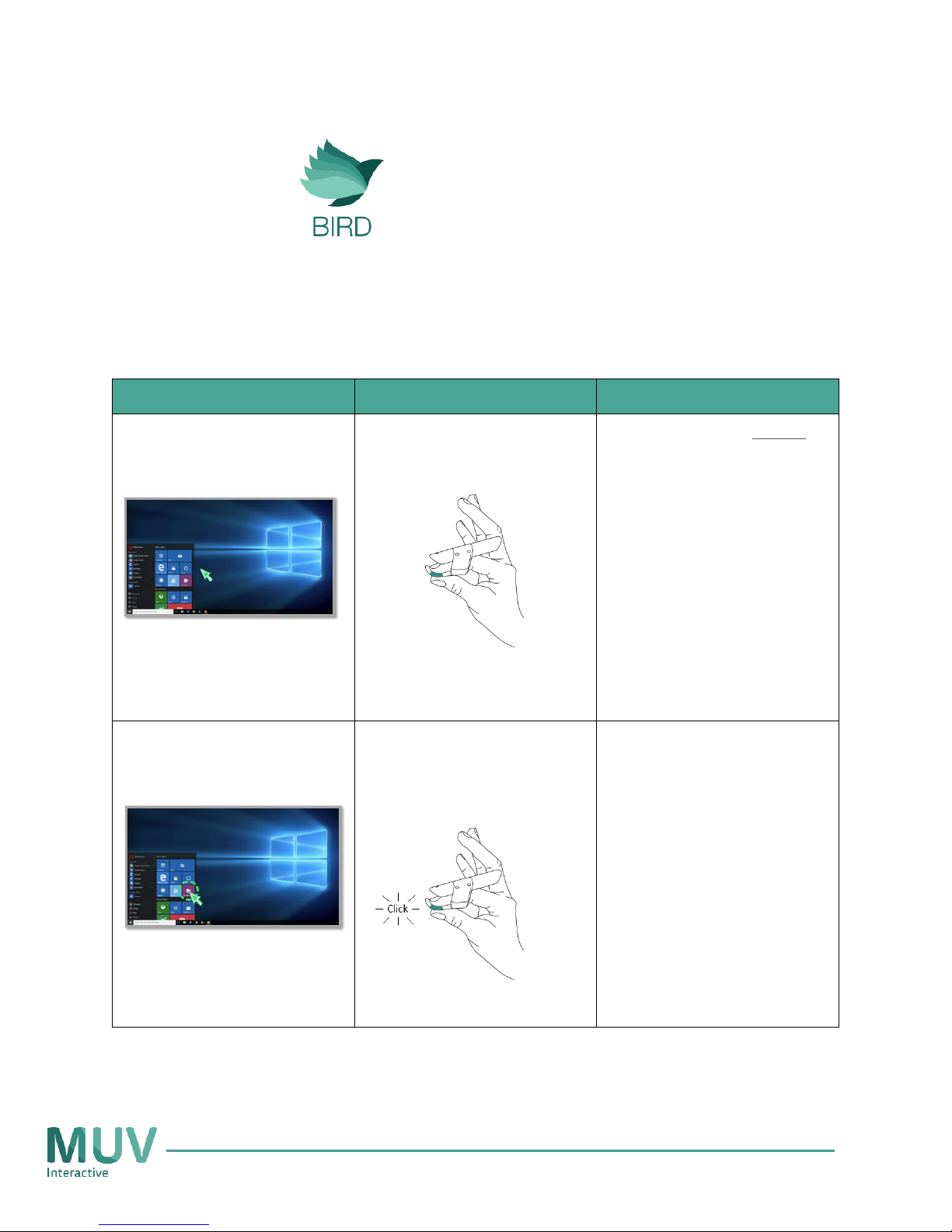
Move the cursor
Touch the Bird glider with
your thumb
Touch the glider gently,
no need to press it
To adjust the cursor
sensitivity at the Bird
application, go to:
Setting ->
General settings -> Cursor
Sensitivity
Select/open application
Click/Double click Press your thumb against
the Bird glider
No need to fully press the
glider; half or ‘soft’ click
will work much better
Page 2
What it does
How to do it
Usability tips
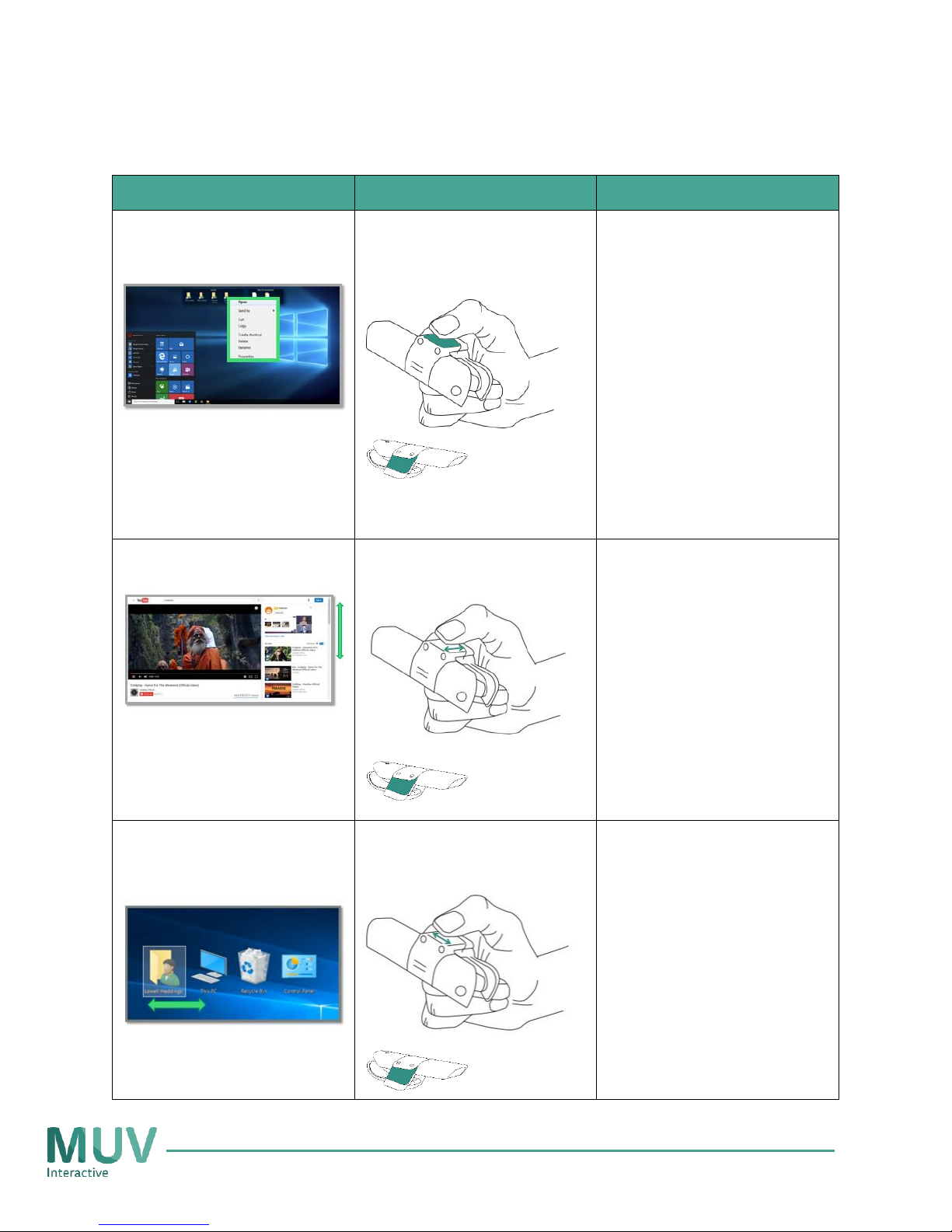
Open the “right click”
menu*
* As a default this option is
disabled – To enable right click
menu go to: Setting -> Touch pad
options -> Tap and hold to open
context menu
Tap and hold the
touchpad
Scroll up / down
Swipe the touchpad
up\down
To adjust the scrolling
sensitivity at the Bird
application, go to:
Setting ->
General settings ->
Scroll Sensitivity
Left/right keyboard
arrows
Swipe the touchpad
left\right
Slide forward/backwards
in PowerPoint.
Toggle between open
tabs in web browsers
Page 3
Shortcuts
What it does
How to do it
Usability tips
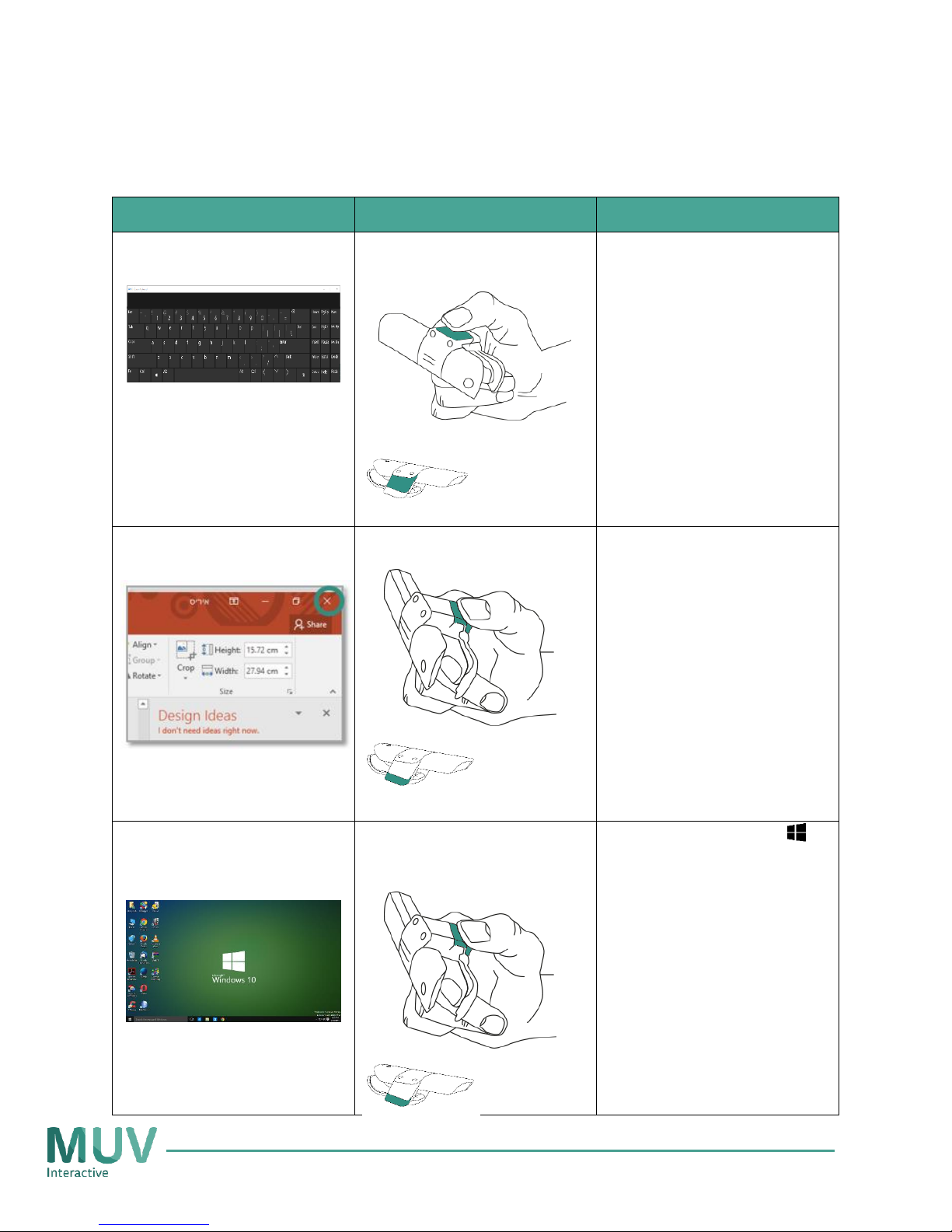
Open a virtual keyboard*
* As a default this option is
disabled – To enable right click
menu go to: Setting -> Touch pad
options -> Double tap to open
virtual keyboard
Double tap the touchpad
Exit an application
Click the home button
Similar to the Esc key on
the keyboard
Display the desktop
Press the home button
for two seconds
Similar to Win logo ( )
+ D on your keyboard
Page 4
What it does
How to do it
Usability tips
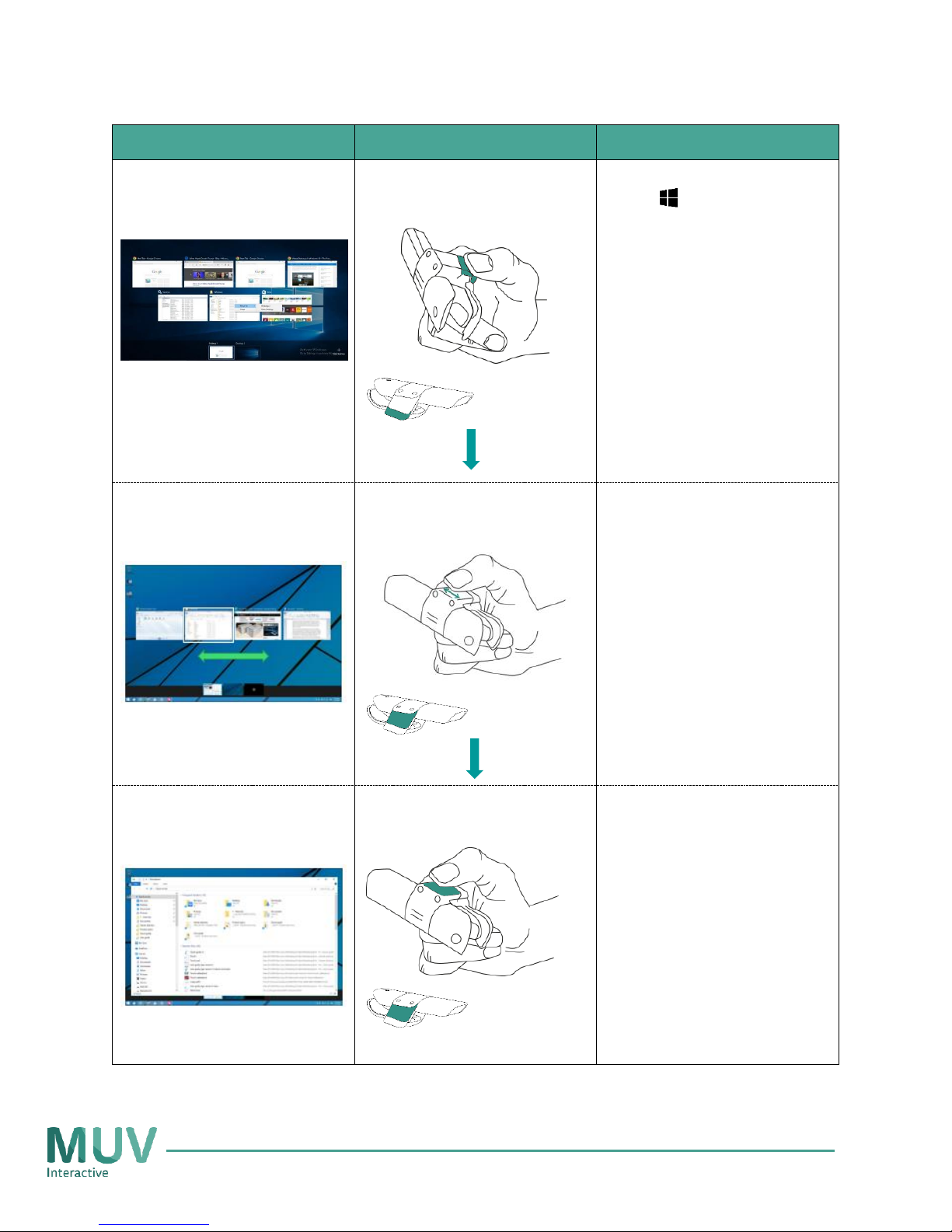
Display all open
applications
Double click the Home
button
Similar to pressing Win
logo ( ) + tab on your
keyboard
Toggle between open
applications
Swipe the touchpad left /
right
Similar to pressing the
left/right arrows on your
keyboard
Open the selected
application
Tap the touchpad
Similar to pressing Enter
on your keyboard
Page 5
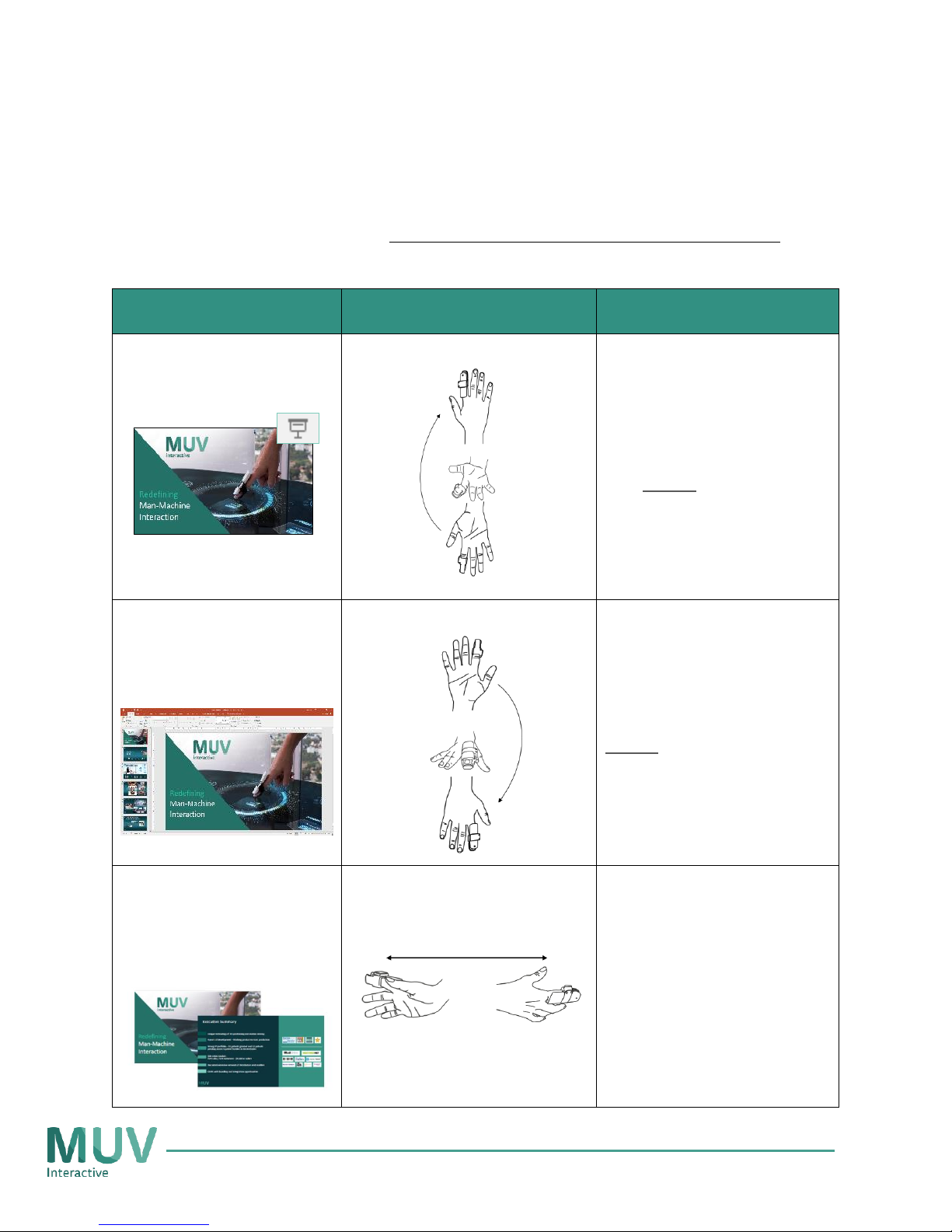
Gestures*
* Gestures can be defined by the user to produce different desired actions for different application.
This section describes preprogrammed gestures for PowerPoint.
When we say
What it does
Usability tip
Open the presentation
in a 'slide show' mode
Wave up your arm
When using the 'Up'
gesture, bend your wrist
inwards.
Extend your hand down
and slowly bring up the
palm of your hand up
Change presentation
from a 'slide show'
mode to 'Normal' view
Wave down your arm
When using the 'Down'
gesture, bend your wrist
outwards.
Open your palm and
slowly bring your wrist
down
Move to the next slide
or
Move to the previous
slide
Swing your palm
Next - bring your hand to
the right and swing to the
left
Previous - Bring your
hand to the left and
swing to the right
Page 6
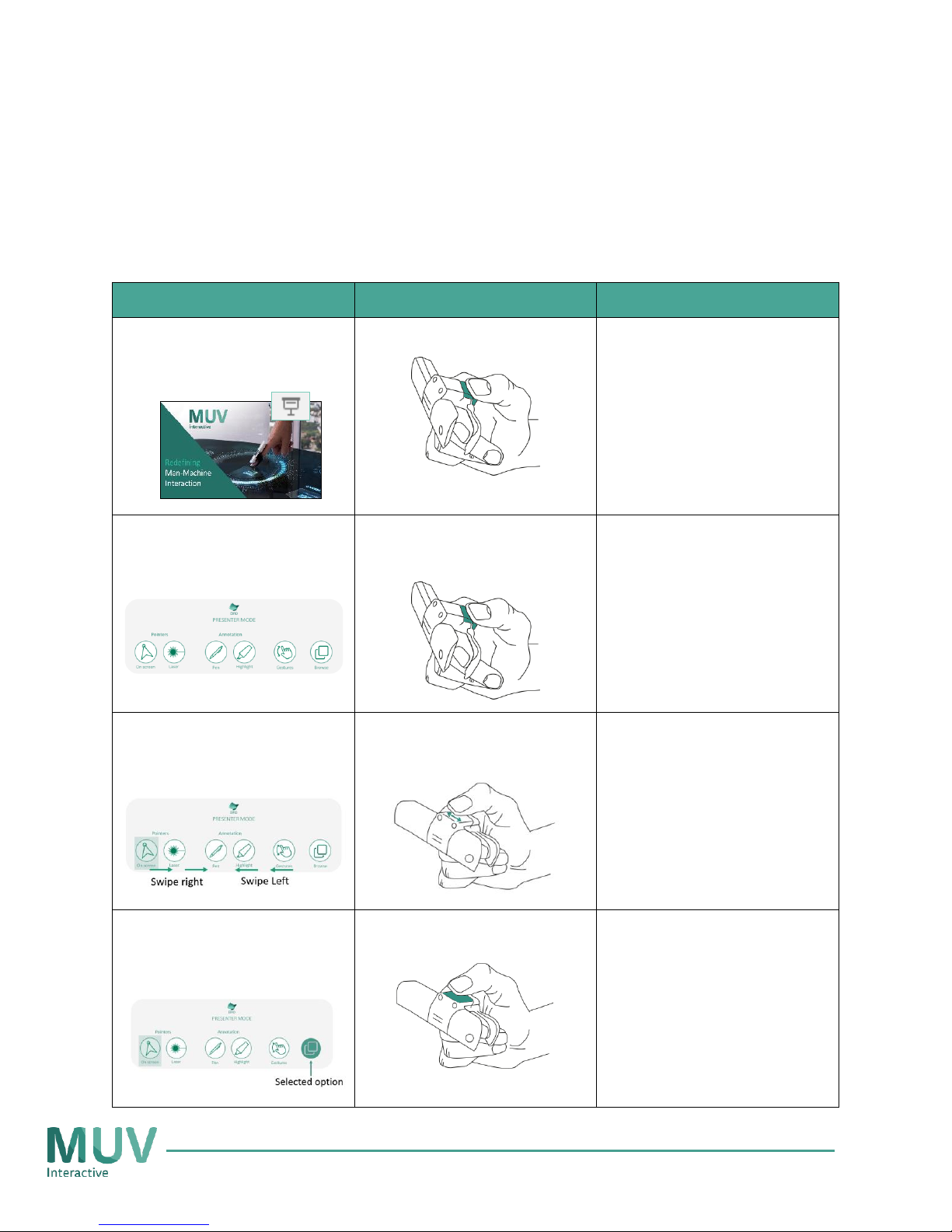
Presenter mode
* To activate presenter mode, go to: Settings -> Working modes -> Enable presenter mode.
Presenter mode is supported on Slide show in Power Point (Full screen view)
What it does
How to do it
Usability tips
Go to/Exit slide show
mode (Full screen)
Click the home button
Open presenter mode
menu
Double Click the home
button
Navigate between menu
options
Swipe the touchpad left /
right
The option you’re
pointed at, will have a
semi-transparent green
frame around it
Select an option from the
menu
Tap the touchpad once
The selected option will
turn green
You may select more
than one options at the
same time
Page 7
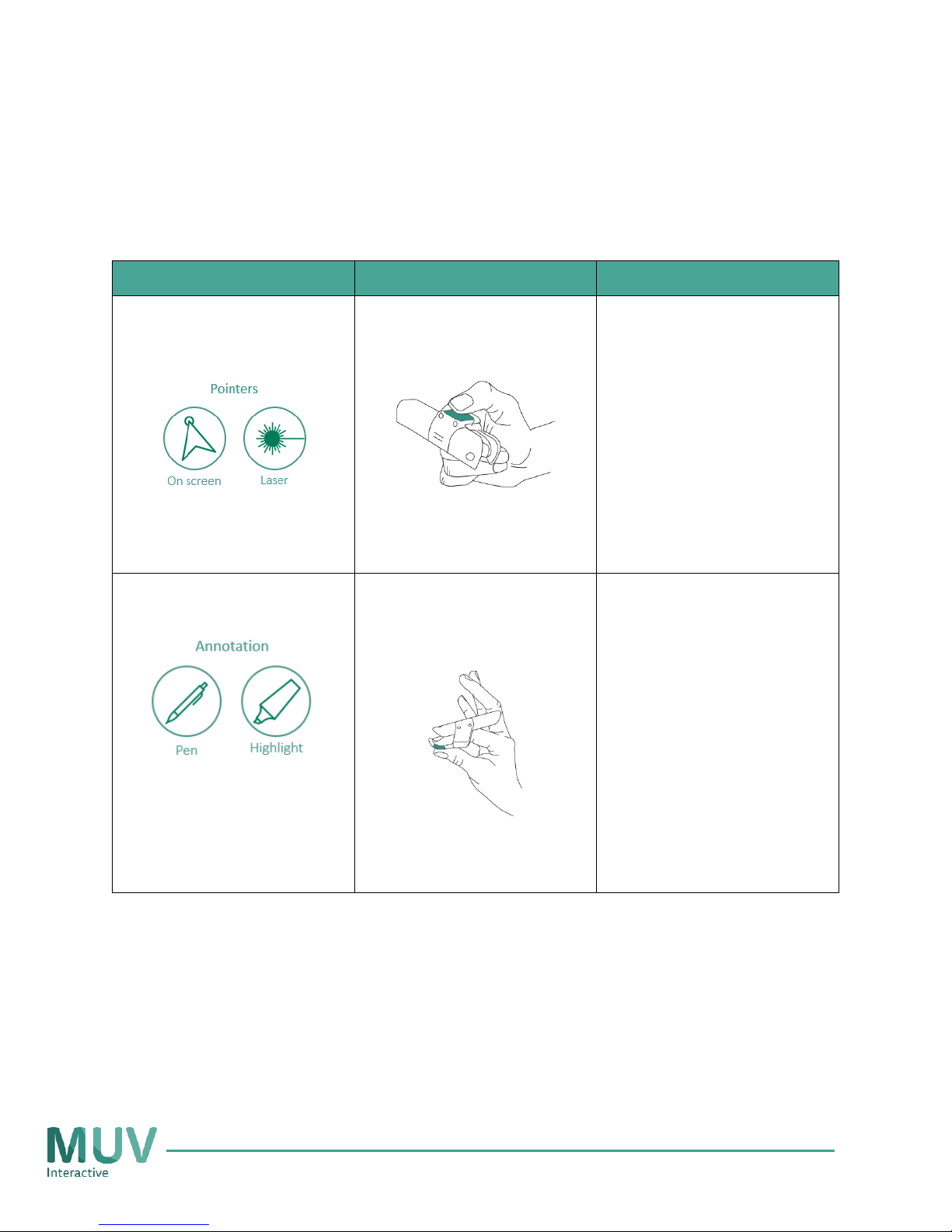
Presenter mode menu options
What it does
How to do it
Usability tips
Turn on a on screen
pointer
Tap and hold the
touchpad and point it to
the display
On screen Pointer –
changes the mouse
cursor to a red pointer
Laser Pointer – Turns on
Bird’s laser pointer
* Only one of the options can
be selected at once (Selecting
an option, will turn off the
other option
Turn on annotation
Press the Bird glider with
your thumb to annotate
on the presentation
Pen – allows you to
annotate on the
presentation
Highlight – allows you to
highlight parts of the
presentation
* Only one of the options
can be selected at once
(Selecting an option, will
turn off the other option
Page 8
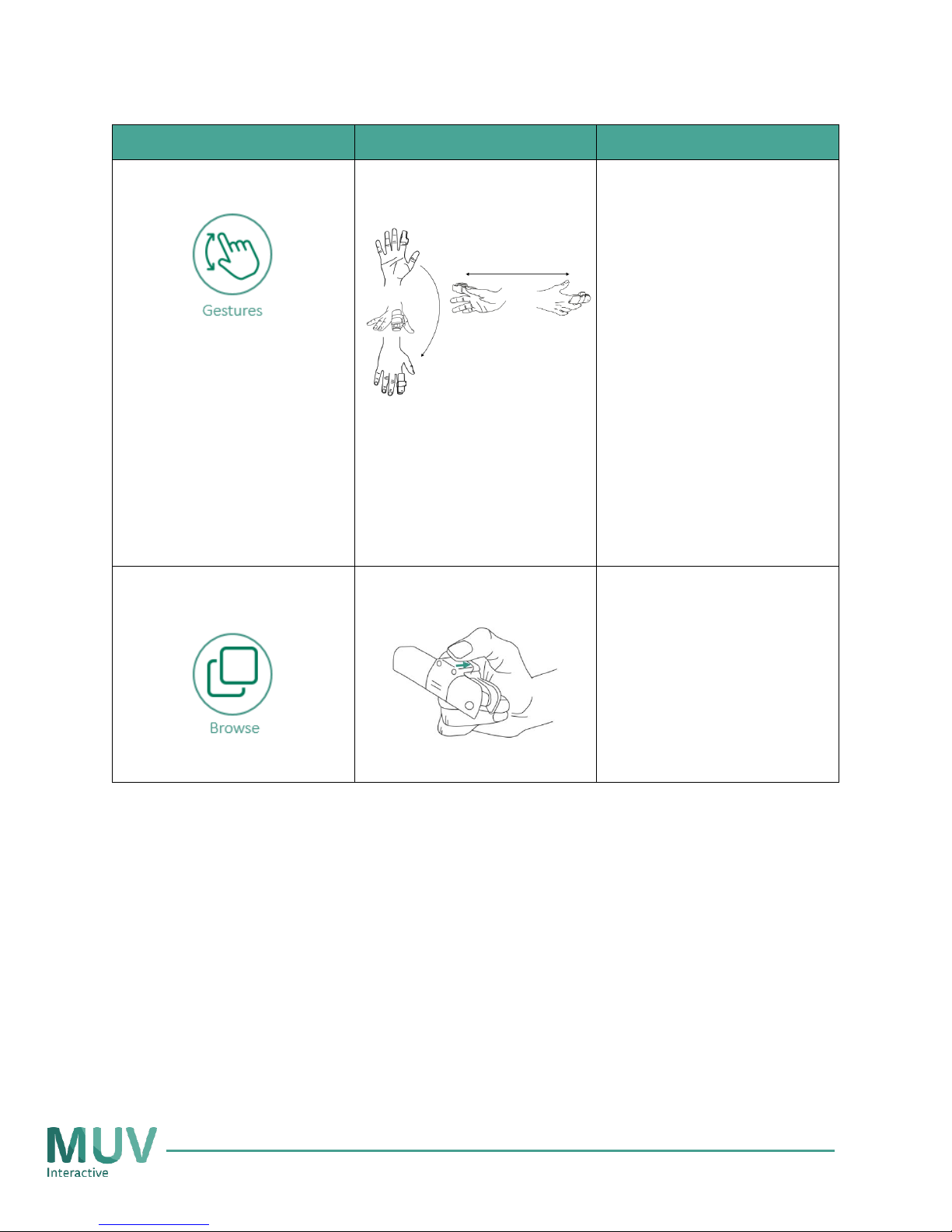
What it does
How to do it
Usability tips
Turn on gestures
Wave your arm
up/down/left/right
Wave up – open
presentation in full
screen mode
Wave down – exit full
screen mode
Swing your palm from
right to left – go to the
next slide
Swing your palm from left
to right – go to the
previous slide
Browse between slides
Swipe down to browse all
slides at once
Swipe left and right to
browse between the
slides
Tap to select which slide
you would like to view
Page 9
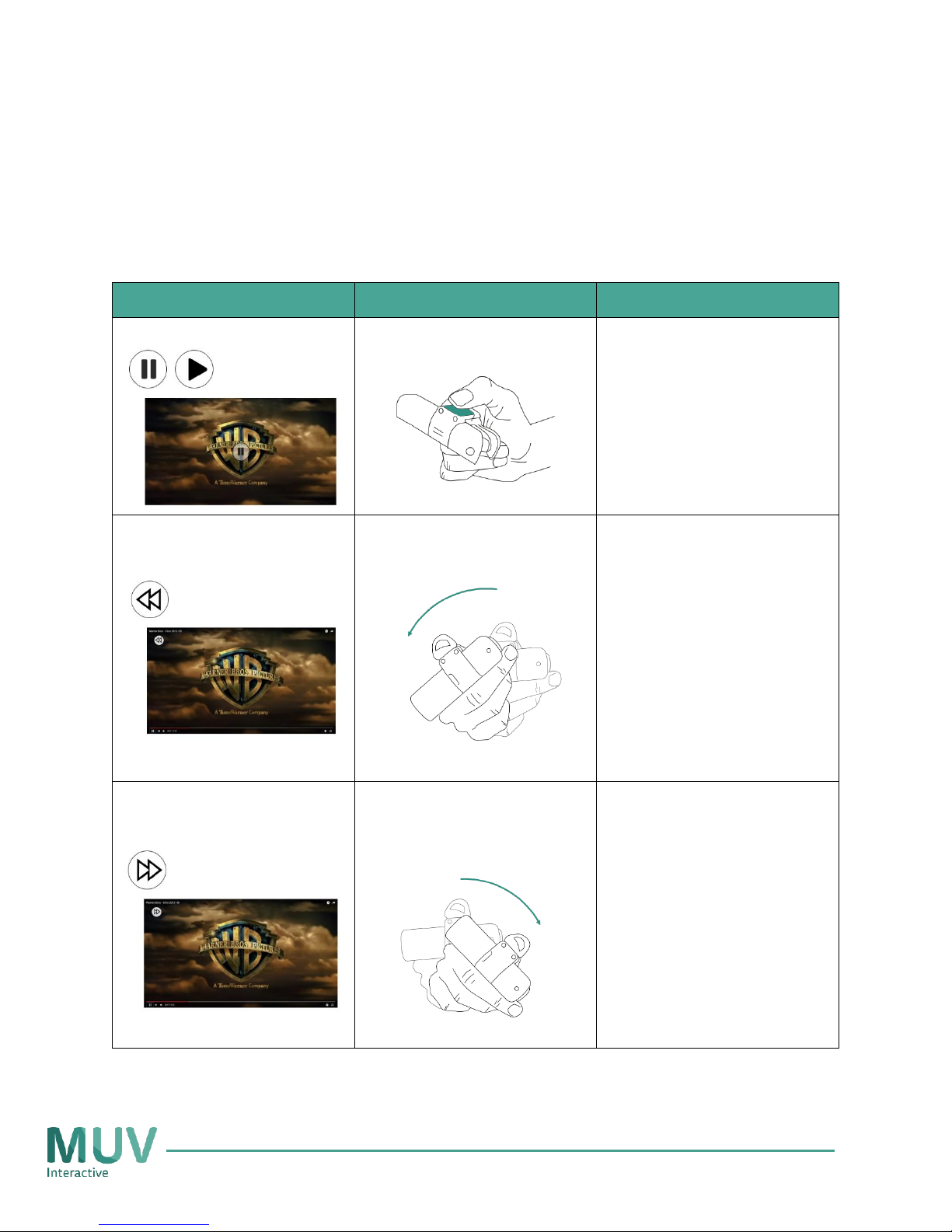
Media mode
* To activate media mode, go to: Settings -> Working modes -> Enable media mode.
Media mode is supported on VLC, Windows media player, and any media application on Chrome
What it does
How to do it
Usability tips
Play / Pause video
Tap the touchpad
Rewind a video
Tap & hold the touch pad
and tilt your hand to the
left
Start tilting your hand,
only after you see the
control icon on the top
left corner of the screen
Fast forward a video
Tap & hold the touch pad
and tilt your hand to the
right
Start tilting your hand,
only after you see the
control icon on the top
left corner of the screen
Page 10
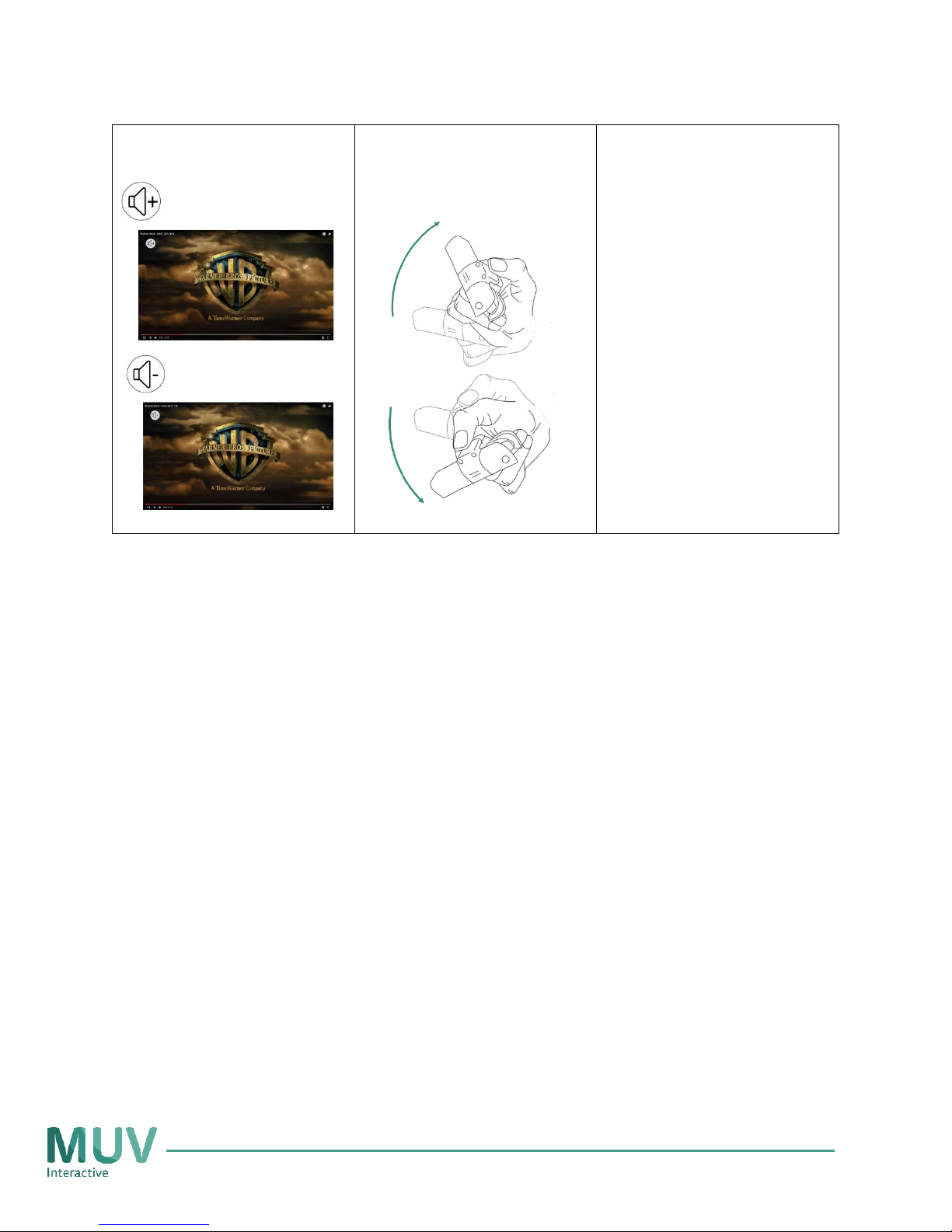
Turn volume up / down
Tap & hold the touch pad
and tilt your hand to the
Up /down
Start tilting your hand,
only after you see the
volume icon on the top
left corner of the screen
Page 11
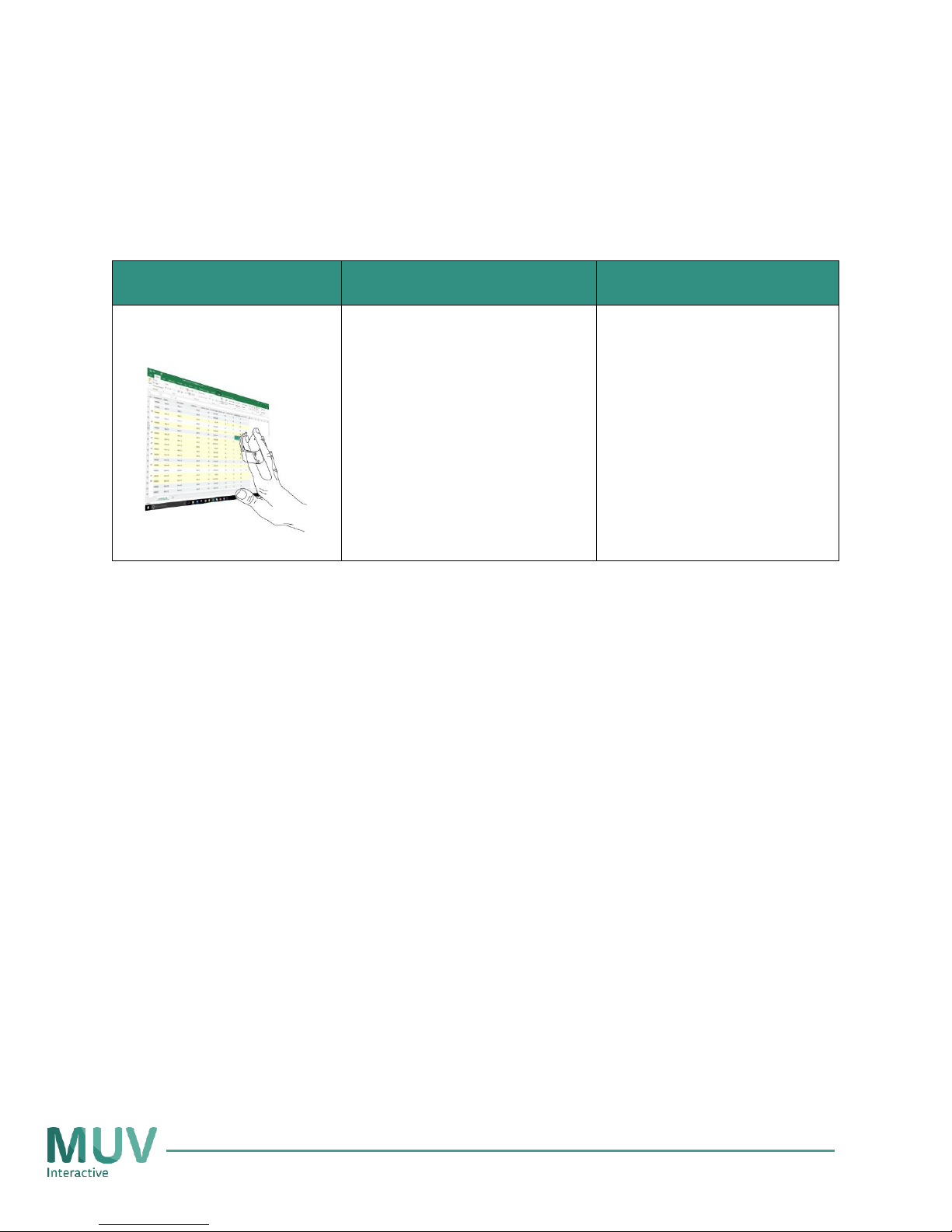
Touch*
* To enable touch functionality click “Activate Touch” in the Bird application. You should also make sure
that the base unit faces your display and it is connected to a fixed power source.
When we say
What it does
Usability tip
Touch the screen
Select an object
(similar to touching a
touch screen)
Touch the display like
shown at the picture to
your left, and not with
the tip of your finger
 Loading...