

Page 1

MC-SERIES MULTI-TOOL
CUTTING PLOTTERS
OPERATION
INSTRUCTIONS
MUTOH EUROPE N.V.
Part N°. AP-75020
Rev. 1.0 - 18/12/98
Page 2

Operation Instructions MC-Series cutting plotters
AP-75020, Rev. 1.0 - 18/12/98
Page 3

Operation Instructions MC-Series cutting plotters
COPYRIGHT NOTICE
COPYRIGHT 1998 Mutoh Europe N.V. All rights reserved.
This document may not be reproduced by any means, in whole or in part, without written
permission of the copyright owner.
This document is furnished to support the MUTOH MC Series cutting plotters. In
consideration of the furnishing of the information contained in this document, the party to
whom it is given assumes its custody and control and agrees to the following:
1. The information herein contained is given in confidence, and any part thereof shall not
be copied or reproduced without written consent of Mutoh Europe N.V.
2. This document or the contents herein under no circumstances, shall be used in the
manufacture or reproduction of the article shown and the delivery of this document shall
not constitute any right or license to do so.
FCC WARNING
This equipment complies with the requirements for a class A computing device in the FCC
rules, part 15, subpart J.
Operation of this device in a residential area may interfere with television reception or
operation of utilities.
Cutters generate weak radio signals and may interfere with television reception and
utilities. If the cutter does interfere with radio or TV reception, try the following:
•
Change the direction of your radio and TV reception antenna or feeder.
•
Change the direction of the cutter.
•
Move either the cutter or the receiving antenna so that there is more distance between
them.
•
Be sure the cutter and the receiving antenna are on separate power lines.
AP-75020, Rev. 1.0 - 18/12/98
Page 4

Operation Instructions MC-Series cutting plotters
AP-75020, Rev. 1.0 - 18/12/98
Page 5

Operation Instructions MC-Series cutting plotters
Congratulations with your new MUTOH cutting plotter !
We are happy to find you joining the ever rapidly growing family of MUTOH
computer peripherals users.
By purchasing an MC-series cutter, you have become the owner of one of the
most versatile multiple-tool cutters in the market. It is fast, reliable, of the
highest quality and has been assembled with the application of the most
stringent quality checks.
But even more important, it is easy to use, as the following guide will show
you.
Hereafter you will find all information necessary to set-up your MC-cutting
plotter in a trice.
ENJOY!
AP-75020, Rev. 1.0 - 18/12/98
Page 6

Operation Instructions MC-Series cutting plotters
AP-75020, Rev. 1.0 - 18/12/98
Page 7

Operation Instructions MC-Series cutting plotters
TABLE OF CONTENTS
MC-SERIES MULTI-TOOL CUTTING PLOTTERS OPERATION
INSTRUCTIONS
SETTING UP THE CUTTER........................................................................1
PREPARING THE CUTTING ENVIRONMENT............................................................ 1
UNPACKING THE CUTTER........................................................................................ 2
WHAT’S IN THE BOX ?............................................................................................... 2
GETTING TO KNOW THE CUTTER PARTS .............................................................. 3
ASSEMBLING THE PLOTTER.................................................................................... 5
CONNECTING THE CUTTER TO THE COMPUTER.................................................. 8
CONNECTING THE POWER CABLE ......................................................................... 9
COMMUNICATION SETTINGS................................................................................... 9
CHANGING THE SET-UP LANGUAGE OF YOUR CUTTER.................................... 10
PREPARING FOR A JOB..........................................................................11
LOADING MEDIA...................................................................................................... 11
ADJUSTING THE KNIFE DEPTH.............................................................................. 14
INSTALLING A TOOL................................................................................................ 16
SETTING THE CUTTING FORCE / TEST SQUARES............................................... 18
OFFSET PRINCIPLE................................................................................................. 19
OFFSET EFFECT...................................................................................................... 19
OFFSET ADJUSTMENT PROCEDURE.................................................................... 20
PERFORMING A TEST............................................................................................. 23
FIXED KNIFE SYSTEM............................................................................................. 25
UNDERSTANDING THE KEYBOARD & MENU STRUCTURE................28
GUIDED TOUR AROUND THE KEYBOARD............................................................. 28
KEYBOARD CONCEPT ............................................................................................ 33
MENU STRUCTURE - OVERVIEW........................................................................... 34
OVERVIEW GENERAL SETTINGS........................................................................... 37
AP-75020, Rev. 1.0 - 18/12/98
Page 8

Operation Instructions MC-Series cutting plotters
AP-75020, Rev. 1.0 - 18/12/98
Page 9

Setting up the cutter Operation Instructions MC-Series cutting plotters
SETTING UP THE CUTTER
PREPARING THE CUTTING ENVIRONMENT
The location where you set up your equipment is very important. Please see to it
that it meets following conditions :
♦
Power supply of 100 to 120 VAC 50/60 Hz or 200 to 240 VAC 50/60 Hz.
♦
Ambient Conditions :
•
Operating environment
- Temperature : 5° C to 40° C (41° F to 104° F).
- Humidity : 35% - 75% non-condensing.
•
Recommended environment
- Temperature : Room temperature 16°C to 32°C (61° F to 90° F).
- Humidity : 50% to 65%, non-condensing.
•
Variation rate
- Temperature : 2° C per hour.
- Humidity : 5% per hour.
•
Storage environment
- Temperature : 0° C to 50° C (32° F to 122° F).
♦
Please protect your cutter from moisture, dust, draughts and direct sunlight. It is
best to keep your machine away from open windows and air-conditioners.
♦
See to it that there is an adequate space around the cutter so that ventilation is
not obstructed.
♦
Avoid unnecessary vibrations and set up your cutter on a level surface.
When selecting a place for your cutter, leave at least 150 cm (60”) in front and 150
cm (60”) at the rear.
Page
1
AP-75020, Rev. 1.0 - 18/12/98
Page 10
Setting up the cutter Operation Instructions MC-Series cutting plotters
UNPACKING THE CUTTER
•
When unpacking the cutter, check whether all parts described in the parts
lists are included in the boxes. Consult your dealer if anything seems to be
missing.
•
Lifting the machine out of the box should be done by two persons.
•
Protect the plotter from firm shocks.
•
Do not dismantle the unit.
To unpack the cutter:
1. Lift the cutter unit out of the box and put it on a flat, stable surface.
2. Take out the accessories box.
3. Remove all plastic wrapping materials.
4. Remove the pieces of foam.
5. Unpack the stand.
WHAT’S IN THE BOX ?
•
MC plotter unit with roll support system, 2 conveyor rolls and
small guiding flanges
•
Cutting plotter stand
•
Mutoh MC-Series User’s Guide
•
Knife holder with depth indication (+ 1 cutting blade)
•
Set of 2 spare cutting blades 45°
•
Set of 2 water-based fibre tip pens
•
Spare cutting mat
•
Power Cord
•
RS-232 Serial interface cable
•
3” core roll media guiding flanges (2 pcs)
Page
2
AP-75020, Rev. 1.0 - 18/12/98
Page 11
Setting up the cutter Operation Instructions MC-Series cutting plotters
GETTING TO KNOW THE CUTTER PARTS
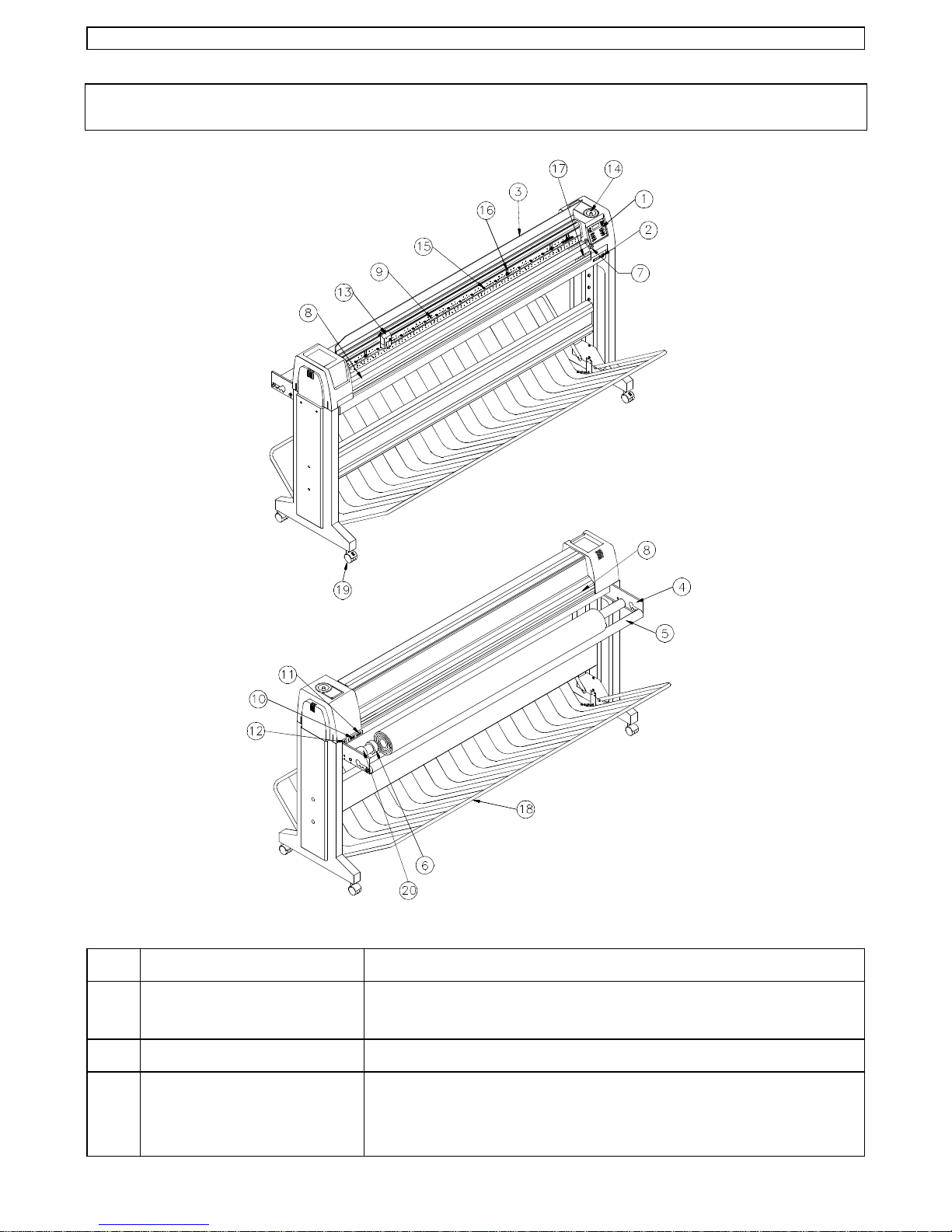
N° Part Description
1. Control Panel
2. Power Switch
3. Carriage Cover
Panel with Liquid Crystal Display (4 lines by 16
characters), indicator LEDs and control keys.
Turns the plotter ON or OFF.
For safety reasons, the cutter will not work while the
cover is open. The cover will also prevent objects from
falling into the cutting zone.
Page
3
AP-75020, Rev. 1.0 - 18/12/98
Page 12

Setting up the cutter Operation Instructions MC-Series cutting plotters
4. Conveyor Roll Support
Brackets
5. Conveyor Rolls
6. Media Guiding Rings
7. Hold Lever
8. Platen & Grid Cover
9. Cutting Mat
10. Serial Interface
Connector
11. Parallel Interface
Connector
12. Power Connector
These brackets carry the conveyor rolls.
2 pieces - these rolls carry the roll media.
These rings are placed alongside the roll media.
Raises and lowers the pressure rollers. Lowering the
pressure rollers will press the media against the drive
rollers (grid rolls).
Supports the media and guides the movement of the
media along the X-axis.
Provides a reliable cutting surface and minimises damage
to the knife tip.
RS-232 serial interface connector to connect the cutter to
the host computer.
Centronics parallel connector to connect the cutter to the
host computer’s printer port for fast data transfer.
Connector for the power cord, which plugs into the main
power supply of the cutter.
13. Tool head for Cutting /
Marking / Plotting
14. Carousel / Stocker &
Stocker Housing
15. Drive Rollers or Grid
Rolls
16. Pressure Rollers
17. Media Alignment
Stripes
18. Soft Media Collection
Bag
19. Caster Wheels
All available tools such as knife holders, drawing pens
and wide tip pens are automatically picked from the 8-tool
carousel. The tool head moves along the Y-axis to locate
the cutting position.
The carousel can hold up to 8 different tools, allowing
flexible switching from one application to another. It can
be easily removed to install and/or remove tools.
Move the cutting media along the X-axis.
Hold the media against the drive rollers during cutting.
Indication marks to facilitate loading of cut-sheets.
Attached to the stand, the media collection bag will
prevent finished designs from being dropped on the
ground.(*)
The cutting plotter’s legs are equipped with 4 pre-installed
caster wheels, two of which have a lock switch.
20. Slip Ring
(*) = Optional item, only when ordered separately.
The slip ring is placed onto the conveyor roll and prevents
undesirable movements of the roll media.
Page
4
AP-75020, Rev. 1.0 - 18/12/98
Page 13
Setting up the cutter Operation Instructions MC-Series cutting plotters
ASSEMBLING THE PLOTTER
After you have selected a suitable location for your cutting plotter, some assembly is
necessary before the plotter is ready for use. This section describes how to
stand
, how to
attach the plotter body to the stand
media collection bag
.
and how to
mount the optional
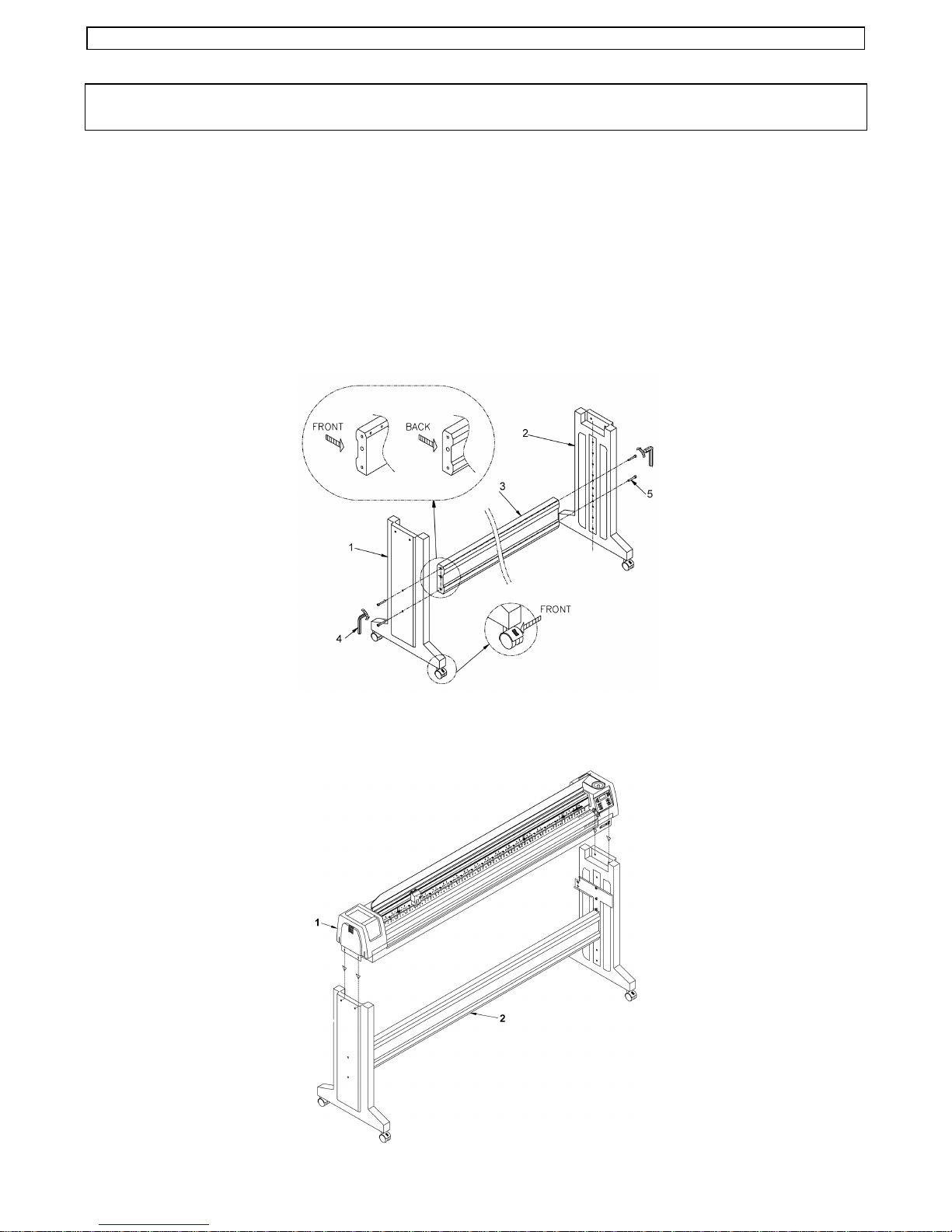
1. Use the hex wrench (4) to fix the stand side stays (1)(2) firmly to the cross beam (3)
with the hex bolts M8, long type (5). As indicated in the illustration, the caster wheels
with locking switch have to be on the front side. Also, the cross beam’s flat side has to
be on the back side.
assemble the
2. Place the cutting plotter body (1) onto the stand (2).
Page
5
AP-75020, Rev. 1.0 - 18/12/98
Page 14
Setting up the cutter Operation Instructions MC-Series cutting plotters
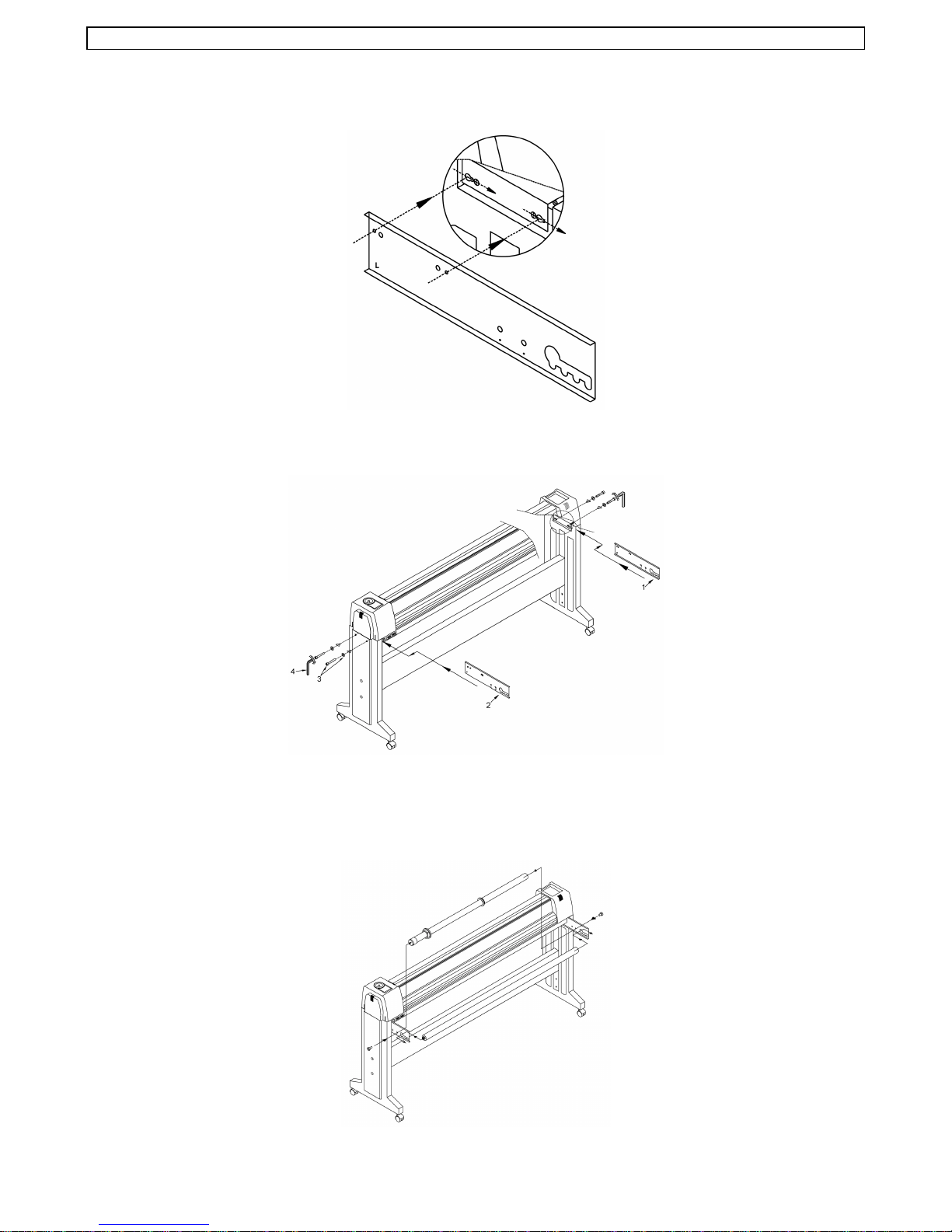
3. Hook the MC conveyor roll support brackets Left (1) and Right (2) in the key holes of
the body (see detail).
4. Attach the plotter body with the brackets to the stand using 4 hex bolts M6 + washers (3).
5. Fix the conveyor roll which is closest to the plotter body to the support brackets, using
two short M8 bolts and a spacer (see illustration).
The second conveyor roll can be installed easily via the back of the support brackets
(see illustration).
Page
6
AP-75020, Rev. 1.0 - 18/12/98
Page 15

Setting up the cutter Operation Instructions MC-Series cutting plotters
Only in case the
optional media collection basket was ordered
, follow steps 6 to 8 to
install it.
6. Using 4 hex bolts, short type, fix the bag frame components ( type B ) to the stand.
7. Insert the bag frame components ( type A ) into the bag sleeves.
8. Complete the media collection bag assembly by connecting the frame parts type A and
type B, as shown in the illustration. Attach the tension springs connecting the bag with
the lower frame part.
Page
7
AP-75020, Rev. 1.0 - 18/12/98
Page 16

Setting up the cutter Operation Instructions MC-Series cutting plotters
y
CONNECTING THE CUTTER TO THE COMPUTER
To make the
possibilities
connection between the cutter and the computer
. The first possibility is a
Centronics interface
high-speed unidirectional 8-bit parallel
. The second possibility is a
2-way RS-232C serial interface
, you are offered
two
. Of
course, it is also possible to connect two different computers to the cutter, the first one
using the serial interface, the second one using the parallel interface. The cutter will
automatically determine on which port data is coming in and will handle the jobs one by
one.
PARALLEL INTERFACE
All you need to make this connection is
a parallel printer cable.
The serial RS-232C interface enables
the cutter to be connected to and
SERIAL INTERFACE
controlled by an RS-232C compatible
host computer system. The cutter is
equipped with a standard RS-232C DB-25P connector on the rear panel
and requires a standard RS-232C dB25S mating connector.
a) Make sure both the cutter and the computer are turned off. Connect one end of the
parallel interface cable /
serial interface connector
serial interface cable
to the parallel interface connector /
at the back side of the cutting plotter.
b) Secure the lock pins to the
connector.
c) Connect the other end of the
parallel printer cable to your
computer.
•
Please be advised that the
means that the cutter can receive data from the computer but cannot send any
information to the computer. Consequently, software polling for media size will
not be available when using parallel communication.
•
Using the
data
serial communication
from the computer, but will also be able to
computer (media size, ...).
•
For proper operation of the serial communication, it will be necessary to match
the computer settings to the plotter settings !
b) Fasten the screws to secure the
connector.
c) Connect the other end of the serial
cable to your computer.
parallel interface
, your cutter will not only be able to
Page
8
only
works one-wa
send information
AP-75020, Rev. 1.0 - 18/12/98
. This
receive
to the
Page 17

Setting up the cutter Operation Instructions MC-Series cutting plotters
CONNECTING THE POWER CABLE
1. Make sure the plotter’s power switch
is turned OFF.
2. Plug the plotter-end of the power
cable into the connector at the back
of the plotter.
3. Plug the other end of the power cable
into an electrical outlet of the correct
voltage and with a proper grounding.
COMMUNICATION SETTINGS
In order for your plotter to be able to communicate well with your host computer, the
communication settings on both machines have to match exactly. Please refer to the
manual of your software to determine which communication settings will be used by your
software. Your cutter is able to be set up to use any settings necessary.
You can proceed in two ways:
•
You can check which of the 5 possible defaults matches your software and enable this
particular default setting.
•
You can set all communication parameters yourself. In this case, for communication,
select USER DEFINED.
Communication DEFAULT 1 DEFAULT 2 DEFAULT 3 DEFAULT 4 DEFAULT 5 USER
DEFINED
BAUDRATE
DATABITS
PARITY
STOPBITS
9600 9600 9600
787
EVEN NONE EVEN
111
9600
8
NONE
1
9600 Adjustable
8 Adjustable
EVEN Adjustable
2 Adjustable
SOFTWARE
HANDSHAKE
DTR-Pin
CTS-Pin
RTS-Pin
OFF OFF Xon/Xoff
ON ON OFF
OFF OFF OFF
ON ON ON
The factory default settings are shown in
Bold
Page
-face.
9
Xon/Xoff
OFF
OFF
ON
OFF Adjustable
ON Adjustable
OFF Adjustable
ON Adjustable
AP-75020, Rev. 1.0 - 18/12/98
Page 18

Setting up the cutter Operation Instructions MC-Series cutting plotters
CHANGING THE SET-UP LANGUAGE OF YOUR CUTTER
It is possible to change the user language of your cutter, thus changing the set-up sheet
language. Changing the set-up language can be done by pressing two keys simultaneously
during power-up. See table below for an overview.
LANGUAGE KEY COMBINATION
American
English
(dimensions in inches)
German
French
(dimensions in metric units)
Japanese
ENTER + JOG-DOWN
ENTER + JOG-UP
ENTER + JOG-RIGHT
ENTER + JOG-LEFT
ENTER + ONLINE
Page
10
AP-75020, Rev. 1.0 - 18/12/98
Page 19

Preparing for a Job Operation Instructions MC-Series cutting plotters
PREPARING FOR A JOB
This section covers the tasks you should perform as you prepare to run a job:
•
Loading the media
•
Adjusting the knife depth
•
Installing a tool
•
Offset principle, effect & adjustment routine
•
Performing a test
•
Using the fixed knife system
LOADING MEDIA
Page
11
AP-75020, Rev. 1.0 - 18/12/98
Page 20

Preparing for a Job Operation Instructions MC-Series cutting plotters
y
You can load either
cut sheet
or
roll material
into the cutter.
CUT SHEET MEDIA ROLL MEDIA
1. Close the
safet
media hold lever (3)
switch (5)
ON.
cover (1)
, put the
pressure rollers (2)
, make sure the
stocker (4)
in the “up” position using the
is into place and turn the
a) The cutting plotter performs an initialisation routine and the display shows the
initialisation menu.
b) The
c) The
2. Open the
stocker (4)
tool head (6)
protective cover (1)
the cut sheet media into the cutter. On
the
platen (7), marker lines (8)
been affixed for alignment purposes. It is
rotates about 2 times to perform tool identification.
moves to the rightmost position.
and insert
2. Open the
protective cover (1)
the media through to be able to choose
have
the best possible position for the
pressure rollers (2)
.
best to position the media so that half of it
hangs in front and half of it hangs at the
back of the cutter.
power
and pull
3. Depending on the width of the MC cutting plotter you have purchased, it is equipped
with 3 or 4 pressure rollers. You can use as many pressure rollers as you think are
necessary for good media handling.
a) In any case, at least 2 pressure rolls are needed. To disable one or more
rolls (2)
drive roller (9)
b) Adjust the position of the
drive rollers (9)
, they are to be placed at the leftmost side of the plotter, beyond the leftmost
.
pressure rollers (2)
in use, so that they align well with the
. Always make sure that the leftmost and rightmost pressure rollers
pressure
in use are at least 5 mm (0.2”) inside the media. It is not recommendable that the
rollers run on the very edge of the material.
4. Doing this, you are helped by the tactile and audible click system for the left pressure
rollers. The rightmost pressure roller’s movement is limited so that it can never be
malpositioned.
Always make sure that all pressure rollers in
use are completely inside the sheet of
media you want to load. Especially when
you use a cut sheet of which the corners are
not perfectly square, it is best to put the
pressure rollers well inside the media, as
the width of the sheet may vary.
5. Put the
hold lever (3)
in the
DOWN position (3
To ensure good & straight transport of the
roll media, see to it that there is an even
tension across the whole width of the roll
as you lower the media hold lever ( 3
3’).
Page
12
3’) and close the cover.
Î
Î
AP-75020, Rev. 1.0 - 18/12/98
Î
Î
Page 21

Preparing for a Job Operation Instructions MC-Series cutting plotters
g
y
Please do not use the marker lines to
ali
n a roll of media !
They are for use with
cut sheets onl
!
Rolls can only be correctly installed using
the
EQUAL TENSION METHOD.
Î
6. Lowering the lever (3
3’) will initialise
the media loading sequence, during
which the cutter will measure the loaded
sheet. Depending on the current
SHUFFLE / PRE-FEED settings, the
sheet will be moved back and forth,
enabling the cutter to determine the
media size and enabling you to verify the
media transport.
The cut sheet will only be recognised as
being a cut sheet if the shuffle length is
6. Lowering the lever (3 Î 3’) will initialise
the media loading sequence, during
which the cutter will measure the media
width and pull off a user-selectable prefeed length, called the shuffle length. At
the same time you are able to check the
media transport. The SHUFFLE / PREFEED settings allow the user to interfere
with the pre-feed length as well as with
the speed at which the media is pulled off
the roll.
set to a value which is larger than the cut
sheet length. If this is not the case, the
cut sheet will be treated as being a roll.
Default shuffle length is 1 metre.
7. After finishing the media loading sequence, the tool head will be parked at the origin
position and the cutter will be in ON-LINE mode, ready to receive data from the host
computer.
Please notice that the pressure rollers cannot be moved when the media hold
lever is in the DOWN position.
Page
13
AP-75020, Rev. 1.0 - 18/12/98
Page 22

Preparing for a Job Operation Instructions MC-Series cutting plotters
ADJUSTING THE KNIFE DEPTH
Two types of high-quality knife holders are available for the MUTOH cutting plotters.
No matter which type of knife holder you are using, adjusting the knife depth is a very
important parameter when it comes to making high-quality outputs. Always make sure that
the knife blade protrudes enough from the holder to cut through the vinyl and glue layer,
but not the backing.
When you adjust the knife depth, refer to the illustration below for guidance.
1. Knife Holder
2. Media to be cut
3. Cutting mat or material backing
4. Cutting blade
TO ADJUST THE KNIFE DEPTH, PROCEED AS FOLLOWS :
KNIFE HOLDER WITHOUT NONIUS KNIFE HOLDER WITH NONIUS
1) Hold the body (2) in one hand and
adjust the depth by using the set screw
(3).
1) Loosen the base part of the knife
holder. To do this, take the base part
in your left hand and twist the ring
slightly.
Page
14
AP-75020, Rev. 1.0 - 18/12/98
Page 23

Preparing for a Job Operation Instructions MC-Series cutting plotters
g
g
KNIFE HOLDER WITHOUT NONIUS KNIFE HOLDER WITH NONIUS
2) Turning the set screw (3) clockwisely
will make the blade protrude out of
the edge of the base part (1). Turning
the set screw (3) counterclockwisely
2) Take the base part and the ring in your left
hand and twist the shaft until the knife tip
protrudes about 0.2 mm (0.008”) out of the
edge of the base part.
will retract the blade.
For a first test, turn out the blade until
it protrudes about 0.2 mm (0.008”) out
of the base part.
Tighten the ring firmly against the base part.
This will prevent the cutting blade from
coming loose during cutting.
3) Make a manual test-cut on a small piece of media, of the same type that you will be
using.
When cutting
material with no backin
, verify that the media is just cut through. The
blade should only protrude as much as the thickness of the material you are cutting.
When cutting
material with backin
adjust the blade depth so that the top layer is
completely cut through and that you can see a slight scratch on the backing when
weeding off the top layer.
4) Repeat steps 2 and 3 until the correct depth is obtained.
Page
15
AP-75020, Rev. 1.0 - 18/12/98
Page 24

Preparing for a Job Operation Instructions MC-Series cutting plotters
INSTALLING A TOOL
For your MC-series cutting plotter, a number of different tools are available. Each of these
carries a unique identification mark called the
rings either in Silver or Black, which allow the cutter’s automatic tool recognition system to
determine which types of tools are available in the cutter’s stocker/carousel. Once a tool
has been recognised, the cutter can automatically use the appropriate values for
and
FORCE
jobs, should of course be fine-tuned by the user. Once set, the plotter will remember them
and automatically use them when the tool in question is selected.
. Settings which are media-dependent such as
tool ID-mark
. The ID-mark consists of 4
SPEED
KNIFE OFFSET
for cutting
Parameters such as
Some parameters such as
if a
KNIFE
1. Loading tools into the stocker
The stocker can accommodate up to 8 different tools. When a marking, cutting or plotting
tool is needed, the plotter will take it from the carousel. After finishing the job, the tool will
be returned to the stocker.
Before placing tools in the stocker, always verify that they are in working order and/or well
adjusted. In case of using ink pens, check whether they are correctly assembled and that
the ink is flowing smoothly. In case you are loading knife holders, first verify the blade
depth on a piece of media of the same type of the one which you will be using.
To load tools in the carousel, please proceed as follows :
or a
SPEED
PUNCHING TOOL
6
5
and
FORCE
OFFSET
are always used regardless of the tool-type.
or
PUNCHING GAP (DOT SPACE)
is selected.
a) Hold the
finger, press down one of the
caps (3)
are only activated
stocker (1)
.
and with one
pen
4
3
3
1
2
Page
16
b) With the other hand, gently push
the
tool (2)
clip (4)
See to it that the
below the
c) Release the
into the spring-loaded
in the stall.
tool collar (5)
disk (6)
.
pen cap (3)
AP-75020, Rev. 1.0 - 18/12/98
.
is
Page 25

Preparing for a Job Operation Instructions MC-Series cutting plotters
y
Please check whether the tools are loaded correctly.
Incorrectly installed tools may cause picking and/or replacing
problems.
When loaded correctly, the tool
is securely held; it is straight
and its tip is inside the pen
cap.
Correctl
installed tool Incorrectly installed tool
2. Installing the stocker
The stocker fits into the stocker housing situated at
the right side of the plotter.
•
Hold the stocker by the handle and slide it over
the spindle in the housing.
•
When inserting the carousel into the stocker
base, it should start an initialisation turn. If it does
not, turn it gently until it drops into place and
starts the initialisation routine.
•
To remove the stocker, lift it straight off the
spindle.
Page
17
AP-75020, Rev. 1.0 - 18/12/98
Page 26

Preparing for a Job Operation Instructions MC-Series cutting plotters
SETTING THE CUTTING FORCE / TEST SQUARES
In order to get excellent cutting quality, it is important to take good care to adjust the
cutting force. A design should always be cut with the lowest possible pressure. This
minimises blade wear and gives better quality.
To adjust the Force and cut a test square, proceed as follows:
1. Make sure the cutting plotter is OFF-LINE.
2. Press the FORCE key to enter the FORCE Adjustment menu.
3. Press the TOOL key to select the tool for which you want to adjust the FORCE.
4. Adjust the FORCE using the UP / DOWN keys.
5. If media is loaded and a knife-holder with correctly adjusted blade depth is installed in
the carousel, you can immediately cut a test square by pressing the TEST key.
The test square normally is positioned automatically. If you desire to do so, you can also
position the test square using the JOG keys.
In case a test square is cut, the new FORCE settings are saved automatically.
6. Press ENTER to accept the new FORCE value. Press EXIT to exit force set-up and
leave everything unchanged. Pressing ENTER is not required in case a test square was
cut in step 5.
Page
18
AP-75020, Rev. 1.0 - 18/12/98
Page 27

Preparing for a Job Operation Instructions MC-Series cutting plotters
OFFSET PRINCIPLE
One of the most important factors to obtain good quality, but unfortunately also one of the
factors that is easily forgotten, is the offset.
1
1: Cutter blade
2: Theoretical Offset
2
•
As you can see in the above figure, the knife offset (2) is the distance between
the knife centre and the knife tip.
•
Accurate measurement of the OFFSET to be used is very difficult and requires
specialised equipment. You should therefore adjust the offset (2) by checking real
cutting results on the media you will use. MUTOH helps you doing this by way of
a semi-automatic offset adjustment routine, which has been integrated into your
cutter.
OFFSET EFFECT
The selected Offset value is larger than
the optimum knife offset.
In this case, a square corner will be cut as
follows :
The selected Offset value is smaller than
the optimum knife offset.
In this case, a square corner will be cut as
follows :
The cutting direction is indicated by the
arrow. The corners are not well formed.
The cutter cuts too far in the angular
points.
The cutting direction is indicated by the
arrow. The corners are not well formed. The
cutter did not cut far enough in the angular
points.
Page
19
AP-75020, Rev. 1.0 - 18/12/98
Page 28

Preparing for a Job Operation Instructions MC-Series cutting plotters
y
OFFSET ADJUSTMENT PROCEDURE
In order to obtain perfect quality, MUTOH recommends you to perform
an offset adjustment routine
switch to another type of media
each time
.
ou change cutting blades or
To
perform offset adjustment
FINE TUNE
•
Base tune
•
Fine tune
.
is a
allows a
semi-automatic fine-tuning
limited adjustment
, you can select
, only setting the typical blade offset.
two offset modes
, called
BASE TUNE &
. In this mode, the plotter automatically
creates test patterns with different offsets allowing the user to choose the best result.
By factory default, the semi-automatic fine-tuning is activated.
Page
20
AP-75020, Rev. 1.0 - 18/12/98
Page 29

Preparing for a Job Operation Instructions MC-Series cutting plotters
SEMI-AUTOMATIC OFFSET ADJUSTMENT PROCEDURE
(Only if OFFSET MODE is set to
Fine Tune
)
1. Make sure the cutter is ready to start with a cutting job. Media has to be loaded and a
knife holder with well adjusted blade depth has to be available in the tool carousel.
2. Press
OFFSET
to initiate the offset procedure.
3. A menu will appear on the cutter display, indicating the BASE-OFFSET value. The
indicated value can range from 0.1 mm ( 0.004” ) to 1 mm ( 0.04” ).
*Offset Adjust*
TOOL: Knife1
À
Base: 0.50 mm
¿
Save with ENTER
4. Use the UP ¿ / DOWN À keys to set the correct BASE OFFSET value. This value is
indicated on the box in which the blades are packed. For the blades which are shipped
with the unit, this value is 0.50 mm ( 0.02” ).
5. Press ENTER to confirm the BASE OFFSET value. Press EXIT in case you want to
quit the offset adjustment procedure.
6. The cutter will now cut a series of test patterns with varying offset values.
If the base offset was set to 0.50 mm ( 0.02” ), the generated offsets will vary from 0.46
mm ( 0.018” ) up to 0.55 ( 0.022” ).
7. When the test cuts are completed, the cutter will advance the media for you to check
the patterns and to determine which of them gives best quality.
Especially look for good quality of the corners and closure of the circles.
Using the JOG-keys Õ/Ö you can move the TOOL-HEAD digitally to indicate the
square with the best quality. When the head is moved, the media is partially retracted,
but in such way that the test squares remain visible for the user.
The offset value is shown on the display:
Select best cut
JOG JOG
Õ
0.48 mm
Ö
Save with ENTER
8. Press ENTER to confirm the new settings. Press EXIT to quit the offset adjustment
procedure.
Page
21
AP-75020, Rev. 1.0 - 18/12/98
Page 30

Preparing for a Job Operation Instructions MC-Series cutting plotters
LIMITED OFFSET ADJUSTMENT PROCEDURE
(Only if OFFSET MODE is set to
To
perform
the
limited offset adjustment procedure
semi-automatic offset procedure
•
The
LIMITED OFFSET ADJUSTMENT PROCEDURE
OFFSET MODE is set to
.
Base Tune
Base Tune
.
follow
)
steps 1 to 5
from the
is only possible if the
Page
22
AP-75020, Rev. 1.0 - 18/12/98
Page 31

Preparing for a Job Operation Instructions MC-Series cutting plotters
PERFORMING A TEST
In your cutting/drawing plotter, two test plots have been integrated. Both of them are
available via the TEST button. Following tests are available:
•
Test Square :
•
DEMO-Cut :
To
perform one of the test plots
To perform a small test cut to check cutting force and offset.
To perform a test cut.
, please proceed as follows :
1. Load the media on which you will work into the plotter. The internal demo-cut is
automatically scaled, so the size of the media you load is not important in that case.
2. The plotter will only execute the plots if the correct tools are loaded into the stocker.
The plotter’s display will tell you which tools are to be loaded and where they should be
located in the stocker
3. Switch the plotter to OFF-LINE (ON-LINE LED should be OFF).
4. Press the TEST key
5. The display will change as follows :
DISPLAY
TEST MENU
Ð
SQUARE
Ï
ENTER to start
6. Using the ARROW-UP or ARROW-DOWN key, you can select between SQUARE and
DEMOCUT.
TEST SQUARE
The test square is very useful to check
cutting quality, cut force and offset
adjustment.
Please note that this test is intended for
media with backing. It should not be used
for tests on paper.
CUTTER TEST PLOT
Make sure that a knife is loaded into the tool
carousel.
7. Select TEST SQUARE 7. Select DEMO-CUT
Page
23
AP-75020, Rev. 1.0 - 18/12/98
Page 32

Preparing for a Job Operation Instructions MC-Series cutting plotters
8. Using the JOG-keys place the tool head
where you want the test square to be
located. In case you do not use the JOG
keys to indicate the position, the squares
you generate will be automatically
positioned, starting from the origin
position (Lower Right by default).
9. When pressing ENTER, a (new) test
square will be cut.
After generating a test square, you can
readjust FORCE settings and cut another
test square until the result is satisfactory.
8. When ENTER is pressed, cutting will
start. The following test plot will be cut.
Page
24
AP-75020, Rev. 1.0 - 18/12/98
Page 33

Preparing for a Job Operation Instructions MC-Series cutting plotters
FIXED KNIFE SYSTEM
When using thicker media such as sandblast or harder material such as reflective film, you
will get better cutting quality when using the
fixed knife system
To use the Fixed Knife System, you will need the fixing bracket which is part of your cutting
plotter’s accessories kit.
The procedure below explains how to start using the fixed knife option:
a) Let the cutting plotter finish the current job and verify that the tool in use is returned to
the stocker.
b) Switch the plotter into OFF-LINE mode (On-Line LED should be OFF) and open the
protective cover.
c) Press the TOOL button repeatedly, until the display shows that “FIXED” is selected.
d) Adjust the blade depth of the tool you are going to use.
.
e) Hold back the locking clip of the tool head and insert the knife holder in the tool head as
shown in the illustration (1). Verify that the tool collar fits nicely into the groove of the
tool head, as is shown in illustration (2) & detail drawing.
f) Insert the locking bracket into the tool head (3).
Page
25
AP-75020, Rev. 1.0 - 18/12/98
Page 34

Preparing for a Job Operation Instructions MC-Series cutting plotters
g) The bracket should hinge easily (4) and you should be able to close it and tighten the
screw (5) so that the tool is locked firmly into place.
h) The illustrations below show exactly at which height the tool should be inserted into the
head.
i) Press ENTER.
j) Now you can adjust FORCE, SPEED and OFFSET for the FIXED KNIFE tool.
k) You are now ready to use the FIXED TOOL option.
When you decide to stop using the FIXED TOOL OPTION, proceed
as follows:
•
Switch the plotter to Off-Line.
Page
26
AP-75020, Rev. 1.0 - 18/12/98
Page 35

Preparing for a Job Operation Instructions MC-Series cutting plotters
•
Open the protective cover, loosen and remove the locking screw.
Put it into a safe place for future use.
•
Remove the Tool (Knife) from the tool head.
•
Set a new Tool selection (Automatic, Knife 1,…) by pressing the
TOOL button.
•
Press ENTER.
•
Go back to On-Line.
Page
27
AP-75020, Rev. 1.0 - 18/12/98
Page 36

Understanding the Control Panel Operation Instructions MC-Series cutting plotters
UNDERSTANDING THE KEYBOARD & MENU
STRUCTURE
GUIDED TOUR AROUND THE KEYBOARD
In this section, we shall get acquainted with following items :
•
General description of each key.
•
Available menus.
•
The general concept of the keyboard.
•
The way to proceed when performing any of the necessary keyboard operations.
(;,7
3$*(
25,*,1
5(3/27
$/,*10(17
'$7$ 5(&(,9(
287 2) 5$1*(
3$5$0(7(5
25,*,1
$/,*10(17
'$7$ 5(&(,9(
287 2) 5$1*(
3$5$0(7(5
25,*,1
$/,*10(17
63(('
7(67
(17(5
21/,1(
)25&(
722/
2))6(7
5(6(7
Page
28
AP-75020, Rev. 1.0 - 18/12/98
Page 37

Understanding the Control Panel Operation Instructions MC-Series cutting plotters
N° Key Description
1. ENTER
2. EXIT
3. UP / NEXT
4. DOWN / PREVIOUS
To
confirm actions
settings
.
, requested changes and
store new
To enter a next menu level when changing settings.
To
cancel actions
To
increase values
the next item
To
decrease values
select the previous item
or
return to previous menu levels
during adjustment procedures or
in a list of available items.
during adjustment procedures or
in a list of available items.
.
select
5. ONLINE
6. REPLOT
The ON-LINE button is used to switch between the ON-
LINE and the OFF-LINE mode of your plotter.
Possible actions from the user in ON-LINE mode are:
setting a new origin
•
initiating a sheet-off action
•
Furthermore the JOG-keys are activated and the
RESET/CLEAR function is available.
In OFF-LINE mode the user has the possibility to alter all
possible cutter settings.
In case multiple copies of a specific design are needed,
you can use the replot function.
This function will replot the last set of data which was sent
to the cutting plotter.
Page
29
AP-75020, Rev. 1.0 - 18/12/98
Page 38

Understanding the Control Panel Operation Instructions MC-Series cutting plotters
y
g
j
y
y
j
j
g
7. PAGE
8. SPEED
9. FORCE
10. TOOL
The
PAGE ke
manual or automatic sheet-off function
is used to
initiate the media feed
.
and the
(Sheet-off only works with a knife installed in stocker
position 8)
Gives
Gives
The
direct access to speed functions
direct access to force functions
TOOL key
has a
double function:
.
.
11. TEST
12. OFFSET
•
It allows the user to specify
plotter has to use.
•
During
select the tool t
adjustment
Gives
The
ad
ustment procedures
pe for which you want to make the
.
direct access to test cut/plot functions.
OFFSET ke
gives
direct access to knife offset
adjustment.
To
perform offset ad
ustment
BASE TUNE & FINE TUNE
•
Base tune
allows a
limited ad
typical blade offset.
which tool the cuttin
, the tool key is used
you can
select between
.
ustment
, only setting the
to
•
Fine tune
is
a semi-automatic fine-tunin
. In this
mode, the plotter automatically creates test patterns with
different offsets allowing the user to choose the best
result.
Page
30
AP-75020, Rev. 1.0 - 18/12/98
Page 39

Understanding the Control Panel Operation Instructions MC-Series cutting plotters
g
y
g
guag
g
g
13. RESET Resets all parameters
14. SETTINGS
The
settin
s ke
allows the user to view or
number of special settings
when setting up the cutting plotter for the first time or when
reconfiguring the plotter for a special application.
The settings are divided in 4 groups:
Communication:
To view and/or modify the serial
communication settings.
Default 1, Default 2, Default 3, Default 4,
(
Default 5, User Defined
Lan
To view and/or modify the plotter
e:
graphics language emulation settings.
MH-GL : Plot Unit, VS-AS-FS, Bézier
(
Error or MC-GL
and
clears the buffer
chan
, most of which are only used
).
)
.
e a
15. ORIGIN
Miscellaneous:
To view and/or plot all the cutting plotter’s
system settings and internal information.
Settings Plot, Initialisation, Firmware
(
General Settin
To view and/or fine-tune specific settings
s:
which influence the plotter’s reactions to
commands or tasks sent by the computer
or initiated via the control panel.
Page Mode, Sheeting Off, Default
(
Origin, Smoothing, Front Clip, Offset
Adjust, Alignment, Plot Mode, Dot Space,
Dash Space, Dash line, Speed Control,
PG, FR, EC, AF/AH, NR, Axis Mode, IP
convert, Roll limit, Buzzer setting
•
The
ORIGIN
can start cutting on the media
determines the
position where the plotter
. By default, the origin is
located at the lower right.
•
The
ORIGIN
point, if media has been loaded
key allows the user to
. A new ORIGIN point
re
ister a new origin
can be set in OFF-LINE as well as in ON-LINE mode.
)
)
Page
31
AP-75020, Rev. 1.0 - 18/12/98
Page 40

Understanding the Control Panel Operation Instructions MC-Series cutting plotters
y
y
16. JOG-keys
17. SHUFFLE
18. ALIGNMENT
•
The
JOG-ke
are
s
always active
(ON-LINE / OFF-LINE
/ protective cover open / closed).
•
The
JOG-ke
tool head and the media
enable the user to
s
. This can be necessary in
manually move the
order to examine specific details of the sign or to set a
new origin.
•
Please note that in case no media is loaded, only the
Õ
(Left) and Ö (Right) Jog keys will be active.
Gives direct access to the cutter’s media pre-feed / page
length and media pull-off speed settings.
The alignment feature allows the user to (retro)fit media
into the plotter, either to finish a design which was started
before or to continue working on media that was pre-printed
on another unit, possibly an inkjet machine.
There are 2 possible alignment routines which can be
used on your plotter. They are called 3-point alignment and
2-point alignment.
By factory default, 3-point alignment is enabled.
19. ON-LINE LED Lights up when the cutter is ON-LINE.
Blinks when going OFF-LINE.
20. DATA RECEIVE LED Lights up when data is coming in.
21. OUT OF RANGE LED Lights up when the tool head is being moved beyond the
media with the JOG-keys or when data is sent beyond
the plotting / cutting area.
22. PARAMETER LED
Reserved for future use.
23. ORIGIN LED Lights up when the origin is set manually.
24. ALIGNMENT LED Lights up when internal alignment is activated.
Page
32
AP-75020, Rev. 1.0 - 18/12/98
Page 41

Understanding the Control Panel Operation Instructions MC-Series cutting plotters
KEYBOARD CONCEPT
In order to limit the amount of keystrokes to perform plotter adjustments directly from the
keyboard, your plotter control panel has been equipped with a number of keys, each one of
them giving direct access to a specific function or parameter.
To change parameter values, proceed as follows :
1. Press the key which corresponds to the function or parameter you wish to alter.
2. A menu will appear which is built up as indicated in the examples below :
¿
À
MENU TITLE
Item / Parameter
Value
Exit Message
¿
À
a)
b)
c)
d)
À
MENU TITLE
Item / Parameter
Value
Exit Message
¿
a) The menu title shows the menu currently activated. The available menus are shown
in the diagrams on the following pages.
b) The second line of the display will show the selected item or parameter. In case
more than one item or parameter is available, you can select the next item with the
UP-key.
c) The current value or setting is shown in the third line. It can be altered using the
DOWN-key. In case only one item or parameter is available for the selected menu,
you will be able to alter the current setting/value by using both the UP & DOWN
keys.
d) Always press ENTER to confirm the requested changes or EXIT to quit the menu
without changing any values.
Page
33
AP-75020, Rev. 1.0 - 18/12/98
Page 42

Understanding the Control Panel Operation Instructions MC-Series cutting plotters
MENU STRUCTURE - OVERVIEW
On the next pages you will find a
operating modes. The three modes which we distinguish are :
•
REMOTE MODE
•
•
Primary menus
panel. In the menu organisation chart, they are indicated by the drop-shadowed boxes.
Secondary menus, items and / or settings
À
(previous) keys. In the menu organisation chart, they are indicated by the regular boxes.
are directly accessible by pressing one of the function keys on the control
Primary menu
accessible by pressing the
corresponding key.
OFF
OFF
-
-
LINE
LINE
menu organisation chart
: Media loaded and cutter
with no
with
, directly
media loaded
media loaded
, if any, are available using the ¿(next) /
.
.
for each of the 3 available
On-Line
Secondary menu
available menu items,
submenus or functions.
.
,
R emote M od e
( M edia Load ed / C utter O n-Lin e )
* O N - LINE *
PAGE
ORIGIN
JOG
Jog - Left Jog - Right
Jog - U p Jog - Down
RESET
ON - LINE
Page
34
AP-75020, Rev. 1.0 - 18/12/98
Page 43

Understanding the Control Panel Operation Instructions MC-Series cutting plotters
OFF-LINE WITH NO MEDIA LOADED
* OF F - LIN E *
No Media Loaded
Leng th Sp eed
Sp eed Tool
Force Tool
PAGE
SHUFFLE
SPEED
FORCE
SETTINGS
Communication
De fau lt 1 ... 5
Us er D efine d
Lan guag e
MH - G L ( H P G L / 2 )
Plot Unit
VS-AS-FS
Bézier Error
PG
FR
EC
AF/AH
NR
AXIS Mod e
IP C onver t
Slow Down Mode
Roll Limit Mode
TOOL
SETTINGS
Communication Language
Miscellaneou s General Settings
RESET
JOG - KEYS
Jog - Left Jog - Right
MC - G L
Miscellaneous
Se tting s Plo t
In it ial is at io n
Version
General Settings
Page Mode
Sheeting O ff
De fau lt O rig in
Smoothin g
Front Clip
O ffse t Ad ju st
Alignment
Plot Mode
Dot Space
Dash Space
Dash Line
Speed Control
Beeper
Init ial Mo de
Knife Align Pos
Rollup Device
Frame Len g th
Page
35
AP-75020, Rev. 1.0 - 18/12/98
Page 44

Understanding the Control Panel Operation Instructions MC-Series cutting plotters
OFF-LINE WITH MEDIA LOADED
* O F F - LIN E *
Media Loaded
PAGE
SHUFFLE
Leng th Speed
SPEED
Speed Tool
FORCE
Force Tool
TOOL
SETTINGS
Communication Language
SETTINGS
Communication
De fau lt 1 ... 5
Us er D efine d
Lan guag e
MH - G L ( H P G L / 2 )
Plot Unit
VS-AS-FS
Bézier Error
PG
FR
EC
AF/AH
NR
AXIS Mod e
IP C onver t
Slow Down Mode
Roll Limit Mode
Miscellan eous General Settings
RESET
JOG - KEYS
Jog - Left Jog - Righ t
Jog - Up Jog - Down
ORIGIN
ALIGNM ENT
TEST
Democut Square
OFFSET
REPLO T
ON - LINE
MC - G L
Miscellaneous
Se tting s Plo t
In it ial is at io n
Version
General Settings
Page Mode
Sheeting O ff
De fau lt O rig in
Smoothin g
Front Clip
O ffse t Ad ju st
Alignment
Plot Mode
Dot Space
Dash Space
Dash Line
Speed Control
Beeper
Init ial Mo de
Knife Align Pos
Rollup Device
Frame Len g th
Page
36
AP-75020, Rev. 1.0 - 18/12/98
Page 45

Understanding the Control Panel Operation Instructions MC-Series cutting plotters
OVERVIEW GENERAL SETTINGS
In the following table you will find an overview of the General Settings.
Table : General Settings
Parameter Available settings & defaults
Page Mode
Sheeting Off
Default Origin
Smoothing
Front Clip
Offset Adjust
Alignment
Plot Mode
Dot Space
Dash Space
Dash line
Speed Control
PG
FR
Mode 1 Mode 2
LR
Mode 0
Enabled
Disabled
LL UR UL Centre
OFF
10 mm
50 mm 100 mm
Base-Tune
2-Point Method
Solid
1 mm 2 mm 3 mm 4 mm
0.1
0.2 0.3 0.4 0.5 0.6 0.7 0.8 0.9 1.0
5 mm
6 mm 7 mm 8 mm 9 mm 10 mm
1mm ➪ 100 mm adjustable per mm. Default is
HIGH MEDIUM
OFF
OFF
ON
Fine-Tune
3-Point Method
Dashed
10 mm
LOW
ON
ON
EC
AF / AH
NR
AXIS Mode
OFF
PLOTTER
IP convert
Roll Limit
UNLIMITED
Buzzer
OFF
OFF
HPGL2
OFF
ON
(Bold values = factory defaults)
Page
37
ON
ON
MUTOH
CUTTER
ON
SHUFFLE LENGTH
OFF
AP-75020, Rev. 1.0 - 18/12/98
 Loading...