

Page 1
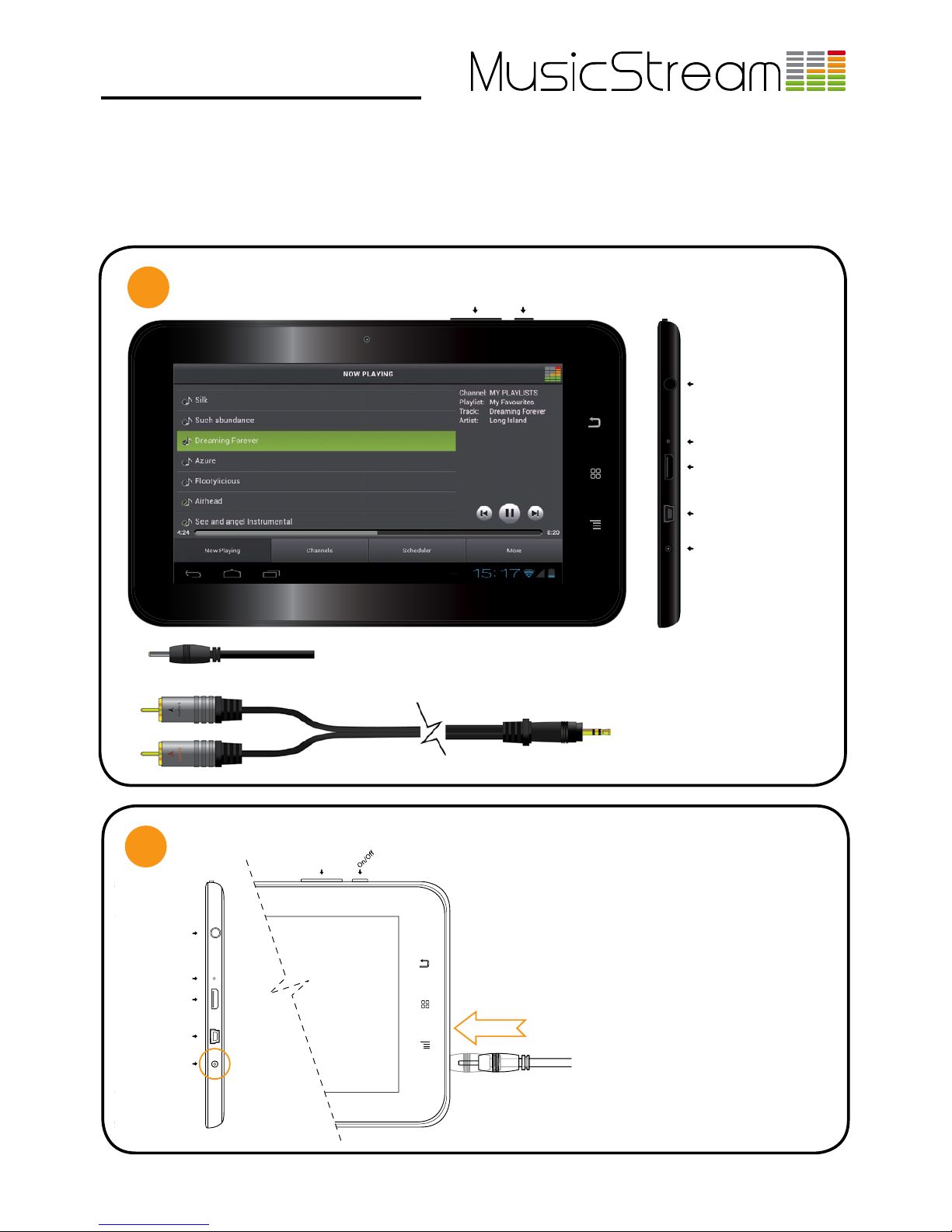
Audio OUT
Reset
HDMI
USB (mini)
Power (5V DC)
Volume
- +
1. Insert the 5V DC power cable
into the Power port port on the
tablet. It is marked in the tablet
with DC-5V.
Plug the transformer plug into a
mains power-point and switch
on.
CONNECT TO POWER
You will need:
MusicStream tablet
5V, 2A DC Power cable
1.
1.
2
PAGE 1
UNPACK THE BOX
1
- +
MusicStream Tablet User Guide
Version 1.4 | August 2012
AUDIO OUT
Reset
HDMI
USB (mini)
5V DC Power
Volume
ON/OFF
5V, 2A DC Power cable to UK three pin plug
Phono to 3.5mm jack (1.5m)
BACK
HOME
MENU
Inside the box you will nd:
1x MusicStream 7” tablet
1x 5V, 2A DC power cable
(UK 3-pin version).
1x 3.5mm jack to phono audio
cable.
This user guide has been created to help you get up and running with your new MusicStream tablet. Everything you need to
get the music playing is in the box apart from an amplier and speakers. The MusicStream player application is pre-installed on
the tablet, so all you need to do is connect the wires, switch on the tablet and press play. Follow the instructions below and if
you require any assistance contact Customer Support on +44 (0) 844 8010 710 or e-mail [email protected].
NOTE: Some amplier and HiFi’s do not have a phono AUX IN, they instead rely on a 3.5mm jack external input or only have
an iPod® dock. We have adaptors and cables to solve all these issues. please contact Customer Support.
Page 2
MusicStream Tablet User Guide
Version 1.4 | August 2012
PAGE 2
CONNECT TO Wi-Fi
5
ON/OFF & SLEEP
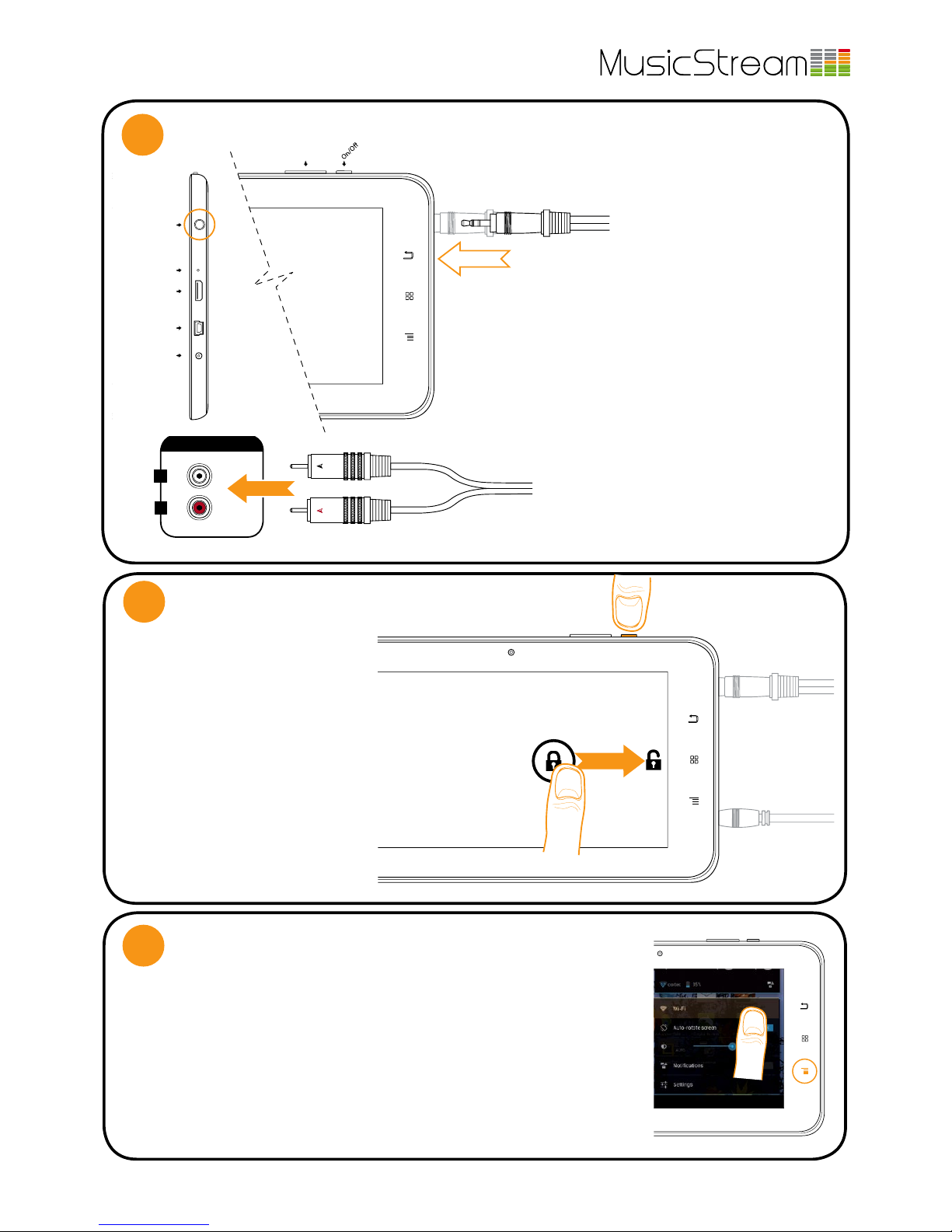
1. Press and hold the ON/OFF but-
ton and wait while the tablet starts
up (approx 30 seconds).
2. Place your nger over the lock
icon and drag it sideways (you do
not need to press hard). This will
unlock the tablet screen. To lock
the tablet press the ON/OFF button
once. This does not aect the running of the MusicStream app.
To switch o the tablet press and
hold the ON/OFF button and select
power o from the options.
1. Press the menu button (1.) or drag up the bottom bar, where the time is
shown with some icons showing network staus and battery life.
2. Open the ‘system settings’ menu and press WiFi or press on the WiFi ‘fan’
icon and press WiFi to navigate to the network settings.
3. Ensure Wi-Fi is on by sliding the switch to ON.
4. Find your network SSID on the list and press to connect. You may have to enter a
passcode. Please ask your system administrator for these details (or they are often on
the back of your router). The tablet shouls now be connected to your wireless network.
Audio-LAudio-R
L
R
AUDIO
AUX IN
2.
2.
Audio OUT
Reset
HDMI
USB (mini)
Power (5V DC)
Volu
me
- +
1. Insert the 3.5 mm jack into the
Audio OUT port on the tablet. It is
marked on the tablet with a small
headphones symbol.
On the rear of your amplier/HiFi
look for the AUX IN. This will commonly be a phono connection
(two holes, one each for the left
and right audio channels coloured white and red).
2. Insert the left (white/black) phono con-
nector into the left phono channel and the
right (red) phono connector into the right
(red) phono channel.
3. Turn on your amplier and select the
input source you have just connected to.
CONNECT TO AMPLIFIER / HiFi
You will need:
MusicStream tablet
3.5mm jack to phono cable
1.
1.
3
2.
SWITCH ON AND UNLOCK
You will need:
MusicStream tablet
4
1.
1.
Page 3
MusicStream Tablet User Guide
Version 1.4 | August 2012
PAGE 3
ACTIVATING THE PLAYER
7
MusicStream
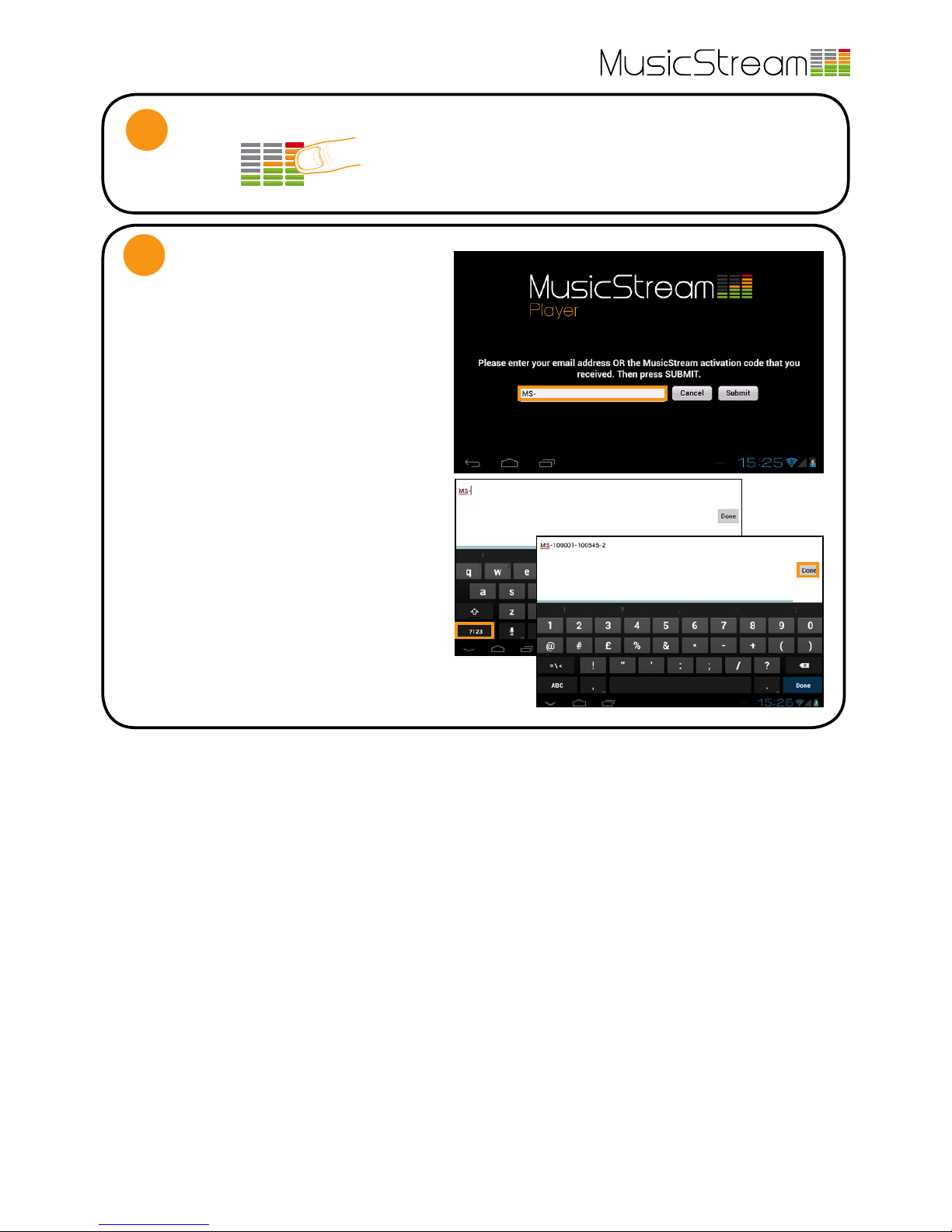
1. On the home screen of your tablet you will see the
MusicStream Player application. Press on the icon to launch
the app.
LAUNCH THE MUSICSTREAM APP
6
The rst time you open the MusicStream app you will
be prompted to enter your activation code (or email
for trial users). This will be printed on your delivery
note and emailed to you. If you loose these codes
you can log in to the MusicStream website and view
all your invoices and codes, order new players and
extend your subscription.
1. To enter you activation code press on the white
box to open the tablets’ keyboard.
2. You may nd it easier to open the numeric keypad
by pressing on the button marked ‘?123’ in the bottom
left-hand corner.
3. Type in the code and press ‘Done’.
4. Press submit to activate your player. If it will not
activate please check that the code is correct, and has
not already been used on another device.
N.B. You must be connected to the internet to
activate the MusicStream app the rst time. Please
ensure you are online by going to the browser and
trying your favourite website.
1.
2.
3.
Troubleshooting
1. If you need to reset your activation code open the player and press the ‘More’ tab. Then press ‘About this MusicStream
Player’ where your can view you registration information and the current software version number. To reset the activation
code press the ‘Reset’ button and okay to the pop up warning. The player will close and on the next start up will request an
activation code.
2. If the player is unresponsive you can force crash the app by repeatedly tapping on the screen. You will be asked whether
you wish to wait for the program to respond or quit.
3. If the player repeatedly crashes you can reboot it by clearing the cache memory. First quit the MusicStream player app,
by going to the More tab and pressing ‘Quit’ or by force exiting (see above). Go to system settings and nd the ‘Apps’ tab.
Scroll down the list until you nd the MusicStream icon and press on it. Scroll down again and you will see a button that says
‘Clear cache’. This will clear the working memory of the tablet (which is usually the cause of crashes). Restart the application.
4. To uninstall the MusicStream app rst quit the MusicStream player app, by going to the More tab and pressing ‘Quit’ or
by force exiting (see above). Go to system settings and nd the ‘Apps’ tab. Scroll down the list until you nd the MusicStream
icon and press on it. Press ‘uninstall’ and okay to the warning.
For further technical support and customer enquiries please visit the support centre on our website (www.musicstreamplayer.
com), email: [email protected] or call: +44 (0) 844 8010710.
Page 4
MusicStream Tablet User Guide
Version 1.4 | August 2012
PAGE 4
DOWNLOADING PLAYLISTS
NAVIGATING THE PLAYER
1
2
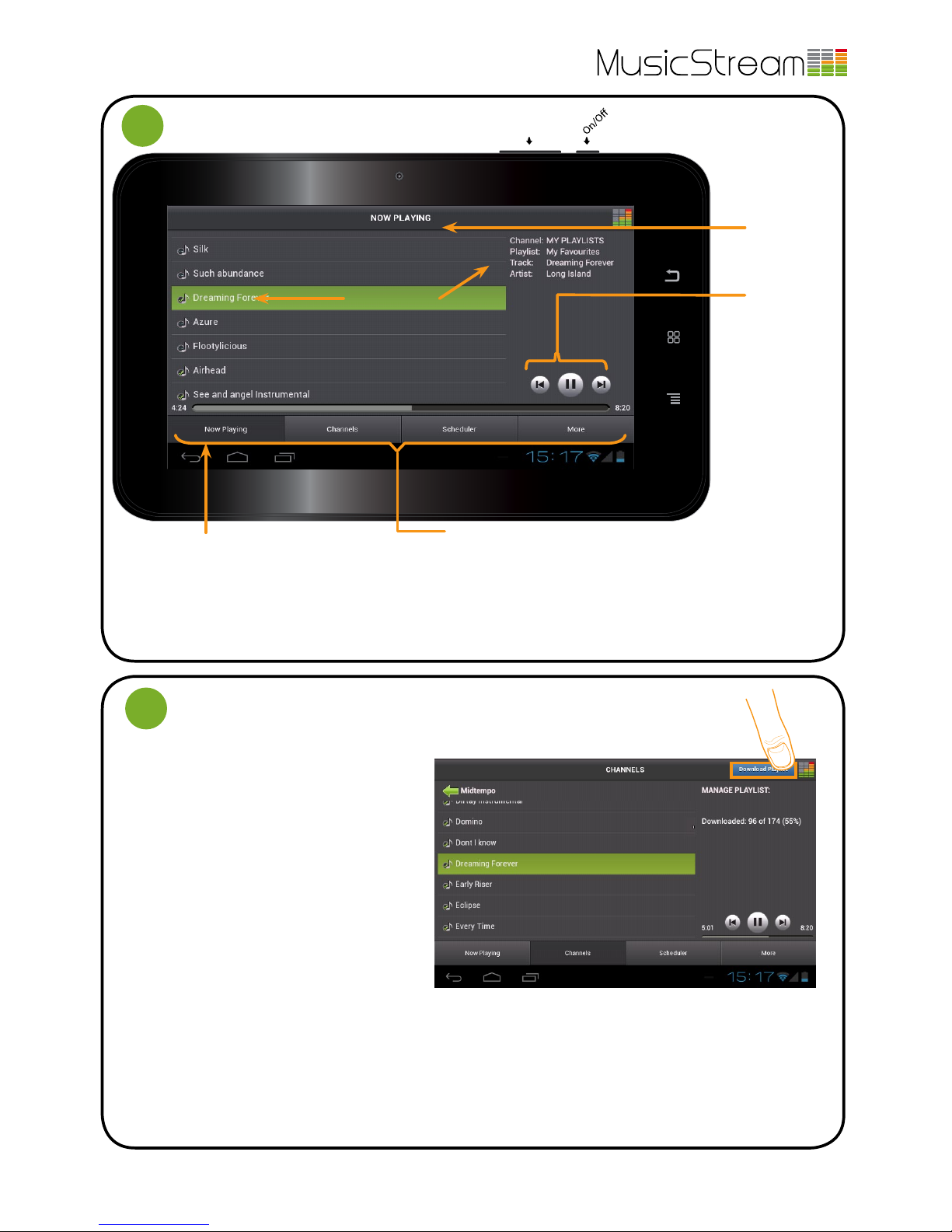
The MusicStream player has the ability to
download playlists and make them available
oine, as well as reducing bandwith. This function is available from the ‘Channels’ menu. It is
recommended that you download the playlists
you use frequently in your premesis.
1. Go to the ‘Channels’ menu. There will be a list
of sector channels as well as a ‘by genre’ option.
Within the channels are a series of playlists we
have programmed for each sector and genre.
2. Choose a channel and playlist you wish to
view by tapping on them. You can navigate
to the list of playlists of channels by using the
back arrow in the top left corner.
3. The tracks within this playlist are now visible. To play use the transport controls on the right hand side. To down-
load press the blue ‘download’ button in the top right corner.
The oine status of the playlist is shown on the right hand side in number of tracks and percentage downloaded.
Each individual track has a ‘musical note’ icon next to it: if this has a tick the track is available oine, if it has a dotted
blue line the track is streaming only. You can view the progress of your downloads in the ‘More’ menu under ‘Downloads’. N.B. You must be connected to the internet to download tracks.
Volume
- +
Current track info
Selected Menu: appears darker (selected
menu can be changed by pressing on any of
the other options). The ‘Now Playing’ home
screen gives an overview of the current channel, playlist and track. You can pause, skip or
resume using the transport controls.
Menu: Press to select
Now Playing - Current playlist and transport controls
Channels - Change channel or playlist and download tracks for oine play. The
last channel is ‘My Playlists’, these are custom user playlists synced from a desktop
player, please see separate Administrator Guide for central control instructions.
Scheduler - View active schedule of playlists (managed centrally)
More - Settings, updates, sync controls, player security lock and exit.
Transport Controls:
Allows you to pause,
resume, skip or repeat a track.
To change playlists
please go to ‘Channels’ menu where all
available channels
and playlists and
their current downloaded status are
available.
Menu Title:
Current menu or submenu is displayed
here.
3.
Page 5
PAGE 5
MusicStream Tablet User Guide
Version 1.4 | August 2012
SETTINGS
3
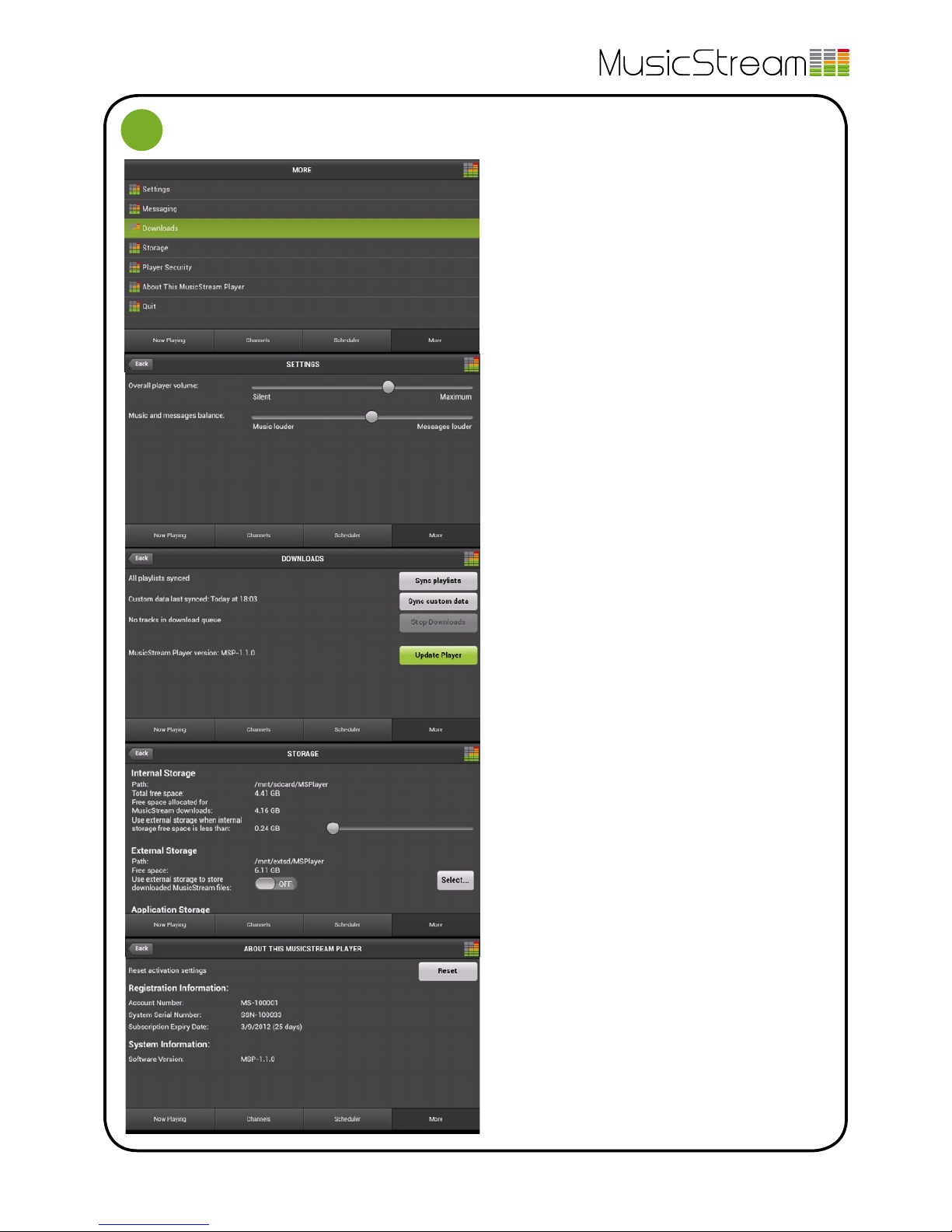
To access the player settings, perform updates and
‘lock’ the player press on the ‘More’ menu tab.
1. There are six options. Press on a menu item to
see more and press ‘back’ to return to the main menu.
2. Settings: This menu allows you to set a master
player volume and if you are running in-store messages you can either boost or reduce their volume
relative to the music. Just drag to change.
Messaging: See page 6 for details of in-store messaging functionality.
3. Downloads: This is where you can update and
sync the tablet to recive new music and update the
scheduler. The sync playlist button will refresh the
playlist information and look for any new tracks. The
sync custom data button will manually check for any
changes to the schedule or messaging (controlled
from a desktop player). You need to be connected to
the internet to perform updates. The green ‘update
player’ button will take you to our website where the
latest version of the app is available for download.
4. Storage: Shows how much free memory is availa-
ble for oine tracks and where they are stored in the
tablet’s memory. You can add additional memory by
inseting a micro SD card into the slot on the back of
the tablet which is labled ‘TF card’. It is reccomended
you use a Catgory 4 (4MB/sec) speed card or better.
You can choose to use this memory as a secondary
run-over. and choose at what point the player will
switch to using the card.
Player Security: You can ‘lock’ the player to prevent
sta from tampering with the settings or changing
the music. Press on Player Security to bring up the
sub-menu. Just press change password to set your
own. If you forget your password please contact Customer Support and we can unlock the device for you.
When you press ‘lock player’ a screen saver will appear and the music will continue to play the current
active playlist or schedule (if turned on). Enter your
password to unlock.
5. About this MusicStream Player: Shows the regis-
tration information, remaining subscription time and
the current software version. To reset the activation
code press the ‘Reset’ button and okay to the pop-up
window. On the next launch of the application you
will be prompted to enter an activation code (see
setup Step 7 on page 3).
Quit: Exits the player app.
2.
1.
3.
4.
5.
Page 6
MusicStream Tablet User Guide
Version 1.4 | August 2012
PAGE 6
MESSAGING
5
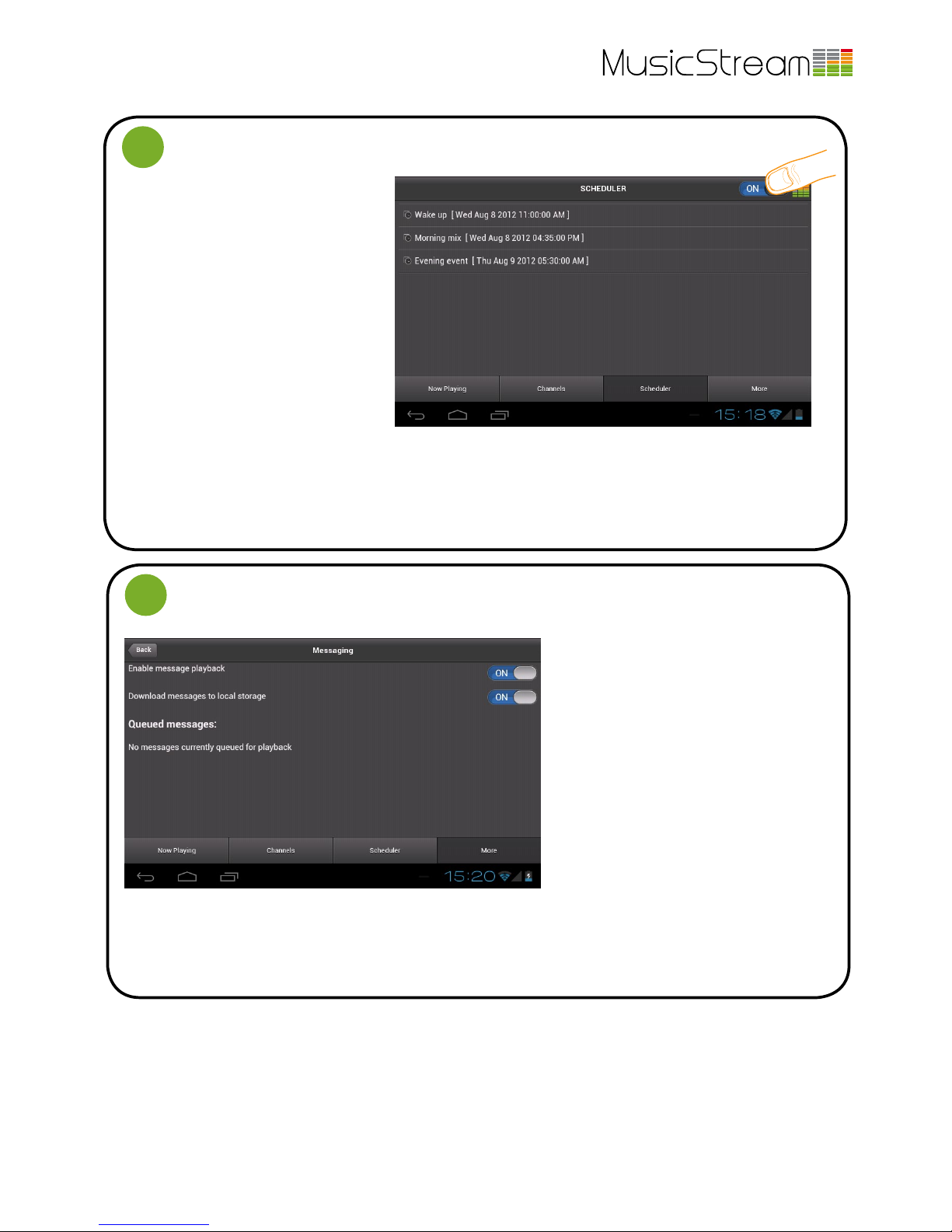
The MusicStream player can be programmed to play in-store messages.
The upload and scheduling of messages
is done on a desktop player centrally and
synced to tablets. Under the more tab you
will nd a sub-menu called messaging
where you are able to enable/disble message playback and choose whether messages are stored locally on the tablet.
A list of forthcoming messages are also
listed with their estimated time.
If the messages are too loud or too quiet in comparision with the music then this can be adjusted in the settings sub
menu. Just drag the slider to boost or quieten in-store messages relative to the music.
For more information on messaging please consult the administrator guide or contact customer support.
USING THE SCHEDULER
4
The MusicStream player app comes with
a scheduling functions to control what
playlists are played out at what times.
The scheduler is deactivated by default,
and can only be managed centrally.
Please contact us if you would like to use
this feature and we can set it up for you.
You can view the schedule by pressing the
‘Scheduler’ menu tab. The schedule can
be activated and deactivated by tapping
on the ON/OFF slider located in the top
right corner.
Changes are automatically synced to the tablet players. If changes are made to the schedule or the playlists these can
be manually synced as well by going to the ‘More’ menu and then navigating to the ‘downloads’ sub-menu (see page
4). The ‘sync playlists’ button will check if any new channels, playlists or tracks have been added. The ‘sync custom data’
button will check for any changes to the schedule. You must be connected to the internet to update the playlists or
schedule.
 Loading...