

Page 1
Model MT5634MU
Portable USB Modem
Quick Start Guide
Page 2

MT5634MU Quick Start Guide
2
Quick Start Guide
82097005L Revision F
MultiMobile
USB
(Model MT5634MU)
This publication may not be reproduced, in whole or in part, without prior expressed
written permission from Multi-Tech Systems, Inc. All rights reserved.
Copyright © 2007 by Multi-Tech Systems, Inc.
Patents & Trademarks
This Product is covered by one or more of the following U.S. Patent Numbers:
5.301.274; 5.309.562; 5.355.365; 5.355.653; 5.452.289; 5.453.986
. Other
Patents Pending. MultiMobileUSB is a trademark and the Multi-Tech logo is a
registered trademark of Multi-Tech Systems, Inc. Windows® and Windows 2000®
are registered trademarks of Microsoft.
Record of Revisions
Rev. D 03/18/03 Changed information about the kit contents. Added
installation of Windows XP drivers.
Rev. E 04/02/04 Changed the format and removed the Contents list from the
cover page.
Rev. F 05/03/07 Revised tech support listing
World Headquarters
Multi-Tech Systems, Inc.
2205 Woodale Drive
Mounds View, Minnesota 55112 U.S.A.
(763) 785-3500 or (800) 328-9717
U. S. FAX 763-785-9874
Technical Support (800) 972-2439
Internet Address: http://www.multitech.com
Technical Support
Country By Email By Phone
France: [email protected] +(33) 1-64 61 09 81
Europe, Asia
and Africa: [email protected] +(44) 118 959 7774
U.S., Canada
and all others: [email protected] (800) 972-2439
or (763) 717-5863
Page 3

Introduction
3
Safety Warnings
1. Never install telephone wiring during a lightning storm.
2. Never install a telephone jack in wet locations unless the jack is
specifically designed for wet locations.
3. This product is to be used with UL and cUL listed PCs.
4. Never touch uninsulated telephone wires or terminals unless the
telephone line has been disconnected at the network interface.
5. Use caution when installing or modifying telephone lines.
6. Avoid using a telephone (other than a cordless type) during an
electrical storm. There may be a remote risk of electrical shock
from lightning.
7. Do not use a telephone in the vicinity of a gas leak.
8. To reduce the risk of fire, use only 26 AWG telecommunication
line cord.
Introduction
This Quick Start Guide will help you unpack, install, test, and use your
Multi-Tech MT5634MU modem.
Product Description
The MT5634MU is a V.90 Plug-and-Play data/FAX modem that transmits
56kbps downstream and 33.6 kbps upstream. It can be automatically
configured for operation in nearly any country’s phone system with Multi-
Tech’s Global Wizard.
Figure 1. MT5634MU
A detailed MT5634MU User Guide is provided with your unit and at http:/
/www.multitech.com. From the MTS homepage, click Support | Manuals
| MultiMobileUSB and choose MT5634MU to download the .pdf file.
Page 4
MT5634MU Quick Start Guide
4
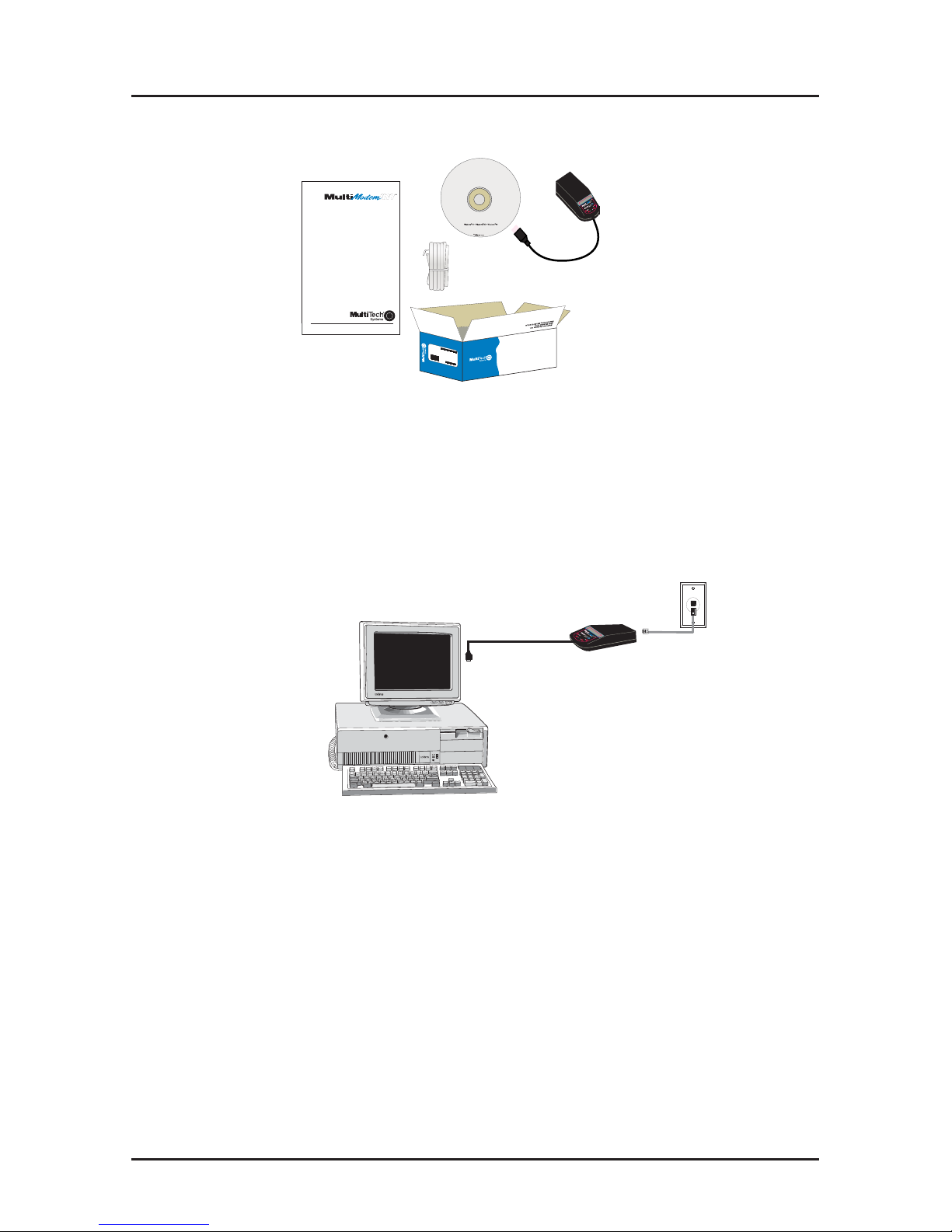
Unpacking your MT5634MU
M
A
D
E
I
N
U
.
S
.
A
M
A
D
E
I
N
U
.
S
.
A
Quick Start Guide
Four USB V.90 Modems
T
T
rio
rio
Software
Software
Figure 2. Unpacking
Installation Steps
Step 1: Connecting the Modem to Your System
Connect the MT5634MU to your computer’s USB port and connect the
telephone line to your MT5634MU and a telephone wall jack.
Figure 3. Modem connections
USB Connection
Plug the USB cable connector on the modem into a USB port
connector on your computer.
Line Connection
Plug one end of the phone cable into the modem’s LINE jack, and
the other end into a phone line wall jack.
Note: The Federal Communications Commission (FCC), and
Industry Canada impose certain restrictions on equipment
connected to public telephone systems. See the User Guide for
more information.
Page 5

Installation
5
Step 2: Installing the Modem
The MT5634MU is compatible with Windows XP, 2000, ME, 98, and
some versions of Windows 95.
Installation in Windows XP
1. Power up your Windows XP system.
2. If you have not already done so, make all the necessary
connections, including connecting the modem to an available
USB port.
3. Insert the MultiModem USB CD into your CD drive.
4. Windows will detect that the new modem is present and launch
the Update Device Driver Wizard dialog box.
5. Choose Install from a list or specific location (Advanced), and
click Next.
6.Select Don’t Search. I will choose the driver to install, and click
Next.
7. Click the Have disk button. Browse to x:\Drivers\WinXP. Select
the file there and click OK. (x denotes your CD drive letter).
8. When the pop-up window comes up explaining that the driver is
not digitally signed, click Continue anyway to finish the
installation.
NOTE:
This Microsoft operating system searches for a digital signature
when you install any new hardware. If a "Digital Signature Not Found"
screen appears, simply click the YES button to continue installation.
Although Multi-Tech submits all eligible products to Microsoft for
certification, the turn-around time is subject to many factors. Not having
a digital signature does not affect product performance in any way.
Installation in Windows 2000
1. Power up your Windows 2000 system.
2. If you have not already done so, connect the MT5634MU to
your computer’s USB port and connect the telephone line to
your MT5634MU and a telephone wall jack.
3. Windows will detect that the new modem is present, indicate
that it's in the process of installing, and then launch the Found
New Hardware Wizard. The Welcome screen appears first.
Click Next.
Page 6

MT5634MU Quick Start Guide
6
4. The Install Hardware Device Drivers screen appears indicating
that the wizard will install the hardware device drivers. Verify that
the "Search for a suitable driver for my device (recommended)" is
selected, and then click Next >.
5. The Locate Driver Files screen appears asking where you want
Windows to search for driver files.
Verify that the “Specify a location” option is the
only
one selected,
place the MT5634MU Installation CD into your CD drive, and click
Next.
6. The next screen tells you to “Insert the manufacturer’s installation
disk into the drive selected and then click OK.” Click the
Browse button (when prompted to insert a disk into drive A:\,
click Cancel). Navigate to your computer’s CD drive.
Select the folder DRIVERS\WIN 2000.
Select the file MDMMTUSB.INF and click Open.
7. Then the Driver Files Search Results screen appears indicating
that Windows has found the proper driver from the MT5634MU
CD. Click Next to install the selected driver.
8. The Digital Signature Not Found dialog box is displayed. Click
Yes to continue with the installation.
NOTE:
This Microsoft operating system searches for a digital
signature when you install any new hardware. If a "Digital
Signature Not Found" screen appears, simply click the YES button
to continue installation. Although Multi-Tech submits all eligible
products to Microsoft for certification, the turn-around time is
subject to many factors. Not having a digital signature does not
affect product performance in any way.
9. A Copying Files screen appears briefly. After the files have
been copied to your PC, a Found New Hardware Wizard
screen appears indicating that Windows has finished installing
the driver. Click Finish to complete the installation and exit the
wizard.
After installation is complete, you should test the operation of your
new MT5634MU by registering it. Key in the URL given below and
follow the on-line instructions at: http://www.multitech.com/register
Page 7

Installation
7
Installation in Windows ME
The MT5634MU driver files for Windows ME are installed in two
groups, as described below. The installation wizard begins by
installing certain driver files. At that point, Windows ME detects the
modem as a new device. Then the installation wizard runs again to
install the remaining driver files.
1. Power up your Windows ME computer.
2. Connect the MT5634MU to your computer’s USB port. Then
connect one end of the provided telephone line cord to your
MT5634MU and the other end to a telephone wall jack.
3. Windows ME will detect that the new modem is present and
launch the Add New Hardware Wizard.
Place the MT5634MU CD into the CD drive of your PC. The
first Add New Hardware Wizard screen displays the message
“What would you like to do?” Choose “Specify the location of the
driver (Advanced)” and click Next.
4. At the Add New Hardware Wizard screen “Windows will search
for new drivers ...”, uncheck the “Removable Media” button (if
necessary) and check “Specify a location.”
5. Click the Browse button and navigate to the Windows ME
subfolder of the Drivers folder on the MT5634MU CD. Then
click OK. Click Cancel if it prompts you for a floppy disk.
6. The Add New Hardware Wizard the “Windows driver file
search ...” screen appears. Click Next.
7. Transient progress screens will appear while files are being
copied. After the files have been copied to your PC, an Add
New Hardware Wizard screen will appear indicating that
Windows has finished installing this the first of two drivers.
Click Finish. The wizard will close.
8. Windows ME will now detect an “Unknown Device” and begin
another Add New Hardware Wizard, again asking “What would
you like to do?” Choose “Specify the location of the driver
(Advanced)” and click Next.
9. At the next screen (Add New Hardware Wizard “Windows will
search for new drivers...” screen), uncheck the “Removable
Media” button and check “Specify a location.” Click Next.
10. Transient screens will appear while files are being copied. The
Add New Hardware Wizard “Windows driver file search...”
screen will appear. Click Next.
Page 8

MT5634MU Quick Start Guide
8
11. After files have been copied, a completion screen will appear.
Click Finish to complete the installation of this the second
driver. The wizard will close.
12. Remove the MT5634MU CD from the computer’s CD drive.
13. Test the operation of your modem by registering it online at
http://www.multitech.com/register.
Installation in Windows 98
1. Power up your Windows 98 system.
2. If you have not already done so, connect the MT5634MU to
your computer’s USB port and connect the telephone line to
your MT5634MU and a telephone wall jack.
3. Windows will detect that the new modem is present and launch
the Add New Hardware Wizard. The first screen indicates that
the wizard will search for a USB driver.
4. Place the MT5634MU CD into your CD drive and click Next to
proceed with the installation.
5. The Add New Hardware Wizard dialog box displays with the
message “What do you want Windows to do?” Verify that the
“Search for the best driver for your device (Recommended)”
option is selected and click Next.
6. The Add New Hardware Wizard dialog box appears with the
message “Windows will search for a new driver.. .” Verify that
the “CD-ROM drives” option is selected and click Next.
7. The Add New Hardware Wizard dialog box appears indicating
that Windows has found an updated driver for this device. Verify
that the “Updated driver (Recommended)” option is selected
and click Next.
8. The Add New Hardware Wizard dialog box appears indicating
Windows will select the proper driver from the CD and verify the
information. Click Next to install the selected driver.
9. After the files have been copied to your PC, an Add New
Hardware Wizard screen appears indicating that Windows has
finished installing the driver. Click Finish to complete the
installation and exit the wizard. The TR LED on your modem will
light when the installation is complete. Remove the CD.
After installation, you should test the operation of the MT5634MU by
registering it. Key in the URL given below and follow the on-line
instructions:
http://www.multitech.com/register
Page 9

Installation
9
Installation in Windows 95
Only certain versions of Windows 95 offer support for USB
peripherals. If you are unsure if your Win95 system supports USB, a
free USB evaluation utility is available from the Shopping Bag page
at http://www.usb.org. Just download the utility (287K) and run the
.exe application. It will determine if you have USB support.
Note: Dialog boxes for the Windows 95 installation are not shown
because they may vary depending on the version of Windows 95
being used.
If you would like to install your MT5634MU in Windows 95, perform
the following steps.
1. Insert the MT5634MU Installation CD into your CD drive.
2. If you have not already done so, connect the MT5634MU to
your computer’s USB port and connect the telephone line to
your MT5634MU and a telephone wall jack.
3. Windows will detect that the new modem is present and launch
the Update Device Driver Wizard dialog box. Click Next to
proceed with the installation.
4. The Update Device Driver Wizard dialog box appears
indicating that Windows has searched for the driver on X:\ (“X”
represents CD drive) and, when identified, displays the driver
name for verification. Verify that the correct name is displayed
and click Finish to install the driver.
5. Windows prompts you to insert a CD. Since you have already
inserted the CD, simply click OK to continue.
6. The Copy Files ... dialog box is displayed. In the Copy files
from field, choose X:\ from the drop-down list and click OK. (X
denotes the drive letter of your CD drive.)
7. When driver installation is finished, a completion message will
appear, the TR LED on your modem will light, and the wizard
will exit. At this time your installation is complete. Remove the
CD from the computer.
After installation is complete, you should test the operation of your
new MT5634MU by registering it. Key in the URL given below and
follow the on-line instructions:
http://www.multitech.com/register
Page 10

MT5634MU Quick Start Guide
10
Step 3: Installing Data Communications Software
Data communications software is designed to send and receive messages
about the operation of your modem. Multi-Tech includes PhoneTools
communications software with your modem. However, the modem will
work with most data communications software packages. To install
PhoneTools, insert the Installation CD into the CD-ROM drive and click on
the PhoneTools icon. You will be asked to choose your language. The
software will be loaded automatically onto your PC.
Step 4: Country Configuration with Global Wizard
Different countries have different requirements for how modems must
function. Therefore, before you use the modem, you must configure it to
match the defaults of the country in which you are using it. You can
configure the MT5634MU either manually using AT commands (see User
Guide), or with the Global Wizard, as described below.
The Global Wizard configuration utility is recommended for computers
running Windows 95/98/ME/2000/XP. The Global Wizard can configure
your modem for a specific country with just a few mouse clicks.
1. Insert the MT5634MU CD into the CD-ROM drive. The Autorun
dialog box appears.
2. Click Initial Setup and Country Selection. The Global Wizard
dialog box appears. Click Next.
3. View the Global Wizard as it searches for your modem and
identifies it. Click Next.
4. Select the country in which the modem will be used, and then
click Next.
5. Review your choice of country. If it is correct, click Next to
configure the modem.
6. When Global Wizard announces that the parameters have been
set, click Finish to exit.
Page 11

Page 12
82097005L
 Loading...