

Multitech MultiMobile MT5634ZLX, MultiMobile MT5634ZLX/FE, MultiMobile MT5634ZLXI Quick Start Manual
Page 1
MultiMobile Modem Family
PC Card Modem
MT5634ZLX
MT5634ZLXI
MT5634ZLX/FE
Quick Start Guide
Page 2

MT5634ZLX, MT5634ZLXI, MT5634ZLX/FE
P/N 82001650 Revision A
Copyright © 1999-2002 by Multi-Tech Systems, Inc.
All rights reserved. This publication may not be reproduced, in whole or in part, without prior
expressed written permission from Multi-Tech Systems, Inc.
Multi-Tech Systems, Inc. makes no representations or warranties with respect to the contents
hereof and specifically disclaims any implied warranties of merchantability or fitness for any
particular purpose. Furthermore, Multi-Tech Systems, Inc. reserves the right to revise this
publication and to make changes in the content hereof without obligation of Multi-Tech
Systems, Inc. to notify any person or organization of such revisions or changes.
Revision Date Description
A 07/30/02 MT5634ZLX MultiMobile Family Quick Start initial rel ease.
08/04/03 Changed the paper size setting to make it consistent with other guides.
Send out for printing without changing the Revision number.
Patents
4,453,450; 4,603,320; 4,686,506; 4,972,470
Trademarks
MultiMobile and the Multi-Tech logo are trademarks of Multi-Tech Systems, Inc.
Adobe and Acrobat are trademarks of Adobe Systems Incorporated. Microsoft, W indows is
either a registered trademark of Microsoft Corporation in the United States and/or other
countries. All other brands and product names mentioned in this publication are registered
trademarks of their respective companies.
World Headquarters
Multi-Tech Systems, Inc.
2205 Woodale Drive
Mounds View, MN 55112
U.S.A
Telephone (763) 785-3500 or (800) 328-9717
Fax (763) 785-9874
Internet http://www.multitech.com
Technical Support
Country By Email By Phone
France [email protected] +(33) 1-64 61 09 81
India [email protected] +91 (124) 6340778
U.K. [email protected] +(44) 118 959 7774
U.S. and Canada [email protected] (800) 972 -2439
Rest of the World [email protected] +(763) 717-5863
Note the status of the modem before contacting Technical Support. The status can include
information about LED indicators, screen messages, diagnostics test results, problems with an
application, etc.
Recording Your Modem Information
Record the following information about your Multi-Tech modem before calling Technical
Support.
Modem Model Number:
Modem Serial Number:
These numbers are printed on the bottom of the modem.
Page 3

MultiMobile Modem Family Quick Start Guide
Getting Started
This Quick Start Guid e will help you install and set up your MultiMobile
PC Card modem. A User Guide containing detailed configuration
information, a command reference, a troubleshooting chapter, and an
index can be found on the MT5634ZLX CD. The User Guide, which is in
Adobe Acrobat 4.0 format, can be viewed on your monitor or printed for
easy reference.
The MT5634ZLX is designed for use in the United States and Canada.
The MT5634ZLXI is designed for use world-wide.
The MT5634ZLX/FE is designed for use in the United States, Canada,
and Europe.
The MT5634ZLX/FE can connect to an enterprise LAN as well as the
Internet.
Safety Warnings
· Use this product only with UL- and CUL-listed computers.
· To reduce the risk of fire, use only 26 AWG (.41mm) or larger telephone
wiring.
· Never install telephone wiring during a lightning storm.
· Never install a telephone jack in a wet location unless the jack is
specifically designed for wet locations.
· Never touch uninsulated telephone wires or terminals unless the
telephone line has been disconnected at the network interface.
· Use caution when installing or modifying telephone lines.
· Avoid using a telephone during an electrical storm; there is a risk of
electrical shock from lightning.
· Do not use a telephone in the vicinity of a gas leak.
MT5634ZLX, MT5634ZLXI, MT5634ZLX/FE 1
Page 4
MultiMobile Modem Family Quick Start Guide
We Supply
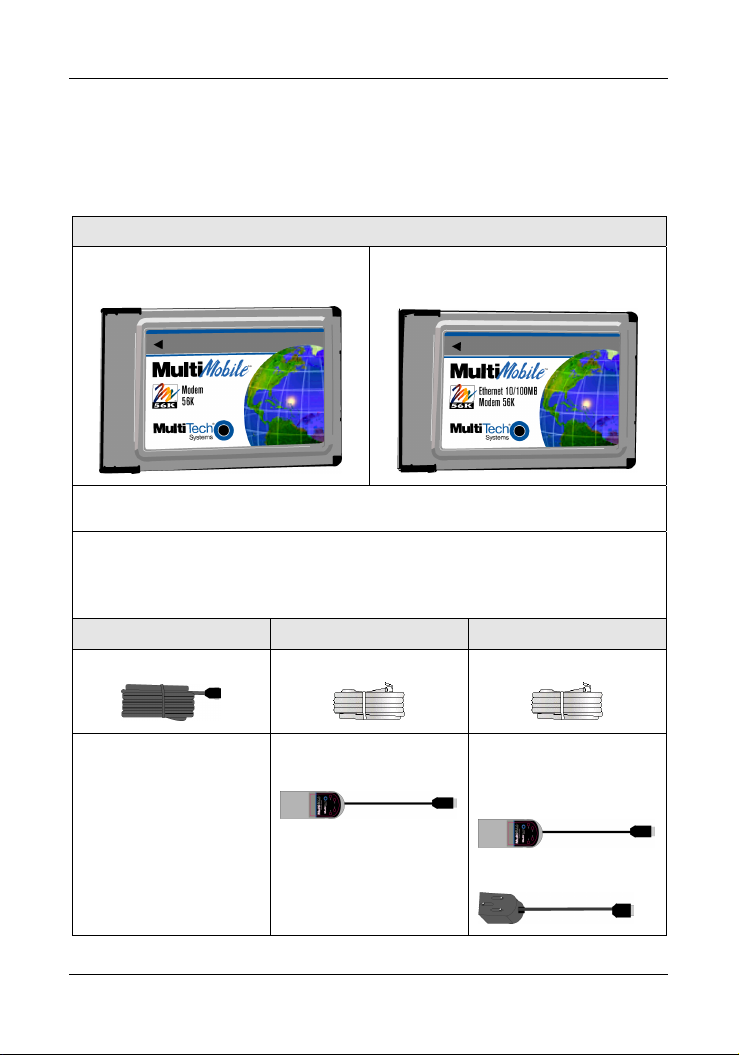
Your modem package has several components. Please make sure you
have all parts before trying to operate your modem. The MT5634ZLX,
MT5634ZLXI, and MT5634ZLX/FE packages contain the following:
MT5634ZLX and MT5634ZLXI MT5634ZLX/FE
MT5634ZLX, MT5634ZLXI
MultiMobile PC Card modem
MT5634ZLX/FE
MultiMobile PC Card modem
This Quick Start Guide is included with each modem.
An MultiMobile Modem CD containing modem drivers, the User Guide, a
data communications software program, and Acrobat Reader is inlcuded
with each modem.
MT5634ZLX MT5634ZLXI MT5634ZLX/FE
RJ-11 adapter cable RJ-11 telephone cord RJ-11 telephone cord
One Modem-LAM (Line
Adapter Modules)
Two LAMs (Line
Adapter Modules)
· One Modem-LAM
· One Ethernet-LAM
2 MT5634ZLX, MT5634ZLXI, MT5634ZLX/FE
Page 5
MultiMobile Modem Family Quick Start Guide
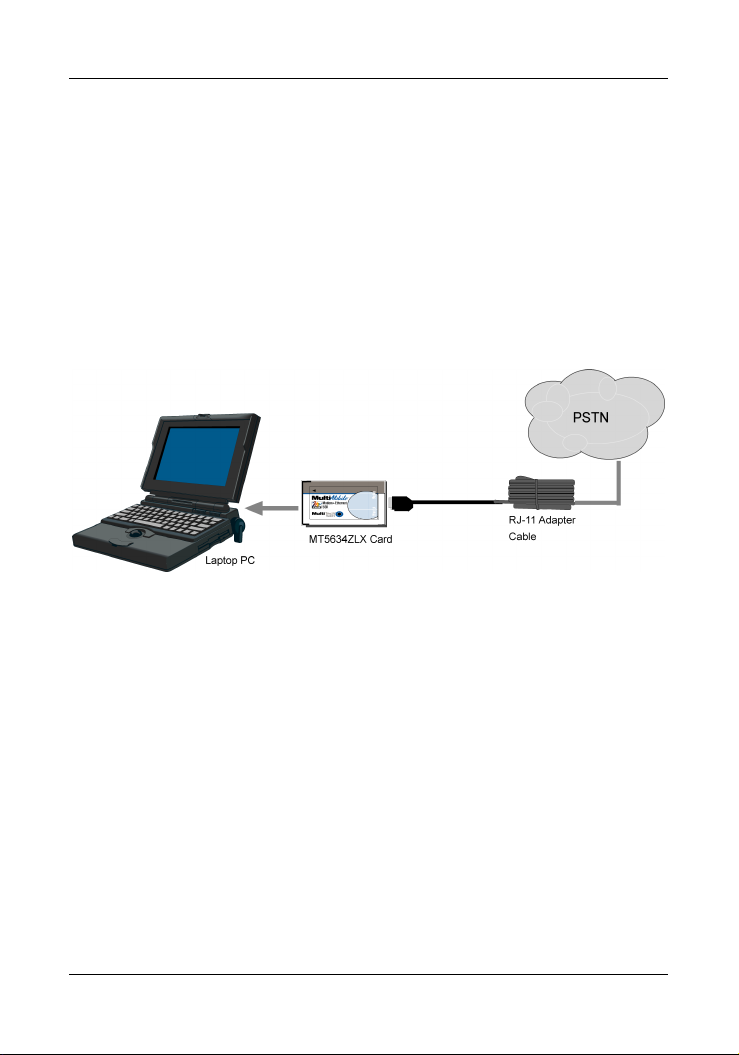
Installing the MT5634ZLX Card
1. Insert the MT5634ZLX Card into the laptop’s PCMCIA slot. Be sure
that the label is facing up.
2. Plug 15-pin adapter end of the telephone cord into the MT5634ZLX
Card.
3. Plug the other end of the RJ-11 into an available telephone wall jack.
This connects you to the PSTN (Public Switched Telephone Network).
MT5634ZLX Connections
MT5634ZLX, MT5634ZLXI, MT5634ZLX/FE 3
Page 6
MultiMobile Modem Family Quick Start Guide
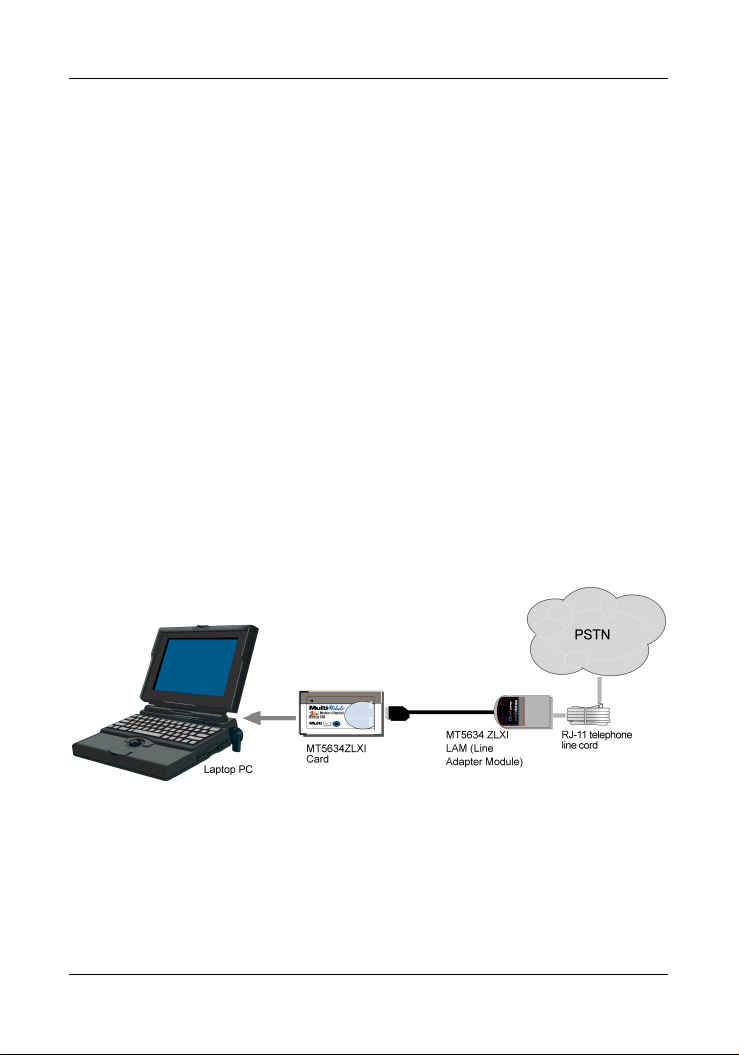
Installing the MT5634ZLXI Card
1. Insert the MT5634ZLXI Card into the laptop’s PCMCIA slot. Be sure
that the label is facing up.
2. Plug the Modem-LAM (Line Adapter Module) into the modem port of
the PC Card.
3. Plug one end of the RJ-11 telephone line cord into the open end of the
Modem-LAM (this is the LAM’s RJ-11 receptacle side).
4. Plug the other end of the RJ-11 into an available telephone wall jack.
This connects you to the PSTN (Public Switched Telephone Network).
5. With your PC turned on, verify the operation of the LEDs.
OH (Off-Hook) light on means that the MT5634ZLXI is dialing, is
online, or answering a call.
CD (Carrier Detect) light on means that a valid carrier signal from
another modem is detected.
RD (Receive Data) light flashes when data is being received.
TD (Transmit Data) light flashes when data is being transmitted.
MT5634ZLXI Connections
4 MT5634ZLX, MT5634ZLXI, MT5634ZLX/FE
Page 7
MultiMobile Modem Family Quick Start Guide
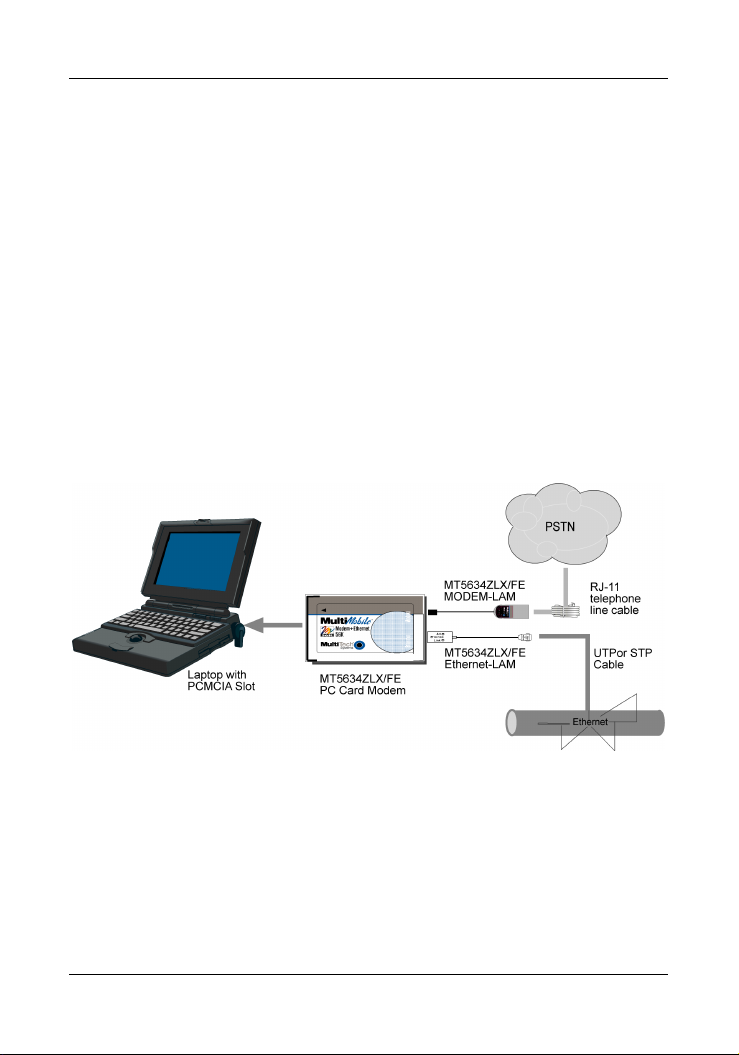
Installing the MT5634ZLX/FE Card
1. Insert the MT5634ZLX/FE Card into the computer’s PCMCIA slot. Be
sure that the label is facing up.
2. Plug the Modem-LAM (Line Adapter Module) into the modem port of
the PC Card.
3. Plug one end of the RJ-11 telephone line cord into the open end of the
Modem-LAM (this is the LAM’s RJ-11 receptacle side).
4. Plug the other end of the RJ-11 into an available telephone wall jack.
This connects you to the PSTN (Public Switched Telephone Network).
5. Plug the Ethernet-LAM into the Ethernet port of the PC Card.
6. Plug one end of either a UTP or an STP cable into the Ethernet-LAM.
7. Plug the other end of the UTP/STP cable into the Ethernet LAN.
8. Installation of the driver for the MT5634ZLX/FE: When prompted for
drivers, choose the Advanced path and browse to the
and then to the appropriate subfolder for your Windows version.
Drivers_FE folder
MT5634ZLX/FE Connections
MT5634ZLX, MT5634ZLXI, MT5634ZLX/FE 5
Page 8

MultiMobile Modem Family Quick Start Guide
Installing the Modem Driver
You must install the modem’s driver onto the hard drive of your laptop PC.
If you are using Windows 95/98/Me/2000/XP, the driver is installed with
Windows’ Plug and Play feature. For Windows NT, which does not support
Plug and Play, see the Modem Driver Installation for Windows NT below.
Modem Driver Installation for Windows 95/98/Me/2000/XP
1. Make sure your modem PC card is connected properly, and then turn
on your laptop PC. Windows should detect your new modem and
open the install New Modem wizard.
2. Insert the MT5634ZLX Modem Family CD into your laptop PC’s CD-
ROM drive, and then click OK.
3. Windows installs the modem driver.
4. Installing the ZLX/FE drivers requires you to select the Advanced
option. Then browse the
subfolder.
5. Click Finish to exit.
Modem Driver Installation for Windows NT
1. Make sure your modem PC card is connected properly, and then turn
on your laptop PC. Windows should detect your new modem and
open the install New Modem wizard.
Note: If Windows cannot find a modem, your modem may not be
connected properly. Check your connections.
2. In the
Install New Modem wizard, select Don’t detect my modem; I will
select it from a list, and then click
3. Insert the MT5634ZLX CD into your laptop PC’s CD-ROM drive, and
then click
Have Disk.
4. In the Install from Disk dialog box, select the drive that the CD is in,
and then click OK.
5. A list of modems appears. Select your modem and click
6. Select the port that the modem is connected to, and then click
7. Windows installs and configures the modem driver.
8. Click
Finish to exit.
Drivers_FE folder and select the appropriate
Next.
Next.
Next.
6 MT5634ZLX, MT5634ZLXI, MT5634ZLX/FE
Page 9

MultiMobile Modem Family Quick Start Guide
Loading Data Communication Software
Data communications software is designed to enable your modem to send
and receive data. Multi-Tech has included a communications software
program, Phone Tools, with your modem.
To install Phone Tools:
· Insert the MultiMobile CD into your laptop’s CD-ROM drive
· Click on the Phone Tools icon.
· You will be asked to choose your language.
· The software automatically loads onto your laptop.
Important: How to Eject the PC Card
The PC Card is a hot-swappable card. However, when the
MT5634ZLX/FE is connected to a LAN and transferring data, it is
recommended that you use the following steps to eject the PC Card if you
choose to do so during this process. Removing the PC Card during this
process without following these steps could cause Windows to lock up.
1. On the task bar, click the PCMCIA icon.
2. Select Stop MultiMobile Mt5634ZLX PCMCIA.
3. The Safe to Remove Hardware dialog box displays. Click
4. Eject the PCMCIA adapter.
OK.
MT5634ZLX, MT5634ZLXI, MT5634ZLX/FE 7
Page 10

MultiMobile Modem Family Quick Start Guide
Configure the Modem for Your Country
Note: Country configuration applies to:
· The MT5634ZLXI is designed for use world-wide.
· The MT5634ZLX/FE is designed for use in Europe, Canada, and the
United States.
Different countries have different requirements for how modems must
function. Therefore, before you use your modem, you must configure it to
match the defaults of the country in which you are using it. You can use
one of two configuration methods:
· Using the Global Wizard to Configure Your Modem
· Using AT Commands to Configure Your Modem
Using the Global Wizard to Configure Your Modem
The Global Wizard configuration utility is recommended for computers
running in Windows.
1. Insert the MT5634ZLX CD into the CD-ROM drive. The
dialog box appears.
2. Click
Initial Setup and Country Selection.
3. Choose either:
· Run Global Wizard from CD. This option will not load the wizard
onto your hard drive, or
·
Install Global Wizard on the HD. This option installs the wizard
onto your hard drive for future use.
4. The
Global Wizard dialog box appears. Click Next.
5. The Global Wizard searches for your modem and identifies it. Click
Next.
6. Select the country in which the modem will be used, and then click
Next.
7. Review your choice of country. If it is correct, click
the modem.
8. When Global Wizard announces that the parameters have been set,
click
Finish to exit.
Autorun
Next to configure
8 MT5634ZLX, MT5634ZLXI, MT5634ZLX/FE
Page 11
MultiMobile Modem Family Quick Start Guide
Using AT Commands to Configure Your Modem
1. Run Phone Tools (on the MultiMobile CD) or use your favorite
communication program and open the program’s terminal window.
2. To configure the modem for a specific country, type
where nn is the country code, and then press Enter. The message OK
displays.
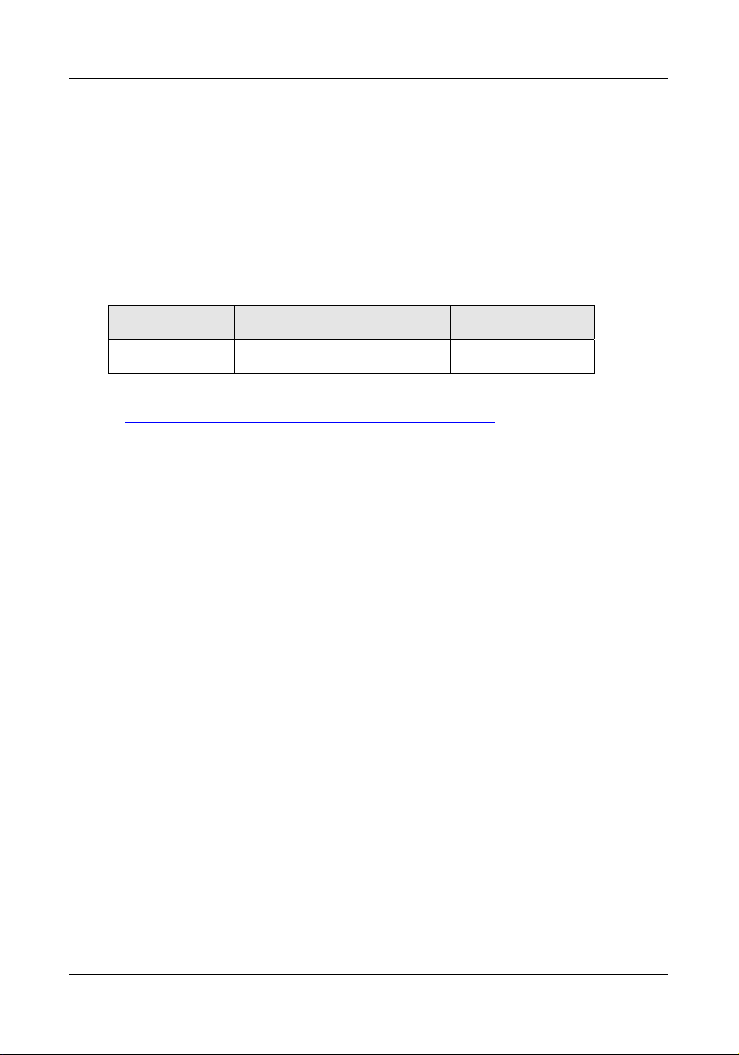
3. To verify the change, type ATI9, and then press Enter. The country
code is displayed, as in this example:
Country AT Command Result code
Euro/NAM AT%T19,0,34 (default) 52
The complete list of country codes can be found on the Multi-Tech Web
site at http://www.multitech.com/GlobalModem/config and in the User
Guide.
AT%T19,0,nn,
MT5634ZLX, MT5634ZLXI, MT5634ZLX/FE 9
Page 12
Limited Warranty
Multi-Tech Systems, Inc. (“MTS”) warrants that its products will be free from
defects in material or workmanship for a period of ten years from the date of
purchase, or if proof of purchase is not provided, ten years from date of
shipment. MTS MAKES NO OTHER WARRANTY, EXPRESSED OR
IMPLIED, AND ALL IMPLIED WARRANTIES OF MERCHANTABILITY AND
FITNESS FOR A PARTICULAR PURPOSE ARE HEREBY DISCLAIMED.
This warranty does not apply to any products which have been damaged by
lightning storms, water, or power surges or which have been neglected,
altered, abused, used for a purpose other than the one for which they were
manufactured, repaired by the customer or any party without MTS’s written
authorization, or used in any manner inconsistent with MTS’s instructions.
MTS’s entire obligation under this warranty shall be limited (at MTS’s option)
to repair or replacement of any products which prove to be defective within
the warranty period, or, at MTS’s option, issuance of a refund of the
purchase price. Defective products must be returned by Customer to MTS’s
factory transportation prepaid.
MTS WILL NOT BE LIABLE FOR CONSEQUENTIAL DAMAGES AND
UNDER NO CIRCUMSTANCES WILL ITS LIABILITY EXCEED THE
PURCHASE PRICE FOR DEFECTIVE PRODUCTS.
Service
Multi-Tech has an excellent staff of technical support personnel available to
help you get the most out of your Multi-Tech product.
Refer to the User Guide for complete Warranty and Service information.
82001650
 Loading...