

Page 1
Model MT5634ZPX-PCl
Internal Data/Fax/V oice Modem
Quick Start Guide
Page 2

Quick Start Guide
MultiModemZPX-PCI
82095520
This publication may not be reproduced, in whole or in part, without prior
expressed written permission from Multi-Tech Systems, Inc. All rights reserved.
Copyright © 2000, by Multi-Tech Systems, Inc.
Multi-Tech Systems, Inc. makes no representations or warranties with respect to
the contents hereof and specifically disclaims any implied warranties of
merchantability or fitness for any particular purpose. Furthermore, Multi-Tech
Systems, Inc. reserves the right to revise this publication and to make changes
from time to time in the content hereof without obligation of Multi-Tech Systems,
Inc. to notify any person or organization of such revisions or changes.
Record of Revisions
Revision Description
A Manual Released
(3/26/99)
B Manual updated to include installation instructions for
(3/31/00) Windows 98, Windows NT, WIndows 2000, Linux, SCO Open
Server and Multi-Tech’s Global Wizard
Trademarks of Multi-Tech Systems, Inc. are as follows: MultiModem,
MultiModemII, MultiModem, MultiModemZPX, Multi-Tech, and the Multi-Tech logo.
Pentium is a trademark of Intel Corporation.
Adobe Acrobat Reader is a trademark of Adobe Systems Incorporated.
AT&T is a trademark of American Telephone and Telegraph Co.
SCO OpenServer is a trademark of Santa Cruz Operation, Inc.
Windows , 95, 98, NT and 2000 are registered trademarks of Microsoft.
Multi-Tech Systems, Inc.
2205 Woodale Drive
Mounds View, Minnesota 55112 U.S.A.
(763) 785-3500 or (800) 328-9717
U. S. FAX (763) 785-9874
Technical Support (800) 972-2439
Internet Address: http://www.multitech.com
Page 3

iii
Contents
Introduction ............................................................................. 4
Product Description................................................................. 4
Related Documentation........................................................... 6
Adobe Acrobat Reader ............................................................... 6
The MultiModemZPX-PCI User Guide ........................................ 6
Saving and Printing the User Guide ............................................6
Installation Overview ............................................................... 7
Safety Warnings...................................................................... 7
Unpacking Y our Modem .......................................................... 8
What You’ll Need..................................................................... 8
Installing the Hardware............................................................ 9
Connecting Y our Modem......................................................... 9
Sound Card Considerations ...................................................1 1
Installing Software................................................................. 12
Windows 95 ............................................................................... 12
Windows 98 ............................................................................... 13
Windows NT ..............................................................................15
Windows 2000 ........................................................................... 22
Linux .......................................................................................... 25
SCO OpenServer ...................................................................... 27
Initial Setup & Country Selection ........................................... 29
Limited Warranty................................................................... 31
Technical Support.................................................................. 31
Page 4

4
MT5634ZPX-PCI Quick Start Guide
Introduction
Congratulations
on your purchase of one of the finest internal
data/fax/voice modems available today - the MultiModemZPX
™
from Multi-Tech Systems.
Product Description
One Modem, Worldwide Use. The MT5634ZPX-PCI is designed
for global applications with approvals in more than 22 countries.
This means one modem can ship around the world. The global
modem is ideal for businesses with global operations that want to
standardize on one modem and are looking to simplify the ordering
process. Go to www .multitech.com to see a complete list of all the
countries for which this modem has approvals.
The MultiModemZPX-PCI is an internal, half-length, fax modem
card that can be plugged into any PCI slot. Your MultiModemZPXPCI incorporates
V.90/K56flex
TM
modem technology, which enables
Internet connections at data rates up to 56 Kbps over standard
telephone lines. V.90/K56flex technology is able to propel data
downstream from the Internet to your computer at speeds of up to
56 Kbps because data is digitally encoded instead of modulated.
Upstream transmission, mostly keystroke and mouse commands
from your computer to the central site, continues to flow at the
conventional data rate of 33.6 Kbps.
Note: Though this modem is capable of 56 Kbps
download performance, line impairments, public telephone
infrastructure, and other external technological factors
currently prevent maximum 56 Kbps connections.
Your MultiModemZPX-PCI offers interactive automatic dialing, as
well as command mode option configuration. You can store two
command line/telephone numbers, of up to 40 characters each, in
the modem’s nonvolatile memory. The modem pulse or tone dials
and recognizes dial tones and busy signals for reliable callprogress detection. The modem can detect A T&T calling card
tones. It is FCC-Registered for connection to telephone networks
Page 5

Introduction
5
without any Data Access Arrangements (DAAs).
The MultiModemZPX-PCI is a full-featured internal data/fax/voice
modem designed for Pentium computers in Windows Plug and
PlayTM environments.
Page 6

6
MT5634ZPX-PCI Quick Start Guide
Related Documentation
This MT5634ZPX-PCI Quick Start Guide provides information for a
qualified person to unpack, connect, load software, and configure
the MultiModemZPX-PCI for proper operation.
The MT5634ZPX-PCI System CD contains a detailed
MultiModemZPX-PCI User Guide in Adobe PDF and HTML format,
as well as translations of this Quick Start Guide in several
languages.
Adobe Acrobat Reader
To read or print the Adobe PDF file containing the user guide, you’ll
need to have Acrobat Reader installed on your machine. Adobe
Acrobat Reader is free and can be installed from the System CD
or downloaded from Adobe’s Web site at:
http://www.adobe.com/prodindex/acrobat/readstep.html.
The MultiModemZPX-PCI User Guide
The User Guide can be installed from the System CD-ROM or
downloaded from our Web site at: http://www.multitech.com. The
default installation folder for the PDF User Guide is:
C:\Program Files\Multi-T ech Systems, Inc\S0000056.pdf
Saving and Printing the User Guide
Once the User Guide is displayed on-screen (either in Reader or your
browser), you may save the .pdf or .html file to your system or print a
copy.
Page 7

Hardware Installation
7
Installation Overview
Installing the MultiModemZPX-PCI consists of five steps:
1. Installing the modem in the computer .
2. Connecting the modem to the telephone line and,
optionally , to an external speaker and microphone.
3. Installing the modem’s drivers.
4. Configuring your modem for country-specific operation.
5. Configuring your communications software.
Safety Warnings
• Never install telephone wiring during a lighting storm.
• Never install telephone jacks in wet locations unless
the jack is specifically designed for wet locations.
• This product is to be used with UL and cUL listed
computers.
• Never touch uninsulated telephone wires or terminals
unless the telephone line has been disconnected at
the network interface.
• Use caution when installing or modifying telephone
lines.
• Avoid using a telephone (other than a cordless type)
during an electrical storm. There may be a remote
risk of electrical shock from lightning.
• Do not use the telephone to report a gas leak in the
vicinity of the leak.
• To reduce the risk of fire, use only No. 26 AWG or
larger Telecommunication line cord.
Page 8

MT5634ZPX-PCI Quick Start Guide
8
Unpacking Your Modem
Your MultiModemZPX-PCI package should contain:
• One MultiModemZPX-PCI internal fax modem card.
• One telephone cable.
• One MultiModemZPX-PCI System CD-ROM, including
the MultiModemZPX-PCI User Guide in Adobe PDF
and HTML format.
• Communications software.
• This Quick Start Guide.
• One brochure with a warranty card.
If any one of these items is missing, please contact Multi-Tech
Systems or your dealer/distributor .
What You’ll Need
Before you start, make sure you have everything you need:
• The contents of your MultiModemZPX-PCI package
(as listed above).
• A 100-MHz or faster Pentium PC. We recommend a
166-MHz or faster PC for video conferencing.
• Windows 95, Windows 98, Windows NT, Windows
2000, Linux (2.2.x kernal) or SCO OpenServer (5.0.x)
operating system installed.
• A CD-ROM drive.
• An empty PCI expansion slot.
• Tools to open your computer.
• The computer’s manual.
• A nearby telephone line jack.
• An external speaker or headphone (optional).
• An external microphone (optional).
Page 9

Hardware Installation
9
Installing the Hardware
Installing the MultiModemZPX-PCI requires you to open your
computer . Please consult your computer manual in addition to the
following instructions:
1. Turn of f the computer and unplug it. Failure to do so
may result in damage to both the MultiModemZPX-PCI
and the computer . Do not turn on the computer until the
instructions tell you to do so.
2. Remove the cover from the computer as instructed in
the computer manual.
3. Select an empty PCI expansion slot. Remove the
expansion slot cover and save the retaining screw .
4. Before handling the MT5634ZPX-PCI, discharge static
in your body by touching a metal piece of the computer
chassis. Carefully remove the MultiModemZPX-PCI
from its antistatic bag, handling it only by the mounting
bracket and edges. Do not touch the gold-plated
connectors along the bottom edge.
5. Place the MultiModemZPX-PCI directly above the
expansion slot and gently, but firmly , push it into the
connector until the card’s retaining bracket is flush
against the computer chassis.
6. Fasten the retaining bracket to the computer chassis
with the screw saved in step 3.
7. Replace the cover of the computer .
Connecting Your Modem
The MultiModemZPX-PCI communicates over public-switched
telephone network lines. Use the modular telephone cable
provided with the modem to connect the MultiModemZPX-PCI to
your telephone wall jack. If you don’t have a standard modular wall
jack near your computer , install one or have one installed for you
by your telephone company. In the U.S., installation kits and
Page 10
MT5634ZPX-PCI Quick Start Guide
10
adapters are available wherever telephones are sold.
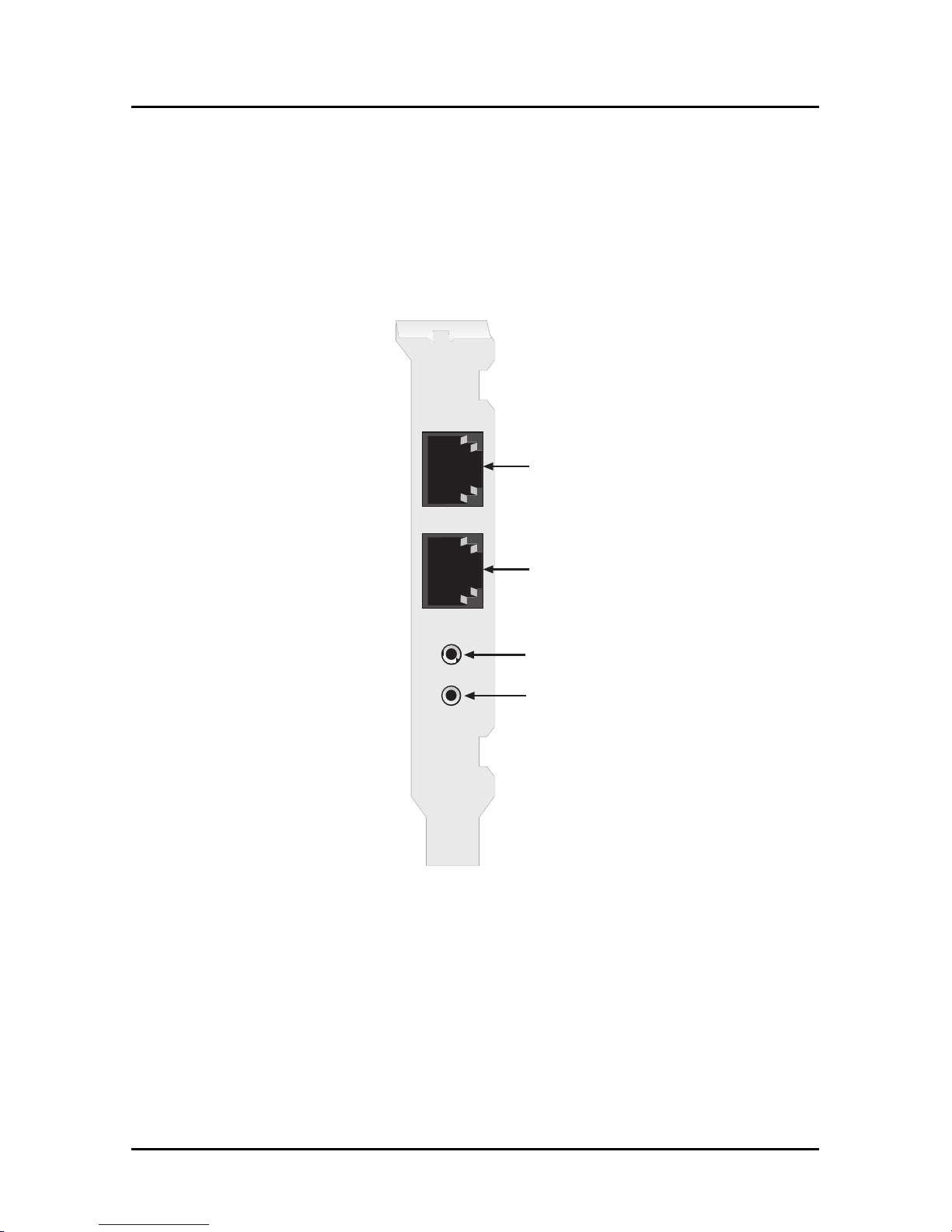
The MultiModemZPX-PCI offers a voice port which allows you to
connect your adapter to a microphone and speaker . The
microphone can be used for recording answering machine
messages or for speakerphone use. The speaker can be used for
playing back messages or as a speakerphone.
LINE OUT
MIC IN
LINE
PHONE
MT5634ZPX-PCI
1. Plug one end of the supplied modular telephone cable
into the LINE jack.
2. Plug the other end of the telephone cable into a
working wall jack.
3. You may connect a telephone to the modem’s PHONE
jack.
Page 11

Hardware Installation
11
Note: The LINE jack is not interchangeable with the
PHONE jack. Do not plug a phone into the LINE jack or
the line cable into the PHONE jack.
4. To use a microphone with your adapter, insert the
microphone plug into the MIC IN jack.
5. To use a speaker or headphone with the modem, insert
the speaker or headphone plug into the LINE OUT
jack.
Sound Card Considerations
If you want speakerphone functions and the ability to record sound
or .WAV files through the sound card at the same time, you need:
• T wo stereo PC microphones
• One stereo male-to-male patch cord
• One sound card and optional speakers
To connect a third party sound card:
1. Obtain a stereo male-to-male patch cord (can be
purchased at a local PC retail store).
2. Place one end of the stereo male-to-male patch cord
into the LINE OUT jack of the MultiModemZPX-PCI
and the other end into the LINE IN jack of the sound
card. This allows you to hear the activity of the modem
whether it is originating or answering a call, or playing
a recorded message.
3. Place the stereo microphones (do not use mono
microphones) far enough apart from each other to
eliminate feedback (e.g., one on each side of the
monitor). Make sure speakers are amplified with a
power source (either a battery or electrical outlet).
Plug the connector of both microphones into the MIC
IN jack of the SoundCard and the MT5634ZPX-PCI.
Page 12

MT5634ZPX-PCI Quick Start Guide
12
Installing Software
Windows 95
After installing the MT5634ZPX-PCI in your computer , turn the
computer power on and allow Windows 95 to start up. As your
computer boots, it automatically detects the MultiModemZPX-PCI,
and the New Hardware Found dialog box displays.
1. Insert the MultiModemZPX-PCI System CD into your
computer’s CD-ROM drive and click Next>. Windows
begins searching for the driver .
2. Next Windows indicates it has found an updated driver
for Multi-Tech System’s MT5634ZPX-PCI. Click
Finish to complete the modem driver installation.
3. The New Hardware Found Wizard displays and
indicates it has found the Wave Device for Voice
Modem. Click Next> to allow Windows to search for
the driver . After installing the voice modem drivers,
click Finish to complete the installation and return to
the Windows 95 desktop.
Note: Once you’ve completed your hardware and driver
installation, you must configure your modem for countryspecific operation. Refer to “Initial Setup & Country
Selection” on page 29 for configuration instructions.
Page 13

Software Installation
13
Windows 98
After installing the MT5634ZPX-PCI modem in your computer , you
are ready to turn the computer power on and allow Windows 98 to
start up. Windows 98 automatically detects the MultiModemZPXPCI modem.
1. The Add New Hardware Wizard dialog box displays
indicating the Wizard is searching for new drivers for
the PCI Communications device. Click Next> to begin
the installation.
2. Next, the Hardware Wizard requests a response to the
question, “What do you want Windows to do?”
Select Search for the best driver for your device,
and click Next>.
3. The Add New Hardware Wizard indicates that
“Windows will search for new drivers in its driver
database on your hard drive and in any of the following
selected locations”.
4. Insert the MT5634ZPX-PCI System CD into your
computer’s CD-ROM drive and select CD-ROM drive.
Click Next>.
5. When prompted, choose to install the updated driver
for Multi-Tech System’s MT5634ZPX-PCI and click
Next>.
6. The Insert Disk dialog box displays indicating the file
56ZPX.CAT
cannot be found. Click Skip File to
continue the installation.
7. When prompted, click Finish to complete the modem
driver installation.
8. The Add New Hardware Wizard dialog box displays
indicating the Wizard will search for new drivers for the
Wave Device for the Voice Modem. Click Next>.
9. Select Search for the best driver for your device
and click Next>.
Page 14

14
MT5634ZPX-PCI Quick Start Guide
10.Select CD-ROM drive and click Next>.
11.Windows indicates it has found the driver for the Voice
Modem. Click Next> to continue.
12.When prompted, click Finish to display the Windows
98 desktop.
Note: Once you’ve completed your hardware and driver
installation, you must configure your modem for countryspecific operation. Refer to “Initial Setup & Country
Selection” on page 29 for configuration instructions.
Page 15
Software Installation
15
Windows NT
•
Make sure Windows NT Service Pack 3 or newer is
installed on your computer before beginning the
installation.
•
Y ou must be logged on to your system with
Administrative privileges which allow you to add and
remove devices.
After installing the MT5634ZPX-PCI adapter in your computer , turn
the computer power on and allow Windows NT to start.
1. Insert the MultiModemZPX-PCI CD into the computer’s
CD-ROM drive.
2. From the CD-ROM menu, choose Windows NT
Setup.
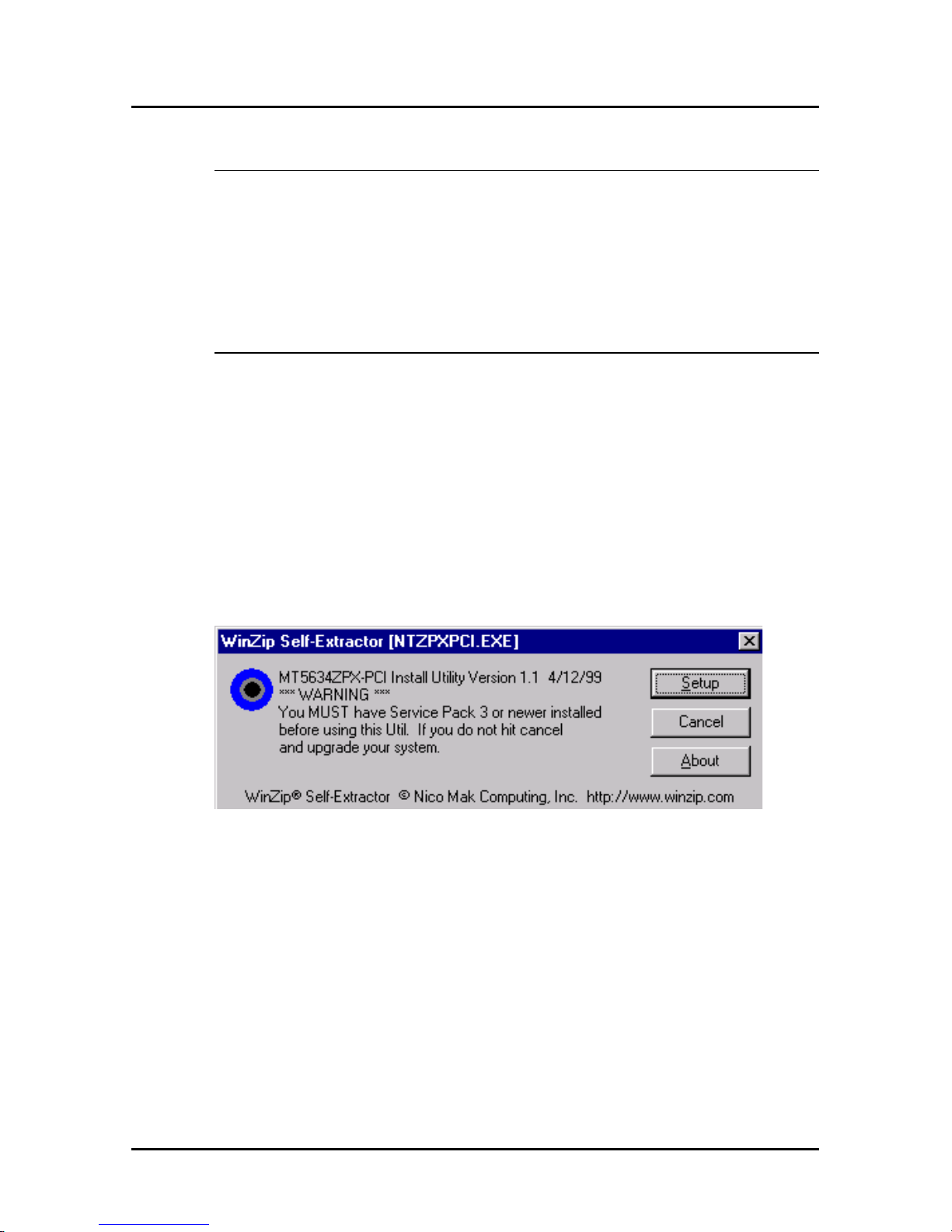
3. The WinZip Self Extractor (NTZPXPCI.EXE) dialog
box displays.
Click Setup to begin the installation.
4. Wait while the self-extracting zip file copies the
installation files to a temporary directory on your hard
drive.
Page 16
16
MT5634ZPX-PCI Quick Start Guide
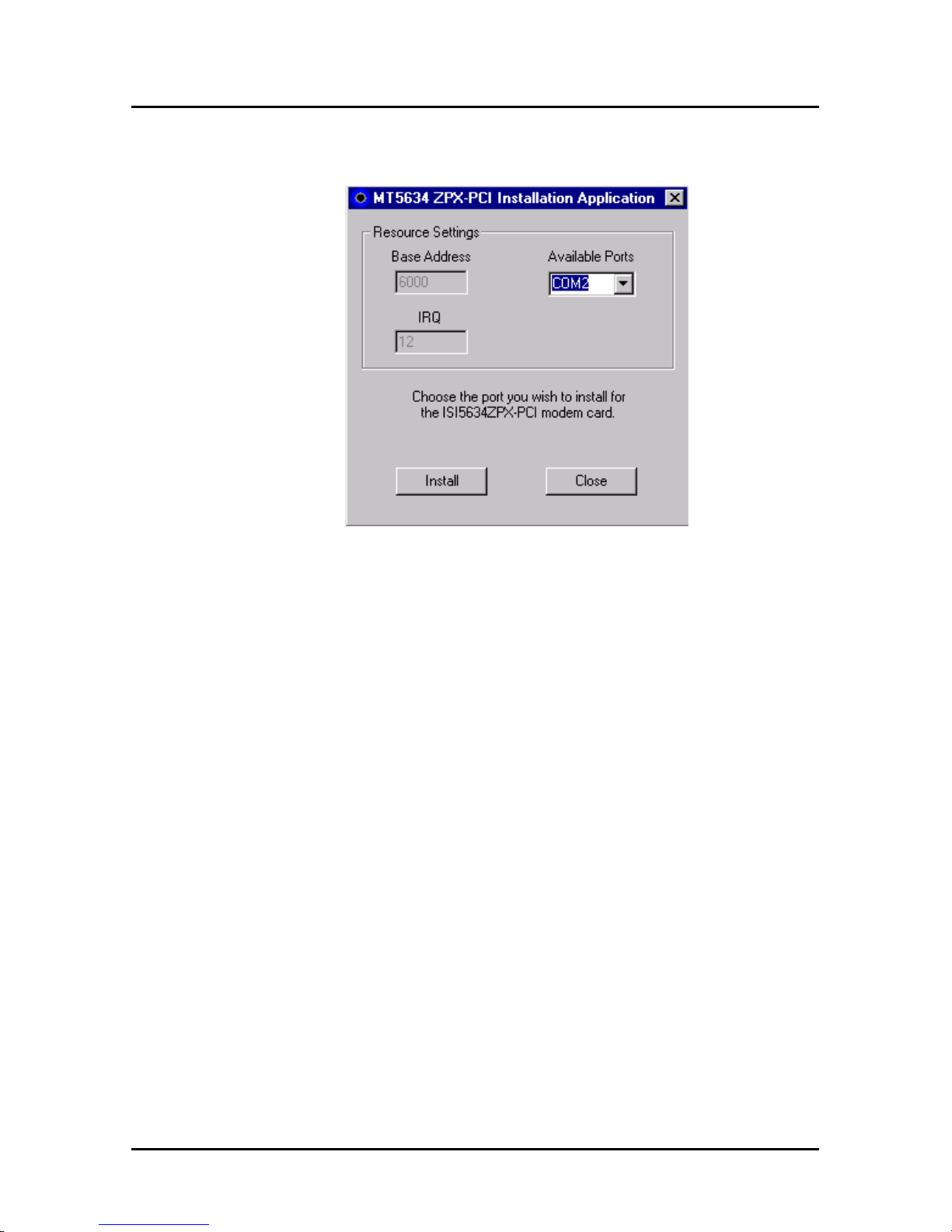
5. The installation program detects the MT5634ZPX-PCI
and displays the current resource settings.
6. An available COM port is assigned to the modem. You
may change the COM port assignment by either typing
in or selecting an unused COM port from the list.
Remember , or write down the COM port number for the
modem; you’ll need to know it later when you install the
modem to that port.
Com Port ________
7. Click Install. The program indicates that the
installation is complete. Click Close.
8. Remove the CD from the CD-ROM drive and restart
your computer .
After Windows NT restarts, you’ll need to install the drivers for the
modem.
1. Select Start | Settings | Control Panel. Double-click
the Modems icon.
a. If no modems have been previously installed on the
computer , the Install New Modem dialog box displays.
Page 17
Software Installation
17
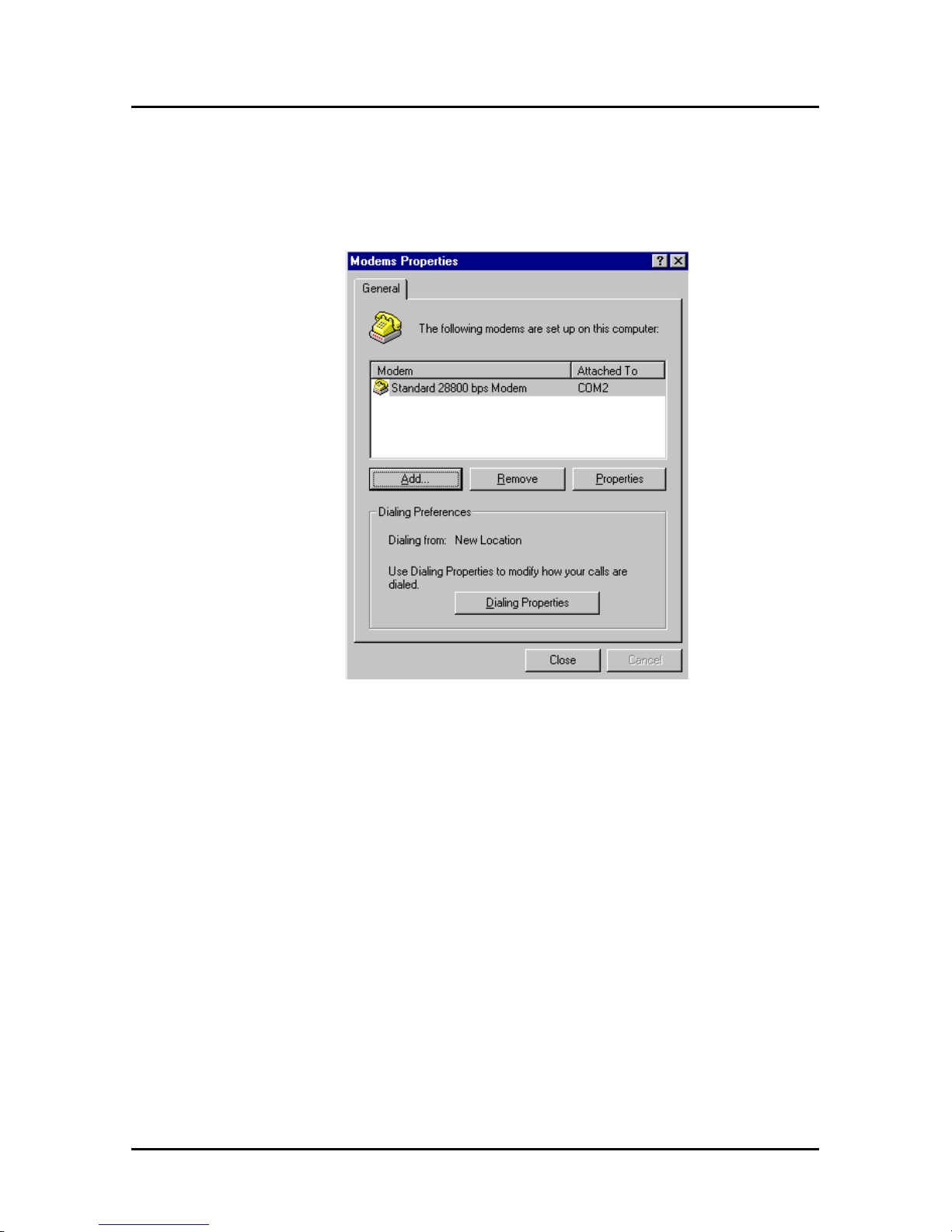
b. If one or more modems have been installed
previously, the Modems Properties dialog box
displays.
2. In the Modem’s Properties dialog box,
click Add.
Page 18
18
MT5634ZPX-PCI Quick Start Guide
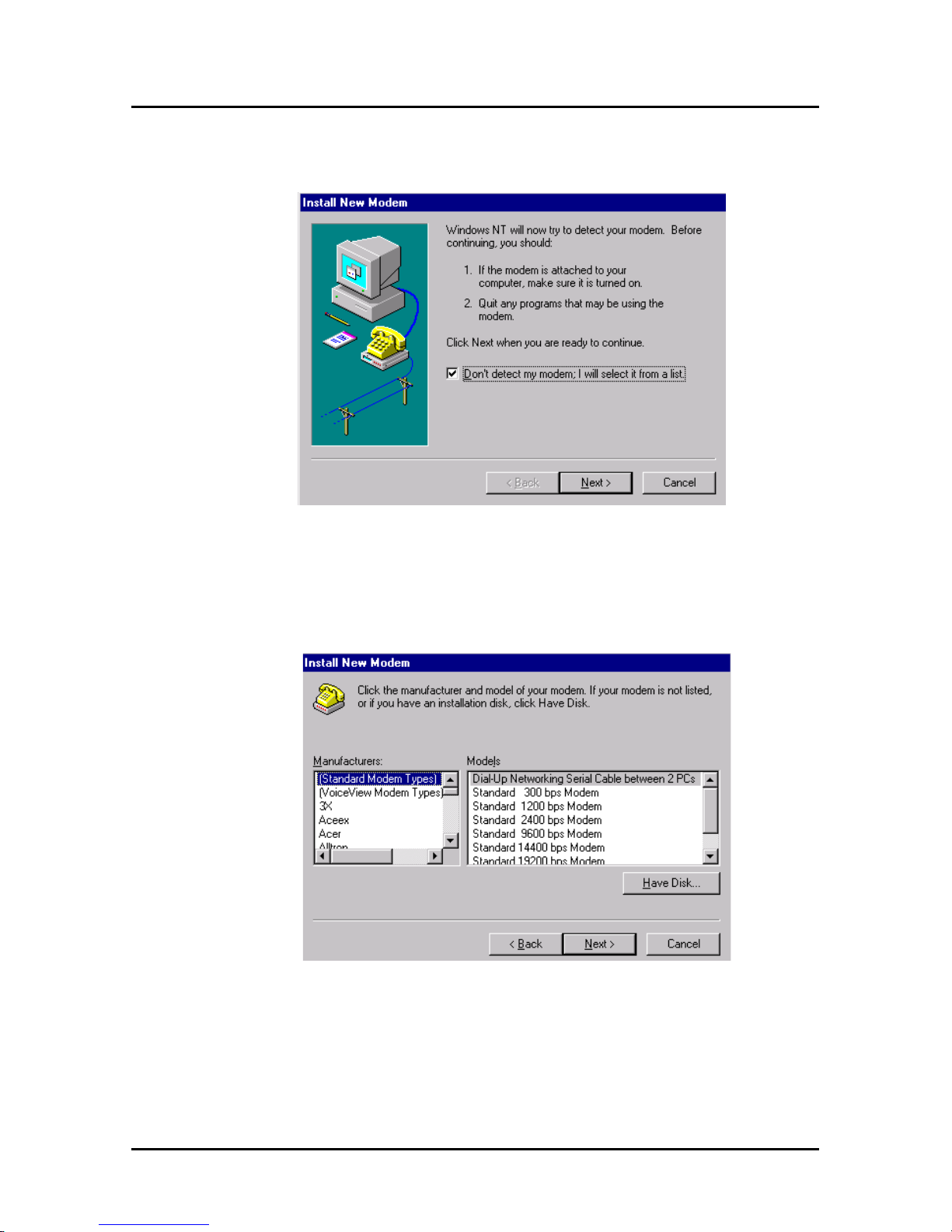
3. In the Install New Modem dialog box, check Do not
detect my modem; I will select it from a list.
Click Next>.
4. The Install New Modem dialog box displays listing
modem manufacturers and Models.
Click Have Disk....
5. In the Install From Disk dialog box, type the path for
the computer’s CD-ROM drive containing the driver
files (e.g., D:\). Insert the System CD into the CDROM drive and click OK.
Page 19
Software Installation
19
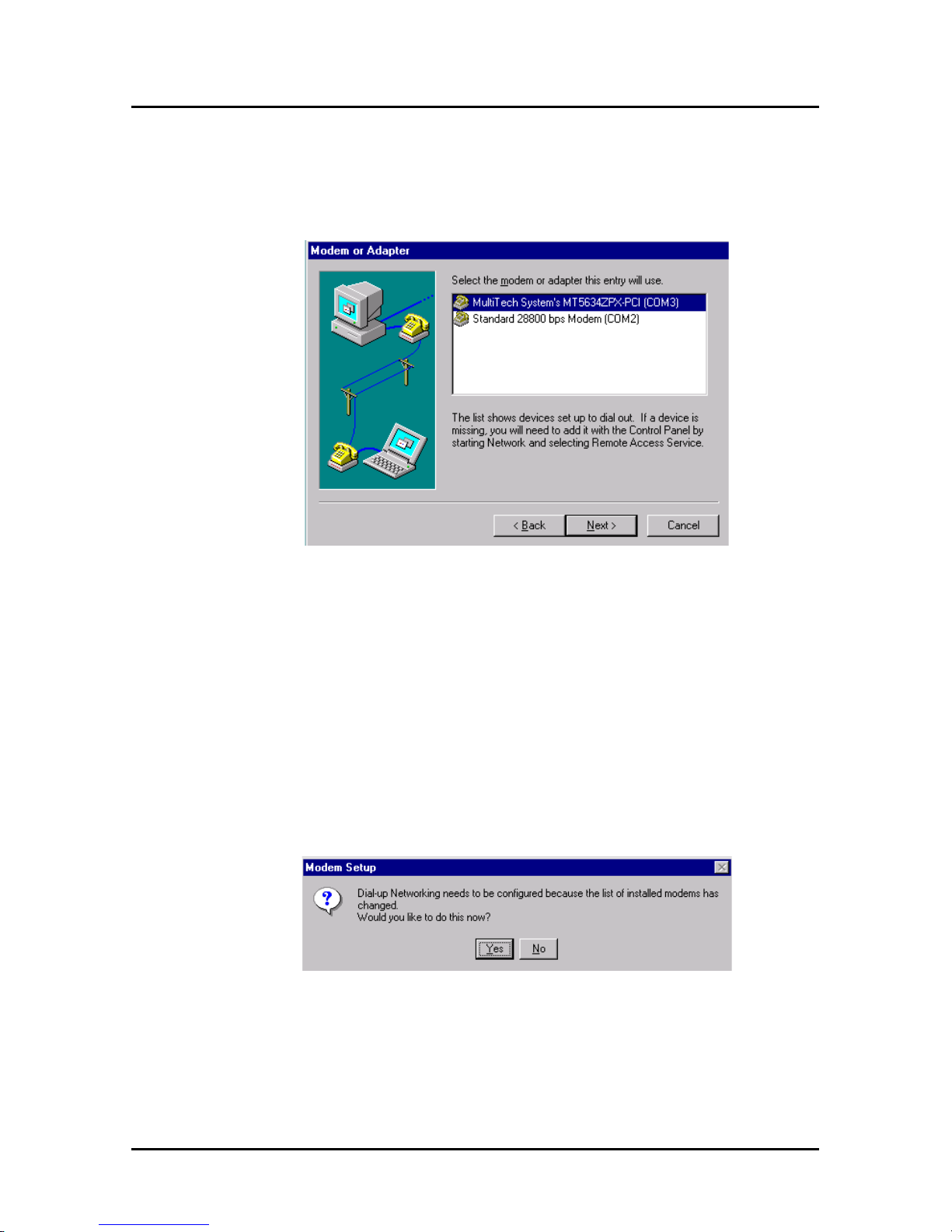
6. In the Modem or Adapter dialog box, select the MultiTech System’s MT5634ZPX-PCI device installed on
the COM port identified by the Windows NT Setup
Utility (see Step 6 on page 16).
Click Next>.
7. The final dialog box displays indicating your modem
has been set up successfully. Click Finish.
8. The Modem Properties dialog box displays. Click
Close.
9. Next, the Modem Setup dialog box displays indicating
that Dial-up Networking needs to be configured
because the list of modems has changed.
Click Yes to begin Remote Access Setup.
Page 20
20
MT5634ZPX-PCI Quick Start Guide
Setting up Remote Access
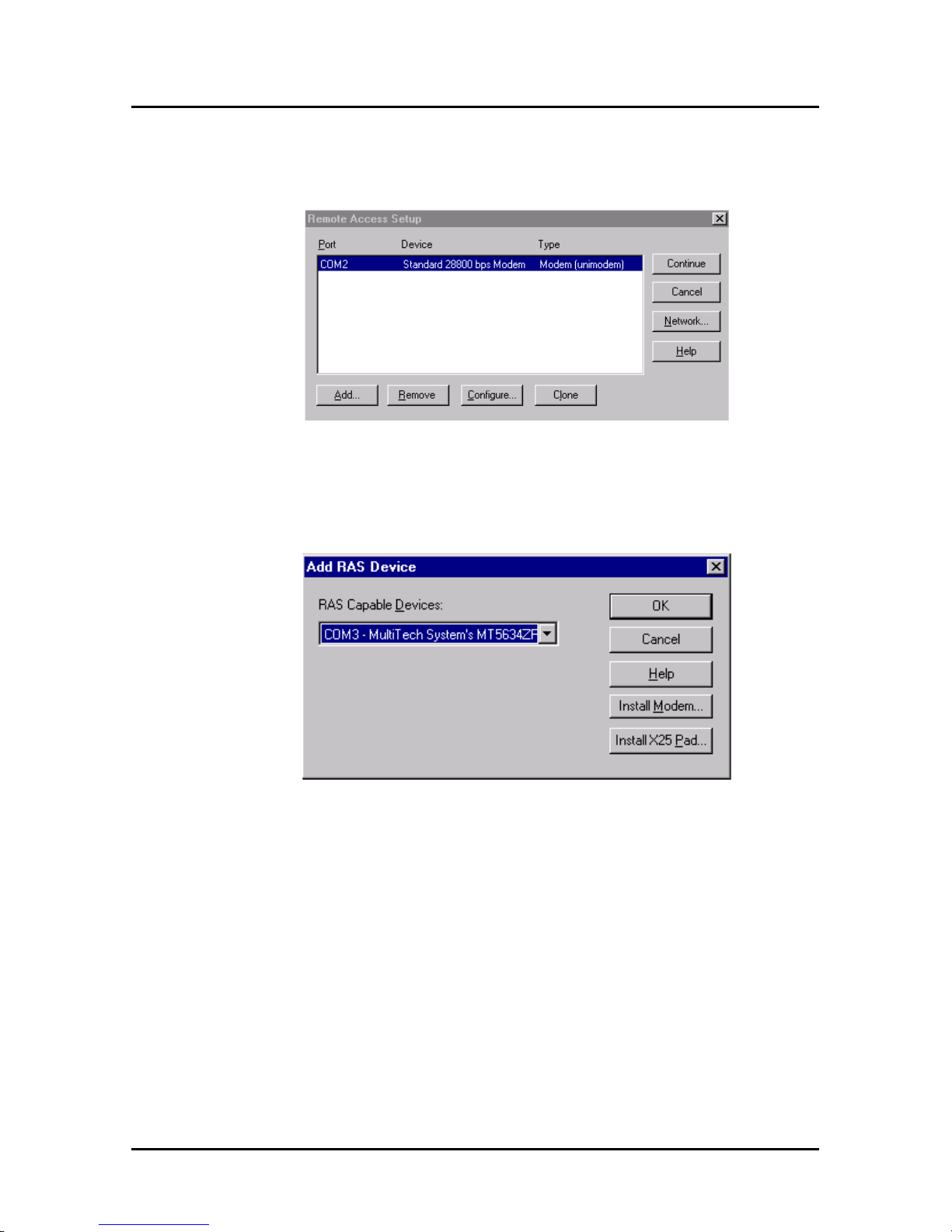
1. The Remote Access Setup dialog box displays.
2. Click Add.
3. The Add RAS Device dialog box displays. Select
Multi-Tech System’s MT5634ZPX-PCI from the list
box.
Click OK.
4. From the Remote Access Setup dialog box, highlight
Multi-Tech System’s MT5634ZPX and click
Configure.
5. In the Configure Port Usage dialog box, select Dial
out only, Receive calls only or Dial out and Receive
calls, depending upon how this phone line will be
used. Click OK.
Page 21

Software Installation
21
6. The Remote Access Setup dialog box displays
again. Click Continue.
The system processes the new information and the Network
Settings Change dialog box displays. Select Yes to restart your
computer.
Note: Once you’ve completed your hardware and driver
installation, you must configure your modem for countryspecific operation. Refer to “Initial Setup & Country
Selection” on page 29 for configuration instructions.
Page 22
22
MT5634ZPX-PCI Quick Start Guide
Windows 2000
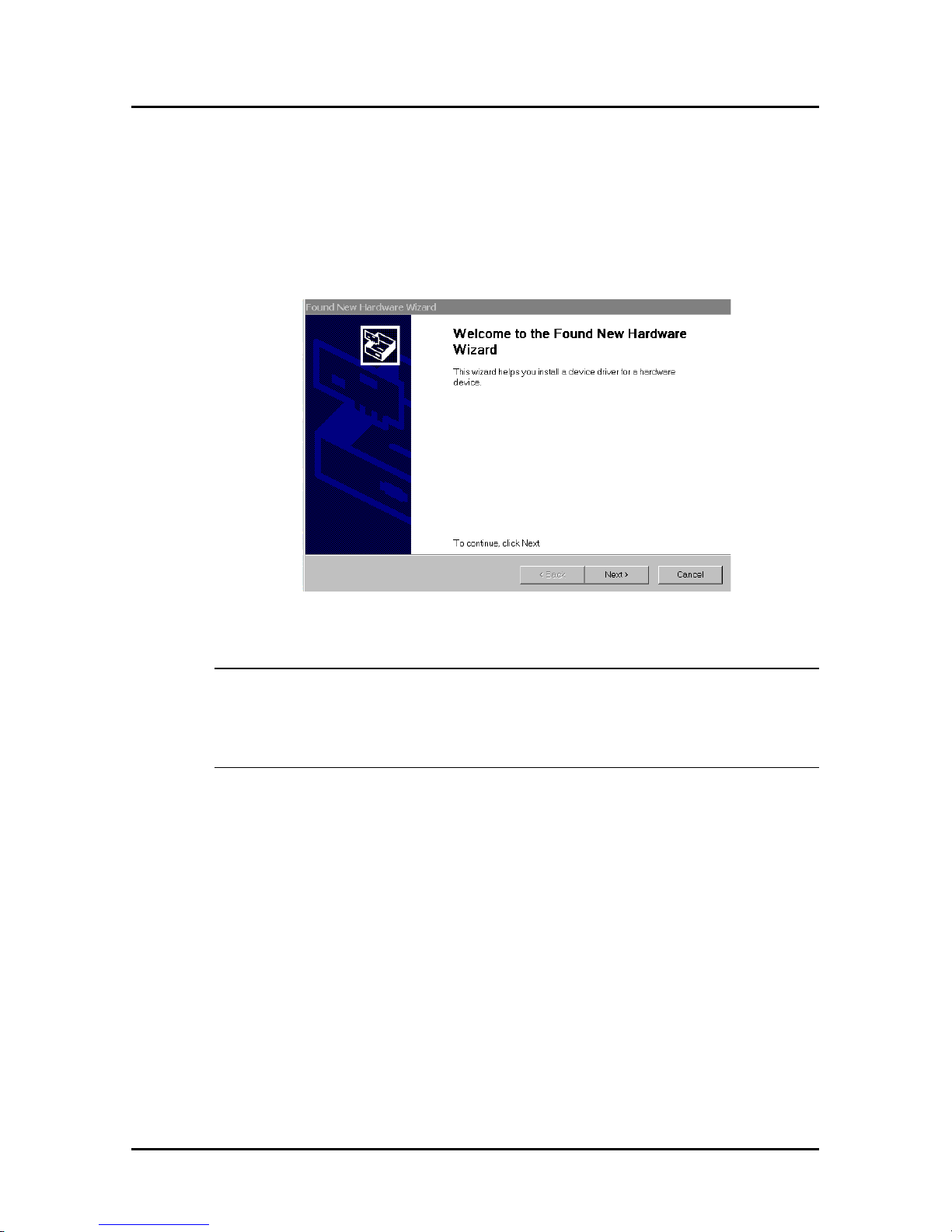
After installing the MT5634ZPX-PCI adapter in your computer , turn
the power on and allow Windows 2000 to start. When Windows
2000 starts, it should auto-detect a new Plug-and-Play adapter
and display the Found New Hardware Wizard.
1. Press Next> to begin the driver installation.
Note: If the Microsoft Digital Signature Not Found dialog
box displays at any point during the installation process,
select Yes to continue the installation.
Page 23
Software Installation
23
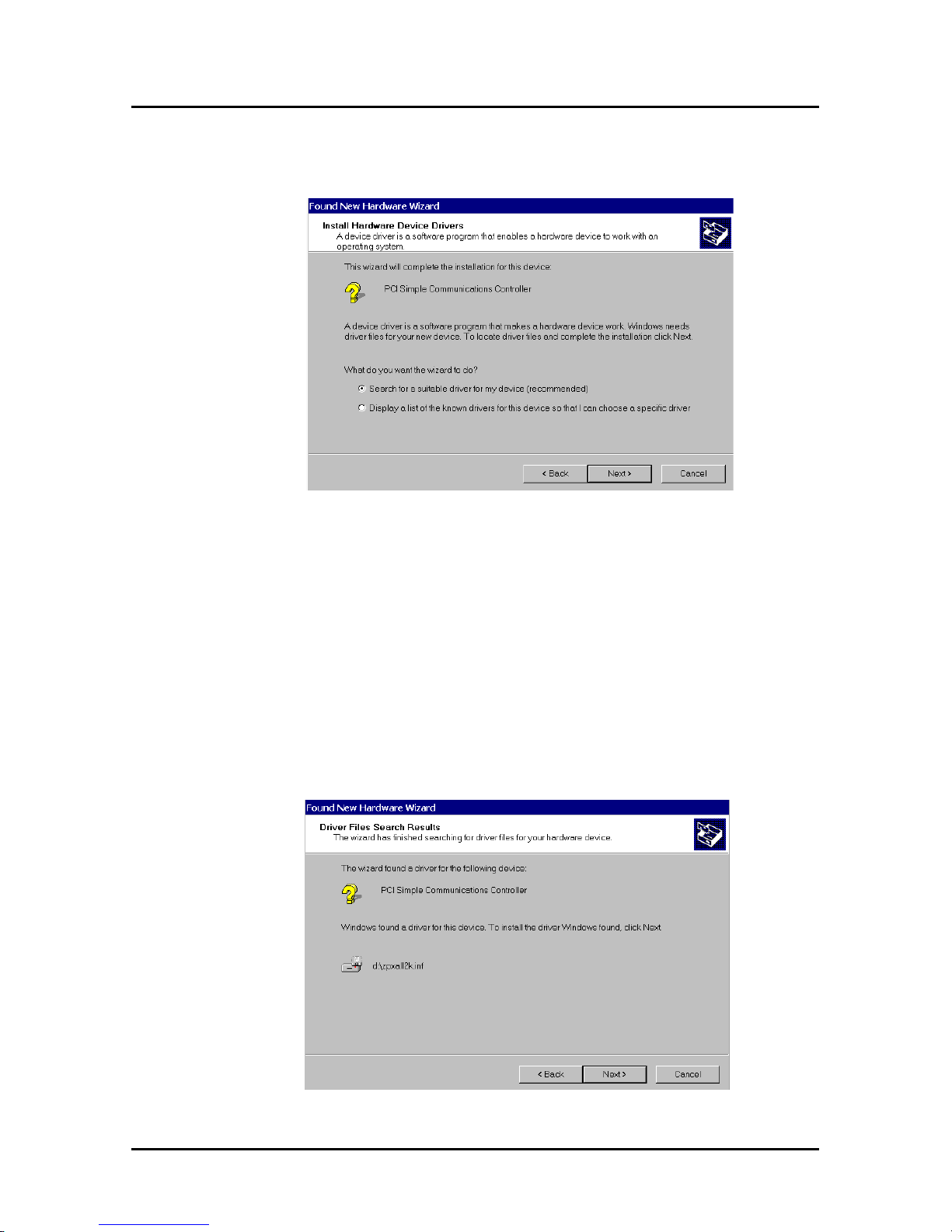
2. In the Install Hardware Device Drivers dialog box,
select Search for a suitable driver for my device.
Press Next>.
3. The Driver Files Search Results dialog box displays.
Select the CD-ROM drives check box.
4. Insert the MT5634ZPX-PCI System CD into the CDROM drive and click Next>.
5. The Driver Files Search Results dialog box displays
indicating Windows has found a driver for this device.
Click Next>.
Page 24

24
MT5634ZPX-PCI Quick Start Guide
6. The Completing the Found New Hardware Wizard
dialog box displays indicating Windows has finished
installing the software for this device. Click Finish to
close the Wizard.
Note: Once you’ve completed your hardware and driver
installation, you must configure your modem for countryspecific operation. Refer to “Initial Setup & Country
Selection” on page 29 for configuration instructions.
Page 25

Software Installation
25
Linux
This procedure is based on the 2.2.x kernal.
After installing the MultiModemZPX-PCI into an open PCI slot in
your computer , turn the power on and allow the operating system
to boot to the command prompt.
1. Log on as root.
2. Determine the resources used by the modem by
typing the following command:
cat /proc/pci or the command less /proc/pci
Look for the entry listing vendor id=1 1c1 and device
id=480. Note the IRQ the device uses as well as the
first I/O address listed.
An example of the output looks like this:
Non-prefetchable 32 bit memory at 0x00000000
Bus 0, device 17, function 0:
Communication controller:Unknown vendor Unknown
device (rev 0)
V endor id=11c1 Device id=480
Medium devsel. Fast back-to-back capable.
IRQ 1 1 . Master Capable. No bursts.
Min GNT=252.Max lat=14
Non-prefetchable 32 bit memory at 0xe4000000
I/O at 0x6400
I/O at 0x6800
I/O at 0x6c00
3. Using the IRQ and first I/O address from the output
obtained in
Step 2
above, type the following
command;
setserial /dev/ttySx uart 16550A port y irq z
(where x=the serial device you want to use, y= the I/O
address and z= the IRQ)
( e.g.,setserial /dev/ttyS2 uart 16550A port 0x6400
irq 1 1 )
Page 26

26
MT5634ZPX-PCI Quick Start Guide
Note: Your IRQ and Port may vary from this example.
Substitute the IRQ and Port values in the example with the
values for your computer as listed in the results of the
command issued in Step 2.
The previous setserial command will place the modem
on “COM3”.
ttyS0=com1
ttyS1=com2
ttyS2=com3
ttyS3=com4 etc,...
To set Linux to configure the modem at boot-up, use an editor
such as “jed” and add the setserial command to the end of the
rc.local file.
Note: Once you’ve completed your hardware and driver
installation, you must configure your modem for countryspecific operation. Refer to “Initial Setup & Country
Selection” on page 29 for configuration instructions.
Page 27

Software Installation
27
SCO OpenServer
This procedure was written for SCO OpenServer 5.0.x.
After installing the MT5634ZPX-PCI into an open PCI slot in your
computer , let the system start up.
1. Log in as root.
2. Determine the port address and IRQ for the modem by
typing: hw -r pci
To output the port address and IRQ information to a
file, type: hw -r pci>pci.txt
Caution: If you choose to output the information to a file,
make sure the output file name includes the .txt extension.
While logged on as “root”, the possibility exists that the
system file “pci” will be overwritten. By default, UNIX does
not ask if you want to overwrite a file.
3. Look at the ClassCode: 0x078000 (Other
communications device) section of the output. The
MT5634ZPX-PCI is identified as SubSystemID:
0x0480
4. Use the first I/O address listed as the port address. In
the output, look for:
BaseAddr [x]: I/O NxNNNN
where x is the first I/O base address (not memory) and
NxNNN is the I/O address.
5. Use Serial Manager (or mkdev serial) to add a serial
port. Choose IBM Com X for the new port, where X is
the number of the new port. Use the first I/O address
listed in the output file created in
Step 2
(BaseAddr
[x]:) as the port address.
6. Use the IRQ listed in the InterruptLine of the output
file created in
Step 2
.
Page 28

28
MT5634ZPX-PCI Quick Start Guide
7. Once the serial port has been added, the system will
require the kernal to be relinked. After the relinking is
complete, restart the system to activate the changes.
8. Log back on as root.
9. At this point, you may configure the modem as needed
on the new port and add required entries to Devices.
If you are using the modem to dial out, a Dialer may
be needed.
Note: Once you’ve completed your hardware and driver
installation, you must configure your modem for countryspecific operation. Refer to “Initial Setup & Country
Selection” on page 29 for configuration instructions.
Page 29
Initial Setup & Country Selection
29
Initial Setup & Country Selection
After completing your hardware and driver installation, you must
configure your modem for country-specific operation.
If you are using a non-Windows operating system, the modem
must be configured using AT Commands (see Chapter 5 of the
User Guide).
If you are using Windows 95, 98, NT or 2000, Multi-Tech’s
Global
Wizard
offers a quick and easy method for configuration.
Additional information about the Global Wizard can be found in
Appendix C of the User Guide.
To use the Global Wizard:
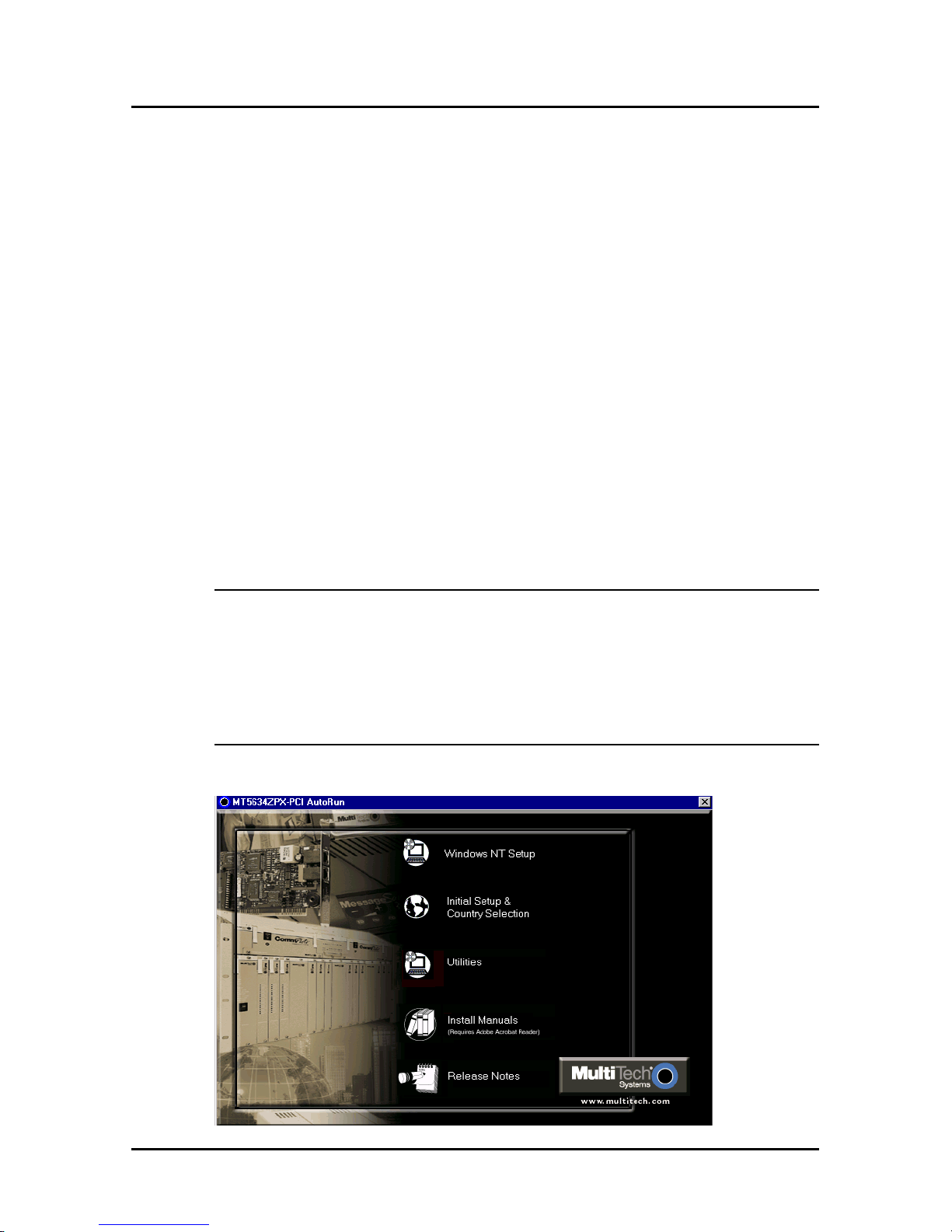
1. Ensure that the MT5634ZPX-PCI System CD is in
your CD-ROM drive. The MT5634ZPX-PCI AutoRun
dialog box displays.
Note: If the System CD remained in the CD-ROM drive
after completing the driver installation, the MT5634ZPX-
PCI AutoRun dialog box may not be displayed on the
desktop. If the dialog box is not displayed, click on the
CD-ROM icon in My Computer, or Windows Explorer.
2. Click the “Initial Setup & Country Selection” icon.
Page 30

30
MT5634ZPX-PCI Quick Start Guide
3. Select either Run GlobalWizard or Install
GlobalWizard. The Run GlobalWizard option runs
Multi-Tech’s
Global Wizard
configuration utility from
the CD. Install GlobalWizard installs the
configuration utility to your hard drive and adds the
Global Wizard
to your Start Menu.
4. During the configuration process you will be prompted
to select the country to configure the modem for .
Select the appropriate country from the list and follow
the remaining on-screen prompts to complete the
configuration. Your modem is ready to use.
Page 31

Initial Setup & Country Selection
31
Limited Warranty
Multi-Tech Systems, Inc. (MTS) warrants that its products will be
free from defects in material or workmanship for a period of ten
years from the date of purchase, or if proof of purchase is not
provided, ten years from date of shipment. MTS MAKES NO
OTHER WARRANTY, EXPRESSED OR IMPLIED, AND ALL
IMPLIED WARRANTIES OF MERCHANTABILITY AND FITNESS
FOR A PAR TICULAR PURPOSE ARE HEREBY DISCLAIMED.
This warranty does not apply to any products which have been
damaged by lightning storms, water , or power surges or which
have been neglected, altered, abused, used for a purpose other
than the one for which they were manufactured, repaired by the
customer or any party without MTS’s written authorization, or used
in any manner inconsistent with MTS’s instructions.
MTS’s entire obligation under this warranty shall be limited (at
MTS’s option) to repair or replacement of any products which
prove to be defective within the warranty period, or , at MTS’s
option, issuance of a refund of the purchase price. Defective
products must be returned by Customer to MTS’s factory
transportation prepaid.
MTS WILL NOT BE LIABLE FOR CONSEQUENTIAL DAMAGES
AND UNDER NO CIRCUMSTANCES WILL ITS LIABILITY
EXCEED THE PURCHASE PRICE FOR DEFECTIVE
PRODUCTS.
Technical Support
Multi-Tech has an excellent staff of technical support personnel
available to help you get the most out of your Multi-Tech product.
Refer to your MultiModemZPX-PCI User Guide for Warranty and
Service information.
Page 32

82095520
 Loading...