

Page 1
www.mobiletoutterrain.com
Super Robust User Manual
GSM Quad-band Digital
mobile phone
EN
Page 2

CERTIFICATE OF COMPLIANCE
Hereby, ADAR, located in Toulouse - FRANCE declares that
the above equipment M.T.T. Super Robust complies with the
essential requirements of the 1999/5/EC Directive of the
European Parliament and of the Council of 09 March 1999
relating to radio and telecommunications terminal equipment,
including the mutual recognition of their conformity.
(Full certificate on the website: www.mobiletoutterrain.com).
WARNINGS AND PRECAUTIONS
Do not use the mobile phone while driving and follow any
rules or regulations in hospitals and health care facilities. Do
not use the mobile phone in gas stations or professional
garages.
The mobile phone may interfere with medical equipment
(pacemakers, insulin pumps, Spinal cord stimulators,...) :
keep the mobile phone at least 15 cm away from the implant.
To reduce your body's exposure to mobile phone radiations
we recommend the use of a hands-free device, particularly in
a underground carpark or travelling by car/train.
Warning : pregnant women keep the telephone away from
the abdomen and that adolescents keep it away from the
lower abdomen.
Page 3
EN
01
SUPER ROBUST USER MANUAL
SIM
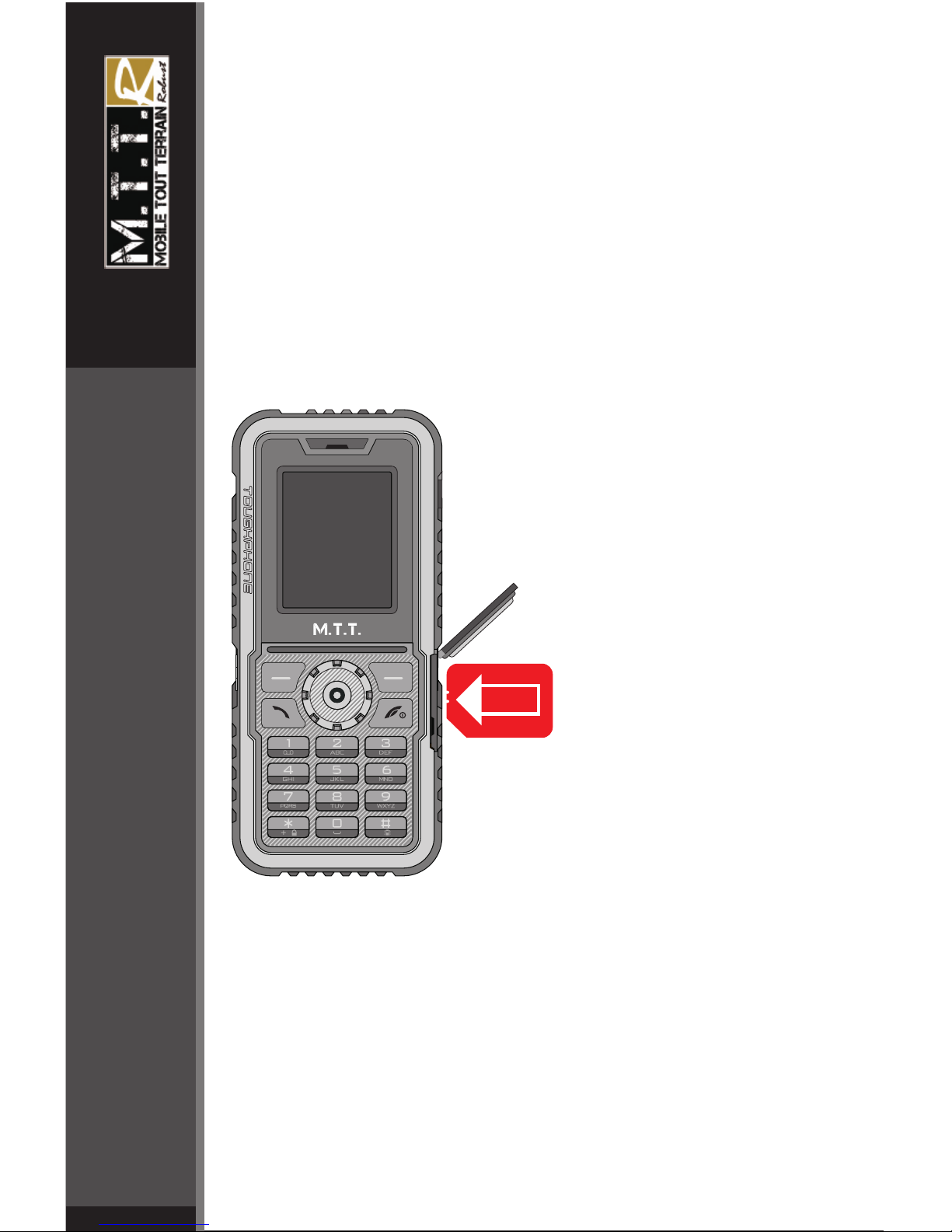
Please make sure the SIM card is inserted into the cell
phone exactly in the same direction as the image above.
Each time the SIM card is inserted into the slot, the
phone should be power on again, otherwise the phone
will not detect the SIM.
WELCOME
Thank you for purchasing M.T.T. Super Robust Mobile
Phone. This userguide describes the basic functions of
Super Robust to help you better use this phone.
Insert SIM Card instruction
Page 4
EN
02
SUPER ROBUST USER MANUAL
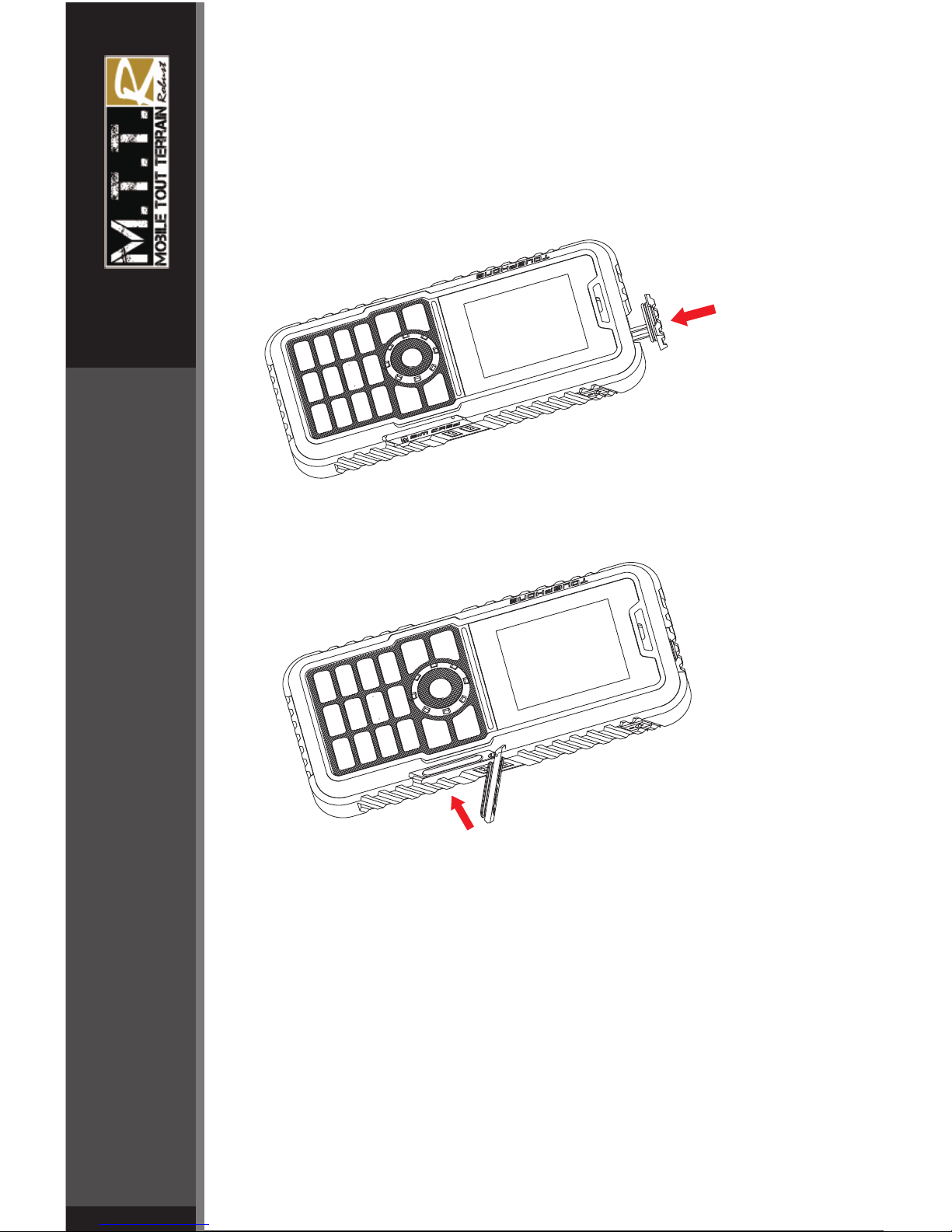
Instruction on waterproof performance
To ensure phone is waterproof , make sure the rubber
cover on USB interface and SIM Card are tightly closed
before contact with water.
EN
Page 5
EN
03
SUPER ROBUST USER MANUAL
EN
Page 6
EN
04
SUPER ROBUST USER MANUAL
EN
Page 7
EN
05
SUPER ROBUST USER MANUAL
EN
Page 8

EN
06
SUPER ROBUST USER MANUAL
EN
◆ Don’t expose your phone to dust, dirt, sand, food, or other
inappropriate materials. Do not drop, knock, or shake the phone.
Rough handling can break internal circuit boards.
◆ In a thunderstorm, do not use the phone while charging, or
use the phone outdoors, to avoid being struck by lightning or
other damage.
◆ Do not leave the battery in hot places, it may cause fire or
explosion.
◆ Do not store or carry flammable liquids, gases, or explosive
materials in the same compartment as the phone, its parts, or
accessories.
◆ Remember to follow any special regulations in force in the
area you are in, and always switch off your phone whenever it is
forbidden to use it, or when it may cause interference or danger.
◆ Do not put the phone in or on heating devices, such as a
microwave oven, stove, or radiator. The phone may explode
when overheated.
◆ Do not attempt to open the phone’s casing. Non-expert
handling of the phone may cause damages to your phone. If the
phone or any of its accessories are not working properly, take
them to your nearest qualified service center. The personnel
there will assist you, and if necessary, arrange for the phone to
be repaired.
◆ Use only accessories and charging devices approved by the
phone manufacture! Otherwise you risk serious damage to
health and property. The battery could explode, for instance.
◆ Do not short-circuit the battery. Accidental short-circuiting can
occur when a metallic object like a coin, clip or pen causes a
direct connection between the + and – terminals of the battery
(metal strips on the battery). For example, do not carry a spare
battery in a pocket or bag where the battery may contact metal
objects. Short-circuiting the terminals may damage the battery or
the object causing the short-circuiting.
◆ The battery can be charged and discharged hundreds of
times, but it will gradually wear out. When the operation time is
noticeably shorter than normal, it is time to buy a new battery. Do
not continue to use the broken USB data cable or battery
charger.
◆ If you use any other personal medical devices, consult the
manufacturer of your device to determine if it is adequately
shielded from external RF energy. Your physician may be able to
assist you in obtaining this information. Switch off your phone in
health care facilities when regulations posted in these areas
instruct you to do so.
Page 9

EN
07
SUPER ROBUST USER MANUAL
EN
◆
driving is your first responsibility. When using your wireless
phone while driving, follow local regulations in the country or
region you are in.
◆ Keep the phone and all its parts and accessories out of the
reach of small children and pets. They accidentally damage
these things or choke on small parts.
◆ Do not clean the phone while charging the phone. You may
be electric-shocked if you use the phone while charging the
phone with the USB data cable or the battery charger. Make sure
to disconnect the USB data cable or the charger before using the
phone.
◆ Do not use harsh chemicals, cleaning solvents, or strong
detergents to clean the phone. Wipe it with a soft cloth slightly
dampened in a mild soap-and-water solution.
◆ Dispose of worn out batteries and phone in accordance with
local provisions!
◆ Extreme heat or cold ;Avoid temperatures below 0°C/32°F or
above 40°C/104°F
Do not use mobile phones when driving. When driving a car,
Page 10

EN
08
SUPER ROBUST USER MANUAL
Getting started
You need to insert the SIM card and charge the battery before using the
phone.
Battery use
To extend the battery life of your device:
1. Use the standard wall charger to charge the battery for the first time.
2. During the first 3-4 charge cycles, charge the battery until the battery
indicator on the display stops scrolling.
3. Avoid partial charging. Also, wait for the battery to discharge
completely before charging it again.
4. Charge the battery using the USB cable only if the recommended wall
charger isn’t readily available.
5. Avoid keeping the device on vibrate mode.
Installing the battery
1.Mobile phones with built –in battery can by professional maintenance
engineers replacement. If using the wrong type of battery, may explode.
Please be sure to according to the manufacturer's instructions to handle
used batteries.
2.Replace the battery. Align the contacts of the battery with the
corresponding connectors in the battery compartment.
Charge the battery
To charge the device battery:
1. Take the USB cable from the device packaging, and attach it to
power adapter. Now connect the power adapter into a standard AC
wall outlet.
2. Connect the micro USB connector on the cable into its designated
port on the device (left side). The battery level indicator on the device
screen will start scrolling horizontally to indicate that the battery is
being charged.
NOTE: Exercise extreme caution while connecting the charger to the
device. The connectors on the charger and on the phone may get
damaged if too much force is applied while connecting them. If the
battery is completely discharged, it may take a while before the onscreen charging indicator starts scrolling.
3. When the battery is fully charged, the battery level indicator on the
device screen will stop scrolling horizontally. Once charging is
complete, disconnect the charger from the device, and then from the \
wall outlet.
EN
Page 11

EN
09
SUPER ROBUST USER MANUAL
SIM card information
When you subscribe to a cellular network, you receive a plug-in SIM
(Subscriber Identity Module) card loaded with your subscription details,
such as your PIN, and available optional services.
Be careful to handle, insert or remove the SIM card since the SIM card
and the contacts inside can easily be damaged by scratching or
bending.
Note:Before installing/removing the SIM card,
always make sure that the phone is switched off.
Installing the SIM card
Insert the SIM cards into their respective slots. Make sure that the
contact area on the cards is facing the connectors on the device.
Access codes
There are access codes for your SIM card. These codes help you to
protect the phone against unauthorized use.
When requested for any of the code explained below, key-in the
appropriate code (displayed as asterisks) and press the OK key.
PIN
The Personal Identification Number or PIN (4-8digits) protects your
SIM card against unauthorized use. The PIN comes with the SIM card;
see the SIM card instruction provided with your card.
If you enter an incorrect PIN three times in succession, the code will be
disabled and cannot be used until you re-enable it by entering the PUK.
PUK
The 8-digit PUK (Personal Unblocking Key) is required to change a
disabled PIN. The PUK may be supplied with the SIM card. If not, or in
case you have lost it, please contact your service provider.
To re-enable your PIN, proceed as follows.
1. Key-in the PUK and press the OK key.
2. Enter a new PIN of your choice and press the OK key.
3. When the Confirm New PIN message is displayed, key-in the
same code again and press the OK key.
If you enter an incorrect PUK ten times in succession, the SIM card
becomes invalid. Please contact your service provider for a new card.
Earphone
Connect the micro USB connector .
EN
Page 12
EN
10
SUPER ROBUST USER MANUAL
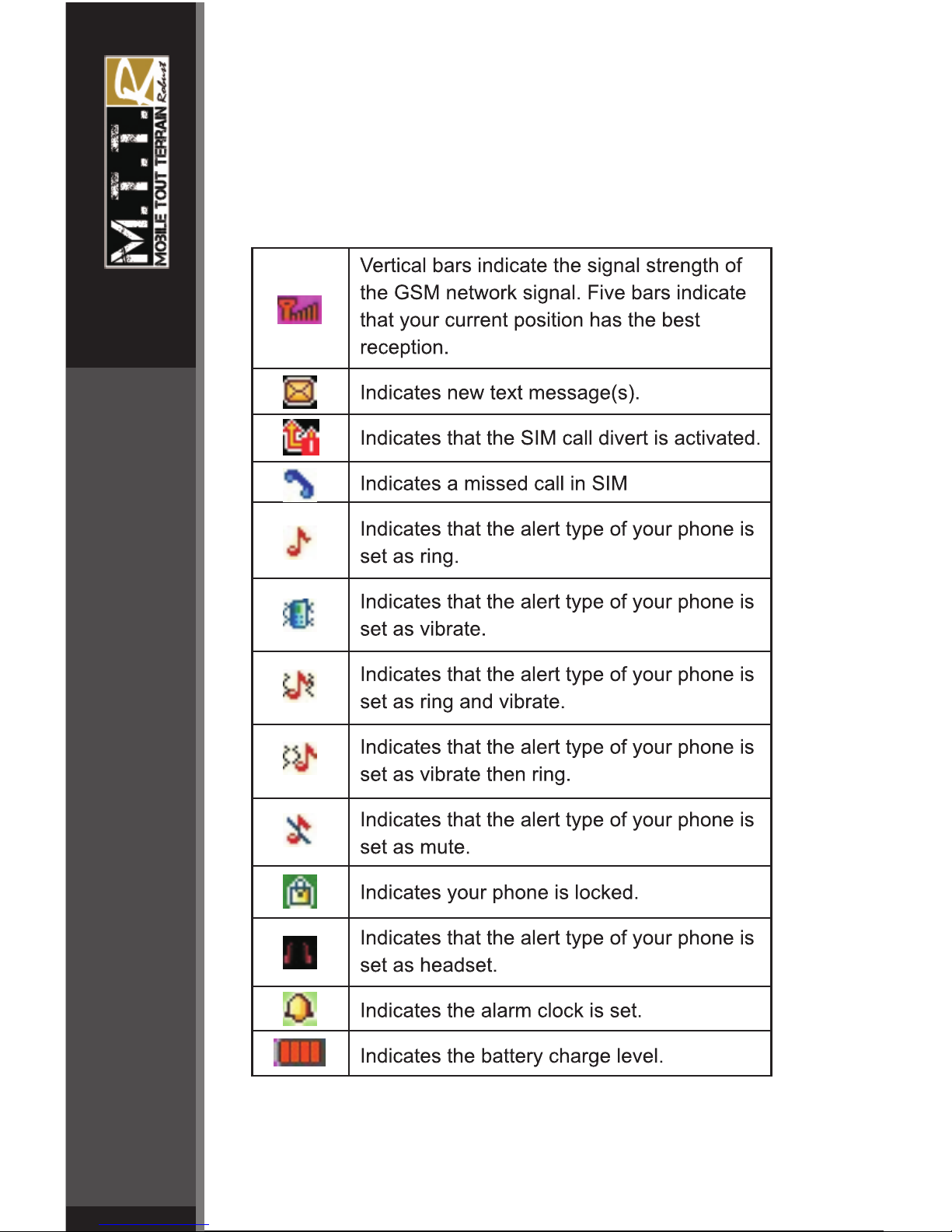
Standby mode
In the main display, you may see several icons displayed on your status
bar. The meaning for each icon is explained below:
EN
Page 13
EN
11
SUPER ROBUST USER MANUAL
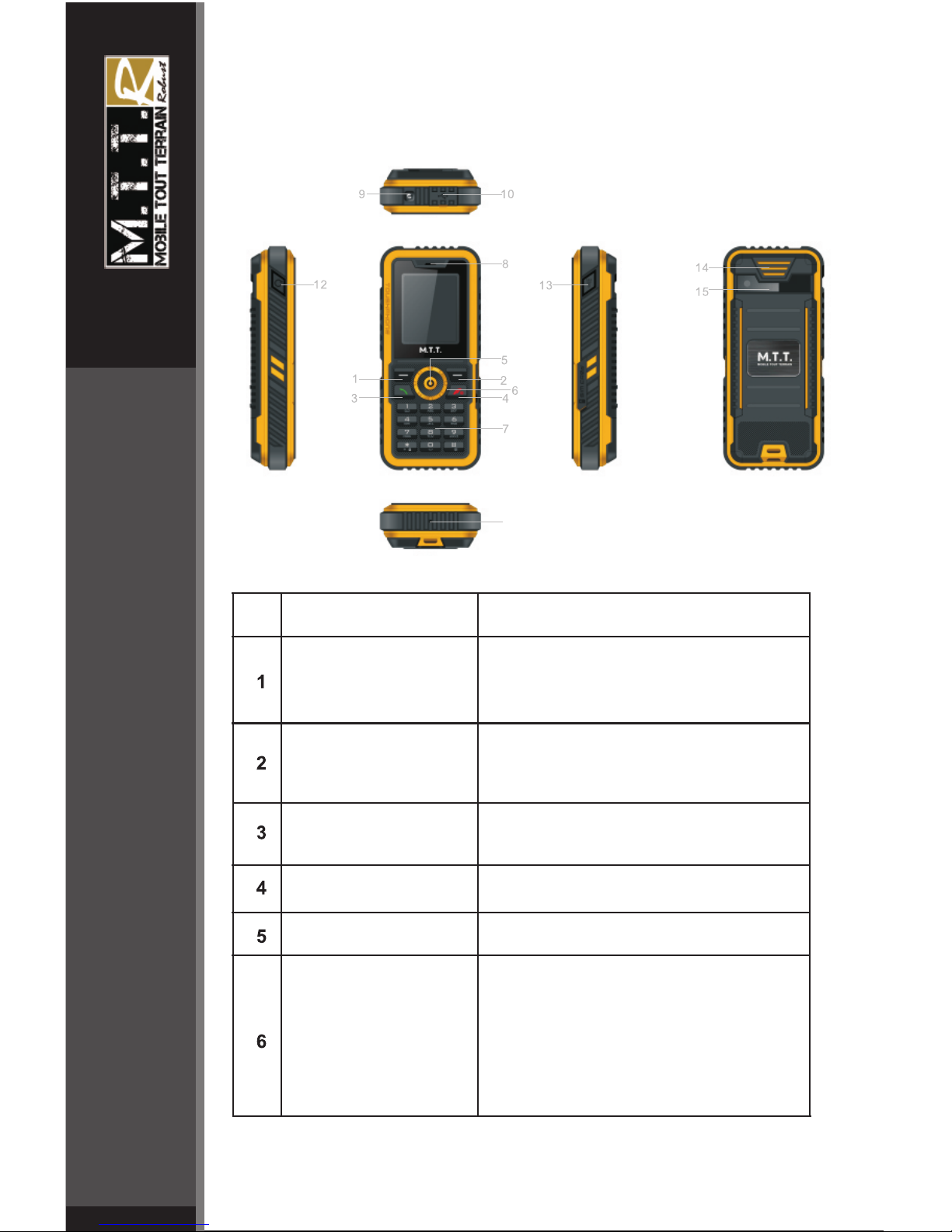
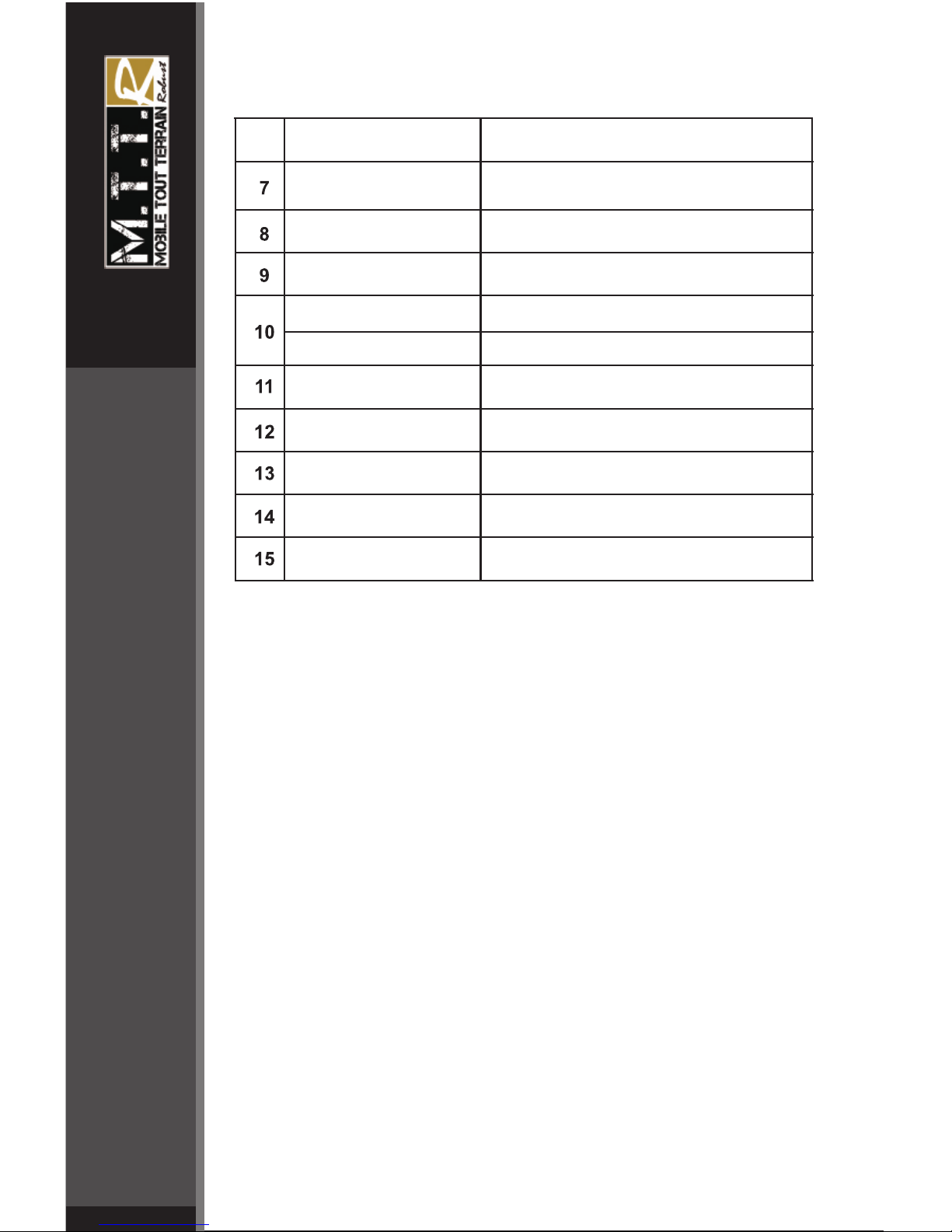
Phone layout
Key note
Left soft key
(LSK)
Right soft key
(RSK)
Send key
End key
Navigation
keys
OK key
N°
Functional Description
Press to perform the function currently
displayed in the lower left corner of the
screen. Long press to activate the
flashlight
Press to perform the function currently
displayed in the lower right corner of the
screen.
Press to make a call.
Hold to redial the last number called.
To hand up on a call during a call or
power on/off.
Confirm key
In the standby mode, quick access to
(Up key) QQ
(Left key) Music Player
(Right key) SMS
(Down key) MSN
Move the cursor to select the menu
you want.
EN
11
Page 14
EN
12
SUPER ROBUST USER MANUAL
Numeric keypad
receiver
USB port
Earphone jack
LED
viewfinder
loudspeaker
Input numbers or characters
receiver
Flashlight
USB port
Earphone jack
Mic
Reset button
Flashlight key to open
loudspeaker
viewfinder
Mic
Reset button
LED open
N°
Functional Description
Key note
Enter text
ABC, T9, Number, and Symbol modes
You can enter text in some features such as Messages, Phonebook,
or Calendar, using ABC mode, T9 mode, Number mode, and
Symbol mode.
You can enter text by pressing the alphanumeric keys on the phone.
Text Input Options:
While you are in text editing mode, you will be in several modes.
When you see [Option] and [Clear] in the soft key, press the soft key
(left) for option: you can save the entry or change the Text Input
Method. To erase a character, press the soft key (right) next to the
character you want to erase.
T9 Text Editing Mode
T9 Text Editing Mode is a predictive text input mode that allows you
to key in any character using single keystrokes.
While you are in T9 editing mode, press the alphanumeric key once
for one character. You will see T9 suggested words.
For example, press 4,3,5,5 and 6 key to enter “hello” in English word
mode. T9 predicts the word that you are typing, and it may change
with each key that you press. And press the [Select] soft key (left) to
select the word you want to write.
You can define the default Input Method of your phone and
change input methods time to time.
EN
Page 15

EN
13
SUPER ROBUST USER MANUAL
To define your preferred input method, go to Phone Setup sub menu
in Settings menu. Then select Preferred Input Method. Once you set
the preferred input method, next time you edit in text input mode, the
setting will be applied until you change to another.
If you want to change the text input method temporarily, in the text
input mode, press [Option] soft key, and select “Input Method” from
the option.
• You can change the text input method with the [#] key; the input
methods will swap when you press the [#].
• Press the [*] key to select Symbols.
• Press and hold the [*] key to activate silent profile mode..
• Press [1] to enter periods or apostrophes automatically.
• Press [0] to insert a space,long press to enter “+\p\w” in idle
screen..
Call functions
Make a call
This gives you information about the calling service supported in your
phone.In standby mode, key in the number, including the area code,
and press send key. Your phone will dial out based on your default dial
setting.
To make an international call
For international calls, long press [0] for the international prefix
(character +).Key in the country code, area code and the phone
number.Press send key to call.
To Make a call from the phonebook
In the standby mode, press right soft key (RSK) to enter Phonebook.
Scroll to the desired contact name or type the name in the input box,
and then press send key to make the call.
You can also press Menu and choose Phonebook submenu. Use
navigation keys to select Search option. You can directly select a
name from the phonebook list or enter the name in the quick search
field. Then press send key to make the call.
Answering or rejecting an incoming call
To answer the incoming call
• Press send key to answer the call.
To reject an incoming call
• Press end key to reject the call.
To send message (SMS) during a call or conference call
You are also allowed to send SMS during an incoming call.
• Select Options and Messages.
EN
Page 16

EN
14
SUPER ROBUST USER MANUAL
• Under Messages menu, select Messages and press OK. Select
Write Messages. For details on SMS, please see “To write a SMS”.
Call waiting
You can answer another incoming call while you have a call in
progress. During a call, press left soft key (LSK) to enter the Option
menu to hold the current call and switch to the new incoming call. You
can swap back anytime by pressing left soft key (LSK) again and select
Swap.
Make a conference call
You can make conference call while you have multi calls in progress.
1.In the standby mode, select SIM card.
2.Make a call to the first participant.
3.Press Options and call the second participant during an active call,
and select New call to make a new call during an active call.
4.Press LSK and select Conference. This joins the calls to the
conference.
5.Repeat steps 2 and 3 to allow new participants to be connected to
the conference call.
6.Press Options and select End All to end the call. Or press end key..
7.Any call (participant) can be disconnected by pressing Options and
select End single call.
Tips for call options
A call can be connected to any single caller by pressing Options. When
you press Options during an active call, you would have following
functions as listed in below:
• Hold single call: put a call on hold
• End single call: end a call.
• New Call: make a new call during an active call.
• Phonebook: shortcut to Phonebook menu.
• Messages: shortcut to Messages menu to write text message.
• Sound Recorder: to record your conversation during an active
phone call.
• Mute: set On/ Off to mute the call during the conversation.
• DTMF: set On / Off for DTMF (Dual Tone Multi-Frequency) tone
dialing system.
During a conference call, you can use the following functions also:
• Swap: switch between calls on hold and active.
• Conference: make a multi-party conversation.
• End all calls: end a multi-party call.
Main menu
To access Menu mode, press [Menu] in Idle mode.
Some menus are operator, network and subscription dependent.
EN
Page 17
EN
15
SUPER ROBUST USER MANUAL
Overview of menu functions
Phonebook
Messages
Call center
Settings
Multimedia
Organizer
FM radio
Basic menu
Phonebook
You can store phone numbers on your SIM card and in your phone’s
memory. The SIM card and phone’s memory are physically separate, but
they are used as a single entity called Phonebook. To access this menu,
press [Menu] in Idle mode and select Phonebook or press RSK key to
enter Phonebook .
Search
Search names and numbers saved in the Phonebook.
Select the one you wish to call, and press Send Key to make a call.
In the search mode, you might press key to change the input method.
Add New Contact
Use this menu to add a new contact to Phonebook, SIM card, private
phonebook.
Speed dial
If you assign the number to one of the speed dialing keys (from 2 to 9 )
saved in the phonebook list, you can call the phone number by long
pressing the key in the standby mode.
Blacklist
Allows you to filter and block incoming calls or messages.
Your phone provides the following options for Blacklist:
• Settings: Allows you to reject calls, SMS, and MMS from SIM card.
You can select to reject from the blacklist, accept only from contact, or
all.
EN
Page 18

EN
16
SUPER ROBUST USER MANUAL
• Blacklist: Allows you to add or edit phone numbers on the Blacklist.
Reject Log: Allows you to check reject log on calls or messages.
Copy All
Allows you to copy contacts among two different storage locations, such
as from Phone to SIM card or SIM card to Phone.
Move All
Allows you move all contacts information to different storage location.
Delete all contacts
You can delete all phonebook data in SIM card,or Phone.
Settings
Your phone provides you various setting options to personalize your
phone, including Owner number,Memory status,Preferred storage
and so on.
Messages
Use the Messaging menu to send and receive short messages and
multimedia messages. You can also use a voice-mail, MSN, and cell
broadcast message features. To access this menu, press [Menu] in Idle
mode and select Messages. Message functions are available depending
on network services that your service provider supports.
Write Message
Text Message
Use this menu to create and send a message.
Multimedia message
Use this menu to create and send a multimedia message.
Multimedia Message Service (MMS) delivers messages containing a
combination of text, image, and audio, from phone to phone or from
phone to e-mail.
Note:
• The maximum size allowed for a message can differ, depending on
your service provider.
• Depending on the file type or DRM (Digital Rights Management)
system, some files may not be able to be forwarded.
EN
Page 19

EN
17
SUPER ROBUST USER MANUAL
Inbox
This folder stores all of the messages you have received, except for emails.
Drafts
This folder stores messages you have saved to send at a later time.
Outbox
You can view the messages that the phone has failed to send.
Sent messages
This folder stores messages you have send.
Delete messages
This folder helps you to delete all messages in selected folder as Inbox,
Outbox, Draft and Delete All Folders.
Broadcast Message
This network service allows you to receive the broadcast messages on
various topics such as weather, traffic, local district code, local hospitals,
taxis or pharmacy in your area.
For more information about broadcast message topics, please contact
your service provider.
Note: This service may not be available on all networks. For more
information about the available subjects, please contact your network
service provider.
Message Settings
Within the Message Settings sub-menu, you can define default values on
common parameters for mobile-originated messages.
Call Center
Enter the call center menu, you can check out call history, setting general
call settings and setting auto answer and record. To access this menu,
press [Menu] in Idle mode and select Call center .
Call history
Use this menu to view the calls you have dialed, received, or missed, and
the length of the calls. You can also check the cost of your calls, if the
SIM card supports this function.
Missed calls
In Call Record menu, choose Missed Calls, and press OK to view the
records. This menu displays the most recent received calls that you did
not answer.
EN
Page 20

EN
18
SUPER ROBUST USER MANUAL
Dialed calls
This menu displays the most recent calls you have dialed.
Received calls
This menu displays the most recent calls you have received.
Delete Call Log
All call record can be deleted. You may select deletion of all latest talk
record or only missed calls, dialed calls or received calls in the checklist.
Call settings
This option enables you to set the general call settings of the phone.
The options are:
• Caller ID:–Set by network, Hide ID or Send ID.
• Call waiting: You can activate this function or deactivate it, and also
view the current settings via query.
• Call divert: You can set to forward the incoming call in different
conditions and enable to Activate/Deactivate call diversion and
check the Query status.
• Call barring: In order to activate this service, it requires the services
provided by the network service provider. When you change barring
password, you need to input the old password.
• Line switching: Enables you to touch Line ½ for the phone.
• Advanced settings:
• Auto redial : You can touch to redial the number automatically
when a call is not connected.
• Call time reminder : After setting this function to ‘on’, it will offer a
warning tone towards the single or periodic setting as your own
during the call process, so you will be reminded of the call time at
periodic intervals during a call.
• Reject by SMS : When this feature is enabled and you reject a call,
an SMS text message will be send to the calling party.
• Answer mode :. Including Cover answer any key(there are two
answer mode in the headset mode,they are any key,auto) .
Settings
The Settings menu provides you with various setting options to customize
the phone to your preferences and needs. You can also reset the settings
to their default values. To access this menu, press [Menu] in Idle mode
and select Settings.
User profile
The available profiles are General, Silent, Meeting, Outdoor, Headset,
and Bluetooth. You can also set the tone, volume, alert, ring, and so forth
EN
Page 21

EN
19
SUPER ROBUST USER MANUAL
with Options, Customize option, so that whenever you receive an
incoming call or a new message, you can customize the use of your
phone to different types of call environments.
Phone settings
You have following options listed under phone settings:
Date and Time:Let you set time zone, time and date, time and date
format and so forth on the phone.
Schedule power on/off: Let you set a particular time on the phone
when the phone should power on/off itself.
Language: This phone allows you to set a language for the display in
this phone.
Preferred input methods: This enables you to touch the text input
method.
Display settings: Under Display you can set a host of different
characteristics of the Wallpaper, Screen saver, standby mode.
Shortcut: The phone allows you to customize shortcuts for phone
functions frequently used. Press the navigation left key to enter Shortcut
menu.
Dedicated Key: This function allows you to re-assign the quick-accessfeature default setting in 4-way navigation keys.
Flight Mode: Switch into flight mode while being on board, screening off
partial function of telecom , normal mode or decide on when boot up .
Other settings: You can set a host of different characteristics of LCD
backlight.
Network setup
Network Setup helps you in Network Selection, selection of Preferred
Network, and GPRS connection for SIM
Network Selection
The Network Selection feature enables you to select automatically or
manually the network used when roaming outside of your home network.
Note: You can select a network other than your home network only if it
has a valid roaming agreement with your home network.
Security Settings
Use this menu to protect the phone against unauthorized use by
managing the several access codes of your phone and SIM card.
There are six types of security setting categories, and you can optimize
security mode by choosing sub menus in “Security Settings” in “Settings”
menu. These security settings will help you to keep privacy and to
prevent other people from using the phone without your permission.
SIM Security Setup
This function allows you to activate password to protect your phone
against unauthorized use.
EN
Page 22

EN
20
SUPER ROBUST USER MANUAL
Your phone provides the following selections for your option:
• PIN Lock: This function allows you to lock the phone with a
specific SIM card. The feature is designed to prevent the use of
your SIM cards by means of another person’s phone if your SIM
cards lost. You can switch on or off to activate the PIN Lock function.
• Fixed Dial: This function dials only the numbers in the fixed dialing
number (FDN). To save and edit numbers on the list, you need the
PIN2 code.
• Barred Dial: Allows you to switch on or off restricted call function.
However, you need to check if your SIM supports this function.
• Change Password: Allows you to change PIN code.
Phone lock
You can switch on or off to activate the phone lock function to protect
your phone. If you switch Phone Lock on, you need to enter the
password to set the request on. The default password is “0000”.
Auto Keypad Lock
This allows you to lock the phone’s keypad to prevent accidental key
pressed. In Auto Keypad Lock submenu, select the time that after the
last key press will be disabled, and press OK.
Change Password
Allows you to change the phone lock password.
Restore factory settings
This feature would reset the phone to the same settings as those
configured at the factory. In this case, it does not delete the downloaded
objects and phonebook records.
You will need to input password to restore factory settings. The initial
password is 1122.
Multimedia
Camera
To take a picture, press Options in the preview mode, you can adjust the
setting.
Photo Album: You can review pictures you have taken by pressing OK.
Camera settings: Set EV/Banding/Delay timer/Cont. short.
Image settings: Set Image size/Image quality.
EN
Page 23

EN
21
SUPER ROBUST USER MANUAL
White balance: Auto/Daylight/Fluorescent/Incandescent
Scene mode: Auto/Night
Effect settings: Normal/Grayscale/Sepia/Sepia green/Sepia blue/Color
invert
Storage: Allows you to select the storage for saving images.
Restore default: This menu allows you to restore to the camera’s
default settings.
Image viewer
All images can be reviewed from the phone or memory card. You may
choose to view your images in List Style or Matrix Style.
Your phone provides the following selections for your option:
• View: Allows you to view the pictures saved in Photo Album.
• Delete: Allows you to delete the pictures in the Photo Album.
• Send: Allows you to forward a photo image via MMS or Bluetooth
• Browse style: Allows you to select between List Style or Matrix
Style when you browse pictures.
• Rename: Allows you to rename the file.
• Delete all: Allows you to delete the pictures in the Photo Album.
• Sort by: Allows you to view the related information about the
selected image.
Video recorder
In Multimedia menu, select Video Recorder and press OK. You can
press ok key to start recording and press RSK to stop recording. On the
preview mode, you can press Options. you can adjust the settings.
Camcorder settings: Night mode, Banding.
Restore default: Restore default settings.
Video player
Play videos stored on the micro SD card or the phone memory. The
supported video formats are 3GP and MP4. Press Options to perform
additional functions.
Audio player
You may enter the music player via main menu or use the side quick key
for quick access. Another way to access the music player is through the
navigation left key. You may listen to the music, speech, or even listen to
an English lesson in MP3 and AAC format. You may also download the
music content via USB or other connection. Music tracks must be saved
in My Music folder in File Manager in order to be automatically
detected and added into the default play list. You may listen to the music
EN
Page 24

EN
22
SUPER ROBUST USER MANUAL
through the headset or loudspeaker. The user-friendly interface is
specially designed to enable users to control, play, pause, and stop the
music player as you wish.
If you are a first-time user, your music player will automatically detect
and add all the music tracks into the default play list. When you use the
music player next time, select any music track to access the following
options:
• Now Playing: Allows you to view a list of now playing.
• My Play lists: Allows you to create 2 play lists according to your
personal preference, in addition to the default play list. Select one
song in any play list, and access the following options:
• Tracks: Allows you to view my play lists.
• Settings: Allows you to turn on auto refresh play list. In the Music
Player menu, choose Settings. The setting options include:
• Player Settings
List auto gen.: You can choose to refresh play list automatically or
not.
Repeat: You can choose to repeat all songs, one songs or turn off this
function.
Shuffle: This function is to mix the music tracks with different order.
Background Play: This function allows the phone to play the music
continuously if you go back to the idled mode.
Sound recorder
With this menu, you can record sound in AMR, WAV and AWB format
and use it as ring tone, message tone, caller ring tone, alarm tone.
Your phone provides the following selections for your option:
• Record: Allows you to record the sound during your phone call or
other situation.
• Play: Allows you to play the sound record.
• Append: Allows you to record in the same file.
• Rename: Allows you to rename a file.
• Delete: Allows you to delete the file saved in the Voice Recorder.
• Delete all : Allows you to delete all file saved in the Voice
Recorder.
• Settings: Allows you to choose your preferred storage, file format,
and audio quality.
• Set As: Allows you to set the sound record file as ring tone,
message tone, caller ring tone, or alarm tone.
• Send: Allows you to forward the file to user profile or share with
friends via MMS.
EN
Page 25

EN
23
SUPER ROBUST USER MANUAL
Organizer
File manager
In this menu, you can manage images, audio, music, photos, and other
contents you have downloaded. Two menus will be displayed: Phone,
Memory. Scroll to Phone and press Options, the options include: Open
and Format. Scroll to Memory card and press Options, the options
include: Open, Rename, Memory Status and Format.
Fun & Games
You may use the navigation keys to select the game you like to play.
Then press OK to select the game.
You can also adjust the game setting at the beginning when you enter
the game menu. The Game Setting in the phone offers the following
options: BGM: Allows you to run on or off the sound effect while playing
games. Sound effect, Vibration, Volume.
Services
Service describe in the following are supported by your service provider.
Service describe in the following are supported by your service provider.
If you cannot connect either one of those services, you might contact
with your service provider for further information.
Data account
Default data accounts based on major operators at the time this phone is
manufactured are provided.
GSM data
Press Edit to change the data account settings, including: Account
Name, Number, User Name, Password, Line Type, Speed and DNS.
GPRS
Press Edit to change the data account settings, including: Account
Name, APN, User Name, Password and so on.
Internet
The Wireless Application Protocol (WAP) on your phone allows you to
access the wireless web. Using the web browser, you can access up-todate information and a wide variety of media content.
Note: To activate wap service, you need to contact your service provider.
To access this menu, press [Menu] and select Services then Internet.
EN
Page 26

EN
24
SUPER ROBUST USER MANUAL
Homepage
Once connected, the homepage is displayed. The content depends on the
service provider. To exit the browser, press end key.
Bookmarks
You can use this menu to save URL addresses to quick access a web site.
Go to address
You can edit URL addresses to access a web site.
Recent pages
You can view the recent pages you have visited.
Setting
If the settings have made by the service provider, you may begin
immediately.
If the accessed profiles have been assigned by your service provider,
select a profile and activate it. Otherwise, you may key in setting manually.
For appropriate settings, contact your network operator or service
provider.
SIM Tool Kit
In addition to the functions available in the phone, your service provider
may offer additional applications such as weather or stock market
information via the SIM card. This function is only supported when SIM
card inserted.
Ebook reader
You can read any file in TXT format saved in the memory card. Just copy
the file in the folder of [eBook] in the memory card under the directory [File
management], and run the ebook feature. If the file is not in the folder, just
“open the electronic book” through the options of the file, and the file will
be moved to the folder automatically.
Calculator
The calculator applies simple calculate function such as addition,
subtraction, multiplication and division.
EN
Page 27

EN
25
SUPER ROBUST USER MANUAL
Alarm
This function allows you to set the alarm to ring at the time specified.
The alarm clock works even when the phone is switched off.
• In the menu, choose Alarm Clock and press OK.
• Press Edit to set alarm time.
• To set the alarm, directly input the hours and minutes via numeric
keys, using either 12-hour or 24-hour time format. You can change
the time format from 24-hour to 12-hour in Time Format under
Date And Time submenu of Settings menu.
• Choose Once/ Mon-Fri/ Mon-Sat/ Everyday in Repeat option for
your ring mode, and press Done.
• In Audio Tone option, you may customize the alarm tone from
Audio selections provided or from an FM Radio channel. Press the
navigation left/right keys to switch between Audio/ Radio options.
FM radio
To listen to the FM radio on your phone connects the compatible
headset connector on the left side of the phone. Note that the quality of
the radio broadcast depends on the radio station’s coverage in that
particular area.
When the radio is on, press LSK key and select:
• Stations: To save the channel you have found, press and select
edit. Key in the name of the channel and frequency press OK. You
can save 9 radio channels in the handset.
• Set Frequency: If you know the frequency of the radio channel you
would like to listen to (between 87.5 and 108.0 MHz), key it in
press OK.
• Auto Search: If you want to search radio channel, press Yes when
Preset list confirm message show up. The search stops when
channels has been found and show channel in Channel list.
• Settings: FM radio setting options:
Background play: Turn on/off Background play function.
On: allow radio continuing playing when exit FM radio
Off: when user exits FM radio, radio will stop.
Record format: Select the record format, AMR/WAV.
Audio quality: Adjust audio quality.
Record storage: save the radio file in the phone or memory card
• Record: Beginning record FM radio.
• Append: To append new radio with the already existing file.
• File list: Show amount of record files.
Note: Before use FM radio, please insert the headset first.
EN
Page 28

EN
26
SUPER ROBUST USER MANUAL
Maintenance Guide
Welcome to use M.T.T. Super Robust. If there is a problem when you
using the phone, please contact with the vendor or consult the local
maintenance centre. If your phone is in need of repair, you can take your
phone to local maintenance centre. If there is no maintenance centre,
please pass your phone and the purchasing invoice to the vendor.
Technical Support
Générale Télécom Services – 31000 Toulouse
Tel: 05 61 63 60 60
Fax: 05 61 63 60 67
Email: [email protected]
EN
Page 29
 Loading...