

Page 1
MTC-5000
QUick Start Guide
Page 2
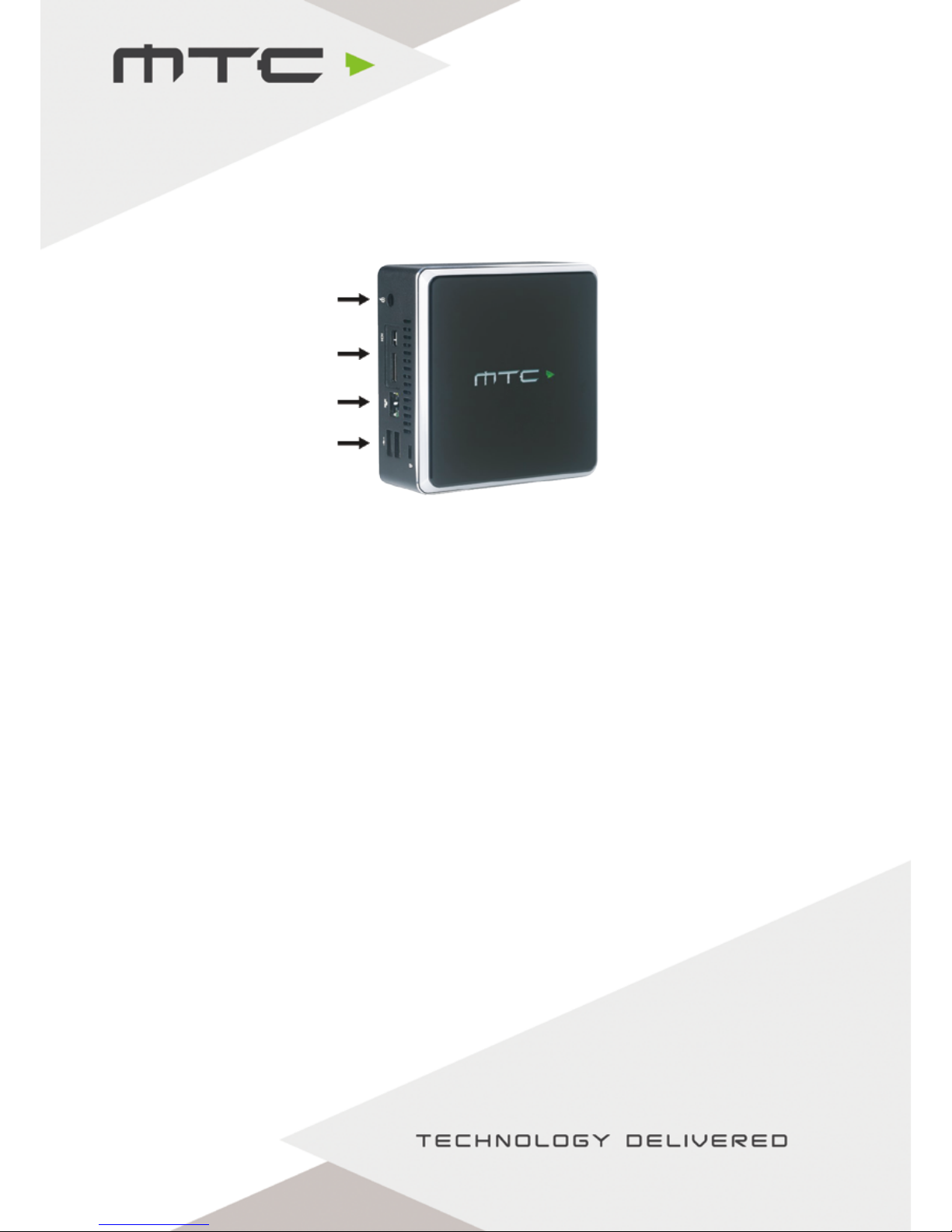
Getting connected
1. Connect the power cable.
2. Connect the display to either the HDMI or mini-DisplayPort connection.
3. Connect to a network via Ethernet or using Wi-Fi under Wireless Access.
4. If using a touch display, connect the USB touch cable from the display to the MTC-5000 unit. Or,
connect a mouse for a standard display.
Network Options:
(i) Connect MTC-5000 to a wired network with the Access Point enabled.
(ii) Connect MTC-5000 to a wired network with the Access Point disabled.
(iii) Connect MTC-5000 to a wireless network.
(iv) Connect MTC-5000 to network 1 via Ethernet and simultaneously to network 2 via Wi-Fi.
(v) Run MTC-5000 without internet/local network and the Access point enabled.
Turning on the MTC-5000 unit
To power on, press the MTC-5000 logo gently on the top of the box for two seconds. Once switched
on, the light along the top of the unit will illuminate.
1
2
3
4
Quick start guide
www.mtc-technologies.com [email protected]
Page 3
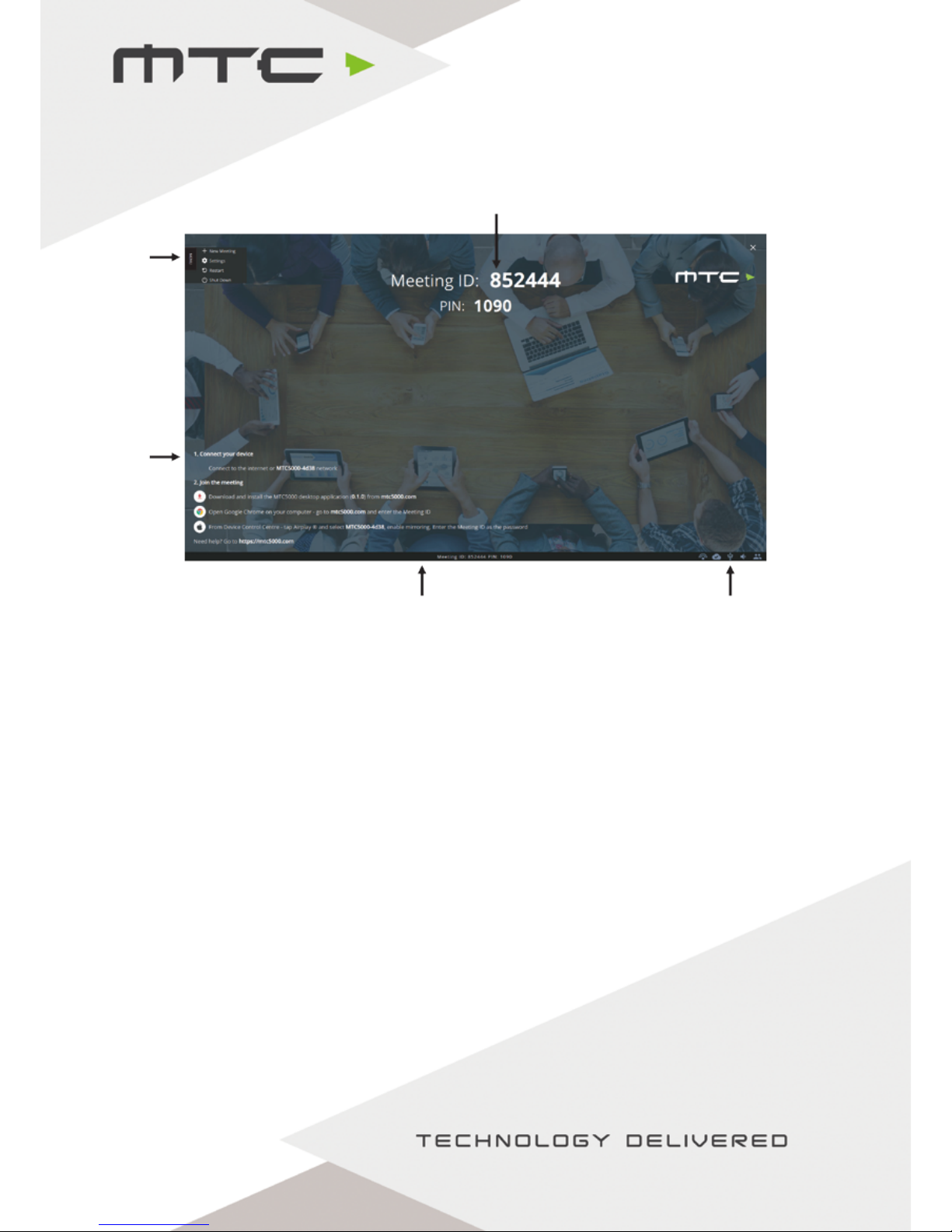
When the MTC-5000 unit has powered on the above screen will be shown.
This screen contains the status bar at the bottom, the Meeting ID (and PIN, if activated) to join the
meeting and instructions on how to connect devices in the bottom left.
Connecting Participants
Participants can join a meeting by using;
(i) The Windows® application for Windows 7® and above
(ii) The Web Client for Chrome® browser on Windows®, Mac® or Chromebook®
(iii) AirPlay® for iOS devices running iOS 6+
(iv) AirPlay® for Apple Macs running OS X 10.8+ (*Apple Mac’s can also use the Chrome web client)
(v) Miracast® for Android devices running Android 4.4+
Attendees must be connected to the same local network as the MTC-5000, or be connected to the
MTC-5000 Access Point to use Miracast® or AirPlay®. If connecting using the Windows application or
Web client, attendees can connect over the internet, provided the MTC-5000 unit is also connected to
the internet.
Meeting ID
& PIN
Menu
Joining
Instructions
Status bar
Status icons
Meeting ID screen
www.mtc-technologies.com [email protected]
Page 4
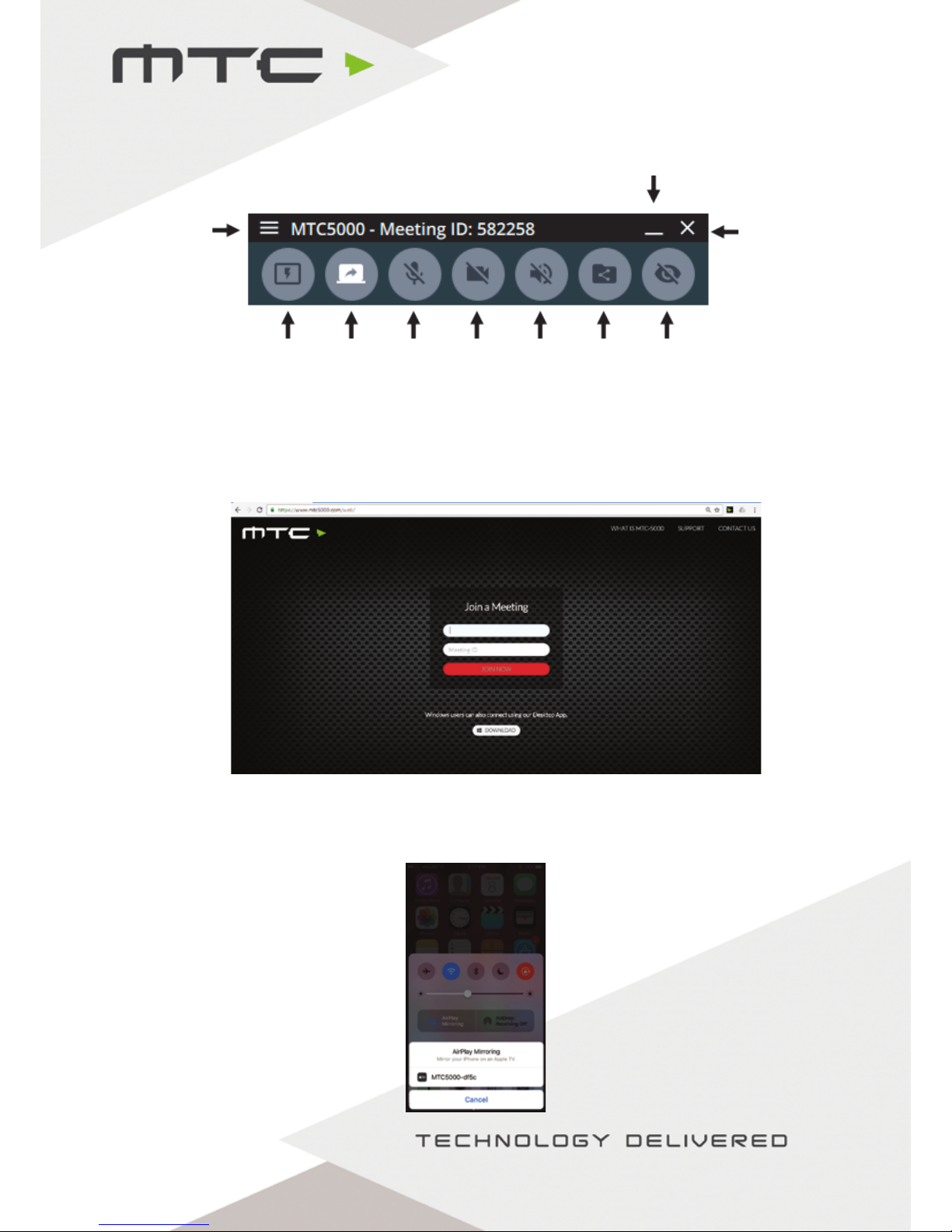
(i) Connecting using the Windows® application
Go to https://www.mtc5000.com to download the Windows® Application and follow the on-screen
instructions to install on the PC and join a session.
(ii) Connecting using your web browser
Open Google Chrome® on Windows®, Mac® or Chromebook®. Go to https://www.mtc5000.com/ - you
will see the below page and follow the instructions onscreen (Internet connection required).
(iii) Connect iOS devices using AirPlay®
Ensure the iOS device is on the same network as MTC-5000 or is connected to the MTC-5000 Access
Point. Swipe up from the bottom of the screen on the iOS device to reveal the Control Centre.
Menu Close
Minimize
Make
active
display
Toggle
screen
sharing
Toggle
Mic
Toggle
Webcam
Toggle
Speaker
Audio
Share
files
View
active
display
www.mtc-technologies.com [email protected]
Page 5
Select the applicable MTC-5000 unit and tap the ‘Mirroring’ toggle so that it turns green. At this point an
AirPlay password is required – this will be the Meeting ID. After tapping ok the screen of the iOS device
will appear on the MTC-5000 screen.
(iv) Connect Apple Macs using AirPlay®
Mac computers can currently join using the Web Client (see point ii) or by using AirPlay®.
To mirror the screen using AirPlay®, make sure the Mac is connected to the same network as MTC-5000,
or is connected to the MTC-5000 Access Point.
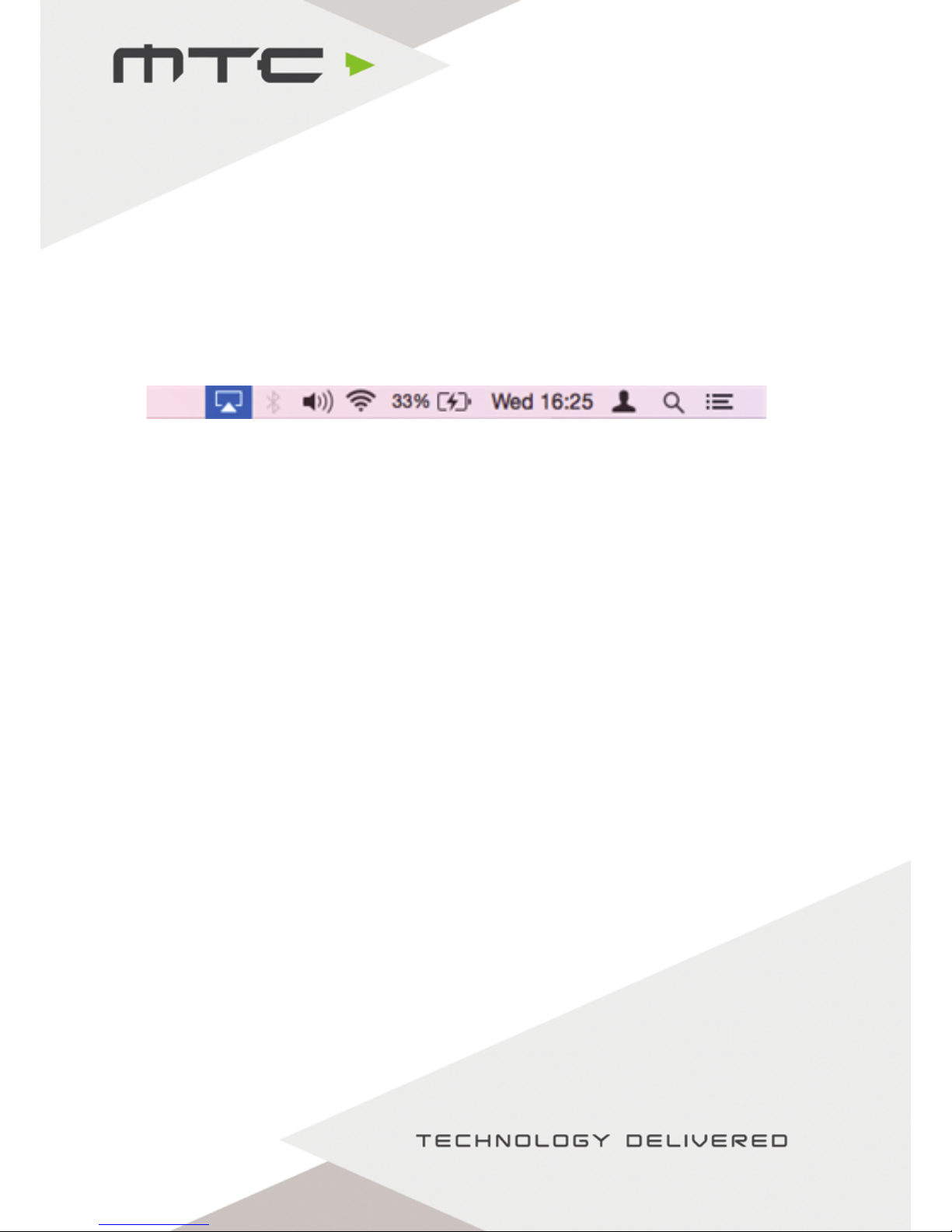
When connected to a valid network with AirPlay®, the AirPlay® icon will be shown in the top right of
the OS X Menu Bar, click this to see a list of available AirPlay® receivers on the local network.
‘MTC-5000’ will be in this list (or the name of the MTC-5000 network, if you have renamed it). At this
point, AirPlay® will prompt for a password - this will be the Meeting ID. Enter this and the attendee will
appear on the MTC-5000 screen.
(v) Connect an Android device using Miracast®
To use Miracast® you will need:
• A supported device running Android 4.4+
• Miracast® enabled in your MTC-5000 settings
• The Access Point disabled, under ‘Access Point’ in the MTC-5000 settings
Steps to connect via Miracast® vary dependent on device, please check with your manufacturer for
instructions on how to share the device screen.
www.mtc-technologies.com [email protected]
Page 6
Re-ordering attendees and changing the view
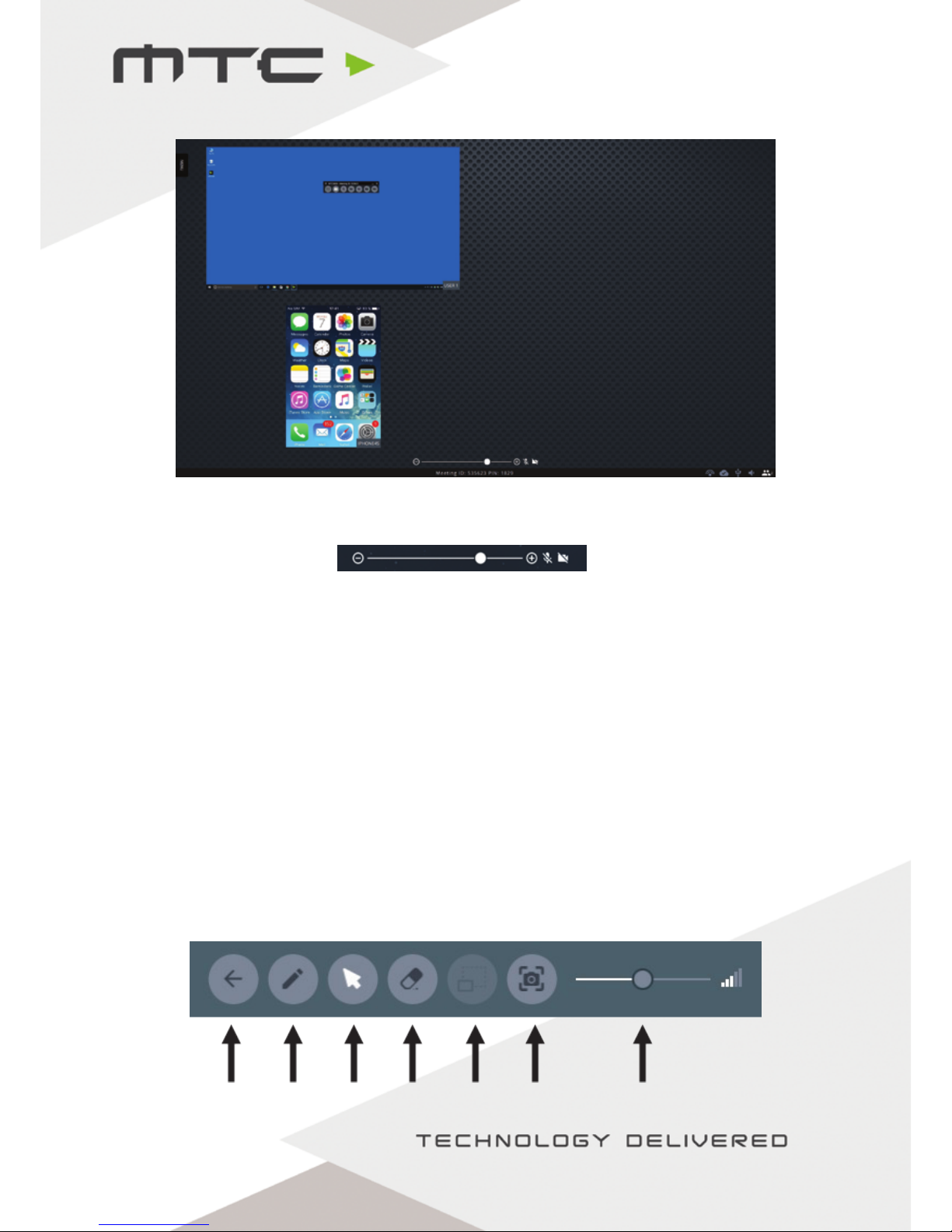
Attendees will appear in the MTC-5000 view when connected, as seen above. Up to a maximum of 12
attendees can be connected at once.
This view can be altered by using the slider at the bottom of the screen. This can change between
having 1 device on screen up to a MTC-5000 of 6 screens. If there is a mic, webcam or visualizer attached
to the MTC-5000 unit, these can be toggled on or off using the icons to the right of the slider.
Selecting the Active Display
To select an attendee as the Active Display, double tap/click that attendee in the MTC-5000 view, their
display will then become full screen. This screen is now the ‘Active Display’.
Attendees will be able to set themselves as the Active Display from within the Windows application or
web client.
Active Display Menu options
At the bottom of the screen there is a small tab which can be pulled up to reveal the Active Display
Menu.
Return to
participants
screen
Annotation
tool
Cursor
control
Erase
annotation
Toggle
Camera
Share
Screenshot
Control
Volume
www.mtc-technologies.com [email protected]
 Loading...