

Page 1
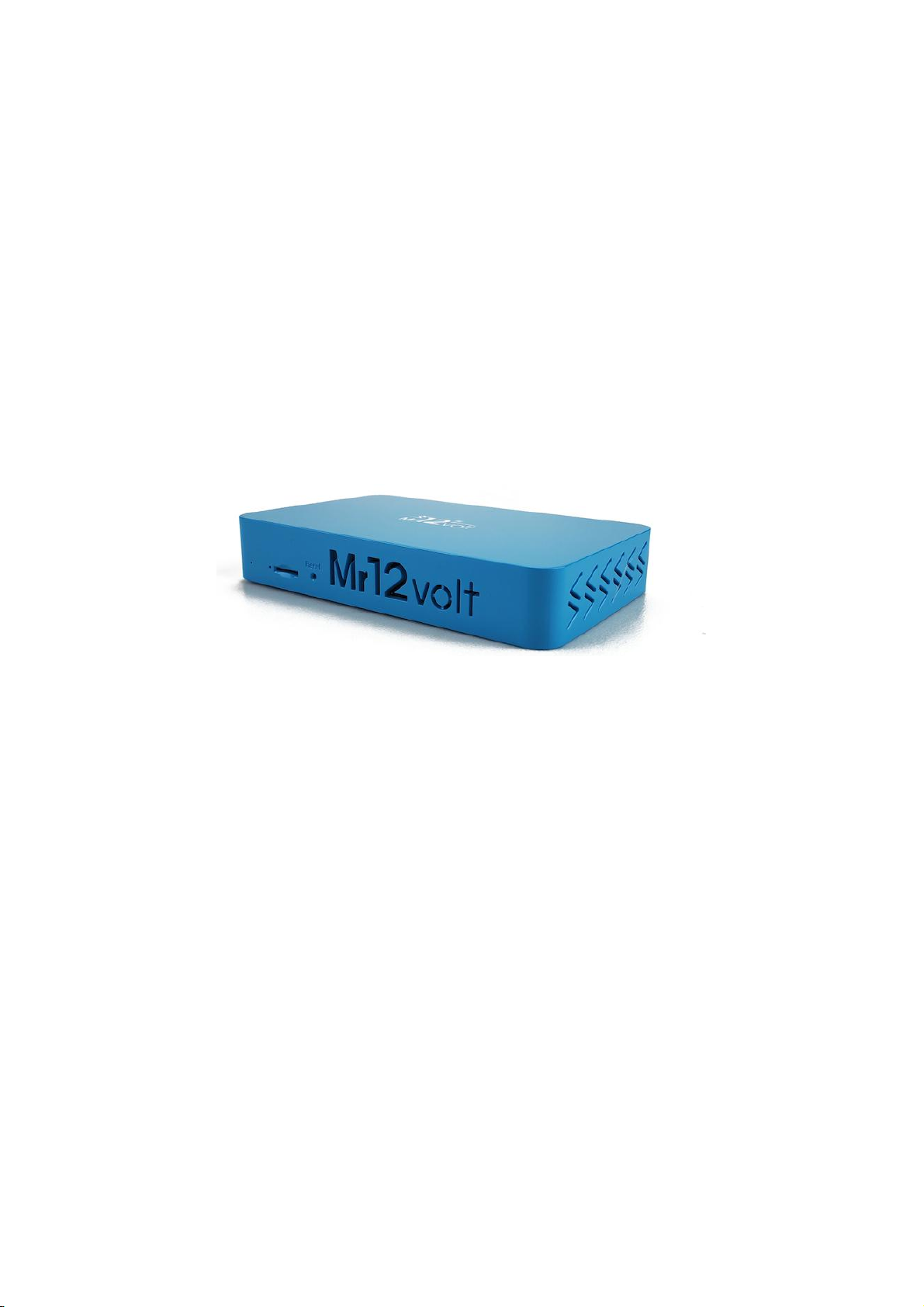
Mr12Volt CarPlay Interface for PCM 3.0
911
Boxster / Cayman
Cayenne
Quick User Guide
Model No : P2000-PCM30MD
1 - All you need to know before Installation
2 - Product Features
3 - Main Feature Operations
4 - Car Settings
5 - Sound Settings
6 - USB Supported Formats & Other Specs
7 - FAQ
Page 2
1 - All you need to know before Installation
Mr12volt interface emulates factory TV function of a Porsche PCM radio
and is connected through MOST bus of its function.
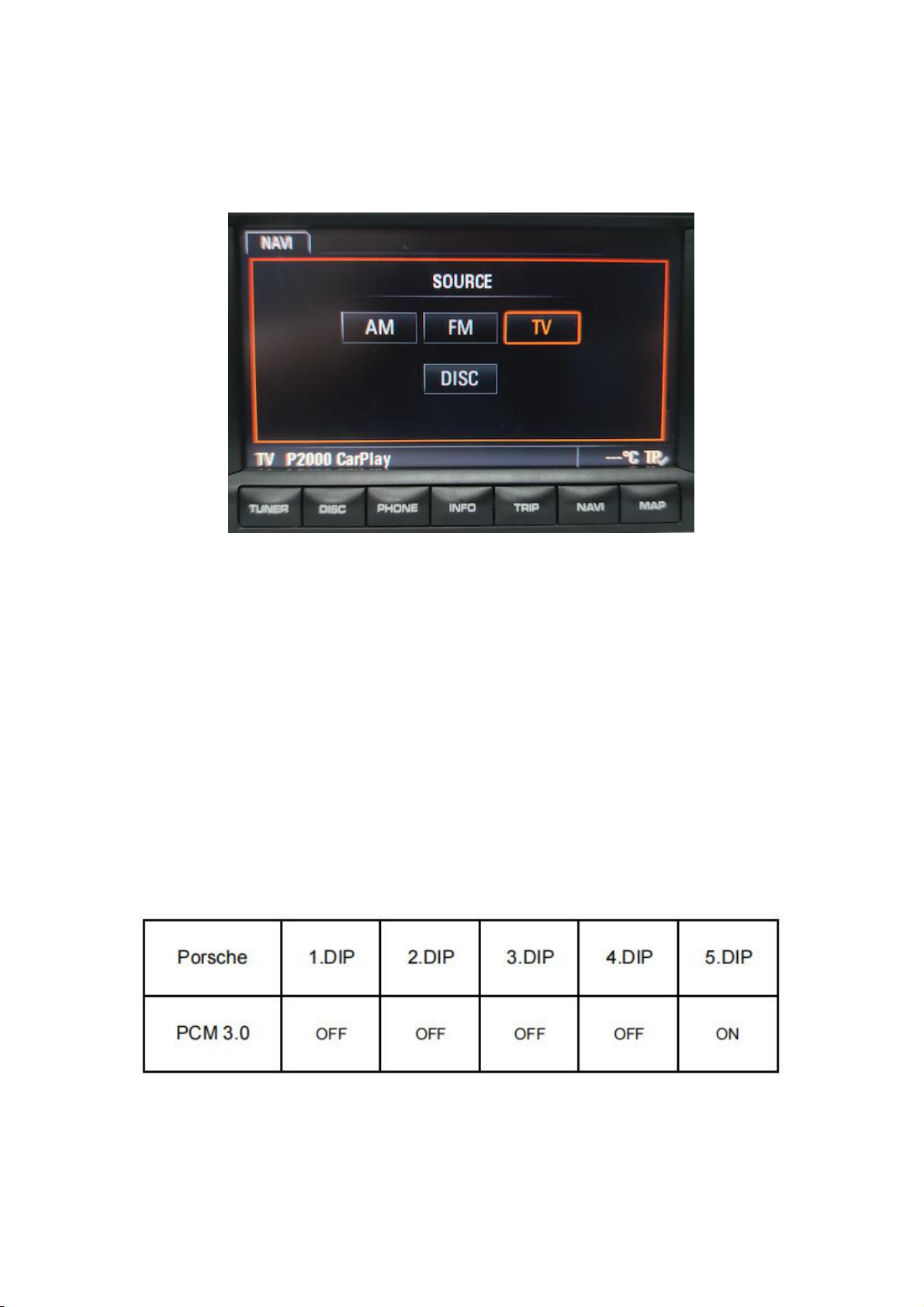
No coding of factory TV module is needed, once Mr12volt module is
successfully installed and connected to the PCM radio, the “TV” option
will be available in the “Tuner” menu.
On the other hand, if there is a factory TV module fitted in the PCM radio,
it must be disabled. ( However, factory TV module fitted is a rare option in
the market )
Dip Switch Configuration
Page 3
2 - Product Features
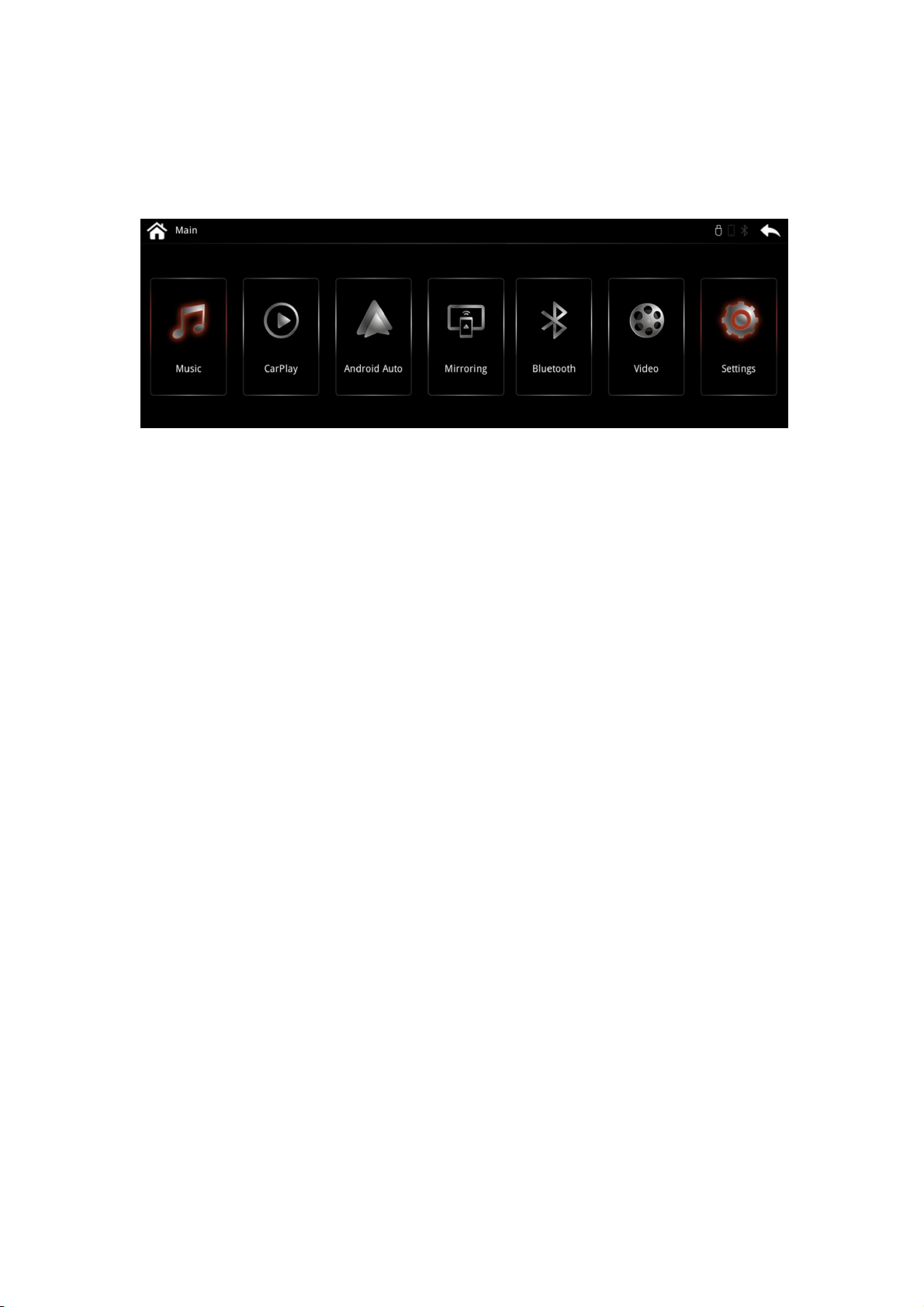
CarPlay
Android Auto
Mirroring
Music & Video Playback ( Through USB Flash )
Bluetooth HF & Music Streaming
Reverse Camera Input ( Support up to AHD720P )
Front Camera Input
Passenger Side L/R Camera Input ( For the use of Blind Spot )
Reverse Grid Line
Digital Sound Processor (DSP) with 15 Bands Equalizer Adjustment
Software Update available
Page 4
3 - Main Feature Operations
CarPlay/Android Auto
Support both wired and wireless CarPlay connection
To connect to CarPlay Wirelessly, both Bluetooth and Wi-Fi connection
are required
For wired CarPlay & Android Auto : Use a genuine cable to connect
through the USB connector. Both Wi-Fi & Bluetooth connections are NOT
required in this case.
How to connect CarPlay : Search for Mr12volt_xxxx and pair to make a
Bluetooth connection ---> Turn on Wi-Fi and & Use CarPlay ---> it will
start CarPlay on your screen after few seconds, it could take longer for
the first time to connect to CarPlay
How to connect Android Auto : Search for MR12volt_xxx and pair to
make a Bluetooth connection, Wi-Fi on phone will be on automatically
and connected to Android Auto
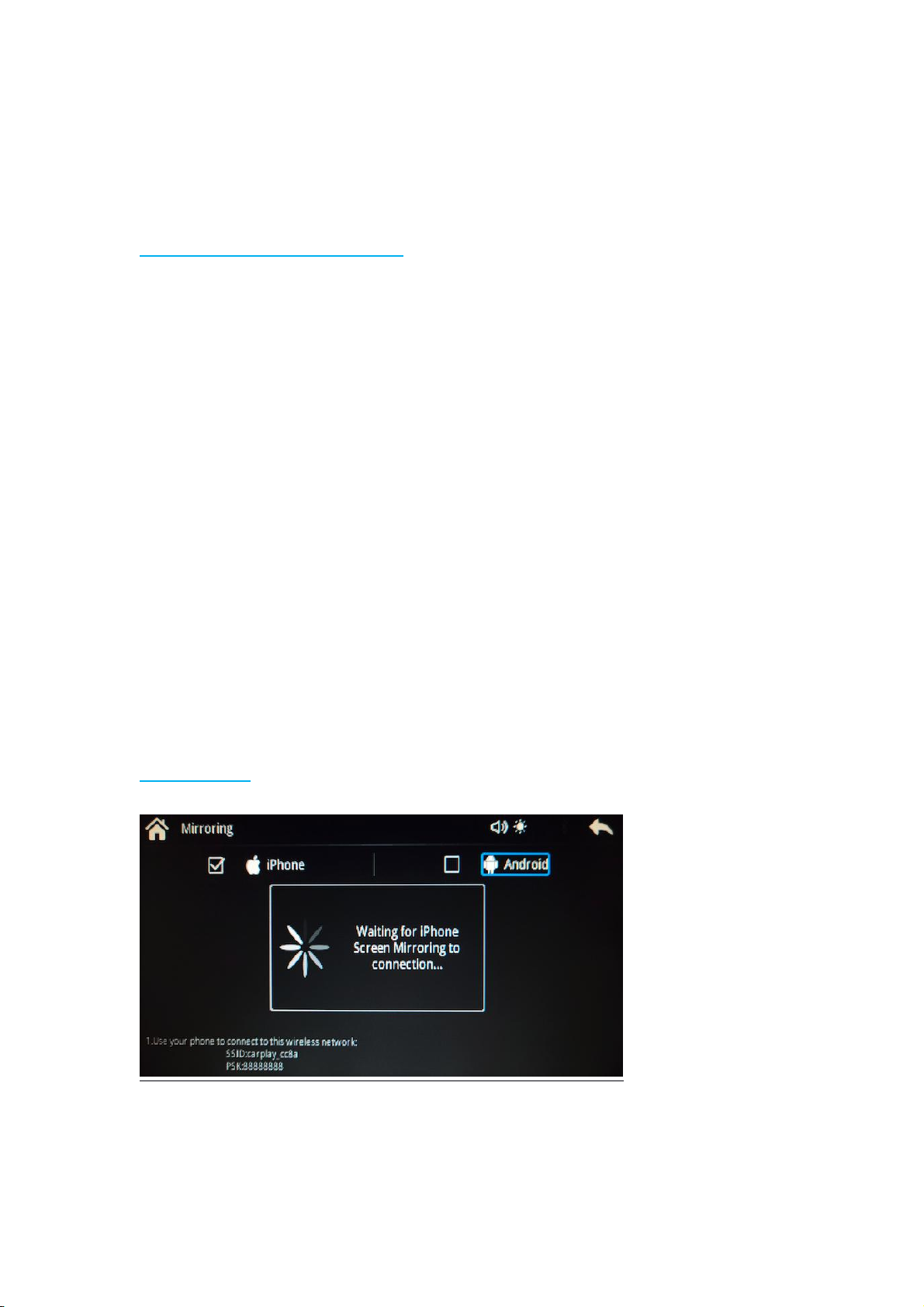
Mirroring
iPhone
1. Disable CarPlay by turning off Bluetooth & Wi-Fi connection
Page 5
2. Enter Mirroring menu on Car display and Choose iPhone
3. Turn on Wi-Fi on phone connect network “carplay_xxxx” ( PW is
88888888)
4. Go to iPhone control center, select Screen Mirroring and select Mirroring
again
5. Phone display will appear on the car display now
Android Phone
It is necessary to install “MLink” application on your Android phone, it can
be downloaded on www.mr12volt.com ( Go to SUPPORT ---> Download
---> P2000 mirroring)
Both Bluetooth & Hotspot connection are needed at all time for mirroring
Hotspot Setting :
1. 5GHz band must be selected
2. Enter Mirroring menu on car display and choose “Android”
3. Network name & Password on phone must be set same as shown on
Mr12volt “Mirroring” menu
4. Open MLInk app-->turn on Bluetooth and Hotspot
5. When both Bluetooth and Hotspot are successfully connected, phone
display will appear on car display
It is always best to open mirroring menu on car display prior to the
connection of Bluetooth, so that Android Auto does not overtake the
function of mirroring when first connected to Bluetooth
Page 6
Bluetooth
Phone contact list
Contact history
Dial Pad
Audio Streaming
BT Hands-free
When a call is incoming, answer and reject button will appear on display,
use MMI/i-Drive/Rotary button to select.
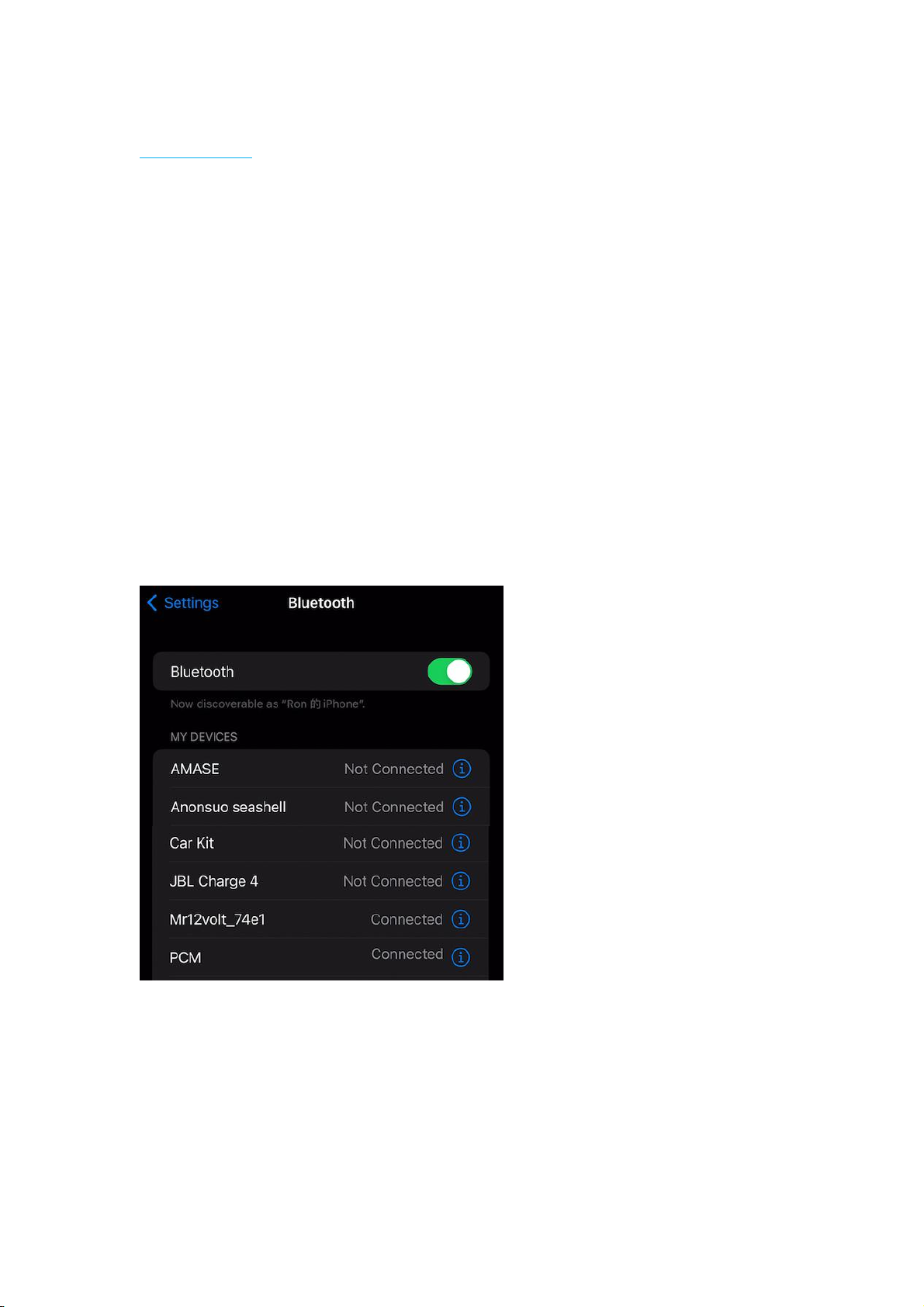
Audi factory Bluetooth HF and Mr12volt Bluetooth can be connected at
the same time. (see below picture). When both are connected and a call is
incoming, Audi HF will take over Mr12volt HF and it can be answered
through phone button on steering wheel.
Mr12volt Does not support the integration of OEM microphone even with
the installation of a Y-cable. if you need to use Mr12volt HF or Voice
Command such as Siri, the 3.5mm jack microphone supplied in the
package must be installed.
Page 7
4 - Car Settings
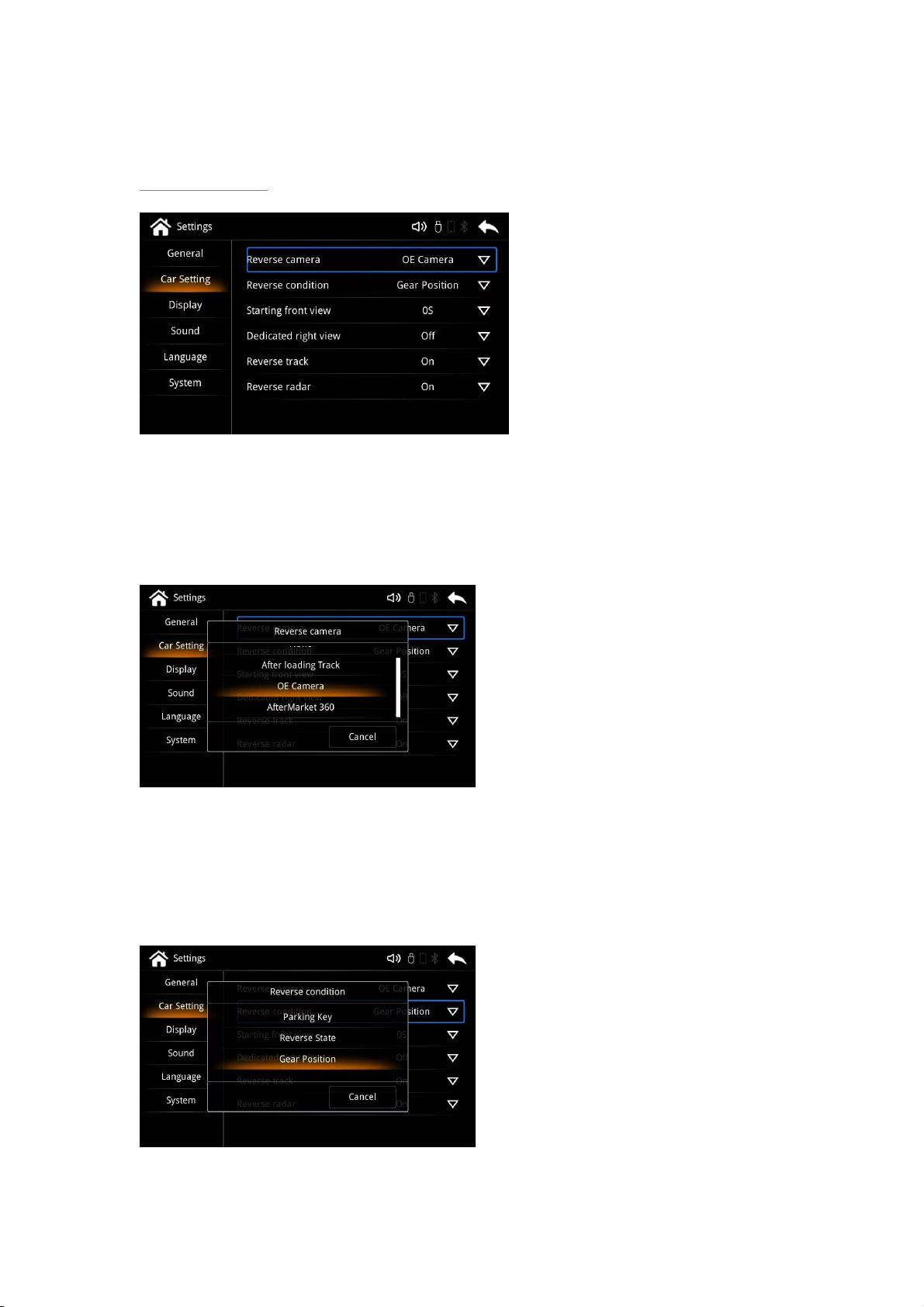
Car Setting
“Reverse Camera” settings
OE Camera (Default) - Select this when car is fitted with factory camera
AfterMarket 360 - Select this when car is installed with a aftermarket
camera ( support up to AHD720 only)
“Reverse condition” settings
Gear Position (Default) - Detects through CAN bus when car is in reverse.
Reverse state - Detects through 12v reverse light signal when reverse
(requires the manual wiring connection of the car’s reverse signal)
Page 8
When do i select “Reverse Sta te” ?
Mr12volt detects Car CAN bus with most of the car models in the market,
however in some cases particularly in older generation cars, when the CAN
bus can’t be detected, it is necessary to manually detect camera through car
reverse light signal.
(Refer to the AUDI MMI 2G Installation Diagram for more details )
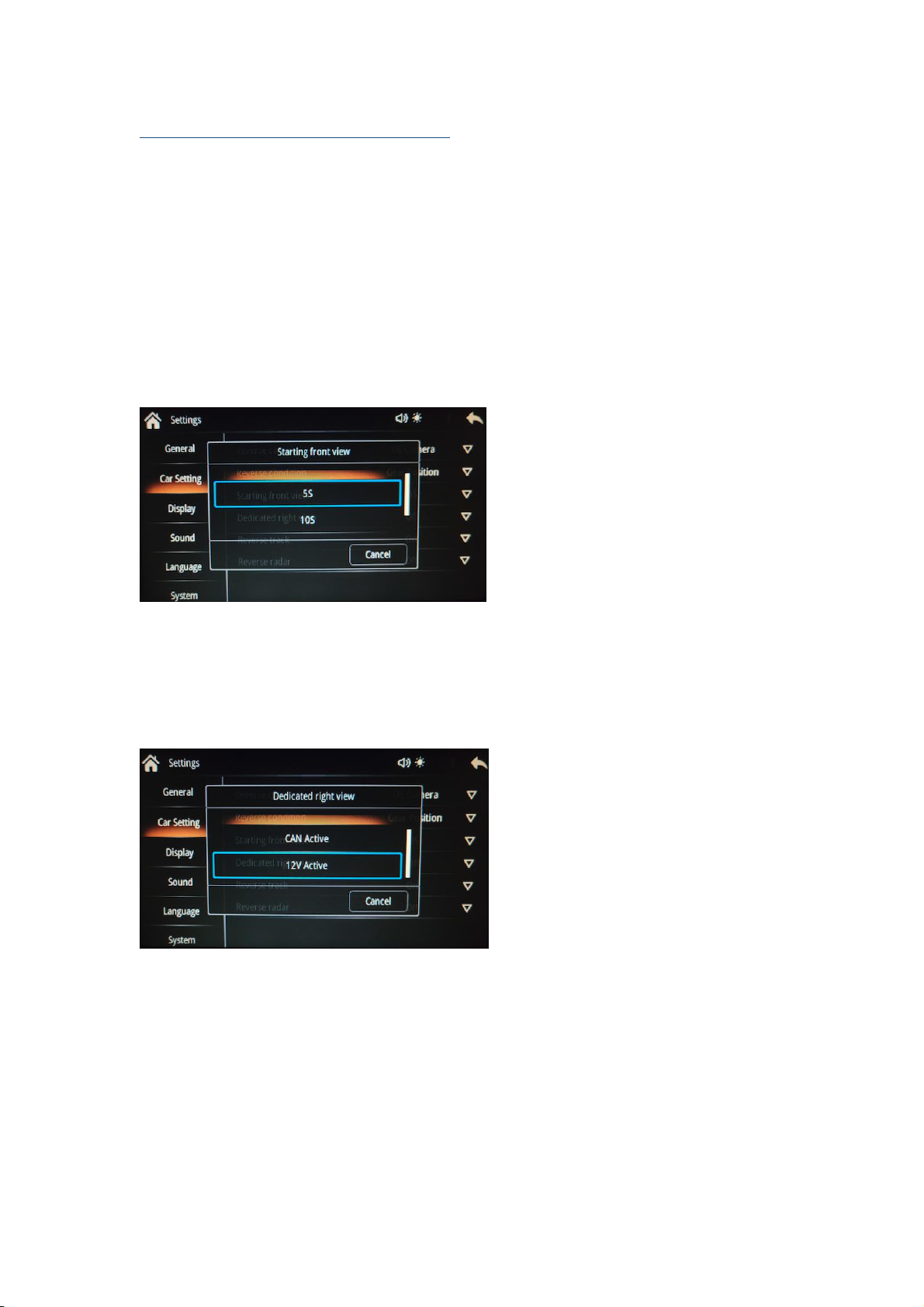
“Starting front view” -
“Dedicated right view” - L/R Side camera setting (Blind Spot camera)
Can Active - Detects through CAN bus
12v Active - Detects through 12v side L/R light
Front Camera timer setting with 5s, 10s, 30s
“Reverse track”
camera only)
“Reverse Radar” - Option to turn ON / OFF of a Reverse Sensor (For
AfterMarket Reverse sensor only)
- Option to turn ON / OFF of a Parking Grid (For AfterMarket
Page 9
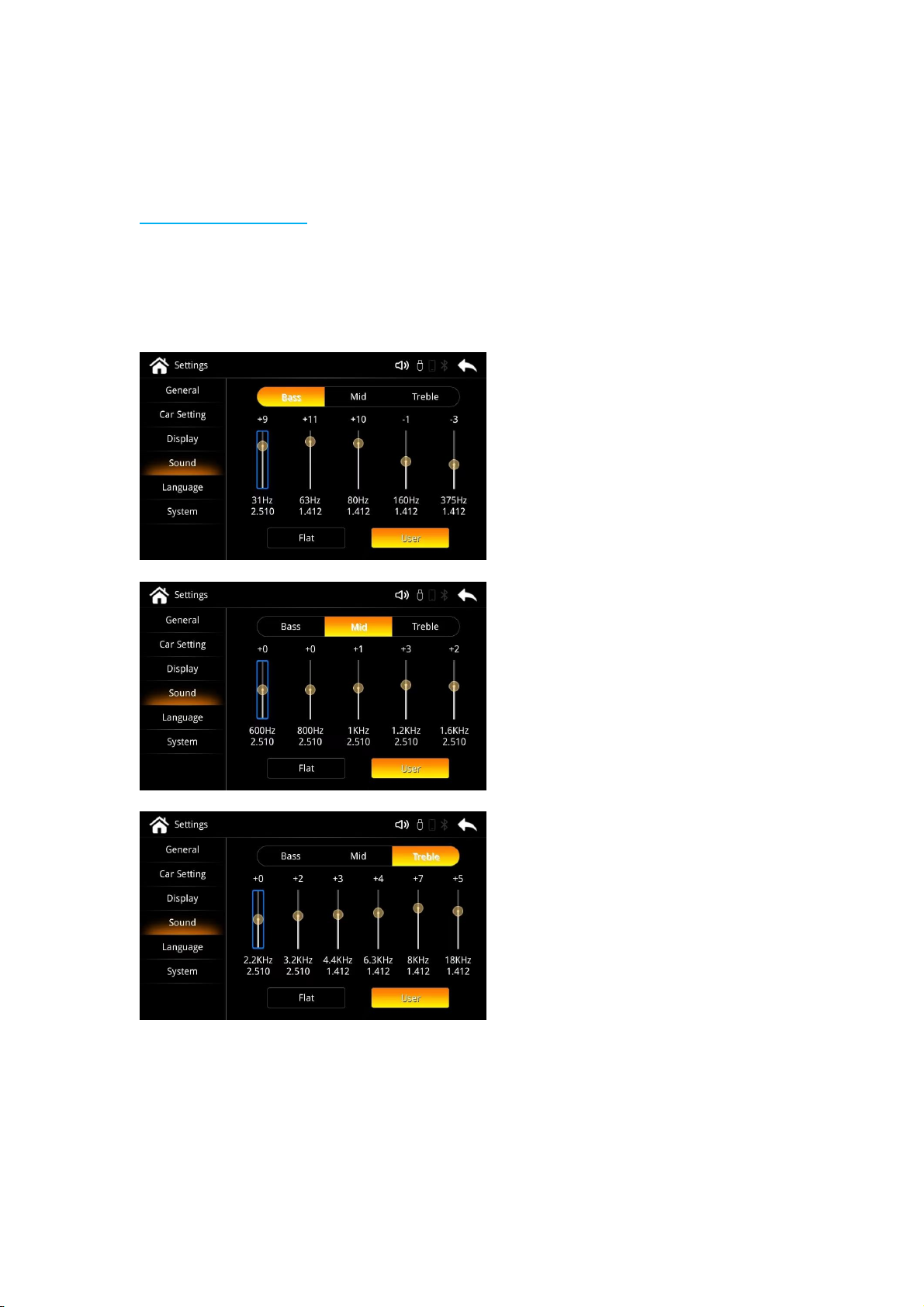
5 - Sound Settings
Sound Settings
DSP Built-In
Bass/Mid/Treble level adjustment with 15 bars customization
Factory default at Flat
Page 10

6 - USB Supported Formats & Other Specs
Music and Video Playback File Format
USB file format FAT32
Support USB2.0 , Hard disk memory
Supported music format : MP3, WMA, AAC, AC3, DTS, OGG, FLAC, APE,
AMR
Supported video format : mkv, mp4, avi, wmv, rmvb, rm, mpg, mpeg, ts,
dat, asf, flv, vob
Supported Photo format : BMP, JPG, GIF, PNG
DOES NOT support folder management when browsing USB Music and
Video files
Other Data
Support phone charging through USB connector @ 500mAh
Support Hi-Resolution Loss-less Apple music wireless
Page 11

7 - FAQ
Q : I have a CDR30 radio, does it work ?
A :
It does not work on CDR30, it works on PCM3.0 only
Q: I have a non BOSE system, does it work ?
A:
It works on all PCM3.0 radio regardless its Bose system or Standard
system
Q: Do i need any coding for my PCM3.0 radio ?
A:
No coding or factory TV module needed, Mr12volt CarPlay module
triggers TV option after connected to PCM radio, the "TV" option will
appear in the “Tuner” menu.
Q: What if i have a factory TV module fitted ?
A:
Factory TV module must be disabled in this case, use a loop connector
to bypass TV module. It could be purchased from mr12volt website.
Q; Can i use my PCM Bluetooth HF while connected to Mr12volt
Bluetooth ?
A:
Yes, they can be connected at the same time, PCM HF will take over
Mr12volt when a call is incoming and it can be answered through phone
button on steering wheel.
Q; I have a Factory microphone in my Porsche, can i connect this to
Mr12volt instead of the microphone in the package. ?
A: NO, Mr12volt Does Not support the integration of OEM microphone
even with the installation of a Y-cable. if you need to use Mr12volt HF or
Voice Command such as Siri, the 3.5mm jack microphone supplied in the
package must be installed.
 Loading...