

Page 1

Now Hear Mpow.
Air 2.4G Wireless Gaming Headset
The Air 2.4 GHz Wireless Gaming Headset
comes with a 50mm Dual Chamber, which
satisfies your need for sound. You can move
freely, react faster, communicate clearly, and
lead your squad to victory. Born for every
game fanatic, and engineered for winning.
Part Number:BH415AR/AS/AD
Page 2

TABLE OF CONTENTS
Product overview
Headset Power/ Mic button
Headset LED guide
Headset charging
Basic Setup
Headset connection (PC)
Headset connection (MAC)
Headset connection and configuration (PS4 /PS4 Slim/PS4 Pro/)
Headset connection(Nintendo)
Headset connection (wired)
Troubleshooting Tips
Technical Specifications
-----------------------------------------------------------------------------01
-----------------------------------------------------------------------------03
-----------------------------------------------------------------------------05
-----------------------------------------------------------------------------06
-----------------------------------------------------------------------------07
-----------------------------------------------------------------------------08
-----------------------------------------------------------------------------10
-------------------------------12
----------------------------------------------------------------------------14
-----------------------------------------------------------------------------15
-----------------------------------------------------------------------------16
-----------------------------------------------------------------------------17
Page 3

PRODUCT OVERVIEW
A. Headband adjustment slider
B. Detachable noise cancellation mic
C. Mic mute button
D. Microphone port
A
C
B
D
Page 1 of 17
Page 4

E. Volume wheel
F. Power Button
G.Power LED
H.USB charge port
I. 3.5mm Audio Port
J. USB charge cable
K.3.5mm headphone cable
L.2.4G Wireless adapter
M.Wireless status light
PRODUCT OVERVIEW
E
F
G
H
I
M
J K L
Page 2 of 17
Page 5

Power ON/OFF
HEADSET POWER/ MIC BUTTON
Click Once
Power On
Power Off
Hold on 3s
Page 3 of 17
Page 6

MIC ON/OFF
HEADSET POWER/ MIC BUTTON
Click Once
ON
Click Once
OFF
Page 4 of 17
Page 7
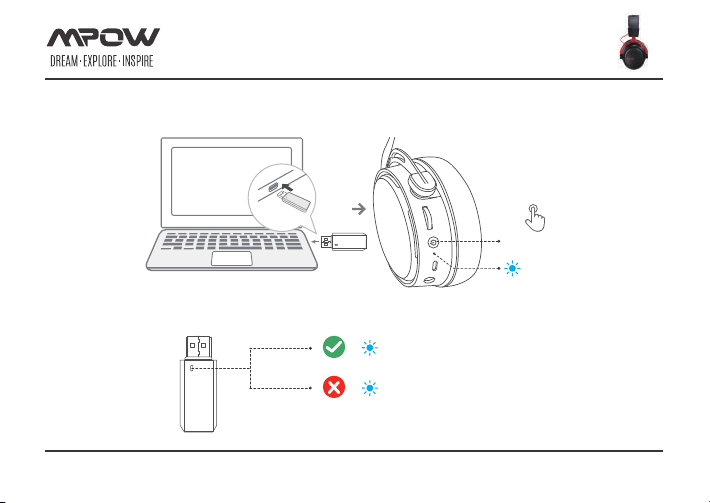
How to Connect
HEADSET LED GUIDE
Click Once
Successful
Failure
LED
Constantly On
Flashes Every 3 Seconds
Page 5 of 17
Page 8
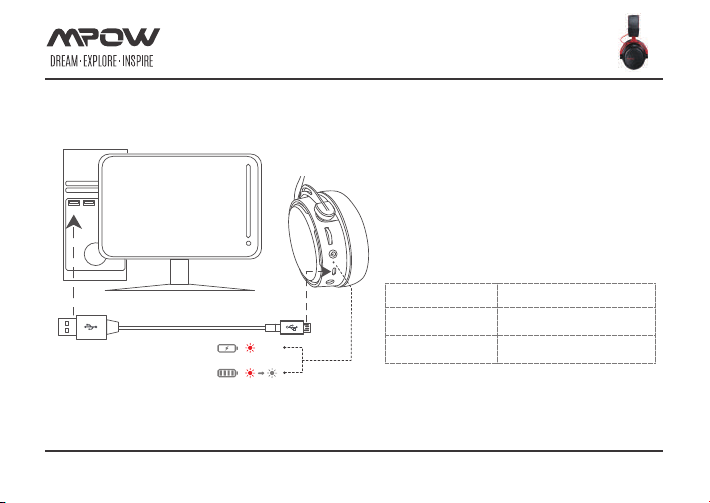
HEADSET CHARGING
Power LED Charge status
Breathing Charging
Off Charging complete
It is recommended to fully charge the headset before first use.
Page 6 of 17
Page 9
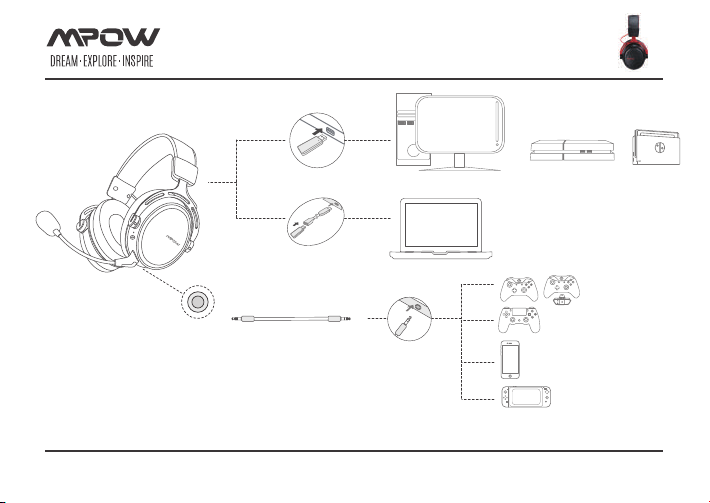
BASIC SETUP
USB-C Hub
(Not included)
Notes:
This not bluetooth connectivity
2.4G wireles Mode - For PC/Mac/PS4/Nintendo
Page 7 of 17
Page 10
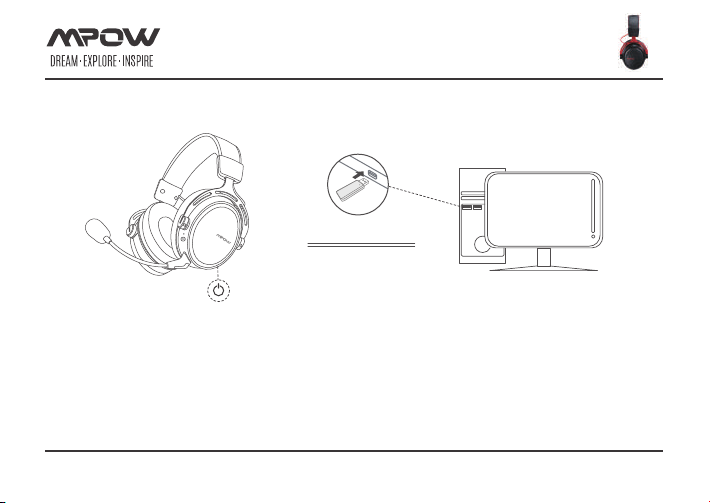
HEADSET CONNECTION (PC)
Transmitter
connection
To use the headset wirelessly on your PC:
1. Connect the wireless adapter to a USB port on your PC.
2. Press the power button on the headset for 3 seconds to power on.
3. When the wireless adapter status light is solid and the headset ear cup LED is solid, the headset is connected.
Note: If it is your first time using the headset you may need to set the headset as the default input and output device.
Page 8 of 17
Page 11
HEADSET CONNECTION (PC)
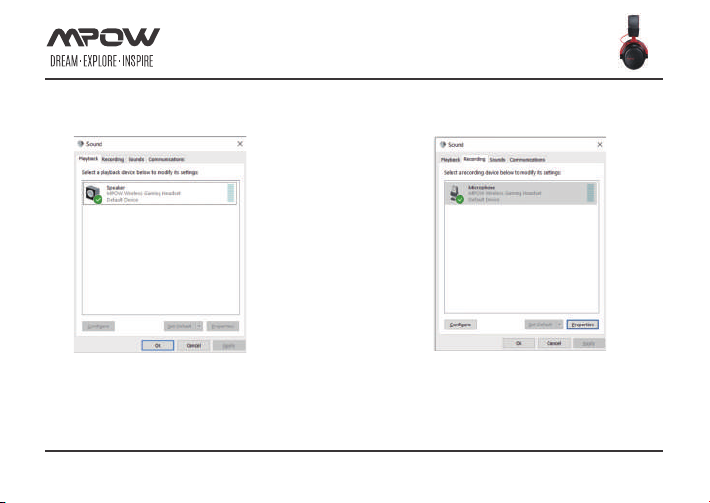
Headset Windows configuration
1.open the 'Control Panel',click on 'All Control Panel
Items',right-click on ‘MPOW wireless gaming headset’
and select ‘Set as Default Device’.
2.Click on the ‘Recording’ tab, then right-click
‘MPOW wireless gaming headset’and select
‘Set as Default Device’
Page 9 of 17
Page 12
HEADSET CONNECTION (MAC)
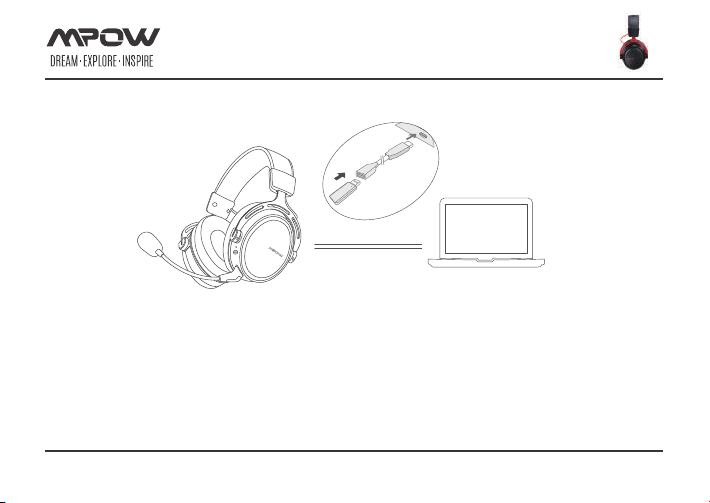
USB-C Hub
(Not included)
Transmitter
connection
To use the headset wirelessly on your MAC:
1. Connect the wireless adapter to a USB port on your MAC.
2. Press the power button on the headset for 3 seconds to power on.
3. When the wireless adapter status light is solid and the headset ear cup LED is solid, the headset is connected.
Page 10 of 17
Page 13
HEADSET CONNECTION (MAC)
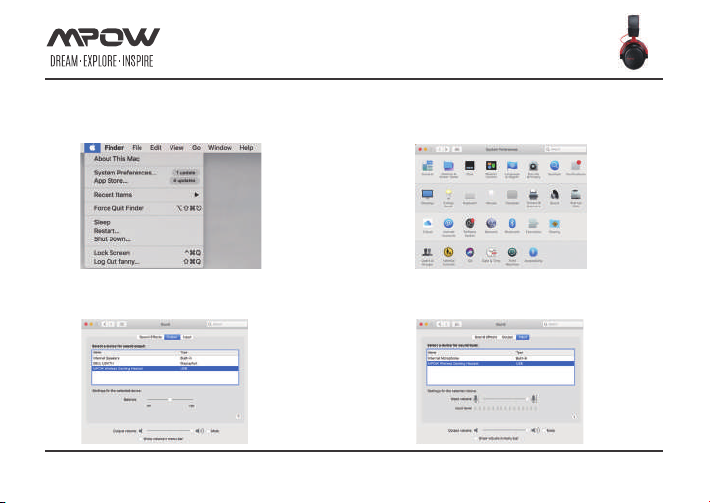
Headset MAC configuration
1.Click on 'System Preference...'
3.Click on ‘Output’,right-click on ‘MPOW wireless
gaming headset’ and select ‘Set as Default Device’.
2.Click on the ‘Sound’,then go to the next
step.2.Click on the ‘Sound’,then go to the next step.
4.Click on ‘Input’,right-click on ‘MPOW wireless
gaming headset’ and select ‘Set as Default Device’.
Page 11 of 17
Page 14
HEADSET CONNECTION AND CONFIGURATION
(PS /PS SLIM/PS PRO/)
PS4
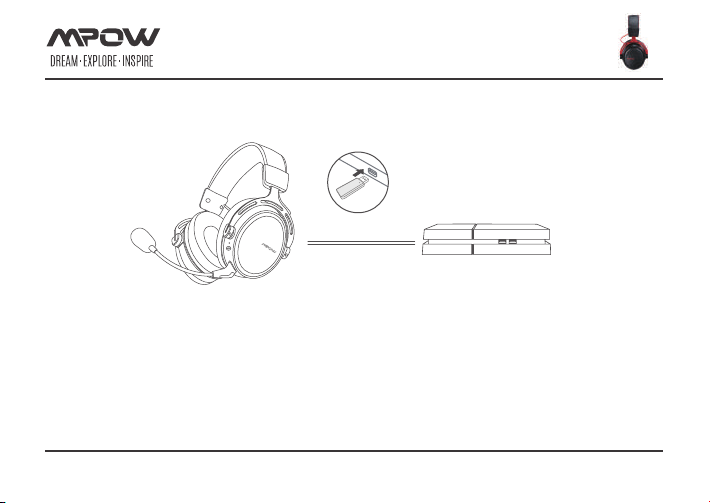
Transmitter
connection
To use the headset wirelessly with PlayStation 4 (PS4)
1. Turn on your PS4 game console
2. Connect the wireless adapter to a USB port on your PS4.
3. Press the power button on the headset for 3 seconds to power on.
4. When the wireless adapter status light is solid and the headset ear cup LED is solid, the headset is connected.
Page 12 of 17
Page 15
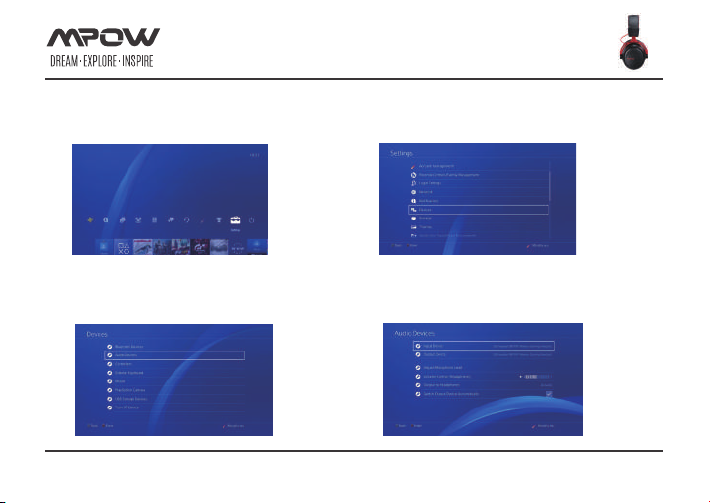
HEADSET CONNECTION AND CONFIGURATION
Headset PlayStation 4 configuration
1.Click the 'settings' in the screen.
(PS /PS SLIM/PS PRO/)
2.Click on the 'Devices' tab, then go to the next step.
3.Click on the 'Audio Devices' tab, then go
to the next step.
4.Click on ‘Input Device’and‘Output Device’, right-click on
‘MPOW wireless gaming headset’ and select ‘Set as Default
Device’, adjust the 'volume control (headphones)'.
Page 13 of 17
Page 16
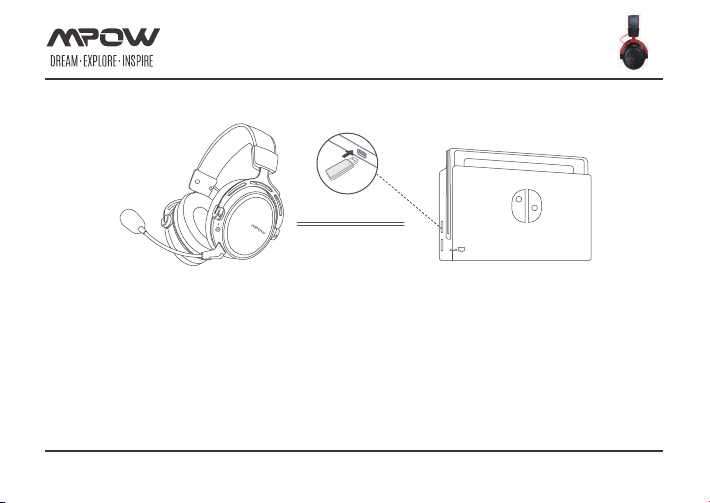
HEADSET CONNECTION(NINTENDO)
connection
To use the headset wirelessly with Nintendo Switch
1. Turn on your Nintendo Switch Then plug the Switch into the docking station and connect the monitor.
2. Connect the wireless adapter to a USB port on your Nintendo docking station .
3. Press the power button on the headset for 3 seconds to power on.
4. When the wireless adapter status light is solid and the headset ear cup LED is solid, the headset is connected.
Page 14 of 17
Page 17
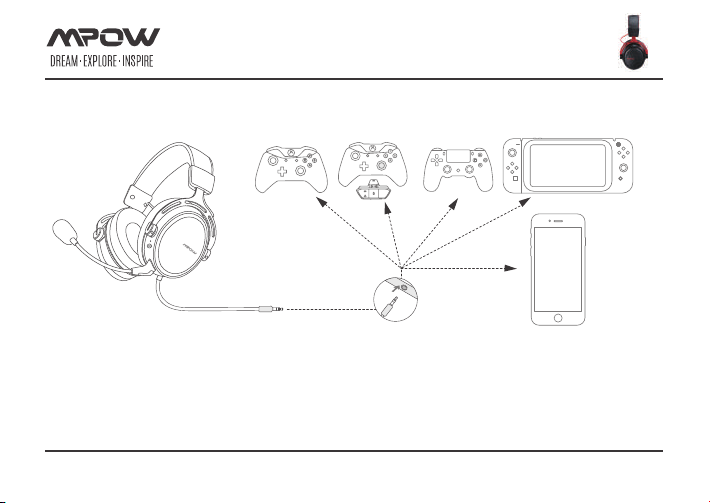
HEADSET CONNECTION (WIRED)
Headset connection (wired)
The headset can be used as a wired headphone with the included 3.5mm audio cable. To use
the headset in wired headphone mode:
1. Connect the 3.5mm headphone cable to the headphone port on the headset
2. Plug the 3.5mm headphone cable into your device
Note: The microphone are not functional in this configuration.
Page 15 of 17
Page 18
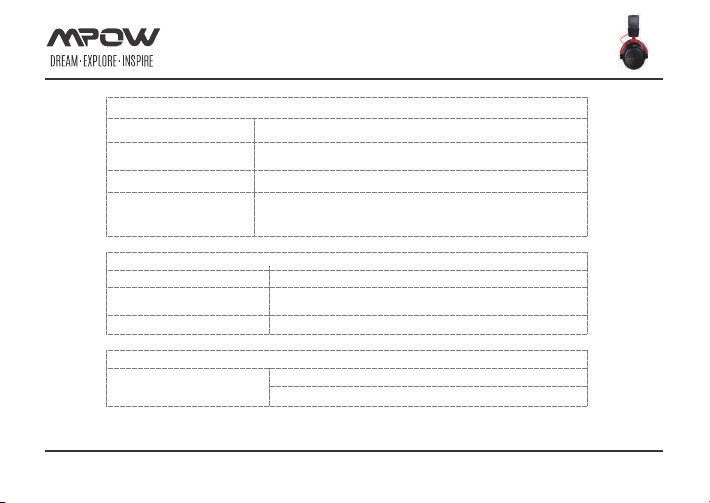
TROUBLESHOOTING TIPS
No sound/low sound
Possible cause Solution
Volume control turned down
Loose connector
App Problem
Press the Volume Up button on the Ear Force Headset Audio
Controller If necessary, press the Game button of the Chat/Game Mix.
Confirm that each plug is inserted firmly and fully
Close the active App and re-open it. Alternatively power on/off your
Xbox One. At times the Audio Output in a particular Application may
need to be reset.
Possible cause Solution
Microphone not working
Chat volume control turned down
Loose connector
Press the Chat Button on the Chat/Game Mix of the Ear Force Headset
Audio Controller.
Confirm that each plug is inserted firmly and fully.
Voice interrupted
Weak signal
If your issue is not resolved by these steps, please visit: [email protected] or email us thought Amazon.
Checkthe default sound device is selected for this headset
Check the network
Page 16 of 17
Page 19
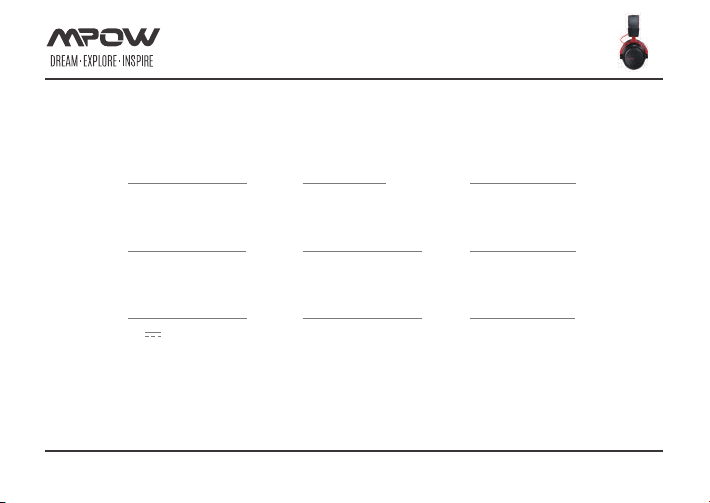
TECHNICAL SPECIFICATIONS
Speaker Sensitvity
99±3dB
Playing Time
17H
Charging Input
5V 1000mA
MIC Sensitvity
-38± 3dB
Charging Time
3~4H
Connectivity
2.4GHz Wireless
3.5mm Audio Cable
Standby Time
200H+
Battery Capacity
1100mAh
Frequency
20-20kHz
Page 17 of 17
 Loading...