

Page 1

MPMAN
MPMAN PH5 2 0
ANDROID SMARTPHONE
-1-
PH5 2 0
Page 2

MPMAN
PH5 2 0
INTRODUCTION
Thank you for choosing PH5 20, Dual SIM Android smart
phone. This smartphone is running on Android OS, v4.1 .1
Please read this guide carefully and keep it
reference.
Pictures used for func
from reality
on demonstr look different
for future
- -2
Page 3

MPMAN
PH5 2 0
Table of Contents
1 Safety ..................................................................................
1.1 Safety Precau ons ................................ ...................
1.2 Using your phone safely ...........................................
2 Understanding your Phone .................................................
2.1 Your Phone ..............................................................
2.2 Descrip on Icons ....................................................
2.3 Inser ng & Removing the ba ery ...........................
2.4 Charging the ba ery ...............................................
2.5 Power ON/OFF ........................................................
2.6 Enter main menu ....................................................
2.7 Enter sub menu.......................................................
2.8 Use no ca on panel .............................................
2.9 Expand main interface ............................................
2.10 Add icons on the main interface ..............................
2.11 Move icons on the main interface ...........................
2.12 Delete icons on the main interface ..........................
2.13 Change wallpapers ..................................................
2.14 Install APK through file manager .............................
3 Using your Phone ................................
3.1 Main Menu & Its Func ons .....................................
4 Maintenance
.....................................................................
...............................
................................................
- -3
4
4
5
9
9
10
11
12
13
13
14
14
14
14
15
15
15
16
17
17
20
205 Taking Care of your Device
Page 4
MPMAN
Safety
PH5 2 0
11..11 SSaaffeettyy PPrreeccaauuttiioonnss
Please read through the following briefings
carefully, and act in accordance with these rules,
Your mobile phone has been designed to compile with
•
applicable safety requirements for exposure to
radio waves. The radio wave exposure guidelines
employ a unit of measurement called Specific
for mobile handset is 1.6 W/Kg averaged over a 6
minutes period and taken over a volume containing
The highest SAR value for this mobile phone model is0.
•
663w/kg averaged over a 6 minutes period and
taken over a volume containing a mass 1g of
Use cell phone when the signal strength is good. Keep
•
your calls short or instead use headset or send a
text message . This advice applies especially to
children, adolescents and pregnant women.
If you are using a Bluetooth headset device , please •
- -4
timil RAS dednemmocer ehT .)RAS( etaR
Page 5
MPMAN
PH5 2 0
11..22 UUssiinngg yyoouurr pphhoonnee ssaaffeelly
y
On The Road
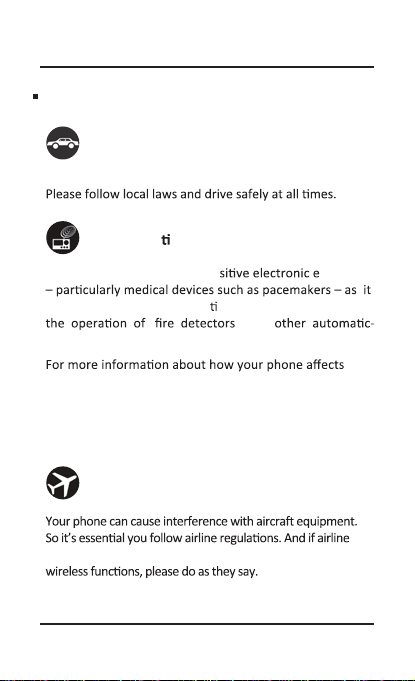
Using a phone while driving is illegal in many countries.
Near Sensi ve Electronics
Don’t use your phone near sen quipment
could cause them to malfunc on. It can also interfere with
control equipment.
pacemakers or other electronic equipment,
please contact the manufacturer or your local distributor.
Your phone may cause interference when used near TVs,
radios or automated office equipment.
and
While Flying
personnel ask you to switch off your phone, or disable its
- -5
Page 6
MPMAN
PH5 2 0
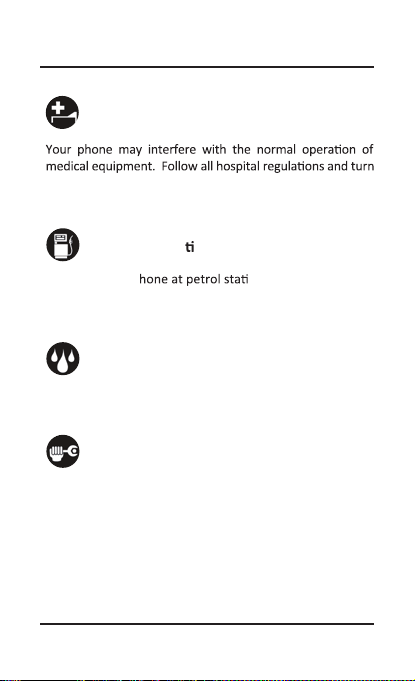
In Hospital
it off when you’re asked to by posted warnings or medical
staff.
At a Petrol Sta on
Don’t use your p ons. In fact, it’s always
best to switch off whenever you’re near fuels, chemicals
or explosives.
Around Water
Keep your phone away from water ( or any other liquid ).
It’s not a waterproof model.
Making Repairs
Never take your phone apart. Please leave that to the
professionals. Unauthorised repairs could break the terms
of your warranty.
- -6
Page 7
MPMAN PH5 2 0
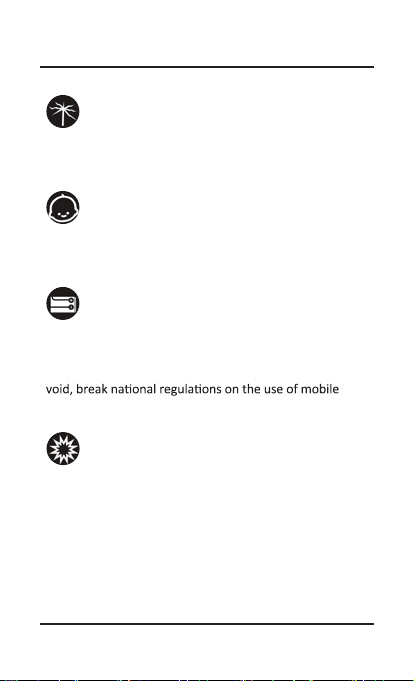
Broken Antenna
Don’t use your phone if the antenna is damaged, as it
could cause injury.
Around Children
Keep your mobile out of children’s reach. It should never be
used as a toy and it might not be good for their health.
Original Accessories
Only use the original accessories supplied with your phone
or those approved by the manufacturer. Using unapproved
accessories may affect performance, make the warranty
phones, or even cause injury.
Near Explosives
Turn off your phone in or near areas where explosive materials
are used. Always obey local laws and turn off your phone when
requested.
- -7
Page 8
MPMAN PH5 2 0
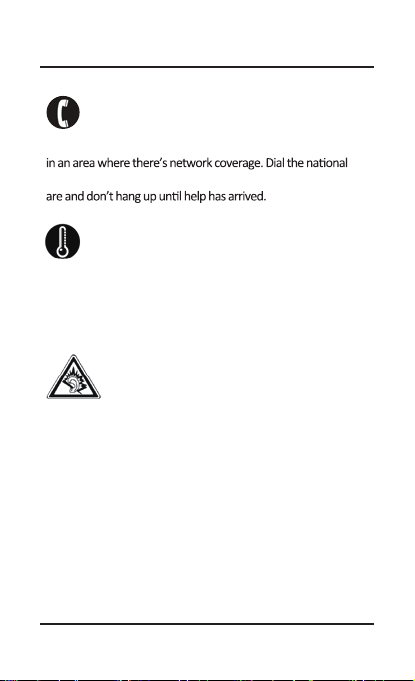
Emergency Calls
To make an emergency call your phone must be turned on and
emergency number and press ‘send’. Explain exactly where you
Working Temperature
The working temperature for the phone is between 0
Degree and 40 Degree Celcius. Please don’t use the phone
outside the range. Using the phone under too high or too
low temperature might cause problems.
At very high volume, prolonged listening to a
mobile phone can damage your hearing.
- -8
Page 9
MPMAN PH520
Understanding your PhoneUnderstanding your Phone
2 2
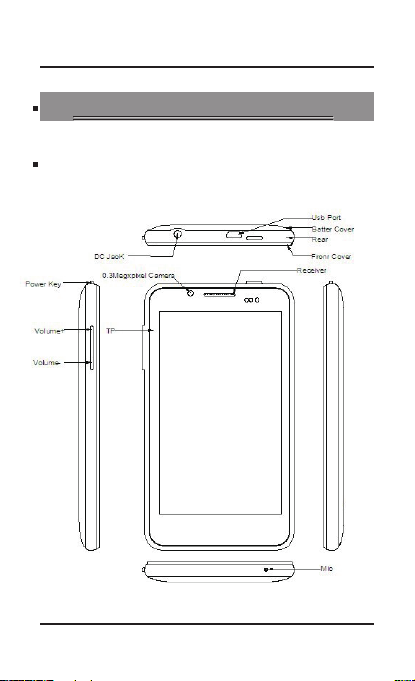
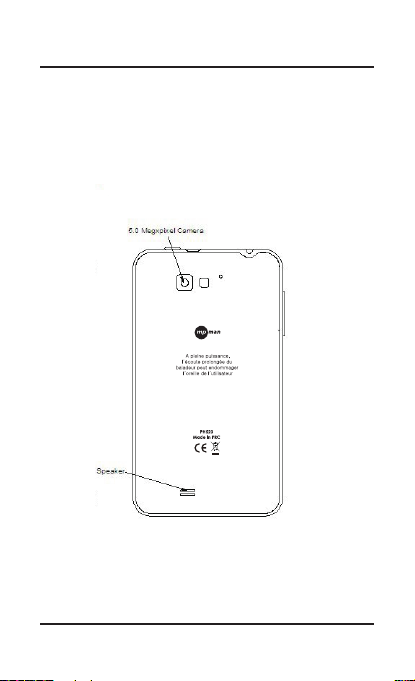
22..11 YYoouurr PPhhoonnee
- -9
Page 10
MPMAN PH520
01 --
Page 11
MPMAN PH5 2 0
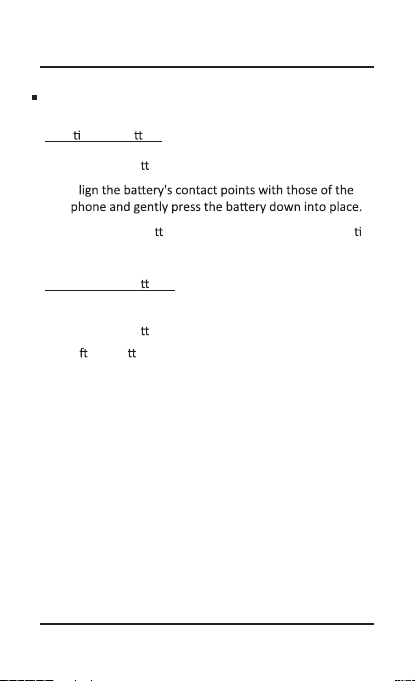
22..33 IInnsseerrttiinngg && RReemmoovviinngg tthhee bbaatttteerryy
Inser ng the ba ery
1. Open the ba ery cover on the back of your phone.
2. A
3. Replace the ba ery cover clicking it back into posi on.
Removing the ba
1. Switch off your phone.
2. Open the ba ery cover.
3. Li
the ba ery up and out of your phone.
ery
11 --
Page 12
MPMAN PH5 2 0
y
22..44 CChhaarrggiinngg tthhee bbaatttteerry
phone is ready to be used, but is not charged. It is easy
to do & can be done in 3 simple steps below:
1. Connect the charger to your phone, and plug it into a
socket.
2.
T
scroll to show you it’s charging.
3. W
scrolling.
4. Disconnect the charger from your mobile, and unplug.
21 --
Page 13
MPMAN PH5 2 0
22..55 PPoowweerr OONN//OOFFF
Long Press the power key to power-ON/OFF the phone.
Input phone lock code: If you’ve set a lock code.
Input SIM1 PIN: If you’ve set a PIN for your SIM1.
Input SIM2 PIN: If you’ve set a PIN for your SIM2.
Note:
The PIN is supplied with your SIM. Please replace it with your
own PIN code as soon as possible. Enter the wrong PIN three
your network service provider to ask for a PUK code to unlock it.
It is applicable for both the SIMs if you are using 2 SIM Cards.
F
22..66 EEnntteerr mmaaiinn mmeennuu
In idle mode, press the Menu key to enter the main menu
on the desktop and click the Home key to return.
31 --
Page 14
MPMAN PH5 2 0
22..77 EEnntteerr ssuubb mmeennu
Once at the main menu, click the icon to select the submenu,
press Back Key to return to the previous menu, and press
the Home Screen to return to the home screen.
u
22..88 UUssee nnoottiiffiiccaattiioonn ppaanneell
22..99 EExxppaanndd mmaaiinn iinntteerrffaaccee
The main interface may extend and exceed the screen width
to provide more space for newly added shortcuts and tools.
Slide your finger horizontally on the main interface to
22..1100 AAdddd iiccoonnss oonn tthhee mmaaiinn iinntteerrffaaccee
Long press any empty space on the main interface to open
“Add to Home screen”. Select “Shortcuts”, “Widgets”,
“Folders”, etc to add.
enlarged and the mobile phone vibrates, and copies the
icons in the main menu to the main interface.
ars in the no area, slide
41 --
Page 15
MPMAN PH5 2 0
22..1111 MMoovvee iiccoonnss oonn tthhee mmaaiinn iinntteerrffaaccee
1. L
enlarged and the mobile phone vibrates.
2. rag the icon to the desired pos
and then release it.
22..1122 DDeelleettee iiccoonnss oonn tthhee mmaaiinn iinntteerrffaaccee
1.
L
enlarged and the mobile phone vibrates.
2. Drag the icon into to delete it.
22..1133 CChhaannggee wwaallllppaappeerrss
1. Long press “Touch screen” to open the menu.
2. Press “Wallpapers” “Gallery /Live wallpapers /
“Wallpapers”, and Select the wallpaper and press
“Set wallpaper” to complete.
51 --
Page 16
MPMAN PH5 2 0
22..1144 IInnssttaallll AAPPKK tthhrroouugghh ffiillee mmaannaaggeerr
PK is a packaging file format for the Android mobile
1.Please copy the downloaded APK file into the SD card,
and then insert the SD card into the terminal.
2.In idle mode, click Main Menu to enter the main menu.
3.Click “File Manager” to enter the directory of SD .drac
4.Click the APK file you wish to install, and follow the
61 --
Page 17

MPMAN PH5 2 0
33UUssiinngg yyoouurr PPhhoonnee
33..11 MMaaiinn MMeennuu && IIttss FFuunnccttiioonnss
Select to enter the main menu…
Allows you to view a list of features available in your phone-
1. Alarm
Allows you to set the alarm from Clock.
2. Browser
Browse the search engine- default set as Google.
3. Calculator
Allows you to make tedious calcula ons quickly.
4. Calendar
View the calendar.
5. Camera
A
Your PH5 2 0 has 5 .0 Mega Pixel Camera which ensures you
click good quality of pictures and stores them under the
Gallery folder. In Camera,
easily slide to Camcorder to record Video Files.
71 --
Page 18

MPMAN PH5 2 0
Note: You need to have SD card to store the Pictures &
Videos.
6. Contacts
Contacts from your SIM can be downloaded into your
phone by Import / Export
Go to: Menu>contacts>Press Menu Display>Import/Export
7. Email
Allows you set up your P OP/IM AP email a ccounts.
8. Gallery
Allows you to save & view photos & videos.
9.Messaging
Allows you to view messages sent & received as a thread.
10. Music
View the list of songs available in your phone.
11. File Manager
You could install the files in APK format.
12. Se ngs
81 --
Page 19
MPMAN PH520
SIM Management
Wi-Fi
Bluetooth
Data usage
Audio profile
Display
Storage
Apps
Security
Language & Input
Backup & Reset
Add account
Scheduled power on & off
Accessibility
About Phone
13. SIM Toolkit
This service is provided by the operator.
It provides many types of personalized message services.
14. Sound Recorder
Records sound.
91 --
Page 20
MPMAN PH5 2 0
44MMaaiinntteennaannccee
Do not use a hard cloth, benzene or thinner to wipe the
phone, otherwise, the surface of the phone will be
scratched or could even result in the fading of colour.
55TTaakkiinngg CCaarree ooff yyoouurr DDeevviiccee
Your device is a product of superior design a nship
and should be handled with care.
will help you protect your phone:
Always keep the small parts of the phone away from
children.
02 --
Page 21
MPMAN PH5 2 0
Keep the device dry n , humidity , and
all types of liquids or moisture can contain
minerals that will rust electronic circuits. If your
device does get wet, remove the
allow the device to dry completely before
replacing it.
Do not use or store the device in dusty , dirty
areas. Its moving parts and electronic components
can be damaged.
Do not store the device in high or cold
temperature . High temperatures can shorten the
D open the device other than
as instructed in this guide.
Do not drop , knock , or shake the device .
Rough handling can break internal circuit boards
and fine mechanics.
Do not use harsh chemicals , cleaning solvents ,
or strong detergents to clean the device. Only use
device.
Do not paint the device. Paint can clog the
Use chargers indoors.
12 --
Page 22

For more information please check our website
www.mpmaneurope.com
 Loading...