

Page 1

User Manual
Page 2

Welcome
Thank you for purchasing this cellular phone. To
guarantee your cellular phone works properly, please
follow the instructions in this manual to prevent any
possible incidents or malfunctions. Follow all safety
warnings to avoid injury or property damage. Screen
displays and illustrations in this user’s manual are
designed to help you operate your phone to its
optimum performance. We continuously strive to
improve our products. Therefore, we reserve the rights
to revise this user manual or withdraw it at any time
without prior notice.
Page 3

Contents
GETSTARTED..........................................1
KEYANDPAR TS ......................................3
LOCKANDUNLOCKTHESCREEN.............4
MAKEITYOURS......................................5
ADDWIDGETSANDMOREICONS...........6
TOHOMESCREEN...................................6
ENTERLAUNCHER...................................7
MAKEACALL..........................................9
REJECTACALLBYSMS..........................11
ADDACONTACT...................................12
SENDANDRECEIVEMESSAGE(S)...........13
BROWSERTHEWEB..............................15
Page 4

ENJOYMUSIC.......................................16
DOWNLOADAPPLICATIONS..................17
FROMANDROIDMARKET.....................17
MANAGEAPPLICATIONS.......................18
MAINTENANCE&SAFETY.....................19
GENERALINFORMATION......................22
SAFETYINFORMATION..........................26
BATTERYINFORMATION.......................32
Page 5
1
Get started
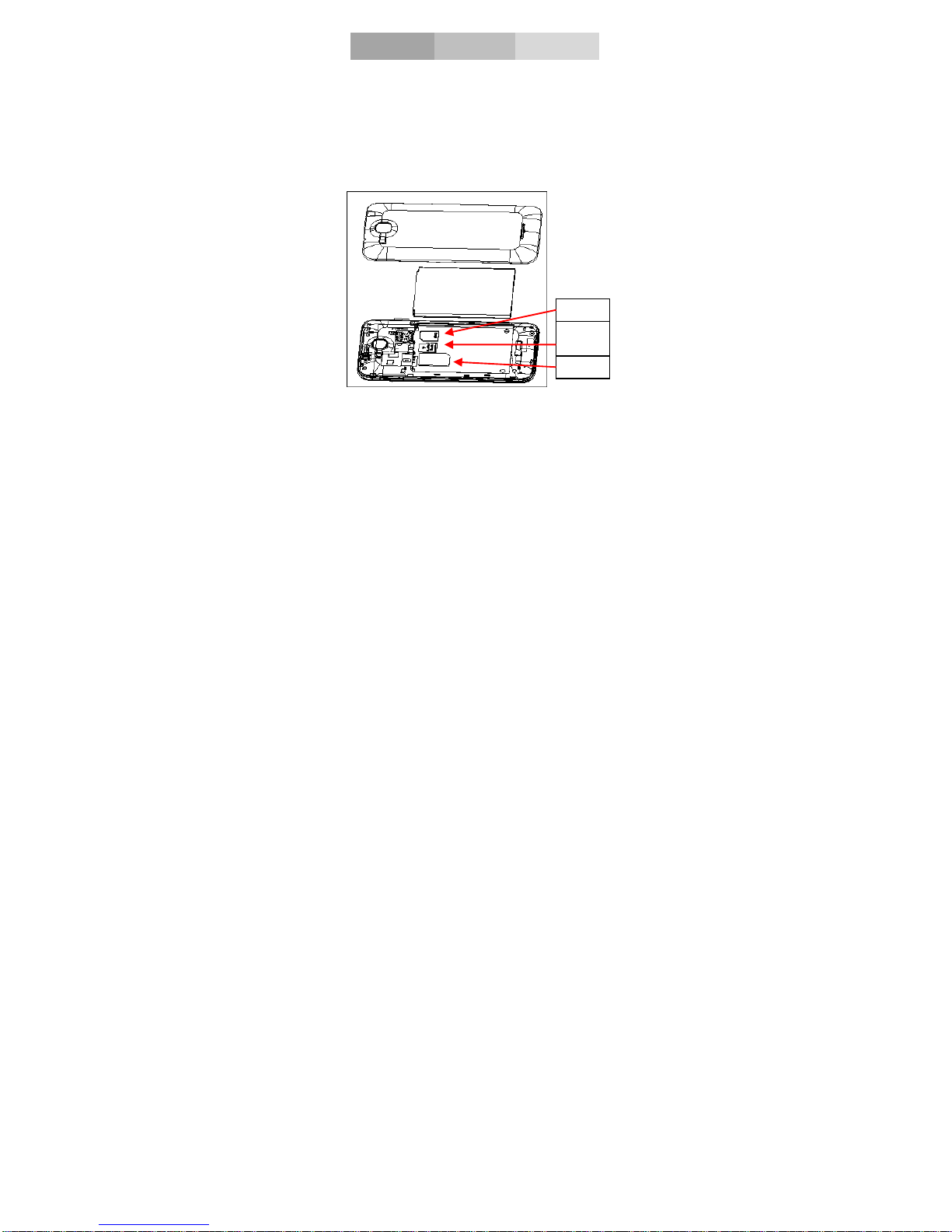
Insert SIM card
The phone is a Dual SIM mobile phone allowing you
to use the facility of two networks.
To insert SIM card(s):
1. Switch off the mobile phone and remove the rear
cover and battery.
2. Insert the SIM card correctly in the card slot(s) (See
figure below)
Micro
SD
SIM2
SIM1
Page 6

2
3. Finally insert the battery and replace the rear cover
of the mobile phone.
Insert Memory card
1. Power off the mobile phone and remove the rear
cover and battery.
2. Insert the Micro SD card into the slot.
3. Finally insert the battery and the rear cover of the
mobile phone.
Note: Use only compatible memory cards for use with
this device. Incompatible memory cards may damage
the card or the device and corrupt the data stored in
the card.
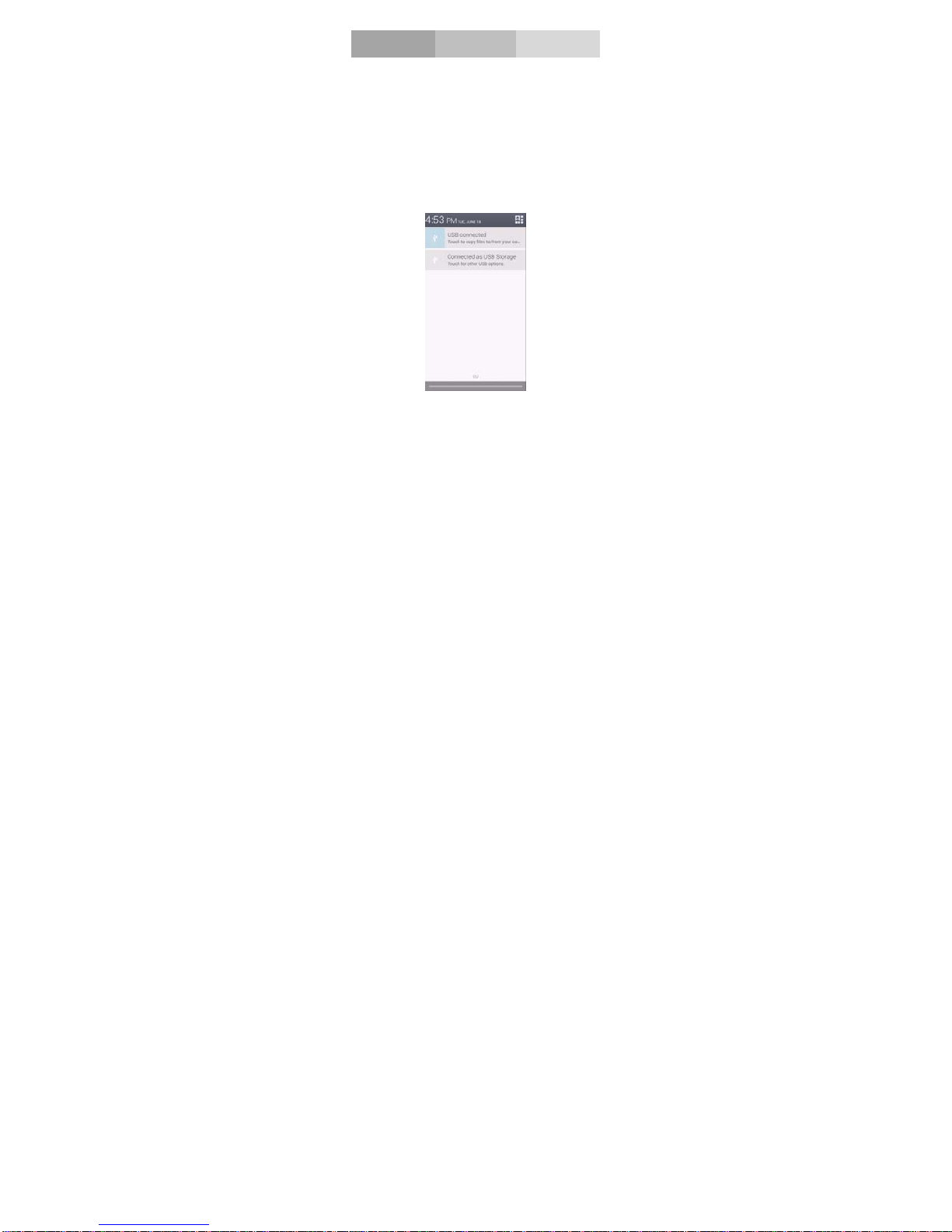
Charge the Battery or Connect to a computer
You can charge your battery using the charger or
connect the USB cable (supplied with this phone) to
the computer.
Note: Please use the specific battery, otherwise it may
cause explosion.
Page 7
3
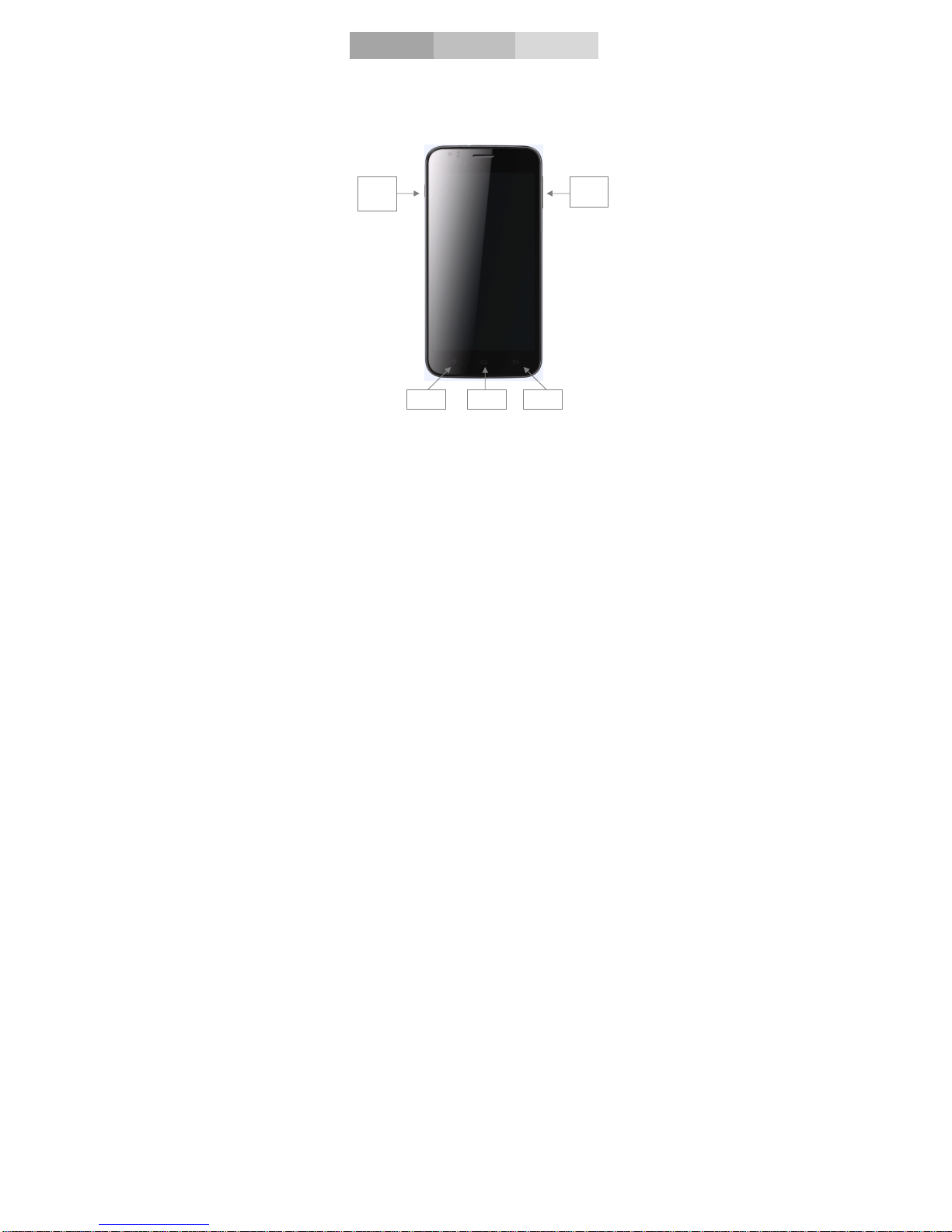
Key and parts
The smart phone gives you marvelous feelings to
experience on Camera, Video recorder, FM radio,
Music and Sound recorder. Let you install various
APPs, games, and more (supports APK format) by
downloading from Android Market.
Back
Power
key
Volume
key
HomeMenu
Page 8
4
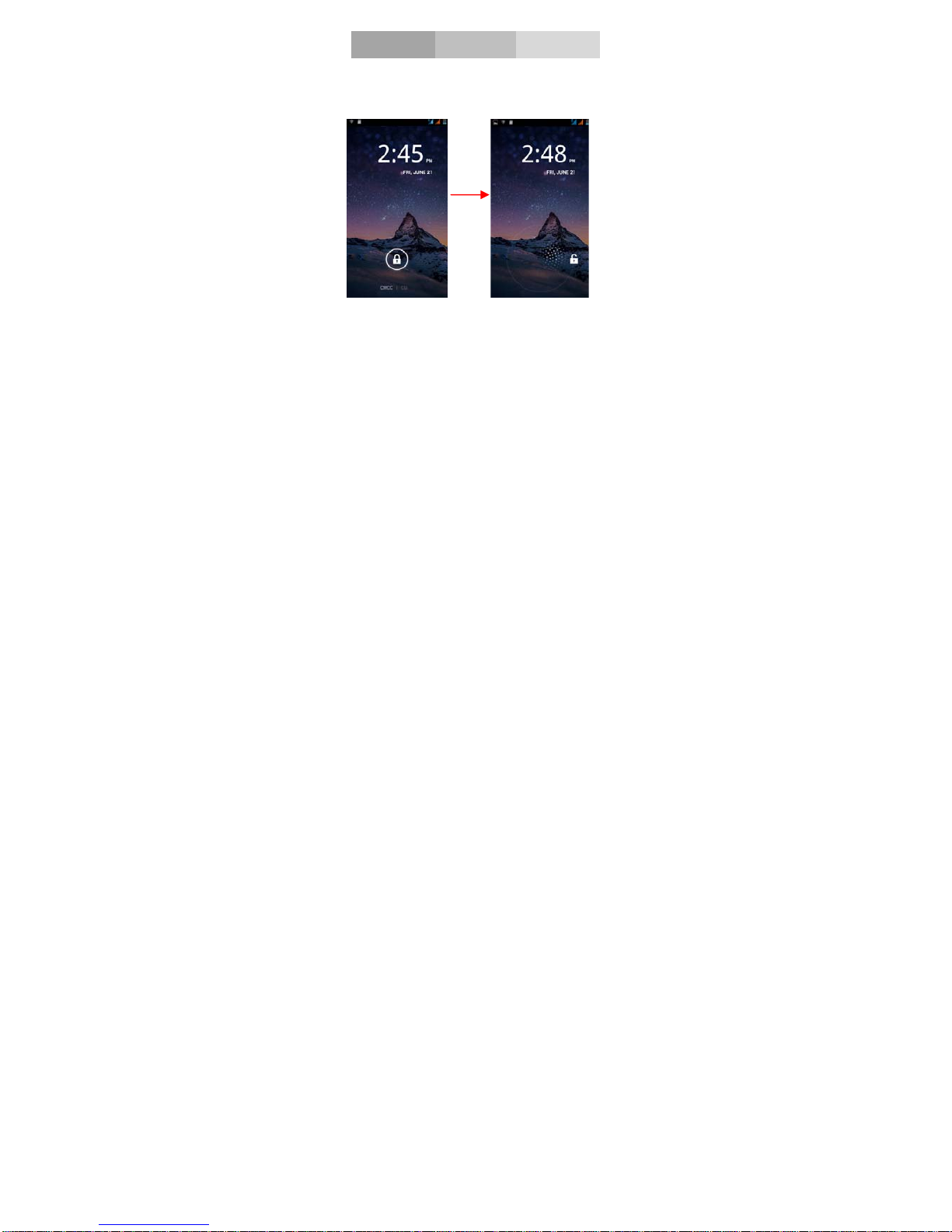
Lock and Unlock the screen
Press power button to enter Sleep mode and
meanwhile the screen will be locked; press power
button again to wake up and then drag to any direction
for unlock .
Page 9
5
Make it yours
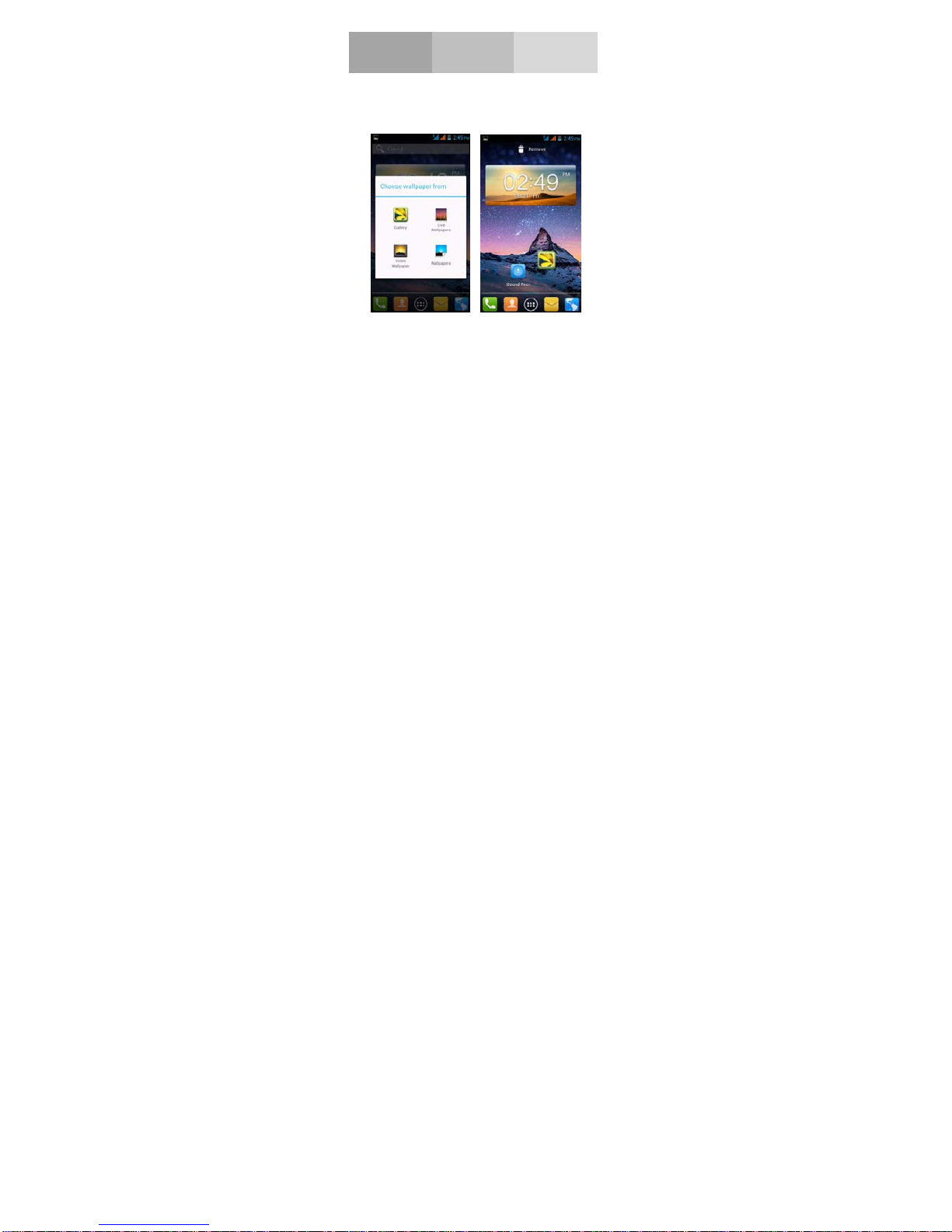
1. Home screen: It is your starting point to access all
the features on your phone. It displays application
icons, widgets, shortcuts, and other features. Long
press home screen and Modify Wallpaper.
2. Notification Bar: At the top of the screen, the Status
Bar displays the time, status, and notifications. If there
is a new message, missed call or something in the
notification bar, you can drag it down to open
notification panel and click the desired one to have a
view. When you finished, you can close it by dragging
the panel up or pressing “Back”.
Page 10
6
Add Widgets and more icons
to Home Screen
Long press Home screen, and then you can Modify
Wallpaper; or enter Launcher and long press and hold
an application till the screen vibrates, and then release
your finger hold.
Long press and hold the widget or icon you want to
move. Once the phone vibrates, don’t release your
hold on the icon. Drag the widget or icon to a new
location on the screen Press and hold on an icon till
the phone vibrates, and drag the widgets or icon to the
trash to remove!
Page 11
7
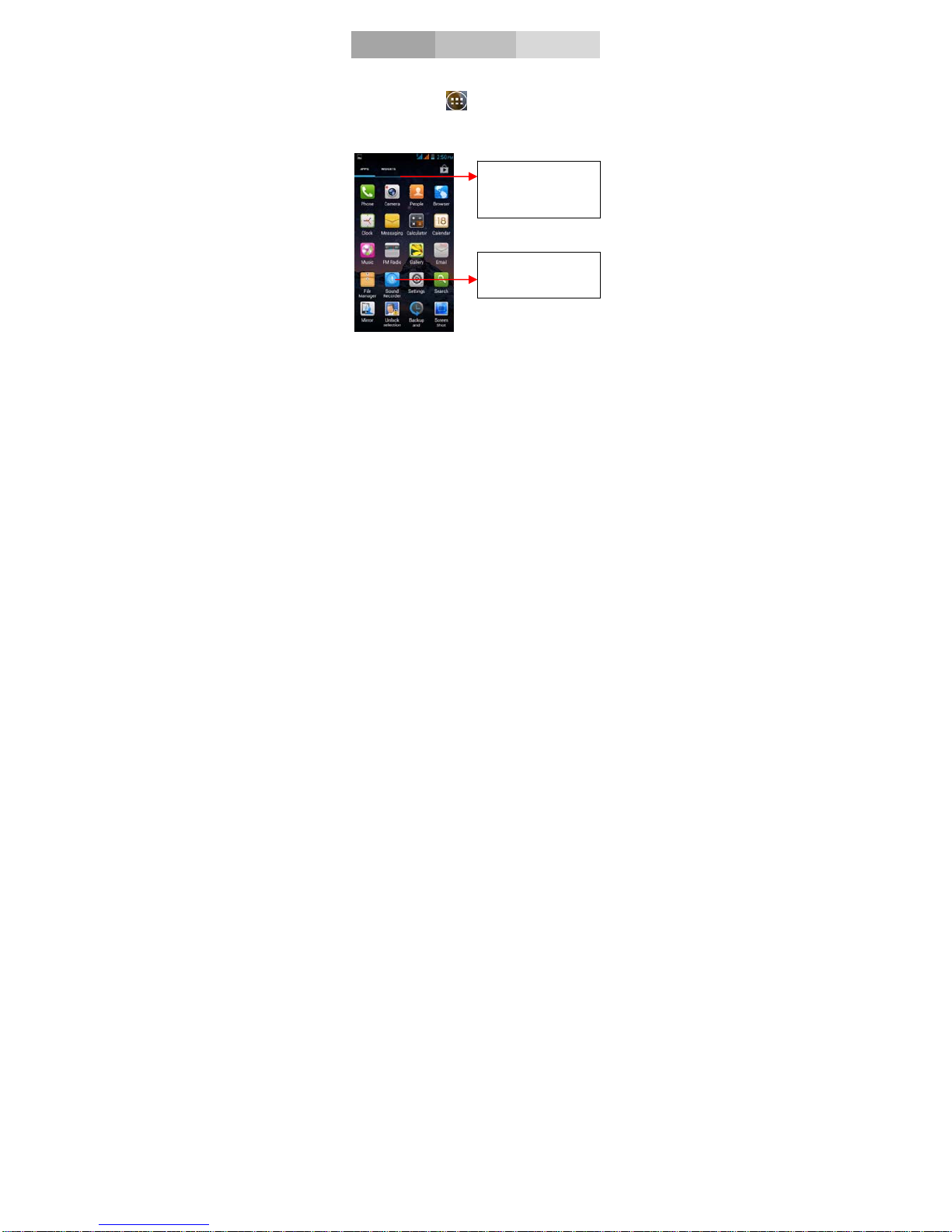
Enter launcher
Open and Switch Applications
At idle screen touch
enter launcher
The Launcher holds icons for all of the applications on
your phone, including any application that you
downloaded from Android Market or other sources
Press Home icon or Back icon to close the Launcher.
Slide the Launcher
left or right to bring
more icons
Touch an application
to open it
Page 12
8
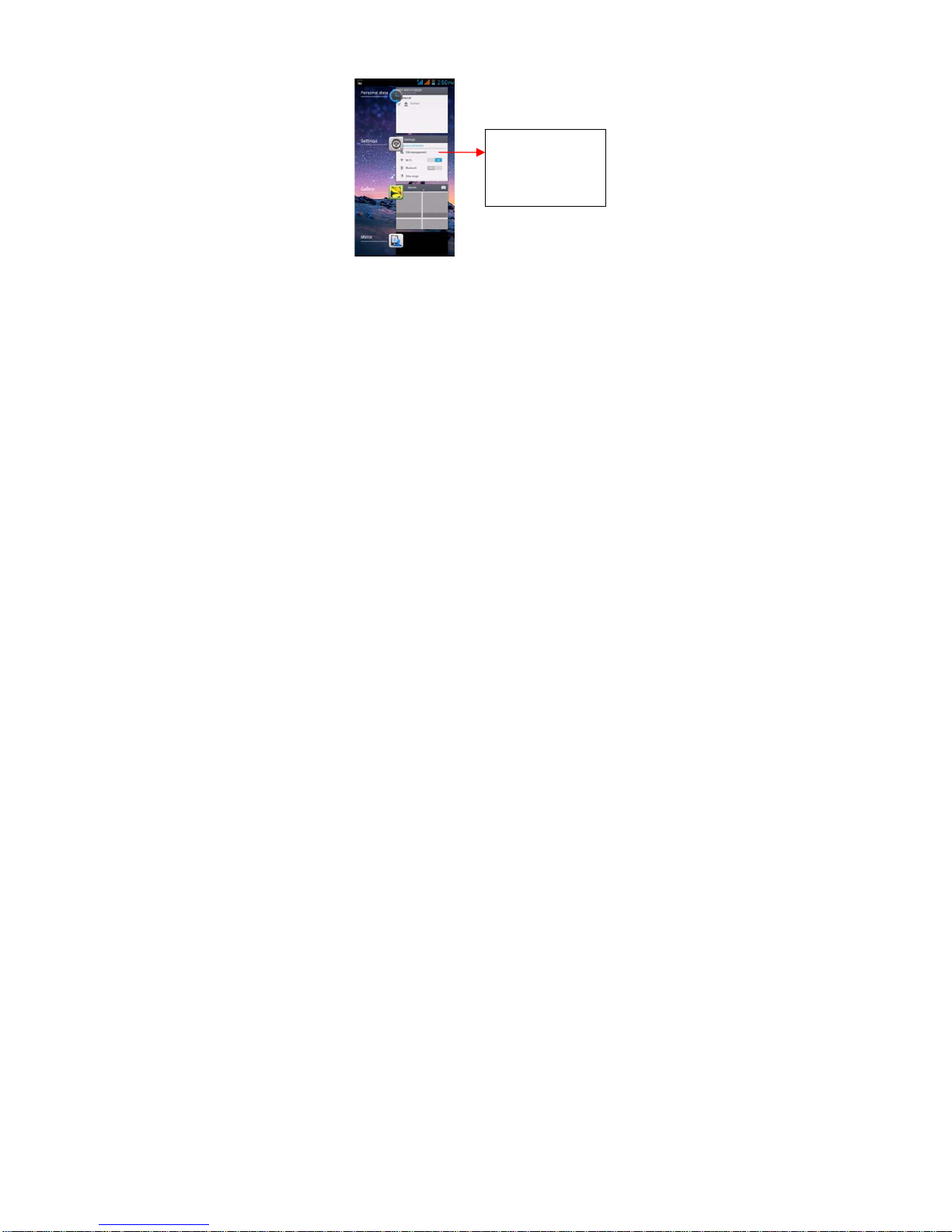
Switch to Recently Used Application
Press home key and hold the icon for a few seconds.
Touch an icon to
open an application
and slide it to the
right or left to close
it
Page 13
9
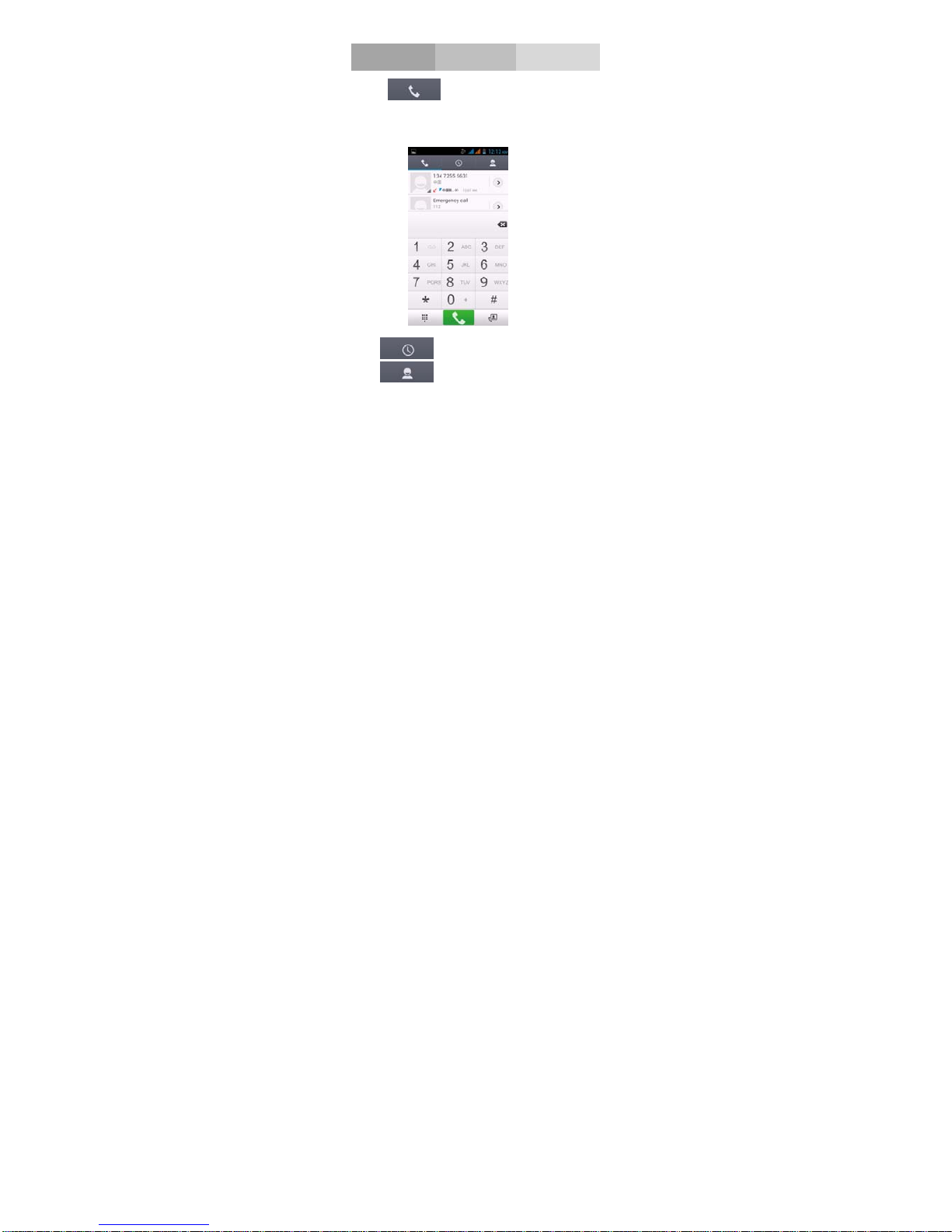
Make a call
Choose and enter a complete
phone number to make a call. Your phone supports
smart search.
Touch
to view call log,
Touch
to enter phonebook.
Page 14
10
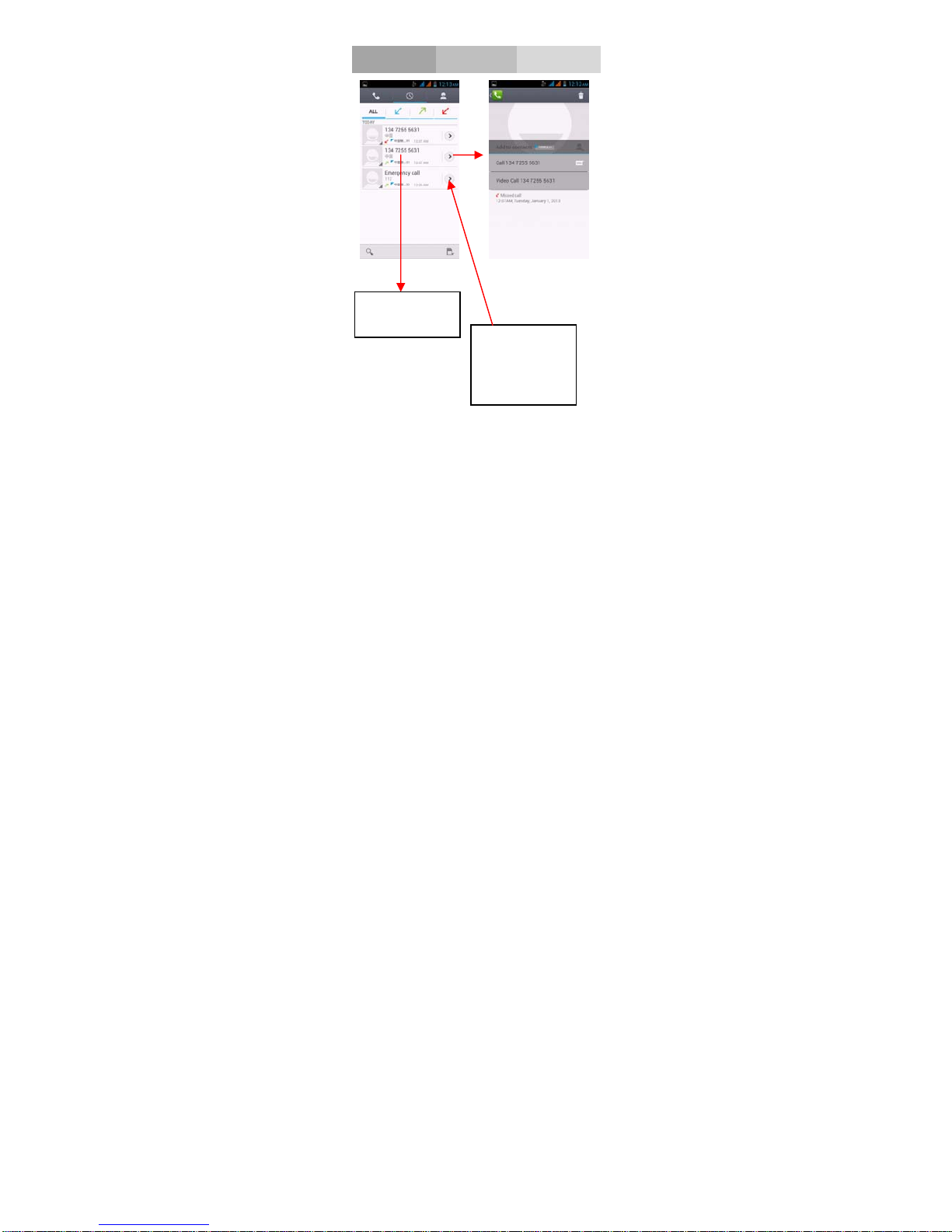
Call log
Press this point to
call directly
Press this point
enter menu, you
can call, video
call, view contact
etc.
Page 15
11
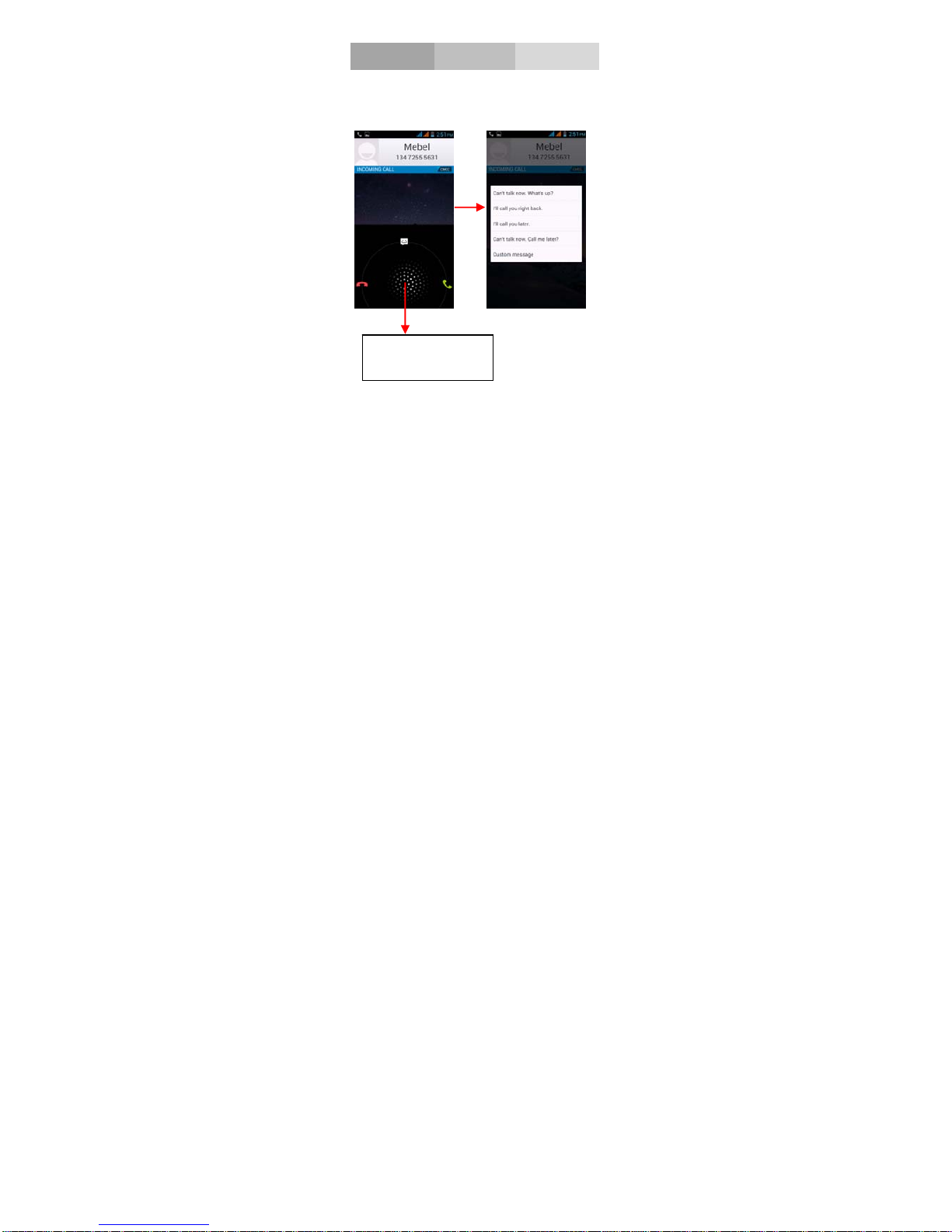
Reject a call by SMS
While there is an incoming call, and you are
inconvenient to accept the call, therefore you can send
a message for rejecting the call.
Drag this icon to select
and send SMS
Page 16
12
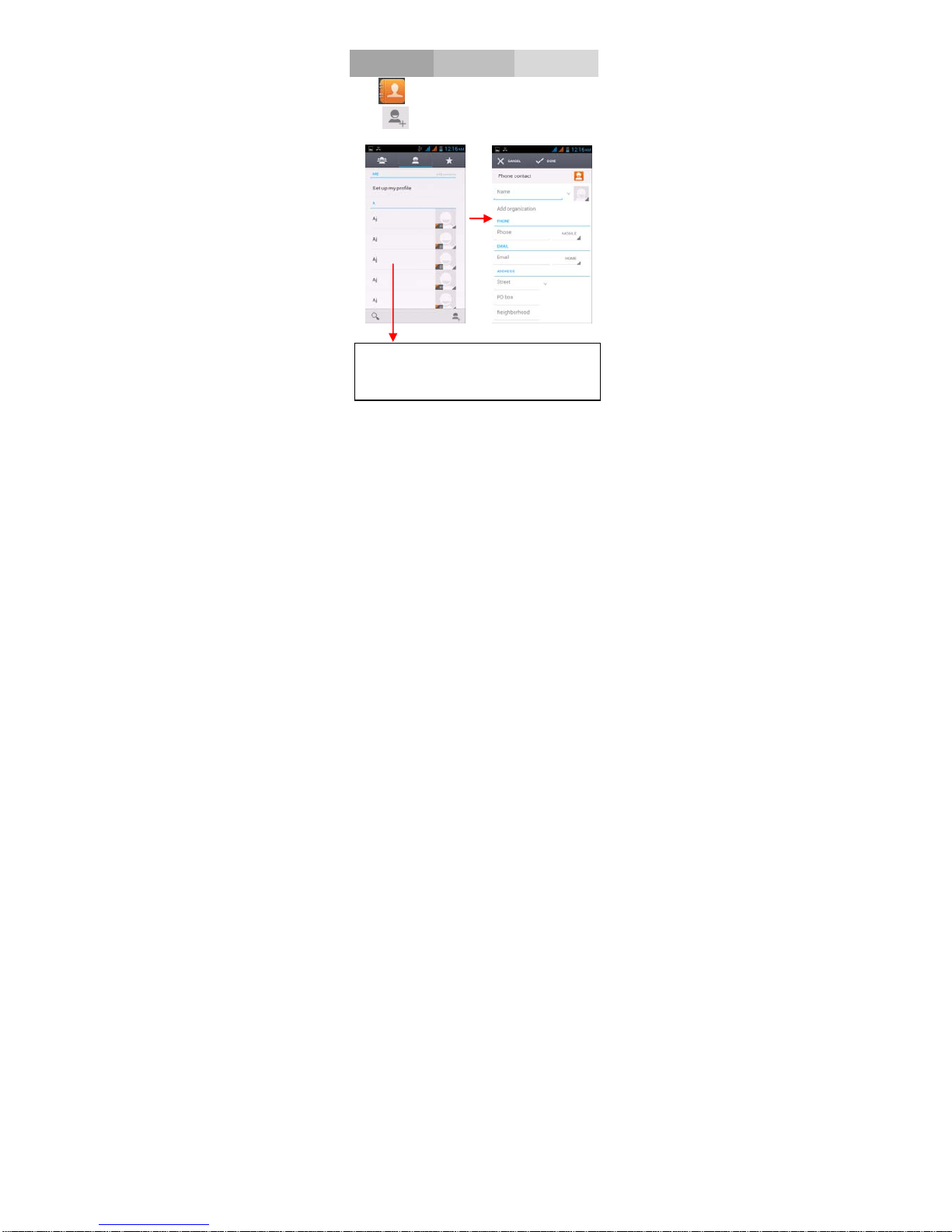
Add a contact
touch
enter contact
Touch
to add new contact
Click here for a contact and press menu key to
enter menu view, edit, delete contact, set
ringtone; share contact, etc.
Page 17
13
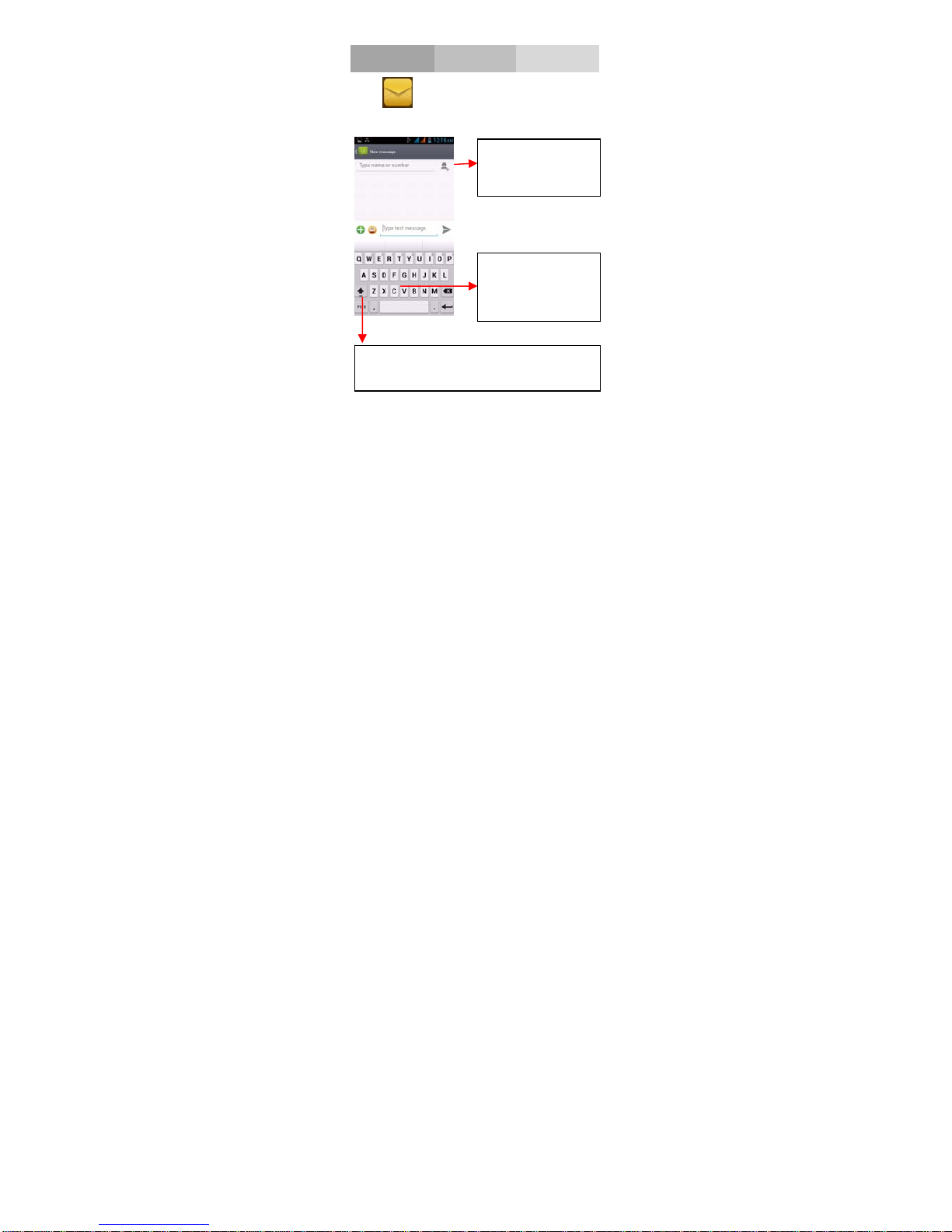
Send and Receive message(s)
Touch enter messaging, touch compose new
message
Touch once to capitalize the next letter you
type. Touch and hold for caps.
Press space or a
punctuation mark to
enter the highlighted
suggestion
Tap this icon to
select desired contact
from phonebook.
Page 18
14
When you are composing a new text message, you can
select text for cutting or copying. The selected text is
highlighted in blue.
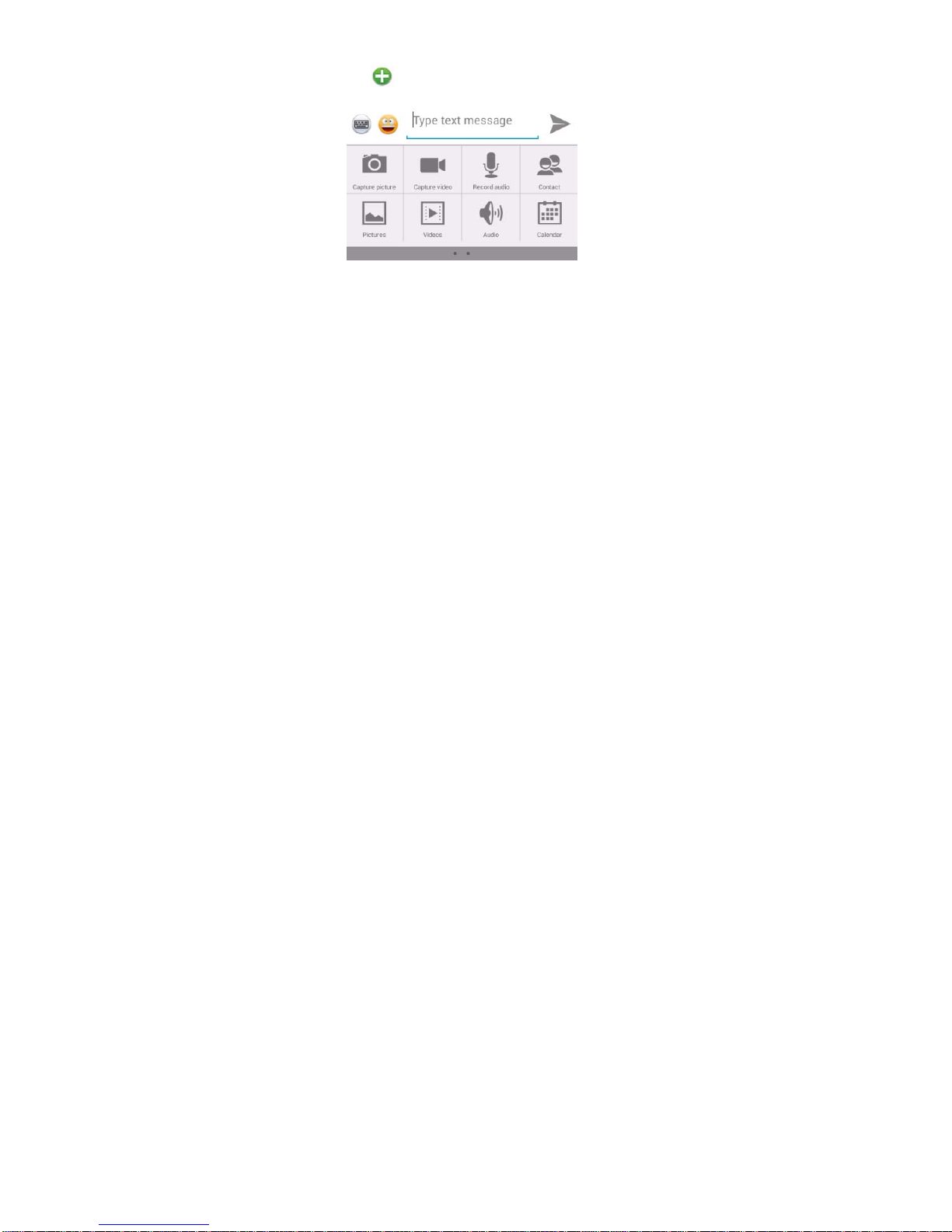
Tap
to add “Attach” including Pictures, Videos,
Audios, etc to send MMS.
When a new message comes, you can read by
dragging notification panel and click the message, or
entering Message to read it directly.
Long press one of the all message thread, you can
delete thread”.
Page 19
15
Browser the Web
a. Set up Internet/Data connection
Enter Settings > More…, scroll down to find out
Mobile network, and then enter “Access Points Names,
choose the desired WAP account.
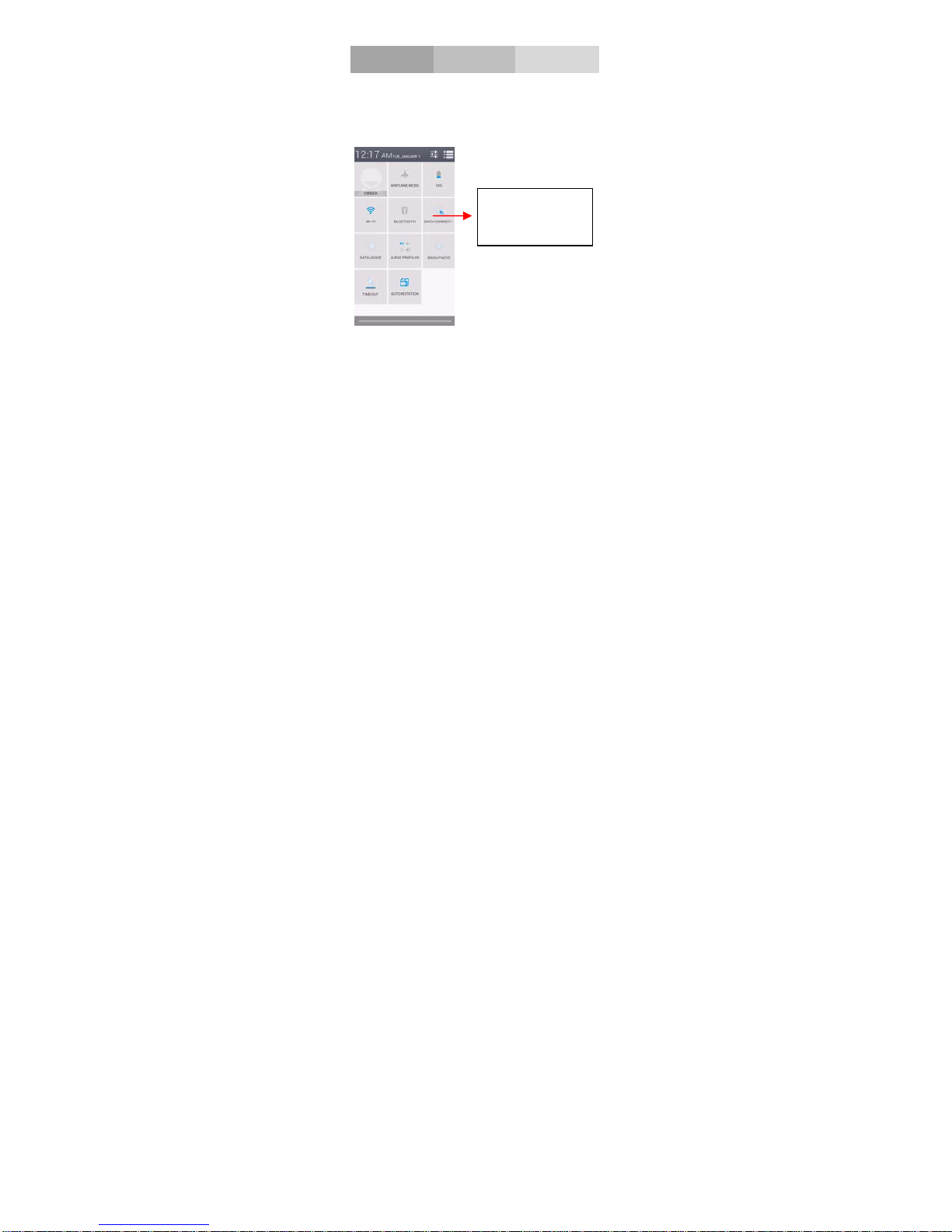
b. Switch on Data connection or WiFi
To browse the web, you need to switch on Data
connection. If there is WiFi around, you can switch on
WiFi to use it browse the web.
Touch it to switch
on or off Data
connection
Page 20
16
Enjoy music
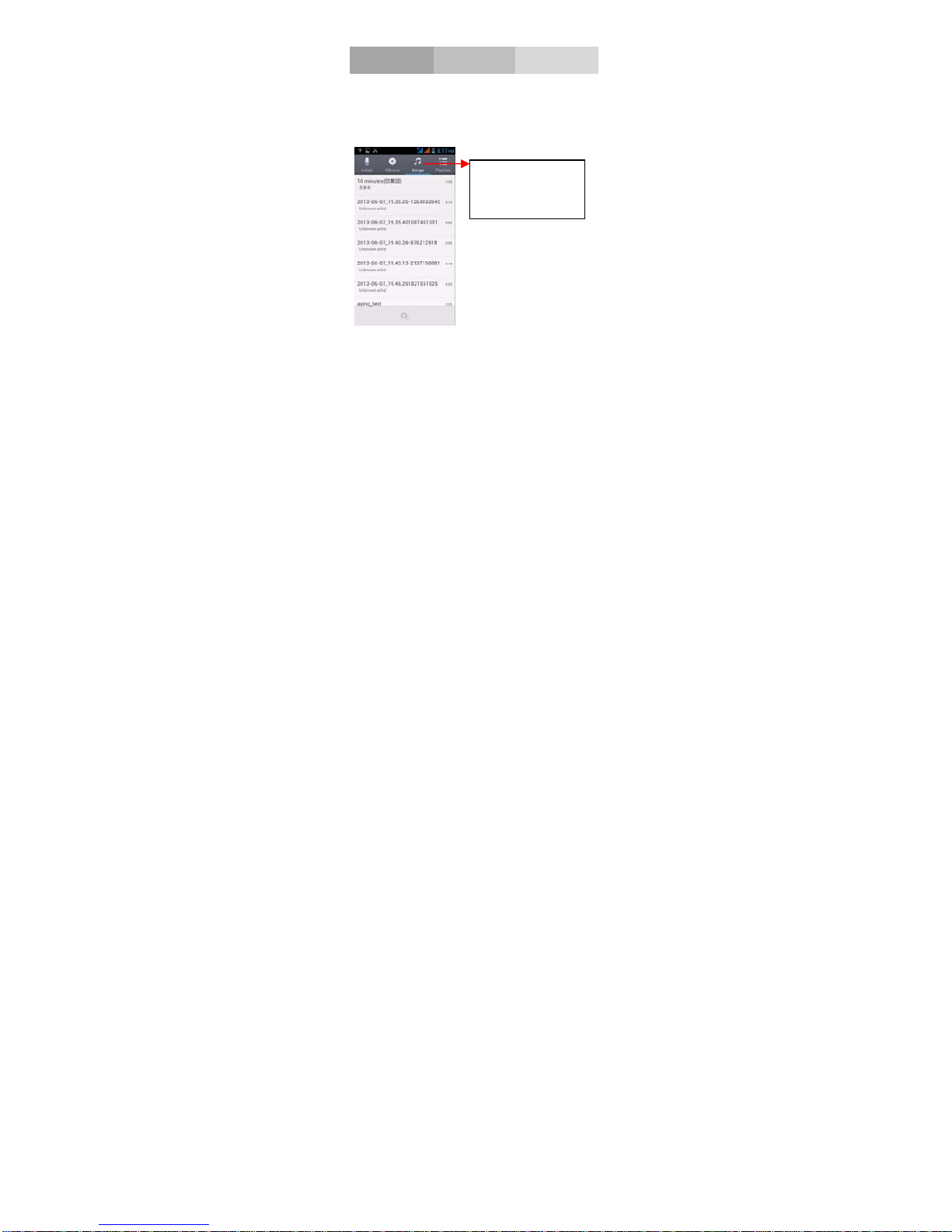
When you copy music to your SD card, the Music
player searches the card for music fi les and builds a
catalog of your music, based on information about
each fi le that is stored in the fi le itself.
Touch a tab to view
your library in one
of four ways
Page 21
17
Download applications
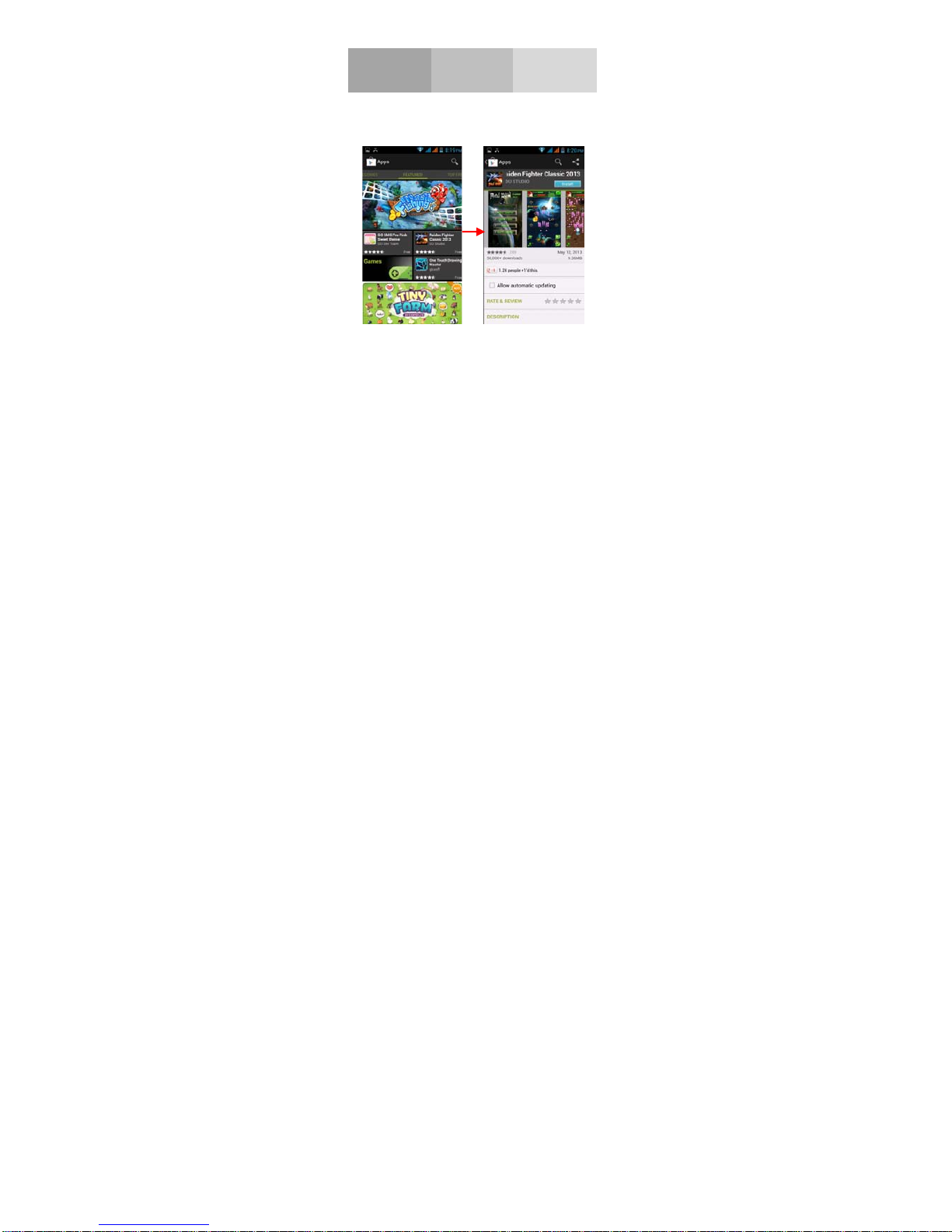
From android market
1. Add Google account
2. Enter play store (Android Market) and download
apps
Page 22
18
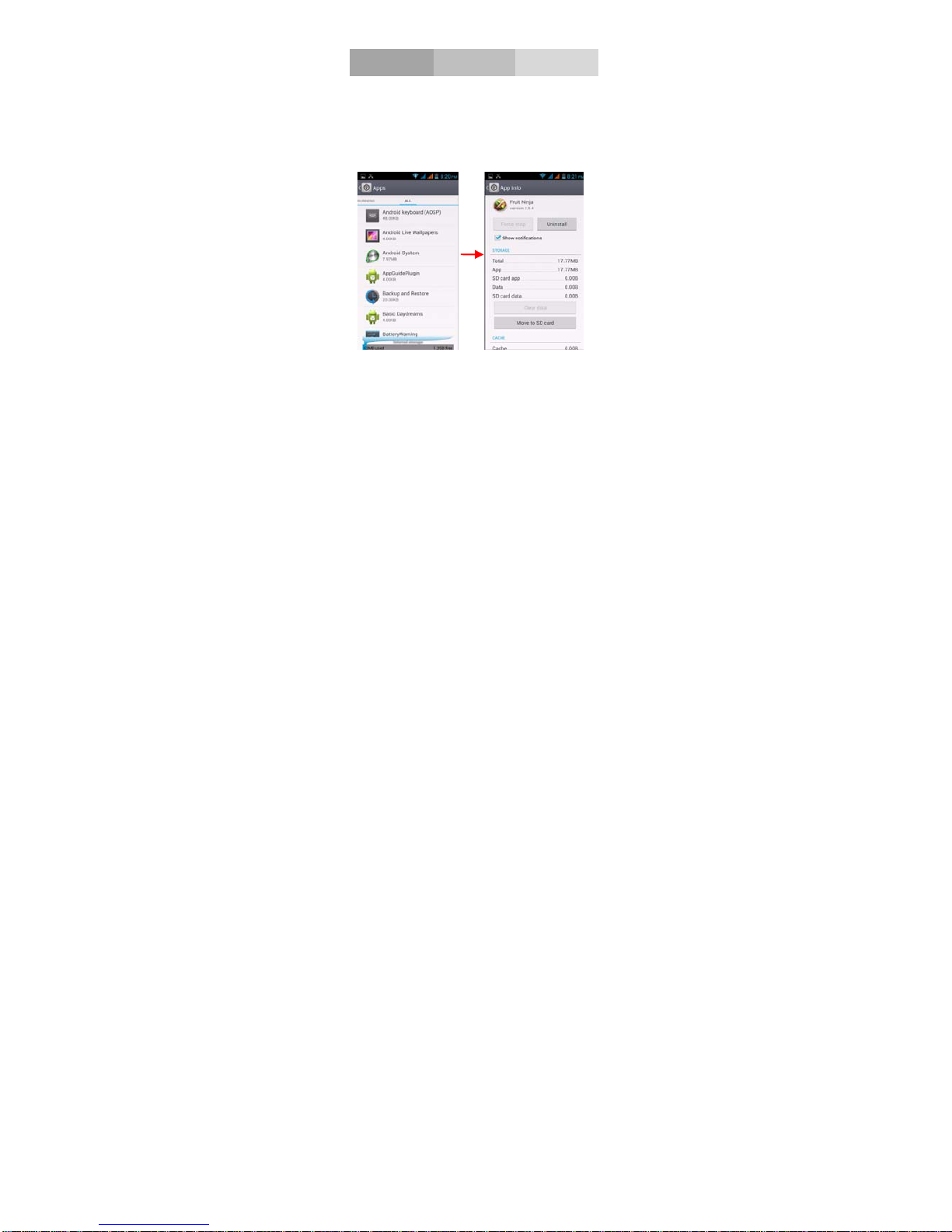
Manage Applications
As you install downloaded Apps, you need to switch
on “Unknown Sources” in Security settings.
Enter Setting > App.
Select one app, you can uninstall, clear data, move to
phone/SD card
Mobile Control: Mobile tracker & Peer control Code
is 1234.
Page 23

19
Maintenance & Safety
Please read and observe the following information for
safe and proper use of your phone and to prevent
damage. Also, keep the user guide in an accessible
place at all the times after reading it.
1. After sales service
Kindly refer to the Warranty Card provided in the
sales package box.
2. Charger and Adapter Safety
Charger and adapter are designed for indoor use only.
3. Battery Information and Care
z Please use the specific battery, otherwise it will
cause explosion.
z Please dispose of your battery properly.
z Do not disassemble or short-circuit the battery.
z Keep the battery’s metal contacts clean.
z Recharge the battery after long periods of non-use
to maximize battery life.
z Battery life will vary due to usage patterns and
environmental conditions.
z The self-protection function of the battery cuts the
Page 24

20
power of the phone when its operation is in an
abnormal status. In this case, remove the battery
from the phone, reinsert it, and turn the phone on
4. General Notice
Using a damaged battery or placing a battery in your
mouth may cause serious injury.
z Do not place items containing magnetic
components such as a credit card, phone card,
bank book, or subway ticket near your phone. The
magnetism of the phone may damage the data
stored in the magnetic strip.
z Talking on your phone for long period of time
may reduce call quality due to heat generated
during use.
z When the phone is not used for a long period time,
store it in a safe place with the power cord
unplugged.
z Using the phone in proximity to receiving
equipment (i.e. TV or Radio) may cause
interference to the phone.
z Do not immerse your phone in water. If this
happens, remove the battery and take it to an
Authorized Service Center.
z Do not paint your phone.
z The data saved in your phone might be deleted
due to careless use, repair of the phone, or
Page 25

21
upgrade of the software. Please backup your
important phone numbers. (Ring tones, text
messages, voice messages, picture, and videos
could also be deleted.) The manufacturer is not
liable for damage due to the loss of data.
z Do not turn your phone on or off when the phone
is close to your ear.
Page 26

22
General Information
Battery Care
Your phone is powered by a rechargeable battery
z The voltage range of the phone battery is 3.6 V -
4.2 V
z The battery can be charged and discharged
hundreds of times but it will eventually wear out.
When the operating time (talk and standby) is
noticeable shorter than normal, you should buy a
new battery at the time.
z Unplug the travel charger when not in use, and
don’t leave the battery connected to a travel
charger for longer than a week, since
overcharging may shorten its lifetime.
z Overcharging may shorten its lifetime, and if left
unused a fully charged battery may discharge
itself over time
z Never store or charge battery in extreme hot or
cold temperature, since extreme temperature can
shorten the life of your mobile phone and damage
battery
z Use only the charger and batteries that are
approved for use or recommended by the
manufacturer. Use any unqualified charger or
Page 27

23
batteries may cause damages to your mobile
phone.
z Use the battery only for its intended purpose.
z Do not leave the battery inside of your car of in
extreme weather conditions, since extreme
temperature might cause damage to your battery
z Do not short-circuit the battery. Short-circuiting
the terminals may damage the battery or the
connecting object.
z Dispose of used batteries according to local
regulations or manufacturer’s instructions. Do not
dispose of batteries in a f re.
z Actual battery life will depend on network
configuration, product settings, usage patterns,
battery and environmental conditions.
CAUTION: RISK OF EXPLOSION IF BATTERY
ISREPLACED BY AN INCORRECT TYPE.
DISPOSE OF USED BATTERIES ACCORDING TO
THE INSTRUCTIONS.
Charger attention
Attention: Please check the model of charger firstly
before using with this mobile phone.
Warning: Only use batteries, chargers, and
Page 28

24
enhancements approved by the particular model.
Using any other types of batteries, chargers and
enhancements will invalidate the approval or warranty,
and may be dangerous. Please check with your dealer
for availability of approved enhancements. Please
grasp and pull the plug, not the cord when you
disconnect the power cord of any enhancement.
Care and maintenance
Your mobile phone is a highly sophisticated
electronic device. Please read this information before
using your mobile phone. If any device is not working
properly, take it to the nearest authorized service
center.
Product Care
z Keep your mobile phone and all its parts out of
young children’s reach
z Keep your mobile phone dry. Precipitation,
humidity, and all types of liquids or moisture can
contain minerals that will corrode electronic
circuits.
z Avoid exposing your mobile phone to extreme hot
or cold temperatures. The temperature range for
using the phone is 0°C-40°C.
z Avoid placing your mobile phone close to lit
cigarettes, naked fames or any heat source.
z Do not attempt to disassemble it. Only qualified
Page 29

25
personnel may install or repair your mobile
phone.
z Do not drop, knock or shake your mobile phone.
Rough handling can break internal circuit boards.
z Do not paint your mobile phone. Paint could
obstruct the earphone, microphone or any
moveable parts and prevent proper operation.
z Treat your mobile phone with care and keep it in
a clean and dust free place.
z Do not use the phone if the antenna is damaged. If
a damaged antenna contacts skin, it may cause a
light burn. Please contact the nearest authorized
service center to replace the damaged antenna.
z Use chargers indoors.
z Your mobile may have internal and external
antennas. As with any radio trans mitting device,
avoid touching the antenna area unnecessarily
while the antenna is transmitting or receiving.
Contact with such an antenna affects the
communication quality and may cause your
mobile to operate at a higher power level than
proper operation needed and may reduce the
battery life.
z Avoid using the phone at an altitude higher than
3000 meters.
Page 30

26
Safety Information
Access Codes
PIN code
The Personal Identification Number (PIN code)
protects your SIM card against unauthorized use. Your
SIM card usually supplies the PIN code. The password
can be obtained from your service provider. If the
incorrect PIN code occurred three times in succession,
you may need to key in PUK code.
PUK code
The Personal Unlocking Key (PUK code) is required
to change a blocked PIN code. The PUK2 code is
required to change a blocked PIN2 code. The
password can be obtained from your service provider.
If you key in an incorrect PIN2 code three times in
succession, you may need to key in the PUK2 code. If
incorrect PUK or PUK2 card cannot be used anymore.
You might need to contact your service provider for a
new card.
Radio frequency energy
Your mobile phone is a radio transmitter and receiver.
Page 31

27
When the phone is turned on, it receives and transmits
radio frequency (RF) energy. Depending on the type
of mobile phone you posses, it operates on different
frequency ranges and employs commonly used
modulation techniques. The system handles your call
when you are using your phone and it also controls the
power level at which your phone transmits.
Specific Absorption Rate (SAR) information.
Your phone has been designed to comply with
applicable safety requirements for exposure to radio
waves. These requirements are based on scientific
organizations through periodic and thorough
evaluation of scientific studies. These guidelines
include safety margins designed to assure the safety of
all persons, regardless of age and health.
z The radio wave exposure guidelines employ a unit
of measurement known as the Specific
Absorption Rate, or SAR. Tests for SAR are
conducted by using standardized method with the
phone transmitting at its highest certified power
level in all used frequency bands.
z This phone is designed to meet the relevant
guidelines for exposure to radio waves.
z The SAR limit recommended by the international
Commission on Non-Ionizing Radiation
Protection (ICNIRP), which is 2W/kg averaged
Page 32

28
over ten (10) grams of tissue.
SAR data information for residents in
countries/regions that have adopted the SAR limit
recommended by the Institute of Electrical and
Electronics Engineers (IEEE), which is 1.6 W/kg
averaged over one (1) gram of tissue.
Electronic devices
Most modern electronic equipment is shielded from
RF energy. However, certain electronic equipment
may not be shielded against the RF signals from your
wireless phone, therefore:
z Do not use your mobile phone near medical
equipment without requesting permission.
Pacemaker
Mobile phones may affect the operation of some
implanted cardiac pacemakers and other medically
implanted equipments. Pacemaker manufacturers
recommend that a minimum separation of 20 cm. (6
inches) should be maintained between a hand-held
wireless phone and a pacemaker to avoid potential
interference with the pacemaker. These
recommendations are consistent with independent
research by the Wireless Technology Research
Association.
Page 33

29
Persons with pacemakers
z Should always keep the phone more than 20 cm.
(6 inches) from their pacemakers when the phone
is switched on
z Should not carry the phone in a breast pocket.
z Should use the ear opposite to the pacemaker to
minimize the potential for interference.
z If you have any reason to suspect that interference
is taking place, switch off your phone
immediately
Hearing aids
z Some hearing aids might be disturbed by mobile
phones. In the event of such disturbance, you may
want to consult your service provider, or call the
customer service line to discuss alternatives.
Aircraft
z Turn off your mobile phone before boarding any
aircraft.• Do not use it on the ground without
crew permission. To prevent interference with
communication systems, you must not use your
mobile phone while the plane is in the air.
Potentially explosive atmospheres
Switch off your phone when in any area with a
Page 34

30
potentially explosive atmosphere and obey all signs
and instructions. It is rare, but your phone or its
accessories could generate sparks. Sparks in such
areas could cause an explosion or f re resulting in
bodily injury or even death. Areas with a potentially
explosive atmosphere are often, but not always,
clearly marked. They include fuelling areas, such as
petrol station, below deck on boats, fuel or chemical
transfer or storage facilities, and areas where the air
contains chemicals or particles, such as grain, dust,
or metal powders, and any other area where you
would normally be advised to turn off your vehicle
engine.
Driving
Check the laws and regulations on the use of mobile
phones in the areas where you drive. If you are
going to use your phone while driving, please:
z Give full attention to driving.
z Use the “handsfree” setting. (Required by law
in many countries).
z Pull off the road and park before making or
answering a call if driving conditions so require.
RF energy may affect some electronic systems in
motor vehicles such as the car stereo, safety
equipment etc .In addition, some vehicle
Page 35

31
manufacturers do not allow use of mobile phones,
unless the installation is supported by a handsfree kit
with an external antenna in their vehicles.
Check with your vehicle manufacturer’s
representative to be sure that your mobile phone will
not affect the electronic systems in your vehicle.
Emergency calls
Important:
This phone, like any wireless phone, operates using
radio signals, wireless and landline networks as well
as user programmed functions. Because of this
connections in all conditions cannot be guaranteed.
Therefore, you should never rely solely upon any
wireless phone for essential communications (e.g.
medical emergencies).
Emergency calls may not be possible on all wireless
phone networks or when certain network services
and/or phone features are in
Page 36

32
Battery Information
Type Capacity
Li-ion 2000mAh
z The battery life depends on many factors,
including the SIM card, network conditions,
settings, usage and environment.
z Making calls, turning on the backlight and music
player will consume more battery power.
z The standby time is shorter when the network is
not available than in the standard status.
z For power saving, the backlight turns off
automatically if your phone stands idle for an
assigned time.
z The performance of battery varies with the
charging status, temperature, local radio wave and
backlight status.
FCC Statement:
1. This device complies with Part 15 of the FCC
Rules. Operation is subject to the following
two conditions:
(1) This device may not cause harmful
Page 37

33
interference.
(2) This device must accept any interference
received, including interference that may cause
undesired operation.
2. Changes or modifications not expressly
approved by the party responsible for
compliance could void the user's authority to
operate the equipment.
NOTE:
This equipment has been tested and found to
comply with the limits for a Class B digital
device, pursuant to Part 15 of the FCC Rules.
These limits are designed to provide reasonable
protection against harmful interference in a
residential installation.
This equipment generates uses and can radiate
radio frequency energy and, if not installed and
used in accordance with the instructions, may
cause harmful interference to radio
communications. However, there is no
guarantee that interference will not occur in a
particular installation. If this equipment does
cause harmful interference to radio or television
reception, which can be determined by turning
the equipment off and on, the user is
encouraged to try to correct the interference by
one or more of the following measures:
Page 38

34
Reorient or relocate the receiving antenna.
Increase the separation between the equipment
and receiver.
Connect the equipment into an outlet on a
circuit different from that to which the receiver
is connected.
Consult the dealer or an experienced radio/TV
technician for help.
SAR Information Statement
Your wireless phone is a radio transmitter and
receiver. It is designed and manufactured not to
exceed the emission limits for exposure to
radiofrequency (RF) energy set by the Federal
Communications Commission of the U.S.
Government. These limits are part of
comprehensive guidelines and establish
permitted levels of RF energy for the general
population. The guidelines are based on
standards that were developed by independent
scientific organizations through periodic and
thorough evaluation of scientific studies. The
standards include a substantial safety margin
designed to assure the safety of all persons,
regardless of age and health. The exposure
standard for wireless mobile phones employs a
unit of measurement known as the Specific
Page 39

35
Absorption Rate, or SAR. The SAR limit set by
the FCC is 1.6 W/kg. * Tests for SAR are
conducted with the phone transmitting at its
highest certified power level in all tested
frequency bands. Although the SAR is
determined at the highest certified power level,
the actual SAR level of the phone while
operating can be well below the maximum
value. This is because the phone is designed to
operate at multiple power levels so as to use
only the power required to reach the network.
In general, the closer you are to a wireless base
station antenna, the lower the power output.
Before a phone model is available for sale to
the public, it must be tested and certified to the
FCC that it does not exceed the limit
established by the government adopted
requirement for safe exposure. The tests are
performed in positions and locations (e.g., at the
ear and worn on the body) as required by the
FCC for each model. The highest SAR value for
this model phone when tested for use at the ear
is 0.614W/Kg and when worn on the body, as
described in this user guide, is
0.936W/Kg (Body-worn measurements differ
among phone models, depending upon available
accessories and FCC requirements).The
Page 40

36
maximum scaled SAR in hotspot mode is
0.936W/KG While there may be differences
between the SAR levels of various phones and
at various positions, they all meet the
government requirement for safe exposure. The
FCC has granted an Equipment Authorization
for this model phone with all reported SAR
levels evaluated as in compliance with the FCC
RF exposure guidelines. SAR information on
this model phone is on file with the FCC and
can be found under the Display Grant section of
http://www.fcc.gov/ oet/fccid after searching on
FCC ID: 2ABBS-A40 Additional information
on Specific Absorption Rates (SAR) can be
found on the Cellular Telecommunications
Industry Asso-ciation (CTIA) web-site at
http://www.wow-com.com. * In the United
States and Canada, the SAR limit for mobile
phones used by the public is 1.6 watts/kg (W/kg)
averaged over one gram of tissue. The standard
incorporates a sub-stantial margin of safety to
give additional protection for the public and to
account for any variations in measurements.
Body-worn Operation
This device was tested for typical body-worn
operations. To comply with RF exposure
Page 41

37
requirements, a minimum separation distance of
10mm must be maintained between the user’s
body and the handset, including the antenna.
Third-party belt-clips, holsters, and similar
accessories used by this device should not
contain any metallic components. Body-worn
accessories that do not meet these requirements
may not comply with RF exposure requirements
and should be avoided. Use only the supplied or
an approved antenna.
 Loading...