

Page 1
Wireless USB
Adapter
Comfort
without limits
Quick start guide
Shared, life is better.
Page 2

Page 3
Introduction
This guide describes Movistar’s Wireless USB Adapter installation
and configuration process. This adapter is dual so, you will be able to
connect to wireless networks in 2,4 Ghz and 5 Ghz frequency bands.
Please, follow the guide indications step by step.
To perform advanced operations or get more details please, refer to the
user’s manual included in the “See documentation” section of the
installation CD.
Package content
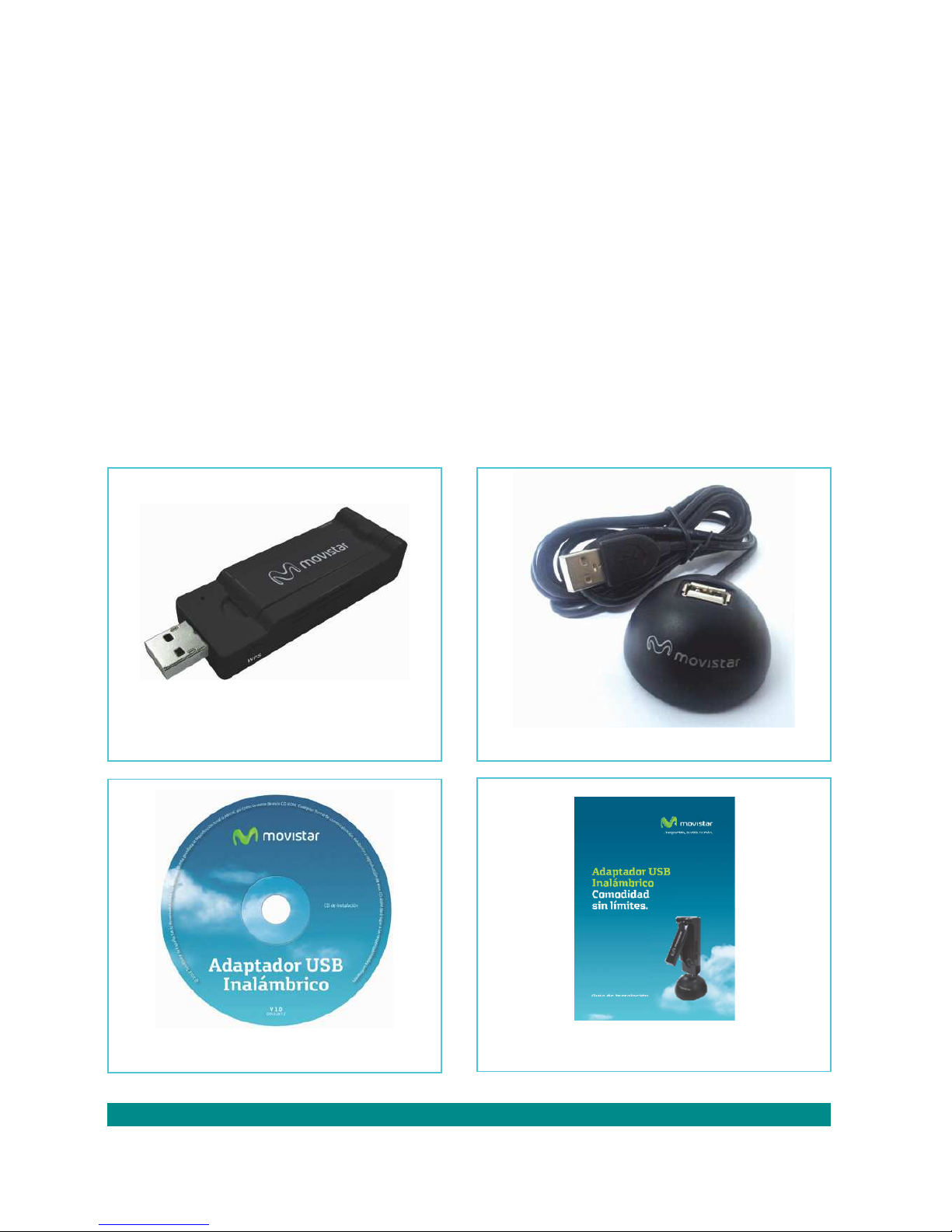
(1) Wireless USB Adapter (2) Craddle
(3) Installation CD (4) Quick start guide
Further information in the user’s manual: Chapter 1
1
Page 4
Installation on the computer
In the following lines the Movistar USB Wireless Adapter installation process is detailed. Please, follow the steps indicated.
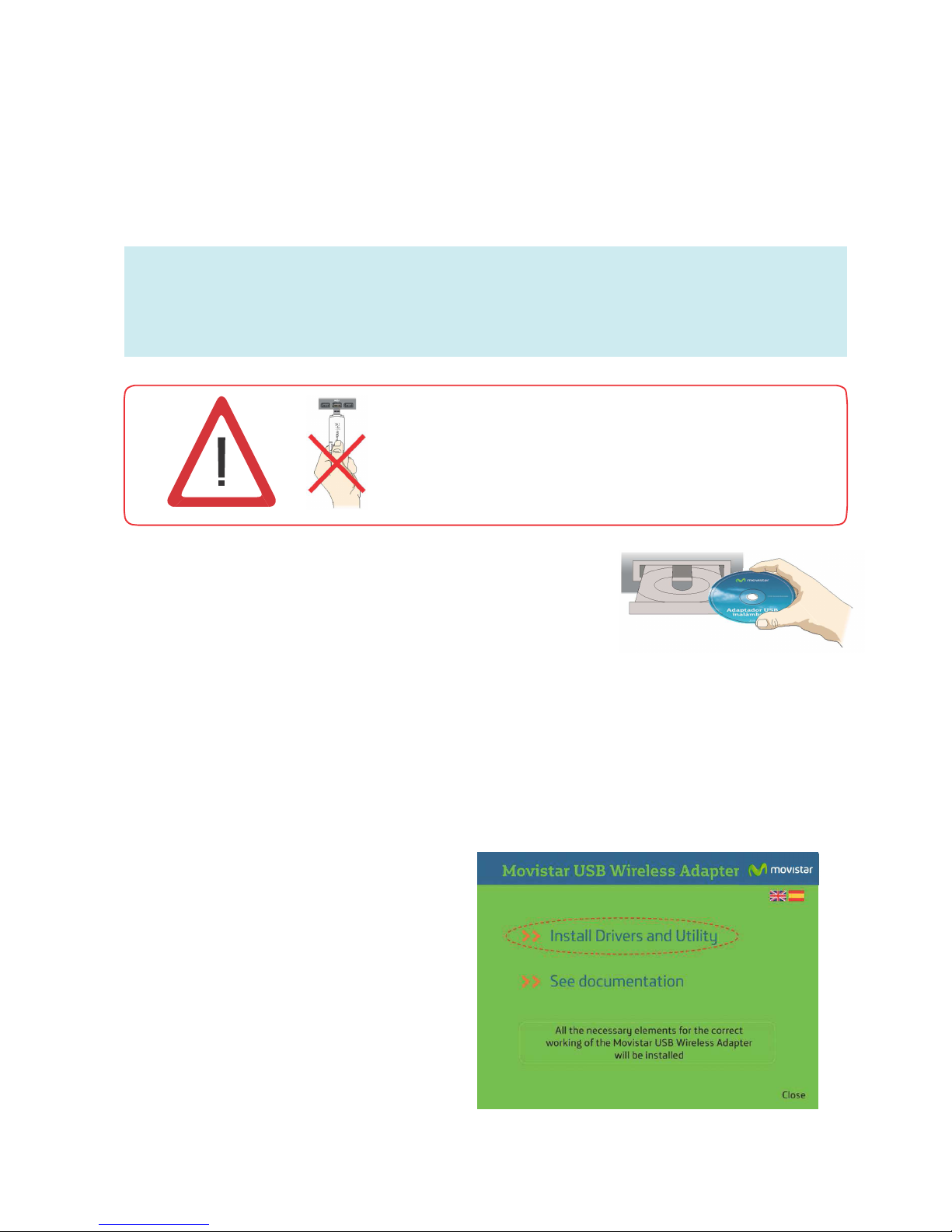
Check that the Adapter is not
plugged in the computer
1.
Insert
the installation CD
provided with the equipment
The CD menu will be launched automatically. If the computer
requests confirmation to run the CD, choose the option “Run
AUTORUN.EXE” and then click in “Permit”.
If t
he application is not launched automatically, it can be ran
manually from the AUTORUN.EXE file included in the root folder of the CD.
2.
Select the option
“Install drivers
and utility”.
2
If you have already installed previously a USB wireless adapter,
it is necessary to uninstall before starting Movistar’s USB
Wireless Adapter installation process.
Page 5
3.
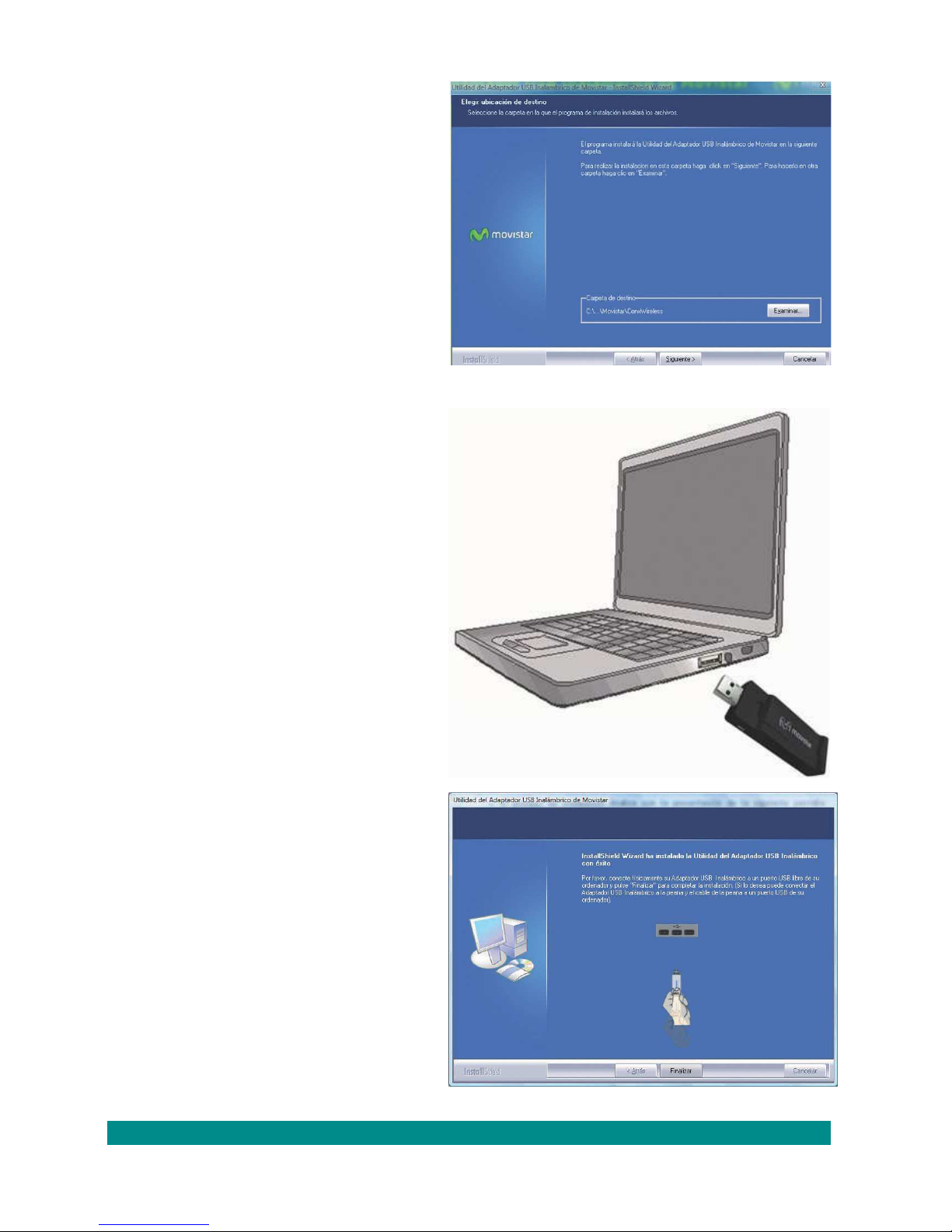
Movistar USB
Wireless Adapter
installation process
will start.
Then, follow step by
step the setup wizard
indications.
4.
Connect the adapter
Physically to the USB
Port at the moment
Indicated by the setup
wizard.
Press “Finalizar”
to complete the
installation. After this,
the adapter and the
utility are installed in
your PC.
Further information in the user’s manual: Chapter 2
3
Page 6
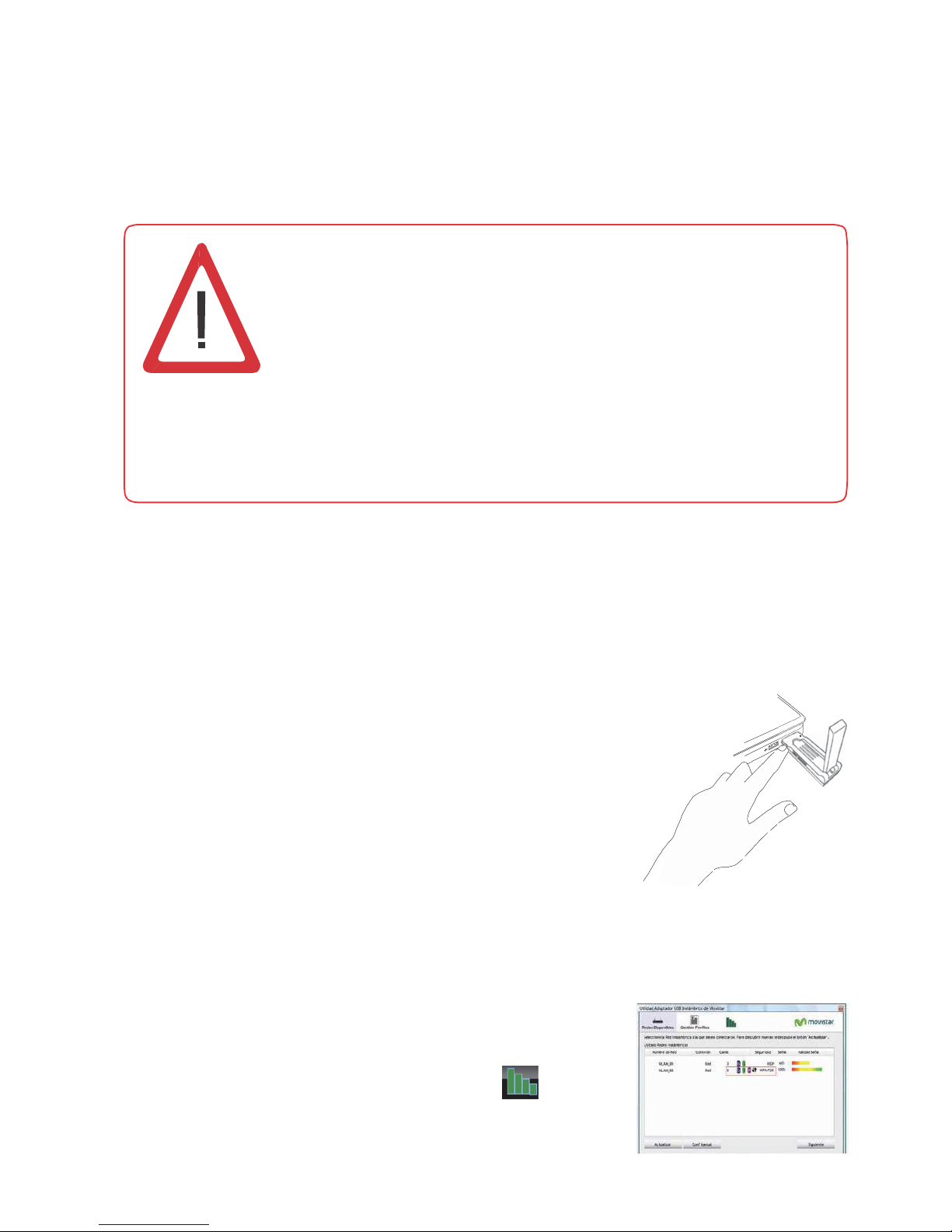
Configuration
Before establishing the connection with your Wireless USB Adapter
to your network:
1. Be sure that the wireless indication light in your
Router or Access point is on.
2. Check that you have the network name (SSID)
and the network key so, that connection can be
established. This information can be found in the sticker situated on the bottom panel of the router or, in case they were
changed, in the router configuration.
Once previous steps are passed, in the following lines is described,
in 2 different ways, how to connect your adapter to the wireless
network of your router, by wireless easy configuration method
(WPS) or by the utility of the adapter’s configuration.
To connect by WPS
Press WPS button of your router during
10 seconds around.
After that press WPS button of your
Wireless USB Adapter during 3 seconds.
You will have 2 minutes maximum to get the
connection, successfully.
To connect by the utility
Follow the following steps:
1.
Run Movistar’s Wireless USB Adapter
utility clicking in Start/Programs/ Movistar
Wireless USB or click in the icon in the
widows task bar. Then the following screen
is shown:
Page 7
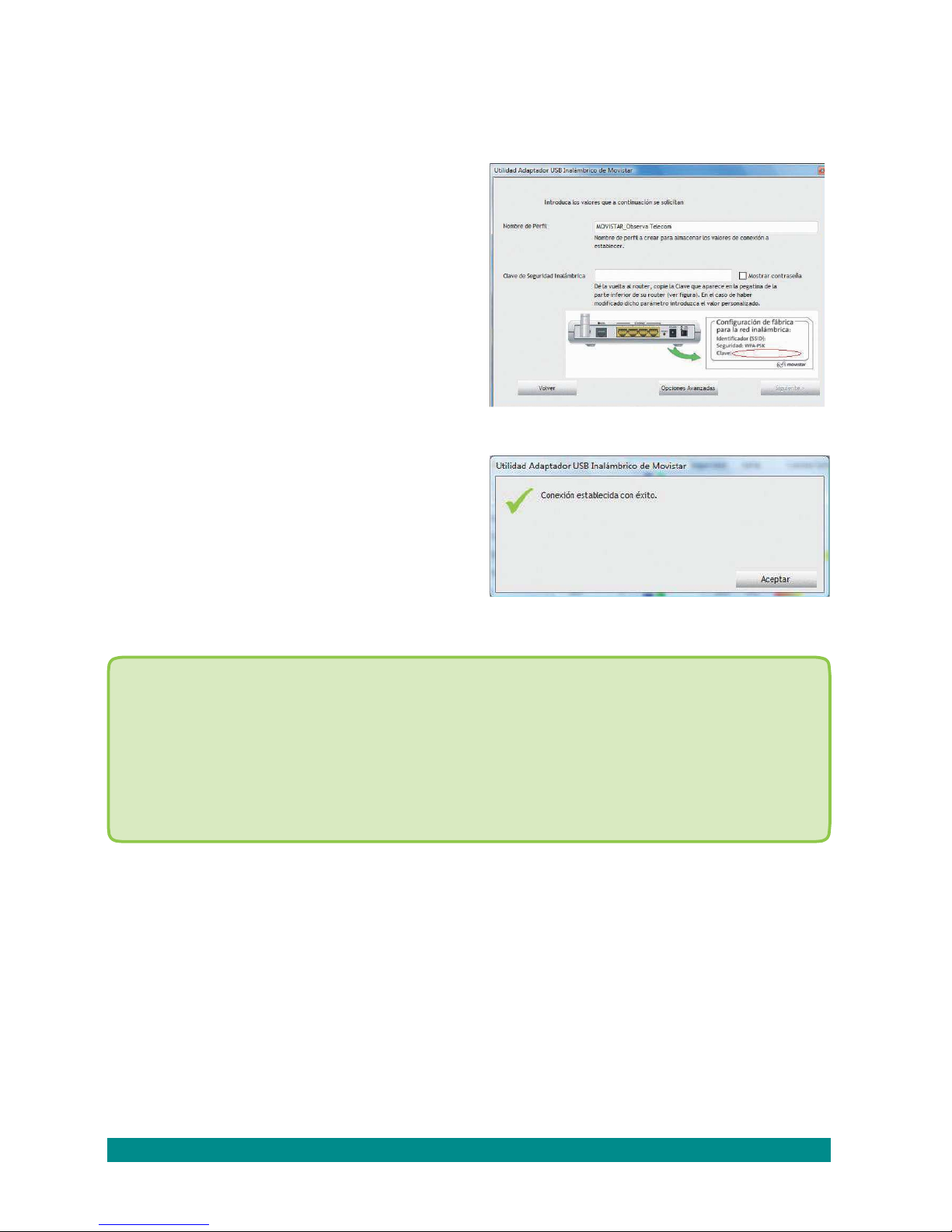
In case you have changed the factory wireless configuration, enter the
customized values. Then press “Aplicar”.
2.
Click on network (SSID)
you want to connect. If you
haven’t changed the factory
wireless configuration, enter
wireless security key that
appears in the sticker on the
bottom panel of the router, as
follows:
3.
To finish the process
the following message will
appear indicating that the
connection has been established properly.
Congratulations!, you have completed Movistar’s
Wireless USB Adapter installation and
configuration. Now, you can enjoy your wireless
connection.
To perform advanced operation or get more detail information, refer
to the user's manual that is included in the section “See documentation” of the Installation’s CD.
In case your router supports the wireless easy configuration method
(WPS), you can easily connect to your wireless network by pushing
the WPS button in your router and then Movistar Wireless USB Adapter button.
Further information in the user’s manual: Chapter 3
Page 8
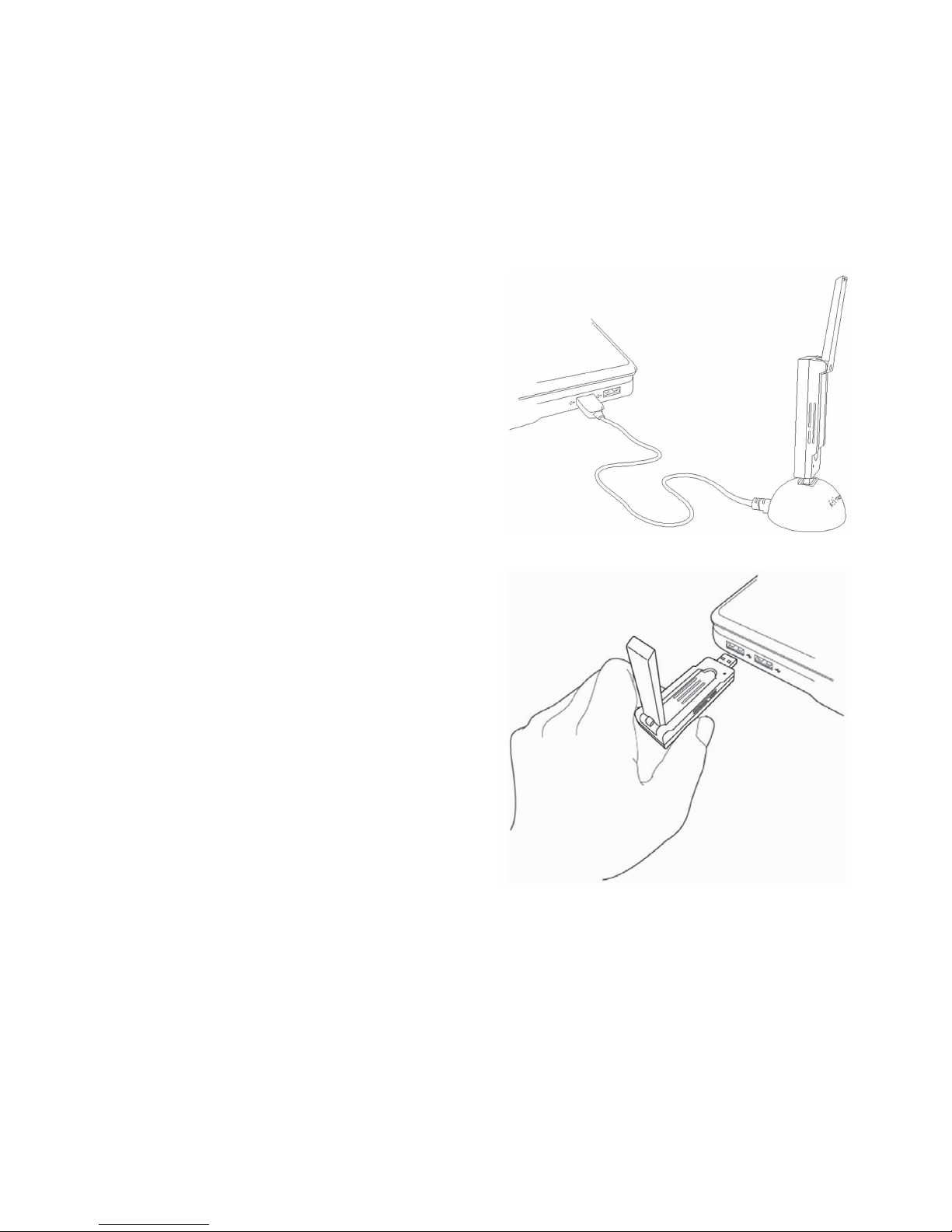
Wireless USB Adapter position
To optimize the Wireless USB Adapter connection, be sure that the
antenna is in the right position, as it is shown as follow:
1.
If you connect your Wireless USB
Adapter to your PC trough the
craddle:
2.
If you connect Wireless
USB Adapter directly to
your PC:
Page 9

Helpdesk Service
Helpdesk service is available through phone and also in internet. For Further
information, refer to the user’s manual in the documentation of the CD.
You can find all the information about ADSL in Ayuda section of our web:
www.movistar.es
Centros de Atención Técnica de Movistar
Particulares: 1004
Pymes y profesionales: 900 10 10 10
Atención al cliente para ejecutar la
garantía del equipo:
902 367 132
Movistar’s helpdesk center
Home users: 1004
Soho and professional: 900 10 10 10
Customer service for the equipment’s
warranty execution:
902 367 132
Page 10

8
Troubleshooting
PROBLEM CAUSE SOLUTION
Windows does
not
detect the
Wireless
USB Adapter
when it
is connected.
1.
The U
SB port is
damaged.
2.
The physical
connection has
failed.
3.
The
installation
has failed.
4.
The adapter is
disabled.
1. Connect the adapter to other USB port.
2. Check if the adapter is correctly connected.
When data is being sent or received to or from
the access point the light indicator blinks. If the
problem persists, reboot your PC.
3.
Uninstall the utility and repeat the
installation according to the steps described.
4. Enable the adapter confirming the
message that appears when the utility is
opened.
A warning or an
error message
appears during
the installation
process.
1.
PC does not have
the last OS
version.
1. Upgrade the operating system.
There is not
connection
with the
access point.
1.
No wireless cover
-
age.
2.
The wireless
security key
is not valid.
3. Network's name
(SSID) invalid.
4.
TCP/IP configura-
tion invalid.
5. The signal
received is low or
the connectivity
is limited or nule.
1.
Check if the wireless network
access point
is
available.
2. Check if the wireless key inserted is correct.
3. Check if the SSID chosen corresponds to
the demanded.
4. Check the TCP/IP configuration according
to the Advanced settings of the utility.
For further information check “Pautas
Verificación TCP_IP”
document you can find
in the Documentation folder of the CD
provided or in the documentation options in
the installation menu
.
5. Move the adapter some centimeters to
detect a stronger signal.
For further information you can check
“Recomendaciones para Redes Inalám-
bricas” document you can find in Docu-
mentation folder of the CD provided or
in the documentation options of the
Installation menu.
Page 11
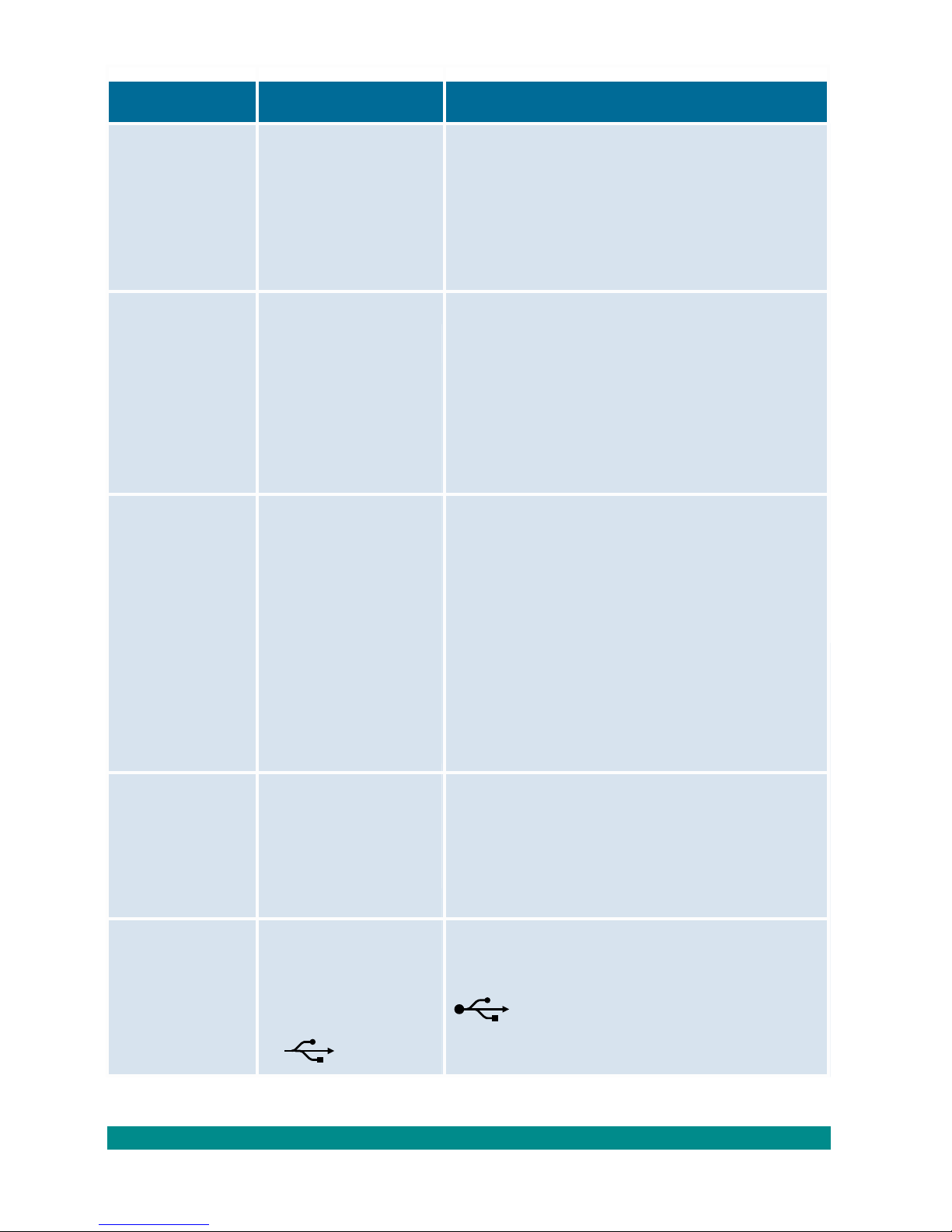
9
PROBLEM CAUSE SOLUTION
IP address is
not
obtained.
1.
The router has
not enabled
DHCP server
option.
2.
The security
key is invalid.
1.
Access to the router and enable DHCP
server option to get the router assign a
IP address in assigned range.
2.
Check that the correct security key has been
inserted.
Resource is
in
conflict with
your
Windows
system.
1.
Other equipment
comes into conflict
with your Wireless
USB Adapter.
1.
Use the PC properties to identify the E/S
port address and the IRQ values. Select
the alternative configuration for the E/S
base address or IRQ values. If the
equipment in conflict with the wireless
adapter is identified, you can modify the
E/S address or IRQ instead of changing
the Wireless USB Adapter.
Wireless
connection
is on and
domestic
network
performance is correct,
but there’s
no access to
internet.
1.
IP configura-
tion is not
correct.
2. Router or
access point
has not enabled advanced
functions of
packed
filtering or
access control.
1.
Verify that your wireless client TCP/IP
configuration corresponds to the same subnetwork than your IP LAN wireless access
point. Use the commands “ping “and
“ipconfig”to check TC
P/IP connection.
2.
Check your wireless router or access point
configuration.
Some applica
-
tions that requi
-
re Internet
service access
available do not
work properly.
1. Some applications
need to open ports
in the firewall to
permit the
communication.
1.
Open the ports required in your
wireless ADSL router.
Further information in the user’s manual: Chapter 6
Conflict in the
connection
through the
WPS security.
The adapter is
connected in a
USB 3.0 port which
usually has the
following silkscreen:
Change the adapter to a USB
2.0 port which usually has the
following silkscreen:
SS
Page 12

Carta informativa
Deseamos agradecerte la c
onfianza
depositada en Movistar
al
haber adquirido uno de nuestros equipos; te informamos de
que para cualquier aclaración, consulta o reclamación, puedes
llamar de forma gratuita a:
• Línea de Atención Personal (1004)
• Centro de Atención al Cliente Pymes y Profesionales
(900 10 10 10)
• Centro de Atención de Empresas
(900 12 09 00)
Donde serás atendido por nuestros asesores, o si lo pr
efier
es,
visita la página comercial de Movistar:
www.movistar.es
Para obtener información sobre el Servicio Postventa, consulta la
Tarjeta de Garantía del Equipo.
Por último indicarte que, para reclamaciones por escrito
referi das a esta venta, puedes dirigirte a Telefónica de
España S.A.U, Gran Vía 28, 28013 Madrid.
Telefónica de España, SAU, Gran Vía 28, Registro Mercantil: Hoja M-213180, Folio 6, Tomo 13170,
Inscripción 1ª, C.I.F.:A-82018474. Empresa adherida al Sistema Arbitral de Consumo
Page 13
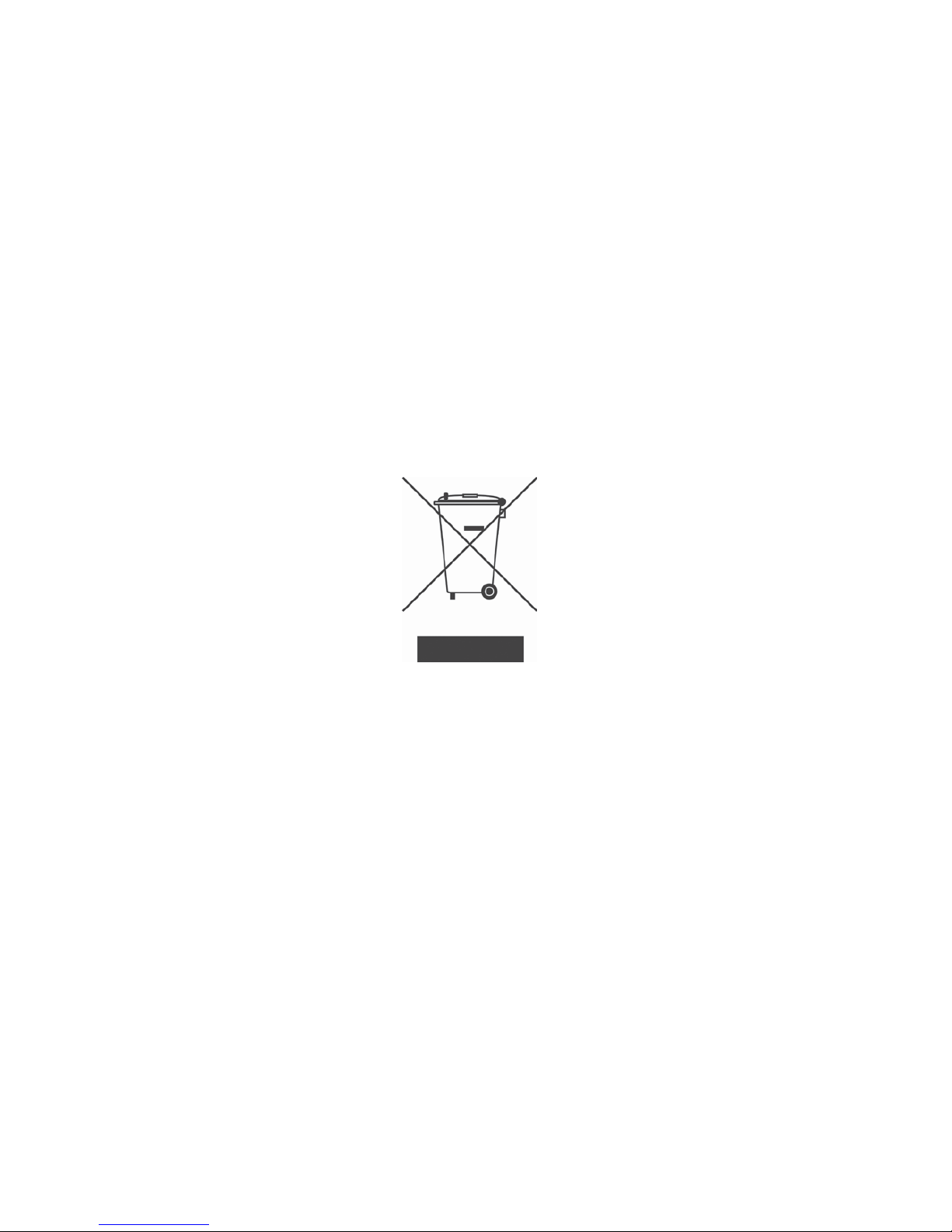
Environmental recycling
Do not dispose the Wireless USB Adapter with your normal household waste. Ask your local authority about the opportunities available to dispose correctly and avoid damages to the environment.
Always comply with the legal regulations regarding this matter.
All transgressors will be prosecuted.
The cardboard box, plas- tic packaging and the device can be recycled
according to the legal rules in Spain with regards to recycling
matters.
The cross symbol over the container that can be found printed on
the device means, that when the equipment has arrived to the end
of its lifespan, it must be transferred to a special collection centre,
and its processing must be separated from the household waste.
Page 14
Agreement Declaration
Name or corporate name:
OBJETIVOS Y SERVICIOS DE VALOR AÑADIDO, S.L.
Address: C\ Monte Esquinza 28,
1º
dcha. 28010 Madrid
Telephone: 902 367 132
C.I.F.: B-83488676
We declare under our exclusive responsibility that the product: Wireless USB Adapter
11
n
Brand:
Telefónica
Fabricante: OBSERVA TELECOM, S.L.
Manufacture country: China
Model: EW-7733UND
HW version: 1.0
Conforms with the technical specifications that can be applied at this date according the European
Parliament directive 99/5 of March 9th 1999 council included in the Spanish Legislation through
RD1890/2000, the 20th November 2000 and in particular with:
EN 300 328 V1.7.1(2006-10)
Electromagnetic compatibility and Radio spectrum Matters (ERM);
band transmission systems; Data transmission equipment operating in the
2,4 GHz ISM band and using wide band modulation techniques; Harmonized
EN covering essential requirements under article 3.2 of the R&TTE Directive.
EN 301 893 V1.6.1(2011-11)
Broadband Radio Access Networks (BRAN); 5 GHz high performance RLAN;
Harmonized EN covering the essential requirements of article 3.2 of the
R&TTE Directive.
EN 55022:2010(Class B)
Information technology equipment - Radio disturbance characteristics -
Limits and methods of measurement.
EN 55024:2010
Information technology equipment
Immunity characteristics
Limits and
methods of measurement.
EN 61000-3-2:2006/A1:2009/A2:2009
Electromagnetic compatibility (EMC). Limits. Limits for
harmonic current
emissions (equipment input current ≤ 16 A per phase).
EN 61000-3-3:2008
Electromagnetic compatibility (EMC). Limits. Limitation of voltage changes,
voltage fluctuations and flicker in public low-voltage supply systems, for
equipment with rated current ≤ 16 A per phase and not subject to
nal connection.
EN 301 489-1 V1.8.1(2008-04)
Electromagnetic compatibility and Radio spectrum Matters (ERM);
Magnetic Compatibility (EMC) standard for radio equipment and services;
Part 1: Common technical requirements.
EN 301 489-17 V2.1.1(2009-05)
Electromagnetic compatibility and Radio spectrum Matters (ERM);
ElectroMagnetic Compatibility (EMC) standard for radio equipment; Part 17:
Specific conditions for Broadband Data Transmission Systems.
EN
2006+A11: 2009
Information technology equipment
Safety
Part 1: General requirements.
EN 62311(2008-11)
Assessment of electronic and electrical equipment related to human
exposure restrictions for electromagnetic fields (0 Hz - 300 GHz).
Madrid, on July 11st, 2012
Signed. Vicente Fernández Bueno.
General Manager
Use restriction can exist in European Union, expept in Spain.
Conforms with Energy efficiency directive ErP 2009/125/CE and 278/2009 regulation according to ecodesign
requirements for products are related to the energy.
Conforms also with RD-208/2005 (2002/95 Directive) about electrical and electronic equipments and
the waste management.
Page 15

Glossary
ADSL (Asymmetric Digital
Subscriber Line):
Consists on a digital line for the
high speed Internet access.
Wireless security
key:
Wireless network encryption code
that permits to protect your
connection from unauthorized
users.
IEEE 802.
11n
Standard wireless network
working that improve the
performance, giving an
important increasing in the
maximum transmission speed of
54 Mbps (Previous standard), to
a maximum speed of 600 Mbps.
IEEE 802.11a
This 802.11ª standard use the
same base of protocols than the
original standard, but operate in
5 GHz band.
MAC:
It's the identifier of the adapter
that permits to difference from
other devi- ces. From your wireless
router you can configure the
equipments that have access or
not according this identification
number.
Puerto:
Physical or logical connection for
sending or receiving data. It permits
to a program communicates
through the Internet.
Servidor DHCP (Dynamic Host
C
onfigur
ation Protocol):
It's a protocol that permits to the
network equipment obtain the IP
configu- ration parameters
automatically.
SSID (Service Set
Identifier):
It's the identifier name of the
wireless network that must be selected from the list of networks
from the utility.
TCP/IP (Transmission Control
Protocol /Internet Protocol):
It's the network protocol set that
the Internet is based on and
permits the transmission in the
network.
Page 16

Find out more in:
1004 (from your mobile or phone)
www.movistar.es
Our Movistar’s shops
Equipment supplied by: C.I.F.: B-83488676
Registration number RE-RAEE: 000334
1.0 version
Shared, life is better.
 Loading...