

Page 1

GSM Dual-Band GPRS Digital
Mobile Phone
User Manual
Page 2

The manual is applicable for the
Movistar Vision
mobile phone.
Page 3
文档信息
版本 修订日 修订 软件版本 备注
1.0
2010 年
赵琼
Page 4

Copyright © 2010 by ZTE Corporation
All rights reserved.
No part of this publication may be quoted, reproduced,
translated or used in any form or by any means, electronic
or mechanical, including photoc opying and microfilm,
without the prior written permission of ZTE Corporation.
The Bluetooth
®
trademark and logos are owned by the
Bluetooth SIG, Inc. a nd any use of such trademarks by ZTE
Page 5

Corporation is under license. Other trademarks and trade
names are the property of their re spective owners.
ZTE Corporation reserves the right to make modifications on
print errors or update specifications in this m anual with out
prior notice.
Version 1.0 in Aug. 2010
Page 6

Page 7

Contents
Let’s get started .......................................................................................................... 1
Lost or stolen? ........................................................................................................ 2
Using your phone safely ............................................................................... 3
Battery care and safety ................................................................................ 6
Charger care and safety ........ ....................................................................... 8
Getting to know your phone ................................................................................. 10
Inserting and removing the SIM ..... . . . .. .. . . . .. .. . . . .. .. . . . .. .. .............. . . . .. .. . . . .. .. . ............. 17
Inserting and removing a memory card ...... . .. . .. . . .. . .. . . .. . .. .............. .............. ......... 19
Using the battery .................................................................................................. 21
Inserting the battery ........................................ ................... . . .. ..................... 21
Removing the battery ................................................................................. 23
Charging the battery ................................................................................... 23
Power on/off.......................................................................................................... 25
Using your phone ..................................................................................................... 27
Page 8

Common functions ................................................................................................... 30
Making and receiving calls ................................................................................... 30
Making a call ............................................................................................... 30
Receiving a call .......................................................................................... 31
Adjusting the volume .................................................................................. 31
Hands-free .................................................................................................. 32
Call options ................................................................................................. 32
Sending messages ..................................................................................... 33
Viewing messages ................................................................................................ 34
Adding a new contact ........................................................................................... 35
sending and receiving Email .......... .. ............................. . . ................ ............... . . .... 36
using your phone as memory ............................................................................... 38
Main Function list ..................................................................................................... 40
Input wha t you want, how you want… ................................................................... 51
Appendix ................................................................................................................... 52
Care and maintenance ......................................................................................... 52
Health and safety .................................................................................................. 54
Page 9

FCC Regulations .................................................................................................. 56
Declaration of RoHS compliance ......................................................................... 57
Disposal of your old phone ................................................................................... 58
Problems and their solutions ................................................................................ 60
Page 10

Let’s get started
1
Let’s get started
Thanks for choosing the Mo vistar Vision. It’s a GSM dual band
GPRS digital mobile phone, which we’ll simply call ‘phone’
from now on.
If you’d like your phone to live a long and fruitful life, please
read this guide carefully and keep it for future reference.
You never know when you might need it.
Page 11

Let’s get started
2
And don’t worry if the pictures we use to demonstrate your
phone’s functions look a li ttle diffe rent fro m wh at you see on
its screen. It’s the functions they show that matter.
Lost or stolen?
If your phone goes missi ng, please tell your service provider
as soon as you know. That way other people can be barred
from using it.
Page 12

Let’s get started
3
Obviously, it’s best to keep your phone with you at all times,
and we’d strongly adv is e you to set a PIN, and change it
from time to time.
Using your phone safely
on the road
z Using a phone while driving is illegal in many countries. Please follow
local laws and drive safely at all times.
near sensitive electronics
z Don’t use your phone near sensitive electronic equipment – particularly
medical devices such as pacemakers – as it could cause them to
malfunction. It can also interfere with the operation of fire detectors and
other automatic-control equipment.
Page 13

Let’s get started
4
z For more information about how your phone affects pacemakers or other
electronic equipment, please contact the manufacturer or your local
distributor.
z Your phone may cause interference when used near TVs, radios or
automated office equipment.
while flying
z Your phone can cause interference with aircraft equipment. So it’s
essential you follow airline regulations. And if airline personnel ask you
to switch off your phone, or disable its wireless functions, please do as
they say.
in hospital
z Your phone may interfere with the normal operation of medical
equipment. Follow all hospital regulations and turn it off when you’re
asked to by posted warnings or medical staff.
at a petrol stati o n
z Don’t use your phone at petrol stations. In fact, it’s always best to switch
Page 14
Let’s get started
5
off whenever you’re near fuels, chemicals or explosives.
around water
z Keep your phone away from water (or any other liquid). It’s not a
waterproof model.
making repairs
z Never take your phone apart. Please leave that to the professionals.
Unauthorised repairs could break the terms of your warranty.
broken antenna
z Don’t use your phone if the antenna is damaged, as it could cause injury .
around children
z Keep your mobile out of children’s reach. It should never be used as a
toy and it might not be good for their health.
original accessories
Page 15
Let’s get started
6
z Only use the original accessories supplied with your phone or those
approved by the manufacturer. Using unapproved accessories may
affect performance, make the warranty void, break national regulations
on the use of mobile phones, or even cause injury.
near explosives
z Turn of f your phone in or near areas where explosive materials are used.
Always obey local laws and turn off your phone when requested.
emergency calls
z To make an emergency call your phone must be turned on and in an
area where there’s network coverage. Dial the national emergency
number and press ‘send’. Explain exactly where you are and don’t hang
up until help has arrived.
Battery care and safety
z Keep the battery in a cool, ventilated place and out of direct sunlight.
Page 16

Let’s get started
7
z Although the battery is rechargeable, it’ll eventually start t o lose its ability
to recharge. If you find that the battery won’t recharge, it’s time to
replace it.
z Please don’t throw old batteries into your household rubbish. You’ll find
there are special bins for batteries at refuse collection points. And some
high street electrical stores provide a battery recycling service too.
z Never throw the battery into a fire – it’s highly inflammable and could
explode, hurting you or somebody else.
z When you put the battery into your phone, there’s no need to use force.
Exerting too much pressure could make it leak, overheat, explode or
burst into flame.
z Never take the battery apart. This may result in leakage, overheating,
explosion or fire.
z If the battery becomes hot, changes colour or shape at any time (when
in use, charging or even while in storage) please stop using it
immediately and replace.
z Keep the battery dry . Damp or wet conditions can cause it to overheat or
corrode.
z Don’t leave the battery in direct sunlight or anywhere really hot, like in a
car on a summer’s day. That could make it leak or overheat, while
Page 17
Let’s get started
8
lowering its performance and shortening its life.
z Don’t charge the battery continuously for 24 hours. Overcharging is not
good for it.
Note:
Please avoid conta ct with t he materia ls inside a dam aged or
leaking battery. If they get on your skin, wash with lots of water
and seek medical assistance if required.
Charger care and safety
z Only plug into voltages between 110VAC and 220VAC. Using a voltage
outside that range can damage the phone/charger – and cause the
battery to leak or catch fire.
z Never short-circuit the charger – this may cause electrocution,
overheating or damage.
z Don’t charge the phone in direct sunlight or in an area where it’s damp,
Page 18

Let’s get started
9
dusty , or on a vibrating surface. And charging your phone near – or on –
a TV or radio could interfere with transmission.
z Don’t use the charger if the power cable is damaged. It may cause a fire
or give someone an electric shock.
z Keep water well away from the charger. If the charger does get splashed
by water, or any other kind of liquid, immediately unplug it to avoid
overheating, fire or electrocution.
z Don’t take the charger apart. It could cause injury , give you an electric
shock or catch fire.
z Never touch any charger, electric cable or socket with wet hands.
z Don’t place heavy objects on the electric cable.
z If the cable is damaged, don’t try to mend it yourself – it could cause a
fire or electrocute you.
z Always unplug the charger before you clean it.
z When unplugging the charger, hold the plug itself, rather than pulling on
the cable. A damaged cable can cause electrocution or fire.
Page 19

Let’s get started
10
Getting to know your phone
Hanging
Page 20

Let’s get started
11
Page 21
Let’s get started
12
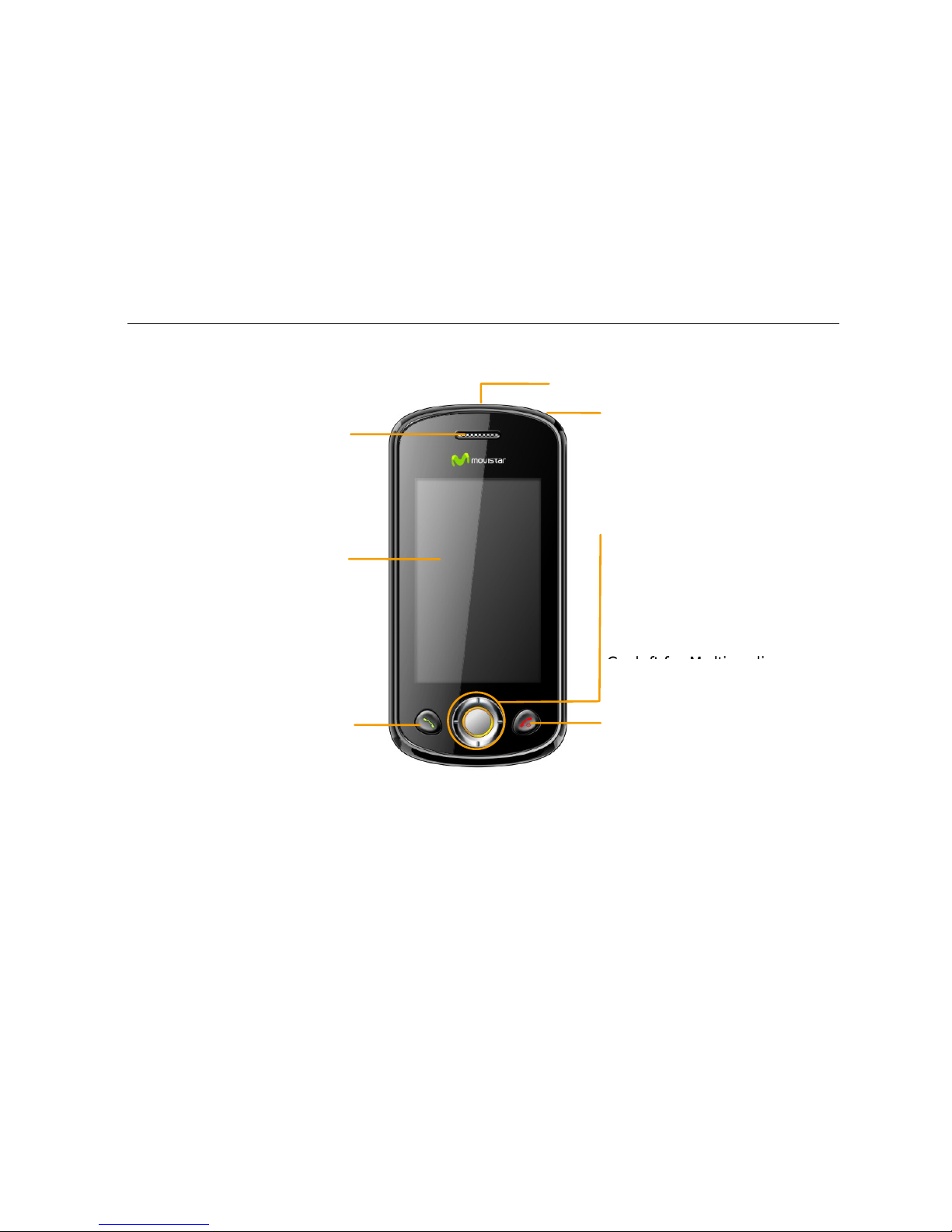
Receive
r
Power Key
Press to hang up or reject
an incoming call.
Hold to power on/off.
In idle mode
, p
ress to turn
Displa
Send key
Navigation key /OK key
Press to make or receive a
call.
In idle mode:
Go up for TV.
Go down for Phonebook.
Antenna
Page 22
Let’s get started
13
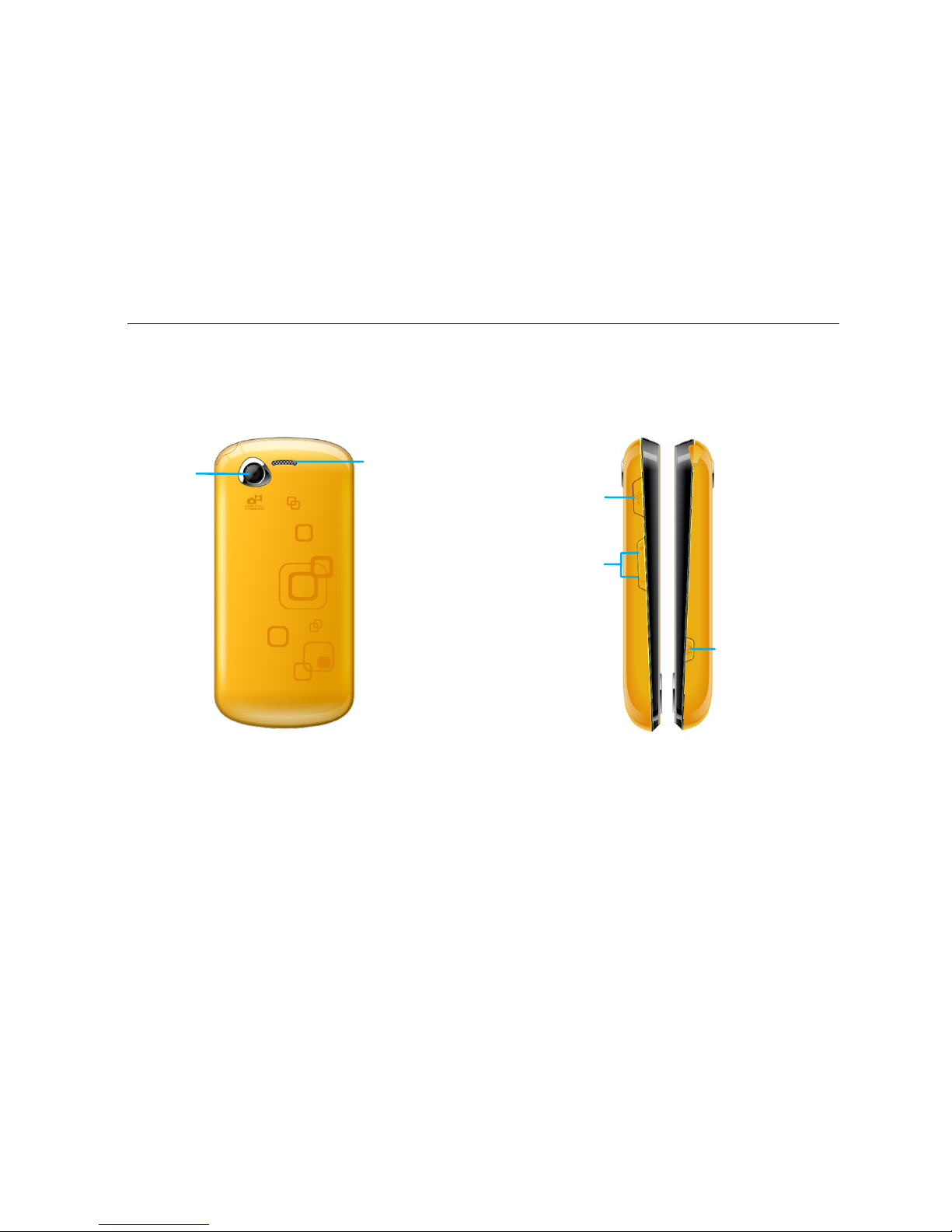
Side keys
Adjust the volume
USB port
Came
TV
Speaker
Page 23

Let’s get started
14
Page 24
Let’s get started
15
Note:
In this user guide, ‘press’ means pressing the key and then
releasing.
‘Hold’ means pressing and holding the key for two seconds or
more; ‘click’ means clicking the corresponding icon on the
screen with touch-pen.
Page 25
Let’s get started
16
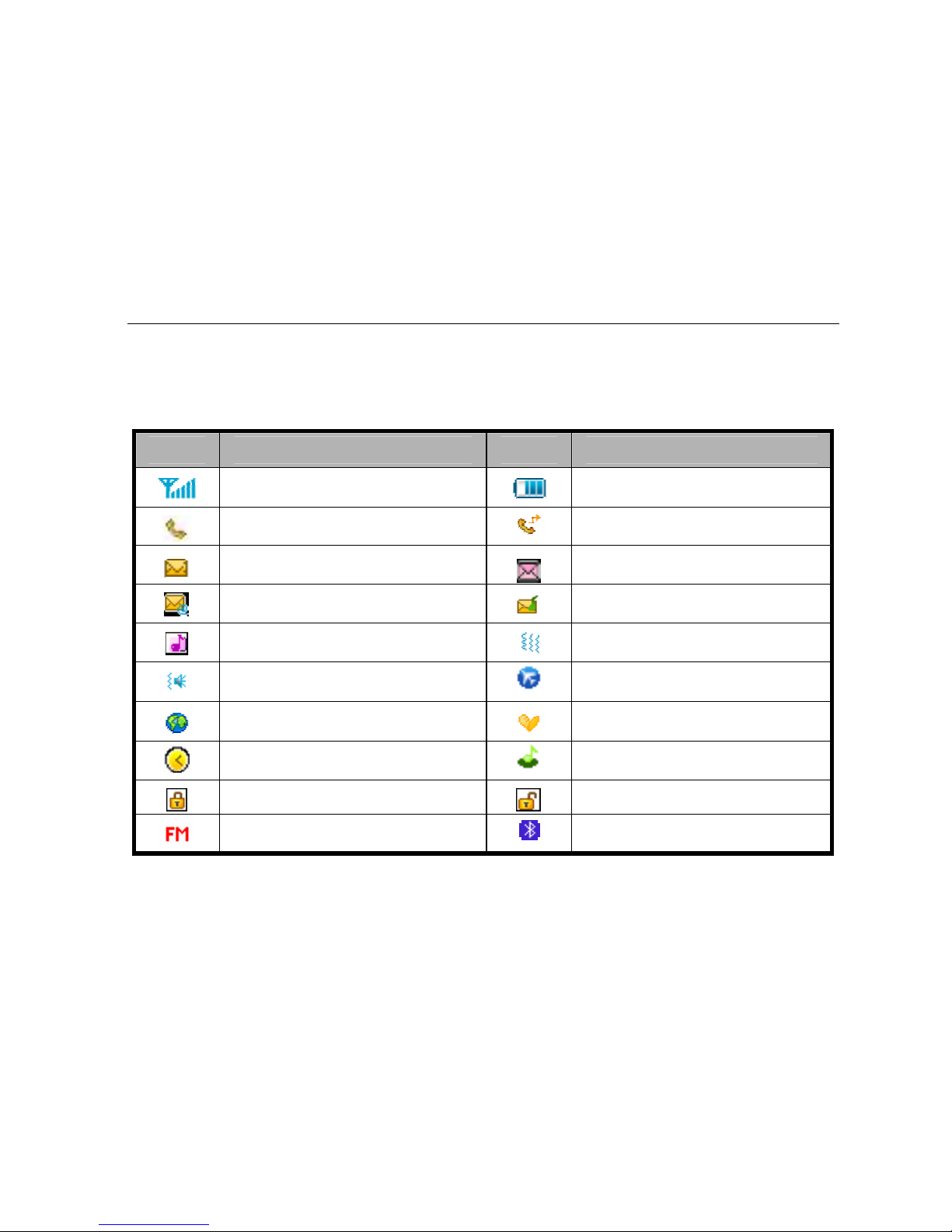
Onscreen icons
Icons Descriptions Icons Descriptions
Show the phone’s network
signal strength
Show the phone’s battery
capacity.
Calling or in call
Call Forwarding
You have unread SMS.
You have unread MMS.
You have unread Email
You have unread voicemail
The ringing type is set to Ring.
The ringing type is set to
Vibration.
The ringing type is set to
Vibration and ring tone.
Flight
A GPRS packet data
connection is active.
The phone is under roaming
status.
A clock alarm is active.
Music
The keypad is locked. The keypad is unlocked.
FM Radio ON
Bluetooth® ON
Page 26

Let’s get started
17
Inserting and removing the SIM
Your phone needs a valid SIM card to work (…To keep it
simple, we’ll just call it ‘SIM’ from now on). Your network
connection data and your SIM address book are saved on
the SIM. So, to avoid damaging your SIM or losing data, try
not to touch the metal surface when yo u’re handli ng it – and
keep well away from any magnetic or electric source.
here’s what you do…
1. Switch off your phone and disconnect any external
Page 27
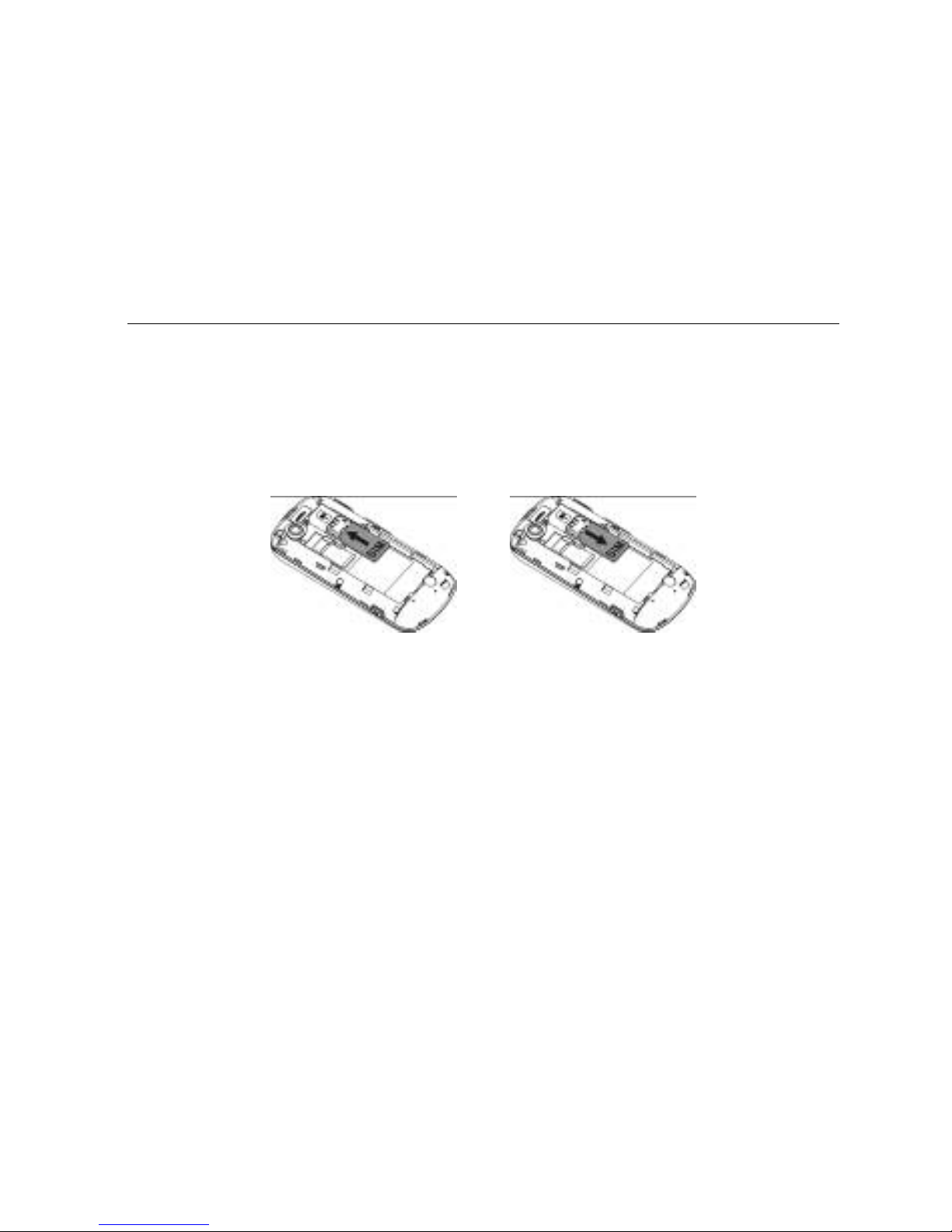
Let’s get started
18
power.
2. Remove the back cover and then the battery.
3. Hold your SIM on the cut corner, and slide it – face down
– into the card holder.
4. Insert the battery.
5. Replace the back cover.
Page 28
Let’s get started
19
Inserting and removing a memory
card
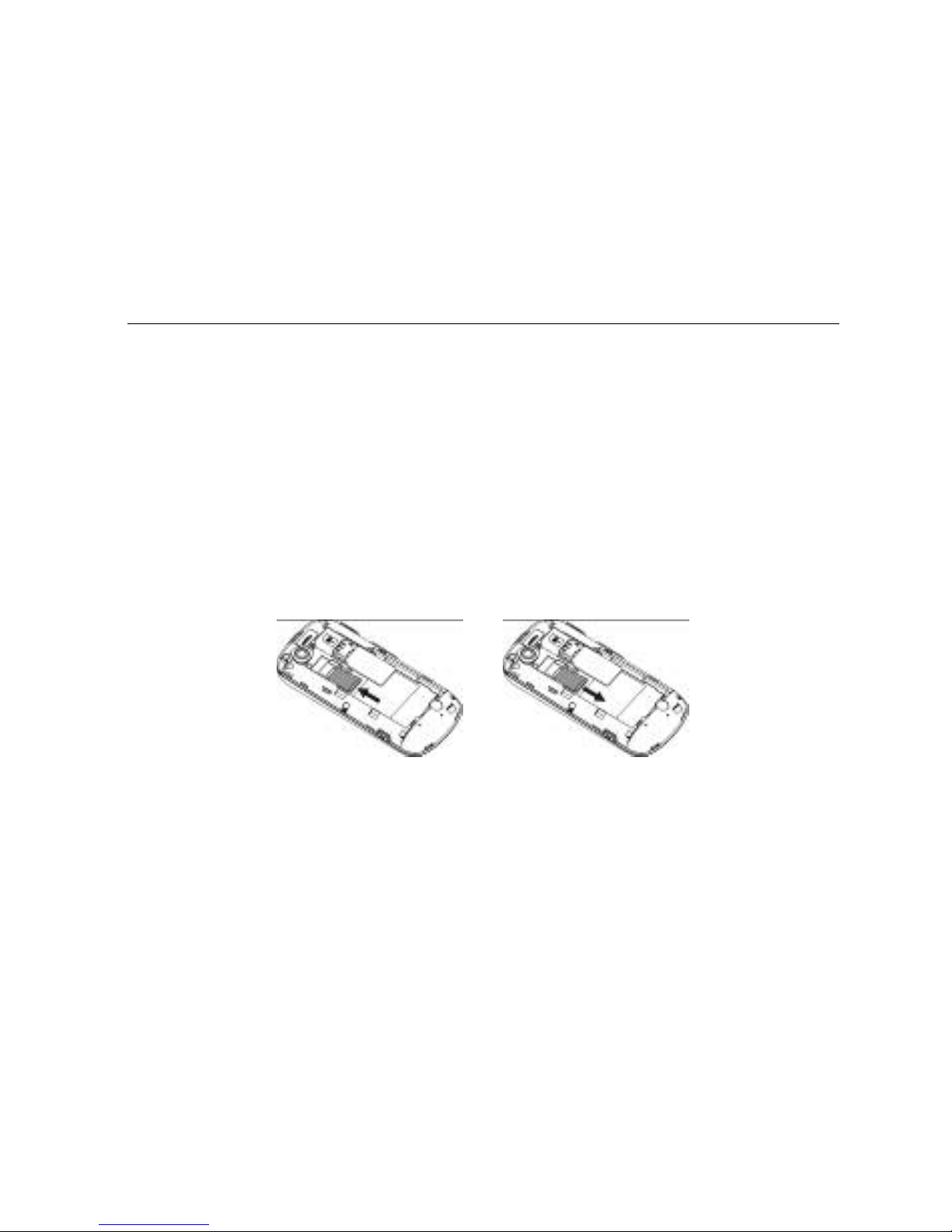
1. Turn off your mobile phone, remove the battery and
disconnect any external power.
2. Insert the memory card into the slot.
3. Slide i nto place to secure the ca rd.
And to remove the memory card, simply reverse those
steps.
Page 29

Let’s get started
20
But always remember to turn your phone off and take the
SIM out before removing the memory ca rd.
Page 30
Let’s get started
21
Using the battery
Inserting the battery
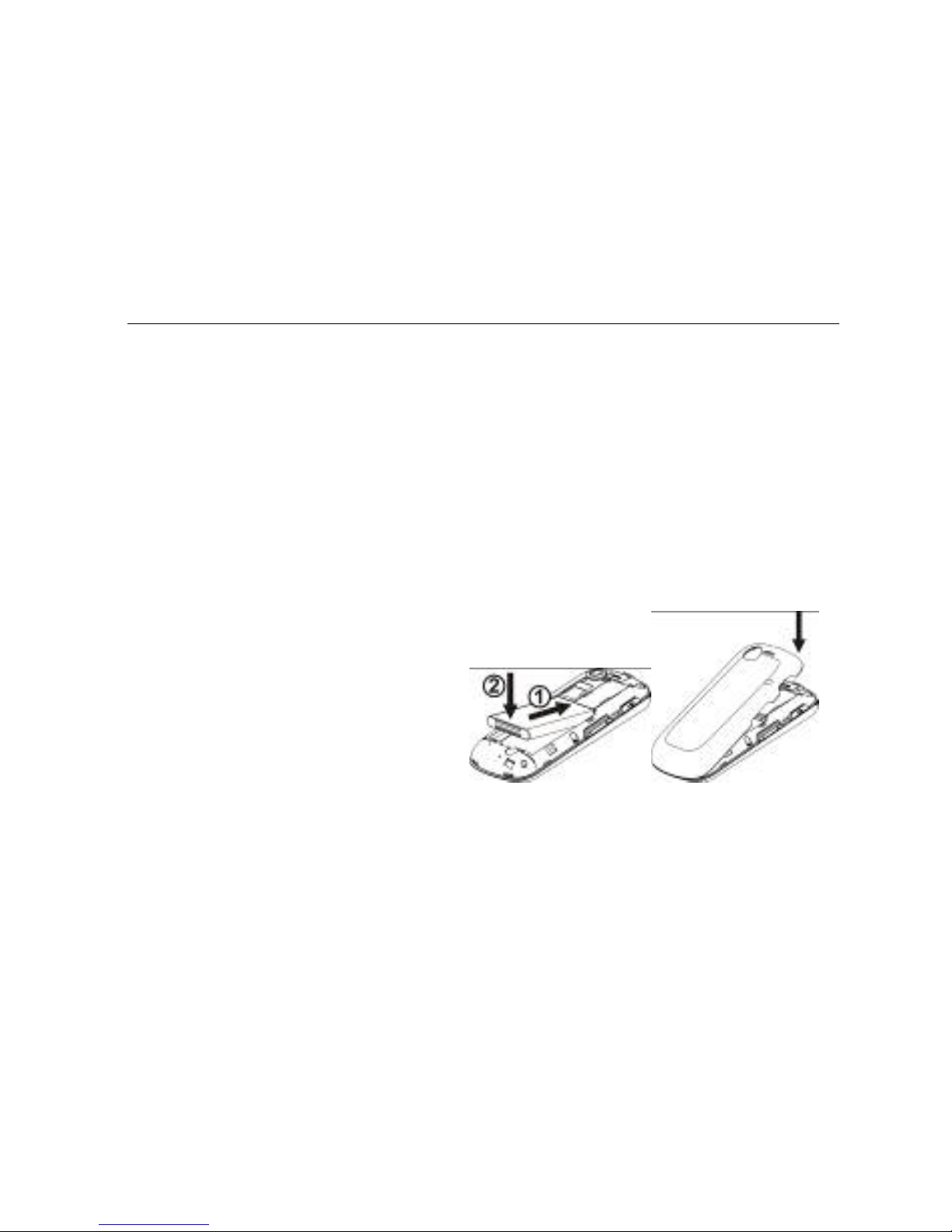
1. Open the battery cover
on the back of your
phone.
2. Align the battery's
contact points with
those of the phone and
Page 31

Let’s get started
22
gently press the battery
down into place.
3. Replace the battery
cover clicking it back
into position .
Page 32
Let’s get started
23
Removing the battery
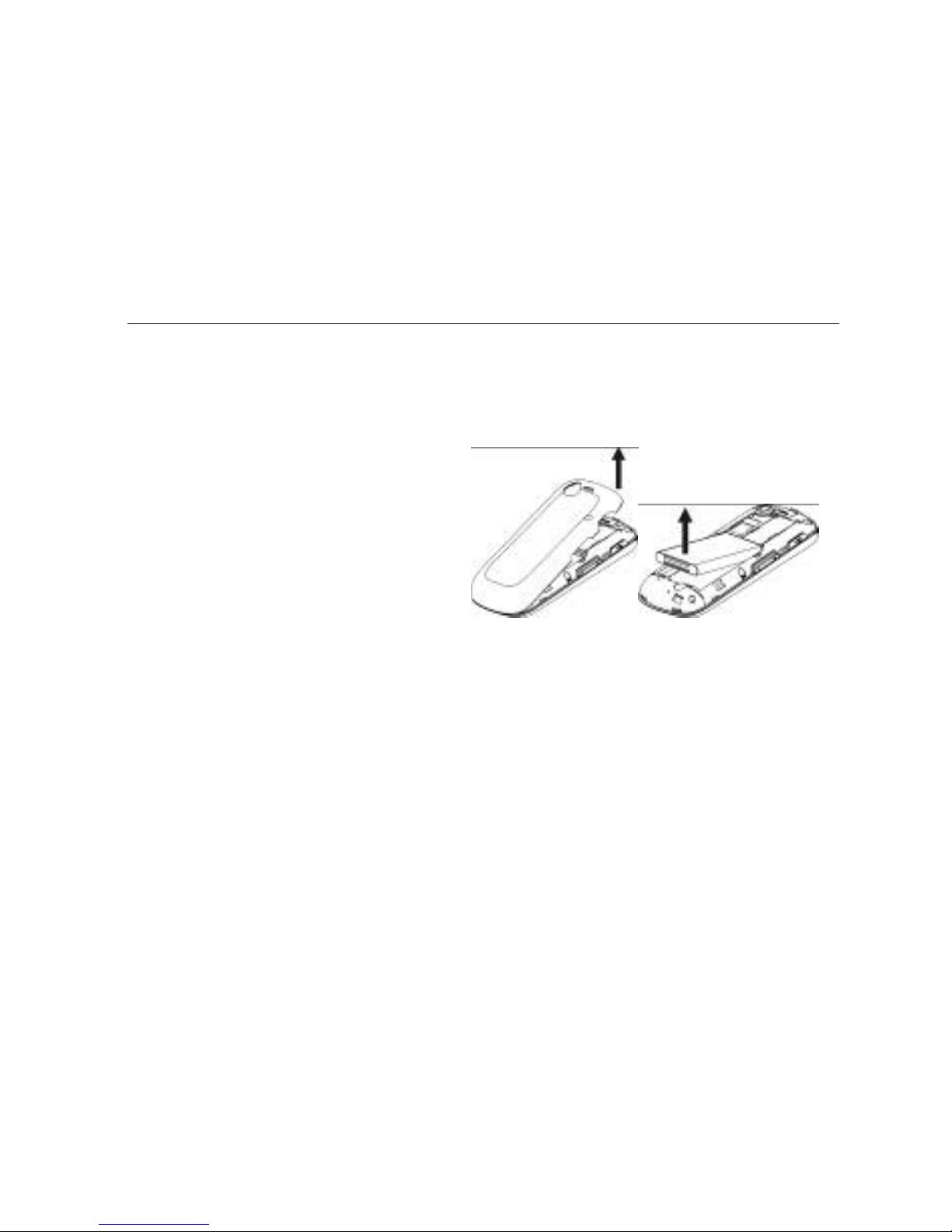
1. Switch off your phone.
2. Open the battery cover.
3. Lift the battery up and
out of your phone.
Charging the battery
Page 33

Let’s get started
24
The rechargeable Li-ion battery that
comes with your phone is ready to use,
but is not charged. That’s easy to do. We’ll show you how
below.
The first three times yo u us e th e battery, make sure it’s
completely drained before recharging. And then recharge it
fully. That will help to ensure its optimum performance and
a long life.
1. Connect the charger to your phone, and plug it into an
Page 34

Let’s get started
25
110V/220V socket.
2. The battery indicator in the corner of the screen will scroll
to show you it’s charging. If the pho ne’s batte ry has been
fully drained, the battery indicator may not immediately
appear on the screen when cha rging starts. And please
don’t worry if the phone and charger bec ome warm while
charging. That’s completely normal.
3. When fully charged, the battery indicator will stop
scrolling up and down.
4. Disconnect the charger from your mobile, and unplug.
Power on/off
Press the power key until the power-on/off icon appears.
Page 35
Let’s get started
26
When you turn your phone on, it’ll automatically check the
SIM and show the following informa tio n on screen:
Input phone lock code: If you’ve set a lock code.
Input SIM PIN: If you’ve set a PIN for your SIM.
Note:
The PIN is supplied with your SIM. Please replace it with
your own PIN code as soon as possible. Enter the wrong
PIN three times, and your SIM will be locked. Then you’ll
need to contact your network service provider to ask for a
PUK code to unlock it.
Searching: The mobile phone will search for the available network.
Page 36

Using your phone
27
Using your phone
Select ‘Menu’ to en ter the main menu…
Page 37

Using your phone
28
Call center
Call history
Call settings
Movistar
Multimedia
Mobile TV
Camera
Album
Video recorder
Video player
Audio player
Sound recorder
FM radio
Gallery
Album
Messaging
Write message
Inbox
Drafts
Outbox
Sent messages
Delete messages
Email
Broadcast message
Templates
Message settings
Fun & Games
Games
Services
STK Services
Audio player
Extra
Calculator
Alarm
World clock
TV
Settings
User profiles
Pen calibration
Phone settings
Network settings
Security settings
Connectivity
Restore factory
settings
Page 38

Using your phone
29
File manager
Phonebook
Internet service
Licence manager
Page 39
Common functions
30
Common functions
Making and receiving calls
Making a call
z Direct dial: In idle mode, select to display the dialling keyboard and
click the numeric keys to input the number. Select
to dial.
z Dialling from the Contacts: In idle mode, select to enter
‘Phonebook’, then select your contact and press the Send key to dial.
z Dialling from call history: In idle mode, press the Send key to enter
the list of call logs, select the call record, and press the Send key to dial.
z Saving a number: On the dialling screen, type in a contact's phone
number , select ‘Options’
‘Save to Phonebook’ to save it as a new entry,
or save it over an existing entry.
z Dialling an extension: Sometimes you can’t dial an extension directly.
If this happens, dial the direct line first, select
continuously until ‘P’
Page 40

Common functions
31
appears on the screen and then dial the extension number.
z Dialling international calls: To make an international call, select
continuously until ‘+’ appears. Now you can dial anywhere in the world,
without even having to enter the international dialling code.
Receiving a call
Someone’s calling? Press the Send key to answ er.
Adjusting the volume
During a conversation, you can raise or lower the volume by
using the side keys.
Page 41

Common functions
32
Hands-free
Select ‘H-Free’ to use your phone hands-free. Select
‘H-Held’ to be hands-on again.
Call options
Need to multitask while you’re on a call? Just select
‘Options’ if you want to access your phonebook, messaging,
or other functions.
Page 42

Common functions
33
Sending messages
1. In idle mode, click ‘Menu’ to enter the main menu, then
select ‘Messaging’
‘Write Message’ to edit the message
text.
2. Writing your message:
If you want to add a picture, sound, video… select ‘Options’ followed
by ‘Add picture’, ‘Add sound’ or ‘Add video’ or whatever you want.
If you want to send a multimedia message, please select ‘Switch to
MMS’.
3. Add the recipient: input the recipient’s number and select
the recipient from ‘Phonebook’.
4. After editing the message, select ‘Send’ to send the
message.
Page 43

Common functions
34
Viewing messages
Your phone is very versatile. According to what you’ve
selected, it can tell you tha t you’ ve recei ved a new me ssage
in three different ways: a r in gtone, a prompt, or a new
message icon.
Press the OK key to open your inbox and read the
message:
1. In idle mode, press ‘Menu’ to select
‘Messaging’
‘Inbox’.
Page 44

Common functions
35
2.
All your received messages will be displayed on the
screen. Use the Up/Down ke y to select the message,
and select ‘View’ to see the content.
3. Then go to ‘Options’ to select ‘Reply’, ‘Forward’, ‘Delete’,
or whatever you want to do…
Adding a new contact
1. In idle mode, select ‘Menu’ and go to ‘Phonebook’.
2. If you’d like to add a new contact to your phone memory,
simply select ‘Add new contact’. Then you can enter all
the details you want.
3. If you’d prefer to add a new contact to the SIM memory,
select ‘Options ’
‘Phonebook settings’ ‘Preferred
storage’
‘SIM’. There you can add the name, numb er
and details, etc.
4. Select ‘Save’ when you’re happy with what you’ve d one.
Page 45

Common functions
36
sending and receiving Email
You can send and receive Emails over the GPRS network
after the mobile phone has connected to the mail server.
You have to change the follow ing settings before using
Emails. For different email provider s, the settings may be
slightly different. Please cons ult your email provid er. The
following guide is for your reference only.
1. In idle mode, press the OK key and then click
‘Messaging’ to select ‘Email’
‘Email accounts’.
2. Select ‘Options’ ‘New account’ to create a new accoun t.
Page 46

Common functions
37
z Email address: input your E-mail address, e.g., [email protected]
z Protocol: select ‘POP3’ or ‘IMAP4’ (Please consult your email
provider).
z Data account: set Movistar MMS as default. You could press
‘Options’
‘Select’ to select.
z Incoming server: input ‘imap.gmail.com’ (for other email accounts, you
need change the mail server name, or consult your email provider).
z Outgoing server: input ‘smtp.gmail.com’ (for other email accounts, you
need to change the mail server name, or consult your email provider).
z User name: you can remove the mail server name and just keep ‘abc’,
for example.
z Password: the logon password you have set for your email account.
z Account name: set a name randomly.
3. After the settings, select the newly created account.
z Press ‘Options’ ‘Edit’ ‘Advance settings’ ‘Outgoing server’, and
set ‘Outgoing port’ as ‘25’, set ‘Authentication’ as ‘On’. Press ‘Edit’ to
enter ‘Authentication’ and then set ‘Use POP3/IMAP’ as ‘Yes’ or ‘No’.
When setting as ‘No’, you could input your User name and Password.
Page 47

Common functions
38
z Press ‘Options’ ‘Edit’ ‘Advance settings’ ‘Incoming server’, set
‘Incoming port” as ‘110’.
4. Return to ‘Email accounts’, select the newly created
account, and press ‘Options’
‘Activate’.
5. After settings, you should be able to send/receive mails.
using your phone as memory
Make sure the memory card is installed and your phone is
switched off, then connect the phone to your PC with the
USB data cable, and switch your phone back on. Then
select ‘Mass storage’, and you can use your phone as extra
memory.
Page 48

Common functions
39
Page 49

Main Function list
40
Main Function list
In idle mode, click ‘Menu’ to enter the main menu. Those
marked with ‘*’ need support from network operators.
Function Description Operation
View call
history
See who’s recently called you, who
you’ve called and which calls you’ve
missed.
Call center
Call
history
Missed calls/ Dialled
calls/ Received calls
Delete a
call log
Delete a call log on the SIM. Call center
Call
history
Select one call
log
Options Delete
View call
duration
See how long your previous call –
dialled or received – lasted.
Call center
Call history Call
timers
Page 50
Main Function list
41
Function Description Operation
Call waiting Activate this if you want to be
prompted about incoming calls.
Call center
Call settings Call
waiting
Call divert Divert incoming calls to another
designated number.
Call center
Call settings Call
divert
Call barring Set the outgoing call restriction or
incoming call restriction.
Call center
Call settings Call
barring
Auto redial Set your phone to automatically
redial a number if your call is not
answered.
Call center
Call
settings
Advance
settings
Auto redial
Movistar Log on to Movistar. Movistar
Mobile TV Provides TV function. Multimedia
Mobile TV
Camera Capture digital photos. Multimedia
Camera
Album Browse photos saved on your phone Multimedia
Album
Page 51

Main Function list
42
Function Description Operation
and memory card.
Video
recorder
Record video files. Multimedia
Video recorder
Video
player
See and play your video files. Multimed ia
Video player
Audio
player
Play the audio file. Multimedia
Video recorder
Sound
recorder
Record audio files. Multimedia
Sound recorder
FM radio Listen to FM broadcasts. Multimedia
FM radio
File
manager
View files saved on the phone or
memory card.
Gallery
File manager
View Browse all contacts in your Address Phonebook View contacts
Page 52

Main Function list
43
Function Description Operation
contacts book. To find a contact, input the first
letter of their name.
among All contacts, SIM
contacts, Group contacts and
Phone contacts
Add
contacts
Save the telephone number and
name.
Phonebook
Add new contact
Edit contact Edit the information on an existing
contact.
Phonebook Select one contact
Options Edit
Copy
contacts
Copy all contacts from your SIM to
phone or from phone to SIM.
Phonebook
Move the highlight
to Add new
contact
Options Phonebook
Settings
Copy contacts
Move
contacts
Move all contacts from SIM to
phone, or from phone to SIM.
Phonebook
Move the highlight
to Add new
contact
Options Phonebook
Settings
Move contacts
Delete all
contacts
Delete all contacts in SIM or phone. Phonebook
Move the highlight
to Add new
contact
Options Phonebook
Settings
Delete all contacts
Page 53
Main Function list
44
Function Description Operation
Preferred
storage
Select the preferred storage as
phone or SIM.
Phonebook
Move the highlight
to Add new
contact
Options Phonebook
settings
Preferred storage
Speed dial
Assign up to 8 phone numbers to
keys 2-9.
In idle mode, hold the key number
that corresponds to your desired
contact.
Phonebook
Move the highlight
to Add new
contact
Options Phonebook
settings
Speed dial
Caller
groups
Divide the contacts into different
groups. You can only add/delete
group members when they’re saved
in your phone’s memory.
Phonebook
Caller groups
Send
message
Send text messages/multimedia
messages to other mobile phones.
Messaging
Write message
View
message
Read the messages (received,
unsent, saved and sent).
Messaging
Inbox/ Drafts
/Outbox /Sent messag es
Delete Dele te the messages in your Inbox,
Outbox, Sent messages, Drafts or all
Messaging
Delete messages
Page 54
Main Function list
45
Function Description Operation
message messages.
Templates Choose the template for a text or
multimedia message.
Messaging
Templates
Voicemail* A caller can leave a message and
you can listen to it in your voicemail.
Messaging
Message
settings
Text
message
Voicemail server
In idle mode, hold ‘1’ key to call
the first voicemail number.
Check
memory
status
Check the memory status for text
messages on your SIM card and
phone.
Messaging
Message
settings
Text
message
Memory status
Preferred
storage
Save messages on the SIM card or
phone.
Messaging
Message
settings
Text
message
Preferred storage
Email Send email to other mobile phones. Me ssaging
Email
Page 55

Main Function list
46
Function Description Operation
Broadcast
messages*
Receive messages from a network
operator.
Messaging
Broadcast
messages
Games Your phone comes with free games.
You can discover how to play it in the
games menu.
Fun & Games
Games
Internet
services
Get access to WAP service. Internet services
Audio
player
Play the audio file. Audio player
Calculator Do your sums on your phone. Extra
Calculator
Alarm Set multiple alarms or the power-off
alarm.
Extra
Alarm
World clock Check the current time in different Extra
World clock
Page 56
Main Function list
47
Function Description Operation
cities around the world.
TV Provides TV function. TV
User
profiles
Personalise your phone settings, such
as ringtone, volume, etc. according to
where you are and what you’re doing.
Settings
User profiles Select
Profile (General/Meeting,
etc.)
Activate
Pen
calibration
Adjust the screen as you prefer. Settings
Pen calibration
Time and
date
Set the date and time displayed on
the phone.
Settings
Phone settings Time
and date
Schedule
power
on/off
Set a time for your phone to power
on/off automatically.
Settings
Phone
settings
Schedule power on/off
Language Select the menu language. Settings
Phone
settings
Language
Page 57

Main Function list
48
Function Description Operation
Touch
Shake
Settings
Turn on/off Touch Shake Settings. Settings
Phone
settings
Touch Shake Settings
Auto date
and time
update
Choose whether the date and time
updates automatically.
Settings
Phone
settings
Auto update of date
and time
LCD
backlight
Set the backlight time and
brightness.
Settings
Phone
settings
Misc. settings LCD
backlight
Network
settings
Select a network and set GPRS
connection.
Settings
Network settings
SIM lock Activate your PIN to prevent
unauthorised use of your SIM.
Please replace it with your own PIN
as soon as possible.
Settings
Security
settings
SIM lock
Page 58

Main Function list
49
Function Description Operation
Phone lock
Stop others using your phone.
The default phone lock password is
0000.
Settings
Security
settings
Phone lock
Keypad lock Prevent accidental operation of your
phone.
Settings
Security
settings
Auto keypad lock
In idle mode, press Send key
and click the center of the icon
to unlock.
Bluetooth
®
Exchange data with other Bluetooth®
devices. Also listen to music or talk
hands-free with a Bluetooth
®
headset.
Settings
Connectivity Blueto
oth
®
Data
account
View the Data account. Settings
Connectivity Data
account
Restore
factory
Restore the settings your phone had Settings
Restore factory
Page 59
Main Function list
50
Function Description Operation
settings when it first came out of the box. settings
Note:
When copying files from a PC to a memory card, make your
life easier by putting them in the relevant folder. For example,
music files should go in the ‘My Music’ folder and video files
in the ‘Videos’ folder and electronic books in the “Ebook”
folder.
Page 60

Input what you want, how you want…
51
Input what you want, how you want…
With your phone you can write in: capitals (ABC/ES/PT); lower case (abc/es/pt); predictive
text input(eZi ABC/eZi abc/eZi ES/eZi es/eZi PT/eZi pt); numbers (123) or even in symbols!
Here’s how to make those choices…
Switch input
method
Press
to change the input method.
Insert a space
Press
under any input method (except for 123 input
method).
Delete
Select ‘Clear’ to delete anything (letter by letter or number by
number) in front of the cursor or hold ‘Clear’ to delete everything.
Input ABC/abc
Each key is used to input multiple letters. Rapidly press the key
until the letter you want appears.
Input numbers
After selecting the 123 input method, choose the numbers you
want.
Page 61

Appendix
52
Input symbols
Press
to open the virtual keypad and select symbo ls.
Appendix
Care and maintenance
Your phone is a delicate device. The follo wing advice wi ll
help you to keep it looking good and performing well…
z Use a soft dry cloth to clean your phone, battery and charger . Don’t use
liquids such as alcohol, dilution agents or benzene.
z From time-to-time, clean the socket where the charger cable connects
to the phone. Dust tends to gather there. This will ensure a really good
connection.
z Don’t use needles, pen points or other sharp objects on the keypad or
screen.
z Don’t use your phone with wet hands – it could injure you and damage
the phone.
Page 62

Appendix
53
z Don’t use your phone in dusty or dirty environment.
z Keep your phone away from extremes of heat – like radiators or ovens.
It may explode if it gets too hot.
z If your phone gets wet and the colour of the label on it changes, the
warranty will be void, even if the warranty period hasn’t expired.
z If there’s anything wrong with the phone, battery, charger, or any
accessory, please send them to your nearest service centre for
inspection.
Page 63
Appendix
54
Health and safety
SAR certification information
The model meets international guidelines for exposure to radio waves.
Your phone is a radio transmitter and receiver. It’s design ed not to exceed the limi ts
for exposure to radio waves recommended by international guidelines. The guidelines
were developed by ICNIRP, an independent technical standards body, and include
margins designed to assure the protection of all persons, regardless of age and
health.
These guidelines use a unit of measurement known as Specific Absorpt ion Rat e,
(SAR). The SAR limit for mobile devices is 1.6 W/kg and the highest SAR value for
this device when tested was
1
…
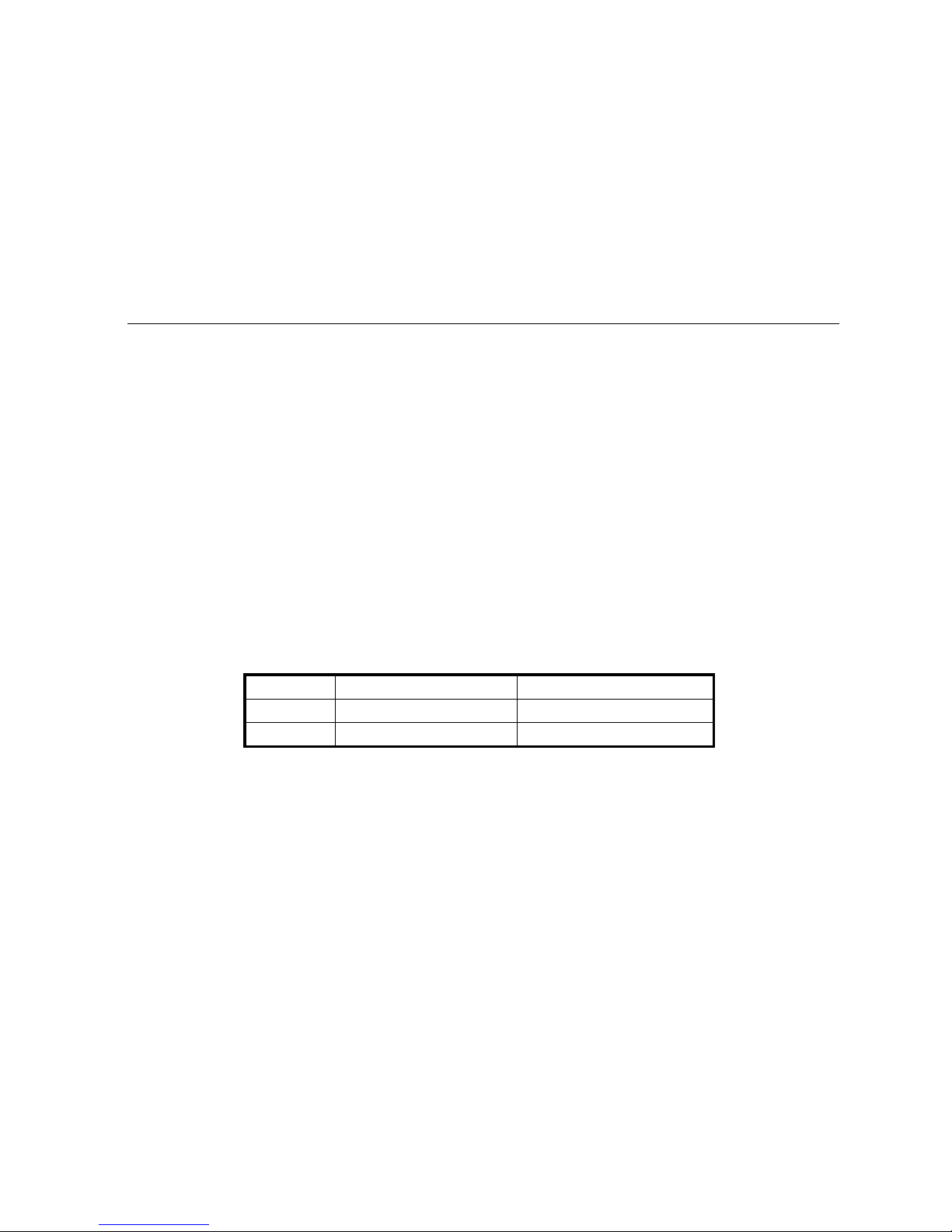
Position 850MHz (W/Kg) 1900MHz (W/Kg)
Head 0.063 0.213
Body 0.229 0.137
As SAR is measured when the phone is on its highest transmitt ing power, the actual
SAR of this device while operating norm ally is typicall y below the levels shown above.
This is because your phone automatically chang es its power level to ensure it on ly
uses the minimum level required to reach the network.
Page 64

Appendix
55
The World Health Organization has stated that present scientific information does not
indicate the need for any special precautions for the use of mobile devices.
1. The tests are carried out in accordance with IEEE standard P1528-2003.
important safety information
For your own health and safety, please follow the radio frequency (RF) radiation
exposure guidelines and keep your phone no less than 1.5cm away from your body.
Failure to do this could mean that your RF exposure exceeds the guideline limits.
how to limit your radio frequency (RF) exposure
The World Health Organization (WHO) gives the following advice to people who want
to limit their exposure to RF radiation…
Present scientific information does not indicate the need for any special precautions
for the use of mobile phones. If individuals are concerned, they may choose to limit
their own or their children’s RF exposure by limiting the length of calls, or using
‘hands-free’ devices to keep mobile phones away from the head and body.
Further informa t ion on the subject can be obtained from the World H ealth
Organization website at http:// www.who.int/peh-emf WHO Fact sheet 193: June 2000.
Page 65

Appendix
56
FCC Regulations
This mobile phone complies with part 15 of the FC C Rules. Operat ion is subj ect to t he
following two conditions: (1) This devic e may not cause harmful interference, and (2)
this device must accept any interference received, includin g interf erence that may
cause undesired operation.
This mobile phone has been tested and found to comply with the limits for a Class B
digital device, pursuant to Part 15 of the FCC Rules. These lim its are designed to
provide reasonable protection against harmful interference in a resident ial installation.
This equipment generates, uses and can radiated radio frequency energy and, if not
installed and used in accordance with the instruct ions, may cause harmful
interference to radio communications. However, there is no guarantee that
interference will not occur in a particular installation if this equipment does cause
harmful interference to radio or television reception, which can be determi ned by
turning the equipment off and on, the user is encouraged to try to correct the
interference by one or more of the following measures:
z Reorient or relocate the receiving antenna.
z Increase the separation between the equipment and receiver.
z Connect the equipment into an outlet on a circuit different from that to which the
receiver is connected.
Page 66

Appendix
57
z Consult the dealer or an experienced radio/TV technician for help.
Declaration of RoHS compliance
We’re determined to reduce the impact we have on the environment and take
responsibility for the earth we live on. So this document allows us to formally declare
that the Movistar Vision, manufactured by ZTE CORPORATION, fully compl ies with
the European Parliament’s RoHS (Restriction of Hazardou s Substances) Directive
2002/95/EC, with respect to all the following substances:
(1) Lead (Pb)
(2) Mercury (Hg)
(3) Cadmium (Cd)
(4) Hexavalent Chromium (Cr (VI))
(5) Polybrominated biphenyl (PBB)
(6) Polybrominated diphenyl ether (PBDE)
Page 67

Appendix
58
Our compliance is witnessed by written declaration from our suppliers. This confirms
that any potential trace contamination levels of the substances list ed abo ve a re below
the maximum le ve l set by EU 2002/95/EC, or are exempt due to their application.
The Movistar Vision manufactured by ZTE CORPO RA TI ON, meets all the
requirements of EU 2002/95/EC.
Disposal of your old phone
1. When the wheelie bin symbol is attac hed to
a product, it means the product is covered
by the European Directive 2002/96/CE.
Page 68

Appendix
59
2. All electrical and electronic products should
be disposed of separately from normal
household waste via designated collection
points provided by government or local
authorities.
3. The correct disposal of electri cal and
electronic products will help protect the
environment and human health.
Page 69
Appendix
60
Problems and their solutions
Symptoms Possible Causes Solutions
Phone won’t turn
on
The battery is flat Charge the battery
Poor contact Reinstall the battery
Phone turns itself Battery very low Charge the battery
Poor standby time
Deceasing of battery
performance
Replace the battery
Weak network signal Turn off the phone
Can’t connect to
the network
Weak network signal Move to where the signal is
Out of the service
area
Make sure you’re in a network
service area.
Calls keep cutting Weak network signal Move to where the signal is
Phone doesn’t
ring when I
receive incoming
Phone is set to ‘Mute’
or minimum volume.
Enter ‘User profiles’ to select a
Non-silent mode, or increase the
Page 70
Appendix
61
calls ring volume.
Received prompt
asking me to input
‘PUK’
SIM locked because
wrong PIN entered
three times.
Contact Orange and ask for a
PUK.
 Loading...