

Page 1
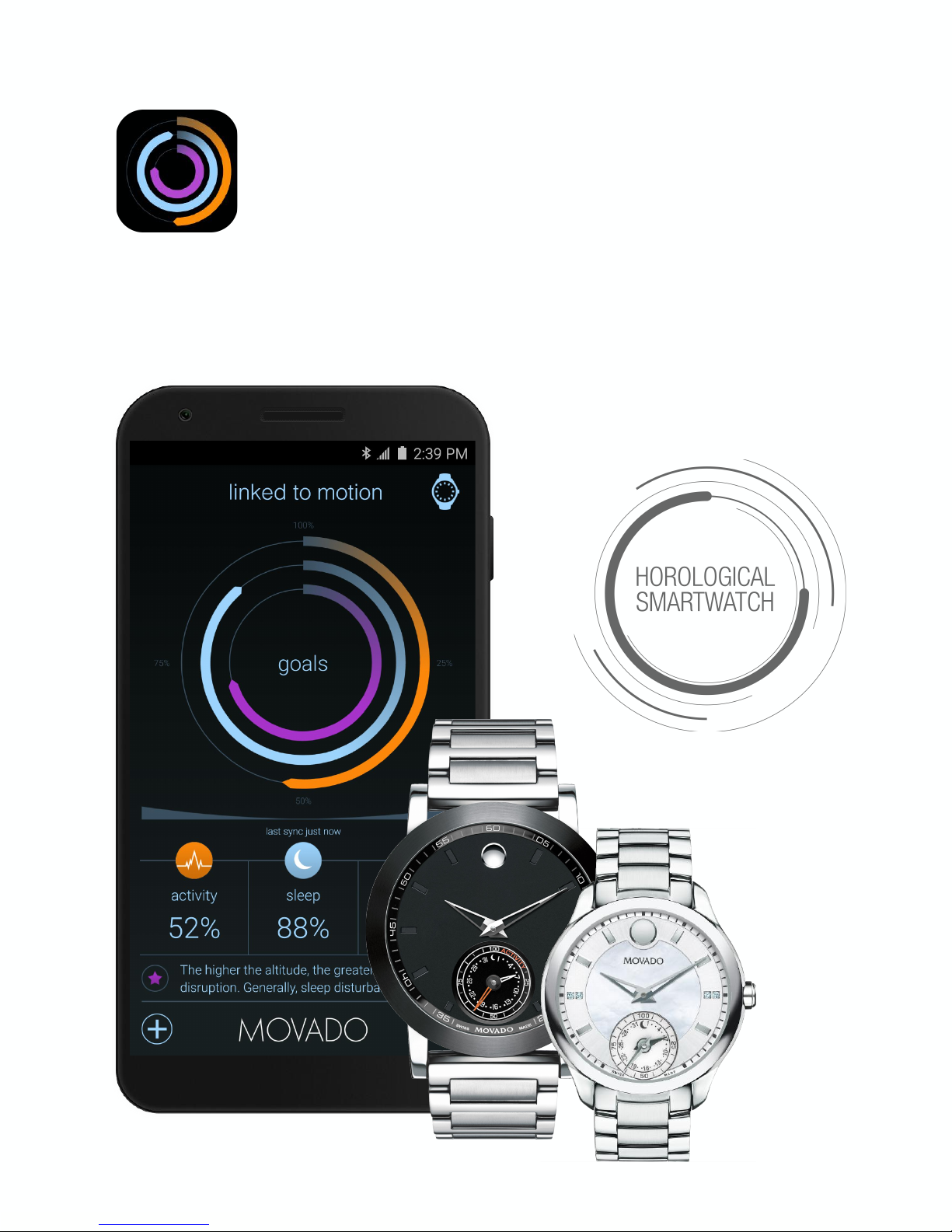
User Guide
Movado MMT-365
Patents Granted and Pending. © 2016 Manufacture Modules Technologies Sarl., All rights reserved.
Page 2
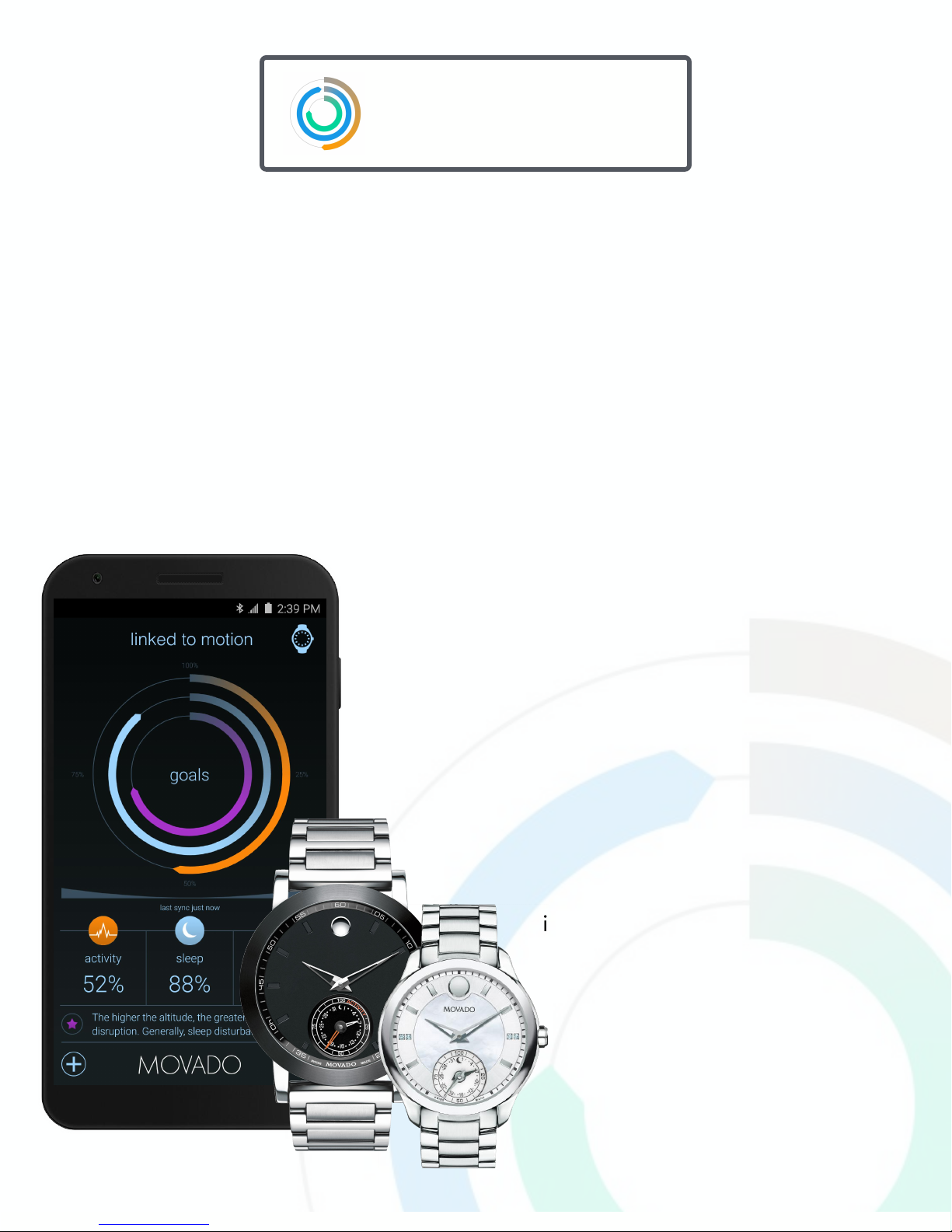
The widely used, patented MMT sensor-fusion engine inside your Swiss made Movado
Motion smartwatch tracks activity and sleep patterns. Daily activity (steps, calories, and
distance) and sleep information is presented accurately in real-time on its iconic,
elegantly modern analog dial.
Simple and easy-to-understand graphics highlight how much you have moved and
slept during the day, week, or month. Goals and dynamic coaching help encourage a
better self-awareness and understanding, which in turn fosters well-being.
To sync data, your smartwatch connects to your phone
or tablet via Bluetooth. Launch the MMT-365 app and
press the smartwatch's crown button to connect. Your
data will sync with the app once it has connected.
Your data syncs every minute automatically when the
app is open and your Movado Motion
smartwatch has established a Bluetooth
connection with your phone or tablet.
Once the sync is complete, you can
immediately review your progress in
the app.
MMT-365
Patents Granted and Pending. © 2016 Manufacture Modules Technologies Sarl., All rights reserved.
Page 3
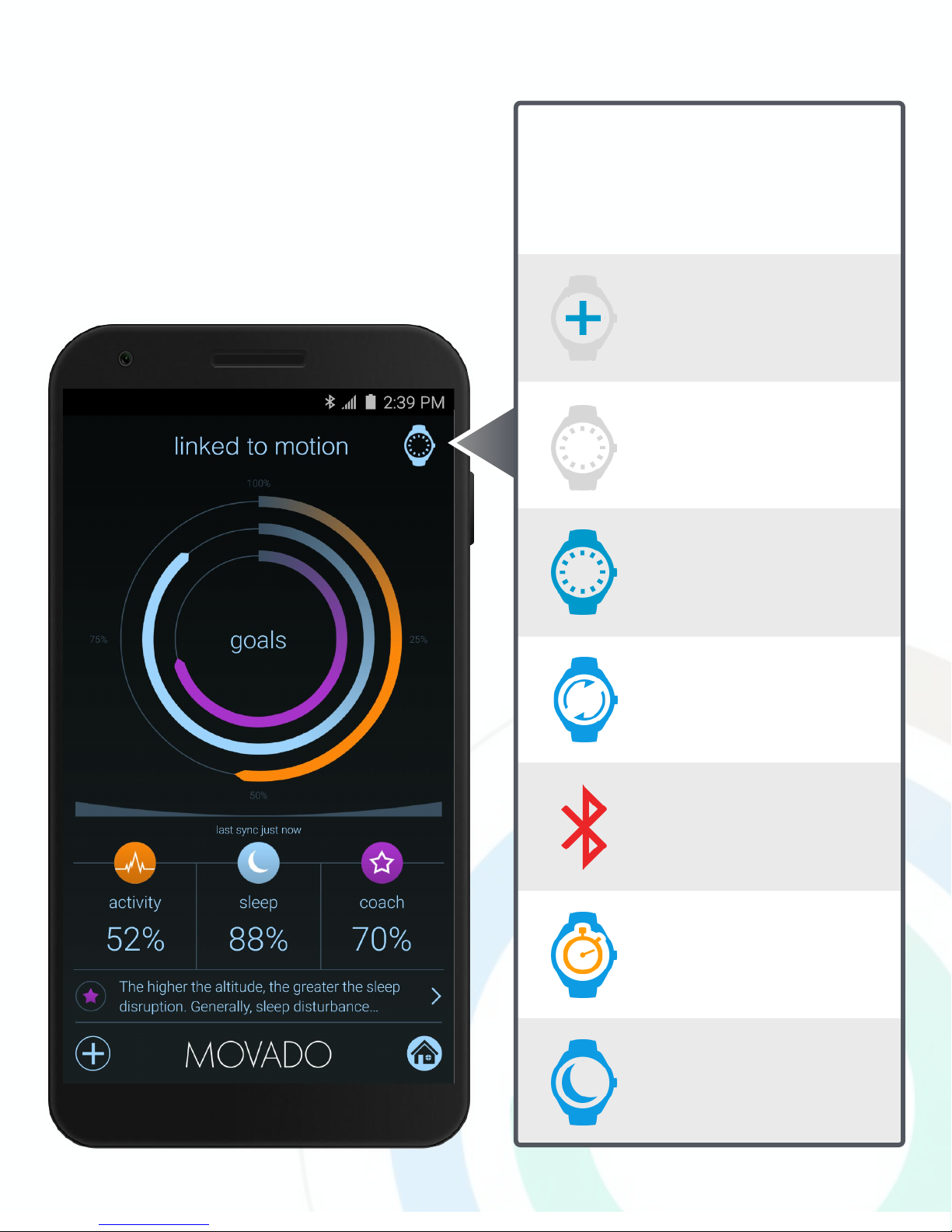
Connection
Status
watch connected !
and sync in progress
watch is connected
phone or tablet Bluetooth
is turned off
no watch paired
touch icon to pair watch
watch not connected
press and release the watch’s
crown button to connect
watch connected !
and in timed workout mode
watch connected !
and in sleep mode
The primary screen (Dashboard) shows
an overview of daily progress toward
your activity and sleep goals. Important
connection status information is shown
in the upper right watch icon.
Patents Granted and Pending. © 2016 Manufacture Modules Technologies Sarl., All rights reserved.
Page 4
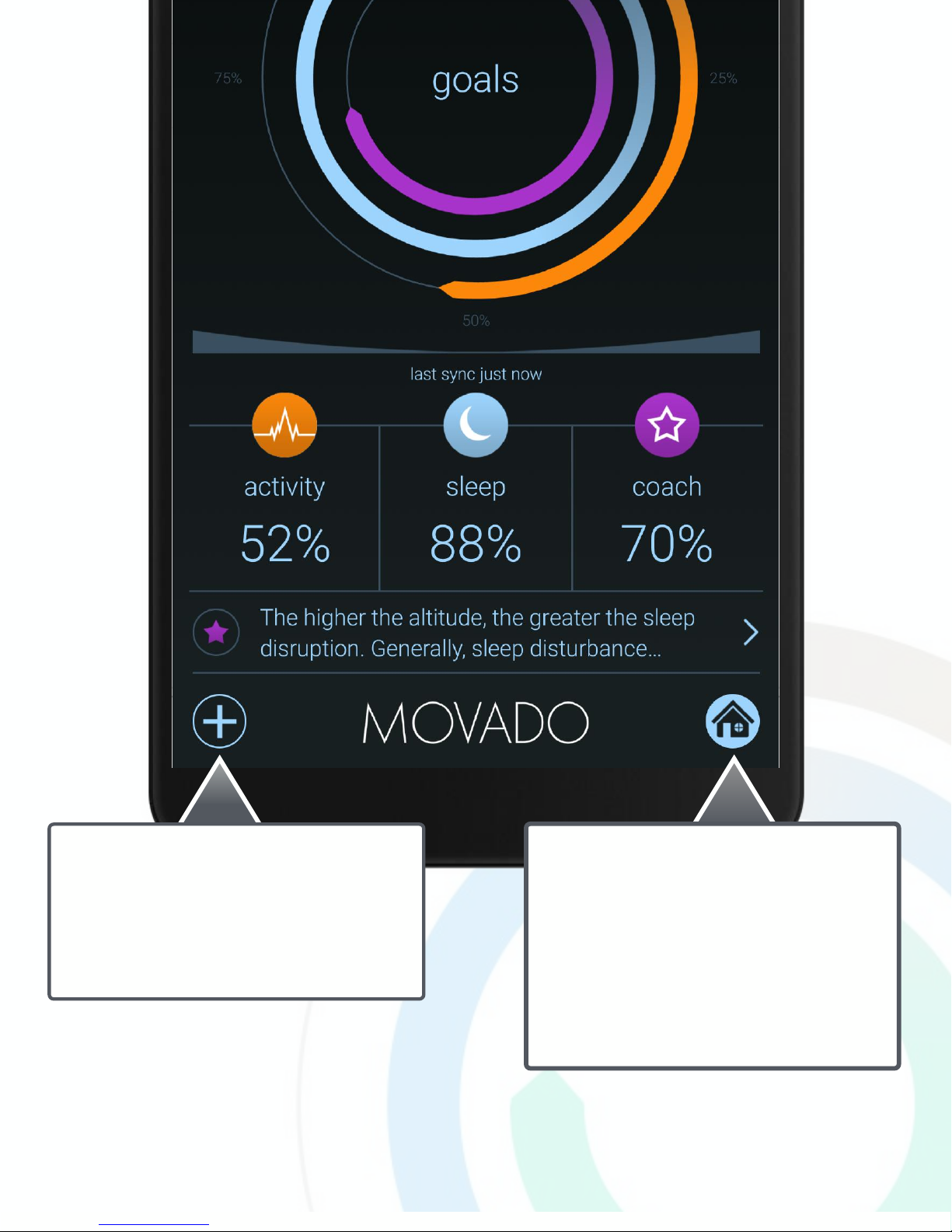
Dashboard shortcut:
!
When highlighted it indicates you
are currently on the Dashboard.
!
Touch the icon from any other
screen to return to the Dashboard.
Application actions:
!
Change modes, access settings
and share your data.
Patents Granted and Pending. © 2016 Manufacture Modules Technologies Sarl., All rights reserved.
Page 5
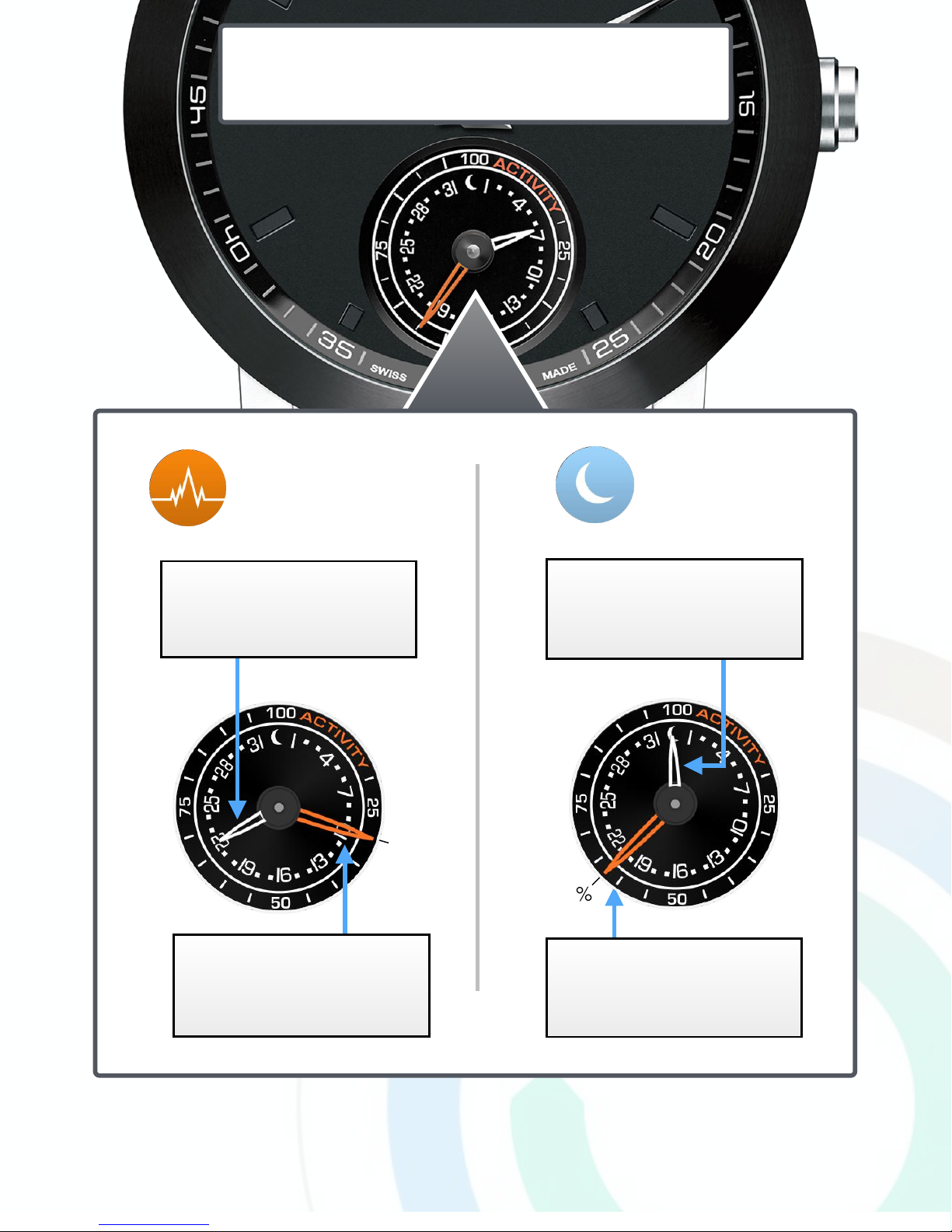
In Activity Mode, the date hand
points to the current date —in this
case, the 22nd—and remains there.
Goal hand points to the percent of
activity goal achieved today on a
scale of 0-100%, in this case 30%.
Goal hand points to percent of
sleep goal achieved today on a
scale of 0-100%, in this case 63%.
Sleep
Mode
Activity
Mode
The Sub-Dial: Modes
Patents Granted and Pending. © 2016 Manufacture Modules Technologies Sarl., All rights reserved.
63%
30%
In Sleep Mode, the date hand
points to the moon icon and
remains there.
Page 6
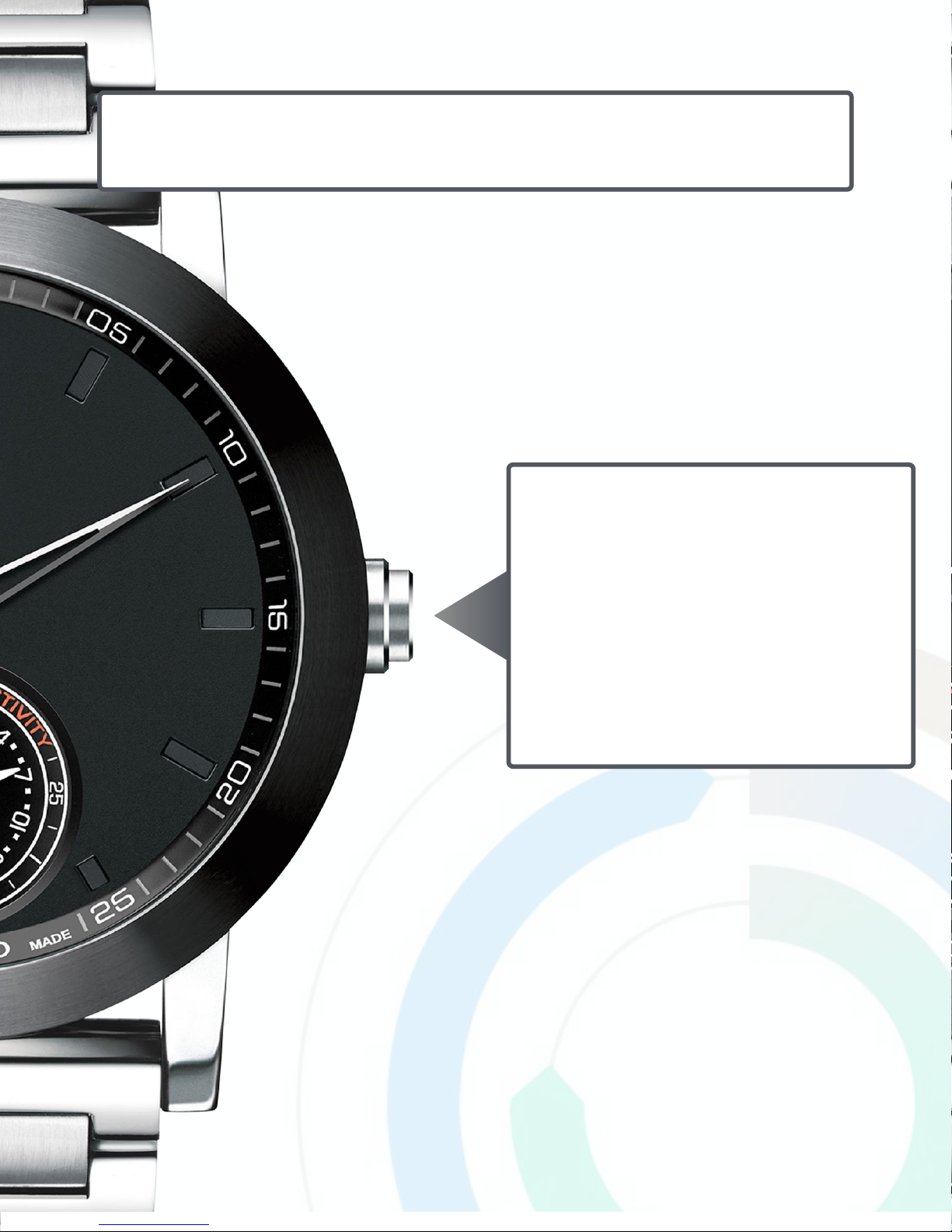
The watch crown button plays an
integral role in the operation of your
Movado Motion smartwatch.
By pressing the crown, you can initiate
a sync with your smartphone or tablet,
check your goal progress, and switch
between activity and sleep modes.
The Watch Crown: Crown Actions
Patents Granted and Pending. © 2016 Manufacture Modules Technologies Sarl., All rights reserved.
Page 7
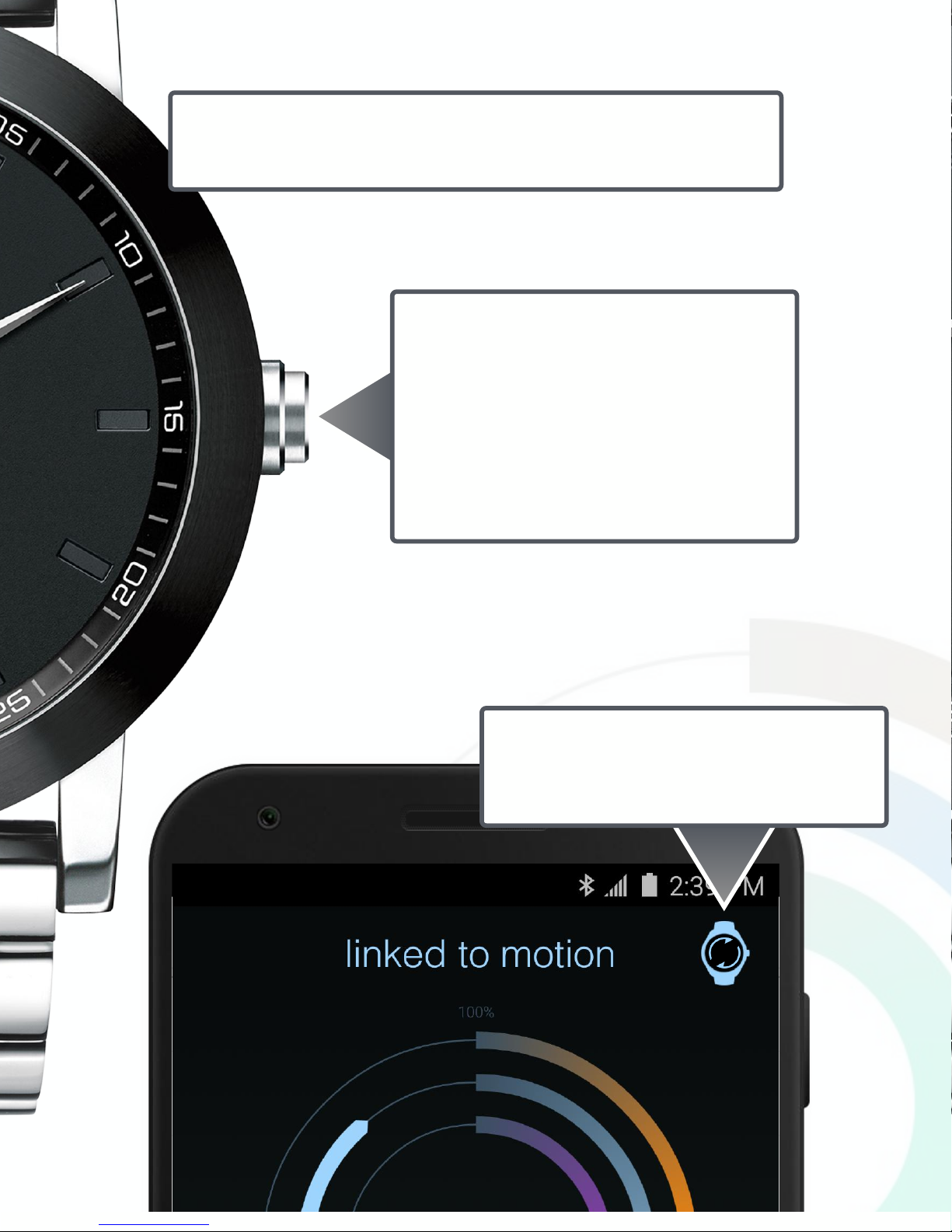
Briefly press and release the crown
button once, and the app will sync with
a nearby paired smartphone or tablet.
Place the watch and phone or tablet
very close together for best results.
The animated spinner icon indicates the
watch and app are currently syncing.
Crown Action: Sync Data
Patents Granted and Pending. © 2016 Manufacture Modules Technologies Sarl., All rights reserved.
Page 8
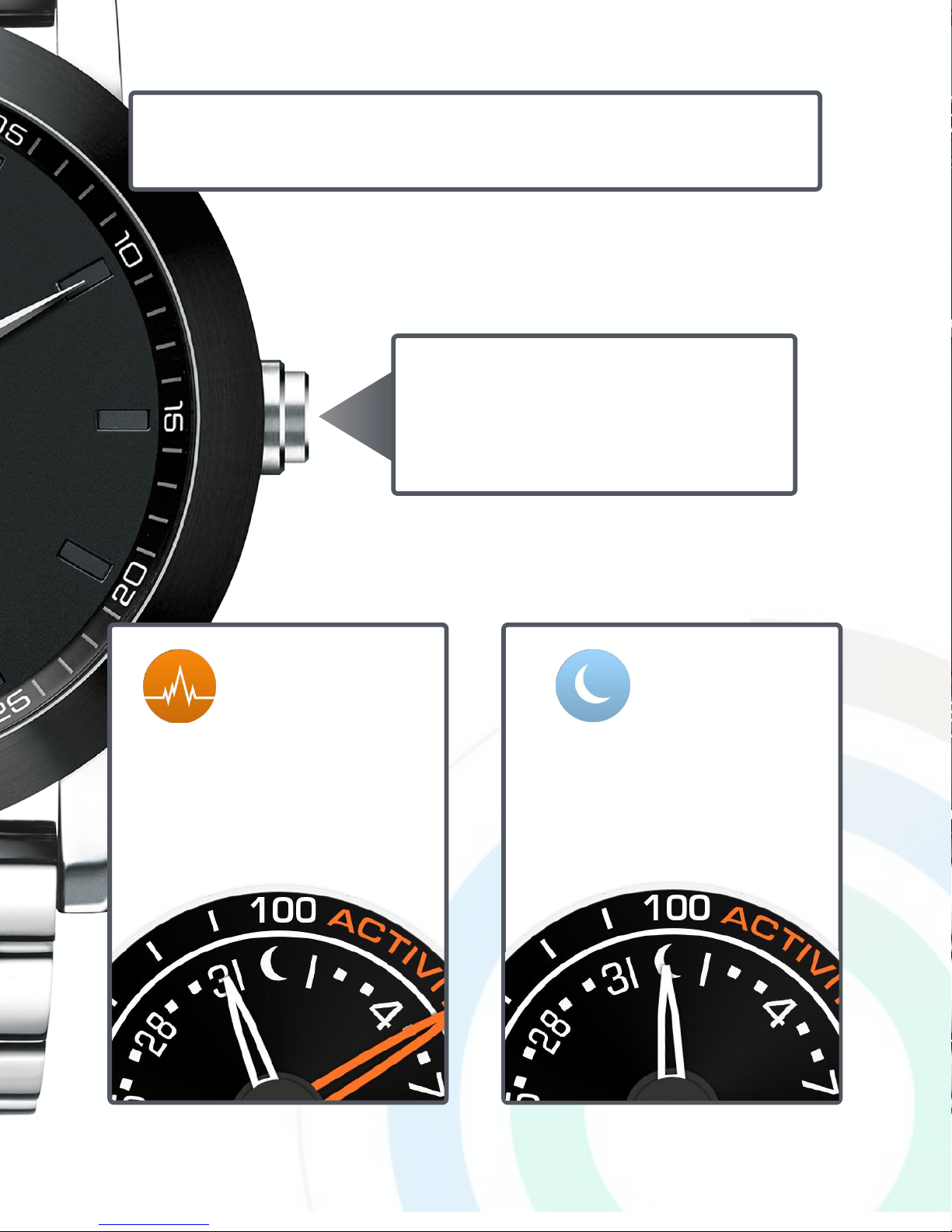
Crown Action: Switch Modes
Press and hold the crown button for
three seconds to switch between sleep
and activity modes.
NOTE: The sub-dial face and hands may vary in appearance and color from watch model to model.
When you’re in Sleep
mode, the date hand
points to the moon icon.
Sleep
When you’re in Activity
Mode, the date hand points
to the current date, in this
case, the 31st.
Activity
Patents Granted and Pending. © 2016 Manufacture Modules Technologies Sarl., All rights reserved.
Page 9
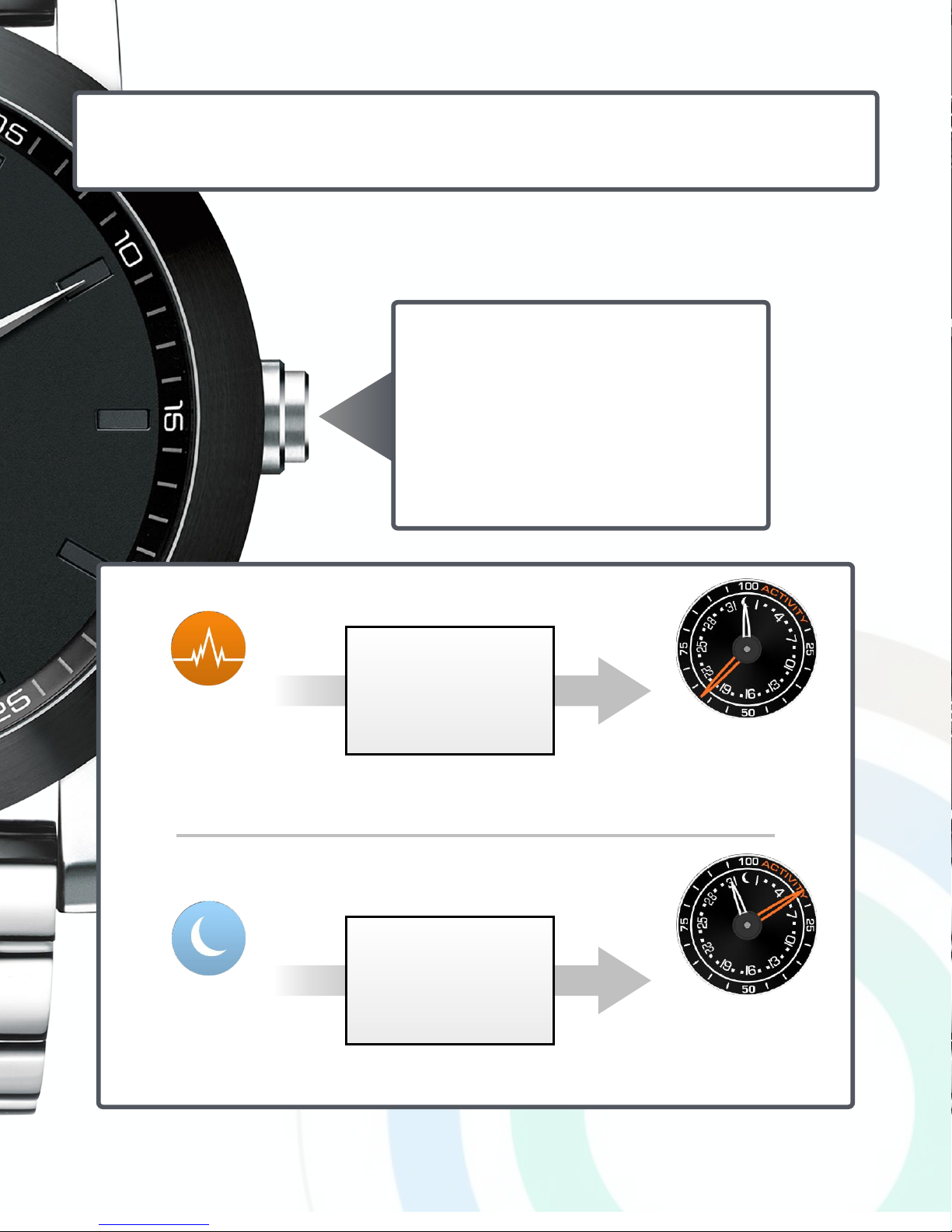
Activity
Mode
When in Activity Mode,
pressing twice shows
progress toward
today's Sleep goal
NOTE: The date hand
moves to the moon
when it shows sleep
progress.
Sleep
Mode
When in Sleep Mode,
pressing twice shows
progress toward
today's Activity goal
NOTE: The date hand
moves to the current
date when it shows
activity progress.
Crown Action: View Goal Progress
Press the crown button twice to view
goal progress in the inactive watch
mode —for example, take this action
during the day to see the sleep goal
you achieved last night.
Patents Granted and Pending. © 2016 Manufacture Modules Technologies Sarl., All rights reserved.
Page 10
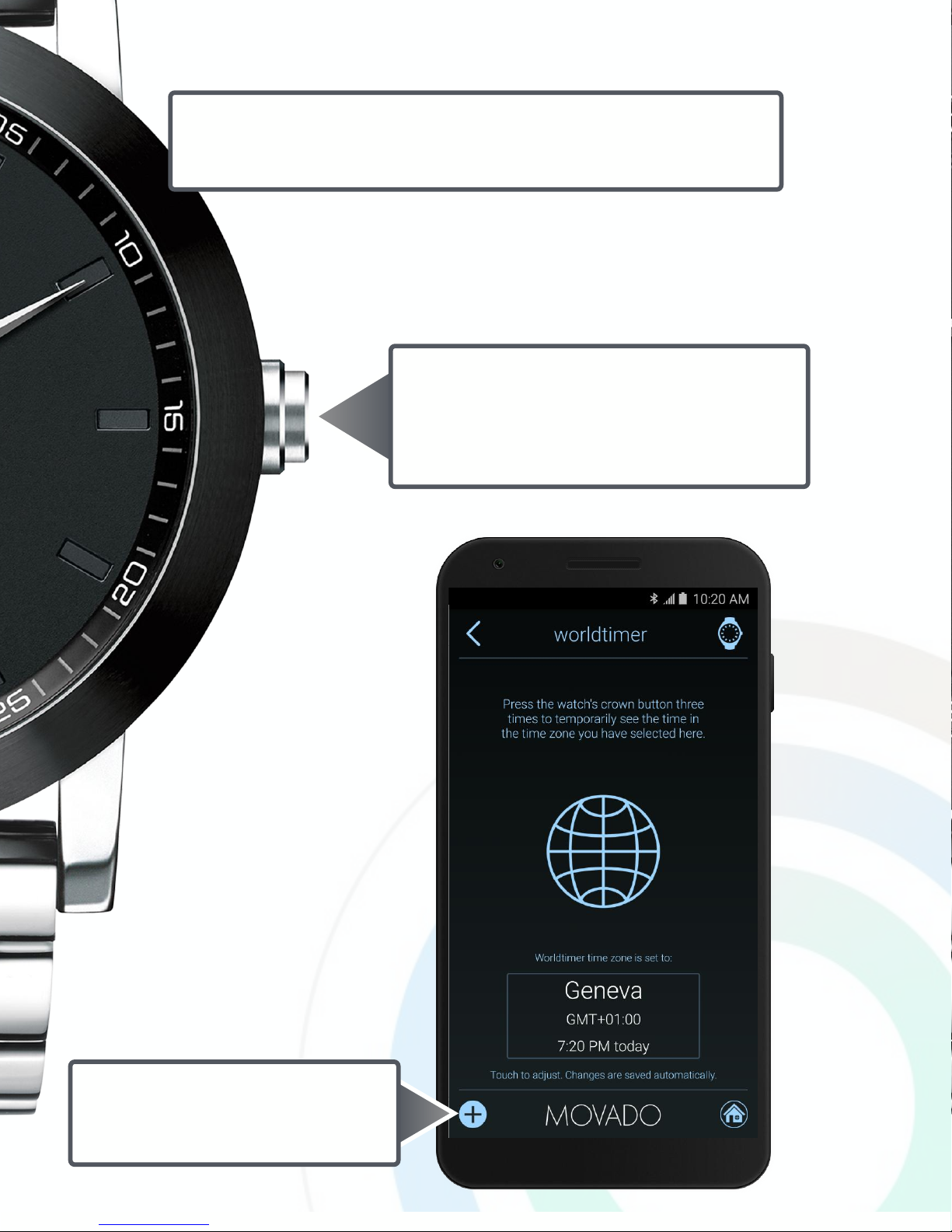
Press and release the crown button three
times to temporarily see the current time
in the time zone you have selected.
Crown Action: Worldtimer
Patents Granted and Pending. © 2016 Manufacture Modules Technologies Sarl., All rights reserved.
Configure the Worldtimer in the
Application Actions menu.
Page 11
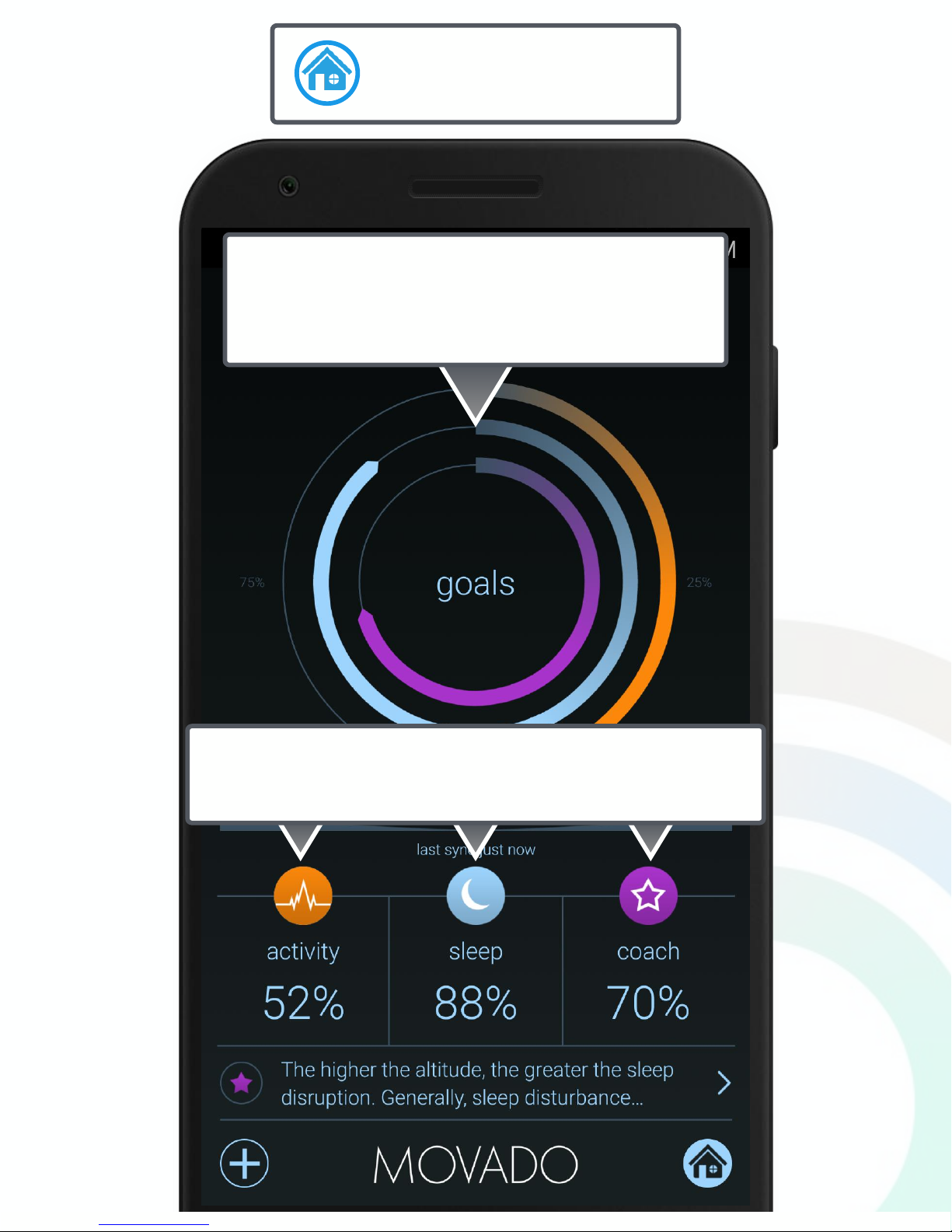
Dashboard
Each colored ring represents your goal
completion percentage: activity in gold, sleep in
blue and coach (overall) in purple.
Touch one of the goal percentages to view detailed
graphs and data.
Patents Granted and Pending. © 2016 Manufacture Modules Technologies Sarl., All rights reserved.
Page 12
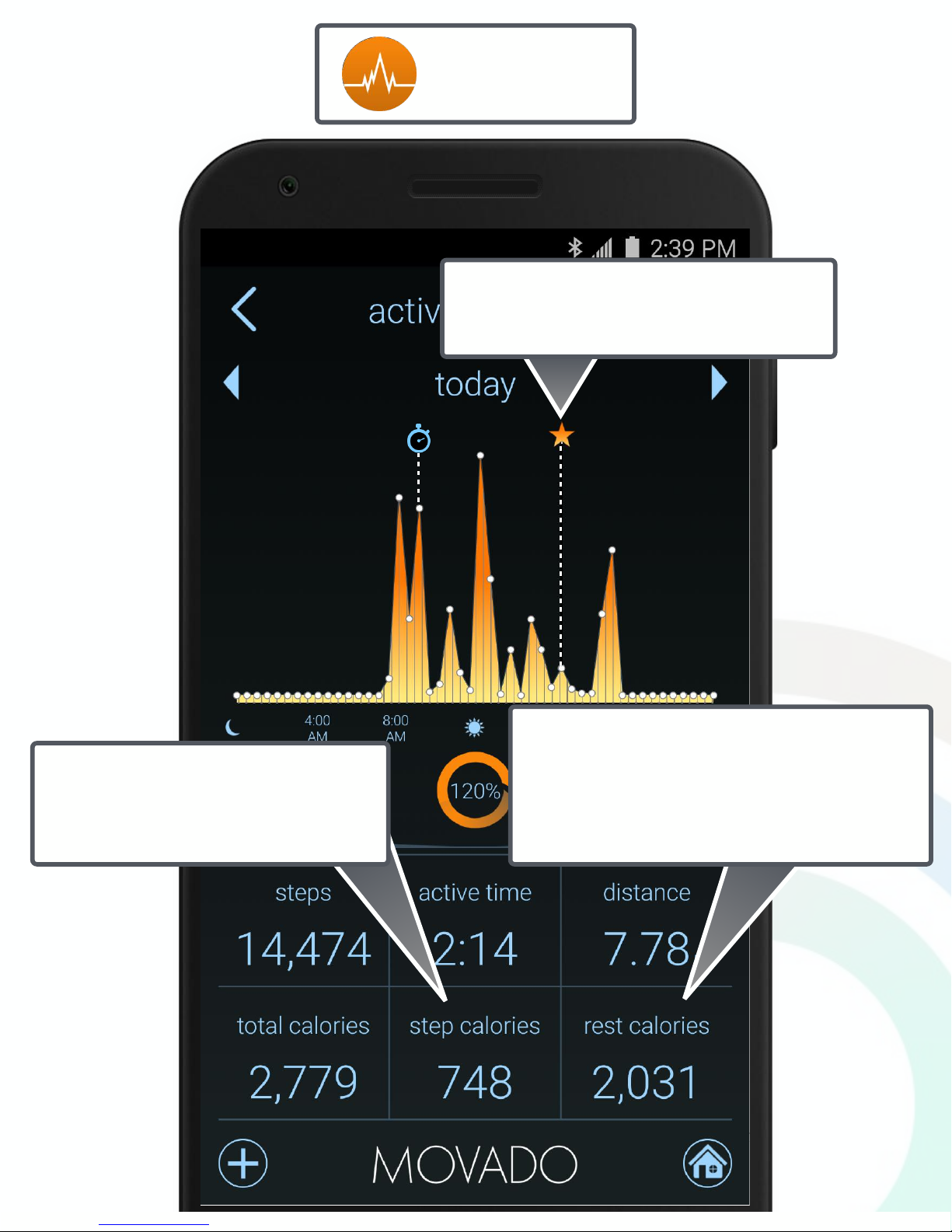
Activity
Even when you're idle or sleeping, your
body burns calories; they are known as
BMR (basal metabolic rate) calories or
rest calories.
The star icon indicates the point when
your activity goal was achieved.
The calories you burn from taking
steps (walking, jogging or running)
are shown under step calories.
Patents Granted and Pending. © 2016 Manufacture Modules Technologies Sarl., All rights reserved.
Page 13
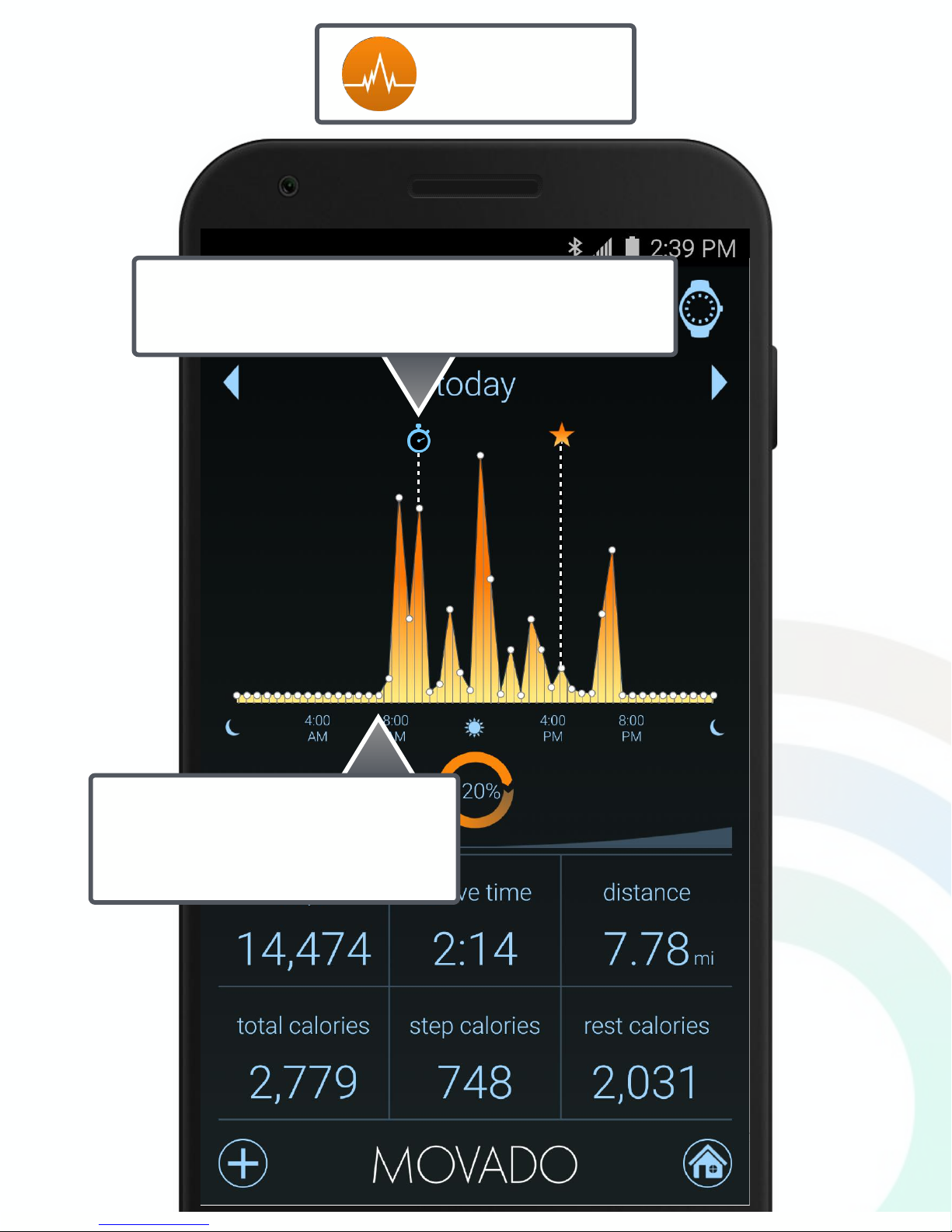
Activity
Touch and drag your finger across
the graph to view how many steps
you had at a particular time of day.
If you record a Stopwatch activity, select this
stopwatch icon to view the details of your recording.
Patents Granted and Pending. © 2016 Manufacture Modules Technologies Sarl., All rights reserved.
Page 14
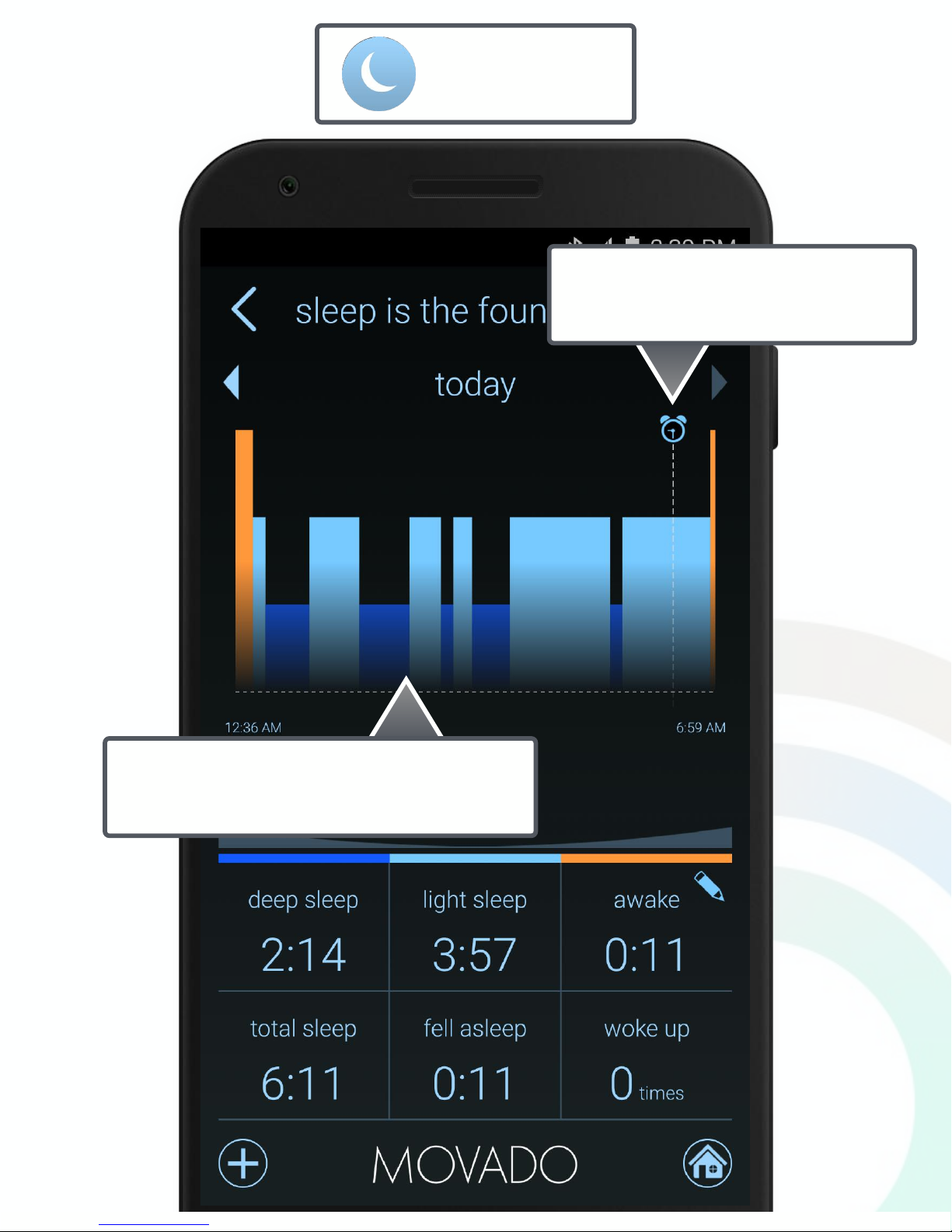
Sleep
The alarm clock icon indicates a
smart sleep alarm.
The graph indicates periods of deep sleep,
light sleep, and awake time.
Patents Granted and Pending. © 2016 Manufacture Modules Technologies Sarl., All rights reserved.
Page 15
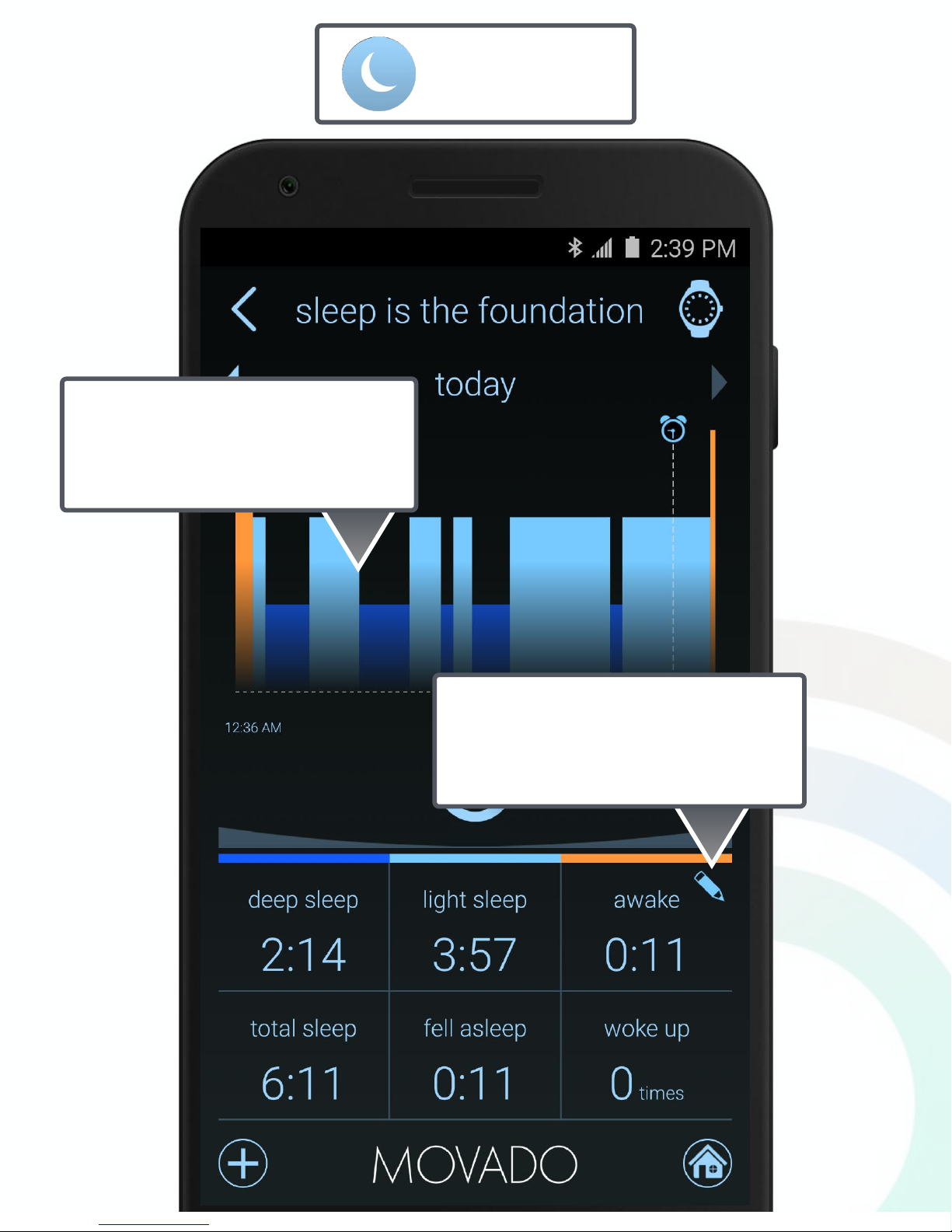
Touch and drag your finger across
the graph to view start and end
times of each sleep segment.
Touch the pencil icon to edit the
bedtime and rise time of your sleep
recording, or to delete it.
Patents Granted and Pending. © 2016 Manufacture Modules Technologies Sarl., All rights reserved.
Sleep
Page 16
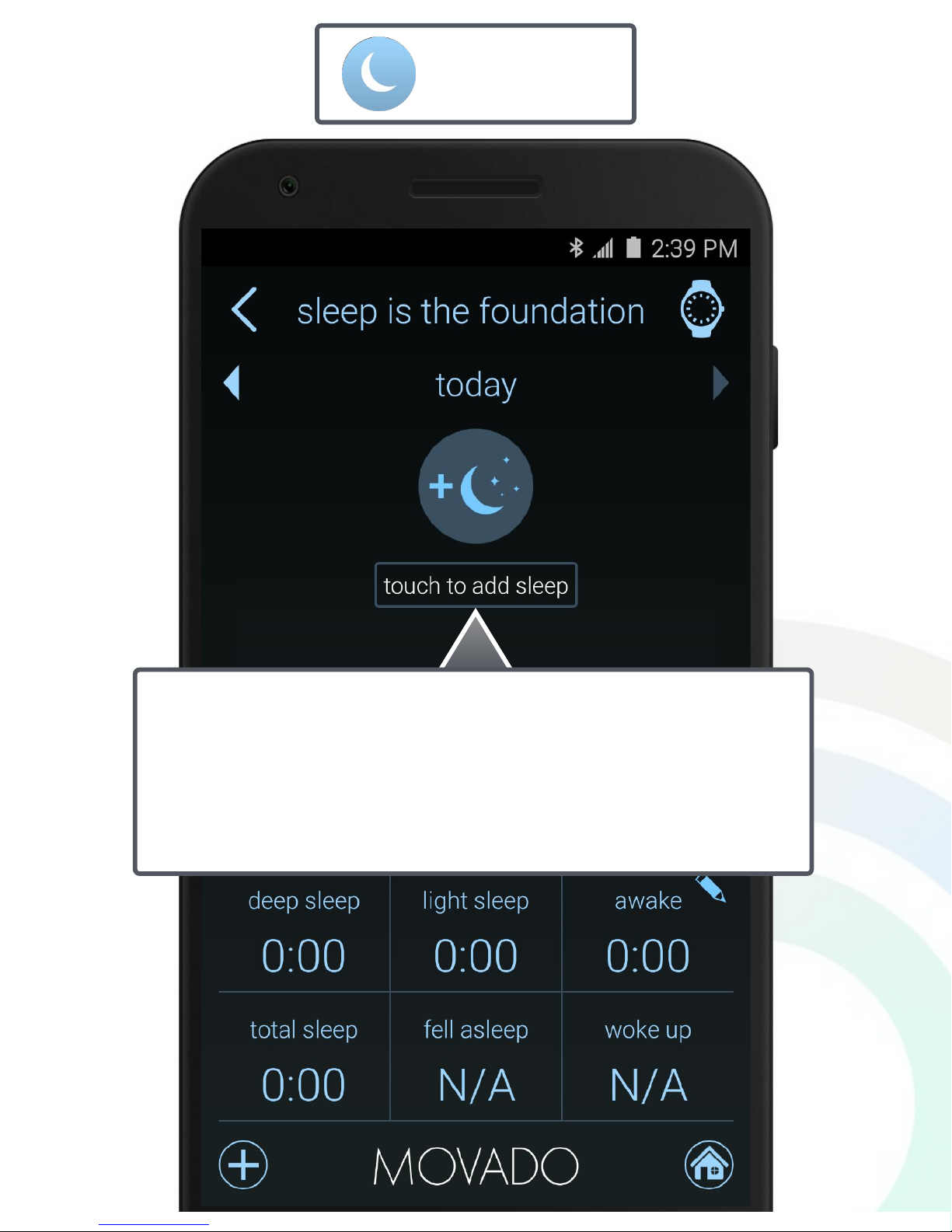
If you forgot to put the watch into sleep mode but wore the watch to
sleep, you can still see your sleep data. Sync your watch, then
select touch to add sleep and specify your approximate bedtime
and rise time. Even if you did not wear the watch to bed, you may
use this to log a manual sleep entry.
Patents Granted and Pending. © 2016 Manufacture Modules Technologies Sarl., All rights reserved.
Sleep
Page 17
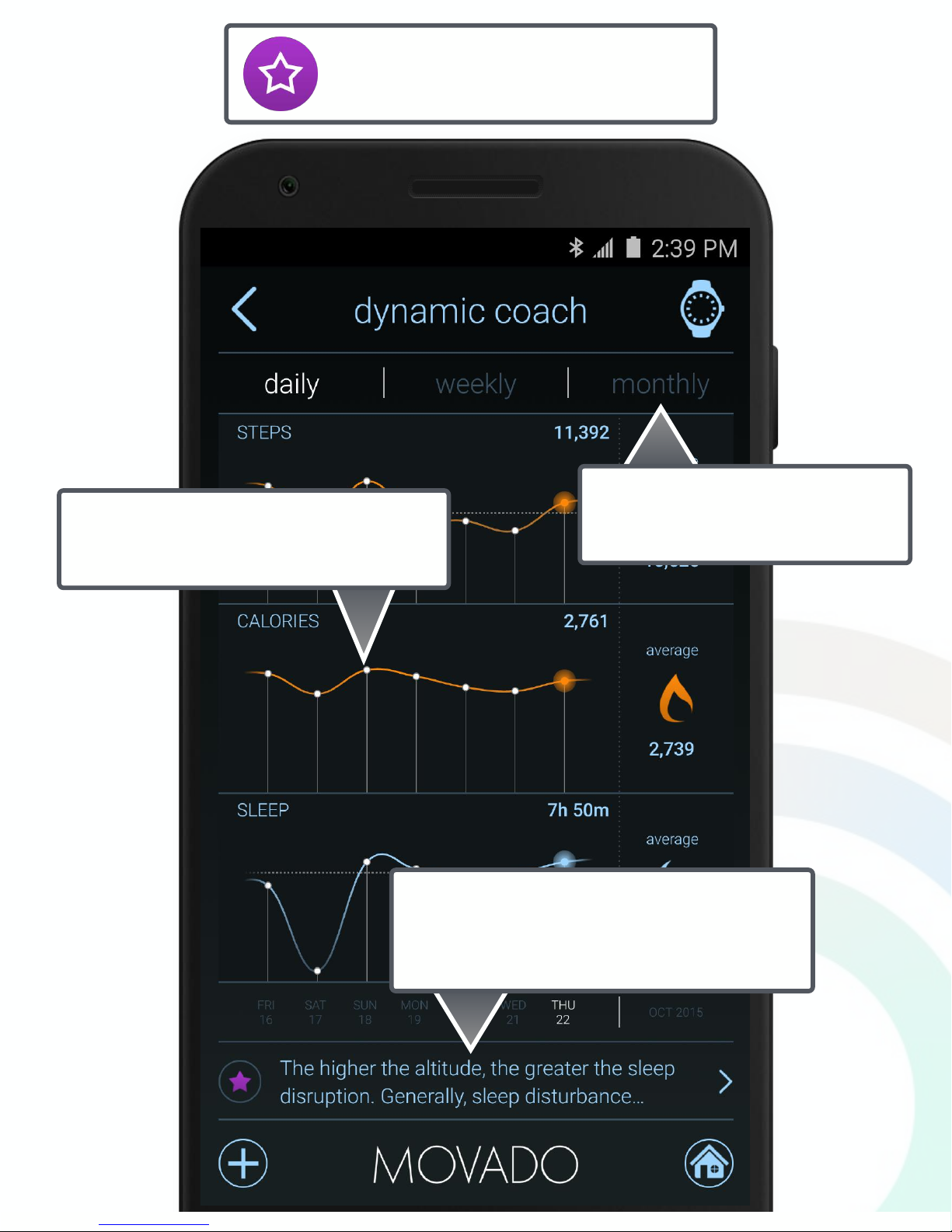
Dynamic Coach
The dynamic coach shows your trends
and averages.
Choose between daily, weekly,
and monthly summaries.
You’ll get suggestions, tips, and
information catered specifically to you
based on your activity and sleep data.
Patents Granted and Pending. © 2016 Manufacture Modules Technologies Sarl., All rights reserved.
Page 18
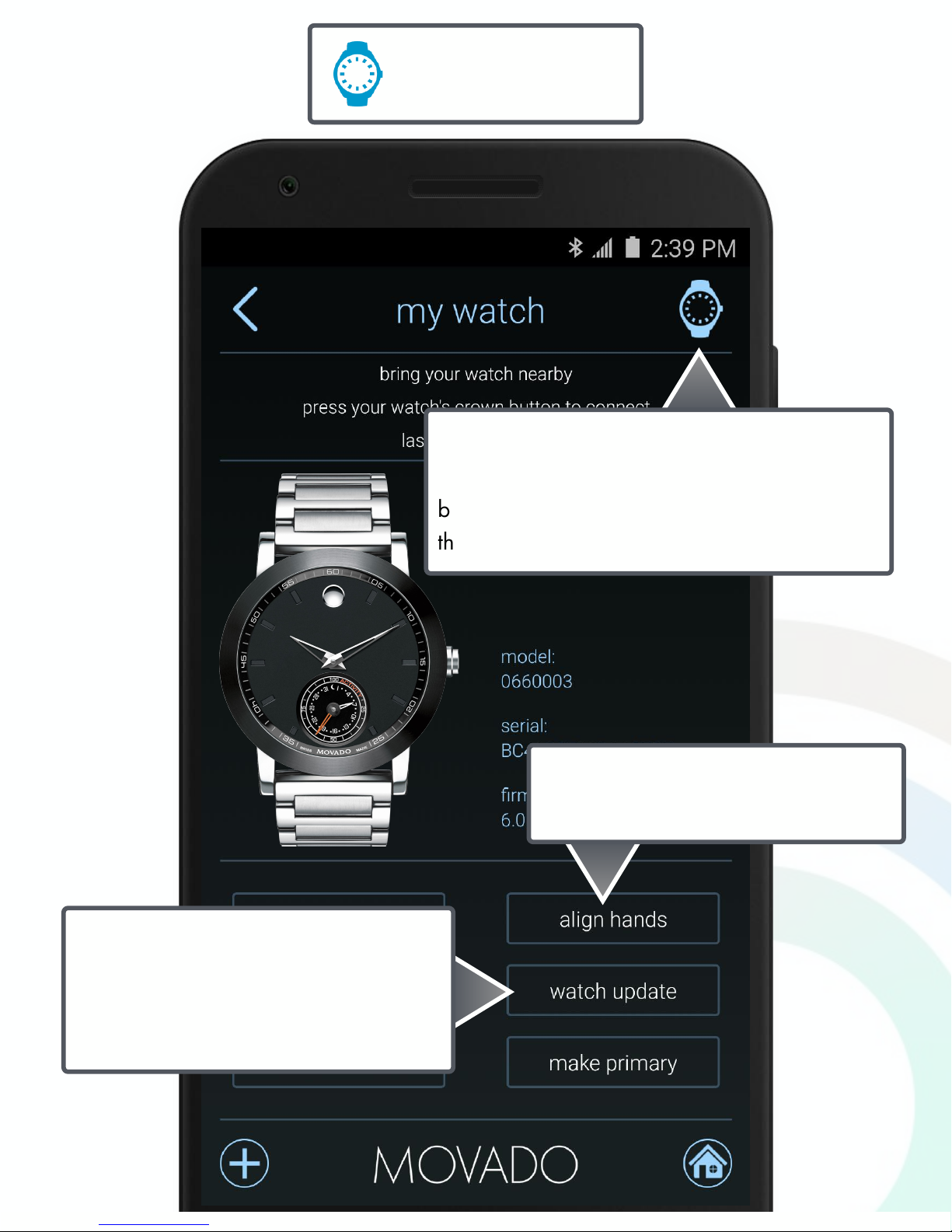
My Watch
To access details about your connected
Movado Motion smartwatch, touch the watch
button that is always at the top right corner of
the screen.
Select watch update to check for
firmware updates for your watch.
Updates are installed wirelessly via
your smartphone or tablet.
Select align hands to calibrate all of
your watch hands.
Patents Granted and Pending. © 2016 Manufacture Modules Technologies Sarl., All rights reserved.
Page 19
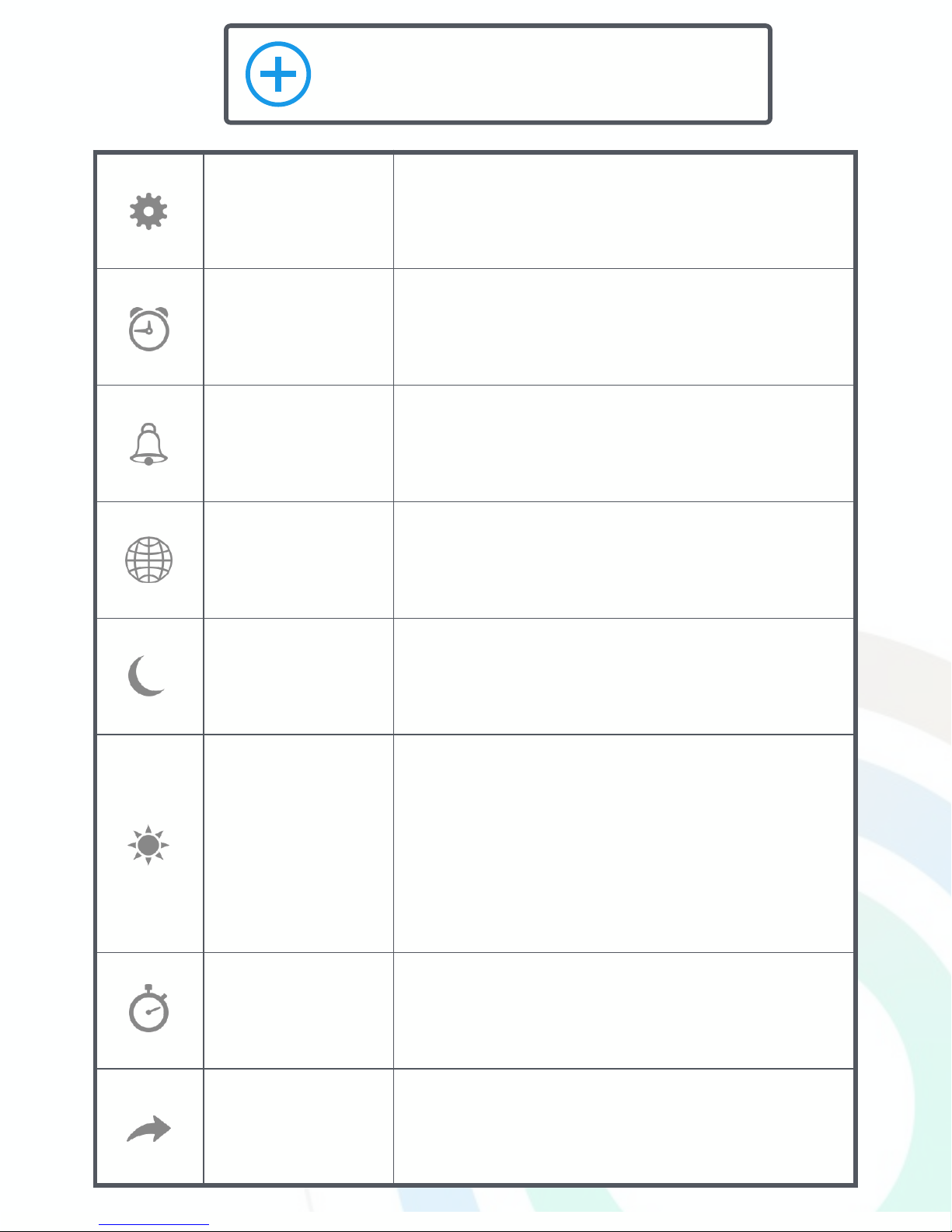
settings
Access settings (see table on next page)
sleep cycle alarms
Wakes you at the optimal time in your sleep cycle during the
time frame you set.
get active alert
Set a get active alert to remind you to move. Your watch will
make a sound if you are idle for too long.
worldtimer
After setting up the worldtimer, press the crown button three
times to temporarily see the time in the timezone you selected.
start sleep mode
Allows you to switch between sleep and activity mode. You can
also do this by pressing and holding the crown on the watch.
record a
powernap
Use powernaps to catch up on your sleep during the day.!
Sleep duration indicates the amount of time you wish to sleep
for. The app will only start counting duration after you actually
fall asleep (ie. you selected 30 minutes, but it takes you 10
minutes to fall asleep, so the app will wake you a total of 40
minutes later.)!
Max duration indicates the latest time the alarm will sound after
you start the powernap (ie. you need to be up in 45 minutes, so
you want to be woken at that point regardless of how long it
takes you to fall asleep or whether you are in deep sleep.)
stopwatch
Allows you to record the steps you take on a walk, hike, jog or
run and view the distance covered during your recording.
share
Share your graphs via email or Twitter. You also have the option
to export all of your data.
Application Actions
Patents Granted and Pending. © 2016 Manufacture Modules Technologies Sarl., All rights reserved.
Page 20
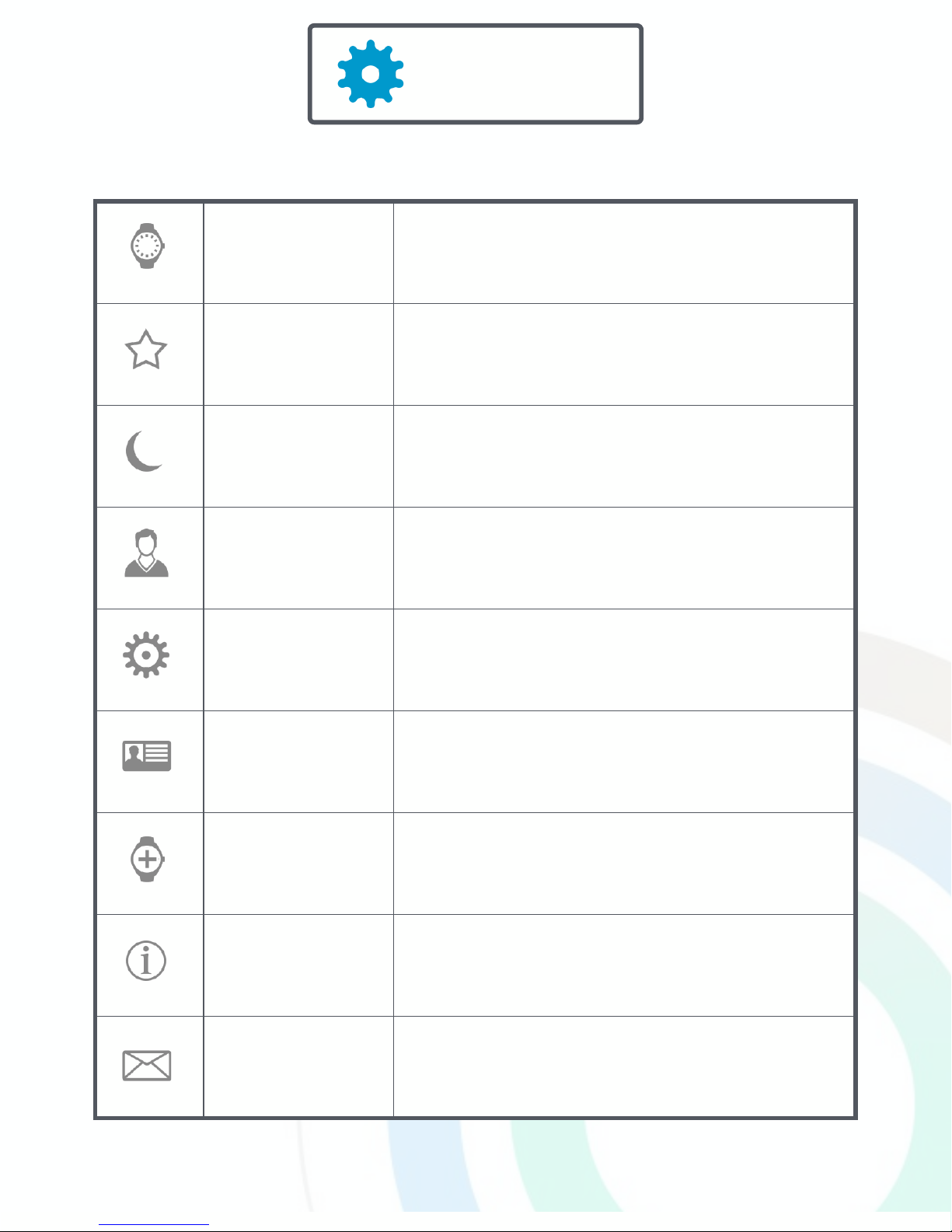
my watch
View details about your watch including connection status, firmware
version, last sync time, and serial number. You can also align hands,
unpair, and reset.
goals
Review and adjust your daily activity and sleep goals.
sleep mode
placement
Choose the location for your watch when you go to bed: either on
your wrist or under your pillow.
user profile
Adjust your profile information.
general
Adjust your preference for distance units, sleep mode auto-stop, and
BMR calorie counting. If you are signed into an account, view your
last backup or enable cloud backup.Also allows user to Reset
Watch, Reset Application or Reset Calibration.
account
Create, log in or log out of a MMT Cloud account for backing up
your data.
add new watch
Follow the instructions to pair a new watch.
help & faq
Additional resources to help you get the most of your
Movado Motion smartwatch.
send feedback
Contact us directly for assistance, feedback or suggestions.
Settings
Patents Granted and Pending. © 2016 Manufacture Modules Technologies Sarl., All rights reserved.
Page 21
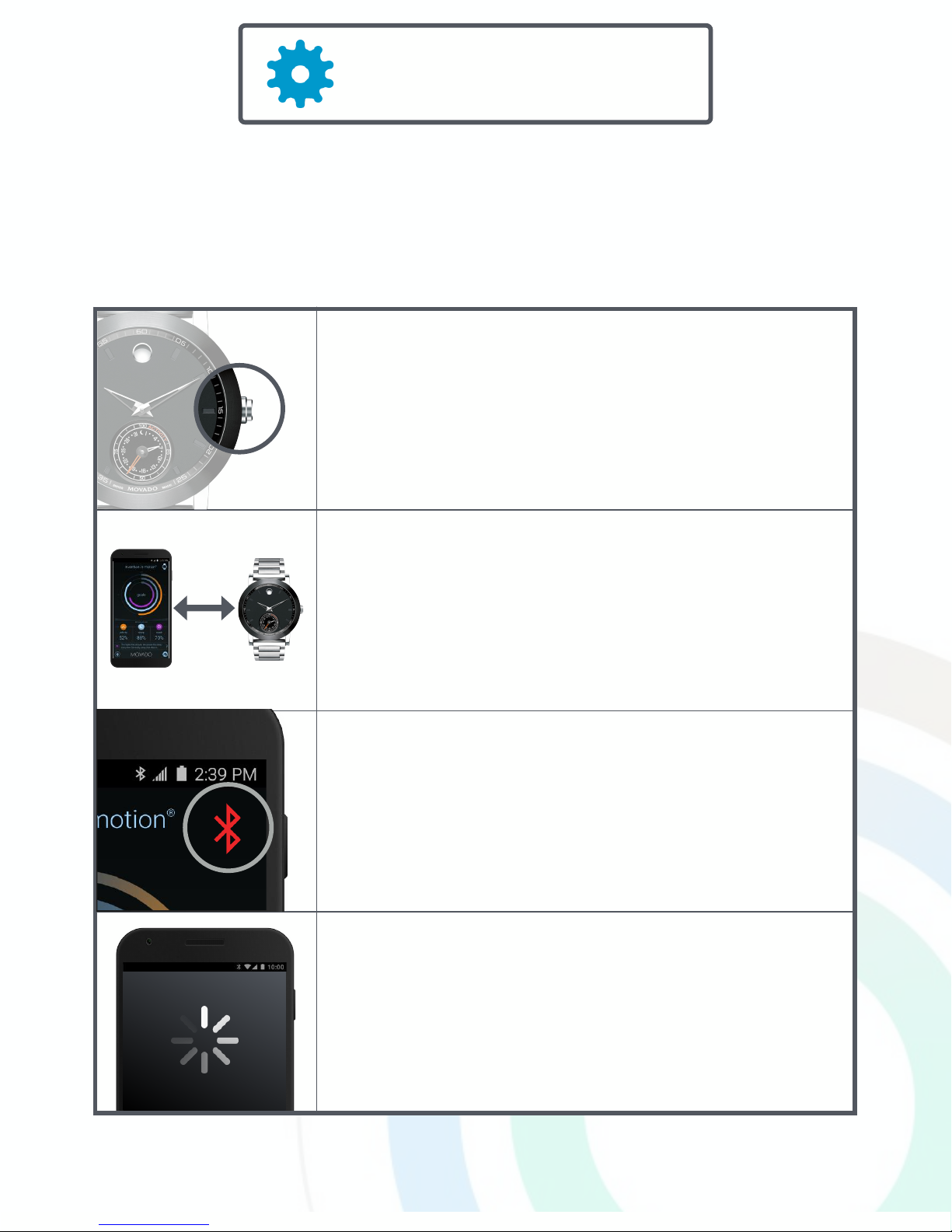
1. With the MMT-365 app open, briefly press and
release the watch’s crown button once — this will activate
the connection between your smartwatch and the app.
2. While troubleshooting, try placing your watch very
close to your phone or tablet.
3. If there is a red Bluetooth symbol in the upper right
corner of the phone’s display, Bluetooth is turned off on
your smartphone. Turn on Bluetooth from your phone’s
Settings app. If your Bluetooth is already on, turn it off
then back on again.
get active alert
4. Power off your phone to restart it. Then re-launch the
MMT-365 app and try connecting again. In general, it’s
a good idea to restart your phone or tablet from time to
time to keep them running smoothly.
Troubleshooting
If your Movado Motion smartwatch is unable to connect to your phone, try the
following steps to connect.
Patents Granted and Pending. © 2016 Manufacture Modules Technologies Sarl., All rights reserved.
 Loading...