

Page 1
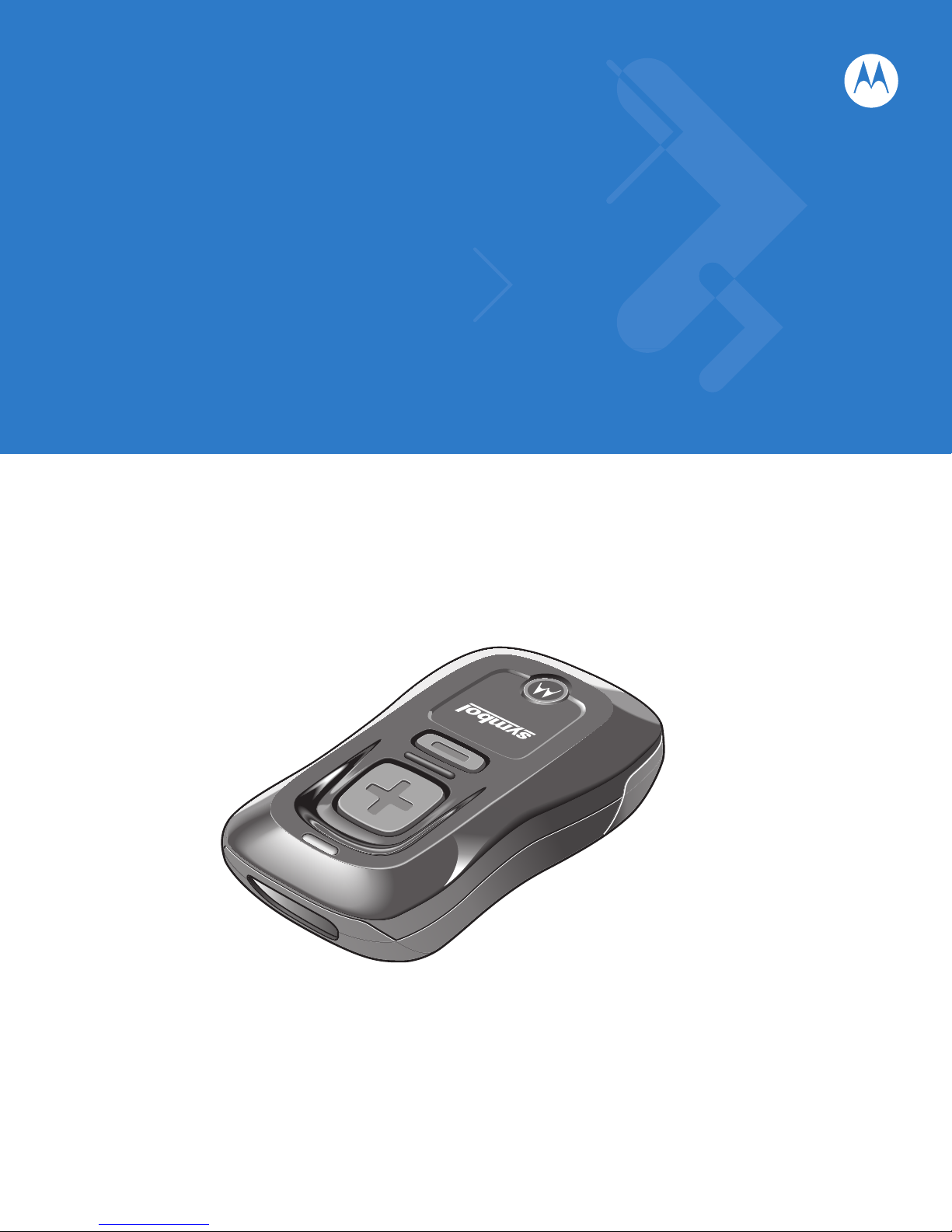
Symbol CS3000 Series Scanner
Product Reference Guide
Page 2
Chapter 1 Getting Started
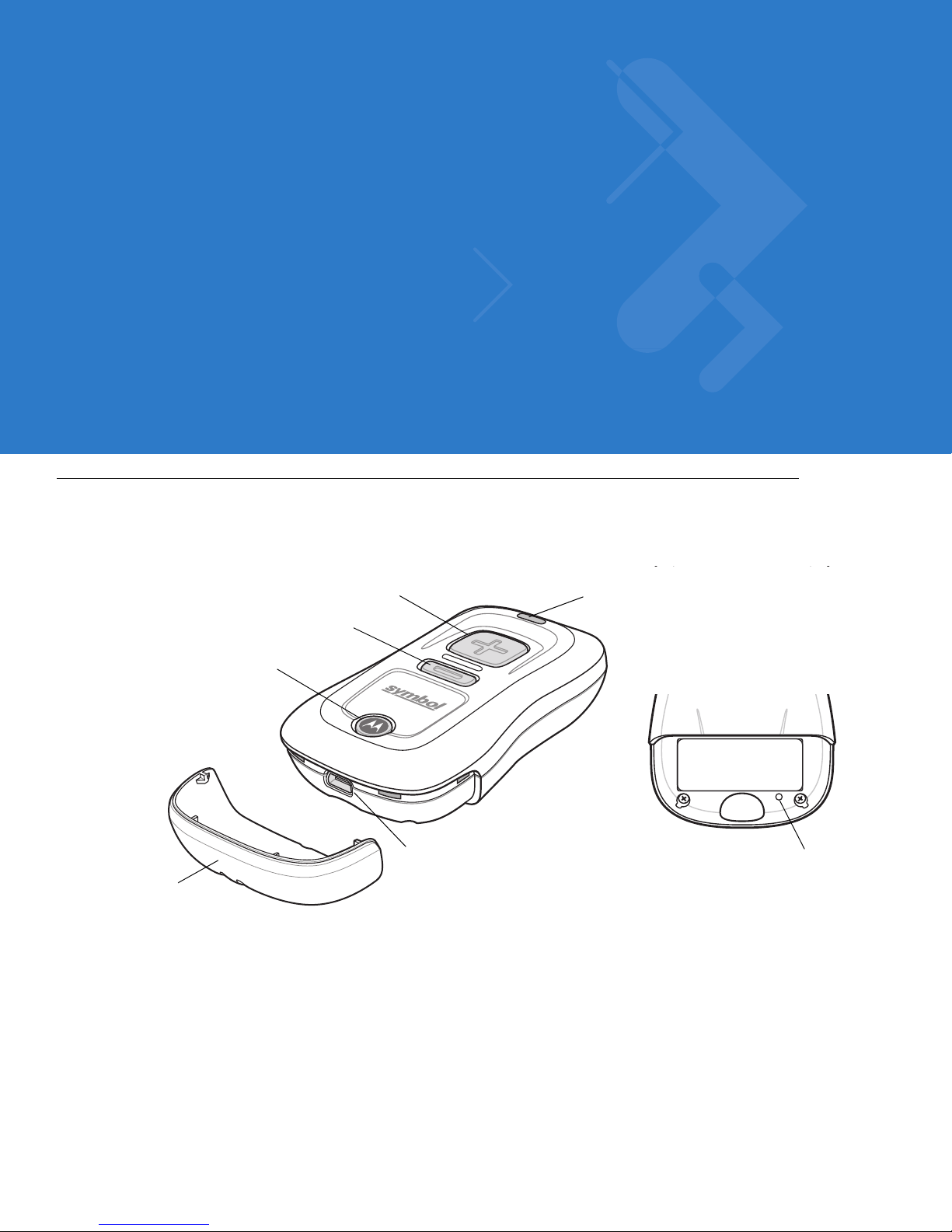
Mini-USB Port
Scan Button
LED
Bluetooth Button/LED
Delete Button
Protective Cover
Reset Button
Introduction
The Symbol CS3000 Series Scanner captures and stores bar codes for a variety of uses, and transmits bar code
data to a host via USB connection or Bluetooth.
Figure 1-1
This scanner supports the following host interfaces:
•
•
Symbol CS3000 Series Scanner
USB - The scanner connects to a USB host as a removable storage device, via a cradle or USB cable.
Bluetooth - The scanner supports Bluetooth HID connection to a host (the default) where the scanner
emulates a keyboard, as well as Serial Port Profile (SPP) connection where the scanner behaves as if there
is a serial connection.
Page 3

Scanner Charging LED
The scanner’s LED indicates charging activity (see Table 2-1 on page 2-3). The amber LED blinks slowly during
charging. The scanner’s LED turns solid green when the battery is fully charged.
Connecting to the Host Computer
Batch Connection
See Charging the Scanner Battery on page 1-3 for instructions on connecting the scanner to a host PC via USB.
NOTE To enter batch scanning mode, the scanner cannot be paired to a Bluetooth host (applies to CS3070
model only).
Bluetooth Connection: Development Options
Serial Port Profile
Getting Started 1 - 5
This Bluetooth profile emulates a serial cable to provide a simply implemented wireless replacement for existing
RS-232 based serial communications applications, including familiar control signals. It is the preferred
communication profile implementation because accidental key strokes from the keyboard or touch screen on the
host are not entered into the bar code data stream.
Human Interface Device Emulation
This Bluetooth profile is a lightweight wrapper of the Human Interface Device protocol defined for USB. Data
transmitted from the Bluetooth scanner appears as keyboard entries to the Bluetooth host (Smartphone, PC, etc).
NOTE Wedge data appears within whichever application has input focus.
Page 4
Chapter 2 Scanning
012345
WRONG
012345
RIGHT
Introduction
This chapter provides instructions for how to scan bar codes and send the data to a host. Beeper and LED
definitions are also included.
Scanning
See Chapter 1, Getting Started to install and program the scanner. To scan:
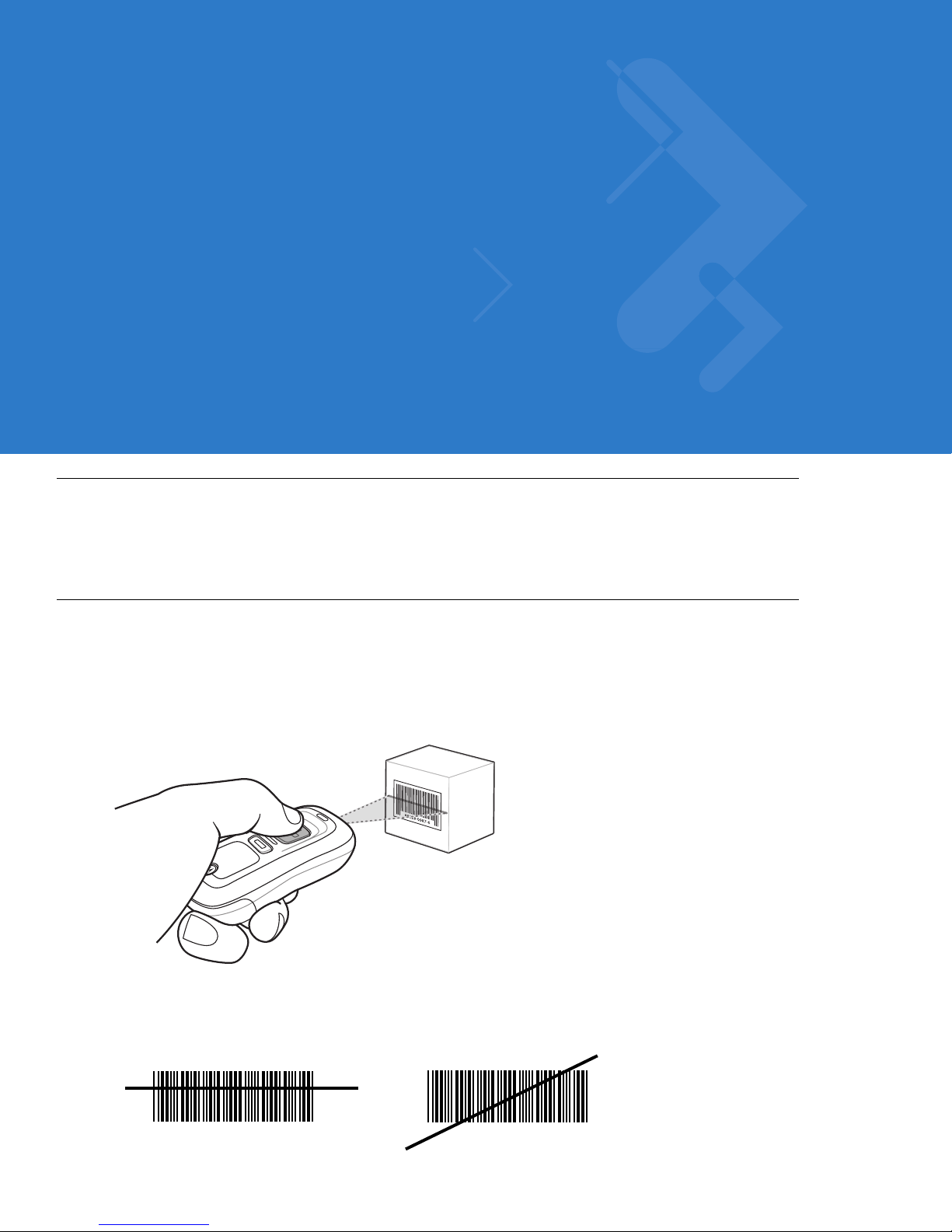
1. Aim the scanner at the bar code.
2. Press the scan (+) button.
Figure 2-1
3. Ensure the scan line crosses every bar and space of the symbol.
Scanning
Page 5
3 - 4 Symbol CS3000 Series Scanner Product Reference Guide
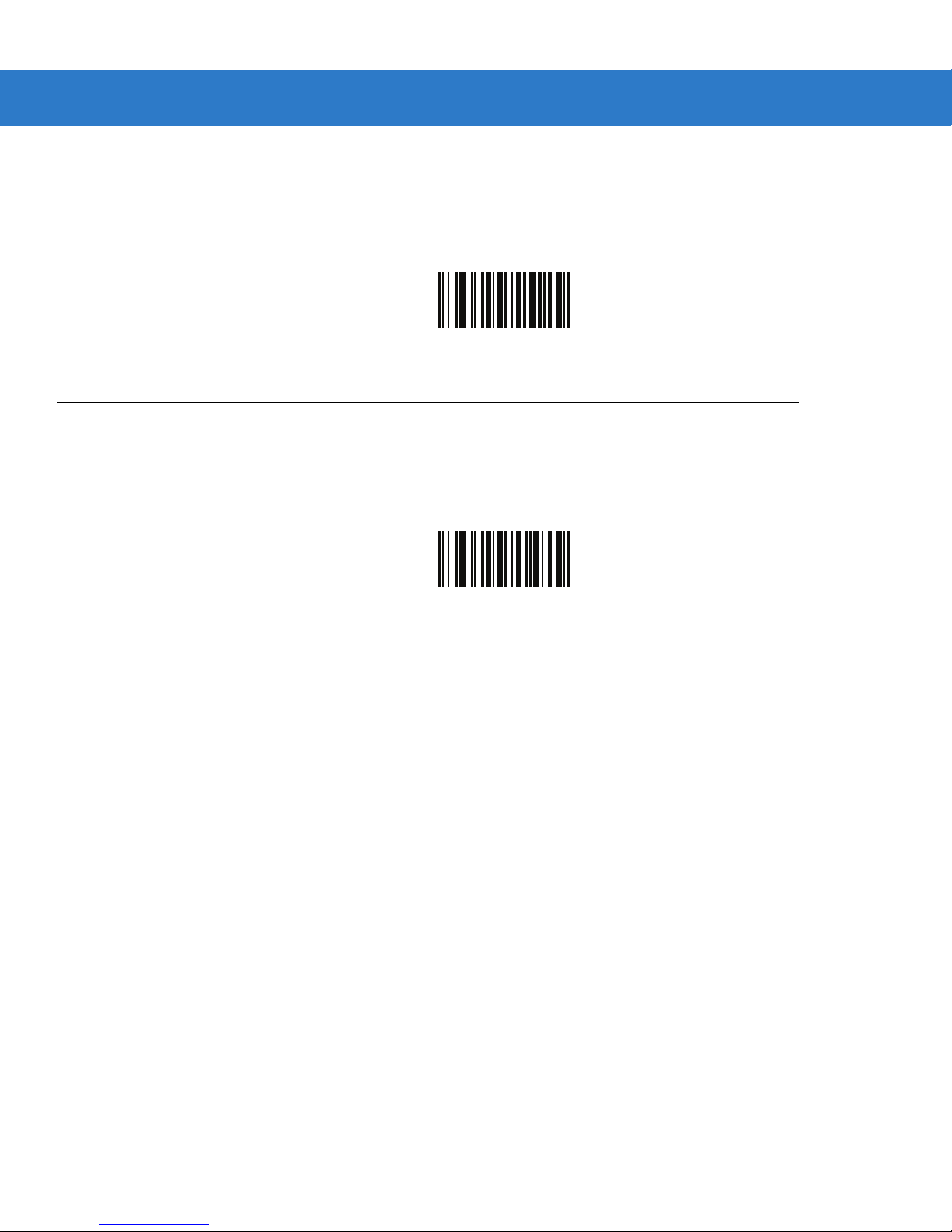
Reset
To reset the scanner and apply parameters from the configuration file, scan the following bar code.
Reset
Reset Factory Defaults
To reset the scanner to factory defaults, scan the following bar code. This rebuilds the configuration file from
program memory.
Reset Factory Defaults
Page 6
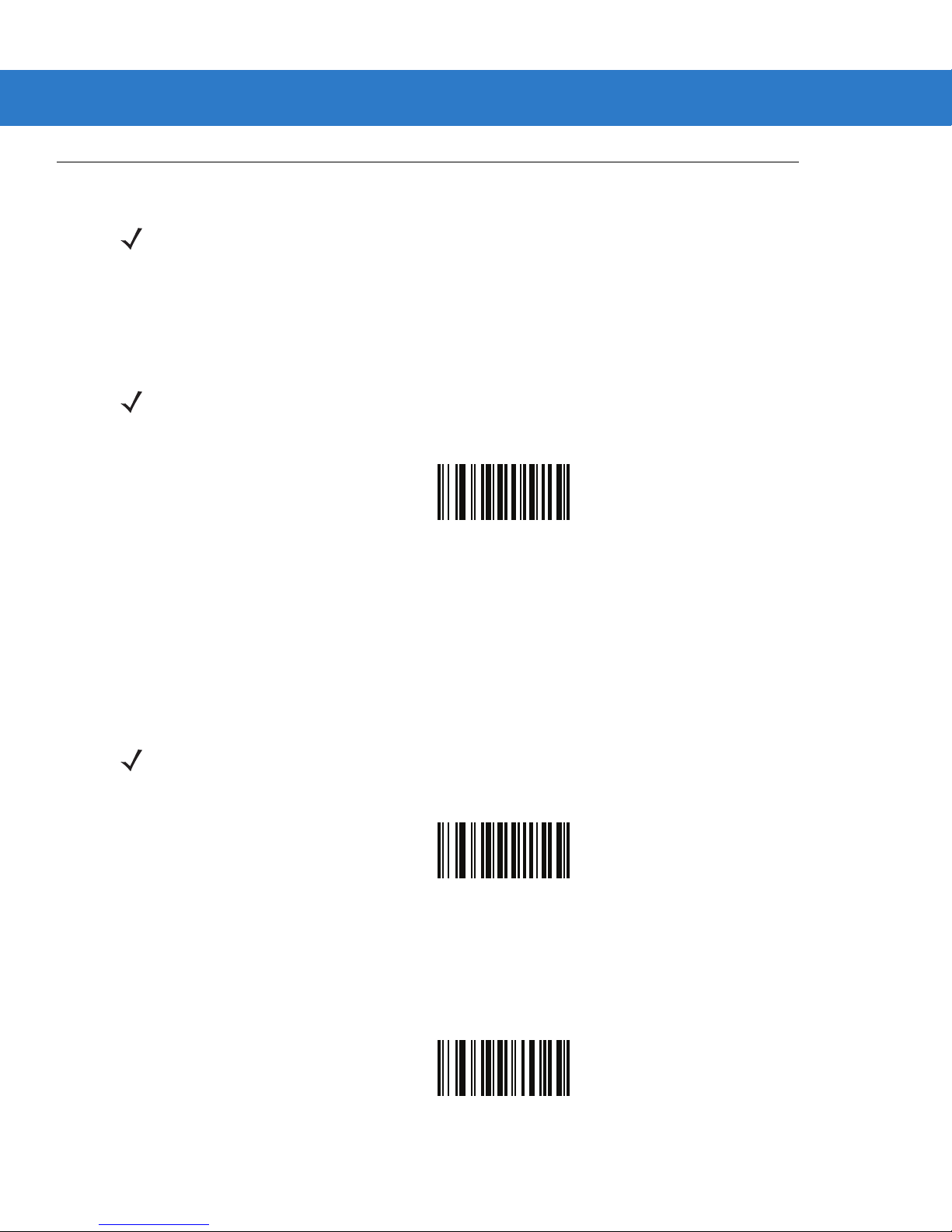
Set Date and Time
NOTE You must scan the configuration bar codes to set the time and date stamp on the scanner. The time and
date can not be set or edited in the config.ini file. This setting persists for three months if the scanner is
not used.
Set Date
User Preferences 3 - 5
Scan the Set Date bar code, then scan six numeric digits in the format mmddyy
and Time Settings on page 3-6
NOTE To change the date format from mmddyy, see DateFormat on page 1-23.
(first two for the month, second two for the day, third two for the year).
Set Date
from
Numeric Bar Codes for Date
Set Time
Scan the Set Time bar code, then scan four numeric digits in the format hhmm from Numeric Bar Codes for Date
and Time Settings on page 3-6 representing the time according to the 24 hour clock (first two for the hour, second
two for the minute).
For example, to set the time to 8:45 in the morning, scan the following bar code, then scan 0, 8, 4, 5. To set the
time to 3:07 in the afternoon, scan 1, 5, 0, 7.
NOTE To change the time format between 12h and 24h, see TimeFormat on page 1-23.
Cancel Date and Time Setting
Scan the Cancel Set Date/Time bar code to cancel the date and time settings.
Set Time
Cancel Set Date/Time
Page 7
3 - 6 Symbol CS3000 Series Scanner Product Reference Guide
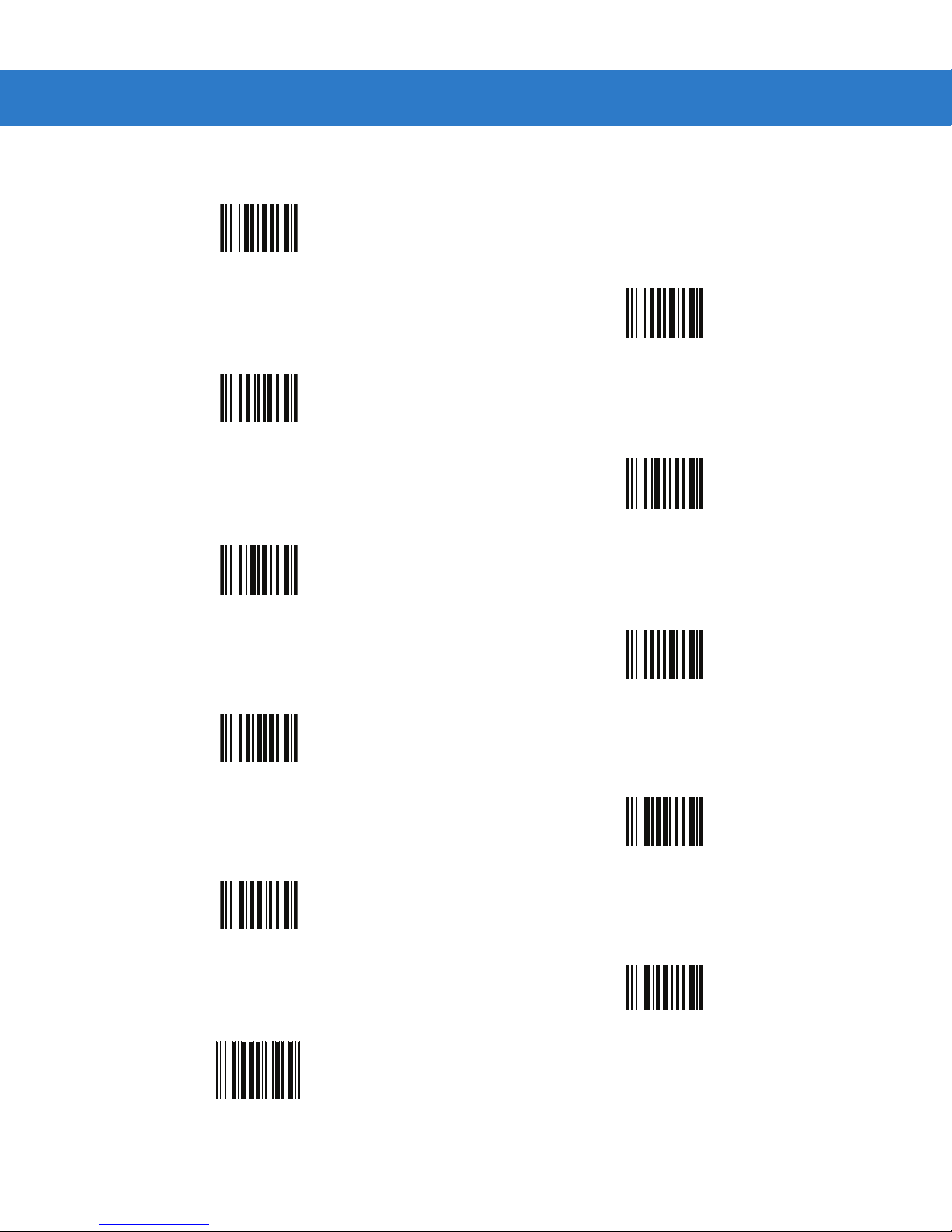
Numeric Bar Codes for Date and Time Settings
0
2
1
3
4
5
6
7
8
9
Enter
Page 8
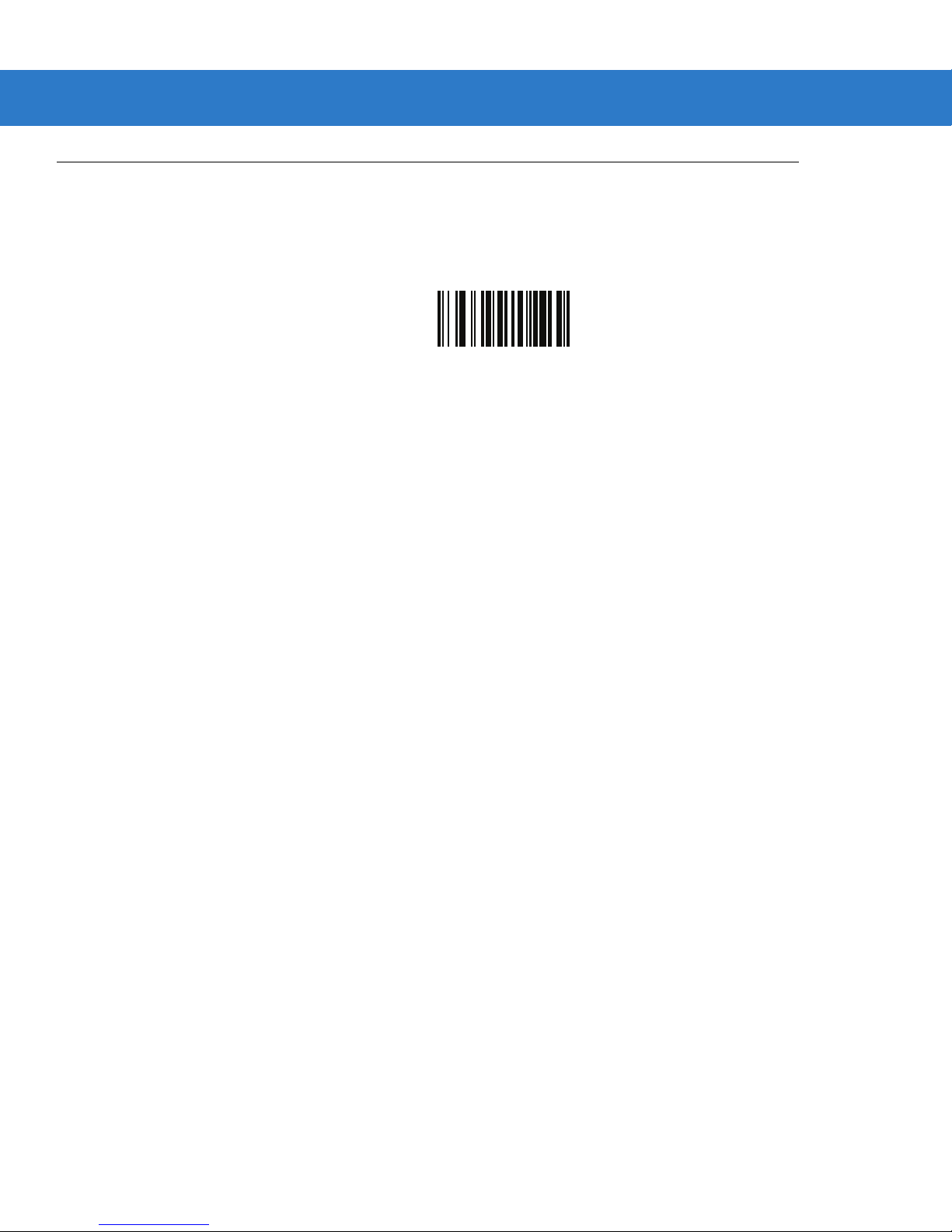
Clear Data
Scan the following bar code to clear all batch bar code data on the scanner. This deletes the BarcodeFile.txt from
the scanner.
User Preferences 3 - 7
Clear Data
Page 9

3 - 8 Symbol CS3000 Series Scanner Product Reference Guide
Beeper Settings
Beeper Volume
Parameter # 0x8C
To select a decode beep volume, scan the appropriate bar code.
Low
(0x02)
*Medium
(0x01)
High
(0x00)
Page 10
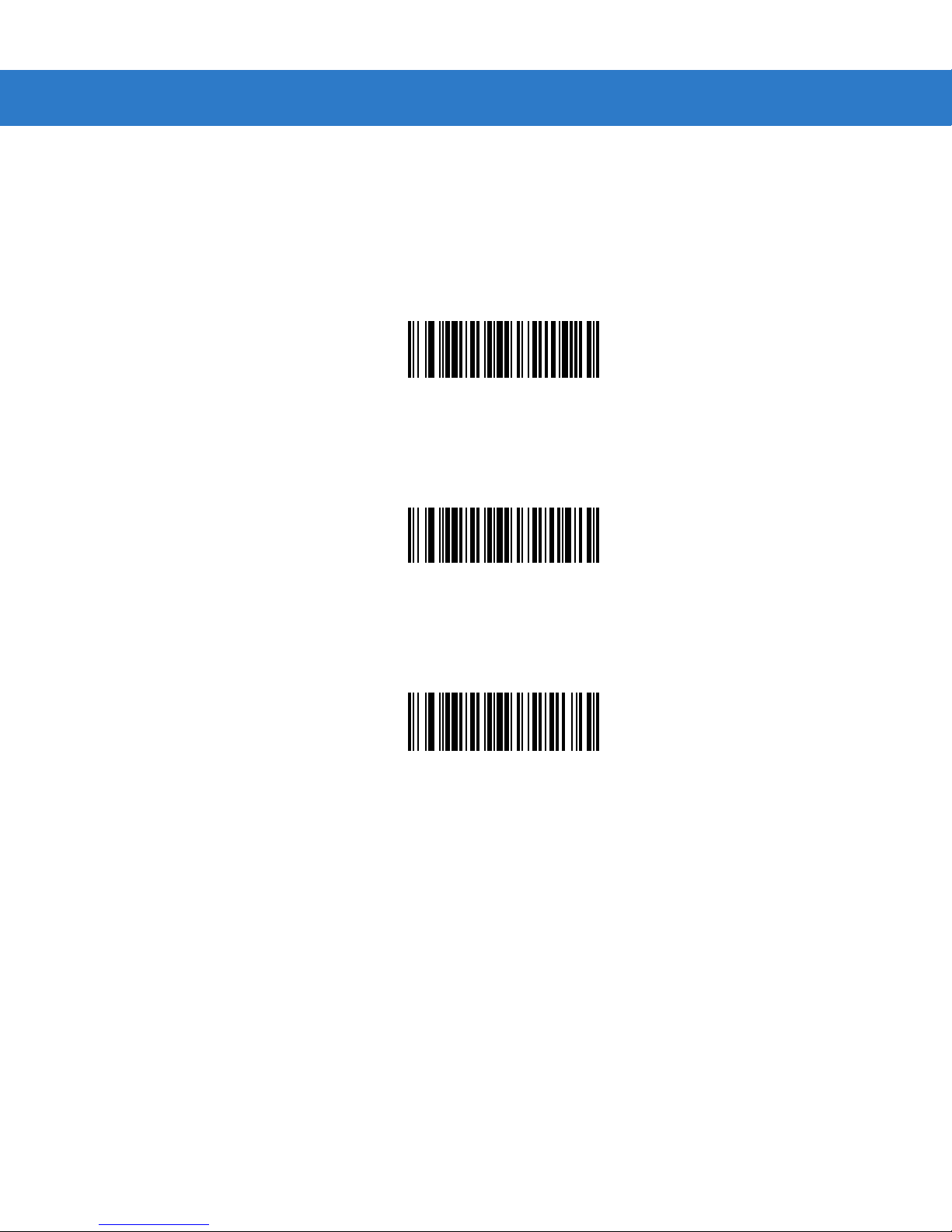
Beeper Tone
Parameter # 0x91
To select a decode beep frequency (tone), scan the appropriate bar code.
Low Frequency
(0x02)
User Preferences 3 - 9
*Medium Frequency
(0x01)
High Frequency
(0x00)
Page 11
3 - 10 Symbol CS3000 Series Scanner Product Reference Guide
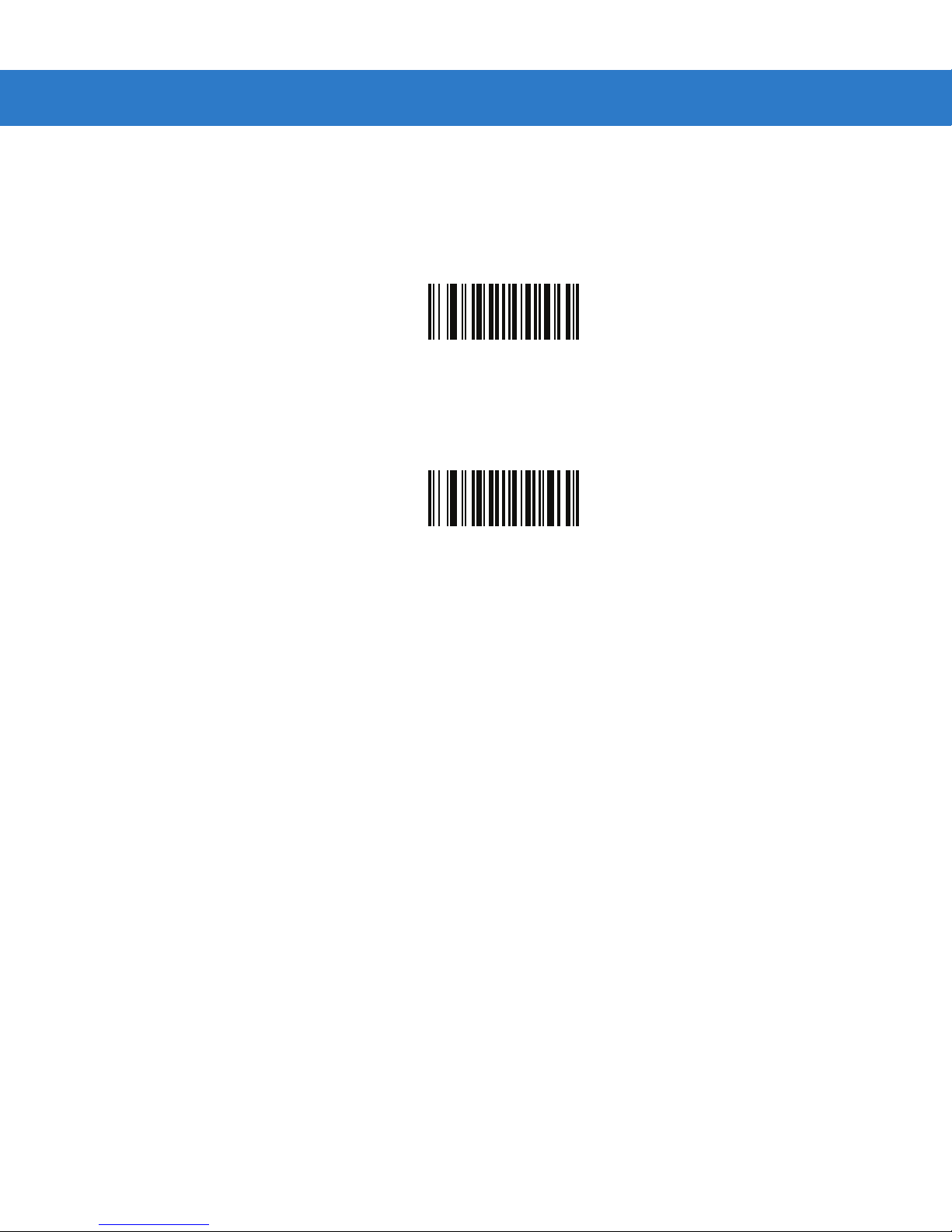
Mute Beeper
Scan the Mute Beeper bar code to mute the beeper.
Mute Beeper
(0x01)
*Do Not Mute Beeper
(0x00)
Page 12

Scanner Options
Scan Angle
Parameter # 0xBF
This parameter sets the scan angle to narrow or wide.
User Preferences 3 - 11
Narrow Angle (35°)
(0x05)
*Wide Angle (47°)
(0x06)
NOTE The allowed values for this setting are different for some legacy models of scanners. These old values can
still be used and are interpreted by the scanner as follows.
0x00 - 0x05 0x06 - 0x2C 0x2D - 0x4A 0x4B - 0xFF
Narrow (0x05) Wide (0x06) Narrow (0x05) Wide (0x06)
Page 13
3 - 12 Symbol CS3000 Series Scanner Product Reference Guide
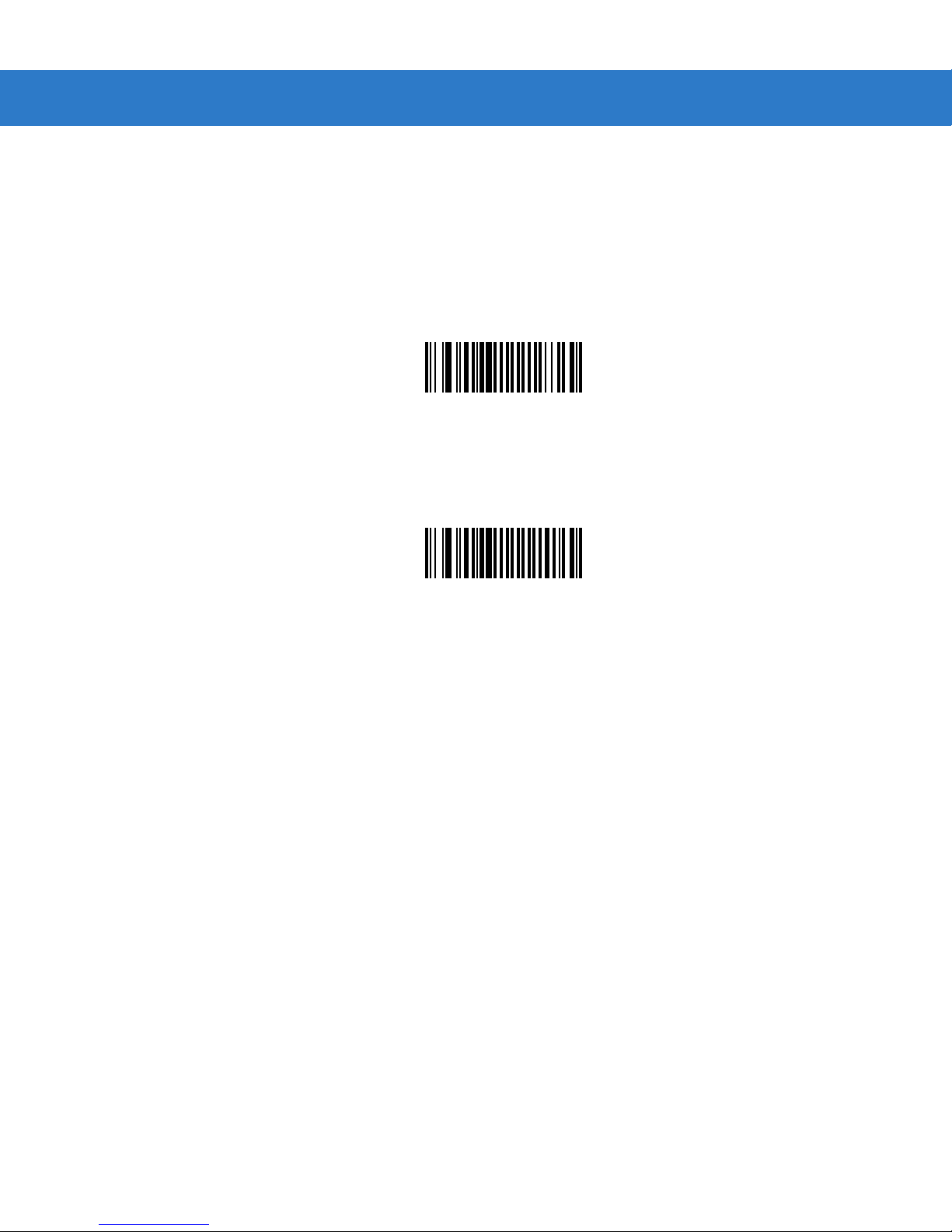
Transmit “No Read” Message
Parameter # 0x5E
Enable this option to transmit “NR” if a symbol does not decode during the timeout period or before the trigger is
released. Any enabled prefix or suffixes are appended around this message.
Disable this to send no message to the host if a symbol does not decode.
Enable No Read
(0x01)
*Disable No Read
(0x00)
Page 14
Bluetooth Options
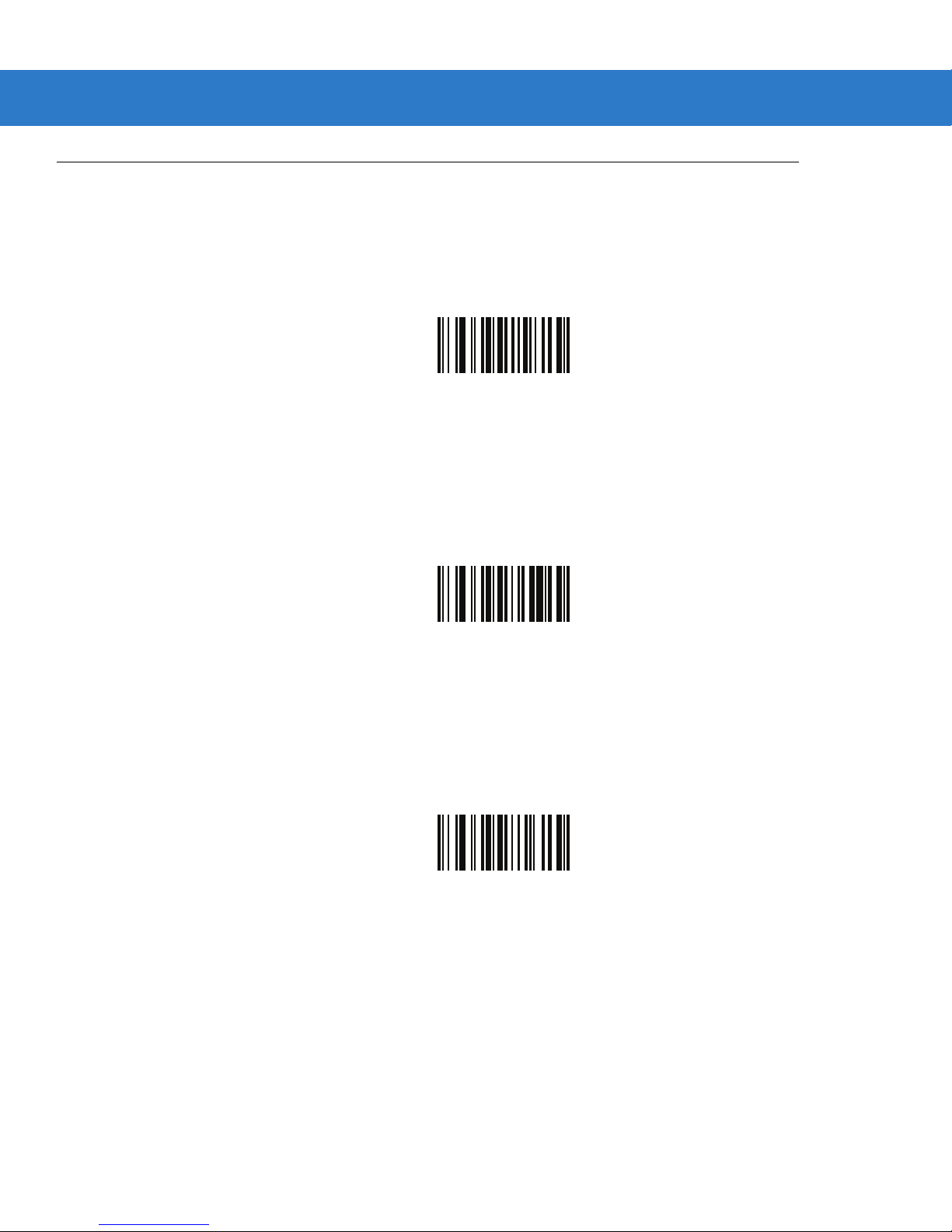
Bluetooth Unpair
Scan the following bar code to unpair the scanner from the host.
Bluetooth HID Profile
Scan Bluetooth HID Profile to cause the scanner to emulate a keyboard.
User Preferences 3 - 13
Unpair
Bluetooth HID Profile
Bluetooth Serial Port Profile (SPP)
Scan Bluetooth SPP to cause the scanner to emulate a serial connection.
Bluetooth SPP
Page 15
3 - 14 Symbol CS3000 Series Scanner Product Reference Guide
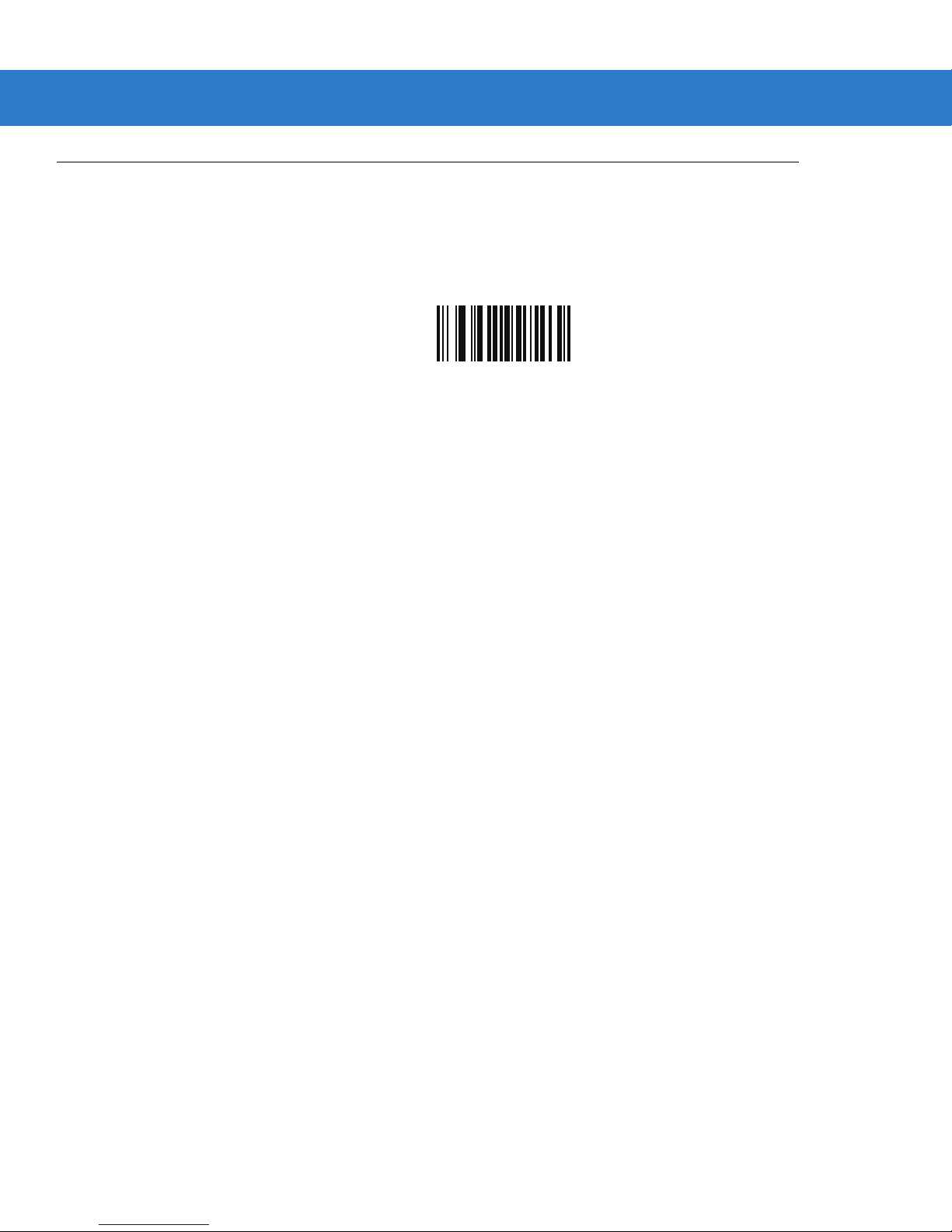
Disable All Symbologies
Scan the bar code below to disable the decoding of all symbologies. Use this to simplify selecting a single
symbology to decode by scanning this, then scanning the desired enable code type bar code. Note that the
scanner can still decode parameter bar codes.
Disable All Symbologies
Page 16
Send Versions
Firmware Version
Scan the following bar code to send the firmware version to the host.
Bluetooth Version
Scan the following bar code to send the Bluetooth version to the host.
User Preferences 3 - 21
Firmware Version
Bluetooth Version
Scan Engine Version
Scan the following bar code to send the scan engine version to the host.
Scan Engine Version
Page 17

3 - 22 Symbol CS3000 Series Scanner Product Reference Guide
Save Configuration
Scan the following bar code after setting parameters to save the new configuration selections.
Save Configuration
Page 18
5 - 2 Symbol CS3000 Series Scanner Product Reference Guide
Troubleshooting
Table 5-1
Laser comes on, but scanner
does not decode the bar code.
Scanner emits long beeps for 5
seconds when scanning a bar
code.
Scanner does not decode the
bar code and the LED blinks
amber, red, green.
Troubleshooting
Problem Possible Causes Possible Solutions
Scanner is not programmed
for the correct bar code
type.
Bar code symbol is
unreadable.
Bar code is out of range of
the scanner.
Memory is full. Download bar code data to the host and clear the
Scanner needs to be reset. Press the reset button. See
Ensure the scanner is programmed to read the
type of bar code being scanned.
Check the symbol to ensure it is not defaced. Try
scanning test bar codes of the same bar code
type. See
bar codes.
Move scanner closer to or further from bar code.
memory.
1-1
Scan the Restore Defaults bar code below.
Appendix C, Sample Bar Codes
for the location.
for test
Figure 1-1 on page
Scanner LED turns solid red for
a few seconds.
Scanner does not fully charge. Attempt to charge on a
Bluetooth LED turns off. Scanner is out of range of
Can’t see the scanner drive
after connecting scanner to
host.
NOTE If problems still occur, contact the distributor or Motorola Enterprise Mobility Support. See page xiii for
contact information.
Before contacting support, view the sysinfo.txt file in the \Parameters folder on the CS30XX. This
indicates the device’s serial number, software version, Bluetooth version, and scan engine version and is
useful when troubleshooting the scanner.
Battery is low. Charge the battery. See
non-powered USB hub.
the Bluetooth host.
Scanner is mapping to a
drive used by another
device.
Charging the Scanner
Battery on page 1-3
Connect the scanner to a powered USB hub
(5V, 500mA max).
Move closer to the host and press any key to
re-pair with the host.
Use Windows’ map drive function to change the
scanner drive letter.
.
Page 19
Appendix C Sample Bar Codes
0
12345 67890
5
0
123456
5
UPC-A
UPC-E
Page 20

C - 2 Symbol CS3000 Series Scanner Product Reference Guide
1
123456
2
3 456789 012340
1234 5670
123ABC
UPC-E1
NOTE To enable this symbology in order to scan the sample, see Enable/Disable UPC-E1 on page 4-6.
EAN-13
EAN-8
Code 39
 Loading...