

Page 1
APPLICANT: MOTOROLA MOBILITY, INC. FCC ID: IHDP6MB1
Temporary Confidentiality Requested
Exhibit 8: Draft User’s Manual -- 47 CFR 2.1033(b)(3)
The attached User’s Manual is the final production-intended version of the generic Motorola
International English User Manual. This guide will be adapted to carrier-specific versionsi, but the key
information herein will be retained. Translations into other languages will also be done to support the
needs of other markets. Minor revisions may be made to these manuals, prior to and subsequent to,
placing this product onto the market. Selected portions of the User Guide can be found as indicated
below:
8.1 Safety and Regulatory Section: Part 2; Page 12
8.2 Specific Absorption Rate (SAR) Data: Part 2; Page 14
i
Motorola Mobility attests that the User’s Guide provided with product shipping into Canada will provide any required Industry
Canada notices and/or statements in both English and French, per the requirements of RSS-Gen.
Motorola Mobility, Inc.; 8000 W. Sunrise Blvd, Suite A; Plantation, FL 33322, USA www.motorola.com
Page 8 - 1
Page 2
Workout settings
[QR CODE
WHEN AVAILABLE.
GOES HERE]
Find it: Settings screen > Workout
• Auto start: Automatically detect when you start
exercising.
Auto pause: Automatically detect when you stop
•
exercising.
Auto advance: Automatically advances through
•
workout screens after five seconds.
Auto -Interval: Automatically advances to the next
•
interval when you complete one.
GPS: Turn on GPS for mapping routes.
•
Customize Views: Set the specifics for each type of
•
workout (like whether to monitor your pace for
running).
Coaching: Hear a coach’s voice giving you feedback on
•
your workouts.
Laps: Set lap distance or time.
•
Rename Custom: If you created a custom workout,
•
you can rename it.
Device Tap: Select the action to do when you tap the
•
display during a workout (
Start New Lap, or Off).
Bike profiles: Set a bike profile.
•
Elliptical Stride: Set your elliptical stride.
•
Read Out Workout Data,
Smartphone setup
it’s good to talk
MOTOACTV app
Connect your MOTOACTV to
your Motorola Android™
Smartphone so you can get
calls, text messages, and
calendar alerts. Just download
the free app from Android
Market™ or scan this QR code:
1 Download and install the
MOTOACTV app from
Android Market™.
Tip: Check your phone! It may have come preloaded
with the MOTOACTV app.
2 On your MOTOACTV, set your device to recognize
your smartphone by touching
Smartphone Setup.
3 On your smartphone, touch > and follow the
setup steps.
Settings > General >
13Smartphone setup
Page 3
Calls & text messages
After you connect your device and your smartphone, you
can receive caller, message, and calendar notifications
on your MOTOACTV.
Receive calls
After you connect to your smartphone, you can receive
call notification.
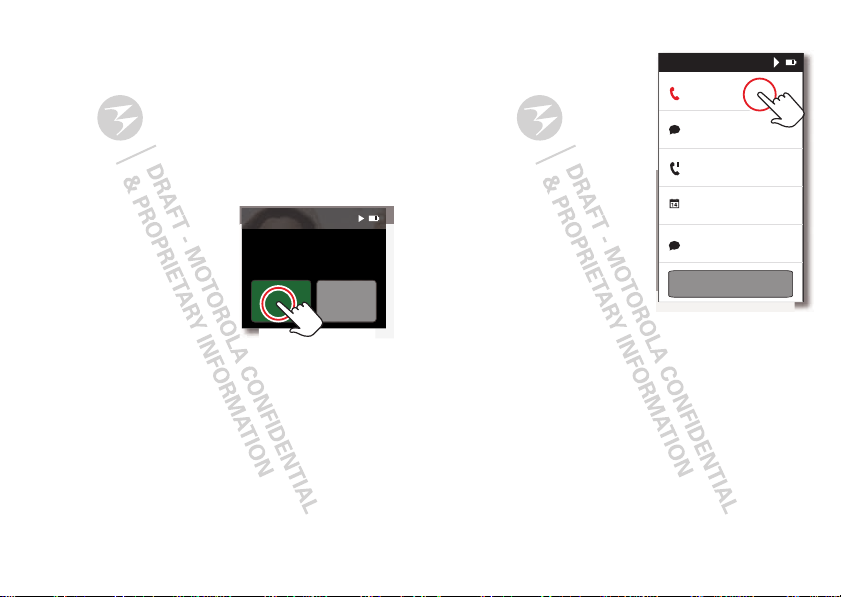
With a headset connected
If you’re wearing a headset
connected to your phone via
Bluetooth, you can touch the
MOTOACTV display to receive
the call and interact with on
your MOTOACTV.
• To end a call, touch
• To mute a call, touch
• To ignore a call, touch
End.
Mute.
Ignore.
Without a headset
If you don’t have a headset connected, you can:
Answer and Ignore options on your device by
• See
connecting a headset to your phone.
• Answer a call by using your phone.
• Ignore a call by touching
14 Smartphone setup
12:47
Tony Knight
Mobile
Answer Ignore
Silence.
Return to an active call
If you are on a workout
screen, to return to the call
screen:
1 Flick to the Phone
Streaming screen and
touch it.
2 In the Notification list,
touch the active phone call
to return to it.
Tip: To return a missed call,
touch it, then touch
CALL BACK.
Pause Your Workout
to Answer a call
Press the Workout Key on the top of the device to pause
your workout while you’re on a call.
Press the Workout Key again when you’re ready to
resume.
Notifications
Tony Knight
Active Call, 3:45
Tony Knight
3:95 PM
Rick H.
3:40 PM
Indoor Run
7:17 AM
Uncle Tate
7:12 AM
MARK ALL AS READ
Page 4
Receive messages
Jerry Knight
Jerry Knight
Rick H.
Active Call, 3:45
3:95 PM
Notifications
OMW. Meet you on
at Houston and
Broadway in 5.
view details
Tony Knight
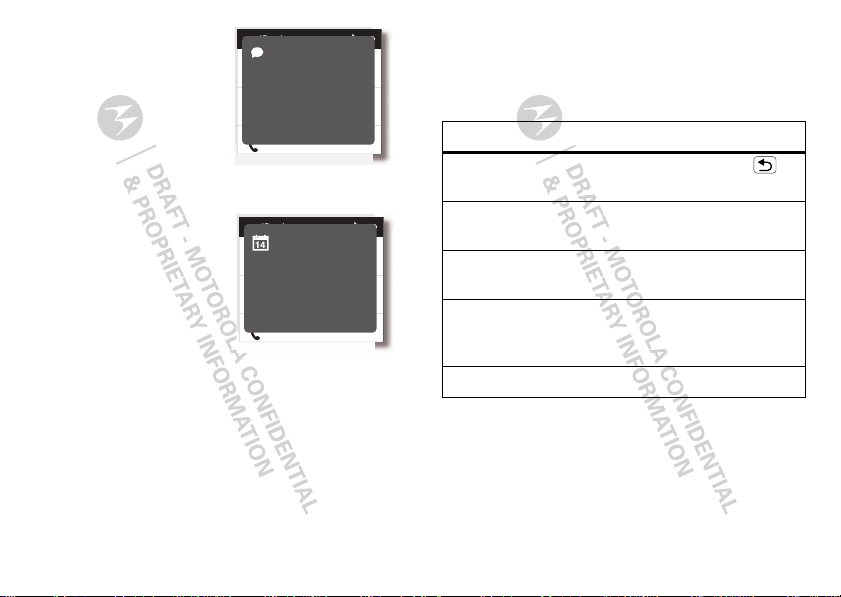
After you connect your
MOTOACTV to your phone,
when you receive a text
message, it appears on your
MOTOACTV.
Touch it to see details.
See Calendar alerts
After you connect your
MOTOACTV to your phone,
when you receive a calendar
reminder, it shows up on
your MOTOACTV display.
Touch it to see details.
Notifications
Meet Josh
Jerry Knight
Active Call, 3:45
Today
9:30 - 10:30 AM
Jerry Knight
view details
3:95 PM
Rick H.
Tips & tricks
a few handy hints
Shortcuts
To .. .
Return to the
home screen
Sleep/wake
your device
Set screen
timeout
Start or
resume a
workout.
Play music. Press the MUSIC Key.
Touch and hold Back/Home .
Press the Power Key.
Touch
Settings screen > Display
Screen timeout.
>
Press the START Key.
15Tips & tricks
Page 5
Battery tips
G
2
U
S
E
R
G
U
I
D
E
D
R
A
F
T
:
:
:
:
:
:
C
O
N
T
R
O
L
L
E
D
C
O
P
Y
:
:
:
:
:
:
Want to extend your battery life? Try these:
• To turn off Bluetooth® power, touch
Wireless & networks > Bluetooth.
>
• To turn off Wi-Fi, touch
networks
> Wi-Fi.
Settings screen > Wireless &
• To turn off the display quicker, touch
Display > Screen timeout.
>
16 Music
Settings screen
Settings screen
Music
when music is what you need...
Load music
Note: Copyright—do you have the right? Always follow
the rules. See “Content Copyright” in your legal and
safety information.
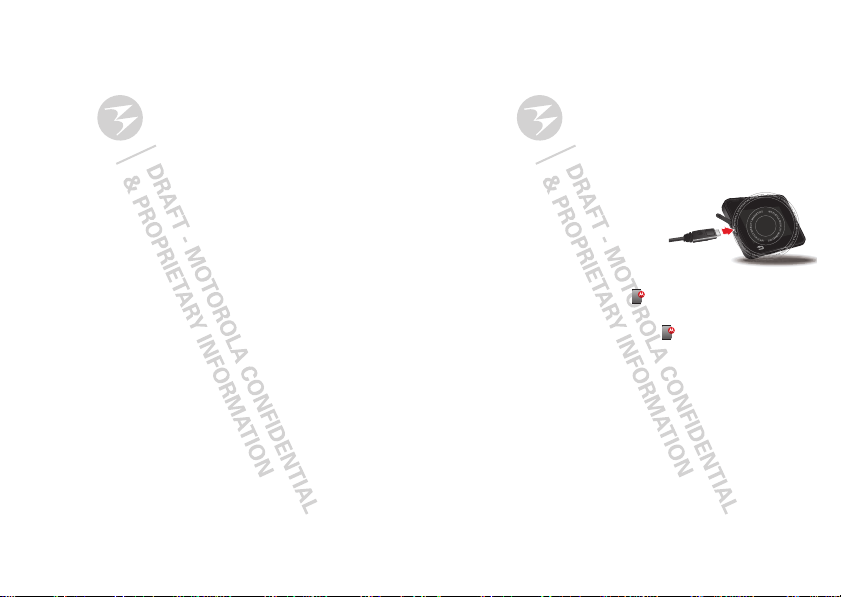
1 Connect a Motorola micro
USB data cable from your
device’s to your PC to open
Motorola Media Link.
Note: When you connect
your device to your PC, you
see the MotoHelper icon
in your PC’s taskbar. If Motorola Media Link doesn’t
automatically open, right-click and select
device connects...
> Launch Motorola Media Link.
2 If prompted, create or sign in with your Motorola ID.
When
Page 6
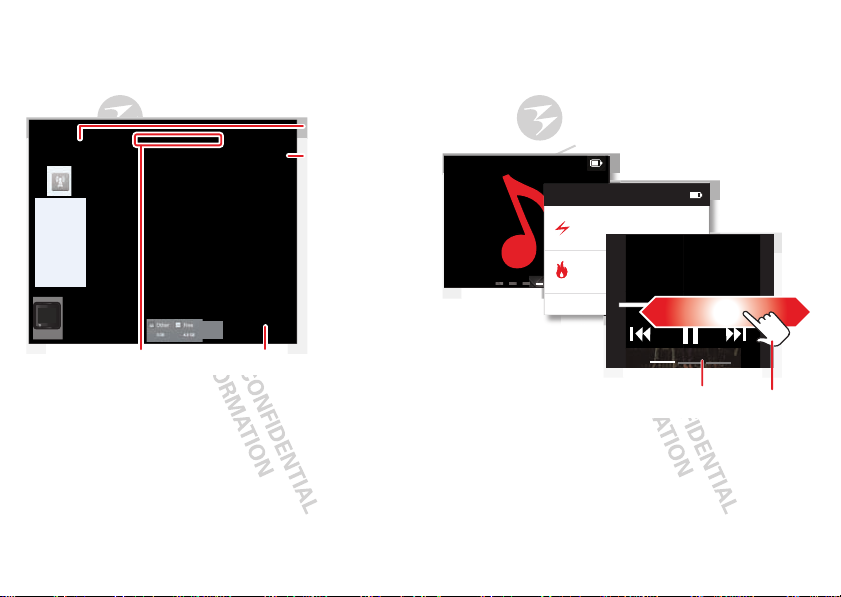
3 Use Motorola Media Link to load music and podcasts
Fitness Song
Performance Music
Body Language
3:95 PM
Fitness Music
Body Language
Scroll for
options.
Music Controls
onto your device.
Note: If you need help, check out the Motorola Media
Link help menu item.
Device Tools Help
Music
Last Sync
06/14/2011
Podcasts
Last Sync
Never
Sync toDevice
Sync fromDevice
Sync Music from:
All Playlists
Selectted Playlists:
Music(3)
Windows Media Player
Select Music.
Choose music
player to sync
with.
Play music
1 On your device, touch the Music screen.
2 Touch a category:
Fitness Music, Playlists, Artists,
Songs, Albums, Genres, or Podcasts.
3 Touch the song or podcast to play it.
Music
3 Songs
MOTOACTV
Music
Sync to or from your device.
Tip: You can also connect your device to your PC as a
mass storage device, and drag and drop files to it.
Capacity: 6.5 GB
Other
Podcasts
MapsPodcasts
0.0B
1.7 MB
0.0B14.4 MB 0.0B
Refresh
Sync
Free
4.8 GB
Start the sync.
Tip: You can use Bluetooth to connect to your phone to
receive call and text notifications (or to stream music
and podcasts from your phone), but you can’t listen to
music on your device at the same time. Use a wired
headset to listen to music if you also want to connect to
your phone.
17Music
Page 7
Playlists, Favorites, & Power songs
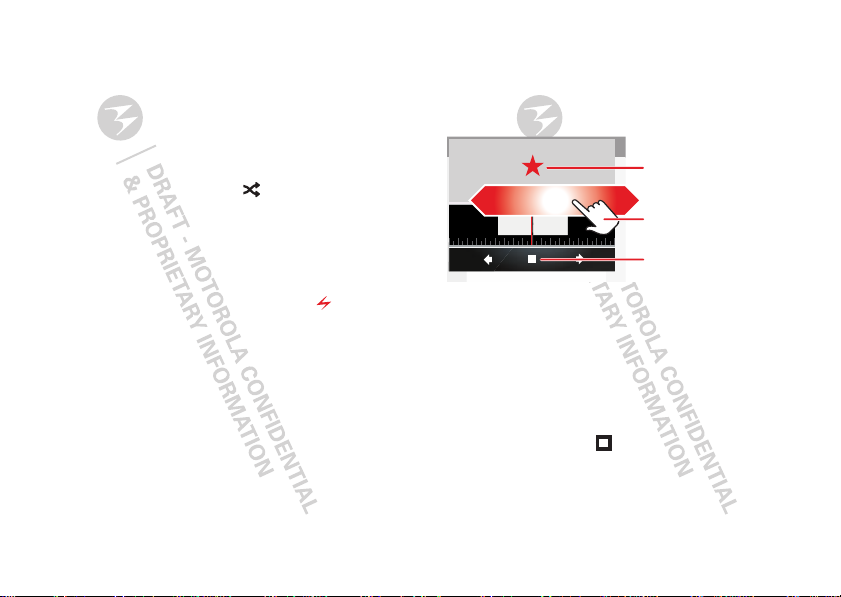
While you’re listening to a song, you can add it to a
playlist, make it a favorite or a power song by flicking to
the right.
Playlist
Find it: Music screen > Playlists
To add a song to your playlist, while you’re playing the
song, flick to the right and touch .
Fitness Song
Find it: Music screen > Fitness Music > Fitness Song
You have that one song, you know, the one that makes
you work harder. To set it, while you’re playing the song,
flick to the right and touch the lightning bolt .
Tip: Start up your power song by pressing the headset
button.
Performance music
Find it: Music screen > Fitness Music > Performance
Music
Your MOTOACTV knows which songs get you pumped
the most. It keeps track and, over time, adds them to
your Performance Music playlist. Keep working out and
checking back until it has a great playlist ready for you.
18 Music
Radio
Find it: Music screen > FM Radio
Plug in a wired headset (required) to listen to your
favorite radio station.
Make the station
a favorite.
Scroll for
103.5 1.0
• To manually select a radio station, touch
and drag left or right till you reach your station.
• To scan for stations, touch
• To add a favorite, tune to the station you like, then
touch the star to save it as a favorite.
• To stop the radio play, press the Music Key on top of
the device (or touch on the radio).
stations.
Stop
playing.
Local Stations.
Listen Now
Page 8
Personalize
add your personal touch
Theme
Personalize your display’s look.
Settings screen > Personalize
Find it:
Notifications
Play tone when you receive a notification.
Settings screen > Notifications > Tone
Find it:
Have the screen blink when you receive a notification.
Settings screen > Notifications > LED
Find it:
Sounds
• To set volume for media, touch Settings screen
Sound > Volume.
>
• To play tones when selecting menu items, touch
Settings screen > Sound > Audible touch tones.
• To play sound on a screen selection, touch
home screen >
Sound > Audible selection.
Settings
Display settings
• To set display brightness, touch Settings screen
Display > Brightness.
>
• To set how long your screen can be idle before it goes
dark, touch
timeout
Settings screen > Display > Screen
.
Date & time
Set date, time, time zone, and formats.
Settings screen > General > Date & time
Find it:
19Personalize
Page 9
Bluetooth® wireless
go wireless
Quick start: Bluetooth wireless
Find it: Settings screen > Wireless > Bluetooth
Note: To extend battery life, turn Bluetooth power
off when not in use.
Connect new devices
To connect with a new device, you need to pair with it.
You only need to do this once for each device—to
connect again, just turn on the device.
1 Make sure the device you are pairing with is in
discoverable mode.
Note: Refer to the guide that came with the device
for details.
Bluetooth to turn on and scan.
2 Touch
3 Touch a device to connect.
4 If necessary, touch
0000) to connect to the device. When the device
(like
is connected, the Bluetooth indicator appears in
the status bar.
20 Bluetooth® wireless
OK, or enter the device passkey
Reconnect devices
To reconnect your MOTOACTV with a paired device, turn
on the paired device.
Disconnect devices
To disconnect your MOTOACTV from a paired device,
turn off the paired device.
Page 10
File management
move music and more to your device
Troubleshooting
we’re here to help
USB connection
Motorola Media Link is the easiest way to transfer music
to your device, but you also can connect your phone to a
computer with a USB cable.
Note: The first time you use a USB connection, your
computer may indicate that drivers are being installed.
Follow any prompts you see to complete the installation.
This may take a few minutes.
1 Connect a Motorola micro USB data cable from your
device’s micro USB port to a USB port on your
computer.
Note: Make sure to connect to a high power USB
port. Typically, these are located directly on your
computer.
Your device connects to your computer as mass
storage.
2 Drag and drop files between your computer and
memory card folders. When you’re done, use “Safely
Remove Hardware” before disconnecting the USB
cable.
Reset
To reset your phone to factory settings and erase all the
data on your phone, press the Power Key and the START
Key simultaneously for more than 7 seconds.
Warn in g: All data on your device will be deleted. (Data
on your Web Portal is not deleted.)
21File management
Page 11
Service & repairs
If you have questions or need assistance, we’re here to
help.
Go to www.motorola.com/repair
www.motorola.com/support
select from a number of customer care options. You can
also contact the Motorola Customer Support Center at:
1-800-331-6456 (United States), 1-888-390-6456
(TTY/TDD United States for hearing impaired), or
1-800-461-4575 (Canada - all products).
22 Troubleshooting
(United States) or
(Canada), where you can
Page 12
Safety, Regulatory & Legal
032375o
Battery Use & Safety
Battery Use & Safety
The following battery use and safety information applies to all Motorola mobile devices. If
your mobile devi ce uses a non-removable main battery (as stated in your product
information), details related to handling and replacing your battery should be
disregarded—the battery should only be replaced by a Motorola-approved service facility,
and any attempt to remove or replace your battery may damage the product.
Important: Handle and store batteries properly to avoid injury or damage.
battery issues arise from improper handling of batteries, and particularly from the continued
use of damaged batteries.
DON’Ts
• Don’t disassemble, crush, puncture, shred, or otherwise attempt to change the
form of your battery.
• Don’t let the mobile device or battery come in contact with liquids.*
get into the mobile device’s circuits, leading to corrosion.
• Don’t allow the battery to touch metal objects.
in prolonged contact with the battery contact points, the battery could become very hot.
• Don’t place your mobile device or battery near a heat source.*
can cause the battery to swell, leak, or malfunction.
• Don’t dry a wet or damp battery with an appliance or heat source
dryer or microwave oven.
DOs
• Do avoid leaving your mobile device in your car in high temperatures.*
• Do avoid dropping the mobile device or battery.*
on a hard surface, can potentially cause damage.*
• Do contact your service provider or Motorola if your mobile device or battery
has been damaged by dropping, liquids or high temperatures.
* Note:
Always make sure that the battery compartment and any connector covers are
closed and secure to avoid direct exposure of the battery to any of these conditions, even if
your product information states that your
conditions.
Important: Motorola recommends you always use Motorola-brand ed batteries and
chargers for quality assurance and safeguards.
damage to the mobile device caused by non-Motorola batteries and/or chargers. To help you
If metal objects, such as j ewelry, stay
Dropping these items, especially
mobile device
can resist damage from these
Motorola’s warranty does not cover
Most
Liquids can
High temperatures
, such as a hair
identify authentic Motorola batteries from non-original or counterfeit batteries (that may not
have adequate safety protection), Motorola provides holograms on its batteries. You should
confirm that any battery you purchase has a “Motorola Original” hologram.
If you see a message on your display such as
Unable to Charge
•
Remove the battery and inspect it to confirm that it has a “Motorola Original” hologram;
•
If there is no hologram, the battery is not a Motorola battery;
•
If there is a hologram, replace the battery and try charging it again;
•
If the message remains, contact a Motorola authorized service center.
Warning:
Use of a non-Motorola battery or charger may present a risk of fire, explosion,
leakage, or other hazard.
Proper and safe battery disposal and recycling:
important for safety, it benefits the environment. You can recycle your used batteries in many
retail or service provider locations. Additional information on proper disposal and recycling
can be found at
Disposal:
Promptly dispose of used batteries in accordance with local
regulations. Contact your local recycling cente r or national recycling organizations
for more information on how to dispose of batteries.
Warning:
Never dispose of batteries in a fire because they may explode.
Battery Charging
Battery Charging
Notes for cha rging your product’s battery:
•
During charging, keep your battery and charger near room temperature for efficient
battery charging.
•
New batteries are not fully charged.
•
New batteries or batteries stored for a long time may take more time to charge.
•
Motorola batteries and charging systems have circuitry that protects the battery from
damage from overcharging.
, take the following steps:
www.motorola.com/recycling
Invalid Battery
Proper battery disposal is not only
or
Third Party Accessories
Use of third party accessories, including but not limited to batteries, chargers, headsets,
covers, cases, screen protectors and memory cards, may impact your mobile device’s
performance. In some circumstances, third party accessories can be dangerous and may void
your mobile device’s warranty. For a list of Motorola accessories, visit
www.motorola.com/products
23Troubleshooting
Page 13
Driving Precautions
Responsible and safe driving is your primary responsibility when behind the wheel of a
vehicle. Using a mobile device or accessory for a call or other application while driving may
cause distraction. Using a mobile device or accessory may be prohibited or restricted in
certain areas, always obey the laws and regulations on the use of these products.
While driving, NEVER:
•
Type or read texts.
•
Enter or review written data.
•
Surf the web.
•
Input navigation information.
•
Perform any other functions that divert your attention from driving.
While driving, ALWAYS:
•
Keep your eyes on the road.
•
Use a handsfree device if available or required by law in your area.
•
Enter destination information into a navigation device
•
Use voice activated features (such as voice dial) and speaking features (such as audible
directions), if available.
•
Obey all local laws and regulations for the use of mobile devices and accessories in the
vehicle.
•
End your call or other task if you cannot concentrate on driving.
Remember to follow the “Smart Practices While Driving” in this guide and at
www.motorola.com/callsmart
(in English only).
before
driving.
Seizures/Blackouts
Some people may be susceptible to epileptic seizures or blackouts when exposed to flashing
lights, such as when playing videos or games. These may occur even if a person has never
had a previous seizure or blackout.
If you have experienced seizures or blackouts, or if you have a family history of such
occurrences, please consult with your physician before playing videos or games or enabling a
flashing-lights feature (if available) on your mobile device.
Discontinue use and consult a physician if any of the following symptoms occur: convulsion,
eye or muscle twitching, loss of awareness, involuntary movements, or disorientation. It is
always a good idea to hold the screen away from your eyes, leave the lights on in the room,
take a 15-minute break every hour, and stop use if you are tired.
24 Troubleshooting
Caution About High Volume Usage
Warning:
Exposure to loud noise from any source for extended periods of time may affect
your hearing. The louder the volume sound level, the less time is required before your hearing
could be affected. To protect your hearing:
•
Limit the amount of time you use headsets or headphones at high volume.
•
Avoid turning up the volume to block out noisy surroundings.
•
Turn the volume down if you can’t hear people speaking near you.
If you experience hearing discomfort, including the sensation of pressure or fullness in your
ears, ringing in your ears, or muffled speech, you should stop listening to the device through
your headset or headphones and have your hearing checked.
For more information about hearing, see our website at
direct.motorola.com/hellomoto/nss/AcousticSafety.asp
(in English only).
Repetitive Motion
When you repetitively perform actions such as pressing keys or entering finger-written
characters, you may experience occasional discomfort in your hands, arms, shoulders, neck,
or other parts of your body. If you continue to have discomfort during or after such use, stop
use and see a physician.
Children
Keep your mobile device and its accessories away from small children.
products are not toys and may be hazardous to small children. For example:
•
A choking hazard may exist for small, detachable parts.
•
Improper use could result in loud sounds, possibly causing hearing injury.
•
Improperly handled batteries could overheat and cause a burn.
Similar to a computer, if a child does use your mobile device, you may want to monitor their
access to help prevent exposure to inappropriate apps or content.
These
Glass Parts
Some parts of your mobile device may be made of glass. This glass could break if the product
receives a substantial impact. If glass breaks, do not touch or attempt to remove. Stop using
your mobile device until the glass is replaced by a qualified service center.
Operational Warnings
Obey all posted signs when using mobile devices in public areas.
Page 14
Potentially Explosive Atmospheres
032374o
032376o
032375o
Areas with potentially explosive atmospheres are often, but not always, posted and can
include fueling areas, such as below decks on boats, fuel or chemical transfer or storage
facilities, or areas where the air contains chemicals or particles, such as grain dust, or metal
powders.
When you are in such an area, turn off your mobile device, and do not remove, install, or
charge batteries unless it is a radio product type especially qualified for use in such areas as
“Intrinsically Safe” (for example, Factory Mutual, CSA, or UL approved). In such areas, sparks
can occur and cause an explosion or fire.
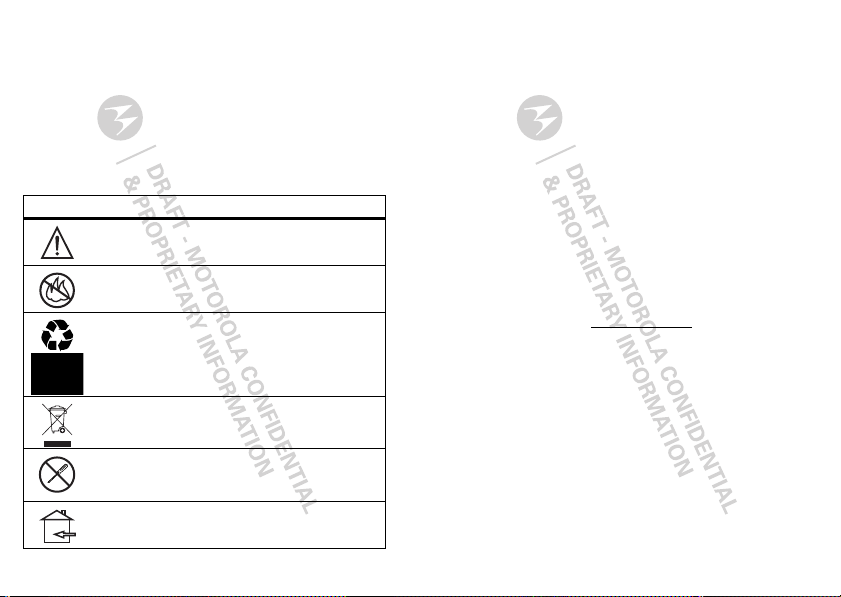
Symbol Key
Your battery, charger, or mobile device may contain symbols, defined as follows:
Symbol Definition
Important safety information follows.
Do not dispose of your battery or mobile devic e in a fire.
Your battery or mobile device may require recycling in accordance
with local laws. Contact your local regulatory authorities for more
information.
Do not dispose of your battery or mobile device with your household
waste. See “Recycling” for more information.
Do not use tools.
For indoor use only.
Radio Frequency (RF) Energy
Exposure to RF Energy
Your mobile device contains a transmitter and receiver. When it is ON, it receives and
transmits RF energy. When you communicate with your mobile device, the system handling
your call controls the power level at which your mobile device transmits.
Your mobile device is designed to comply with local regulatory requirements in your country
concerning exposure of human beings to RF energy.
RF Energy Operational Precautions
For optimal mobile device performance, and to be sure that human exposure to RF energy
does not exceed the guidelines set forth in the relevant standards, always follow these
instructions and precautions:
•
When placing or receiving a phone call, hold your mobile device just like you would a
landline phone.
•
If you wear the mobile device on your body, always place the mobile device in a
Motorola-supplied or approved clip, holder, holster, case, or body harness. If you do not
use a body-worn accessory supplied or approved by Motorola, keep the mobile device and
its antenna at least 2.5 cm (1 inch) from your body when transmitting.
•
Using accessories not supplied or approved by Motorola may cause your mobile device to
exceed RF energy exposure guidelines. For a list of Motorola-supplied or approved
accessories, visit our website at:
RF Energy Interference/Compatibility
Nearly every electronic device is subject to RF energy interference from external sources if
inadequately shielded, designed, or otherwise configured for RF energy compatibility. In
some circumstances, your mobile device may cause interference with other devices.
Follow Instructions to Avoid Interference Problems
Turn off your mobile device in any location where posted notices instruct you to do so.
In an aircraft, turn off your mobile device whenever instructed to do so by airline staff. If your
mobile device offers an airplane mode or similar feature, consult airline staff about using it in
flight.
Implantable Medical Devices
If you have an implantabl e medical device, such as a pacemaker or defibrillator, consult your
physician before using this mobile device.
Persons with implantable medical devices should observe the following precautions:
www.motorola.com
.
25Troubleshooting
Page 15
•
0168
Product
Approval
Number
ALWAYS keep the mobile device more than 20 centimeters (8 inches) from the
implantable medical device when the mobile device is turned ON.
•
DO NOT carry the mobile device in the breast pocket.
•
Use the ear opposite the implantable medical device to minimize the potential for
interference.
•
Turn OFF the mobile device immediately if you have any reason to suspect that
interference is taking place.
Read and follow the directions from the manufacturer of your implantable medical device. If
you have any questions about using your mobile device with your implantable medical
device, consult your healthcare provider.
Regulatory Information
Your Motoro la mobile device is desi gned to comply with national and international regulatory
requirements. For full compliance statements and details, please refer to the regulatory
information in your printed product guide.
Specific Absorption Rate (FCC)
SAR (IEEE)
YOUR MOBILE DEVICE MEETS FCC LIMITS FOR EXPOSURE
TO RADIO WAVES.
Your mobile device is a radio transmitter and receiver. It is designed not to exceed the limits
for exposure to radio waves (radio frequency electromagnetic fields) adopted by the Federal
Communications Commission (FCC). These limits include a substantial safety margin
designed to assure the safety of all persons, regardless of age and health.
The radio wave exposure guidelines use a unit of measurement known as the Specific
Absorption Rate, or SAR. The SAR limit for mobile devices is 1.6 W/kg.
Tests for SAR are conducted using standard operating positions with the device transmitting
at its highest certified power level in all tested frequency bands. The highest SAR values
under the FCC guidelines for your device model are listed below:
Body-worn SAR Wi-Fi
G
C
_0.46W/kg
During use, the actual SAR values for your device are usually well below the values stated.
This is because, for purposes of system efficiency and to minimize interference on the
network, the operating power of your mobile device is automatically decreased when full
power is not needed for the call. The lower the power output of the device, the lower its SAR
value.
Body-worn SAR testing has been carried out using an approved accessory or at a separation
distance of 2.5 cm (1 inch). To meet RF exposure guidelines during body-worn operation, the
device should be in an approved accessory or positioned at least 2.5 cm (1 inch) away from
the body. If you are not using an approved accessory, ensure that whatever product is used is
free of any metal and that it positions the phone at least 2.5 cm (1 inch) away from the body.
If you are interested in further reducing your RF exposure then you can easily do so by limiting
your usage or simply using a hands-free kit to keep the device away from the head and body.
Additional information can be found at
www.motorola.com/rfhealth
.
European Union Directives Conformance
Statement
EU Conformance
The following CE compliance information is applicable to Motorola mobile devices that carry
one of the following CE marks:
0168
[Only Indoor Use Allowed In France
0168
Hereby, Motorola declares that this product is in compliance with:
•
The essential requirements and other relevant provisions of Directive 1999/5/EC
•
All other relevant EU Directives
for Bluetooth and/or Wi-Fi]
26 Troubleshooting
Page 16
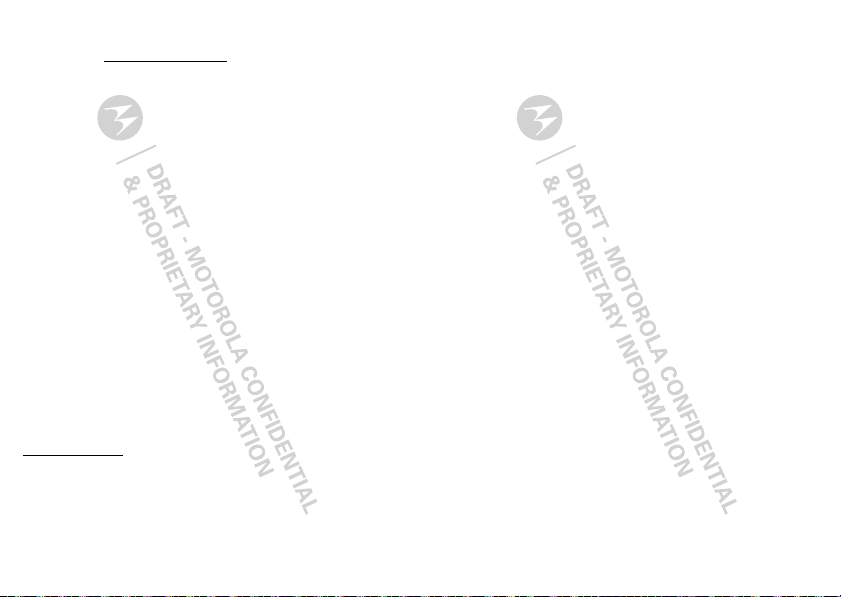
The above gives an example of a typical Product Approval Number.
You can view your product’s Declaration of Conformity (DoC) to Directive 1999/5/EC (to
R&TTE Directive) at
the Product Approval Number from your product’s label in the “Search” bar on the website.
FCC Notice to Users
FCC Notice
The following statement applies to all p roducts that bear the FCC logo on the
product label.
This equipment has been tested and found to comply with the limits for a Class B digital
device, pursuant to part 15 of the FCC Rules. See 47 CFR Sec. 15.105(b). These limits are
designed to provide reasonable protection against harmful interference in a residential
installation. This equipment generates, uses and can radiate radio frequency energy and, if
not installed and used in accordance with the instructions, may cause harmful interference to
radio communications. However, there is no guarantee that interference will not occur in a
particular installation. If this equipment does cause harmful interference to radio or
television reception, which can be determined by turning the equipment off and on, the user
is encouraged to try to correct the interference by one or more of the following measures:
•
Reorient or relocate the receiving antenna.
•
Increase the separation between the equipment and the receiver.
•
Connect the equipment to an outlet on a circuit different from that to which the receiver is
connected.
•
Consult the dealer or an experienced radio/TV technician for help.
This device complies with part 15 of the FCC Rules. Operation is subject to the following two
conditions: (1) This device may not cause harmful interference, and (2) this device must
accept any interference received, including interference that may cause undesired operation.
See 47 CFR Sec. 15.19(a)(3).
Motorola has not approved any changes or modifications to this device by the user. Any
changes or modifications could void the user’s authority to operate the equipment. See 47
CFR Sec. 15.21.
For products that support Wi-Fi 802.11a (as defined in the product specifications available at
www.motorola.com
capability to operate Wi-Fi in the 5 GHz Unlicensed National Information Infrastructure
(U-NII) band. Because this band is shared with MSS (Mobile Satellite Service), the FCC has
restricted such devices to indoor use only (see 47 CFR 15.407(e)). Since wireless hot spots
operating in this band have the same restriction, outdoor services are not offered.
Nevertheless, please do not operate this device in Wi-Fi mode when outdoors.
www.motorola.com/rtte
(in English only). To find your DoC, enter
), the following information applies. This equipment has the
Industry Canada Notice to Users
Industry Canada Notice
Operation is subject to the following two conditions: (1) This device may not cause
interference and (2) This device must accept any interference, including interference that may
cause undesired operation of the device. See RSS-GEN 7.1.5. This Class B digital apparatus
complies with Canadian ICES-003.
Location Services (GPS & AGPS)
GPS & AGPS
The following information is applicable to Motorola mobile devices that provide location
based (GPS and/or AGPS) functionality.
Your mobile device can use Global Positioning System (GPS) signals for location-based
applications. GPS uses satellites controlled by the U.S. government that are subject to
changes implemented in accordance with the Department of Defense policy and the Federal
Radio Navigation Plan. These changes may affect the performance of location technology on
your mobile device.
Your mobile device can also use Assisted Global Positioning System (AGPS), which obtains
information from the cellular network to improve GPS performance. AGPS uses your wireless
service provider's network and therefore airtime, data charges, and/or additional charges
may apply in accordance with your service plan. Contact your wireless service provider for
details.
Your Location
Location-based information includes information that can be used to determine the
approximate location of a mobile device. Mobile devices which are connected to a wireless
network transmit location-based information. Devices enabled with GPS or AGPS technology
also transmit location-based information. Additionally, if you use applications that require
location-based information (e.g. driving directions), such applications transmit location-based
information. This location-based information may be shared with third parties, including your
wireless service provider, applications providers, Motorola, and other third parties providing
services.
Navigation
Navigation
The following information is applicable to Motorola mobile devices that provide navigation
features.
When using navigation features, note that mapping information, directions and other
navigational data may contain inaccurate or incomplete data. In some countries, complete
information may not be available. Therefore, you should visually confirm that the navigational
instructions are consistent with what you see. All drivers should pay attention to road
27Troubleshooting
Page 17
conditions, closures, traffic, and all other factors that may impact driving. Always obey
posted road signs.
Smart Practices While Driving
Driving Safety
Check the laws a nd regulations on the use o f mobile devices and their accessories
in the areas where you drive. Always obey them. The use of these devices may be
prohibited or restricted in certain ar eas—for example, handsfree use only may be
required. Go to
information.
Your mobile device lets you communicate by voice and data—almost anywhere, anytime,
wherever wireless service is available and safe conditions allow. When driving a car, driving
is your first responsibility. If you choose to use your mobile device while driving, remember
the following tips:
• Get to know your Motorola mobile d evice and its features such as speed dia l,
• When available, use a handsfree device.
• Position your mobile device within easy reach.
• Let the person you are speaking with know you are driving; if necessary,
• Do not take notes or look up phone numbers while drivin g.
• Dial sensibly and assess the traffic; if possible, place calls when your car is not
• Do not engage in stressful or emotional conversations that may be distracting.
• Use your mobile device to call for help.
28 Troubleshooting
www.motorola.com/callsmart
redial and voice dial.
taking your attention off the road.
convenience to your mobile device with one of the many Motorola Original handsfree
accessories available today.
device without removing your eyes from the road. If you receive an incoming call at an
inconvenient time, if possible, let your voicemail answer it for you.
suspend the call in heavy traffic or ha zardous weather conditions.
snow, ice, and even heavy traffic can be hazardous.
list or going through your address book takes attention away from your primary
responsibility—driving safely.
moving or before pulling into traffic.
few numbers, check the road and your mirrors, then continue.
Make people you are talking with aware you are driving and suspend conversations that
can divert your attention away from the road.
the case of fire, traffic accident, or medical emergencies (wherever wireless phone
service is available).
If available, these features help you to place your call without
(in English only) for more
If possible, add an additional layer of
Be able to access your mobile
Rain, sleet,
Jotting down a “to do”
If you must make a call while moving, dial only a
Dial 911 or other local emergency number in
• Use your mobile device to help others in emergencies.
crime in progress, or other serious emergency where lives are in danger, call 911 or other
local emergency number (wherever wireless phone service is available), as you would
want others to do for you.
• Call roadside assistance or a special non-emergency wireless assistance
number when nece ssary.
broken traffic signal, a minor traffic accident where no one appears injured, or a vehicle
you know to be stolen, call roadside assistance or other special non-emergency wireless
number (wherever wireless phone service is available).
Privacy & Data Security
Privacy & Data Security
Motorola understands that privacy and data security are important to everyone. Because
some features of your mobile device may affect your privacy or data security, please follow
these recommendations to enhance protection of your information:
• Monitor access
may have unmonitored access. Use your device’s security and lock features, where
available.
• Keep software up to date
patch or software fix for your mobile device that updates the device’s security, install it as
soon as possible.
• Secure Personal Information
various locations including your SIM card, memory card, and phone memory. Be sure to
remove or clear all personal information before you recycle, return, or give away your
device. You can also backup your personal data to transfer to a new device.
Note:
For information on how to backup or wipe data from your mobile device, go to
www.motorola.com/support
• Online accounts
MOTOBLUR). Go to your account for information on how to manage the account, and how
to use security features such as remote wipe and device location (where available).
• Applications and updates
trusted sources only. Some apps can impact your device’s performance and/or have
access to private information including account details, call data, location details and
network resources.
•Wireless
—For mobile devices with Wi-Fi features, only connect to trusted Wi-Fi
networks. Also, when using your device as a hotspot (where available) use network
security. These precautions will help prevent unauthorized access to your device.
If you see a broken-down vehicle posing no serious hazard, a
—Keep your mobile device with you and do not leave it where others
—If Motorola or a software/application vendor releases a
—Your mobile device can store personal information in
—Some mobile devices provide a Motorola online account (such as
—Choose your apps and updates carefully, and install from
If you see an auto accident,
Page 18
• Location-based information
can be used to determine the approximate location of a mobile device. Mobile phones
which are connected to a wireless network transmit location-based information. Devices
enabled with GPS or AGPS technology also transmit location-based information.
Additionally, if you use applications that require location-based information (e.g. driving
directions), such applications transmit location-based information. This location-based
information may be shared with third parties, including your wireless service provider,
applications providers, Motorola, and other third parties providing services.
• Other information your device may transmit
and other diagnostic (including location-based) information, and other non-personal
information to Motorola or other third-party servers. This information is used to help
improve products and services offered by Motorola.
If you have further questions regarding how the use of your mobile device may impact your
privacy or data security, please contact Motorola at
your service provider.
Use & Care
Use & Care
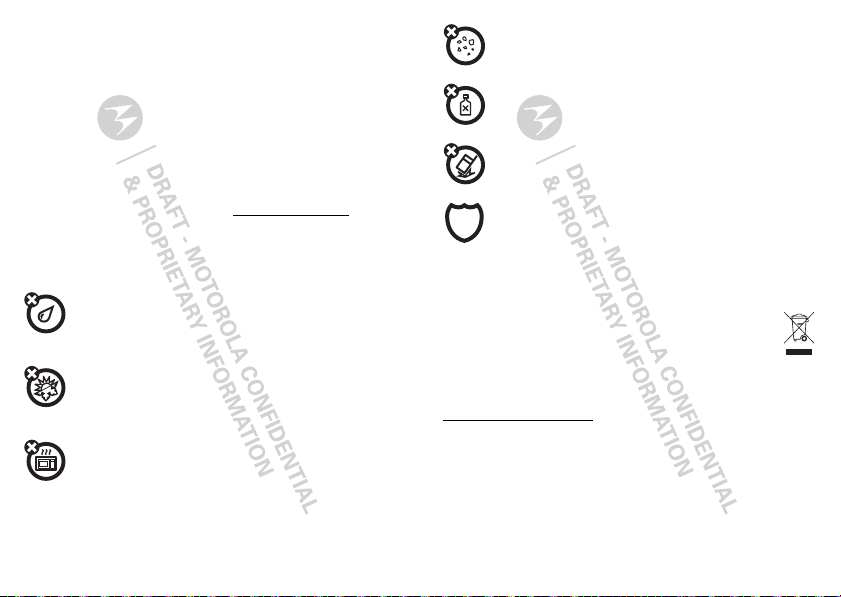
To care for your Motorola mobile device, please observe the following:
liquids
Don’t expose your mobile device to water, rain, extreme humidity, sweat, or
other liquids. If it does get wet, don’t try to accelerate drying with the use of an
oven or dryer, as this may damage the mobile device.
extreme heat or cold
Don’t store or use your mobile device in temperatures below -10°C (14°F) or
above 60°C (140°F). Don’t recharge your mobile device in temperatures below
0°C (32°F) or above 45°C (113°F).
microwaves
Don’t try to dry your mobile device in a microwave oven.
—Location-based information includes information that
—Your device may also transmit testing
, or contact
dust and dirt
Don’t expose your mobile device to dust, dirt, sand, food, or other inappropriate
materials.
cleaning solutions
To clean your mobile device, use only a dry soft cloth. Don’t use alcohol or other
cleaning solutions.
shock and vibration
Don’t drop your mobile device.
protection
To help protect your mobile device, always make sure that the battery
compartment and any connector covers are closed and secure.
Recycling
Recycling
Mobile Devices & Accessories
Please do not dispose of mobile devices or electrical accessories (such as
chargers, headsets, or batteries) with your household waste, or in a fire. These
items should be disposed of in accordance with the national collection and
recycling schemes operated by your local or regional authority. Alternatively, you
may return unwanted mobile devices and electrical accessories to any Motorola Approved
Service Center in your region. Details of Motorola approved national recycling schemes, and
further information on Motorola recycling activities can be found at:
www.motorola.com/recycling
Packaging & Product Guides
Product packaging and product guides should only be disposed of in accordance with national
collection and recycling requirements. Please contact your regional authorities for more
details.
29Troubleshooting
Page 19
California Perchlorate Label
Perchlorate Label
Some mobile devices use an internal, permanent backup battery on the printed circuit board
that may contain very small amounts of perchlorate. In such cases, California law requires
the following label:
Perchlorate Material – special handling may apply when the battery is recycled or disposed
of. See
www.dtsc.ca.gov/hazardouswaste/perchlorate
There is no special handling required by consumers.
Software Copyright Notice
Software Copyrig ht Notice
Motorola products may include copyrighted Motorola and third-party software stored in
semiconductor memories or other media. Laws in the United States and other countries
preserve for Motorola and third-party software providers certain exclusive rights for
copyrighted software, such as the exclusive rights to distribute or reproduce the copyrighted
software. Accordingly, any copyrighted software contained in Motorola products may not be
modified, reverse-engineered, distributed, or reproduced in any manner to the extent allowed
by law. Furthermore, the purchase of Motorola products shall not be deemed to grant either
directly or by implication, estoppel, or otherwise, any license under the copyrights, patents,
or patent applications of Motorola or any third-party software provider, except for the normal,
non-exclusive, royalty-free license to use that arises by operation of law in the sale of a
product.
Content Copyright
Content Copyright
The unauthorized copying of copyrighted materials is contrary to the provisions of the
Copyright Laws of the United States and other countries. This device is intended solely for
copying non-copyrighted materials, materials in which you own the copyright, or materials
which you are authorized or legally permitted to copy. If you are uncertain about your right to
copy any material, please contact your legal advisor.
Open Source Software Information
OSS Information
For instructions on how to obtain a copy of any source code being made publicly available by
Motorola related to software used in this Motorola mobile device, you may send your request
in writing to the address below. Please make sure that the request includes the model
number and the software version number.
MOTOROLA MOBILITY, INC.
OSS Management
600 North US Hwy 45
30 Troubleshooting
(in English only).
Libertyville, IL 60048
USA
The Motorola website
information regarding Motorola's use of open source.
Motorola has created the
interaction with the software community-at-large.
To view additional information regarding licenses, acknowledgments and required copyright
notices for open source packages used in this Motorola mobile device, please
touch
Settings >Legal information >Open source licenses
addition, this Motorola device may include self-contained applications that present
supplemental notices for open source packages used in those applications.
Export Law Assurances
Export Law
This product is controlled under the export regulations of the United States of America and
Canada. The Governments of the United States of America and Canada may restrict the
exportation or re-exportation of this product to certain destinations. For further information
contact the U.S. Department of Commerce or the Canadian Department of Foreign Affairs and
International Trade.
Product Registration
Registration
Online Product Registration:
www.motorola.com/us/productregistration
Product registration is an important step toward enjoying your new Motorola product.
Registering permits us to contact you for product or software updates and allows you to
subscribe to updates on new products or special promotions. Registration is not required for
warranty coverage.
Please retain your original dated sales receipt for your records. For warranty service of your
Motorola Personal Communications Product you will need to provide a copy of your dated
sales receipt to confirm warranty status.
Thank you for choosing a Motorola product.
opensource.motorola.com
opensource.motorola.com
(in English only) also contains
website to serve as a portal for
. In
(in English only)
Service & Repairs
If you have questions or need assistance, we're here to help.
Go to
www.motorola.com/repair
www.motorola.com/support
customer care options. You can also contact the Motorola Customer Support Center at
(United States) or
(Canada), where you can select from a number of
Page 20
1-800-734-5870 (United States), 1-888-390-6456 (TTY/TDD United States for hearing
impaired), or 1-800-461-4575 (Canada).
Motorola Limited Warranty for the United
States and Canada
Warranty
What Does this Warranty Cover?
Subject to the exclusions contained below, Motorola Mobility, Inc. warrants its mobile
telephones (“Products”), Motorola-branded or certified accessories sold for use with these
Products (“Accessories”), and Motorola software contained on CD-ROMs or other tangible
media and sold for use with these Products (“Software”) to be free from defects in materials
and workmanship under normal consumer usage for the period(s) outlined below. This limited
warranty is a consumer's exclusive remedy, and applies as follows to new Motorola
Products, Accessories, and Software purchased by consumers in the United States or
Canada, which are accompanied by this written warranty:
Products and Accessories
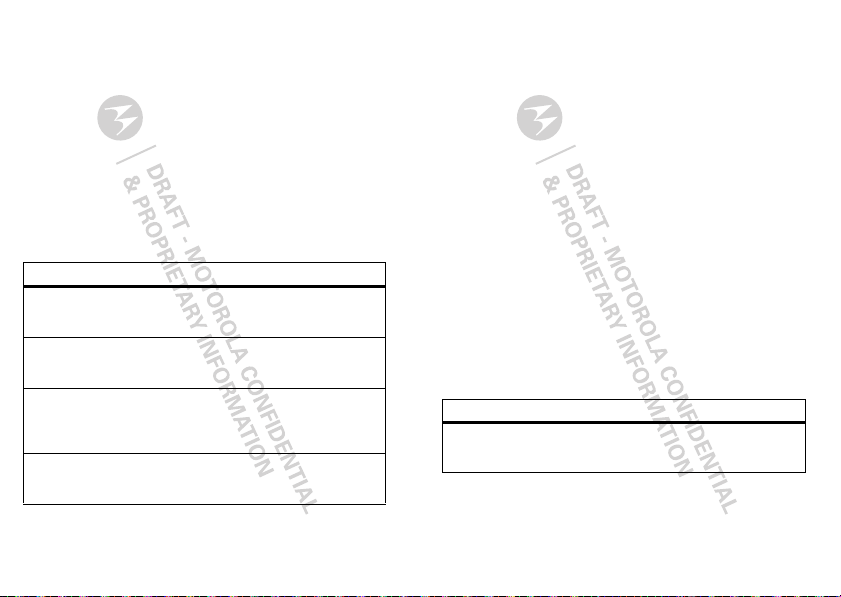
Products Covered Length of Coverage
Products and Accessories
defined above, unless otherwise
provided for below.
Decorative Accessories and
Cases.
Decorative covers, bezels,
PhoneWrap™ covers and cases.
Monaural Headsets.
and boom headsets that transmit
mono sound through a wired
connection.
Products and Accessories that
are Repaired or Replaced.
Ear buds
as
One (1) year
from the date of purchase by the
first consumer purchaser of the product unless
otherwise provided for below.
Limited lifetime warranty
ownership by the first consumer purchaser of
the product.
Limited lifetime warranty
ownership by the first consumer purchaser of
the product.
The balance of the original warranty or
for ninety (90) days
the consumer, whichever is longer.
from the date returned to
for the lifetime of
for the lifetime of
Exclusions (Products and Accessories)
Normal Wear and Tear.
normal wear and tear are excluded from coverage.
Batteries.
capacity and batteries that leak are covered by this limited warranty.
Abuse & Misuse.
misuse or abuse, accident or neglect, such as physical damage (cracks, scratches, etc.) to the
surface of the product resulting from misuse; (b) contact with liquid, water, rain, extreme
humidity or heavy perspiration, sand, dirt or the like, extreme heat, or food; (c) use of the
Products or Accessories for commercial purposes or subjecting the Product or Accessory to
abnormal usage or conditions; or (d) other acts which are not the fault of Motorola, are
excluded from coverage.
Use of Non-Motorola Products and Accessories.
the use of non-Motorola branded or certified Products, Accessories, Software or other
peripheral equipment are excluded from coverage.
Unauthorized Service or Modification.
testing, adjustment, installation, maintenance, alteration, or modification in any way by
someone other than Motorola, or its authorized service centers, are excluded from coverage.
Altered Produc ts.
been removed, altered or obliterated; (b) broken seals or that show evidence of tampering; (c)
mismatched board serial numbers; or (d) nonconforming or non-Motorola housings, or parts,
are excluded from coverage.
Communication Services.
Software due to any communication service or signal you may subscribe to or use with the
Products Accessories or Software is excluded from coverage.
Periodic maintenance, repair and replacement of parts due to
Only batteries whose fully charged capacity falls below 80% of their rated
Defects or damage that result from: (a) improper operation, storage,
Defects or damage that result from
Defects or damages resulting from service,
Products or Accessories with (a) serial numbers or date tags that have
Defects, damages, or the failure of Products, Accessories or
Software
Products Covered Length of Coverage
Software.
Applies only to physical defects in the
media that embodies the copy of the software (e.g.
CD-ROM, or floppy disk).
Exclusions (Software)
Software Embodie d in Physical Media.
your requirements or will work in combination with any hardware or software applications
No warranty is made that the software will meet
Ninety (90) days
date of purchase.
from the
31Troubleshooting
Page 21
provided by third parties, that the operation of the software products will be uninterrupted or
error free, or that all defects in the software products will be corrected.
Software NOT Embod ied in Physical Media.
media (e.g. software that is downloaded from the Internet), is provided “as is” and without
warranty.
Who is Covered?
This warranty extends only to the first consumer purchaser, and is not transferable.
What Will Motorola Do?
Motorola, at its option, will at no charge repair, replace or refund the purchase price of any
Products, Accessories or Software that does not conform to this warranty. We may use
functionally equivalent reconditioned/refurbished/pre-owned or new Products, Accessories
or parts. No data, software or applications added to your Product, Accessory or Software,
including but not limited to personal contacts, games and ringer tones, will be reinstalled. To
avoid losing such data, software, and applications, please create a back up prior to
requesting service.
Software that is not embodied in physical
How to Obtain Warranty Service or Other
Information
USA
Canada
TTY
You will receive instructions on how to ship the Products, Accessories or Software, at your
expense, to a Motorola Authorized Repair Center. To obtain service, you must include: (a) a
copy of your receipt, bill of sale or other comparable proof of purchase; (b) a written
description of the problem; (c) the name of your service provider, if applicable; (d) the name
and location of the installation facility (if applicable) and, most importantly; (e) your address
and telephone number.
What Other Limitations are There?
ANY IMPLIED WARRANTIES, INCLUDING WITHOUT LIMITATION THE IMPLIED WARRANTIES
OF MERCHANTABILITY AND FITNESS FOR A PARTICULAR PURPOSE, SHALL BE LIMITED TO
THE DURATION OF THIS LIMITED WARRANTY, OTHERWISE THE REPAIR, REPLACEMENT, OR
32 Troubleshooting
1-800-734-5870
1-800-461-4575
1-888-390-6456
REFUND AS PROVIDED UNDER THIS EXPRESS LIMITED WARRANTY IS THE EXCLUSIVE
REMEDY OF THE CONSUMER, AND IS PROVIDED IN LIEU OF ALL OTHER WARRANTIES,
EXPRESS OR IMPLIED. IN NO EVENT SHALL MOTOROLA BE LIABLE, WHETHER IN
CONTRACT OR TORT (INCLUDING NEGLIGENCE) FOR DAMAGES IN EXCESS OF THE
PURCHASE PRICE OF THE PRODUCT, ACCESSORY OR SOFTWARE, OR FOR ANY INDIRECT,
INCIDENTAL, SPECIAL OR CONSEQUENTIAL DAMAGES OF ANY KIND, OR LOSS OF
REVENUE OR PROFITS, LOSS OF BUSINESS, LOSS OF INFORMATION OR DATA, SOFTWARE
OR APPLICATIONS OR OTHER FINANCIAL LOSS ARISING OUT OF OR IN CONNECTION WITH
THE ABILITY OR INABILITY TO USE THE PRODUCTS, ACCESSORIES OR SOFTWARE TO THE
FULL EXTENT THESE DAMAGES MAY BE DISCLAIMED BY LAW.
Some states and jurisdictions do not allow the limitation or exclusion of incidental
or consequential damages, or limitation o n the length of an implied warranty, so
the above limitations or e xclusions may not apply to you. This warra nty gives you
specific legal rights, and you may also have other righ ts that vary from state to state
or from one jurisdiction to another.
Page 22
Copyright & Trademarks
Motorola Mobility, Inc.
Consumer Advocacy Office
600 N US Hwy 45
Libertyville, IL 60048
www.motorola.com
Note:
Do not ship your product to the above address. If you need to return your product for
repairs, replacement, or warranty service, please contact the Motorola Customer Support
Center at:
1-800-734-5870 (United States)
1-888-390-6456 (TTY/TDD United States for hearing impaired)
1-800-461-4575 (Canada)
Certain features, services and applications are network dependent and may not be available
in all areas; additional terms, conditions and/or charges may apply. Contact your service
provider for details.
All features, functionality, and other product specifications, as well as the information
contained in this guide, are based upon the latest available information and believed to be
accurate at the time of printing. Motorola reserves the right to change or modify any
information or specifications without notice or obligation.
Note:
The images in this guide are examples only.
MOTOROLA and the Stylized M Logo are trademarks or registered trademarks of Motorola
Trademark Holdings, LLC. All other product or service names are the property of their
respective owners.
© 2011 Motorola Mobility, Inc. All rights reserved.
Caution:
Motorola does not take responsibility for changes/modification to the transceiver.
Product ID: MOTOACTV
Manual Number: 68XXXXXXXX-X
33Troubleshooting
Page 23

Page 24
 Loading...