

Page 1

Motorola
®
iDEN
i390 - Multi-Service Phone
Digital Portable
68P81086C90
TM
1
Getting Started
i390
GETTING STARTED
Page 2

*68P81086C90*
68P81086C90-0
Page 3

CONTENTS
Your Portable Phone ...........................................................................1
About Your Phone’s Features ........................................................1
Feature Locator .............................................................................. 2
Battery ............................................................................................ 4
Charging the Battery ...............................................................4
Attaching the Battery ..............................................................4
Detaching the Battery ..............................................................4
Low Battery .............................................................................4
Display Icons ..................................................................................5
Powering On ................................................................................... 6
Powering Off .................................................................................. 6
Changing the Display Language ....................................................7
Mode ...............................................................................................8
Menu ...............................................................................................9
Phone ..................................................................................................11
Making a Phone Call ....................................................................11
Emergency Dialing ............................................................... 12
Automatic Redial ..................................................................12
Last Number Redial ..............................................................12
Receiving a Phone Call ................................................................13
Recalling Your Own Phone Number ........................................... 13
Selectable Ring Styles ..................................................................13
Call Forwarding ............................................................................14
Selecting a Call Forward Number ......................................... 14
Unconditional Call Forwarding ............................................ 14
Conditional Call Forwarding ................................................ 14
Call Waiting .................................................................................15
Call Hold ......................................................................................16
Storing Numbers in the Phone List ..............................................16
Entering Phone Numbers Using the Keypad ........................ 16
Entering an Alias Using the Keypad .....................................16
Entering and Changing Names and Numbers ....................... 17
Private Call .........................................................................................19
Group/Private Speaker .................................................................19
Making A Private Call ..................................................................19
Direct Entry Method ............................................................. 19
Scroll Method ........................................................................ 19
Name Method ........................................................................ 20
Receiving a Private Call ...............................................................20
Recalling Your Private ID ............................................................20
Call Alert ......................................................................................20
Sending a Call Alert ..............................................................20
i390
GETTING STARTED
Page 4

Receiving a Call Alert ...........................................................21
Call Alert Stacking ....................................................................... 21
Receiving a Call Alert with Stacking .................................... 21
Responding to a Call Alert in the Stack ................................21
Private Call ID Programming ....................................................... 22
Group Call ..........................................................................................23
Group/Private Speaker .................................................................23
Making a Group Call ....................................................................23
Changing Talkgroups ................................................................... 23
Receiving a Group Call ................................................................ 24
Area Selection ..............................................................................24
Talkgroup Naming .......................................................................24
Voice Mail ...........................................................................................25
Retrieving Voice Mail ..................................................................25
Viewing Voice Mail Status ..........................................................25
Message Mail™ ..................................................................................27
Receiving New Message Mail ......................................................27
Retrieving Stored/Unread Mail .................................................... 27
Saving and Erasing Mail ..............................................................28
Auto Call Back .............................................................................28
Message Mail Memory Full ......................................................... 28
Programming Menu Options ............................................................29
Error Messages .................................................................................. 33
Safety and General Information ......................................................35
Radio Operation ...........................................................................35
Cleaning Instructions ....................................................................39
For Further Information ............................................................... 39
Warranty Information ...................................................................... 40
Owner’s Information .........................................................................48
Radio ID Directory ............................................................................48
Talkgroup ID Directory ....................................................................49
Private ID Directory.......................................................................... 50
Talkgroup ID Directory ....................................................................50
i390
GETTING STARTED
Page 5

YOUR PORTABLE PHONE
ongratulations on purchasing your Motorola iDEN i390 digital
portable phone. Superior features and state-of-the-art technology
C
help to keep you in constant touch with all of your business and
personal contacts.
T
he i390 phone is a multi-service communication unit that offers the
following functions:
▲ ▲ ▲ ▲ ▲
Phone
Private Call
Group Call
Voice Mail
Message Mail
ABOUT YOUR PHONE’S FEATURES
This guide describes the features that most people use every day.
However, your service provider or your organization might have
customized your phone to optimize its use for your individual needs. For
more information, check with your service provider or organization.
Your Portable Phone
i390
Additional information for your iDEN Digital
Portable Phone can be found on the
Motorola iDEN web site:
http://www.mot.com/LMPS/iDEN
GETTING STARTED
1
Page 6
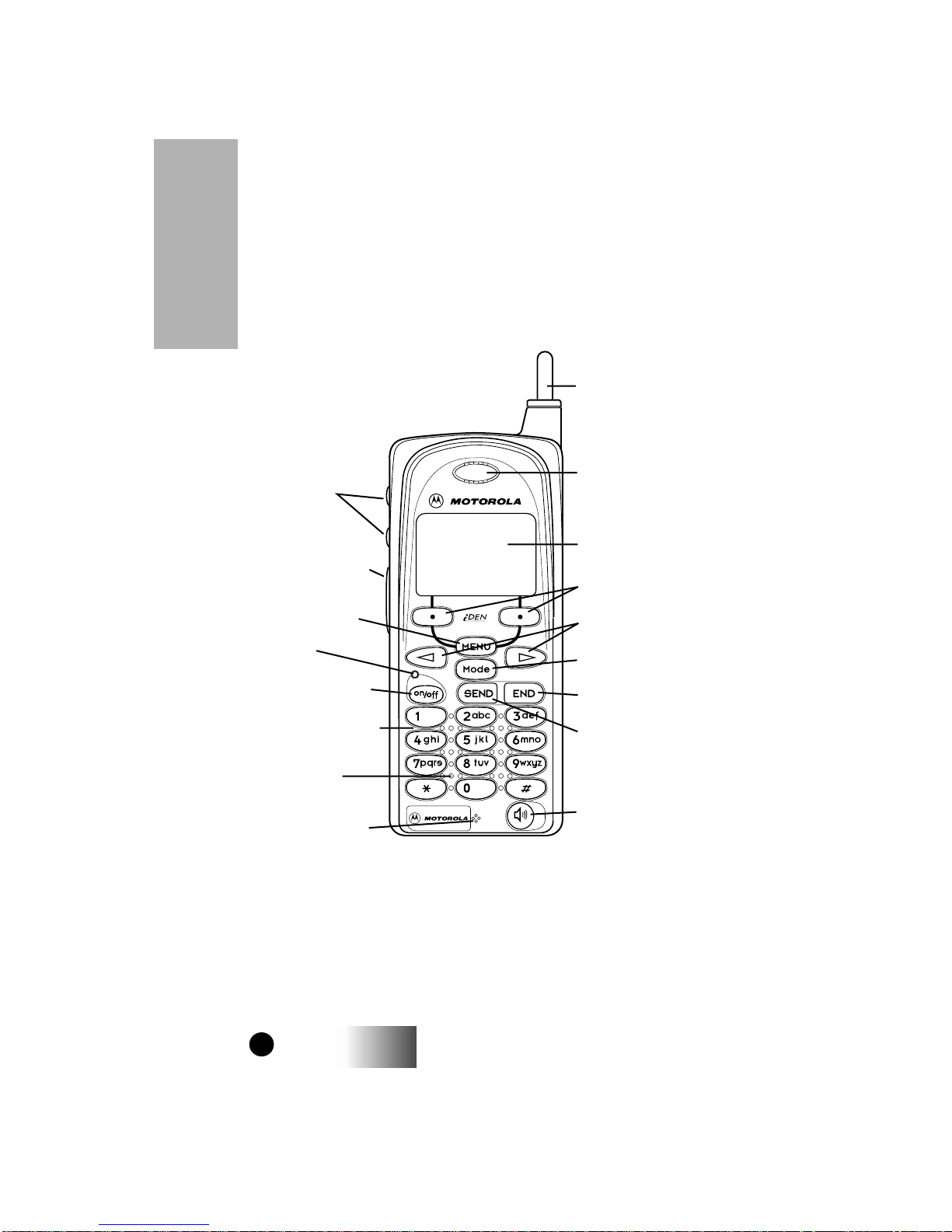
FEATURE LOCATOR
Your Portable Phone
1. Antenne
17. Touches de
commande
du volume
16. Bouton-poussoir
de conversation
15. Touche MENU
14. DEL
13. Touche ON/OFF
(mise sous/
hors tension)
12. Clavier
alphanumérique
11. Haut-parleur
10. Microphone
2. Écouteur
3. Affichage
alphanumérique
4. Touches
d’option
5. Touches
de défilement
6. Touche Mode
7. Touche END
(fin)
8. Touche SEND
(envoi)
9. Touche de
haut-parleur
pour appel de
groupe/privé
MAEPF-26125-O
2
i390
GETTING STARTED
Page 7
1. Antenna
2. Earpiece
3. Alphanumeric
Display
4. Option Keys
5. Scroll Keys
6. Mode Key
7. END Key
8. SEND Key
9. Group/Private
Speaker Key
10. Microphone
11. Speaker
12. Alphanumeric
Keypad
13. On/Off Key
14. LED
15. MENU Key
16. Push-To-Talk
(PTT) Button
17. Volume Control
Keys
Extend for optimal signal.
Hold to your ear to listen during phone
calls and Group/Private low-audio
communication .
View up to four lines (up to 12
characters per line) on the display.
Press to select the option that appears
directly above the left or right key on the
fourth line of the display.
Press the left or right key to scroll
forward or backward through options
and lists, such as Phone, Group, or
Private Call lists.
Press to change between Phone,
Group, and Private modes.
Press to end phone calls.
Press to answer an incoming phone call
or, after entering a phone number, to
begin an outgoing phone call.
Press to listen to audio through either
the earpiece or the speaker during
Group and Private calls.
Speak into it during communications.
Listen to audio conversations.
Enter telephone numbers, Private Call
IDs, and alphanumeric characters.
Press to turn your phone on or off.
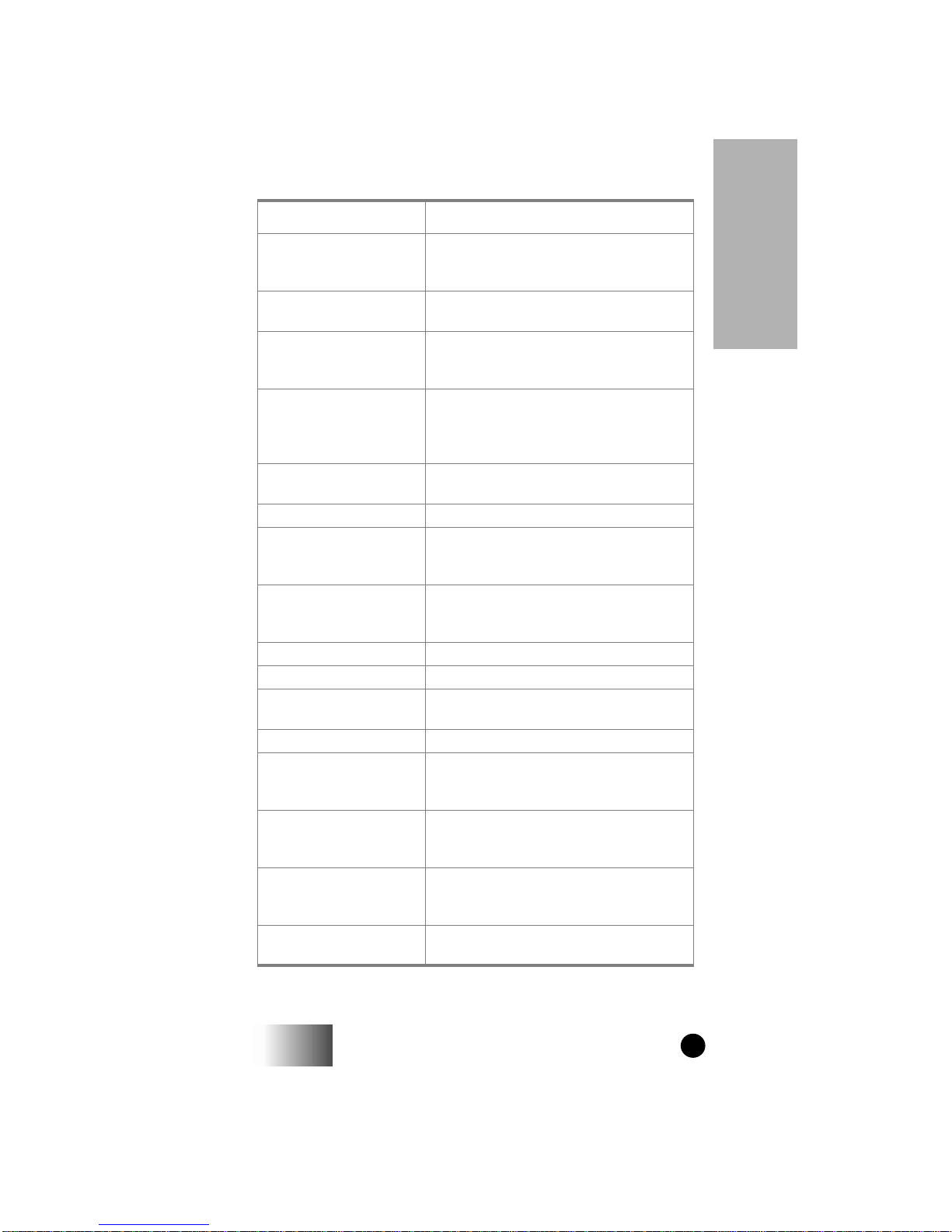
Check the phone status. See Table 1 on
page 6 for information about the phone
status.
Scroll through the menu options that are
available on the last line within each
mode.
Transmit a Group or Private Call, or a
Call Alert. Press and hold the PTT
button to talk; release it to listen.
Press to adjust volume levels.
Your Portable Phone
i390
GETTING STARTED
3
Page 8
BATTERY
Charging the Battery
You should charge the portable phone
battery for at least 16 hours before you use it
for the first time. This allows the battery to
achieve its maximum capacity and life.
Your Portable Phone
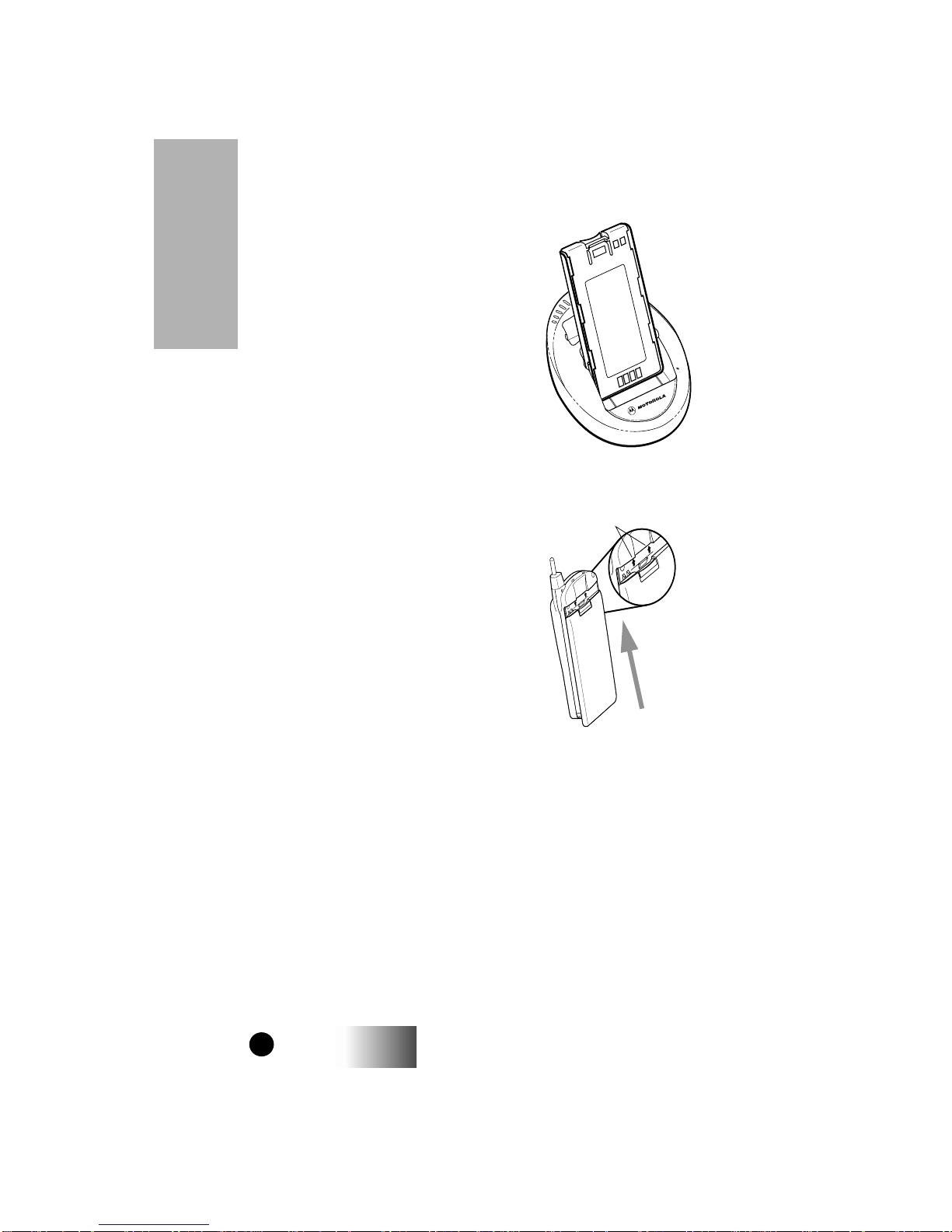
Place the battery in the charger, as shown.
You can also place the portable phone with
the battery attached in the charger .
Attaching the Battery
To attach the charged battery to your
portable phone, align the battery with the
engraved arrows on the phone. Slide the
battery upward until you hear a click.
Engraved Arrows
MAEPF-26164-O
Detaching the Battery
To detach the battery, pull back on the release button near the top of the
battery and slide the battery downward.
Low Battery
A low battery is indicated by a short, sharp, chirp-like sound through the
speaker.
4
i390
GETTING STARTED
Page 9
DISPLAY ICONS
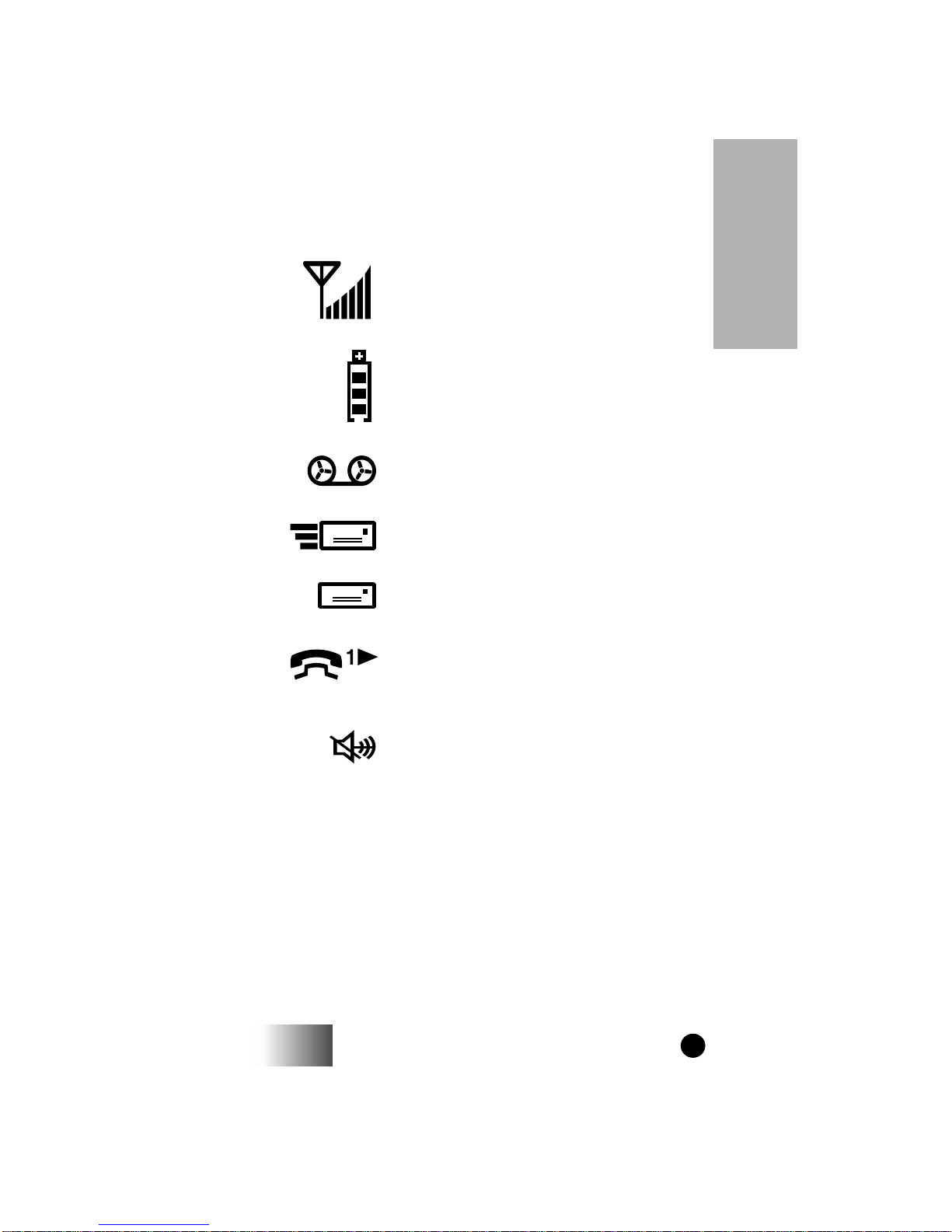
After you turn on the portable phone, icons appear along the top of the
display to inform you of the following conditions.
Signal Strength Indicator
Shows the signal strength. Six bars
indicate the strongest signal. Calls and
messages may not be sent or received in
weak signal areas.
Battery Strength Indicator
Shows the remaining charge in your
battery. Three bars show full charge. This
indicator flashes when you have less than
five minutes of talk time.
Voice Mail
Indicates that unplayed messages are
waiting in your voice mail box.
New Message Mail
Indicates that you have new text messages
in your mail box.
Unread Message Mail
Indicates that you have unread text
messages in your mail box.
Your Portable Phone
i390
Line Indicator and Call Forward
Indicates call forward status.
Group/Private Speaker
Indicates that the Group/Private Speaker is
off. You will hear audio through the
earpiece.
GETTING STARTED
5
Page 10
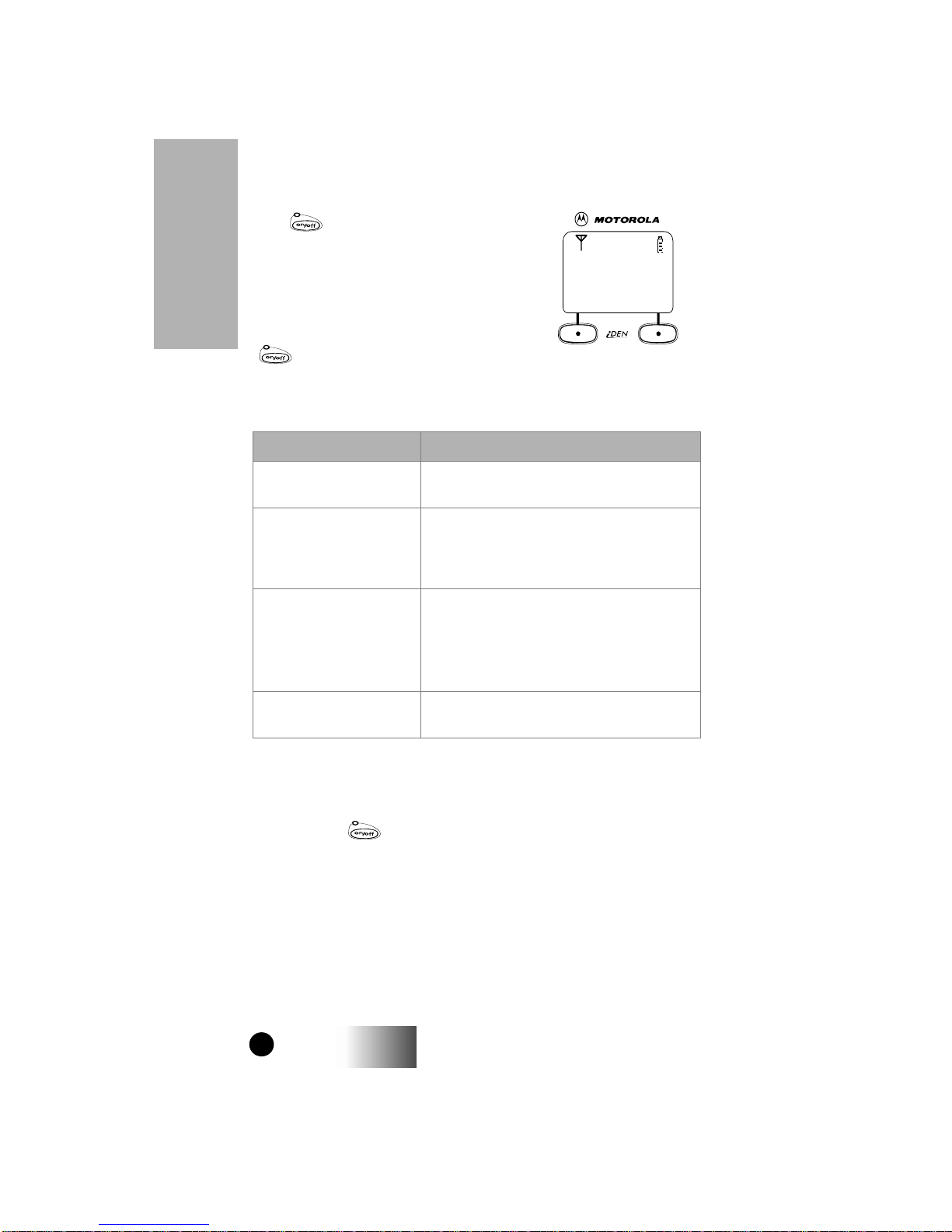
POWERING ON
PPPPlllleeeeaaaasssseeee WWWWaaaaiiiitt
tt
Press until a set of icons and squares
appears on your display. (For a description of
the icons, see page 5.) Then the message
“Please Wait” displays while the unit registers
on the system.
Your Portable Phone
The LED indicator located above the
button shows the in-service states of
your portable phone. See the following table.
Table 1: LED Indicator
LED Indicator Phone Status
Flashing Red Registering—this is the first state after you
turn on the unit.
Solid Red No service—the unit cannot register on
the system. The unit continues to attempt
registration approximately every two
minutes as long as the unit is powered on.
Flashing Green In service—the LED indicator flashes
green and the Phone Ready message
displays.
You can now place and receive Phone,
Group, and Private calls.
Solid Green In use—-the unit is in the process of
placing or receiving a call.
POWERING OFF
Press and hold for one second until you see the message
“Powering Off”.
6
i390
GETTING STARTED
Page 11
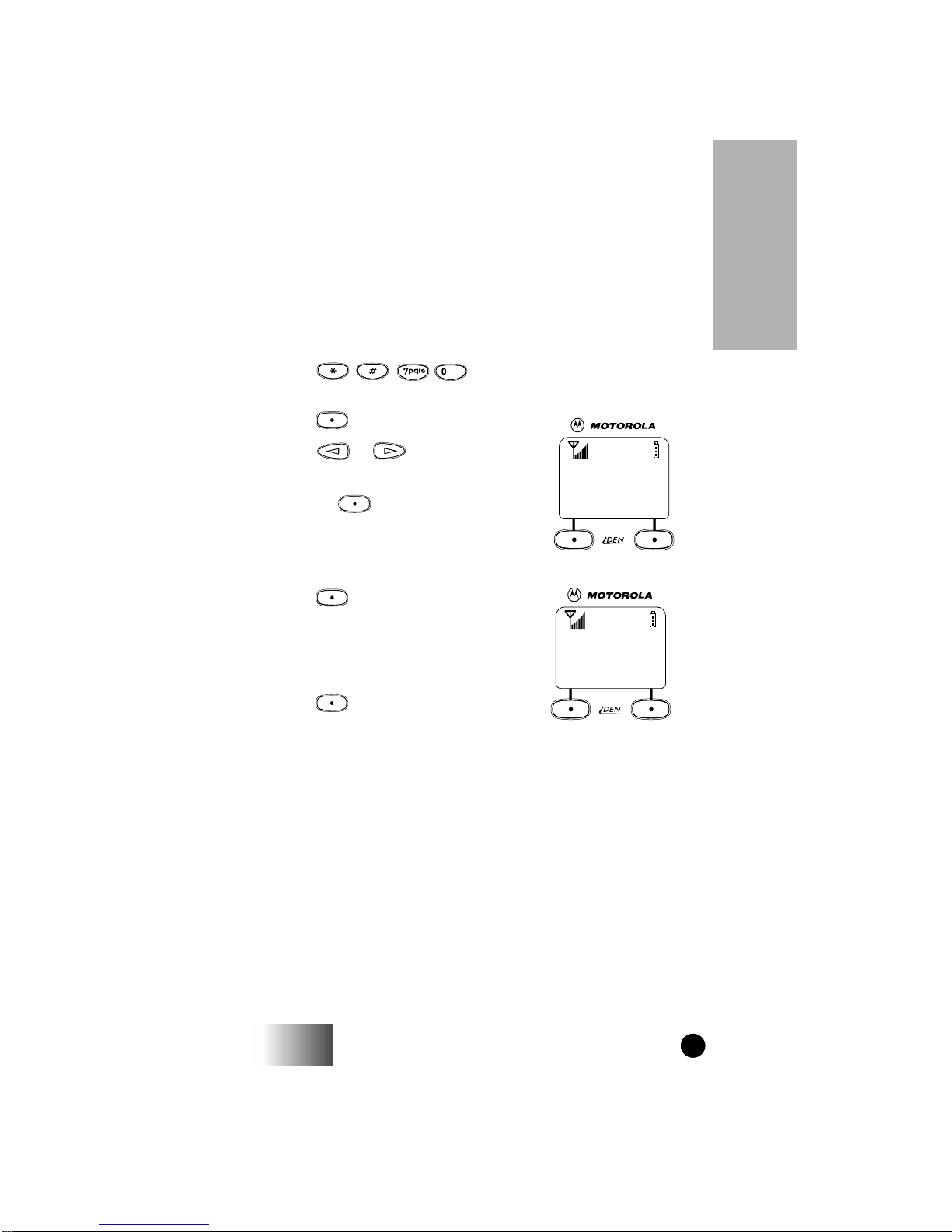
77770000====LLLLaaaannnngggguuuuaaaaggggee
ee
EEEEnnnngggglllliiiisssshhhh
EEEExxxxiiiitttt OOOOkk
kk
77770000====IIIIddddiiiioooommmmaa
aa
PPPPoooorrrrttttuuuugggguuuuééééssss
SSSSaaaaiiiirrrr OOOOkk
kk
CHANGING THE DISPLAY LANGUAGE
You can customize your portable phone to operate in one of three
languages:
• English, Spanish, or Portuguese, or
• English, Spanish, or French
The choices that you have depend on your service provider.
To change the display language:
1. Press to quickly access the
Programming Menu item associated with multi-language support.
2. Press under “Ok”.
3. Press or to scroll through
the language options.
Pressing under “Exit” at any time
retains the current language selection.
4. Press under “Ok” when the
language you desire is in the display. The
text immediately changes to the selected
language.
Your Portable Phone
5. Press under “Exit”, “Salir”, or
“Sair” (whichever one displays) to exit
this mode.
The language that you select will be the operating language until you
repeat this procedure to select another language.
i390
GETTING STARTED
7
Page 12
MODE
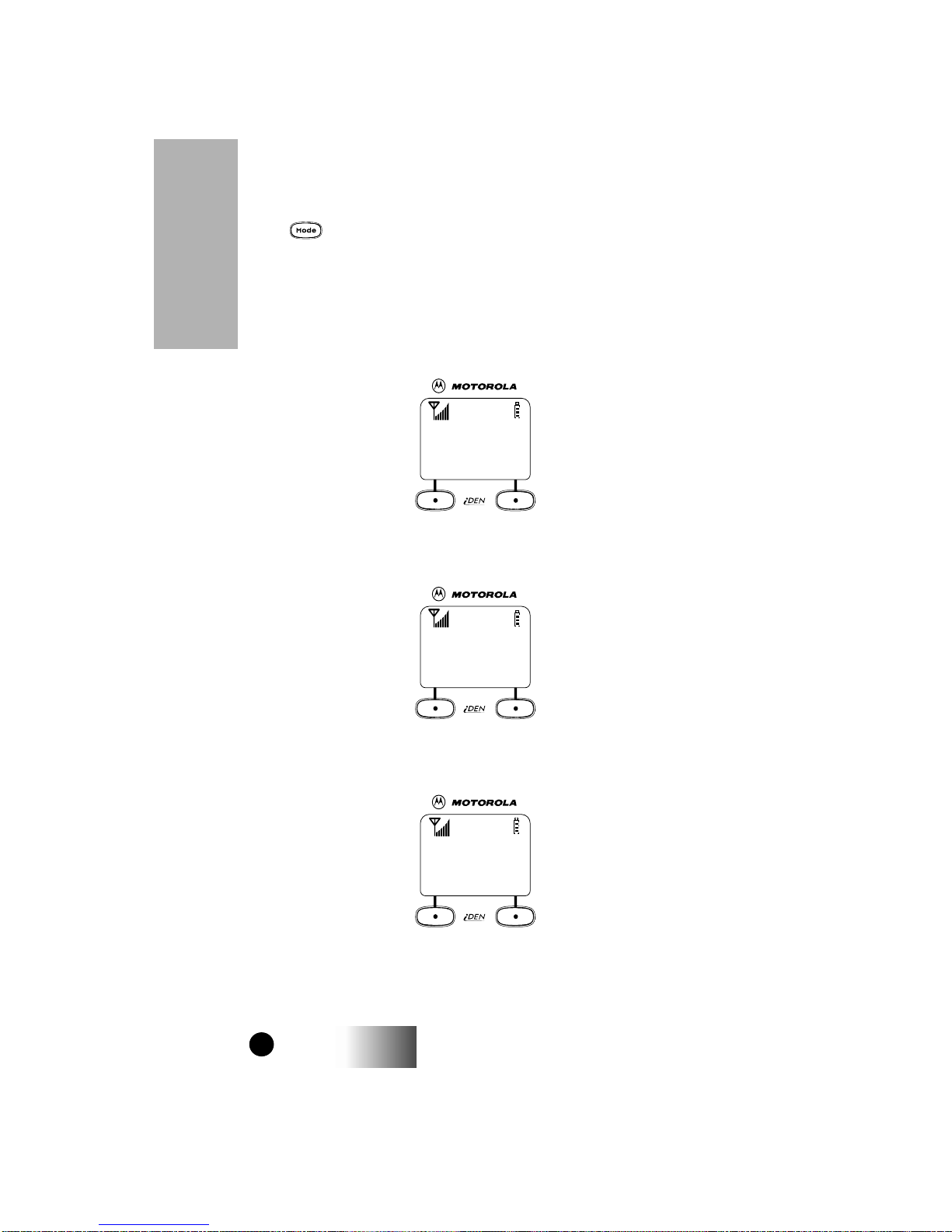
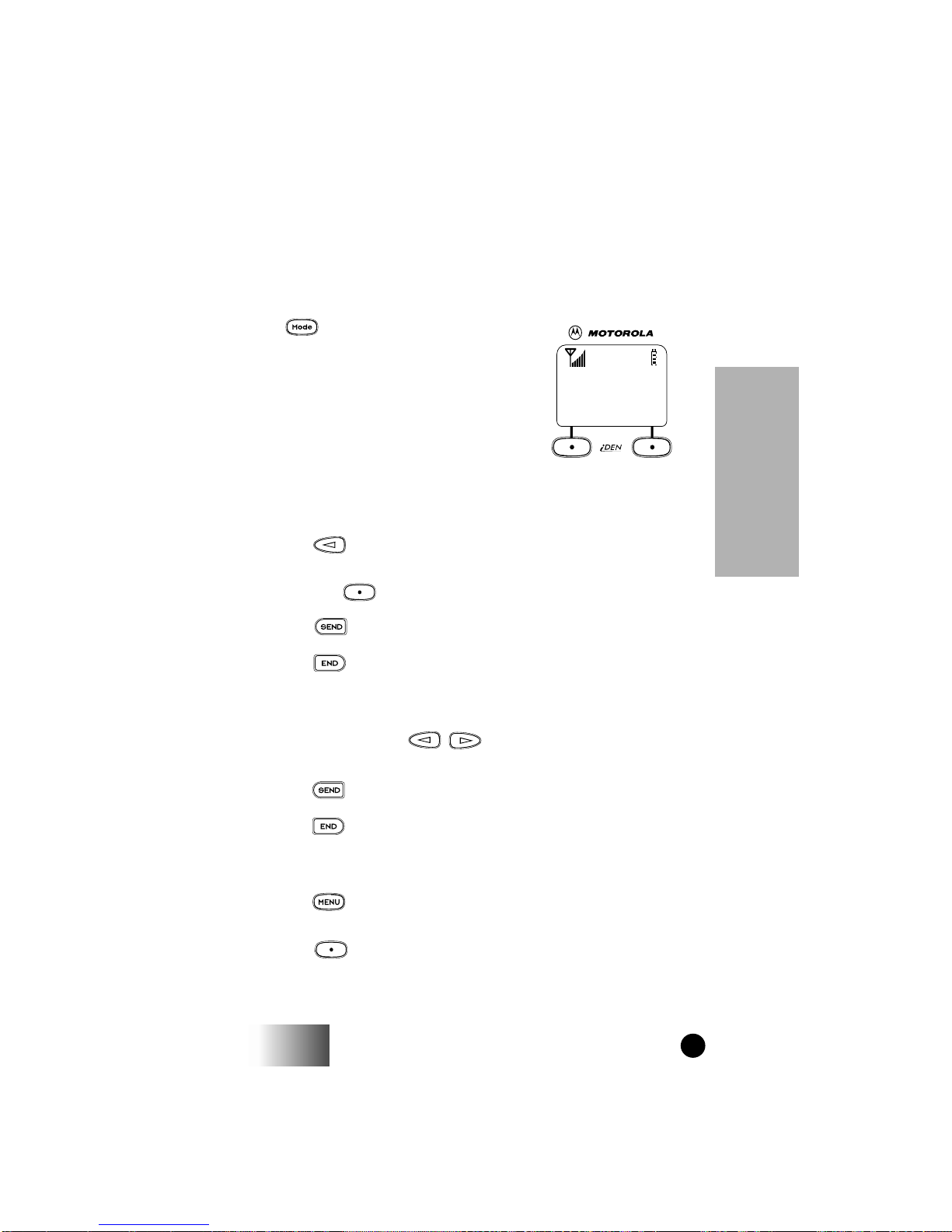
Press to switch between Phone, Group, and Private Call modes.
When your portable phone is in service, your display looks like the
following screens for the Phone, Group Call, and Priv ate Call modes. If
the word “Ready” does not appear after the mode name in the display,
your unit is out of service.
Your Portable Phone
Phone Mode
PPPPhhhhoooonnnneeee RRRReeeeaaaaddddyy
NNNNaaaammmmeeee MMMMaaaaiiiill
yy
ll
Group Call Mode
GGGGrrrroooouuuupppp RRRReeeeaaaaddddyy
SSSSaaaalllleeeessss RRRReeeeppppss
AAAAlllleeeerrrrtttt MMMMaaaaiiiill
yy
ss
ll
Private Call Mode
PPPPrrrrvvvvtttt RRRReeeeaaaaddddyy
JJJJoooohhhhnn
AAAAlllleeeerrrrtttt MMMMaaaaii
yy
nn
ii
ll
ll
8
i390
GETTING STARTED
Page 13
PPPPhhhhoooonnnneeee RRRReeeeaaaaddddyy
yy
NNNNaaaammmmeeee MMMMaaaaiiiill
ll
MENU
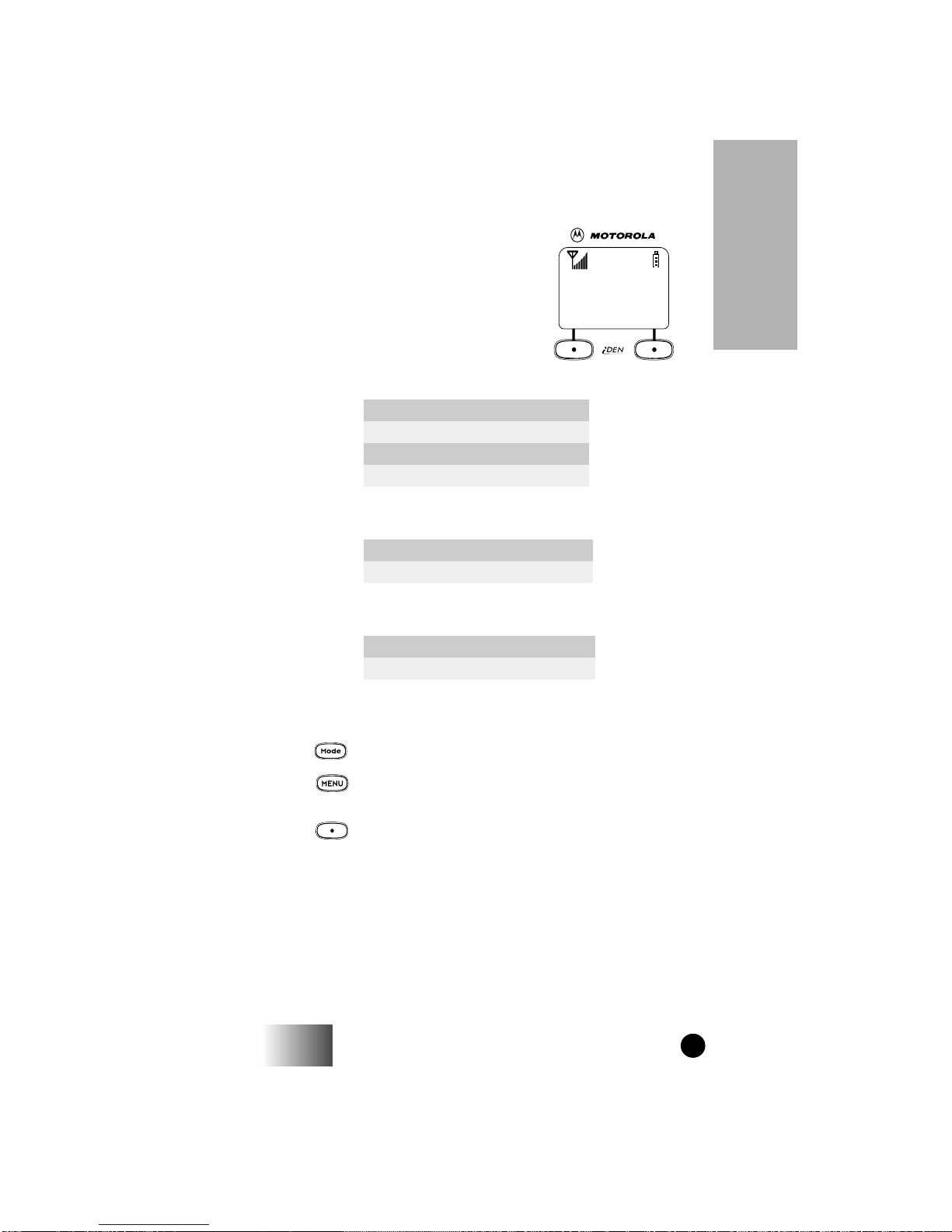
Each mode has menu options that appear on the
last line of the display.
You can select available options in each mode.
Phone Mode Menu Options
Name Mail
Forwd Spd#
Memo Prgm
Wait
Group Mode Menu Options
Alert Mail
Area Prgm
Private Mode Menu Options
Your Portable Phone
Alert Mail
Name Prgm
To use menu options:
1. Press to select the mode (Phone, Group, or Private).
2. Press to scroll through the available menu options for the
selected mode.
3. Press under the displayed menu option that you wish to select.
i390
GETTING STARTED
9
Page 14

NOTES:
10
i390
GETTING STARTED
Page 15
PPPPhhhhoooonnnneeee RRRReeeeaaaaddddyy
yy
NNNNaaaammmmeeee MMMMaaaaiiiill
ll
PHONE
In Phone mode, you can make and receive phone calls, forward calls,
use the call waiting and call hold features.
MAKING A PHONE CALL
Press until “Phone Ready” appears on
your display. You are now in Phone mode.
Phone mode allows you to place phone calls.
You can receive incoming phone calls from
any mode (Phone, Group, or Private).
There are four methods for entering a phone
number: Direct Dial, Scroll, Speed Dial, and
Name.
Direct Dial Method
1. You can dial the number using the keypad. If you make a mistake,
press .
You can return to the “Phone Ready” mode at any time by pressing
the option key under the word “Cancl”.
Phone
2. Press to place the call.
3. Press to hang up.
Scroll Method
1. Press the scroll keys to scroll backward or
forward through the stored list of numbers and names.
2. Press to place the call.
3. Press to hang up.
Speed Dial Method
1. Press until you see the “Spd#” option on the last line of your
display.
2. Press under “Spd#”.
3. Enter the assigned speed dial number (1-100). For more
information, see “Storing Numbers in the Phone List” on page 16.
i390
GETTING STARTED
11
Page 16
4. Press to place the call.
5. Press to hang up.
Name Method
1. Press under “Name”.
2. Press the numeric key with the first letter of the name.
3. Press or to scroll through the list.
4. Press to place the call.
5. Press to hang up.
Emergency Dialing
The Emergency Dial feature allows you to call the emergency phone
Phone
number by continuously pressing a single key. This feature is available
even when the keypad is locked, although it is not available during an
active call.
1. From any mode (Phone, Private Call, or Group Call), press
and hold until the unit displays “EMERGENCY”.
2. Press to terminate the call. The emergency phone
number will not be saved as the last number dialed.
NOTE
Contact your service provider for details on the
Emergency Dial feature.
Automatic Redial
If you receive a “System Busy, Try Later” message, press
and your portable phone will automatically attempt to redial the number.
You will hear a ring tone when the call is successful.
Last Number Redial
To redial the last number, simply press .
12
i390
GETTING STARTED
Page 17
33331111====SSSSeeeetttt RRRRiiiinnnngg
gg
SSSSttttyyyylllleeee::::11
11
EEEExxxxiiiitttt OOOOkkkk
RRRRiiiinnnngg
gg
SSSSttttyyyylllleeee 44
44
CCCCaaaannnnccccllll OOOOkk
kk
RECEIVING A PHONE CALL
1. Press to answer an incoming phone call.
Or, you may press any numeric key (0 through 9), the asterisk (*),
or the pound sign (#).
2. Press to hang up.
RECALLING YOUR OWN PHONE NUMBER
1. To recall the phone number of your unit, press .
2. Press under “Exit”.
SELECTABLE RING STYLES
Your phone has nine selectable ring styles.
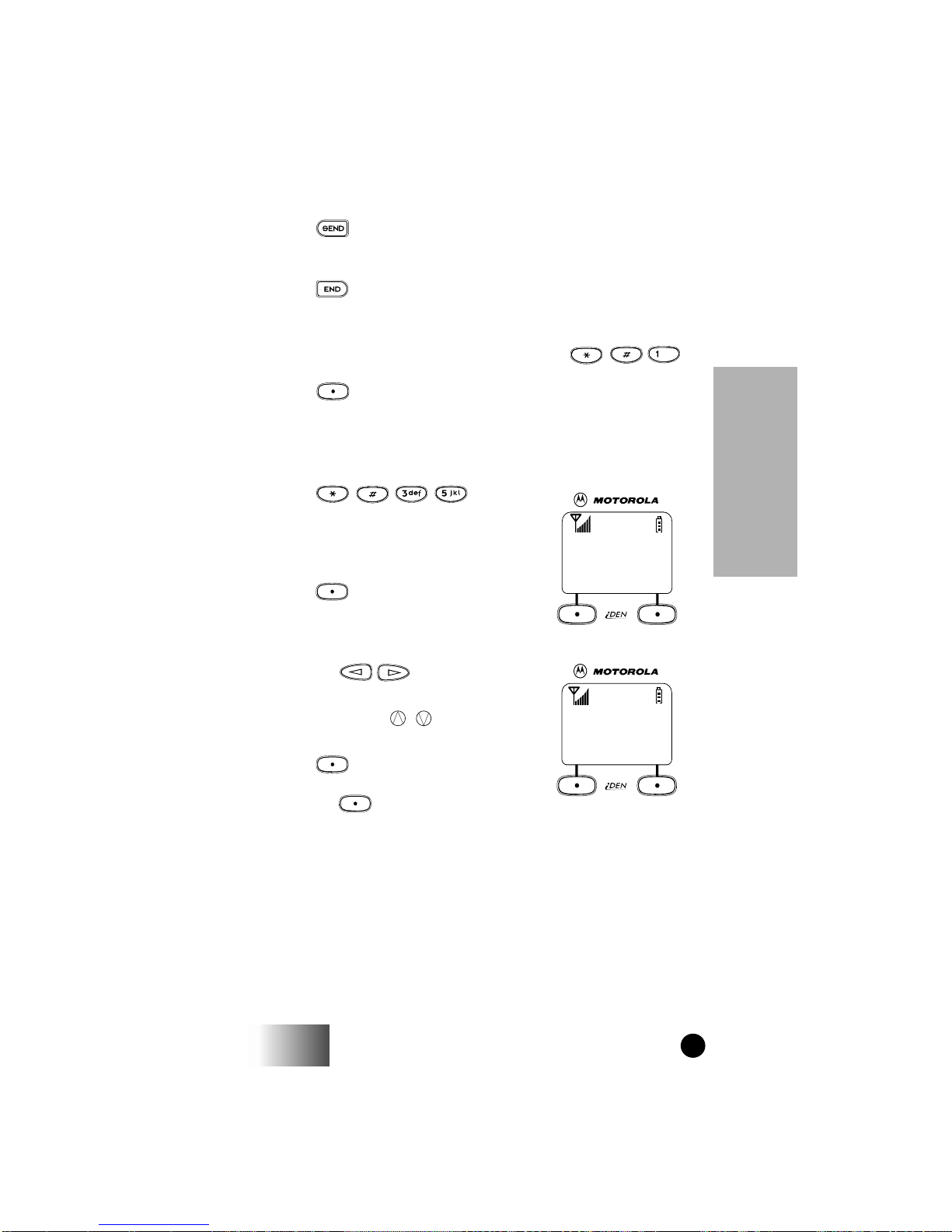
1. Press to
quickly access the Programming Menu
item for ring style selection.
The display shows your current selection.
2. Press under “Ok”.
3. Press the keys to scroll
through the available Ring Styles.
4. Press the volume keys to listen to
the selected ring style.
5. Press under “Ok” to select the
current Ring Style in the display.
Or, press under “Cancl” to leave the
Ring Style unchanged.
Phone
i390
GETTING STARTED
13
Page 18
PPPPhhhhoooonnnneeee RRRReeeeaaaaddddyy
yy
FFFFoooorrrrwwwwdddd SSSSppppdddd##
##
CALL FORWARDING
You can forward incoming phone calls to any number that you specify.
Selecting a Call Forward Number
You can select the call forward number in one of four ways: entering
the number using the alphanumeric keypad, using the scroll
keys to select the number from your phone list, using Name Search, or
using Speed Dial.
Unconditional Call Forwarding
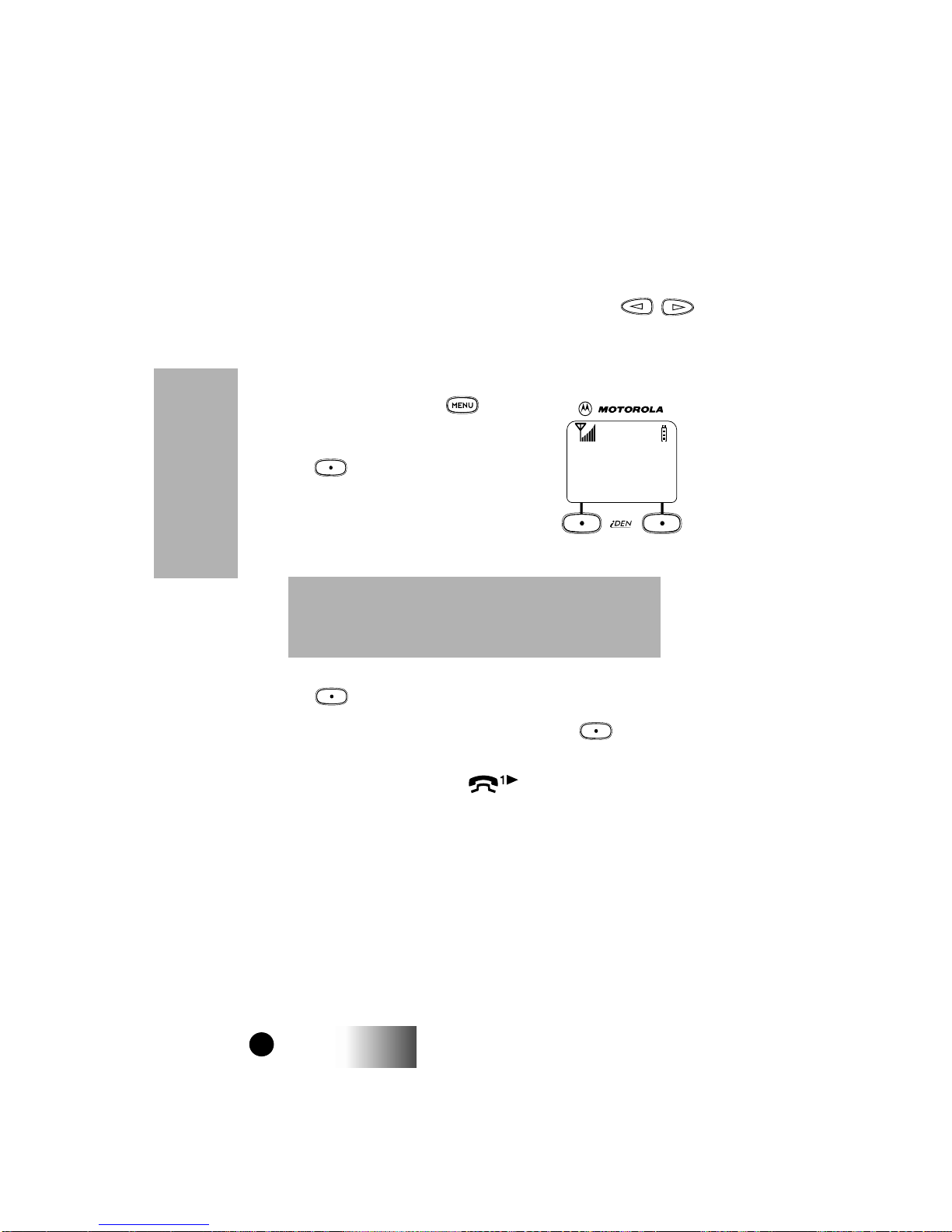
1. Within Phone mode, press
until you see “Forwd” on the last
line of the display.
2. Press under “Forwd”.
Phone
3. Either enter a number or press the scroll
keys to select the number where you want
your calls forwarded.
NOTE
You can select a number using the scroll keys only if
you have previously stored phone numbers. See
“Storing Numbers in the Phone List” on page 16.
4. Press under “On”.
5. After the “Please Wait” message displays, press
under “Exit”.
Notice that the Call Forward icon appears on your display
when Unconditional Call Forwarding is enabled.
Conditional Call Forwarding
You may want to forward your calls only if your unit is busy (Busy),
cannot be answered (NoAns), or you cannot be reached (NoRch).
14
i390
GETTING STARTED
Page 19
PPPPhhhhoooonnnneeee RRRReeeeaaaaddddyy
yy
FFFFoooorrrrwwwwdddd SSSSppppdddd##
##
PPPPhhhhoooonnnneeee RRRReeeeaaaaddddyy
yy
BBBBuuuussssyyyy NNNNooooAAAAnnnnss
ss
PPPPhhhhoooonnnneeee RRRReeeeaaaaddddyy
yy
NNNNooooRRRRcccchhhh RRRRccccllll##
##
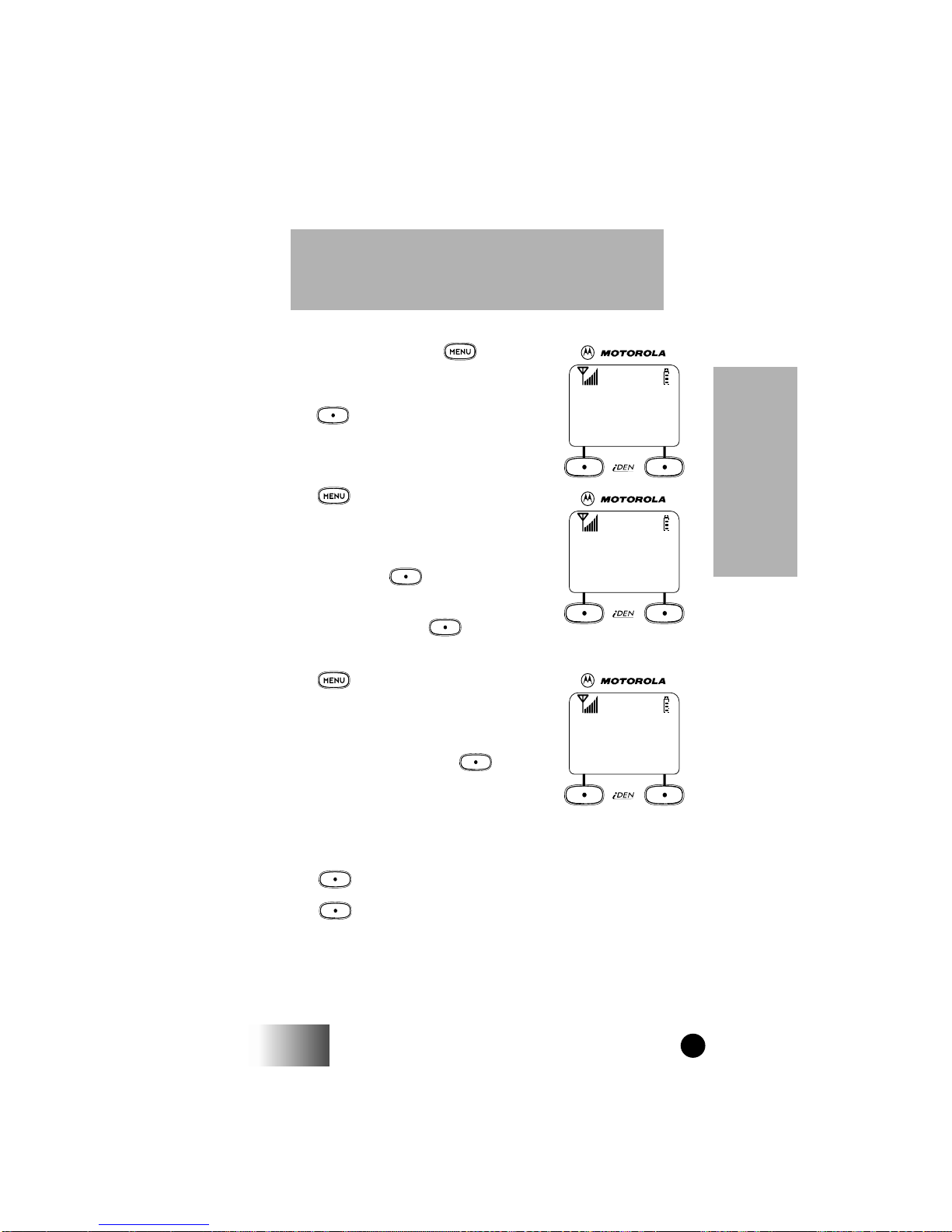
NOTE
You must turn off Unconditional Call Forwarding
before you can use Conditional Call Forwarding
options.
1. W ithin Phone mode, press until you
see “Forwd” on the last line of your
display.
2. Press under “Forwd”. The next two
screens display the conditional call-
forwarding options.
3. Press once until you see
“Busy” and “NoAns” on the last line of
your display.
• To forward your calls when your unit
is busy, press under “Busy”.
• T o forw ard your calls when you cannot
answer a call, press under
“NoAns”.
Phone
4. Press again until you see “NoRch”
and “Rcl#” on the
last line of your display.
• To forward your calls when you
cannot be reached, press under
“NoRch”.
5. After you select the call-forward option,
either enter the number where you
want your calls forwarded, or press the
scroll buttons and select a number.
6. Press under “On”.
7. Press under “Exit”.
CALL WAITING
i390
GETTING STARTED
15
Page 20
555555555555----11112222111122
22
AAAAcccccccceeeepppptttt CCCCaaaallllllll??
??
NNNNoooo YYYYeeeess
ss
CCCCaaaallllllll 1111----HHHHoooolllldd
dd
555555555555----11112222111122
22
HHHHoooolllldd
dd
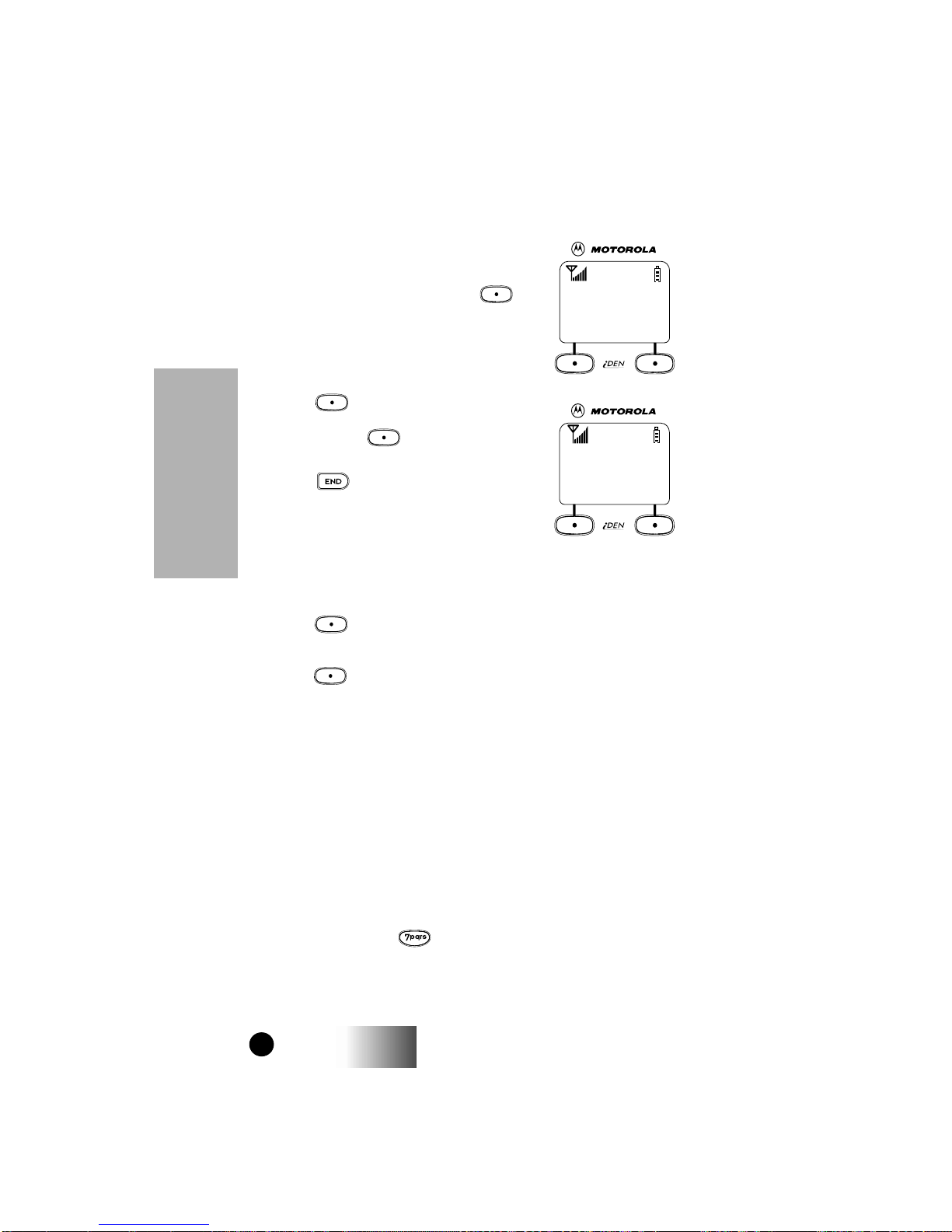
Using the Call Waiting feature, you can answer an incoming call when
you are on another call. Call Waiting is on unless you turn it off for a
particular call.
1. You will hear a tone to alert you of
an incoming call. Your display shows the
incoming number and asks “Accept
Call?”. To accept the call, press
under “Yes” on the last line of your
display.
2. Press under “Hold” to place the
second call on hold and return to the first
call. Pressing under “Hold” toggles
you between the two calls.
3. Press to end the active call.
Phone
CALL HOLD
“Hold” appears as an option on your display only while you are on an
active call.
1. Press under “Hold” on your display to place the active call on
hold. You may then answer or place another call.
2. Press under “Hold” again to remove the call from hold.
STORING NUMBERS IN THE PHONE LIST
You can add up to 100 numbers to your phone list, store them with
names or aliases (alternate name tags), and assign them to speed-dial
numbers. The procedure begins on page 17.
Entering Phone Numbers Using the Keypad
To enter a number, press the corresponding number key.
Entering an Alias Using the Keypad
The number of times you press a key to enter a letter depends on the
position of the letter on the key. The following table illustrates how to
enter each letter on the key.
16
i390
GETTING STARTED
Page 21
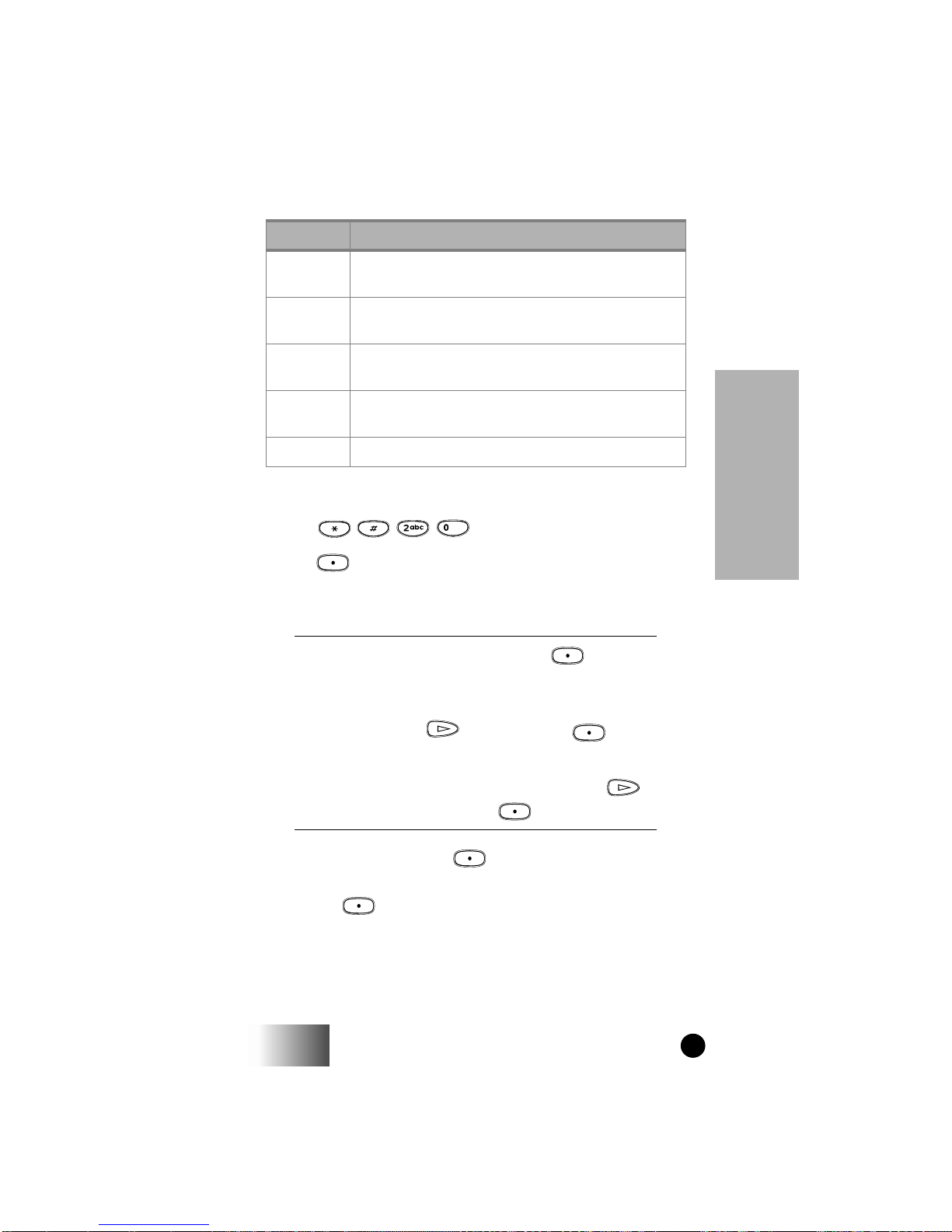
Table 2: Entering an Alias on the Keypad
Letter Position
P To enter the first letter on the k e ypad, press the k ey
once.
Q To enter the second letter on the keypad, press the
key twice.
R To enter the third letter on the keypad, press the
key three times.
S To enter the fourth letter on the keypad, press the
key four times.
7 To enter the number, press the key five times.
Entering and Changing Names and Numbers
1. Press .
2. Press under “Ok”. The “20=Phone List Program” line
appears on your display.
3. Select the type of edit that you want to perform:
Phone
Add
Edit To edit an existing number,
Erase
4. Enter the number and press under “Store”.
5. Enter the name or alias that you want to associate with this number
and press under “Store”.
For information on how to enter an alias, see “Entering an Alias
Using the Keypad” on page 16.
6. Enter the Speed Dial number for this number or accept the default
number shown.
i390
To add a new entry, press under
“Ok”.
press once, then press
under “Ok”.
To erase an existing number, press
twice, then press under “Ok”.
GETTING STARTED
17
Page 22

7. Press under “Store”.
8. After you enter all the desired numbers, press under “Exit”.
9. Press under “Exit”.
Phone
18
i390
GETTING STARTED
Page 23
PPPPrrrrvvvvtttt RRRReeeeaaaaddddyy
yy
MMMMaaaatttttttt GGGGoooorrrrddddoooonn
nn
AAAAlllleeeerrrrtttt MMMMaaaaiiiill
ll
PRIVATE CALL
A Private Call is a one-to-one communication between two
individuals. Each unit is identified by a name or a number that contains
up to five digits.
GROUP/PRIVATE SPEAKER
You can hear the audio through either the earpiece or the speaker in
Private mode. Pressing the key turns the Group/Priv ate Speaker on
or off.
If you set the Group/Private Speaker key on, you will hear incoming
audio through the speaker.
If you set the Group/Private Speaker key off, a brief alert tone notifies
you of activity within the private call. You will hear incoming audio
through the earpiece.
MAKING A PRIVATE CALL
There are three methods: Direct Entry, Scroll, or Name.
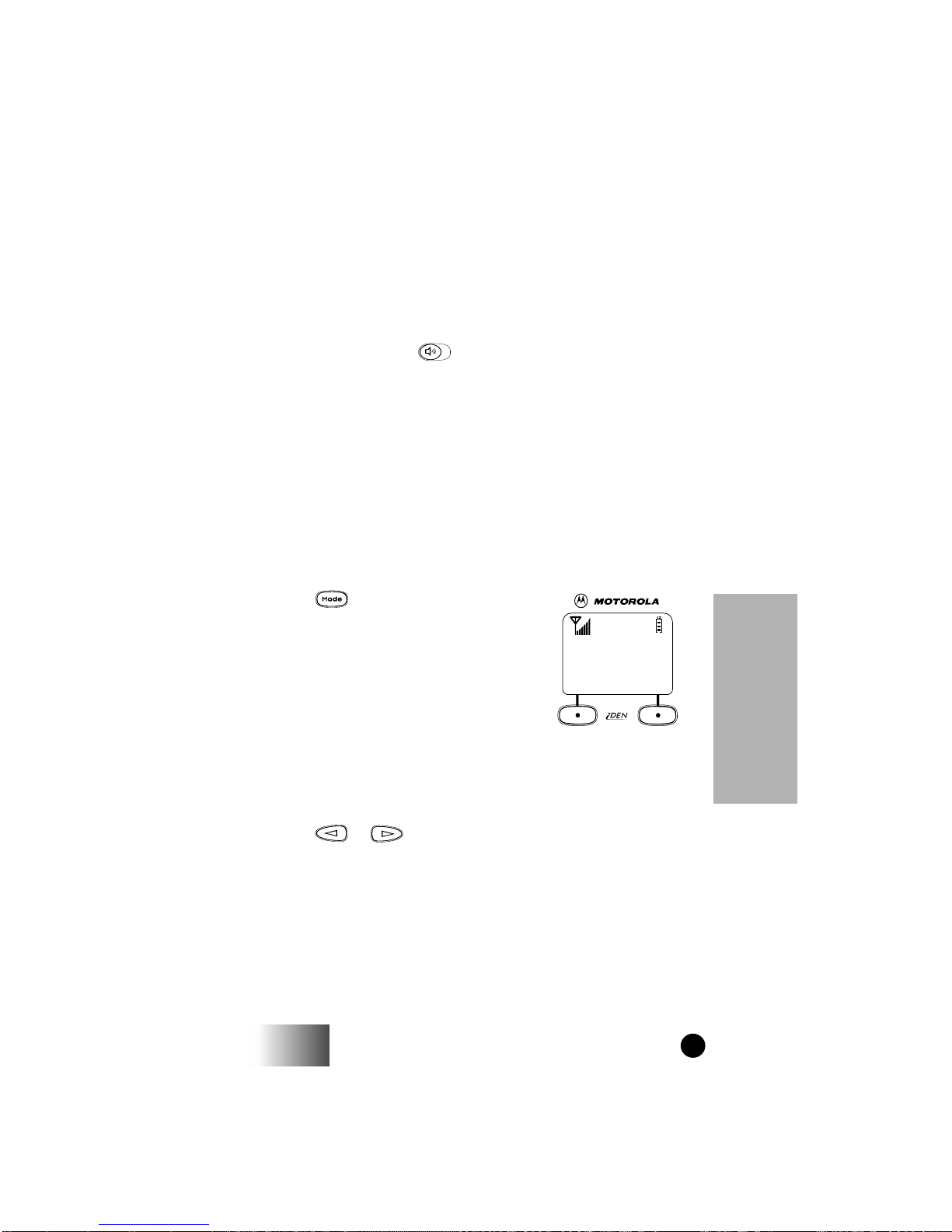
Direct Entry Method
1. Press until you see “Prvt Ready” on
your display. This is the Private Call
default display.
2. Use the keypad to enter the Private
Call ID of the person that you want to
reach.
3. To speak, press and hold the PTT button,
wait for the chirp, then speak into the
microphone.
4. To listen, release the PTT button.
Private Call
Scroll Method
1. Press or to select the person from the Private Call
list with whom you want to have a Private Call.
2. Press and hold the PTT button, wait for the chirp, then
speak into the microphone.
i390
GETTING STARTED
19
Page 24
Name Method
1. Press until you see the “Name” menu option on the last line of
your display.
2. Press under “Name”.
3. Press the key with the first letter of the name
associated with the private ID.
4. Press or to scroll through the list.
5. Press and hold the PTT button, wait for the chirp, then
speak into the microphone.
RECEIVING A PRIVATE CALL
When you receive an incoming Private Call, you hear a brief tone. Your
unit automatically switches to Private Call mode, and the Pri vate Call ID
or the name of the caller displays.
Wait for the caller to finish speaking, then press and hold the PTT
button. Begin speaking after you hear the chirp.
RECALLING YOUR PRIVATE ID
1. To recall your phone’s private ID, press .
2. Press under “Exit”.
CALL ALERT
You can access Call Alert from the Group and Private modes. Using Call
Alert, you can privately page an individual by sending an audible tone.
Private Call
Sending a Call Alert
1. Press until you see “Alert” on your display.
2. Press under “Alert”.
3. Enter the private ID or press to scroll to the name
of the person to whom you want to send the Call Alert. You may
also select the person by using Name Search.
4. Press the PTT button to send the Call Alert.
20
i390
GETTING STARTED
Page 25
AAAAlllleeeerrrrtt
tt
DDDDOOOOUUUUGGGG NNNNOOOORRRRDDDDEEEEMM
MM
3333 QQQQuuuueeeeuuuueeeedd
dd
CCCClllleeeeaaaarrrr QQQQuuuueeeeuuuuee
ee
Receiving a Call Alert
When you receive a Call Alert, you hear a tone and see a message on
your display.
1. Press the PTT button to return the Call Alert.
2. Press under “Clear” to clear the Call Alert, or press any
key other than the PTT button to silence the alert tones.
NOTE
Until the Call Alert is clear ed or r etur ned, y ou will be
blocked from receiving any additional Phone, Gr oup,
or Private calls.
CALL ALERT STACKING
Call Alert Stacking is an optional feature that allows you to save up to
eight Call Alerts in a stack.
Receiving a Call Alert with Stacking
With Call Alert Stacking, you have the option
to clear a Call Alert or to save the Call Alert to
the queue for later recall.
• T o clear a Call Alert, press under
“Clear”.
• To place the Call Alert into the queue,
press under “Queue”.
Pressing the Mode key also stacks the
Call Alert.
If you receive multiple Call Alerts, the last received Call Alert displays
and the remaining Call Alerts are stacked at the beginning of the queue.
Responding to a Call Alert in the Stack
You can respond to the Call Alerts in any order . To select a Call Alert for
response:
1. Press under “Queue”.
2. Press or to scroll to the desired Call Alert.
3. Press the PTT button to respond to the Call Alert. After you respond
to the Alert, it is removed from the stack.
i390
GETTING STARTED
21
Private Call
Page 26
PRIVATE CALL ID PROGRAMMING
You can add private IDs to your Private Call list and store them with
names or aliases.
1. Press .
2. Press under “Ok”. The “21=Prvt Id List Program”
line appears on your display.
3. Select the type of edit that you want to perform.
Add To add a new entry,
press under “Ok”.
Edit To edit an existing number,
press once, then
press under “Ok”.
Erase To erase an existing number,
press twice, then
press under “Ok”.
4. Enter the private ID (up to five digits) and press under
“Store”.
5. Enter the name or alias that you want to associate with this
private ID and press under “Store”. For instructions on
Private Call
entering names or aliases, see “Storing Numbers in the Phone List”
on page 16.
6. When you finish entering the new private IDs, press
under “Exit”.
7. Press under “Exit”.
22
i390
GETTING STARTED
Page 27
GGGGrrrroooouuuupppp RRRReeeeaaaaddddyy
yy
SSSSaaaalllleeeessss RRRReeeeppppss
ss
AAAAlllleeeerrrrtttt MMMMaaaaiiiill
ll
GROUP CALL
A Group Call is an instant communication between you and others in a
selected talkgroup.
A talkgroup is a pre-defined set of individuals who share a common
communication need. Talkgroups appear on your display as names or
numbers; for example, Sales Reps, Service, Talkgrp10.
GROUP/PRIVATE SPEAKER
You can hear the audio through either the earpiece or the speaker in
Group mode. Pressing the key turns the Group/Private Speaker on
or off.
If you set the Group/Private Speaker key on, you will hear incoming
audio through the speaker. This is helpful in monitoring talkgroup
activity.
If you set the Group/Private Speaker key off, a brief alert tone notifies
you of activity within the talkgroup. You will hear incoming audio
through the earpiece.
MAKING A GROUP CALL
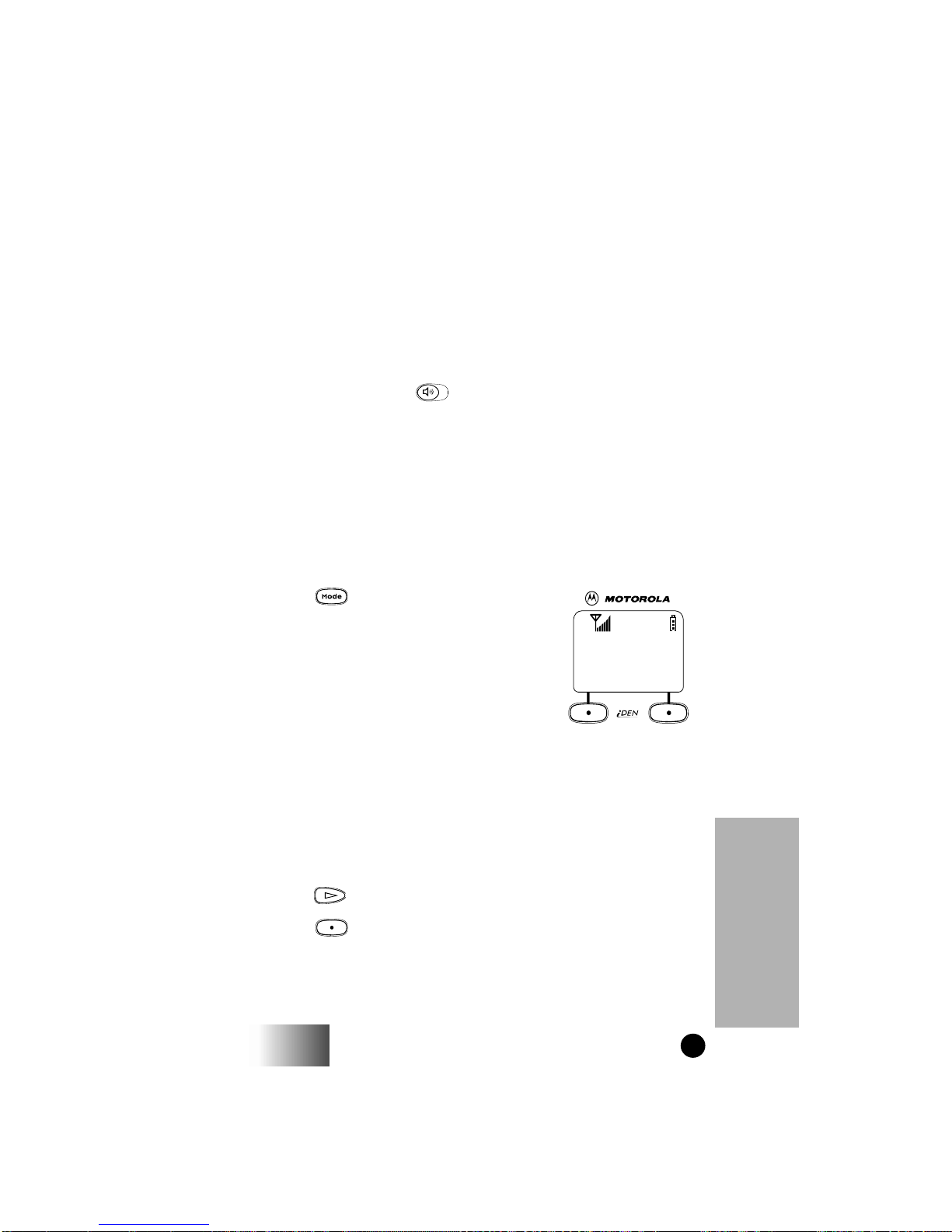
1. Press until “Group Ready”
displays. This is the Group Call mode
default display.
Your active talkgroup displays, for
example, “Sales Reps”.
2. To initiate the call to this talkgroup, press
and hold the Push to Talk (PTT) button.
W ait for the chirp sound and then speak into
the microphone.
3. Release the PTT button to listen.
CHANGING TALKGROUPS
You may change talkgroups to reach talkgroups other than the one that
is active. Your phone can store up to 30 pre-defined talkgroups.
1. From the Group Call mode, enter the talkgroup number, or
press to select the talkgroup.
2. Press under “Ok”.
3. Press the PTT button to initiate the call.
i390
Group Call
GETTING STARTED
23
Page 28
RECEIVING A GROUP CALL
No action is necessary to receive a Group Call as long as your unit is not
busy in an active Phone or Private Call.
Any communication activity within the talkgroup that you select
automatically switches your unit into Group mode. You will receive the
talkgroup transmission as long as your phone is powered on.
AREA SELECTION
When in Group mode, you can send your communication only to those
talkgroup members in a specific location. This is useful when you know
where the individuals are located within the service area.
1. Press until you see “Group Ready” on your display.
2. Press .
3. Press under “Area”.
4. Press to scroll through the targeted areas specified by
your local service provider.
5. Press under “Ok” to select the targeted area. The area selected
appears on the last line of your display.
TALKGROUP NAMING
To add a talkgroup name to your portable phone, press
.
For instructions on programming IDs and aliases, see “Private Call ID
Programming” on page 22.
Group Call
24
i390
GETTING STARTED
Page 29
VOICE MAIL
Your portable phone provides full support for Voice Mail. You can
access this function from any mode by pressing under the “Mail”
menu option.
When you receive new voice mail messages in your network-based
voice mailbox, the icon appears on your display and you hear
the Voice Mail alert tone (if Mail Notification Display is turned on).
• To turn on mail notification, press then press
under “On”.
• To turn off mail notification, press then
press under “Off”.
RETRIEVING VOICE MAIL
In addition to the Voice Mail alert tone, you also see the message, “New
Voice Mail Waiting”.
To retrieve your voice mail immediately, press under “Dial”. This
action automatically places a call to your voice mailbox.
To clear your display, press under “Exit”.
Voice Mail
VIEWING VOICE MAIL STATUS
You may view the status of messages in your voice mailbox at anytime.
1. Press under “Mail” from any mode.
2. Press under “Voice”.
The display shows the number of New messages and the Total number
of messages currently in your voice mailbox.
When you see an exclamation point (!) on the display, you have at least
one urgent message. Press under “Dial” to retrieve your urgent
voice mail messages.
i390
GETTING STARTED
25
Page 30

NOTES:
26
i390
GETTING STARTED
Page 31
NNNNeeeewwww MMMMaaaaiiiill
ll
RRRReeeeaaaadddd??
??
NNNNoooowwww LLLLaaaattttee
ee
rr
rr
1
MESSAGE MAIL
Your portable phone provides full support for Message Mail. You can
access this function from any mode by pressing under the “Mail”
menu option.
Message Mail can be either a numeric page or a text message of up to
140 characters. Your portable phone can receive and store 16 mail
messages at any time.
RECEIVING NEW MESSAGE MAIL
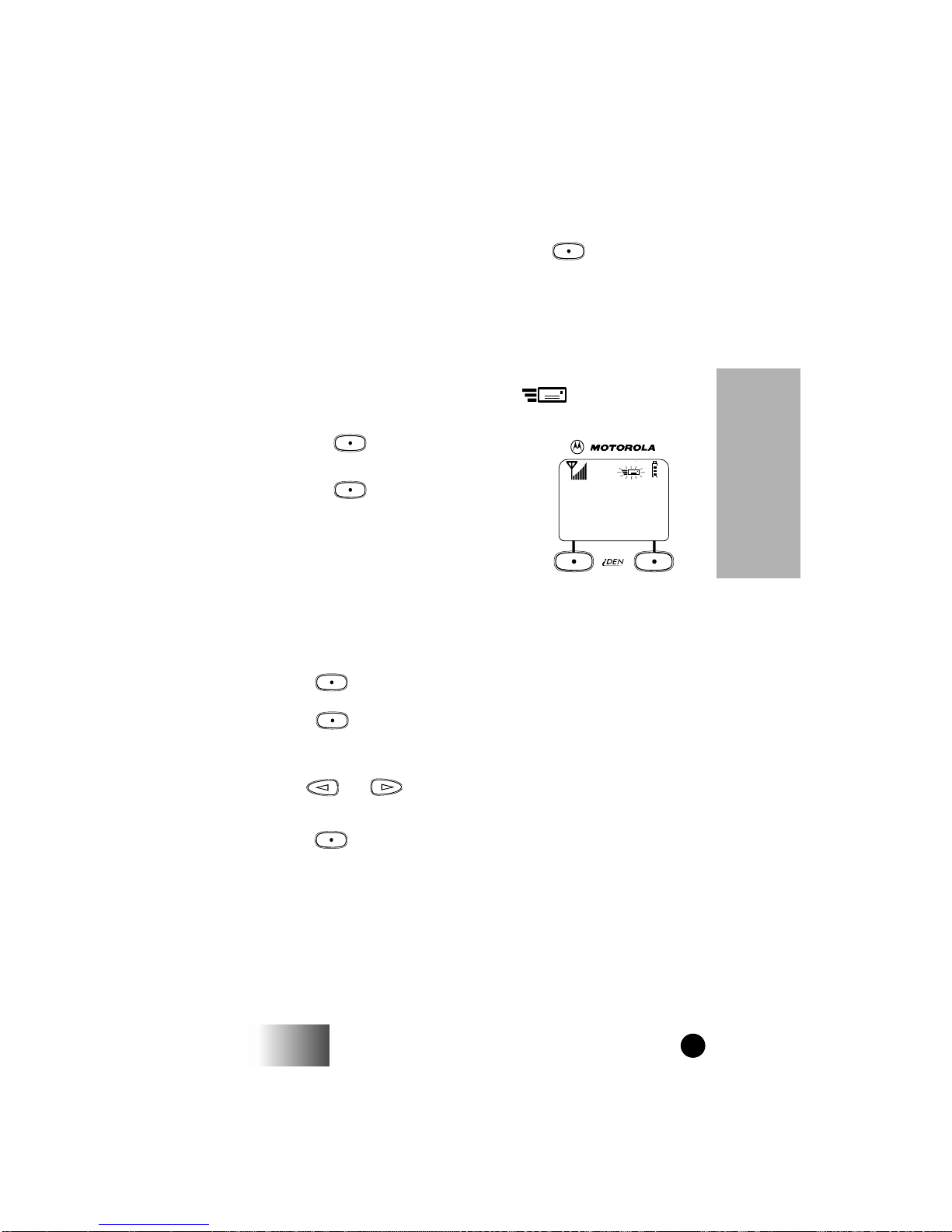
When you receive a new message, the icon appears and flashes.
You may also receive an audible alert.
• Press under “Now” to read
your new mail immediately.
• Press under “Later” to postpone
reading your mail and to clear the
display. The icon stops flashing but
remains on your display to remind you
that you have unread messages.
RETRIEVING STORED/UNREAD MAIL
™
Message Mail
You may access postponed or saved Message Mail from any mode.
1. Press under “Mail”.
2. Press under “Mesg”. A status screen, showing the
number of new and saved messages displays temporarily before the
most recent message appears.
3. Use and to scroll quickly through the first screen of any
unread or saved mail messages.
4. Press under “Read” to read the entire message.
i390
GETTING STARTED
27
Page 32

SAVING AND ERASING MAIL
After you view a text or numeric message, you can either Save or Erase
the message. Press under the desired option.
AUTO CALL BACK
You can respond to numeric pages and text messages containing a callback number. To automatically dial a number contained within a
Message Mail, press .
MESSAGE MAIL MEMORY FULL
If all 16 message registers are full, your phone displays the message
“Mail Waiting, Memory Full”. You cannot receive new Message Mail
until you erase saved or unread messages.
Message Mail
28
i390
GETTING STARTED
Page 33
PROGRAMMING MENU OPTIONS
You can customize the settings on your portable phone using the
Programming Menu.
Y ou may access the Programming Menu from an y Mode (Phone, Group,
or Private).
1. Press until you see “Prgm” on the display.
2. Press under “Prgm”.
3. Press under “Ok”.
4. Press or to scroll to the desired Programming Menu
Option or enter the number of the Option.
You can use a shortcut method to enter the Programming Menu by
pressing then entering the keypad number(s) of the
Programming Menu Option (see the following table).
Table 3: Programming Menu Options
Keypad
Number
1 Own Phone
2 Private ID Display Displays the private ID of your
3 Mail Notification
4 Manual Lock Locks your phone to prevent
5 Automatic Lock Automatically locks your phone
Menu Option Function
Displays the telephone number
Number
Display
of your portable phone.
portable phone. You must enter
this number.
Turns on and off the New Mail
message that is displayed with
incoming Voice or Message
Mail.
unauthorized use. You must
enter a pass code to unlock it.
With the manual lock on, you
can reach emergency help by
pressing and holding the key.
each time it is powered off to
prevent unauthorized use.
Programming Menu
i390
GETTING STARTED
29
Page 34
Table 3: Programming Menu Options
Keypad
Number
6 Auto Answer Turns on or off automatic
The following options require you to press tw o k eypad n umbers . For
example, to enter keypad number 10, press 1 then press 0.
10 Last Call Timer Displays the duration of the
11 Automatic Display
12 Resettable Timer Displays cumulative airtime of
13 Total Call Timer Displays cumulative airtime of
14 One Minute Beep Automatically signals each
20 Phone List
Menu Option Function
answering of incoming phone
calls after 1-4 rings.
most recent phone call.
Turns on or off automatic
Timer
Programming
display of the Last Call Timer at
the end of each phone call.
all phone calls since last reset.
all phone calls.
minute of elapsed phone
airtime with an audible beep.
Adds/Edits/Erases up to 100
frequently called phone
numbers and associated name
tags.
21 Prvt ID List
Program
Programming Menu
22 Talkgroup List
Program
23 Area ID List
Program
30 Ringer Volume Allows you to set the ringer
30
i390
Adds/Edits/Erases up to 100
Private Call Radio IDs and
associated name tags.
Adds/Edits/Erases name tag
identifiers for up to 30 preprogrammed talkgroups.
Adds/Edits/Erases name tag
identifiers for up to 50 targeted
areas.
volume using the volume
control keys, or lower the
volume to silence the ringer.
GETTING STARTED
Page 35

Table 3: Programming Menu Options
Keypad
Number
31 Set Ring Style Allows you to select a distinct
32 Mail Volume Allows you to set the volume of
33 Earpiece Volume Allows you to set the default
34 Keypad Volume Allows you to set the volume of
35 Speaker Volume Temporarily adjusts the Group/
36 Speaker V olume
Menu Option Function
ring style for incoming phone
calls.
incoming Message Mail and
Voice Mail tones using the
volume control keys, or lower
the volume to silence the mail
alert tones.
earpiece volume using the
volume control keys.
the keypad tones using the
volume control keys, or to
silence the keypad tones.
Private Speaker volume for
noisy environments.
Turns the speaker volume set
Set T one
tones on or off.
Programming Menu
38 Silent Group Silences all incoming Group
Call alerts and voice activity.
40 Change Passcode Changes your secret four-digit
passcode from the initial
setting of 0000.
70 Multi-Language
Support
i390
Provides your choice of one of
three languages for your
display text.
GETTING STARTED
31
Page 36

NOTE
Contact your service provider before performing the
shaded programming menu features below.
Option
Number
41 Feature Reset Returns all feature settings to
42 Master Clear Performs Feature Reset and
43 Master Reset Resets the phone identification
44 Change Service
50 NAM Selection Selects alternate Numeric
51 Preferred Network IDEdits the pre-programmed
Menu Option Function
their original defaults.
erase all stored lists.
number.
Changes or resets the fraud
Key
prevention service key.
Assignment Module (NAM).
See local service provider for
information.
Network ID list and select
roaming options.
Programming Menu
32
i390
GETTING STARTED
Page 37

ERROR MESSAGES
You may receive error messages under certain conditions. Before
contacting your service provider, note the message, numeric code, and
the conditions under which it appeared. The following table lists and
describes the error messages.
Table 4: Error Messages
Error Messages Message Description
Number Not in Service The number that you entered is
not valid.
User Not Available The unit of the party that you
called is either busy, out-ofrange, or turned off. Please try
again later.
Target Not Authorized The party that you called has not
purchased this service.
Please Try Later This service is temporarily not
available. Please try again later.
Target Busy in Private The unit of the party that you
called is busy in a Private Call.
Service Restricted This service has been restricted
by your service provider or it has
not been purchased.
Service Not Available This feature is not available on
the current network.
System Busy Try Later The system is experiencing
heavy traffic. Please try again
later.
Service Conflict This service cannot be enabled
because an incompatible service
has already been turned on.
Please Try Again A general error has occurred.
Note the error code and contact
your service provider.
i390
GETTING STARTED
Error Messages
33
Page 38

Table 4: Error Messages
Error Messages Message Description
Self Check Error A fault was detected with your
portable phone. Should this error
recur, note the error code and
contact your service provider.
Self Check Fail An operational fault was detected
with your portable phone. Note
the numeric code, turn your
phone off, and contact your
service provider immediately.
Error Messages
34
i390
GETTING STARTED
Page 39

SAFETY AND GENERAL
INFORMATION
IMPORTANT! Read this information before using your
phone.
RADIO OPERATION
Your radio contains a transmitter and a receiver. When it is ON, it
receives, and also transmits, radio frequency (RF) energy. The radio
operates in the frequency range of 806MHz to 866MHz, and employs
digital modulation techniques. When you use your radio, the system
handling your call controls the power level at which your radio
transmits. The power le v el may typically vary over a range from 0.01 of
a watt to 0.6 of a watt.
• Exposure to Radio Frequency Energy
In August 1996 the Federal Communications Commission (FCC) of the
United States with its action in Report and Order FCC 96-326 adopted
an updated safety standard for human exposure to radio frequency
electromagnetic energy emitted by FCC regulated transmitters. Those
guidelines are consistent with the safety standards* previously set by
both U.S. and international standards bodies. The design of your
Motorola two-way radio complies with the FCC guidelines and these
standards.
*American National Standards Institute (C95.1 - 1992)
*National Council on Radiation Protection and Measurements (NCRP-
1986)
*International Commission on Non-Ionizing Radiation Protection
(ICNRP- 1986)
To assure optimal radio performance and to ensure that exposure to RF
energy is within the guidelines in the above standards, follow the
operating procedures outlined below.
Safety and General
• Efficient Radio Operation
The following practices will enable your radio to operate at the lowest
power level, consistent with satisfactory call quality.
When placing or receiving a phone call, or using the group or private
call functions with the Group/Private Speaker OFF (muted speak er icon
visible in the display), hold the radio as you would a telephone.
i390
GETTING STARTED
35
Page 40

Speak directly into the mouthpiece and position the antenna up and over
your shoulder.
When using the radio as a traditional two-way radio
while making group or private calls with the Group/
Private Speaker ON (no speaker icon visible in the
display), hold the radio in a vertical position with the
microphone one to two inches away from the lips.
Safety and General
For body-worn operation, the antenna should be kept
at least one inch from the body when transmitting.
DO NOT hold the antenna when the radio is “IN USE”.
Holding the antenna affects call quality and may cause the radio to
operate at a higher power level than needed.
• Antenna Considerations
Use only the supplied or an approved antenna. Unauthorized antennas,
modifications, or attachments could impair call quality, damage the
radio, or result in violation of ICNRP or FCC regulations.
Do not use the radio with a damaged antenna. If
a damaged antenna comes into contact with the
!
skin, a minor burn may result.
A t t e n t i o n
• Interference to Medical and Personal
Electronic Devices
Most electronic equipment is shielded from RF energy. However, RF
energy from the radio transmitter may affect inadequately shielded
electronic equipment.
Consult the manufacturer(s) of your medical and personal electronic
device(s) (for example, a pacemaker or a hearing aid) to determine if
they are adequately shielded from external RF energy. Your physician
may be able to assist you in obtaining this information.
Turn your radio OFF in health care facilities when any regulations
posted in the area instruct you to do so. Hospitals and health care
facilities may be using equipment that is sensitive to external RF energy.
36
i390
GETTING STARTED
Page 41

• Interference to Other Electronic
Devices
RF energy may affect improperly or inadequately shielded electronic
operating and entertainment systems in motor vehicles. Check with the
manufacturer or representative to determine if these systems are
adequately shielded from external RF energy. Also check with the
manufacturer of any equipment that has been added to the vehicle.
Turn your radio OFF before boarding any aircraft to prevent possible
interference to aircraft systems. Regulations of the United States
Federal Aviation Administration prohibit use when the plane is in the air
and require that you have permission from a crew member to use your
radio while the plane is on the ground.
• Batteries
All batteries can cause property damage, injury or
burns if a conductive material such as jewelry,
keys, or beaded chains touch the exposed
!
A t t e n t i o n
terminals. The material may complete an
electrical circuit (short circuit) and become quite
hot. Exercise care in handling any charged
battery, particularly when placing it inside your
pocket, purse or other container. To protect
against a short circuit when the battery is
detached from the phone, keep the battery in the
insulated protective case provided with the
battery.
Safety and General
• Use While Driving
Check the laws and regulations on the use of telephones in the areas
where you drive. Always obey them.
When using the phone while driving, please:
• give full attention to driving and to the road;
• use hands-free operation, if available; and
!
• pull off the road and park before making or
answering a call if driving conditions so require.
A t t e n t i o n
i390
GETTING STARTED
37
Page 42

• Children
Do not allow children to play with your radio. It is
not a toy. Children could hurt themselves or
others (by poking themselves or others in the eye
Safety and General
• Blasting Areas and Explosives
• Potentially Explosive Atmospheres
!
A t t e n t i o n
!
!
MISE EN GARD
!
!
MISE EN GARD
with the antenna, for example). Children also
could damage the radio, or make calls that
increase your service bills.
DO NOT operate your radio near electric blasting
caps, or in a blasting area, to avoid the possibility
of triggering an explosion. Turn your radio OFF
when in a “blasting area” or in areas where such
requirements are posted.
Turn your radio OFF and do not replace the
battery when in any area with a potentially
explosive atmosphere. It is rare, b ut y our radio or
its accessories could generate sparks which might
trigger an explosion.
Areas with a potentially explosive atmosphere ar e
often, but not always, clearly marked. They
include areas such as below deck on boats, fuel or
chemical transfer or storage facilities, and areas
where the air contains chemicals or particles, such
as grain, dust, or metal powders.
38
Do not transport or store flammable gas, liquid, or
explosives in the compartment of your vehicle that
contains your radio or accessories.
V ehicles po wered by liquefied petr oleum gas (such
as propane or butane) must comply with the
National Fire Protection Standard (NFPA-58).
For a copy of this standard, contact the National
Fire Protection Association. One Batterymarch
Park, Quincy, MA 02269, Attn: Publications Sales
Division.
i390
GETTING STARTED
Page 43

• For Vehicles Equipped with an Air Bag
An air bag inflates with great force. DO NOT
place objects, including communication
equipment, in the area over the air bag or in the
!
!
MISE EN GARD
air bag deployment area. If the communication
equipment is improperly installed and the air bag
inflates, this could cause serious injury.
Installation of vehicle communication equipment
should be performed by a professional installer/
technician qualified in the requirements for such
installations. An air bag’s size, shape, and
deployment area can vary by vehicle make,
model, and front compartment configuration (for
example, bench seat vs. bucket seats).
Contact the vehicle manufacturer’s corporate
headquarters, if necessary, for specific air bag
information for the vehicle make, model, and
front compartment configuration inv olved in your
communication equipment installation.
Safety annd General
CLEANING INSTRUCTIONS
Clean the external surfaces with a damp cloth, using a mild solution of
dishwashing detergent and water . Some household cleaners may contain
chemicals which could seriously damage the unit. Avoid the use of any
petroleum-based solvent cleaners. Also, avoid applying liquids directly
on the portable unit.
FOR FURTHER INFORMATION
For more detailed information, see the iDEN web site at
http://www.mot.com/LMPS/iDEN
Be sure to carry the Pocket Card with you for quick reference.
i390
GETTING STARTED
39
Page 44

WARRANTY INFORMATION
Note: This Warranty applies within the fifty (50) United
States and the District of Columbia.
Limited Warranty
Motorola Communication Products
I. WHAT THIS WARRANTY COVERS AND FOR HOW
LONG:
MOTOROLA, INC. (“MOTOROLA”) warrants the MOTOROLA
manufactured iDEN Communication Products listed below (“Product”)
against defects in material and workmanship under normal use and
service for a period of time from the date of purchase as scheduled
below:
Warranty
iDEN Subscriber Digital Mobile and
Portable Units
Product Accessories One (1) Year
Rechargeable Batteries will be replaced during the applicable warranty
period if:
a. the battery capacity falls below 80% of rated capacity, or
b. the battery develops leakage.
One (1) Year
MOTOROLA, at its option, will at no charge either repair the Product
(with new or reconditioned parts), replace it (with a new or
reconditioned Product), or refund the purchase price of the Product
during the warranty period provided it is returned in accordance with the
terms of this warranty. Replaced parts or boards are warranted for the
balance of the original applicable warranty period. All replaced parts of
Product shall become the property of MOTOROLA.
This express limited warranty is extended by MOTOROLA to the
original end user purchaser only and is not assignable or transferable to
any other party. This is the complete warranty for the Product
manufactured by MOTOROLA. MOTOROLA assumes no obligations
or liability for additions or modifications to this warranty unless made in
writing and signed by an officer of MOTOROLA. Unless made in a
separate agreement between MOTOROLA and the original end user
purchaser, MOTOROLA does not warrant the installation, maintenance
or service of the Product.
MOTOROLA cannot be responsible in any way for any ancillary
equipment not furnished by MOTOROLA which is attached to or used
in connection with the Product, or for operation of the Product with any
40
i390
GETTING STARTED
Page 45

ancillary equipment, and all such equipment if expressly excluded from
this warranty. Because each system which may use the Product is
unique, MOTOROLA disclaims liability for range, coverage, or
operation of the system as a whole under this warranty.
III. GENERAL PROVISIONS:
This warranty sets forth the full extent of MOTOROLA’S
responsibilities regarding the Product, Repair, replacement or refund of
the purchase price, at MOTOROLA’S options, is the exclusive remedy .
THIS WARRANTY IS GIVEN IN LIEU OF ALL OTHER EXPRESS
WARRANTIES. IMPLIED W ARRANTIES, INLCUDING WITHOUT
LIMITATION, IMPLIED WARRANTIES OF MERCHANTABILITY
AND FITNESS FOR A PARTICULAR PURPOSE, ARE LIMITED T O
THE DURATION OF THIS LIMITED WARRANTY. IN NO EVENT
SHALL MOTOROLA BE LIABLE FOR DAMAGES IN EXCESS OF
THE PURCHASE PRICE OF THE PRODUCT, FOR ANY LOSS OF
USE, LOSS OF TIME, INCONVENIENCE, COMMERCIAL LOSS,
LOST PROFITS OR SAVINGS OR OTHER INCIDENTAL, SPECIAL
OR CONSEQUENTIAL DAMAGES ARISING OUT OF THE USE
OR INABILITY T O USE SUCH PR ODUCT, TO THE FULL EXTENT
SUCH MAY BE DISCLAIMED BY LAW.
IV. STATE LAW RIGHTS:
SOME STATES DO NOT ALLOW THE EXCLUSION OR
LIMITATION OF INCIDENTAL OR CONSEQUENTIAL
DAMAGES, OR LIMITATION ON HOW LONG AN IMPLIED
WARRANTY LASTS, SO THE ABOVE LIMITATIONS OR
EXCLUSIONS MAY NOT APPLY.
This warranty gives specific legal rights, and there may be other rights
which may vary from state to state.
V. HOW TO GET WARRANTY SERVICE:
Warranty
You must provide proof of purchase (bearing the date of purchase and
Product item serial number) in order to receive warranty service and,
also, deliver or send the Product item, transportation and insurance
prepaid, to an authorized warranty service location. Warranty service
will be provided by MOTOROLA through one of its authorized
warranty service locations. If you first contact the company which sold
you the Product (e.g., dealer or communication service provider), it can
facilitate your obtaining warranty service. You can also call
MOTOROLA at 1-800-453-0920 for warranty service location
information.
VI. WHAT THIS WARRANTY DOES NOT COVER:
a. Defects or damage resulting from use of the Product in other than
its normal and customary manner.
b. Defects or damage from misuse, accident, water, or neglect.
c. Defects or damage from improper testing, operation, maintenance,
installation, alteration, modification, or adjustment.
i390
GETTING STARTED
41
Page 46

d. Breakage or damage to antennas unless caused directly by defects
in material workmanship.
e. A Product subjected to unauthorized Product modifications, disas-
semblies or repairs (including, without limitation, the audition to
the Product of non-MOTOROLA supplied equipment) which
adversely affect performance of the Product or interfere with
MOTOROLA’S normal warranty inspection and testing of the
Product to verify any warranty claim.
f. Product which has had the serial number removed or made illegible.
g. Rechargeable batteries if:
1.Any of the seals on the battery enclosure of cells are broken or
show evidence of tampering.
2.The damage or defect is caused by charging or using the
battery in equipment or service other than the Product for which
Warranty
h. Freight costs to the repair depot.
i. A Product which, due to illegal or unauthorized alteration of the
j. Scratches or other cosmetic damage to Product surfaces that does
k. Normal and customary wear and tear.
it is specified.
software/firmware in the Product, does not function in accordance
with MOTOROLA’S published specifications or the FCC type
acceptance labeling in effect for the Product at the time the Product
was initially distributed from MOTOROLA.
not effect the operation of the Product.
42
i390
GETTING STARTED
Page 47

VI. PATENT AND SOFTWARE PROVISIONS:
MOTOROLA will defend, at its own expense, any suit brought against
the end user purchaser to the extent that it is based on a claim that the
Product or parts infringe a United States patent, and Motorola will pay
those costs and damages finally awarded against the end user purchaser
in any such suit which are attributable to any such claim, but such
defense and payments are conditioned on the following:
a. That MOTOROLA will be notified promptly in writing by such
purchaser of any notice of such claim;
b. That MOTOR OLA will ha ve sole control of the defense of such suit
and all negotiations for its settlement or compromise; and
c. Should the Product or parts become, or in MOTOROLA’S opinion
be likely to become, the subject of a claim of infringement of a
United States patent, that such purchaser will permit MOTOROLA,
at its option and expense, either to procure for such purchaser the
right to continue using the Product or parts or to replace or modify
the same so that it becomes non-infringing or to grant such pur-
chaser a credit for the Product or parts as depreciated and accept its
return. The depreciation will be an equal amount per year over the
lifetime of the Product or parts as established by MOTOROLA.
MOTOROLA will have no liability with respect to any claim of patent
infringement which is based upon the combination of the Product or
parts furnished hereunder with software, apparatus or devices not
furnished by MOTOROLA, nor will MOTOROLA have any liability for
the use of ancillary equipment or software not furnished by
MOTOROLA which is attached to or used in connection with the
Product or any parts thereof.
Laws in the United States and other countries preserve for MO TOR OLA
certain exclusive rights for copyrighted MOTOROLA software, such as
the exclusive rights to reproduce in copies and distribute copies of such
MOTOR OLA software. MO T OR OLA software may be used in only the
Product in which the software was originally embodied and such
software in such Product may not be replaced, copied, distributed,
modified in any way, or used to produce any derivative thereof. No
other use including, without limitation, alteration, modification,
reproduction, distribution, or reverse engineering of such MOTOROLA
software or exercise or rights in such MOTOROLA software is
permitted. No license is granted by implication, estoppel or otherwise
under MOTOROLA patent rights or copyrights.
Warranty
i390
GETTING STARTED
43
Page 48

Note: This Warranty applies in Singapore and the
Philippines.
Limited Warranty
Motorola Communication Products
I. WHAT THIS WARRANTY COVERS AND FOR HOW
LONG:
MOTOROLA warrants the MOTOROLA manufactured iDEN
Communication Products listed below (“Product”) against defects in
material and workmanship under normal use and service for a period of
time from the date of purchase as scheduled below:
iDEN Subscriber Digital Mobile and
Portable Units
Warranty
Product Accessories (manufactured
by or under license from MOTOROLA)
Rechargeable Batteries will be replaced during the applicable warranty
period if:
a. the battery capacity falls below 80% of rated capacity, or
b. the battery develops leakage.
MOTOROLA, at its option, will at no charge either repair the Product
(with new or reconditioned parts), replace it (with a new or
reconditioned Product), or refund the purchase price of the Product
during the warranty period provided it is returned in accordance with the
terms of this warranty. Replaced parts or boards are warranted for the
balance of the original applicable warranty period. All replaced parts of
Product shall become the property of MOTOROLA.
This express limited warranty is extended by MOTOROLA to the
original end user purchaser only and is not assignable or transferable to
any other party. This is the complete warranty for the Product
manufactured by MOTOROLA. MOTOROLA assumes no obligations
or liability for additions or modifications to this warranty unless made in
writing and signed by an officer of MOTOROLA. Unless made in a
separate agreement between MOTOROLA and the original end user
purchaser, MOTOROLA does not warrant the installation, maintenance
or service of the Product.
MOTOROLA cannot be responsible in any way for any ancillary
equipment not furnished by MOTOROLA which is attached to or used
in connection with the Product, or for operation of the Product with any
ancillary equipment, and all such equipment if expressly excluded from
One (1) Year
One (1) Year
44
i390
GETTING STARTED
Page 49

this warranty. Because each system which may use the Product is
unique, MOTOROLA disclaims liability for range, coverage, or
operation of the system as a whole under this warranty.
III. GENERAL PROVISIONS:
This warranty sets forth the full extent of MOTOROLA’S
responsibilities regarding the Product, Repair, replacement or refund of
the purchase price, at MOTOROLA’S options, is the exclusive remedy .
THIS WARRANTY IS GIVEN IN LIEU OF ALL OTHER EXPRESS
WARRANTIES. IMPLIED W ARRANTIES, INLCUDING WITHOUT
LIMITATION, IMPLIED WARRANTIES OF MERCHANTABILITY
AND FITNESS FOR A PARTICULAR PURPOSE, ARE LIMITED T O
THE DURATION OF THIS LIMITED WARRANTY TO THE FULL
EXTENT SUCH MAY BE DISCLAIMED BY LAW. IN NO EVENT
SHALL MOTOROLA BE LIABLE FOR DAMAGES IN EXCESS OF
THE PURCHASE PRICE OF THE PRODUCT, FOR ANY LOSS OF
USE, LOSS OF TIME, INCONVENIENCE, COMMERCIAL LOSS,
LOST PROFITS OR SAVINGS OR OTHER INCIDENTAL, SPECIAL
OR CONSEQUENTIAL DAMAGES ARISING OUT OF THE USE
OR INABILITY T O USE SUCH PR ODUCT, TO THE FULL EXTENT
SUCH MAY BE DISCLAIMED BY LAW.
IV. HOW TO GET WARRANTY SERVICE:
You must provide proof of purchase (bearing the date of purchase and
Product item serial number) in order to receive warranty service and,
also, deliver or send the Product item, transportation and insurance
prepaid, to an authorized warranty service location. Warranty service
will be provided by MOTOROLA through one of its authorized
warranty service locations. If you first contact the company which sold
you the Product (e.g., dealer or communication service provider), it can
facilitate your obtaining warranty service.
Warranty
i390
GETTING STARTED
45
Page 50

V. WHAT THIS WARRANTY DOES NOT COVER:
a. Defects or damage resulting from use of the Product in other than
its normal and customary manner.
b. Defects or damage from misuse, accident, water, or neglect.
c. Defects or damage from improper testing, operation, maintenance,
installation, alteration, modification, or adjustment.
d. Breakage or damage to antennas unless caused directly by defects
in material workmanship.
e. A Product subjected to unauthorized Product modifications, disas-
semblies or repairs (including, without limitation, the audition to
the Product of non-MOTOROLA supplied equipment).
f. Product which has had the serial number removed or made illegible.
g. Rechargeable batteries if:
Warranty
h. Freight costs to the repair depot.
i. A Product which, due to illegal or unauthorized alteration of the
1.Any of the seals on the battery enclosure of cells are broken or
show evidence of tampering.
2.The damage or defect is caused by charging or using the
battery in equipment or service other than the Product for which
it is specified.
software/firmware in the Product, does not function in accordance
with MOTOROLA’S published specifications or the local type
acceptance labeling in effect for the Product at the time the Product
was initially distributed from MOTOROLA.
j. Scratches or other cosmetic damage to Product surfaces that does
not effect the operation of the Product.
k. Normal and customary wear and tear.
l. Exclusion for defects or damage arising from use of the products in
connection with non-MOTOROLA equipment.
V. PATENT AND SOFTWARE PROVISIONS:
MOTOROLA will defend, at its own expense, any suit brought against
the end user purchaser to the extent that it is based on a claim that the
Product or parts infringe a patent, and Motorola will pay those costs and
damages finally awarded against the end user purchaser in any such suit
which are attributable to any such claim, but such defense and payments
are conditioned on the following:
a. That MOTOROLA will be notified promptly in writing by such
purchaser of any notice of such claim;
46
i390
GETTING STARTED
Page 51

b. That MOTOR OLA will ha ve sole control of the defense of such suit
and all negotiations for its settlement or compromise; and
c. Should the Product or parts become, or in MOTOROLA’S opinion
be likely to become, the subject of a claim of infringement of a
patent, that such purchaser will permit MOTOROLA, at its option
and expense, either to procure for such purchaser the right to con-
tinue using the Product or parts or to replace or modify the same so
that it becomes non-infringing or to grant such purchaser a credit
for the Product or parts as depreciated and accept its return. The
depreciation will be an equal amount per year over the lifetime of
the Product or parts as established by MOTOROLA.
MOTOROLA will have no liability with respect to any claim of patent
infringement which is based upon the combination of the Product or
parts furnished hereunder with software, apparatus or devices not
furnished by MOTOROLA, nor will MOTOROLA have any liability for
the use of ancillary equipment or software not furnished by
MOTOROLA which is attached to or sued in connection with the
Product or any parts thereof. In no event shall MOTOROLA be liable
for any incidental, special or consequential damages arising from any
claim of patent infringement or alleged infringement.
Laws in the United States and other countries preserve for MO TOR OLA
certain exclusive rights for copyrighted MOTOROLA software, such as
the exclusive rights to reproduce in copies and distribute copies of such
MOTOR OLA software. MO T OR OLA software may be used in only the
Product in which the software was originally embodied and such
software in such Product may not be replaced, copied, distributed,
modified in any way, or used to produce any derivative thereof. No
other use including, without limitation, alteration, modification,
reproduction, distribution, or reverse engineering of such MOTOROLA
software or exercise or rights in such MOTOROLA software is
permitted. No license is granted by implication, estoppel or otherwise
under MOTOROLA patent rights or copyrights.
Warranty
i390
GETTING STARTED
47
Page 52

OWNER’S INFORMATION
Mobile Equipment Identifier (IMEI)
_____________________________
Phone Number
_____________________________
Own Private ID
_____________________________
Date Purchased
______________
48
Dealer Telephone Number
_______________________
Customer Service Number
_______________________
RADIO ID DIRECTORY
Private ID Name
1
i390
GETTING STARTED
Page 53

Private ID Name
2
3
4
5
6
7
8
9
TALKGROUP ID DIRECTORY
Talkgroup ID Name
1
2
3
4
5
6
7
8
9
i390
GETTING STARTED
49
Page 54

PRIVATE ID DIRECTORY
Private ID Name
1
2
3
4
5
6
7
8
9
TALKGROUP ID DIRECTORY
Talkgroup ID Name
1
2
3
4
5
6
7
8
9
50
i390
GETTING STARTED
 Loading...