

Page 1
Getting started guide
MOTO
TM
ZN300
Page 2
68005004001.fm Page 2 Friday, April 17, 2009 10:53 AM
Page 3
3
congratulations
The Motorola ZN300 does it all. Use the music player to
listen to the newest, hottest tracks, and with a stereo
wired headset or high quality Bluetooth® stereo headset,
listening has never been easier. Or, take photos and video
clips and share them with your friends, in a multimedia
message or by uploading them to a social networking
website. All this while you’re still connected — take or
make voice calls or exchange messages.
We’ve crammed all of the main features of your phone
into this handy guide, and in a matter of minutes we’ll
show you just how easy your phone is to use. So go on,
avoid those “I’m not sure how to send a photo”
moments and take a look.
Caution:
Before using your phone for the first time,
please read the important
legal and safety
information at the back of this guide (page 66).
68005004001.fm Page 3 Friday, April 17, 2009 10:53 AM
Page 4
4
this guide
symbols in this guide
This means a feature is network, SIM card or
subscription dependent and may not be
available in all areas. Contact your service
provider for more information.
This means a feature requires an optional
accessory.
68005004001.fm Page 4 Friday, April 17, 2009 10:53 AM
Page 5
5
contents
your phone . . . . . . . . . . . . . . . . . . . . . . . . . . . . . . . . . 7
main menu . . . . . . . . . . . . . . . . . . . . . . . . . . . . . . . . . 8
let’s go . . . . . . . . . . . . . . . . . . . . . . . . . . . . . . . . . . . . . 9
basics. . . . . . . . . . . . . . . . . . . . . . . . . . . . . . . . . . . . . . 10
home screen . . . . . . . . . . . . . . . . . . . . . . . . . . . . . . . 13
calls . . . . . . . . . . . . . . . . . . . . . . . . . . . . . . . . . . . . . . 14
phonebook . . . . . . . . . . . . . . . . . . . . . . . . . . . . . . . . 23
messages . . . . . . . . . . . . . . . . . . . . . . . . . . . . . . . . . 25
text entry. . . . . . . . . . . . . . . . . . . . . . . . . . . . . . . . . . 28
tips & tricks . . . . . . . . . . . . . . . . . . . . . . . . . . . . . . . . 30
personalise . . . . . . . . . . . . . . . . . . . . . . . . . . . . . . . . 31
photos . . . . . . . . . . . . . . . . . . . . . . . . . . . . . . . . . . . . 35
videos . . . . . . . . . . . . . . . . . . . . . . . . . . . . . . . . . . . . 38
WebShare . . . . . . . . . . . . . . . . . . . . . . . . . . . . . . . . . 42
music . . . . . . . . . . . . . . . . . . . . . . . . . . . . . . . . . . . . . 44
FM radio . . . . . . . . . . . . . . . . . . . . . . . . . . . . . . . . . . 48
Web . . . . . . . . . . . . . . . . . . . . . . . . . . . . . . . . . . . . . . 49
Bluetooth® wireless. . . . . . . . . . . . . . . . . . . . . . . . . 50
cable connections. . . . . . . . . . . . . . . . . . . . . . . . . . . 55
memory card. . . . . . . . . . . . . . . . . . . . . . . . . . . . . . . 58
synchronise . . . . . . . . . . . . . . . . . . . . . . . . . . . . . . . . 60
68005004001.fm Page 5 Friday, April 17, 2009 10:53 AM
Page 6
6
tools. . . . . . . . . . . . . . . . . . . . . . . . . . . . . . . . . . . . . . 61
security . . . . . . . . . . . . . . . . . . . . . . . . . . . . . . . . . . . 64
68005004001.fm Page 6 Friday, April 17, 2009 10:53 AM
Page 7
your phone
7
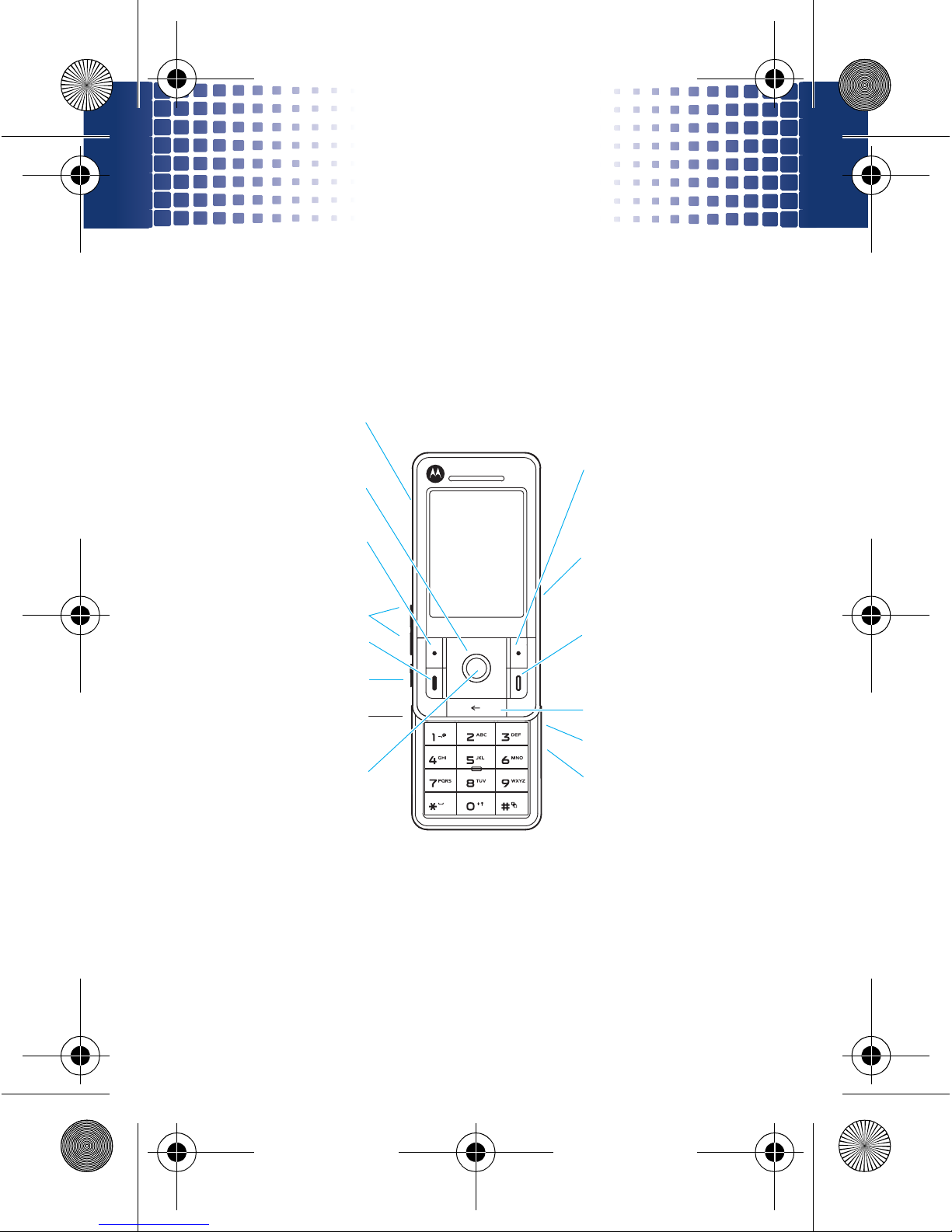
your phone
the important keys & connectors
Camera Switch Key
Turn on/off, hang
up, exit menus.
Right Soft Key
Clear/Back Key
Open the menu
and select.
Navigate menus.
Left Soft Key
Volume Keys
Smart Key
Make & answer calls.
Charge up or
connect.
Plug in
headphones.
Insert microSD.
Camera Key
68005004001.fm Page 7 Friday, April 17, 2009 10:53 AM
Page 8
main menu
8
main me nu
Q
Games & Apps
e
Messages
• Create Message
•Voicemail
• Message Inbox
•Email
• Browser Msgs
• Info Services *
• Outbox
•Drafts
• Templates
•Create Voice Msg
t
Ring Styles
q
Recent Calls
j
Multimedia
• Media Finder
•Themes
• Voice Record
•Radio
•Video Mixing
* optional features
This is the standard main menu layout.
Your phone’s menu may be
different.
1
Web Access *
•Browser
• Bookmarks
•History
•Go To Page
•Browser Setup
•Web Sessions*
• Stored Pages
u
Settings
• Personalize
• Tools
•Call Divert
• In-Call Setup
•Initial Setup
• Software Update
• Phone Status
• Headset
•Car Settings
• Airplane Mode
•Network
•Security
• Java Settings
L
Phonebook
K
Connection
• Bluetooth Link
• USB Settings
•MOTOSYNC
68005004001.fm Page 8 Friday, April 17, 2009 10:53 AM
Page 9
let’s go
9
let’s go
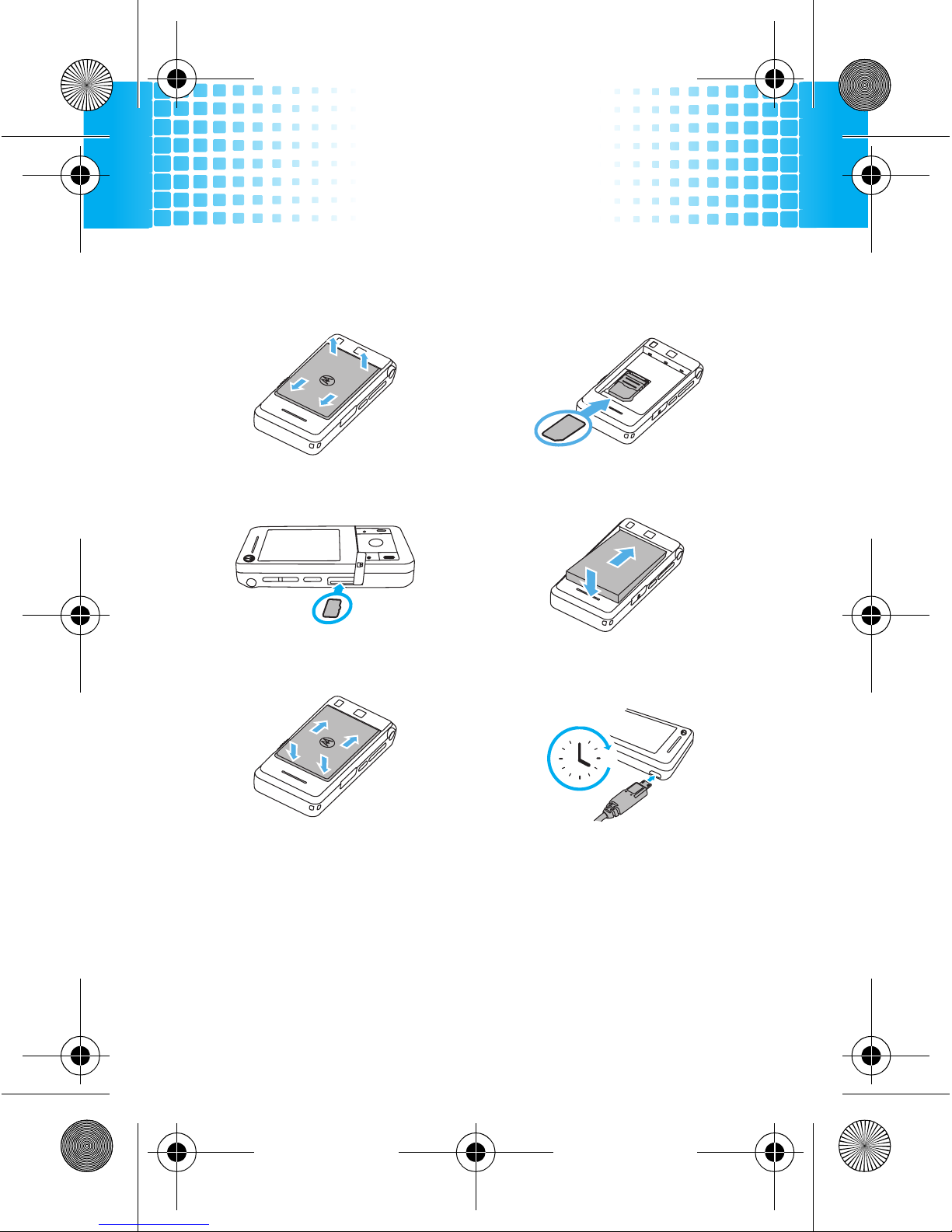
let’s get you up & running
Caution:
See page 66 for battery use & safety
information.
1
cover off:
2
SIM:
3
memory card:
4
battery:
5
cover on:
6
charge:
4H
68005004001.fm Page 9 Friday, April 17, 2009 10:53 AM
Page 10
basics
10
basics
here are some basics to get you started
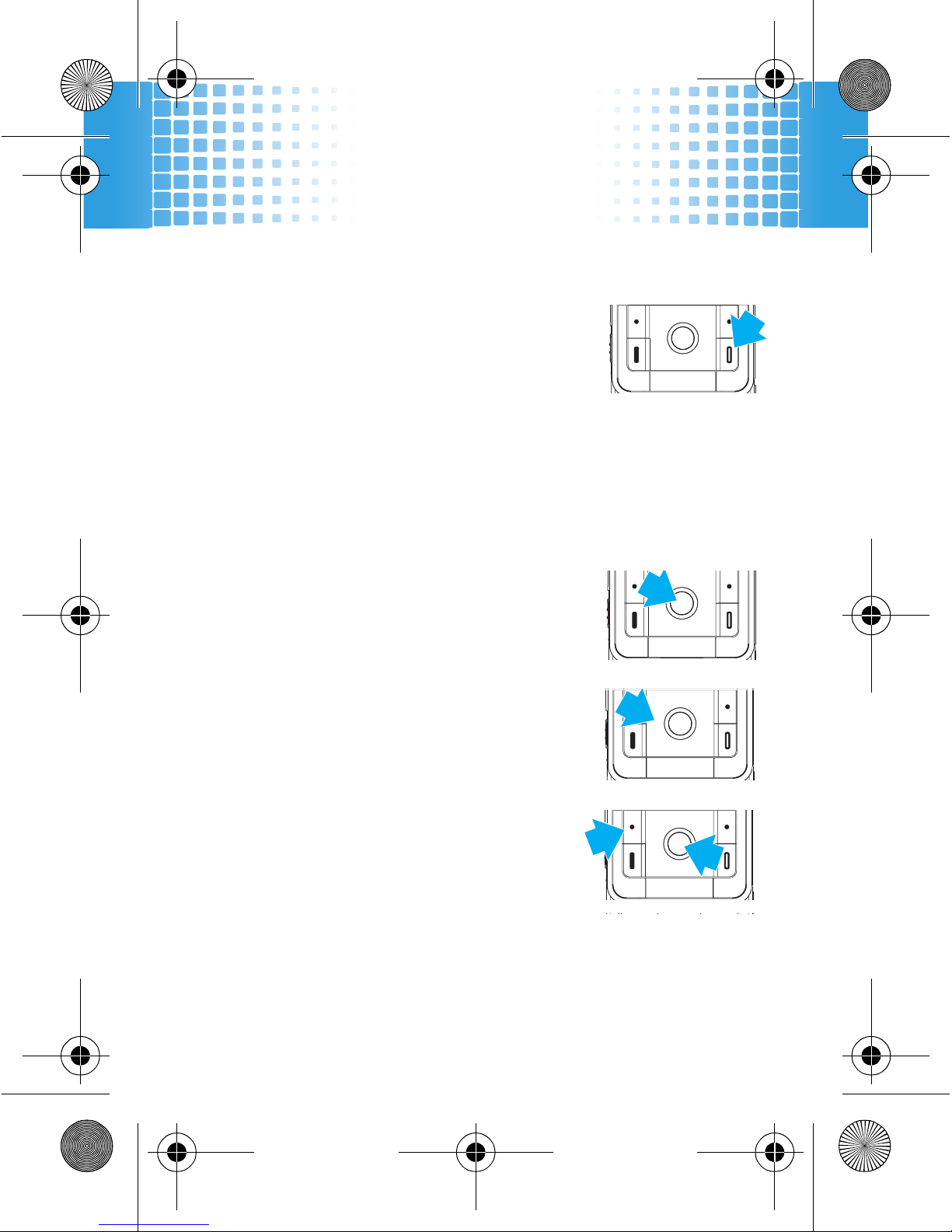
turn it on & off
Press and holdIfor a few seconds or
until the display lights up.
Caution:
If your phone asks for your SIM card PIN code
and/or unlock code, see page 64.
menu navigation
Press the centre key
s
to open the
Main Menu.
Press the navigation key
S
up,
down, right or left to highlight a
menu option.
Press
s
or
Select
(left soft key) to
select the highlighted option.
68005004001.fm Page 10 Friday, April 17, 2009 10:53 AM
Page 11
basics
11
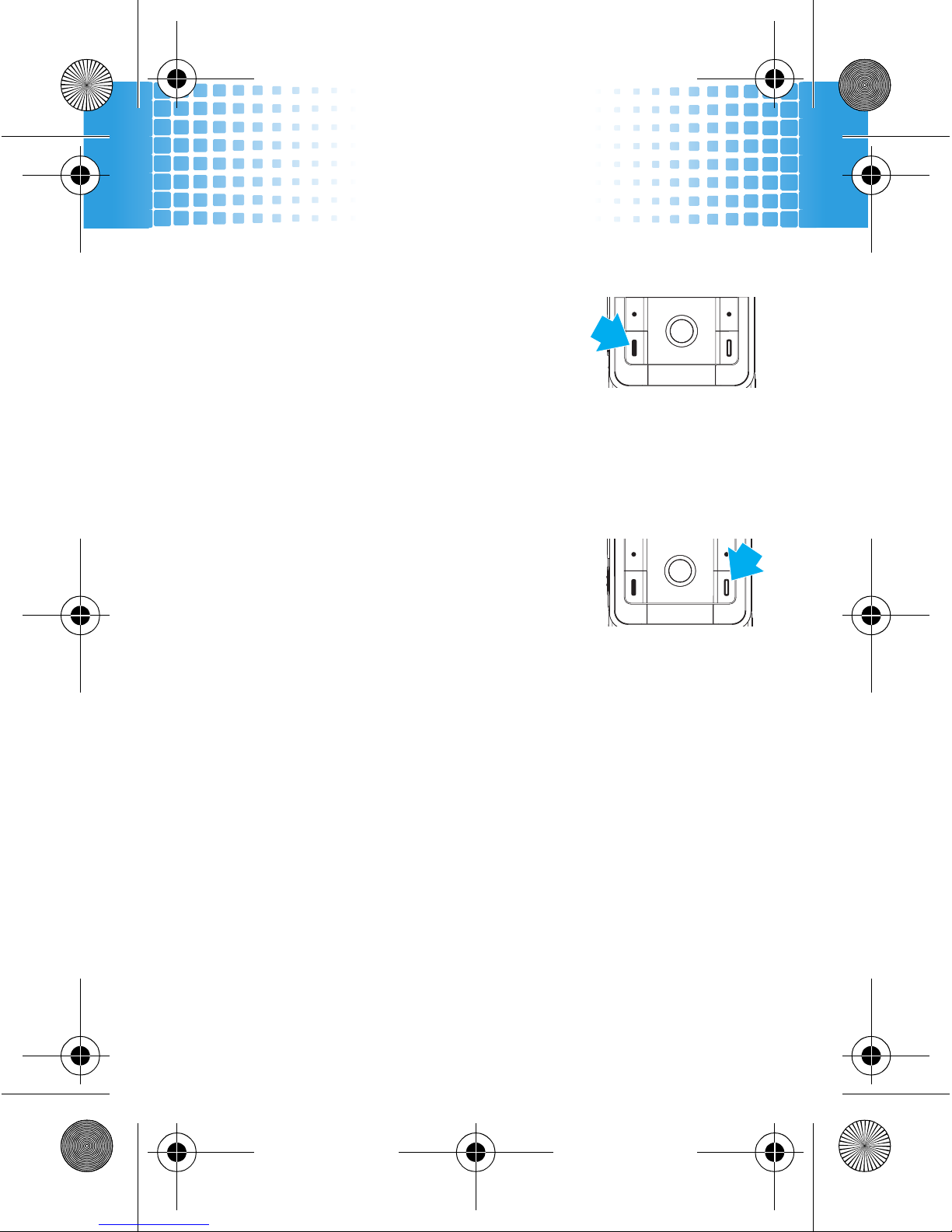
make & answer calls
To m a k e a c a l l
, enter a phone
number and press
J
.
To answer a call
when your phone
rings and/or vibrates, press
J
.
To ch o o se
Hold, Mute, Transfer
or other options during a call,
press
Options
(see page 15).
end calls
PressI.
store contacts
1
Enter a phone number in the home screen.
2
Press
Store
.
3
Enter the contact details and press
Done
.
To manage your
Phonebook
, see page 23.
call or text contacts
1
Press
s
>
L Phonebook
.
68005004001.fm Page 11 Friday, April 17, 2009 10:53 AM
Page 12
basics
12
2
Highlight a contact.
Tip:
To jump to a contact, enter the first few letters
of the name.
3
To
call
, pressJ.
To
send
a text message, press
Options >Send Message
.
To speed dial contacts, see page 17.
Note:
You can call and text contacts stored in your
phone’s memory or on your SIM card (see page 23).
transfer your contacts
To transfer your contacts from your old phone to your
new phone, simply save all your contacts to your SIM
card on your old phone. When you put the SIM card into
your new phone, the contacts appear in your contacts
list.
Note:
SIM contacts only let you store basic information,
such as name and number. Other details may be lost,
and multiple numbers may be stored as multiple
contacts.
68005004001.fm Page 12 Friday, April 17, 2009 10:53 AM
Page 13
home screen
13
home screen
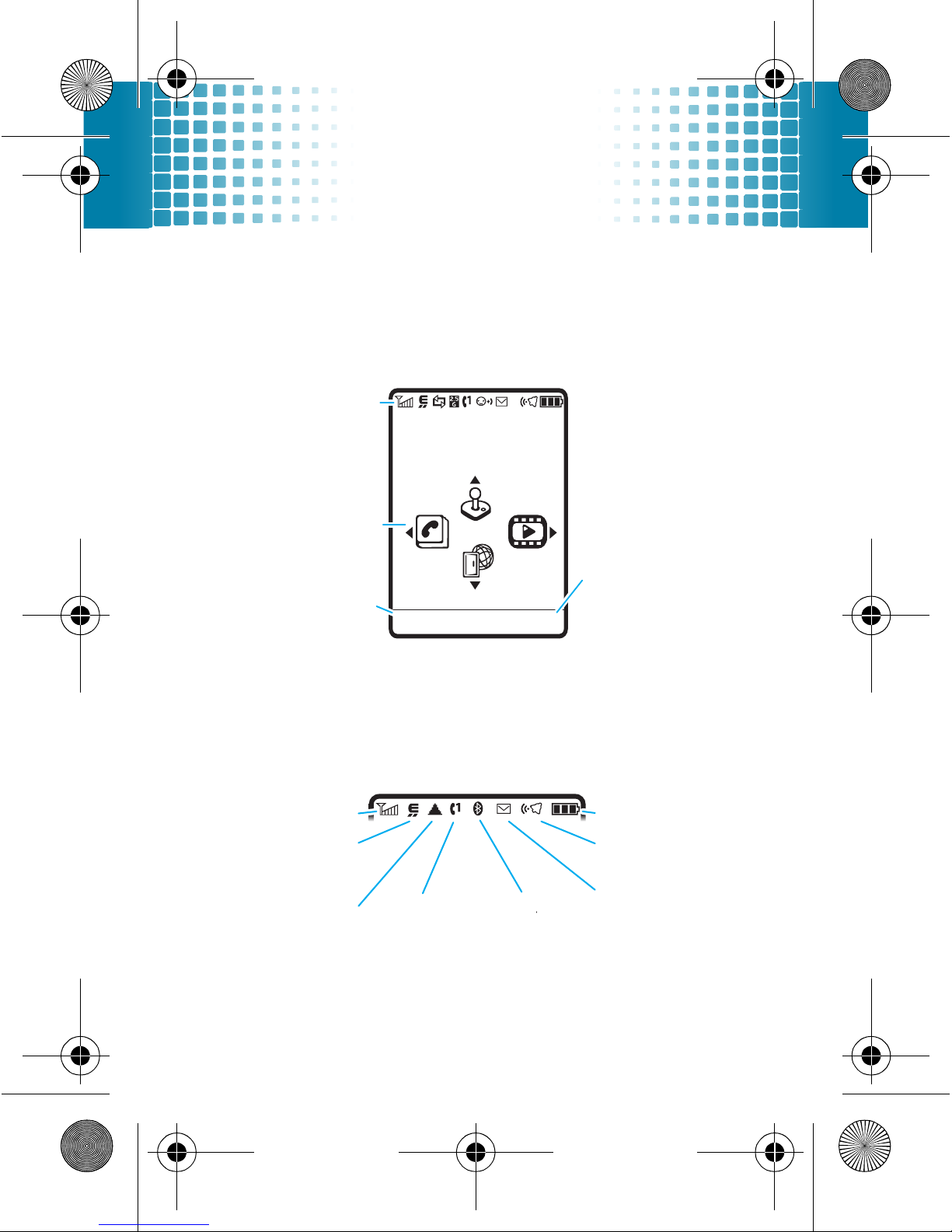
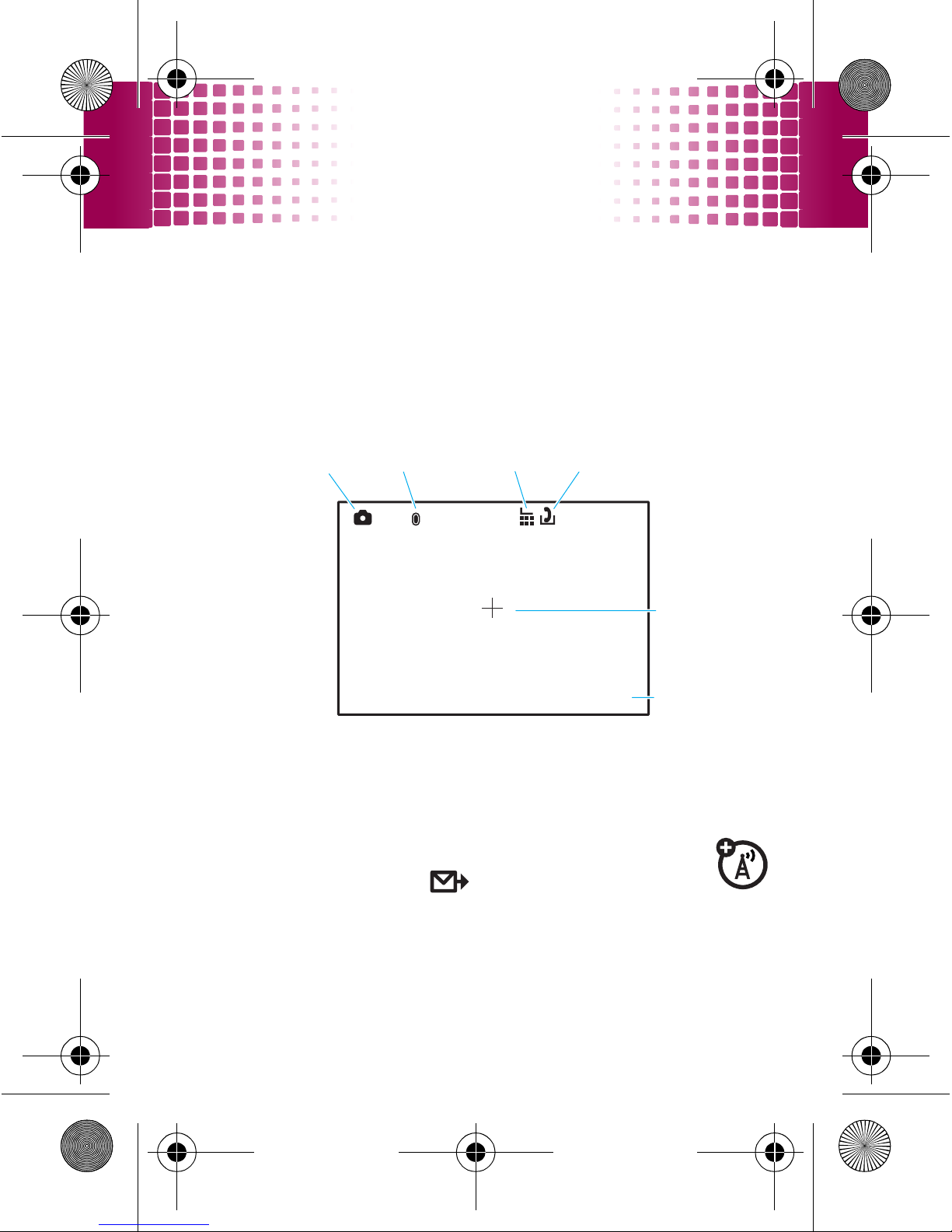
you can always go home
The
home screen
appears when you turn on the phone,
or any time you press
I
. It looks similar to this:
To customise your homescreen, see page 33.
Status indicators
appear at the top of the home screen:
Service Provider
12/31/09
12:00
Options Main Menu
Status
Indicators
The right soft
key opens the
main menu.
The left soft key
opens quick
options.
Press
S
up,
down, left or
right to open
shortcuts.
Active Line
Message
Bluetooth
Ring Style
Battery Level
Roam
EDGE/GPRS
Signal Strength
68005004001.fm Page 13 Friday, April 17, 2009 10:53 AM
Page 14
calls
14
calls
it’s good to talk
For the basics, see page 11.
recent calls & redial
1
From the home screen, pressJ to see a list of
recent calls.
To s ho w
Dialed Calls, Received Calls
or
Missed Calls
,
press
*
or
#
.
2
Highlight a call, and pressJto call it. Press
s
to
view call details.
caller ID
Caller ID shows the caller’s name when they’re
stored in your phonebook, or
Incoming Call
when
caller ID information isn’t available.
Tip:
To play a special ring for a contact, see page 23.
To show or hide your phone number from the next
person you call, enter their phone number,
press
Options>Hide ID/Show ID
, then press J to call.
68005004001.fm Page 14 Friday, April 17, 2009 10:53 AM
Page 15
calls
15
To show or hide your phone number for
all
calls you
make, press
s
>
u Settings
>
In-Call Setup >My Caller ID
>
All Calls
.
go handsfree
Make calls without holding the phone to your ear.
features
use the speakerphone
Press
Options>Spkrphone On
during a call to turn the
handsfree speaker on. Press
Speaker Off
to turn the
handsfree speaker off.
The handsfree speaker won’t work when your phone is
connected to a Bluetooth headset or car kit.
Note:
Go wireless and use a mono or stereo Bluetooth
headset. See page 50 for more on Bluetooth.
68005004001.fm Page 15 Friday, April 17, 2009 10:53 AM
Page 16
calls
16
Note:
The use of wireless phones while driving may
cause distraction. Discontinue a call if you can’t
concentrate on driving. Additionally, the use of wireless
devices and their accessories may be prohibited or
restricted in certain areas. Always obey the laws and
regulations on the use of these products.
set auto answer
Set how quickly calls are automatically
answered:
s
>
u Settings
>
Car Settings >Auto Answer
set auto handsfree
Set how quickly calls are automatically
answered during handsfree operation:
s
>
u Settings
>
Car Settings >Auto Handsfree
features
68005004001.fm Page 16 Friday, April 17, 2009 10:53 AM
Page 17
calls
17
speed dial
To use speed dial entries, press and hold the single-digit
speed dial number. Your phone will dial the number.
To assign a speed dial, press
s
>
L Phonebook
, highlight
the contact, then press
Options>AddtoSpeedDial
and pick a
speed dial key.
To edit your speed dial list, press
s
>
L Phonebook
, then
press
Options>Setup>Speed Dial List
.
in-call options
features
put a call on hold
Press
Options>Hold
mute a call
Press
Options>Mute
68005004001.fm Page 17 Friday, April 17, 2009 10:53 AM
Page 18
calls
18
answer a second call
PressJ. Then:
•
To switch between calls, press
Options >Switch
.
•
To connect the two calls, press
Link
.
•
To end the call on hold, press
Options>EndCallOnHold
.
Note:
To turn the call waiting feature on or off,
press
s
>
u Settings
>
In-Call Setup >Call Waiting
>
On
or
Off
.
start a conference call
Dial the next number and press J. When the
next number answers, press
Link
to create the
conference call.
Tip:
To put the first caller on hold, press
Options >New Call
before you dial the next number.
features
68005004001.fm Page 18 Friday, April 17, 2009 10:53 AM
Page 19
calls
19
more calls features
transfer a call
Press
Options >Transfer
, dial the transfer number
then press
J
.
Note:
If the transfer fails, your phone might put the
first call on hold and try to call the transfer number. If
that call connects, you can press
Link
to connect
everyone in a conference call.
features
make international calls
Press and hold
0
to insert the international
access code (shown as
+
). Then dial the country code
and phone number.
features
68005004001.fm Page 19 Friday, April 17, 2009 10:53 AM
Page 20
calls
20
forward calls
Forward calls to another number:
s
>
u Settings
>
Call Forward
silence ringtone
When your phone rings, press the side volume keys to
silence your ringtone.
network settings
View network information and adjust network
settings:
s
>
u Settings
>
Network
restrict calls
Restrict outgoing or incoming calls:
s
>
u Settings
>
Security >Call Barring
Select which incoming and outgoing calls to block.
features
68005004001.fm Page 20 Friday, April 17, 2009 10:53 AM
Page 21
calls
21
call times & costs
These features give you a rough idea of how much call
time you’ve used and the cost. Note that these figures
may not match what your service provider charges you,
as they’re not measured in the same way.
any key answer
s
>
u Settings
>
In-Call Setup >Answer Options >Multi-Key
see your phone number
From the home screen, press
v
then
#
to see
your number.
Tip:
Want to see your phone number while you’re on a
call? Press
Options>My Tel. Number
.
features
view call timers
s
>
q Recent Calls
, then press
Options >Call Times
features
68005004001.fm Page 21 Friday, April 17, 2009 10:53 AM
Page 22
calls
22
emergency calls
1
Press keypad keys to dial the emergency number.
2
Press
è
to call the emergency number.
Your service provider programmes one or more
emergency phone numbers, such as 999 or 112, that you
can call under any circumstances, even when your phone
is locked or the SIM card is not inserted.
Note:
Check with your service provider, as emergency
numbers vary by country. Your phone may not work in all
locations and sometimes an emergency call cannot be
placed due to network, environmental or interference
issues. Do not rely solely on your wireless phone for
essential communications, such as medical
emergencies.
show call time during a call
s
>
u Settings
>
In-Call Setup >In-Call Timer
show call cost
s>q Recent Calls
, then press
Options >Call Cost
features
68005004001.fm Page 22 Friday, April 17, 2009 10:53 AM
Page 23
phonebook
23
phonebook
your contacts come with options
To store, call and text contacts, see page 11.
edit or delete contacts
Find it:
s
>
L Phonebook
Scroll to the contact or press keypad keys to enter the
first letters of a contact you want. You can also press
*
and
#
to see the entries in your categories (see
page 24) or recently dialled entries.
To delete the contact
, press
Options >Delete Contact
.
To edit the contact
, press
Options >Edit Contact
.
Tip:
When you edit a contact, you can give it a special
Ringer ID
and
Picture
.
copy contacts
Find it:
s
>
L Phonebook
You can use contacts stored in your phone’s memory or
on your SIM card (contacts on the SIM card have fewer
details). To choose which you use, press
Options>View
>
Phone & SIM Card, SIM Card
or
Phone Contacts
.
68005004001.fm Page 23 Friday, April 17, 2009 10:53 AM
Page 24
phonebook
24
To copy contacts
to the phone or SIM card, highlight the
contact and press
Options>Copy to SIM Card
or
Copy to Phone
.
send contacts
Find it:
s
>
L Phonebook
To s e n d
(share) a contact, highlight it and press
Options>Share>Contact
.
To p r i n t
a contact using a Bluetooth printer, select
the contact and press
Options>Print
.
Note:
For more about Bluetooth connections, see
page 50.
more phonebook features
To s o r t
your phonebook, press
s
>
L Phonebook
, then
Options>Setup>Sort by>First Name
or
Last Name
To filter
categories, press
s
>
L Phonebook
>
Options>Filter by>Category
.
68005004001.fm Page 24 Friday, April 17, 2009 10:53 AM
Page 25
messages
25
messages
sometimes it’s better to say it in a message
You can send and receive text messages (SMS),
multimedia messages (MMS) and email messages.
send messages
Find it:
s
>
e Messages
>
Create Message
>
New Message
or
New Email
1
Press keypad keys to enter text (see page 28).
To insert a
picture or voice note
on the page, press
Options>Insert
.
2
When you finish the message, press
Send To
.
3
Scroll to a recipient and press
s
or press
Options
>
Enter Number
or
Enter Email
.
4
Before you send a message, you can press
Options
to
choose
Save to Drafts, Cancel Message
, or open
Sending Options
(such as message
Subject
or CC addresses).
5
To send the message, press
Send
.
To use message templates
with preloaded animations,
press
s
>
e Messages
>
Templates >Text Templates
or
Multimedia Templates
.
68005004001.fm Page 25 Friday, April 17, 2009 10:53 AM
Page 26
messages
26
To send voice messages
, press
s
>
e Messages
>
Create Voice Message
. Your phone starts recording the voice
message. To stop recording, press
Stop
. Your phone
inserts the voice recording into a message and lets you
enter the email addresses or phone numbers of the
recipients.
receive messages
When you receive a message, your phone plays
an alert and shows a new message indicator
e
. Press
Read
to open the message.
To see all of your messages:
Find it:
s
>
e Messages
>
Message Inbox
or
Email
To open a message
, press
s
. To
Reply, Forward, Lock
or
Delete
a message, open it and press
Options
.
To open a browser message
, press
s
>
e Messages
>
Browser Msgs
.
To choose where to store messages
,
press
s
>
e Messages
, then
Options>Setup >Message Setup
>
Text Message Setup >Default Storage >Phone
or
SIM Card
.
68005004001.fm Page 26 Friday, April 17, 2009 10:53 AM
Page 27
messages
27
To reorder your messages
, press
s
>
e Messages
,
then
Options>Reorder List
.
set up email
Find it:
s
>
e Messages
>
Email
Enter the information for your account, then let the
phone try to log in. If you have problems or need your
account information, contact your email provider.
Note:
To create a new account, select
[New Entry]
in the
Account Settings
list. To see each email account, press
s
>
e Messages
>
Email Msgs
.
68005004001.fm Page 27 Friday, April 17, 2009 10:53 AM
Page 28
text entry
28
text entry
how fast can u text?
To change modes when you are entering text, press
#
:
entry modes
Û
or
Ú
iTAP™
(predictive text) predicts the word you
want, with just one keypress per letter. For
example, to enter
home
, press
4663
.
If the prediction is not correct, press
S
up or
down to show other options.
Ô
or
Õ
Ta p
lets you press a key one or more times to
cycle through the letters and numbers of that
key. When you see the character you want,
just press another key or wait a second or
two to move on. For example, to enter
h
,
press
4
two times quickly.
à Numeric
mode enters numbers only.
Shortcut:
Press and hold a number key to
temporarily switch to numeric mode.
68005004001.fm Page 28 Friday, April 17, 2009 10:53 AM
Page 29
text entry
29
To s e t
your primary and secondary text entry modes,
press
Options>Text Setup
in a text entry view and select
Primary Text
or
Secondary Text
.
To change capitalisation
, press
0
. Choose from
capital letters (
á
), no capitals (
Á
) or next letter
capital (
Â
).
To accept
a word completion, press
S
right.
To enter a space
, press
*
.
To delete a character
, press
v
(to delete a whole
word, press and hold
v
).
Ä Symbol
mode enters symbols only.
Shortcut:
To quickly enter punctuation or
symbols while in Numeric, Tap or iTAP™
mode, press
1
.
entry modes
68005004001.fm Page 29 Friday, April 17, 2009 10:53 AM
Page 30
tips & tricks
30
tips & tricks
make your phone even faster
To... Do this...
lock/unlock
phone
Press
s
>
uSettings
>
Security>Phone
Lock
.
change ring
style
From the home screen, press
Options>Change Ring Style
.
call your
voicemail
From the home screen, press and hold
1
.
return to the
home
screen
PressI.
update
phone
software
Press
s
>
u Settings
>
Software Update >Check for Updates
Note:
These software updates are
safe for your phone, and do not affect
your contacts or other personal
entries.
68005004001.fm Page 30 Friday, April 17, 2009 10:53 AM
Page 31
personalise
31
personalise
add your personal touch
ring style
For incoming calls and other events, use
Ring Styles
to set
the style (such as
Loud
or
Soft
) and the style detail (such as
Ring Volume
or
Messages
) volume settings.
choose styles
Find it:
s
>
t Ring Styles
>
Style:
style name
Shortcut:
To change your ring style profile from the
home screen
, just press the volume keys up or down.
edit ring styles
After you choose a ring style, you can change the alerts,
reminders and volume.
Find it:
s
>
t Ring Styles
>
style
Detail
themes
A
theme
is a group of settings (such as wallpaper,
screen saver, display skin and ringtone) that you
can apply at the same time.
68005004001.fm Page 31 Friday, April 17, 2009 10:53 AM
Page 32
personalise
32
To
apply
a theme, press
s
>
j Multimedia
>
Themes
>
theme
.
To
delete themes that you've downloaded
, press
s
>
j Multimedia
>
Themes
, scroll to the theme and
press
Options>Delete
.
display settings
features
choose wallpaper
s
>
u Settings
>
Personalize >Wallpaper
.
choose a skin
s
>
uSettings
>
Personalize >Skin
.
set display brightness
s
>
u Settings
>
Initial Setup >Brightness
.
save battery life
Your keypad
backlight
and
display
turn off when
you’re not pressing any keys. To set the delay time,
press
s
>
u Settings
>
Initial Setup >Backlight
.
68005004001.fm Page 32 Friday, April 17, 2009 10:53 AM
Page 33
personalise
33
home screen shortcuts
You can set the features that open when you
press the navigation key, soft keys or smart key in
your home screen (for key locations, see page 7).
Find it:
s
>
u Settings
>
Personalize >Home Screen >Home Keys
main menu appearance
To show your main menu as
icons or a list
,
press
s
>
u Settings
>
Personalize >Main Menu >View >Icons
or
List
.
To change your main menu
order
, press
s
>
u Settings
>
Personalize >Main Menu >Reorder
.
time & date
Your phone can use the network to automatically update
your time zone, time and date.
Find it:
s
>
u Settings
>
Initial Setup >Time and Date
>
Autoupdate >Time & Time Zone
68005004001.fm Page 33 Friday, April 17, 2009 10:53 AM
Page 34
personalise
34
To
manually
set the time zone, time and date, turn off
Autoupdate
, then press
s
>
u Settings
>
Initial Setup
>
Time and Date >Time Zone,time
or
date
.
To choose an
analogue or digital
clock for your home
screen, press
s
>
u Settings
>
Personalize >Home Screen
>
Clock
.
language
Set menu language:
Find it:
s
>
u Settings
>
Initial Setup >Language
68005004001.fm Page 34 Friday, April 17, 2009 10:53 AM
Page 35
photos
35
photos
see it...take it...send it!
take & send photos
Find it:
Slide the camera switch key to
j
.
To
take the photo
, press the camera key. The photo is
automatically saved. Then:
•
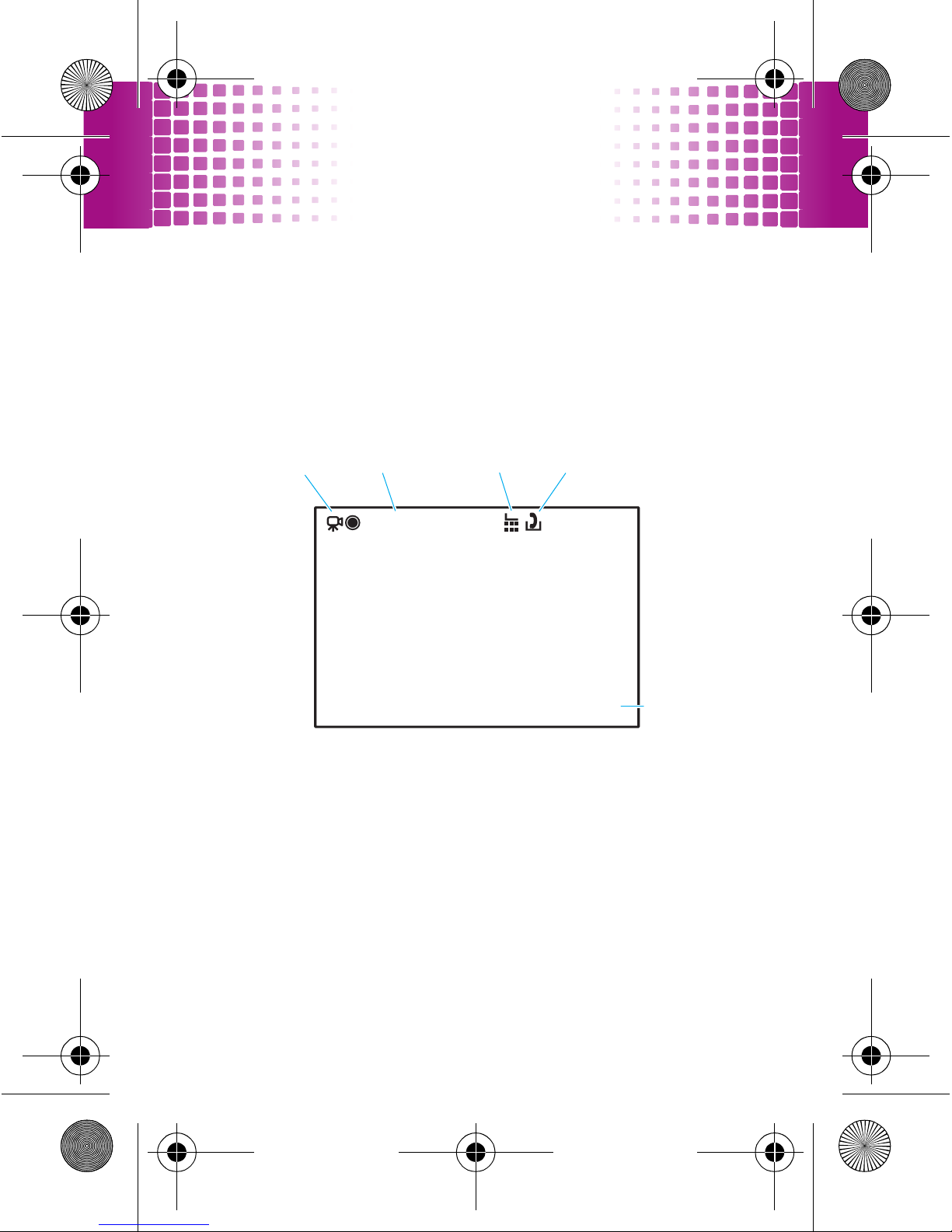
To
send
the photo in a message or post it
to a blog, press .
Tip:
To post your new photo to a blog site, see
page 42.
Options
Back
Zoom : 1x
Press the camera
key to take the
photo.
Camera Mode
(photo or video)
Remaining
Photos
Storage (phone
or memory card)
Resolution
Focus Point
Press S up or
down to view
camera settings.
Press left or right
to change.
Focus PointFocus PointFocus Point
Open camera
menu
68005004001.fm Page 35 Friday, April 17, 2009 10:53 AM
Page 36
photos
36
•
To
view
the photo in full screen mode, slide the
camera switch key to .
•
To
discard
the photo and return to the
viewfinder, press
/
.
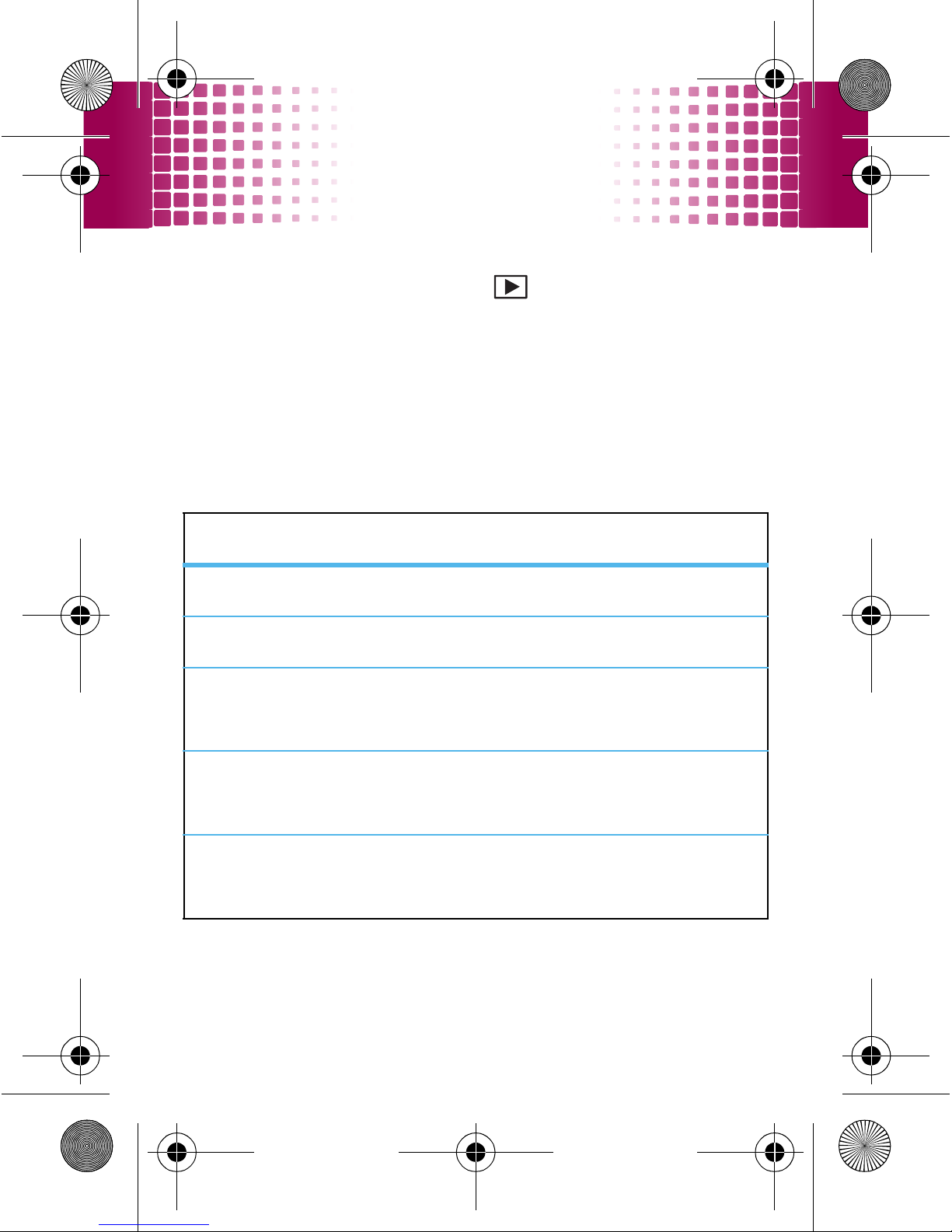
photo options
In the viewfinder, press
Options
to open the camera menu:
options
Light On
Turn on the camera light.
Auto-Timed Capture
Set a 5 or 10-second timer.
Camera Setup
Change the
Resolution, Quality, Shutter Tone
or
Review Time
settings.
Switch Storage
Device
Switch between phone memory and
microSD card storage.
Free Space
View how much free space you have
left to take photos.
68005004001.fm Page 36 Friday, April 17, 2009 10:53 AM
Page 37
photos
37
do more with your photos
Find it:
s
>
j Multimedia
>
Media
Finder
>
Pictures>picture name
To add the photo to an
album
, send via
Bluetooth
, apply as your
wallpaper
and more,
open it and press
Options
.
68005004001.fm Page 37 Friday, April 17, 2009 10:53 AM
Page 38
videos
38
videos
capture moments you want to remember
record & send videos
Find it:
Slide the camera switch key to
c
.
Tip:
To send your video in a message, set the video
length to
MMS
: Press
Options>Video Camera Setup >Video Length
>
MMS
.
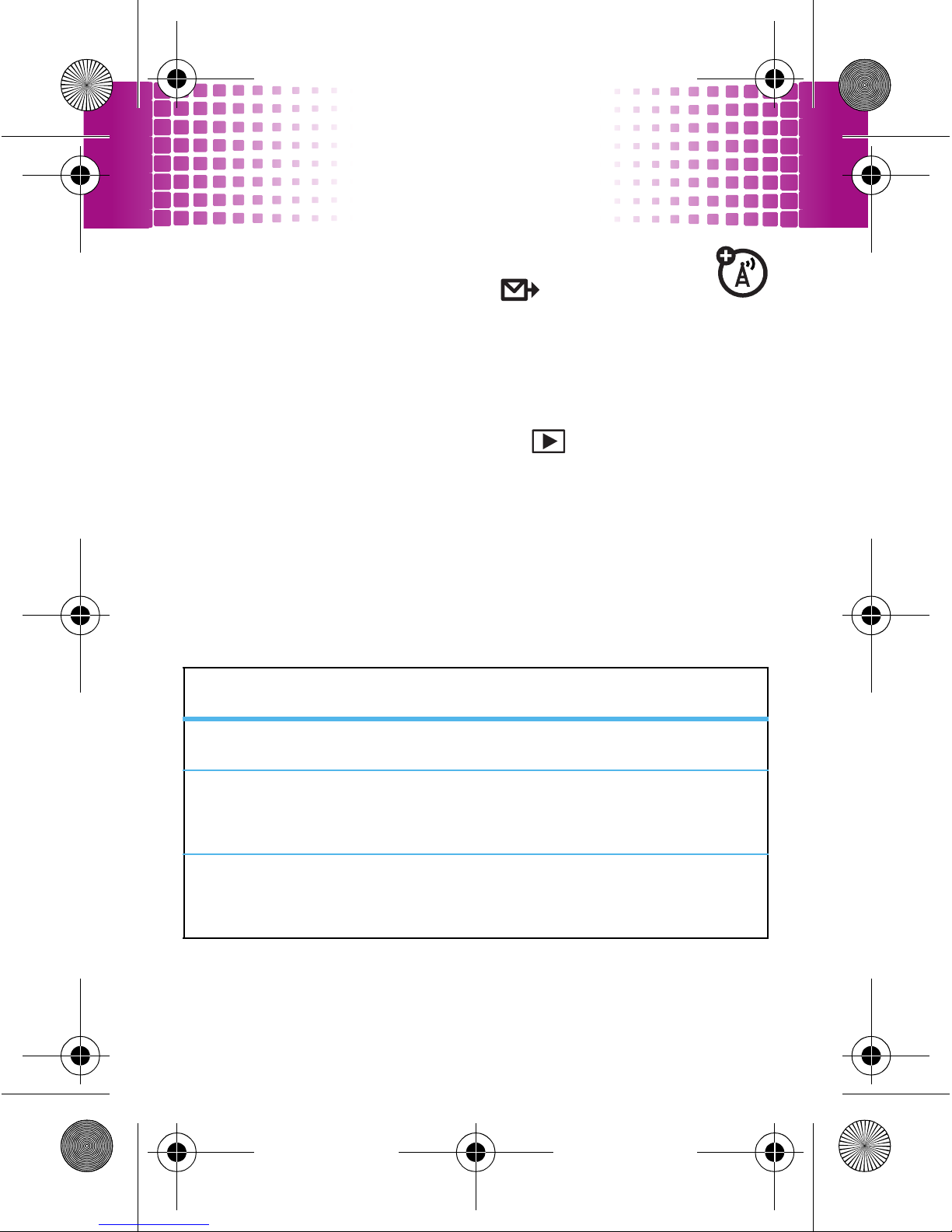
To r e c o r d
the video, press the camera key. Press the
camera key again to stop the video. The video clip is
automatically saved. Then:
01:18/01:50
Options
Back
Zoom : 1x
Press the
camera key
to start/stop
recording
the video.
Camera Mode
(photo or video)
Remaining
Time
Storage (phone
or memory card)
Resolution
Open video
menu
Press S up
or down to
view video
settings. Press
left or right to
change.
68005004001.fm Page 38 Friday, April 17, 2009 10:53 AM
Page 39
videos
39
•
To
send
the video clip in a message or
post it to a blog, press .
Tip:
To post your new video to a blog site, see
page 42.
•
To
view
the video clip in full screen mode, slide
the camera switch key to .
•
To
discard
the video clip and return to the active
viewfinder, press
/
.
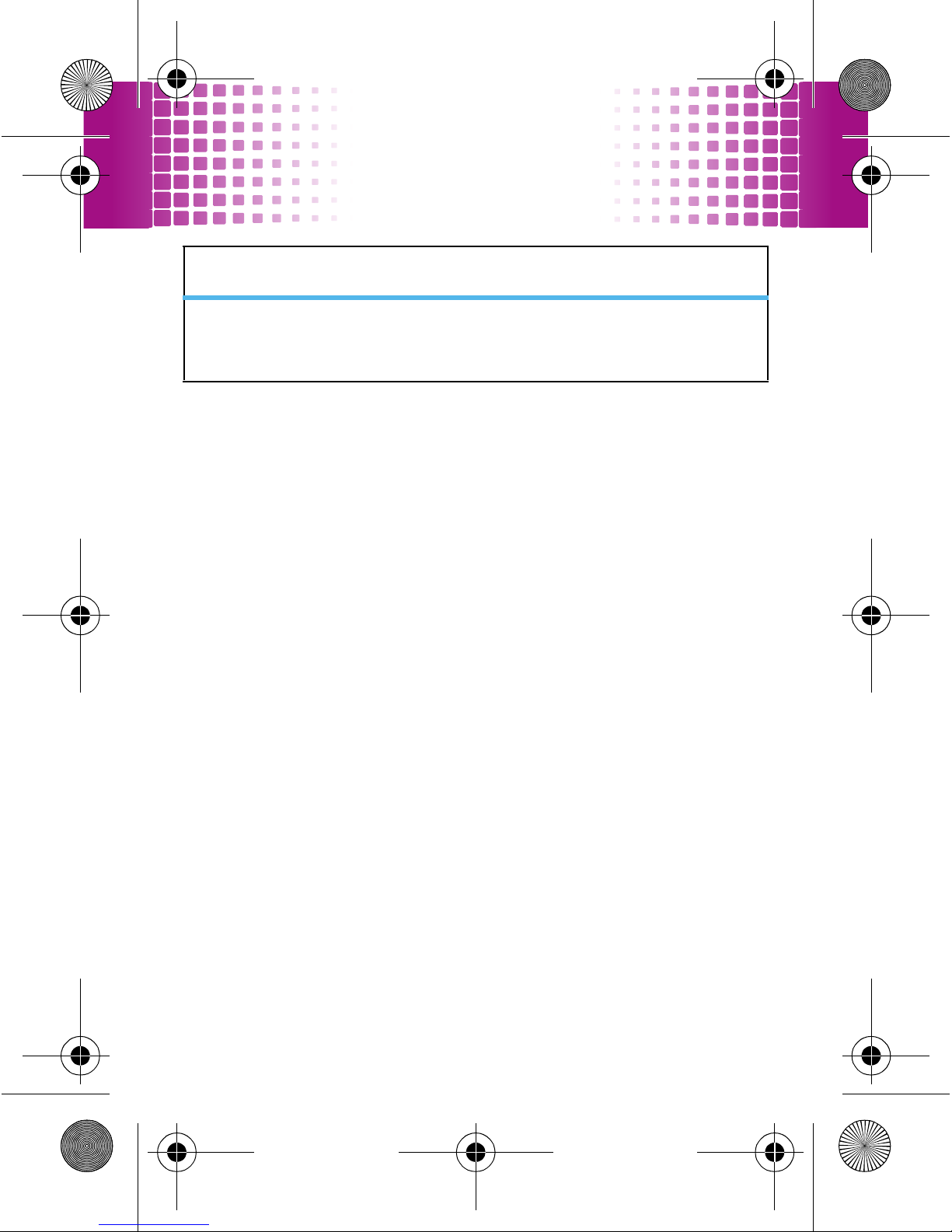
video options
In the viewfinder, press
Options
to open the video menu:
options
Light On
Turn on the camera light.
Video Camera Setup
Change the
Video Quality, Video Length,
Resolution
or
Review Time
settings.
Switch Storage
Device
Switch between phone memory and
memory card.
68005004001.fm Page 39 Friday, April 17, 2009 10:53 AM
Page 40
videos
40
do more with your videos
Find it:
s
>
j Multimedia
>
Media
Finder
>
Video>video name
To add the video to an
album
, send via
Bluetooth
, play
using the
full screen
and more, open it and press
Options
.
video mixing
Use your videos and pictures to create a YouTube classic!
Find it:
s
>
j Multimedia
>
Video Mixing
1
Select
[Add Videos]
or
[Add Pictures]
.
2
Add the videos or pictures you want to add to your
video mix, then press
Done
.
3
Select
[Add Videos]
or
[Add Pictures]
to add more videos or
pictures, or press
Start
.
Free Space
View how much free space you have
left to record video clips.
options
68005004001.fm Page 40 Friday, April 17, 2009 10:53 AM
Page 41
videos
41
4
Select a theme and then add customisations (such
as
Audio Track
and
Intro Text
).
5
Press
Mix
to compile your slick new video.
68005004001.fm Page 41 Friday, April 17, 2009 10:53 AM
Page 42
WebShare
42
WebSh are
super quick blogging
Your phone comes pre-loaded with direct access
to the most popular blog sites. You can upload
your photos and videos from your phone to a blog
site, such as Facebook or YouTube™, with just a few key
presses.
set up a blog account
Note:
To blog from your phone, you must have MMS
messaging enabled (contact your service provider for
details).
1
Press
s
>
u Settings
>
Tools >WebShare >Blog Setup
>
Blog Accounts
.
2
Select a blog account to configure, then enter the
details for the account and press
Done
.
Note:
Select
[New Account]
to create a new blog
account that is not listed on your phone.
post to blog
1
Press
s
>
u Settings
>
Tools >WebShare >New Blog
Message
.
68005004001.fm Page 42 Friday, April 17, 2009 10:53 AM
Page 43
WebShare
43
2
Enter the text for your message or press
Options>Insert
to insert a
Video, New Video
or
Picture
.
Shortcut:
After you have captured a video or photo,
press to post it to a blog.
Tip:
Notify your friends whenever you make a post,
and use the auto blog feature if you only post to one
blog account. Press
s
>
u Settings
>
Tools >WebShare
>
Blog Setup >Send Notification
or
Auto Blog
.
68005004001.fm Page 43 Friday, April 17, 2009 10:53 AM
Page 44
music
44
music
when you need music, all you need is your phone
transfer music
To
download
songs from the Internet, use your phone’s
browser (press
s
>
1 Web Access
and go to the page
with the file).
To transfer music files from a computer to your phone or
storage card:
1
With a storage card inserted, and your phone at the
home screen, insert the USB cable into your phone
and your Windows PC.
Note:
Your phone supports Microsoft™ Windows™
XP and Windows Vista™. Other operating systems
may not be compatible.
2
Now that you’ve connected, use
Windows Media
Player
or
USB drag and drop
to copy your music.
Windows Media Player
1
On your Windows PC, open Microsoft Windows
Media Player 10 or later.
68005004001.fm Page 44 Friday, April 17, 2009 10:53 AM
Page 45
music
45
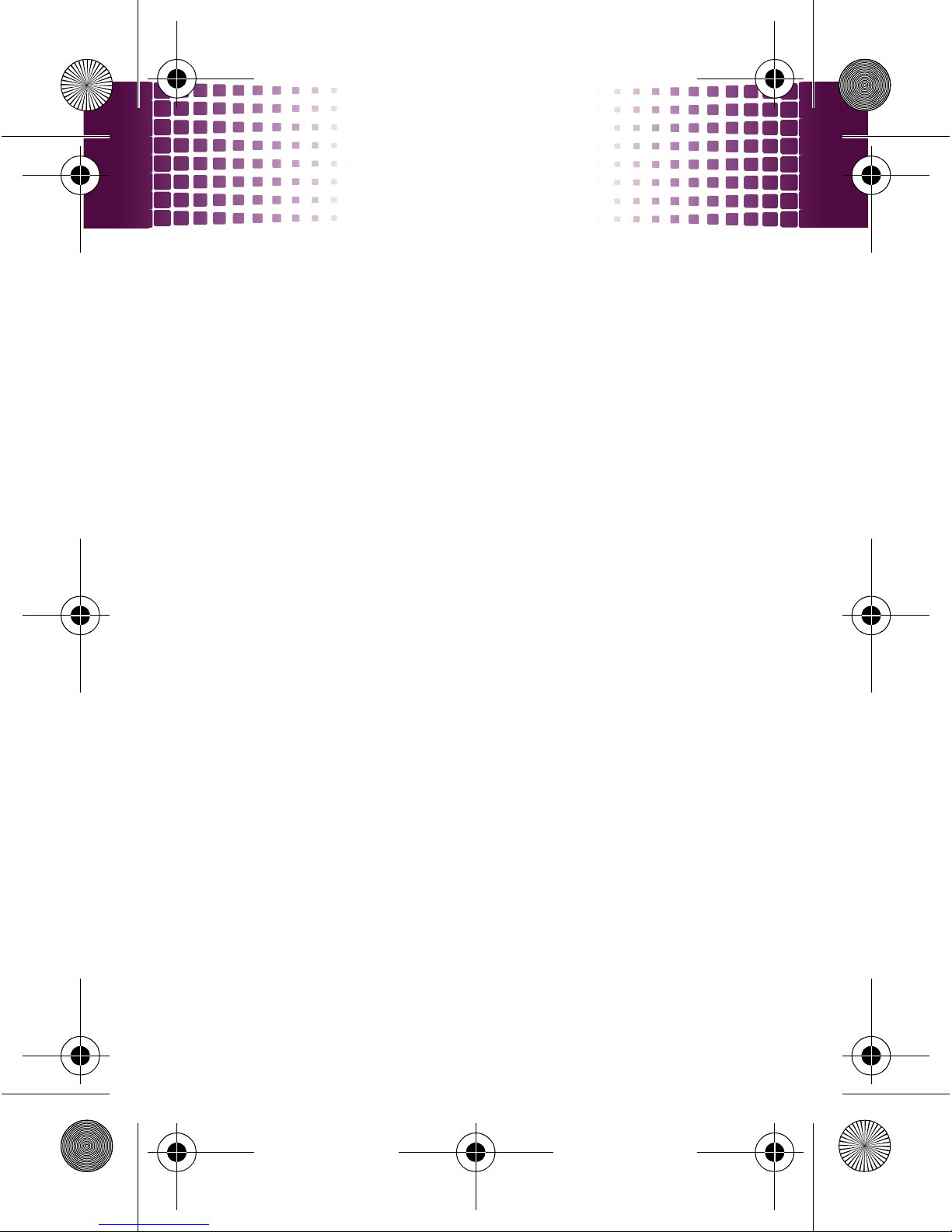
2
On the “Sync” tab, select “More Options” .
Under Device, select your phone.
3
Select “Properties” , tick the “Create folder
hierarchy on device” box, and click “OK”
.
4
Drag your music files over to the “Sync List” and
press “Start Sync”
.
USB drag & drop
1
Use the “My Computer” window to find
“Removable Device”
.
2
Drag and drop your music to your phone folder.
To help manage your music, you can create more
folders in your phone folder.
3
When you've finished, use the “Safely Remove
Hardware” feature to disconnect.
68005004001.fm Page 45 Friday, April 17, 2009 10:53 AM
Page 46
music
46
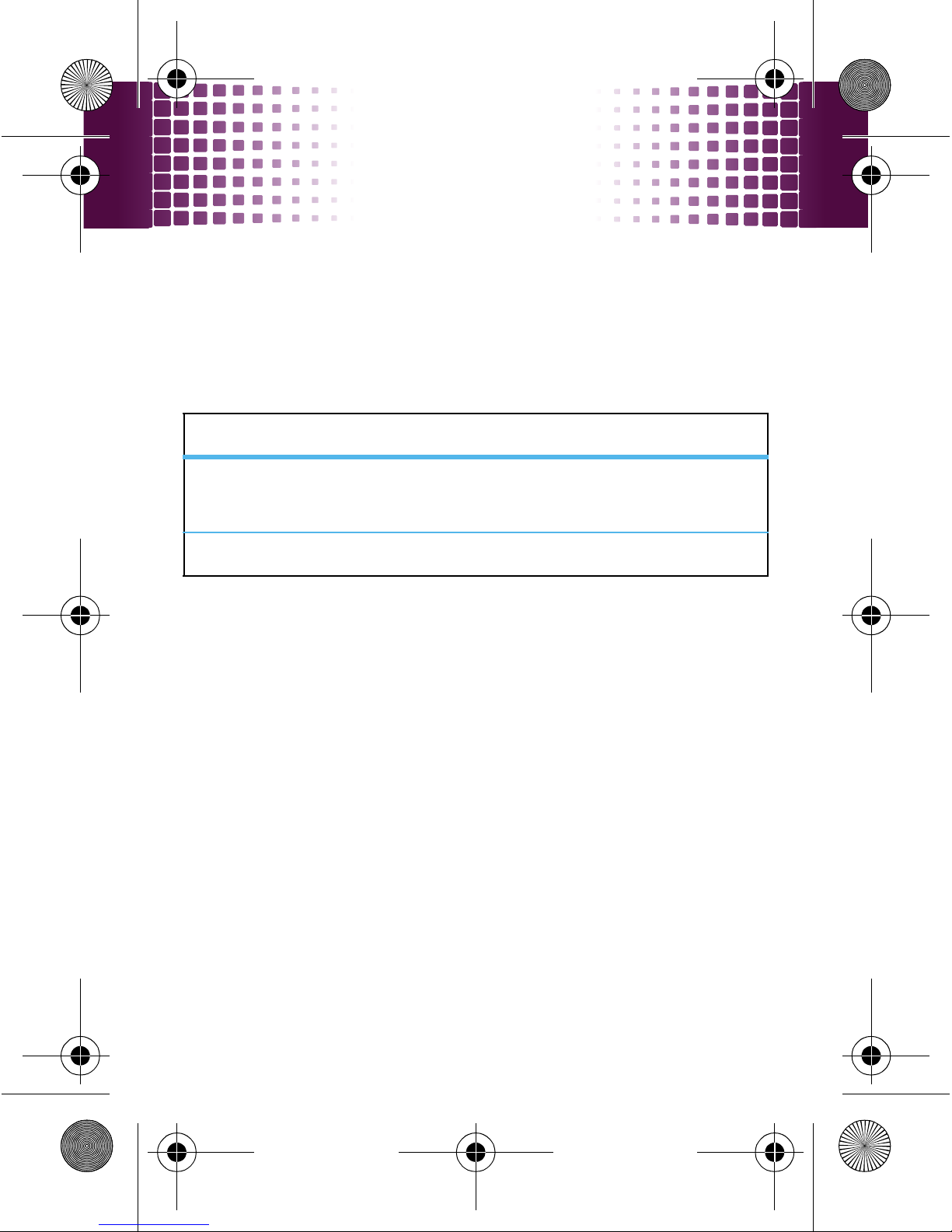
music file formats
To
copy
files between your phone and a computer, you
will need a computer with music files in one of these
formats:
play music
Find it:
s
>
j Multimedia
>
Media Player >Music
You can open a list of
All Songs, Recently Played
songs or the
Playlists
you created. You can also choose songs by
Albums
,
Artists
or
Genres
.
Shortcut:
In a song list, press a number key to jump to
songs that begin with the letters on the key.
formats bit rate
AAC, AAC+, Enhanced AAC+ or
M4A
up to 128 kbps
MP3 or MP4 up to 320 kbps
68005004001.fm Page 46 Friday, April 17, 2009 10:53 AM
Page 47
music
47
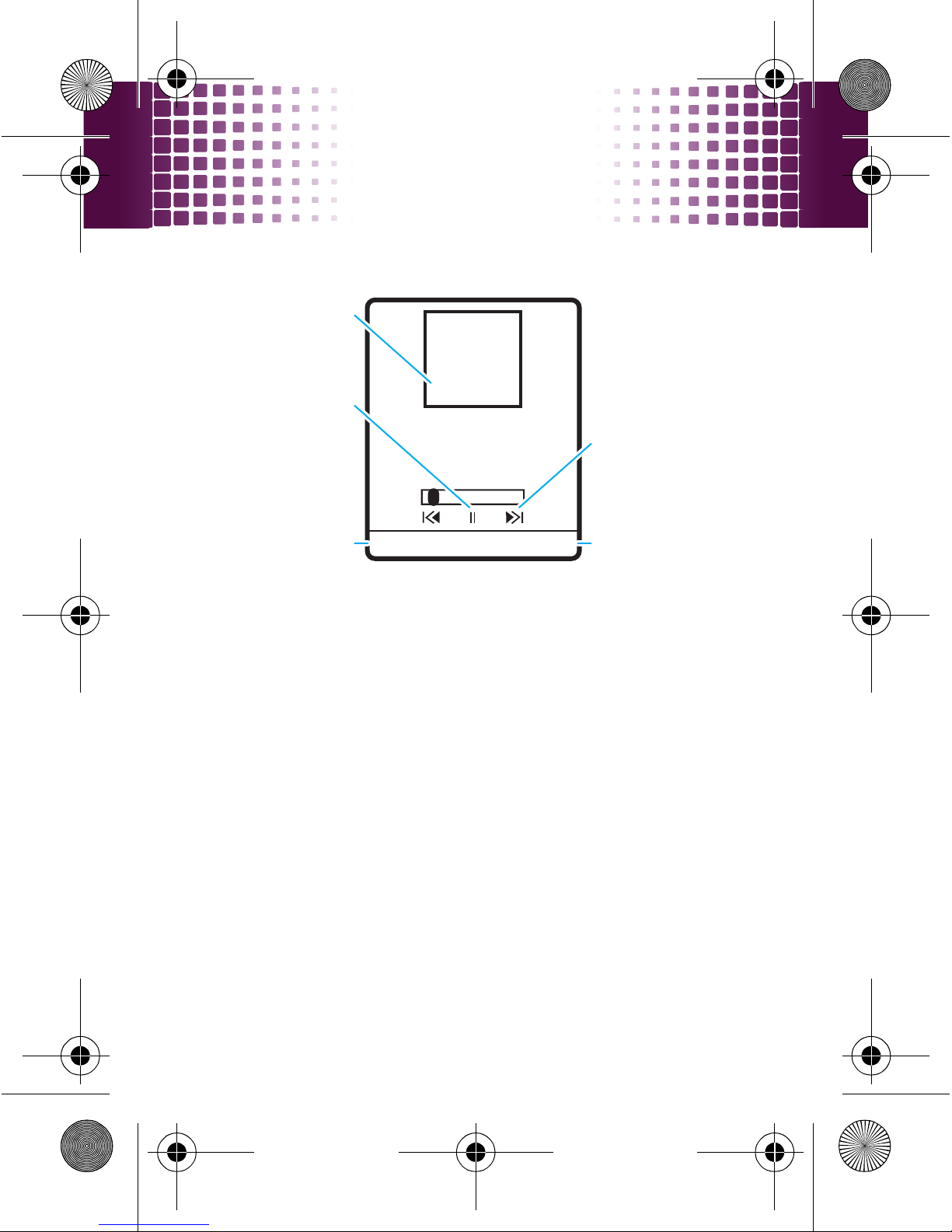
When you select a song:
Artist
Album
Song
00:09 03:00
Options Back
Press S left or
right to skip
songs, or hold it
to rewind or fast
forward.
Album Image
(if available)
Press
s
to
pause or play.
Hide the playerPlayer options
68005004001.fm Page 47 Friday, April 17, 2009 10:53 AM
Page 48
FM radio
48
FM radio
listen to news and music anywhere, for free
play stations
Find it:
s
>
j Multimedia
>
Radio
To tune in a station
, press
Options >Scan
.
To change volume
, press the side volume keys.
use radio presets
To s t o r e
the current station as a preset, just press and
hold a number key.
To g o t o
a preset station, press the number key.
To m a n a g e
presets, press
Options >Station Presets
.
68005004001.fm Page 48 Friday, April 17, 2009 10:53 AM
Page 49
Web
49
Web
surf the Web from your phone
browser
To
launch
the browser, press
s
>
1 Web Access
.
To
go to a Web page
, press
Options >Open >Web Address
,
enter the Web address (URL), then press
OK
.
To
enter text
, select a text entry field and press
s
to
open it. Then enter text.
To
choose a storage location
for downloaded files,
press
s
>
u Settings
>
Phone Status >Download Location
>
Memory Card
or
Phone
.
To
clear your browsing history, cache or cookies
,
press
s
>
1 Web Access
>
Browser Setup >Clear History
,
Reset Cache
or
Clear Cookies
.
To
exit
the browser, press
Options >Exit
.
68005004001.fm Page 49 Friday, April 17, 2009 10:53 AM
Page 50
Bluetooth® wireless
50
Bluetooth® wireless
don’t let wires tie you down
turn Bluetooth power on or off
If Bluetooth power is On, your phone can connect with
Bluetooth devices.
Find it:
s
>
K Connection
>
Bluetooth Link >Setup >Power >On
or
Off
Note:
To extend battery life, set Bluetooth
Power
to
Off
when not in use.
connect new devices
To connect with a new device, you need to pair
with it. You only need to do this once for each device - to
connect again, see page 51.
1
Make sure the device you are pairing with is in
discoverable
mode.
2
Press
s
>
K Connection
>
Bluetooth Link
>
[Add Audio Device]
.
3
Your phone lists the devices it finds within range.
Scroll to a device and press
s
.
68005004001.fm Page 50 Friday, April 17, 2009 10:53 AM
Page 51
Bluetooth® wireless
51
4
If necessary, press
Yes,OK
or enter the device
passkey (such as
0000
) to connect to the device.
When the device is connected, the Bluetooth
indicator
O
appears in the home screen.
Tip:
For specific information about a device, check the
instructions that came with it.
Note:
The use of wireless phones while driving may
cause distraction. Discontinue a call if you can’t
concentrate on driving. Additionally, the use of wireless
devices and their accessories may be prohibited or
restricted in certain areas. Always obey the laws and
regulations on the use of these products.
reconnect devices
To automatically reconnect
your phone with a
paired device, simply turn the device on.
To manually reconnect
your phone with a paired device:
•
Press
s
>
K Connection
>
Bluetooth Link >Audio Devices
>
device name
.
68005004001.fm Page 51 Friday, April 17, 2009 10:53 AM
Page 52
Bluetooth® wireless
52
•
During a call or while listening to a song, press
Options >Bluetooth Link
to switch to a recognised
headset or car kit.
disconnect devices
To automatically disconnect
your phone from a
paired device, simply turn the device off.
To manually disconnect
your phone from a paired
device,
press
s
>
K Connection
>
Bluetooth Link >Audio Device
>
device name >Drop
.
send files
You can use a Bluetooth connection to send a
media file, contact, calendar event or Web shortcut from
your phone to a computer or other device.
1
On your phone, scroll to the item that you want to
transfer.
2
For media files
, press
Options >Manage >Copy
or
Move
.
Caution:
Moving an object
deletes
the original
object from your phone.
For contacts
, press
Options >Share
.
68005004001.fm Page 52 Friday, April 17, 2009 10:53 AM
Page 53
Bluetooth® wireless
53
For calendar events
, press
Options> Send
.
3
Select a recognised device name or
[Look For Devices]
to
search for the device.
If your phone could not transfer the file to the other
device, make sure the device is in
discoverable
mode.
Also, make sure the device is not busy with another
similar Bluetooth connection.
Note:
Once you connect your phone to a Bluetooth
device, that device can start similar Bluetooth
connections with your phone. Your display shows the
Bluetooth indicator
O
at the top when there is a
Bluetooth connection.
receive files
If you do not see the Bluetooth indicator
O
at the
top of your phone display, turn on your phone’s Bluetooth
feature by pressing
s
>
K Connection
>
Bluetooth Link>Setup>Power>On
.
1
Place your phone near the device, and send the file
from the device.
68005004001.fm Page 53 Friday, April 17, 2009 10:53 AM
Page 54
Bluetooth® wireless
54
If your phone and the sending device don’t
recognise each other, place your phone in
discoverable mode so the sending device can locate
it: press
s
>
K Connection
>
Bluetooth Link >Find Me
.
2
Press
Accept
on your phone to accept the file from the
other device.
Your phone tells you when file transfer is complete. If
necessary, press
Store
to save the file.
Note:
The unauthorised copying of copyrighted materials
is contrary to the provisions of the Copyright Laws of the
United States and other countries. This device is
intended solely for copying non-copyrighted materials,
materials to which you own the copyright or materials
which you are authorised or legally permitted to copy. If
you are uncertain about your right to copy any material,
please contact your legal advisor.
68005004001.fm Page 54 Friday, April 17, 2009 10:53 AM
Page 55
cable connections
55
cable connections
your computer wants a friend
connect
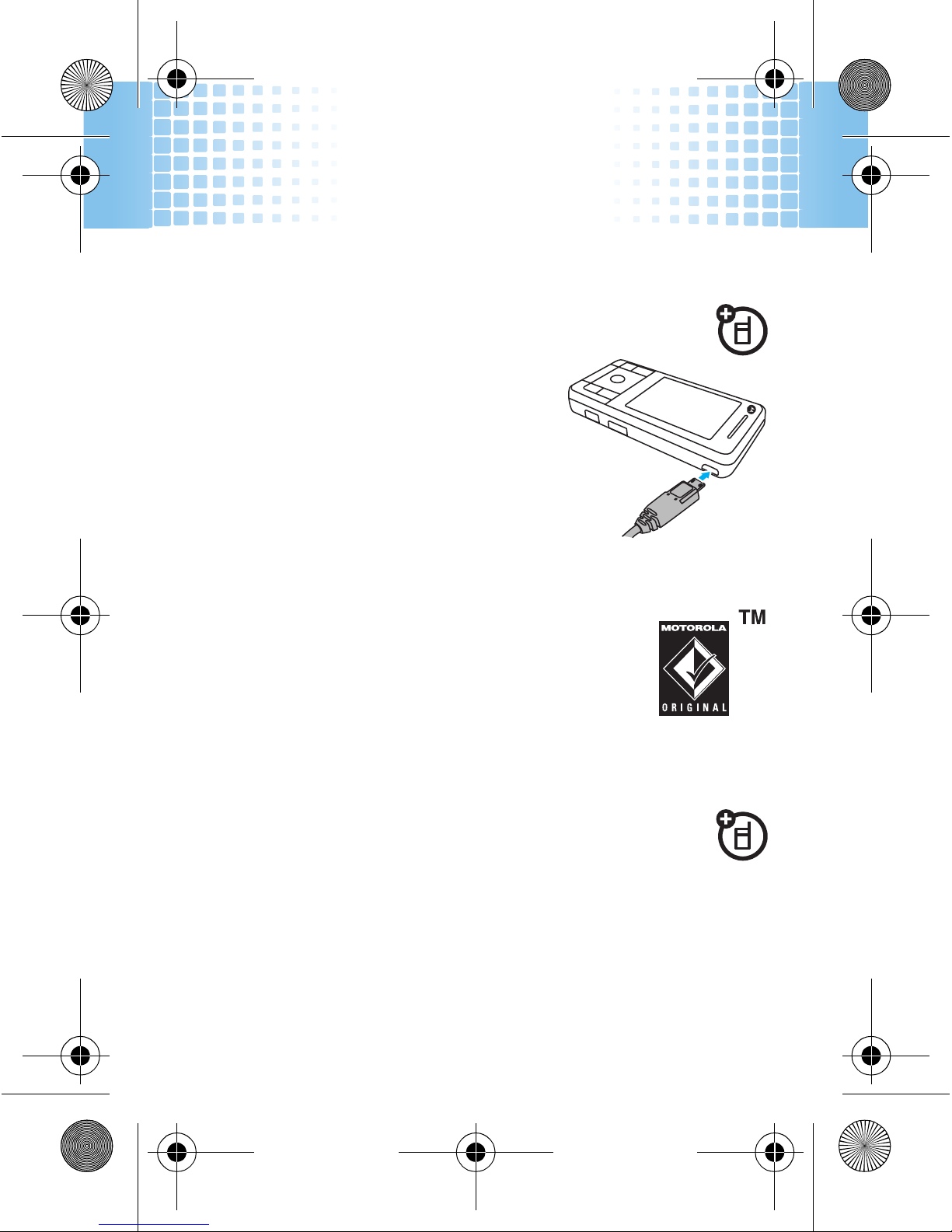
Your phone has a mini USB port so
you can connect it to a computer to
transfer data.
Before you connect a cable, tell
your phone what type of USB
connection you want to use by
pressing
s
>
KConnection
>
USB Settings >Default Connection
.
Note:
Motorola Original USB data cables
and supporting software are sold separately.
Check your computer or hand-held device to
determine the type of cable you need.
transfer
Note:
Memory cards are optional. To insert a
memory card, see page 9.
Using a cable connection, you can connect to your
computer to access your phone’s memory card.
68005004001.fm Page 55 Friday, April 17, 2009 10:53 AM
Page 56
cable connections
56
Note:
When your phone is connected to a computer, it
cannot be used for anything else, including making
emergency calls. To restore the phone to normal use,
disconnect it from the PC.
On your phone:
1
Disconnect the cable
from your phone, if it’s
connected, then press
s
>
K Connection
>
USB Settings
>
Default Connection >Memory Card
.
2
Connect the cable
to your phone (see page 55) and
to an available USB port on your computer.
On your computer:
1
Open your “My Computer” window, then click on
the “Removable Disk” icon to see the files on your
memory card.
2
Drop files into these folders on the memory card
(create the folders if necessary):
mobile\audio
,
mobile\picture
(wallpapers or screen savers) or
mobile\video
.
3
When you finish, select the “Safely Remove
Hardware” icon in the system tray at the bottom of
68005004001.fm Page 56 Friday, April 17, 2009 10:53 AM
Page 57
cable connections
57
your computer screen, then disconnect the “USB
Mass Storage Device” (your memory card).
4
Disconnect the cable.
68005004001.fm Page 57 Friday, April 17, 2009 10:53 AM
Page 58
memory card
58
memor y card
store more
format
You need to format a memory card,
using the phone
,
before using it for the first time. This creates the
necessary folders and ensures your phone can read the
contents of the card.
Caution:
Formatting the memory card erases all content
on the card.
Find it:
s
>
u Settings
>
Phone Status >Storage Devices >Options
>
Format
1
Scroll to
Format Additional Storage Device
>
External Storage
and
press
Select
.
2
When prompted, press
Yes
to continue or No to
cancel formatting.
show & manage files
Note:
To insert a memory card, see page 9.
Do not remove your memory card while your
phone is using it or writing files on it.
68005004001.fm Page 58 Friday, April 17, 2009 10:53 AM
Page 59
memory card
59
To
see memory card files
, open a file list, such as
j Multimedia
>
Media Finder >Pictures
.
To copy or move a file
from your phone to your
memory card
, highlight it in the list and press
Options>Manage >Copy
or
Move >Memory Card
.
To see your card’s
available memory
and other
information:
s
>
u Settings
>
Phone Status >Storage Devices
.
Note:
If you download a copyrighted file and store it on
your memory card, you can use the file only while your
memory card is inserted in your phone. You cannot send,
copy or change copyrighted files.
68005004001.fm Page 59 Friday, April 17, 2009 10:53 AM
Page 60
synchronise
60
synchronise
keep up-to-date
ActiveSync
You can use the Internet to synchronise your
phone’s phonebook and calendar entries with an email
account on a Microsoft™ Exchange 2003 Server.
You need to know the email account’s user name and
password, the Microsoft™ Exchange server name and
the user domain name. Confirm that the Mobility option
is enabled on the email account and that data service is
activated with your phone service provider.
To schedule
automatic synchronisation with an
ActiveSync partner you've set up, press
s
>
K Connection
>
MOTOSYNC >Exchange
, then press
Options
>
Auto Sync Setup
. Enter the time and days you want your
phone to synchronise.
Note:
You can only move your phonebook and calendar
entries from your PC to your phone.
68005004001.fm Page 60 Friday, April 17, 2009 10:53 AM
Page 61
tools
61
tools
keep up with life
calendar
add new events
Find it:
s
>
u Settings
>
Tools >Calendar
, scroll to the day,
press
s
, scroll to
Create New Event
and press
s
When you see an
event reminder
, press
View
to open
event details or press
Exit
to close the reminder.
Tip:
To change your reminder sound, see page 31.
see or edit events
Find it:
s
>
u Settings
>
Tools >Calendar
, scroll to the day
and press
s
Scroll to the event and press
s
. To edit the details,
press
Options>Edit
.
Tip:
Keeping up with life can be hard work. To see a list
of your forthcoming events, open the calendar and press
Options >View >Organized Events
.
68005004001.fm Page 61 Friday, April 17, 2009 10:53 AM
Page 62
tools
62
send events to other devices
Find it:
s
>
u Settings
>
Tools >Calendar
, highlight the
event, then press
Options>Send >with Bluetooth
print events
You can use a Bluetooth wireless connection to
print your calendar entries.
Find it:
s
>
uSettings
>
Tools>Calendar
Go to the month, week or day view and press
Options>Print
.
For more about Bluetooth connections, see page 50.
alarms
To set an alarm
, press
s
>
u Settings
>
Tools
>
Alarm Clock
.
To turn off the alarm
, press
Dismiss
or I. To set a delay,
press
Snooze
.
68005004001.fm Page 62 Friday, April 17, 2009 10:53 AM
Page 63
tools
63
voice records
To create voice records
, press
s
>
j Multimedia
>
Voice Record
. When you are ready, press
s
and speak
into the phone.
To play voice records
, press
s
>
j Multimedia
>
Media
Finder
>
Voice Notes
, highlight the voice record and press
s
.
aeroplane mode
You can switch your phone to aeroplane mode to prevent it
from communicating with the network. This lets you use
games or other applications while you are on an aeroplane,
without interfering with aeroplane communications.
Find it:
s
>
u Settings
>
Airplane Mode >Airplane Mode >On
You can make the aeroplane mode option appear
whenever you turn on your phone:
Find it:
s
>
u Settings
>
Airplane Mode >Prompt At Power Up
>
On
calculator
Find it:
s
>
uSettings
>
Tools>Calculator
To convert currency
, press
Options>Convert Currency
.
68005004001.fm Page 63 Friday, April 17, 2009 10:53 AM
Page 64
security
64
security
keep your phone safe
codes & passwords
Your phone’s four-digit
unlock code
is originally set to
1234
. The six-digit
security code
is originally set to
000000
. If your service provider didn’t change these
codes, you should change them:
Find it:
s
>
u Settings
>
Security >New Passwords
You can also change your
SIM PIN
password.
If you forget your unlock code:
At the
Enter Unlock Code
prompt, try entering 1234 or the last four digits of your
phone number. If that doesn’t work, press
s
and enter
your six-digit security code instead.
If you forget other codes:
If you forget your security
code, SIM PIN code, PIN2 code or call barring password,
contact your service provider.
lock & unlock phone
You can lock your phone to keep others from using it. To
lock or unlock your phone, you need the four-digit unlock
code.
68005004001.fm Page 64 Friday, April 17, 2009 10:53 AM
Page 65
security
65
To
manually lock
your phone:
Press
s
>
u Settings
>
Security >Phone Lock >Lock Now
, then
enter your four-digit unlock code.
To
automatically lock
your phone whenever you turn it
off: Press
s
>
u Settings
>
Security >Phone Lock
>
Automatic Lock >On
, then enter your four-digit unlock code.
Note:
You can make emergency calls on a locked phone
(see page 22). A locked phone still rings,
but you need
to unlock it to answer
.
lock your SIM card or applications
Find it:
s
>
u Settings
>
Security >SIM PIN
Caution:
If you enter an incorrect PIN code three times
before the correct code, your SIM card is disabled and
your display shows
SIM Blocked
.
To
lock an application
(such as
Messaging
),
press
s
>
u Settings
>
Security >Lock Application
.
Enter your unlock code to open a list of applications.
Select an application and choose
Locked
to lock it.
68005004001.fm Page 65 Friday, April 17, 2009 10:53 AM
Page 66
66
legal & safety
battery use & safety
IMPORTANT: HANDLE AND STORE BATTERIES PROPERLY TO AVOID
INJURY OR DAMAGE.
Most battery issues arise from improper handling of
batteries, and particularly from the continued use of damaged batteries.
DON’Ts
• Don’t disassemble, crush, puncture, shred, or otherwise attempt to
change the form of your battery.
• Don’t let the phone or battery come in contact with water.
Water can get
into the phone’s circuits, leading to corrosion. If the phone and/or battery get
wet, have them checked by your carrier or contact Motorola, even if they appear
to be working properly.
• Don’t allow the battery to touch metal objects.
If metal objects, such as
jewelry, stay in prolonged contact with the battery contact points, the battery
could become very hot.
• Don’t place your battery near a heat source.
Excessive heat can damage the
phone or the battery. High temperatures can cause the battery to swell, leak, or
malfunction. Therefore:
•
Do
not
dry a wet or damp battery with an appliance or heat source, such as a
hair dryer or microwave oven.
•
Avoid leaving your phone in your car in high temperatures.
DOs
• Do avoid dropping the battery or phone.
Dropping these items, especially on
a hard surface, can potentially cause damage.
• Do contact your service provider or Motorola if your phone or battery
has been damaged from dropping or high temperatures.
IMPORTANT: USE MOTOROLA ORIGINAL PRODUCTS FOR QUALITY
ASSURANCE AND SAFEGUARDS.
To aid consumers in identifying authentic
Motorola batteries from non-original or counterfeit batteries (that may not have
adequate safety protection), Motorola provides holograms on its batteries.
68005004001.fm Page 66 Friday, April 17, 2009 10:53 AM
Page 67
67
Consumers should confirm that any battery they purchase has a “Motorola Original”
hologram.
Motorola recommends you always use Motorola-branded batteries and
chargers.
Motorola mobile devices are designed to work with Motorola batteries.
If you see a message on your display such as
Invalid Battery
or
Unable to Charge
, take
the following steps:
•
Remove the battery and inspect it to confirm that it has a “Motorola Original”
hologram;
•
If there is no hologram, the battery is not a Motorola battery;
•
If there is a hologram, replace the battery and retry charging it;
•
If the message remains, contact a Motorola Authorized Service Center.
Important:
Motorola’s warranty does not cover damage to the phone caused by
non-Motorola batteries and/or chargers.
Warning:
Use of a non-Motorola battery or charger may present a risk of fire,
explosion, leakage, or other hazard.
PROPER AND SAFE BATTERY DISPOSAL AND RECYCLING
Proper battery disposal is not only important for safety, it benefits the environment.
Consumers may recycle their used batteries in many retail or service provider
locations. Additional information on proper disposal and recycling may be found on
the Web:
•
www.motorola.com/recycling
•
www.rbrc.org/call2recycle/
(in English only)
Disposal:
Promptly dispose of used batteries in accordance with local
regulations. Contact your local recycling center or national recycling
organizations for more information on how to dispose of batteries.
Warning:
Never dispose of batteries in a fire because they may
explode.
battery charging
Notes for charging your phone’s battery:
•
When charging your battery, keep it near room temperature. Never expose
batteries to temperatures below 0°C (32°F) or above 45°C (113°F) when
charging.
68005004001.fm Page 67 Friday, April 17, 2009 10:53 AM
Page 68
68
•
New batteries are not fully charged.
•
New batteries or batteries stored for a long time may take more time to charge.
•
Motorola batteries and charging systems have circuitry that protects the battery
from damage from overcharging.
Specific Absorption Rate Data
SAR Data
This model meets international guidelines for exposure to radio
waves
.
Your mobile device is a radio transmitter and receiver. It is designed not to
exceed the limits for exposure to radio waves recommended by
international guidelines. These guidelines were developed by the
independent scientific organization ICNIRP and include safety margins
designed to assure the protection of all persons, regardless of age and
health.
The guidelines use a unit of measurement known as the
Specific Absorption Rate, or SAR. The ICNIRP SAR limit for mobiles
devices used by the general public is 2 W/kg and the highest SAR value for
this device when tested at the ear was 0.83 W/kg.
1
As mobile devices offer a range of functions, they can be used in other
positions, such as on the body as described in this user guide.2 In this case,
the highest tested SAR value is 0.57 W/kg.
1
As SAR is measured utilising the device’s highest transmitting power, the
actual SAR of this device while operating is typically below that indicated
1 The tests are carried out in accordance with international guidelines for testing.
The limit incorporates a substantial margin for safety to give additional
protection for the public and to account for any variations in measurements.
Additional related information includes the Motorola testing protocol,
assessment procedure, and measurement uncertainty range for this product.
2 Please see the Safety and General Information section about body worn
operation.
68005004001.fm Page 68 Friday, April 17, 2009 10:53 AM
Page 69
69
above. This is due to automatic changes to the power level of the device to
ensure it only uses the minimum level required to reach the network.
While there may be differences between the SAR levels of various phones
and at various positions, they all meet the governmental requirements for
safe exposure. Please note that improvements to this product model could
cause differences in the SAR value for later products; in all cases, products
are designed to be within the guidelines.
The World Health Organization has stated that present scientific
information does not indicate the need for any special precautions for the
use of mobile devices. They note that if you want to reduce your exposure
then you can do so by limiting the length of calls or using a “hands-free”
device to keep the mobile phone away from the head and body.
Additional Information can be found on the websites of the World Health
Organization (
http://www.who.int/emf
) or Motorola, Inc.
(
http://www.motorola.com/rfhealth
).
European Union Directives
Conformance Statement
EU Conformance
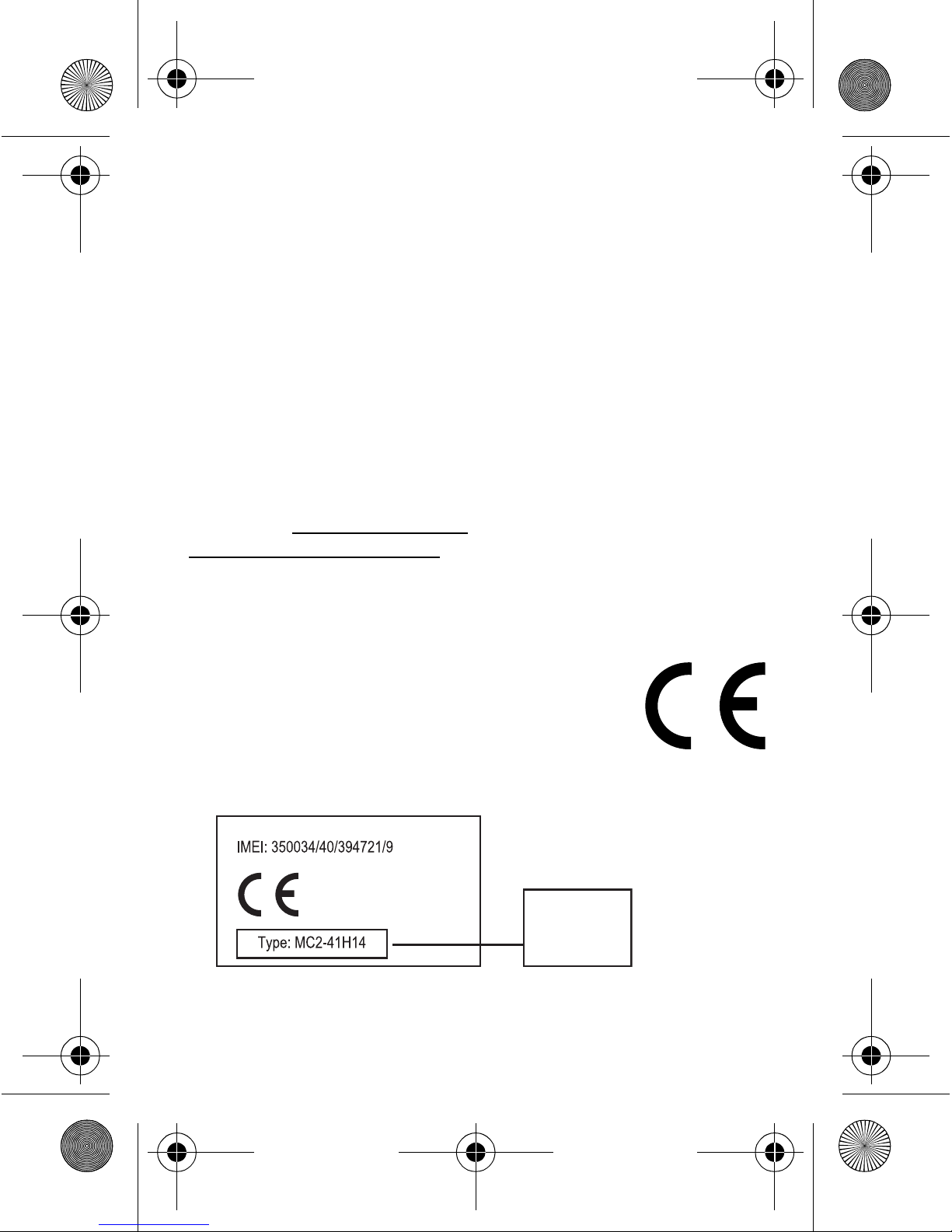
Hereby, Motorola declares that this product is in compliance
with:
•
The essential requirements and other relevant provisions of
Directive 1999/5/EC
•
All other relevant EU Directives
0168
Product
Approval
Number
68005004001.fm Page 69 Friday, April 17, 2009 10:53 AM
Page 70
70
The above gives an example of a typical Product Approval Number.
You can view your product’s Declaration of Conformity (DoC) to Directive 1999/5/EC
(to R&TTE Directive) at
www.motorola.com/rtte
. To find your DoC, enter the
Product Approval Number from your product’s label in the “Search” bar on the Web
site.
Safety and General Information
Safety In formation
This section contains important information on the safe and efficient
operation of your mobile device. Read this information before using your
mobile device.
Exposure to Radio Frequency (RF) Energy
Your mobile device contains a transmitter and receiver. When it is ON, it receives
and transmits RF energy. When you communicate with your mobile device, the
system handling your call controls the power level at which your mobile device
transmits.
Your Motorola mobile device is designed to comply with local regulatory
requirements in your country concerning exposure of human beings to RF energy.
Operational Precautions
For optimal mobile device performance, and to be sure that human exposure to RF
energy does not exceed the guidelines set forth in the relevant standards, always
follow these instructions and precautions.
Product Operation
When placing or receiving a phone call, hold your mobile device just like you would
a landline phone.
If you wear the mobile device on your body, always place the mobile device in a
Motorola-supplied or approved clip, holder, holster, case, or body harness. If you do
not use a body-worn accessory supplied or approved by Motorola, keep the mobile
device and its antenna at least 2.5 centimeters (1 inch) from your body when
transmitting.
Using accessories not supplied or approved by Motorola may cause your mobile
device to exceed RF energy exposure guidelines. For a list of Motorola-supplied or
approved accessories, visit our Web site at:
www.motorola.com
.
68005004001.fm Page 70 Friday, April 17, 2009 10:53 AM
Page 71
71
RF Energy Interference/Compatibility
Nearly every electronic device is subject to RF energy interference from external
sources if inadequately shielded, designed, or otherwise configured for RF energy
compatibility. In some circumstances your mobile device may cause interference
with other devices.
Follow Instructions to Avoid Interference Problems
Turn off your mobile device in any location where posted notices instruct you to do
so.
In an aircraft, turn off your mobile device whenever instructed to do so by airline
staff. If your mobile device offers an airplane mode or similar feature, consult airline
staff about using it in flight.
Implantable Medical Devices
If you have an implantable medical device, such as a pacemaker or defibrillator,
consult your physician before using this mobile device.
Persons with implantable medical devices should observe the following precautions:
•
ALWAYS keep the mobile device more than 20 centimeters (8 inches) from the
implantable medical device when the mobile device is turned ON.
•
DO NOT carry the mobile device in the breast pocket.
•
Use the ear opposite the implantable medical device to minimize the potential
for interference.
•
Turn OFF the mobile device immediately if you have any reason to suspect that
interference is taking place.
Read and follow the directions from the manufacturer of your implantable medical
device. If you have any questions about using your mobile device with your
implantable medical device, consult your healthcare provider.
Driving Precautions
The use of wireless phones while driving may cause distraction. Discontinue a call if
you can’t concentrate on driving.
Additionally, the use of wireless devices and their accessories may be prohibited or
restricted in certain areas. Always obey the laws and regulations on the use of
these products.
68005004001.fm Page 71 Friday, April 17, 2009 10:53 AM
Page 72
72
Responsible driving practices can be found in the “Smart Practices While Driving”
section in this guide (or separate guide).
Operational Warnings
Obey all posted signs when using mobile devices in public areas.
Potentially Explosive Atmospheres
Areas with potentially explosive atmospheres are often, but not always, posted and
can include fueling areas, such as below decks on boats, fuel or chemical transfer or
storage facilities, or areas where the air contains chemicals or particles, such as
grain dust, or metal powders.
When you are in such an area, turn off your mobile device, and do not remove,
install, or charge batteries. In such areas, sparks can occur and cause an explosion
or fire.
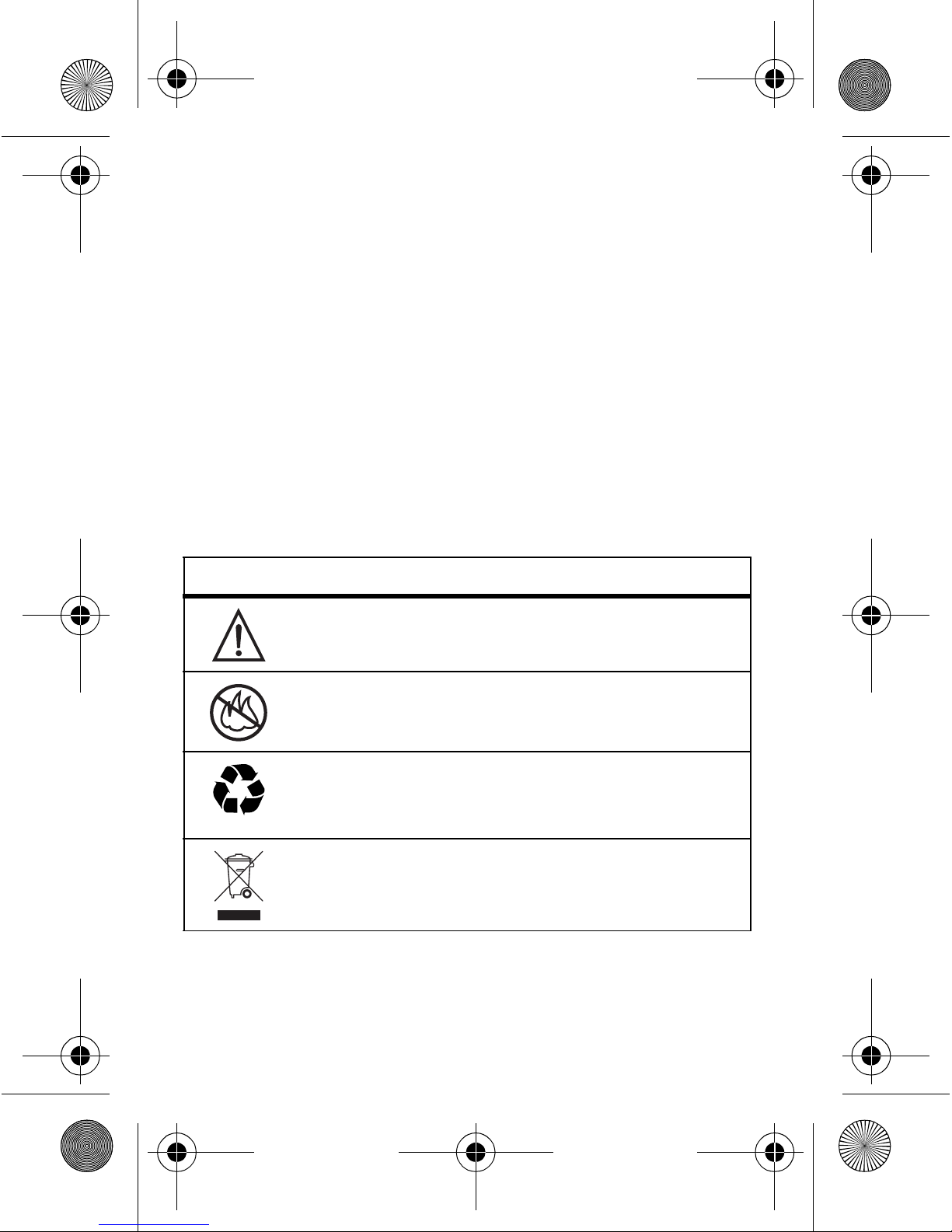
Symbol Key
Your battery, charger, or mobile device may contain symbols, defined as follows:
Symbol Definition
Important safety information follows.
Do not dispose of your battery or mobile device in a fire.
Your battery or mobile device may require recycling in
accordance with local laws. Contact your local regulatory
authorities for more information.
Do not throw your battery or mobile device in the trash.
032374o
032376o
032375o
68005004001.fm Page 72 Friday, April 17, 2009 10:53 AM
Page 73
73
Batteries & Chargers
Caution: Improper treatment or use of batteries may present a danger of
fire, explosion, leakage, or other hazard. For more information, see the
“battery use & safety” section in the user’s guide.
Keep Your Mobile Device and Its Accessories
Away From Small Children
These products are not toys and may be hazardous to children. For example:
•
A choking hazard may exist for small, detachable parts.
•
Improper use could result in loud sounds, possibly causing hearing injury.
•
Improperly handled batteries could overheat and cause a burn.
Glass Parts
Some parts of your mobile device may be made of glass. This glass could break if
the product is dropped on a hard surface or receives a substantial impact. If glass
breaks, do not touch or attempt to remove. Stop using your mobile device until the
glass is replaced by a qualified service center.
Seizures/Blackouts
Some people may be susceptible to epileptic seizures or blackouts when exposed to
flashing lights, such as when playing video games. These may occur even if a person
has never had a previous seizure or blackout.
If you have experienced seizures or blackouts, or if you have a family history of such
occurrences, please consult with your physician before playing video games or
enabling a flashing-lights feature (if available) on your mobile device.
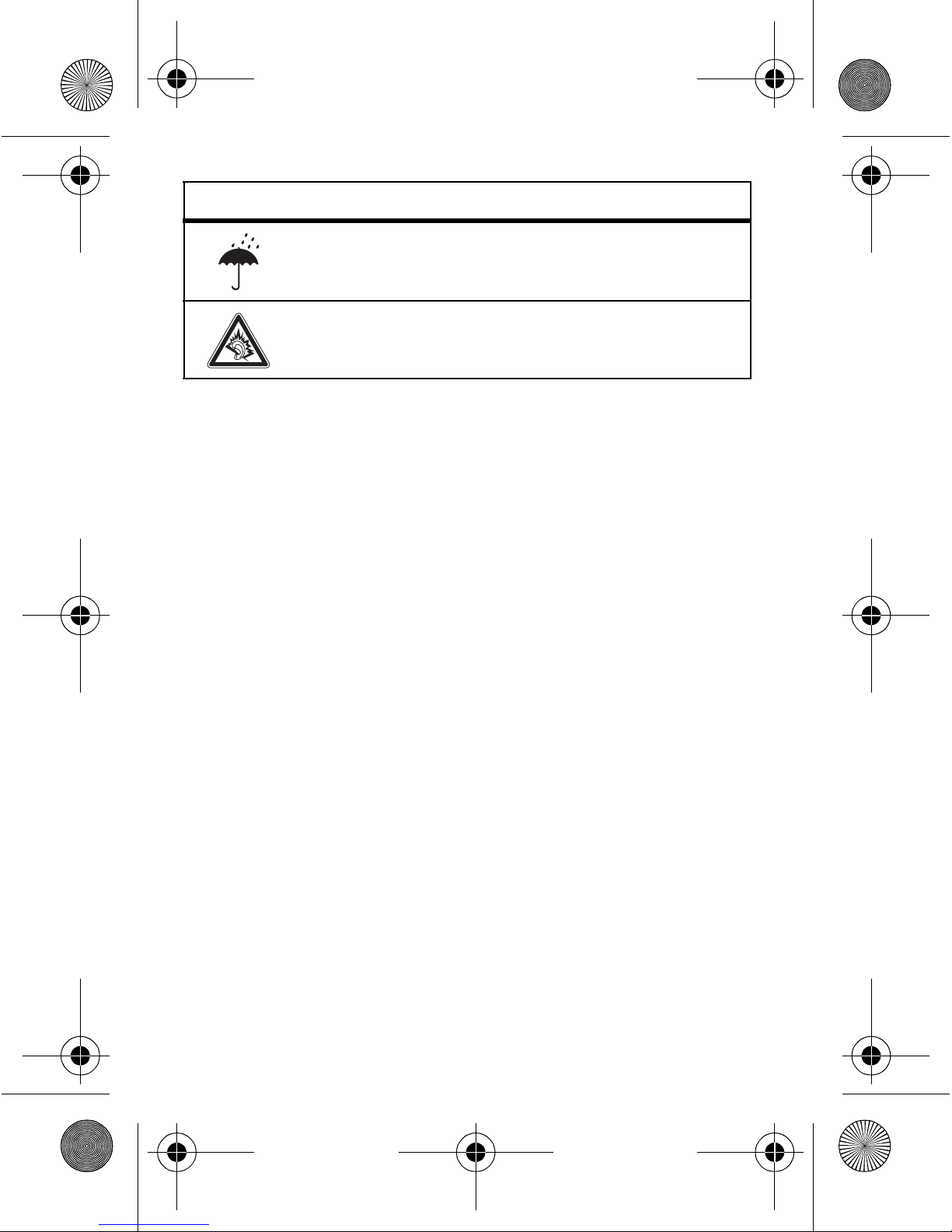
Do not let your battery, charger, or mobile device get wet.
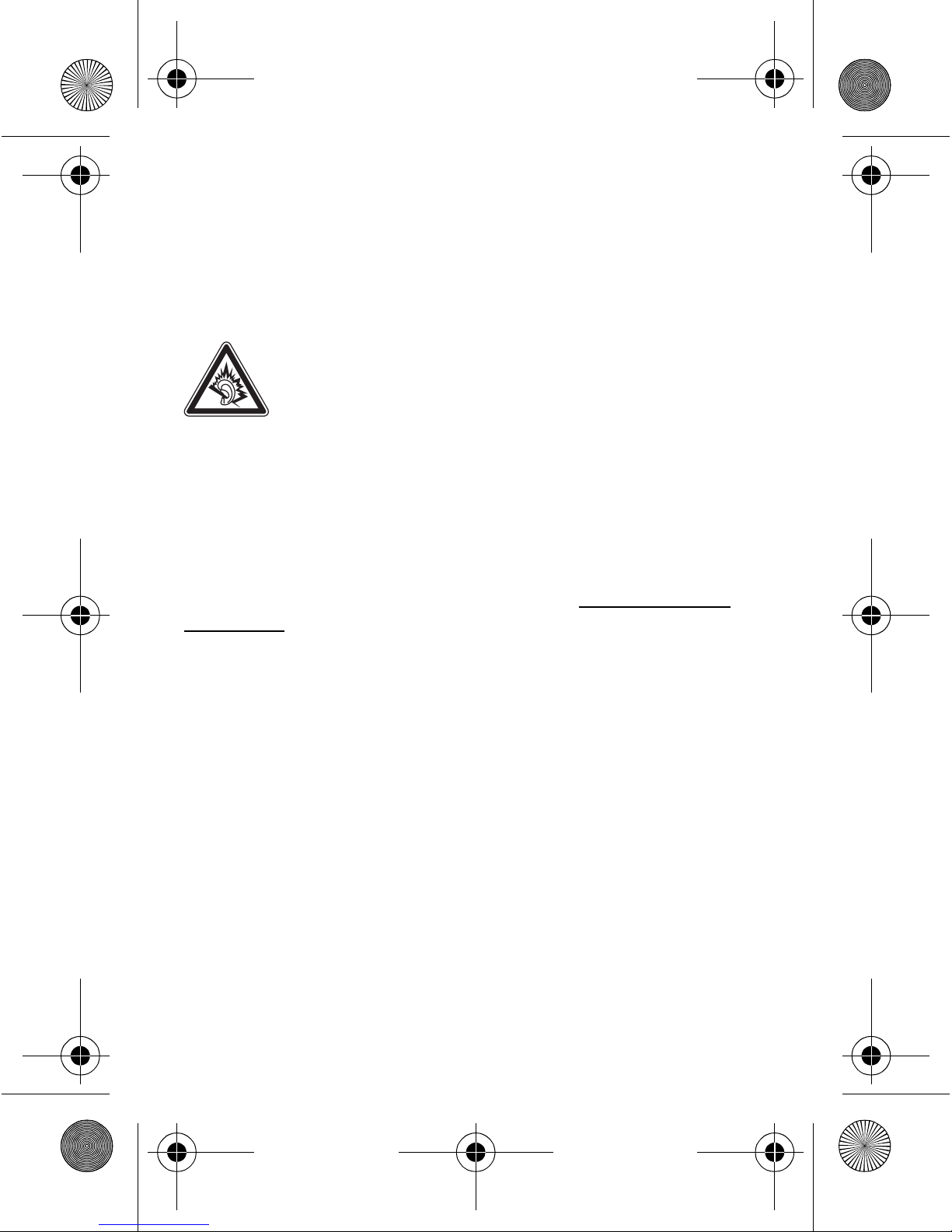
Listening at full volume to music or voice through a headset
may damage your hearing.
Symbol Definition
68005004001.fm Page 73 Friday, April 17, 2009 10:53 AM
Page 74
74
Discontinue use and consult a physician if any of the following symptoms occur:
convulsion, eye or muscle twitching, loss of awareness, involuntary movements, or
disorientation. It is always a good idea to hold the screen away from your eyes,
leave the lights on in the room, take a 15-minute break every hour, and stop use if
you are tired.
Caution About High Volume Usage
Warning:
Exposure to loud noise from any source for extended
periods of time may affect your hearing. The louder the volume
sound level, the less time is required before your hearing could be
affected. To protect your hearing:
•
Limit the amount of time you use headsets or headphones at high volume.
•
Avoid turning up the volume to block out noisy surroundings.
•
Turn the volume down if you can’t hear people speaking near you.
If you experience hearing discomfort, including the sensation of pressure or fullness
in your ears, ringing in your ears, or muffled speech, you should stop listening to the
device through your headset or headphones and have your hearing checked.
For more information about hearing, see our Web site at
www.motorola.com/
hearingsafety
(in English only).
Repetitive Motion
When you repetitively perform actions such as pressing keys or entering
finger-written characters, you may experience occasional discomfort in your hands,
arms, shoulders, neck, or other parts of your body. If you continue to have discomfort
during or after such use, stop use and see a physician.
[Mar0108]
FCC Notice to Users
FCC Notice
The following statement applies to all products that have received FCC
approval. Applicable products bear the FCC logo, and/or an FCC ID in the
format FCC-ID:xxxxxx on the product label.
Motorola has not approved any changes or modifications to this device by the user.
Any changes or modifications could void the user’s authority to operate the
equipment. See 47 CFR Sec. 15.21.
68005004001.fm Page 74 Friday, April 17, 2009 10:53 AM
Page 75
75
This device complies with part 15 of the FCC Rules. Operation is subject to the
following two conditions: (1) This device may not cause harmful interference, and (2)
this device must accept any interference received, including interference that may
cause undesired operation. See 47 CFR Sec. 15.19(3).
This equipment has been tested and found to comply with the limits for a Class B
digital device, pursuant to part 15 of the FCC Rules. These limits are designed to
provide reasonable protection against harmful interference in a residential
installation. This equipment generates, uses and can radiate radio frequency energy
and, if not installed and used in accordance with the instructions, may cause
harmful interference to radio communications. However, there is no guarantee that
interference will not occur in a particular installation. If this equipment does cause
harmful interference to radio or television reception, which can be determined by
turning the equipment off and on, the user is encouraged to try to correct the
interference by one or more of the following measures:
•
Reorient or relocate the receiving antenna.
•
Increase the separation between the equipment and the receiver.
•
Connect the equipment to an outlet on a circuit different from that to which the
receiver is connected.
•
Consult the dealer or an experienced radio/TV technician for help.
Use and Care
Use and C are
To care for your Motorola phone, please keep it away from:
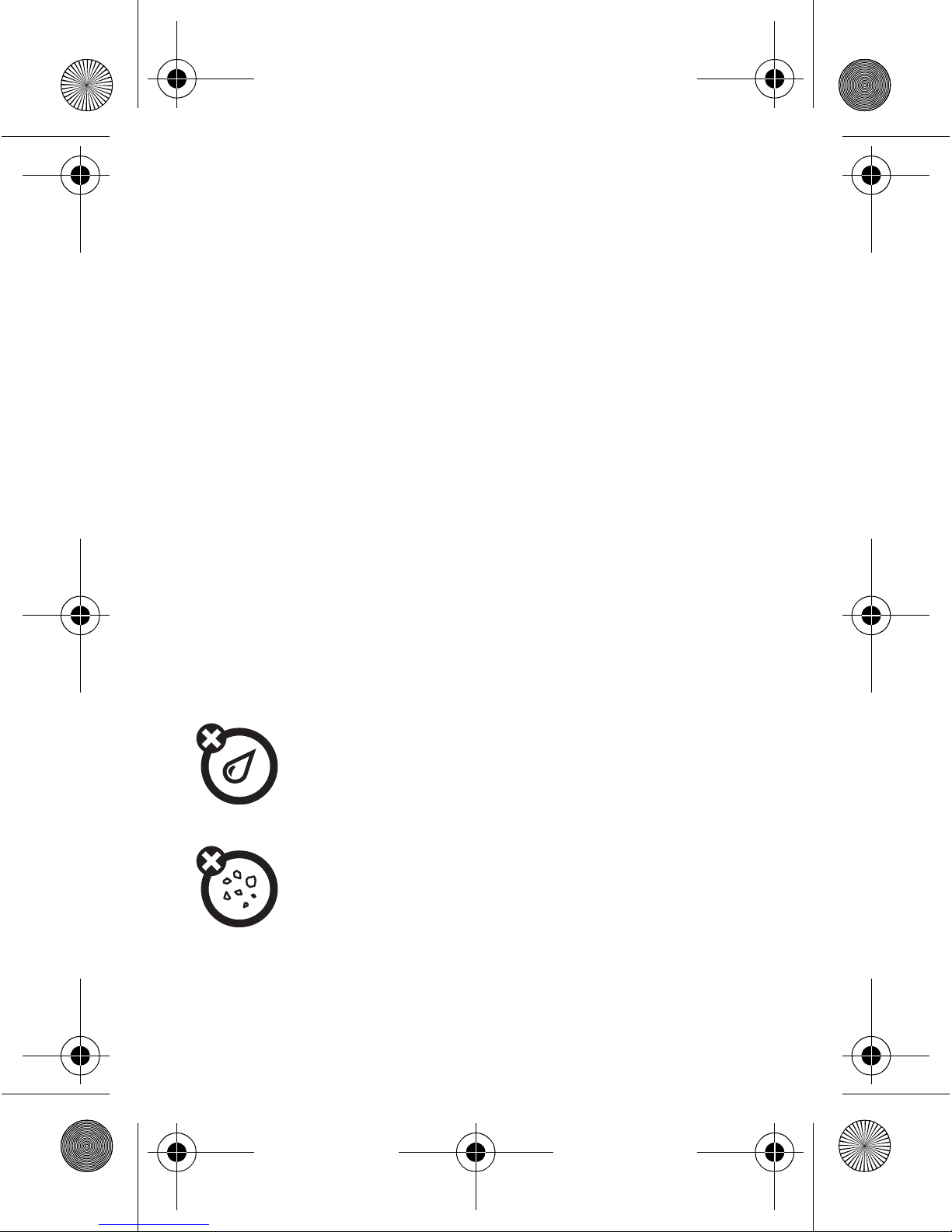
liquids of any kind
Don’t expose your phone to water, rain, extreme humidity,
sweat, or other moisture. If it does get wet, don’t try to
accelerate drying with the use of an oven or dryer, as this may
damage the phone.
dust and dirt
Don’t expose your phone to dust, dirt, sand, food, or other
inappropriate materials.
68005004001.fm Page 75 Friday, April 17, 2009 10:53 AM
Page 76
76
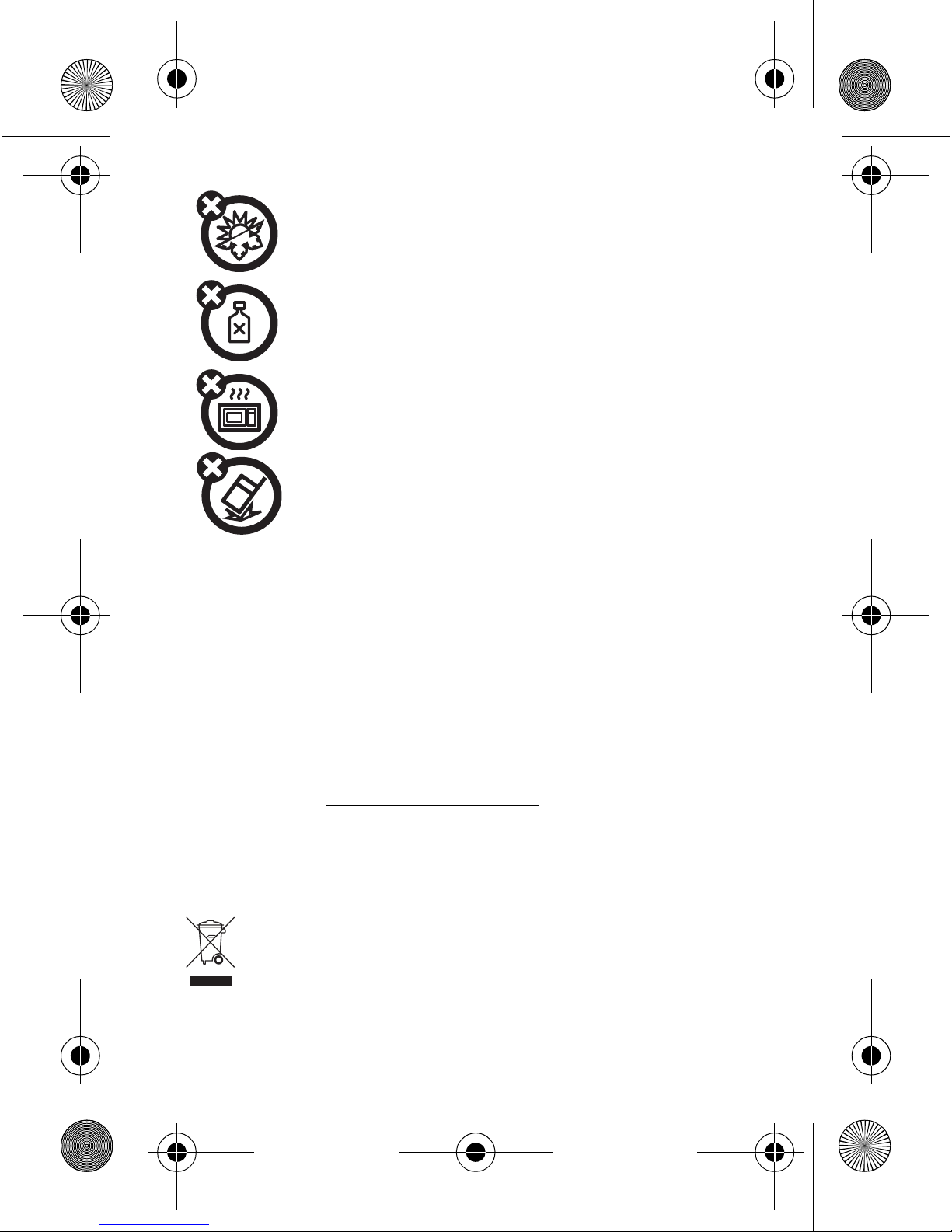
extreme heat or cold
Avoid temperatures below 0°C/32°F or above 45°C/113°F.
cleaning solutions
To clean your phone, use only a dry soft cloth. Don’t use alcohol
or other cleaning solutions.
microwaves
Don’t try to dry your phone in a microwave oven.
the ground
Don’t drop your phone.
Information from the World Health
Organization
WHO Informati on
Present scientific information does not indicate the need for any special precautions
for the use of mobile phones. If you are concerned, you may want to limit your own
or your children’s RF exposure by limiting the length of calls or by using handsfree
devices to keep mobile phones away from your head and body.
Source: WHO Fact Sheet 193
Further information:
http://www.who.int./peh-emf
Caring for the Environment by
Recycling
Recycling Information
This symbol on a Motorola product means the product
should not be disposed of with household waste.
68005004001.fm Page 76 Friday, April 17, 2009 10:53 AM
Page 77
77
Disposal of your Mobile Device and Accessories
Please do not dispose of mobile devices or electrical accessories (such as chargers,
headsets, or batteries) with your household waste. These items should be disposed
of in accordance with the national collection and recycling schemes operated by
your local or regional authority. Alternatively, you may return unwanted mobile
devices and electrical accessories to any Motorola Approved Service Center in your
region. Details of Motorola approved national recycling schemes, and further
information on Motorola recycling activities can be found at:
www.motorola.com/
recycling
Disposal of your Mobile Device Packaging and
User’s Guide
Product packaging and user’s guides should only be disposed of in accordance with
national collection and recycling requirements. Please contact your regional
authorities for more details.
Privacy and Data Security
Privacy and Data Security
Motorola understands that privacy and data security are important to everyone.
Because some features of your mobile device may affect your privacy or data
security, please follow these recommendations to enhance protection of your
information:
• Monitor access
—Keep your mobile device with you and do not leave it where
others may have unmonitored access. Lock your device’s keypad where this
feature is available.
• Keep software up to date
—If Motorola or a software/application vendor
releases a patch or software fix for your mobile device which updates the
device’s security, install it as soon as possible.
• Erase before recycling
—Delete personal information or data from your
mobile device prior to disposing of it or turning it in for recycling. For step-by-step
instructions on how to delete all personal information from your device, see the
section entitled “master clear” or “delete data” in this user’s guide.
68005004001.fm Page 77 Friday, April 17, 2009 10:53 AM
Page 78
78
Note:
For information on backing up your mobile device data before erasing it,
go to
www.motorola.com
and then navigate to the “downloads” section of the
consumer Web page for “Motorola Backup” or “Motorola Phone Tools.”
• Understanding AGPS
—In order to comply with emergency caller location
requirements of the FCC, certain Motorola mobile devices incorporate Assisted
Global Positioning System (AGPS) technology. AGPS technology also can be used
in non-emergency applications to track and monitor a user’s location—for
example, to provide driving directions. Users who prefer not to permit such
tracking and monitoring should avoid using such applications.
If you have further questions regarding how use of your mobile device may impact
your privacy or data security, please contact Motorola at
, or
contact your service provider.
Smart Practices While Driving
Driving Safety
Drive Safe, Call Smart
Check the laws and regulations on the use of mobile devices and their
accessories in the areas where you drive. Always obey them. The use of
these devices may be prohibited or restricted in certain areas -- for
example, handsfree use only. Go to
www.motorola.com/callsmart
(in English
only) for more information.
Your mobile device lets you communicate by voice and data—almost anywhere,
anytime, wherever wireless service is available and safe conditions allow. When
driving a car, driving is your first responsibility. If you choose to use your mobile
device while driving, remember the following tips:
• Get to know your Motorola mobile device and its features such as speed
dial and redial.
If available, these features help you to place your call without
taking your attention off the road.
• When available, use a handsfree device.
If possible, add
an additional layer of convenience to your mobile device with
one of the many Motorola Original handsfree accessories
available today.
• Position your mobile device within easy reach.
Be able
to access your mobile device without removing your eyes from
68005004001.fm Page 78 Friday, April 17, 2009 10:53 AM
Page 79
79
the road. If you receive an incoming call at an inconvenient time, if possible, let
your voicemail answer it for you.
• Let the person you are speaking with know you are driving; if necessary,
suspend the call in heavy traffic or hazardous weather conditions.
Rain,
sleet, snow, ice, and even heavy traffic can be hazardous.
• Do not take notes or look up phone numbers while driving.
Jotting down a
“to do” list or going through your address book takes attention away from your
primary responsibility—driving safely.
• Dial sensibly and assess the traffic; if possible, place calls when your
car is not moving or before pulling into traffic.
If you must make a call while
moving, dial only a few numbers, check the road and your mirrors, then continue.
• Do not engage in stressful or emotional conversations that may be
distracting.
Make people you are talking with aware you are driving and
suspend conversations that can divert your attention away from the road.
• Use your mobile device to call for help.
Dial 911 or other local emergency
number in the case of fire, traffic accident, or medical emergencies.
1
• Use your mobile device to help others in emergencies.
If you see an auto
accident, crime in progress, or other serious emergency where lives are in
danger, call 911 or other local emergency number, as you would want others to
do for you.
1
• Call roadside assistance or a special non-emergency wireless
assistance number when necessary.
If you see a broken-down vehicle
posing no serious hazard, a broken traffic signal, a minor traffic accident where
no one appears injured, or a vehicle you know to be stolen, call roadside
assistance or other special non-emergency wireless number.
1
1 Wherever wireless phone service is available.
68005004001.fm Page 79 Friday, April 17, 2009 10:53 AM
Page 80
80
Motorola, Inc.
Consumer Advocacy Office
1307 East Algonquin Road
Schaumburg, IL 60196
www.hellomoto.com
1-800-331-6456 (United States)
1-888-390-6456 (TTY/TDD United States for hearing impaired)
1-800-461-4575 (Canada)
Certain mobile phone features are dependent on the capabilities and settings of
your service provider’s network. Additionally, certain features may not be activated
by your service provider, and/or the provider’s network settings may limit the
feature’s functionality. Always contact your service provider about feature
availability and functionality. All features, functionality, and other product
specifications, as well as the information contained in this user’s guide are based
upon the latest available information and are believed to be accurate at the time of
printing. Motorola reserves the right to change or modify any information or
specifications without notice or obligation.
MOTOROLA and the Stylized M Logo are registered in the US Patent & Trademark
Office. All other product or service names are the property of their respective
owners. The Bluetooth trademarks are owned by their proprietor and used by
Motorola, Inc. under license. YouTube is a trademark of Google, Inc. Java and all
other Java-based marks are trademarks or registered trademarks of Sun
Microsystems, Inc. in the U.S. and other countries. Microsoft, Windows and
Windows Me are registered trademarks of Microsoft Corporation; and Windows XP
is a trademark of Microsoft Corporation.
© 2009 Motorola, Inc. All rights reserved.
Caution:
Changes or modifications made in the radio phone, not expressly approved
by Motorola, will void the user’s authority to operate the equipment.
Manual Number: 68005004001
U.S. patent Re. 34,976
68005004001.fm Page 80 Friday, April 17, 2009 10:53 AM
Page 81
68005004001.fm Page 81 Friday, April 17, 2009 10:53 AM
Page 82
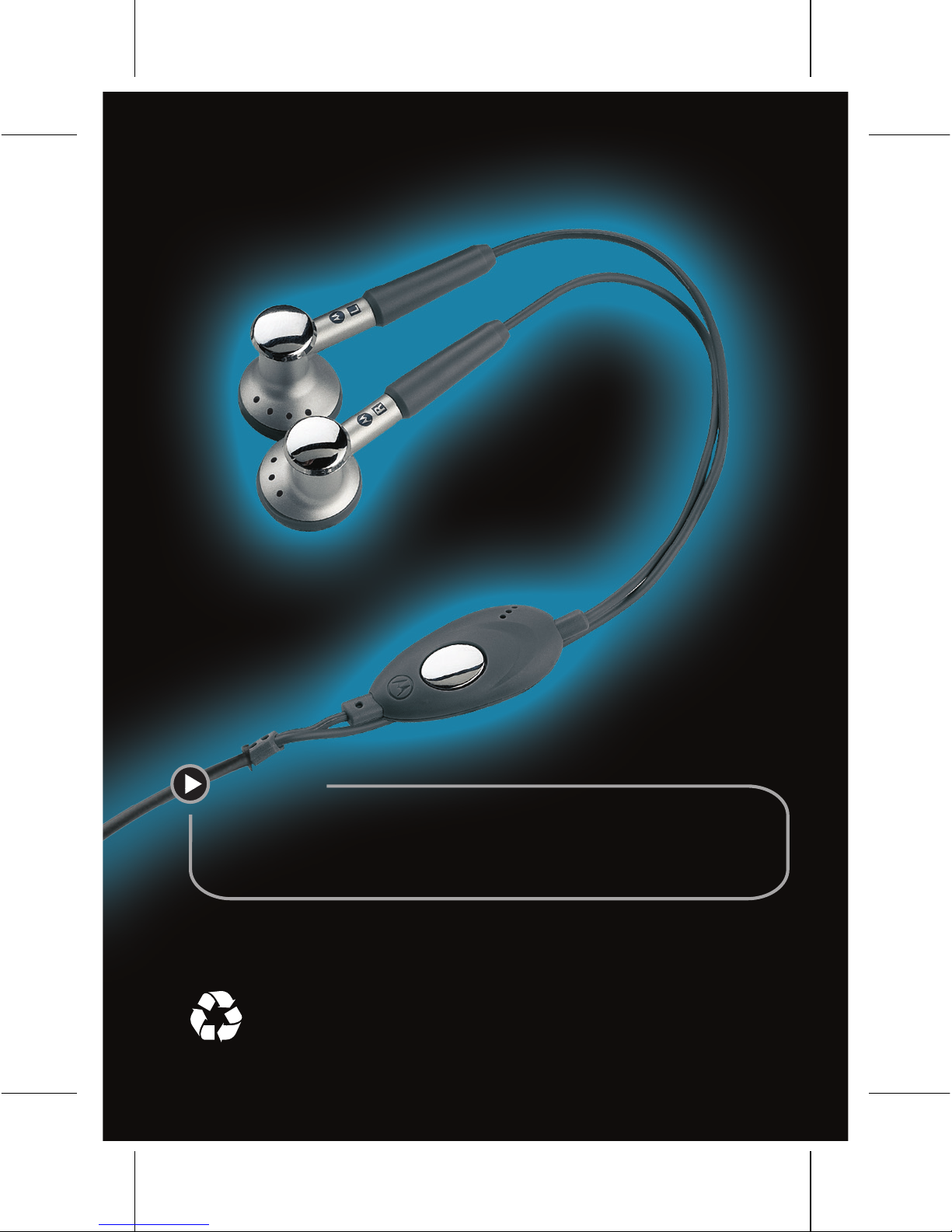
accessories
accessories: www.motorola.com
GOTO
68005004001
 Loading...