

Page 1
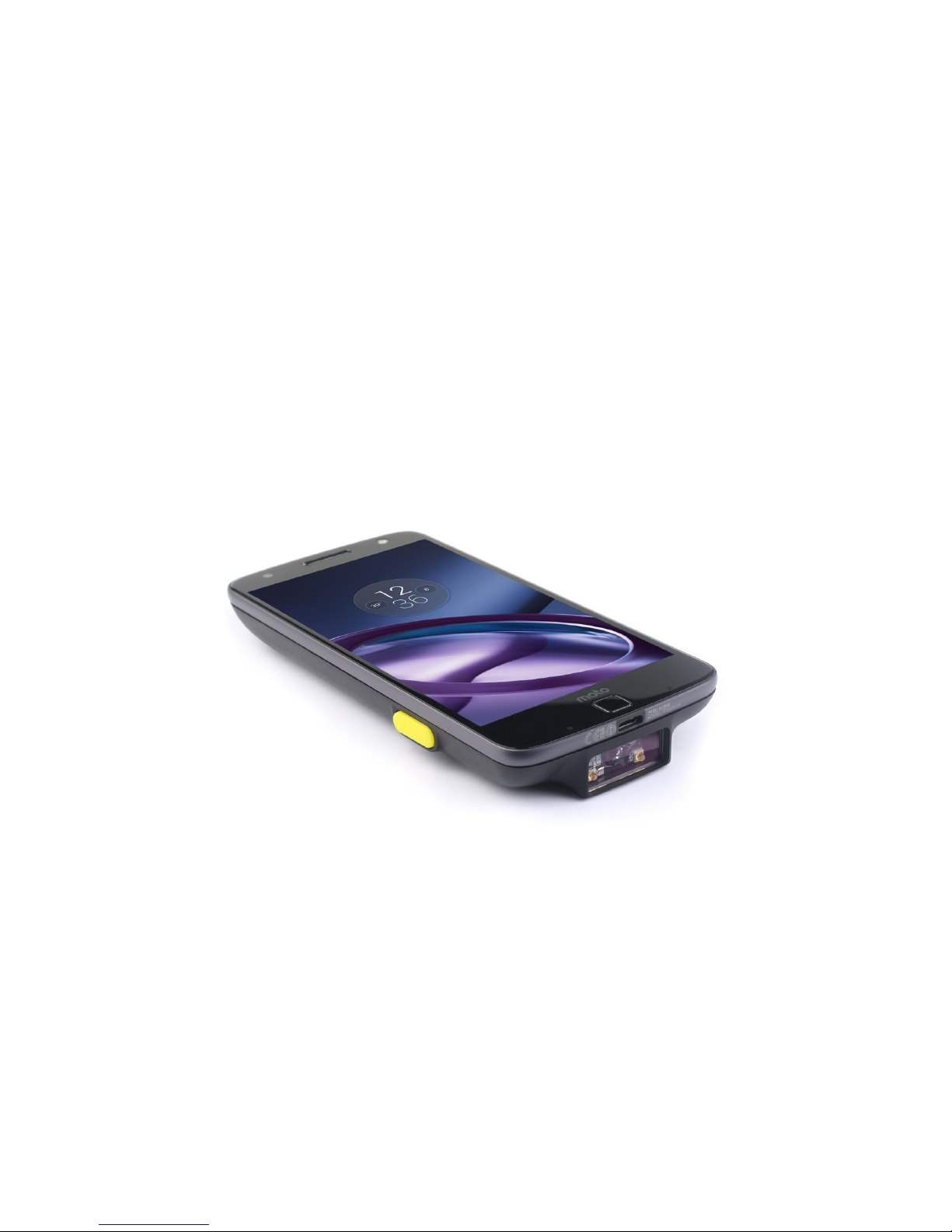
MT6000 Series Bluetooth
Barcode Scanner Quick Start
Guide
Page 2
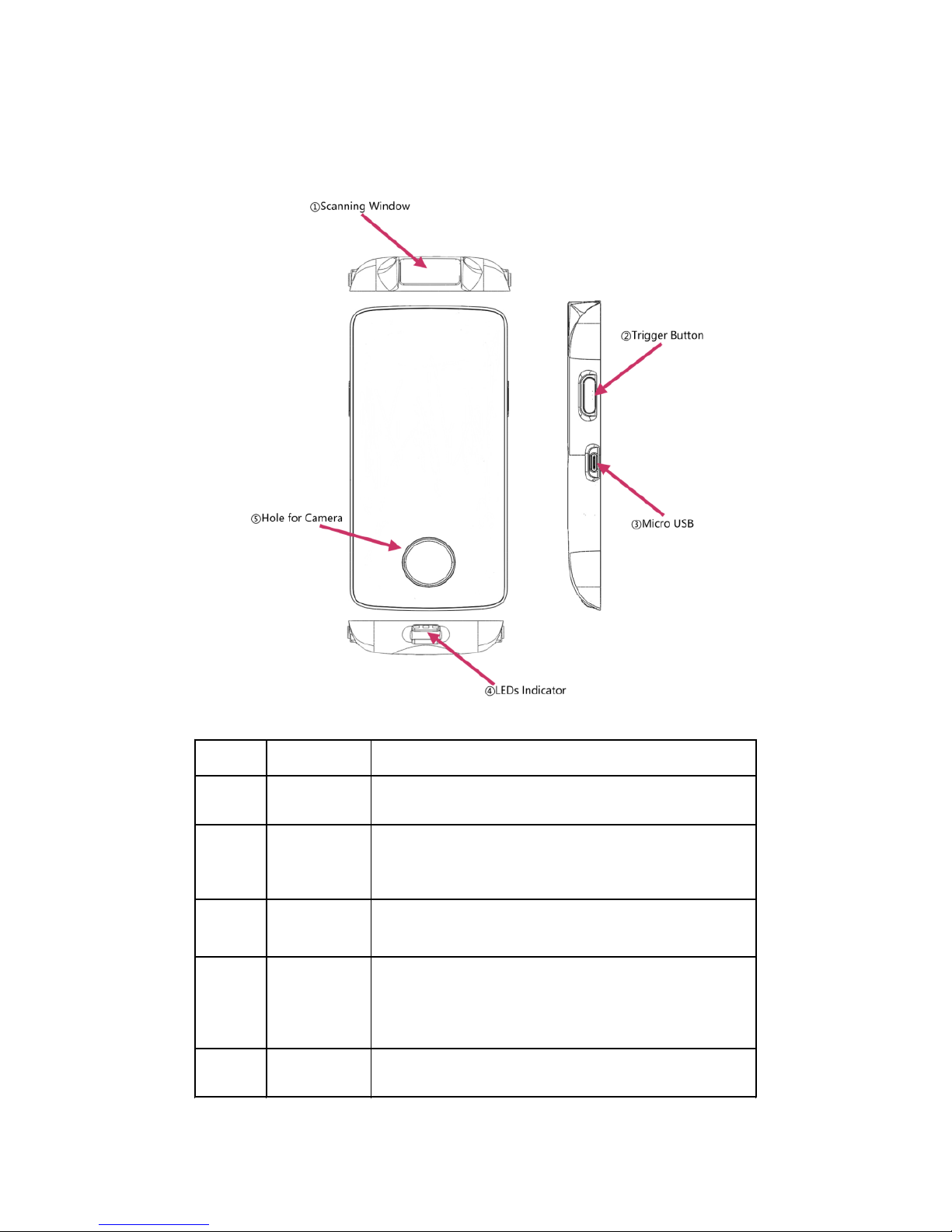
1. Product Outlook
Item Name Description
1
Scanning
Window
Reading barcode, Red light or Laser will beam
out from this window
2
Trigger
Button
Press the trigger button to scan the barcode
one time,double click to hide and display soft
keyboard in iOS device like iphone or iPad.
3 MicroUSB
Charge with bluetooth barcode scanner with
Micro-USB or connect PC with USB port.
4
LEDs
Indicator
LED has three color (Red,Green,Blue) which
indicate with different scenario. Please
reference the following table for detail
description
5
Hole of
Camera
Used for MOTO Z mobile phone's camera
Page 3
2. LED Indicator
Item Status Description
1
Green LED light flashing (with
buzzer sound)
Decode success
2
Green LED light flashes continuously Low battery alarm
3
Red LED light constant light Charging
4
Red LED light turn off Charging is complete
5
Red LED light flashes continuously Built-in battery abnormal
6
Blue LED continuously flashing
Enter the Bluetooth
pairing mode
7
Blue LED turn off
Bluetooth Pairing
successful
3. Bluetooth Connecting
3.1 Bluetooth Connecting
Bluetooth HID Mode
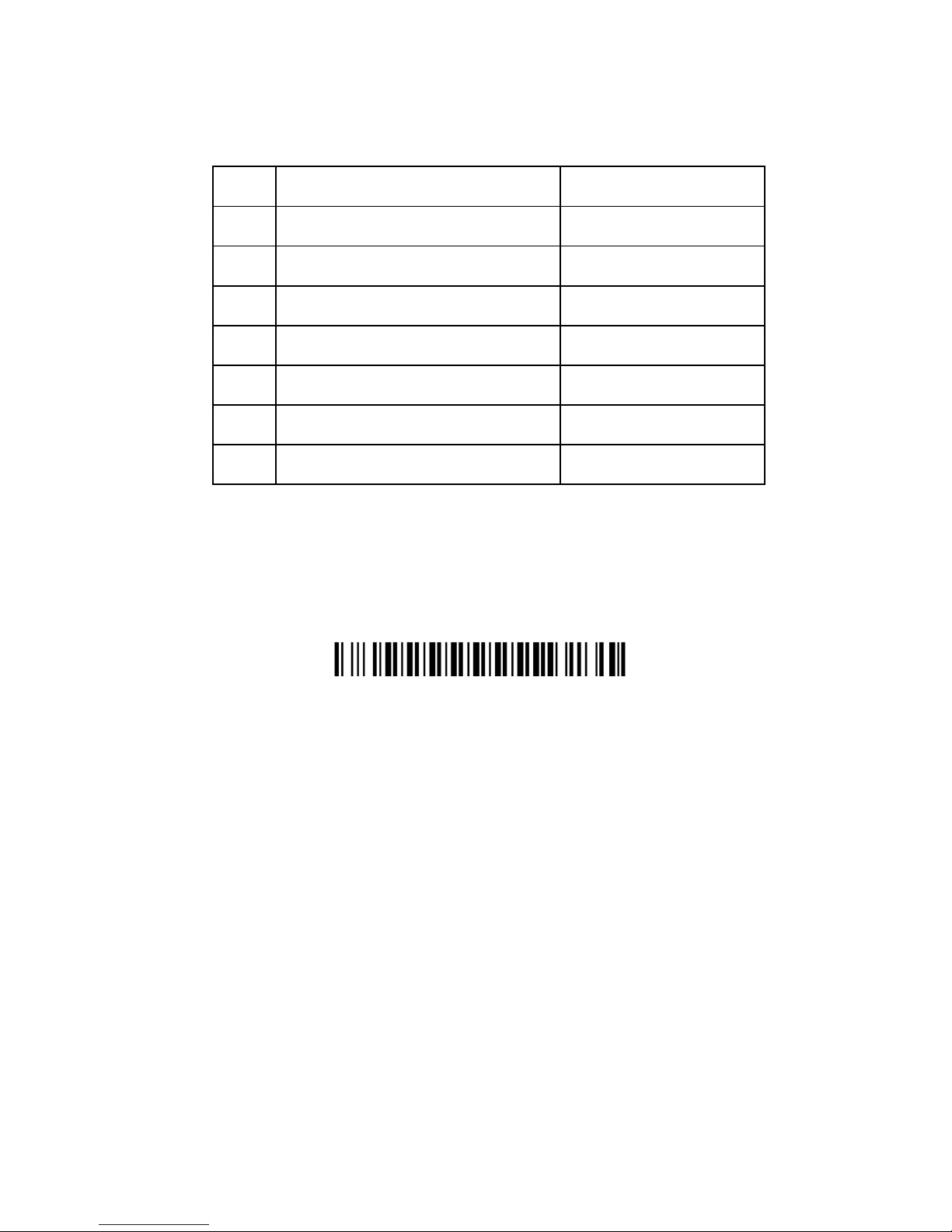
3.1.1 Turn on the scanner (press the trigger button for a while),Click
the trigger button, Scan configure barcode “Bluetooth HID
Mode”, Toggle scanner mode to HID mode, at this time the
scanner's blue light flashing fast.
3.1.2 Open the Smart Device Bluetooth Setting, turn on Bluetooth,
search around the connected devices, in the list of connected
devices (Available devices) to discover our scanner "GS-
BarcodeScanner BT4.0", Click the "GS-BarcodeScanner BT4.0",
then, click the "PAIR".
Page 4
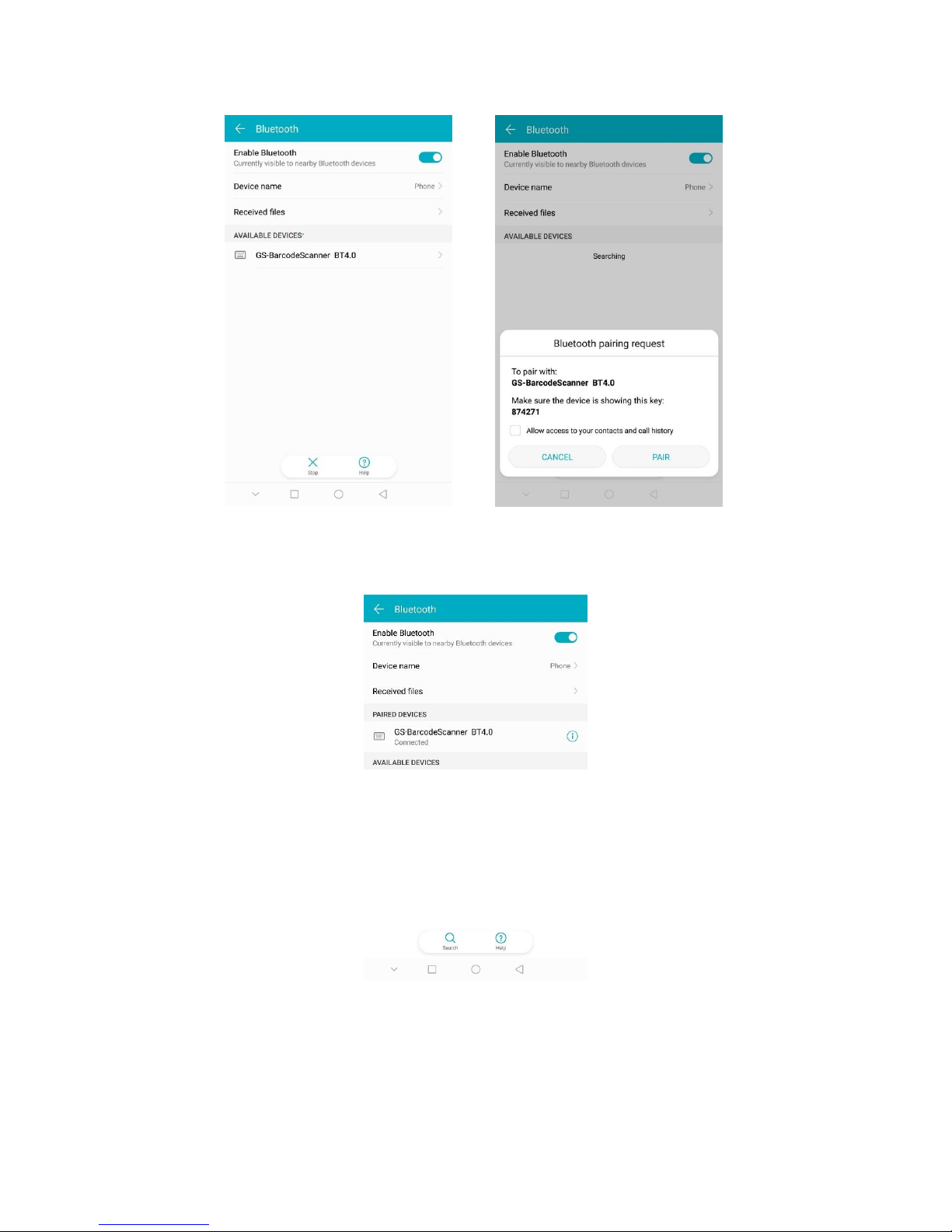
3.1.3 Connection is successful, the scanner Blue light is extinguished.
3.1.4 You can input data anywhere with the cursor.
Page 5
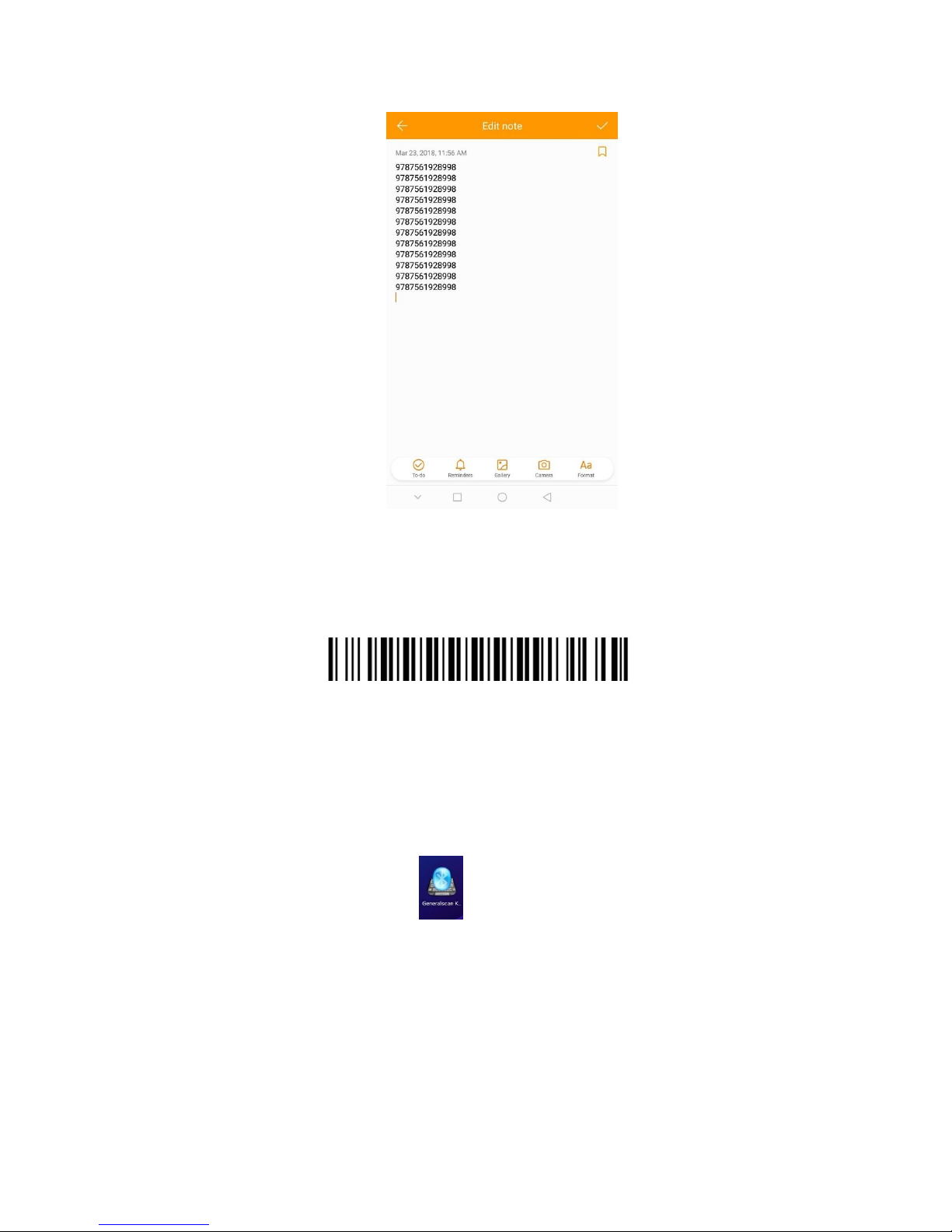
3.2 SPP mode(GS Keyboard input APP)
Bluetooth HID Mode
3.2.1 Turn on the scanner (power switch), press the trigger key
(Trigger button), scanning the barcode "Bluetooth SPP Mode",
switch scanner mode to the SPP Mode, at this time the scanner's
blue light is flashing slowly
3.2.2 Click the icon , turn on the Generalscan Keyboard, Click
the “Choose”, switch to system setting, Active “Generalscan
Keyboard”
Page 6
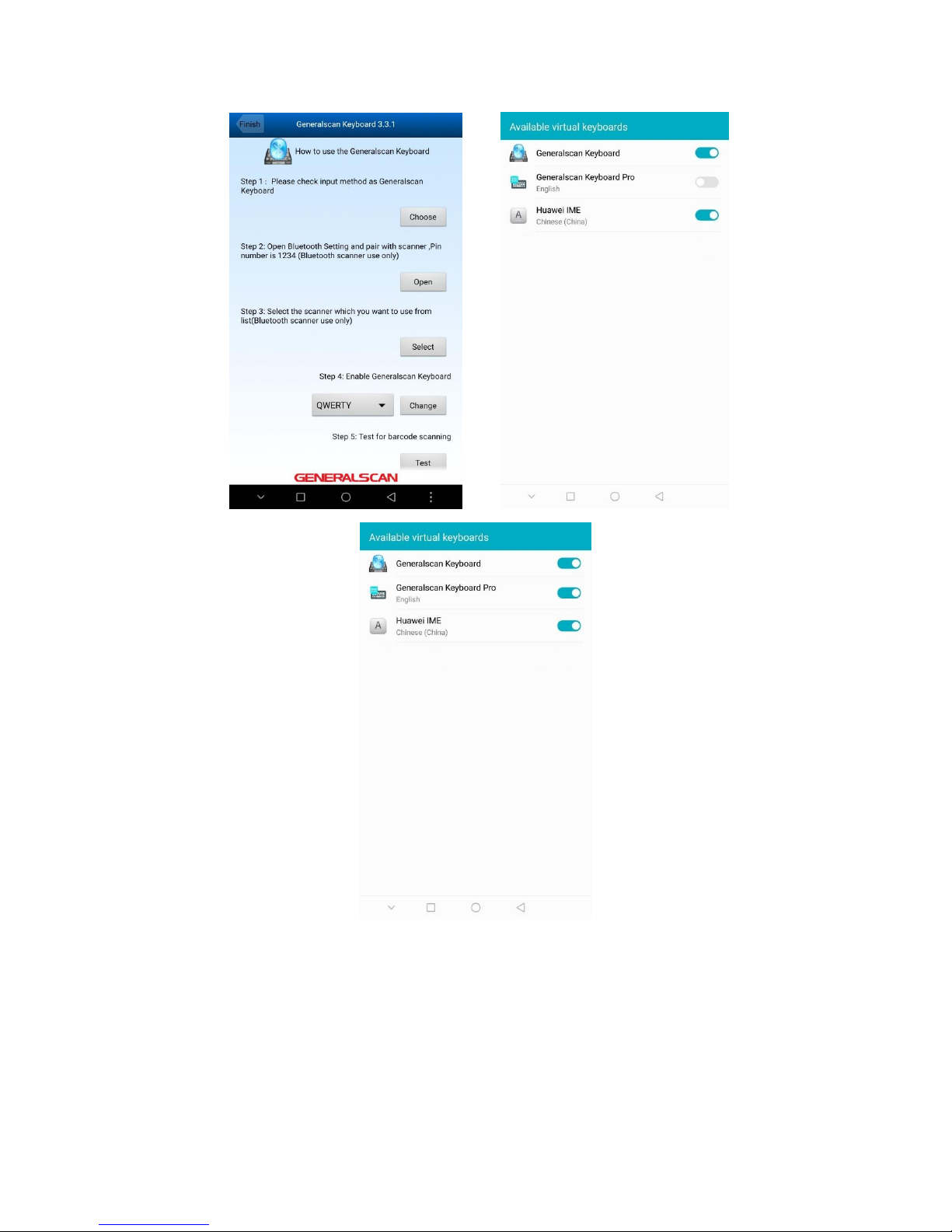
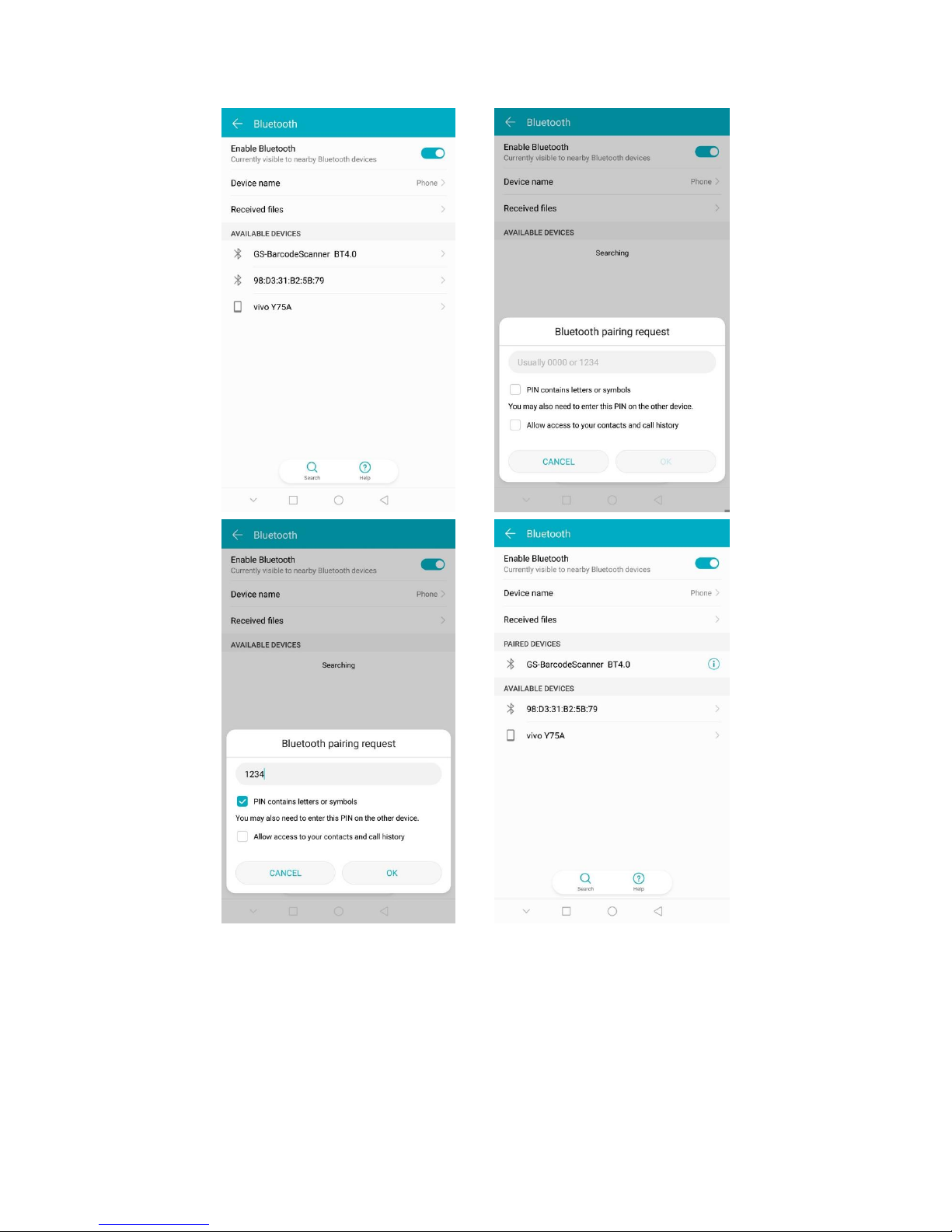
3.2.3 Return to “Generalscan Keyboard”, Click the “Open”, switch to
Bluetooth setting, Turn on the Bluetooth, search around the
connected devices, in the list of connected devices (Available
devices) to discover our scanner " GS-BarcodeScanner BT4.0",
click Connect, the PN Number is “1234”, Bluetooth paired is
successful.
Page 7
Page 8
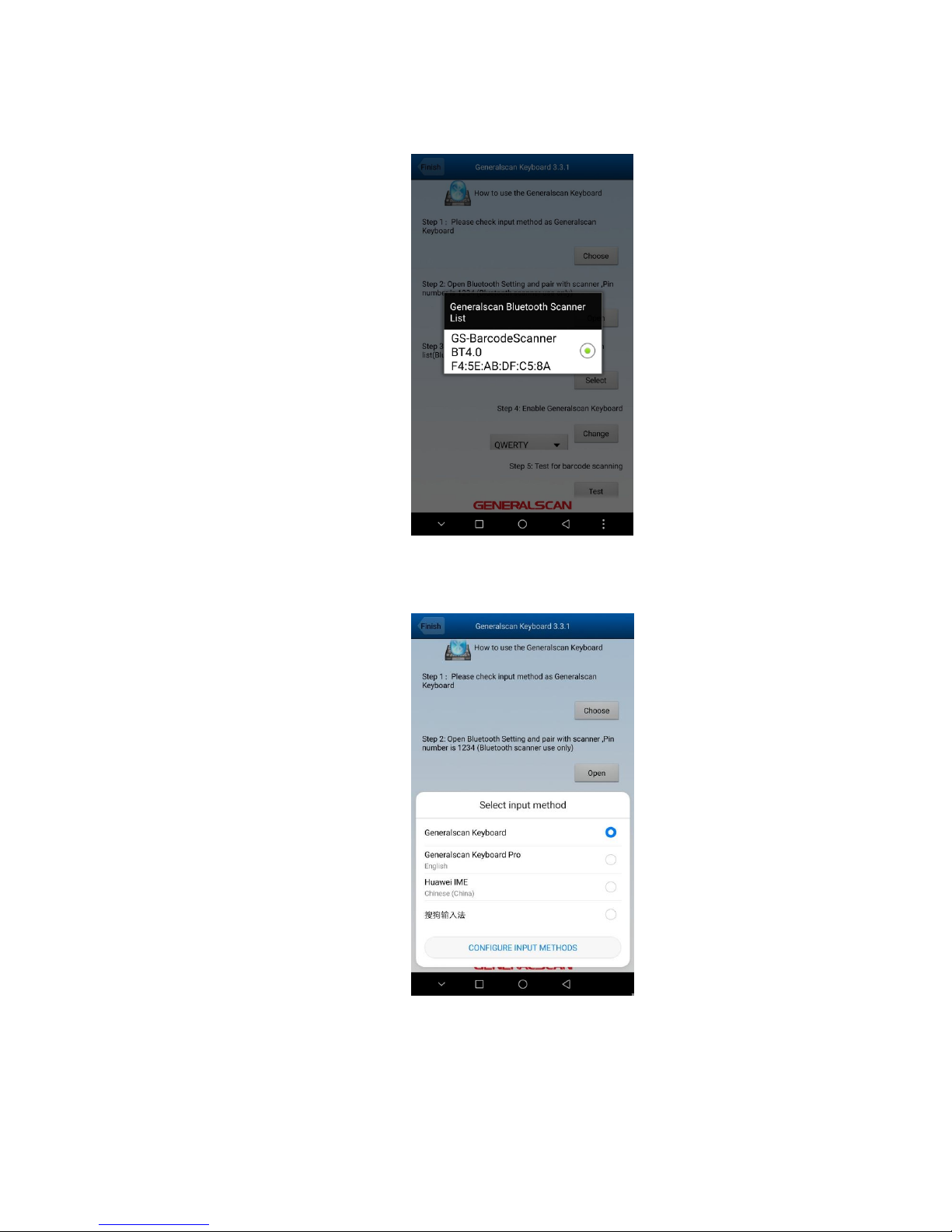
3.2.4 Return to ”Generalscan Keyboard”, Click the ”Select”, Select the
scanner
3.2.5 Click the “Change”, Select the “Generalscan Keyboard”
3.2.6 Click the “Test”, You can input data anywhere with the cursor.
Page 9
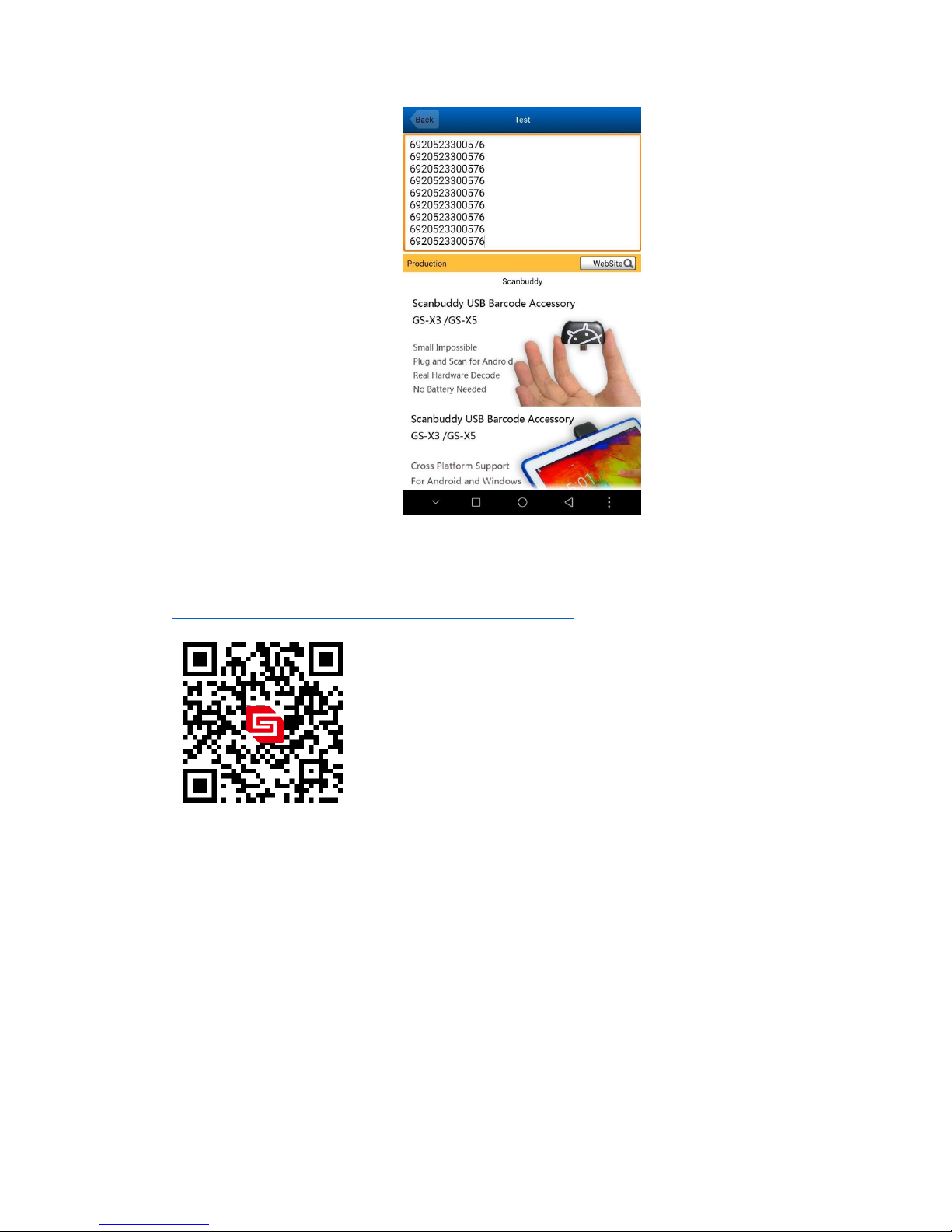
Generalscan Barcode Sled for Moto Z:
https://www.youtube.com/watch?v=SN_6NuA723M
Page 10
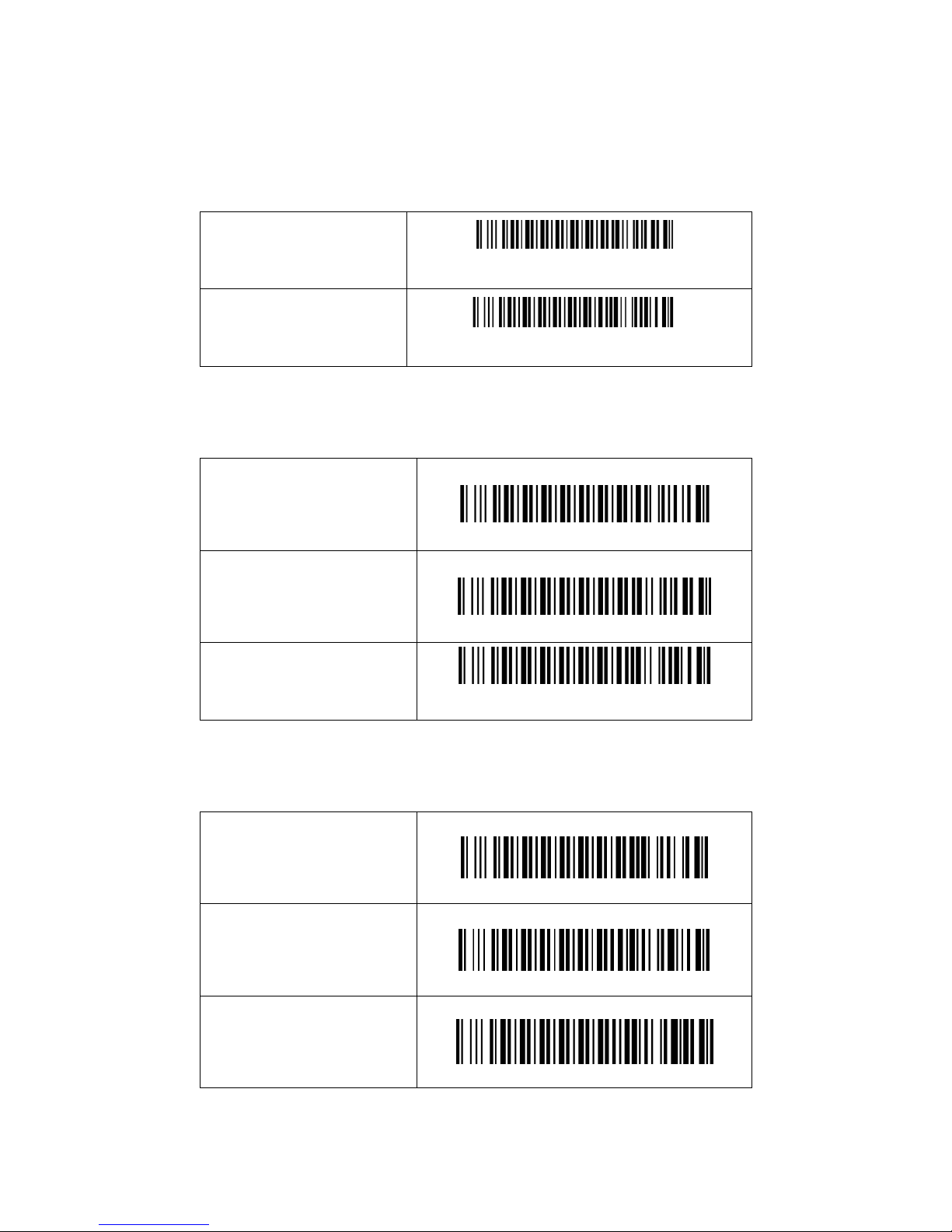
4. Configure barcode
4.1 Connecting to a PC Host via USB
USB HID MODE(*)
USB HID MODE
USB VCP MODE
USB VCP MODE
4.2 Output Interface
Bluetooth Output Mode(*)
Bluetooth output Mode
USB HID Output Mode
USB HID Out Mode
USB VCP Output Mode
USB VCP Output Mode
4.3 Bluetooth Mode Configuration
Bluetooth HID Mode(*)
Bluetooth HID Mode
Bluetooth SPP Slave Mode
Bluetooth SPP Slave Mode
Bluetooth SPP Master
Mode
Bluetooth SPP Master Mode
Page 11
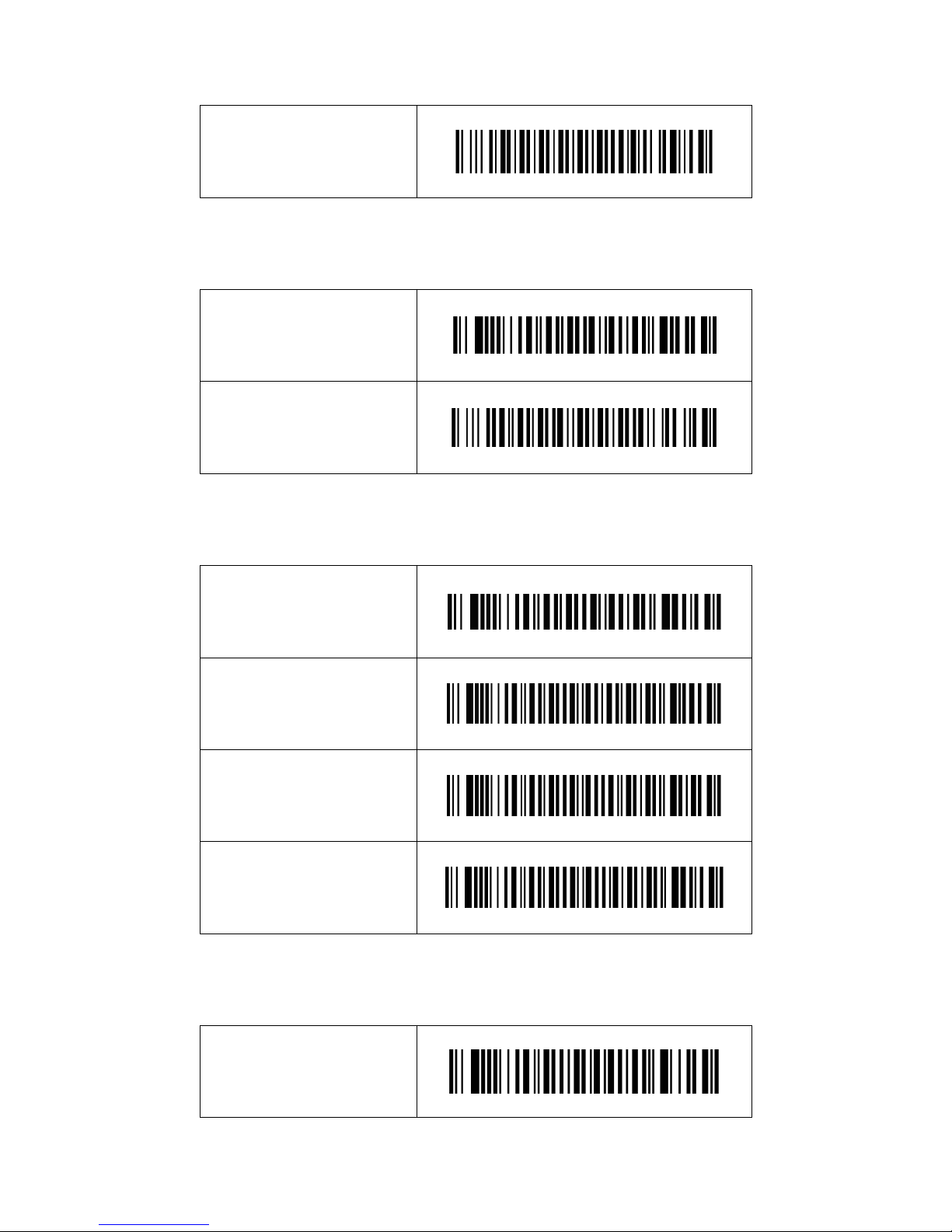
Bluetooth BLE Mode
Bluetooth BLE Mode
4.4 Hibernation Time
1 second Hibernation(*)
1 second Hibernation
5 second Hibernation
5 second Hibernation
4.5 Buzzer Volume Setting
Mute Buzzer Volume
Mute Buzzer Volume
Low Buzzer Volume
Low Buzzer Volume
Medium Buzzer Volume
Medium Buzzer Volume
High Buzzer Volume(*)
High Buzzer Volume
4.6 On-Board Build-in Suffix for CR&LF
Enable CR&LF suffix(*)
Enable CR&LF suffix
Page 12
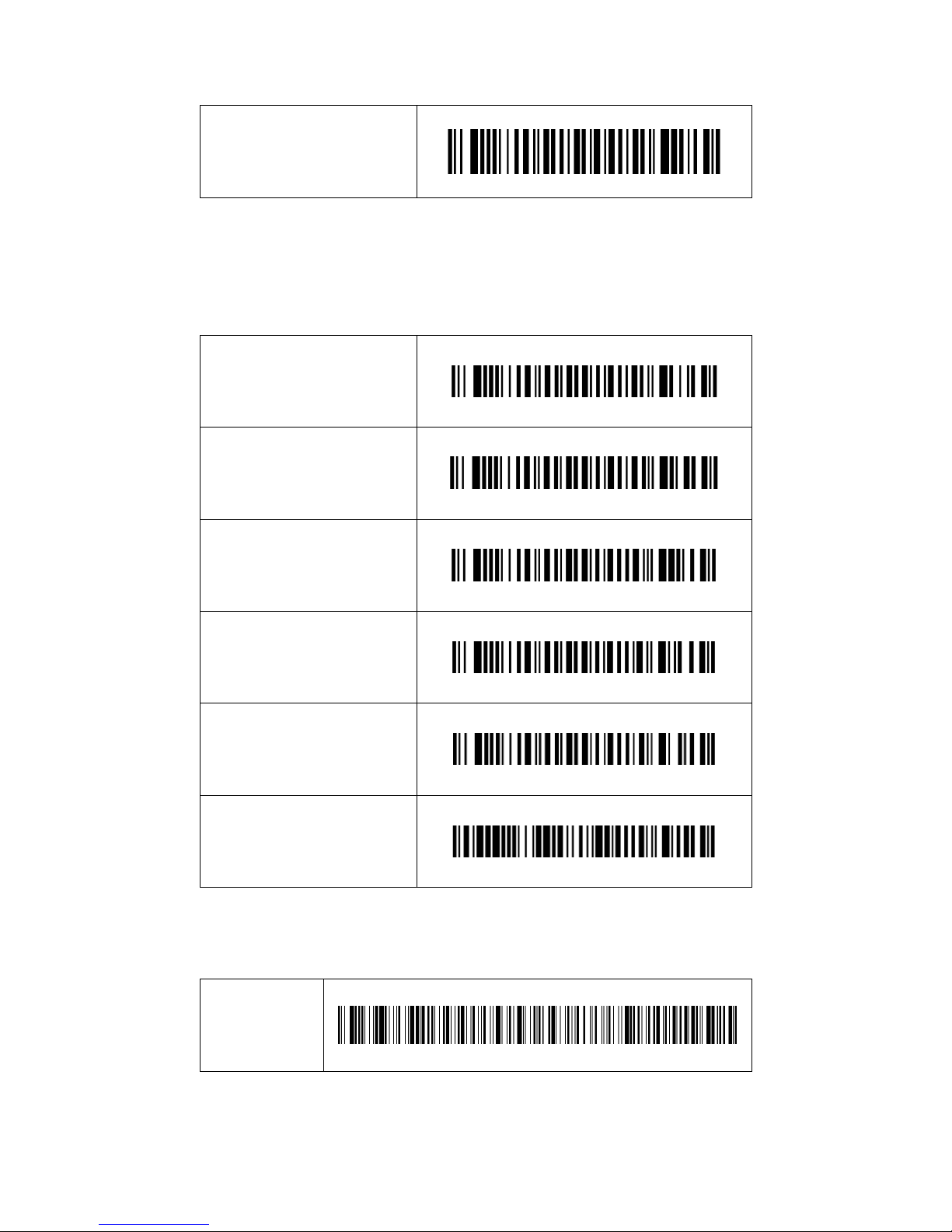
Disable CR&LF suffix
Disable CR&LF suffix
4.7 HID Keyboard Layout
English Keyboard Layout(*)
English Keyboard Layout
France Keyboard Layout
France Keyboard Layout
German Keyboard Layout
German Keyboard Layout
Spanish Keyboard Layout
Spanish Keyboard Layout
Italian Keyboard Layout
Italian Keyboard Layout
Japanese Keyboard Layout
Japanese Keyboard Layout
4.8 Reset Factory Bluetooth Name
Reset Factory
Bluetooth
Name
Reset Factory Bluetooth Name
Page 13
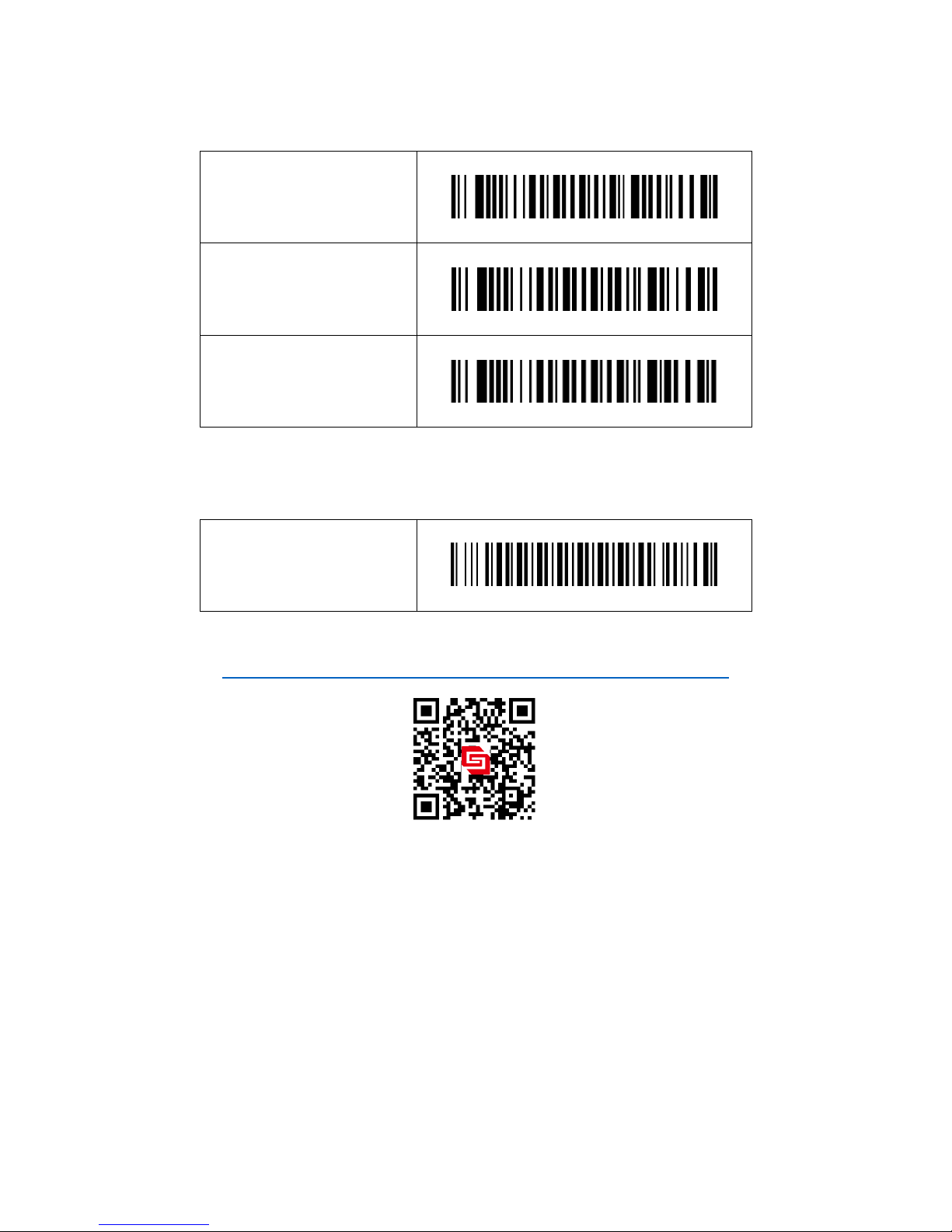
4.9 Hardware Information
Read firmware Version
Read firmware Version
Read Device ID
Read Device ID
Read Battery Volume
Read Battery Volume
4.10 Default Factory Setting
Default Factory Setting
Default Factory Setting
http://www.generalscan.com/en-us/index-en.php
 Loading...