

Page 1

MODEL: WF-1002
QUICK START GUIDE
Page 2
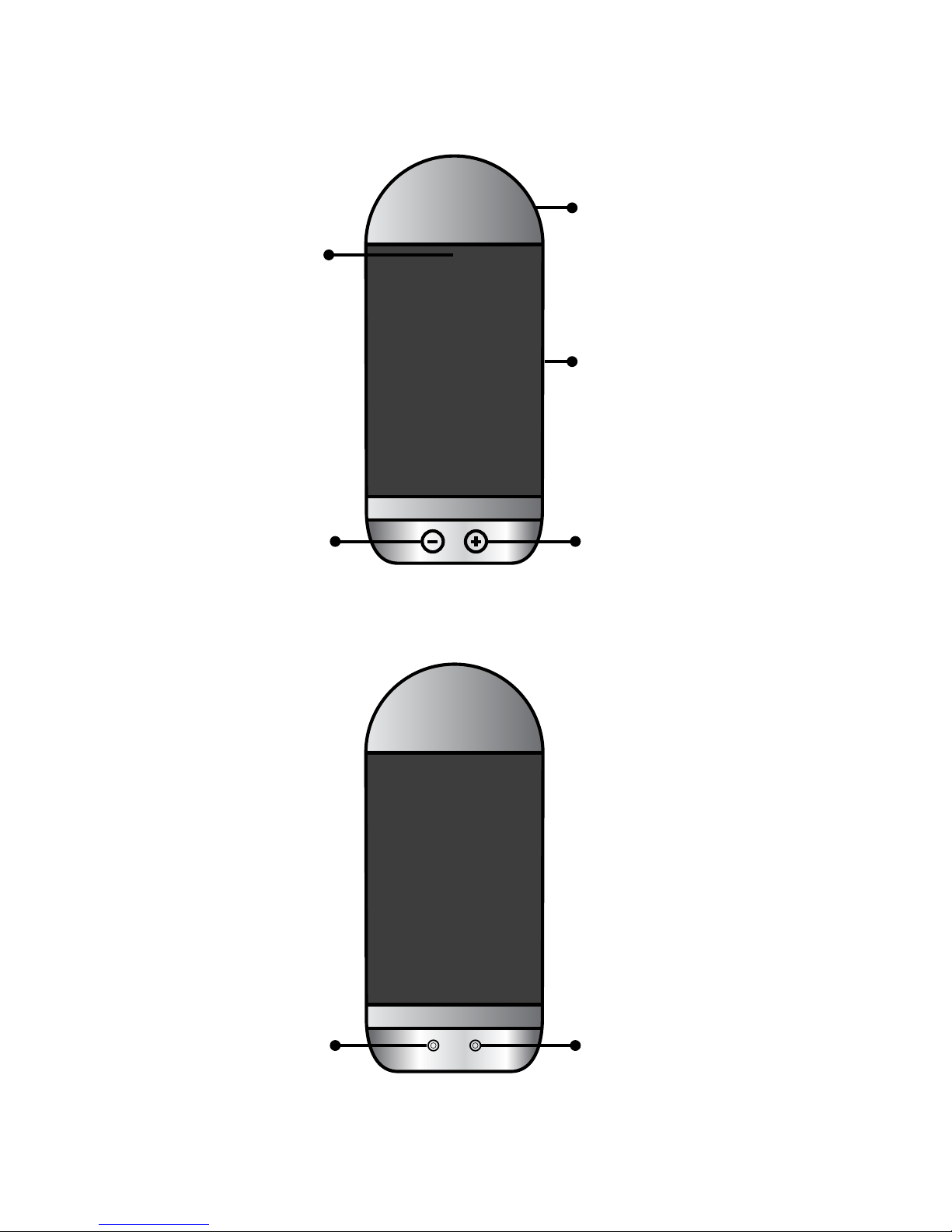
Device layout
AUX OUTDC IN
Front view
Back view
Frosted glass light
Volume up
Microphone
Volume down
Speaker
AUX OUT for
other speakers
DC IN for
power source
Page 3
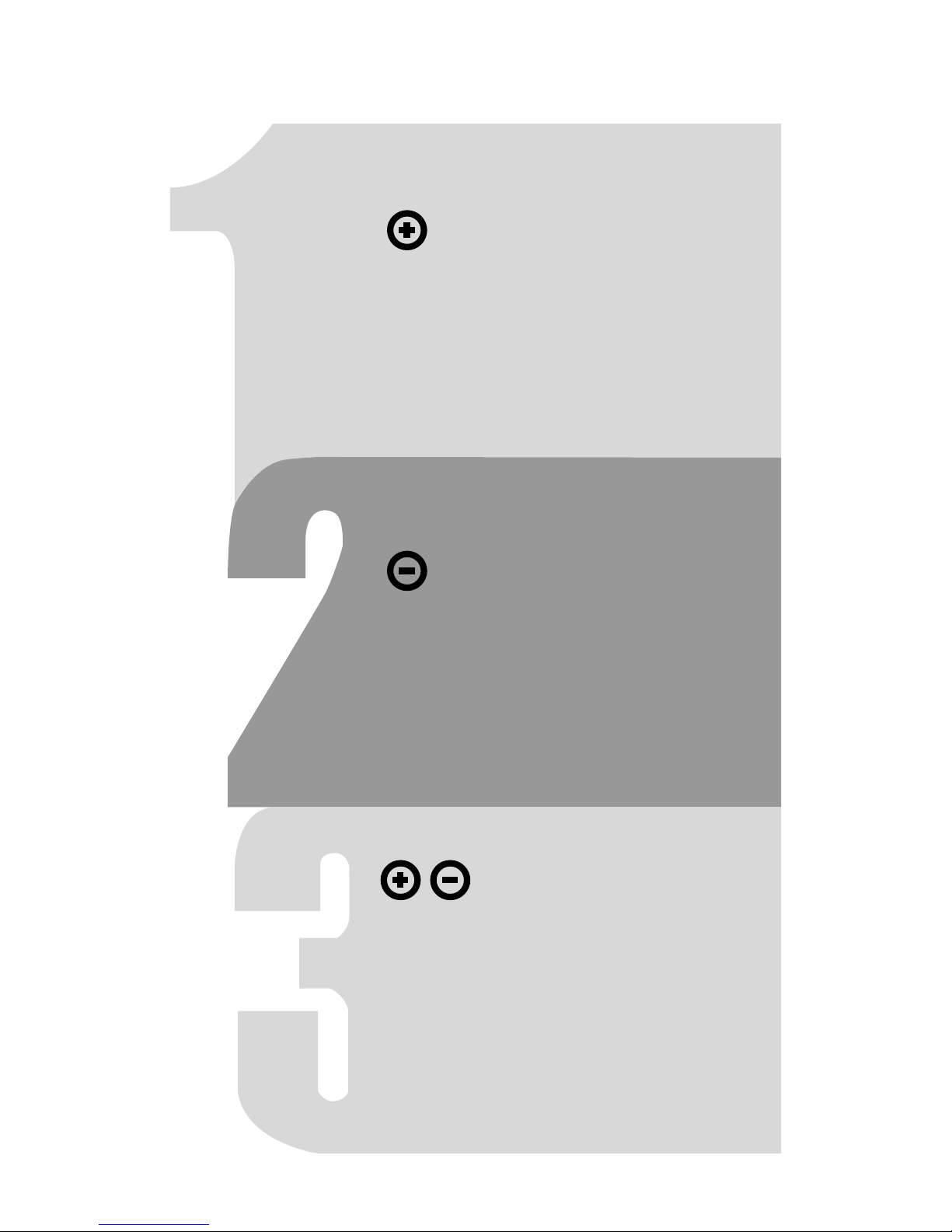
Button functions
Volume up
1) Short press to turn the volume up
2) Long press for 2 seconds to
power on/o Moodbox
Volume down
1) Short press to turn the volume down
2) Long press for 2 seconds to
mute the microphone
Volume up & down
1)
2)
Short press both buttons and then
speak to Moodbox (this button serves
an alternative to saying the wake up
words ‘Okay Emi’)
Long press both buttons together for 2
seconds to set up Wifi (please follow
instructions on the companion app)
Page 4
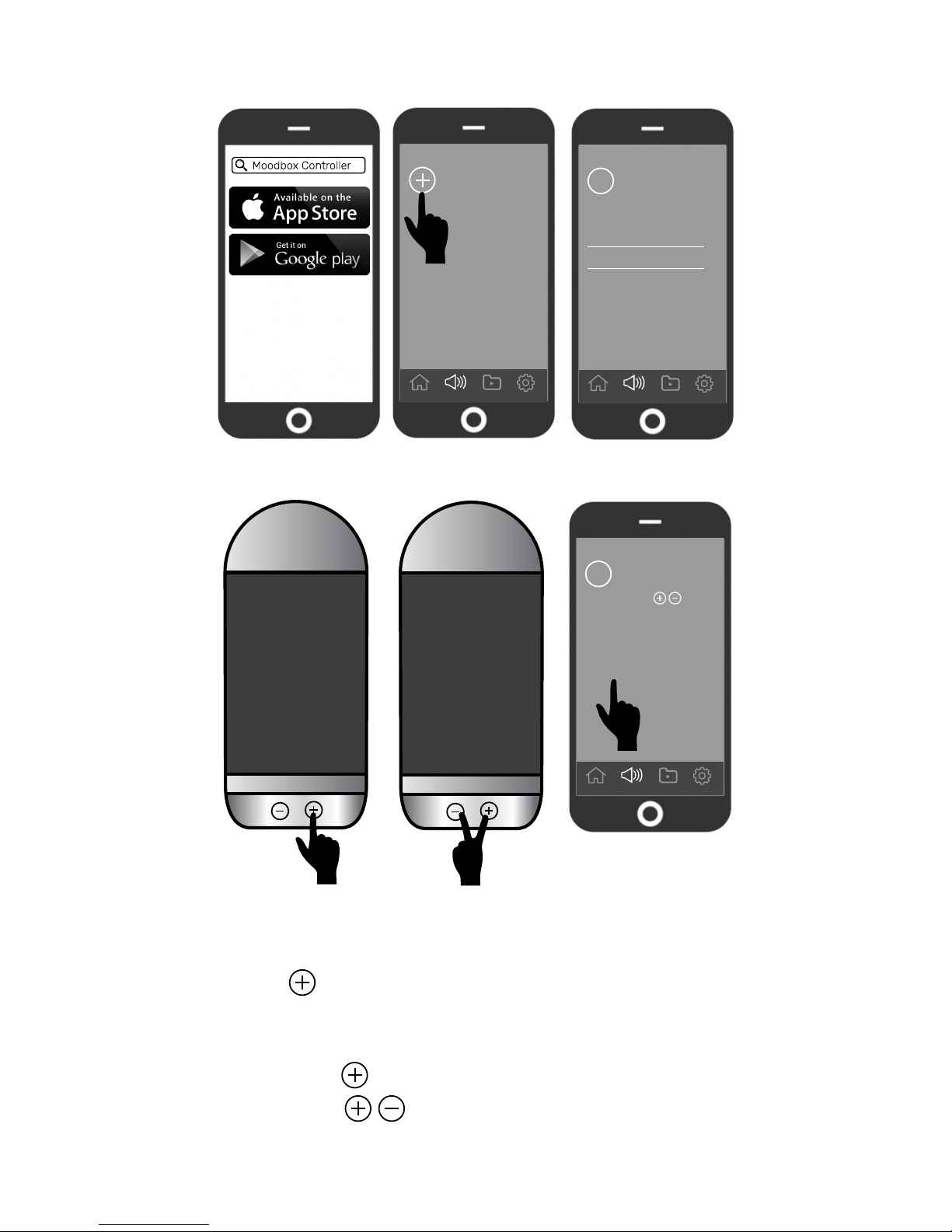
WiFi setup
1
Home Devices Library Setting
2
Please connect to your
home wifi
>
NETWORK NAME
PASSWORD
3
5
>
6
Long press
at the same time on
Moodbox
Continue >>
Download Moodbox Controller App from iOS App Store or
Google Play Store. Open the app and create a Moodbox
account with your email
Click on the Devices page
Input home WiFi credentials which has to be the same
network as the one your smartphone is connecting to
Long press button on Moodbox to power it on (if o)
Long press on Moodbox altogether until to hear
Emi saying “Connecting to WiFi”
Click “Continue” on the app to finish the setup process.
Then you can give a name to your Moodbox on the app
1)
2)
3)
4)
5)
6)
Home Devices Library Setting
Home Devices Library Setting
4
Page 5
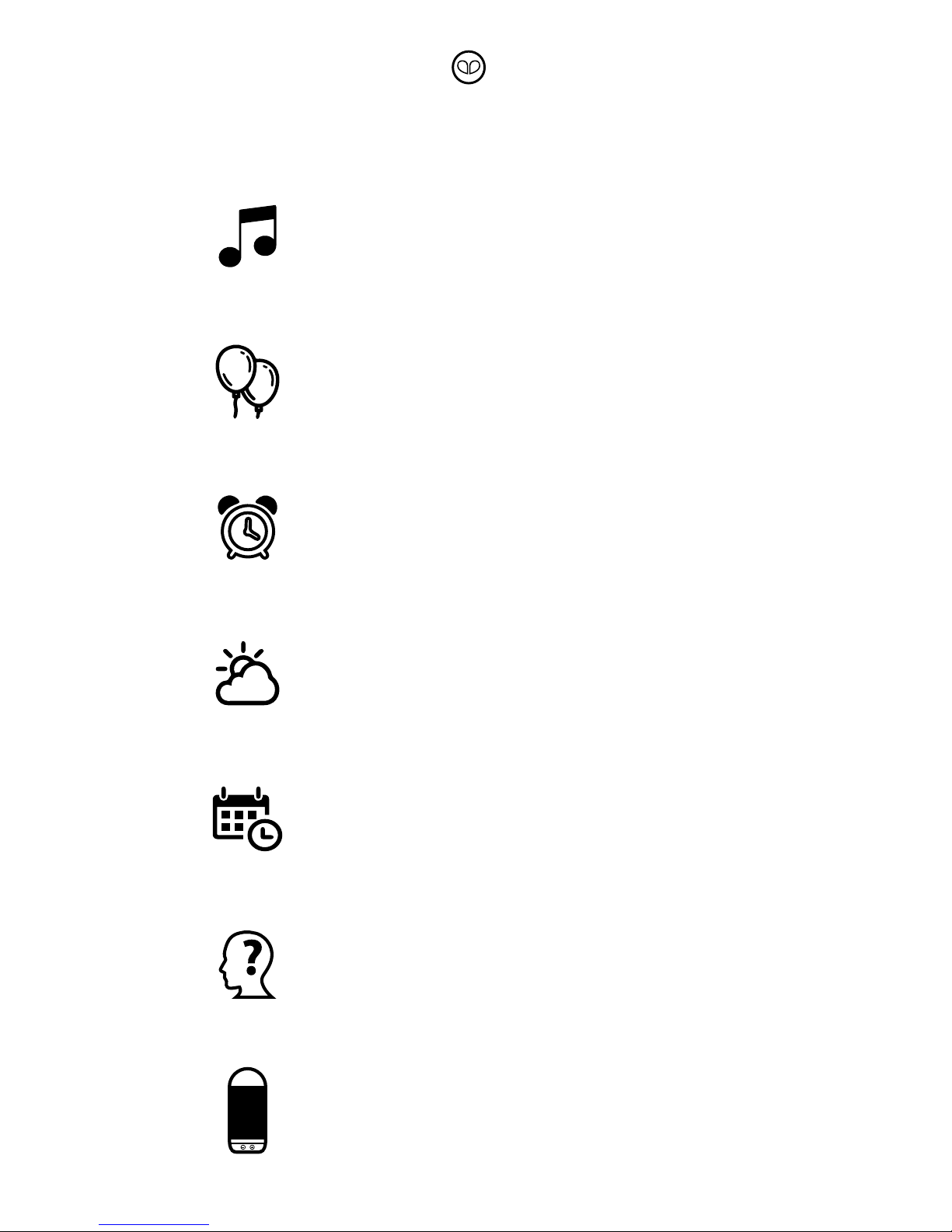
Speaking to Moodbox
Artist & genre based music
---------------------------Okay Emi, play some jazz
Okay Emi, play music by The Beatles
Okay Emi, play something for me
Okay Emi, I want some songs like Coldplay
Mood & theme based music
---------------------------Okay Emi, play some happy songs
Okay Emi, I am feeling stressed
Okay Emi, I got a promotion today
Okay Emi, play some party music
Alarms & music scheduling
---------------------------Okay Emi, set an alarm for 9AM tomorrow
Okay Emi, set an alarm for 8AM every Monday
Okay Emi, play some jazz tomorrow night at 10PM
Okay Emi, setup a playlist for tonight at 11PM
Weather
--------Okay Emi, what is the weather like today?
Okay Emi, will it rain tomorrow?
Okay Emi, weather forecast for Hong Kong
Okay Emi, tell me about the day
Date and time telling
---------------------Okay Emi, what is the time?
Okay Emi, what is the time in Toronto?
Okay Emi, what is today's date?
Okay Emi, what will be the date of next Monday?
Question & answers
--------------------Okay Emi, who is Hillary Clinton?
Okay Emi, when is Christmas?
Okay Emi, how tall is Mount Everest?
Okay Emi, tell me about France
Device control
----------------
Okay Emi, play next song
Okay Emi, volume four (1-5)
Okay Emi, dim the lights
OKay Emi, change the color to baby blush
To speak to Emi on Moodbox please say "Okay Emi" and then
tell Emi what you want. Here are some things you can say -
Page 6
8 inches
8 inches
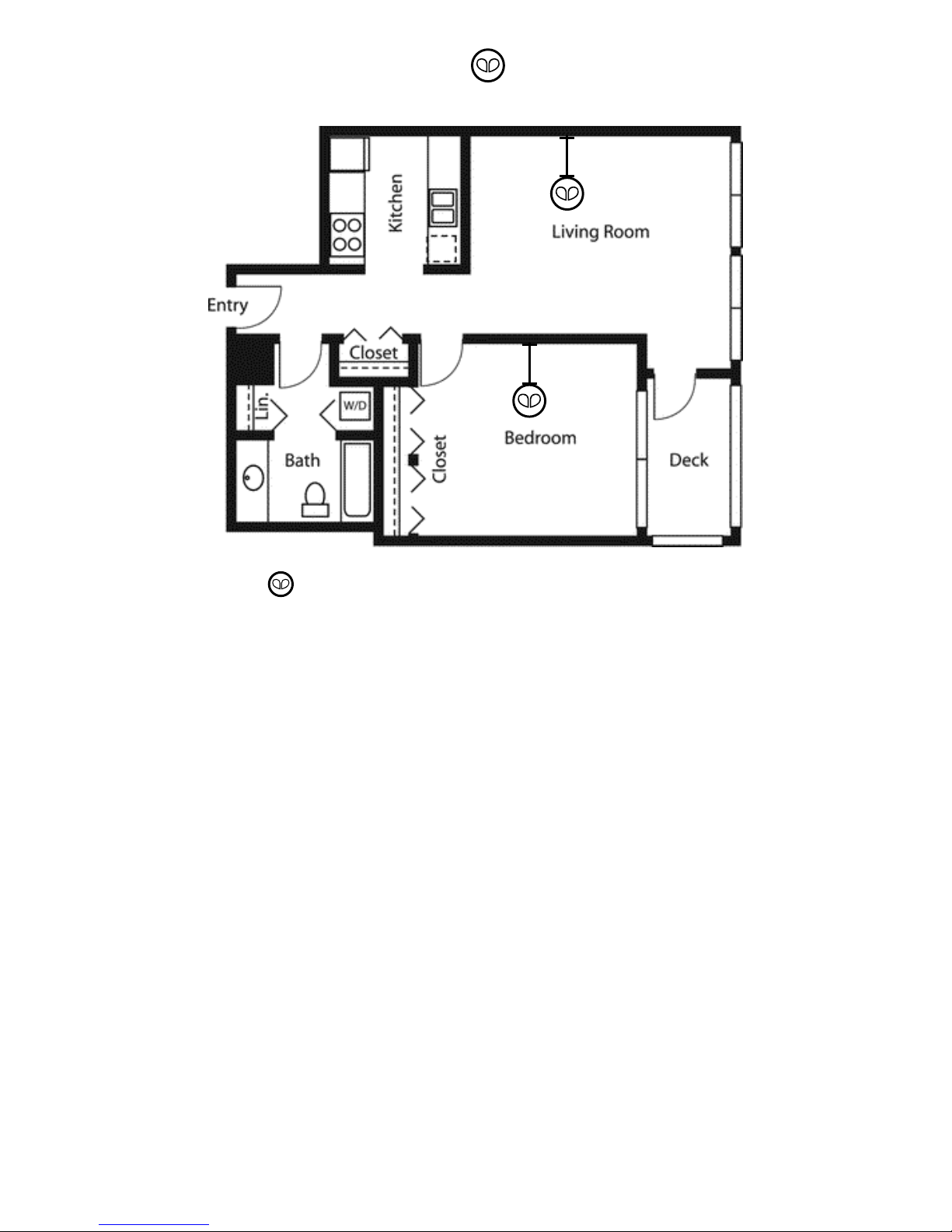
Where to put Moodbox
Place Moodbox at least 8 inches from the wall for the best
performance
Tips:
Moodbox comes with five light scenes which are baby blush
(pink), lavender mist (purple), sea breeze (aqua), sunset glow
(orange) and zen (warm). You can change the light scene using
voice commands or using the controller app
Moodbox supports Bluetooth . To play from your own music
library, turn on Bluetooth on your smartphone and pair with
Moodbox. When Bluetooth mode is on, you cannot talk to
Moodbox. Once you unpair, Moodbox will go back to the default
Wi-Fi mode and all voice commands will be restored
5Ghz Wi-Fi networks are not currently supported. Please
connect your Moodbox to 2.4Ghz Wi-Fi networks
For more information and examples, please go to Help on the
Moodbox Controller App
Visit our website www.mymoodbox.com for the latest
updates
You can also send us an email anytime with your questions and
feedback: [email protected]
Disclaimer:
The lampshade is fragile as it is made of glass. Please
handle with care. Any physical damages to the lampshade
are not covered by our after-sales warranty
4.0
Page 7

FCC statement
This device complies with Part 15 of the FCC Rules: Operation is subject to
the following two conditions:
1. This device may not cause harmful interference and
2. This device must accept any interference that is received, including any interfer
ence that may cause undesired operation.
This devic e is acting as slave and operat ing in the 2.4 GHz (2412 ~2462 MHz)
band.
NOTE: This equipment has been tested and found to comply with the limits for
a Class B digital device, pursuant to part 15 of the FCC Rules. These limits are
designed to provide reasonable protection against harmful interference in a
residential installation. This equipment generates uses and can radiate radio
frequency energy and, if not installed and used in accordance with the
instructions, may cause harmful interference to radio communications.
However, there is no guarantee that interference will not occur in a particular
installation. If this equipment does cause harmful interference to radio or
television reception, which can be determined by turning the equipment off and
on, the user is encouraged to try to correct the interference by one or more of
the following measures:
- Reorient or relocate the receiving antenna.
- Increase the separation between the equipment and receiver.
-Connect the equipment into an outlet on a circuit different from that to which
the receiver is connected.
-Consult the dealer or an experienced radio/TV technician for help
Radio Frequency Exposure Statement
The device has been evaluated to meet general RF exposure requirements. The device
can be used in fixed/mobile exposure conditions. The min separation distance is 20cm.
 Loading...